A customer hears about your business and asks for your website. You have a social profile, a half-finished logo and no clear place to send them.
You can build a useful first site without learning to code or hiring an agency. But comparing tools and moving boxes around a template can still swallow weeks.
Meanwhile, customers still need answers about your offer, your prices and how to get in touch. This guide takes you from those unanswered questions to a mobile-friendly website with a working enquiry process, plus the changes needed for bookings or online sales.
1. Decide What Your Website Should Help Customers Do
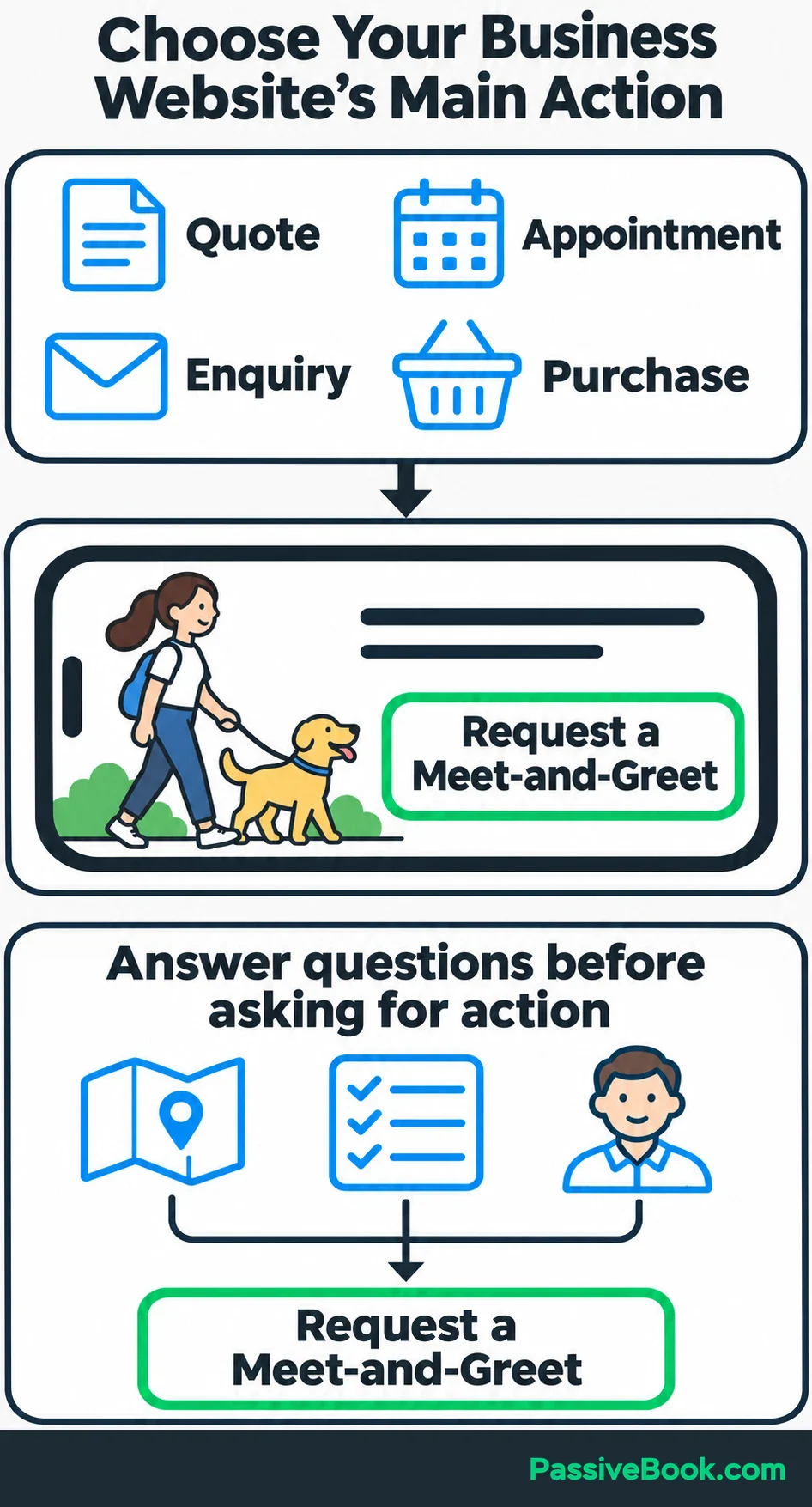
Choose the main action before choosing a template. Your website might need visitors to request a quote, book an appointment, send an enquiry or buy a product.
Pick one primary action and make the rest of the site support it. You can still offer other ways to contact you, but visitors should understand which step comes next.
Then write your offer in one sentence:
“We provide [service or product] for [customer] in [location or delivery format].”
Throughout this guide, we’ll use Maple Lane Dog Walking, a solo service in Brookfield, to show how these decisions shape a first website.
Its offer could be:
“Maple Lane provides solo dog walks for owners in Brookfield who need help during the working day.”
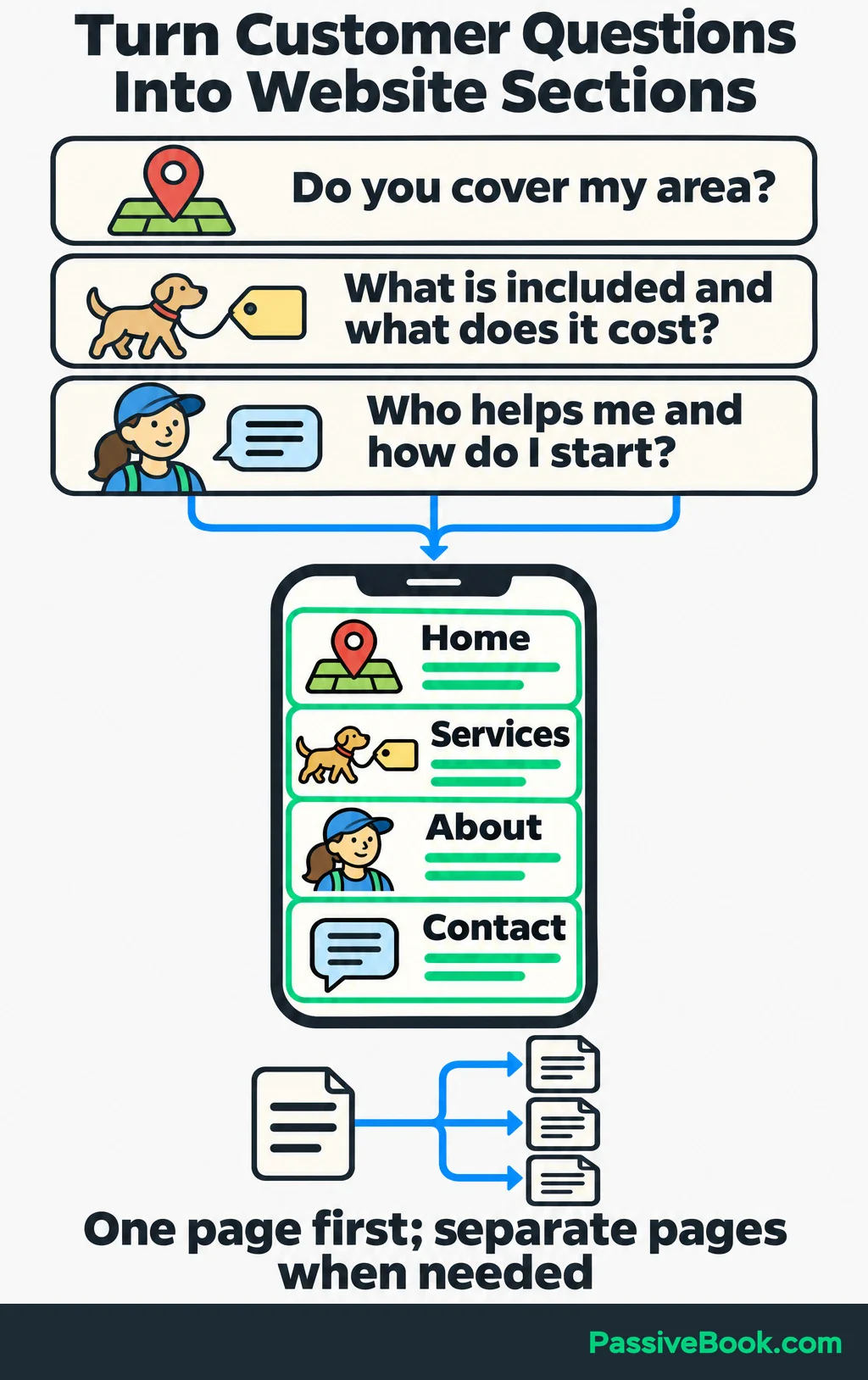
Its main website action is “Request a Meet-and-Greet.” Before taking that step, a visitor needs to know:
- Whether their neighborhood is covered.
- What a walk includes and how much it costs.
- Who will walk their dog.
- How the introduction works.
That gives you a page structure: Home, Services, About and Contact. A simple offer can put those sections on one page. Separate them when each needs enough explanation to deserve its own page.
For Maple Lane, I would start with one page and an enquiry form. Instant booking can wait until customers can reserve suitable, confirmed appointments without a discussion first.
2. Choose a Platform and Calculate Its Full Cost
Three parts make your website work:
- Domain: The address customers type to reach you.
- Hosting: The service that stores and serves your website.
- Builder or content management system: The tool you use to edit pages.
Hosted builders bundle the editing tool and hosting. With self-hosted WordPress, you arrange hosting separately.
Match the Platform to Your Requirements
Compare platforms against the customer action you chose. A beautiful editor is little help if the booking feature you need requires another subscription.
| Platform | Suitable Requirements | Hosting Arrangement | Maintenance Responsibilities | Essential Paid Features |
|---|---|---|---|---|
| Carrd | A focused, one-page site with service details and an enquiry form | Included | Keep content, contact details and form delivery working; Carrd manages hosting | Pro Standard or higher for a custom domain and basic contact forms |
| Wix | Several pages, visual editing and optional booking or selling tools | Included | Maintain content, business settings and connected apps; Wix manages hosting | A paid plan for a custom domain; a payment-enabled plan for online payments |
| Self-hosted WordPress.org | Flexible pages, publishing and a choice of themes and extensions | Buy hosting separately | Arrange updates, backups, security and troubleshooting, yourself or through your host | Hosting and domain; optional paid themes or plugins |
| Shopify | Product sales with inventory, checkout and order management | Included | Maintain products, fulfillment, store settings and added apps | A suitable store subscription, payment processing and any necessary paid apps |
I use WordPress for Passive Book, with GeneratePress as the theme that controls its layout and appearance. I can choose my host, change the design and extend the site as it grows.
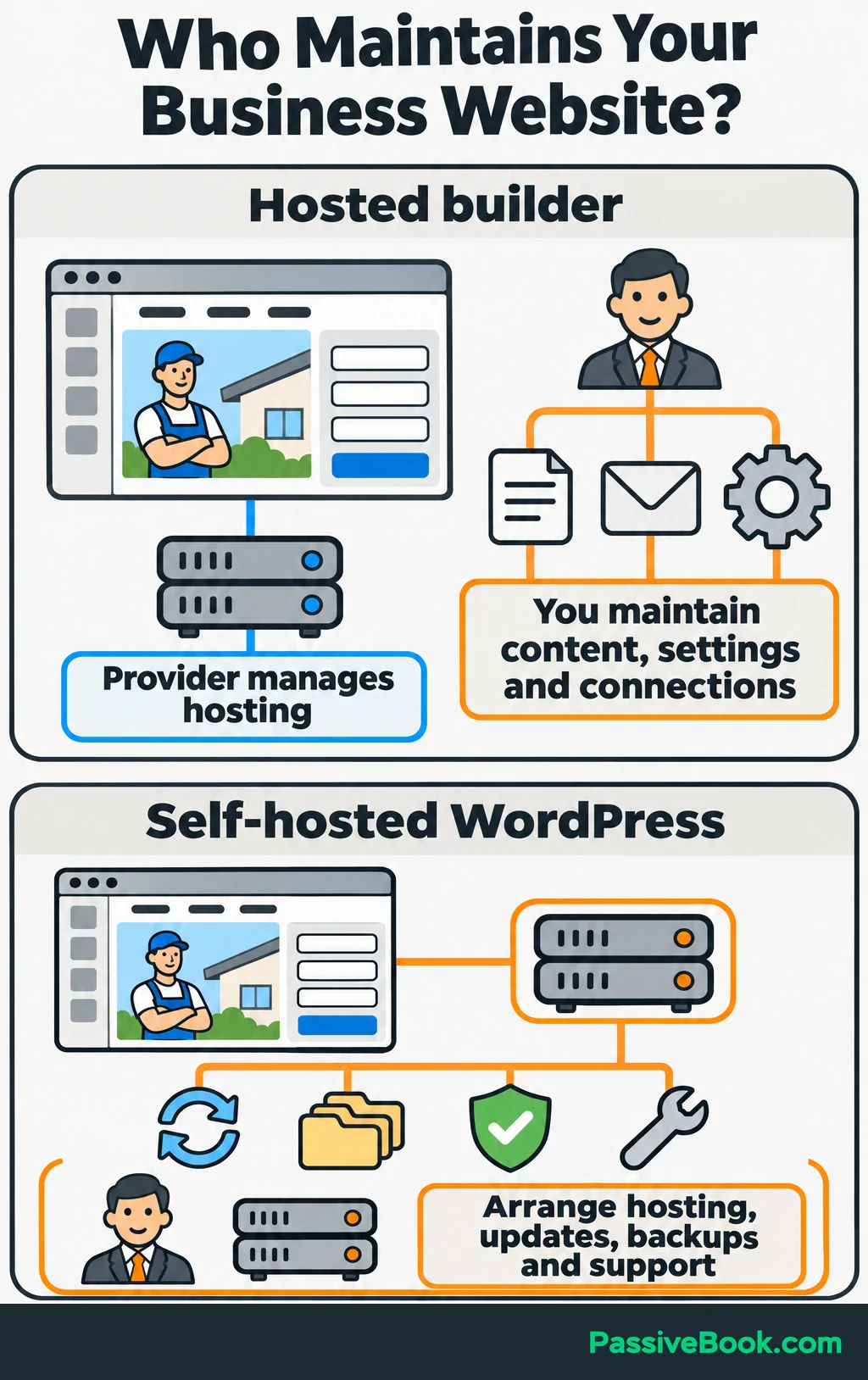
For Maple Lane’s initial enquiry site, though, I would choose Carrd. Its requirements are small, so I wouldn’t add WordPress maintenance just to publish service details and a form.
Choose Wix if you want several pages and prefer the provider to manage hosting. For a catalog where stock and orders are central, I would put Shopify on the shortlist.
Before paying, try three jobs: edit your offer, check the phone layout and configure the main customer action.
Also check what happens if you leave. Owning your domain separately does not make the site portable. For example, a Wix website must run on Wix’s servers, so moving elsewhere means rebuilding the site.
Compare Upfront Payments and Renewal Costs
Write down what you must pay now and what you will pay to keep the site running. Include:
- Domain registration and renewal.
- Hosting or the builder subscription.
- A business mailbox, if needed.
- Essential forms, booking tools or store extensions.
- Setup help and ongoing maintenance.
- Payment processing and applicable platform transaction charges.
For Maple Lane’s basic enquiry site, a rounded planning allowance could be US$20 for the builder and US$20 for a standard domain, or US$40 for those two items for one year. These are budget allowances, not a checkout quote; compare the selected builder plan with the exact domain’s registration and renewal prices.
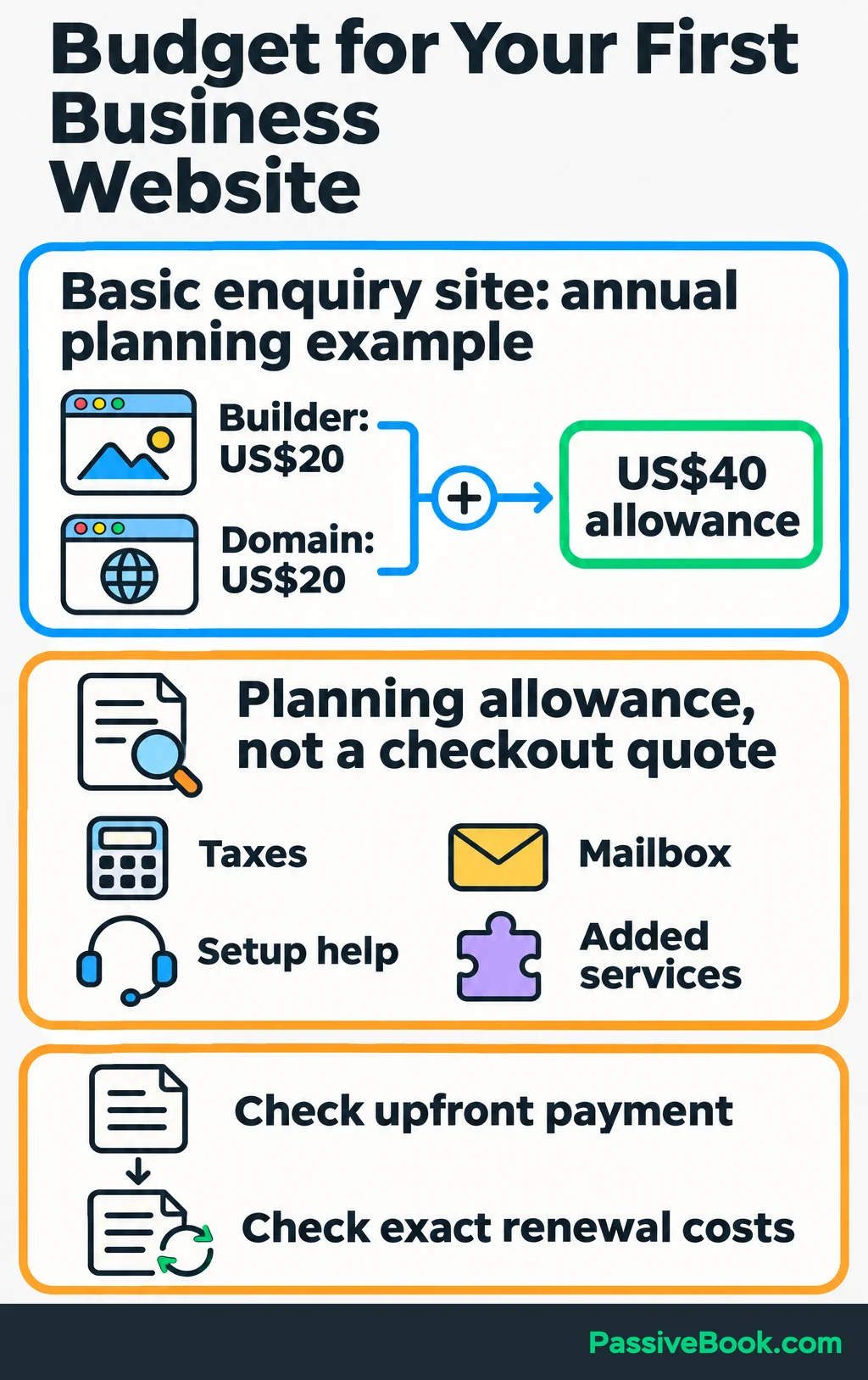
That allowance excludes taxes, a paid mailbox, setup help and added services. A booking system or store needs its own budget.
Check the billing period too. A monthly-looking price may require a year or more upfront. Record cancellation terms, renewal dates and what recovery support is included.
I would spend first on the features needed to receive an enquiry or payment. A premium animation package can survive the disappointment.
3. Register Your Domain and Set up the Website
Choose a domain that is easy to say, spell and remember. It should fit the business without tying you to one narrow service you may later expand beyond.
Search your preferred name through a registrar such as Namecheap or Porkbun. Check the exact domain’s renewal cost before registering, especially if the first year is discounted.
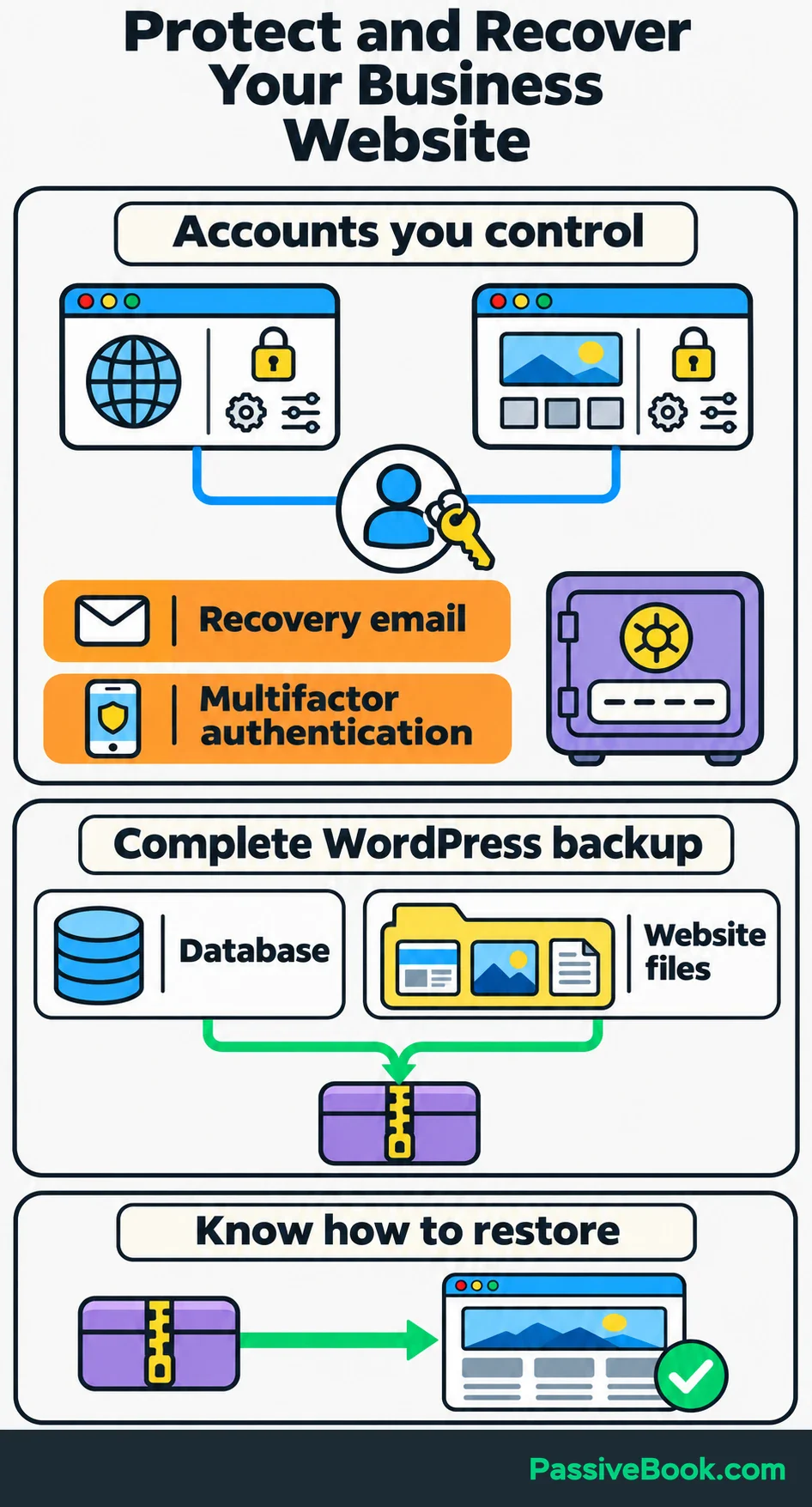
Keep the domain and website accounts under your control. Use a recovery email you expect to keep. Turn on multifactor authentication where available, so signing in requires a second check, such as a code from an app. Save recovery codes and billing details securely.
Then set up your chosen platform:
- For a hosted builder, create the site and connect your domain using the records the builder supplies.
- For WordPress, choose compatible hosting, use the host’s supported installation process, and install your theme.
Connecting a domain usually means adding or changing DNS records, which tell browsers where your website lives. Copy the supplied values carefully and avoid deleting email records while doing it.
Enable HTTPS so the site opens through an encrypted connection without browser warnings. Keep unfinished work in a private preview or behind a coming-soon page.
With WordPress, establish a recoverable backup before substantial customization. A complete backup needs both the database and the website files. Know how to restore it, rather than merely knowing a backup button exists.
4. Write Pages That Help Customers Choose Your Business
Gather the facts before drafting: your offer, prices, service area, photographs, contact details and common questions.
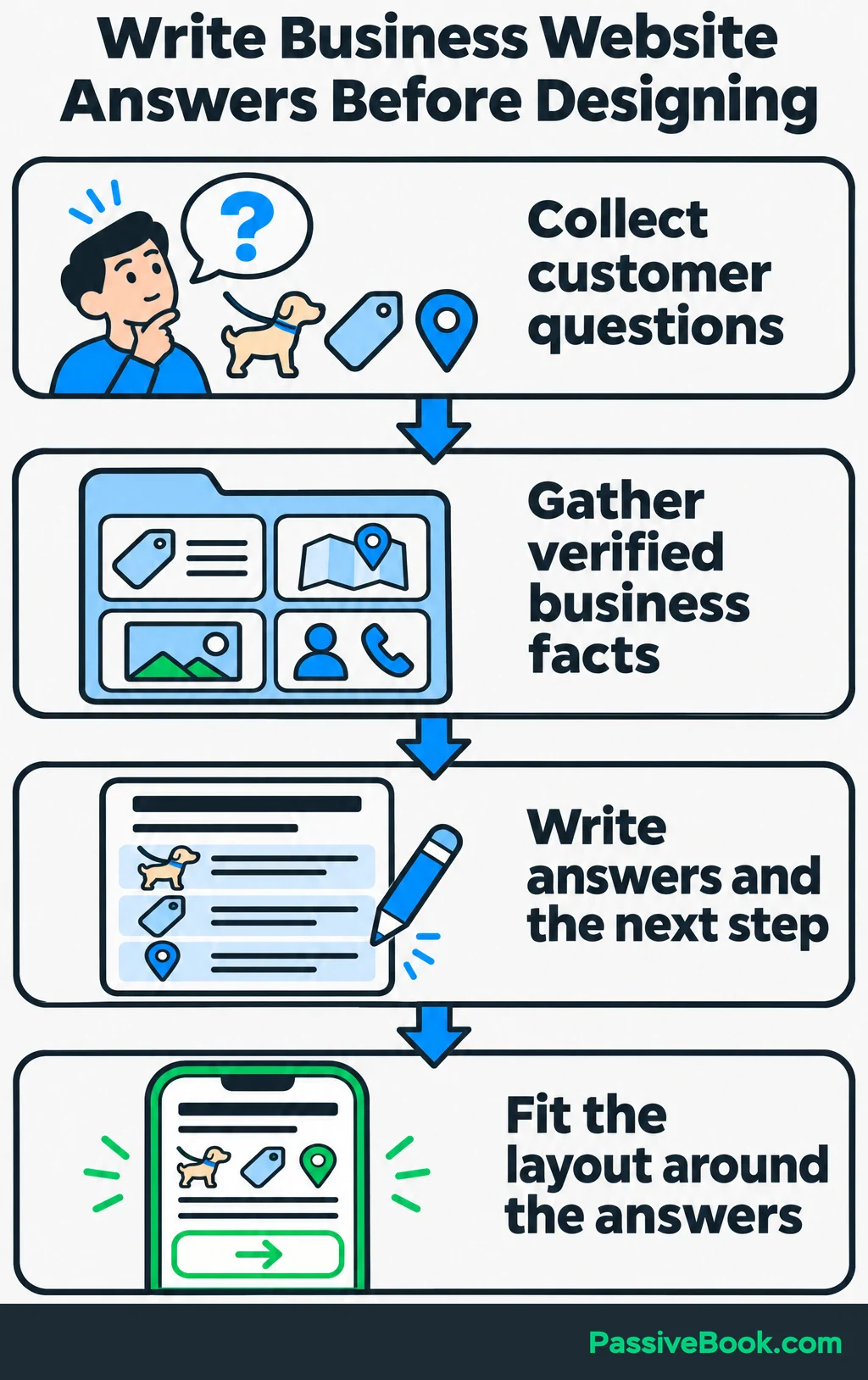
I once built a product page around the space available in a template. I had room for a large opening image and three neat feature boxes, but the delivery details ended up near the bottom. The design was finished before the explanation was.
Now I write the customer’s questions first and fit the layout around the answers. Each page needs a clear purpose and a relevant next step.
Explain the Offer on the Homepage
Lead with what you provide and where or whom you serve. Visitors should not have to decode a slogan.
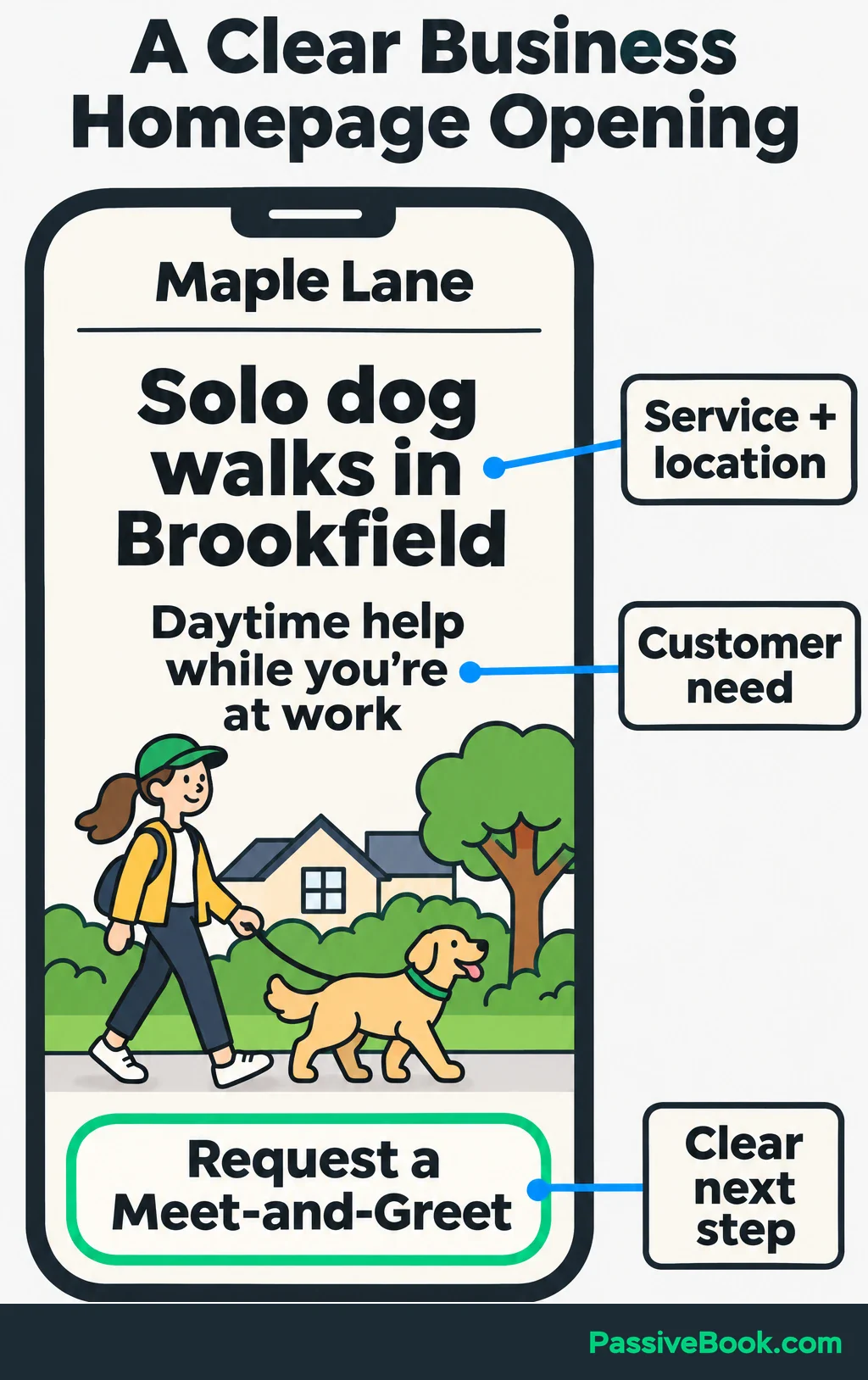
Maple Lane’s opening could be:
“Solo dog walks in Brookfield.”
“Get help with daytime walks while you’re at work. Check the service area and walking options, then request a meet-and-greet.”
Follow that with a relevant photograph and the “Request a Meet-and-Greet” button.
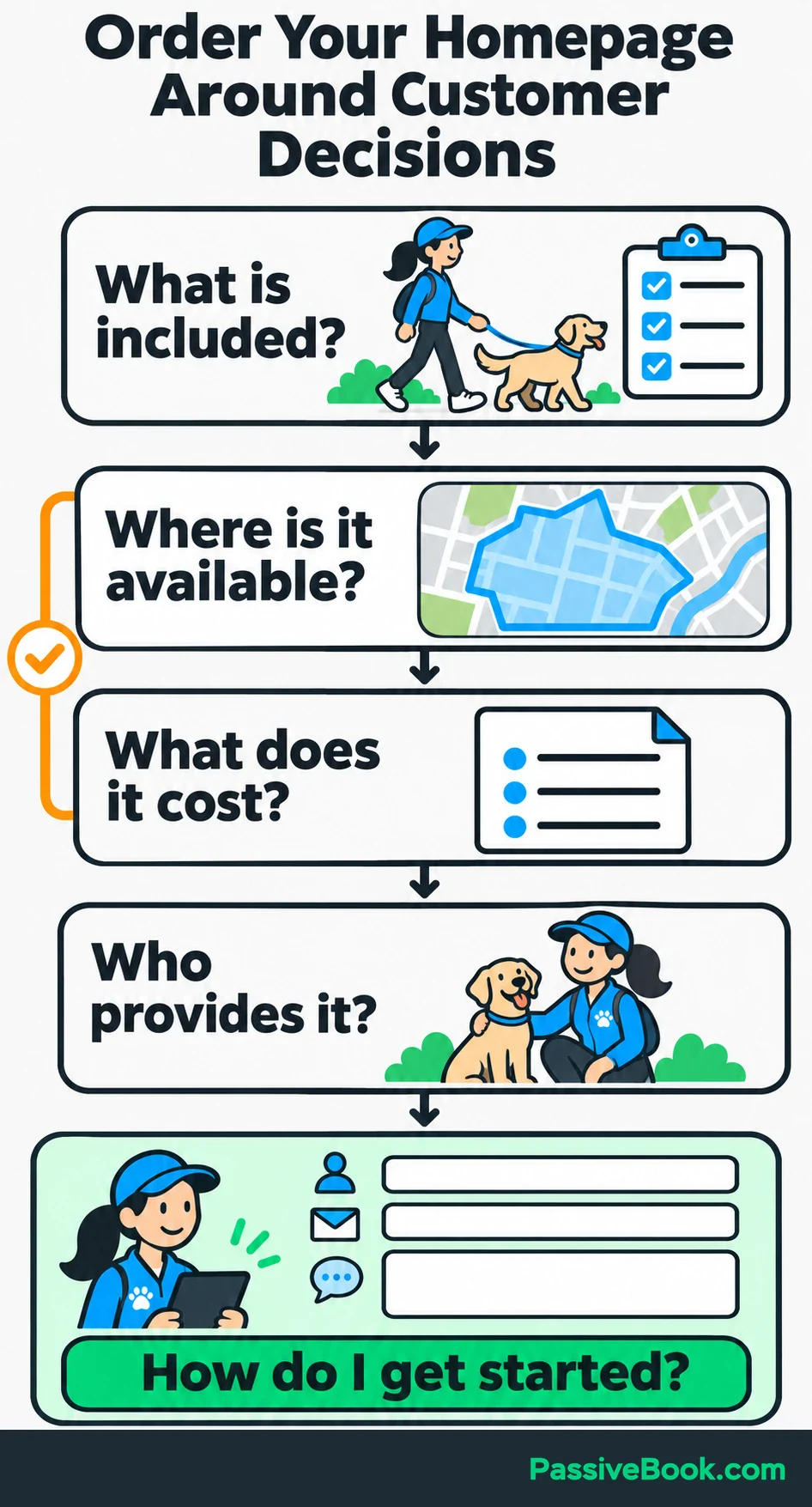
Build the supporting sections around the visitor’s decision:
- What the service includes.
- Where it is available.
- What it costs.
- Who provides it.
- How to get started.
For Maple Lane, coverage and pricing belong before the final enquiry invitation. Visitors need those answers to decide whether contacting you makes sense.
Make Services or Products Easy to Evaluate
Explain enough for someone to judge suitability without emailing basic questions.
For a service, cover what is included, duration, coverage, price or quoting process, and how the work begins. Mention important exclusions beside the offer.
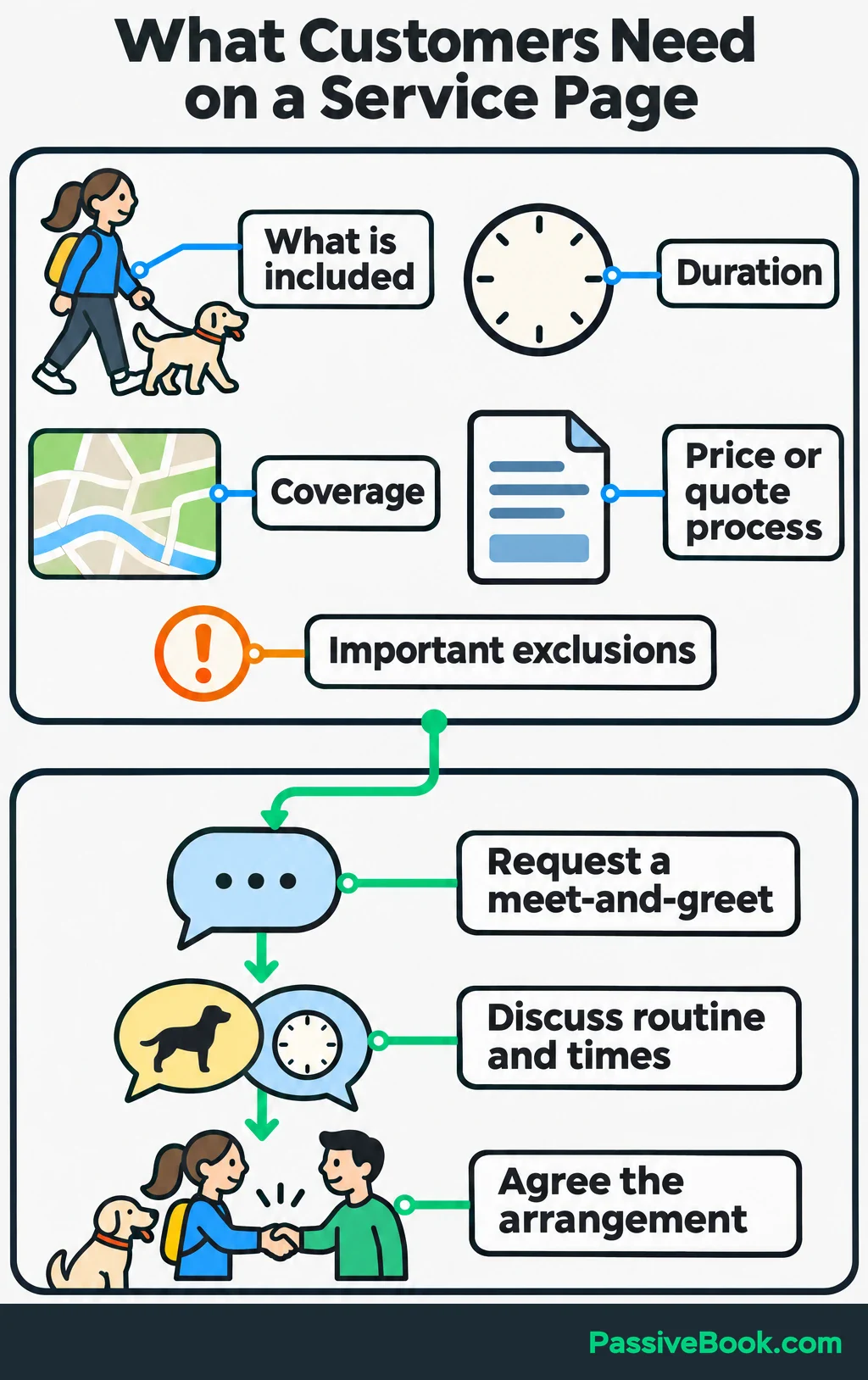
Maple Lane would explain whether walks are solo, which parts of Brookfield are covered, how long walks last and how recurring arrangements are agreed.
A useful process excerpt might read:
“Start by requesting a meet-and-greet. I’ll discuss your dog’s routine and the times you need before agreeing any walking arrangement.”
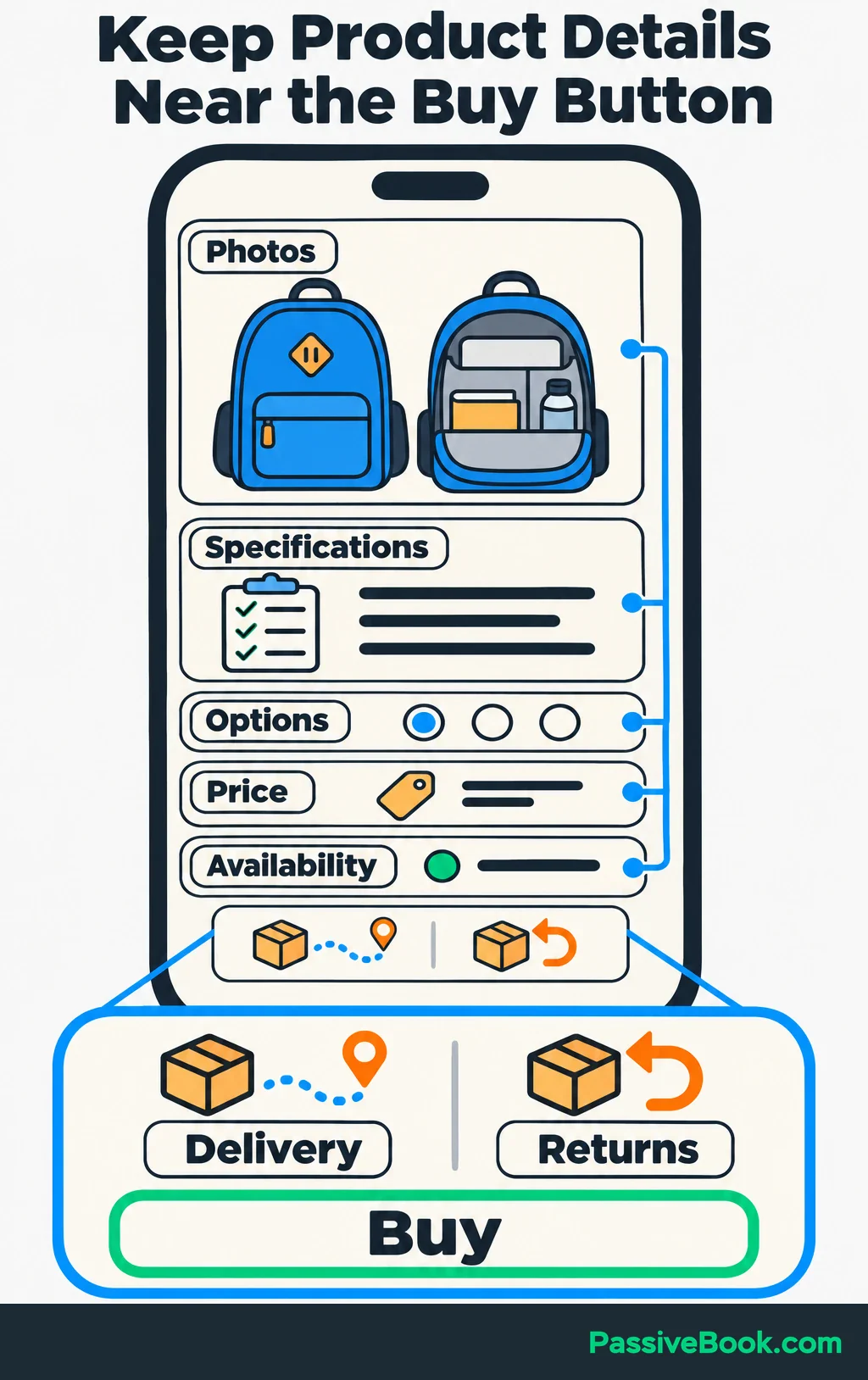
For products, replace service details with clear photographs, specifications, options, price, availability, delivery and returns information. Keep those details close to the purchase button.
If you quote individually, say what information you need to prepare the quote. “Contact for pricing” gives visitors a task; explaining the quoting process gives them a reason to complete it.
Show Who Is Behind the Business
Introduce the person responsible for delivering the offer. Explain the experience that matters to the customer and show the actual work where possible.
For Maple Lane, that means information about the walker, a real photograph, service hours and a working contact method. Relevant training or insurance can support the explanation when genuinely held.
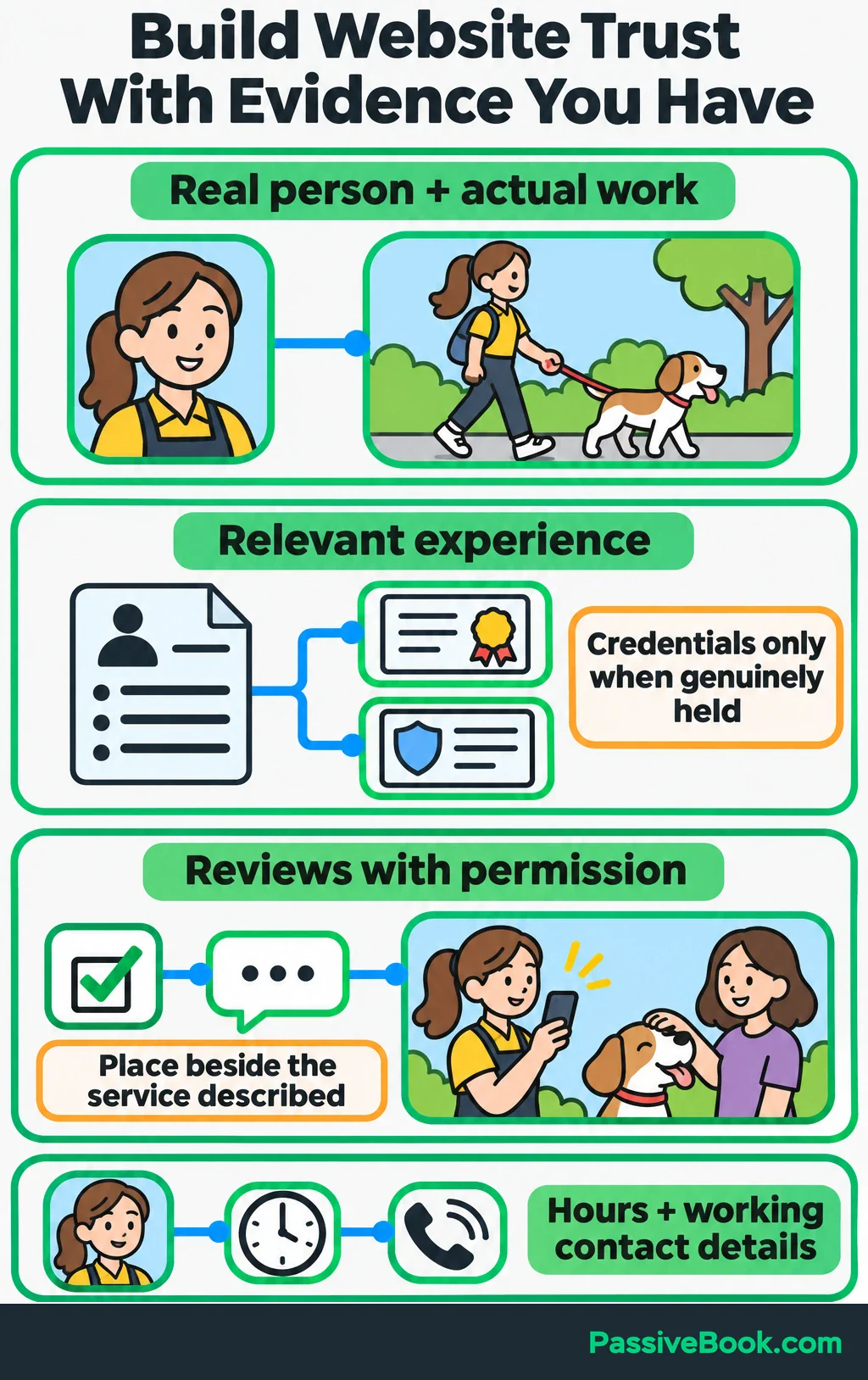
Use customer reviews only with permission, and place them beside the service they describe. A review about reliable communication belongs near your explanation of updates and handovers.
A new business can still show care through clear processes, useful photographs and specific answers. You do not need a wall of testimonials to explain how you work.
Use AI to Create an Editable First Draft
Give an AI writing tool your business facts before asking for copy. Include the page’s purpose, customer questions and desired action.
A useful prompt is:
“Draft a homepage for Maple Lane Dog Walking in Brookfield using the service details below. Explain solo walks and guide visitors toward requesting a meet-and-greet. Use plain language. Mark missing information with placeholders and do not add credentials, reviews or business history.”

Paste your facts underneath it.
Then check every claim, replace placeholders and remove anything you cannot support. Read the draft aloud and simplify phrases you would never say to a customer.
I would use AI to organize facts and suggest wording.
If the blank page is slowing you down, AI Copywriting Studio can turn your notes into a section-by-section draft. Start with one page, then check the details before adding it to your site.
Free AI Copywriting Studio




5. Build a Clear, Mobile-friendly Layout
Choose a template whose structure fits your content. An AI-generated layout can also provide a starting point, but judge it by the same standard: can visitors understand the offer and complete the next step?
Build one page or section first. Set a readable font, a small color palette, consistent spacing and one main button style. Reuse those choices as you add content.
Then:
- Add your planned pages or sections.
- Replace sample text and images with your own.
- Remove unused sections and decorative elements.
- Use familiar navigation labels such as Services, About and Contact.
- Connect action buttons to the correct destination.
For Maple Lane, every “Request a Meet-and-Greet” button should reach the enquiry form. Place one near the opening offer and another after the details customers need to decide.
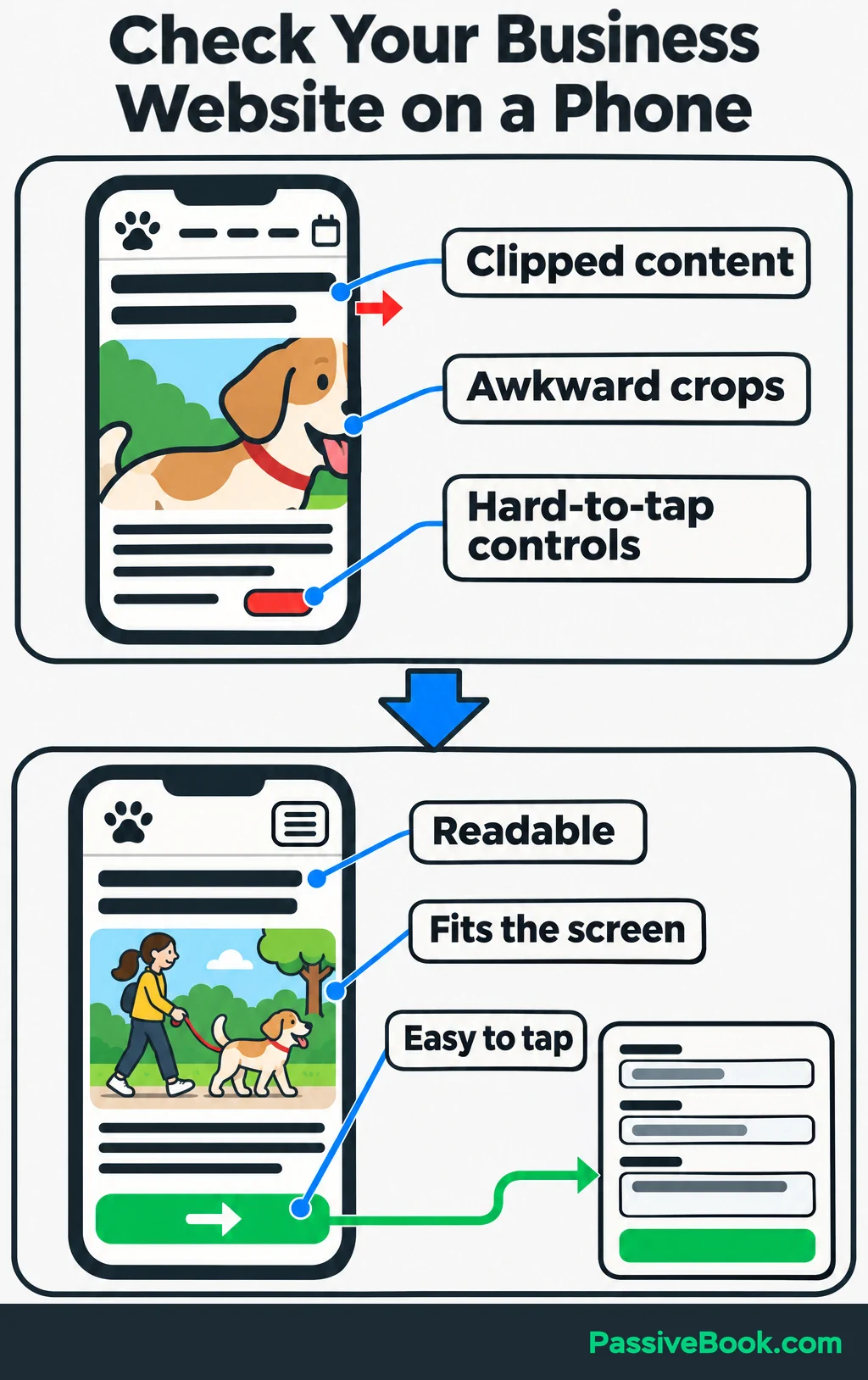
Check the site on your phone while building. Look for clipped text, sideways scrolling, awkward image crops, crowded menus and controls that are hard to tap.
Resize and compress photographs before uploading them. Skip background video and effects that add download time without helping customers choose.
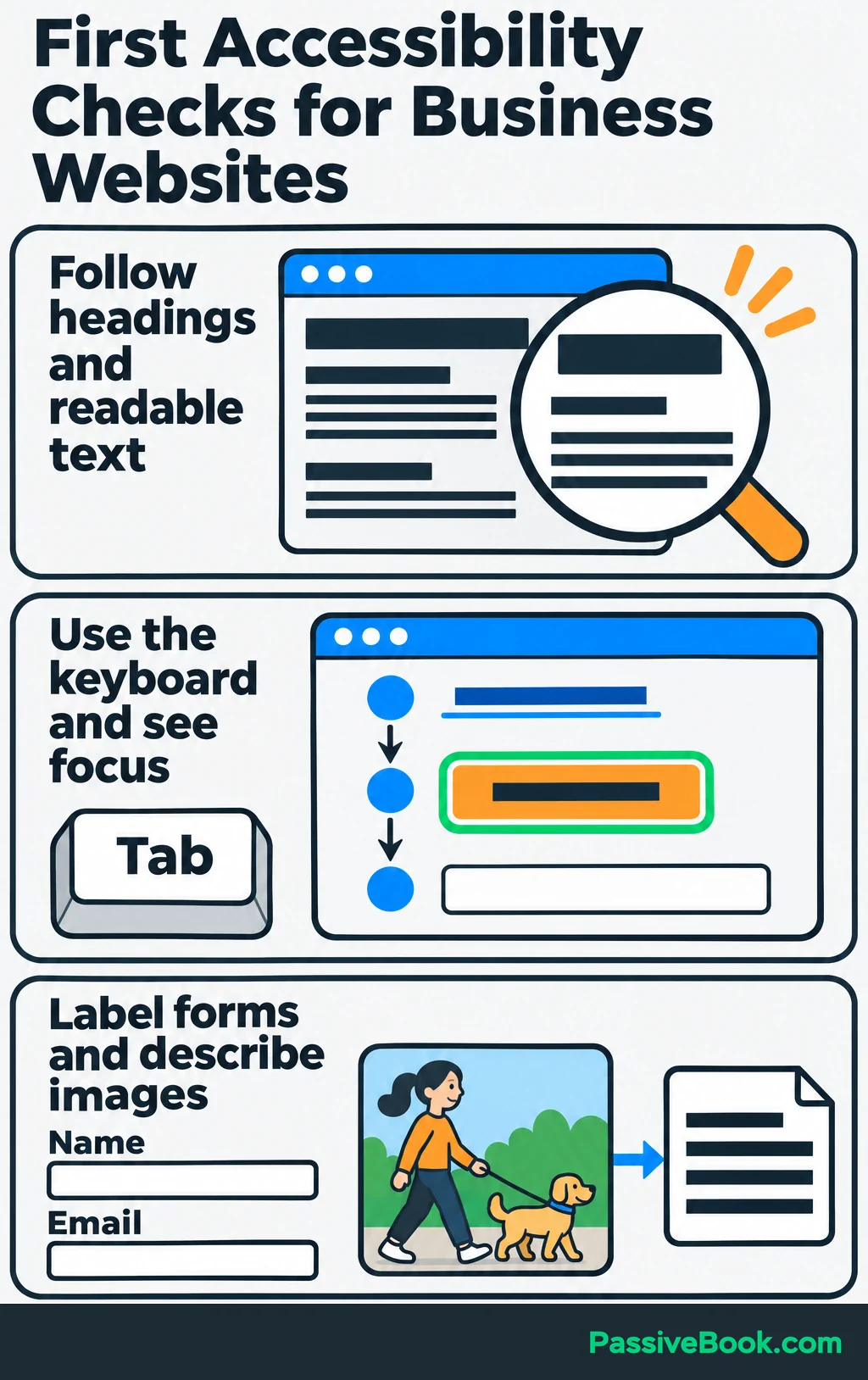
Make the layout usable beyond a mouse and a large screen. Use clear headings, readable text contrast, visible form labels and meaningful image descriptions. Check that you can reach links and form controls with the keyboard and see which item is selected. W3C’s accessibility checks provide a practical first review.
6. Connect the Enquiry or Purchase Process
Make Enquiries and Bookings Work
Build the contact section around the action you want visitors to complete. Keep the form short enough to finish and detailed enough for you to respond.
Maple Lane can begin with name, email and message fields. Above the message box, ask visitors to include their neighborhood and preferred walking times.
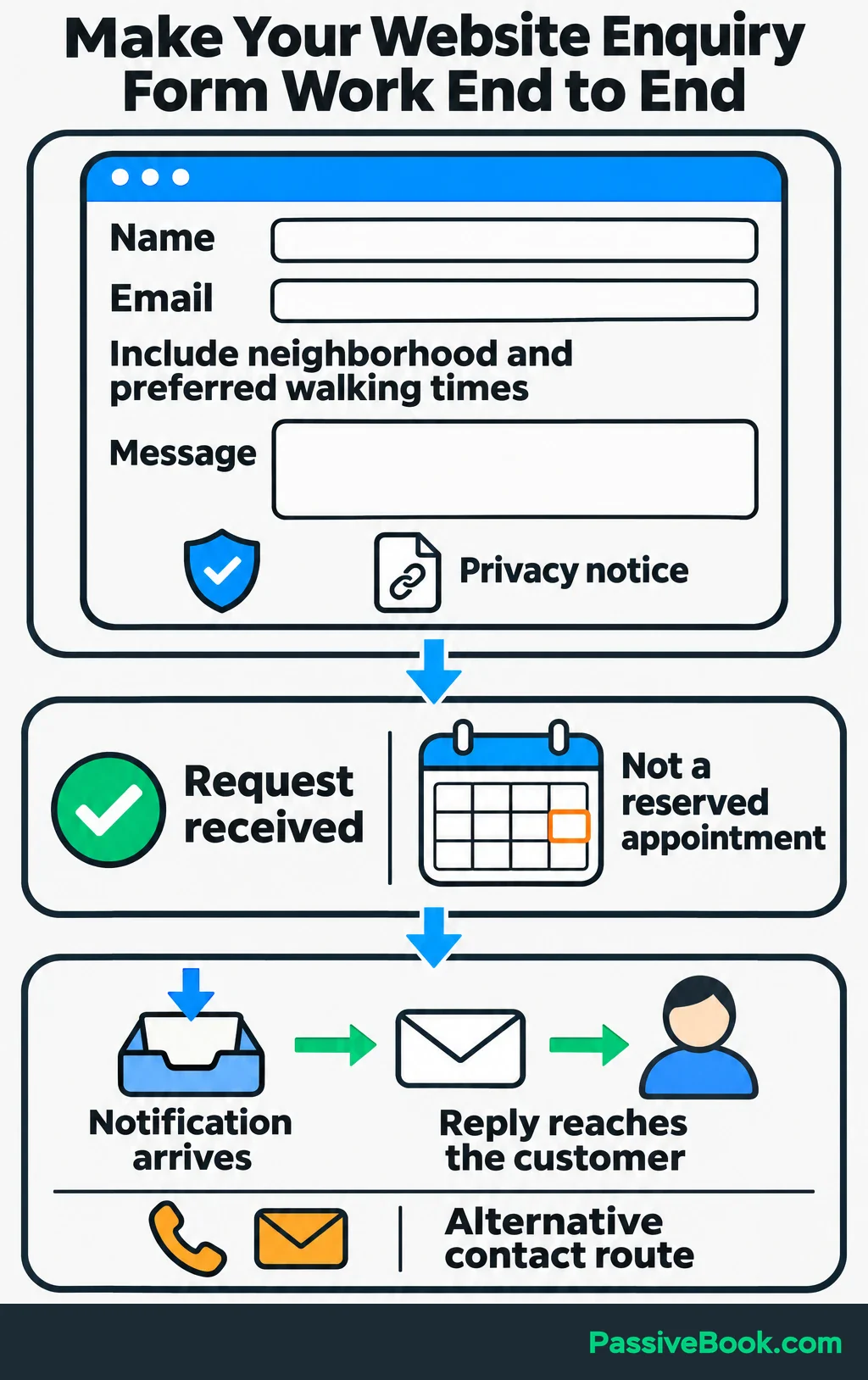
Explain what happens next. A suitable success message would be:
“Thanks for your request. I’ll reply by email to discuss your dog’s routine and possible meeting times. This request does not reserve an appointment.”
Tell visitors how soon to expect a reply.
Enable spam protection and send notifications to an inbox you monitor. Provide an alternative email address or phone number so visitors have another route if the form fails.
A business email address can help keep enquiries organized. Remember that email forwarding only routes incoming messages; it does not, by itself, give you a mailbox for sending replies from that address.
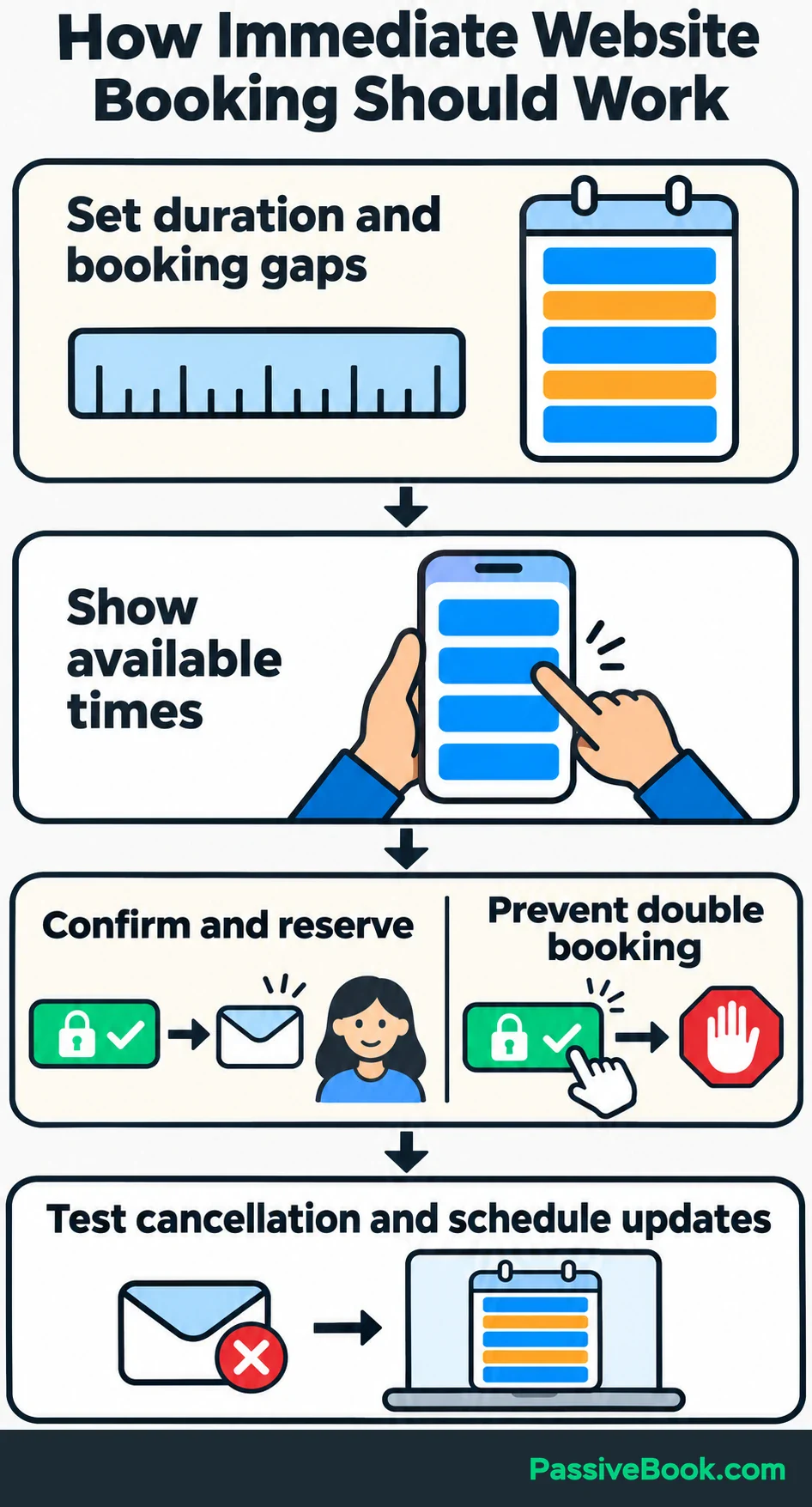
For appointments customers can reserve immediately, add a booking tool that shows available times. Set the appointment length and any gaps needed between bookings. Test confirmations and cancellations, and check that a reserved time cannot be booked twice.
Link a clear privacy notice near the form and set up any tracking-consent controls required for your business and visitors. For businesses subject to UK rules, the ICO’s privacy-notice guidance explains the information to disclose about collection and use.
Complete Checkout When Customers Buy Online
If customers purchase through the site, configure the whole order process before launch:
- Products or bookable services, including options and availability.
- A supported payment provider and the correct currency.
- Delivery, fulfillment and applicable tax settings.
- Purchase, cancellation and returns policies.
- Order confirmations and payment notifications.
Use the platform’s payment integration. Ordinary enquiry forms are not a place to collect card details.
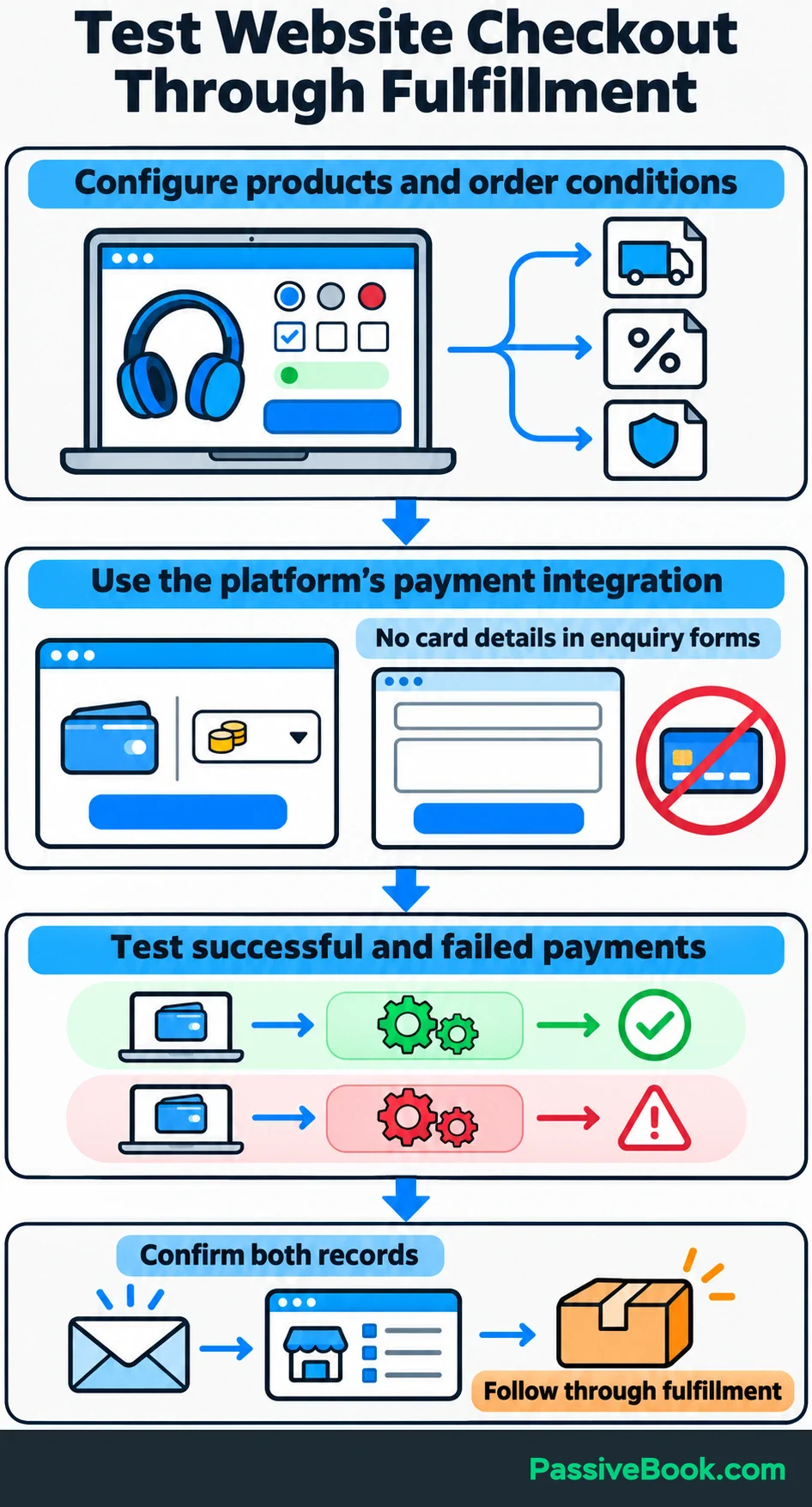
Follow the payment provider’s test procedure for successful and failed payments. Check what the buyer sees and what arrives in your business records, then follow the order through delivery or fulfillment.
A payment confirmation is only one part of a completed sale.
7. Prepare Your Pages for Search
Give each important page a specific customer need to answer. Use the words people would use to describe your actual offer.
For Maple Lane, “solo dog walking in Brookfield” describes both the service and location. “Exceptional experiences for treasured companions” leaves rather more work for everyone involved.
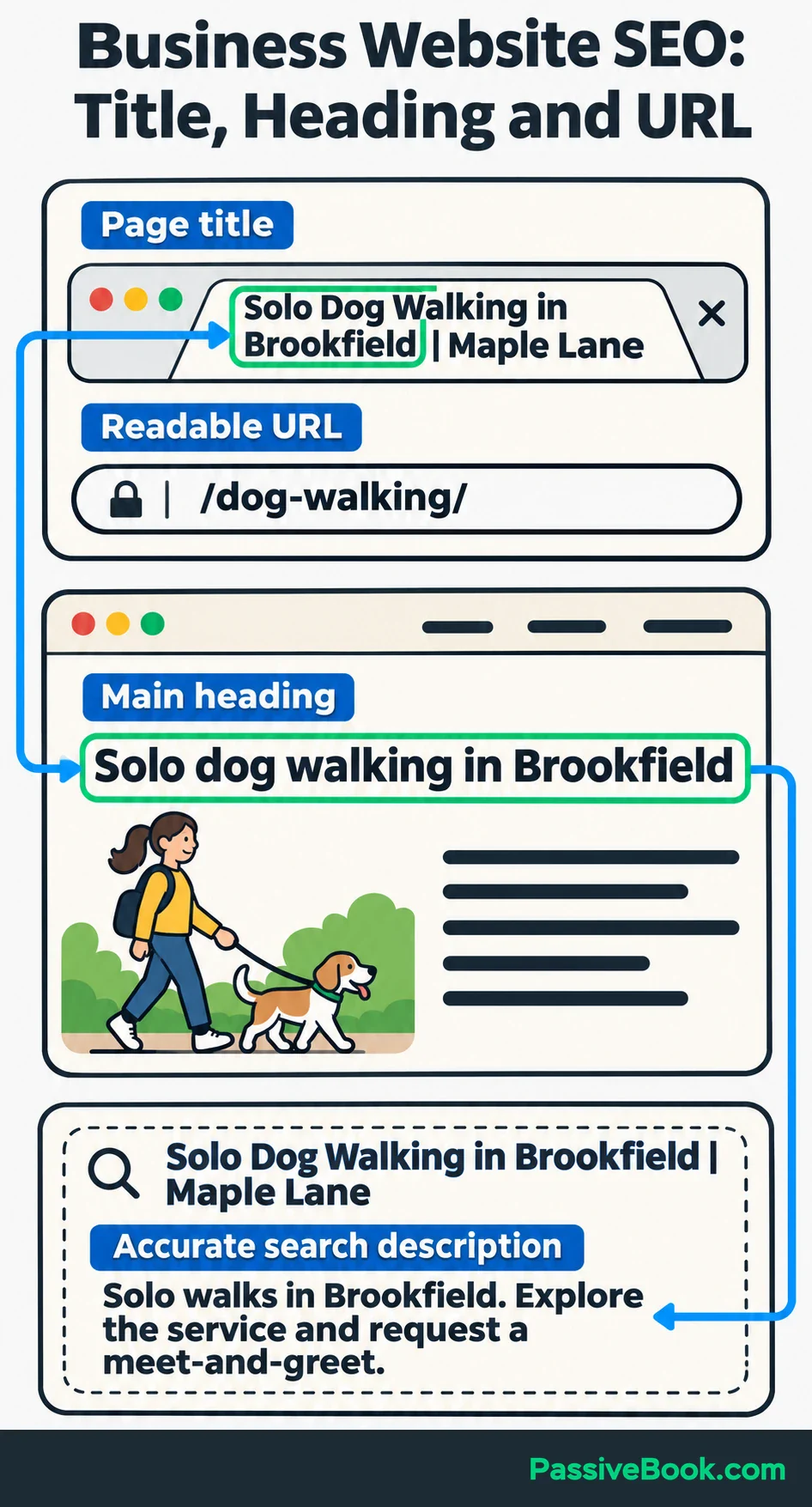
Set a distinct page title and a clear main heading. A future service page could use:
“Solo Dog Walking in Brookfield | Maple Lane”
Keep URLs readable, such as /dog-walking/, and write a short search description that accurately summarizes the page. Link related pages so visitors can move from the offer to supporting information and contact details.
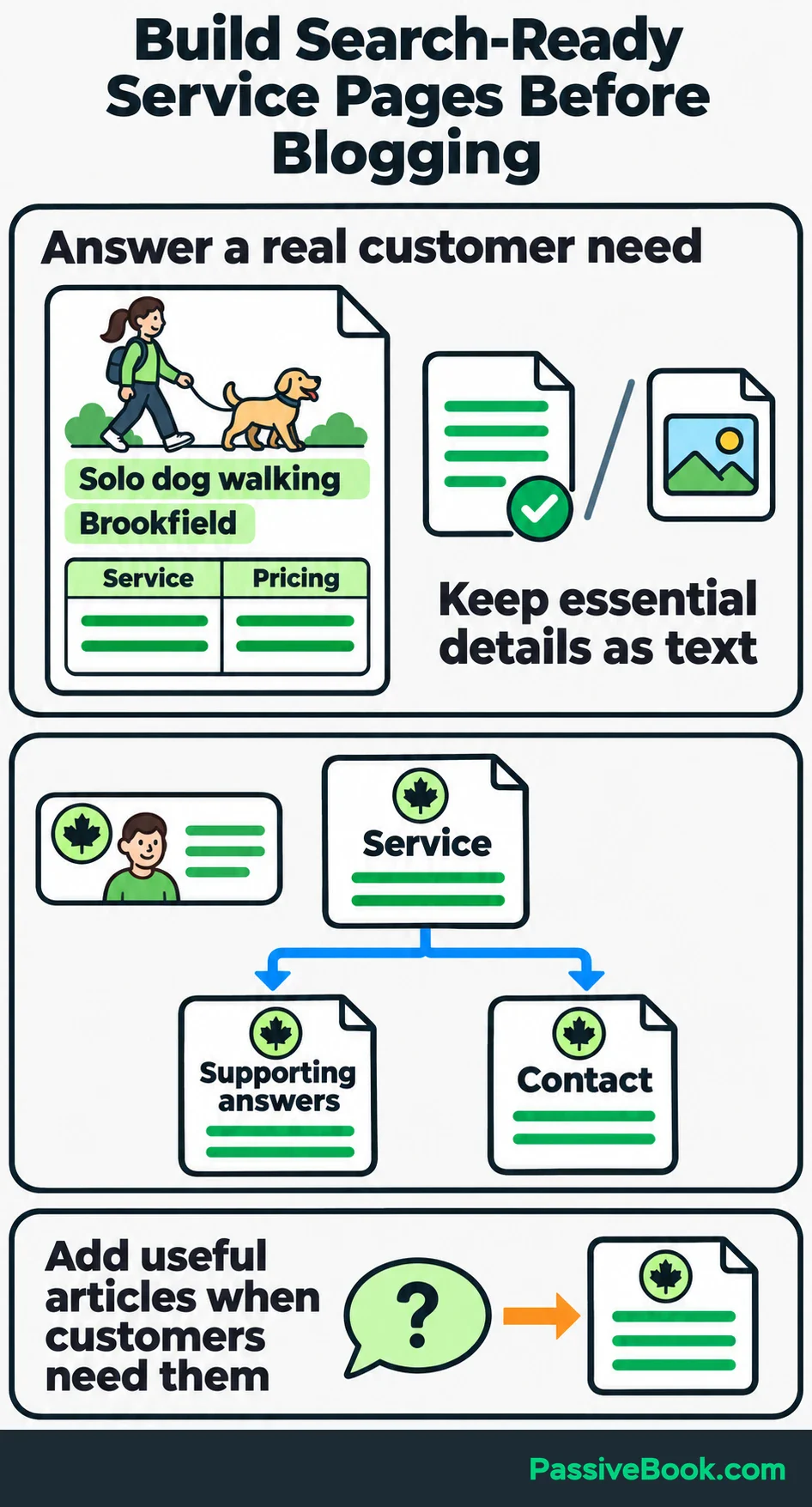
Keep essential information available as text. A pricing graphic alone makes prices harder to read, search and update.
Use the same business name, contact details and service information across your website and business profiles.
I would finish the offer pages before starting a blog. Once they work, add articles that answer questions relevant customers actually ask. Publishing more pages is useful only when those pages have something useful to do.
8. Test and Publish Your Website
Test the customer journey from beginning to end on a real phone and a desktop.
Start without being logged into the builder. Find the offer, check the price or quoting process, and complete the enquiry or purchase.
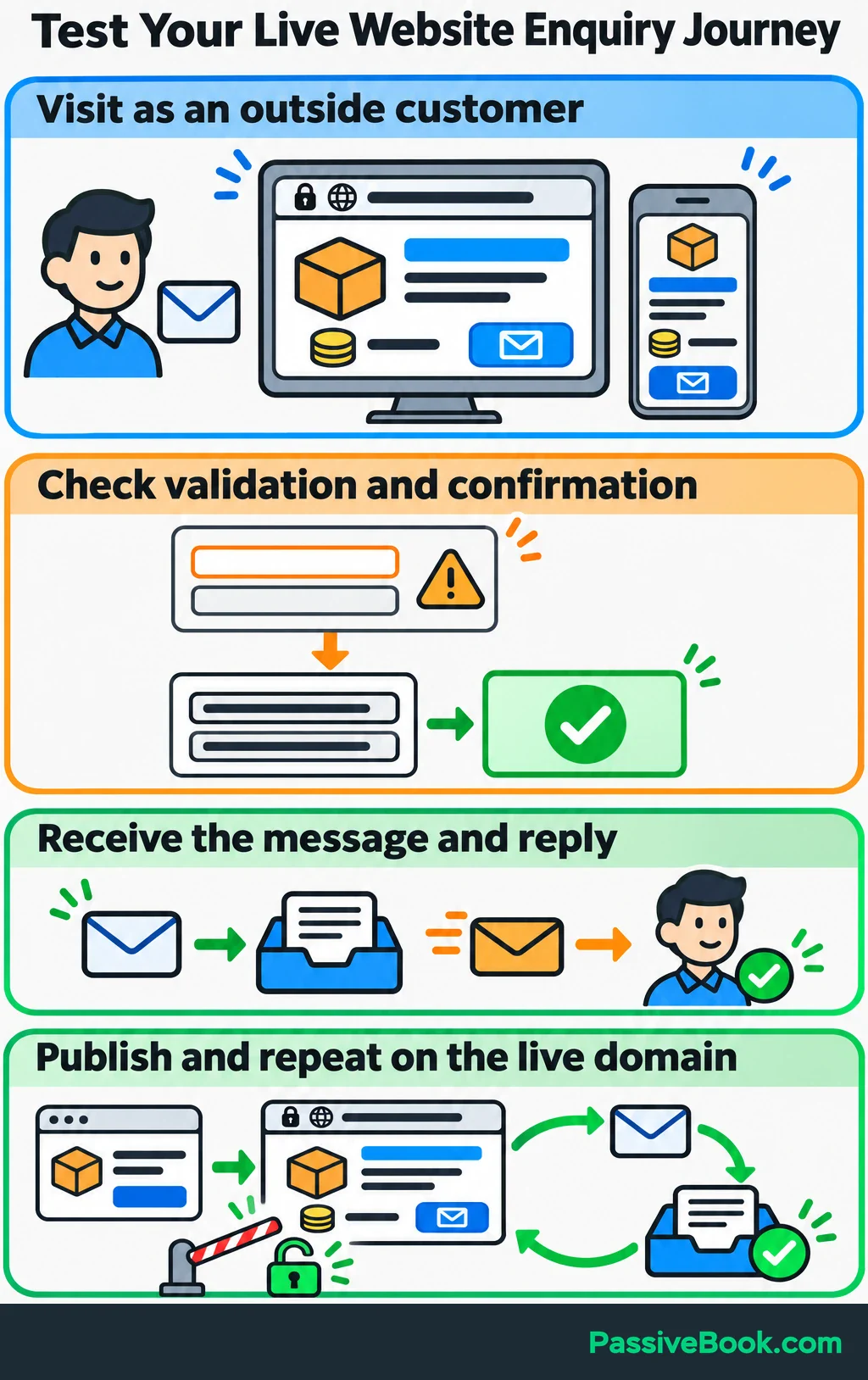
For an enquiry site, use an outside email address and confirm that:
- The form accepts valid submissions and identifies missing required fields.
- The visitor sees the correct success message.
- The business receives the notification.
- You can reply successfully.
Also review the pages for unfinished template text, incorrect details, broken links and missing images.
Ask another person to find out what you offer, understand the cost and take the next step without coaching. Watch where they hesitate. A task you have completed fifty times can look deceptively obvious.
Check HTTPS, loading, navigation and keyboard access. Then publish on the custom domain, remove launch restrictions and unintended search-blocking settings, and repeat the customer journey on the live site.
The preview working is encouraging. The published form reaching your inbox is the check that matters.
9. Bring Relevant Visitors to Your Website
Start with places where people already encounter your business. Add the website to relevant profiles, email signatures, customer messages and suitable directories.
Link to the page that answers the visitor’s need. A recommendation about dog walking should lead to walking details and the meet-and-greet form.
For an eligible local business, set up or update a Google Business Profile. Online-only businesses are ineligible. If you travel to customers and do not serve them at your address, follow Google’s service-area guidance and hide that address.
Connect Google Search Console, Google’s tool for checking how your site appears in search. Verify that you control the site, inspect important pages and submit the sitemap if your platform provides one. A sitemap lists pages for search engines to discover.
Requesting a crawl does not guarantee inclusion in search results, so use Search Console to monitor progress rather than repeatedly submitting the same page.
Choose one ongoing traffic activity you can sustain. For Maple Lane, I would start with accurate local listings and relevant local referrals. A nationwide content calendar can wait while the website still needs to reach nearby customers.
10. Maintain the Website and Improve Customer Results
Track completed customer actions first. Use form records, booking records or orders to see what the site produces, and add suitable analytics when you need more detail about visits.
Keep button clicks separate from successful submissions. Someone opening the form has not yet sent an enquiry.
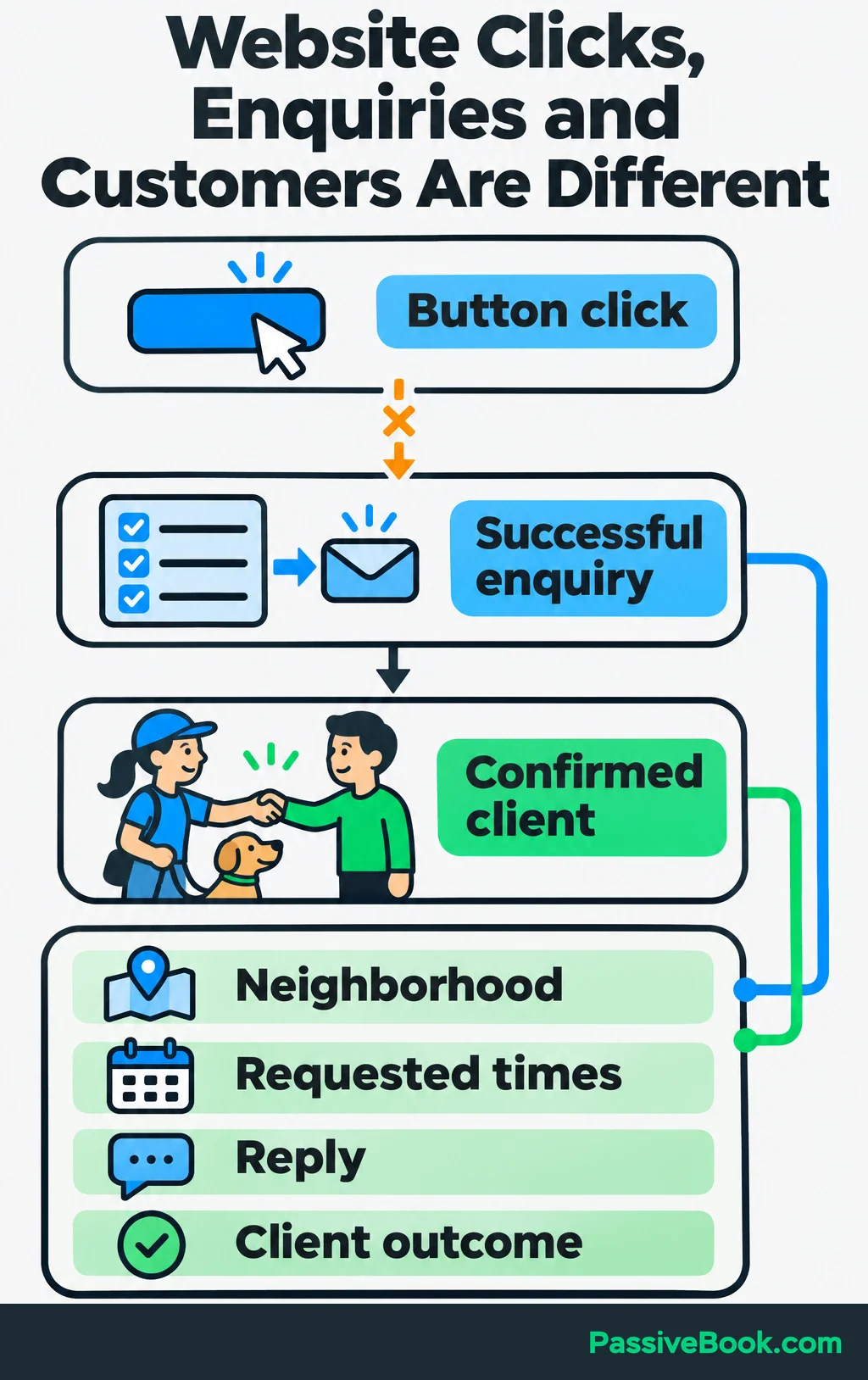
For Maple Lane, a simple enquiry log could record the request date, neighborhood, requested walking times, reply and whether the enquiry became a confirmed walking client.
That helps you choose the next improvement:
| What You Observe | What to Check First |
|---|---|
| Very few relevant visits | Local profiles, referral links and search discovery |
| Enquiries from outside your area | How clearly you state coverage before the form |
| Visitors report submitting, but messages are missing | Form delivery, spam filtering and notification settings |
| Suitable enquiries receive no timely reply | Inbox monitoring and follow-up |
| The same questions appear repeatedly | Missing or unclear service information |
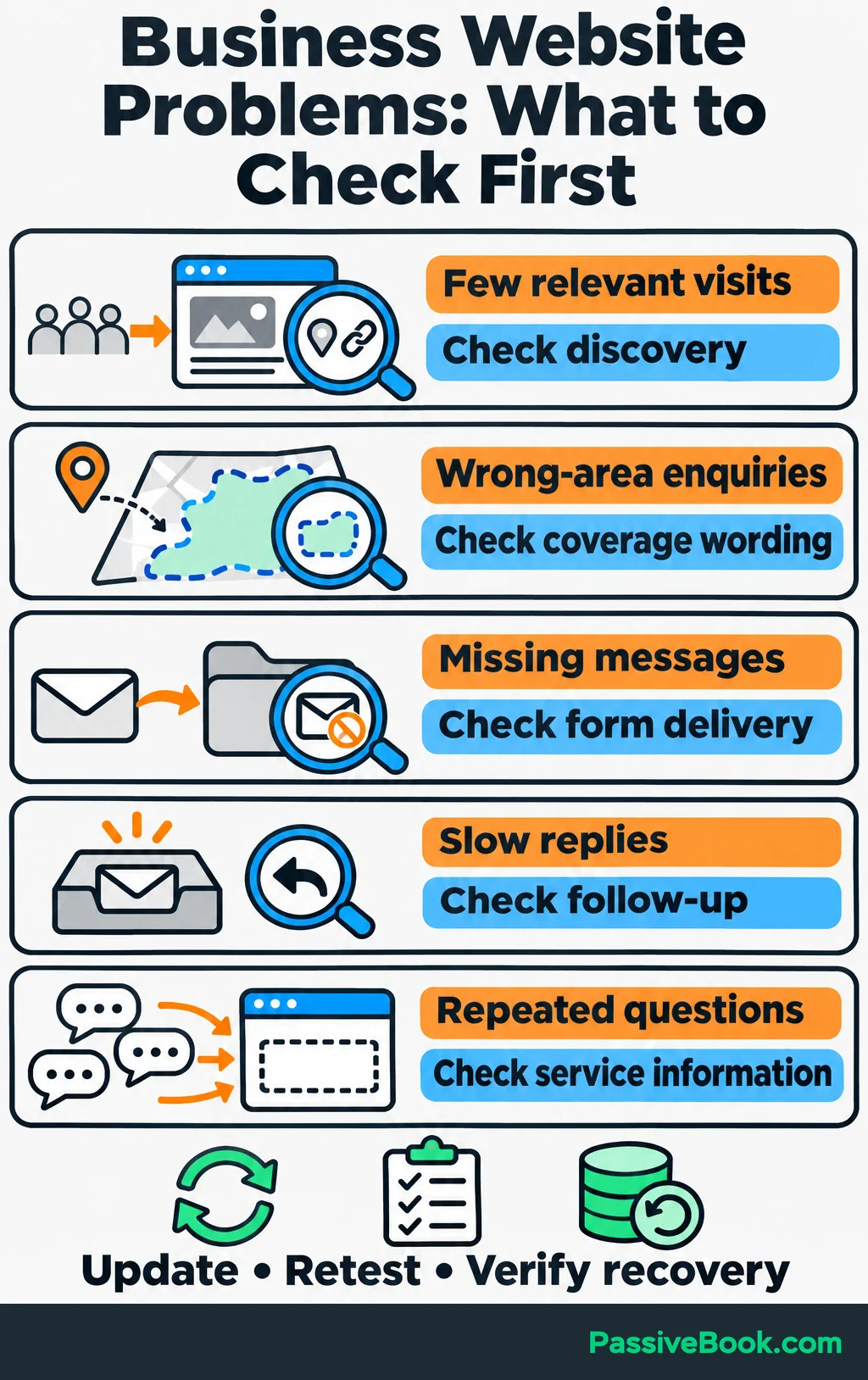
Review the site regularly and whenever the business changes. Keep prices, availability, coverage and contact details current.
Maintain software and integrations, check renewals, and verify that your recovery arrangements still work. Retest forms and checkout after changes that could affect them.
Expand when a customer need earns the extra work. Repeated questions may justify another page. More confirmed bookings may justify scheduling software. Neither requires rebuilding everything that already works.
What Next?
Write your one-sentence offer and choose the main action your website should support. Use those two decisions to sketch the smallest site that would help a customer take that step.
Use the social buttons to share this guide when the conversation turns to getting a first business website live without buying unnecessary tools.
What is the biggest unanswered question a customer would have before contacting or buying from you? Leave it in the comments, along with any questions about building your site.
Share this post with your friends & followers:

