Choosing a website platform looks easy until your plans go beyond publishing a few pages. You want articles, email signups, product sales, and tools that work together without needing your attention every day.
A cheap starting plan can become expensive once you add those jobs. And a platform that feels simple today may make your next product or website move harder.
I use self-hosted WordPress for Passive Book, but I wouldn’t recommend it for every business. This comparison will help you choose around how you publish, earn money, and handle upkeep, so your shortlist fits the work ahead.
Which CMS Is Best for Your Business?
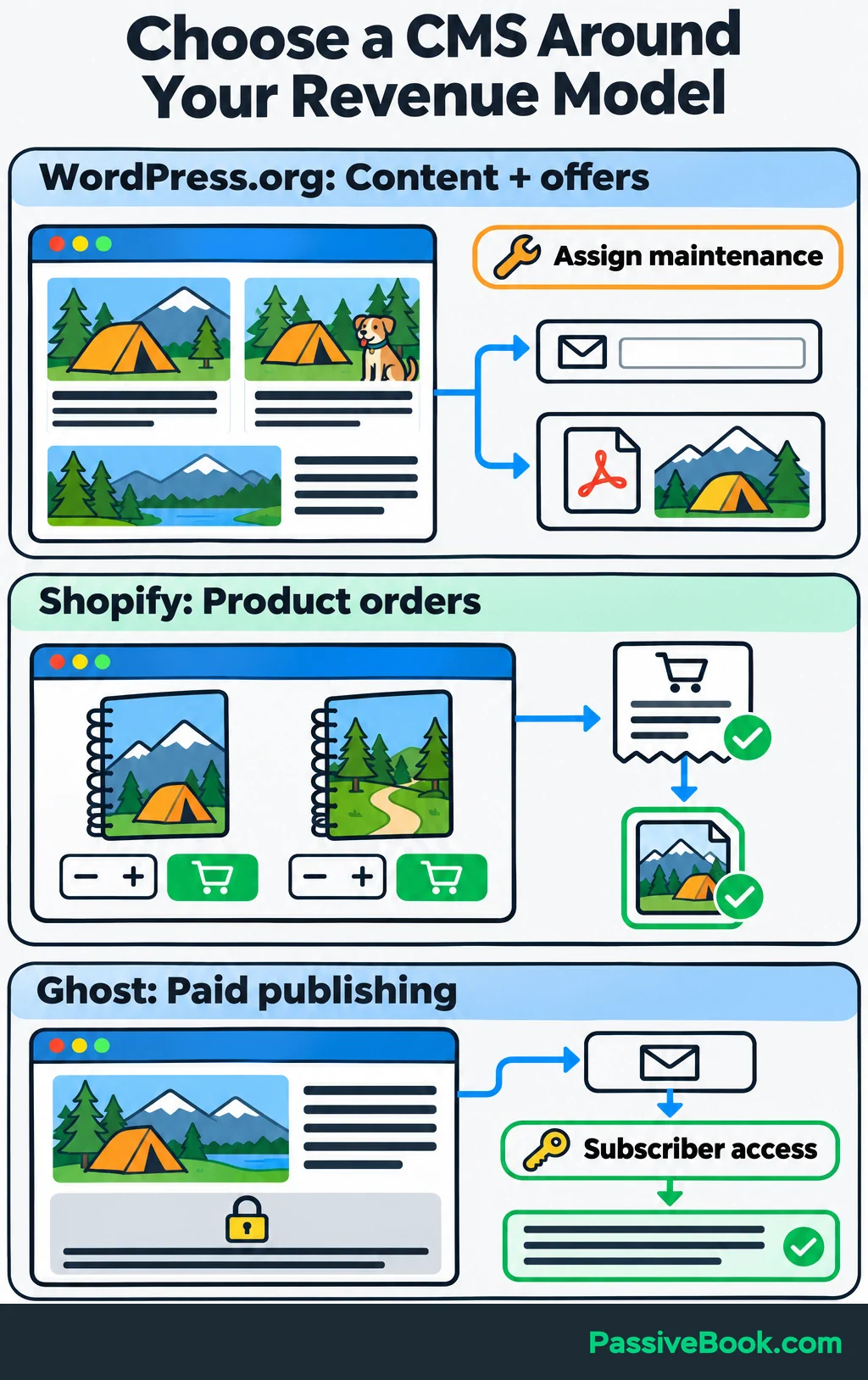
WordPress.org is my strongest overall recommendation for a content business that needs articles, affiliate links, digital products, and room to customize. The condition is simple: someone must own the maintenance work.
My preference comes from using it for Passive Book. I value control over the website and the freedom to choose the tools around it. Your priorities may point elsewhere.
Here’s where I would start:
- Flexible Publishing And Monetization: WordPress.org.
- Beginner-Friendly Website Building: Wix.
- Polished Design With Straightforward Selling: Squarespace.
- A Business Driven By Product Orders: Shopify.
- Newsletters And Paid Articles: Ghost.
- WordPress With Managed Hosting: WordPress.com.
- Custom Visual Layouts: Webflow.
- A Website Closely Connected To Customer Records: HubSpot Content Hub.
- Content Shared Across Custom Websites And Apps: Sanity.
To make those differences concrete, imagine you run a dog-friendly camping website. You publish campsite guides, collect email subscribers, and sell downloadable trip planners.
That business gives us three useful jobs to compare: publishing content, building an audience, and delivering a purchase. When a different revenue model changes the recommendation, I’ll explain why.
What Should You Compare Before Choosing a CMS?
Start with the work you repeat. A platform’s homepage tells you what it can do. Your weekly routine tells you whether you’ll enjoy using it.
I would compare these six areas before looking at templates.
- Publishing Workflow: Draft an article, add images, organize it, schedule it, and revise it later. If other people contribute, check who can edit, approve, and publish.
- SEO Controls: Look for editable search titles, descriptions, URLs, redirects, sitemaps, and indexing settings. A redirect sends visitors from an old address to its replacement.
- Maintenance Responsibility: Name who handles software updates, backups, security, and recovery. Easy editing and easy maintenance are separate things.
- Complete Cost: Add the website plan or hosting, domain renewal, required extensions, email services, payment fees, setup, and ongoing help.
- Essential Connections: Check checkout, email signup, analytics, distribution, and publishing automation. Establish which connections are included, which cost extra, and which need development.
- Growth And Exit: Compare the next upgrade you could realistically need and inspect what you can take with you when leaving.
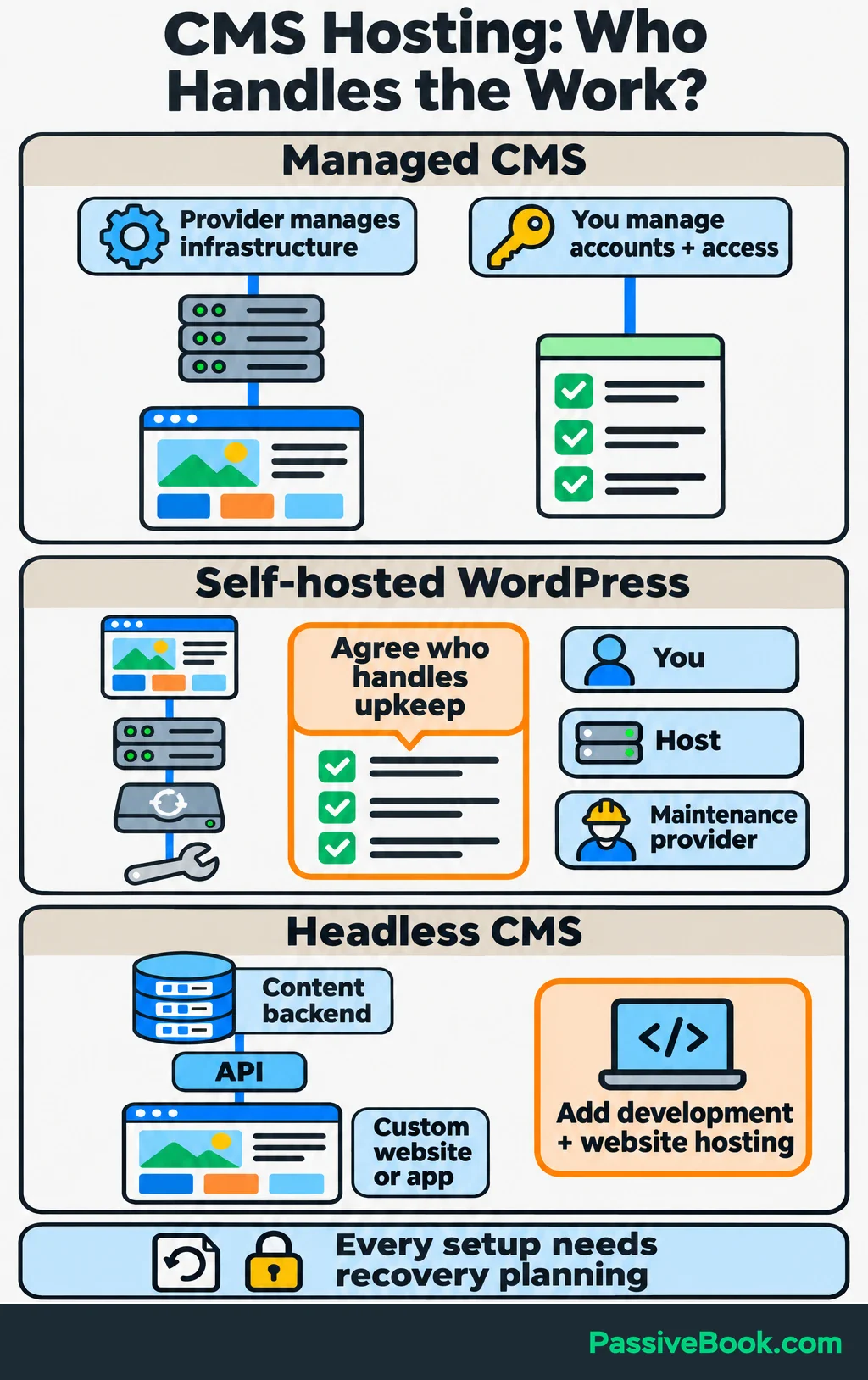
Hosted platforms manage the underlying infrastructure. With self-hosted WordPress, you choose a hosting arrangement and divide responsibilities between yourself, the host, and any maintenance provider.
Neither arrangement removes every task. You still need secure accounts, sensible access permissions, and a way to recover from mistakes.
For the budget, count the services needed to run the business for a full year. Count bundled services once, separate setup costs from recurring costs, and use renewal rates where an introductory discount applies.
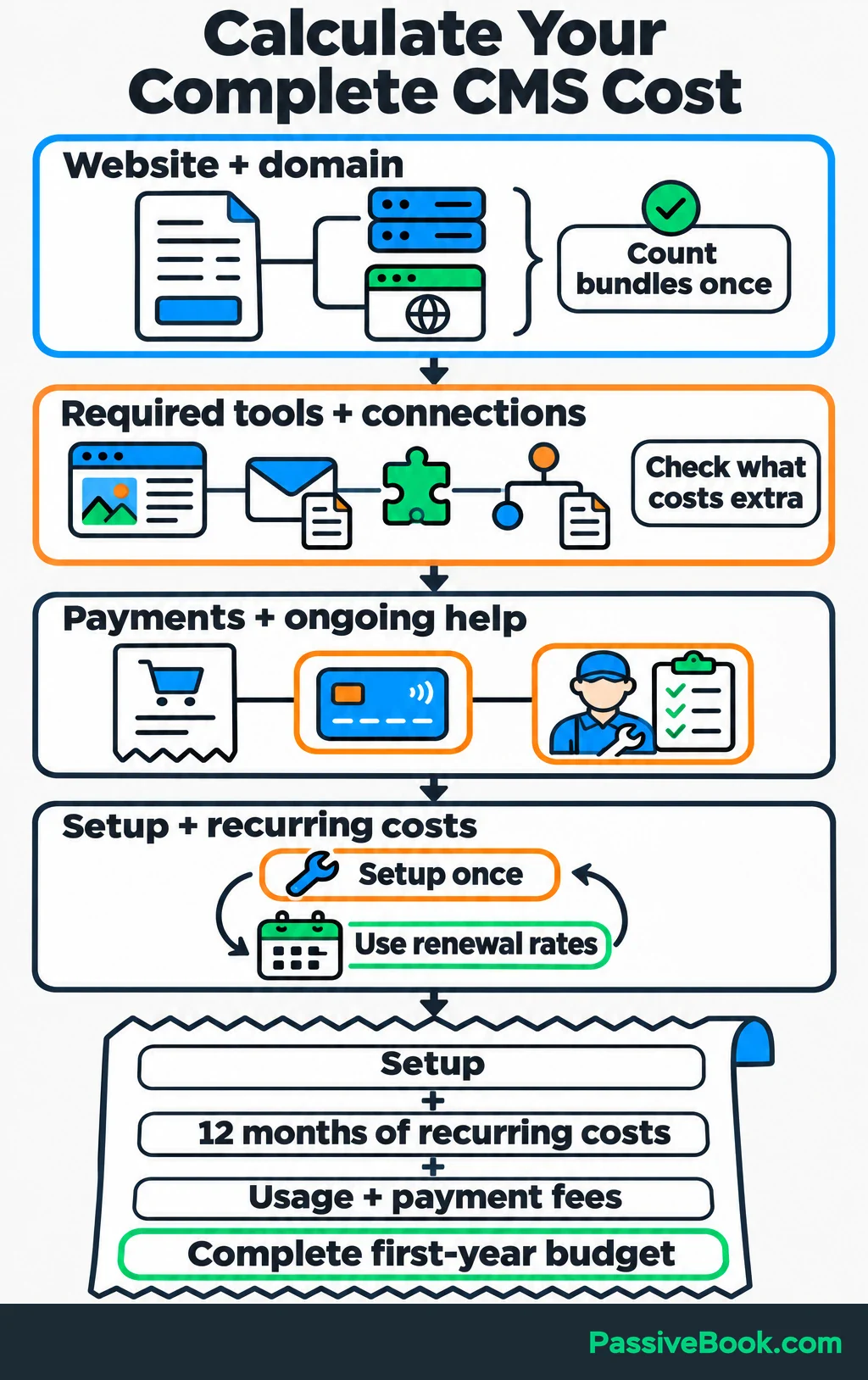
A lower monthly price can still mean a larger bill upfront. I would put two suitable setups side by side before committing.

Free Software Cost Calculator




Then describe growth in concrete terms. “More scalable” tells you very little. “Three contributors, a larger guide library, and automated planner delivery” gives you something to check.
Automation deserves its own test. An AI button that writes a paragraph doesn’t tell you whether another tool can create a draft, attach an image, or report a failed publishing run.
Building my AI content pipeline made me look beyond the writing screen. Faster article production helped, but moving that work into publishing mattered too. I would test that connection before paying extra for another writing assistant.
One final distinction matters for Sanity: a headless CMS stores and supplies content, while a separately built website or app displays it. That can make content reuse easier, but it adds development work. An ordinary blog doesn’t need that architecture just because it sounds impressive.
The 9 Best Content Management Systems Compared
The table shows relevant starting plans, rather than automatically choosing the cheapest option.
Prices are US-dollar references before tax. Monthly equivalents use annual billing unless stated otherwise, and annual subscriptions are generally paid upfront. Sanity Growth is priced per seat per month. HubSpot Starter uses its ordinary reference price, excluding new-customer discounts. Wix figures follow its published US breakdown.
Regional checkout prices can differ. The linked pages carry current details, and these platform charges exclude additional operating costs.
| Rank | Platform | Best Use Case | Hosting Model | Relevant Plan And Price | Technical Effort | Main Trade-Off |
|---|---|---|---|---|---|---|
| 1 | WordPress.org | Articles, affiliate content, and digital products together | Self-hosted through your chosen provider | Software: no licensing fee; hosting and upkeep extra | Moderate; lower with managed help | You must assign maintenance responsibility |
| 2 | Wix | A beginner’s website with a blog and small shop | Managed hosting included | Light: $17/month; Core: $29/month for payment acceptance | Low for standard setup | Moving away requires rebuilding the website |
| 3 | Squarespace | A polished website with articles and a modest shop | Managed hosting included | Basic: $19/month; Core: $29/month | Low for standard setup | Export covers only part of the website |
| 4 | Shopify | A business organized around product sales | Managed hosting included | Basic: from $29/month | Low to moderate as apps accumulate | Apps add costs, and publishing needs testing |
| 5 | Ghost | Newsletters and paid publications | Managed Ghost(Pro); self-hosting also available | Starter: $18/month; Publisher: $29/month, each at 1,000 members | Low on Ghost(Pro) | Costs grow with registered members |
| 6 | WordPress.com | Managed WordPress publishing | Managed hosting included | Personal: $4/month; Business: $25/month | Low to moderate depending on plugins | Features, recovery tools, and fees vary by plan |
| 7 | Webflow | Custom visual design with reusable content templates | Managed Site hosting | Premium Site: from $25/month; Workspace charges may be additional | Moderate to high during setup | Exported code doesn’t include a working CMS |
| 8 | HubSpot Content Hub | Content connected to contact records and follow-up | Managed hosting included | Free tools; Starter: $20/seat/month; Professional: from $450/month, including three Core Seats | Moderate for the complete setup | Advanced features can require a large upgrade |
| 9 | Sanity | Shared content for custom websites and apps | Hosted content backend; website hosting separate | Free; Growth: $15/seat/month, plus eligible usage charges | High; developer support expected | You also build and maintain the website or app |
The order reflects my recommendations for this audience. A store or paid publication can have a better fit further down the list.
1. WordPress.Org: Best Overall for a Flexible Content Business
WordPress.org would be my first choice when publishing brings people to the website and several offers help it earn money.
You get scheduling, revisions, categories, and user roles. Plugins extend those tools, so you can add selling, email, and other functions as the business needs them.
For the camping website, I would start with a lightweight theme such as GeneratePress and use Rank Math for SEO controls. WooCommerce, a commerce extension for WordPress, can handle the downloadable planners. Its core software is free, although extensions and operating services can add costs.
I would keep that setup small. Installing every useful-looking plugin is an excellent way to give yourself another job.
WordPress also has a REST API that lets external applications create and update content. An API is a connection that lets software exchange information. Tools such as n8n or Make connect apps and automate tasks, so they can use that connection to send drafts into WordPress.
My choice for this example would be WordPress because the guides, signup forms, and planner shop can grow together.
The trade-off is upkeep. Updates, compatibility checks, backups, and troubleshooting need a named owner. Choose a host or maintenance service whose responsibilities are clear if you don’t want to handle them yourself.
2. Wix: Best for Beginners Who Want Managed Website Tools
Wix makes sense when you want to build visually and have one provider manage the website infrastructure.
You can use the blog for campsite guides and Wix Stores for downloadable planners. For that setup, compare Core in the table because accepting payments matters. A publishing-only plan is a poor price comparison for a business that also needs checkout.
Wix includes controls for search titles and descriptions, so routine metadata editing doesn’t require a separate SEO plugin.
I would shortlist it when getting a manageable website live matters more than choosing every part of the system. Before committing, check the email service, analytics connection, apps, storage, and contributor access you need.
Its main limitation is the cost of leaving. Wix websites need to run on Wix infrastructure. CMS collection data can be exported as CSV, but that doesn’t produce a working website you can move to another host.
For a relatively simple site, that may be an acceptable exchange for convenience. If moving the whole website later is a firm requirement, I would choose another platform now.
3. Squarespace: Best for a Polished Website With Straightforward Selling
Squarespace is worth considering when you want attractive templates, strong image presentation, articles, and a modest shop.
For the camping website, that could mean illustrated destination guides beside a small collection of trip planners. I would choose it when the standard layouts and selling tools cover the work, without a long list of custom requirements.
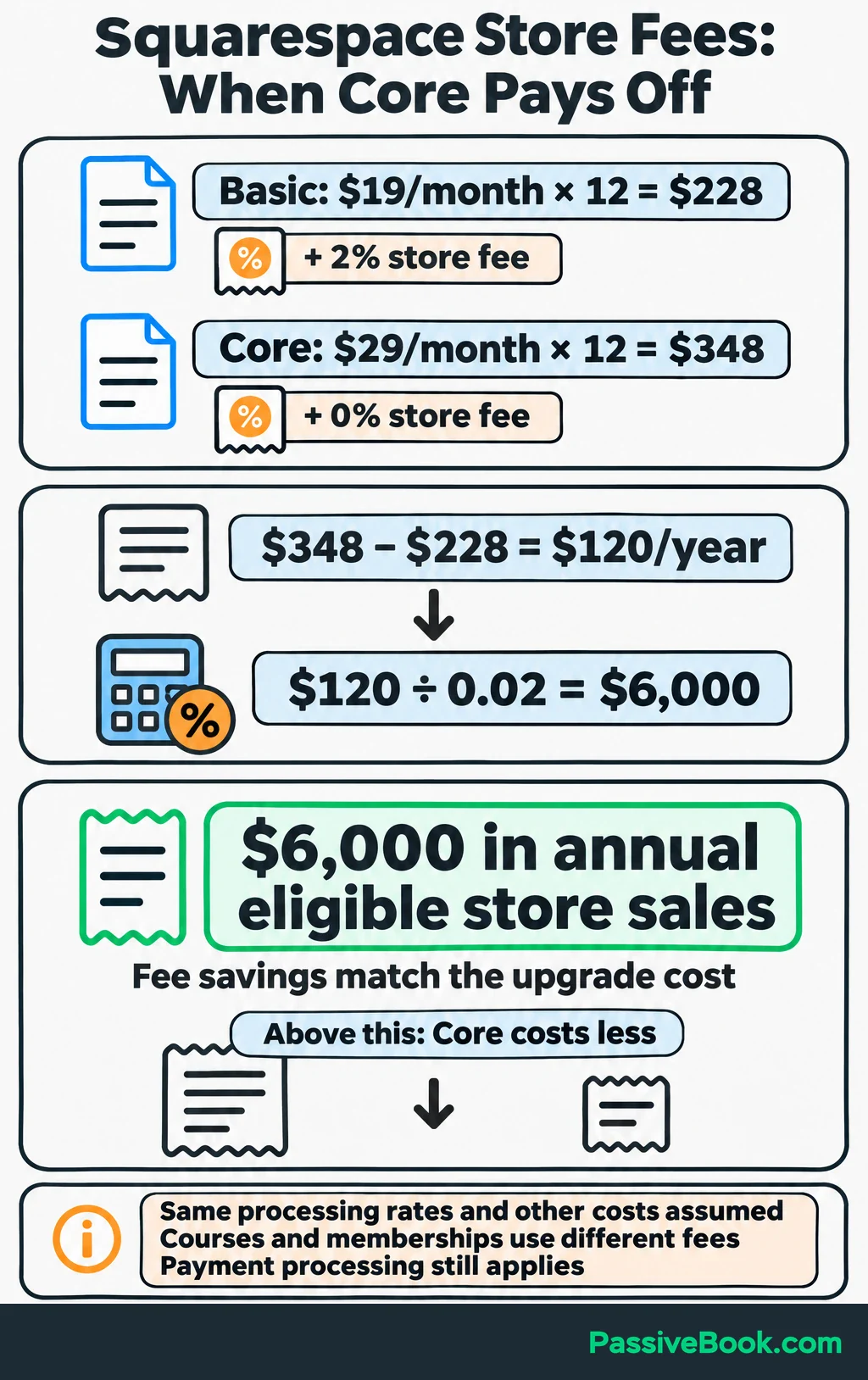
Compare fees as well as subscriptions. Downloadable products sold through the store fall under commerce fees: Basic adds 2%, while Core adds none. Payment processing still applies. Courses and member-site content use a separate fee category. Squarespace explains the fee categories here.
Using the table’s subscription figures, the annual upgrade costs $120 more. For eligible store sales, saving 2% offsets that difference at $6,000 a year, assuming the same processing rates and other costs. Above that amount, Core costs less under those assumptions.
Core also broadens integration options and allows unlimited contributors. Email Campaigns needs its own budget if you use it.
The exit route deserves attention: the standard export includes only one blog and excludes design settings and other content types. Plan for rebuilding parts of the site if you leave.
4. Shopify: Best for a Business Built Around Product Sales
Choose Shopify when orders, checkout, products, and customer purchases shape most of your work.
I used Shopify during my physical-product experiments. That experience is why I consider it when the store is the center of the business.
For the camping website, an occasional planner attached to a guide wouldn’t make Shopify my first choice. A growing catalog of planners and bundles would make it more relevant.
Shopify’s free Digital Products app can deliver purchased files or access links. That gives the planner business a delivery option without buying an app simply to send a download.
There is also a built-in blog with editable search listings. Test the editor, organization, and article layouts against your actual guide library before choosing it for a publication.
The ongoing cost includes payment processing, any applicable third-party payment-provider fees, and the apps or themes you add.
I would check every proposed app against a specific job. A store with six small subscriptions still has six subscriptions, even when each one looked harmless on its own.
5. Ghost: Best for Newsletters and Paid Publications
Ghost is my shortlist choice when the articles and subscriber relationship are the product.
It combines website publishing, newsletters, and membership access. Its built-in SEO features also reduce the need to assemble a separate publishing plugin stack.
For the camping business, Ghost fits a publication offering premium destination guides by subscription. It is less direct for a business mainly selling separate planner downloads, where you should evaluate purchase and file delivery independently.
Compare Publisher for a paid publication. Starter supports a blog and newsletter, but paid subscriptions, custom themes, and custom integrations require Publisher or above.
Payments connect through Stripe. Ghost doesn’t add a transaction percentage to premium subscriptions, although processing fees remain.
The growth cost to watch is registered membership. Free and paid members both count, so budget for the full registered audience.
I would also be honest about the workload behind the offer. My membership-site attempt became a content treadmill alongside a day job. Ghost can simplify publishing and delivery, but you still have to produce the premium articles.
Choose it because recurring publishing is the business you want to run.
6. WordPress.Com: Best for Managed WordPress Publishing
WordPress.com suits someone who wants the WordPress editing environment with hosting supplied by one provider.
The distinction is practical: WordPress.org is software you run through your chosen host. WordPress.com packages WordPress as a managed service.
For the camping website, you can connect publishing, checkout, email, and analytics through plugins. Plugin installation is available on every paid plan, including Personal, so don’t buy Business solely because an older comparison says plugins require it.
Instead, choose around the complete workflow. Business adds developer tools and real-time backups with restore access. It also adds no platform transaction fee for standard WooCommerce payments, while payment processing remains.
I would compare storage, recovery access, extension costs, and the fees attached to your chosen selling method before selecting a tier.
Its managed setup reduces infrastructure work, but plugins can still add complexity.
Also distinguish a content export from a full move. The standard export carries posts, pages, comments, and media references, but leaves out your theme design, plugins, and the media files themselves. To recreate the whole site elsewhere, use a migration tool or service that transfers those parts too.
7. Webflow: Best for Custom Visual Design With Structured Content
Webflow is a good fit when precise layouts and reusable content templates justify learning a more demanding design tool.
You organize content into collections. For the camping website, you could create collections for guides, destinations, and authors, then build a reusable guide layout around those fields.
That structure is useful when every destination needs consistent information. It can save repeated layout work once someone has built the system properly.
I would choose Webflow when those design requirements are real and someone can handle the setup. I would skip it if the main goal is simply to publish articles and sell a planner.
Use the CMS-capable Premium Site plan for comparison; Basic excludes the CMS. Check how many content entries you can store, the traffic allowance, and who can edit. A Workspace plan covers design and collaboration tools separately from site hosting, so check whether you need a paid one too.
Webflow provides content APIs and SEO controls, but its export needs careful reading. Code export requires a paid Workspace and excludes functioning CMS and ecommerce features.
You can take website code elsewhere, but you must replace the services that made the content system work. That is a development project, so include it in your exit plan.
8. HubSpot Content Hub: Best for Websites Connected to a CRM
HubSpot Content Hub becomes useful when website activity needs to connect closely with customer records and follow-up.
A CRM keeps information about contacts and their interactions with the business. If you already rely on HubSpot for that work, bringing content into the same environment may reduce awkward connections.
For the camping website, I wouldn’t choose it just to collect subscribers. I would consider it when managing reader and buyer relationships has become substantial work and the wider HubSpot setup serves a clear purpose.
Starter supports one blog and up to 30 website pages. Blog posts have their own allowance, so the page limit doesn’t mean you can publish only 30 articles.
Professional adds higher limits and tools such as advanced SEO recommendations, personalization, and testing. The price gap in the table is why I would identify the next required feature before buying.
Include any other Hub subscriptions and seats needed for the complete workflow.
My preference would be to compare connecting an existing CMS to HubSpot before moving the website. A shared provider is useful when it saves work you actually do. It doesn’t justify replacing a suitable website by itself.
9. Sanity: Best for Structured Content Across Websites and Apps
Sanity makes sense when content must serve several custom destinations.
Instead of treating every article as an isolated page, developers define content types and relationships. A guide can link to a destination, and that destination can hold information used in several places.
For the camping business, imagine campsite details appearing on both the website and a separate trip-planning app. Maintaining that information centrally could be useful.
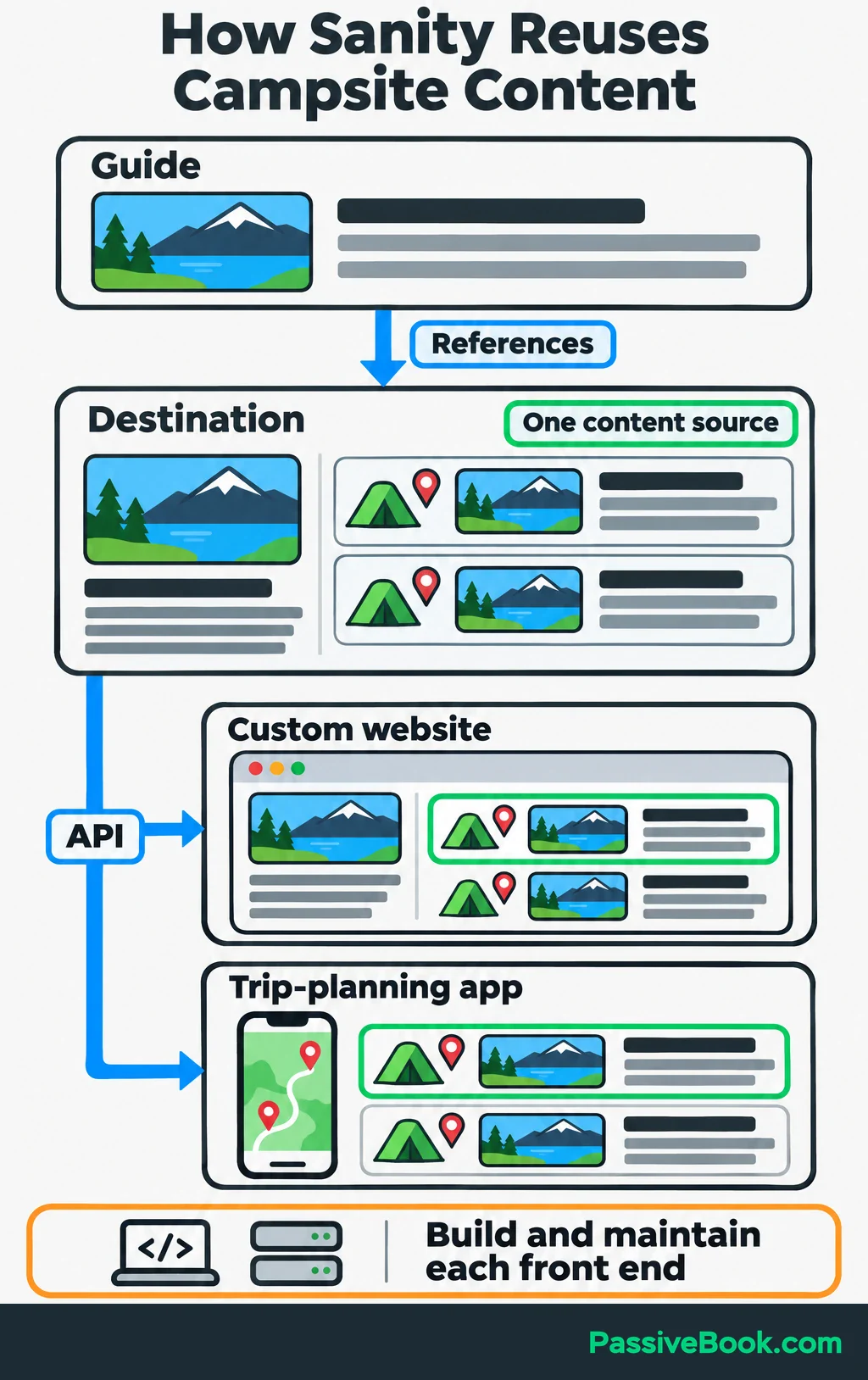
Sanity supplies the content, but developers still need to build the website or app and configure the editing experience. They also need to make SEO fields produce the right output on the public website.
APIs connect other software, and webhooks can notify external tools when content changes. Those connections can support automation, but somebody must build and maintain the workflow.
The free plan or per-seat subscription is only part of the cost. Add website hosting, implementation, maintenance, and usage where applicable.
Sanity supports exporting dataset documents, but moving them elsewhere still involves adapting content models and application code.
For a campsite blog with email signup and a planner shop, I would skip it. Shared content across real products is a reason to consider headless. A possible app you might build someday is a weak reason to take on the work now.
Test Your Shortlist Before Committing
Choose two platforms that meet your essential requirements and run the same small business task through each one.
I would use this sequence:
- Publish One Guide: Add the same draft, images, headings, and links. Organize it, preview it on mobile, schedule it, and make a revision.
- Complete One Sale Or Subscription: Purchase the trip planner and receive the file. If you’re testing a publication model, subscribe and check access and email delivery instead.
- Connect One Repeated Task: Create a draft from an external workflow or pass a signup to your email tool. Check the required plan, connection permissions, recurring charges, and failure notices.
- Check Measurement: Confirm that your analytics records the visits and business actions you need to review.
- Inspect Recovery And Export: Find out how to restore an accidental change and what an export actually contains.
- Price The Next Stage: Add the contributors, content, products, subscribers, or traffic you reasonably expect to support next.
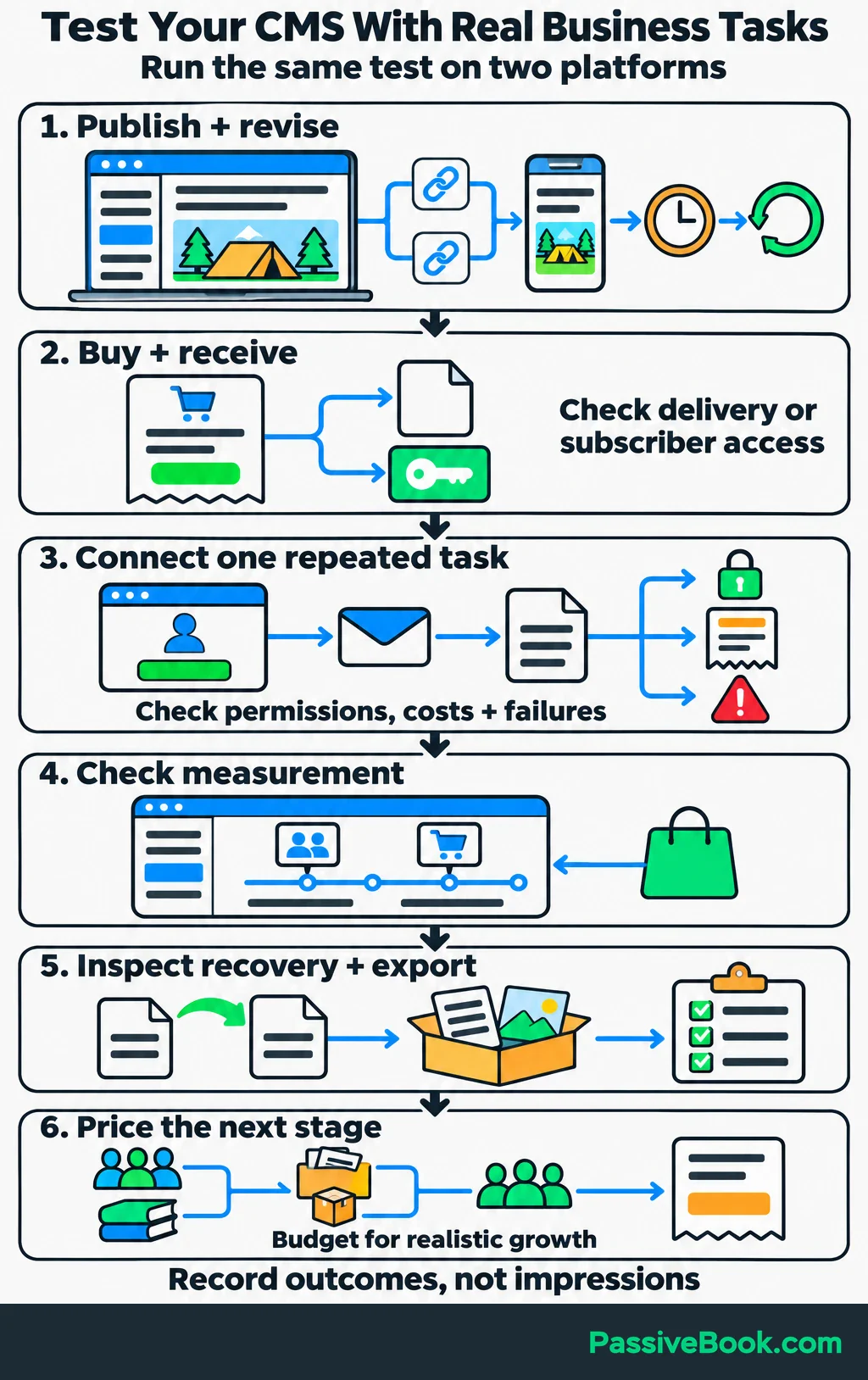
For the camping example, the test guide might be “Your First Camping Weekend With a Dog.” Add a short signup invitation such as “Get the packing checklist,” then link to the paid trip planner.
You don’t need to build the whole website. You need to see whether those ordinary jobs work together.
Record concrete results: “The purchased PDF arrived,” “the signup reached the email tool,” or “this connection requires another subscription.” Those observations make the decision easier than a score for “ease of use.”
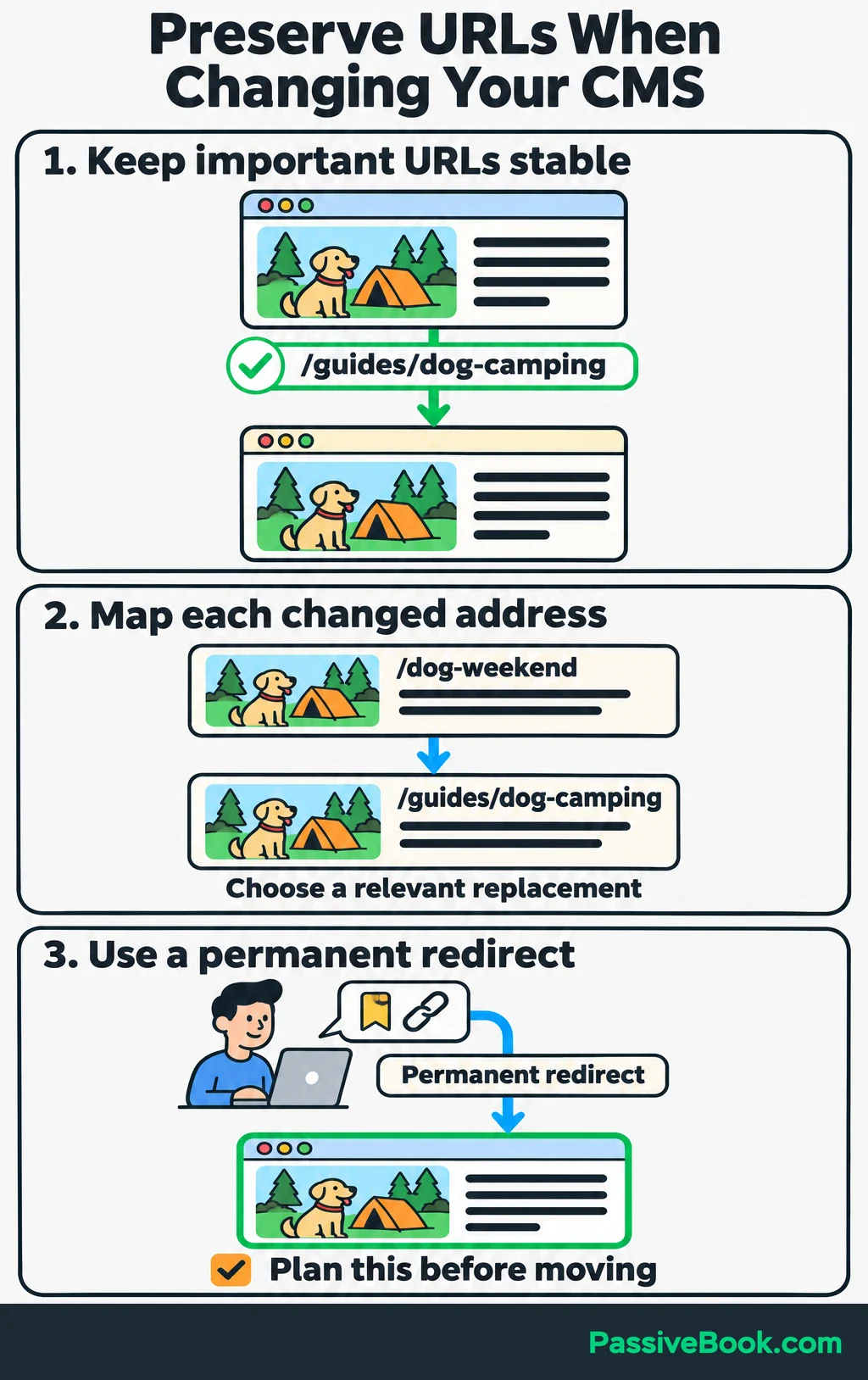
For an existing website, inspect important URLs before moving. Keep them stable where possible, or map each changed address to a relevant replacement using a permanent redirect. Google’s site-move guidance explains the migration work.
I would choose the platform that passes the essential workflow, fits the complete budget, and leaves a maintenance workload I can sustain. A higher position in this list wouldn’t outweigh a failed requirement.
What Next?
Write down your three essential website jobs and choose two platforms from the table to test with one real article and one revenue task.
Use the social buttons to share this comparison when the next platform discussion needs to move from favorite brands to practical requirements.
Which job would be most painful to rebuild if you chose the wrong CMS? Tell me in the comments, and bring any other questions about your shortlist.
Share this post with your friends & followers:

