You want to publish useful articles, collect email subscribers, and perhaps sell a small product later. But the builder comparisons keep sending you back to template galleries and monthly prices.
Neither tells you whether delivering a download needs another subscription, or whether leaving the platform means rebuilding your site.
Those unanswered questions make even a cheap plan hard to judge. This guide helps you compare builders for publishing, email, and selling, with the costs, upkeep, and limits in view before you commit. You don’t need coding skills to make that comparison.
Define What Your Website Must Do
Write one sentence that explains the site’s purpose and the main action you want visitors to take. Choose a clear priority: read, subscribe, inquire, book, or buy.
Then sort your requirements into three groups:
- Launch essentials: Tasks the website must handle from the start.
- Next expansion: Features needed for a specific, planned addition.
- Optional extras: Things you can leave out without blocking the site’s purpose.
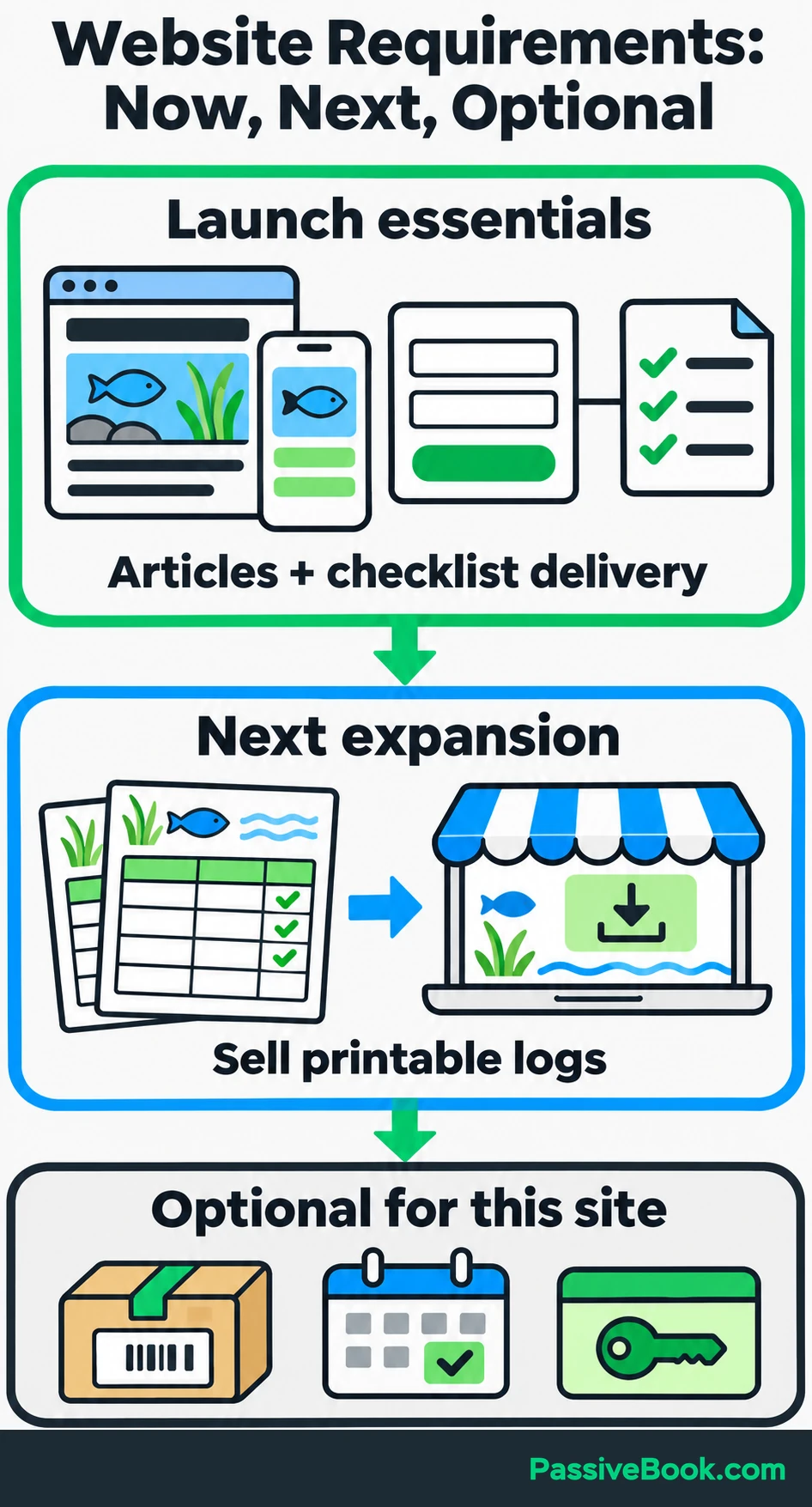
For a running example, imagine you’re building Freshwater Tank Notes, a beginner aquarium resource site. You’ll publish articles, offer a free tank-setup checklist by email, and later sell printable maintenance logs.
Your purpose might be:
“Help beginners set up and maintain their first freshwater aquarium, with a free checklist they can request by email.”
That gives you concrete requirements. You need organized articles, readable mobile pages, a working signup form, and reliable checklist delivery. You also need a practical route to selling downloads later.
You don’t yet need shipping labels, appointment booking, or a membership area. A feature can be useful without being useful to you.
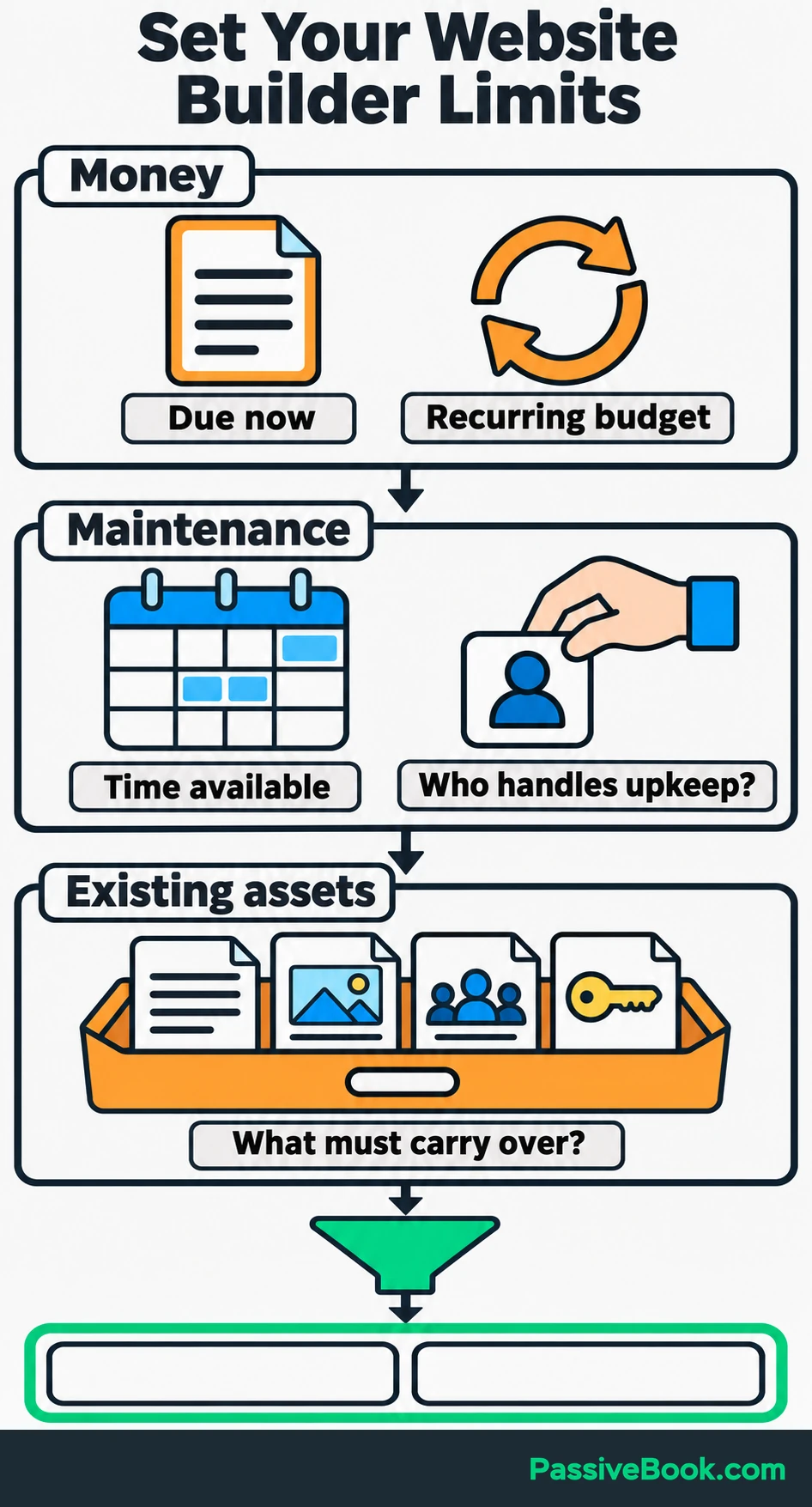
Set spending and maintenance limits alongside those requirements. Record how much you can pay upfront, what recurring cost you can sustain, and how much time you’ll give the site each month.
If you already have a website, list what must carry over: your domain, articles, images, subscribers, products, and existing links. Moving an article library deserves more thought than starting with an empty homepage.
Shortlist Platforms You Can Maintain
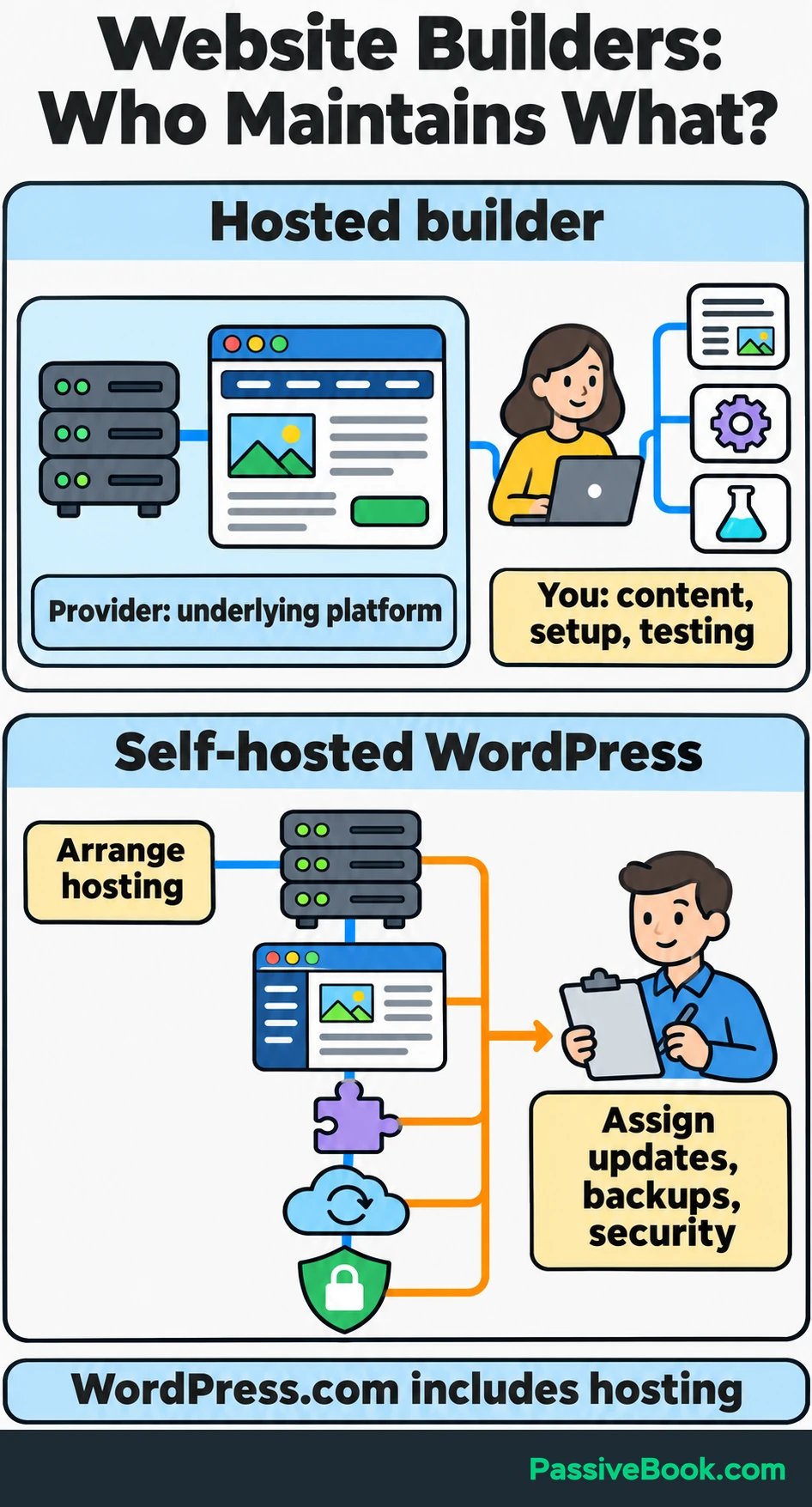
The editor helps you create and manage the website. Hosting makes it available online.
A hosted builder bundles those together, and the provider manages the underlying platform. With self-hosted software, you arrange hosting and decide who handles updates, backups, security, and troubleshooting.
This distinction matters with WordPress. WordPress.com includes hosting, while WordPress.org supplies software you can run through another hosting provider. This article’s WordPress recommendation refers to the self-hosted option. You can add features such as signup forms or checkout through plugins—extra software installed on the site. WordPress’s hosting comparison explains the difference.
Start with the platforms suited to your main tasks:
| Platform | Reason to consider it | Responsibilities you retain | Requirements to verify |
|---|---|---|---|
| Wix | You want a hosted visual editor with website and business tools together | Content, design choices, account access, app setup, and testing | The plan needed for payments, email workflows, integrations, and collaborators |
| Squarespace | You want a hosted site built around templates and visual editing | Content, layout choices, connected services, and sales setup | Selling fees, download delivery, contributor access, and required integrations |
| Self-hosted WordPress | Publishing flexibility, plugins, and hosting choice matter to you | Updates, backups, security, and troubleshooting, unless a service covers them | Hosting support, plugin costs, recovery, and who maintains each component |
| Shopify | Checkout, products, orders, inventory, and fulfillment drive the business | Product data, store settings, apps, customer service, and fulfillment | Payment availability, selling charges, publishing comfort, and app requirements |
Compare specific plans once a platform looks suitable. For example, Wix lists payment acceptance and basic ecommerce under Core, but you still need to check whether it covers your whole workflow. Its plan comparison shows the differences.
With Squarespace, compare contributor access and fees for the kind of product you’ll sell. Don’t assume every selling feature has the same fee structure. Check its plans and features.
I use self-hosted WordPress for Passive Book because I value control over publishing, extensions, and hosting. My preference comes with work attached. Someone still has to look after the site.
On one of my content sites, I kept adding plugins to solve small problems. Eventually, a routine layout change meant checking several settings screens. I removed overlapping plugins and kept a smaller setup. That experience changed what I look for: flexibility helps when I can understand and maintain what I’ve built.
For Freshwater Tank Notes, I would test self-hosted WordPress against either Wix or Squarespace, choosing whichever hosted editor feels more comfortable in an initial trial. I would leave Shopify off that shortlist unless selling physical products became central. One printable download doesn’t create a need for inventory and fulfillment tools.
Narrow the field to two. You need a useful comparison, and four half-built test sites rarely provide one.
Calculate the Full Cost of Each Suitable Plan
Find the lowest plan that supports your essential tasks. For each task, record whether it is included, needs an extra service, or forces an upgrade.
Then check what you actually pay:
- Upfront payment: The amount due now and the period it covers.
- Renewal cost: What continues after introductory discounts or free extras expire.
- Required extras: Domain renewal, email, plugins, apps, templates, and automation.
- Selling charges: Payment processing and any additional platform fees.
- Paid help: Setup, maintenance, troubleshooting, or migration support.
A monthly equivalent billed annually means paying for the year upfront. That matters when your launch budget is small.
Also separate three expenses that pricing pages can make easy to blur together. Hosting keeps your website online. A business inbox lets you handle messages at an address such as [email protected]. Marketing email sends newsletters and automated messages to subscribers. Check each separately.
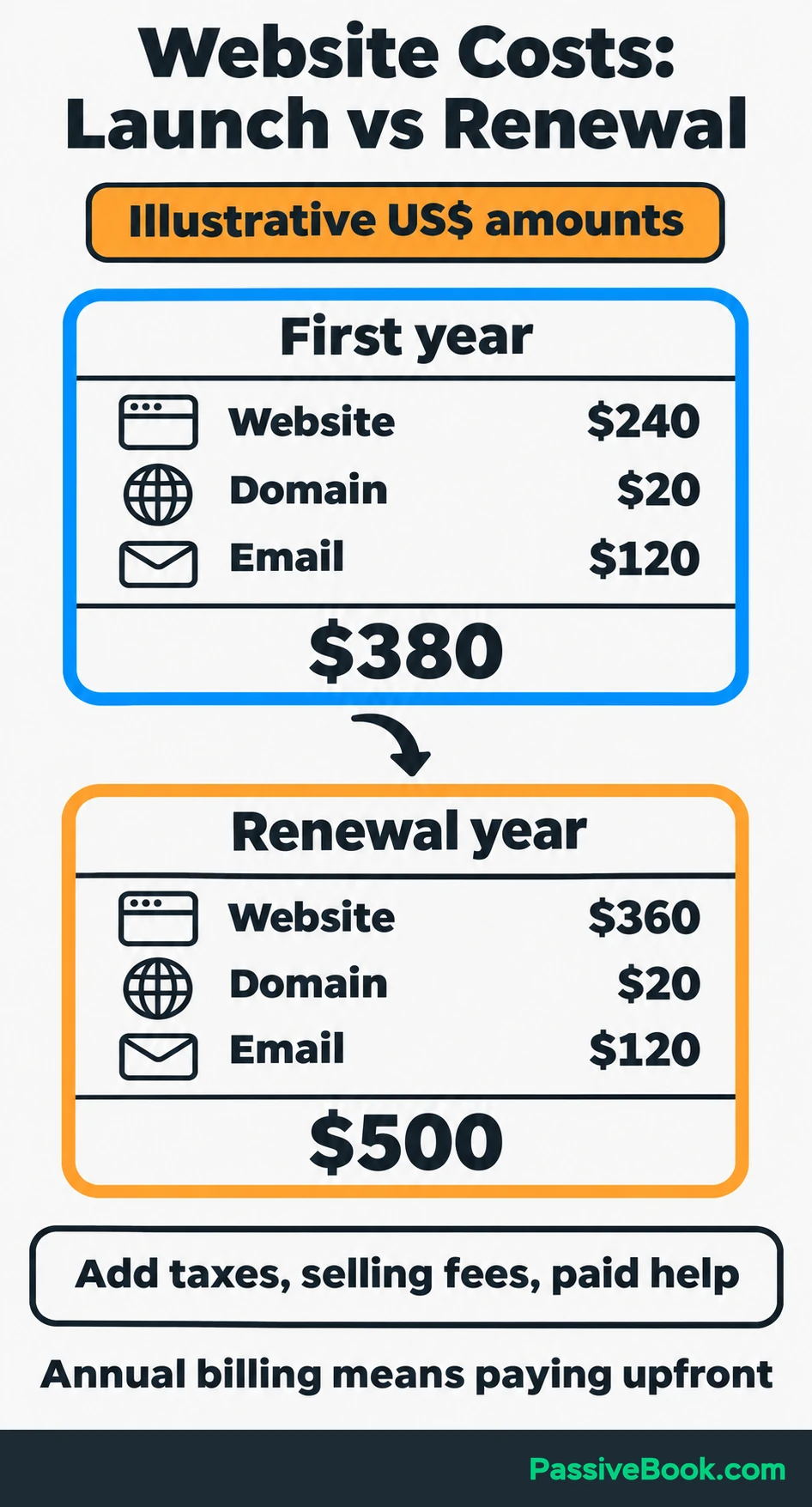
For the aquarium example, suppose you pay for a website subscription, domain, and email service. These are assumed figures to show the calculation, not vendor quotes:
| Platform and plan | Billing commitment | First-year fixed cost | Renewal fixed cost | Variable fees | Required extras | Setup or maintenance help |
|---|---|---|---|---|---|---|
| Illustrative hosted plan | Website paid annually upfront | US$380 | US$500 | Selling fees not yet included; obtain rates before adding checkout | Totals include a $20 domain and $120 email service each year | Owner handles setup; paid help not included |
The first year counts a $240 website subscription, a $20 domain, and a $120 email service:
$240 + $20 + $120 = $380.
If the website subscription renews at $360 and the other costs stay the same, the annual total becomes $500. Taxes, selling fees, and paid help would sit on top.
Create one row for each finalist using checkout quotes in your currency. Keep one-time setup costs separate so you can see what repeats.
You can start with two plan quotes and compare them over the same period. Add required extras so a cheaper website subscription doesn’t hide a more expensive setup.

Free Software Cost Calculator




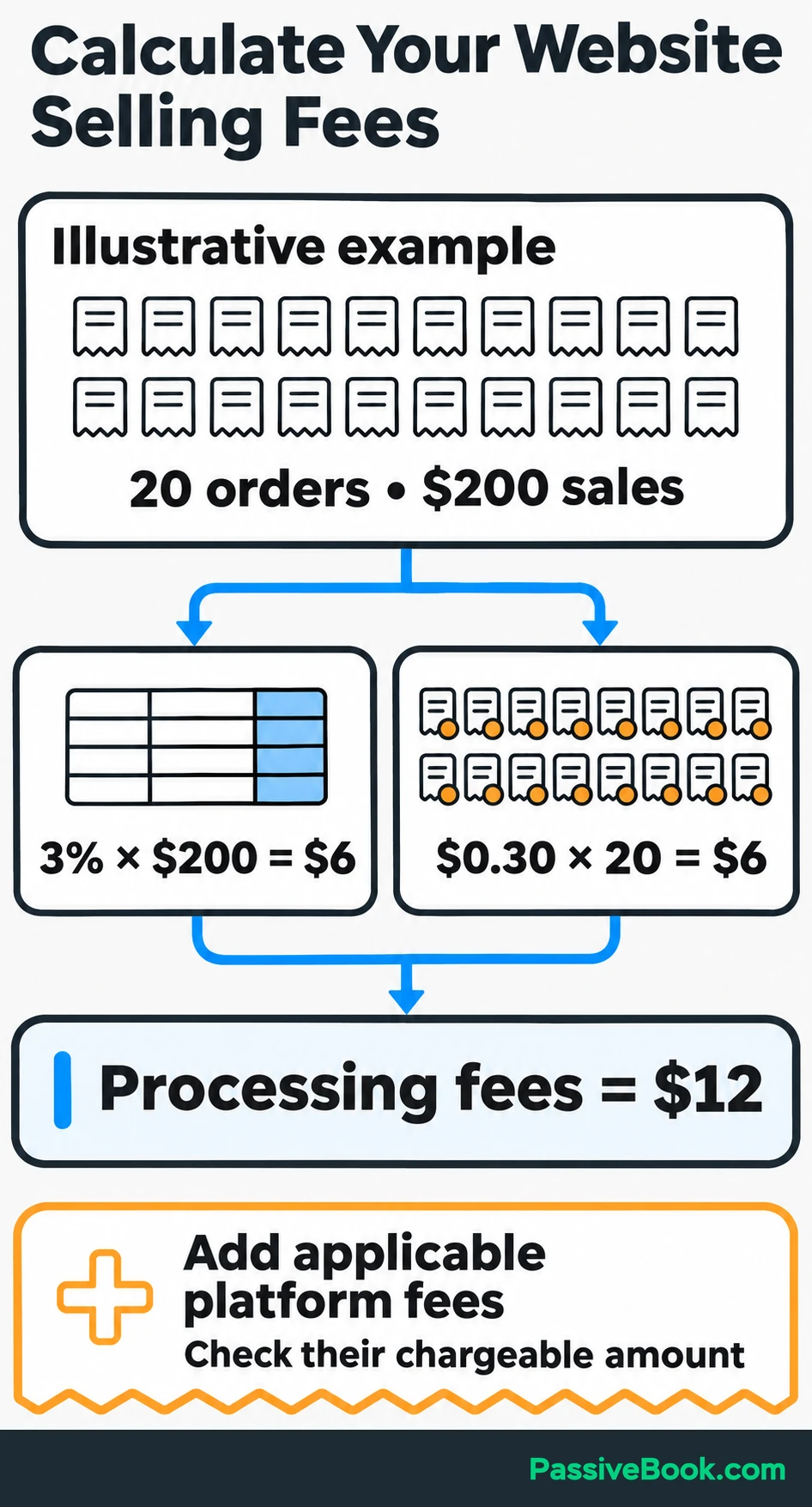
For selling fees, calculate each charge against the sales it applies to. If all 20 illustrative orders total $200 and a processor charges 3% plus $0.30 per order, processing costs $6 plus $6, or $12. Add any separate platform fee using its own chargeable amount.
That separation matters. Shopify’s third-party transaction fees can apply when you use an external payment provider, so check those alongside the provider’s processing charges. Shopify’s transaction-fee rules explain the conditions.
Use free plans and trials for evaluation, but check what publishing requires. A custom domain, removal of provider branding, or an essential sales feature may require payment. Read cancellation and refund terms before making an annual commitment.
Test Two Finalists With the Same Small Website
Build the same small website on both platforms. Use the same text and images so you’re comparing the tools rather than two different designs.
Include a homepage, one representative article, navigation, and a signup form. Add checkout if selling is essential at launch.
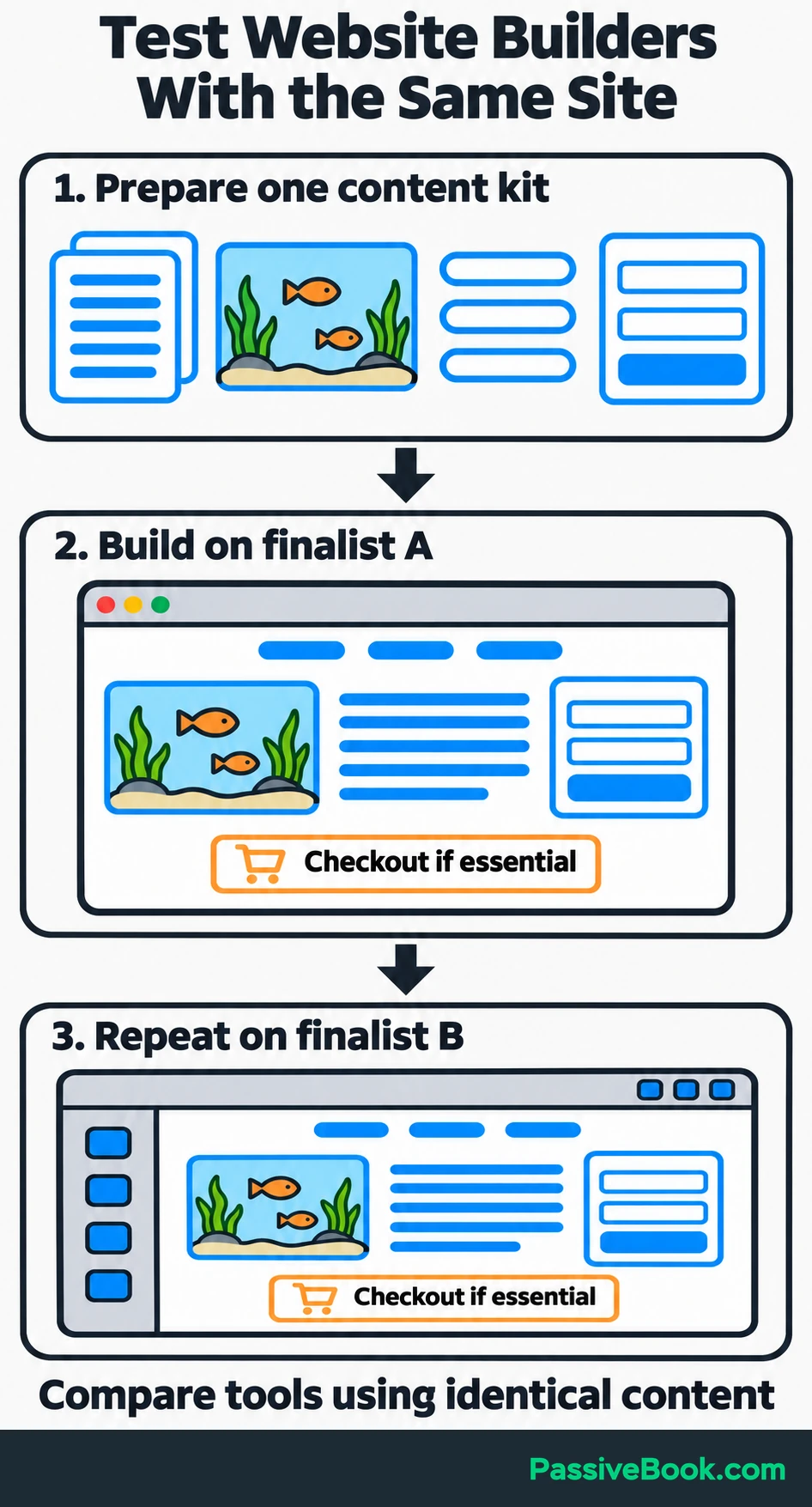
For Freshwater Tank Notes, that means a homepage, a tank-setup guide, and a form offering the checklist. The printable shop can wait if it belongs to the next expansion, but you should still establish which plan and tools will support it.
Record what happened, how long it took, where you got stuck, and which extra services appeared. Repeat an ordinary edit without following a tutorial. Initial setup and comfortable weekly use are different tests.
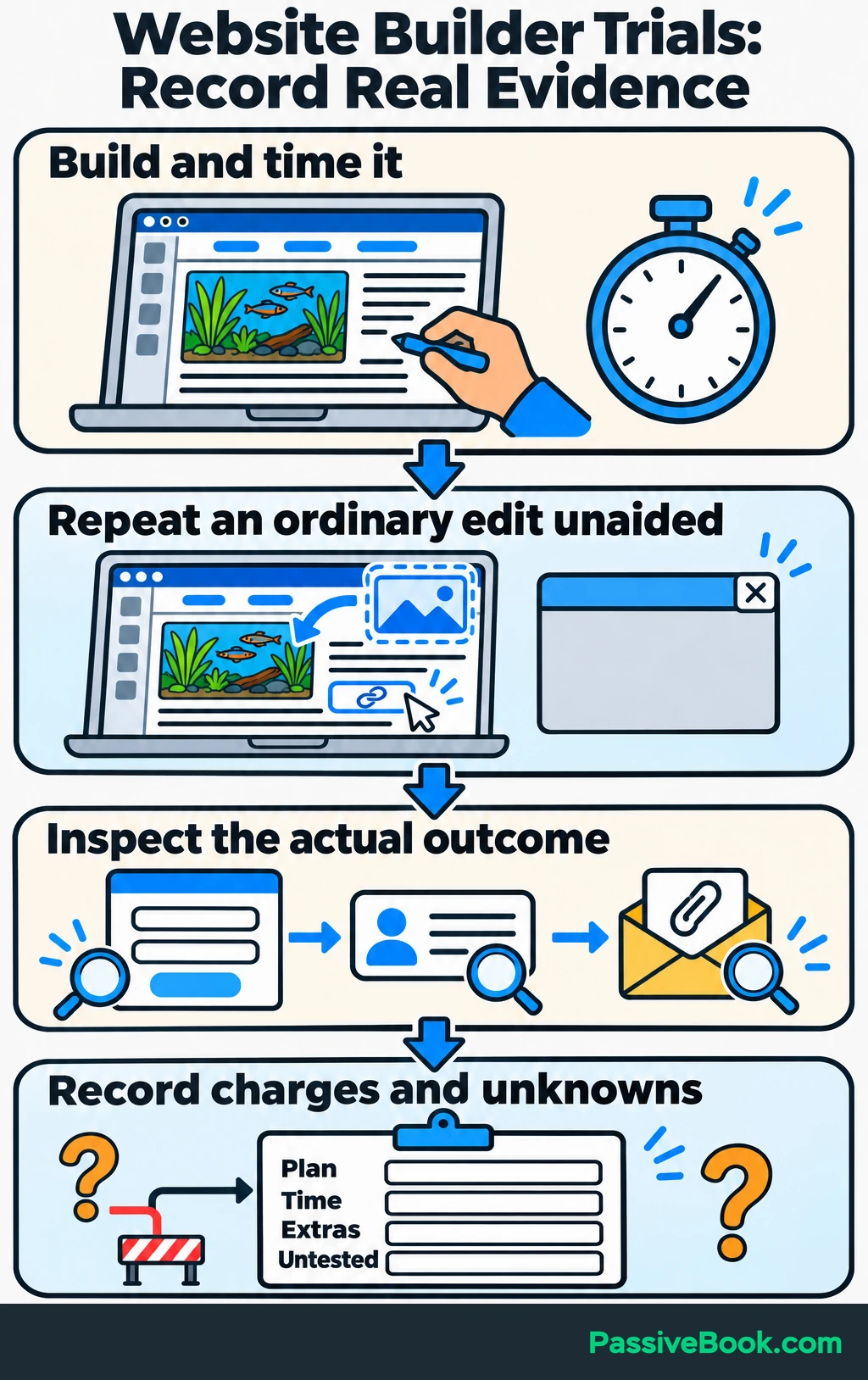
Use these checks for each finalist. Record the exact platform and plan, tools used, time taken, extra charges, and anything you couldn’t test.
| Required task | Priority | Check on each finalist |
|---|---|---|
| Publish the tank-setup guide | Launch essential | Create and revise the guide, link it from the homepage, and read it on a phone. |
| Deliver the checklist after signup | Launch essential | Sign up with a test address, inspect the subscriber record, and check that the checklist and welcome email arrive. |
| Sell a maintenance-log download | Next expansion | Confirm the required plan and delivery tools; test checkout and file receipt when the trial allows it. |
Those are tasks to investigate, not claims that either platform has passed. Add newly discovered charges to your cost comparison.
Publishing and SEO Controls
Publish an article with headings, images, an author name, internal links, and a useful category. Then revise it and check whether visitors can find it from the homepage.
Try the work you expect to repeat: adding an image, changing a link, updating an author detail, or scheduling a post.
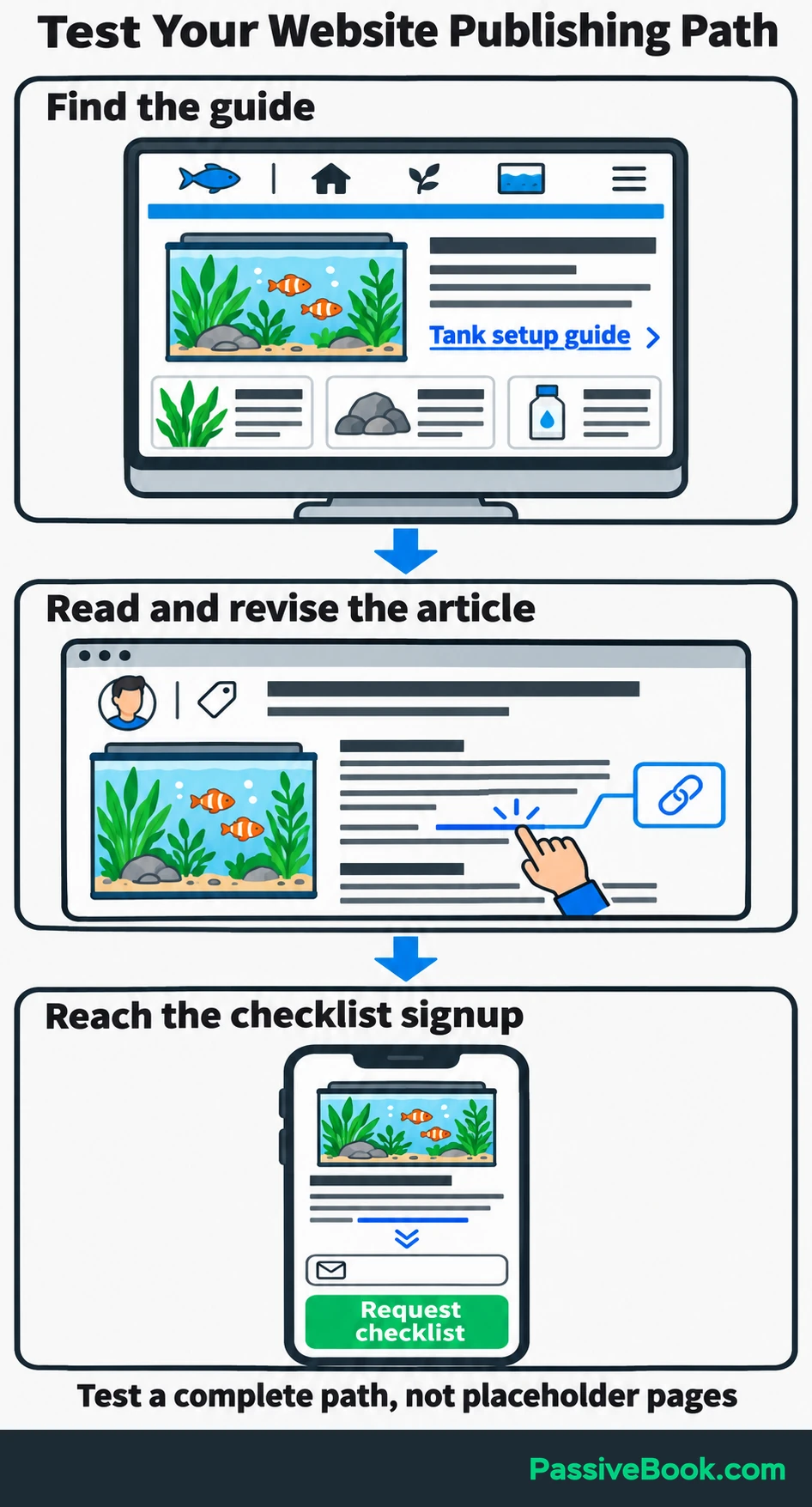
For the aquarium site, publish a tank-setup guide and link it to the checklist signup. You’ll learn more from that complete path than from filling a homepage with placeholder text.
Check the search engine optimization (SEO) settings that help search engines find and understand your pages:
- Page titles and descriptions.
- Page addresses, also called URLs.
- Heading levels and image alternative text, which describes images for people who can’t see them.
- Settings that tell search engines whether they may include a page in search results.
- Redirects that send visitors from an old page address to its replacement.
- A sitemap that lists your important pages for search engines.
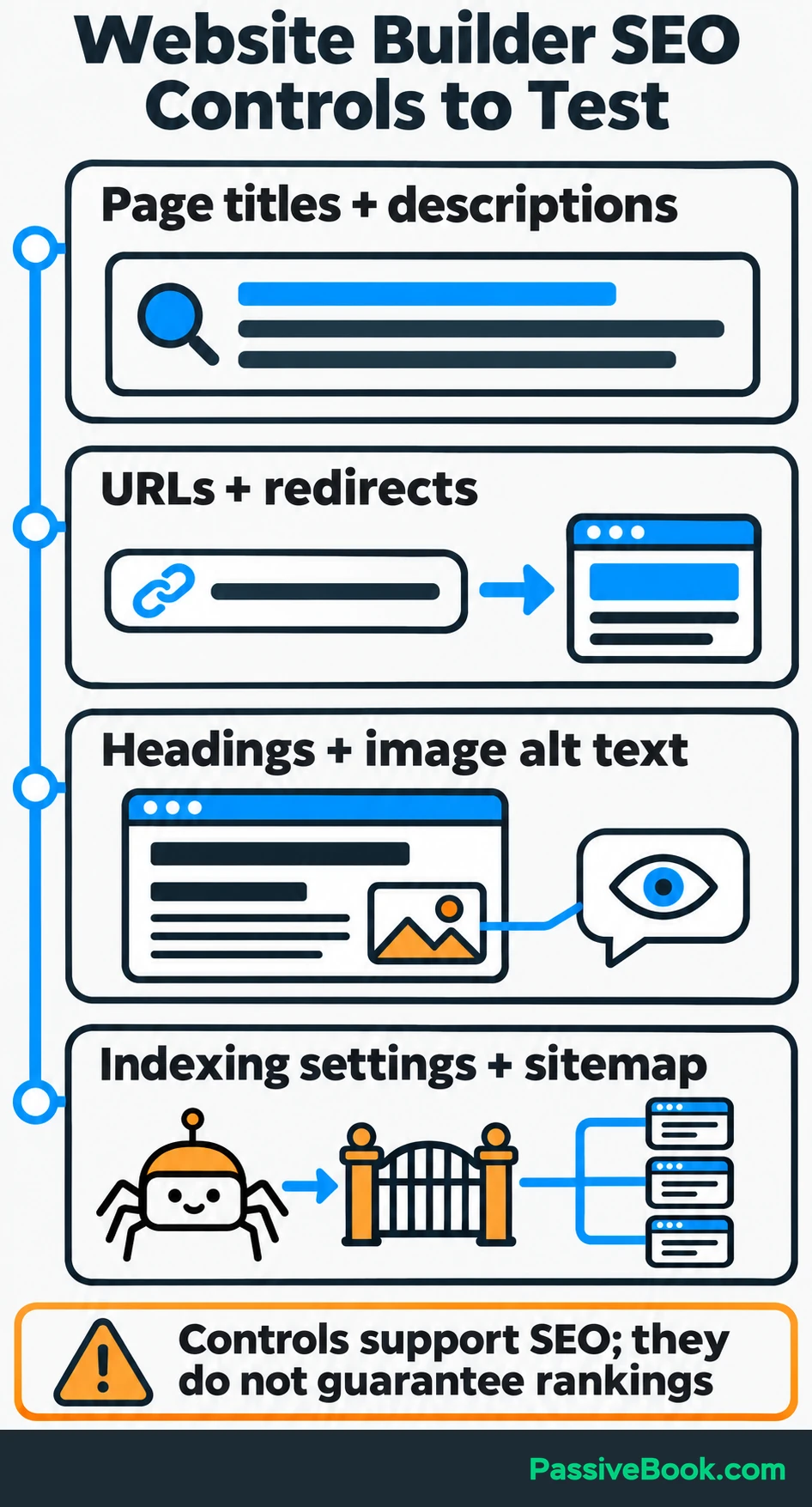
These controls support the work described in Google’s SEO Starter Guide. They don’t guarantee rankings.
I would favor an editor that makes these tasks straightforward over one that keeps awarding me cheerful SEO scores. A score is only useful when it points to something worth fixing.
If you’re moving an existing site, import a small sample first. Inspect headings, images, links, and formatting before trusting a full import.
Design Flexibility and Mobile Performance
Choose a template for its article layout and navigation. Then replace the demonstration content before judging it.
A template can look excellent with three short paragraphs and a professional photograph. Your long guide and awkwardly shaped image deserve a turn.
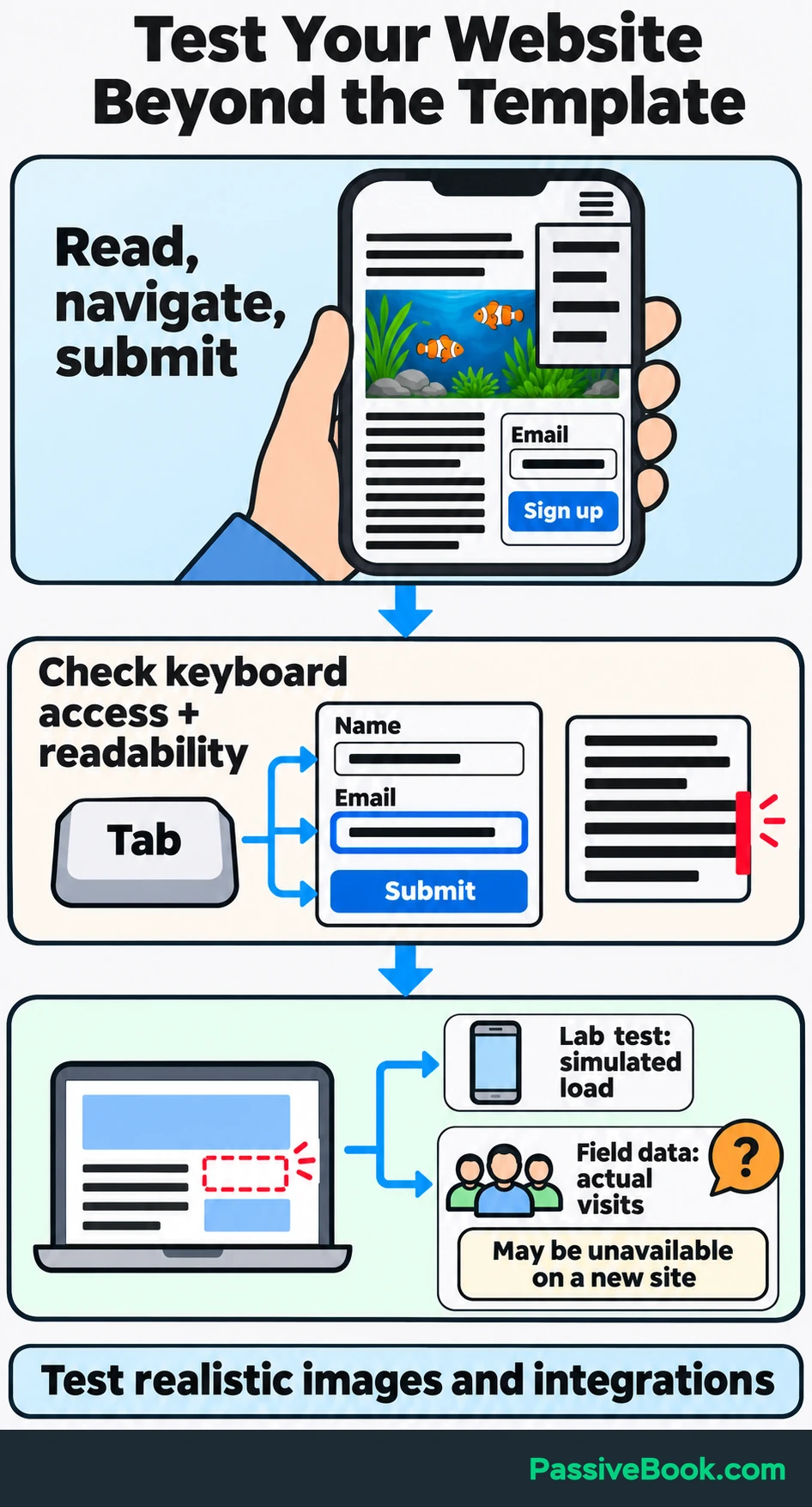
Test changes you’ll actually need: text size, spacing, image cropping, button placement, and signup forms. Change a shared style and check whether existing pages update consistently.
Use a real phone to read the article, open the menu, and complete the form. Also check keyboard navigation, visible focus as you move between controls, readable contrast, and clear form labels.
Publish representative pages and test them with PageSpeed Insights. It simulates page loads to flag loading and layout problems. It also reports data from actual visits when enough is available, which may not be the case for a new test site.
Keep realistic images and integrations in the test. An empty page tells you little about the site you plan to launch.
For each problem, establish whether you can fix it yourself or need provider support. I care more about a clear fix than a tiny score difference between two test runs.
Products and Checkout
Before building a shop, confirm that a supported payment provider accepts businesses in your country and supports the currencies you need.
Then test the workflow for what you sell.
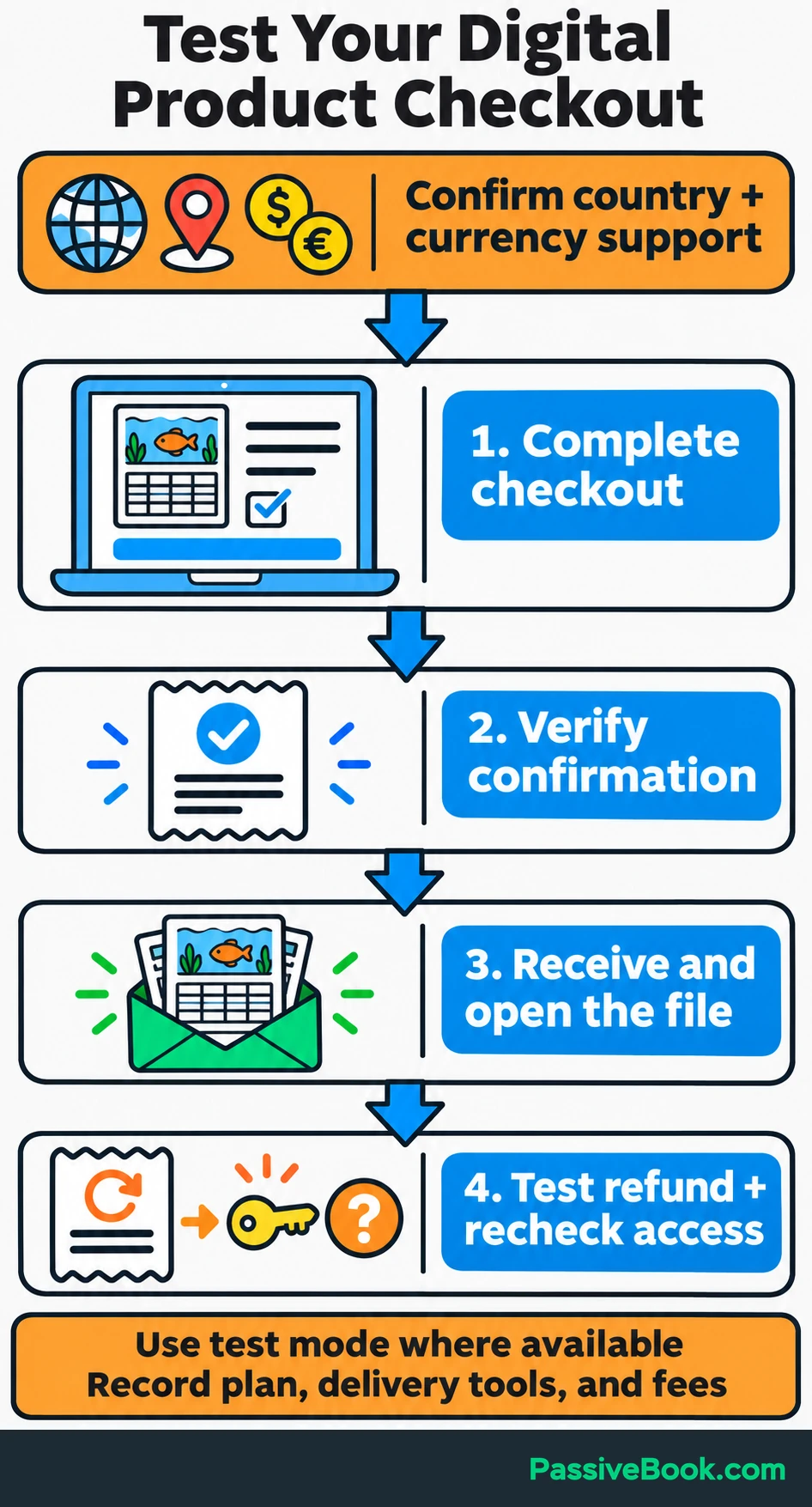
For the printable maintenance logs, follow the buyer’s path through checkout, payment confirmation, file delivery, and access to the purchase. Check how you issue a refund and what happens to download access afterward.
Record the required plan, any delivery app, and all selling charges. Use test mode where available, and check refund and fee rules before making a live test purchase.
Other offers need different checks:
- Physical products: Variants, inventory, shipping charges, and fulfillment.
- Services: Inquiries or bookings, availability, and confirmations.
- Subscriptions: Recurring payments, cancellations, and access changes.
With WordPress, WooCommerce adds commerce to the site. Whether you need it at launch depends on your sales workflow. Don’t build a full shop simply because you might sell something later.
Email, Analytics, and Automation
Test the complete subscriber journey:
Visitor requests checklist → subscriber record appears → checklist arrives → welcome email follows.
Use an address you can check and inspect the record in the email service. A form success message proves only that the page displayed a message.
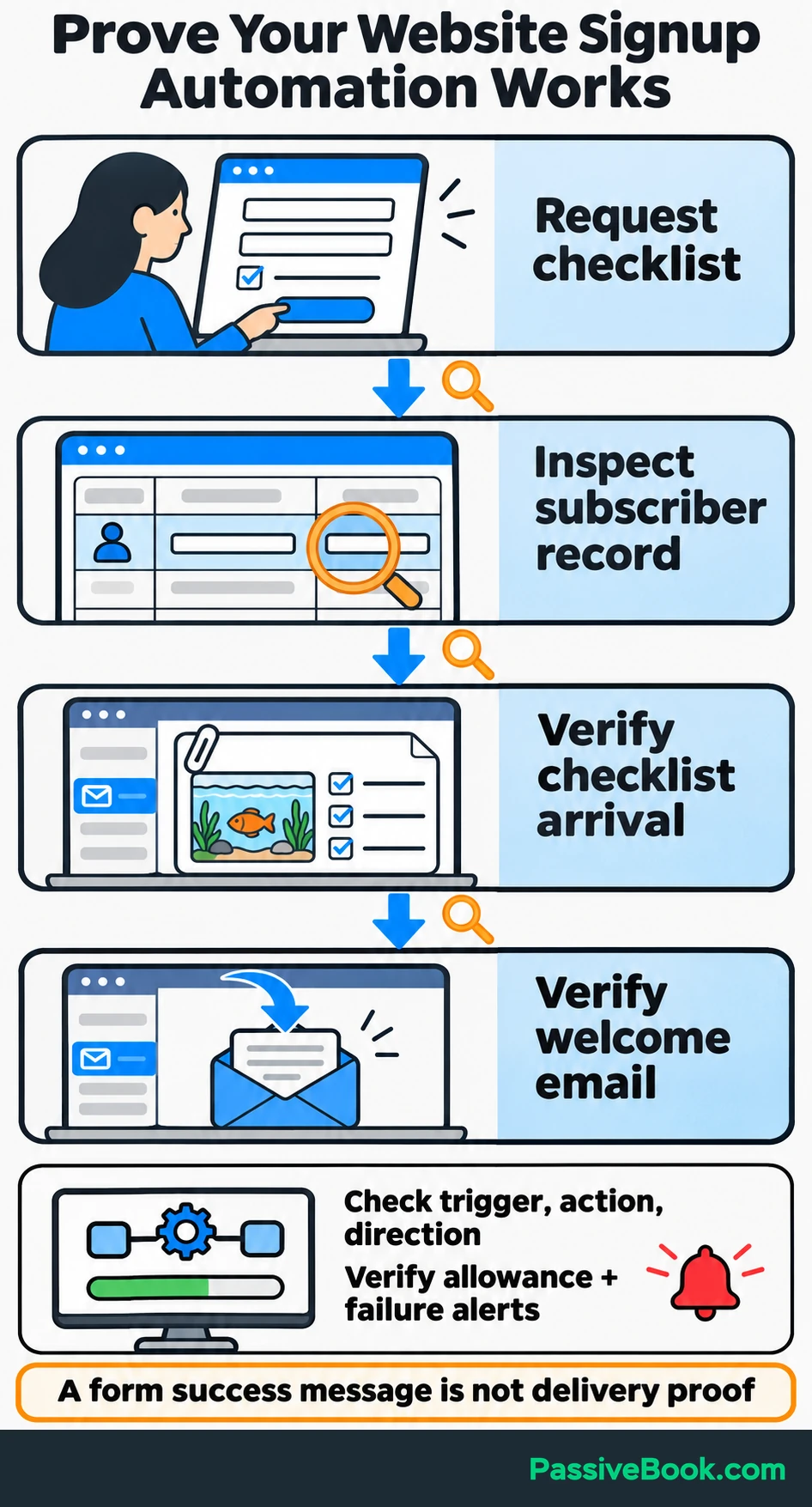
Also distinguish a newsletter from an automated sequence. Sending one campaign doesn’t prove you can trigger a welcome email after a signup or stop a promotion after a purchase.
I prefer FluentCRM, a WordPress plugin for managing subscribers and email sequences. It still needs a service to send the messages, and I test delivery before relying on it. A separate service such as Kit or MailerLite may suit you better if you want email managed outside the website.
For any integration, verify the exact connection:
- Trigger: What starts it?
- Action: What happens next?
- Direction: Which service sends data to which?
- Allowance: How much usage does your plan cover?
- Failure handling: How will you know something stopped working?
Make and n8n can connect services, but an integration-directory listing doesn’t establish that your required workflow works.
For analytics, confirm that you can measure traffic sources, completed signups, and purchases with your chosen service. Also check that you can verify the site in Google Search Console, Google’s tool for checking which pages it has found and how they perform in search.
Record which service handles each job and who maintains the connection. Your website, email, analytics, and automation can work together without sharing a logo.
AI Assistance and Everyday Editing
Give each builder’s AI the same task. For example, ask it to draft a homepage section introducing the tank-setup checklist.
Compare how much correction the result needs, then make a precise manual change. Can you shorten a paragraph, move a form, or adjust spacing without regenerating the whole section?
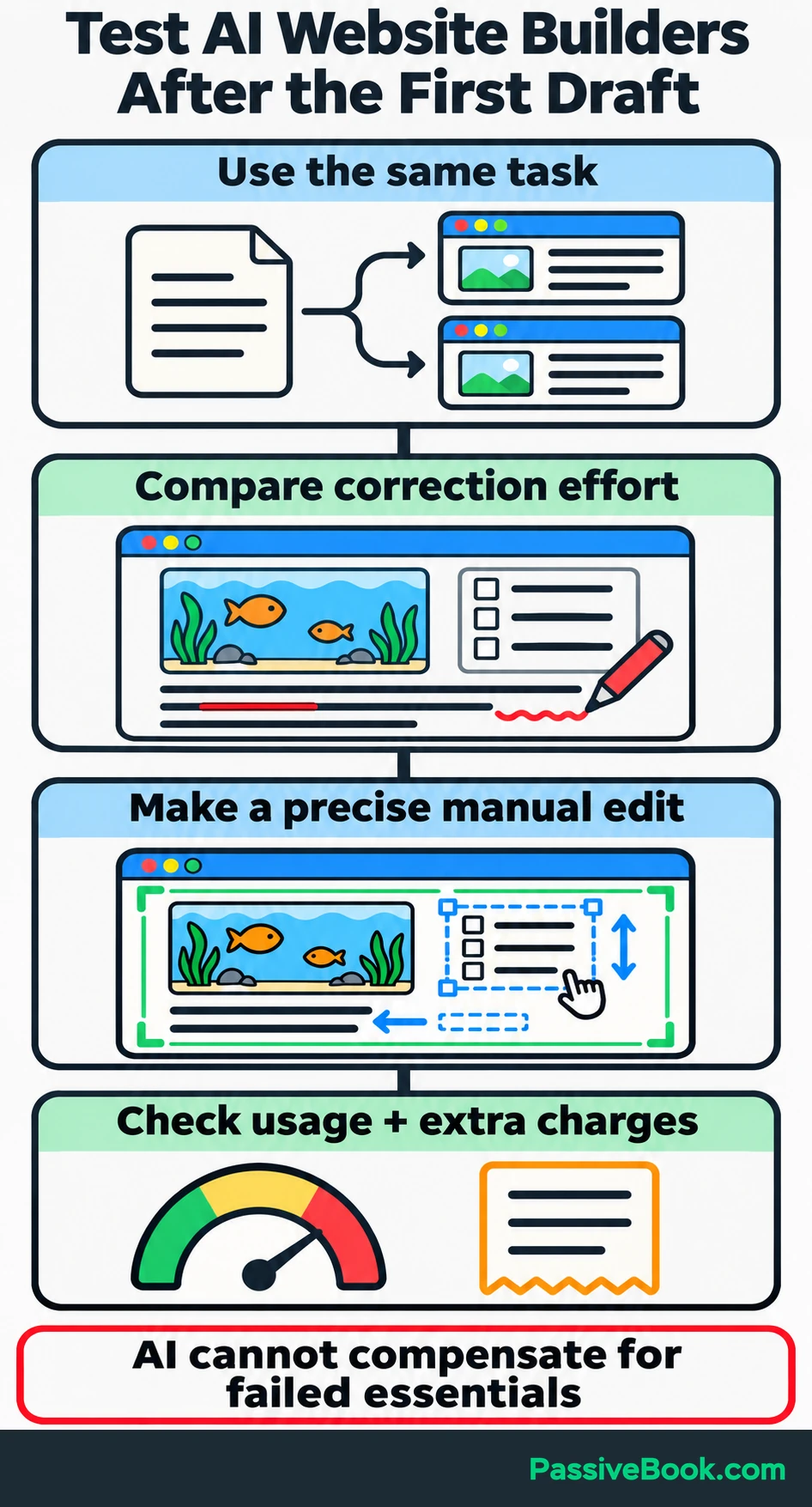
Check usage allowances and extra charges alongside the finished result.
I would use AI convenience to break a tie between otherwise suitable platforms. It shouldn’t outweigh a failed checkout, missing integration, or export restriction you can’t accept.
You’ll edit the website long after its first draft exists. Test that part too.
Support and Recovery
Ask support a specific question raised by your test site:
“If I accidentally delete the tank-setup article, how do I restore its text and images, and does that also restore the checklist form?”
Judge whether the answer solves the problem. Check when human support is available, whether your plan includes it, and who handles issues involving connected apps.
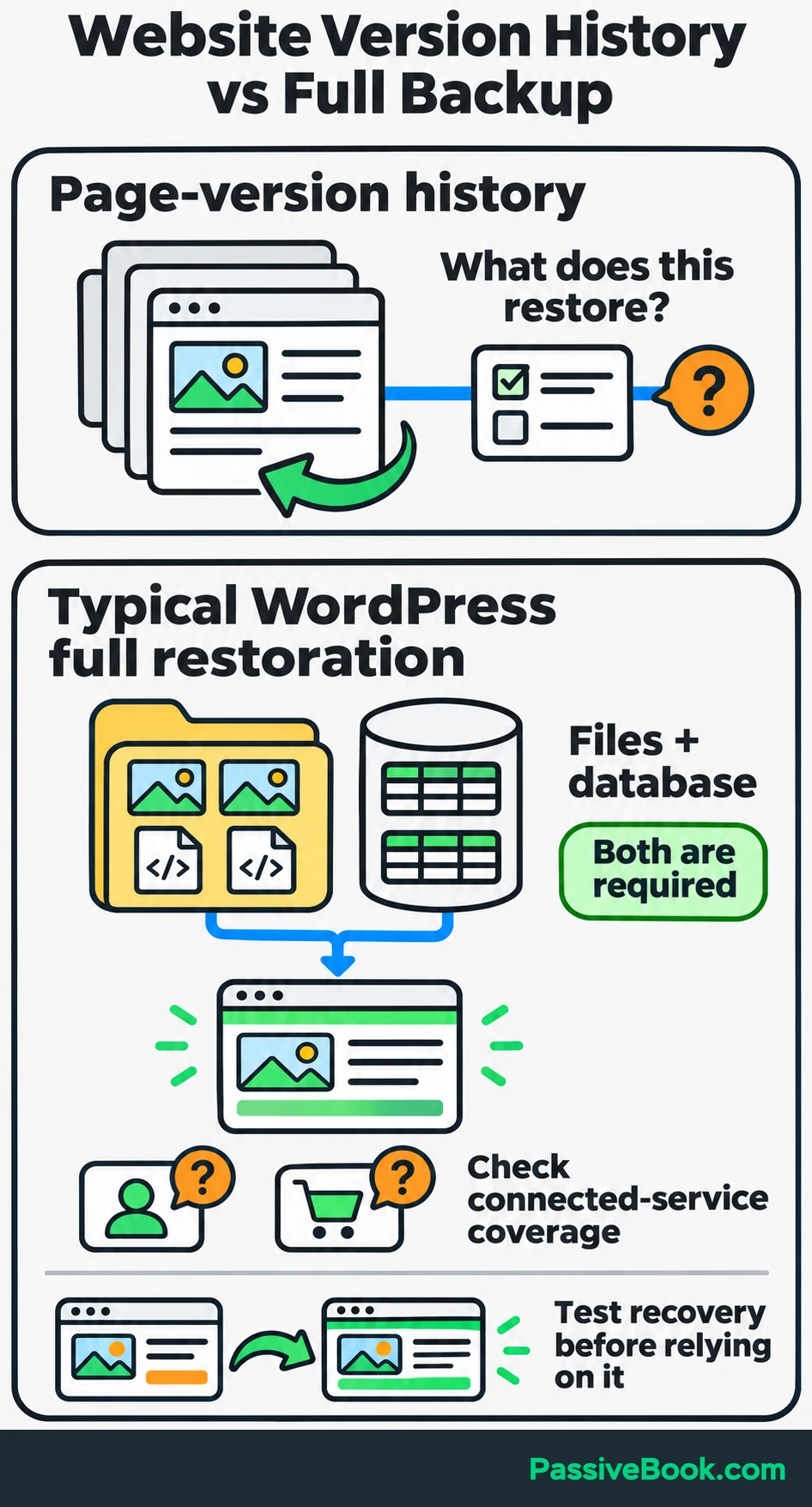
Then establish what recovery actually covers. Page-version history and a complete backup are different things.
For a typical WordPress site, full restoration requires both files and the database, as WordPress’s backup documentation explains. With any platform, ask what happens to articles, uploaded files, products, subscriber records, and recent orders.
Try restoring a harmless test change where possible. You want to understand recovery before an important page disappears.
Check Growth Limits and Migration Options
A builder should support the next business you reasonably expect to run. You don’t need to buy capacity for every possible future idea.
The Next Expansion Your Site Needs
Replace “Will it scale?” with a concrete question.
Can another person edit articles? What happens when you add more products? Which email or automation limit will you reach first?
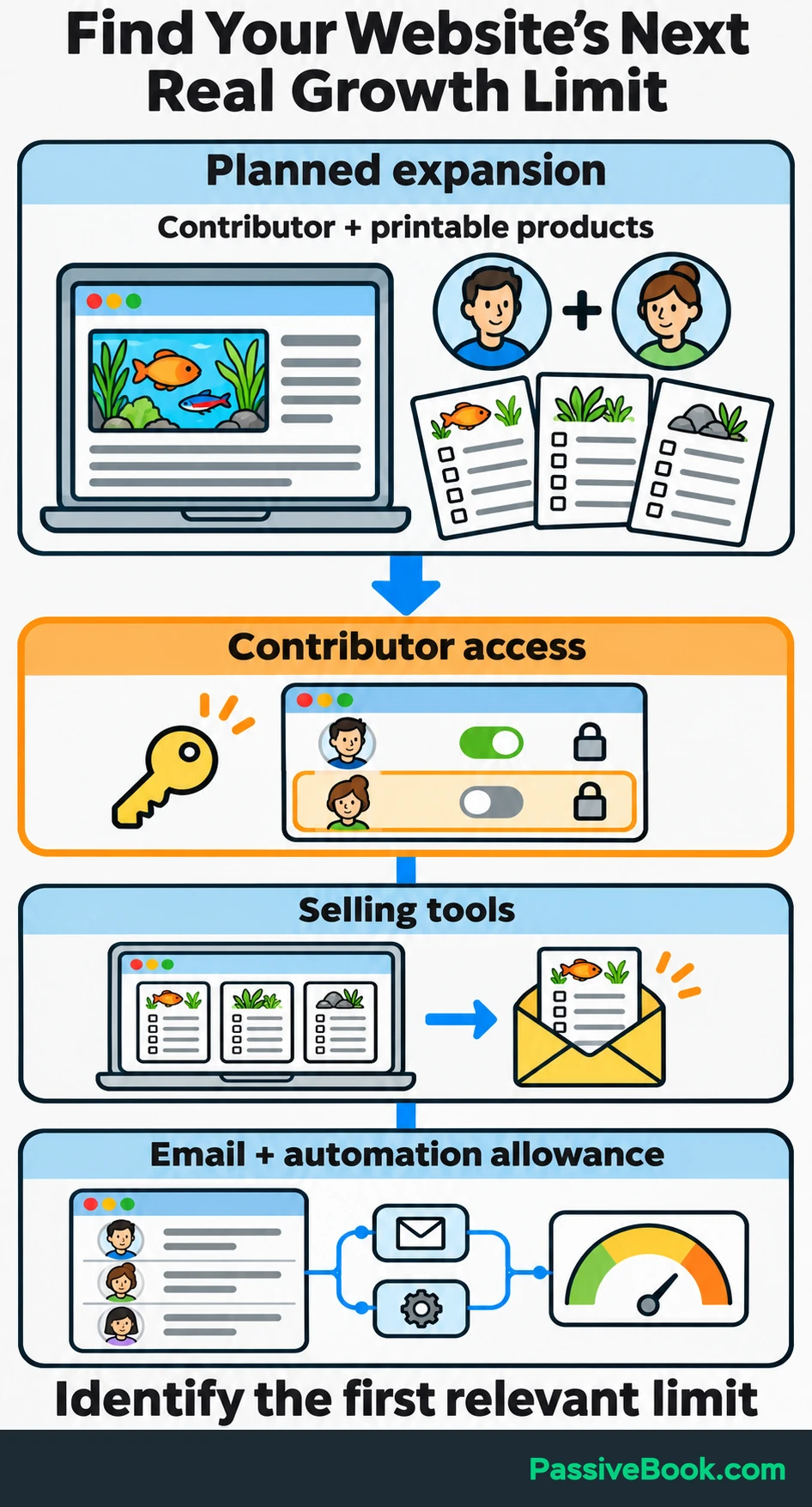
For Freshwater Tank Notes, the next expansion might be adding a contributor and selling several printable maintenance logs. Check the access permissions, required selling tools, and complete cost of that setup.
Look for the first relevant limit that changes your plan:
- People: Contributor allowances and permissions.
- Content: Article organization, search, and bulk editing.
- Sales: Catalog tools and the product workflows you need.
- Email and automation: Subscriber, sending, or connection usage.
- Hosting resources: Storage or traffic allowances where applicable.
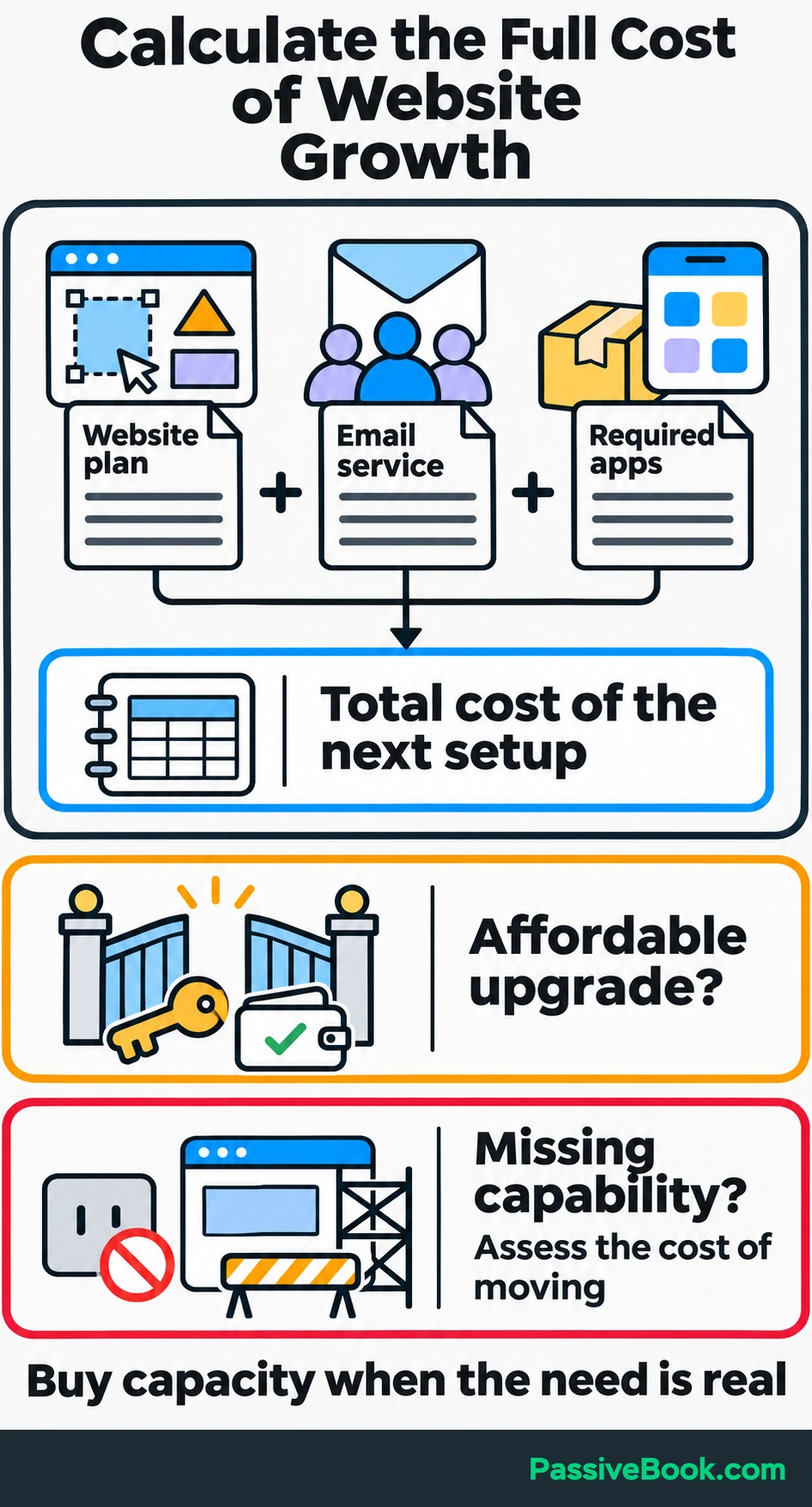
An affordable upgrade can be a reasonable growth path. A missing capability that forces a move deserves more attention.
Calculate the next plan’s full cost, including connected services. The website subscription may stay unchanged while email or app costs rise.
I would pay for the next expansion when it becomes a real need. Buying the largest plan because it says “grow” is an expensive way to express optimism.
What You Can Take With You
Owning your content and moving a working website are separate questions.
Check articles, images, products, customers, subscribers, and orders individually. Then assess layouts, settings, and automations, which may need rebuilding even when the data exports.
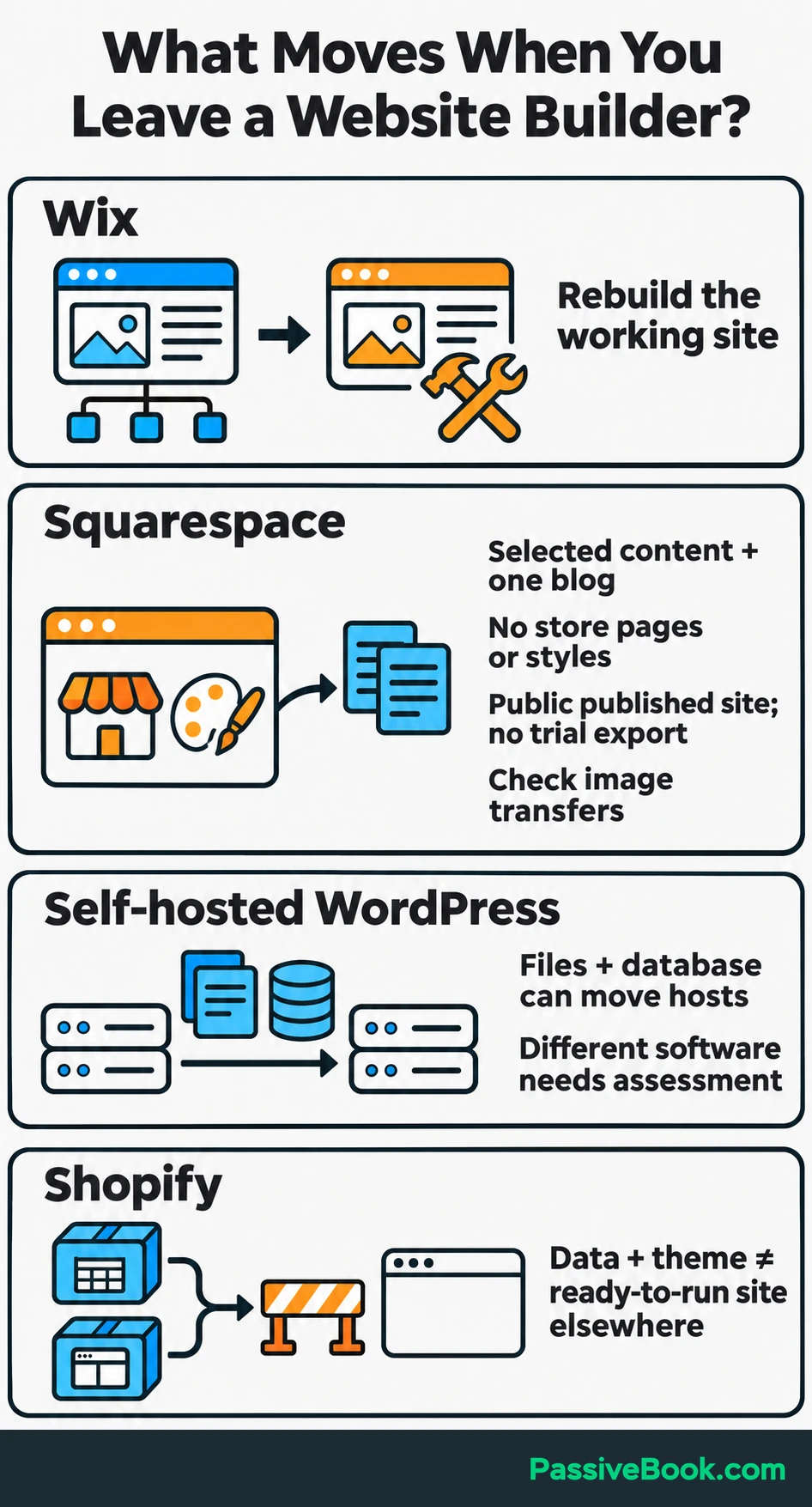
The main differences to understand are:
- Wix: The working website relies on Wix’s infrastructure. Leaving means building a replacement rather than moving the existing site unchanged to another host. See its external-hosting restrictions.
- Squarespace: Its WordPress-format export includes selected content and one blog, but excludes store pages and style settings. Export requires a published public site and isn’t available during a trial. Check image transfers separately. Its export documentation details the coverage.
- Self-hosted WordPress: Files and the database can move between hosting providers. Moving to different website software still needs a separate assessment. See the WordPress migration documentation.
- Shopify: Store-data exports and a downloaded theme are separate assets. They don’t create a ready-to-run site on another platform. Shopify’s backup and transfer guidance shows what can be exported and what needs additional work.
For each finalist, write down what transfers, what needs rebuilding, and whether that effort is acceptable.
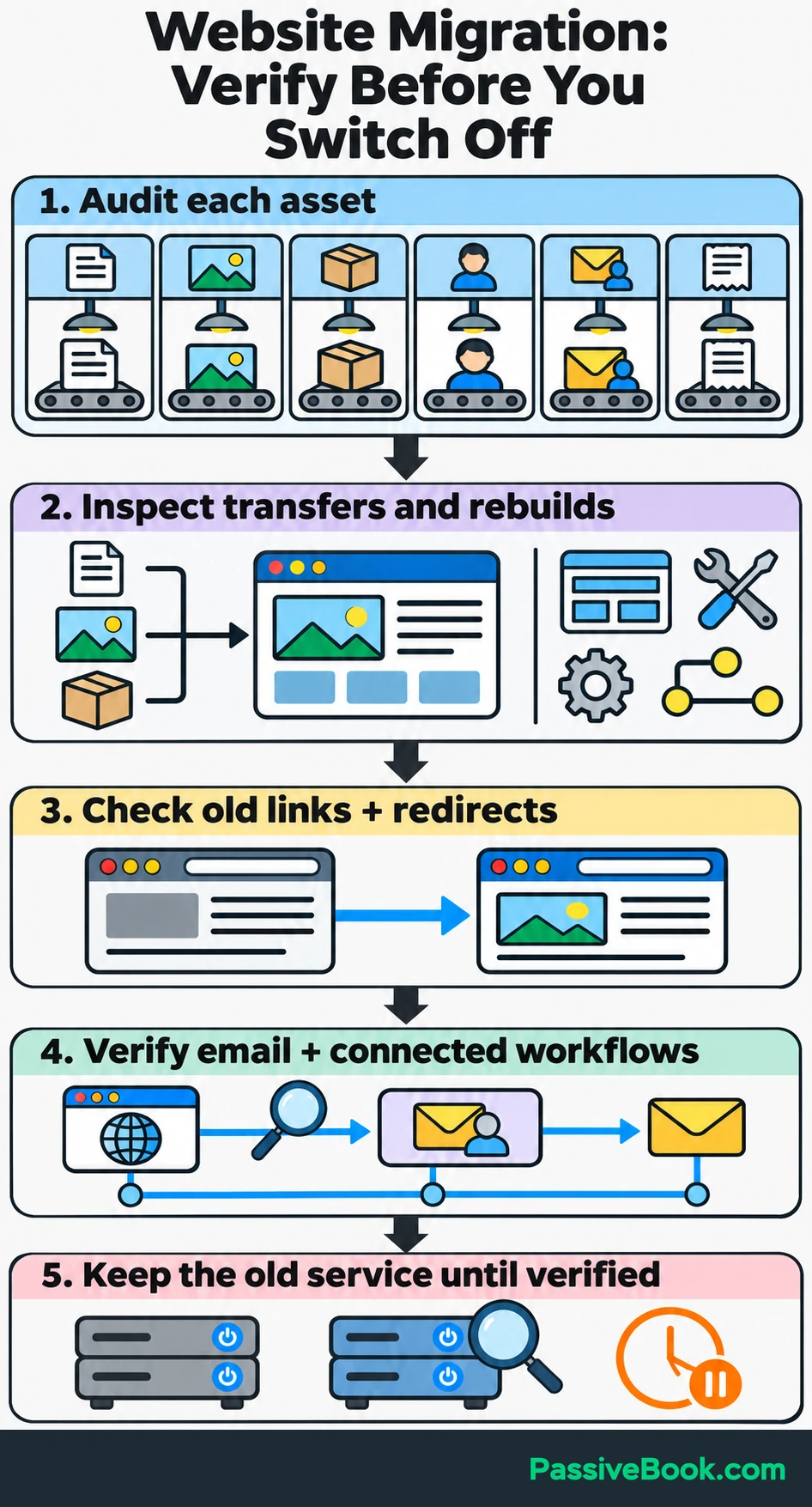
Keep domain-registration access under your control. If subscribers live in a separate email service, assess their portability there too.
For an existing site, include redirects from old page addresses, image transfers, email continuity, and connected workflows. Keep the old service running until you’ve checked that the replacement works.
Choose the Builder Whose Trade-offs You Can Accept
Eliminate any candidate that fails an essential task, exceeds your operating budget, or needs maintenance you can’t cover.
Then compare the survivors using what you demonstrated:
- Editing comfort: Can you repeat ordinary work without getting stuck?
- Full cost: Can you afford renewal and the next planned expansion?
- Support and recovery: Can you get useful help and restore important data?
- Growth: Does the next addition fit without an unreasonable upgrade?
- Exit effort: Do you accept what moving would involve?
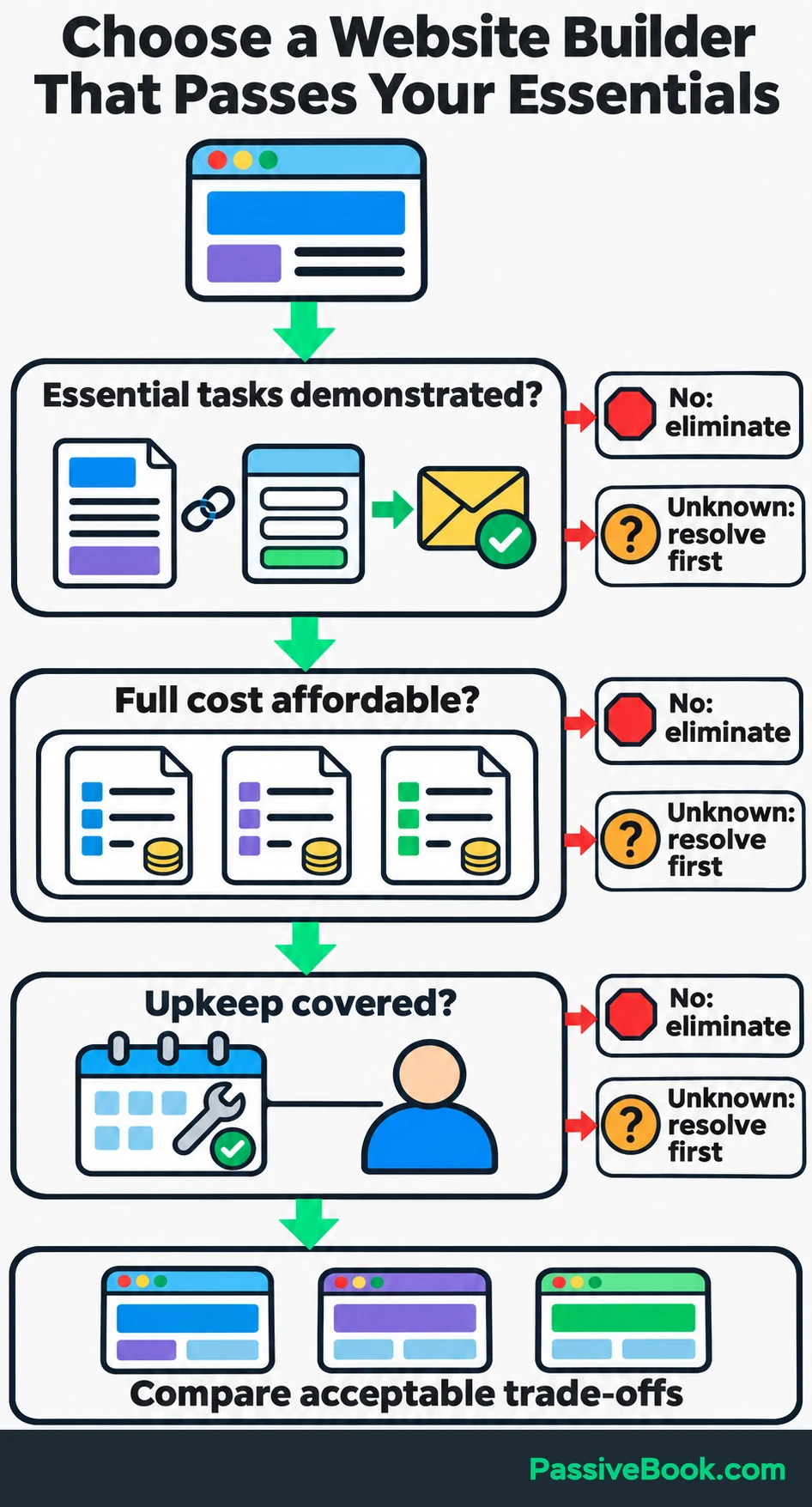
Resolve an untested essential integration, unclear renewal terms, or inadequate recovery before committing. “Probably works” is a poor foundation for the task your whole site depends on.
For Freshwater Tank Notes, I would choose self-hosted WordPress if publishing flexibility and control matter enough to justify the upkeep, with a clear maintenance arrangement. I would choose the hosted finalist if it completes the required workflows and makes regular publishing easier within budget.
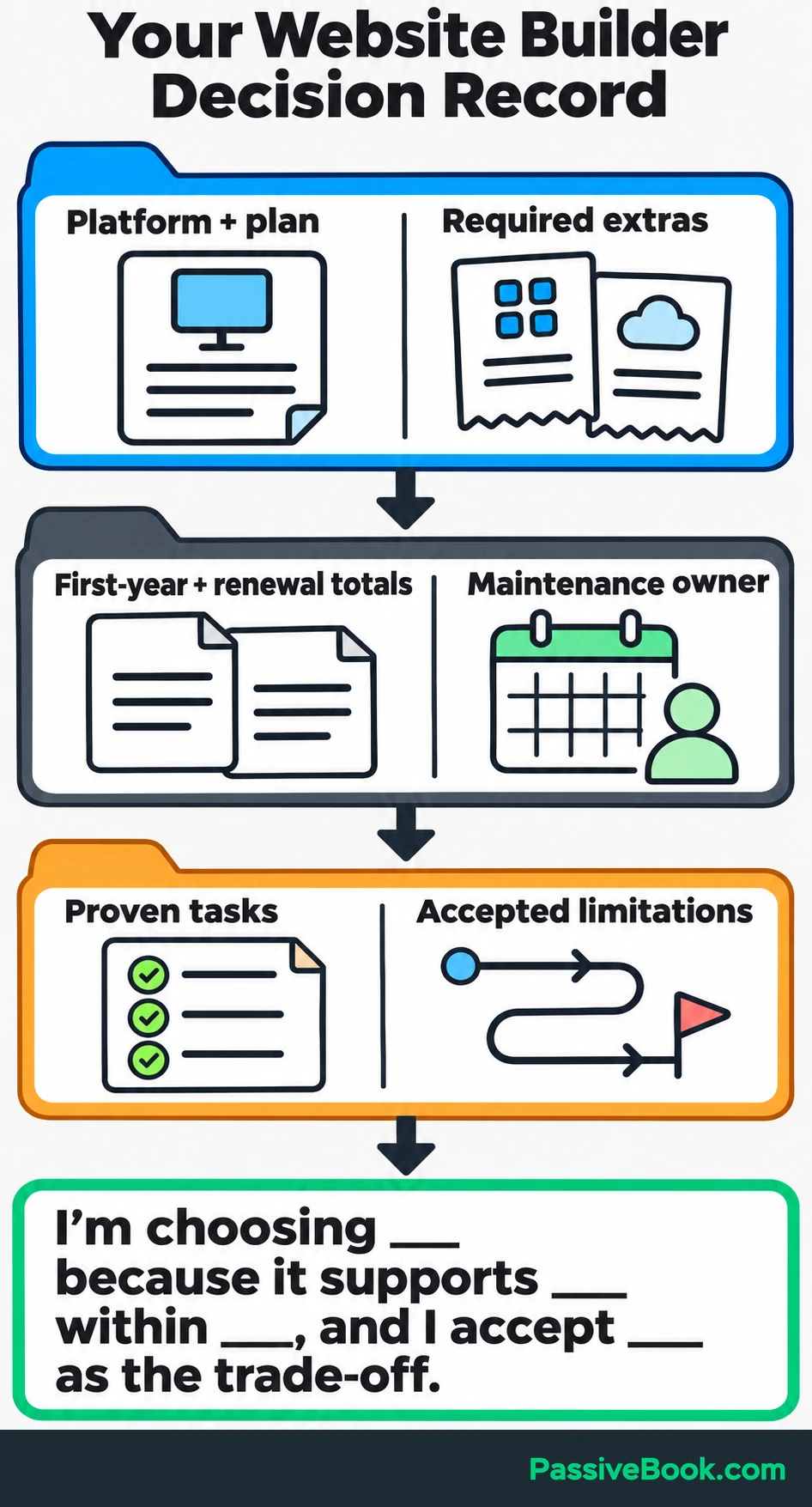
Record the platform, plan, required extras, first-year and renewal totals, maintenance owner, and accepted limitations.
Finish with one sentence:
“I’m choosing ___ because it supports ___ within ___, and I accept ___ as the trade-off.”
If you can fill that in using your test results, you have a sound reason to commit.
What Next?
Write your website’s one-sentence purpose and three launch essentials, then choose two platforms to test against them.
Use the social buttons to share this guide when a builder comparison needs to move beyond templates and headline prices.
Which trade-off would you most want to avoid: ongoing maintenance, higher recurring costs, or rebuilding when you leave? Tell me in the comments, and bring any other questions about your shortlist.
Share this post with your friends & followers:

