An order arrives while you’re at work. Later, you copy it into a tracker, check a customer’s message and create a reminder to follow up. None of those jobs takes long, but together they keep borrowing your evenings.
Automation can take over those handoffs. Choosing the wrong tool, though, can leave you paying for a subscription that needs almost as much attention as the original task. The comparison below weighs app connections, setup and ongoing costs to help you choose a tool for those handoffs, including when your store or website already has what you need.
Best Workflow Automation Tools at a Glance
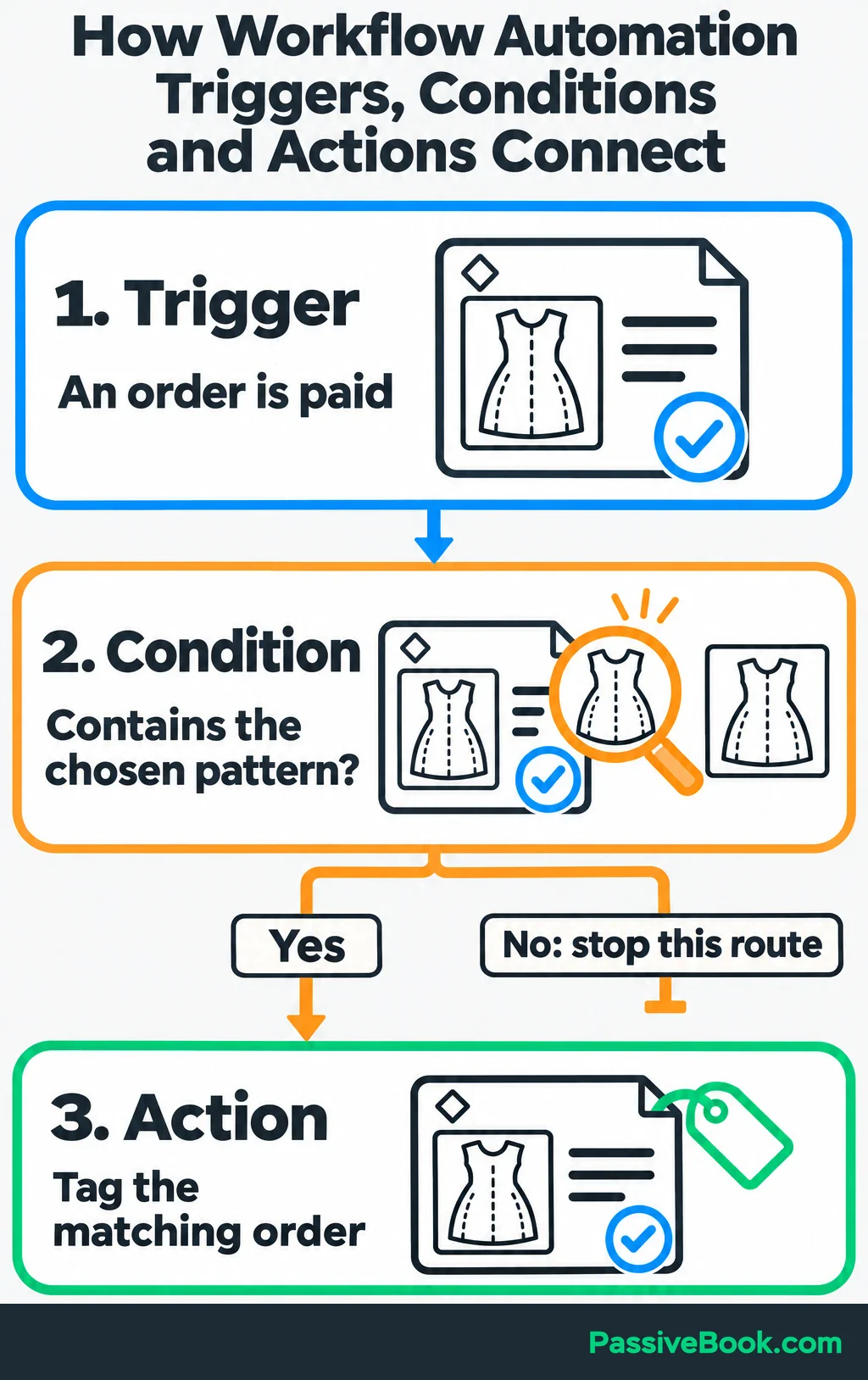
A useful workflow has three parts:
- Trigger: The event that starts the work, such as a paid order.
- Condition: A check that decides what happens next, such as whether an order contains a particular product.
- Action: The task performed, such as updating a spreadsheet or notifying you.
Before comparing tools, write down those parts. Then check whether each tool supports the exact operations you need. A Google Sheets logo tells you there is an integration. It does not tell you whether that integration can find an existing order and update the right row.
For the examples throughout this article, imagine you sell downloadable sewing patterns. You need to record orders, organize customer inquiries and flag requests that need your attention.
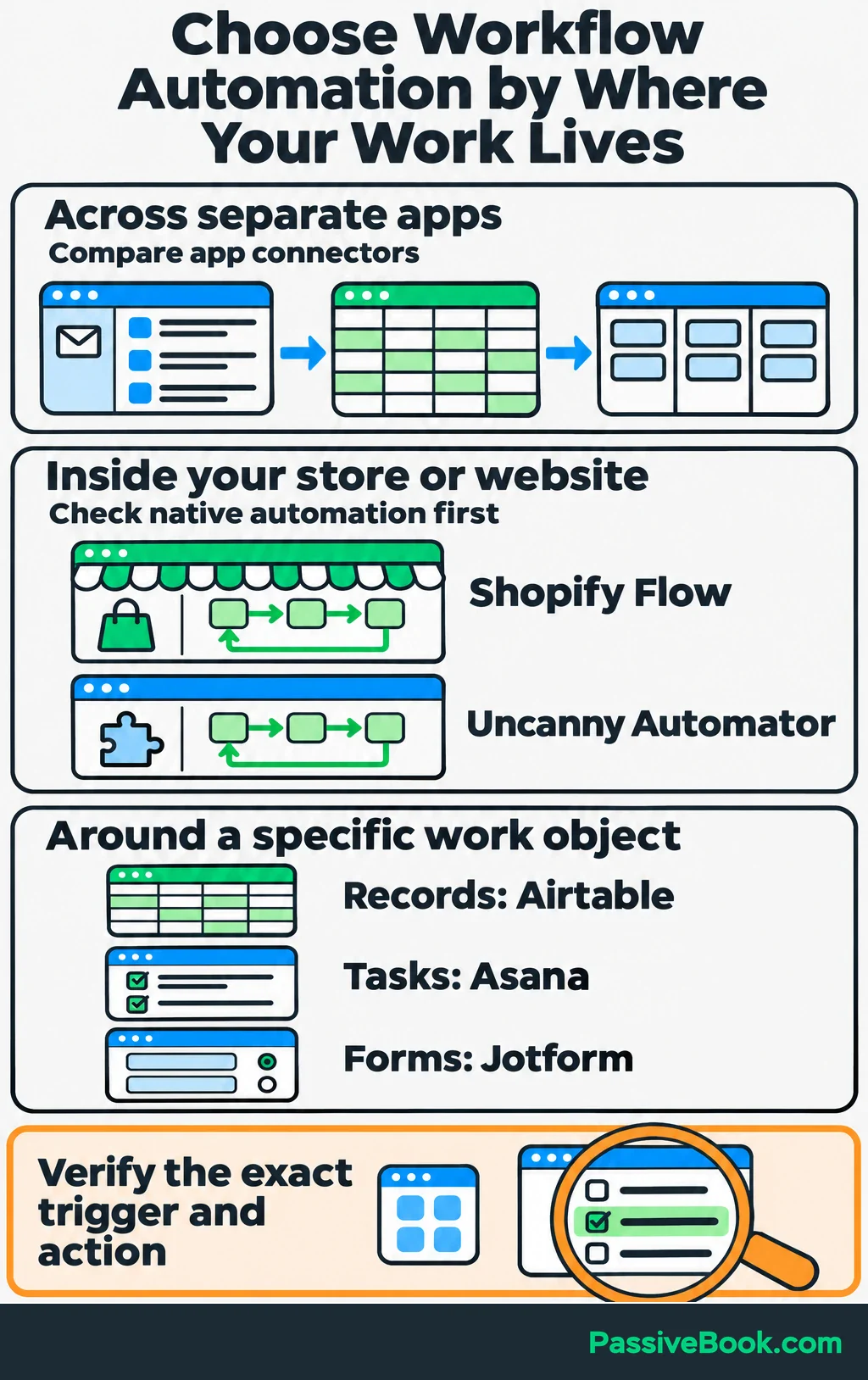
Several tools below connect separate apps. Others automate work inside a particular system. Airtable works around structured records, Asana around tasks and Jotform around forms. Shopify Flow and Uncanny Automator make sense when your shop already runs on their platforms.
Check those existing systems first. Adding a connector to do something your store already handles is an expensive way to collect dashboards.
The table keeps prices and allowances together. Dollar amounts are USD, and prices marked “paid annually” are monthly equivalents with an annual commitment. Use the linked pricing pages for current details.
| Tool | Best Use and Workflow Scope | Setup and Maintenance | Relevant Integrations | Free Option | Paid Entry Price and Billing Unit | Main Tradeoff |
|---|---|---|---|---|---|---|
| Make | Visual workflows across apps with several routes | Learn how records move through steps; maintain filters and error handling | Google Sheets, Gmail, Shopify | 1,000 credits/month; routers and filters included | Core: $12/month paid annually, with 10,000 credits/month | Multiple actions and processed records increase credit use |
| Zapier | Straightforward connections between separate apps | Simple sequences are approachable; check field mappings and task use | Google Sheets, Gmail, Asana | 100 tasks/month; one trigger and one action per Zap | Professional: from $19.99/month paid annually; task-based | Multi-step workflows and premium apps require a paid plan |
| n8n | Custom workflows with technical control | Visual setup plus optional code; self-hosting adds server maintenance | Google Sheets, app connectors, custom API requests | Self-hosted Community Edition; hosting costs remain | Cloud Starter: €20/month paid annually, with 2,500 executions/month and unlimited steps | More flexibility brings more technical decisions |
| Activepieces | Visual app connections with a self-hosting option | Map fields and test flows; maintain the installation if self-hosted | Google Sheets and other app “pieces” | Hosted: 1,000 credits/month and unlimited flows; Community Edition also available | Plus: $20/month billed monthly, with 10,000 credits/month | AI adds usage beyond the base workflow run |
| Integrately | Prepared connections that closely match a simple process | Templates reduce building work; account setup and testing remain | Google Sheets, Gmail, Shopify | 100 tasks/month; five single-step automations | Starter: $19.99/month paid annually, with 2,000 tasks/month | If/else branching requires Professional at $39/month paid annually |
| Zoho Flow | Connecting an existing Zoho setup with other apps | Visual logic; custom functions for more involved work | Zoho apps and supported third-party services | 100 tasks/month | Standard: US$25/month paid annually, with 5,000 tasks/month | Premium apps and automatic reruns require Professional at US$41/month paid annually |
| Microsoft Power Automate | Workflows centered on Microsoft services | Familiarity with Microsoft helps; licensing needs attention | Microsoft 365 services and other connectors | 30-day trial; check existing Microsoft entitlements | Premium: $15/user/month paid yearly; user-based | Unattended desktop bots need separate licensing |
| Gumloop | AI-assisted sorting, interpretation and drafting | Connect tools, give clear instructions and review outputs | Gmail, Slack, Google Sheets | 14-day trial | Pro: from $37/month, with 20,000 credits/month | Variable AI usage and an 8% orchestration fee complicate estimates |
| Airtable Automations | Workflows built around records and statuses | Design the records first, then maintain triggers and conditions | Airtable records, Slack, email actions | 100 automation runs/workspace/month | Team: $20/user/month paid annually, with 25,000 runs/workspace/month | Failed triggered runs also consume the allowance |
| Asana | Moving repeatable work between stages and owners | Straightforward once task stages and responsibilities are clear | Asana projects, Slack, Google Workspace | Personal is free, but workflow rules require a paid plan | Starter: $10.99/user/month paid annually; two-seat minimum means $21.98/month equivalent | Paying for task handoffs makes less sense if your work lives elsewhere |
| Jotform Workflows | Requests and approvals that begin with a form | Build the form, routing and response steps | Google Drive, Slack, Airtable | Five forms and 100 submissions/month | Bronze: $34/month paid annually, with 25 forms and 1,000 submissions/month | Submission and storage limits matter when requests include uploads |
| Shopify Flow | Automation within an existing Shopify store | Build store rules and test product and order conditions | Shopify orders, customers and supported app connectors | Free app on Basic, Grow, Advanced and Plus | No separate Flow subscription; Shopify and connected-app costs remain | Sending custom HTTP requests requires Grow or above |
| Uncanny Automator | Connecting WordPress plugins and supported external apps | Build automation “recipes”; maintain the site and plugins | WooCommerce, FluentCRM, Google Sheets | Unlimited supported plugin-to-plugin automations; 250 free external-app credits | Basic Legacy: $16.58/month equivalent, paid as $199/year, for one site; unlimited recipes and app credits | Exact triggers and actions may require Pro; website maintenance remains yours |
Tasks, credits and executions are different units. Tasks and credits count activities defined by each vendor. Executions generally count workflow runs. Seat-based subscriptions charge for access and may also have usage limits.
My shortlist would be Make for a first workflow with branching, Zapier for a simple connection and n8n when custom logic or control matters enough to justify more setup.
For a shop that already uses Shopify or WordPress, I would check the native options before opening any of those accounts.
The 13 Best Workflow Automation Tools
1. Make — Best for Visual Workflows With Branching
Make is my default recommendation when a process has several steps and more than one possible route. Its visual builder lets you see where information goes, which makes it easier to inspect the logic before switching it on.
Start by separating routine work from exceptions. In the sewing-pattern shop, Make could record each inquiry in Google Sheets and check for an order number. If the number is present, it could look up the matching order; if it is missing, it could flag the request for your review.
That is a better first use than trying to automate the whole support inbox.
The learning curve is understanding how each record moves through the workflow. One incoming event can produce several records, and later actions may run for each one. That affects both behavior and cost.
The free plan’s scheduled workflows have a 15-minute minimum interval, so check whether that delay suits the task. Recording an inquiry can usually wait longer than delivering something a customer has just bought.
I would also enable storage for unfinished runs before relying on a workflow. Make leaves this disabled by default, and its automatic recovery covers supported error types rather than every possible failure. Make’s incomplete-execution documentation explains that distinction.
2. Zapier — Best for Straightforward App Connections
I would choose Zapier when the process follows a clear sequence and its connectors already offer the actions I need.
First identify the source event and the destination. For an inquiry, that might mean creating a Google Sheets row and then creating an Asana follow-up task. Each action has an obvious purpose, and there is little routing to explain.
That example needs a multi-step plan. The free plan’s one-trigger, one-action structure can handle recording the inquiry, but it cannot also create the follow-up task in the same Zap.
Zapier makes sense when a matching connection saves you meaningful setup work. I would pay for that convenience if the alternative required maintaining a custom integration.
I would not choose it solely because both app names appear in the directory. Check the available trigger, the fields it returns and the action you need. Then estimate usage from the actual steps and features in your workflow. A completed workflow does not have one universal task cost.
3. n8n — Best for Technical Control and Self-hosting
n8n gives you room to combine visual steps with custom data handling, API requests and code. An API is the route software uses to exchange information with another service.
You do not need to code every workflow. I use self-hosted n8n to connect tools without code, but I value having more control when a standard connection stops short.
For the pattern shop, you could check an order’s required fields before updating the tracker. If the order data arrives in an awkward format, the workflow can reshape it before passing it on.
Its execution-based cloud pricing is worth comparing when each run contains many actions. That does not automatically make it cheaper; it gives you a different way to pay for the work.
Self-hosting means running n8n on infrastructure you manage. The Community Edition has no software subscription fee, but servers, backups, updates and troubleshooting still need an owner.
I would choose managed hosting if server maintenance would eat the time the workflow is supposed to save. Saving on software while acquiring a weekend support shift is a questionable bargain.
4. Activepieces — Best for a Self-hostable Visual Alternative
Activepieces is worth considering when you want a visual connector and the option to host it yourself. Its app connections are called “pieces,” and you combine them into flows.
Use it when its available actions match the process closely. Its Google Sheets connection can find, create and update rows, which makes it a candidate for keeping the shop’s inquiry tracker current.
For example, you could look for an existing inquiry before creating another row. A follow-up message could update its status instead of producing another entry you have to reconcile.
Its billing also deserves attention: a non-AI run uses one credit regardless of step count, while AI activity adds usage. That can make longer workflows worth comparing.
I would test the hosted version before committing to self-hosting. Also compare the Community Edition with the paid features you actually need. Deployment options do not mean every edition includes the same capabilities.
5. Integrately — Best for Ready-made App Connections
Integrately makes the most sense when a prepared connection already resembles your task.
Start by finding a template with the right source event and destination action. Then inspect what it does. A template that adds an inquiry to Google Sheets could save you from building that connection from a blank screen.
You still need to connect accounts, match incoming details to their destination fields and test the result. “Ready-made” does not mean the tool knows which spreadsheet column contains your order number.
The important plan distinction is branching. Starter supports multi-step automation, but if/else paths require Professional. If your process needs different routes for download problems and customization requests, price that full workflow before choosing a plan.
I would use Integrately for a close template match and skip it when the prepared flow needs so much rebuilding that its main advantage disappears.
6. Zoho Flow — Best for Businesses Already Using Zoho
Zoho Flow belongs on the shortlist when Zoho applications already hold your business records.
Start with the record that needs updating. If you already manage customer inquiries in a Zoho application, connecting new requests to those records may be more useful than creating another tracker elsewhere.
For the sewing-pattern shop, that could mean attaching an inquiry to the existing customer record and notifying you when it needs a response.
Zoho Flow provides visual logic and custom functions, so there is room to handle more than a simple transfer. But check app classification before budgeting: a required premium app can change the plan you need.
Automatic reruns also require Professional. That matters if recovery is part of your reason for buying the tool.
I would choose Zoho Flow to support an existing Zoho setup. I would not move business records into Zoho just to make the automation tool feel like a better fit.
7. Microsoft Power Automate — Best for Microsoft-centered Workflows
Power Automate is a sensible first check when your daily work already depends on Microsoft services.
Look for work that moves between your existing inbox, records and notifications. An inquiry could enter through Outlook, become an item in a Microsoft List and generate a Teams notification when it needs attention.
Keeping that process within tools you already use can reduce the number of accounts and connections you maintain.
The licensing distinction matters more than the workflow diagram. Premium includes cloud flows, which connect online services, and attended desktop automation, which operates desktop apps while a person is present. An unattended bot runs without someone supervising that session and needs separate licensing.
I would begin with cloud flows when the apps offer suitable connectors. Automating mouse clicks on a desktop is worth considering when there is no practical app connection, but it adds another thing to maintain when the screen changes.
Check your existing Microsoft entitlements before buying, then match the license to the actual connectors and execution method.
8. Gumloop — Best for AI-assisted Inquiry Processing
Gumloop is worth considering when incoming information needs interpretation.
A fixed rule can check whether an inquiry contains an order number. Understanding a message such as “the printout looks smaller than the size guide” requires more context.
For the pattern shop, an AI-assisted process could group requests into printing, sizing and download issues, then prepare a response draft. I would keep customer replies and important record changes subject to approval while checking the quality of those drafts.
The useful first outcome is a sorted queue that you can review quickly. Sending every reply automatically can wait.
Budget from representative requests rather than message count alone. Gumloop’s agent usage combines model work, tool calls and compute, so a short classification task can cost differently from a request that needs several searches. Its credit rules explain those components.
I would skip AI for straightforward order logging. A defined rule is easier to inspect when the task already has a clear answer.
9. Airtable Automations — Best for Workflows Built Around Structured Records
Airtable fits when the workflow begins with well-organized records. Think of it as a database with a spreadsheet-like interface, where orders, inquiries and products can connect to one another.
Define the useful statuses before building an automation. For an inquiry, those might be “New,” “Waiting for customer” and “Ready for review.”
Once those meanings are clear, a record meeting your chosen conditions can trigger an internal notification. You can see both the work and its current state in the same system.
The free allowance is useful for a small test, but both successful and failed triggered runs count toward it. The free plan’s built-in email action can only email collaborators with access to the Airtable database, called a base. It cannot email other customer addresses. Check those automation limits before choosing Free for customer follow-up.
I would choose Airtable when linked records make the work easier to manage. I would keep a simple spreadsheet if all I needed was a basic order log.
10. Asana — Best for Repeatable Task Handoffs
Asana helps when work gets stuck between stages.
Decide what a stage change should cause. When a sewing-pattern revision moves to “Ready for review,” a rule could assign the reviewer and move the task into the right section.
That removes the separate job of remembering to hand it over. The task can carry the files, instructions and discussion along with it.
Asana is a stronger fit when the work already lives in projects. If your problem is transferring order data between unrelated apps, a broader connector is likely to be the more direct choice.
The paid entry cost also needs care. Asana has a two-seat minimum, so the per-user headline price is not the smallest subscription bill. The table accounts for that minimum.
I would pay for Asana rules when repeated handoffs justify the project system. For a solo reminder list, I would start with the tool I already have.
11. Jotform Workflows — Best for Form-led Requests and Approvals
Jotform Workflows is a good fit when a form submission starts the process.
First decide what information you need to review a request. Then build the form and route the submission based on its answers.
For the pattern shop, a customization request might need the pattern name, requested change and an uploaded reference. The workflow can carry that request through review, approval and a response, while supported integrations move information into tools such as Google Drive or Airtable.
The advantage is keeping collection and review connected. You are less likely to end up with a form response in one place and an approval discussion in another.
Check storage alongside submission volume. A modest number of requests with large uploads can have different needs from the same number of short text forms.
I would choose Jotform when the form and approval process are the main job. I would use a broader connector when forms are only one small input.
12. Shopify Flow — Best for Automation Inside a Shopify Store
Shopify Flow is where I would start if the shop already runs on Shopify.
Begin with a store event and a clear condition. When an order contains a particular sewing pattern, Flow could add a tag to the order or customer. That tag can make later filtering and follow-up easier.
This keeps simple store rules close to the records they affect. There is little reason to add another subscription just to tag an order.
The main boundary is the action you need outside Shopify. The Send HTTP Request action, which sends information to an external web service, requires Grow, Advanced or Plus.
If that action is essential, compare the cost of upgrading Shopify with the cost of a separate connector. Check whether a supported app action can already complete the job before choosing either.
I would keep routine store automation in Flow and add another tool only when the process needs a connection or capability Flow cannot provide on the intended plan.
13. Uncanny Automator — Best for WordPress Plugin Workflows
Uncanny Automator deserves a look when your shop already uses WordPress and WooCommerce. It joins triggers and actions into workflows called recipes.
Start with the purchase event and name the result you want. That could mean applying a tag in a supported customer plugin or adding order details to Google Sheets.
Then check the exact trigger and action. Free and Pro availability varies, so a supported plugin name alone does not establish that your recipe is free.
The free plugin offers unlimited supported plugin-to-plugin automations, but its external-app credits are a limited allowance. That distinction matters if most of your work happens outside WordPress.
I would compare the automation-only Legacy plan before paying for an AI bundle I did not need.
WordPress is already my preferred base for owning a website, but I would not build a new site just to use this plugin. Its value is connecting a site and plugins you already maintain.
What Will Your Workflow Actually Cost?
Count the work before comparing subscriptions.
Start with the number of events you expect each month. Then follow each route and count the activity that vendor bills for. Include searches, scheduled checks, loops, AI work and recovery where those incur charges.
Suppose the sewing-pattern shop receives 200 orders a month. Each order passes through three activities, and each activity costs one credit and runs once per order.
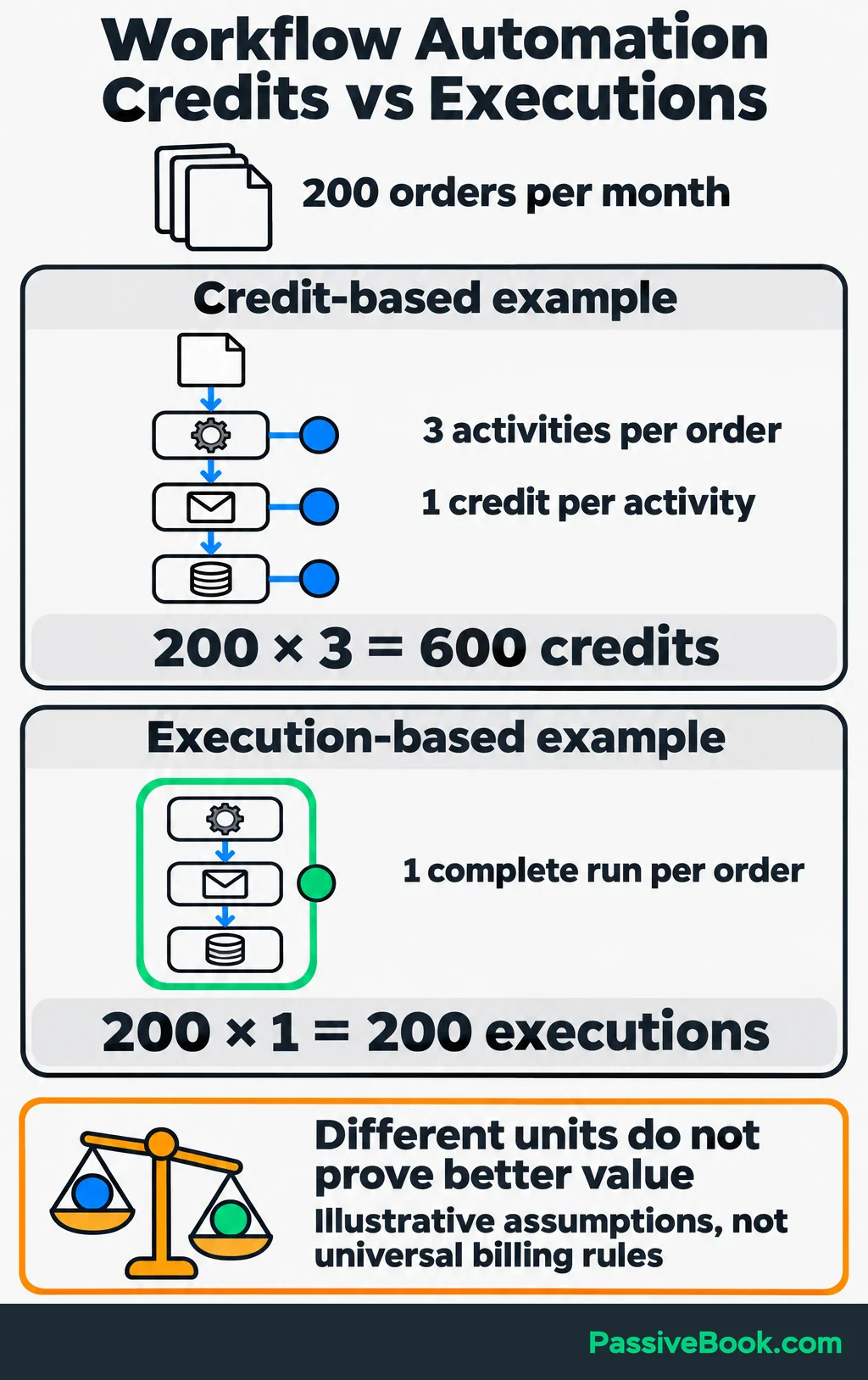
That means:
- Credit-based example: 200 orders × three one-credit activities = 600 credits.
- Execution-based example: 200 orders × one complete workflow run = 200 executions.
Those are different billing units. The smaller number does not establish which plan is better value.
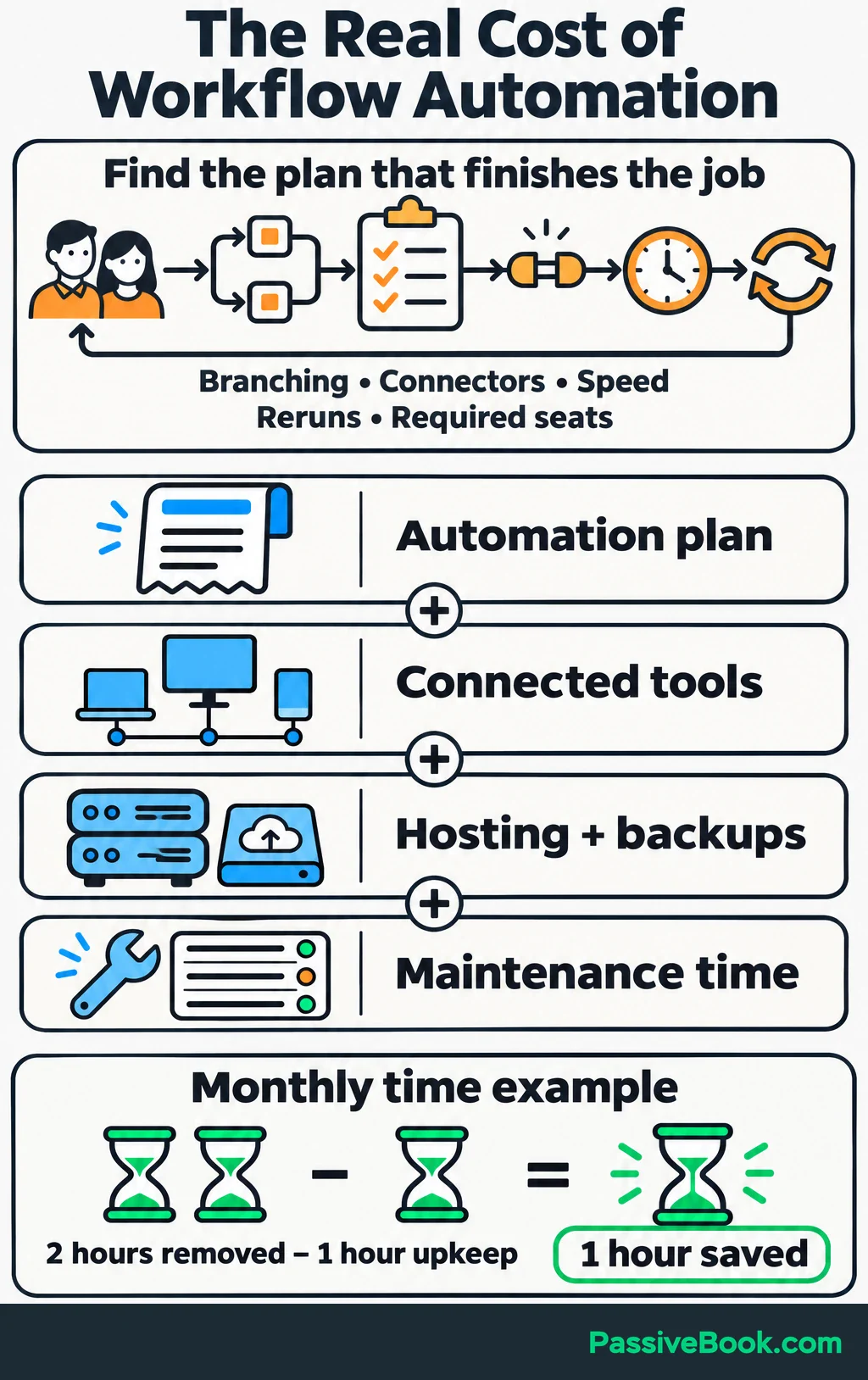
Now check what the workflow actually requires. Does it need branching? A premium connector? Faster processing? Automatic reruns? Enough paid seats to cover the people involved?
Compare the lowest plan that finishes the whole job, then add:
- Connected tools: Any required store, email, database or AI subscriptions.
- Infrastructure: Hosting and backups for a self-hosted setup.
- Maintenance: Time spent checking runs, fixing connections and updating the workflow.
A free allowance helps only when it includes the actions and speed you need. A delayed internal report may be fine. A customer waiting for an urgent response creates a different requirement.
I also count time saved after maintenance. If a workflow removes two hours of manual work each month but takes an hour to monitor and repair, it saves one hour.
That can still be worthwhile. It is simply a smaller win than the diagram promised.
For a first purchase, I would test with a free plan or trial. Commit to an annual subscription only after the workflow completes reliably at an acceptable ongoing cost.
Test One Workflow Before Relying on It
Map One Task With a Clear Result
Choose one task with an outcome you can inspect. Recording a paid order in an existing tracker is a useful starting point because you can compare the source order with the finished row.
Write down what starts the process, which fields it needs and what counts as complete.
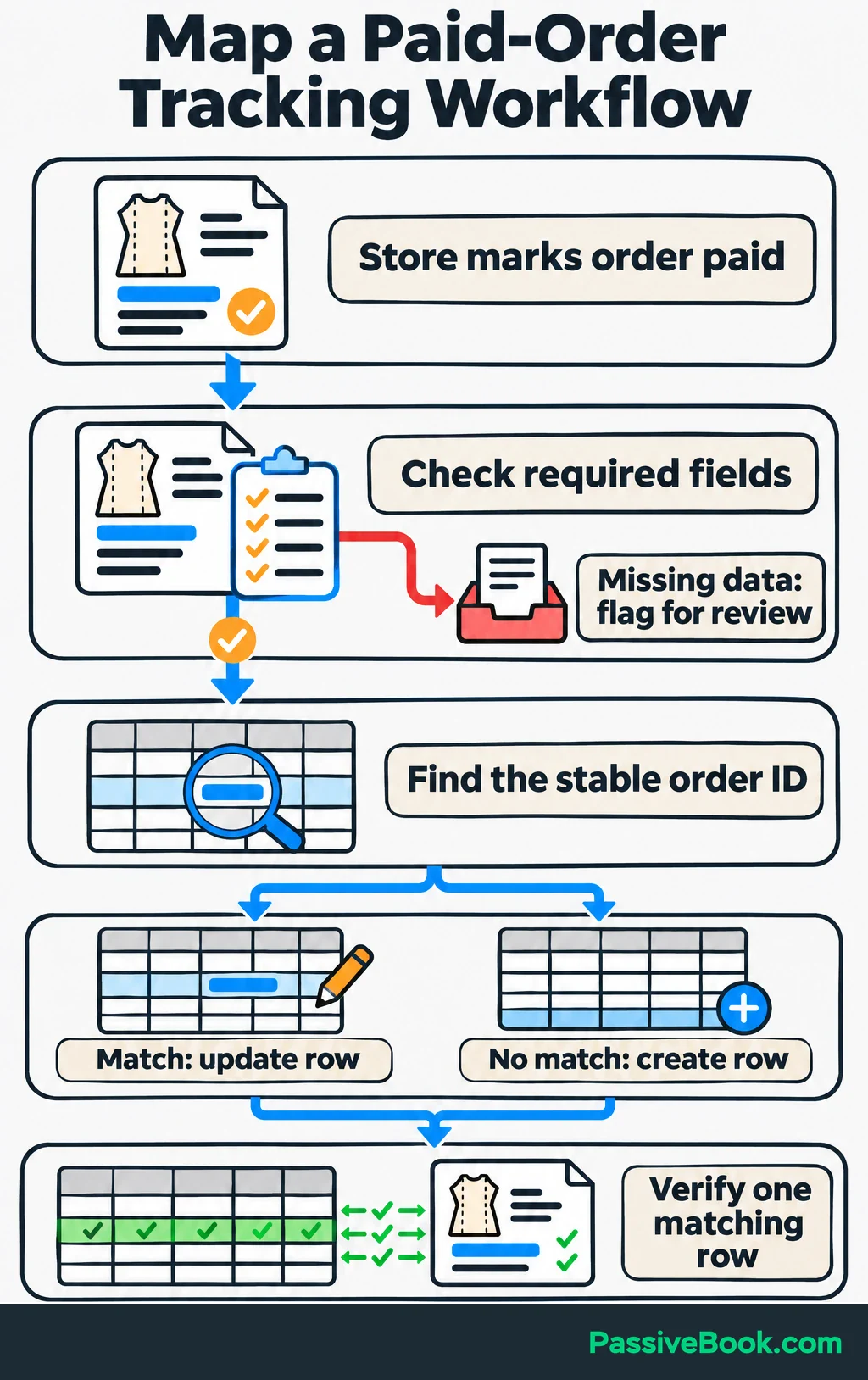
You can put the first version on paper before connecting any accounts. Describe the task and the tools you already use, then check the draft against your actual process.

Free AI Automation Planner




For the sewing-pattern shop, the map could be:
| Part | Definition |
|---|---|
| Trigger | The store marks an order as paid |
| Order identifier | The store’s stable order ID |
| Required fields | Order ID, payment status, pattern identifier and purchase date |
| Destination | The existing order-tracking sheet |
| Normal action | Find the order ID, then create or update its row |
| Exception | Flag missing required information for review |
| Completion check | One matching row contains the expected values |
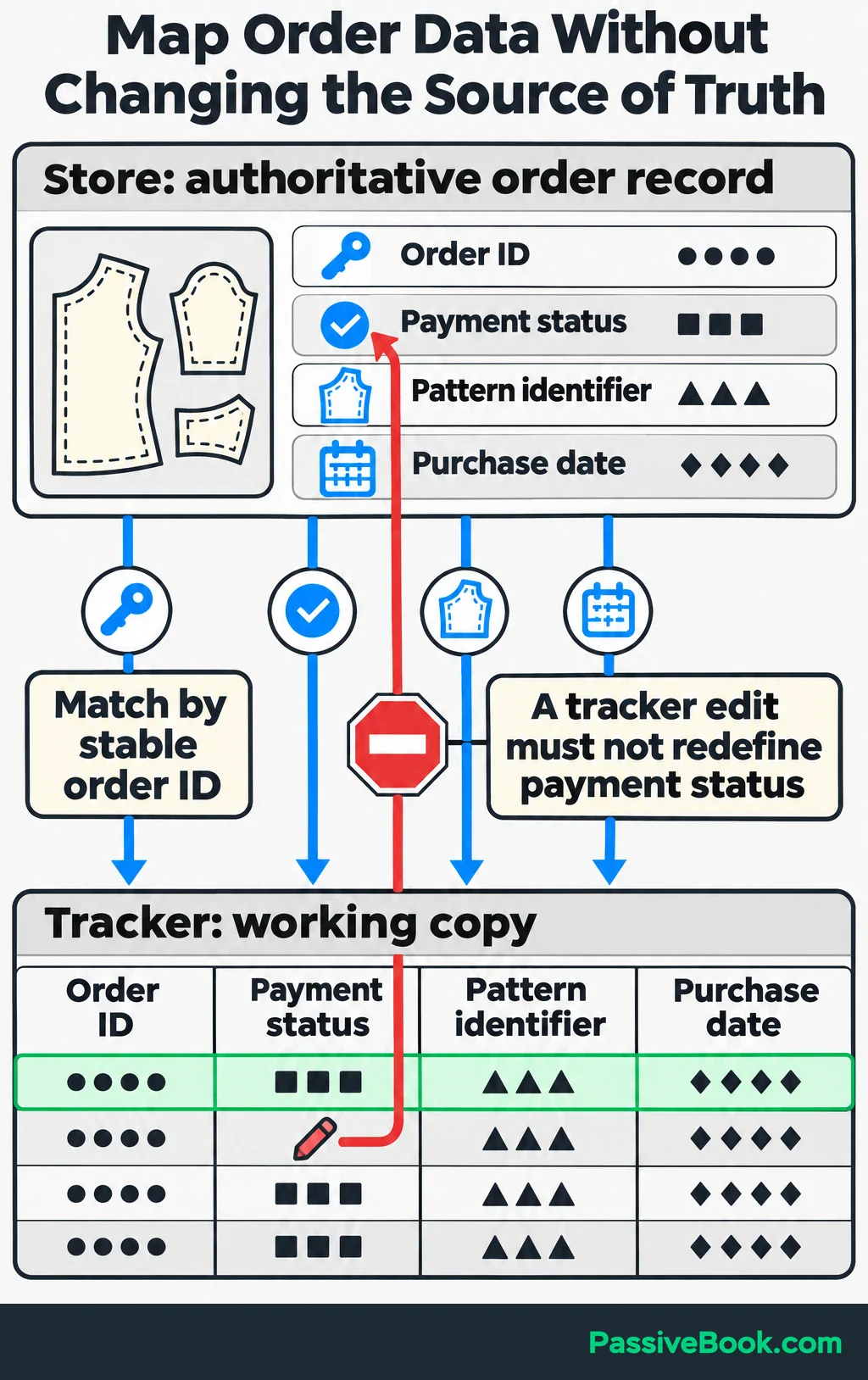
Keep the store as the authoritative order record. The tracker is a working copy, so a spreadsheet edit should not quietly redefine whether an order was paid.
Before connecting accounts, confirm that the intended plan supports the paid-order trigger, the lookup and the create-or-update steps. This is where a promising integration either becomes useful or leaves your shortlist.
Test Normal Inputs and Failures
Connect the accounts and map each required field. Grant the access the workflow needs, and send only the customer information required for that task.
Then test more than the happy path.
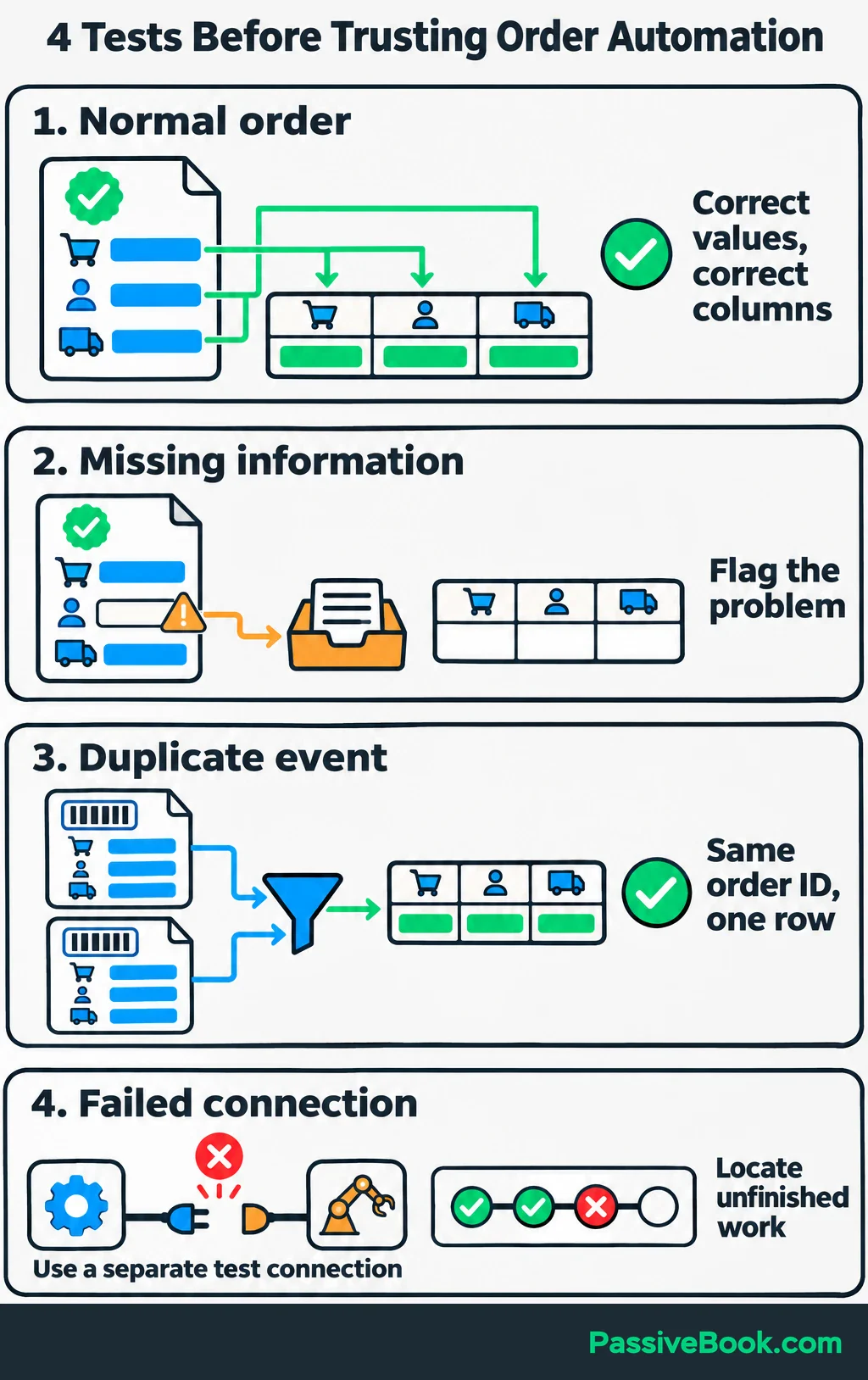
- Normal order: Confirm that the right values appear in the right columns.
- Missing information: Check that the workflow flags the problem instead of writing a misleading record.
- Duplicate event: Send the same order again and confirm that it does not create another order row.
- Failed connection: Test with a separate test connection and check whether you can identify and finish the interrupted work.
On one digital-product workflow, I initially used the customer’s email address to match records. It looked tidy until the same customer bought again. I changed the tracker to keep a separate order ID for each purchase.
That is why I would settle the identifier before building the rest. An email address identifies a customer; it does not identify a particular order.
Recovery needs the same care. If the row was created but the notification failed, replaying every step could create a duplicate. Inspect which actions finished before retrying, then confirm that the final result appears once.
Make Failures Visible
A workflow needs a way to tell you when it stops.
Enable failure and usage alerts, and check that you can receive them. Look at the run history to see whether it shows the event, completed steps and point of failure clearly enough to act.
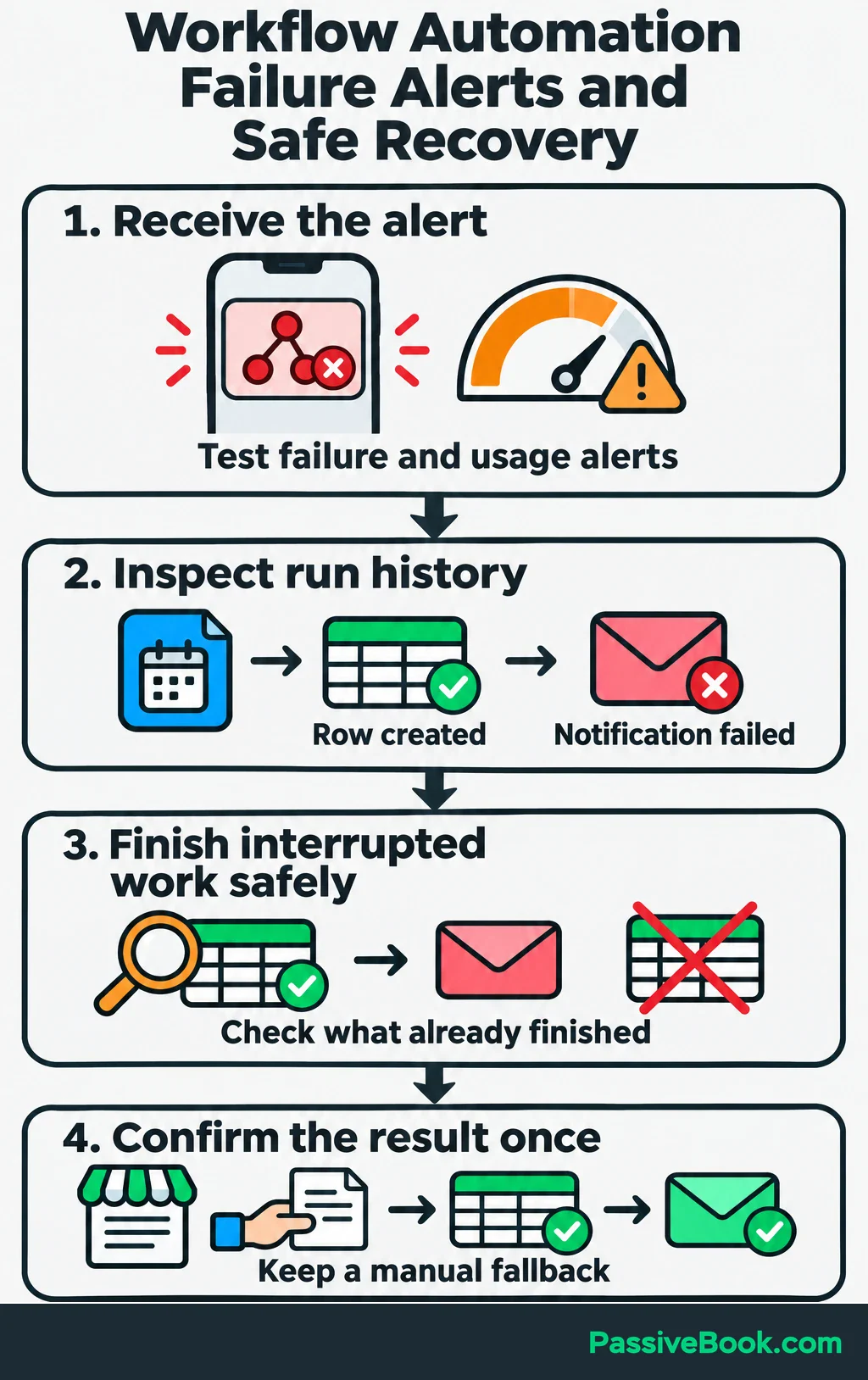
Keep a manual fallback. For the order tracker, you should still be able to copy an interrupted order from the store while fixing the connection.
Leave yourself a short maintenance note covering:
- Connections: Which accounts the workflow uses.
- Mappings: Where essential fields come from and where they go.
- Recovery: How to inspect a failed run and finish it safely.
- Pause control: How to stop the workflow while investigating a problem.
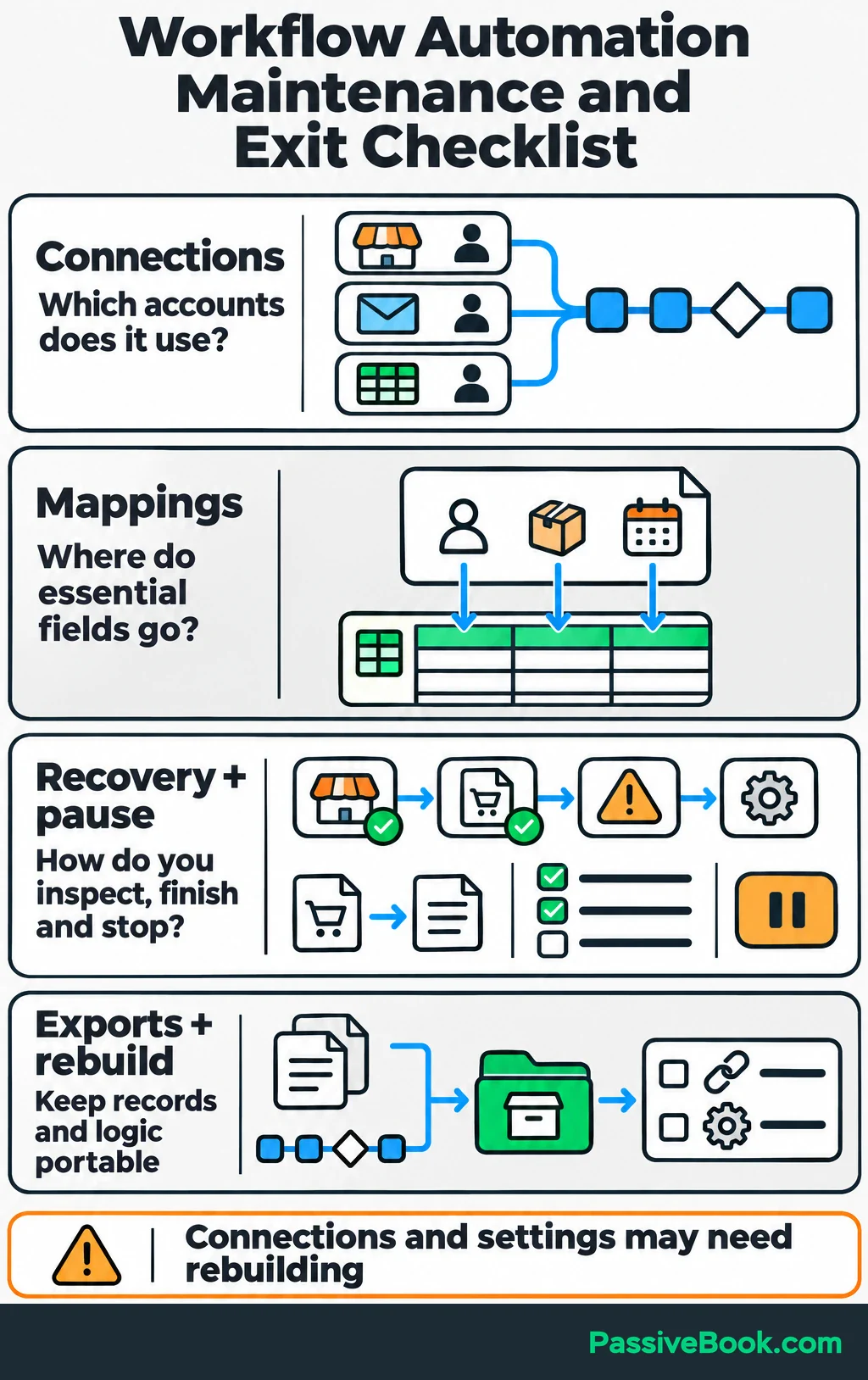
Keep business records exportable, and record enough of the logic to rebuild elsewhere. An exported workflow can help, but you may still need to recreate connections and settings.
Expand after you have seen real usage, repair effort and time saved. The next automation should earn its place by removing another recurring task.
What Next?
Write down one repetitive task and its completion check, then test it with the tool that best matches your existing setup. Start small enough that you can inspect every result.
Use the social buttons to share this comparison when a tool discussion needs to move from app logos to actual costs and workflows.
Which task keeps pulling you back into manual work? Tell me in the comments, and bring any other automation questions with it.
Share this post with your friends & followers:

