You need to invite customers to a live session, but the pricing pages make a simple choice surprisingly hard. One plan has enough seats but cuts the session short. Another records the presentation but needs a separate subscription to run webinars.
Choosing badly can mean buying an upgrade after you have already sent invitations, or rebuilding registration in another tool. Here are the plans I would shortlist for discussions, public demonstrations and paid classes, with the costs and limits that help you choose before invitations go out.
The Best Webinar and Online Meeting Tools at a Glance
Choose a meeting tool when participants need to speak, share their work and collaborate. Choose webinar software when you need registration, presenter permissions, controlled audience participation and follow-up.
The best webinar and online meeting tools can serve different jobs in the same business. You don’t need one expensive platform to handle everything.
My starting picks are:
- Free meetings: Google Meet for short discussions and customer calls.
- Interactive workshops: Zoom Workplace for participant screen sharing and breakout rooms.
- Low-cost paid meetings: Microsoft Teams Essentials for longer meetings with recording.
- Budget webinars: Zoho Webinar, with the right attendee tier selected.
- Marketing webinars: Demio when engagement and follow-up justify the subscription.
- Existing Zoom operations: Zoom Webinars when keeping the same hosting workflow matters.
- Ticketed classes: Crowdcast for ticket sales, recordings and events with several sessions.
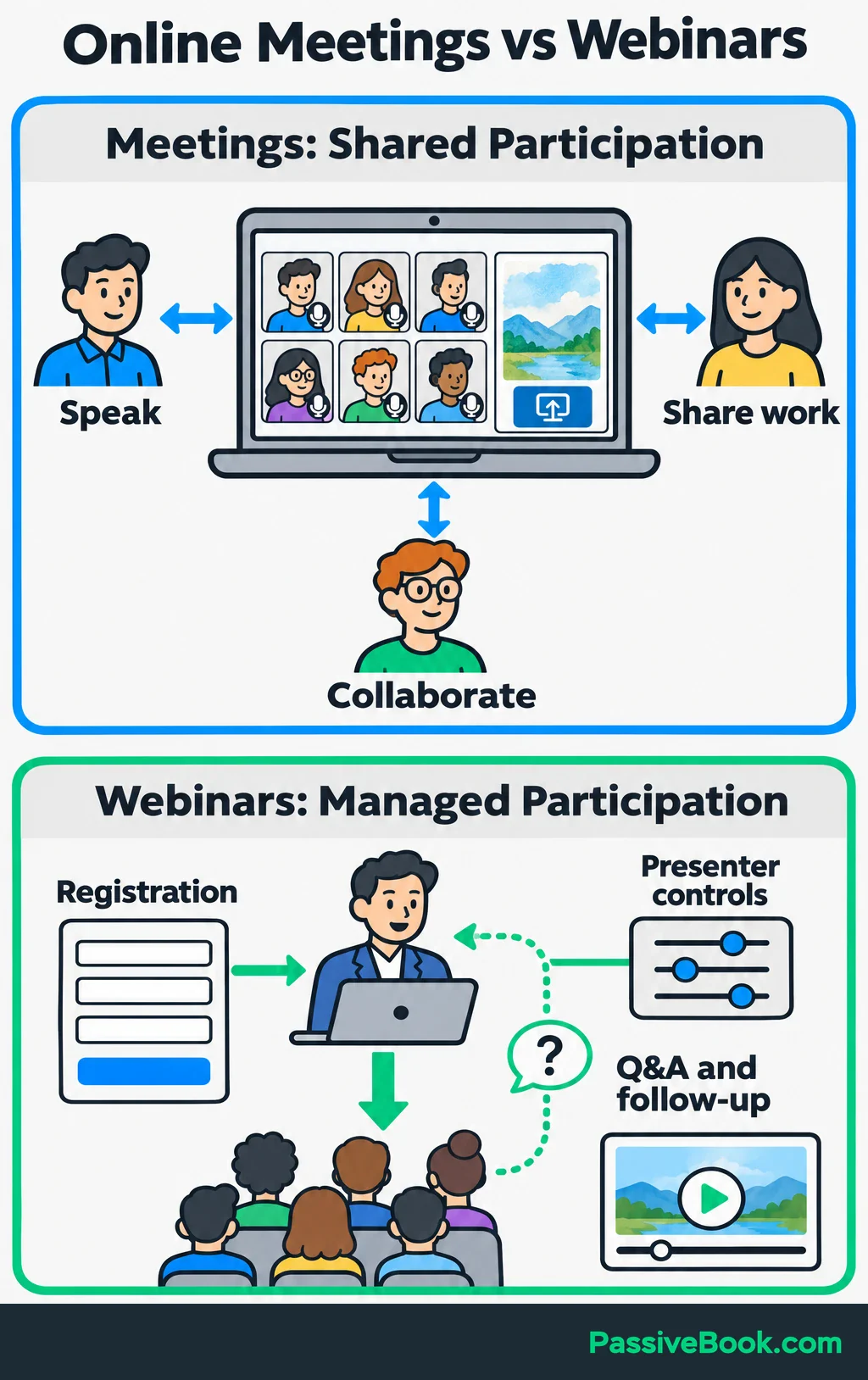
Before comparing prices, write down your required live audience, session length, simultaneous events, paid hosts, recording needs and essential connections to other tools.
For the running example, imagine you sell a beginner watercolor course. You need two sessions:
- A 45-minute discussion where 12 students can ask questions and show their work.
- A 90-minute public demonstration for 80 attendees, with registration and a recording.
Those requirements lead to different shortlists.
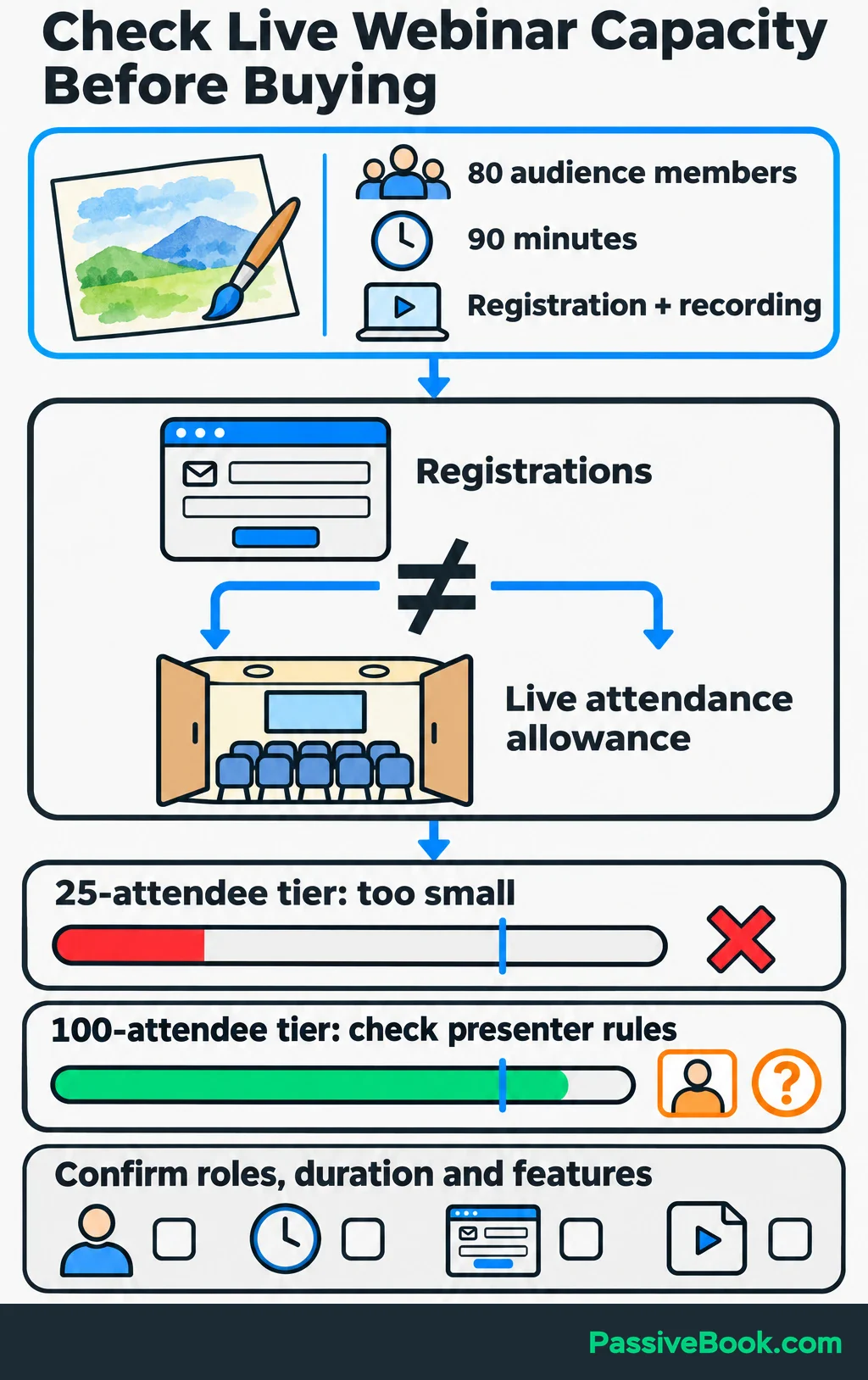
The table uses USD list prices before tax and excludes introductory offers. Annual rates carry an annual commitment; they aren’t one-month purchases. These recommendations reflect documented features and costs, not firsthand platform testing or a measured reliability ranking.
| Tool and Recommended Use | Named Plan | Price and Billing | Audience Allowance | Session Duration | Recording | Registration and Engagement | Principal Limitation |
|---|---|---|---|---|---|---|---|
| Google Meet: free discussions | Personal account | Free | 100 participants | 60 minutes for group meetings | No built-in recording | Meeting link, screen sharing and discussion | Too short for the public demonstration |
| Google Meet: meetings with recording | Workspace Business Standard | $14/user/month with annual commitment | 150 participants | 24 hours | Included | Screen sharing, polls and Q&A | Registration and reminder workflow needs separate handling |
| Zoom Meetings: interactive workshops | Workplace Pro | $16.99/user/month billed monthly, or $14.16/user/month billed annually | 100 participants | 30 hours | Recording to your computer and 10 GB cloud storage per license | Participant sharing, breakout rooms and host controls | Webinar add-on costs extra |
| Microsoft Teams: inexpensive paid meetings | Teams Essentials | $4/user/month, paid yearly | 300 participants | 30 hours | Included, with transcripts; 10 GB storage/user | Chat, file sharing and polling | Excludes webinar hosting with registration and reporting |
| Zoho Webinar: budget presentations | Standard, 25-attendee tier | $8/organizer/month billed annually | 25 attendees | 24 hours | Included; 10 GB storage/organizer | Registration, polls, Q&A and moderation | The example needs the separately priced 100-attendee tier |
| Demio: webinar marketing | Growth, 150-attendee room | $117/host/month, paid yearly | 150 attendees | 8 hours | Automatic session recording and replay | Registration, chat, polls, handouts and engagement analytics | Simultaneous events require additional hosts |
| Zoom Webinars: existing Zoom workflow | Webinars add-on | Starts at $89/month billed monthly, plus a required paid meeting license | Licenses begin at 500 attendees | 30 hours | Included | Registration, polls, chat, Q&A and reports | Required meeting license adds to the advertised price |
| Crowdcast: ticketed live classes | Lite | $49/month with monthly billing | 100 live attendees included | 2 hours/session | Recording and downloadable replays | Registration, ticket sales and multiple sessions per event | 10 streaming hours/month; ticket and usage charges can apply |
Compare the allowance with the people who need to attend live. Registrations and attendance are different counts, and you should check whether hosts and presenters use any of the allowance.
For the watercolor business, “80 attendees” means room for 80 audience members plus whatever presenter access the platform requires. A page boasting thousands of possible registrations doesn’t settle that question.
Best Tools for Online Meetings
Google Meet: Best for Free Browser-based Meetings
I would start with Meet when you need a straightforward conversation and already use Google Calendar. You can send a meeting link, and external guests can join without becoming part of your organization.
The free plan covers the 45-minute student discussion. Everyone can talk and share their work, and there is no reason to buy webinar software for that session.
Recording changes the choice. Workspace Business Standard includes recording, while Business Starter excludes it. Standard also adds features such as breakout rooms, polls and Q&A. Google’s edition comparison shows which features come with each subscription.
I would upgrade within Workspace when those meeting features and its other business tools earn their place. For the public demonstration, I would compare dedicated webinar software because registration, reminders and follow-up are part of the job.
A longer meeting allowance alone doesn’t handle those tasks.
Zoom Workplace: Best for Interactive Workshops
Zoom Meetings is my pick when participation shapes the session. Students might share a painting, discuss it in a small group and return for feedback. Screen sharing, breakout rooms and host controls fit that format.
The free Basic plan supports 100 participants, but its 40-minute limit is too short for the example’s student discussion. Pro clears that limit and lets you save recordings to your computer or Zoom’s cloud storage.
I would choose Pro when you will use the workshop controls. If you only need a short conversation, free Meet deserves a look first.
For larger workshops, Business increases meeting capacity to 300. Upgrade because you need those seats, rather than because the plan name sounds more respectable.
Keep Zoom Meetings and Zoom Webinars separate in your budget. Zoom’s webinar requirements call for a licensed user with the webinar add-on. Buying Workplace Pro alone doesn’t include it.
Microsoft Teams Essentials: Best for Low-cost Paid Meetings
Teams Essentials is the first paid meeting plan I would price when longer sessions and recording matter more than marketing features.
Its combination of meeting capacity, recordings, transcripts and file sharing makes sense for recurring discussions. English live captions are included too.
For the watercolor course, it could handle student critiques and leave a recording for students who need to review the feedback. It becomes more appealing when your files and conversations already live in Microsoft tools.
Before buying, check whether an existing Microsoft subscription already includes Teams. Paying for access you already own is an unexciting way to increase expenses.
Essentials does exclude webinar hosting with attendee registration and reporting. Its large meeting allowance doesn’t make it a direct replacement for the webinar plans below. I would use it for the student sessions and compare a separate event tool for the public demonstration.
Best Tools for Live Webinars
Zoho Webinar: Best for Small-budget Live Webinars
Zoho Webinar is where I would start for a presentation-led event with a modest budget. Standard covers registration, polls, Q&A, audience moderation and recording.
The important choice is the attendee tier. The advertised entry price belongs to a 25-attendee room, so it cannot cover the 80-person demonstration. Select Standard with 100 attendees and check the total for your preferred billing period.
The free plan is also too small and too short for this event: it supports 20 attendees for 60 minutes.
For the demonstration, you could embed the registration form on your course site and collect questions while you paint. That is a useful fit without buying a larger marketing package.
I would move to Professional only when you need its registration customization, source tracking or advanced analytics. Standard already includes the core live-event workflow, and additional recording storage is a separate cost.
Demio: Best for Webinar Marketing and Follow-up
Demio makes more sense when the webinar sits inside a repeatable sales process. Its chat, polls, handouts, featured links and engagement reports help you connect the presentation to a next action.
For the watercolor demonstration, you might share a materials checklist and then offer a link to the full course.
Starter’s 50-attendee room is too small for the example, so Growth is the relevant comparison. One host is enough when your events run at different times; overlapping events require additional host licenses.
Demio can send confirmations, reminders and replay follow-ups. You can direct the replay email to attendees, no-shows or all registrants through its event notifications. Live sessions are recorded automatically.
I would pay for Demio when I had a clear use for that communication and engagement workflow. For an occasional demonstration with simple follow-up, I would compare Zoho first.
Zoom Webinars: Best for Extending an Existing Zoom Workflow
Zoom Webinars belongs on your shortlist when you already run meetings in Zoom and want distinct host, panelist and attendee roles.
You can require registration, ask custom registration questions and collect audience questions through Q&A. That suits a public demonstration where you control who presents and when attendees speak.
The cost needs two lines in your budget: the webinar add-on and its required paid meeting license. Using the monthly rates in the table, one Pro license plus the starting webinar charge totals $105.99 per month before tax. If you already pay for Pro, the webinar charge is the additional expense.
Zoom’s documentation lists webinar licenses starting at 500 attendees, which covers the 80-person demonstration. That leaves plenty of spare capacity, so I would compare the combined subscription cost with the smaller webinar plans.
I would choose it when staying with Zoom reduces the work of preparing presenters and managing events. Familiarity has value, but it still needs a price.
Crowdcast: Best for Ticketed Live Classes
Crowdcast is my first shortlist choice when you want to sell access to a live class and provide a replay afterward. It also supports several sessions within one event, which is useful for a short course.
Lite covers the example’s 80-person, 90-minute demonstration. It includes 100 live attendees, two-hour sessions, recording and downloadable replays, subject to its monthly streaming allowance.
Ticket sales carry a 5% platform fee plus payment processing. Extra live attendees cost $0.15 each, and extra streaming time costs $20 per five hours. Include those charges before comparing it with a flat subscription elsewhere.
Pro adds longer sessions, English live captions and custom registration fields. If any of those are required, compare Pro from the start.
I would choose Crowdcast for a paid watercolor class when its ticketing and replay workflow saves enough separate setup. For a free demonstration, I would compare its total with Zoho’s qualifying attendee tier.
How to Choose a Plan Without Overspending
Start by removing plans that fail a requirement. Then compare the full cost of the remaining options over the period you need them.
I once entered an annual plan’s monthly equivalent into a digital-product launch budget as though I could buy a single month. Catching that before checkout changed the shortlist. I rebuilt it around the amount I would actually commit, and a seemingly small subscription became a different decision.
Now I separate these costs:
- Required subscriptions: The base meeting license, webinar license and any paid hosts.
- Event usage: Extra attendees, streaming hours and simultaneous events.
- Recording: Included storage, extra storage and any separate place you need to keep replays.
- Ticket sales: Platform fees and payment processing.
- Commitment: The total owed for the subscription term, including an annual obligation.
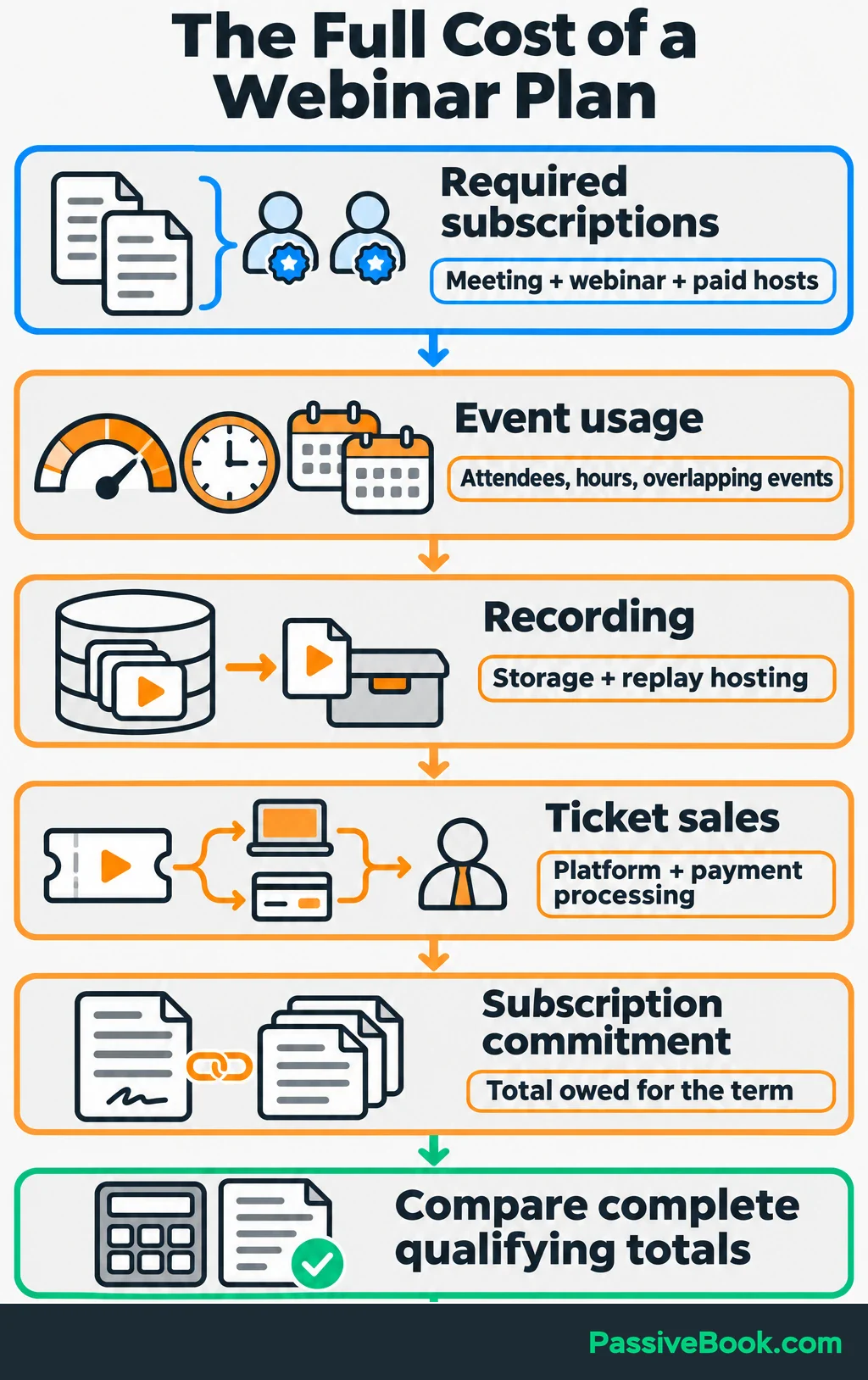
For the watercolor business, free Meet covers the student discussion. You only need to pay for that session if recording or additional workshop controls become requirements.
For the public demonstration, remove Demio Starter and Zoho’s 25-attendee entry tier. The useful shortlist is:
| Qualifying Option | What Would Make Me Choose It? |
|---|---|
| Zoho Standard, 100-attendee tier | Registration, Q&A and recording cover my event, and its quoted total beats the other qualifying plans |
| Demio Growth, 150-attendee room | I need its engagement reports and reminder and replay emails for recurring webinars |
| Crowdcast Lite | I need to sell tickets and give buyers access to the class replay |
| Zoom Webinars, entry tier | I already use Zoom, and keeping the same presenter workflow justifies the combined subscription cost |
For recurring events, compare subscriptions across the same period. The following calculation counts one Crowdcast Lite subscription paid monthly for 12 months and one Demio Growth host paid yearly. It excludes ticket fees and usage overages.
- Crowdcast Lite: $49 × 12 = $588.
- Demio Growth: $117 × 12 = $1,404.
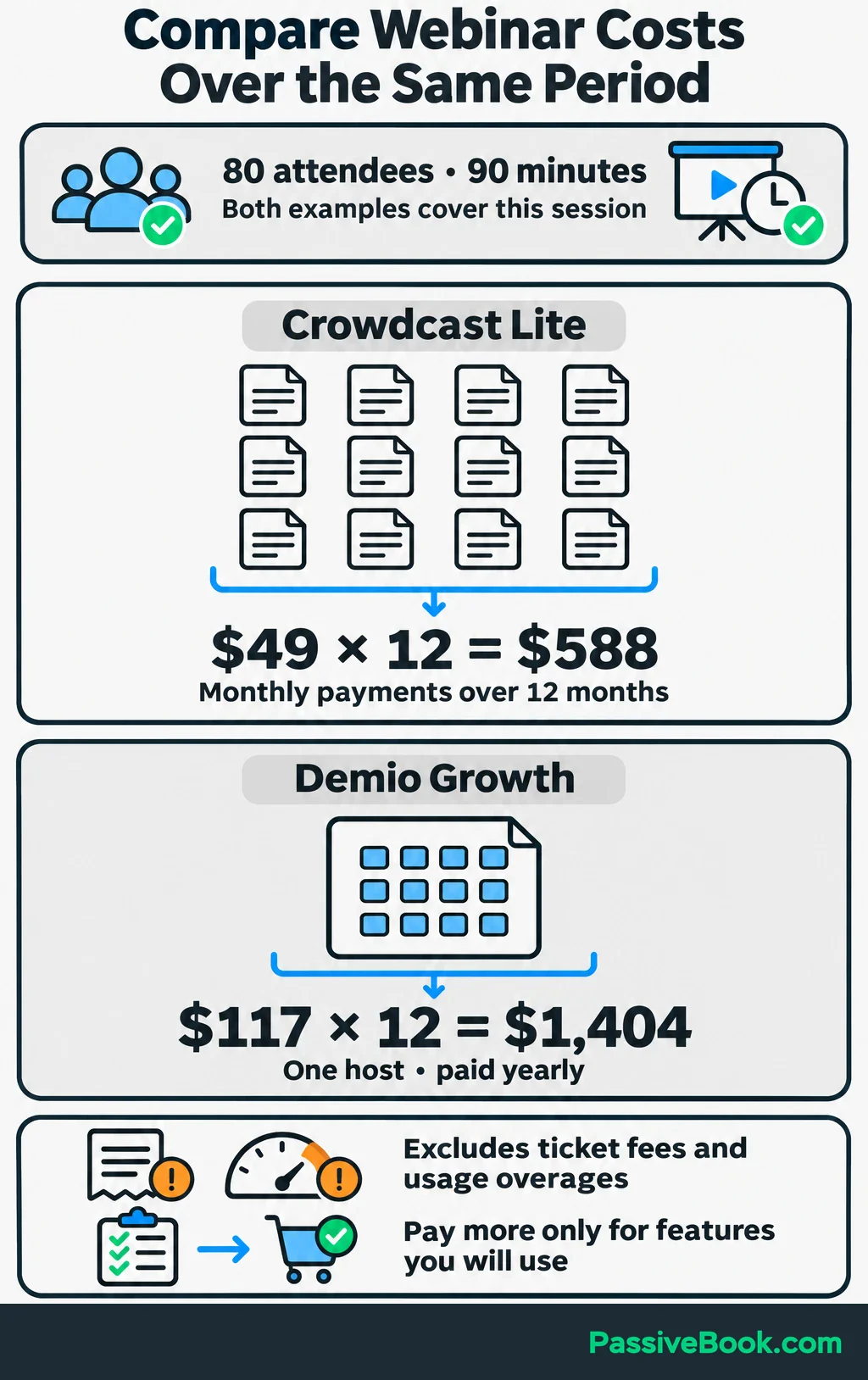
Both cover the demonstration’s audience and session length. Demio’s higher subscription needs to earn its place through features you will actually use. A poll you never run is an expensive decoration.
For a single event, compare qualifying monthly purchase totals before accepting an annual commitment. An annual discount can still cost more than the short subscription you needed.
Put your two finalists on the same timeline before paying. Include any required meeting license, paid hosts and add-ons in each option’s cost.

Free Software Cost Calculator




I would keep an existing meeting subscription when it handles discussions well. Add webinar software when registration, audience controls or follow-up make the extra cost worthwhile.
Test Your Shortlist Before Committing
Rehearse the same short session on two finalists. Use the actual slides, camera setup and materials you intend to present, so the test answers useful questions.
For the watercolor demonstration, that means checking whether attendees can see the brushwork, hear the explanation and find the question box. A successful screen share of an empty desktop tells you very little.
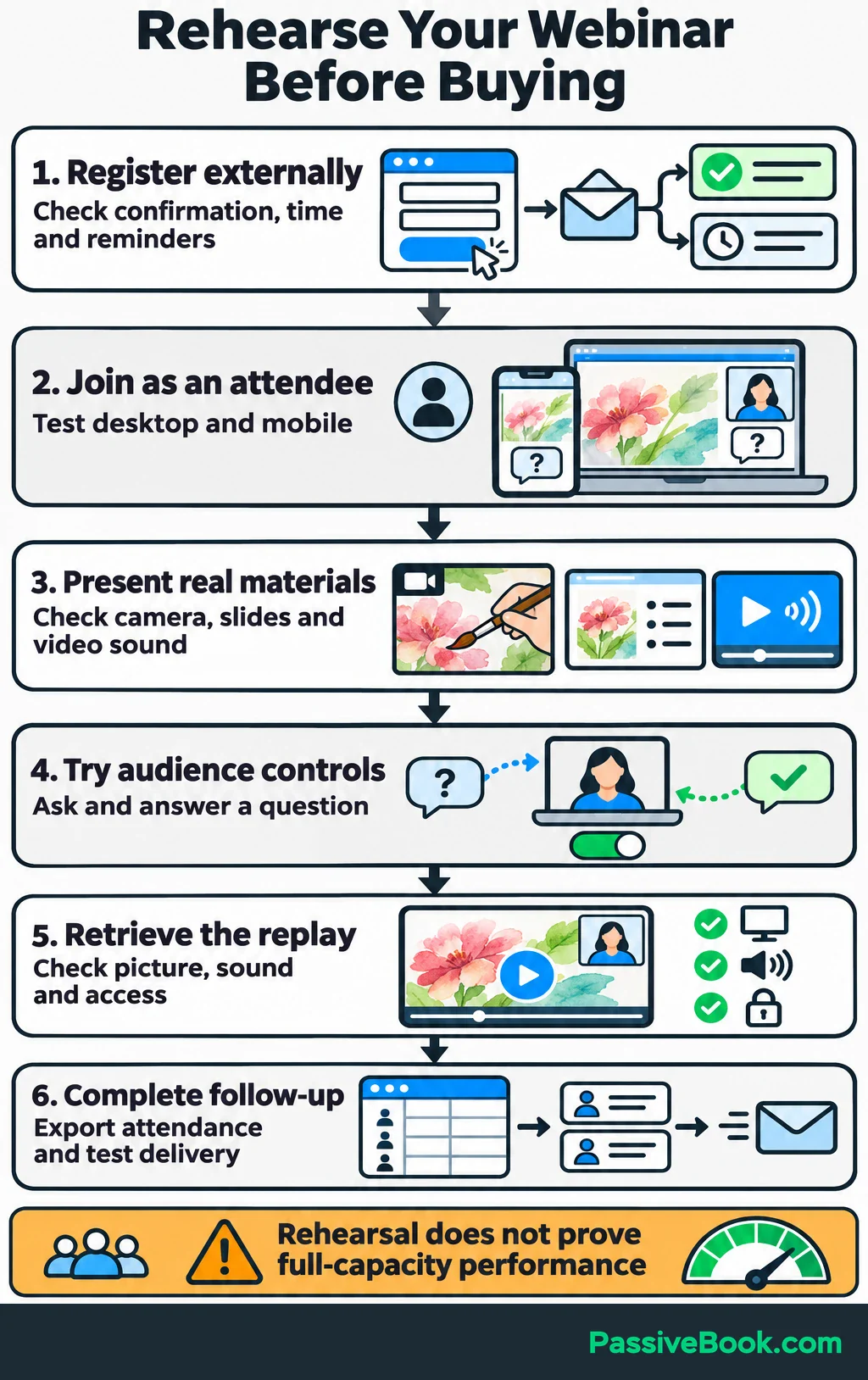
Work through the event from invitation to replay:
- Register with an email address outside your business and check the confirmation, event time and reminder delivery.
- Join as an attendee on desktop and mobile, using attendee permissions rather than your host account.
- Bring in a presenter, share the real presentation and play any planned video with sound.
- Submit a question, answer it and try the audience controls you expect to use.
- Record the session, retrieve the replay and check its picture, sound and sharing permissions.
- Export the attendance information and complete the follow-up you intend to send.
If follow-up depends on your email system, test whether registration details and attendance status reach the correct contacts. On a WordPress site using FluentCRM to manage contacts and send emails, that means testing the connection or exporting and importing the data. Don’t buy on the strength of an integration logo.
Also test captions and keyboard access against your audience’s needs on the plan you intend to purchase. A feature available during a higher-tier trial may not be included in your eventual subscription.
Before sending public invitations, confirm support coverage during your event, how quickly capacity upgrades take effect and what happens to recordings after cancellation. Download an important replay before ending the subscription.
Prepare a backup presenter where the tool supports one, and keep a way to contact registrants if the session is interrupted.
A small rehearsal checks the workflow. It doesn’t prove performance at full capacity, so confirm the purchased plan’s documented allowance separately.
I would choose the lowest-cost qualifying plan whose joining, hosting, recording and follow-up process I could manage confidently. The point is to deliver the session without turning software administration into another job.
What Next?
Write a one-line brief for your next session: how many people must attend live, how long it runs, who needs to speak and whether you need registration, payment or recording. Use it to pick two qualifying plans and rehearse both.
If this comparison helps you avoid an unnecessary subscription, use the social buttons to share it before the next event budget gets approved.
Which requirement would make you rule out a platform immediately? Leave your answer in the comments, and bring any other questions about choosing a tool.
Share this post with your friends & followers:

