Your logo needs to look sharp on a tiny product tag and a large shop banner. But the software that creates it also needs to produce files your printer, website and future designer can use.
That is where choosing gets awkward. A free app might handle everything you need, while a paid one might still leave you converting files or rebuilding effects. The comparison below weighs nine free and paid tools by device support, drawing controls, learning demands and cost, with particular attention to getting an editable logo into usable web and print files.
What Matters When Choosing Vector Graphics Software?
The best vector graphics software is the one that lets you revise your artwork and deliver accepted files without unnecessary work. Price matters, but I would settle those two questions first.
Vector artwork uses editable paths and curves, so its shapes stay sharp when enlarged. A photograph placed inside the document remains a pixel image, though. Putting a dog photo in an SVG—a common vector file format—does not magically turn its fur into editable curves.
For original logos and illustrations, look for these controls:
- Node editing: Move the points and handles that shape a curve.
- Shape combinations: Join shapes or subtract one from another.
- Alignment: Position objects precisely and keep spacing consistent.
- Layers: Separate artwork, text and backgrounds so you can revise them.
- Typography: Control lettering, spacing and text placement.
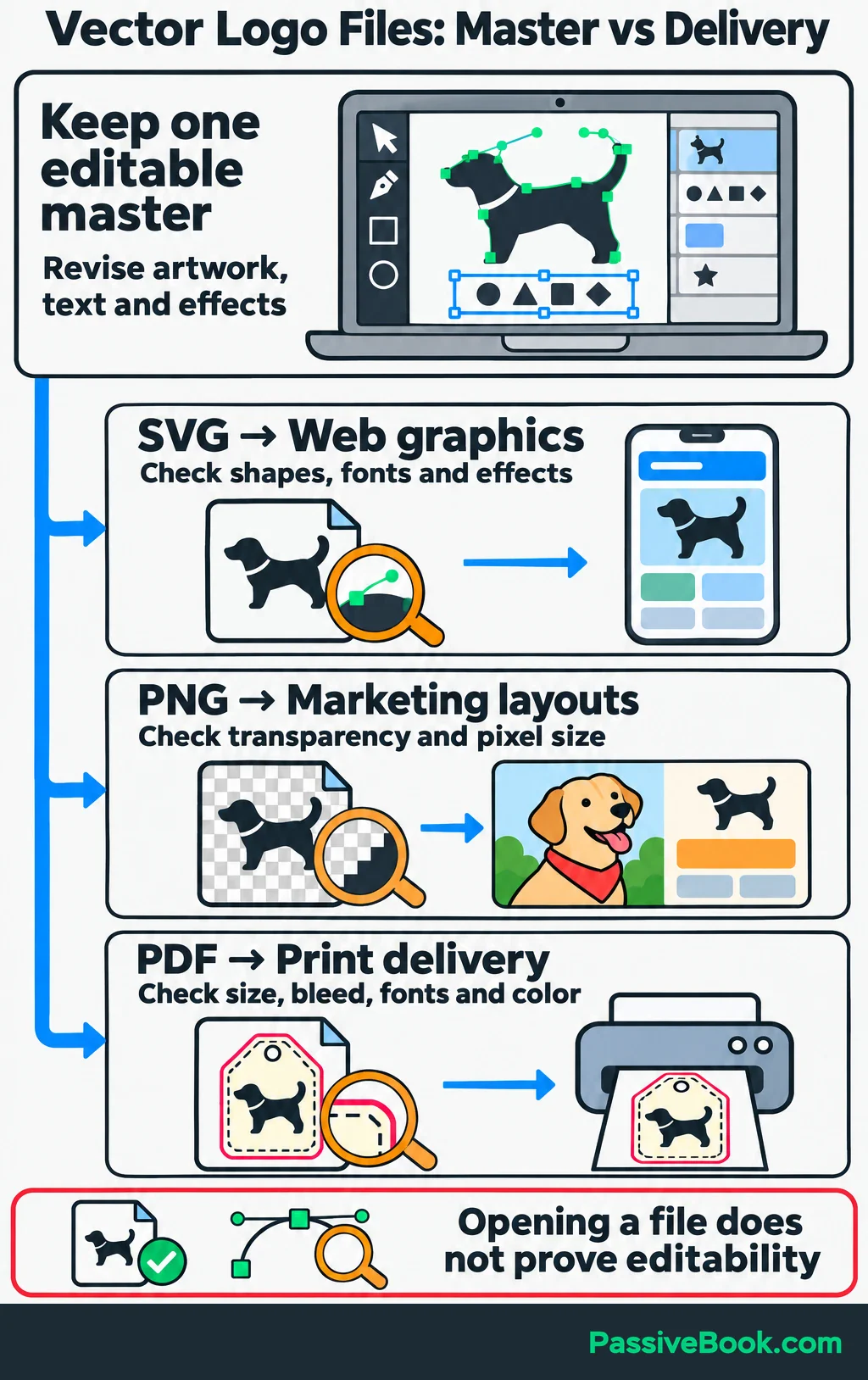
Start with the files you need to deliver. Keep an editable master in the application’s own format, then export copies for specific uses:
| File | What You Would Use It For | What to Check |
|---|---|---|
| Native project file | Future changes to artwork, text and effects | The person editing it has compatible software |
| SVG | Scalable logos, icons and web graphics | Shapes, fonts and effects display correctly |
| PNG | Transparent graphics for websites and marketing layouts | Pixel dimensions are large enough for the intended placement |
| Printed tags, documents and approval copies | Page size, fonts, bleed and color settings meet the recipient’s requirements |
Import and export are separate abilities. An application might open an Illustrator document but be unable to return the same editable structure. Ask whether a collaborator needs artwork that looks correct or an editable Illustrator (AI) file.
For the running example, imagine you own Moss & Mutt, an online shop selling washable dog bandanas. You need an original dog silhouette logo, printed hang tags and matching marketing graphics. Before drawing, ask the printer for the tag dimensions, bleed—the extra artwork beyond the cut edge—and required color settings.
Then filter by your device and working habits. A mouse on a Windows laptop, an Apple Pencil on an iPad and a stylus on Android lead to different shortlists. Account requirements and offline access matter too, especially if you draw away from a reliable connection.
Finally, match the application to the task. Full vector editors suit finished logos and production artwork. Concepts suits editable sketching, while SVG-edit suits small SVG changes. They can serve different parts of the same job.
The 9 Best Vector Graphics Software Options
For most people creating their own business assets, I would compare Affinity and Inkscape first. Illustrator earns its place when native Adobe files are a recurring requirement.
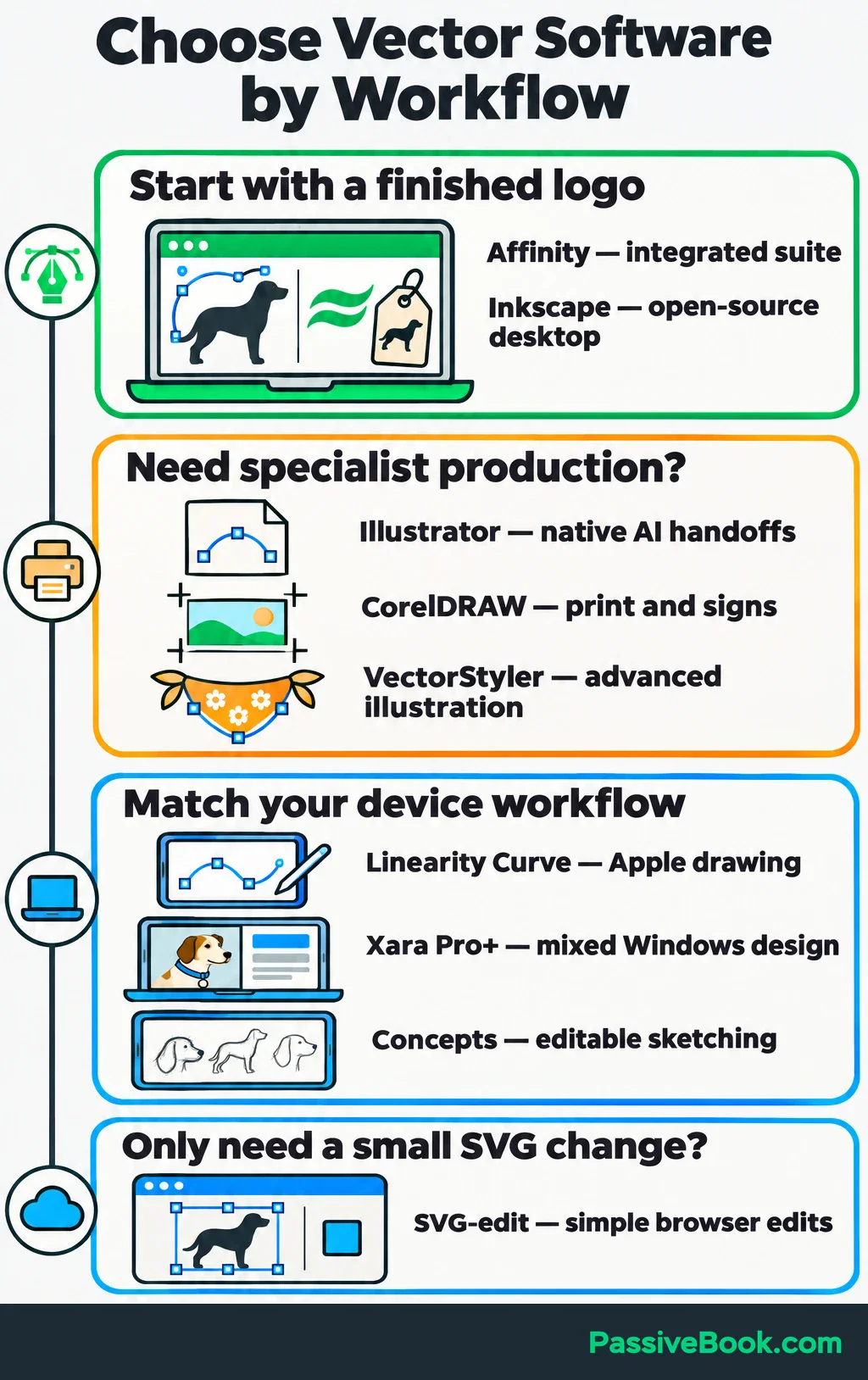
The “best for” labels and learning notes below are my workflow judgments. Prices use the currencies shown, and regional checkout prices and taxes can differ. Linearity’s quoted European prices include VAT, and Xara adds applicable VAT. Check the linked pages for current prices and terms.
| Software | Strongest Use | Platforms | Free Access | Paid Price and Billing Commitment | Delivery Formats | Learning Demands | Principal Tradeoff |
|---|---|---|---|---|---|---|---|
| Affinity | Logos, photo edits and layouts together | Windows, macOS, iPadOS | Full core suite with a free Canva account | No core software charge; Canva AI needs a premium plan | SVG, PDF, PNG | Learn Vector Studio first, then layout and photo tools | Cannot return fully editable native Illustrator files |
| Inkscape | Open-source logo and illustration work | Windows, macOS, Linux | Full application | No software charge | SVG, PDF, PNG | Learn objects, paths and nodes | Printer-required CMYK may need another application |
| Adobe Illustrator | Native editable AI handoffs | Windows, macOS; iPad and web editions | Seven-day trial | US$22.99/month on an annual contract, billed monthly; US$275.88 across 12 payments | AI, PDF, EPS, SVG, PNG | Learn paths, appearances and export settings | Recurring cost and annual cancellation terms |
| CorelDRAW Graphics Suite | Print, signs and multipage layouts | Windows, macOS; subscriber web app | 15-day trial | US$269/year or US$549 for a perpetual 2026 license | PDF, SVG, PNG; CDR master | Learn drawing, page setup and print controls | Perpetual and subscription editions have different entitlements |
| VectorStyler | Detailed illustration without a subscription | Windows, macOS | Fully featured 42-day trial | US$95 once, commercial license covering both platforms | SVG, PDF, EPS | Learn paths, then selected effects and styles | Advanced controls add learning work |
| Linearity Curve | Drawing across Apple devices | Mac, iPad, iPhone | Restricted free plan | Pro: €10 billed monthly or €96 billed annually (€8/month equivalent); includes VAT | SVG, PDF, PNG; plan restrictions apply | Practice touch selection, nodes and file handling | Native editor is Apple-only; free access has limits |
| Xara Designer Pro+ | Vector, photo and layout projects on Windows | Windows 10/11, 64-bit | 14-day trial | US$22/month or US$192/year paid annually, plus applicable VAT | SVG, PNG, PDF, including PDF/X-4 | Learn object editing and page layout | Windows-only subscription |
| Concepts | Editable stylus sketches, including Android | Android, ChromeOS, Windows, iOS/iPadOS | Basics includes five layers | Pro: US$4.99/month or US$29.99/year; Essentials: US$39.99 once for one platform and selected features | Paid SVG, PNG and PDF options | Learn stroke selection and revision | Cannot import SVG; finish logos in a full vector editor |
| SVG-edit | Occasional simple SVG changes | Browser; recent Chrome, Firefox and Safari | Free, open source | No software charge | SVG | Learn selection, shapes and styling | Narrower role than a full brand and print suite |
1. Affinity — Best Free Suite for Logos and Marketing Assets
Affinity is my first recommendation when you want to create original artwork, edit product photos and arrange printed materials in one application.
Its Vector, Pixel and Layout studios cover those jobs, and individuals can use the core tools and exports without restrictions through a free Canva account. Canva’s AI features require a premium Canva plan, but you do not need that upgrade for ordinary vector design. It runs on Windows, macOS and iPadOS. Affinity’s free-access requirements
For Moss & Mutt, I would draw the dog silhouette in Vector Studio, create a second color version and then use the layout tools for the hang tag. Learn that small workflow before exploring the rest of the suite. Three studios are useful; three unfinished tutorials are less useful.
Affinity supports curve editing, shape construction, typography and artboards—separate design areas within a document. You can export PDF, SVG and PNG copies.
The main reason to choose Illustrator instead is a required native Adobe handoff. Affinity imports PDF-compatible Illustrator content, but advanced effects can simplify, and its PDF or SVG exports do not preserve full Illustrator editability. Affinity’s compatibility explanation
2. Inkscape — Best Free, Open-source Desktop Editor
Choose Inkscape when you want a full desktop vector editor without software charges or a paid-plan decision. It works on Windows, macOS and Linux, making it the clearest desktop choice here for Linux users.
Its shape tools, node editing and text controls cover the work needed for logos, icons and illustrations. Tracing can also turn a pixel image into editable paths, though the result may need cleanup. For the shop’s silhouette, you could combine simple shapes and then adjust the curves around the ears and tail.
I would learn how shapes and paths differ early. A rectangle has controls for its width, height and rounded corners. Convert it to a path when you need to move individual points and reshape its outline.
Keep an Inkscape SVG master and create separate plain SVG, PDF or PNG delivery copies. The master retains editor information that other formats may lose.
Print requirements deserve attention before you commit. If the printer requires CMYK—the four-ink color system used in much commercial printing—confirm how you will produce that file. Inkscape’s guide recommends Scribus for CMYK publishing. I would resolve that handoff before finishing a stack of tags. Inkscape’s workflow guidance
3. Adobe Illustrator — Best for Native Adobe File Handoffs
Illustrator is the choice I would make when a client, designer or production partner specifically needs editable AI documents.
Its pen and curvature tools shape precise paths, Shape Builder combines objects, and appearance controls let you manage fills, strokes and effects. These capabilities support work well beyond a simple logo.
For Moss & Mutt, the reason to pay would be concrete: an outside designer needs the AI master to build future packaging or illustrations. If the printer accepts a suitable PDF and you handle your own revisions, that requirement may never arise.
Start with paths, text and exports. Then learn how object appearances work, because a shape can carry several styling settings that affect both editing and delivery.
Read the billing commitment carefully. The reference price in the table is an annual contract paid in monthly installments. Under Adobe’s published terms for that plan, cancelling after 14 days incurs a fee of 50% of the remaining contract balance. Adobe’s cancellation terms
I would pay for recurring compatibility needs or controls I actually use. An annual subscription is an expensive way to discover that you only needed one transparent logo.
4. CorelDRAW Graphics Suite — Best for Print and Sign Production
CorelDRAW deserves a place on your shortlist when print work is regular enough that page setup and output controls matter as much as drawing.
The suite combines vector illustration, typography, page layout, tracing through PowerTRACE and photo editing. For the bandana shop, that could mean creating several hang-tag layouts from the same logo and preparing promotional sheets alongside them.
Its PDF output controls let you choose color profiles and preserve spot colors or convert them to process colors. Spot colors are separately specified inks, so these choices matter when the printer’s instructions call for them.
I would learn document dimensions and print settings alongside the drawing tools. Otherwise, you risk making attractive artwork on a page that does not match the job.
Compare the purchase options closely. The perpetual license lets you keep using that version, but it excludes some subscription features and ongoing support for future operating systems. CorelDRAW Web is included with subscriptions.
For occasional logo work, I would begin with a free editor. For repeated print production, CorelDRAW’s broader workflow is a stronger reason to spend.
5. VectorStyler — Best for Advanced Illustration Without a Subscription
VectorStyler is worth considering when your illustrations need more than basic shapes and lettering, and you want to avoid another recurring software bill.
It offers vector brushes, warps, patterns and reusable styles. Those controls become relevant when you move from the shop’s simple logo to illustrated motifs for the bandanas.
Learn ordinary shapes and paths first, then choose one effect that solves a real drawing problem. I would avoid trying to learn the entire effects collection before finishing anything. A warped dog is still an unfinished dog.
VectorStyler can import native Illustrator content and export SVG, PDF and EPS. Its batch export tools can produce files from objects, artboards or slices, which are defined export regions.
That Illustrator import support does not establish a complete native AI handoff workflow. If a collaborator needs an AI document back, include that exact exchange in your evaluation.
The long, fully featured trial gives you room to attempt a proper project. For a straightforward logo and tag, though, I would compare Affinity or Inkscape first. Buy the extra controls when your artwork gives them a job.
6. Linearity Curve — Best for Vector Drawing Across Apple Devices
Linearity Curve makes sense when you want to draw with Apple Pencil and refine paths across a Mac, iPad and iPhone.
Its pen and node tools, Shape Builder, text on paths and Auto Trace support original drawing and refinement. For the shop’s logo, you could sketch a silhouette on the iPad, adjust its curves and prepare a version with lettering.
The touch workflow is the reason I would consider it. Try selecting a small point, changing a curve and moving between overlapping objects on the device you will actually use. Comfortable freehand drawing does not automatically mean comfortable precision editing.
Keep the native .curve file and export delivery copies in SVG, PDF or PNG. Free access has usage and export restrictions, so budget for Pro when you need unrestricted Curve use and advanced export options.
Curve runs on Apple devices. Linearity’s browser application focuses on generating and editing designs with AI; it is a separate product rather than a Windows edition of Curve.
I would shortlist it for an Apple-based drawing routine and check the required exports before moving a whole asset library into it.
7. Xara Designer Pro+ — Best for Mixed Design Work on Windows
Xara Designer Pro+ suits projects that repeatedly mix vector artwork, photographs and page layouts.
You can draw the logo, edit product images and arrange promotional material in the same Windows application. Bitmap tracing is available too, although traced artwork still needs inspection and cleanup.
For Moss & Mutt, the useful question is whether you regularly need the whole package. A product sheet combining photos, pricing and vector graphics gives the suite a clear job. One small logo gives it less to do.
Keep the XAR master and export SVG, PNG or PDF delivery copies. PDF/X-4 output is available when a printer requests that standard.
The application needs internet access for installation and activation, but it works offline afterward. Downloading catalog assets requires a connection.
I would learn object selection, sizing and alignment before building full pages. Those skills carry across the different kinds of work inside the suite.
The firm filter is Windows support. If you use a Mac or an Android tablet as your main device, remove it from the shortlist. If you use Windows, compare its mixed design workflow with what Affinity provides free before subscribing.
8. Concepts — Best for Vector Sketching on Android
Concepts is my pick here for exploring ideas with a stylus on Android. It also runs on ChromeOS, Windows and iOS/iPadOS.
Its infinite canvas, stroke smoothing and pressure-sensitive drawing support loose sketches that you can revise. The free Basics version includes five layers, while paid options add selection, editing and export capabilities.
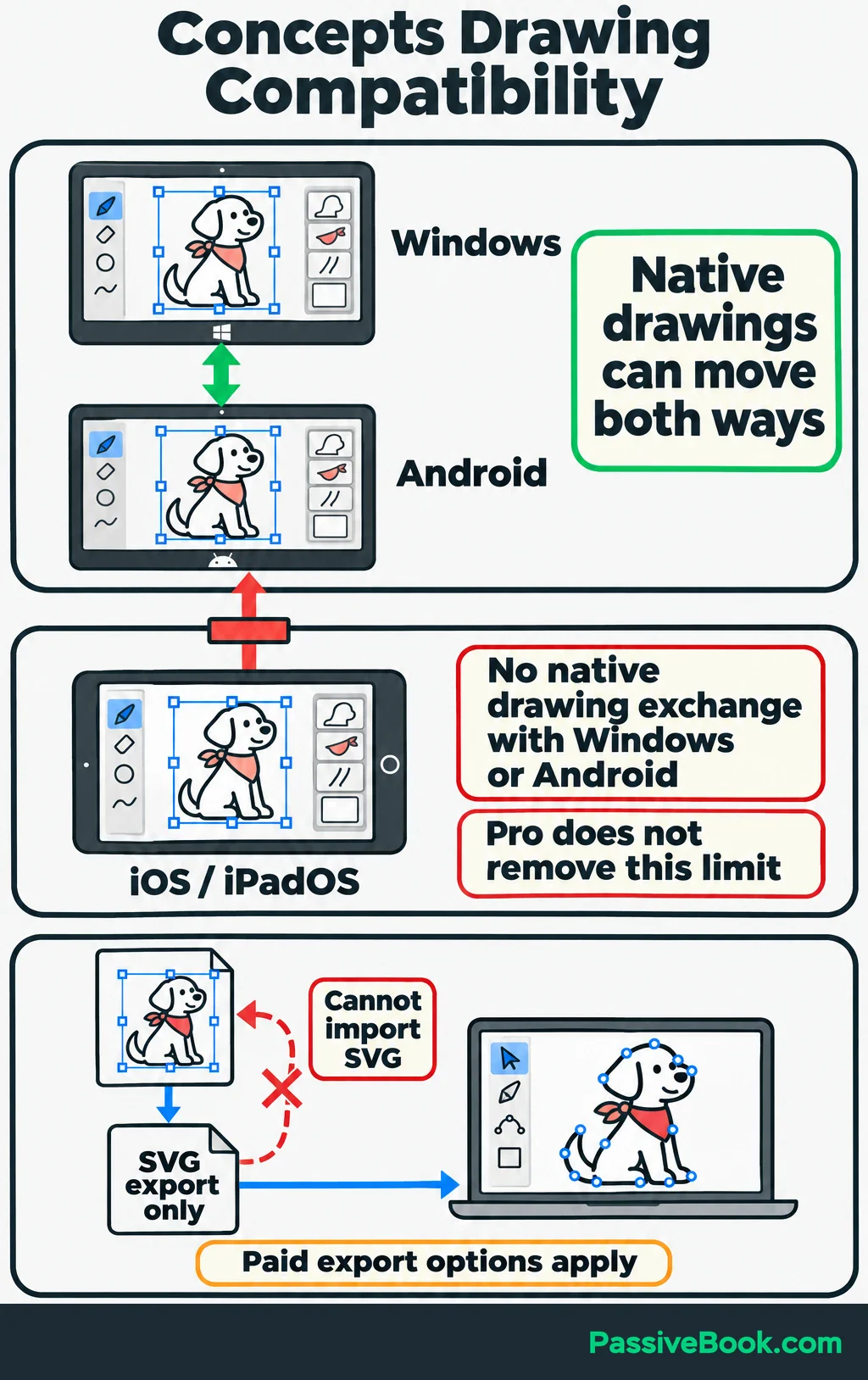
For the bandana shop, I would use it to explore the dog’s pose and outline, then finish the logo in a full vector editor. That gives each tool a clear purpose.
Pro unlocks every feature across supported platforms. Essentials is a one-time purchase for one platform, with fewer features and separate charges for brush and object packs.
For vector delivery, Concepts recommends Fixed Width or Wire brushes because other strokes can change appearance when exported. Choose vector-path PDF when the paths need to remain vectors. SVG is export-only, so you cannot use Concepts to open and revise a supplied SVG logo. Concepts’ export guidance
Native drawings can move between Windows and Android, but drawings made on iOS/iPadOS cannot open on either platform, or vice versa. If you switch between those devices, a Pro subscription will not remove this file-format limit. Concepts’ native-file compatibility
9. SVG-edit — Best Free Browser Editor for Simple SVG Work
SVG-edit is useful when you need to make a small change to a simple SVG without installing a desktop editor.
It is free, open-source software, and its project supports recent versions of Chrome, Firefox and Safari. The official repository links to browser builds you can open and use. SVG-edit’s project and browser builds
I would use it for a contained task: open the shop’s simple SVG logo, change a fill color, adjust a shape and save a revised local copy.
SVG is both the working format and the natural delivery format here. That keeps the workflow straightforward when an SVG is exactly what you need.
Its narrow role is also the reason I would skip it for the full logo, hang-tag and marketing project. A desktop suite gives you a more suitable place to manage original artwork and print layouts together.
Start with selection, drawing and styling. Save a separate copy before changing an existing asset, then inspect the result in its intended location. For occasional web graphics, that may be all the editor you need.
Choose With a Real Design and Export Test
Shortlist two applications that support your device and required files. Then complete the same small job in both through free access or a trial.
I learned to scrutinize design costs during my six-month print-on-demand attempt. It brought in about $1,200 in revenue and roughly $300 in profit. Mediocre designs hurt, and paying designers squeezed the margin further. That experience is why I want a clear reason for every design expense.
The useful comparison is the complete task, including the revision and handoff. Use this sequence:
- Build an original mark. Combine a few shapes and adjust at least one curve. For Moss & Mutt, create a simple side-view dog silhouette.
- Add the business name. Check spacing and readability, then make a second color version.
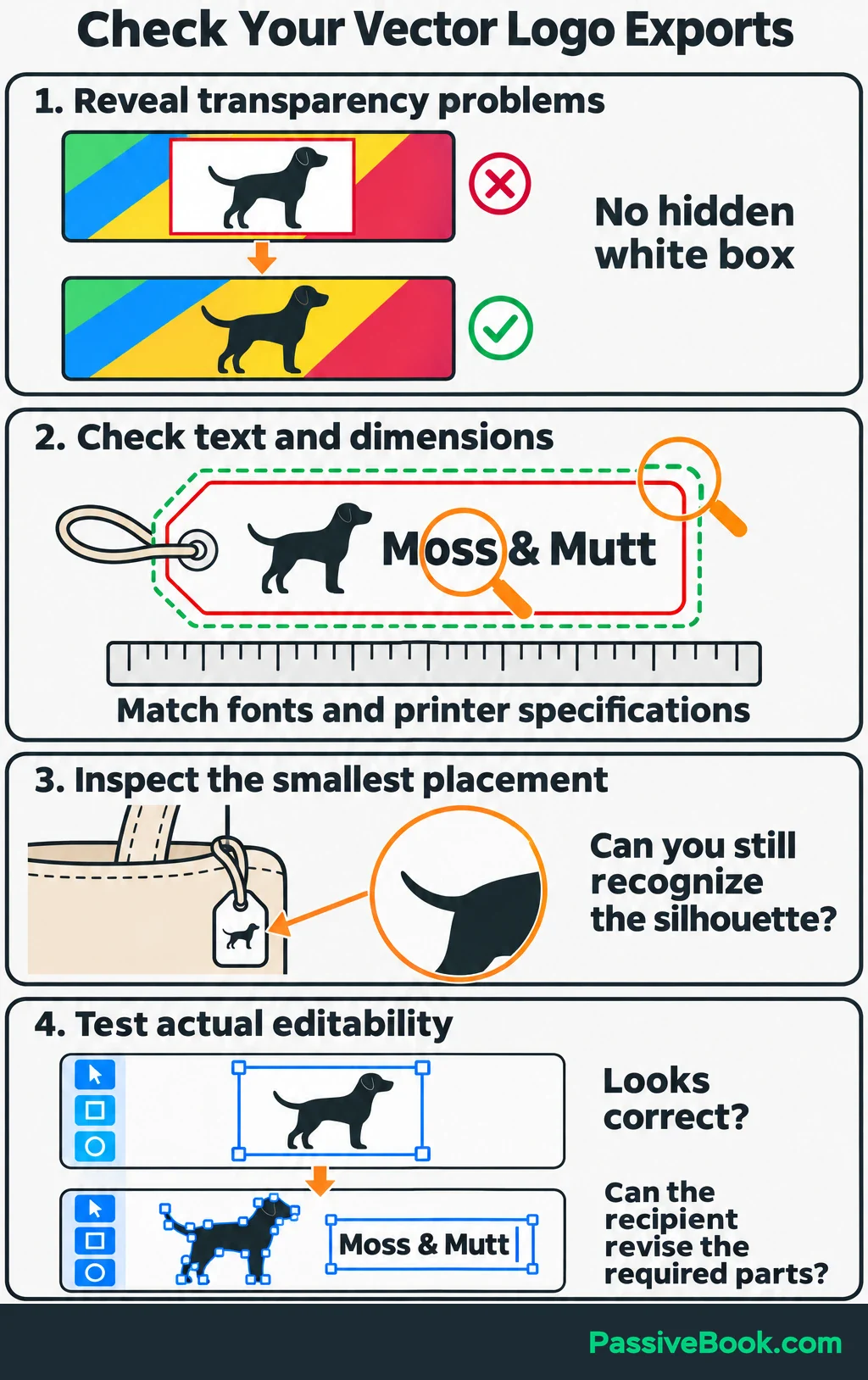
- Place it on a real layout. Use the printer’s hang-tag dimensions and include the required bleed.
- Save the editable master. Close it, reopen it and change the lettering or curve.
- Export the delivery files. Create the SVG, transparent PNG and printer-specified PDF you actually need.
- Inspect the handoff. Open each export in the receiving application, or ask the recipient to check it.
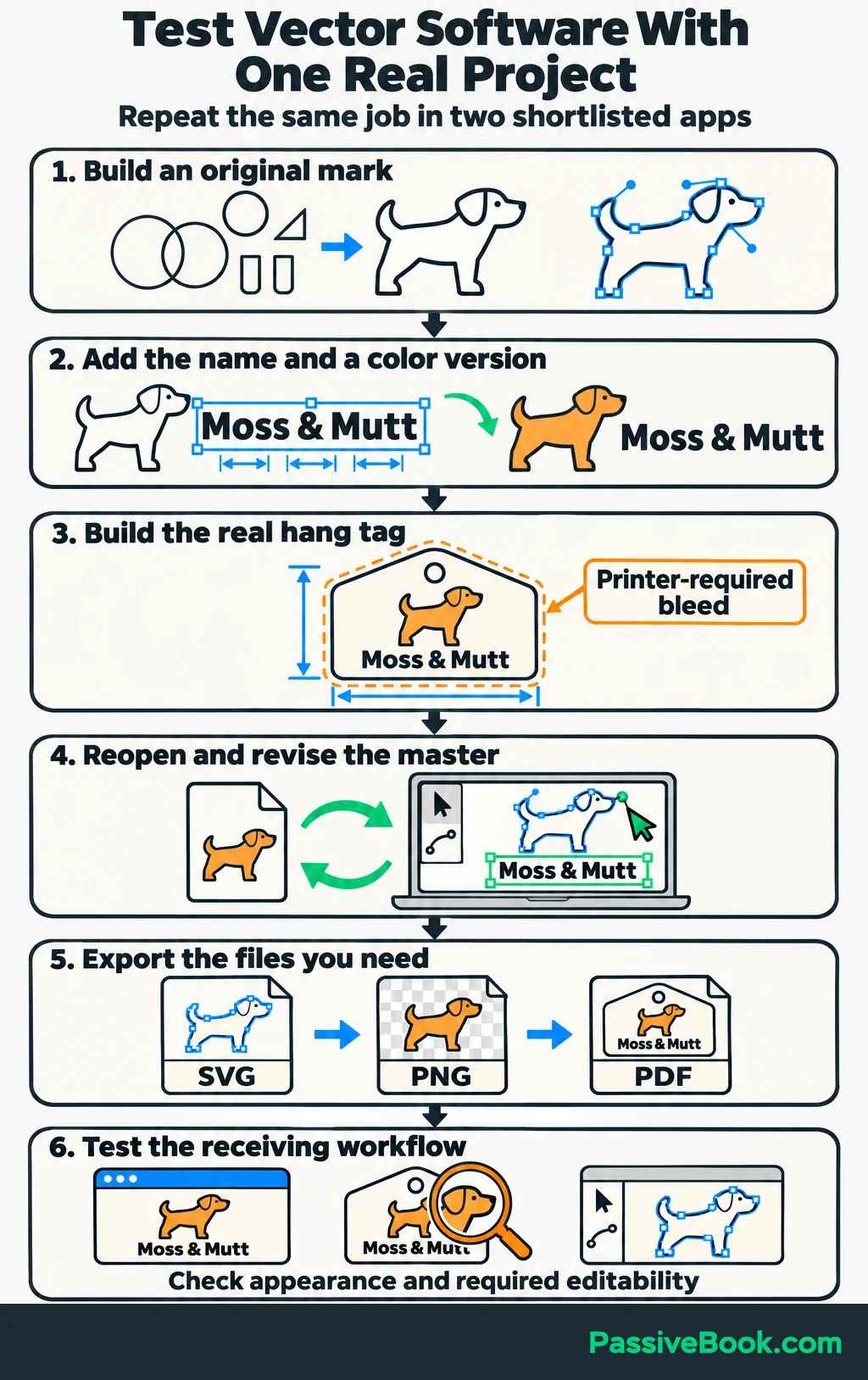
Give the exported files a specific job. The silhouette SVG belongs on the website, the PNG goes into a marketing graphic, and the PDF goes to the printer.
Check transparency against a colored background so a hidden white rectangle becomes obvious. Inspect text for substitutions, verify the document dimensions and look at the logo at its smallest intended size. A carefully drawn tail can disappear on a tiny tag.
For an editable handoff, ask the recipient to select and revise the parts they need. A file that opens and looks correct has passed a visual check; it still needs an editing check.
Record concrete obstacles as you work:
- Drawing: Could you select and reshape the curve without repeated mistakes?
- Revision: Could you change the name, color and layout without rebuilding the design?
- Delivery: Did the required files arrive with the right appearance, dimensions and editability?
- Cost: Which paid feature, if any, removed an obstacle?
On a digital-product project, I once kept separate logo copies for the cover and sales page. A small change meant finding and fixing both, and I could no longer tell which was the master. I now keep one clearly named editable source and export the versions needed for each placement. Include that ordinary revision in your software test.
Keep the free option when it completes the work reliably. Pay when you can name the requirement it satisfies: native AI documents, specific print controls or a drawing workflow you prefer.
When comparing costs, use the same ownership period. Count the full annual commitment against a one-time license, and include any extra application needed to complete the handoff. The cheapest purchase is less appealing when it creates another evening of file conversion.
Once two editors pass your design and export test, compare what you would actually pay. Use their billing terms and the number of months you expect to need them.

Free Software Cost Calculator




What Next?
Choose one required asset and one delivery format, then try making and exporting it in two shortlisted tools. For a logo and printed tag, I would begin with Affinity and Inkscape unless a collaborator requires native AI files.
Use the social buttons to share this comparison when a project discussion gets stuck on which design software to buy. A clear file requirement can settle that debate faster than another feature list.
Which part of your workflow is hardest to satisfy: drawing, revising or delivering the finished files? Share your answer in the comments, and add any other questions there too.
Share this post with your friends & followers:

