You finish work and remember the buyer’s email you meant to answer. The reminder is somewhere between your inbox, a notebook, and an app you stopped opening.
Another subscription could give you a cleaner list, but it could also give you another place to lose tasks. Moving everything takes time, and rebuilding the same system gets old.
I’ve buried follow-ups inside perfectly organized project notes. Finding them again was the problem. This comparison helps you choose an app that keeps unfinished work easy to find, with clear guidance on free plans, shared tasks, and what deserves an upgrade.
Which to-do List Software Should You Choose?
I would start with Todoist if you want a dedicated task list across devices. Compare it with TickTick if you also want calendar planning, a focus timer, and habit tracking.
Before paying for either, check the free app that fits the accounts and devices you already use:
- Microsoft To Do: My first choice for simple lists connected to Outlook.
- Google Tasks: A sensible starting point when most actions begin in Gmail or Google Calendar.
- Apple Reminders: Worth trying first when your phone and computer are Apple devices.
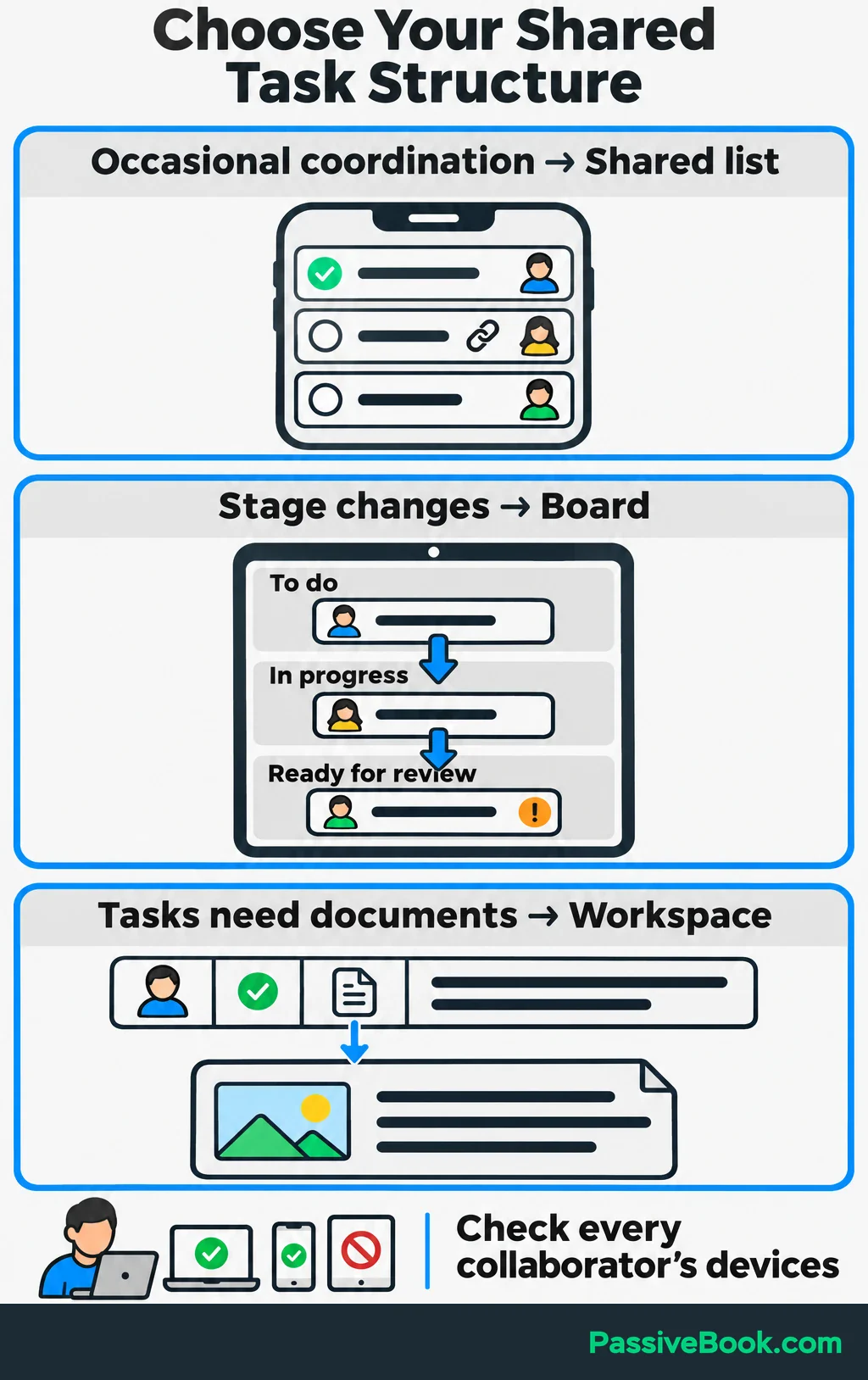
For shared work, choose the structure before choosing the software. A shared list handles occasional coordination. A board helps when work moves through stages. A workspace such as Notion makes sense when tasks need briefs, notes, and other documents beside them.
The best to-do list software is the one that supports your actual routine. Rule out anything that misses an essential requirement, including your helper’s devices.
| Tool | Strongest Use Case | Native Apps and Browser Access | Free Allowance and Main Limit | Relevant Paid Price and Commitment | Collaboration Model | Principal Tradeoff |
|---|---|---|---|---|---|---|
| Todoist | Everyday personal tasks | Windows, Mac, Linux, Android, iPhone, iPad; web | Five personal projects; task reminders included | Pro: $60/year or $7/month. Business: $8/user/month billed annually or $10 monthly | Up to five people per personal project; free team workspace also available | Pro keeps the five-person personal-project limit |
| TickTick | Tasks, calendars, and focus sessions | Windows, Mac, Linux, Android, iPhone, iPad; web | Nine lists, 99 tasks per list; reminders and sync | Premium: $49.99/year | Shared lists with task assignment | More tools to manage if you only need a list |
| Microsoft To Do | Free lists with Outlook | Windows, Mac, Android, iPhone, iPad; web | Free personal task management; organizational accounts need supported access | No separate personal subscription | Sharing between personal accounts, or organizational accounts within the same organization | Organizational lists cannot include outside helpers |
| Google Tasks | Actions from Gmail and Calendar | Android, iPhone, iPad; browser through Calendar and Google side panels | Free personal tasks and subtasks; personal lists are private | No separate personal subscription | Group assignments through Chat spaces or eligible Docs workflows | No ordinary shared personal list |
| Apple Reminders | Tasks across Apple devices | iPhone, iPad, Mac; browser through iCloud.com | Included with Apple devices; no separate task subscription | None required | Shared iCloud lists that participants can edit and complete | No native Windows or Android app |
| Things 3 | Individual Apple planning | Mac, iPhone, iPad, Apple Watch; no browser version | No permanent free plan | Separate one-time purchases: Mac $49.99, iPhone/Watch $9.99, iPad $19.99 | Individual lists; no live task sharing | Each device family needs its own purchase |
| Any.do | Daily planning with optional team boards | Windows, Mac, Android, iPhone, iPad; web | Unlimited personal tasks and lists; basic reminders | Premium: $4.99/month billed annually or $7.99 monthly. Teams: same rates per member | Personal/Premium: private lists; Family: household boards; Teams: work boards | Premium does not include the Teams workspace |
| Superlist | Shared actions with notes and feedback | Mac, Android, iPhone, iPad; web | Five private and five shared lists; up to five people per shared list; unlimited tasks and notes | Basic: $59/person/year or $6/person/month | Shared lists, assignments, and task messages | Windows access is through the browser; key integrations are paid |
| Trello | Work moving through visible stages | Windows, Mac, Android, iPhone, iPad; web | Unlimited cards; ten boards and ten collaborators per Workspace; 250 monthly automation runs | Standard: $5/user/month billed annually or $6 monthly | Shared boards and assigned cards | Workspace members and guests on multiple boards become billable on paid plans |
| Notion | Tasks linked to documents | Windows, Mac, Android, iPhone, iPad; web | Unlimited page content for one member; ten guests; 5 MB per upload | Plus: $10/member/month billed annually | Shared pages and task tables; guests access selected pages | Requires configuration; adding members changes free-plan capacity |
| ClickUp | Structured team workflows | Windows, Mac, Linux, Android, iOS/iPadOS; web | Unlimited tasks and members; board/calendar views; 60 MB attachment storage | Core: advertised $9/user/month billed annually; displayed regular rate $12 | Shared Workspace with assignments and team views | Upgrading applies to all Workspace members |
Paid figures are USD before tax. Things prices are US App Store purchases; the other paid figures are web subscription prices. Use the linked pages for current terms, especially ClickUp’s advertised offer.
You can also keep documents in Notion and actions in a dedicated task app. Give each action one authoritative home and link to its supporting material. Copying the same task into three apps gives you three records to maintain.
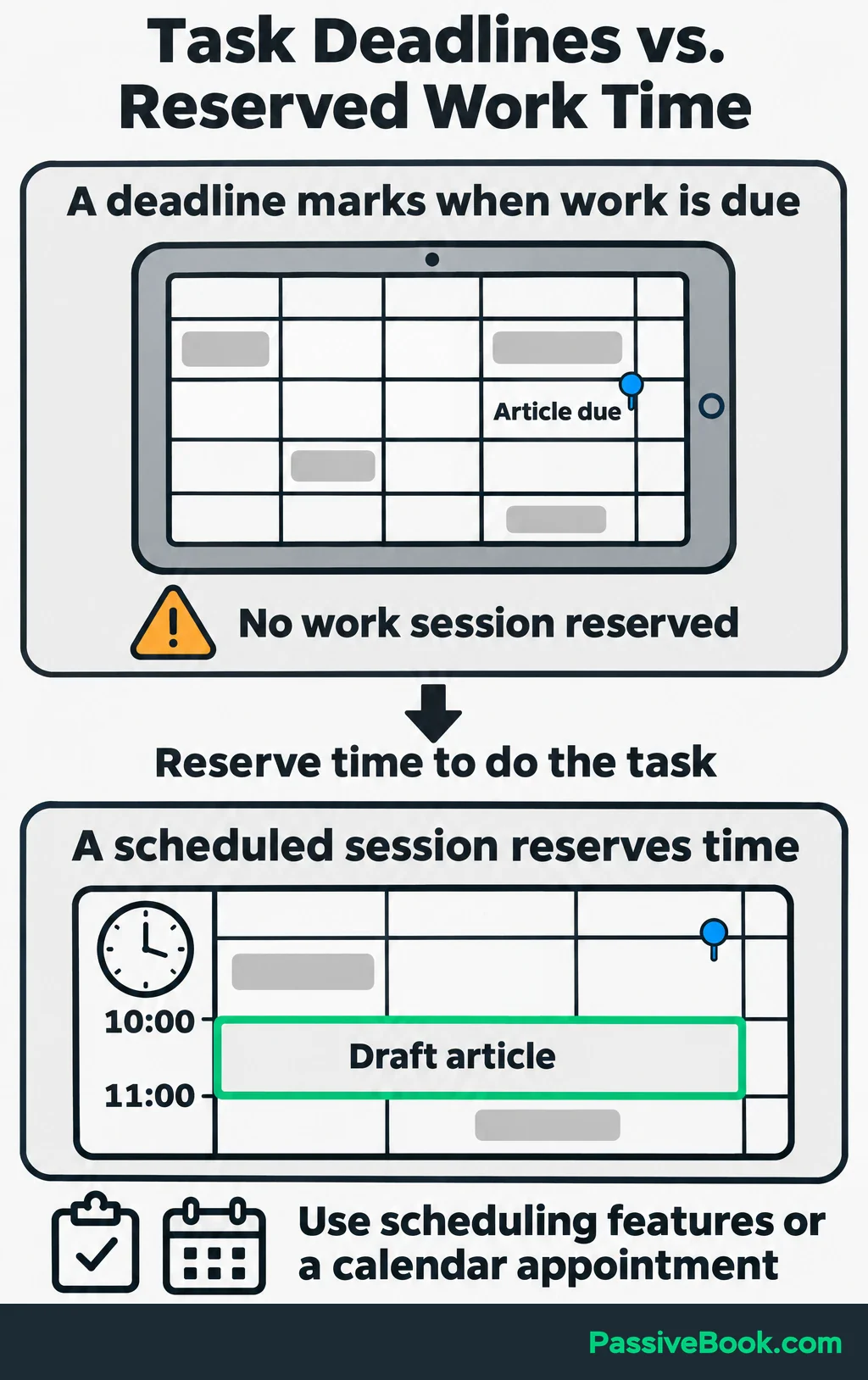
One final distinction matters: seeing a deadline on a calendar does not reserve time to do the work. If you need a drafting session from 10 to 11, look for task duration and scheduling features, or create a separate calendar appointment.
The 11 Best to-do List Software Options
1. Todoist — Best for Everyday Tasks Across Devices
Todoist is where I would begin when you want clear lists without designing a workspace first. Projects separate responsibilities, priorities identify important actions, and filters bring selected work into one view.
Start with a capture inbox and a few projects you can recognize at a glance. Create a task that describes an action, then add a due date only when timing matters.
Imagine you run a watercolor blog selling printable practice sheets. You could keep “Draft the flat-wash article” in Content and “Reply to buyer about the download” in Customer Support. Both belong in one task system, even though their supporting files live elsewhere.
The free plan also includes three filters and one week of activity history. Pro adds calendar layout, task duration, custom reminders, and more projects.
I would stay free until one of those limits gets in the way. For occasional work with a helper, shared personal projects may be enough. Paying for Pro does not increase their five-person limit.
2. TickTick — Best for Tasks, Calendars, and Focus Tools Together
TickTick earns a place on the shortlist when choosing tasks and finding time for them feel like one job. It combines task lists with calendar tools, a Pomodoro focus timer, and habit tracking.
A Pomodoro timer divides work into timed sessions and breaks. You might use one session to draft the watercolor article’s first section, then decide whether another session is needed. The timer gives you a starting boundary; it does not need to become another performance score.
Free covers lists, recurring tasks, reminders, and cross-device sync. Premium adds multiple calendar views, task duration, and higher limits. Shared lists also support assigning tasks.
I would choose TickTick over Todoist when you expect to use its planning and focus tools most days. If you would ignore those features, they offer little reason to switch.
3. Microsoft To Do — Best for Free Task Management With Outlook
Microsoft To Do is a strong free starting point for straightforward work and personal lists. My Day lets you choose today’s actions, and steps break a larger task into smaller pieces.
Its Outlook connection is the main reason I would choose it over another basic list. You can flag an actionable email and follow it up from To Do, with a link back to the original message.
That connection requires a Microsoft-hosted account and applies to your primary mailbox. Flags from shared mailboxes do not sync. For the watercolor shop’s buyer email, this works only if that message arrives in a supported primary mailbox. Microsoft explains the flagged-email requirements here.
Personal use is free with a Microsoft account. For work or school accounts, confirm supported licensing and Exchange Online access.
I would skip it for coordinating with an outside helper through an organizational account. The sharing restriction in the table is more important than any convenience you gain from Outlook.
4. Google Tasks — Best for Simple Gmail and Google Calendar Workflows
Google Tasks makes sense when your next action often begins as an email. Turn the message into a linked task, give it a clear action name, and add a date when you need to return to it.
For example, rename the buyer’s message “Send the corrected practice-sheet download.” That tells you what finishing the task means. The original subject line may not.
You can add subtasks and manage dated work in Google Calendar. On a computer, access comes through Calendar or Google app side panels; mobile apps cover Android and Apple devices. Organizational administrators control availability.
The main boundary is collaboration: personal lists are private. Shared tasks live in Google Chat spaces, which combine project conversations and task assignments. With an eligible work or school account, you can also assign tasks from Google Docs to people in your organization. I would choose another app if you and a helper want a shared list without working through Chat or Docs.
For your own follow-ups, though, I would try this before adding another subscription.
5. Apple Reminders — Best for Tasks Within the Apple Ecosystem
Apple Reminders deserves a proper trial before you pay for an Apple-only task manager. It supports subtasks, attachments, Siri capture, and alerts based on time or location.
Location reminders are useful for errands that make sense somewhere specific. “Buy watercolor paper when I reach the art shop” is more useful than an alert that arrives while you are nowhere near it. Location Services must be enabled.
Shared iCloud lists let participants edit tasks and mark them complete. Your helper could use one for product-preview revisions while your personal errands stay elsewhere.
I would choose Reminders when your daily devices and collaborators already fit Apple’s ecosystem. Browser access through iCloud.com helps from another computer, but it does not replace native Windows or Android apps.
A free app that captures tasks quickly and reliably is worth keeping. You do not owe your checklist a subscription.
6. Things 3 — Best for Individual Apple Planning Without a Subscription
Things 3 suits someone who wants a dedicated personal planning app and prefers an upfront purchase. Its areas hold ongoing responsibilities, projects hold outcomes, and individual tasks describe the next actions.
Today shows immediate work. Upcoming brings together scheduled tasks and calendar events, and you can use repeating tasks and deadlines without putting everything into today’s list.
That separation is useful when the watercolor article needs work this afternoon but the practice-sheet launch is due later. The launch deadline should not make every related task appear urgent now.
Buy only the device versions you need. Synchronization through Things Cloud is included, but there is no browser, Windows, or Android version.
The deciding limit is sharing: Things does not support live shared task lists. I would choose it for my own planning and skip it if assigning the preview to a helper is part of the workflow.
7. Any.Do — Best for Daily Planning Alongside Shared Boards
Any.do’s My Day view helps you pull immediate actions out of a larger backlog. That suits a day containing a writing session, buyer replies, and a supply run.
I would use it to make a short working list each morning. Keep the remaining tasks available, but do not treat the whole backlog as today’s promise.
The permanent free Personal plan includes unlimited personal tasks and lists, calendar integration, and basic recurring reminders. Premium adds more advanced reminder options, including location and WhatsApp reminders.
For shared household tasks, compare Family on the linked pricing page. For work collaboration, Teams includes shared project boards and Premium features and charges per member. The Teams trial is separate from the permanent free Personal plan.
The choice is therefore fairly clear: start with Personal for your own routine. Consider Teams when you need shared boards and responsibility tracking. Buying Premium alone does not give you that team workspace.
8. Superlist — Best for Shared Tasks With Supporting Notes
Superlist is worth considering when a bare task title leaves too much unexplained. It keeps actions, notes, links, and messages together, so a helper can see both the request and the context.
First, write the action and attach the material needed to finish it. Then assign responsibility.
For the watercolor product preview, that might be “Replace the second preview image,” followed by the image link and a note explaining that the current crop cuts off the practice area. The helper should not have to search a separate conversation to understand the change.
Free includes reminders, repeating tasks, and 500 MB of storage alongside the list allowances in the table. Basic adds unlimited lists, larger shared lists, and integrations such as Gmail, Google Calendar, and Slack.
I would try the free version for occasional collaboration. Before upgrading a team, count its members because the upgrade charges for them.
9. Trello — Best for Work That Moves Through Visible Stages
Trello works best when you need to see where work stands. Cards hold tasks, and lists represent stages such as “To do,” “In progress,” “Ready for review,” and “Done.”
Give a card an owner, due date, and checklist. Move it when its stage changes.
The watercolor product preview could sit in “Ready for review” after your helper replaces the images. That tells you what needs your attention without requiring another status message. A card sitting in “In progress” with no owner tells you much less.
Free is enough to try this workflow. Its collaborator limit applies across the Workspace, not separately to each board. Standard adds unlimited boards, advanced checklists, and full Planner access for scheduling work.
Budget carefully when inviting people: paid Workspace members and guests on more than one board are billable. Also, Trello’s desktop apps require an internet connection and do not support offline syncing. Atlassian documents that desktop limitation here.
10. Notion — Best for Tasks Connected to Documents
I use Notion for planning, content calendars, project management, and a knowledge base. I like having the brief, working notes, and next action close together.
I also made the mistake of leaving follow-up checkboxes inside individual project pages. The notes were tidy, but finding every unfinished action meant reopening each page. I moved those actions into one task database—a table of tasks—and linked each task back to its notes. That gave me a list I could review.
Start with an owner, status, due date, and a view that hides completed work. For the watercolor blog, each task can link to its article brief or practice-sheet page.
Be deliberate about access. Free workspaces with multiple members have a 1,000-block limit; a block is a piece of page content, such as a paragraph or checkbox. An outside helper who needs selected pages can join as a guest instead of a workspace member. Notion explains those roles and limits here.
I would choose Notion when the documents make the setup worthwhile. Its native date reminders do not repeat on a schedule, so I would use a dedicated task app if recurring alerts are essential. Notion’s reminder documentation confirms this limit.
11. ClickUp — Best for Structured Team Task Management
ClickUp belongs on the shortlist when several people need shared tasks, subtasks, documents, and views of the same work. It is more than I would choose for a personal checklist.
Begin with one work area and a few clear statuses. Add fields when they answer a question you actually need answered.
For example, the watercolor preview task might need an owner, review date, and link to the working file. You can add more structure if the process grows. There is little value in maintaining twelve fields that nobody uses to make a decision.
Free Forever includes unlimited tasks and members, plus board and calendar views, but its attachment storage allowance is small. Core adds unlimited storage and custom fields.
The main cost decision happens at Workspace level: upgrading means upgrading all its members. I would pay when coordinated handoffs justify both the setup and the full membership bill. For simple owners and deadlines, I would start elsewhere.
When Is a Paid Plan Worth It?
Stay free when the plan covers your devices, reminders, recurring work, and collaborator access. Work is still work when it lives in a free app.
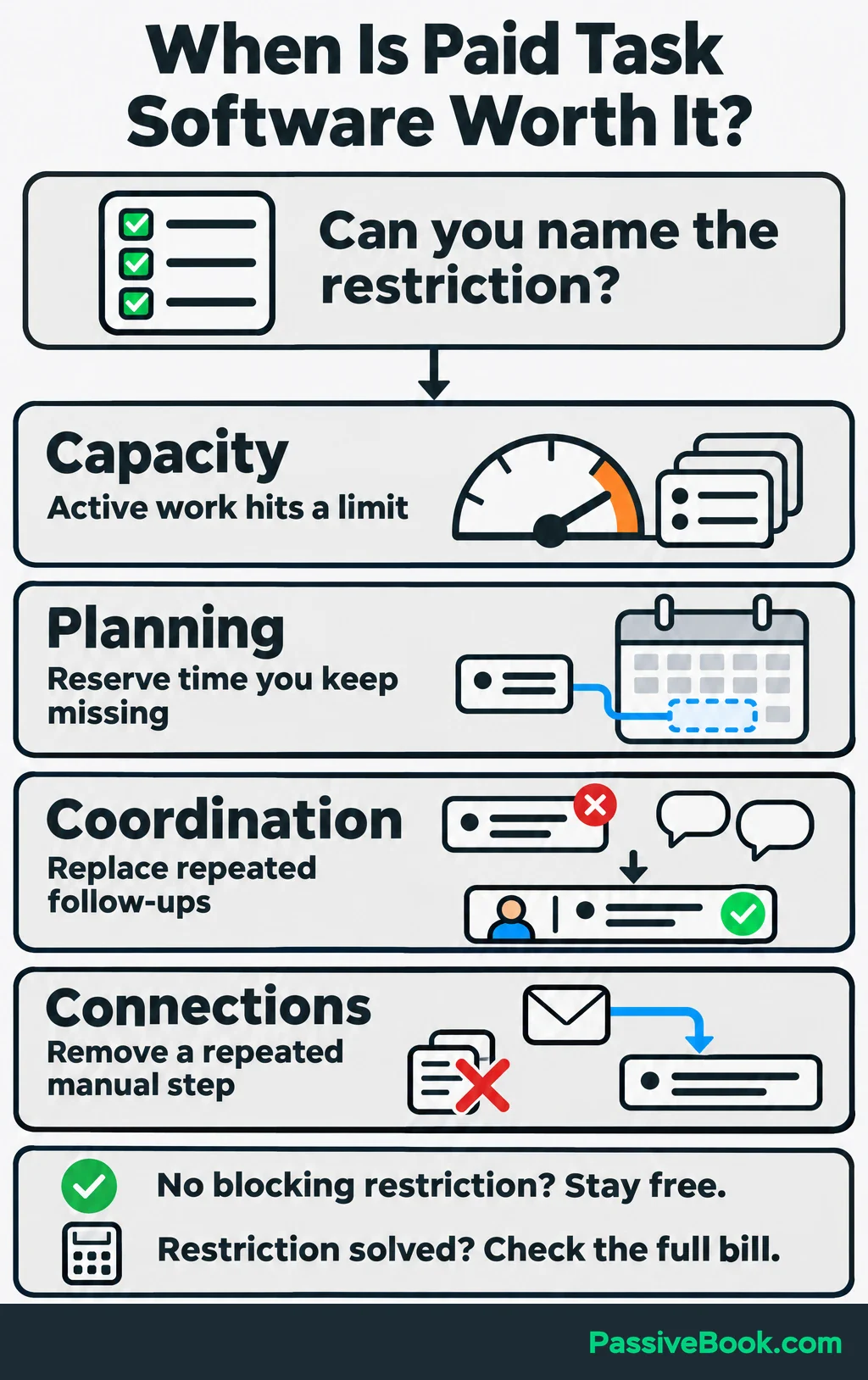
I would upgrade for a restriction I can name:
- Capacity: The project, list, or storage limit blocks active work.
- Planning: Task duration and calendar scheduling help you reserve time you otherwise keep missing.
- Coordination: Assignments, permissions, or shared boards replace repeated follow-up messages.
- Connections: An integration removes a specific step you perform repeatedly.
Calculate the full annual bill before comparing plans. Count the people the plan will charge for and multiply that number by the monthly rate shown for annual billing. Multiply the result by 12 and add required extras. A monthly equivalent paid annually is a yearly commitment.
A lower monthly equivalent may not save you money if you stop using the app early. Compare two suitable plans over the time you expect to use them before committing.

Free Software Cost Calculator




For illustration, suppose you and your helper both become paid Trello Standard Workspace members. Two seats at the annual-billing rate in the table cost:
2 × $5 × 12 = $120 per year before tax.
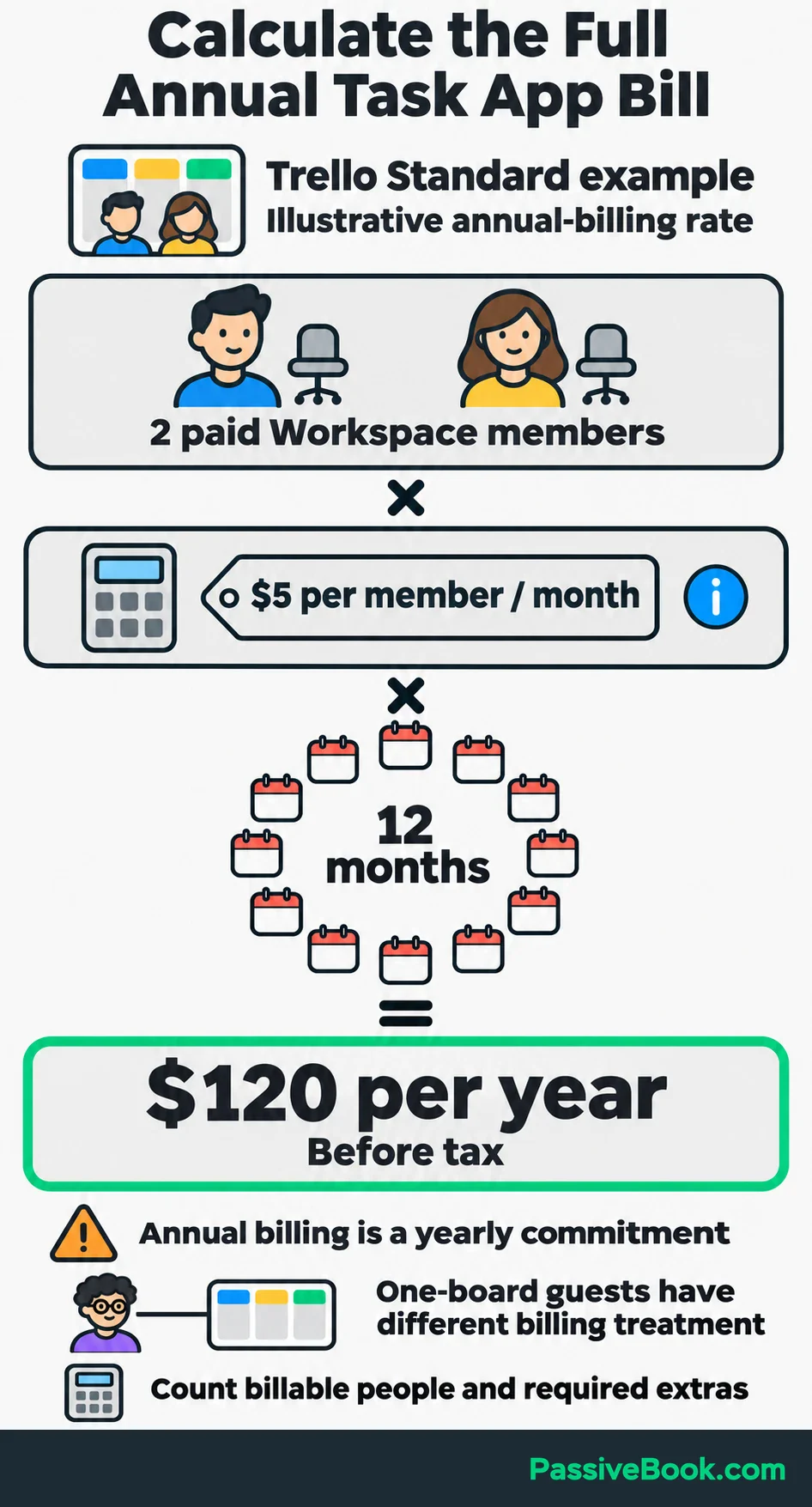
That example counts two Workspace members. A helper invited only as a guest to one board has different billing treatment.
I would pay for a broader workspace when its documents and shared workflow replace tools I already maintain. I would keep a dedicated list when extra setup creates more administration than useful coordination.
And I would skip an AI upgrade unless I could name the task it removes. Generating a longer checklist is not much help when the existing one is already being ignored.
Test Your Shortlist Before Switching
Choose two finalists that meet your essential requirements. Test them with the same small set of active work, and keep your existing list authoritative during the comparison.
Use tasks from your own week to judge whether you can capture, find, and finish them. The examples below follow the watercolor blog; skip the handoff test if you work alone.
| Test Task | What to Enter | What a Useful Result Looks Like |
|---|---|---|
| Article draft | “Draft the flat-wash article introduction,” with a link to the brief | You can find it in today’s work and open the brief |
| Buyer follow-up | “Reply about the practice-sheet download,” with the email link and a reminder | The reminder arrives and the original conversation is easy to reach |
| Product-preview handoff | “Replace the second preview image,” assigned to your helper | The helper can see the file, understand the request, and report completion |
| Weekly supply check | “Check watercolor paper supplies,” repeating each week | Completing it preserves the next occurrence on the intended schedule |
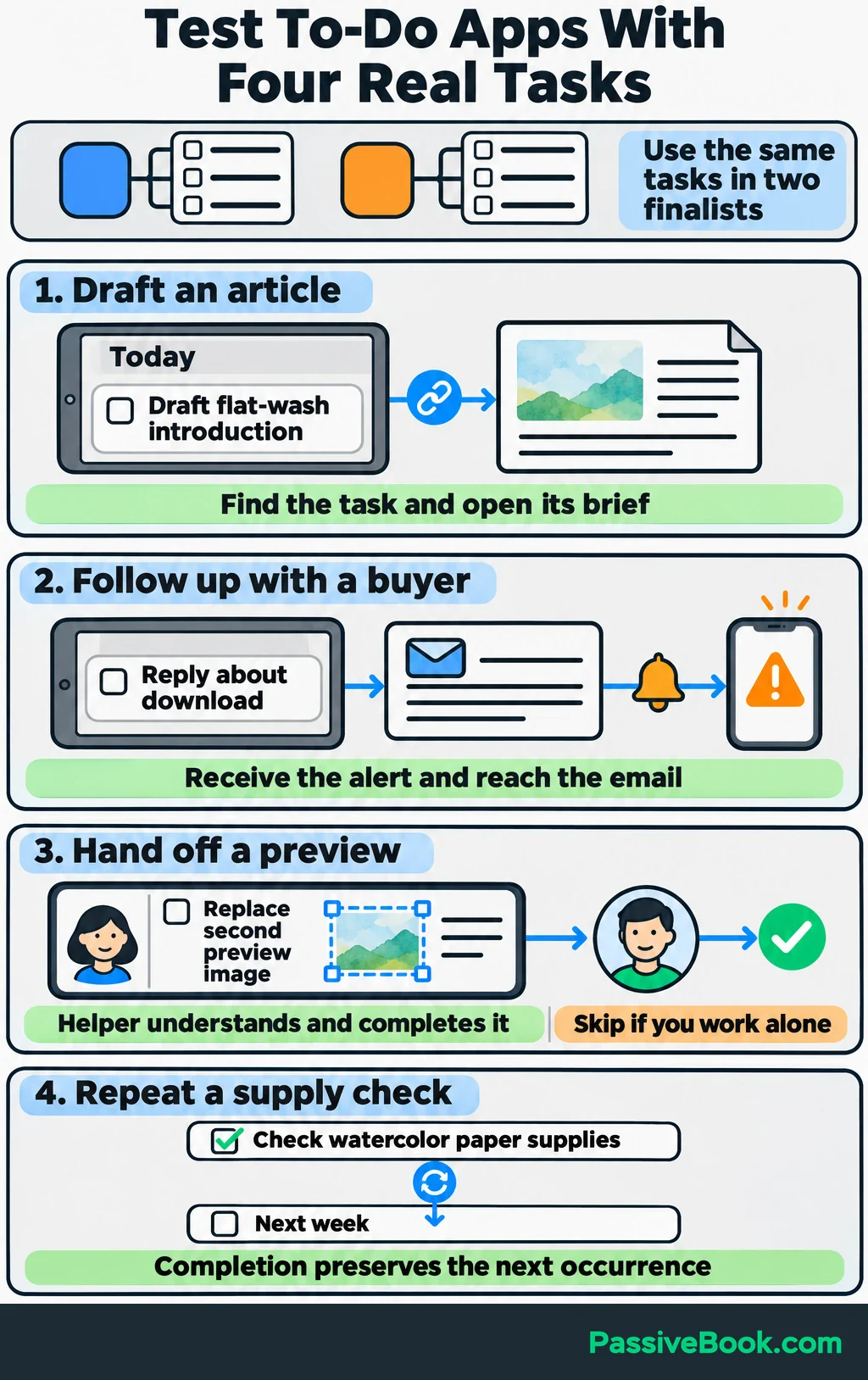
Then check the parts that feature lists cannot settle for you:
- Capture and sync: Add a task on your phone and retrieve it on your computer. Change its date and confirm the update appears.
- Reminders: Close the app and check that a scheduled alert reaches you.
- Offline work: If it matters, add and edit tasks without a connection, then reconnect and inspect the result.
- Shared access: Have your helper view, edit, complete, and reassign a test task where the app permits it. Confirm they cannot see unrelated private work.
- Calendar behavior: Change a task and a calendar entry separately. Check what updates, in which direction, and whether you are seeing a deadline or reserving work time.
- Moving your data: Try a small import and inspect an export or saved copy. Check dates, recurrence, notes, assignments, and attachments before moving the backlog.
Keep the original records until you have verified the transfer. An export file is useful only if it contains the information you need.
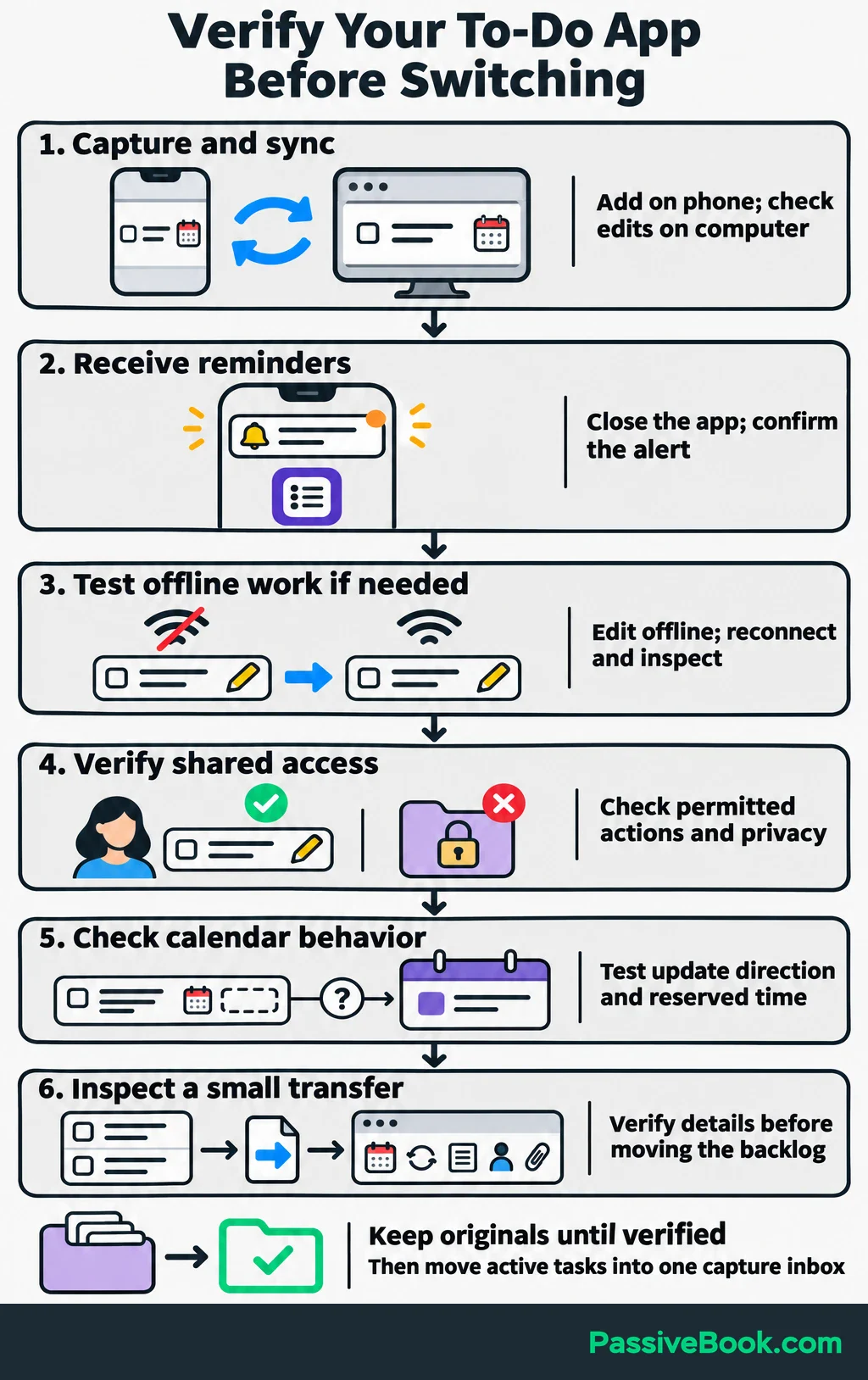
Choose the app whose daily routine is easiest to repeat. Move active tasks first, use one primary capture inbox, and review unfinished work regularly. Add integrations after you notice a repeated step worth removing.
That review matters more than finding a perfect app. A task you can capture in seconds still needs to appear when you decide what to do next.
What Next?
Pick two tools from the table and try the relevant test tasks before moving your backlog. Start with their free plans or trials, and let the daily routine earn any subscription.
Use the social buttons to share this comparison when your next tool discussion needs clear costs and sharing limits.
Where does your current system break down most: capturing tasks, finding them again, or following through? Leave your answer—and any other questions—in the comments.
Share this post with your friends & followers:

