Your order tracker is easy to update, but the monthly report still takes an evening of copying files. Then a teammate needs access, and you discover the workbook only works properly on your laptop.
A different tool could help, but switching brings its own work. Formulas may need fixing, shared access needs checking, and a cheap subscription can grow once you add people.
The useful comparison starts with the job your current setup struggles to do. This guide helps you narrow the options, understand their costs, and test a real workbook before moving your business data.
Which Spreadsheet Software Should You Choose?
For most people, I would start with three options:
- Microsoft Excel: Choose it for complex calculations, advanced analysis, and workbooks that depend on Excel automation.
- Google Sheets: Choose it for shared tracking, comments, and everyday reporting.
- LibreOffice Calc: Choose it for free desktop work and dependable access without an internet connection.
The best spreadsheet software is the one that passes your hardest requirement. A tool can have excellent collaboration and still be a poor choice for a workbook built around Excel macros.
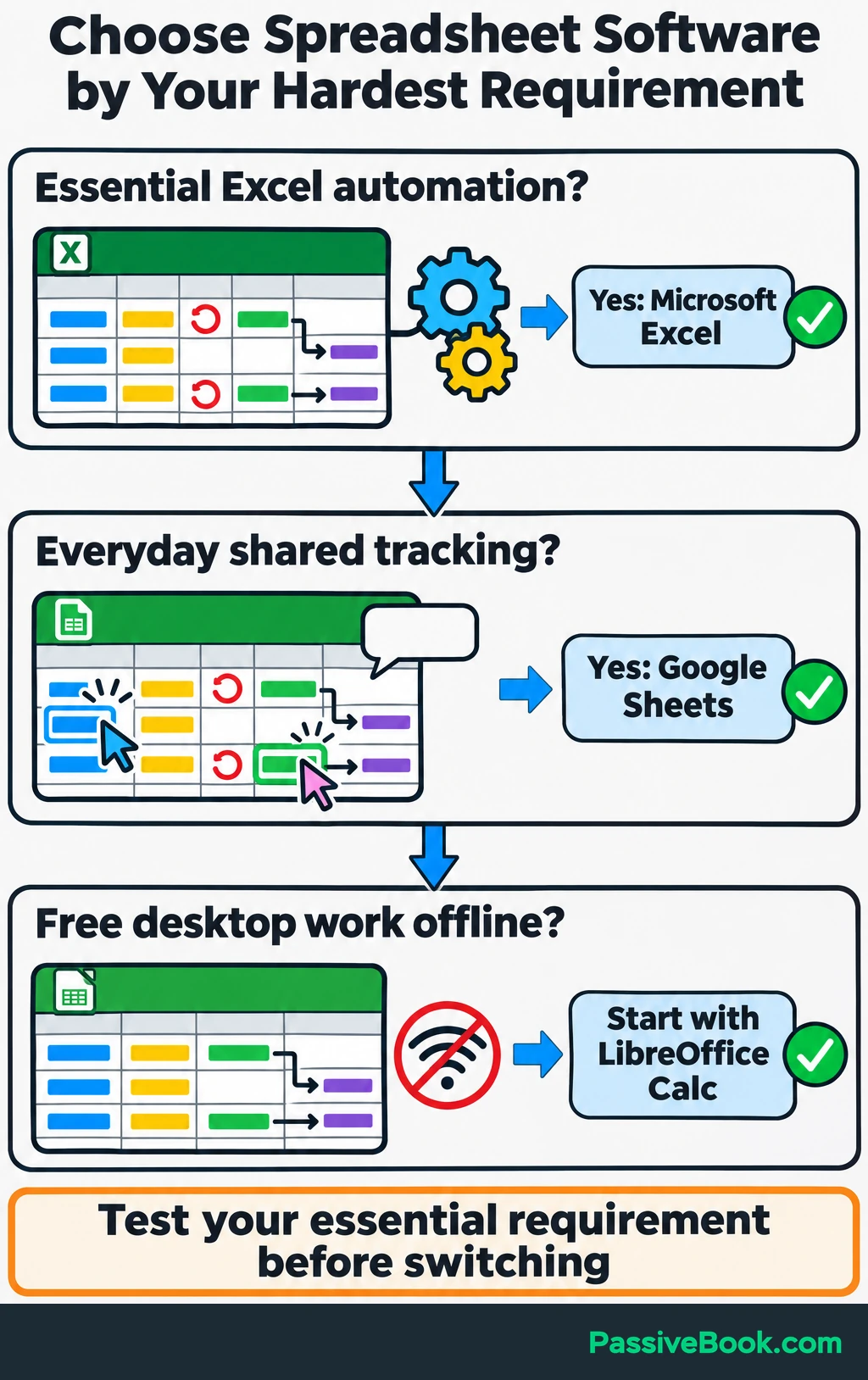
Count subscriptions you already own before buying anything. If your business already pays for Microsoft 365 or Google Workspace, start there unless something essential is missing.
Then consider the more specific choices. Zoho Sheet makes sense when your business already uses Zoho. Numbers suits visual reports on Apple devices. Proton Sheets deserves a look when encrypted cloud collaboration is the deciding requirement.
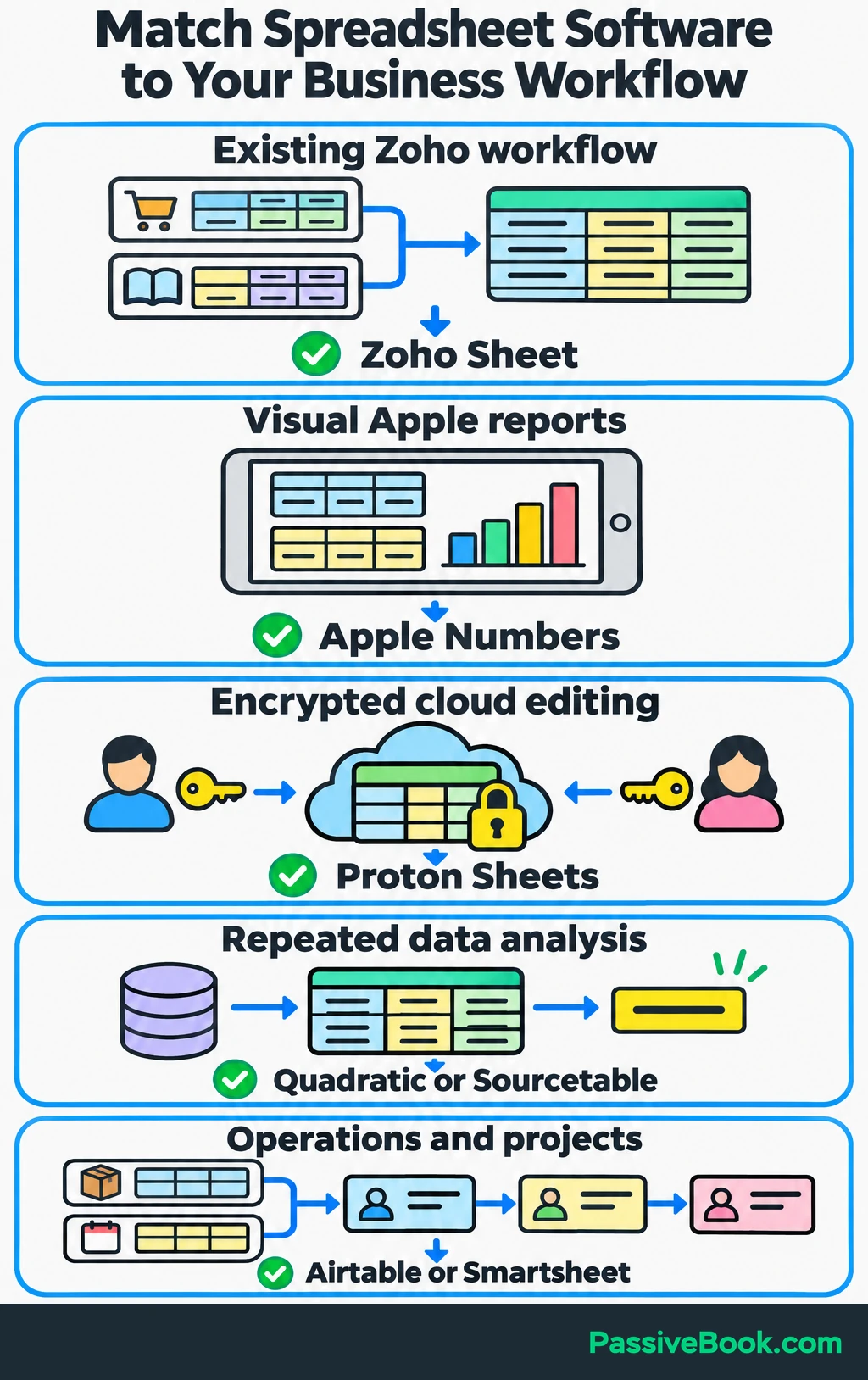
Quadratic and Sourcetable are worth comparing when your main problem is repeatedly pulling data from other systems. Airtable and Smartsheet serve a different need: linked business records and project tracking.
Across my online businesses, I have caught myself improving the appearance of a report while leaving its monthly cleanup untouched. It looked better, but it still needed me. I now judge an upgrade by the repeated work it removes, and I avoid another subscription unless it earns its place.
For the examples below, imagine you run a small online shop selling downloadable sewing patterns. You need to track orders, refunds, expenses, and product releases. The shop and its figures are illustrative.
The 13 Best Spreadsheet Software Tools Compared
Prices below are standard US-dollar rates rather than temporary promotions. Annual commitments are identified, and the linked pages provide current terms. Free plans are ongoing entry options; a trial ends unless you pay.
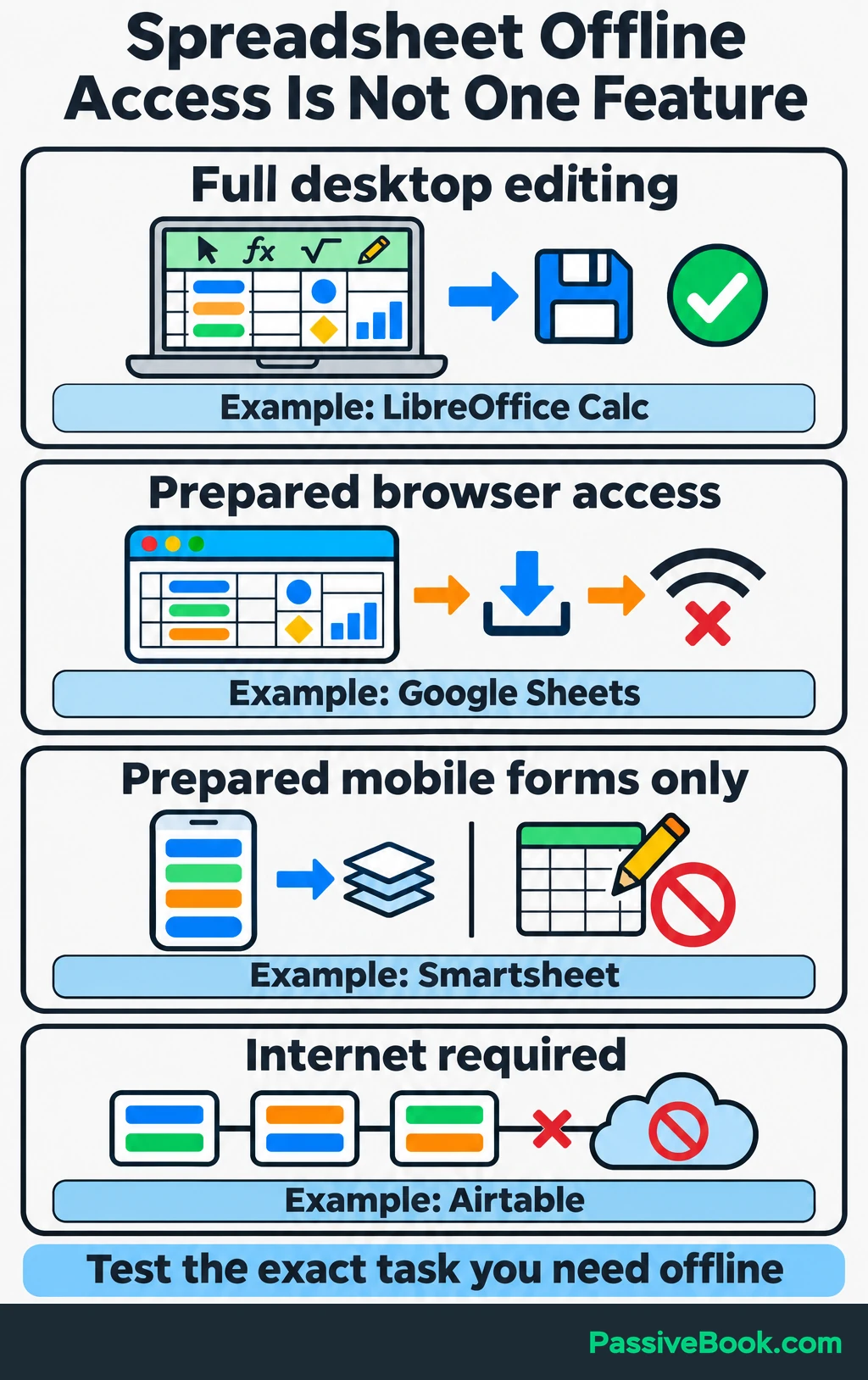
“Offline” needs a closer look. Full desktop editing, prepared browser access, and offline form submission are different capabilities.
| Tool | Software Type | Best Use Case | Free Option or Representative Paid Price | Offline Access | Main Tradeoff |
|---|---|---|---|---|---|
| Microsoft Excel | Desktop and web spreadsheet | Advanced analysis and existing Excel workbooks | Free web edition; Microsoft 365 Personal: $99.99/year for one person; Business Standard with Teams: $14/user/month, paid yearly | Full desktop editing | Web, Windows, and Mac capabilities differ |
| Google Sheets | Cloud spreadsheet | Everyday shared tracking | Free with a Google Account; Workspace Starter: $7/user/month; Standard: $14/user/month, both with an annual commitment | Prepared browser access; mobile files can be made available offline | Advanced Excel workflows may need rebuilding |
| LibreOffice Calc | Open-source desktop spreadsheet | Free local calculations and reporting | Free | Full desktop editing | Excel macros and complex files need compatibility checks |
| Zoho Sheet | Cloud spreadsheet with desktop apps | Businesses already using Zoho | Free web entry; desktop free for individuals and Zoho One, Workplace, or WorkDrive subscribers; other organizations need a paid desktop plan | Local editing in Windows and Mac apps | Desktop apps are still in beta |
| ONLYOFFICE Spreadsheet Editor | Desktop editor with cloud connections | Editing Excel’s XLSX workbook files | Desktop Editors are free for personal and professional use | Full desktop editing | Collaboration requires a supported cloud service; macros use JavaScript |
| WPS Office Spreadsheets | Desktop and mobile spreadsheet | Familiar Excel-style editing | WPS Standard is free; paid plans add features | Local editing in installed apps | Paid features and device coverage vary |
| Apple Numbers | Apple spreadsheet with iCloud collaboration | Visual reports on Apple devices | Core app is free; optional premium features require Apple Creator Studio | Full editing in Apple apps | Android users can view shared spreadsheets but cannot edit them |
| SoftMaker PlanMaker | Desktop spreadsheet | Paid desktop work without a subscription | Office Professional 2026: $149.95 standard one-time purchase; separate FreeOffice edition available | Full desktop editing | Major upgrades cost extra; commercial licenses cover one company computer, with secondary use on one portable computer |
| Proton Sheets | Encrypted cloud spreadsheet | Private shared workbooks | Free account available | Treat as an online editor | Synced desktop placeholders are not usable local backups |
| Quadratic | Spreadsheet with code, AI, and data connections | Analysis using SQL and Python | Free Personal plan; Pro: $18/user/month, billed annually, including $20 in monthly AI credits | Browser storage during disconnection | Offline changes can overwrite newer online work |
| Sourcetable | AI spreadsheet with data connections | Asking questions across business data | Free Regular plan with 50 monthly credits; Pro listed at $29/user/month with 2,000 monthly credits | Previously loaded workbooks; AI and source syncing need internet | Connector fit and credit use determine practical value |
| Airtable | Linked-record database with spreadsheet-style views | Structured business tracking | Free plan; Team: $20/user/month, billed annually | Internet required | Record limits and billable collaborator roles affect cost |
| Smartsheet | Spreadsheet-style project management | Assignments, schedules, and approvals | Paid plans with a free trial; Pro: $9/member/month, billed yearly, for 1–10 members; Business: $19/member/month, billed yearly, minimum three members | Prepared mobile forms only | Full sheet work needs internet; premium connections can cost extra |
These recommendations reflect documented capabilities and my judgment about where each tool fits. They are not a claim that I have personally tested every product.
Opening an XLSX file also does not guarantee that every formula, macro, chart, or layout survives unchanged. The switching test later in this guide matters more than a compatibility badge.
1. Microsoft Excel: Best for Advanced Analysis and Complex Workbooks
Excel would be my first choice when an important workbook already depends on advanced formulas, PivotTables, or VBA. PivotTables summarize rows of data by category, such as sales by product. VBA is the programming language behind many Excel macros, which automate actions inside a workbook.
Its strength goes beyond doing calculations. Power Query lets you import data, clean it, combine tables, and repeat those transformations when fresh data arrives.
For the sewing-pattern shop, that could mean combining monthly order exports and matching them with refund records before calculating product margins. You set up the cleanup process once, then refresh it rather than repeat every step.
Choose the edition around the work. Desktop Excel supports offline editing, but Windows, Mac, and web versions do not offer identical automation and connection capabilities. Check the exact data source you need.
For simultaneous editing, keep the workbook in OneDrive or SharePoint Online and use supported Excel versions. Copilot access also depends on the subscription and its allowances.
I would keep Excel if replacing it means rebuilding reliable, essential automation. Saving a subscription is less appealing when it creates a new maintenance job.
2. Google Sheets: Best for Everyday Team Collaboration
Sheets is my default shortlist choice when several people need to update the same ordinary business tracker.
Shared editing, comments, version history, and Google Forms submissions make it useful for work that otherwise produces several competing copies. The shop could keep one order-and-refund tracker, with questions attached to the relevant entries.
The free personal version is enough to test shared tracking. For AI that generates text in cells or fills missing values from patterns, check the plan. Business Standard includes those tools—the AI function and Enhanced Smart Fill—while Starter does not. Google’s AI feature comparison lists availability.
Computer offline access needs preparation while you are connected. Use Chrome or Edge, enable the Google Docs Offline extension, and make essential files available before disconnecting.
I would choose Sheets for routine collaboration, but I would test any Excel-dependent automation separately. Sheets automation commonly uses Apps Script, so an existing VBA workflow needs its own migration plan.
For a large workbook, check the current cell and file-size limits before importing it.
3. LibreOffice Calc: Best Free, Open-source Desktop Spreadsheet
Calc is where I would start if the requirement is simple: capable desktop spreadsheet software without a subscription.
It handles calculations, charts, and local reporting, so it suits an expenses-and-margin workbook that you mainly maintain yourself. You can work without an internet connection and decide where to store the file.
It also opens and saves Excel formats, including XLS and XLSX. That makes exchanging ordinary workbooks practical, but automation deserves separate attention.
LibreOffice can run some Excel VBA scripts when VBA support is enabled, but required macros may still need changes or a rewrite. Its Microsoft Office compatibility guidance explains the limits.
For the shop, I would test expense imports, product lookups, and the monthly totals first. If those work and simultaneous browser editing is unnecessary, Calc could cover the job without another bill.
I would choose something else when easy live collaboration is the main reason for switching.
4. Zoho Sheet: Best for Businesses Already Using Zoho
Zoho Sheet is a sensible candidate when the surrounding business work already lives in Zoho.
The useful question is whether it can connect the records you need with less copying. For the shop, that might mean bringing order details and bookkeeping records into one shared report.
Its Zia assistant can answer questions about data and suggest charts and pivots. Those features may help you explore a sheet, but I would first establish that the underlying connection and calculations work.
Zoho offers a free web version and desktop apps for Windows and Mac. The desktop apps support local editing offline and are still in beta. Check the comparison table to see whether your team qualifies for free desktop access.
I would shortlist Zoho because it fits an existing workflow. I would not move several working systems just to gain its spreadsheet. Test the required connection, including how often it refreshes and what happens when it fails.
5. ONLYOFFICE Spreadsheet Editor: Best Free Desktop Option for XLSX-focused Work
ONLYOFFICE deserves a place beside Calc when you want a free desktop editor and regularly exchange XLSX files.
Desktop Editors work on Windows, macOS, and Linux, and they are free for personal and professional use. You can edit local files offline and connect to supported cloud platforms when you need collaboration.
That makes it a practical candidate for the shop’s reporting workbook, especially when another person expects an Excel file at the end.
The automation difference is substantial: ONLYOFFICE macros use JavaScript. An essential VBA macro therefore needs conversion rather than an assumption that it will run unchanged. ONLYOFFICE’s macro documentation describes the system.
Cloud collaboration also brings a separate decision. Include the supported service’s subscription or hosting cost, along with any work needed to maintain it.
I would compare ONLYOFFICE and Calc using the same workbook. Choose whichever preserves the required calculations and handoff with less repair.
6. WPS Office Spreadsheets: Best for a Familiar Excel-style Workspace
WPS is worth trying when you want familiar spreadsheet controls and local editing across desktop and mobile devices.
It supports ordinary spreadsheet work such as formulas, charts, and pivot tables. For the shop, that could cover entering expenses, reviewing order exports, and preparing a basic monthly summary.
The free Standard edition gives you a way to test those jobs before paying. I would do that before spending time comparing the premium bundles.
Paid subscriptions add features, but their platform coverage varies. A plan shown for one device group may not cover the devices you intend to use. Check that alongside the required spreadsheet and AI features.
Familiar controls can reduce the effort of learning a new tool, but they do not establish compatibility with your workbook.
My decision would come down to the handoff test: can you open the file, complete the recurring work, save it, and send it back without creating repairs for the next person? If so, familiarity has practical value.
7. Apple Numbers: Best for Visual Reports on Apple Devices
Numbers is a strong candidate when the finished report needs to be easy to read.
You can arrange separate tables, charts, and explanatory text on a sheet. For the shop, that means presenting sales, expenses, and bestselling patterns together without making the reader interpret a large working grid.
Core Numbers functionality is free. Apple Creator Studio adds optional premium content and intelligence features, so you do not need that subscription just to use Numbers.
Collaboration happens through iCloud, and supported Apple apps can continue editing shared spreadsheets offline, then upload changes after reconnecting. Device support can rule it out: Android users can view shared spreadsheets but cannot edit them. Apple’s collaboration requirements explain the supported setup.
I would choose Numbers for a report I mainly prepare and present on Apple devices. For a mixed-device team, I would check everyone’s editing access first.
If someone requires XLSX files, test both import and export before committing.
8. SoftMaker PlanMaker: Best for a Paid Desktop Spreadsheet Without a Subscription
PlanMaker suits people who want desktop software they can buy outright.
It is included in SoftMaker Office Professional 2026 for Windows, macOS, and Linux. XLSX is its native spreadsheet format, and the paid edition includes dynamic arrays and XLOOKUP.
Dynamic arrays let one formula return results across several cells. XLOOKUP finds a matching item and returns related information, such as a pattern’s price from a product list.
The one-time purchase does not include every future major version. Commercial licensing also differs from household licensing, so do not budget for a team using the household computer allowance.
For basic work, try the separate FreeOffice PlanMaker edition first. It is free for personal and business use, but its feature set differs from the paid edition. Confirm that the function you need is included.
I would consider paid PlanMaker for a local reporting workbook when it offers a needed feature and avoiding recurring payments matters. I would still compare it with the free desktop options before buying.
9. Proton Sheets: Best for Encrypted Cloud Collaboration
Proton Sheets stands out when you want shared cloud editing with end-to-end encryption.
Proton states that only you and the people you authorize can access spreadsheet contents, and that Proton itself cannot read them. That makes it worth considering for confidential business planning.
It offers formulas, charts, data validation, and real-time collaboration. For the shop, I would first try a private product-planning workbook, then check whether its supported functions cover the financial analysis too.
Treat it as an online editor when assessing offline needs.
There is also an important backup distinction. A spreadsheet shown in a synced Proton Drive desktop folder is represented by a placeholder, not a usable local workbook. To keep an independent copy, export the sheet as XLSX rather than copying that placeholder. Proton explains its export behavior here.
I would choose it when its encryption model is a requirement and the actual workbook passes the function test. That security benefit does not remove the need to check sharing permissions.
10. Quadratic: Best for Spreadsheets With SQL and Python
Quadratic combines spreadsheet formulas with Python, SQL, JavaScript, and AI assistance.
SQL lets you request selected data from a database. Python can help clean and analyze it. Using SQL and Python in the spreadsheet can save repeated downloads and cleanup of CSV files, which store tables as plain text.
For the shop, Quadratic could pull order data from a supported database and calculate revenue after refunds without another manual export.
The free Personal plan limits AI, sharing, files, and connections. Pro expands those allowances and includes monthly AI credits, as shown in the table.
Check the connection you actually need before upgrading. For reporting, I would use database credentials that allow reading without changing the source records.
Quadratic can keep changes in browser storage during a disconnection. When you reconnect, review the sync prompt carefully because offline changes can overwrite newer online work. Its file-saving documentation explains the behavior.
I would shortlist it for repeated analysis that benefits from code and direct data access. For a simple shared checklist, I would start elsewhere.
11. Sourcetable: Best for AI-assisted Analysis of Connected Business Data
Sourcetable is worth comparing when you want to ask questions across business data without assembling every report by hand.
It combines natural-language requests with spreadsheet formulas, pivots, charts, and data connections. Pro adds tools for Python analysis and SQL editing.
For the shop, a useful trial would compare pattern sales with website activity. First confirm that the required sources are supported and that their dates and product identifiers line up. Then ask a narrow question whose answer you can check.
I would avoid judging it from an impressive demonstration. Run the monthly report you actually need and record the credits it consumes. That gives you a practical basis for choosing a plan.
Previously loaded workbooks support offline work, but AI features and connected-data synchronization need internet access.
Sourcetable earns its place if it connects the right sources, refreshes them when needed, and produces a report you can verify. If you still have to prepare every file manually, its main benefit may not reach your workflow.
12. Airtable: Best for Linked Records and Operational Workflows
Airtable is useful when your “spreadsheet problem” is really about keeping related business records organized.
A record represents one item, such as a product or an order. Linked records connect those items, so an order can point to the pattern purchased without copying every product detail into each row.
For the shop, that could mean separate tables for patterns, orders, and release tasks, with forms and views for different jobs.
This structure is useful, but it changes how you work. I would use Airtable for operations and keep a separate calculation workbook if flexible modeling remains important.
Capacity also needs attention. A base holds related tables, such as the shop’s products, orders, and release tasks. The Free plan allows 1,000 records per base and Team allows 50,000, counted across all those tables. Airtable’s record-limit explanation shows how the count works.
Normal use requires internet access, including in its installed apps. Check billable collaborator roles, automation allowances, and AI credits before estimating the team’s cost.
13. Smartsheet: Best for Spreadsheet-style Project Management
Smartsheet fits work that has owners, deadlines, dependencies, and approvals.
Its spreadsheet-style layout can feel familiar, but the main benefit is coordinating work. Gantt views show tasks against a timeline, and dependencies show which task must finish before another can proceed.
For the shop, that could mean coordinating a pattern release across drafting, testing, photography, and final approval.
I would use it alongside the financial workbook when release coordination has become difficult to manage. I would not buy it simply to total orders.
The Pro and Business plans have different member requirements and automation allowances. Premium connections can add to the cost, so price the required connection rather than assuming it comes with basic tracking.
Full sheet work needs internet access. Prepared mobile forms can collect submissions offline, but that is narrower than editing the project sheet. Smartsheet’s offline-form guidance makes that distinction clear.
Choose it when assignments and follow-up are the work you need to improve.
How to Test Your Shortlist Before Switching
Choose two candidates that meet your essential requirements. If you already have a working tool, include it as the baseline.
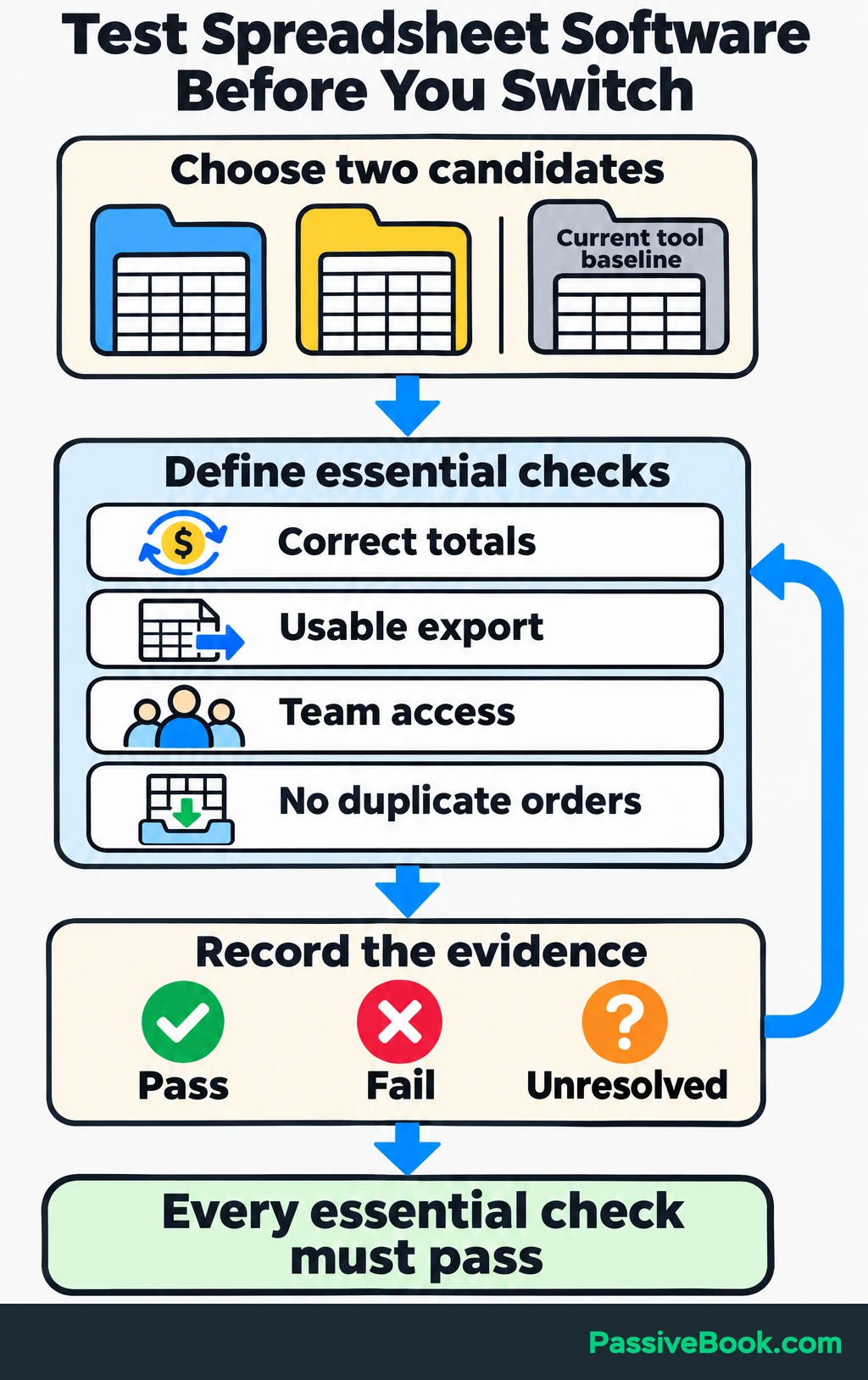
Write down what must pass before you begin. For the shop, that might be correct refund totals, a usable XLSX export, access for a part-time helper, and an order import that does not create duplicates.
Give each requirement a pass or fail. A promising feature that you have not tested remains unresolved.
Check a Complete Workbook Through Import and Export
Back up the original workbook, then import a representative copy. Choose one that includes the awkward parts of your normal work: refunds, old product codes, charts, and required automation.
Start with a known total before inspecting appearance.
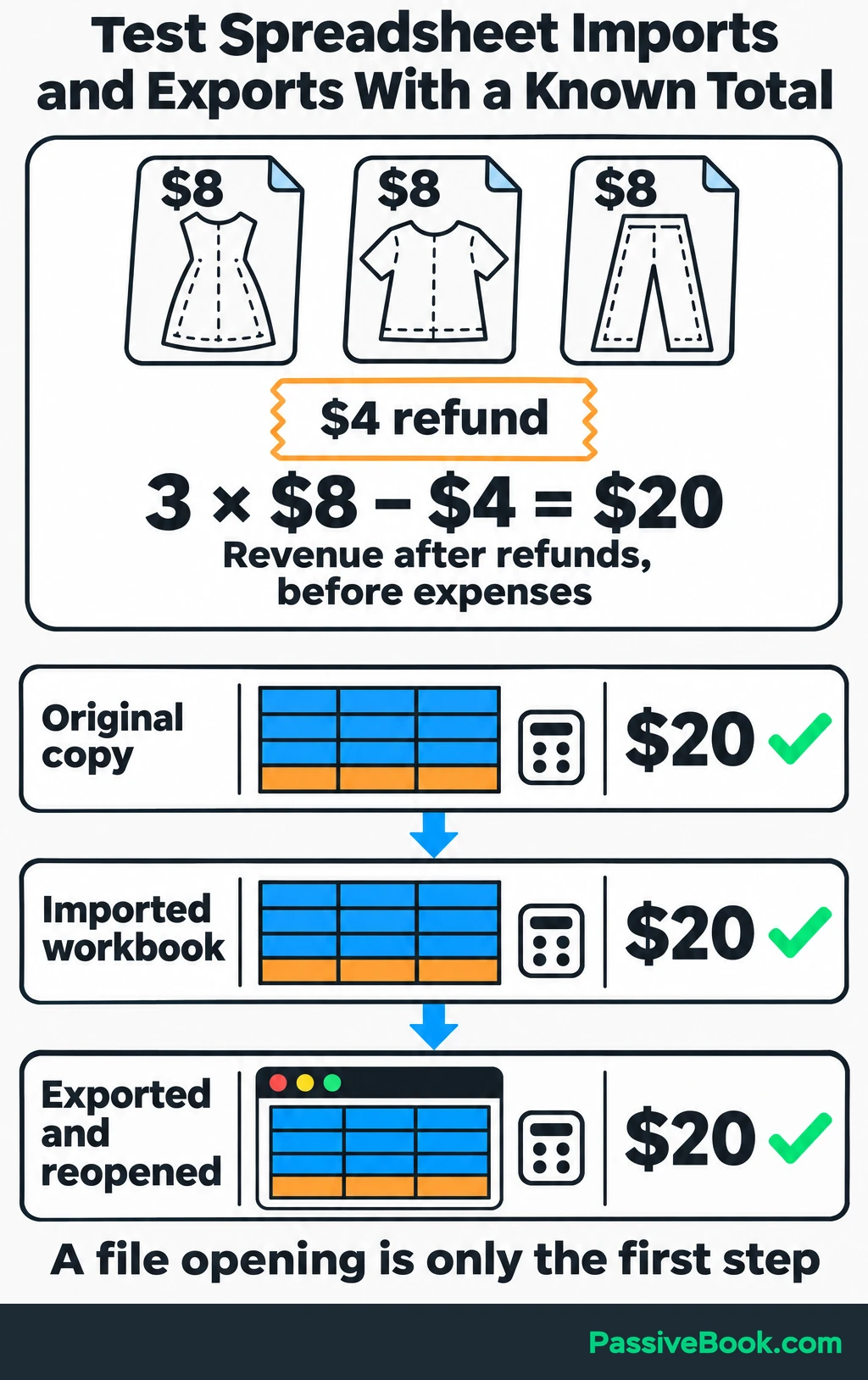
For illustration, suppose the shop sells three sewing patterns at $8 each and issues a $4 refund. You are counting sales revenue after refunds, before expenses:
3 × $8 − $4 = $20
The imported workbook should produce that result, and the exported copy should still produce it when reopened in the application your collaborator uses.
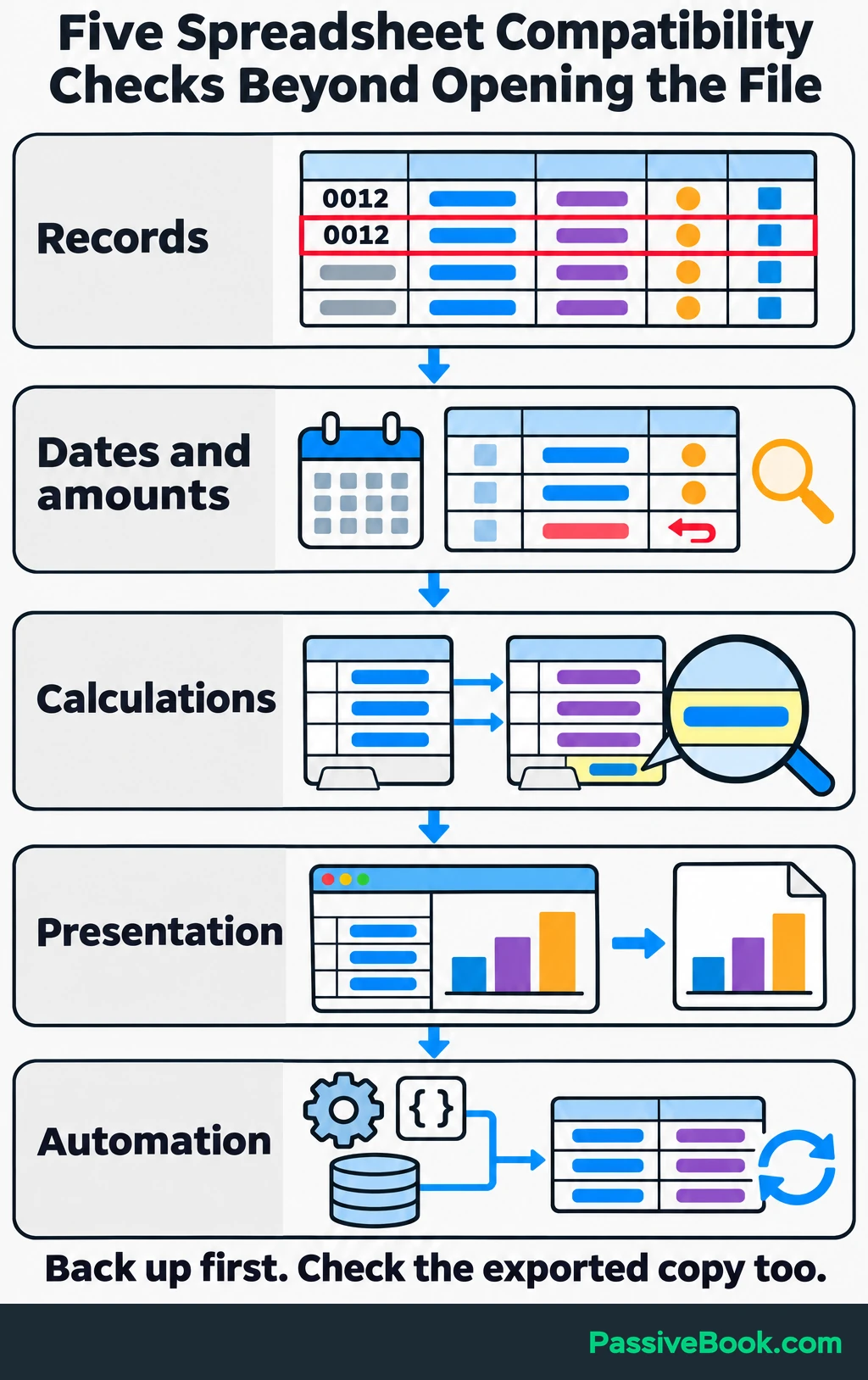
Then check:
- Records: Row counts, missing entries, duplicate orders, and product identifiers with leading zeros.
- Dates and amounts: Date interpretation, decimal places, currencies, and refunds.
- Calculations: Lookups, totals, errors, and references between sheets.
- Presentation: Charts, formatting, and the printed or PDF report.
- Automation: Macros, scripts, connections, and refresh behavior.
A workbook that opens successfully has passed the first step. It still needs to complete the job.
For Airtable or Smartsheet, test whether the required structure can be rebuilt and exported usefully. Importing a grid does not recreate every workflow.
Try Collaboration and Offline Work on Your Actual Devices
Use the devices and accounts your team will actually use.
Invite one editor and one viewer. Make simultaneous changes, leave a comment, restore an earlier version, and remove access. Then confirm that the removed account can no longer open the shared workbook.
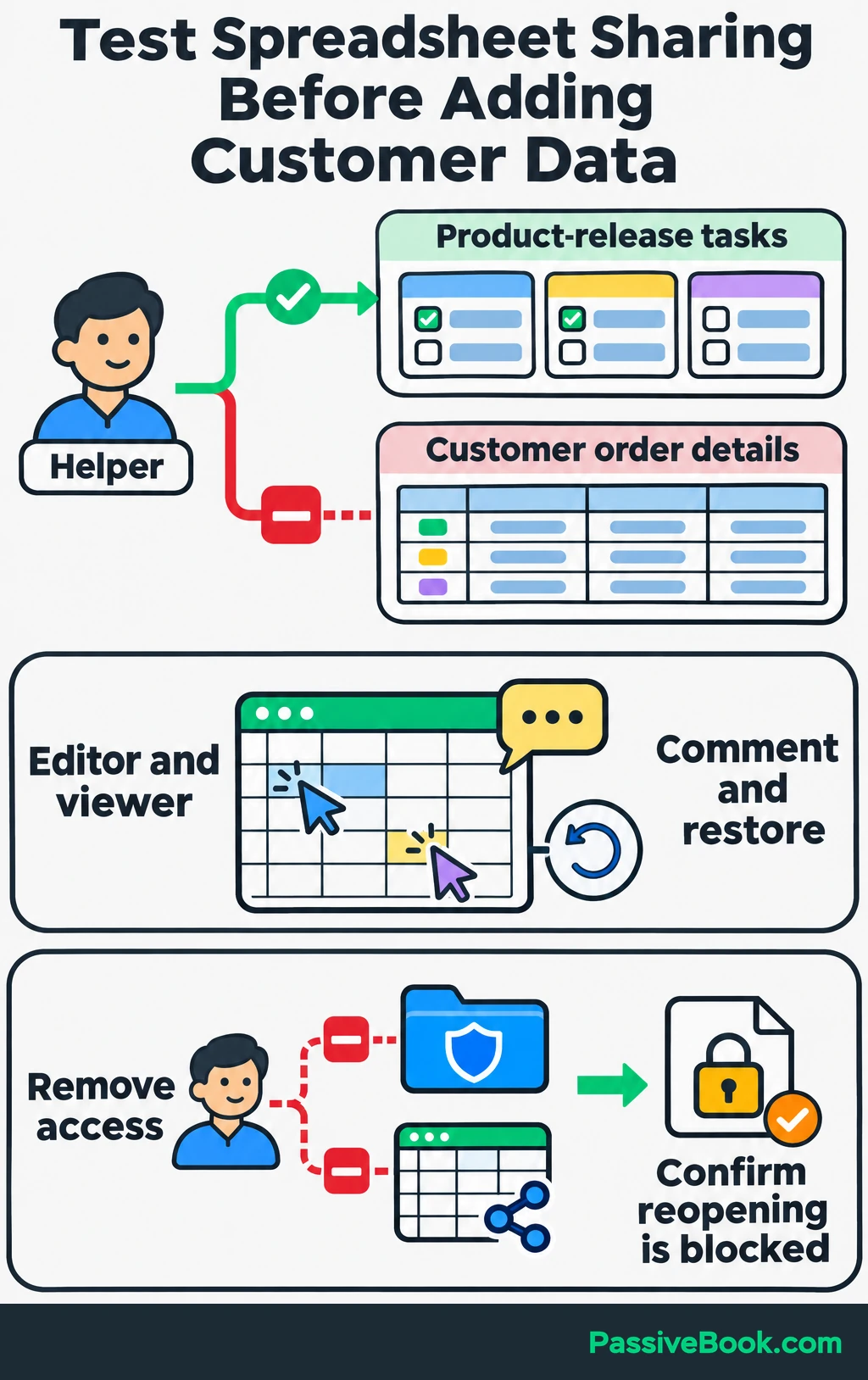
Keep customer details visible only to people who need them. Check folder permissions as well as the file’s sharing settings.
For the shop, a helper may need product-release tasks without needing access to customer order details. Test that separation before putting live information in the system.
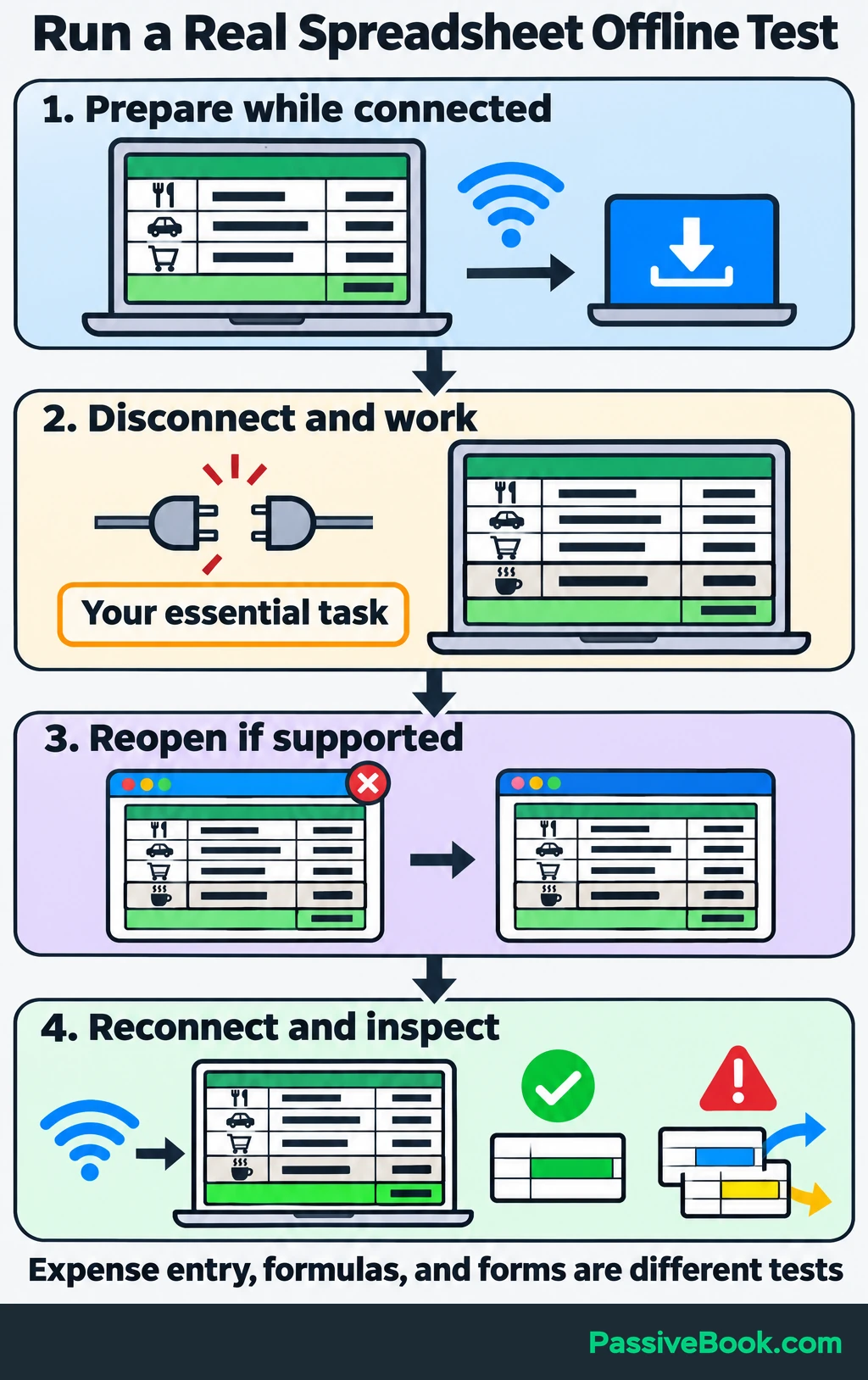
Next, prepare the tool’s offline workflow and disconnect. Complete one essential task, close and reopen the file if supported, then reconnect and inspect the saved result.
This is where “works offline” becomes a useful answer. Entering an expense, changing a formula, and submitting a form are different tasks. Test yours.
Run One Recurring Task and Calculate the Full Cost
Reproduce a complete recurring job, such as importing orders and producing the monthly report.
Watch what happens when you run it twice. Does it add duplicate orders? Can you see which source data was last refreshed? Does a failed connection produce a clear error?
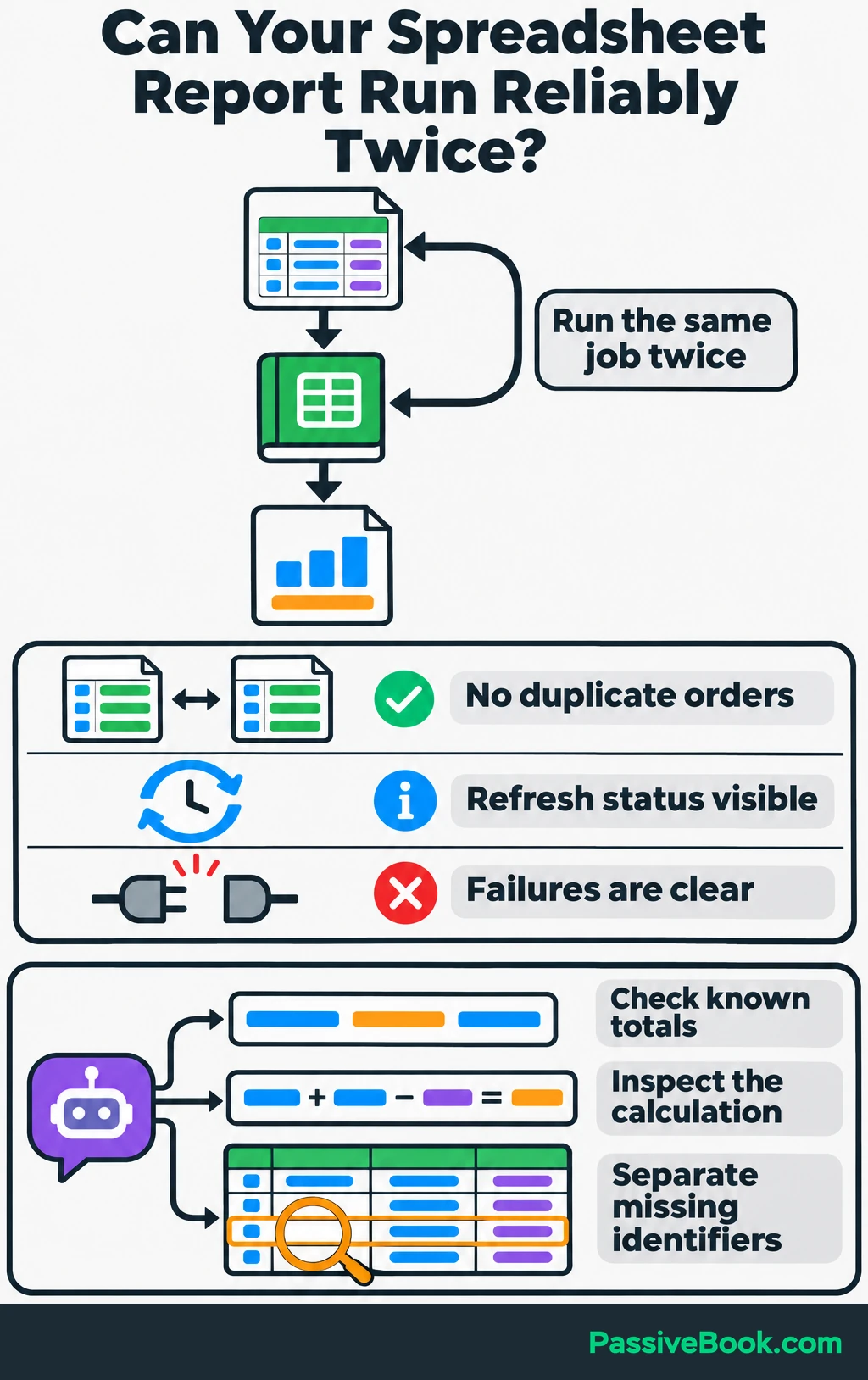
For AI features, use a request with an answer you can verify:
Summarize revenue after refunds by sewing pattern and show the calculation. List any orders with missing product identifiers separately.
Compare the answer with known totals and inspect the formula or query it generated. A polished summary is not enough if you cannot explain where the number came from.
Then count the full cost:
- People: Billable users and roles, including occasional collaborators.
- Required features: The plan needed for automation, permissions, and reporting.
- Usage: AI credits, refresh allowances, and automation limits.
- Connections: Connector subscriptions, hosting, and maintenance.
- Switching: Workbook repairs, setup, training, and export checks.
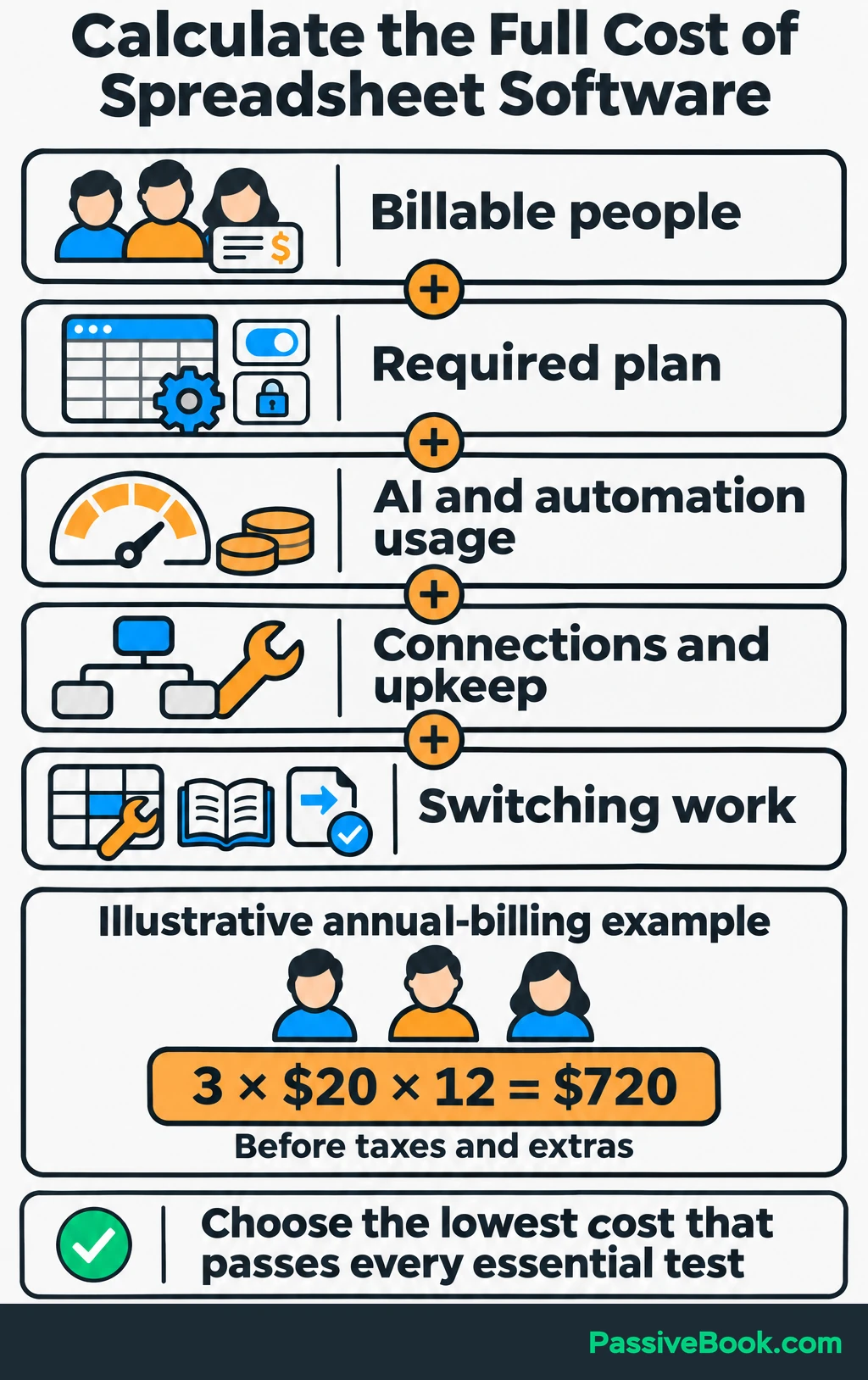
For example, three billable Airtable Team users at the annual rate in the table cost $720 a year before taxes and extras. Count billable collaborators rather than everyone who merely views a report.
Once both tools pass your workbook test, compare what you would actually pay. Start with two suitable plans and add the extra costs that apply to your setup.

Free Software Cost Calculator




I would choose the lowest-cost option that passes every essential requirement. Move one active workflow first and keep the original files until calculations, access, and exports all pass.
What Next?
Take the workbook you use most often and write down the one task it handles badly. Choose two tools that address that task, then test a copy before paying or moving live data.
Use the social buttons to share this comparison when your next software discussion needs a clearer view of costs, collaboration, and offline access.
Which repeated spreadsheet task would make the biggest difference if you could remove it? Tell me in the comments, and bring any other questions about your shortlist.
Share this post with your friends & followers:

