Your designer needs approval on a packaging change, but the customer’s original complaint is in an email and your reply is buried in a private message. Before anyone can fix the problem, you have to reconstruct it.
Slack can give that conversation a shared home. But without clear rules, it becomes another inbox to check, with more notifications and the same missing decisions.
That extra inbox needs to earn its place. Here’s how to use Slack for business so requests reach the right person, files stay easy to find, and decisions survive beyond the conversation that produced them.
What Should Your Business Use Slack for?
Start with one recurring problem that involves other people. Perhaps feedback gets forwarded twice, approvals disappear into private messages, or nobody knows which document is current.
Slack works well as a shared place to discuss that work. You need four basic parts:
- Workspace: The shared space containing your business’s people, channels and conversations.
- Channels: Conversations organized around a subject, team or project.
- Threads: Replies grouped beneath a particular message.
- Direct messages: Private exchanges with an individual or small group.
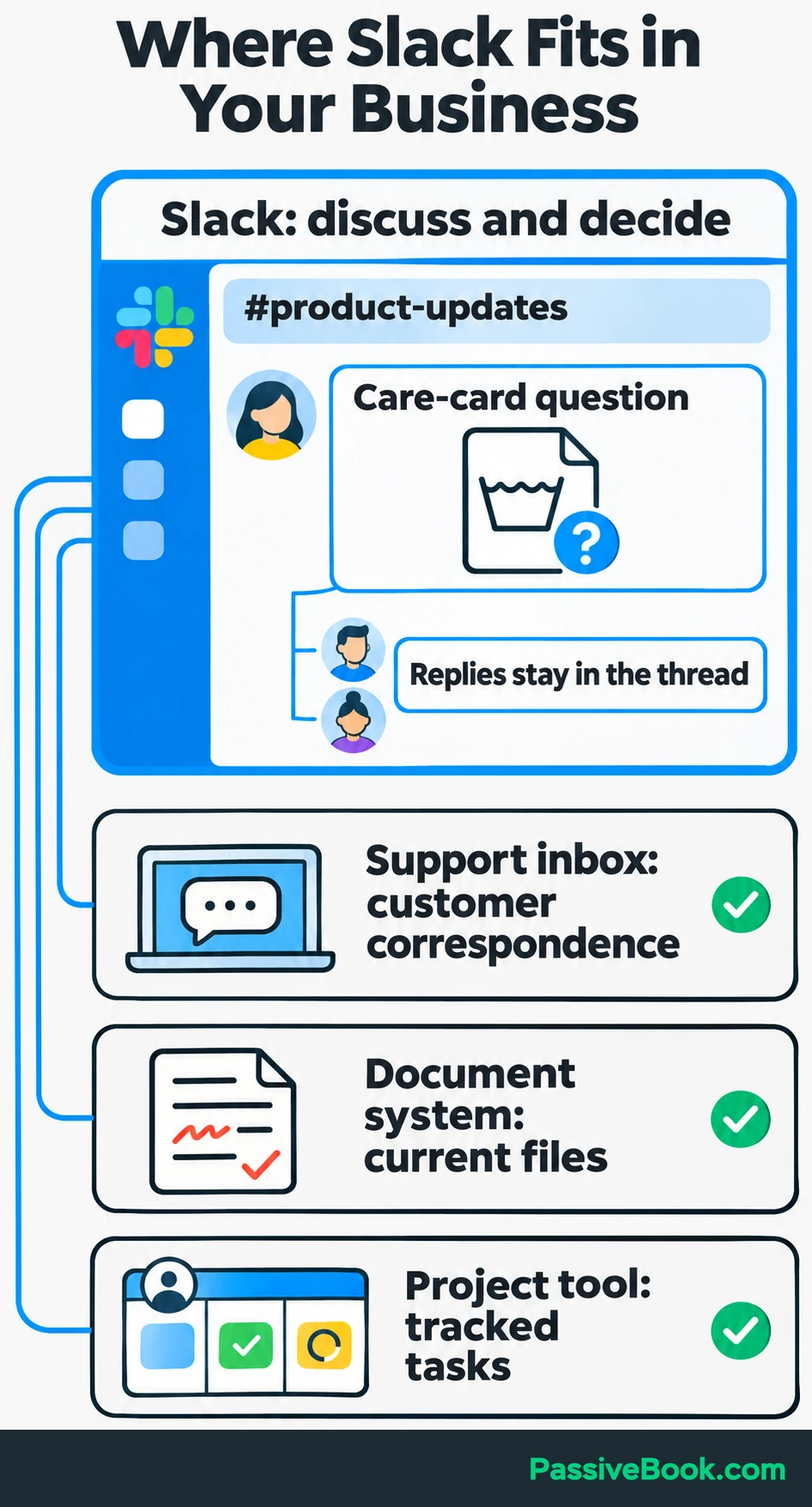
Keep customer correspondence in your support inbox, current documents in your document system, and tracked tasks in your project tool. Use Slack to discuss them and link back to the source.
For the running example, imagine you own an online shop selling washable dog-walking bags. You work with Maya, a freelance designer, and a support assistant.
A customer says the washing instructions are unclear. Your assistant needs somewhere to flag the issue, you need to decide what changes, and Maya needs an approved brief. That is a useful job for Slack.
If you work alone and rarely collaborate, I would skip it for now. A workspace containing only you and a collection of automated notifications is another dashboard, and dashboards are remarkably good at creating chores.
Choose the Lowest-cost Slack Plan That Meets Your Needs
I would trial Free unless you already need restricted contractor access, longer history or built-in workflows.
The table shows regular USD rates, excluding introductory discounts.
| Plan | Regular USD Price and Billing Basis | Relevant Capabilities | Reason to Choose It |
|---|---|---|---|
| Free | $0 | Latest 90 days of history, up to 10 apps, two-person huddles | Test basic collaboration |
| Pro | $7.25 per user/month billed annually; $8.75 monthly | Unlimited history and integrations, group huddles, guests, Workflow Builder | Keep ongoing work searchable and support contractors |
| Business+ | $15 per user/month billed annually; $18 monthly | Pro features plus SAML (company sign-in) and SCIM (automatic account creation, updates and removal) | Manage sign-in and account access centrally |
| Enterprise+ | Contact sales for pricing | Broader organization, security and compliance controls | Meet requirements across a larger organization |
Check Slack’s pricing page for current rates and inclusions.
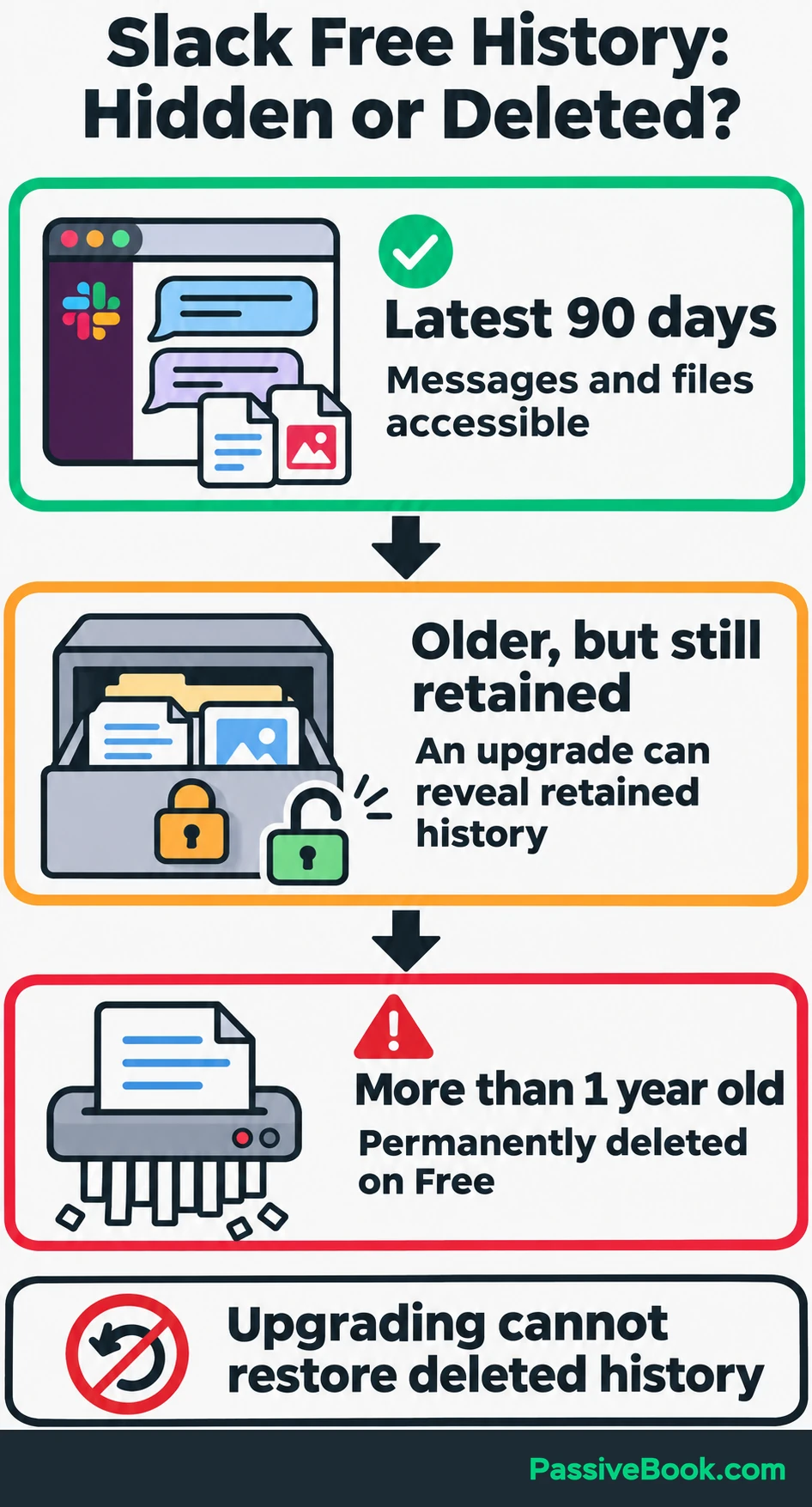
Free has a meaningful catch: only the latest 90 days of messages and files are accessible, and material more than one year old is permanently deleted. Upgrading can reveal older material still retained, but it cannot restore deleted history. Slack’s Free-plan history rules make this worth deciding before an old approval becomes important.
For a budget estimate, count the people who will be billable, multiply by the chosen rate, and add taxes and any separate subscriptions.
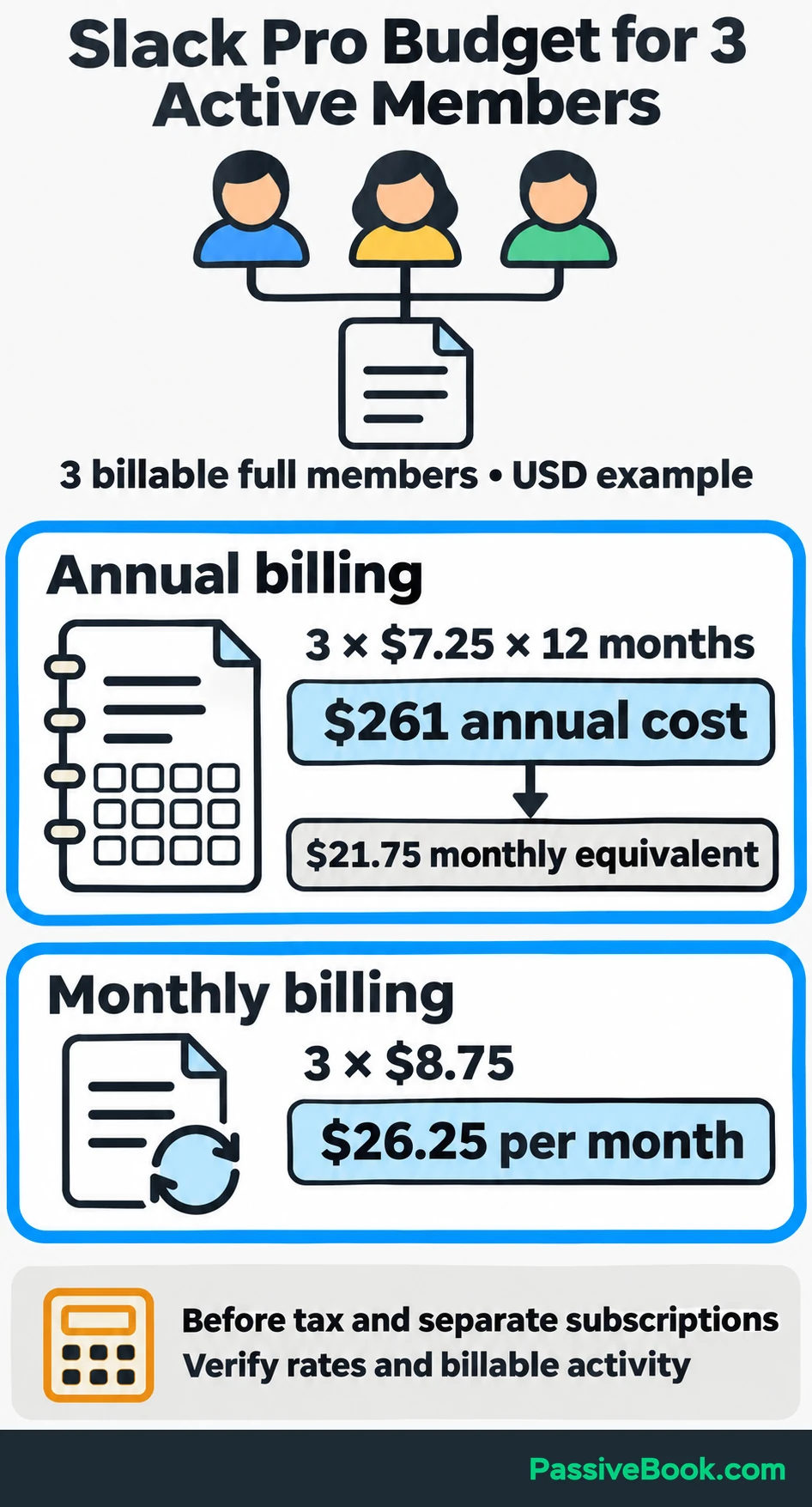
If all three shop collaborators remain active full members, use the Pro rates above:
- Annual billing: Three members for 12 months cost $261, equivalent to $21.75 per month.
- Monthly billing: Three members cost $26.25 per month.
These are planning figures. For purchases through Slack’s website paid by credit card or self-service invoicing, its Fair Billing Policy adjusts charges for member activity.
I would pay for a feature that removes a real obstacle. I would not upgrade because the paid column looks more impressive.
Set up Your Business Workspace
Set up access before inviting everyone. It is easier to choose sensible permissions now than to untangle them after files and conversations accumulate.
- Create the workspace with a business-controlled email address, preferably on your business domain. Verify the address and choose a recognizable business name and workspace address. If the business already has a workspace, join it.
- Keep ownership with the business. The creator becomes Primary Owner, so avoid having a temporary contractor create it under an account you do not control.
- Give everyday collaborators member access. Reserve administrator access for people who actually manage accounts, settings and apps.
- Require two-factor authentication for password-based sign-ins. This adds a verification step beyond the password. If you use single sign-on, manage that protection through your identity provider.
- Review who can send invitations, then invite your current collaborators. Ask them to add recognizable names, profile details and correct time zones.
Choose contractor access deliberately. On paid plans, a single-channel guest can access one channel and is free within an allowance of five guests per paid active member. Multi-channel guests can access selected channels and are billed like regular members. See Slack’s guest access and billing rules.
Maya could be a single-channel guest if all her work fits inside #product-updates. If she needs several channels, a multi-channel guest account gives her that access without opening every public channel to her.
Make account removal part of ending an engagement. Deactivate the Slack account and remove access to connected documents separately.
Organize Channels Around Recurring Work
Give Each Channel a Clear Purpose
Create a channel when work has a distinct purpose, audience or access requirement. Keep a one-off question in the relevant existing channel.
For the shop, I would start with three spaces:
| Channel | Purpose | Participants | Owner’s Example Message |
|---|---|---|---|
| General channel | Announcements affecting the whole business | All full members | “The shop will pause dispatch on Monday. Please use the updated delivery estimate.” |
#product-updates | Product, packaging and care-card revisions | Owner, Maya and support assistant | “Please keep feedback on the revised bag-care card in this thread.” |
#customer-support | Internal coordination on customer questions | Owner and support assistant | “Please flag questions our current washing instructions do not answer.” |
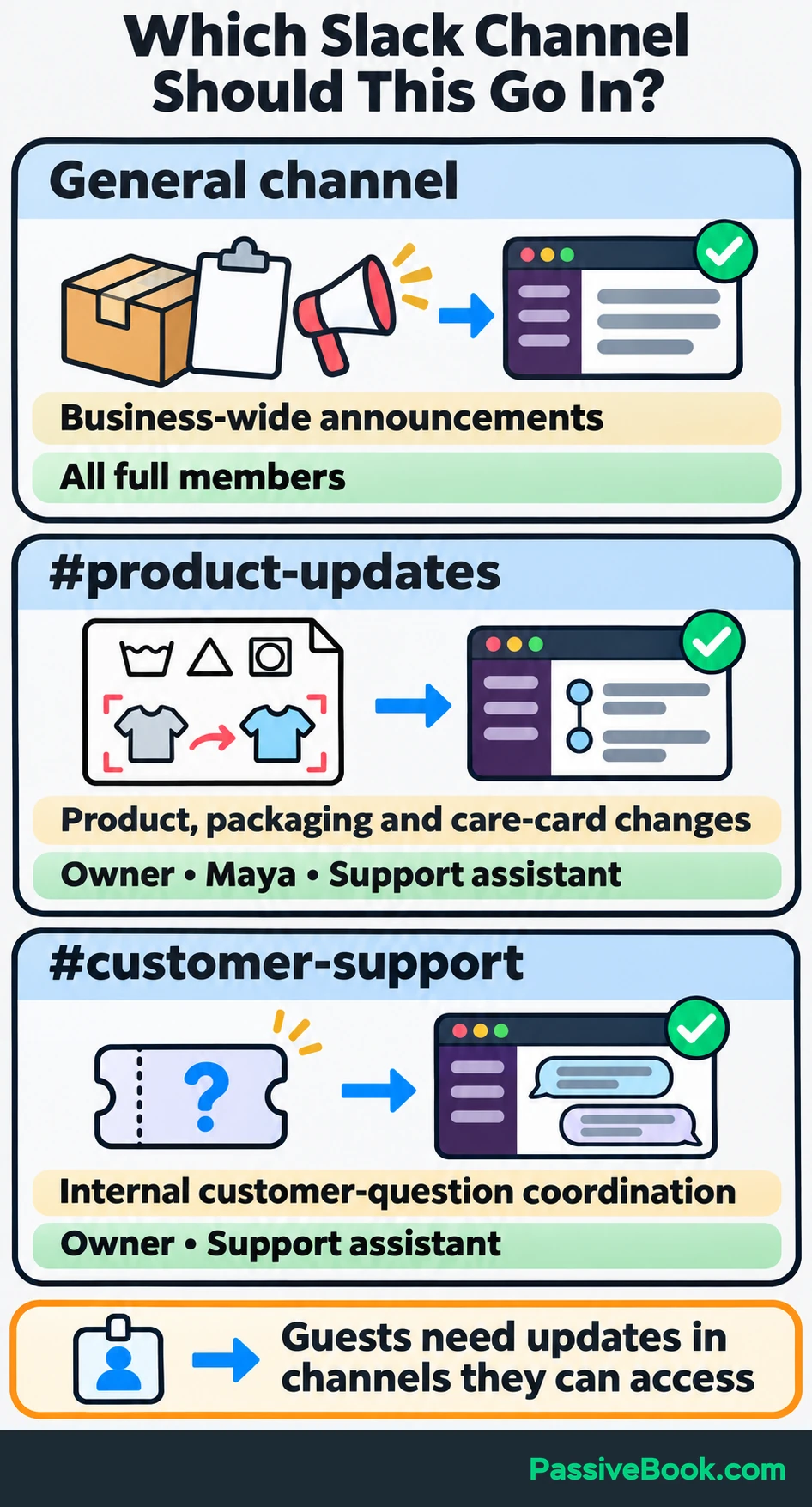
The general channel automatically includes full members, so use it for shared announcements. Guests do not automatically belong there; give them relevant updates in the channel they can access.
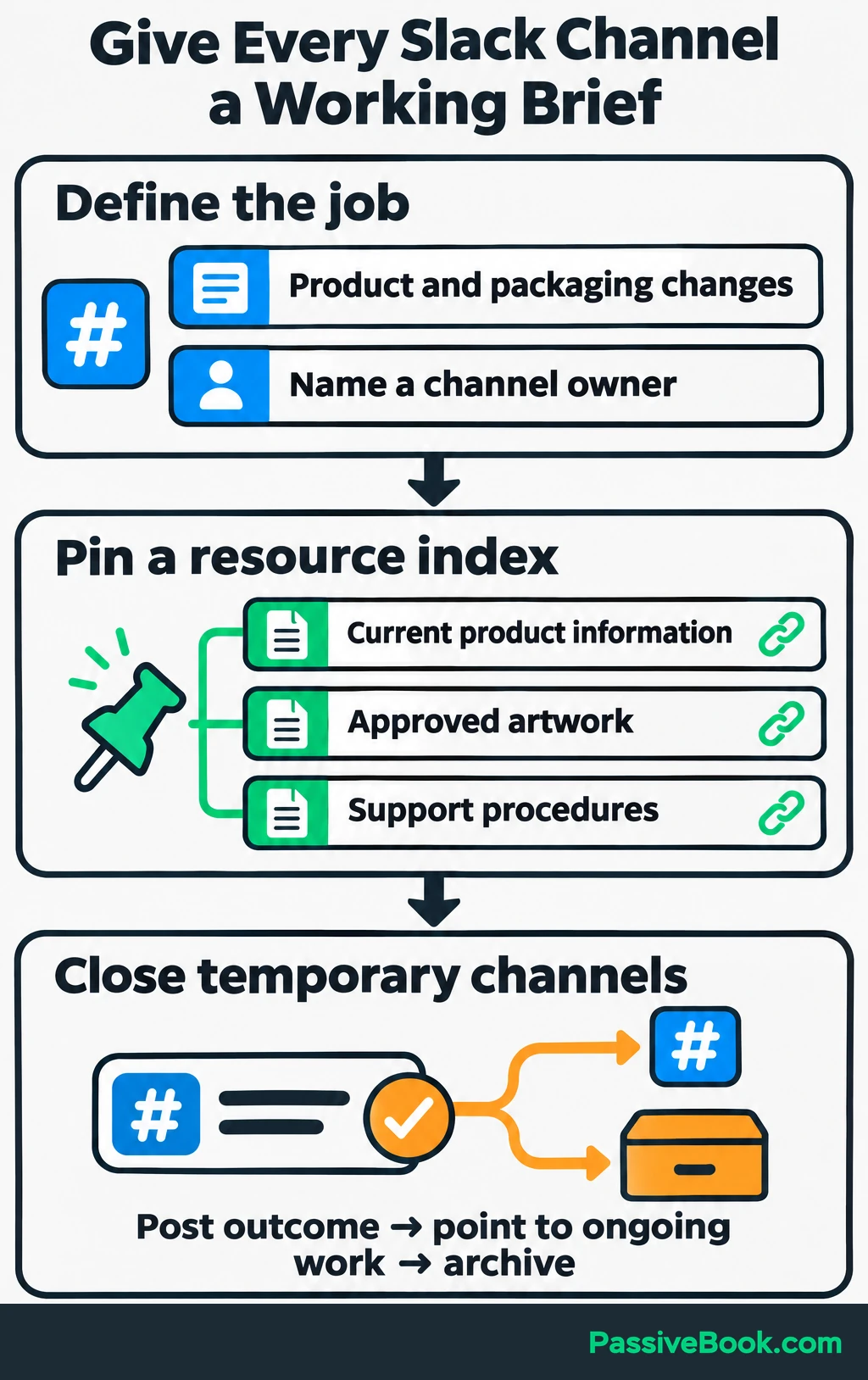
For each working channel, add a short description, invite the right people and name someone responsible for keeping it useful. Create a resource index—a pinned message with links to the files people need. Customers should still contact the shop through its support inbox.
A brief welcome message can explain where work belongs:
Use this channel for product and packaging changes. Reply in the relevant thread, and link to the support ticket when feedback comes from a customer. Current product information and approved artwork are in the resource index.
Once a project ends, post its outcome and archive its temporary channel. Point people toward the channel handling any continuing work.
Choose Public or Private Access
Use public channels for ordinary internal collaboration when every full member may see the discussion. Choose private channels when access needs to be restricted.
“Public” means public within the workspace. Full members can discover, read and join those channels. Private-channel messages appear in search only for people who belong to that channel.
This matters when inviting contractors. If Maya joins as a full member, she can access public channels even if you initially invite her only to #product-updates.
Before posting, check both the channel’s access and the information people need. For a washing-instructions issue, the designer needs the confusing wording and approved product information. She probably does not need the customer’s address or complete order history.
Agree who creates channels and review the creation permissions. Otherwise, #product-feedback, #product-questions and #product-issues may become three places to lose the same request.
Use Messages and Threads to Move Work Forward
Put Conversations Where Others Can Follow Them
Open the relevant channel and send a message to start a topic. Use that message’s thread for replies about the same topic, and start a fresh channel message when the subject changes.
For the shop, one thread can contain the care-card question, proposed wording, review comments and approval. A separate packaging problem gets its own message.
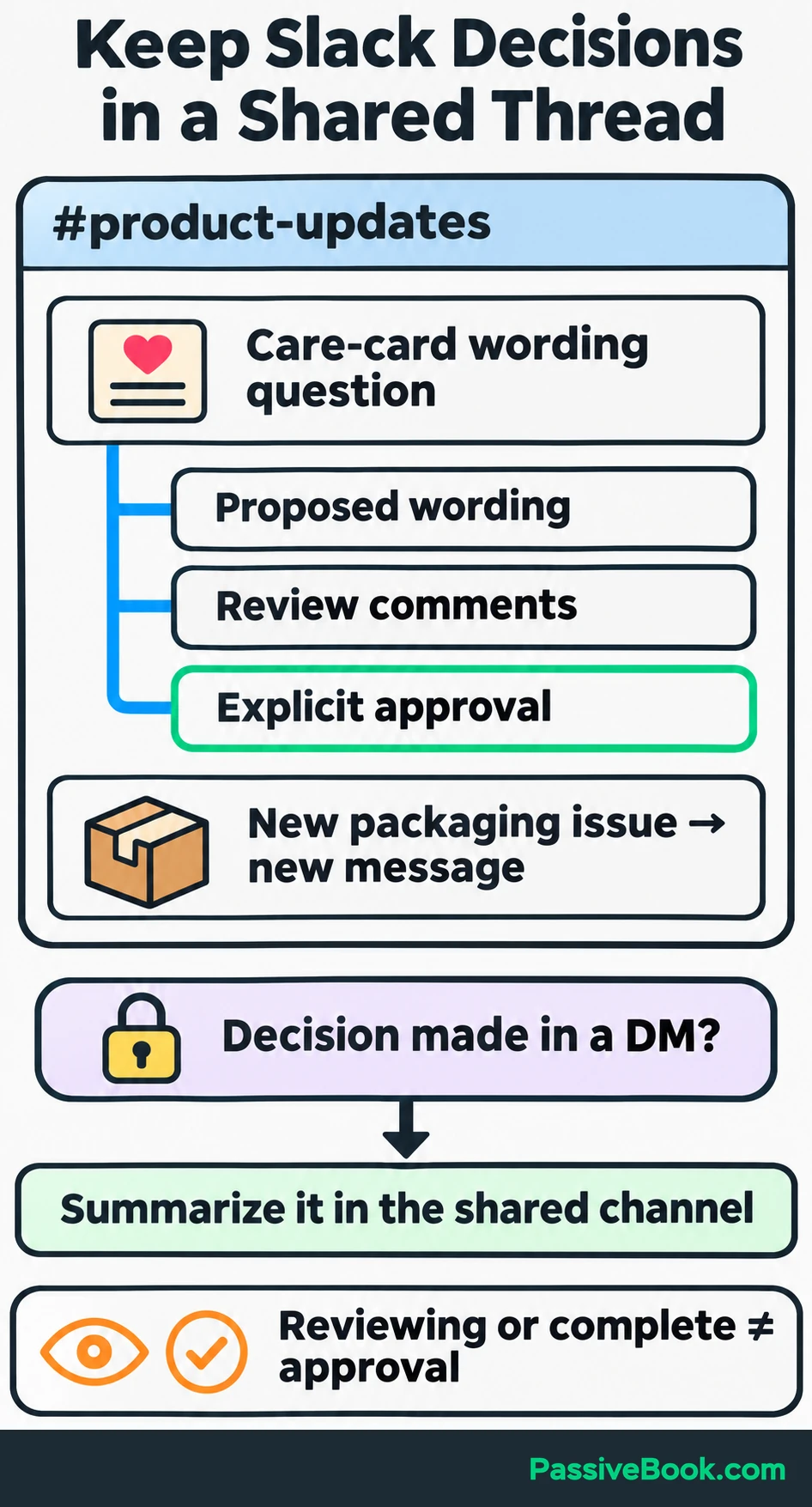
Use direct messages for individual exchanges, such as arranging availability. When a private exchange produces a decision affecting shared work, summarize it in the channel.
Agree on a few reactions rather than inventing an emoji language nobody remembers:
- 👀 means the person is reviewing the request.
- ✅ means the agreed action is complete.
- A written reply explains a blocker or asks for clarification.
An acknowledgment is not an approval. If a design needs explicit approval before printing, say so.
Save messages or set reminders for your own follow-up. Work that needs shared ownership, due dates and progress tracking belongs in your task system, with a link in Slack.
Make Requests and Decisions Easy to Act on
Give a request enough detail for the recipient to act without asking you to explain it again.
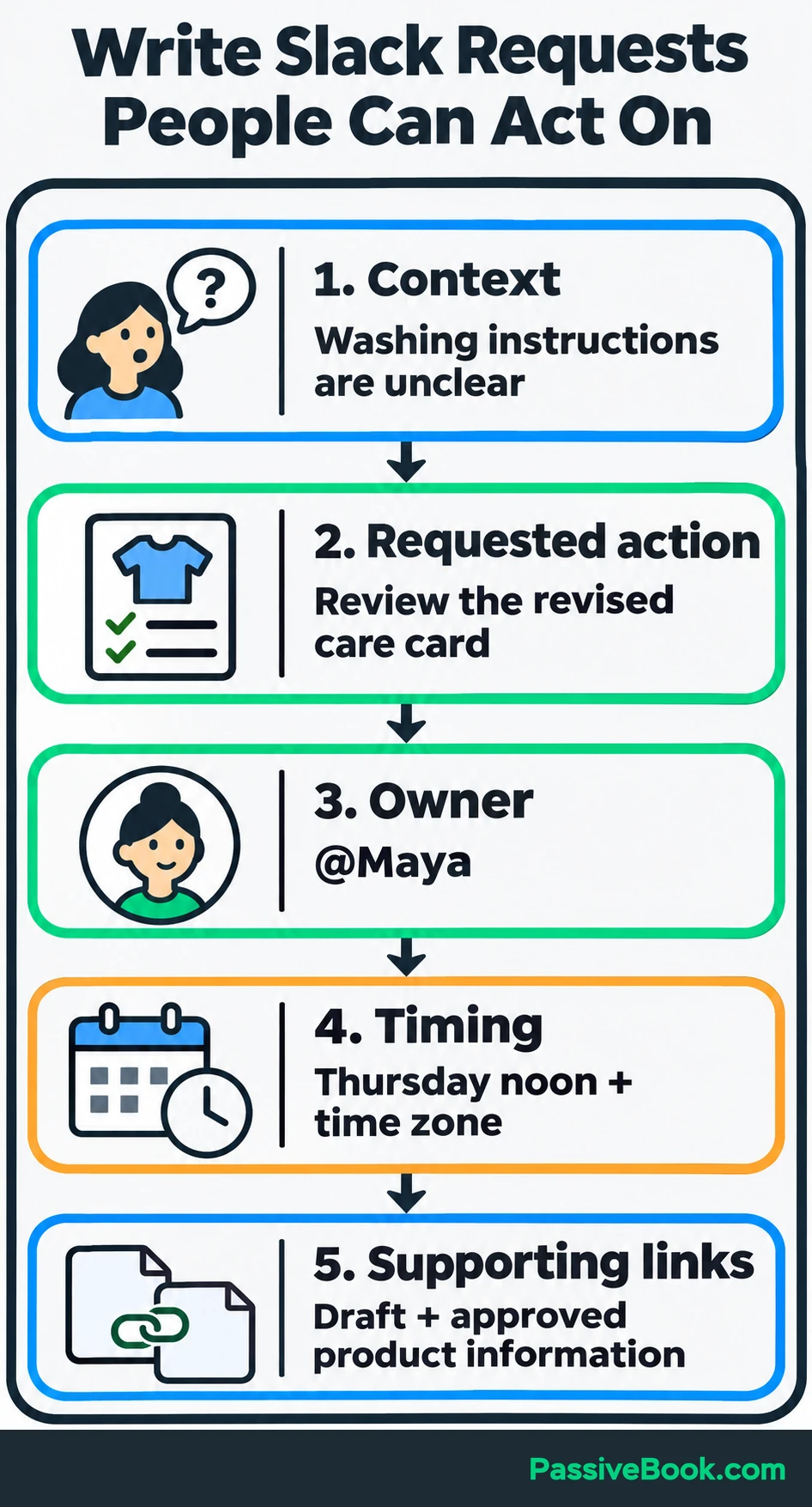
Use this order: context, requested action, owner, timing and supporting link. Mention the responsible person rather than the entire channel.
For example:
@Maya, a customer found the bag’s washing instructions unclear. Please review the revised bag-care card by Thursday noon and check it against the approved product information. The draft and reference document are linked below.
Specify the time zone when collaborators work in different places.
After the discussion, close the loop:
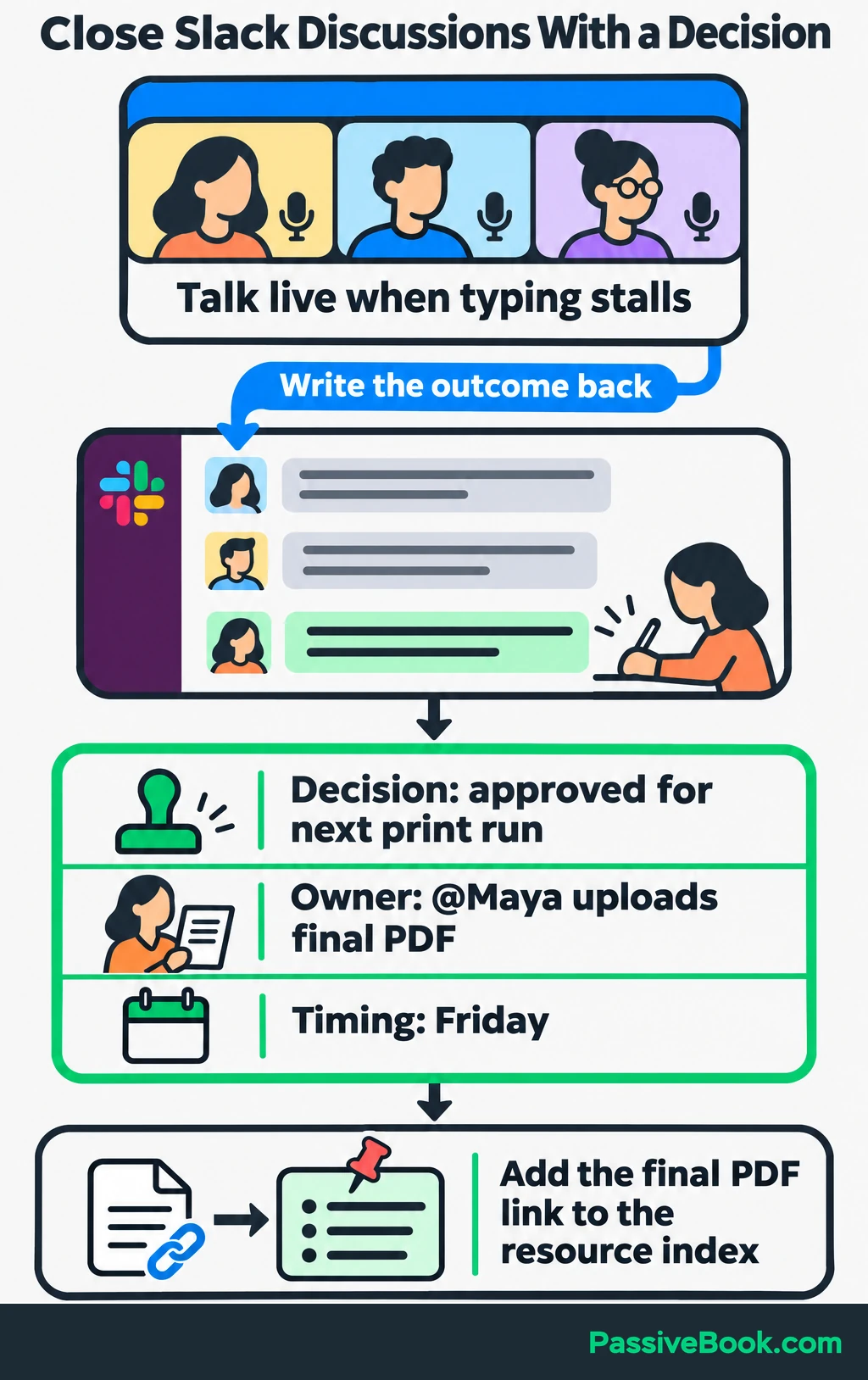
Approved for the next print run. @Maya, please upload the final PDF by Friday and add its link to the resource index.
That message records a decision and a next action. “Great, thanks!” records your mood.
When typing stops helping, start a huddle—a quick audio or video conversation—from the channel or direct message. Use the participant allowance shown in the plan table, and write the outcome back into the original thread afterward.
Share Files People Can Find and Open
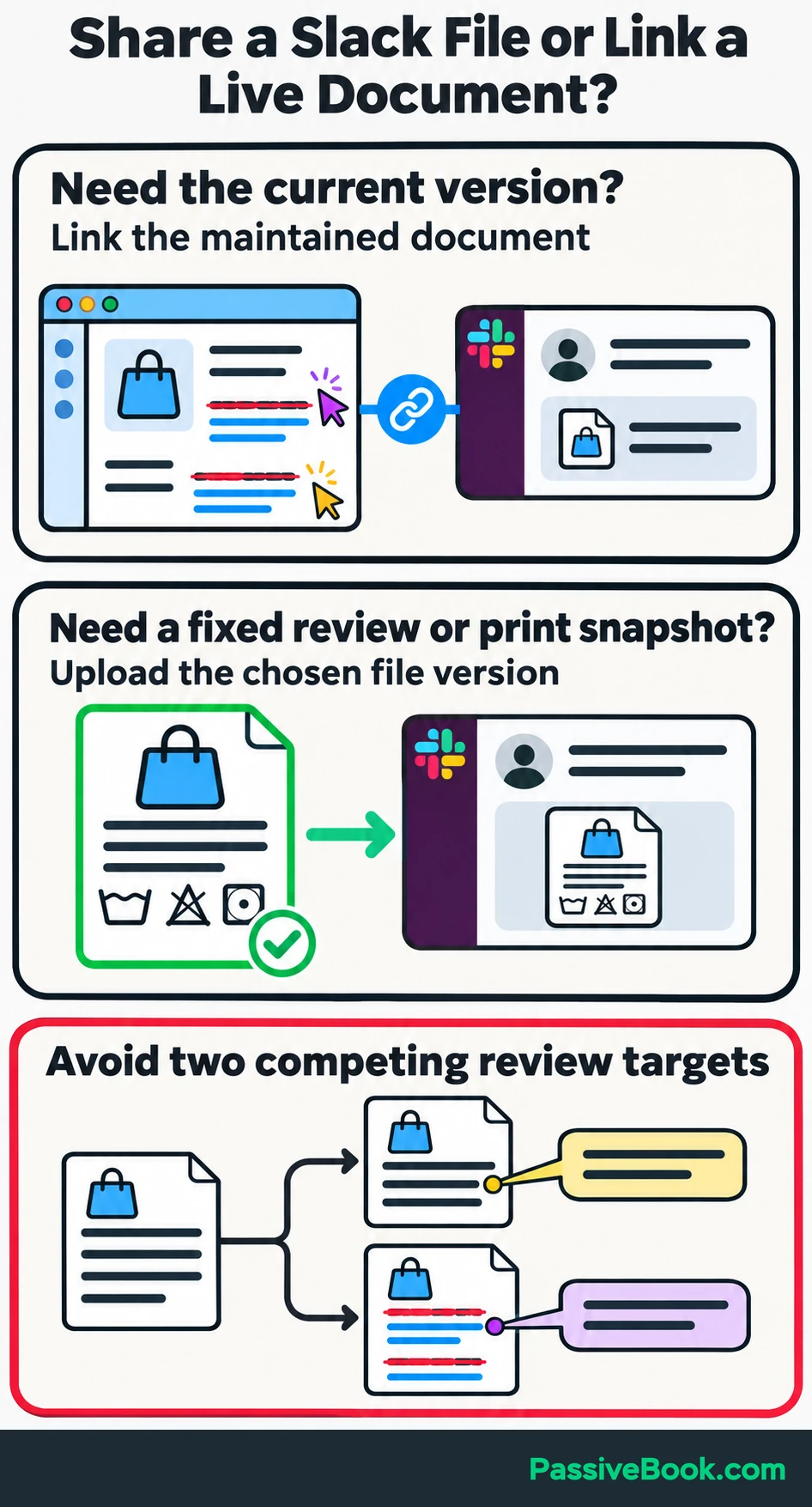
Upload a file when people need to review a fixed snapshot. Link to a maintained document when they need the current version.
For the care card, keep the working document link in #product-updates and discuss changes in its thread. When the design is approved, add the final print PDF to a short resource index alongside the current product information and support procedures.
Give files descriptive names, such as bag-care-card-print-approved.pdf, and explain the review you need. “Please check that the text remains readable at print size” is more useful than “Thoughts?”
On a digital-product project, I once sent a collaborator a PDF while continuing to edit the source document. Their feedback arrived against wording I had already replaced. I had created two review targets and then wondered why the comments were confusing. Now I choose the review version before asking for feedback.
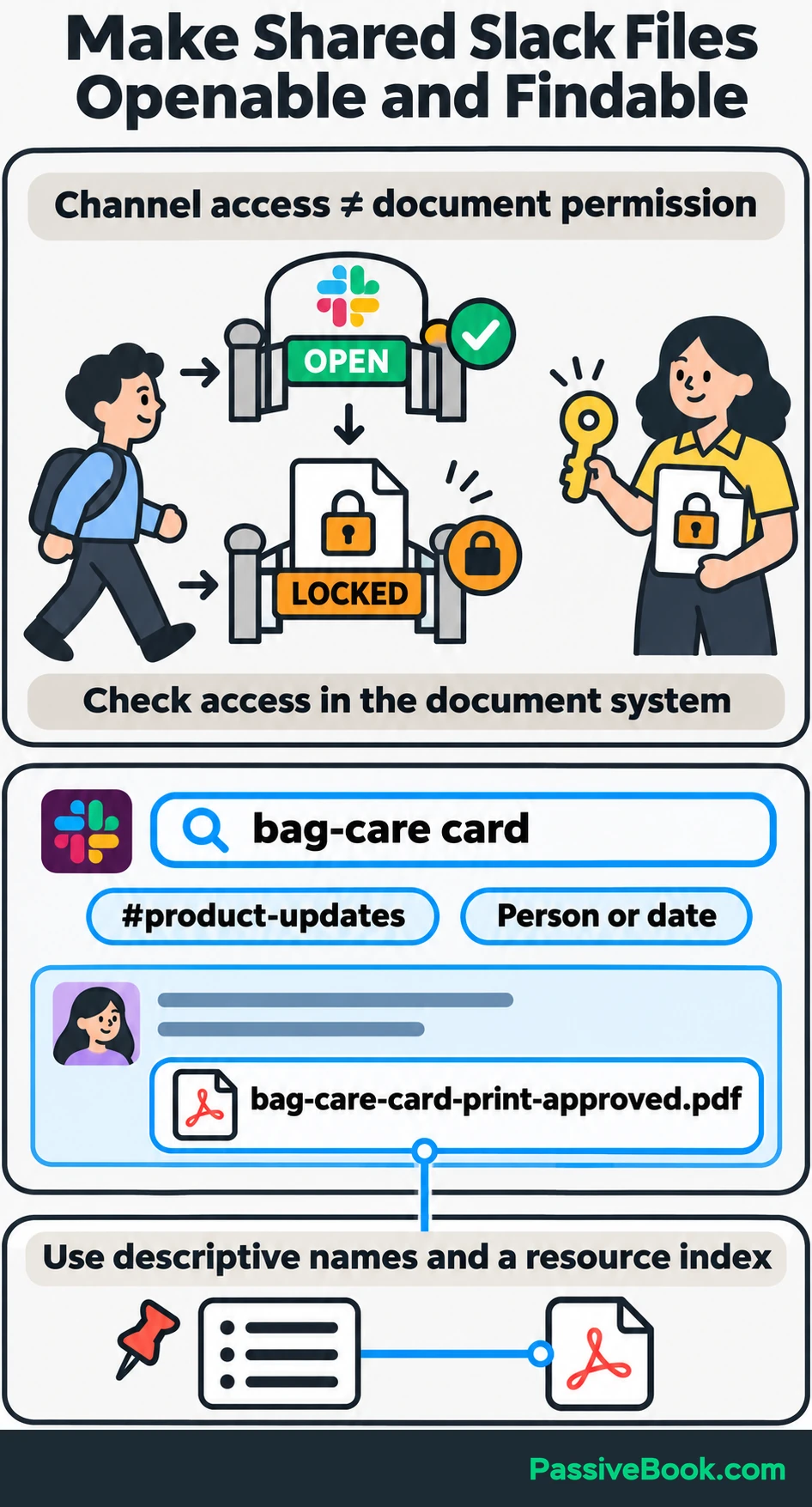
Check access as well as the link. A person’s membership in a Slack channel does not automatically give them access to a linked document. Files shared through the Google Drive app remain stored in Drive, where their permissions still apply.
To find the approval later, search for “bag-care card,” narrow the results to #product-updates, and filter by person or date if needed. Consistent names make that search much easier.
Control Notifications Without Missing Important Requests
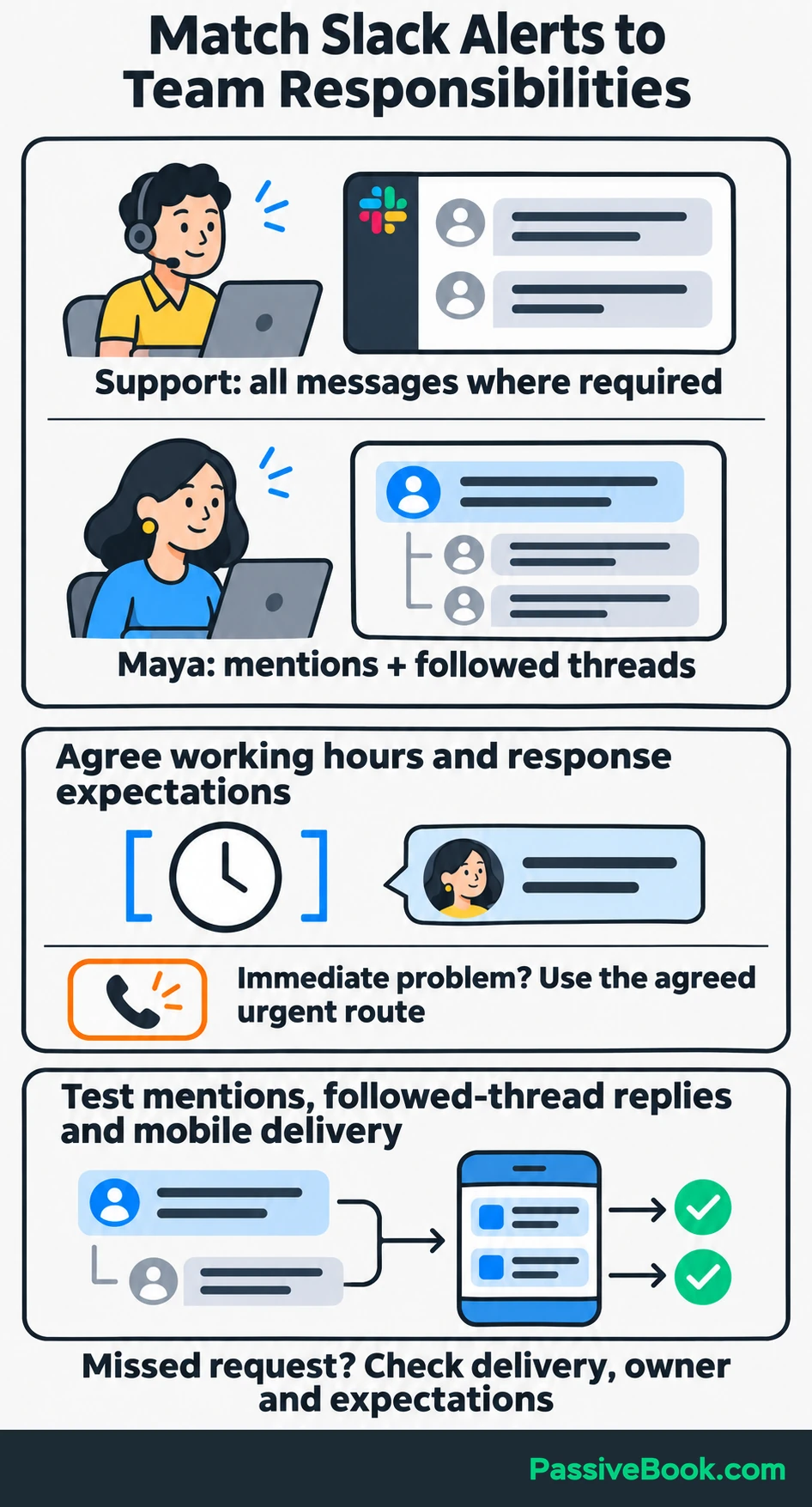
Start with notifications for direct messages and mentions. Add all-message alerts only where someone’s responsibilities require closer monitoring.
The support assistant might follow every message in #customer-support. Maya might only need mentions and followed threads in #product-updates.
Then agree on how people will use those alerts:
- Availability: Set notification hours around actual working hours and pause alerts during focused work.
- Response expectations: Decide when routine requests should receive a reply. Part-time collaborators need expectations that match their schedules.
- Urgent contact: Choose a separate method, such as a phone call, for problems requiring immediate attention.
- Broad mentions: Reserve
@channeland similar mentions for messages that need the whole group’s attention. - Low-priority conversations: Mute channels you rarely need, leave irrelevant ones and star essential conversations.
Schedule non-urgent messages for a suitable delivery time when that helps colleagues protect their evenings.
Test the setup rather than assuming it works. Send each collaborator a direct mention and a reply in a thread they follow. Check mobile delivery too if their work depends on it.
If requests go unanswered, first check delivery, ownership and response expectations. Turning on every notification is a poor substitute for knowing who should act.
Connect Tools to Reduce Repeated Handoffs
Install an Integration for a Specific Job
Before installing anything, answer three questions: what happens in the other tool, who needs to know, and what should they do next?
An integration connects services. A workflow coordinates a sequence of actions. Both need a clear job.
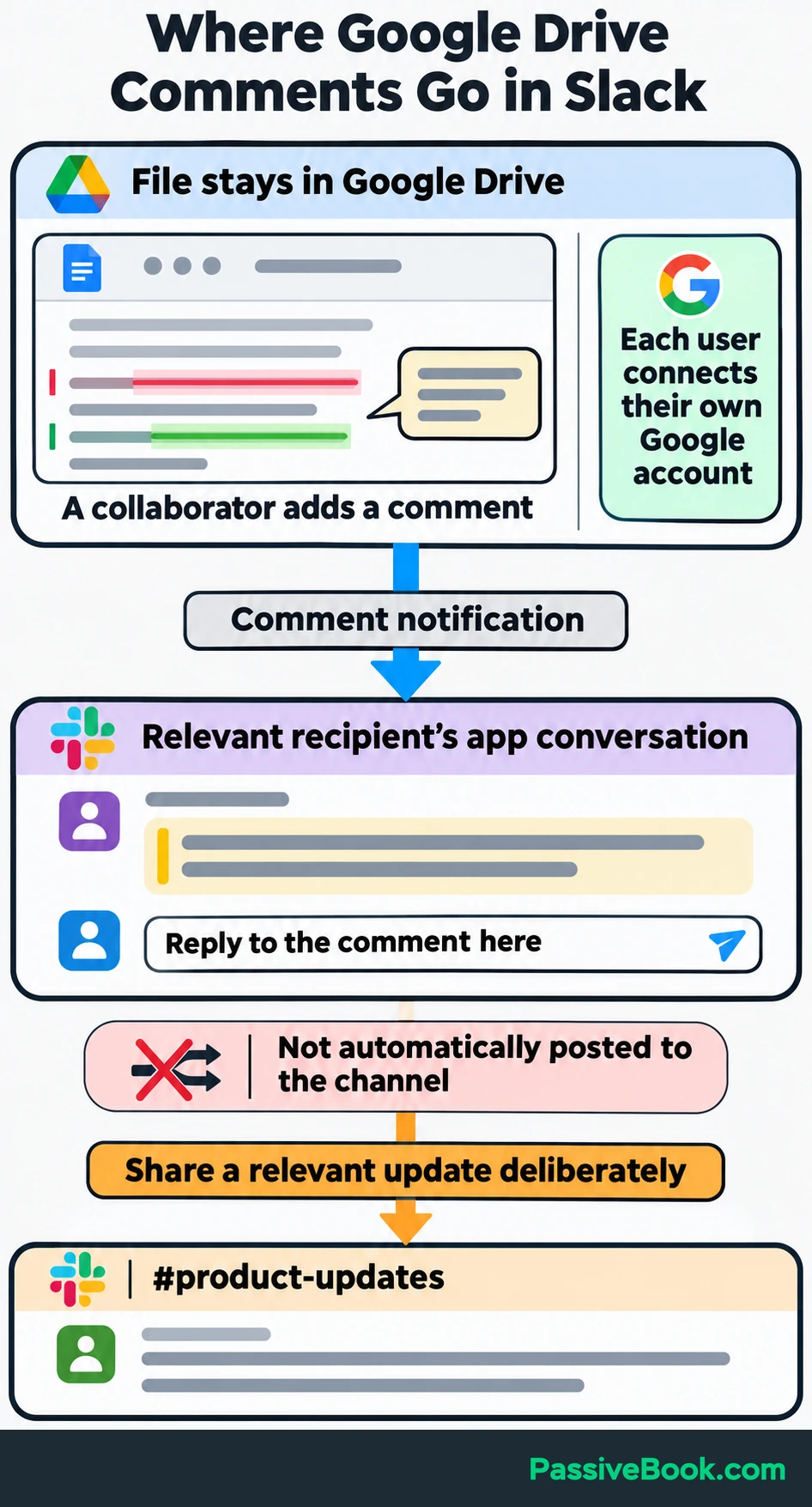
For the shop, Google Drive can help people share documents and receive comment notifications. Google Calendar solves a different problem: reminders for scheduled events. I would add Calendar only if missed appointments or review calls were an actual issue.
First, require approval before members add apps. As the workspace owner, open app management settings, edit Require approved apps and select Only allow pre-approved apps.
Then install the connection:
- Find the official app in Slack’s Marketplace and check its publisher.
- Review the requested access and any separate subscription requirements.
- Confirm the destination workspace before installing.
- Connect the appropriate business account. Each person using Google Drive connects their own Google account.
- Configure the notifications people need.
Pay attention to where updates arrive. Google Drive comment notifications appear in the app conversation, where recipients can also reply to comments. They do not automatically become a shared update in #product-updates. See how Google Drive comments work in Slack.
Test the care-card handoff: share the draft, confirm Maya can open it, and add a comment to check delivery for the relevant recipient.
Name someone responsible for the connection. If an update repeatedly produces no useful action, disable it. More connected apps do not automatically mean less work.
Automate One Repeatable Request With Workflow Builder
Write down the manual process before building an automation:
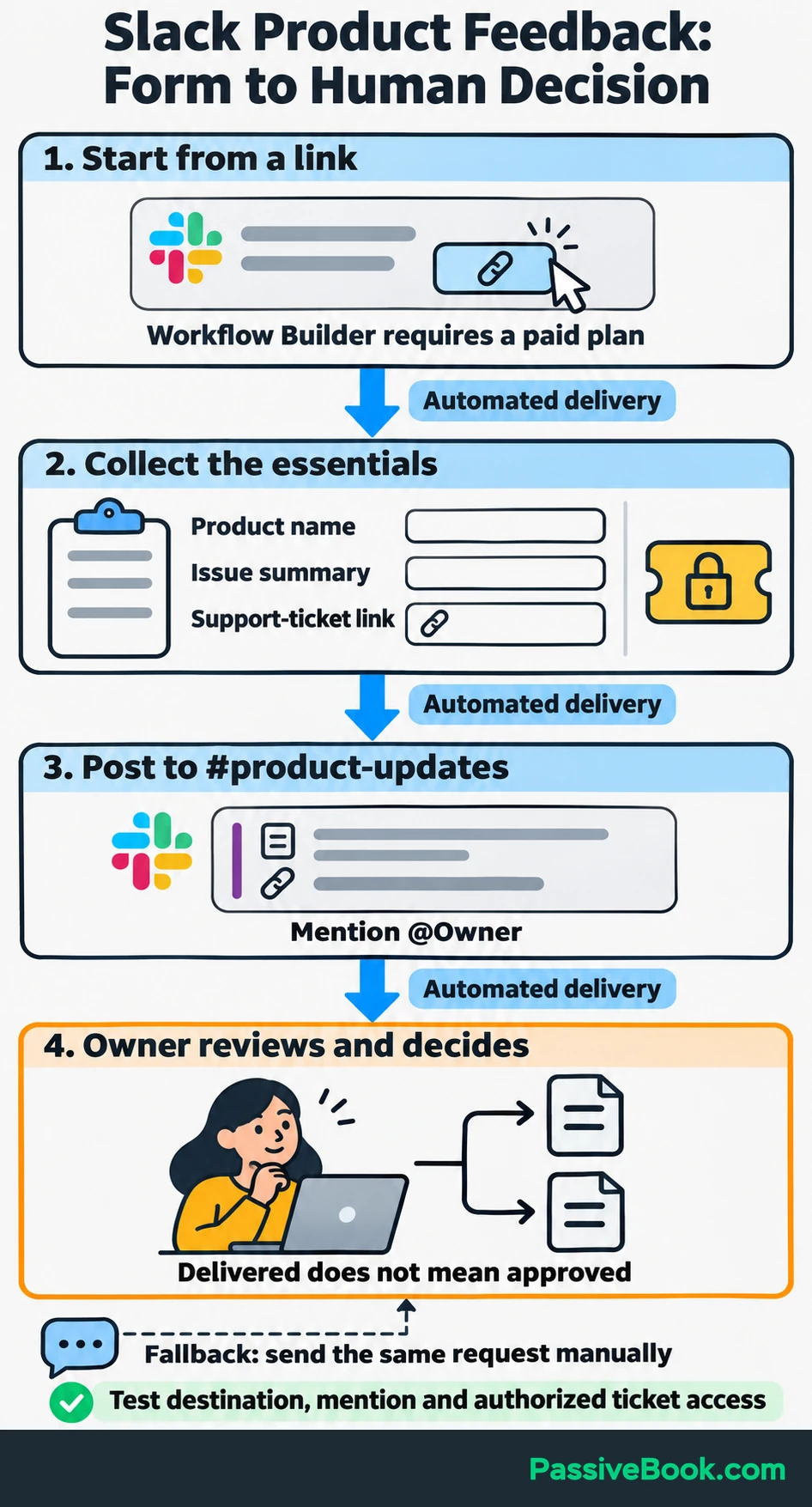
Someone starts a request → supplies the required information → the request reaches the right channel → a named person reviews it.
Workflow Builder is Slack’s tool for automating steps such as collecting form answers and posting them in a channel. It is available on paid plans, and owners and administrators can restrict who creates workflows.
Before building, check how much handling time the workflow could actually remove. Include the time people will still spend preparing, reviewing and correcting requests.

Free Automation Value Calculator




For the shop, build one product-feedback workflow:
- Open Workflow Builder and create a workflow.
- Choose “From a link” as its starting event. Share that link inside Slack so the assistant can start a request.
- Add a form asking for the product name, issue summary and support-ticket link.
- Add a message step addressed to
#product-updates. Insert the form responses into the message and mention the owner responsible for reviewing it. - Publish the workflow and run a test with the support assistant.
One test submission could contain:
| Form Field | Example Submission |
|---|---|
| Product name | Washable dog-walking bag |
| Issue summary | Customer could not tell which washing instructions apply to the bag |
| Support-ticket link | No ticket URL supplied in this example; paste the original ticket’s direct URL here. |
Keep customer details in the ticket. Give ticket access only to people who need it, and include enough information in the summary for others to understand the product issue.
The automation has now delivered a request. It has not decided whether the care card needs changing. You still review the issue, give Maya a clear brief and record the approval.
Before using it for live work, confirm that:
- The form collects everything needed to review the request.
- The message reaches the intended channel and mentions the right person.
- The ticket link opens for authorized reviewers.
- The assistant knows how to submit manually if the workflow fails.
On Free, or during an outage, use the same structure as a manual message:
@Owner — Product feedback
Product:
Issue: [brief description]
Support ticket: [link]
Requested action: Please review and decide the next step.
Give a workflow manager responsibility for checking activity, errors and changes to the process.
I would start with Slack’s built-in workflow for this request. Make and n8n are tools that connect apps and automate actions between them. Consider one when the request needs connections or conditions Slack’s built-in workflow cannot handle.
After a week of real use, review the handoffs. Look for missed requests, duplicate notifications and decisions still buried in private messages. Fix those before adding another automation. A quiet workspace that gets work finished earns its subscription.
What Next?
Choose one recurring conversation today and give it a clear channel, a responsible person and a link to the current working document. Run one real request through it before expanding the setup.
Use the social buttons to share this guide when your team is ready to agree on where requests and decisions belong.
Which conversation causes the most chasing in your business right now? Tell me in the comments, and bring any other questions about your Slack setup.
Share this post with your friends & followers:

