A customer wants to book, but your free hours sit across a work calendar, a personal calendar and a few messages you haven’t answered. Offering a time means checking all three.
Once you agree on a time, there’s still a video link to send, a payment to collect and a reminder to remember. A missed step can leave the customer chasing you.
Free and paid plans divide those jobs differently, which makes their price tags hard to compare. Here’s how five options handle the full booking process, where upgrades become necessary and what to test before customers use your link.
The Best Scheduling Software at a Glance
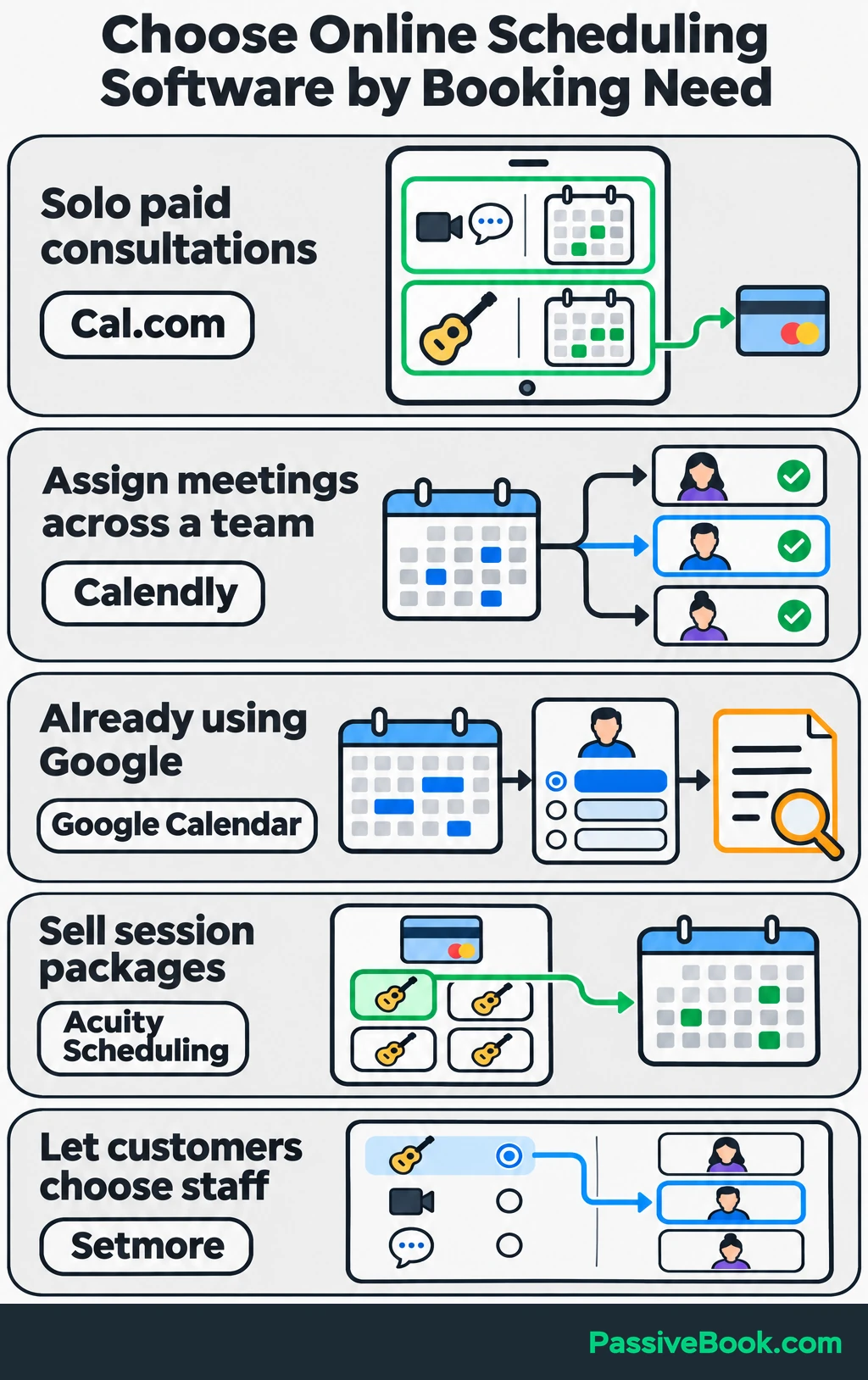
For one person taking paid appointments, I would start with Cal.com. I would consider Calendly for assigning meetings across a team, Google Calendar if an existing subscription already covers the job, Acuity for session packages, and Setmore for affordable staff booking.
These recommendations reflect documented features and workflow fit. The practical checks later in this article help you assess how each tool works with your calendars.
Before comparing plans, write down what a booking must do:
- Offer the appointment types you sell.
- Check every calendar that can make you unavailable.
- Add the booking to your chosen calendar.
- Create a video link and send confirmation.
- Deliver an advance reminder.
- Take payment when required.
- Assign the right person if several people host appointments.
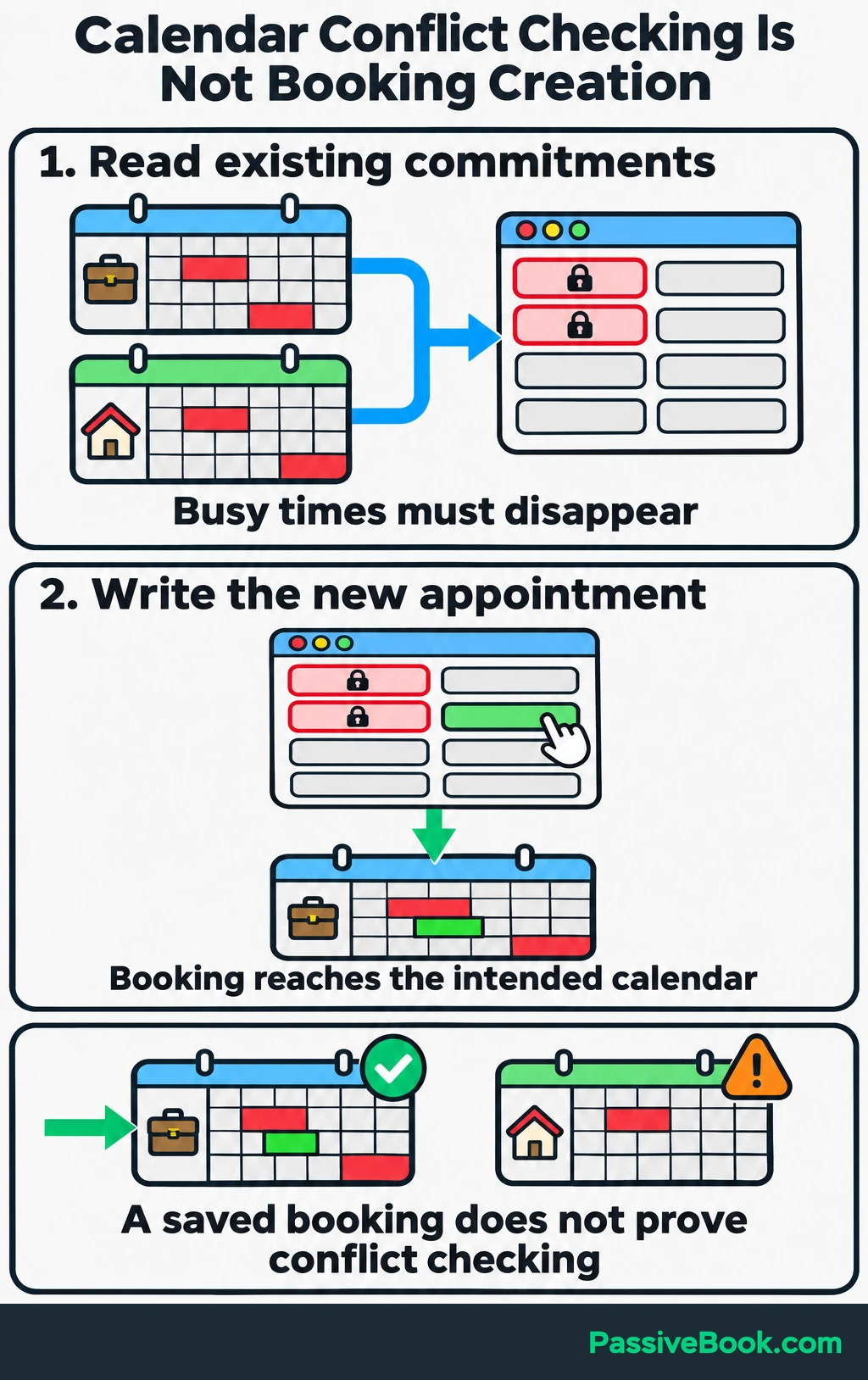
Checking for conflicts and adding new bookings are separate functions. A lesson appearing in your calendar proves that the scheduler can write to it. It doesn’t prove that an existing work meeting will block the same time.
For a running example, imagine you teach beginner guitar online. You offer a free introductory call and paid 30-minute lessons, with a 15-minute buffer after each appointment. Later, you might sell a four-lesson package.
That gives us a concrete way to compare scheduling software for online businesses: two booking types, accurate availability, video calls, reminders and payment.
The table lists regular USD subscription prices, excluding promotions, taxes and payment-processing charges. Annual rates require an annual billing commitment. The linked plan pages carry current details.
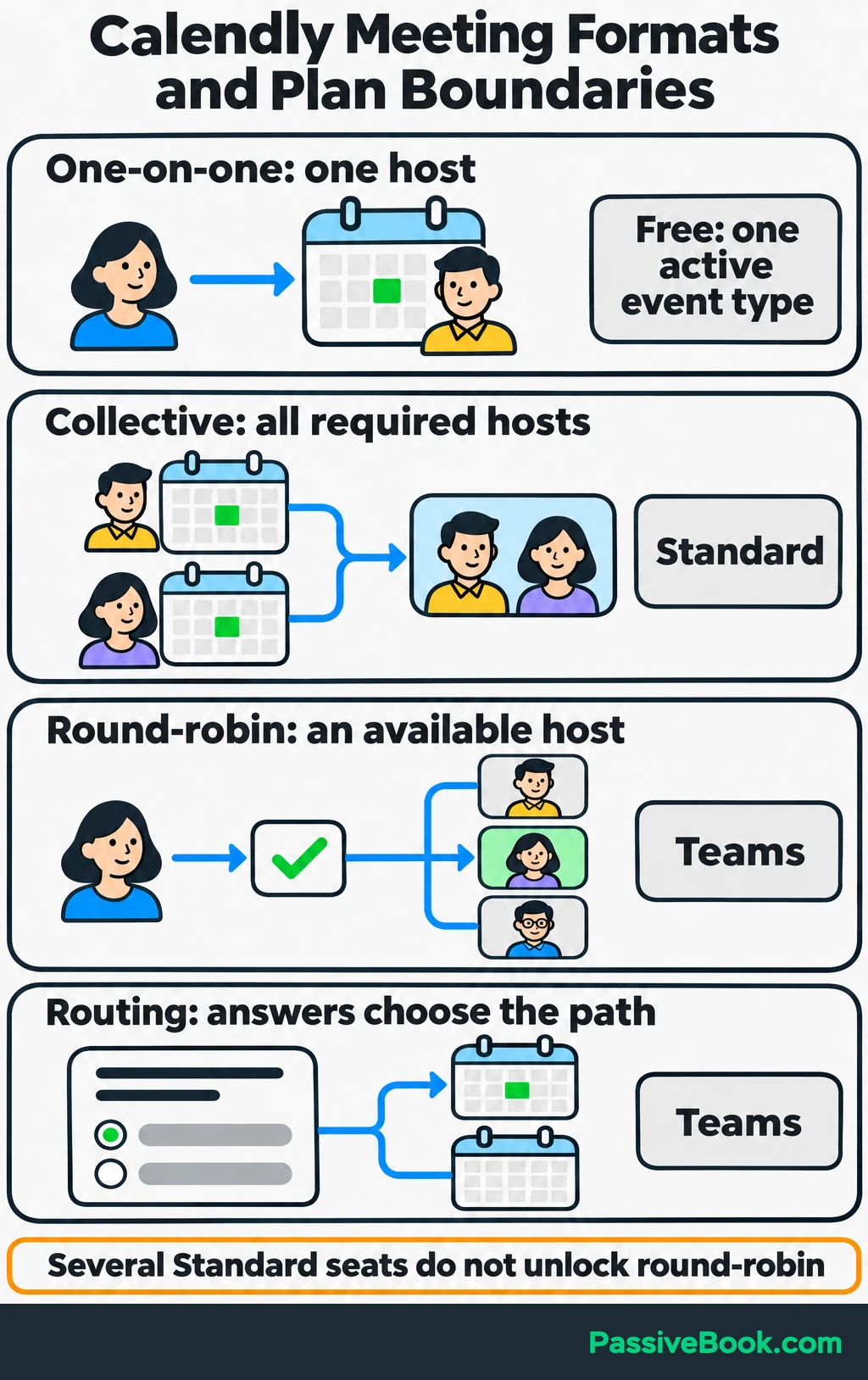
For teams, round-robin assignment shares bookings among available hosts. Routing directs customers to a booking option based on their answers.
| Software | Best Fit | Permanent Free-Plan Limits | Relevant Paid Plan and Billing Commitment | Calendar Conflict Checking | Video and Payment Integrations | Main Upgrade Trigger |
|---|---|---|---|---|---|---|
| Cal.com | One person offering free calls and paid appointments | One host; unlimited booking links, calendar connections and meetings | Teams: $12/user/month, billed annually | Connected calendars selected for conflict checking | Zoom and Google Meet; Stripe and PayPal | Shared availability, round-robin assignment or custom reminder messages |
| Calendly | Meeting links and future team assignment | One active event type, one connected calendar, unlimited one-on-one meetings | Standard: $10/seat/month; Teams: $16/seat/month; both billed annually | One calendar on Free; up to six on Standard | Zoom and Google Meet on Free; Stripe and PayPal on Standard or above | Multiple booking types, payments, automated reminders or team routing |
| Google Calendar | A business already using Google | Personal accounts get one booking page; premium reminders and payments excluded | Workspace Business Standard: $14/user/month with a one-year commitment | Primary calendar; checking multiple calendars requires an eligible subscription | Google Meet; Stripe payments on eligible Workspace plans | Multiple schedules, reminders, payments or broader availability checking |
| Acuity Scheduling | Intake forms, deposits and session packages | No permanent free plan; seven-day trial | Starter: $20 monthly or $16/month annually. Standard: $34 monthly or $27/month annually | Google, Microsoft and iCloud connections; external-event blocking must be enabled | Zoom and Google Meet; payment providers include Stripe, Square and PayPal | Standard adds packages, memberships and up to six appointment calendars |
| Setmore | Customers choosing a service or staff member | Up to four users, unlimited appointments, payments and email reminders; no two-way external calendar sync or video appointments | Pro: $12/user/month monthly or $5/user/month billed annually | Two-way external calendar sync requires Pro | Pro adds video appointments; payment options include Stripe, Square and PayPal | External calendar conflict checking, video calls or recurring appointments |
Which Scheduling Tool Fits Your Business?
Cal.Com: Best Free Option for Individual Paid Consultations
Cal.com is my first shortlist choice for the guitar business because its hosted Individuals plan covers separate introductory-call and paid-lesson links without a scheduler subscription.
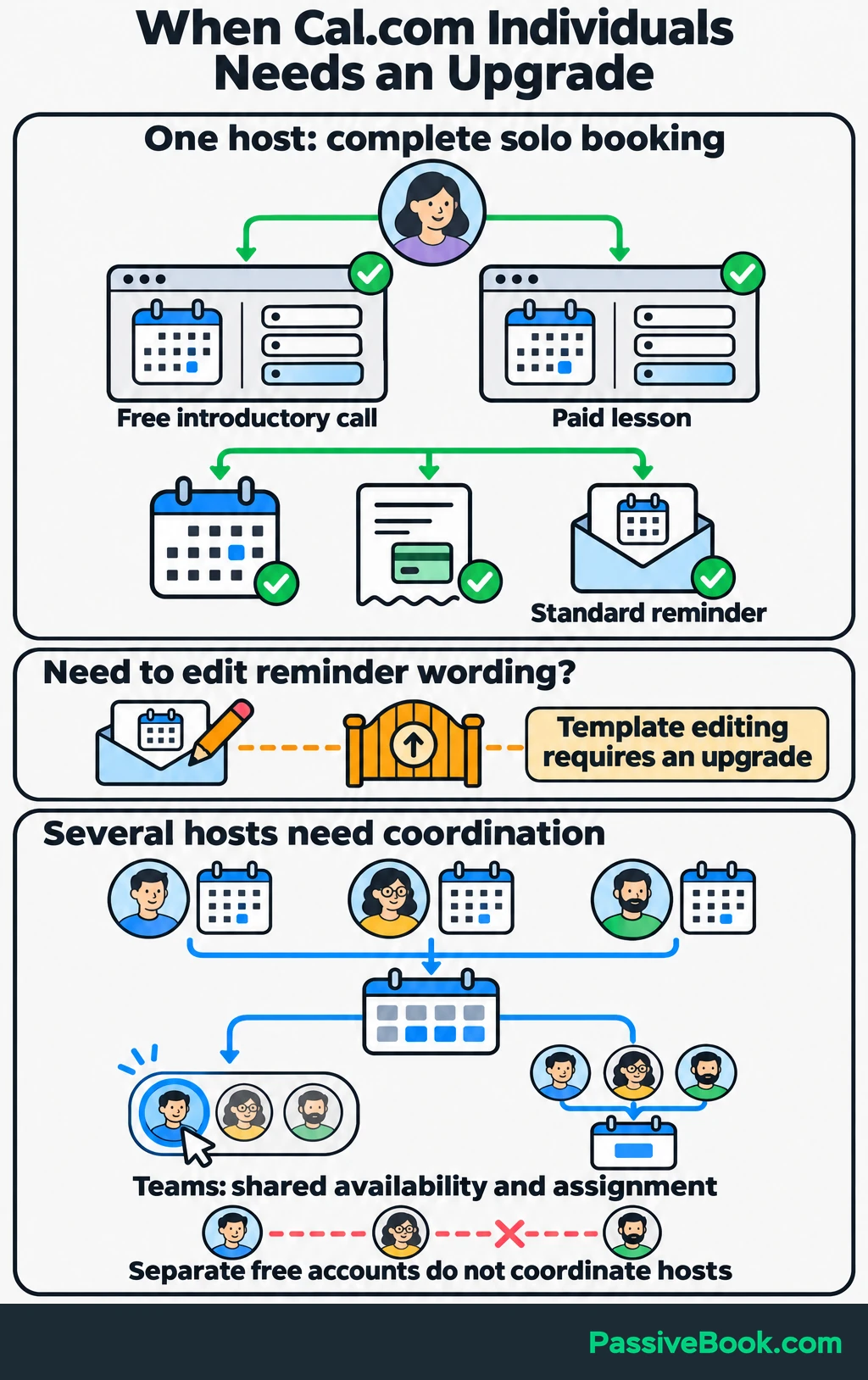
You can connect multiple calendars, accept Stripe or PayPal payments, and offer unlimited meetings. That removes several common reasons a solo operator has to upgrade.
Its calendar and video integrations include Zoom and Google Meet. Select every calendar that should block bookings, then choose the calendar that receives new appointments.
The free plan can also send reminder emails automatically. You can use the standard messages, but editing their templates requires an upgrade.
I would keep the standard reminder if it gives customers the information they need. Rewriting a perfectly clear reminder is a weak reason to add a subscription.
Teams becomes relevant when bookings involve several hosts. It can share appointments among available hosts or find a time when all required hosts can attend. Routing forms use customers’ answers to direct their bookings. Separate free accounts won’t provide that coordination.
Calendly: Best for Meeting Scheduling and Team Assignment
Calendly Free fits a simple offer: one kind of introductory call, booked against one connected calendar.
That limit matters more than the unlimited meeting allowance. Our guitar business needs two distinct booking types and payment for lessons, so Standard is the relevant comparison. It adds unlimited event types, up to six connected calendars, automated reminders, and Stripe or PayPal payments.
Both Zoom and Google Meet can add meeting details automatically, including on Free.
I would shortlist Calendly when team assignment is a likely next requirement. Teams adds round-robin booking, which distributes appointments among available hosts, and routing that directs people based on their answers.
Standard also includes collective scheduling, which finds a time when all required hosts can attend. Think of a call that needs two people from your business rather than whichever person is available.
Choose the meeting format you need before buying seats. Several Standard subscriptions alone won’t unlock round-robin assignment.
Google Calendar: Best for Businesses Already Using Google
Check your existing Google subscription before paying for another booking tool.
A personal Google account supports one booking page, and Workspace Business Starter also includes that basic allowance. Multiple appointment schedules, automatic email reminders and availability checking across multiple calendars require an eligible subscription. Google’s appointment-feature comparison shows which plans qualify.
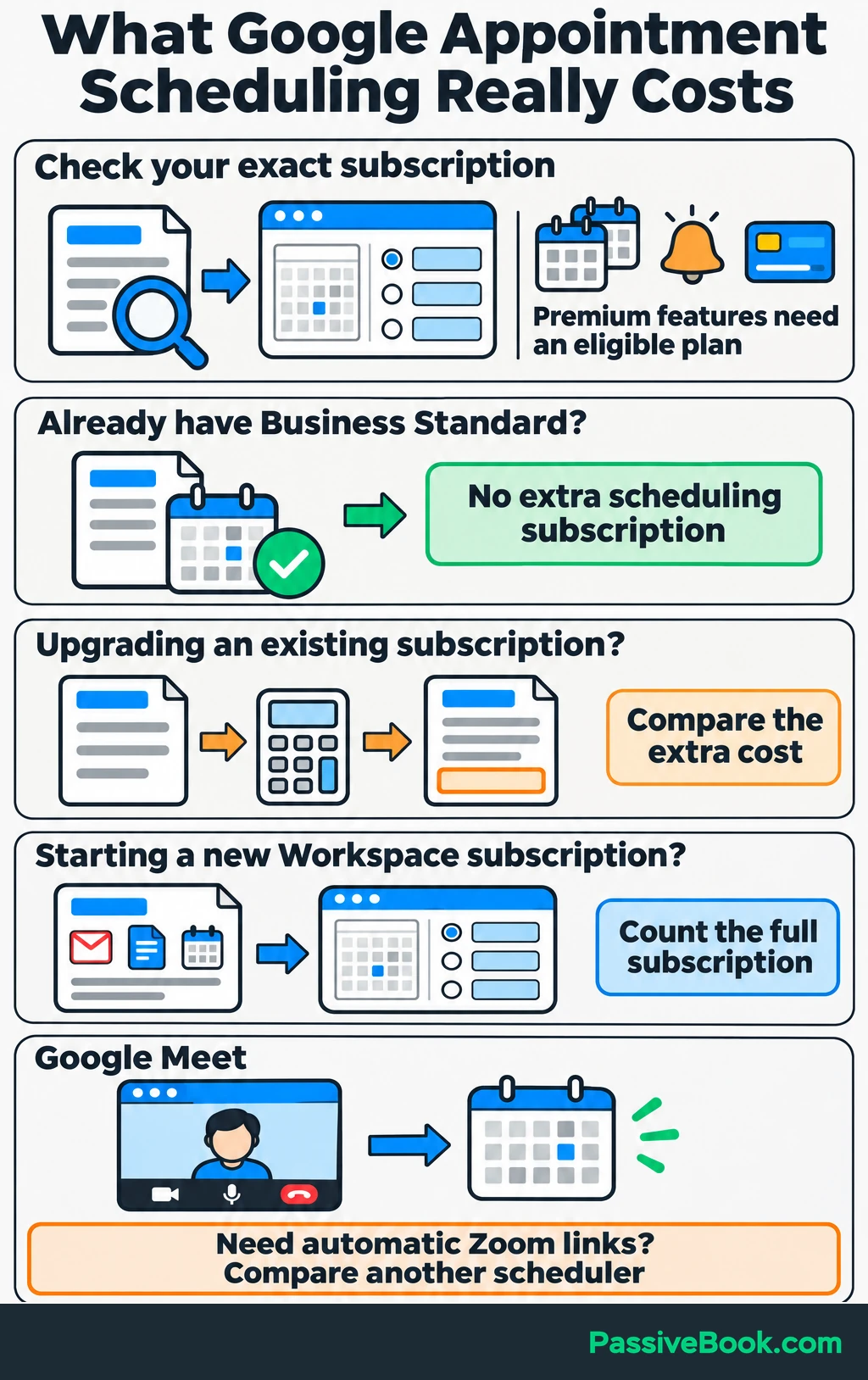
Workspace Business Standard includes those features and appointment payments through Stripe. If you already have it, the guitar business may need no additional scheduling subscription.
For an existing subscriber considering an upgrade, compare the extra cost. For a new customer, count the full Workspace subscription. Calling scheduling “included” doesn’t make the bill disappear.
Google Meet is the natural video choice here. Google’s documented process for another conferencing service involves adding its meeting link after booking, so I would choose another scheduler if automatic Zoom links were essential.
My preference would be to use Google when it already covers the whole process. Buying a broad office subscription solely for booking deserves a closer cost comparison.
Acuity Scheduling: Best for Intake Forms and Session Packages
Acuity earns a place on the shortlist when booking includes more than choosing a time.
Starter supports intake forms, payments or deposits, email reminders, video integrations and unlimited services. Its single appointment calendar can handle one person offering several services.
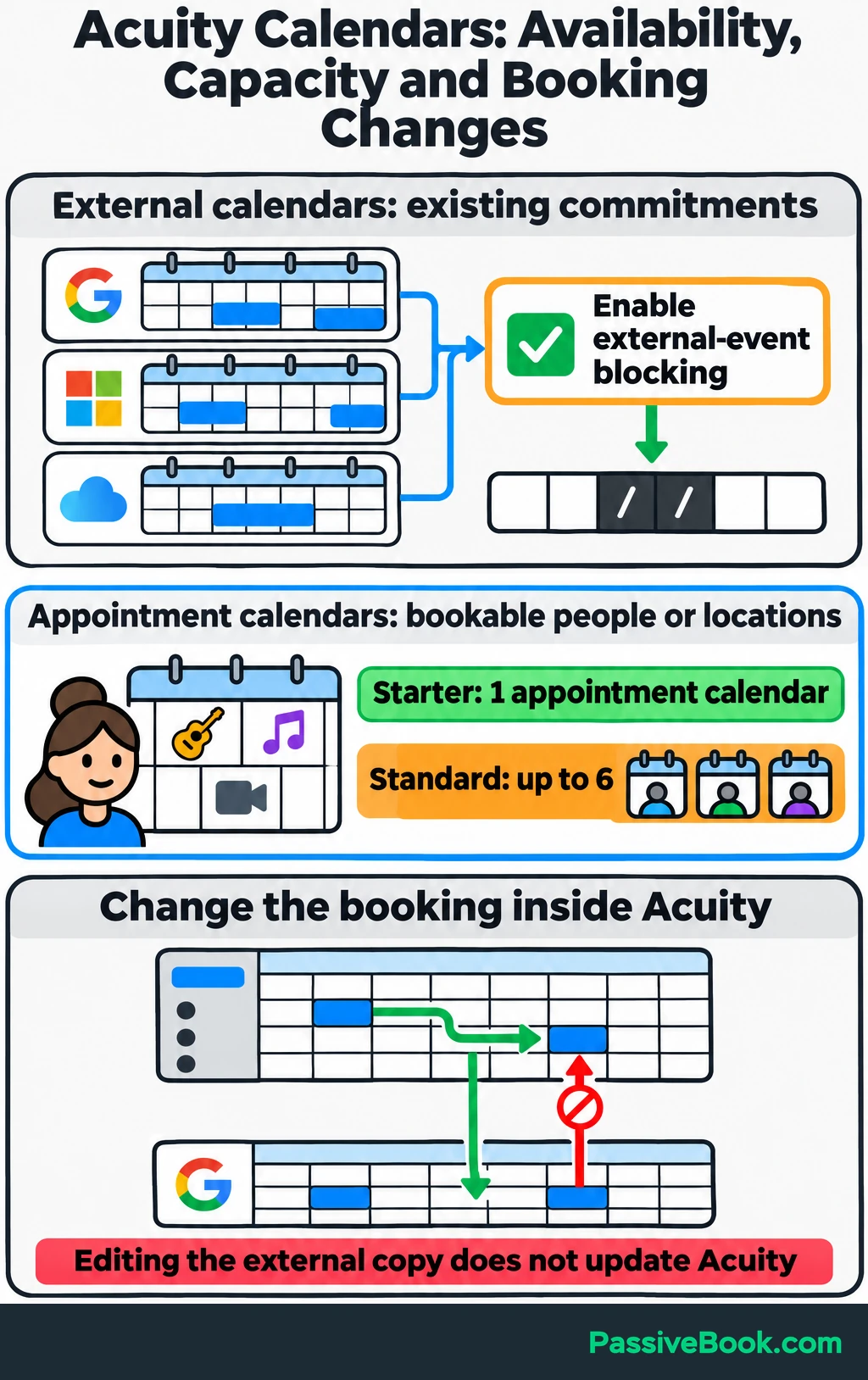
For individual guitar lessons, that may be enough. Standard becomes useful when you sell a four-lesson package and want customers to redeem sessions against their purchase. It also supports memberships and up to six appointment calendars.
Those appointment calendars represent bookable employees or locations. They are different from external calendars used to check existing commitments.
Acuity’s calendar synchronization rules need attention: external events block booking time only when you enable that option. Reschedule or cancel an Acuity appointment inside Acuity because changing its external-calendar copy won’t update the booking.
I would pay for package management once packages are part of the offer. Buying it for a vague future plan gives you a recurring expense before you have a recurring need.
Setmore: Best for Affordable Staff Booking
Setmore makes sense when customers need to choose a service, a staff member or both.
Free supports up to four users, unlimited appointments, payment acceptance, email confirmations and email reminders. That is a useful allowance, but it leaves out two essentials for our guitar example: external calendar synchronization and video appointments.
Pro is the plan to compare for that workflow. It adds two-way calendar sync, recurring appointments, video appointments and branding removal. Its Zoom integration can generate meeting links for video-enabled services.
I would consider Setmore Pro when a small teaching team needs customers to choose their instructor. Its per-user cost deserves a look alongside the team plans elsewhere.
I would skip Free if staff already manage commitments in external calendars. Manually copying every busy period into another system gives you another task to remember, and remembering tasks is precisely what the booking system should help reduce.
Is Free Scheduling Software Enough?
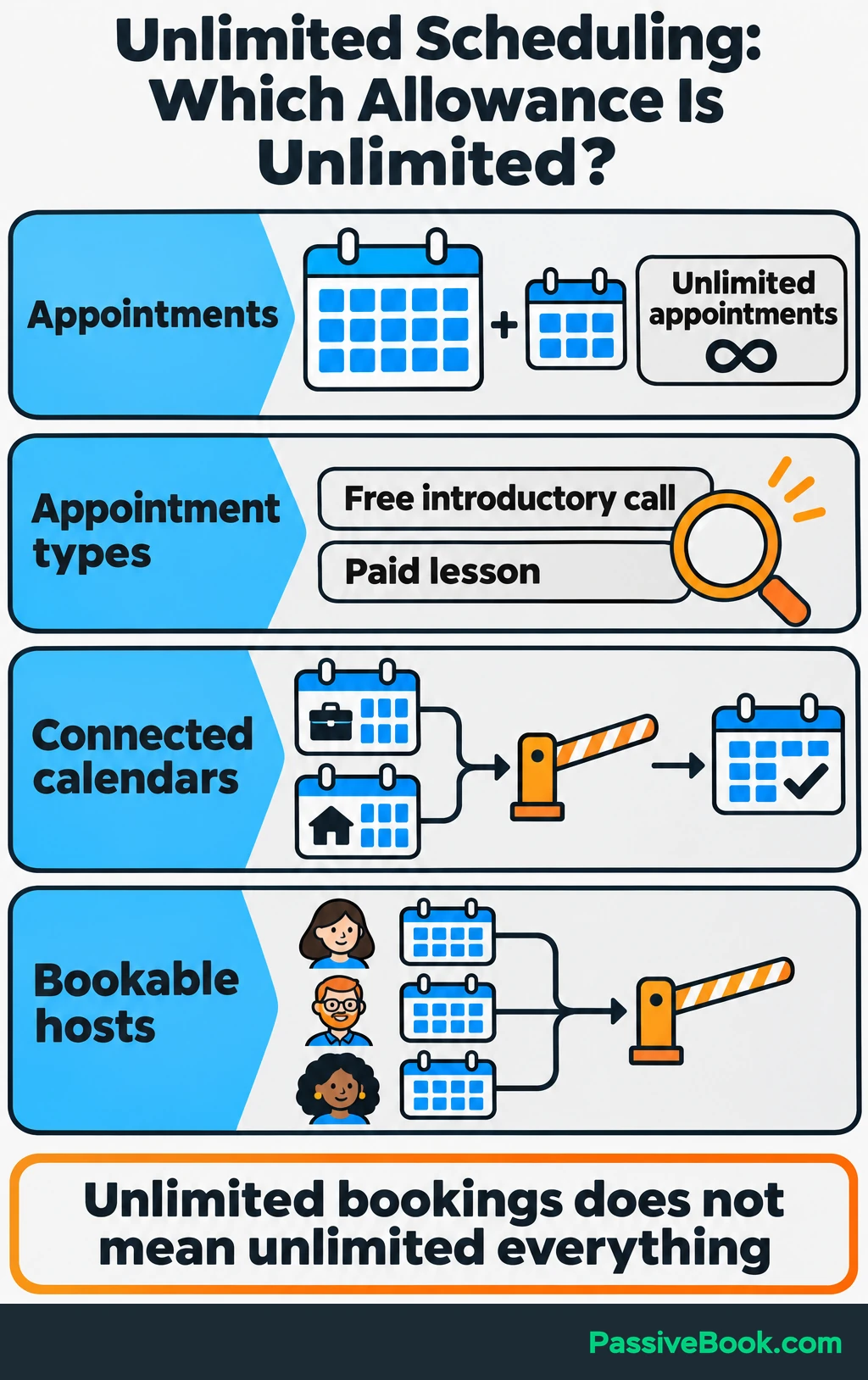
Free is enough when the permanent plan completes every essential booking step. The word “unlimited” needs a noun after it: appointments, appointment types, calendars and hosts are different allowances.
For the guitar business, Cal.com Individuals covers separate introductory calls and individual paid lessons. Calendly Free covers only the introductory-call part. Setmore Free leaves gaps in external calendar checking and video appointments.
That makes the upgrade decision fairly practical:
- Calendly Standard becomes relevant when you need several booking types, payments or automated reminders.
- Setmore Pro becomes relevant when external calendars and video calls must work together.
- Acuity Standard becomes relevant when customers buy packages and redeem individual sessions.
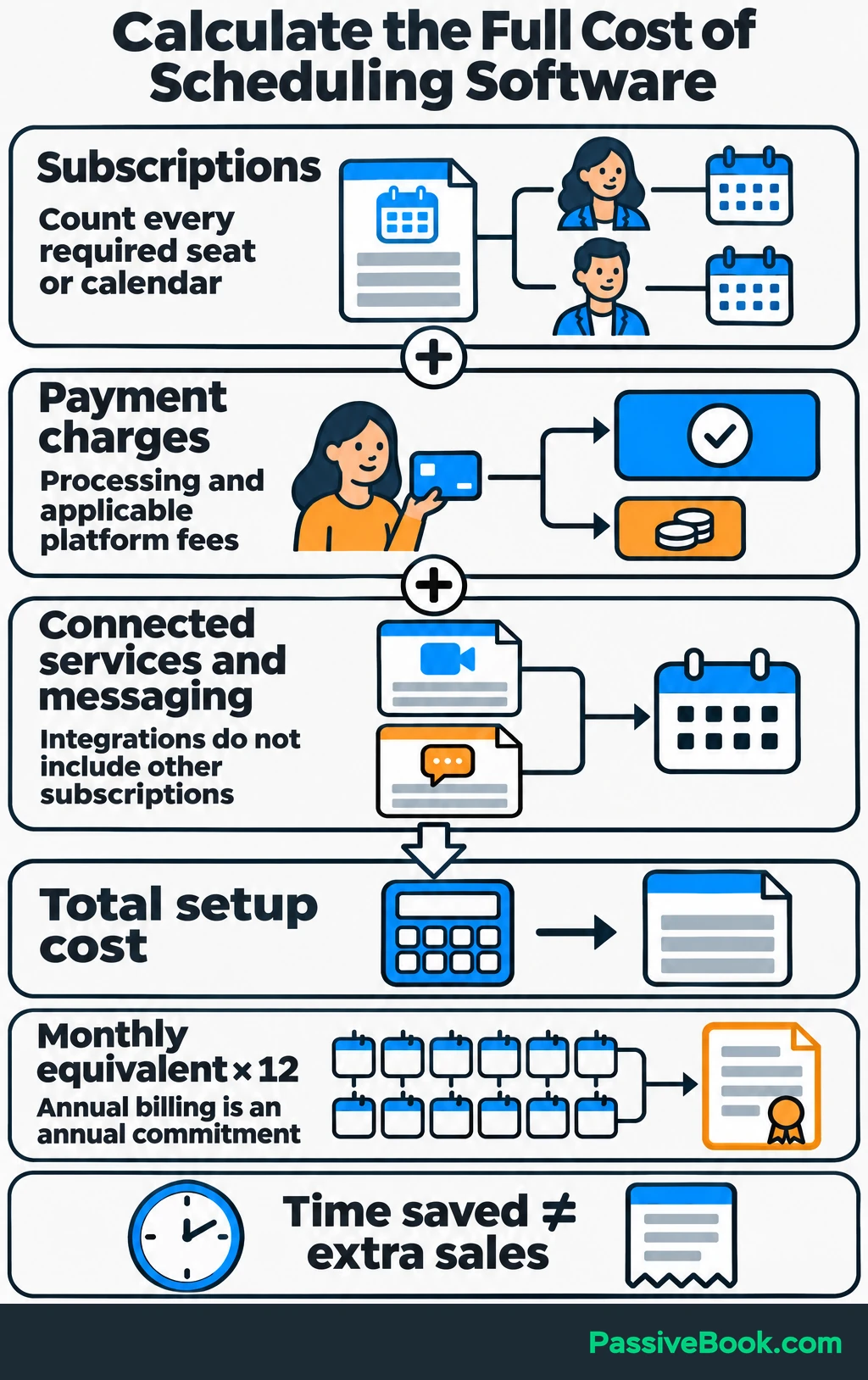
Count the full cost of the setup before choosing. That includes subscriptions for all required hosts or bookable calendars, payment-processing charges, any applicable platform transaction fees, paid messaging and necessary connected services.
A video integration doesn’t include the video provider’s paid subscription. The same applies to other connected tools.
Annual billing deserves a separate decision. Multiply the advertised monthly equivalent by 12 and compare that commitment with monthly billing. I would test the workflow before paying for a year, even when the annual rate looks much better.
Once two plans cover your booking process, compare what you’ll actually pay for the time you expect to use them. A lower monthly equivalent doesn’t always mean less money spent.

Free Software Cost Calculator




Building automation for my sites has taught me to look past the first successful step. Getting an article published doesn’t prove that every connected task ran. I apply the same judgment here: creating a booking is only part of the job.
Pay when a feature removes administration you already do or supports how customers already buy. Keep estimated time savings separate from revenue. Saving an hour is useful, but it doesn’t automatically mean you sold another lesson.
Test Your Shortlist Before Committing
Choose one or two tools and run the same booking process through each. You’ll learn more from that than from comparing another page of feature checkmarks.
Use this sequence:
- Calendar Conflicts: Connect every calendar that can make you unavailable. Add a busy event to each and confirm that the time disappears from the booking page. Then make a booking and check that it reaches the intended calendar. In Google Calendar, enable availability checking and select the calendars it should inspect.
- Availability Rules: Set working hours, appointment length, minimum booking notice and how far ahead customers can book. For the guitar lesson, use a 30-minute appointment followed by a 15-minute buffer. A lesson starting at 6 p.m. should prevent another appointment from starting before 6:45 p.m.
- Customer Experience: Open the booking page on your phone while signed out of the owner account. Choose the introductory call, then repeat with the paid lesson. Check that the service names, duration, price and next step are clear. Short labels such as “Free Introductory Call” and “30-Minute Beginner Guitar Lesson” do the job.
- Time Zones: Change the time zone on the customer’s booking page and make another test booking. Confirm that the customer sees the intended local time and that your calendar shows the matching appointment. Check the confirmation too, because that is what the customer may return to later.
- Payment and Messages: Follow the provider’s payment-testing procedure. Check successful payment and abandoned checkout separately so you understand when a booking becomes confirmed. Receive the confirmation and scheduled reminder, and open the video link from the customer’s message.
- Changes and Cancellations: Reschedule the test appointment and check that the old slot reopens, the new slot closes and both sides receive the update. Cancel it next, then inspect the booking and payment separately. Google Calendar, for example, requires refunds to be handled through Stripe rather than automatically refunding a canceled appointment. Its payment and cancellation documentation explains that distinction.
- Client Information: Ask only for details needed to deliver the appointment. For a beginner lesson, “Do you already have a guitar?” is useful. A long personal questionnaire probably isn’t. Limit staff access and review the provider’s security and data-processing terms before adding real client information.
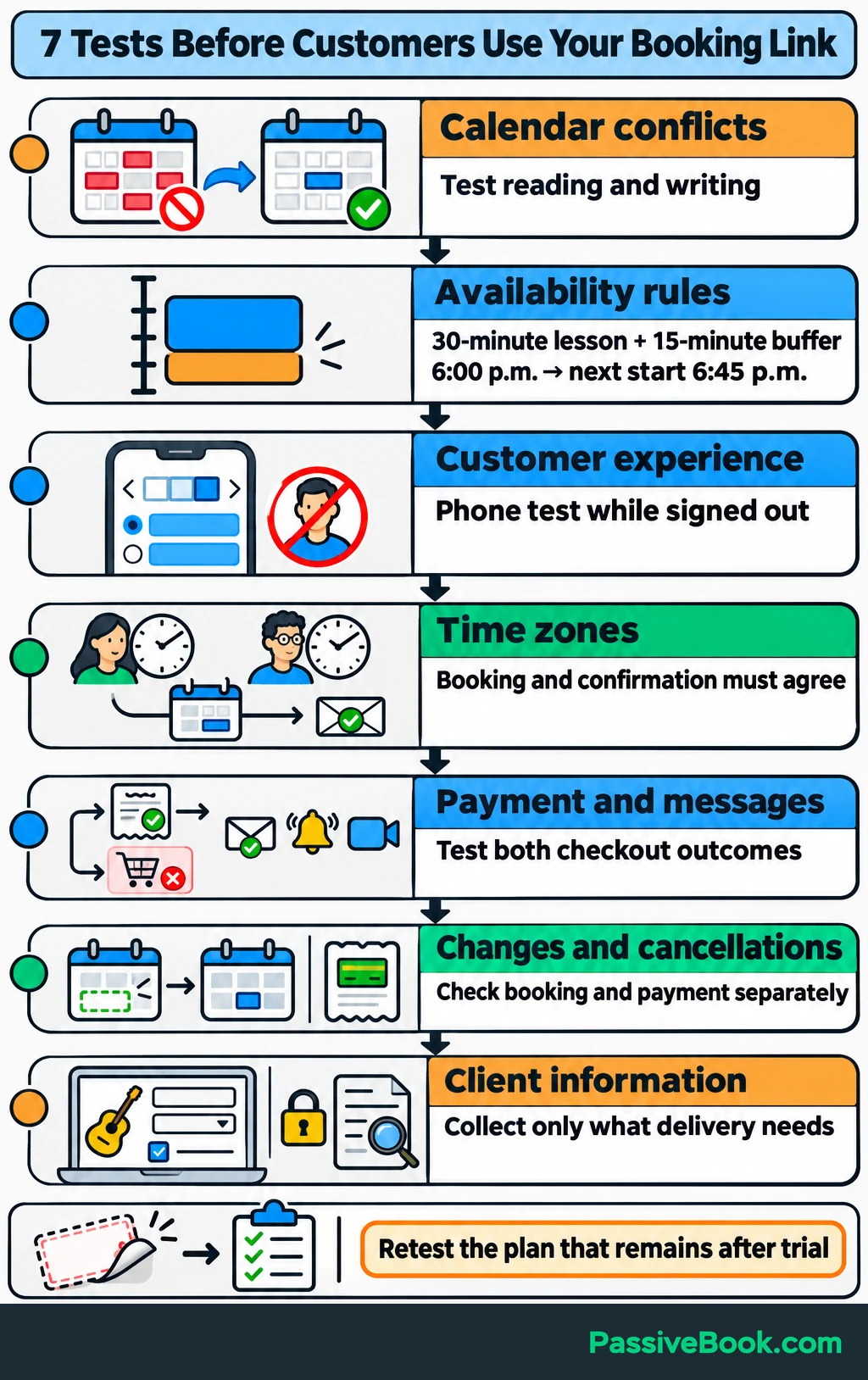
Finally, check which features remain after the trial ends. A setup that works on a temporary premium plan may fail your requirements on Free.
If a calendar connection or payment step behaves unexpectedly, resolve it with support before committing annually. I would choose the lowest-cost plan that passes these checks. Extra features can wait until they have a job to do.
What Next?
Write down your appointment types and every calendar that must block bookings, then test one suitable plan with a complete customer booking.
Use the social buttons to share this comparison when you want to help others choose a booking tool without paying for features they won’t use.
Which part of your booking process still needs the most manual work? Tell me in the comments, and bring any other scheduling questions there too.
Share this post with your friends & followers:

