You need a product image, a Pinterest Pin and an email banner, but each one seems to require another round of cropping, moving text and fixing spacing. Buying a more powerful editor sounds sensible—until you see how much there is to learn.
I use Canva for graphics on my websites, and I’ve still lost time browsing templates when I already had a usable layout. That wasted time is why this comparison looks beyond the first finished design. It weighs the work of adapting and revising your graphics against each tool’s price, learning curve and editing control.
Which Graphic Design Software Is Best for Your Work?
For recurring marketing graphics, I would start with Canva Free. Compare Adobe Express if you already use Adobe apps, and choose Affinity when detailed editing matters more than ready-made promotional templates.
The best graphic design software depends on what you need to change:
- Template editors: Canva and Adobe Express help you assemble photographs, text and graphics into promotions.
- Photo editors: Photoshop and Photopea give you more control over pixel-based images, such as product photographs.
- Vector editors: Inkscape and Illustrator create artwork from editable shapes and paths, so icons and illustrations can scale cleanly.
- Page-layout tools: These organize text and images across documents. Affinity combines layout, photo and vector tools.
- Shared design tools: Figma suits layouts with reusable elements that several people maintain.
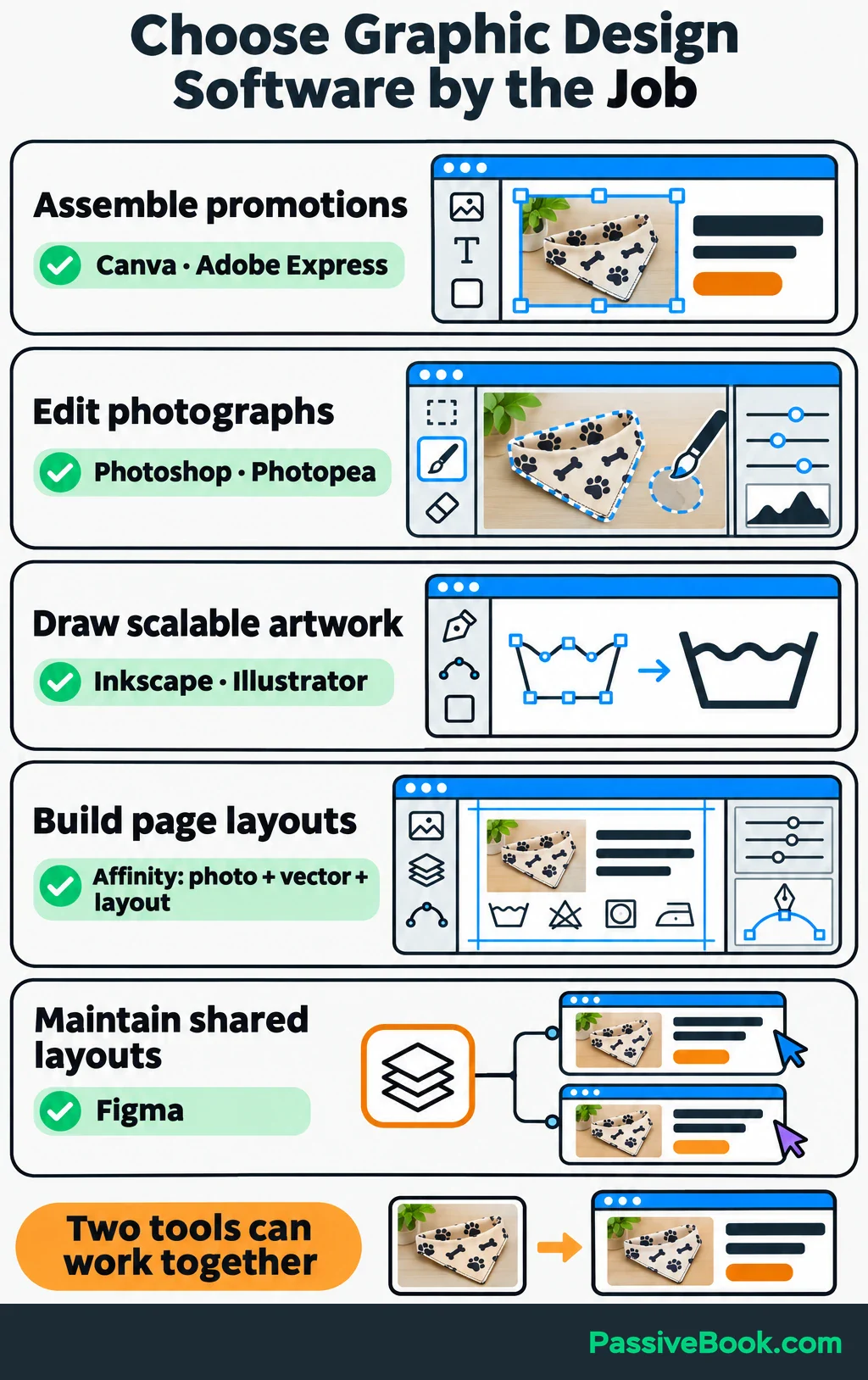
These categories overlap, and two tools can work together. A photo editor might prepare an image that you later place in a Canva template.
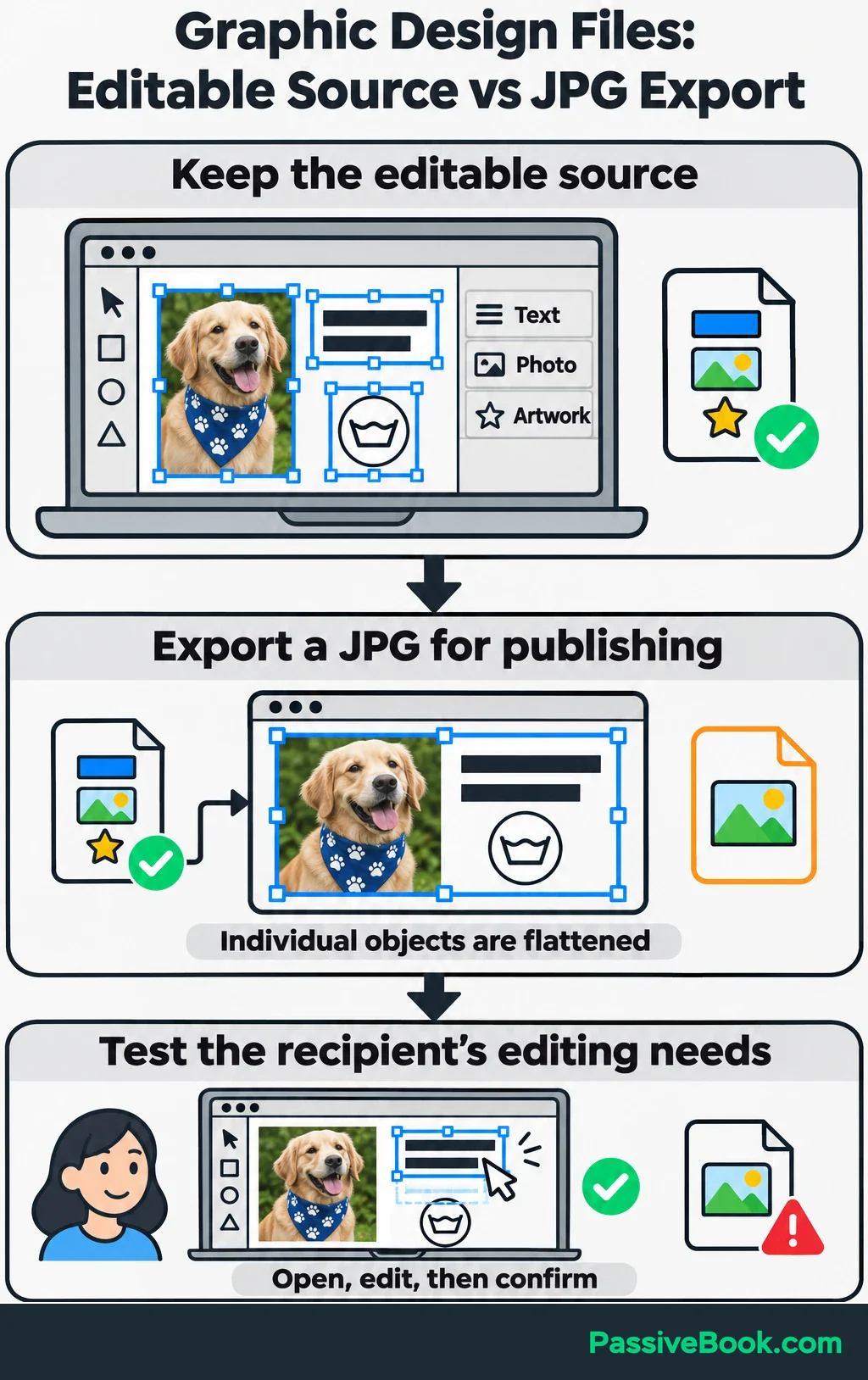
Before comparing AI features or template libraries, eliminate anything that cannot run on your device or deliver your required editable files. A finished JPG will not satisfy a collaborator who needs to change individual objects.
Throughout this guide, imagine you sell personalized dog bandanas online. You need product-listing images, Pins, email banners and printable care inserts. The examples illustrate that workflow.
Affordable software can produce polished graphics. Clear text, consistent spacing and a useful photograph matter more than owning an editor with an intimidating toolbar.
Best Graphic Design Software at a Glance
The paid options below use US individual list prices before tax. Local prices vary, and the linked pages provide current terms. Learning effort is my editorial judgment about the work described.
| Software | Best-Fit Task | Free Access | Relevant Paid Price and Commitment | Supported Platforms | Learning Effort or Main Trade-Off |
|---|---|---|---|---|---|
| Canva | Recurring promotions, Pins and email graphics | Free plan | Pro: $144/year for one person | Browser; Windows and macOS apps; iOS and Android | Easy template workflow; less control over detailed edits |
| Adobe Express | Marketing graphics alongside Adobe assets | Free plan | Premium: $9.99/month, billed monthly without an annual commitment | Desktop browsers and mobile phones | Easy to start; complex photo and vector work benefits from another editor |
| Figma | Shared layouts and reusable components | Starter plan | Professional Full seat: $16/month, billed annually | Browser; Windows and macOS desktop apps | More setup before reusable layouts pay off |
| Affinity | Detailed photo editing, vectors and page layout | Free core app with a Canva account | No core-app subscription required; Canva AI requires a premium Canva plan | Windows, macOS and iPad | Extensive control; layers, paths and layout tools take practice |
| Photopea | Layered image and PSD editing without installation | Free with advertising | No purchase required for the workflow described here | Browser across operating systems | Familiar to experienced image editors; less guided for beginners |
| Adobe Photoshop | Detailed retouching and photo composites | Trial | Single app: $22.99/month; Photography plan: $19.99/month. Both require an annual commitment, billed monthly | Windows and macOS desktop; web and mobile versions | Precise image control; subscription cost and a deeper learning curve |
| Inkscape | Original icons, logos and scalable illustrations | Free and open source | No software fee | Windows, macOS and Linux | Drawing and path-editing skills take practice |
| Adobe Illustrator | Original vector artwork and editable Adobe handoffs | Trial | Single app: $22.99/month, annual commitment billed monthly | Windows and macOS desktop; iPad and web access | Strong artwork control; unnecessary cost for simple promotions |
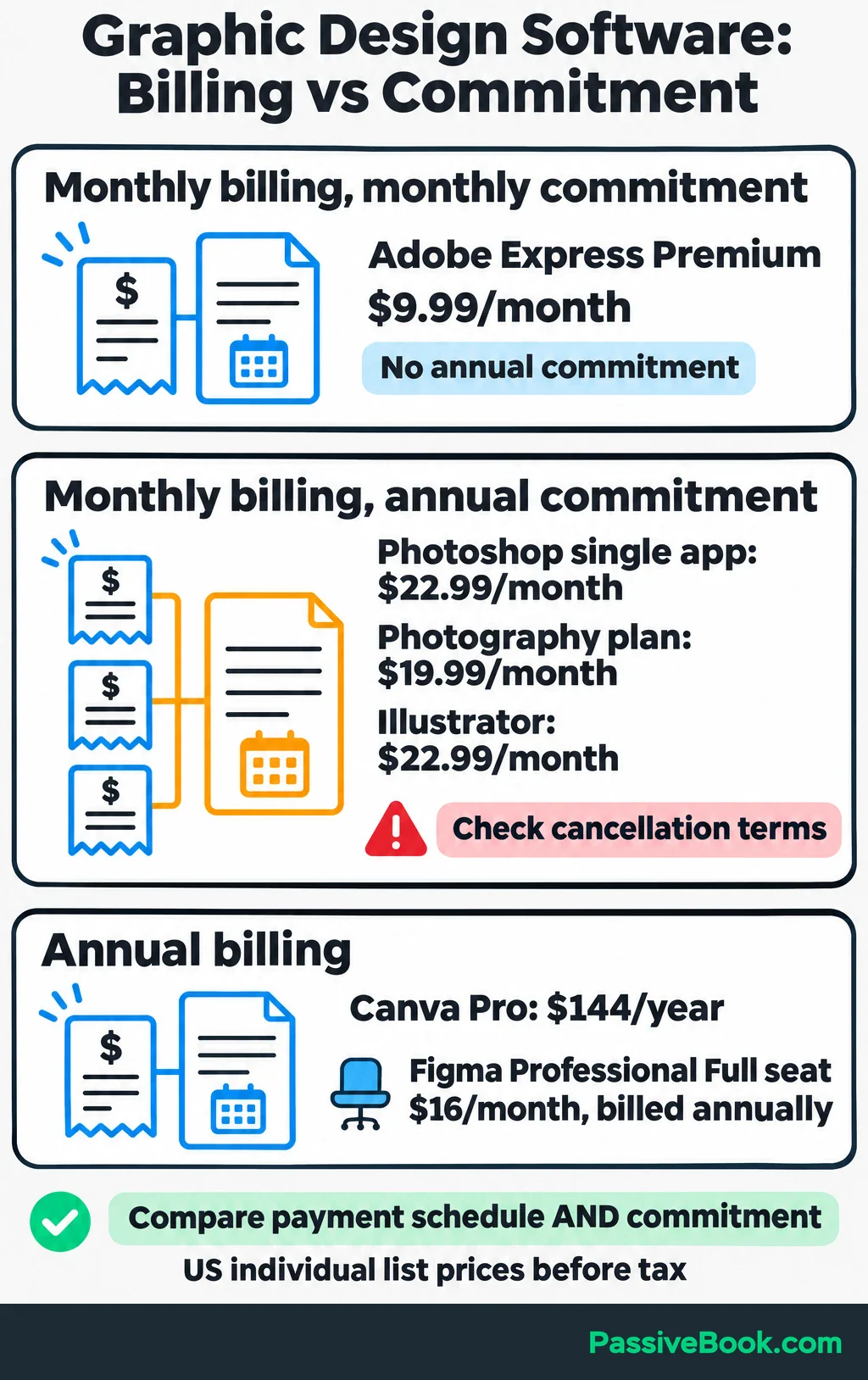
“Billed monthly” does not always mean you can leave without a fee. Under Adobe’s US terms, annual plans paid monthly generally charge 50% of the remaining contract balance when canceled after 14 days. Check the commitment before subscribing. Adobe cancellation terms
The Top Graphic Design Tools Compared
Canva: Best for Everyday Business Graphics
Canva is my default recommendation when your recurring jobs are product promotions, article images, Pinterest Pins and email graphics. Start with a layout close to what you need, then make the photograph, headline and spacing work together.
I use Canva for graphics, Pins, thumbnails and social images. On one batch of Pins, I kept choosing fresh templates and then correcting their fonts and colors. The files looked related only after another round of edits. Reusing a layout I had already cleaned up made the next batch much easier to manage.
For the bandana shop, I would save three coordinated layouts:
- Listing image: A clear product photograph with room for personalization details.
- Pinterest Pin: A tall layout with a readable headline, such as “A Bandana With Their Name on It.”
- Email banner: A wide crop that leaves the name and stitching visible.
Keep the visual structure and replace the product photograph and copy.
Begin with Free. Upgrade when premium assets, brand tools or repeated resizing solve work you actually do. Canva Pro includes automatic resizing and background removal, but inspect every crop and cutout before exporting. A missing bandana corner is still missing, however confidently the software removed it. Canva Pro tools
Adobe Express: Best for Marketing Graphics Alongside Adobe Apps
Adobe Express belongs on the same shortlist as Canva when you want ready-made marketing layouts. I would give it particular attention if you already pay for Adobe software.
The Photoshop and Illustrator single-app plans listed above include Express Premium. Check your existing subscription before buying Express separately.
Express Premium adds brand kits, one-click resizing, premium assets and a monthly allowance for generative AI. Those features are useful only if they fit your production work, so compare them with the Canva features you would otherwise pay for.
Use the same photograph and copy in Canva and Express. Create the bandana listing image, change its headline, then adapt it into a Pinterest Pin and an email banner. Notice whether you can keep the product name readable without rearranging half the design.
I would choose Express if its templates suit the brand and existing Adobe access covers what I need. I would choose Canva if its workflow feels simpler for the graphics I publish most often.
When the photograph itself needs detailed repair, finish that work in a photo editor before assembling the promotion.
Figma: Best for Shared Graphics and Reusable Components
Figma makes more sense when several people maintain shared layouts than when one person wants a quick promotional template.
Its useful distinction is the reusable component: a design element you maintain centrally and use in multiple layouts. For the bandana shop, that could be a product badge or a standard headline treatment. Updating the shared element can keep related designs consistent.
That structure takes preparation. Someone must decide how the pieces fit together and which variations the team needs. I would skip that setup for an occasional banner, but consider it when repeated revisions are creating mismatched files.
Start with Starter. Professional adds team-wide design libraries and unlimited files and projects for a team. Choose a Full seat for Figma Design editing; people who only view and comment do not need additional paid seats.
Export finished graphics as PNG or JPG, suitable vector assets as SVG, and documents as PDF. Keep the editable source available for future changes.
For a solo shop owner whose main need is ready-made promotions, I would start with Canva or Express instead.
Affinity: Best Free App for Photo, Vector and Layout Work
Affinity is the strongest free option on this list when you want detailed control across photographs, original artwork and printed documents.
Its core app combines photo editing, vector drawing and page layout. You activate it online with a free Canva account, and core editing then works offline. Canva AI integrations require a premium Canva plan and an internet connection. Affinity access and capabilities
The bandana shop could use it to refine listing photographs, draw care icons and arrange a printable care insert. That is a broader editing job than swapping text in a social template.
The cost is learning. Layers hold separate parts of a design, paths define editable shapes, and layout tools control how text and images sit on the page. You do not need to master everything, but you need the tools your project uses.
I would test one complete care insert before committing to Affinity as the main editor. Can you revise the text, keep the icons aligned and export the file your printer needs?
You can also pair it with Canva: Affinity for detailed source artwork and Canva for recurring promotions.
Photopea: Best Free Browser Editor for Layered Images
Photopea is worth trying when you need to edit a Photoshop (PSD) file without installing software. It can open and save these files while keeping image parts on separate, editable layers.
That lets you replace a product photograph while leaving the headline, background and decorative elements intact. For finer edits, masks hide parts of a layer without deleting them.
For the shop, open a layered listing-image template, replace the bandana photograph and revise the product text. Export the finished image, then save the editable PSD as well. Otherwise, the next revision starts with a flattened picture.
I would use Photopea for occasional layered edits before adding a paid photo subscription. Its workspace still requires some learning, so “free in a browser” does not mean “as guided as a template editor.”
The free service is funded through advertising. That is a reasonable trade if the workspace suits you, but test a real editing session before making it your daily tool. Photopea’s advertising model
Adobe Photoshop: Best for Detailed Photo Editing and Compositing
Photoshop earns its place when precise photo work is a recurring requirement: selecting difficult edges, retouching distractions, adjusting individual areas or combining photographs into a believable scene.
Use separate layers and masks so you can revise edits without rebuilding the whole image. A mask hides or reveals part of a layer, which is useful when refining the edge of a product against a new background.
For the bandana shop, I would test the photograph that gives a simpler editor trouble. Perhaps patterned fabric blends into the background, or a distraction sits close to the stitching. That task will tell you more than following a polished demo.
Photoshop also offers AI editing. Compare an AI correction with a manual one and include cleanup in your judgment. For product images, I would reject any result that changes the name, pattern or stitching a customer is buying. Photoshop editing capabilities
Compare the plan bundles in the table before subscribing. The Photography option may fit photo work better, while the single-app plan includes Express Premium.
Test on your intended device because desktop, web and mobile versions can differ in capabilities.
Inkscape: Best Free Vector Editor
Inkscape is my first free shortlist option for original vector artwork, particularly if you use Linux.
Choose it when you need to draw reusable shapes rather than assemble a promotion from existing assets. For the bandana shop, that could mean creating a consistent family of care icons.
Start with the same stroke thickness, corner style and overall size for each icon. Draw the basic shapes, then adjust their paths. The editable points along those paths are called nodes, and moving them changes the outline.
This takes practice, but it gives you control over the artwork. I would learn the tools needed for a small icon set before attempting a complex illustration.
Keep an editable SVG master and export the format required by your website, layout tool or printer. Check the result at the smallest size where it will appear. An icon that looks elegant when enlarged may turn into a dark blob on a care insert.
Adobe Illustrator: Best for Precise Vectors and Adobe Handoffs
Illustrator deserves consideration when original logos, patterns or icon sets are central to your work, or when a collaborator requires editable Illustrator files.
For the bandana shop, you could build a care-icon family and reuse it across inserts and promotional graphics. You could also create an original repeat pattern for a future product.
I would compare that drawing task with Inkscape and Affinity before buying a subscription. If the free option produces the artwork and file format you need, an Adobe logo on the invoice adds little.
File requirements can change the decision. Ask what the recipient needs to edit, then send a small sample before completing the whole project. Opening a file successfully does not prove that fonts, effects and individual objects survived as expected.
Keep the native working file and check the transferred version in the application that will handle the next revision.
For routine product promotions, Illustrator would be more editor than I need. For repeated original artwork and Adobe handoffs, the extra control can justify it.
How to Choose Your Tool Before Subscribing
Shortlist two tools that solve the same main job. Compare Canva with Express for recurring marketing layouts, for example. Compare Affinity, Photopea or Photoshop for a difficult photo-editing task.
A photo editor and a template editor may complement each other, so judging them as replacements can lead you toward the wrong purchase.
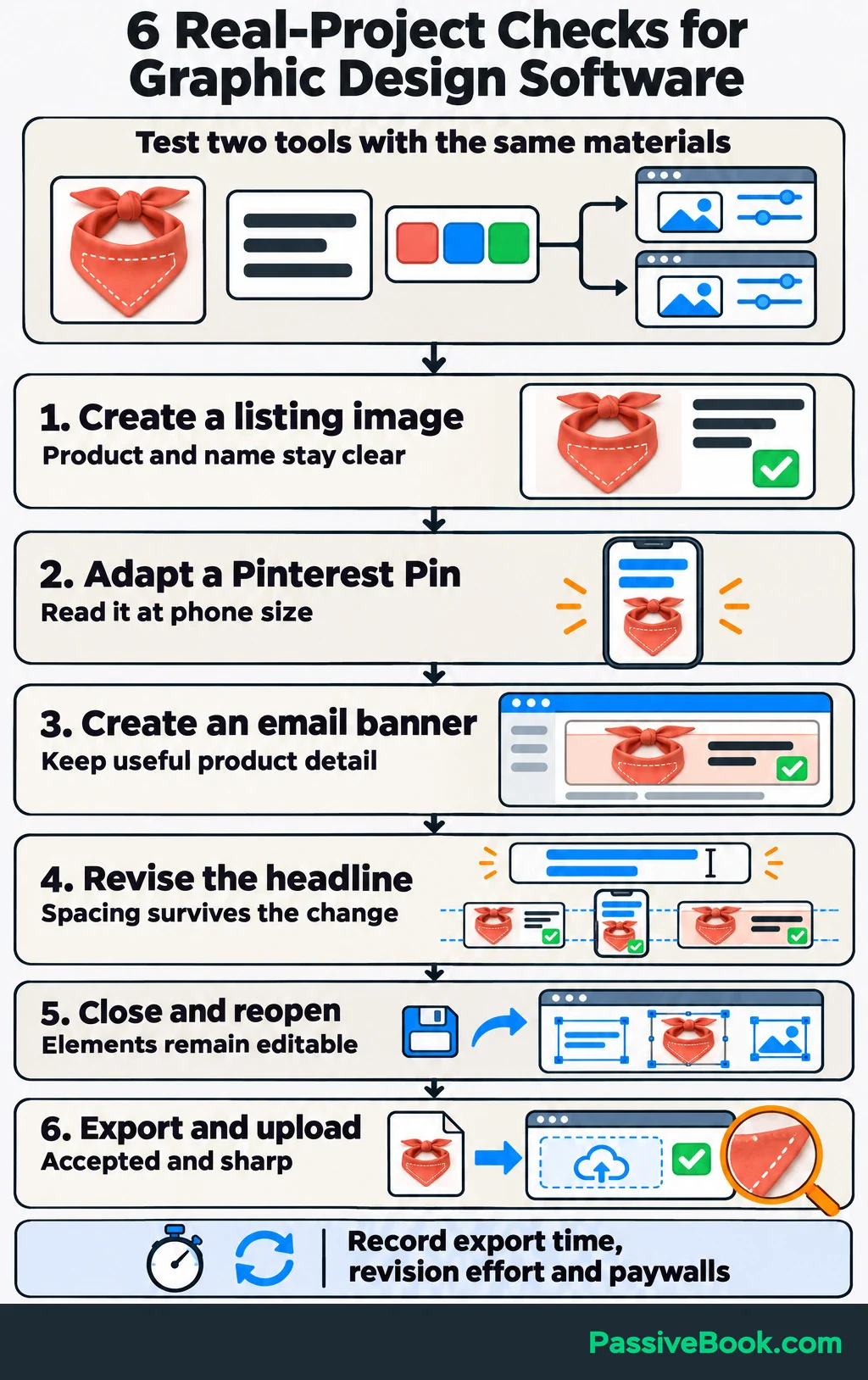
Give both candidates the same materials and finish a small project that matches their main job. For Canva and Express, use the bandana shop’s product photograph, headline and brand colors for the checks below.
| Trial Task | What to Inspect |
|---|---|
| Create a listing image | The bandana is clear, the personalized name is visible and text does not crowd the product |
| Adapt it into a Pinterest Pin | The headline reads at phone size and the taller crop still shows the product clearly |
| Create an email banner | The wide crop preserves useful detail and works in the email’s available space |
| Revise the headline across all three | The change is easy to locate and does not break spacing or alignment |
| Save, close and reopen the project | Text, photographs and other elements remain editable |
| Export and upload the files | The destination accepts them and the published images look sharp |
Record the time needed to reach an acceptable export, the effort required for revisions and any paid feature you encounter. These are your observations about your workflow. A large template count cannot tell you whether you will find three templates you want to keep.
For photo editors, compare how well each handles the same difficult photograph, including any cleanup. For vector editors, draw one care icon and check it at its smallest intended size. For page-layout tools, export a care insert and inspect the text, icons and margins at the finished size.
Collaboration deserves the same practical check. Invite the person who will review or edit the work and confirm that the permissions fit. Count editing seats in the cost, rather than assuming a shared link gives everyone the access they need.
Test integrations only when they affect your choice. If you expect a tool to send finished images to storage or a publishing service, complete that transfer during the trial. A manual export may be perfectly adequate for a small batch.
Library assets also need attention when they become part of something you sell. Canva allows many commercial designs, but it restricts redistribution of its content and standalone library content on merchandise. Using an illustration in a promotional layout and selling that illustration printed alone on a bandana are different uses. Canva’s commercial-use rules
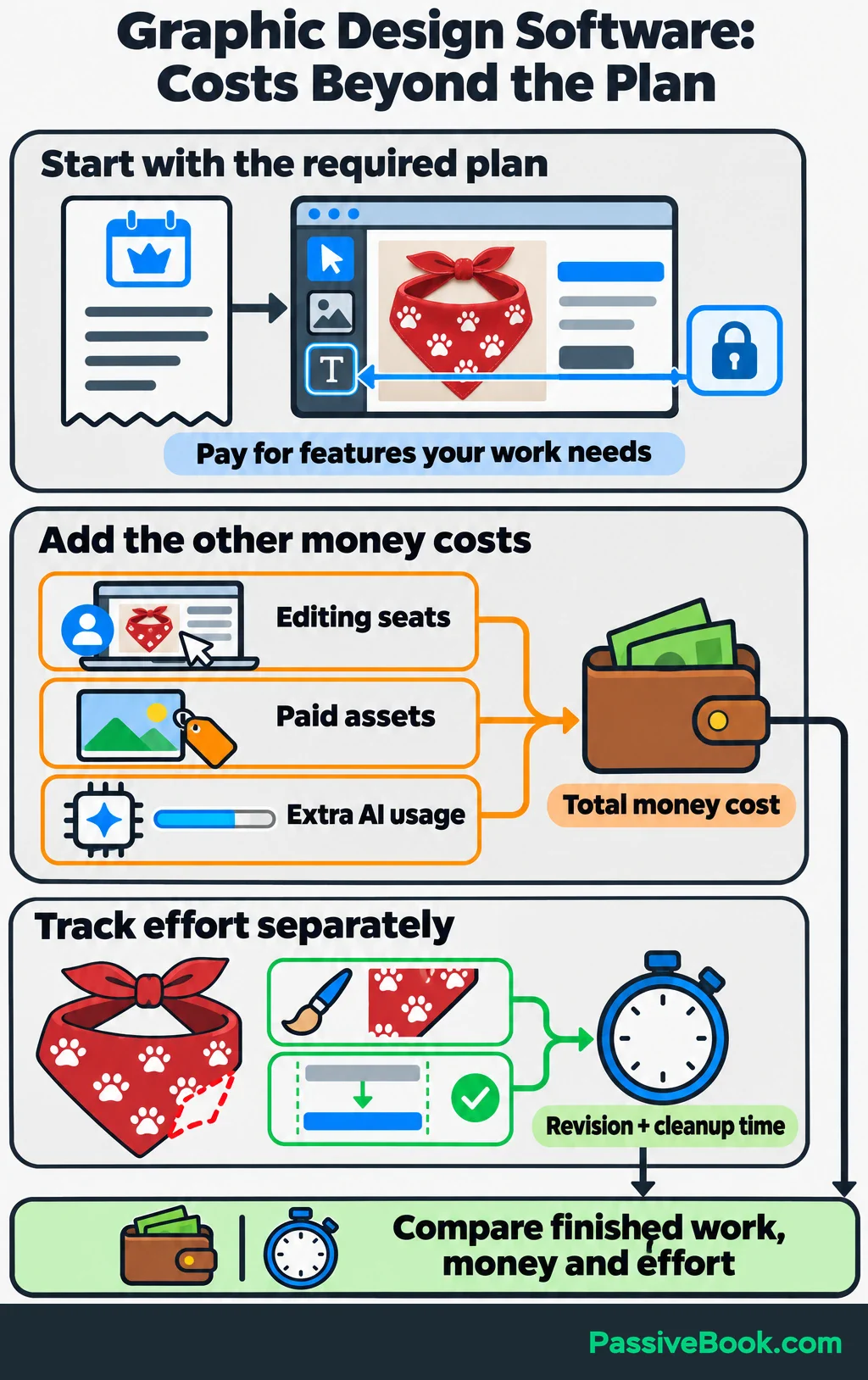
Compare the whole cost: the required plan, editing seats, paid assets and extra AI usage. Include cleanup effort when judging AI features. A generated background that needs extensive repair has not finished the job.
Once two tools pass your design test, compare their costs over the same period. Annual payments and required extras can change which option costs less.

Free Software Cost Calculator




My starting choice for the example shop would be Canva Free, with saved layouts for listings, Pins and email banners. I would add Affinity if detailed image edits or printed inserts became regular work. I would pay for Canva Pro when a feature I repeatedly need justifies it.
Choose one primary editor, save your brand assets and keep the layouts that work. Add another tool when a repeated task gives it a clear job.
What Next?
Choose one graphic you need this week and make it in two tools suited to that task, using the same source material. Then revise it and export it again—the revision often reveals more than the first design.
Use the social buttons to share this comparison when a tool discussion needs to move from feature lists to actual work.
Which recurring design task takes more effort than it should? Tell me in the comments, and bring any other questions about choosing your setup.
Share this post with your friends & followers:

