A customer asks about a download, your reviewer has comments on an old draft, and the release deadline is buried in an email. Each task is manageable, but finding the right message, file, and next step takes work.
Adding business software can help, but it also brings decisions about accounts, subscriptions, and who can see what.
This guide shows how to connect those loose ends in Google Workspace. We’ll follow one product from customer inquiry through revision and approval, with the account setup and sharing rules that keep the work under your control.
How Google Workspace Works for a Business
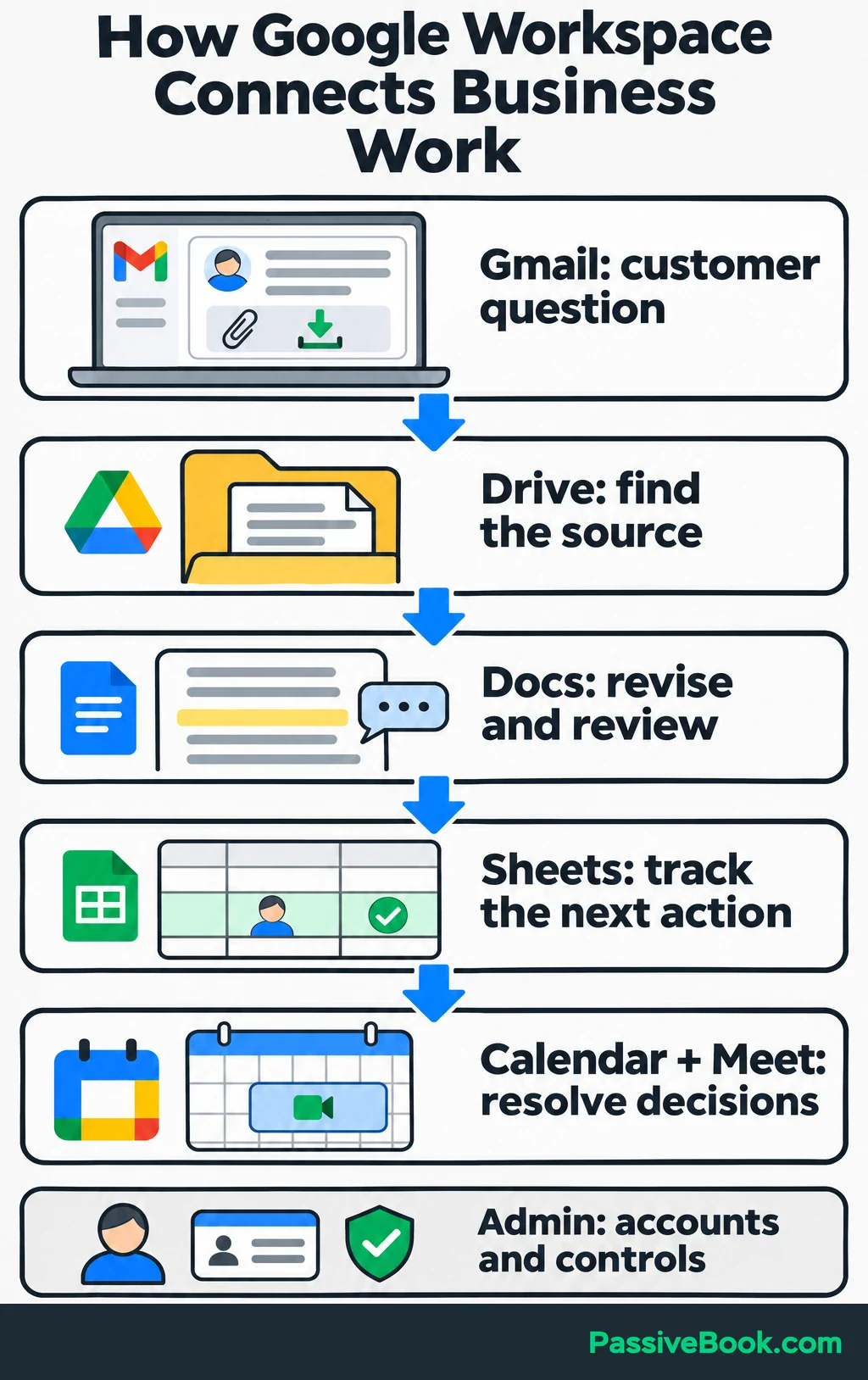
Use Google Workspace as a connected place to handle communication, files, and daily work. Each tool has a clear job:
| Tool | What You Use It For |
|---|---|
| Gmail | Answer customers, suppliers, and collaborators |
| Drive | Store working files and control access |
| Docs | Write instructions and review changes |
| Sheets | Track tasks, owners, deadlines, and status |
| Calendar | Reserve work time and schedule reviews |
| Meet | Discuss work when a conversation helps |
| Admin | Manage business accounts, licenses, and settings |
For custom-domain email and control over business accounts, choose a domain-verified Business setup. Your organization manages those accounts. A personal Google account remains under the individual owner’s control, even when that person uses it for business.
Sign in with your managed account and open the tools through Google’s app launcher—the grid of dots near your profile picture. I would also create a separate browser profile for business work. It makes it easier to upload files and accept invitations with the right account.
Throughout this guide, imagine you run a shop selling downloadable watercolor practice packs. You answer download questions, revise painting instructions, collect an illustrator’s feedback, and prepare each release.
I recommend Workspace when you need a full business inbox alongside shared files and documents. The useful part is having those tools work together, so a message can lead straight to the file and task it concerns.
Choose Your Accounts and Subscription
Count People Separately From Email Addresses
Start by listing the people who need accounts, then list the addresses customers need to contact.
Each person who needs a managed business identity should have an individual account. Avoid sharing one login. Separate accounts let you remove one person’s access without changing everyone else’s password.
An occasional outside reviewer may only need access to selected files through their existing Google account. You don’t automatically need to buy them a Workspace license.
Email addresses serve different purposes:
| Choice | What It Provides | Example |
|---|---|---|
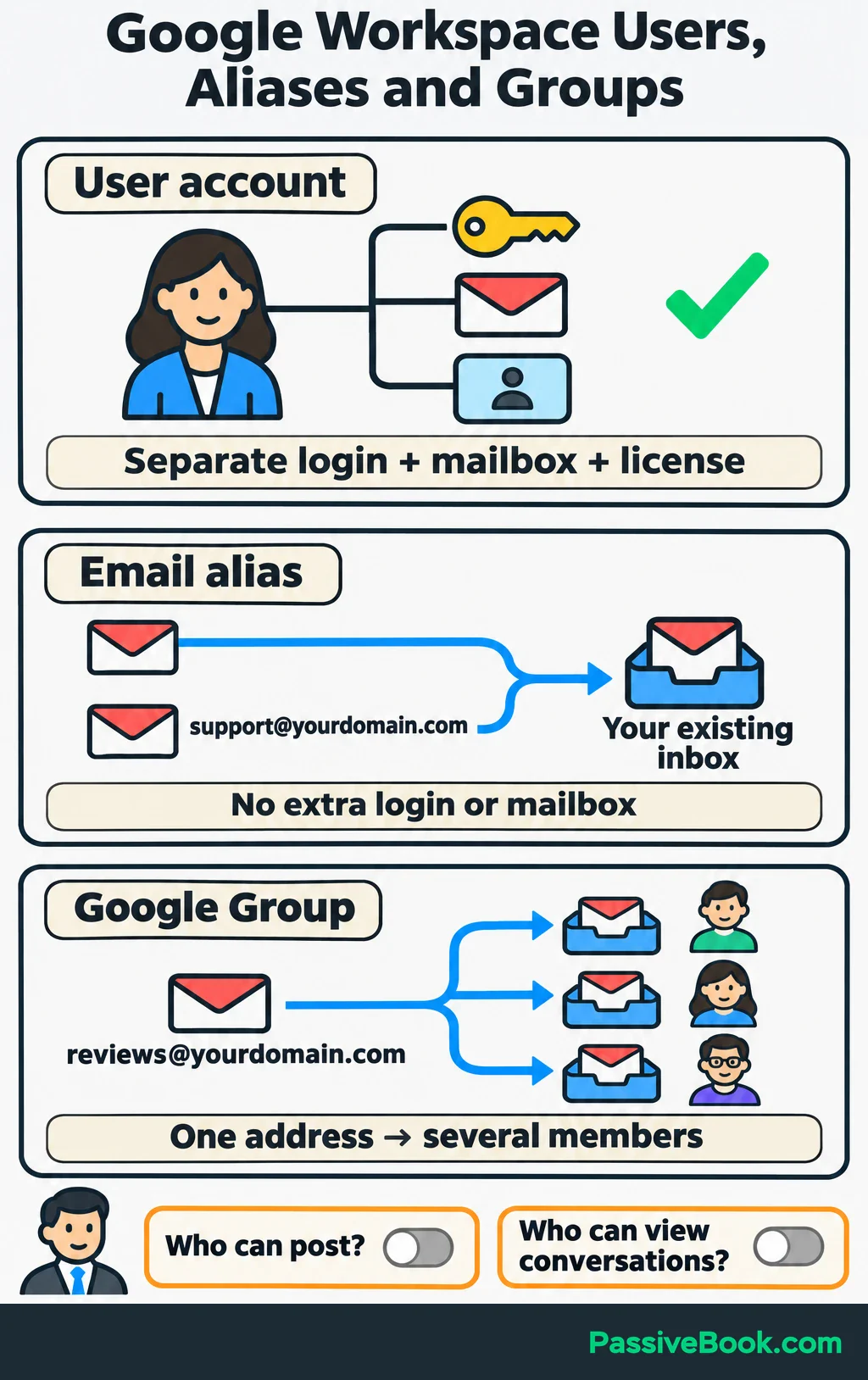
| User account | A separate login, mailbox, and managed identity | Your own named business account |
| Email alias | Another address that delivers to an existing user’s inbox | [email protected] reaches you |
| Google Group | An address that distributes messages to several members | [email protected] reaches the review team |
An alias does not add a separate mailbox, Google login, or license charge. You sign in through the account it belongs to. That makes it useful when you handle several roles yourself. Google’s email-alias explanation.
For the watercolor shop, I would begin with your named account and a support alias. Add a Group when several people genuinely need the same messages.
Before using a Group for customer inquiries, allow outside customers to post and restrict who can view conversations. Message delivery and conversation visibility are separate settings.
Match the Plan to the Work You Need to Do
Choose the lowest edition that covers your actual work. Compare storage, meeting needs, and administrative controls before paying for features you might use someday.
The table shows standard USD subscription rates and the main differences between Business editions. Check local checkout prices, taxes, and domain renewal separately. See Google’s payment-plan pricing and Business edition comparison for current details.
| Edition | Monthly USD Per User, Annual Commitment | Flexible Monthly USD Per User | Pooled Storage Per User | Meeting Capacity | Main Reason to Choose It |
|---|---|---|---|---|---|
| Business Starter | $7 | $8.40 | 30 GB | 100 participants | Business email and core collaboration |
| Business Standard | $14 | $16.80 | 2 TB | 150 participants | Meeting recording or more storage |
| Business Plus | $22 | $26.40 | 5 TB | 500 participants | Vault retention, eDiscovery, or larger meetings |
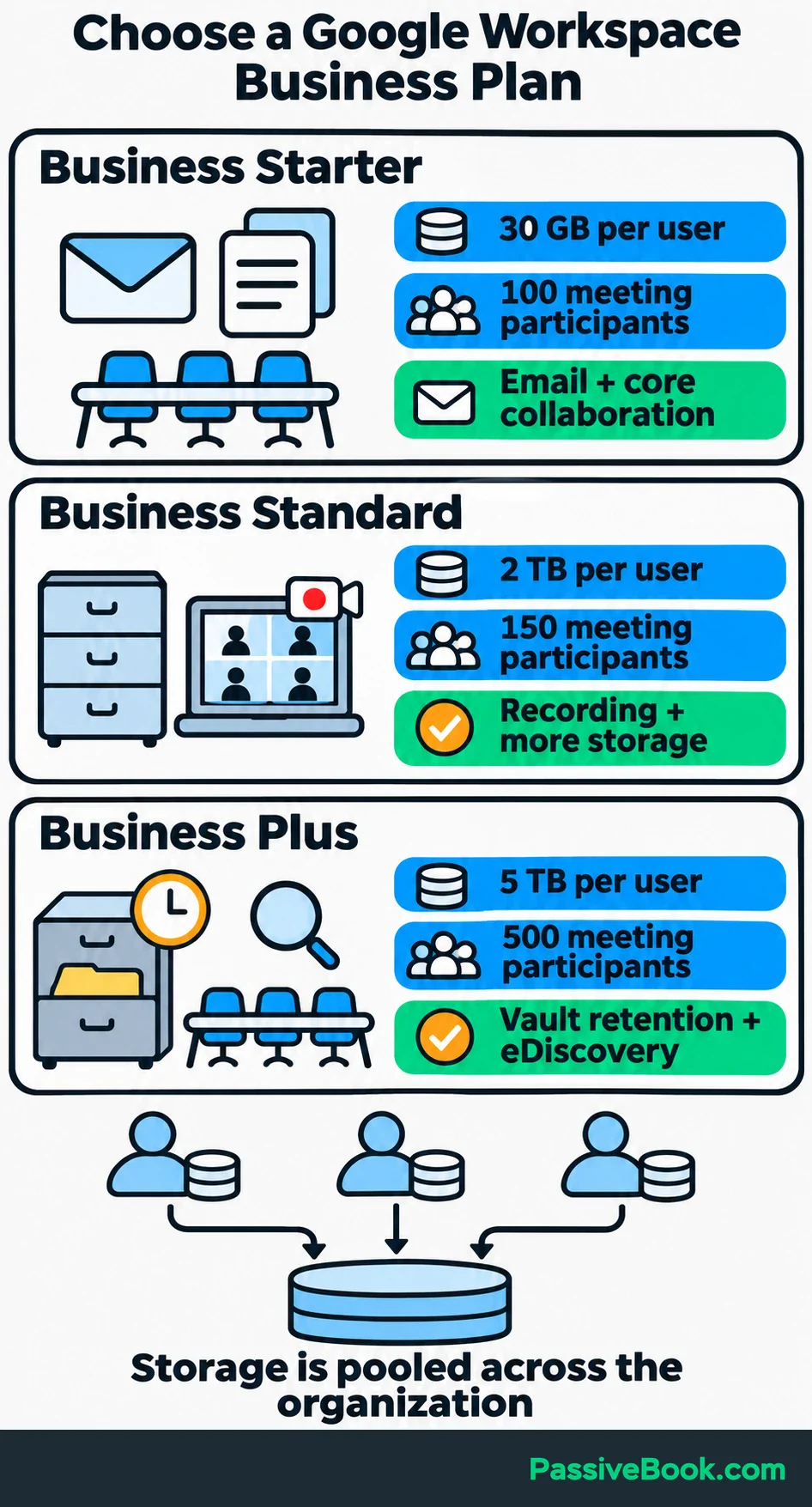
Pooled storage means each licensed user contributes to a storage allowance shared across the organization. Business editions support 1–300 users.
Vault lets you keep business records for a set period and search them for legal reviews, a process called eDiscovery. I would only pay for that upgrade when a specific records requirement calls for it.
Calculate the subscription from licensed users, not the number of email addresses. For example, two Starter users cost:
- $16.80 per month on Flexible billing.
- $14 per month with a $168 annual commitment.
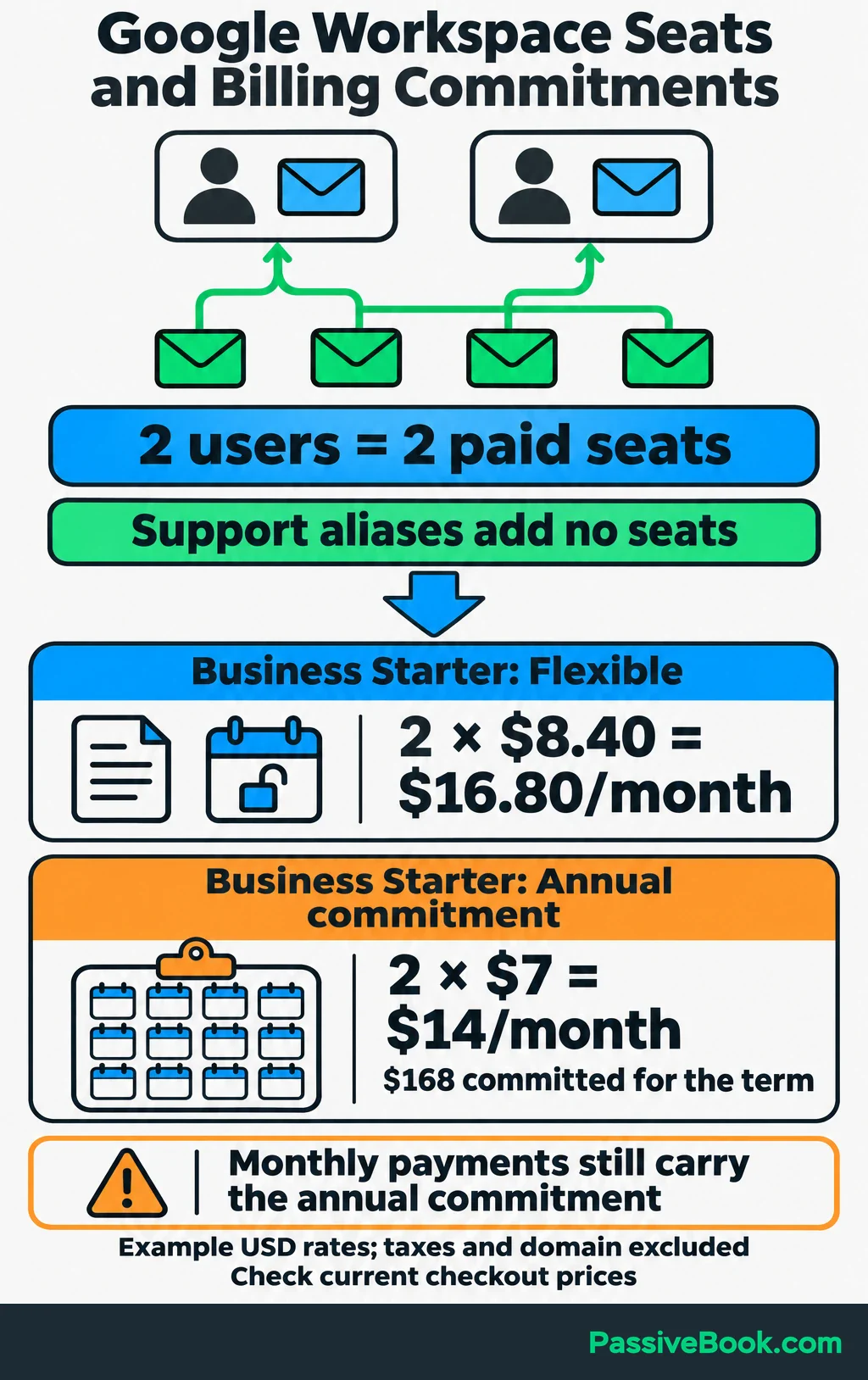
Both figures exclude taxes and domain costs. Support aliases don’t add seats.
I would choose Flexible while account needs are uncertain. An annual plan can cost less, but paying it monthly still leaves you committed for the term. You can reduce committed licenses at renewal.
Before canceling another subscription, test representative files and the work you need to complete. Keep specialist software where it earns its place. A watercolor shop still needs suitable artwork tools, and a newsletter still needs an email marketing system.
Set up Secure Business Accounts
Create the Organization and Verify Your Domain
Have these ready before starting:
- Access to your domain’s DNS settings.
- Billing information.
- A recovery email you can reach independently of the new Workspace account.
- A saved copy or export of your existing DNS records.
DNS settings tell internet services where to find your website and deliver your email. Your domain registrar may manage them, or they may sit with a service such as Cloudflare.
Sign up for Google Workspace and follow the domain-verification prompt. Google supplies a TXT record, a text entry you add to your DNS settings. Add the record, then return to Google to confirm domain ownership.
Verification does not move your email. Keep your domain registration and website hosting in place.
Open admin.google.com with your administrator account. Create the named users, assign their licenses, and add the aliases or Groups you planned earlier.
Protect Administrator and User Access
Use a unique password, enable two-step verification, and add recovery details. Two-step verification asks for extra proof when you sign in, such as a security key or a code.
Store backup codes somewhere secure outside the account they protect. Codes saved only inside a locked account are an impressive exercise in circular thinking.
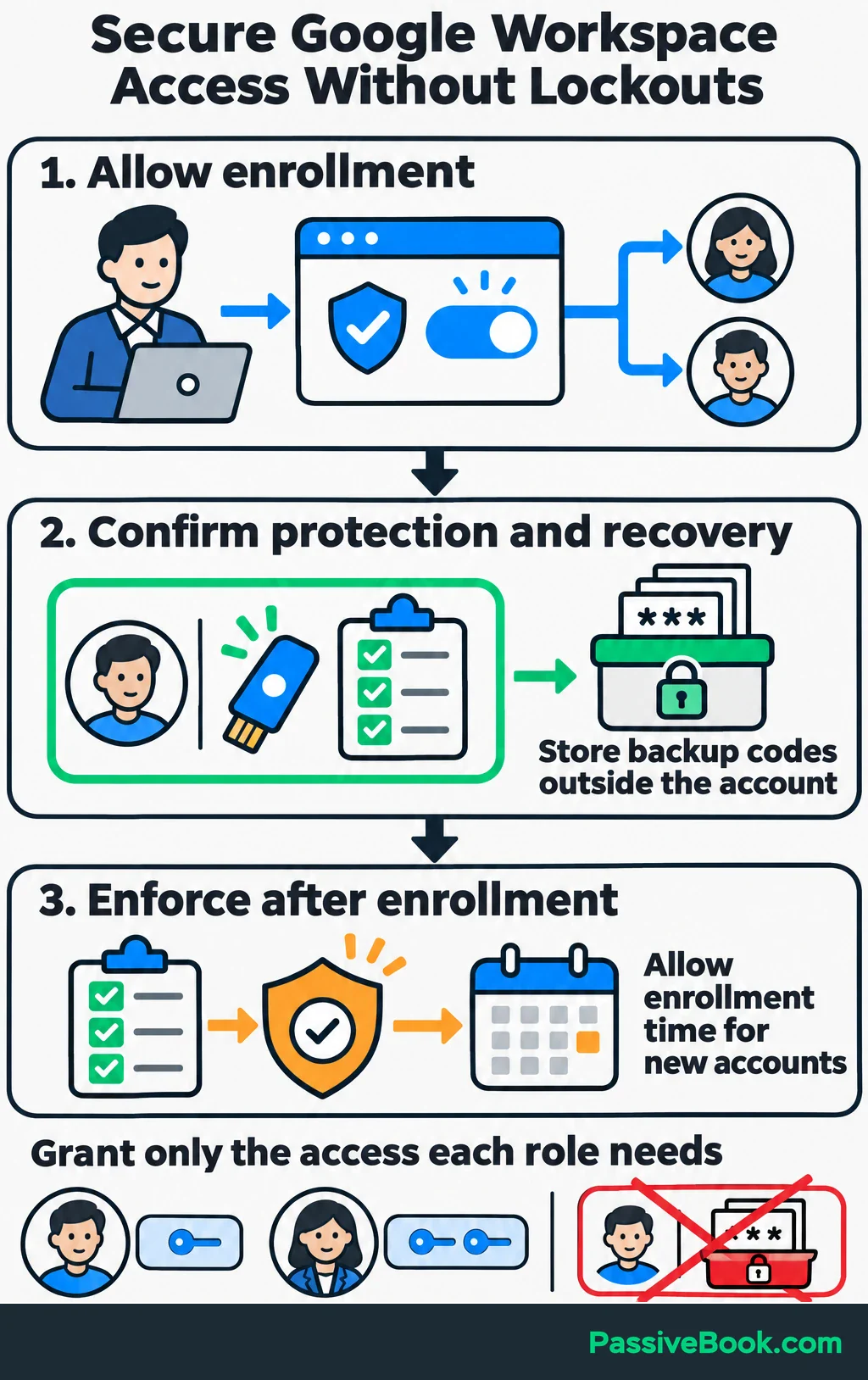
Keep recovery details for your domain account outside Workspace too.
Give people ordinary user access. For tasks such as managing users, assign a limited administrator role.
For the wider team:
- Allow users to enroll in two-step verification.
- Confirm that everyone has enrolled and saved recovery options.
- Enforce it, with an enrollment period for new accounts.
Google also requires two-step verification for administrator accounts. Its deployment guidance explains enrollment and enforcement.
Activate Gmail and Move Existing Email
Treat mail routing and historical messages as two separate jobs.
First, list your existing mailboxes, aliases, forwarding rules, and services that send email from your domain. Create the receiving accounts and addresses in Workspace before changing delivery.
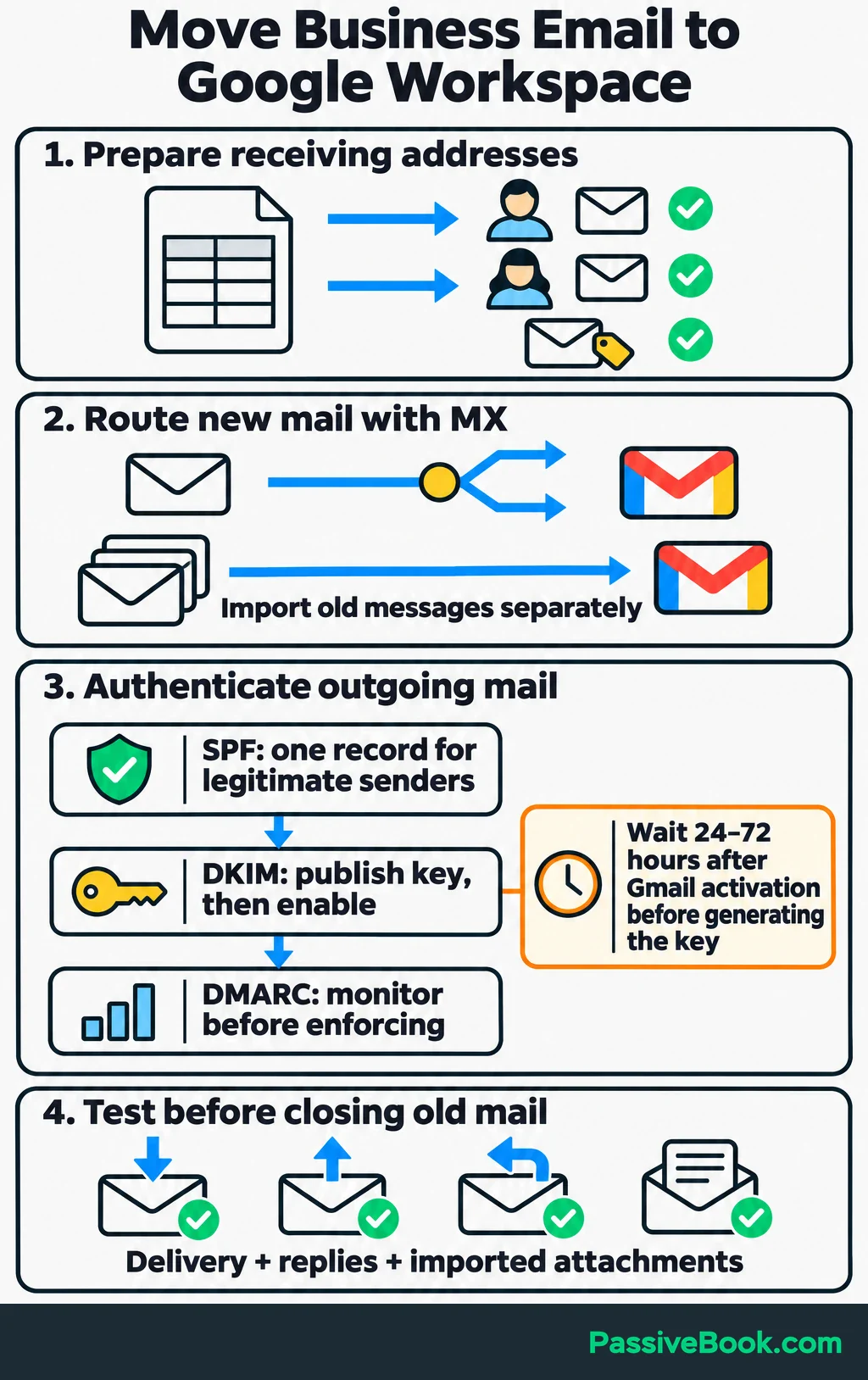
Next, replace the old provider’s MX records with the values Google supplies during Gmail activation. MX records tell other mail servers where to deliver incoming messages. Preserve unrelated website records and allow time for DNS changes to spread.
Then authenticate outgoing mail:
- SPF lists the services allowed to send for your domain. Put Google and other legitimate senders, such as your website’s email service, in one SPF record. Update any existing record rather than adding a second.
- DKIM adds a verifiable signature to outgoing messages. Generate the record in Admin, publish it in DNS, and then turn on authentication.
- DMARC adds reporting and a policy for messages that fail authentication. Begin with monitoring and check legitimate senders before applying stronger enforcement.
Allow 24–72 hours after activating Gmail before generating a DKIM key. Follow Google’s DKIM setup guidance and DMARC rollout guidance.
Import old messages using the migration method for your previous provider. Changing MX records only redirects new mail.
Before closing the previous service:
- Send a message to an outside email account and reply.
- Send an outside message to each important business address.
- Check alias delivery and the address shown on replies.
- Open representative imported messages and attachments.
Manage Business Correspondence in Gmail
Start with a recognizable sender name and a short signature containing your name, business name, and useful contact details.
If you use a support alias, configure Gmail to send from that address. Send a test reply to an outside account and check what the customer sees. Receiving mail through an alias does not mean every reply will automatically use it.
Keep your labels simple. I would start with:
- Support for customer questions.
- Billing for payment and subscription messages.
- Waiting for conversations that need someone else’s response.
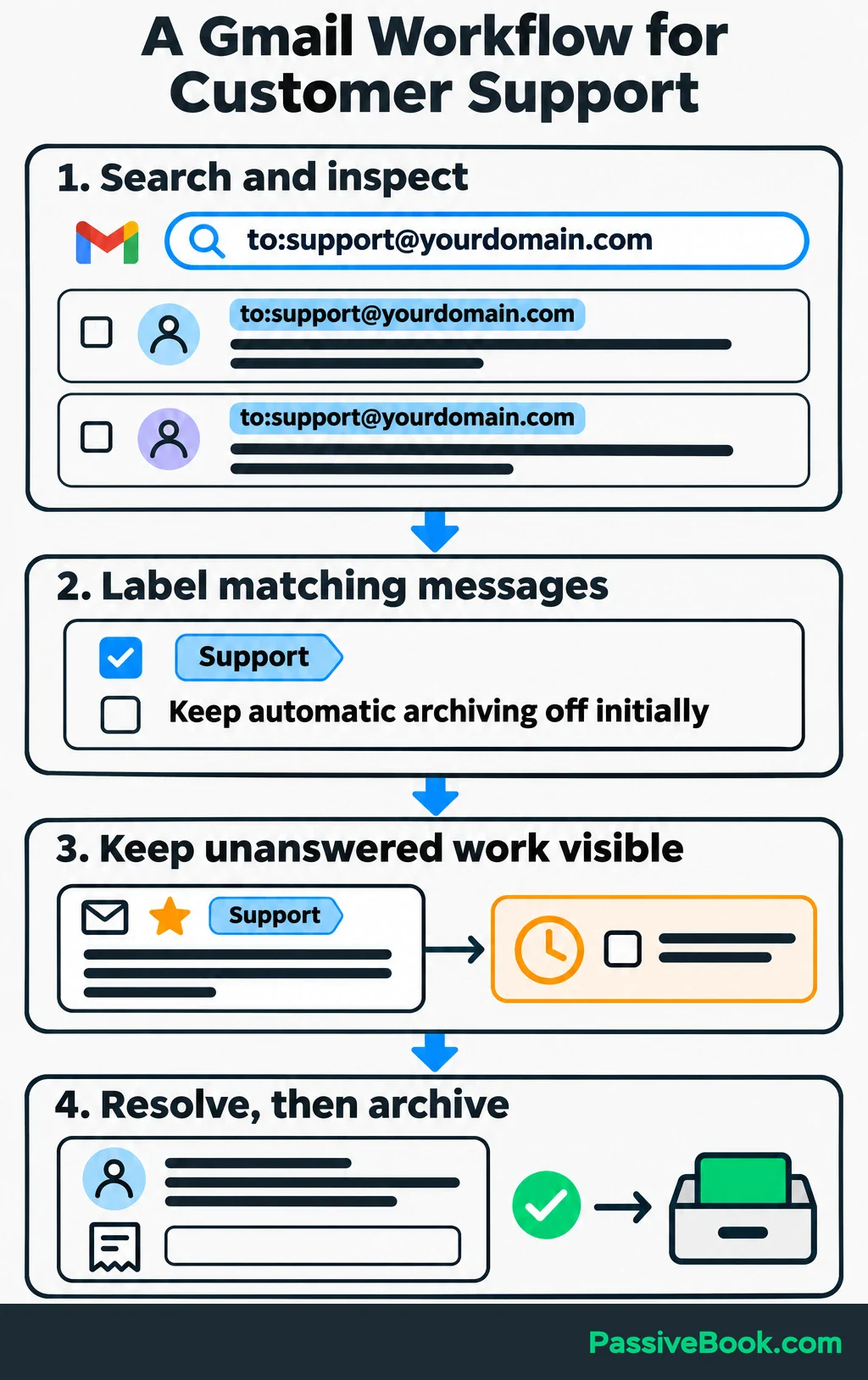
Labels organize messages inside your mailbox. They do not create separate inbox accounts.
To label support messages automatically, search for to:[email protected] and inspect the results. If they match what you want, create a filter from that search and apply the Support label. Leave automatic archiving off until you trust the filter.
Keep unanswered inquiries visible with a star, or add a dated follow-up reminder in Google Tasks. Archive a conversation after you finish it, and use search when you need it again.
For repeated questions, save a reply you can personalize. A watercolor-pack download response might begin:
Your download link is in the order-confirmation email. Search your inbox for “[Shop Name]” and check your spam folder too.
If you still can’t find it, reply with your order number and the email address used at checkout. Please don’t send payment-card details.
Check the actual order before promising a replacement or refund. A reusable reply should remove typing, while leaving the judgment with you.
Organize Business Files in Google Drive
Choose a Lasting Home for Working Files
Choose where important files belong before uploading a large folder.
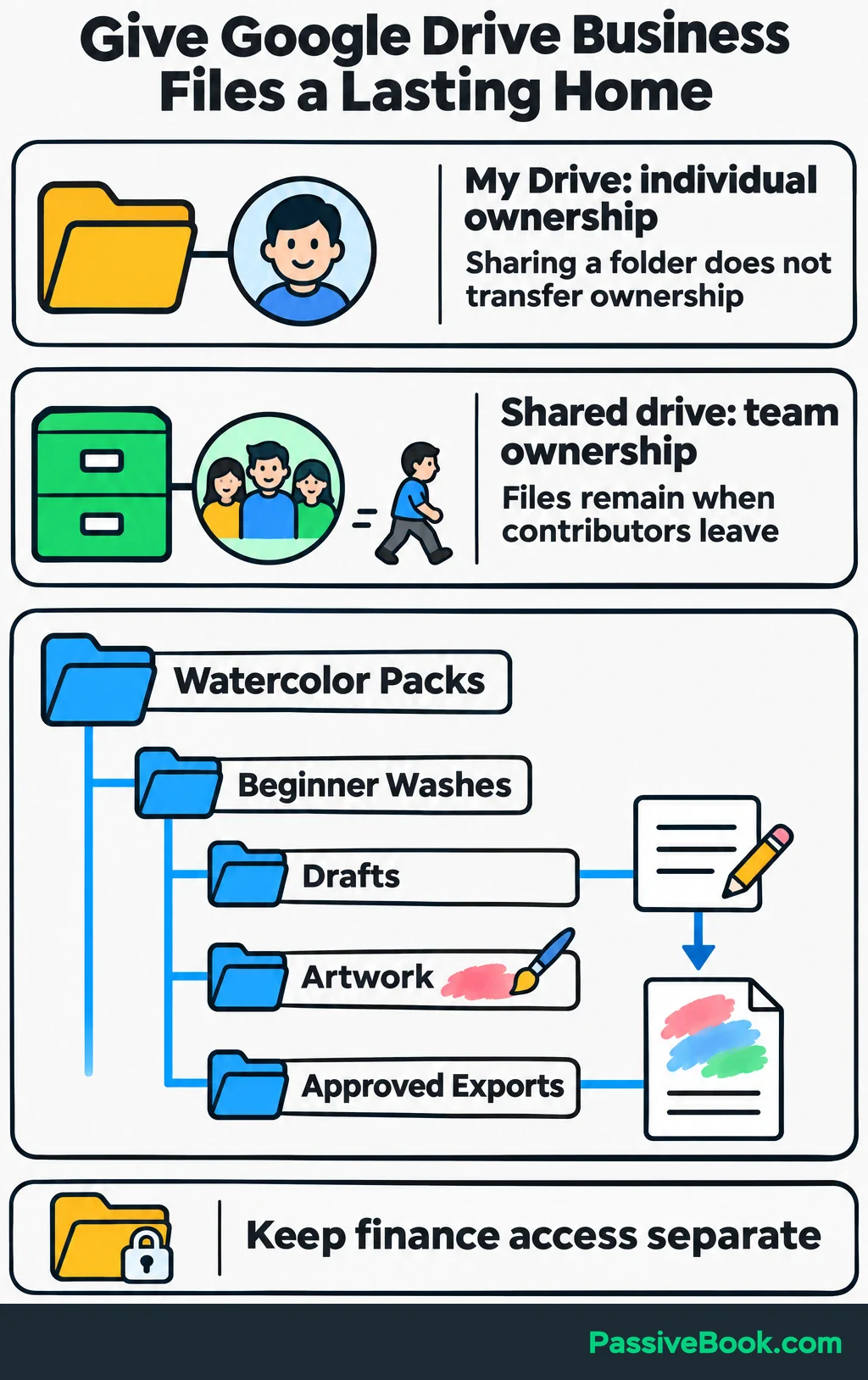
Files in My Drive belong to an individual account. Sharing a My Drive folder does not change that ownership.
Files in a shared drive belong to the team and remain there when contributors leave. That makes a shared drive a better home for lasting business materials. Google’s shared-drive ownership explanation.
Business Starter includes shared drives. Standard and Plus add controls for shared drives such as blocking external sharing or preventing viewers from downloading files.
Organize around who needs access. For the watercolor shop, I would use a product-production shared drive and keep finance and administration in a separate restricted location.
Within production, a simple structure works:
Watercolor Packs
└── Beginner Washes
    ├── Drafts
    ├── Artwork
    └── Approved Exports
Create or upload files in their intended location. Keep one working document per deliverable and send its link for review.
That gives everyone a clear place to work. A filename such as instructions-final-really-final.pdf is usually a request for help.
Share Only What Each Collaborator Needs
Keep working material restricted and invite named recipients.
For individual files, choose the permission that matches the job:
| Permission | Use It When |
|---|---|
| Viewer | Someone needs to read the approved material |
| Commenter | A reviewer should leave feedback or suggest edits |
| Editor | A collaborator needs to change the working file |
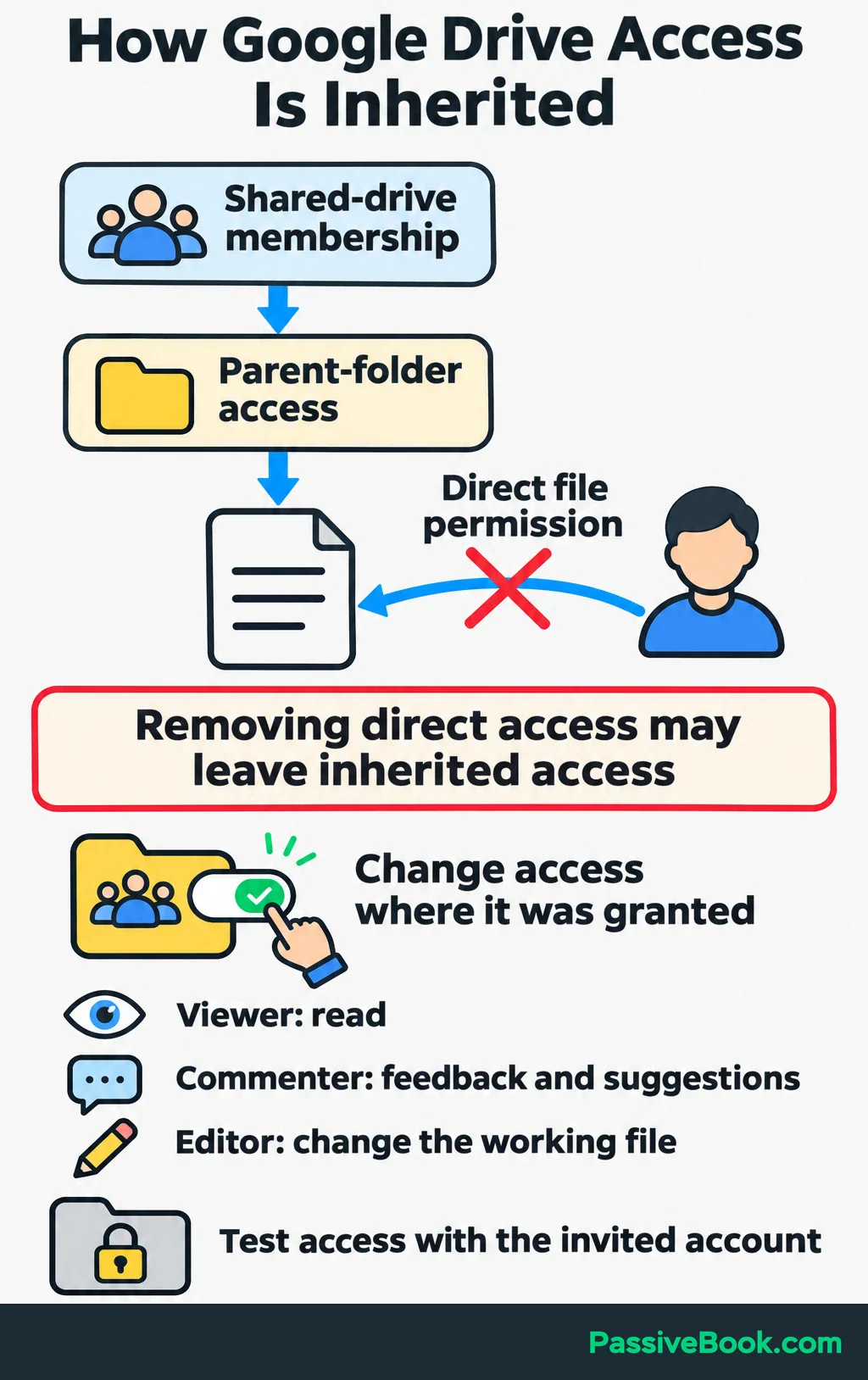
Before sharing, check the parent folder and shared-drive membership. Someone may already have access through either one.
Removing a direct file permission does not remove access inherited from a folder or drive. Change the broader access where it was granted. Google’s sharing and inheritance explanation.
For a one-off watercolor review, share the instruction draft with the reviewer. Give broader drive membership only when someone needs ongoing access across that drive.
Ask the collaborator to open the draft with the invited account, and confirm that unrelated finance files remain inaccessible. Remove project access when the work ends, including any relevant Group or drive membership.
Draft and Review Documents in Google Docs
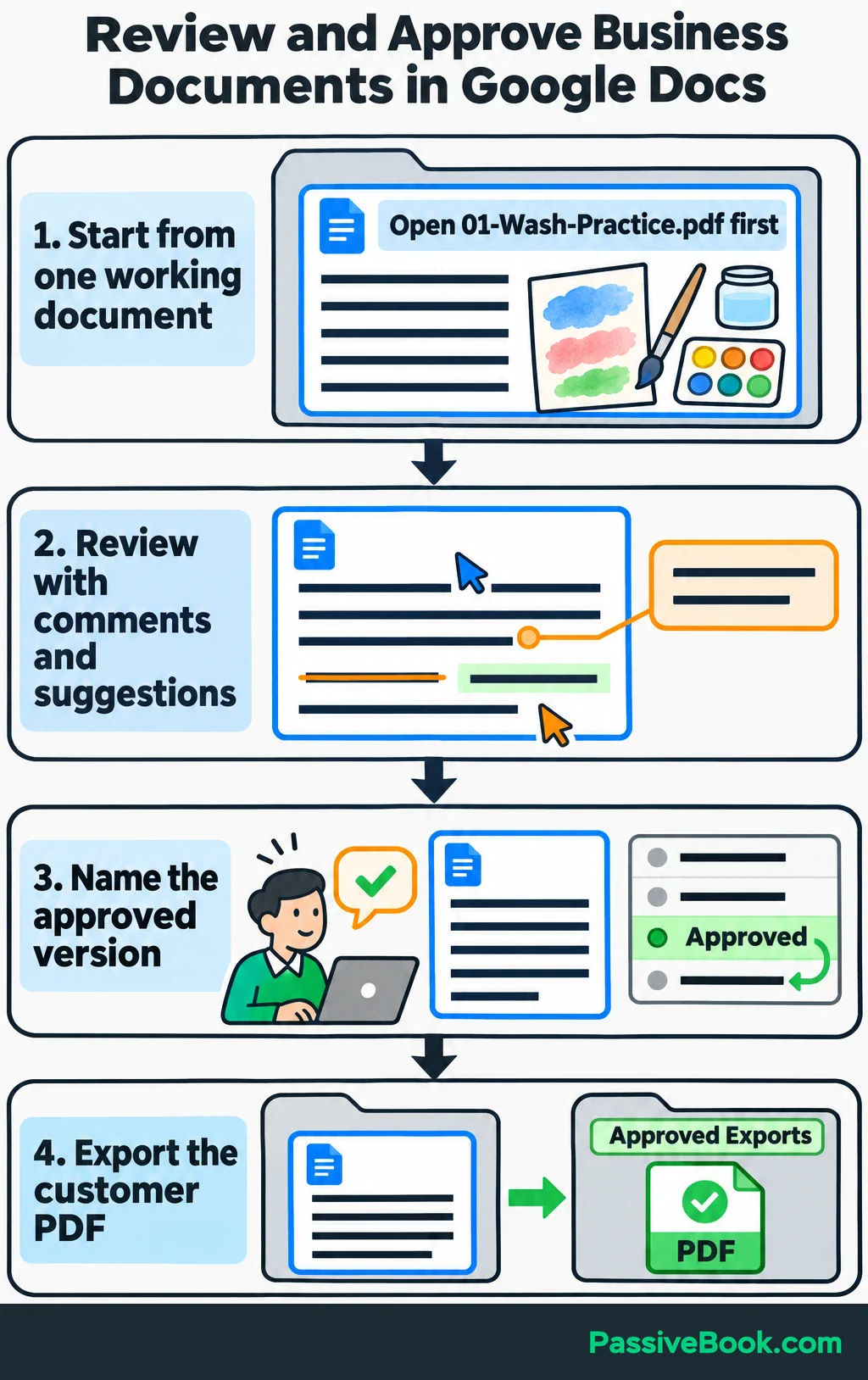
Create the painting instructions inside the product’s Drive folder. Give the document a clear name, such as “Beginner Washes — Painting Instructions,” and share the working link.
Use a repeatable structure:
- Purpose: what the buyer will practice.
- Materials: what they need before starting.
- Instructions: the steps in order.
- Supporting links: relevant artwork or references.
- Approval status: who reviews it and whether it is ready.
A question on one of my digital products made me rewrite the opening instructions. The buyer could follow the lesson but couldn’t tell which download to open first. I had spent my attention on the lesson itself, so I now put the starting file and first action near the top.
For the watercolor pack, that might be:
Open
01-Wash-Practice.pdf, print the practice page, and place your materials beside it before starting.
Use comments for questions and Suggesting mode for proposed wording changes. Give one person responsibility for resolving feedback and approving the document.
Before substantial revisions, name the approved version in version history. You can inspect changes or restore an earlier draft if needed.
Once approved, export a PDF for the customer download and put it in Approved Exports. Keep the editable document in Drive so the next correction starts from the source.
Track Tasks and Deadlines in Google Sheets
Decide what one row means before adding columns. For this release tracker, each row represents one task.
Create five columns: Task, Owner, Due date, File link, and Status. Give each task one responsible person, even when several people contribute.
Here is an illustrative tracker for the watercolor pack:
| Task | Owner | Due Date | File Link | Status |
|---|---|---|---|---|
| Review painting instructions | You | 12 May | Working instruction Doc | Needs review |
| Approve revised artwork | You | 13 May | Artwork review file | Needs review |
| Export the approved download | You | 14 May | Product source folder | To do |
In your Sheet, replace the file descriptions with links to the actual files.
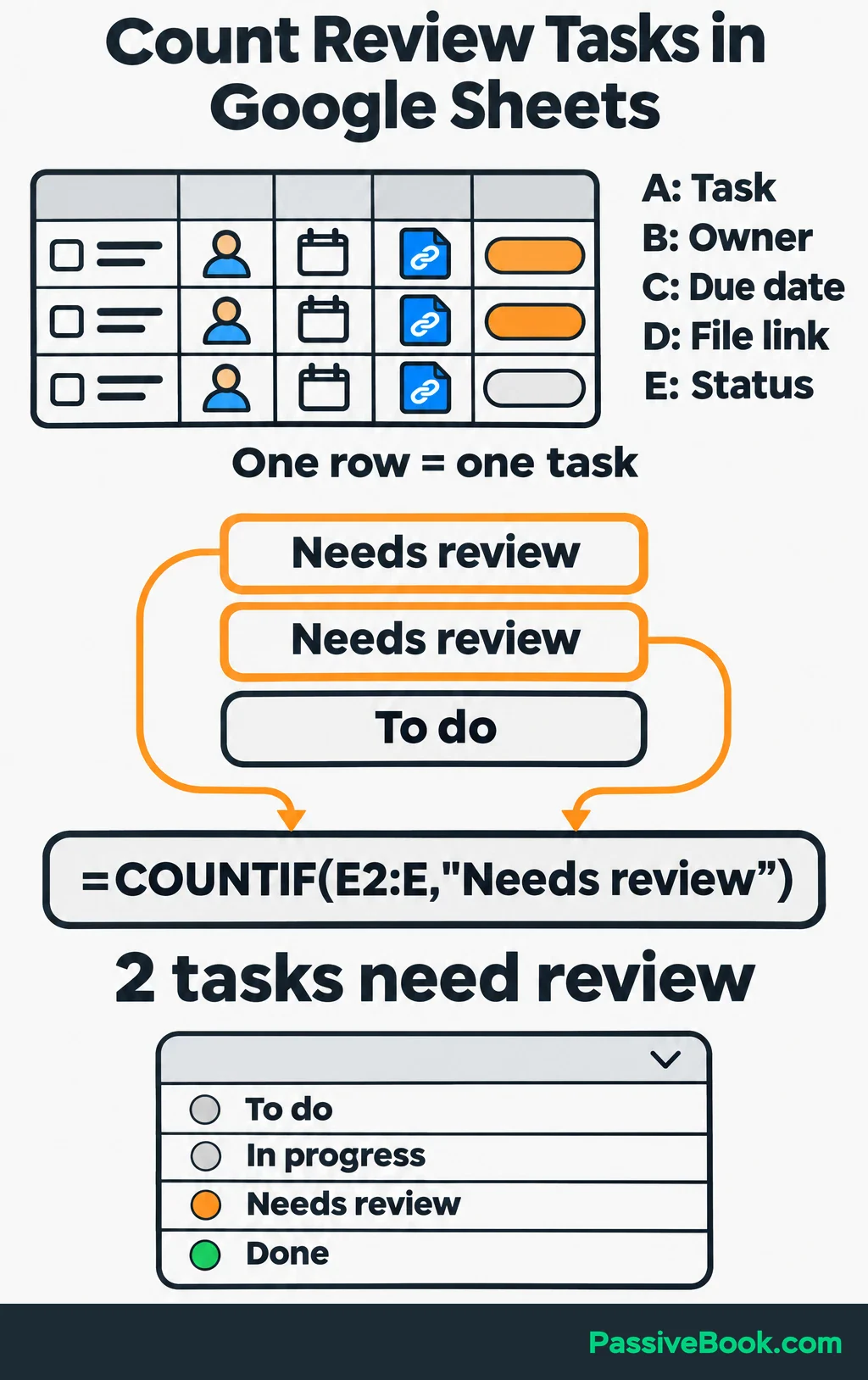
Add a status dropdown with four choices: To do, In progress, Needs review, and Done. Consistent labels make filtering and counting useful.
Use a filter view to inspect one owner’s tasks or unfinished work without changing everyone else’s view.
You can also count the tasks waiting for review. If Status is in column E, this formula counts rows from row 2 onward containing “Needs review”:
=COUNTIF(E2:E,"Needs review")The example has two matching task rows, so the result is 2.
Update the tracker after a decision. A review is not complete until the file, status, and next action agree.
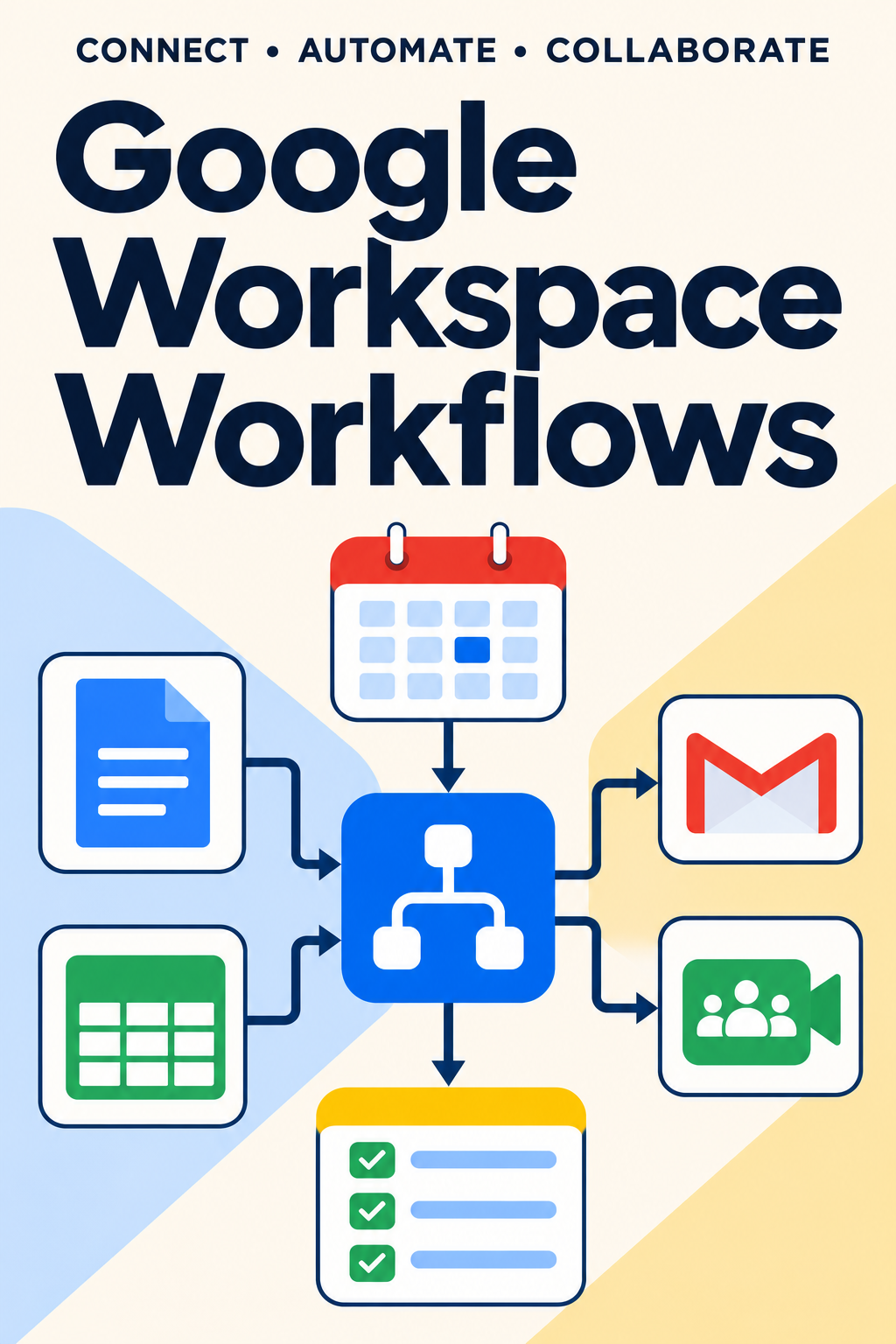
If you would rather start with the tasks and handoffs already laid out, copy our Google Workspace Workflows tracker. Add your owners, dates, and job name to put one real deliverable into it.
Free Google Workspace Workflows




Coordinate Reviews With Calendar and Meet
Set Calendar’s time zone before sending invitations, especially when a collaborator works elsewhere.
Use private work blocks for your own focused time. Add guests only when you are inviting them to attend. Where others only need to know when you are available, share free/busy availability rather than full event details.
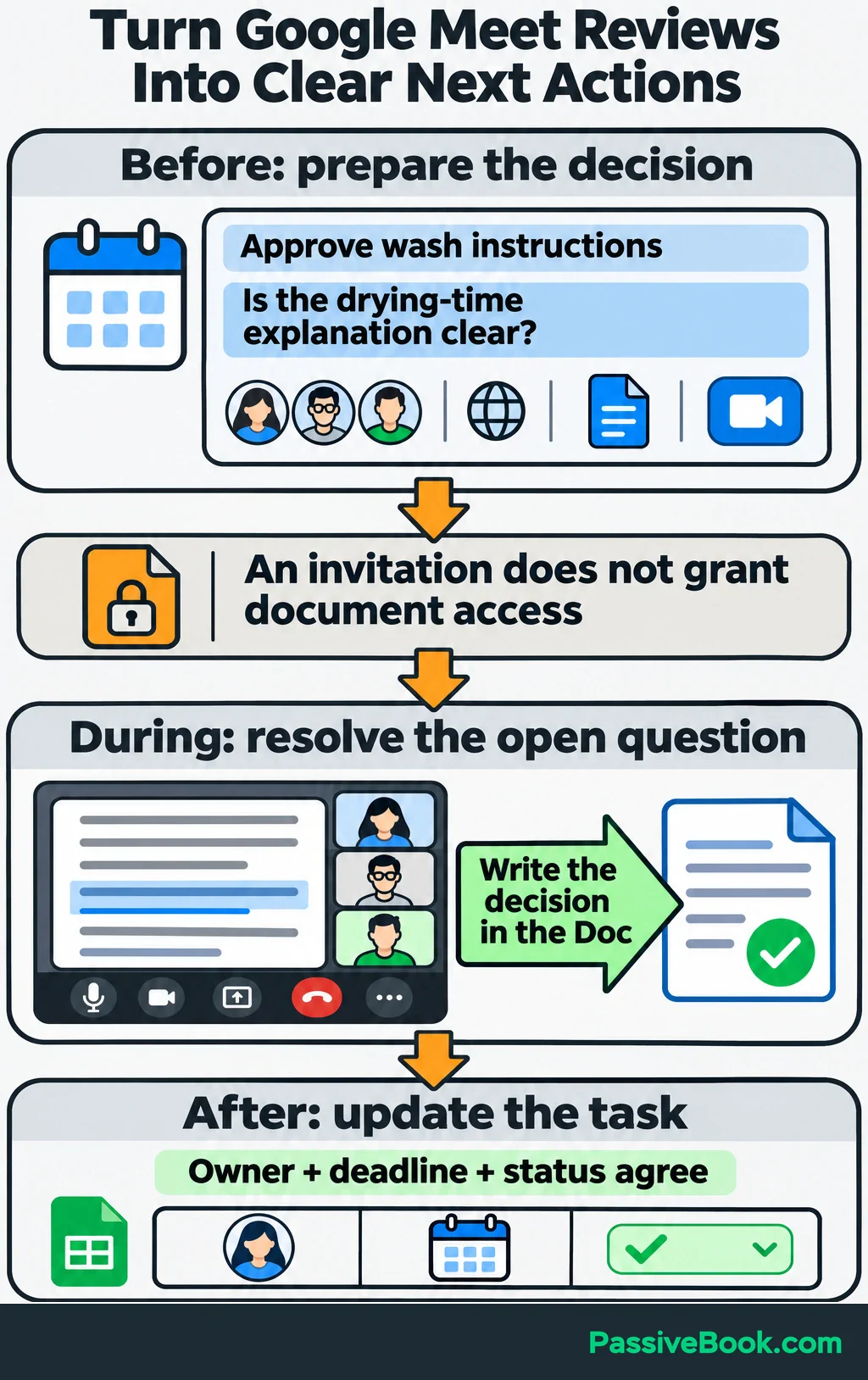
Schedule a review when comments have stopped resolving the issue. For the watercolor pack, the invitation could contain:
- Purpose: approve the revised wash instructions.
- Decision needed: whether the drying-time explanation is clear.
- Working document: the instruction Doc.
- Guests: only the people needed for that decision.
- Meeting location: a Google Meet link.
Check document access separately. An invitation with a file link does not guarantee that every guest can open the file.
Join from the event, check your audio, and present the relevant window. Record decisions in the working Doc, then update the owner, deadline, and status in Sheets.
Record only when a replay has a clear use. Business Standard and Plus support recording when an administrator allows it, and recordings save to the organizer’s Drive. Review access before sharing the replay. Google’s recording requirements.
Tell participants before recording and obtain any consent required by the rules that apply to the meeting. An in-product notification alone does not establish consent under every applicable rule.
Reduce Repeated Coordination
Connect the Workflow Before Adding Automation
Map one recurring handoff before adding another tool.
Write down what starts the work, what information is needed, who acts next, and what counts as finished. If you cannot explain those four things, automation will mostly move the confusion faster.
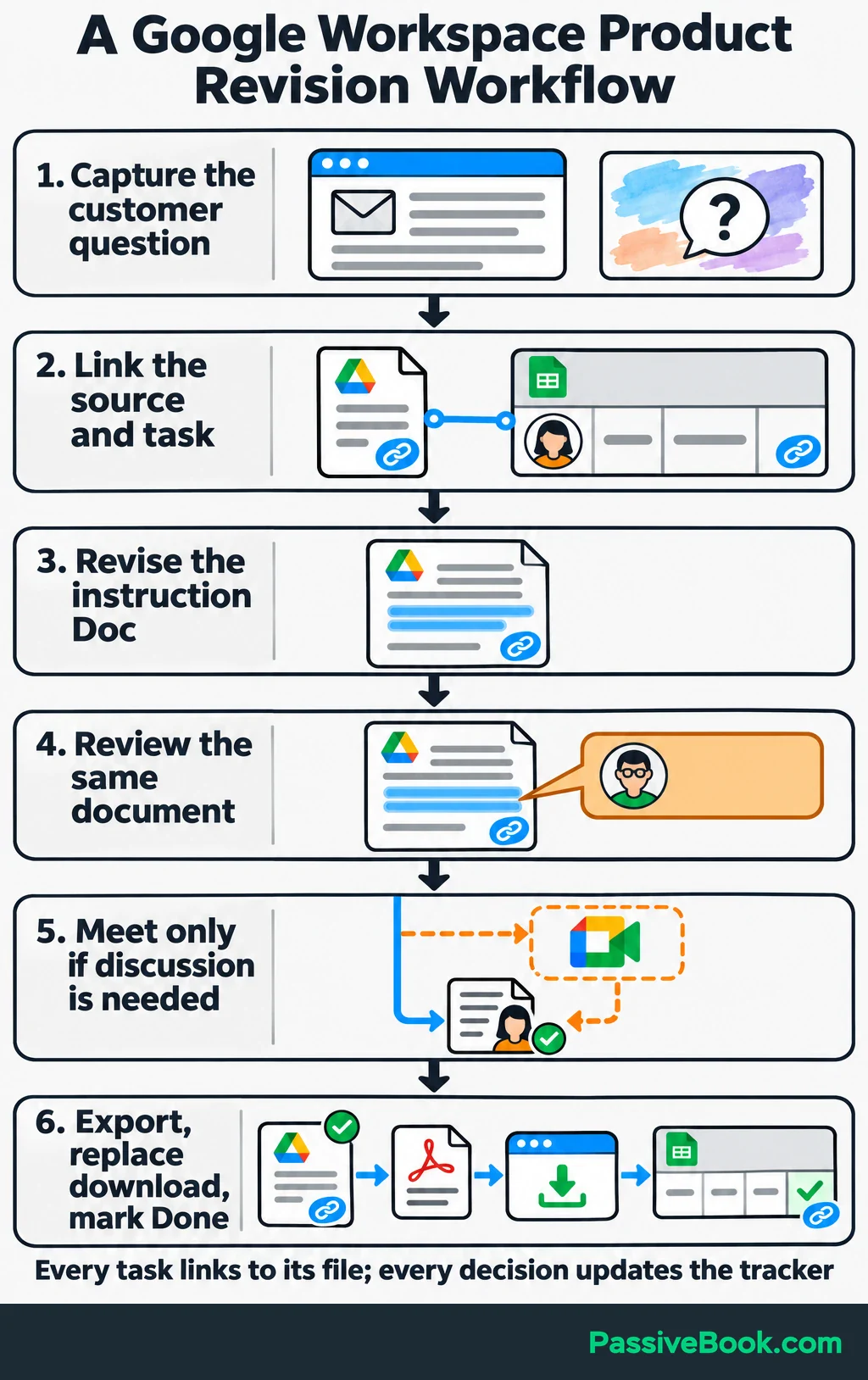
Here is the watercolor revision connected from start to finish:
- A customer emails support because an instruction is unclear.
- You locate the source document in Drive and add a revision task in Sheets.
- You revise the explanation in Docs.
- The reviewer comments on the same document.
- You hold a Meet review only if discussion is needed.
- After approval, you export the revised PDF, update the customer download, and mark the task Done.
The handoffs work because each task points to its working file and each decision changes the tracker.
Reuse Gmail filters, starting documents, and recurring review events before adding a paid automation service.
For structured feedback, create a Google Form asking which pack the customer used and which step caused trouble. Link responses to a Sheet, then turn actionable feedback into assigned tasks.
Keep the form’s editing access separate from customer access to submit responses. Also review the form and response Sheet permissions separately: later permission changes do not automatically stay in sync. Google’s linked-response permission guidance.
Automate One Handoff With Workspace Studio
Workspace Studio automates a sequence of actions, called a flow, when something happens or at a set time.
Business Starter, Standard, and Plus include Studio. Your administrator must enable Gemini for your account, and you need access to the apps used by the flow. Google’s Studio requirements.
I would start with a personal notification for support inquiries if you already use Google Chat, Workspace’s messaging app. You can check the handoff without giving an automation control over customer replies.
A flow uses a starter to decide when it runs and steps to perform actions. Variables carry information, such as an email’s sender and subject, into those actions.

To build the notification:
- Open Workspace Studio with your business account and create a flow.
- Choose “When I get an email” as the starter.
- To catch only support messages, choose “Specific emails” and enter
[email protected]in the To field. - Add the “Notify me in Chat” step.
- Write a short message and insert the starter’s sender and subject variables.
The resulting notification could read:
Support inquiry from [sender]: [subject]
Insert variables through Studio’s variable picker. Typing square brackets around a word does not connect it to the incoming email.
Review every step, then send a sample inquiry from an outside account. Choose Test run, select that email, and start the test. Test runs send real notifications, so check the message in Chat.
Turn on the flow once the notification looks right. Send a new support inquiry and an unrelated email to your main business address. Confirm that only the support inquiry triggers a notification.
Record who maintains it and how to handle inquiries manually if it fails. Your Gmail support label remains useful even when the flow stops working.
Keep the automation only if it helps. Compare missed inquiries and maintenance effort before and after using it. A notification you ignore is just another place to check.
Maintain Accounts and Recoverable Business Data
Set a recurring administrative review and repeat it whenever someone’s responsibilities change.
In Admin, check:
- Active users, paid licenses, and storage use.
- Administrator roles and two-step verification.
- Security alerts and connected-app permissions.
- External sharing and access that is no longer needed.
When someone joins, give them the account and project access their work requires. Then ask them to complete a real task. Opening the correct draft and leaving a comment tells you more than a successful login.
When someone leaves, suspend access, revoke sessions, and remove relevant memberships and sharing. Preserve required email, files, and calendars before deleting the account. If messages should continue reaching the business, arrange their delivery to an active address.
Suspension retains data and continues subscription charges. It also blocks new email to the suspended account, so it needs a follow-up decision. Google’s suspension explanation.
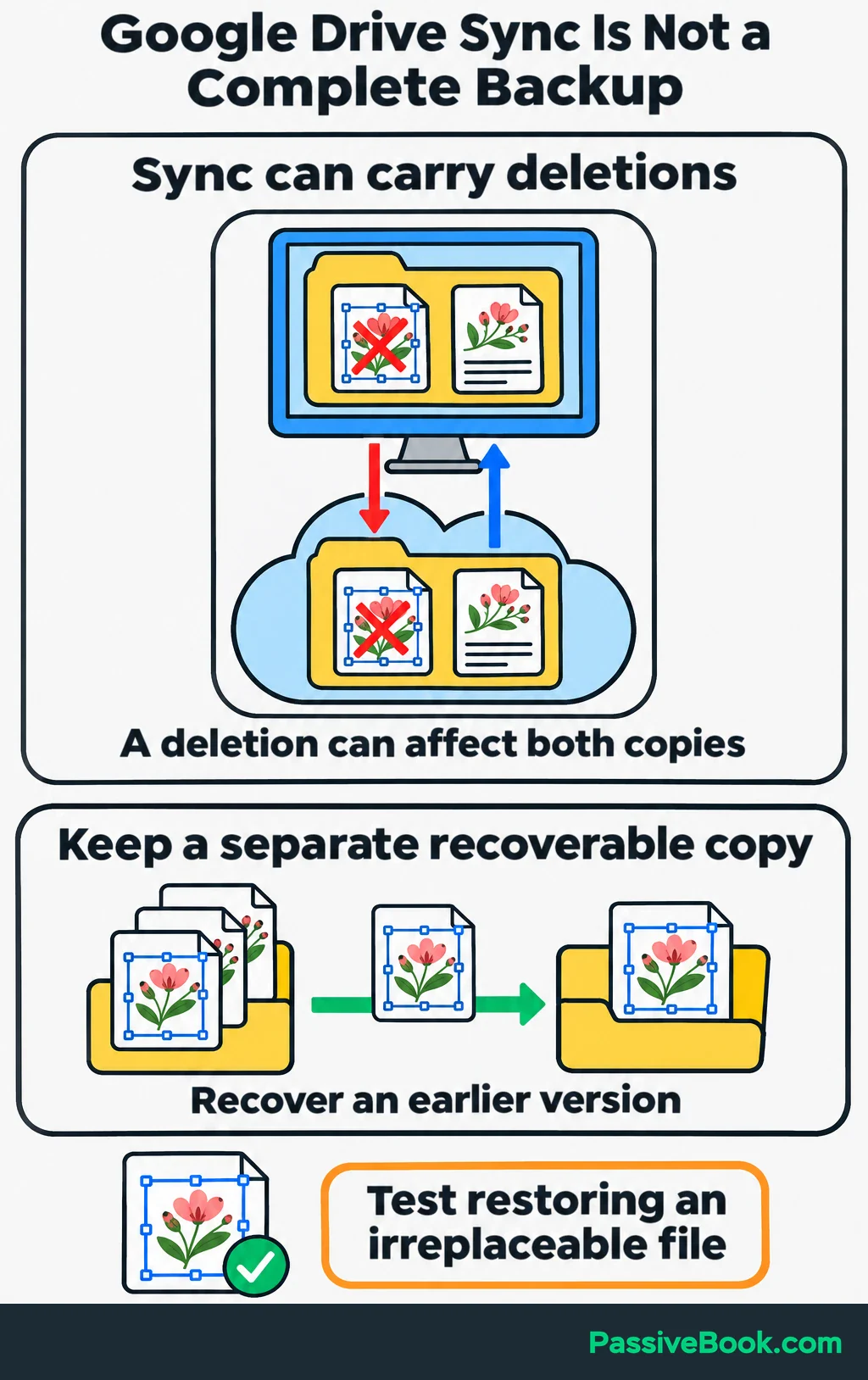
For the watercolor shop, keep separate, recoverable copies of irreplaceable artwork, source files, and approved products. Choose a backup method that lets you recover an earlier copy, then test restoring one.
A synced computer alone is insufficient. Drive synchronization carries deletions between the computer and cloud, so deleting a synced file can remove it from both places. Google’s synchronized-deletion explanation.
Keep a short operating document covering account recovery, file locations, sharing rules, and automation ownership. Store sensitive recovery material separately and securely.
During the same review, compare paid seats and overlapping subscriptions with actual use. I would rather remove a tool I no longer need than spend another afternoon trying to justify it.
What Next?
List the people who need accounts and the addresses customers need to contact. Separate those two lists before choosing a subscription, then test one product revision through the workflow above.
Use the social buttons to share this guide when scattered messages and files are slowing down a release.
Which handoff in your business causes the most chasing? Tell me in the comments, and add any questions about setting it up in Workspace.
Share this post with your friends & followers:

