A signup form looks cheap until you need payment collection, a second person to manage responses, and a connection to your email tool. Then the free plan starts asking for a credit card.
Choosing poorly can leave you copying registrations between apps or rebuilding forms when you hit an unexpected limit. The difficult part is spotting those limits before your business depends on the tool.
This comparison connects each builder’s strengths to the work you need done, so you can choose a form system that handles the submission and what happens afterward.
Which Online Form Builder Should You Choose?
My shortlist for the best form builder software starts with Fillout and Tally. Both cover useful business tasks on their free plans, so you can build a working form before committing to a subscription.
I would narrow the choice like this:
- Flexible Business Forms: Start with Fillout when you need conditional questions, calculations, payments, or scheduling.
- Free Forms With Logic: Choose Tally when you want generous free allowances and a document-style editor.
- Connected Business Workflows: Compare Jotform when submissions also need PDFs, signatures, or approvals. Consider Cognito Forms for calculated totals and Paperform for registration pages with more explanatory content.
- Simple Surveys: Use Google Forms or Microsoft Forms when their spreadsheet connections already fit your work.
- Existing WordPress Website: Start with Fluent Forms, then compare the other WordPress options against your required integrations.
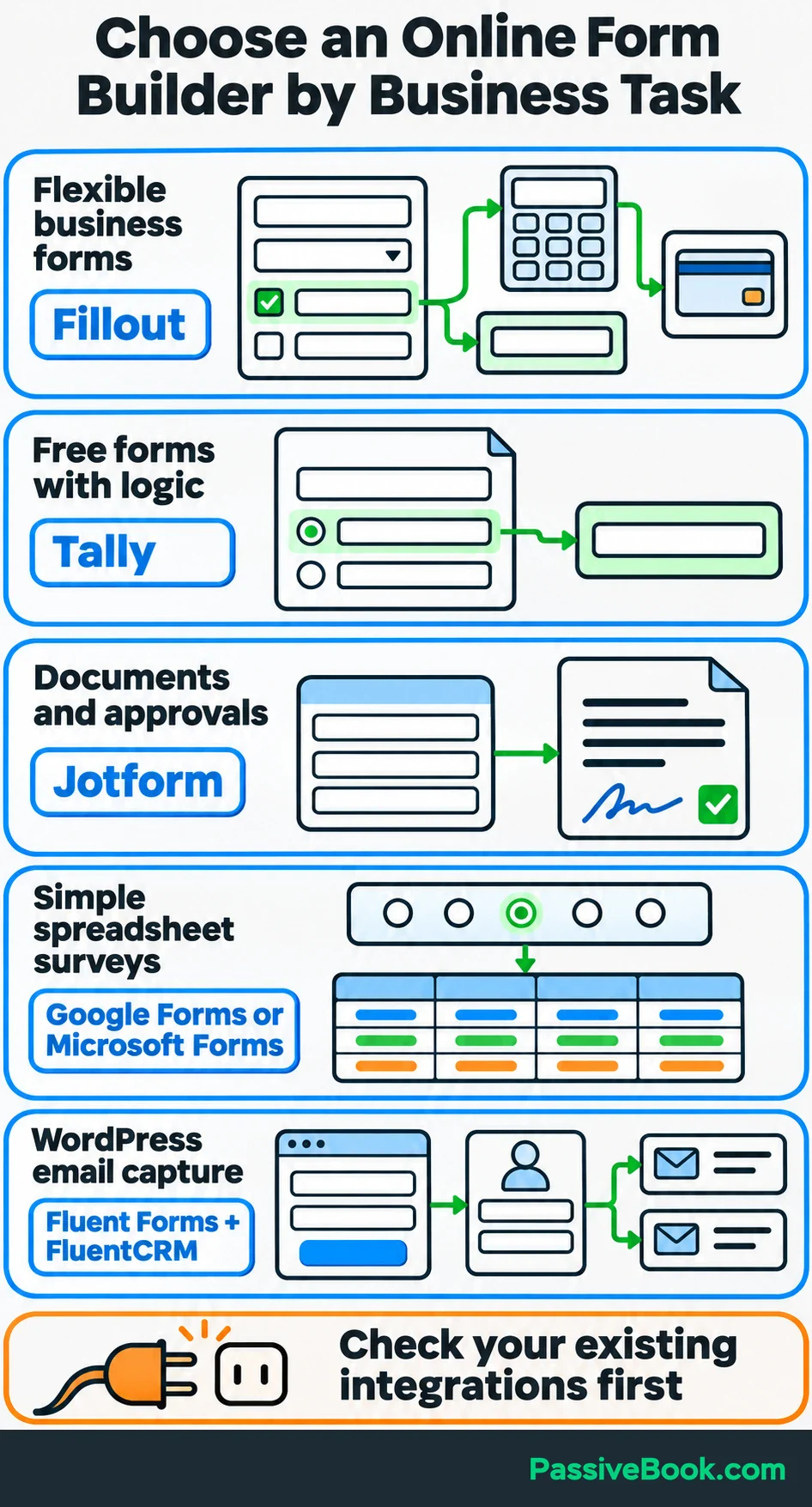
At Passive Book, I use Fluent Forms for forms and lead capture and FluentCRM for email automation. That connection matters to my choice. I would give your existing tools the same weight before buying another subscription.
To make the comparisons concrete, imagine you sell a beginner watercolor course. You need a brushwork-checklist signup, paid workshop registration, and attendee feedback.
Those three jobs may fit one builder, but they deserve different forms. A checklist request should be quick. A paid registration needs clear session details and a dependable payment record. Feedback needs useful questions, without turning into homework.
What Should You Compare Before Choosing?
Start by writing down what a successful submission must do. “Collect an email address” is incomplete if you also need to deliver a checklist, add a subscriber, and record their interest.
For the watercolor business, the destinations might look like this:
| Form | Information You Need | What Should Happen Next |
|---|---|---|
| Brushwork checklist | Email address and any necessary signup choices | Create or update the subscriber and deliver the checklist |
| Workshop registration | Name, email, session, and payment status | Create an attendee record and send access details after successful payment |
| Attendee feedback | Workshop attended, ratings, and comments | Save answers where you can review them together |
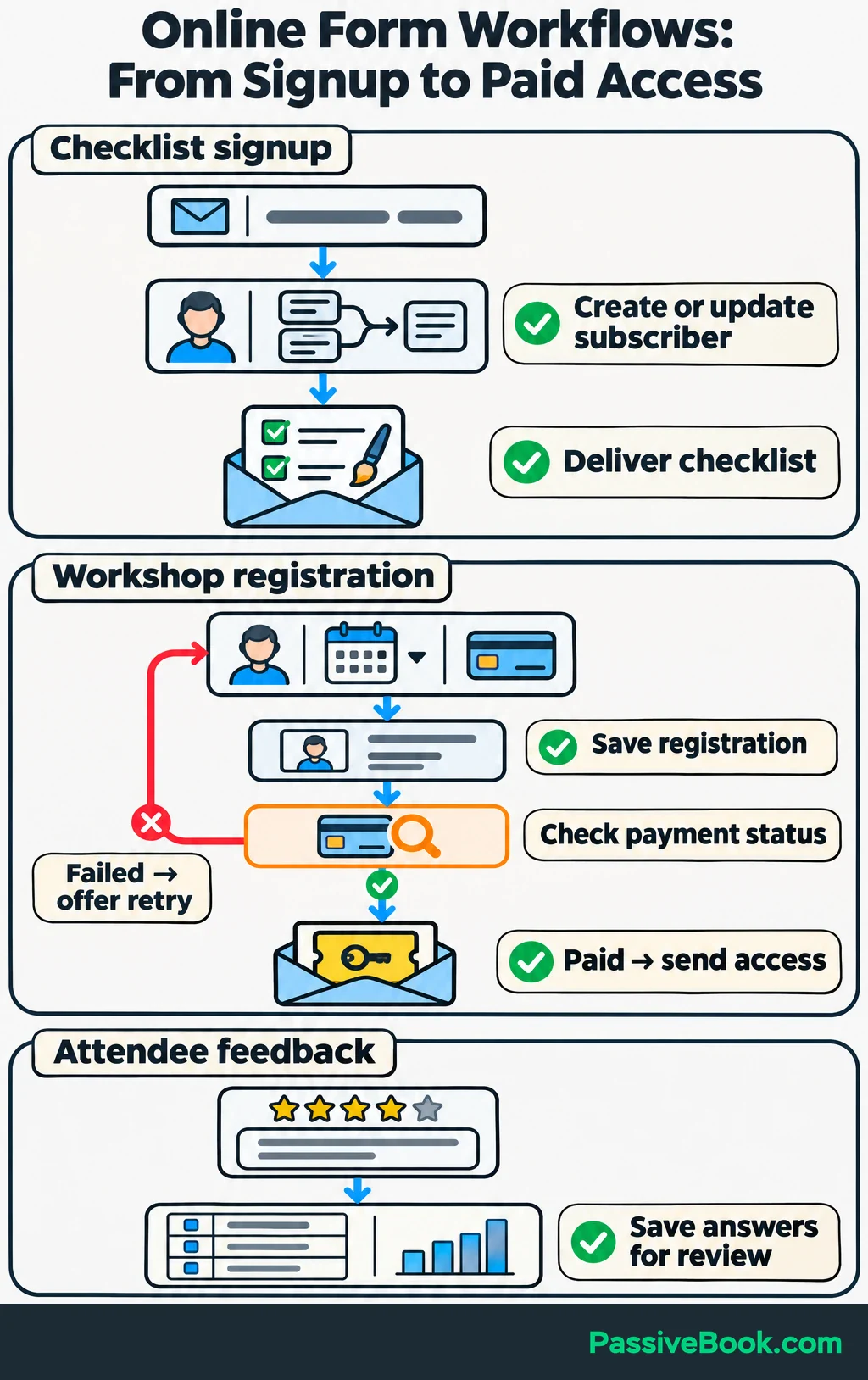
Check forms already included in your email platform, course software, or customer relationship management (CRM) tool. A CRM stores contact details and your history with each person. If one handles the complete job, a separate builder needs a clear reason to exist.
Then compare these six things.
- Logic And Calculations: Conditional logic changes which questions appear based on an answer. Calculations produce totals or scores. A workshop form might show a follow-up question only when someone selects “I have painted before.” Add these features when they remove confusion or manual work.
- Integrations And Automation: An integration connects your form to another tool, but the available actions matter more than the logo. Check whether it can create a contact, update an existing one, and transfer your session and payment fields. Prefer a direct connection when it covers the job. If you need a separate automation tool, I would compare Make and n8n. Make runs the connection for you; n8n also lets you run automations on your own server.
- Payment Support: Confirm that the payment provider accepts businesses in your country and supports the currencies and charge types you need. Check one-time and recurring payments separately. Your automation should distinguish a submitted form from a successful payment before sending paid access.
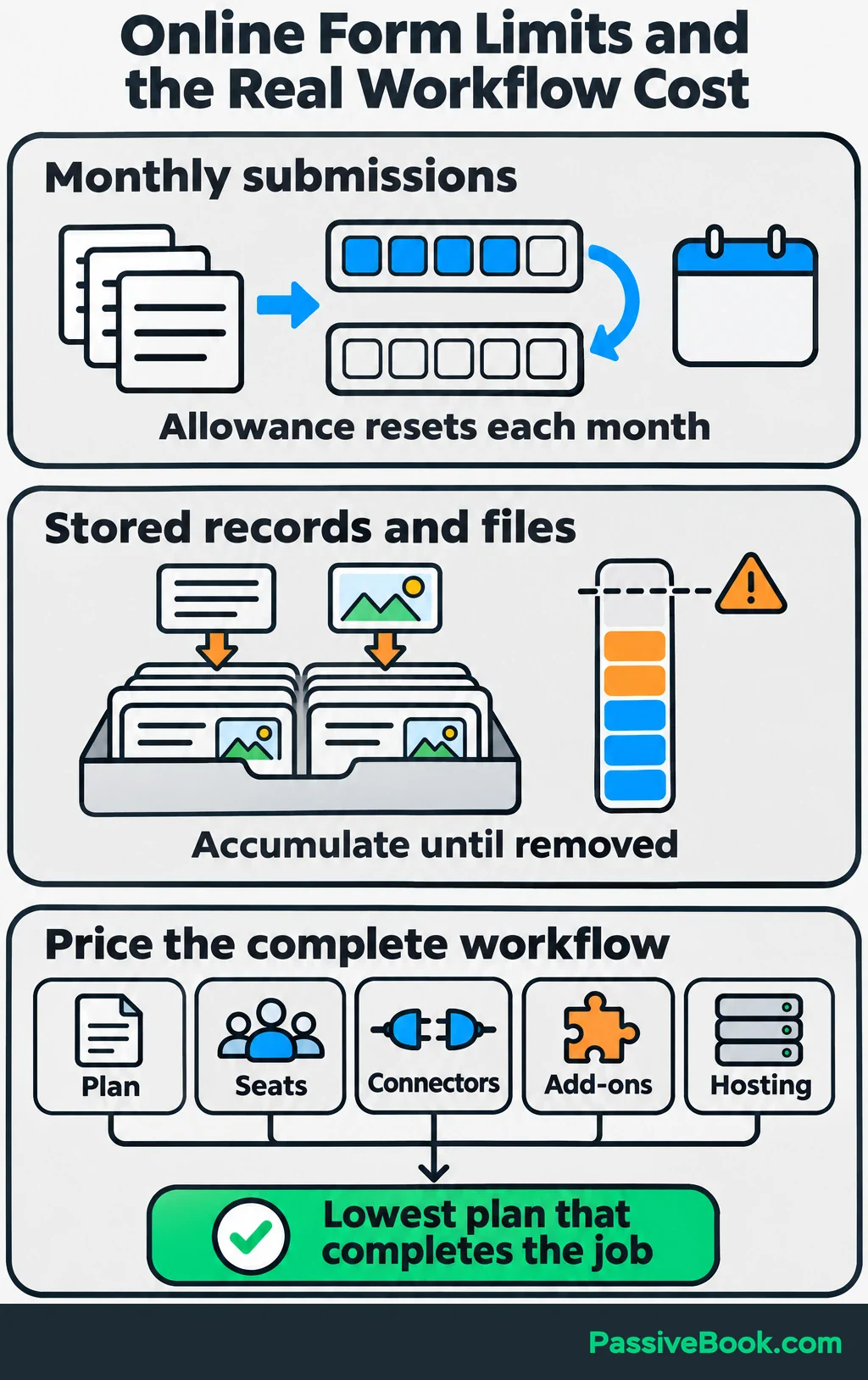
- Total Cost And Limits: Price the lowest plan that completes your workflow, including collaborators, connectors, add-ons, and extra hosting. Monthly submissions reset; stored records accumulate. Read fair-use terms for unlimited plans and find out whether reaching a limit pauses collection, triggers charges, or blocks an automation.
- Reporting And Recovery: Feedback summaries, payment records, and unfinished-form reports answer different questions. Choose the reporting you will use. Also check spam protection, access to saved submissions, and failure alerts. An email notification should help you notice a submission, while the saved record gives you something to recover.
- Privacy And Access: Check where data is stored, who can access it, how deletion works, and whether the provider’s processing terms meet your requirements. Collect only the information the task needs. A brushwork checklist has very little use for someone’s postal address.
AI creation belongs below these requirements on my list. It can help draft fields, but the important work is deciding what to ask, checking the rules, and confirming that the right information reaches the right place.
A beautiful AI-generated form with a broken subscriber connection still leaves you with a manual job. It just arrived faster.
The 23 Best Online Form Builders
Use this table to find two suitable candidates, then read their trade-offs below.
Hosted tools run on the provider’s servers and give you a shareable form you can usually embed on your website. WordPress plugins run within your website, so updates, backups, hosting, and email delivery remain part of your setup.
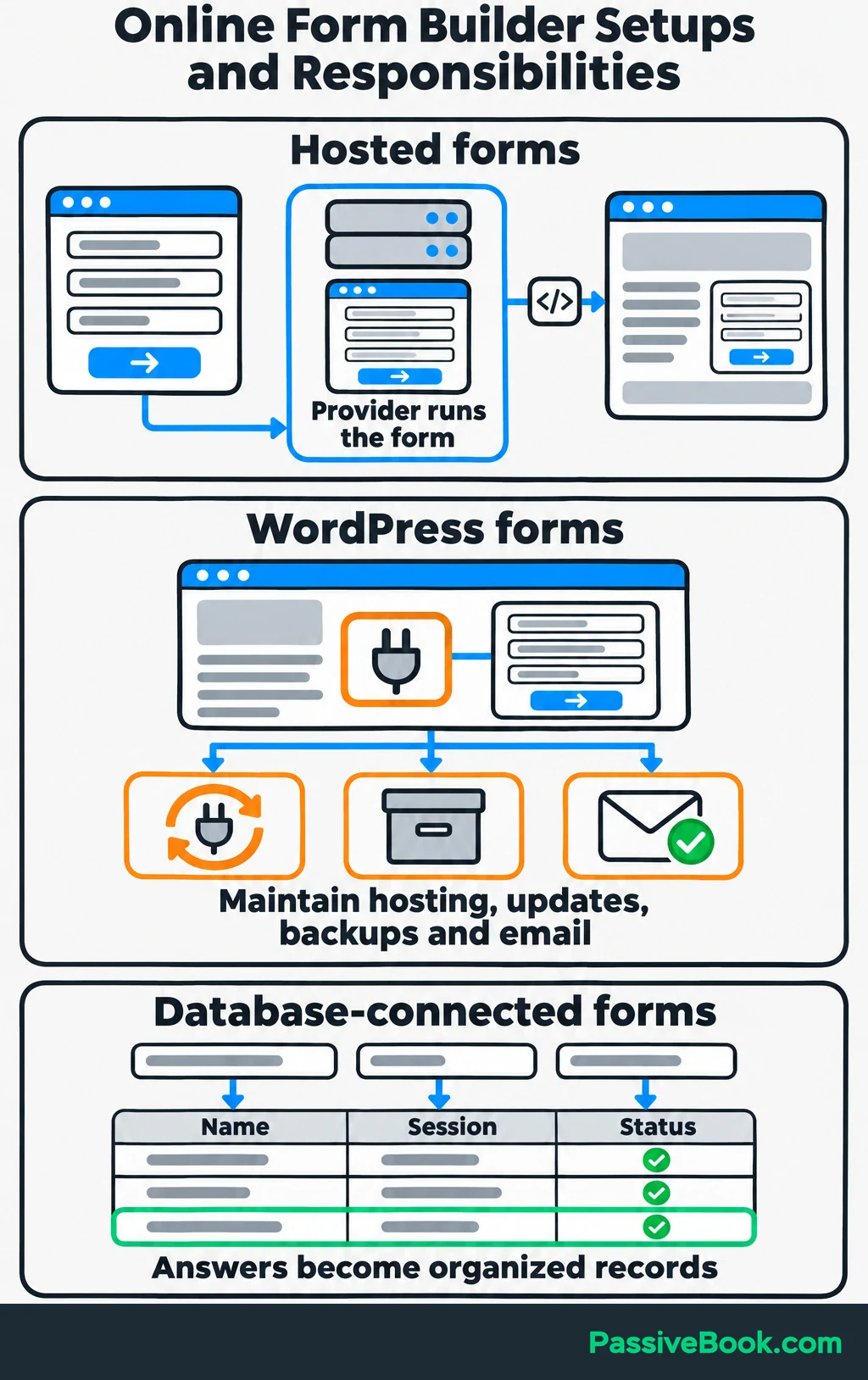
Airtable and Baserow also store and organize the information you collect. You can use their included forms or connect a separate builder when you need more control over the collection experience.
All prices below are in USD before applicable taxes. Annual totals require an annual commitment; monthly equivalents show the comparison cost. Introductory WordPress prices are separated from regular renewal prices. The software names link to official plan information for current terms.
| Software | Strongest Use Case | Setup | Free Allowance | Relevant Paid Price And Commitment | Main Upgrade Trigger |
|---|---|---|---|---|---|
| Fillout | Flexible registrations and business forms | Hosted | Unlimited forms and seats; 1,000 responses/month | Starter: $180/year, equivalent to $15/month | More responses, branding removal, or advanced analytics |
| Tally | Free forms with conditional logic | Hosted | Unlimited forms and submissions under fair-use terms | Pro: $29 monthly or $290/year | Custom domains, collaboration, or partial submissions |
| Jotform | Forms, PDFs, signatures, and approvals | Hosted | Five forms; 100 submissions and 10 payment submissions/month | Bronze: $408/year, equivalent to $34/month | Submission, payment, storage, or form limits |
| Google Forms | Feedback connected to Google Sheets | Hosted | Free personal use | Workspace is optional for business account administration | Business administration or requirements beyond its form features |
| Microsoft Forms | Surveys within Microsoft tools | Hosted | Free personal accounts: 200 responses/form | Included in eligible Microsoft 365 subscriptions; subscription cost varies | Account-specific response limits or business requirements |
| forms.app | Several forms managed with a team | Hosted | Five forms; unlimited responses and team members; 10 MB total file storage | Basic: $228/year, equivalent to $19/month | File storage, more forms, or branding removal |
| Typeform | One-question-at-a-time forms | Hosted | 10 responses/month across the account | Basic: $336/year, equivalent to $28/month | Response volume, branding controls, or advanced reporting |
| Youform | Conversational forms with generous free usage | Hosted | Unlimited forms and responses under fair-use terms | Pro: $29 monthly or $240/year | Payments, custom domains, or partial submissions |
| Paperform | Branded order and registration pages | Hosted | 30 submissions/month | Pro: $588/year, equivalent to $49/month | Volume, branding removal, or domain requirements |
| Cognito Forms | Calculated registration totals | Hosted | Unlimited forms; 100 entries/month | Pro: $228/year, equivalent to $19/month | Entry volume or advanced workflows |
| Formsite | Registrations with uploaded files | Hosted | Five forms; 10 stored results/form; 50 MB file space | Personal: $249.95/year | Stored results, file space, or branding removal |
| involve.me | Scored quizzes and lead qualification | Hosted | Up to 50 submissions or 500 visits/month | Start: $348/year, equivalent to $29/month | Usage, branding, domains, or marketing integrations |
| Zoho Forms | Forms feeding Zoho applications | Hosted | Three forms; 500 submissions and 10 payment submissions/month | Basic: $120/year, equivalent to $10/month | Shared management, approvals, or higher volume |
| HubSpot Form Builder | Capturing leads into HubSpot CRM | Hosted | Free forms available | Marketing Hub Starter standard catalog price starts at $20/month per seat | Branding, marketing contacts, seats, or automation |
| Zapier Forms | Forms that trigger app workflows | Hosted | Forms and Tables included; 100 automation tasks/month | Professional starts at $239.88/year, equivalent to $19.99/month | Multi-step workflows, conditional logic, or task volume |
| Airtable Forms | Collecting records into an existing base | Hosted | 1,000 records/base; 100 automation runs/month | Team: $240/year per billable collaborator | Accumulated records, automation runs, or paid features |
| Baserow | Database forms with a self-hosting option | Hosted or self-hosted | Cloud Free: 3,000 rows/workspace | Premium: $120/user/year | Row capacity or database features |
| Formstack | Intake feeding documents and signatures | Hosted | Free trial | Forms: $996/year; Suite: $3,000/year | Document generation, signing, or wider workflow needs |
| Fluent Forms | WordPress lead capture with FluentCRM | WordPress | Free plugin | Single-site Pro: $63 introductory year; regular $79/year | Premium features or free-payment fees |
| WPForms | Template-led WordPress form building | WordPress | Free Lite plugin | Basic: $49.50 introductory year, regular $99/year; Pro: $199.50 introductory year, regular $399/year | Entry management, integrations, or payment features |
| Gravity Forms | WordPress forms with an add-on ecosystem | WordPress | Demo; no permanent free plan | Basic: $59/year; Pro: $159/year | Payment, automation, or specialist add-ons |
| Formidable Forms | Displaying submitted data on your website | WordPress | Free plugin | Plus with Views: $99.50 introductory year; regular $199/year | Front-end displays or more advanced applications |
| WS Form | Detailed WordPress layout control | WordPress | Free LITE plugin | Personal Pro: $47.20 introductory year; regular $59/year | Logic, calculations, or premium integrations |
1. Fillout — Best All-around Option for Flexible Business Forms
Fillout would be my first hosted candidate for a form that combines several business tasks. Its free plan includes conditional logic, calculations, payments, and scheduling, so you can build a meaningful registration workflow before upgrading.
For the watercolor workshop, that means collecting a session choice, asking relevant follow-up questions, and taking payment within one builder. Unlimited seats also make it worth considering when another person needs to manage responses.
- Strength: A broad set of useful form features is available on Free.
- Trade-off: Removing Fillout branding requires Pro. Custom domains, form analytics, and partial submissions require Business, so Starter may not solve your actual reason for upgrading.
2. Tally — Best Free Option for Forms With Conditional Logic
Tally suits people who would rather write a form like a document than arrange fields across a busy design canvas. Its free features include conditional logic, calculations, signatures, uploads, and payments.
I would put it beside Fillout when your priority is a capable form with little subscription pressure. Connections to Google Sheets and automation tools also give you ways to move responses into the rest of your business.
- Strength: Unlimited free forms and submissions, subject to fair use, leave room to build several useful forms.
- Trade-off: Shared workspaces, custom domains, partial submissions, and drop-off analytics require Pro. Free file uploads also have a 10 MB per-file limit.
3. Jotform — Best for Forms Connected to Broader Business Workflows
Jotform makes sense when collecting an answer starts a longer administrative process. Its surrounding tools cover response tables, PDFs, signatures, and approvals.
For a workshop, registration details could populate an attendee table and a PDF confirmation for each attendee. I would choose Jotform when those connections replace copying details into spreadsheets and documents.
- Strength: Forms sit alongside tools for handling the information after submission.
- Trade-off: Monthly submissions, payment submissions, form views, and stored data have separate allowances. Standard individual plans also include one user, so shared management needs its own pricing check.
4. Google Forms — Best for Straightforward Forms Connected to Google Sheets
Google Forms is a sensible starting point for interest surveys and attendee feedback. It provides response charts and a connection to Google Sheets for further analysis.
For the watercolor business, I would use it to ask which lesson needed more explanation and what attendees want to learn next. Those answers need clear questions and an easy review process more than elaborate branding.
- Strength: It fits straightforward collection and spreadsheet analysis without another form subscription.
- Trade-off: Answer-based branching moves people between sections and works with multiple-choice and dropdown questions. Extensive conditions that show or hide individual fields are a reason to compare more flexible builders.
5. Microsoft Forms — Best for Surveys Within Microsoft 365
Microsoft Forms deserves a look when Excel and Microsoft 365 already organize your work. It supports surveys, quizzes, branching questions, response charts, and Excel export.
I would consider it for workshop feedback or a simple registration request when you already have a suitable account. Adding another tool solely to reproduce those functions would need a clear benefit.
- Strength: Responses fit naturally into a Microsoft-centered workflow.
- Trade-off: Limits depend on the account. Free personal accounts allow 200 responses per form, while paid personal accounts allow 1,000. Organizational accounts have different limits, so check the account you will actually use.
6. Forms.App — Best for Several Shared Forms on a Free Plan
forms.app stands out when several people need to manage a small collection of forms. Its free plan includes unlimited team members, conditional logic, signatures, scoring, payments, and AI-assisted creation.
That combination could cover a checklist signup, workshop registration, and feedback form while letting a helper work alongside you.
- Strength: Free collaboration comes with a useful range of form features.
- Trade-off: The free plan’s 10 MB file storage is a total allowance. If you ask attendees to upload paintings, storage could become the first problem even with unlimited responses. Basic increases storage and removes branding; drop-off analysis requires Pro.
7. Typeform — Best for a Guided, Conversational Form Experience
Typeform’s one-question-at-a-time presentation suits forms where you want to guide someone through a sequence. Consider it for course feedback or questions that help you understand a prospective student’s needs.
Its paid plans include AI-assisted creation, conditional logic, and integrations. I would compare its published form with a compact alternative before deciding that the conversational style suits your audience.
- Strength: The presentation gives each question its own space.
- Trade-off: Free allows only 10 responses a month across your account, and Basic includes 100. Response volume can therefore drive the buying decision quickly. Branding removal and more advanced reporting require higher plans.
8. Youform — Best for Conversational Forms With Unlimited Free Responses
Youform is worth comparing with Typeform when you like conversational forms but need more room on a free plan. Free includes conditional logic, calculations, signatures, uploads, Google Sheets integration, and webhooks.
A webhook sends submission data to another service automatically. That gives you a route into an automation tool when a direct integration does not cover the job.
- Strength: Unlimited forms and responses under fair-use terms make Free useful beyond a small trial.
- Trade-off: Stripe payments require Pro, along with custom domains, branding removal, partial submissions, and advanced form analytics. Free may suit workshop interest collection while paid registration changes the plan you need.
9. Paperform — Best for Branded Order and Registration Pages
Paperform is useful when people need an explanation before they complete the form. You can combine text, images, product choices, calculations, and payments on the page.
For the watercolor workshop, you might explain the brushwork lesson, show the materials needed, and then offer session choices. I would consider it when that content helps someone decide whether to register.
- Strength: The form can serve as a fuller order or registration page.
- Trade-off: Removing the Paperform badge and using your own domain are separate purchases. Pro removes branding, but a custom domain adds $20/month. Keep that additional cost beside the base subscription when comparing alternatives.
10. Cognito Forms — Best for Calculated Quotes and Registration Totals
Cognito Forms is a strong candidate when the amount due changes with quantities, selected options, or repeated groups of information.
Suppose one person can register several attendees for a watercolor session. You need to collect each attendee’s details and calculate the total from the selected places. That is a better reason to investigate Cognito’s calculations than a simple email signup.
- Strength: Calculations support forms whose answers determine totals and other values.
- Trade-off: Workflow approvals, data lookups, and client portals require Team or higher.
Payment costs also deserve attention. Cognito Pay is available to US organizations and adds a plan-based fee above its processing charges: 2% on Individual and 1% on Pro. Those terms apply specifically to Cognito Pay, so compare the payment option you intend to use.
11. Formsite — Best for Registration Forms With File Uploads
Formsite belongs on your shortlist when registration involves attachments and retained submission records. It also offers payment integrations and connections including Google Sheets, Microsoft Excel, and Zapier.
You could use it to collect a sample painting before a workshop, provided the file allowances fit your expected uploads.
- Strength: Registration details, uploaded files, and payment connections can sit within the same collection process.
- Trade-off: Its result allowances count stored submissions per form. They do not reset each month. You need a storage plan as records accumulate.
The Professional trial also has more room than the free service you return to afterward. Judge the plan you intend to keep.
12. Involve.Me — Best for Scored Lead Qualification Forms
involve.me fits forms that recommend an outcome based on someone’s answers. Its quiz, assessment, and calculator tools make it more relevant when qualification is part of the experience.
For the watercolor business, questions about painting experience and learning goals could guide someone toward an introductory workshop or the full beginner course.
- Strength: Scoring and outcome-based forms can help people choose a suitable next step.
- Trade-off: Branding removal, custom domains, and selected marketing integrations require Grow or higher. The free plan also limits visits as well as submissions.
I would skip the wider funnel features for a plain checklist request. Use them when the answers change what you recommend.
13. Zoho Forms — Best for Forms Connected to Zoho Applications
Zoho Forms is an obvious candidate when Zoho already holds your contacts or business records. It connects with Zoho CRM and related applications and offers rules, notifications, and approval workflows on suitable plans.
It also connects with tools outside Zoho, including Google Sheets and Microsoft Excel. You do not need to move everything into Zoho to consider it, but an existing Zoho workflow gives it a clearer advantage.
- Strength: Forms can feed the applications where you already manage the next task.
- Trade-off: Basic includes one user. Shared management and approvals can move you to Standard or above, even when submission volume fits the cheaper plan.
14. HubSpot Form Builder — Best for Capturing Leads Directly Into HubSpot CRM
HubSpot’s form builder suits a business that already uses, or deliberately wants, HubSpot CRM.
A brushwork-checklist request can therefore become a contact record in HubSpot, where you manage follow-up.
- Strength: Lead capture feeds HubSpot without a separate form-to-CRM connector.
- Trade-off: The form is only one part of the cost. Marketing contacts, seats, and the automation tier determine what happens to your bill as the follow-up process grows.
I would price that whole process before choosing HubSpot for its free forms alone.
15. Zapier Forms — Best for Forms That Start App Automations
Zapier Forms makes the most sense when Zapier already connects your business tools. Forms and Tables sit alongside its automation workflows, so the submission can start a sequence of actions.
For a workshop, that could mean saving registration details and updating other connected systems. Check that each required action exists before you build around it.
- Strength: Collection, stored data, and automation are available within one platform.
- Trade-off: Form submissions and automation tasks are different allowances. Work out which downstream actions count as tasks and estimate their volume.
If you already use Make or n8n successfully, I would compare connecting another builder to that setup before moving your automations.
16. Airtable Forms — Best for Collecting Records Into an Existing Airtable Base
Airtable Forms is worth trying when your attendee list already lives in Airtable. A base is the database containing your related tables, and submitted form answers become records within it.
Use a standalone public form for external respondents. They can submit without becoming workspace collaborators; forms built inside an interface have different access requirements.
- Strength: Information goes directly into the database where you organize the work.
- Trade-off: The record limit applies across the base and accumulates over time. Collaborator billing can also affect the cost of shared management.
Try the included form first. If Airtable fits your records but its form does not fit your registration process, a connected builder such as Fillout can provide the collection layer.
17. Baserow — Best for Database-connected Forms With a Self-hosting Option
Baserow also turns submitted information into database rows. Its Form view creates a shareable form from table fields, with support for conditional fields and validation.
I would consider it when you want the registration form and the attendee database to share the same structure. Decide which information belongs in each field before sending people the form.
- Strength: You can choose a hosted service or a self-hosted deployment.
- Trade-off: Self-hosting adds server maintenance, updates, and backups. Choose it because you need that control and can support it.
For a small workshop business without a specific hosting requirement, I would start by evaluating the cloud version.
18. Formstack — Best for Intake Connected to Documents and Signatures
Formstack is worth investigating when intake needs to feed document generation and signing. Its Forms product collects information, while the Suite combines Forms, Documents, and Sign.
That distinction matters when you compare subscriptions. Buying Forms alone does not buy the complete document-and-signature process.
- Strength: The wider product set addresses work that continues after collection.
- Trade-off: The suitable combination costs substantially more than a basic signup builder. The entry Forms plan also includes one builder user.
I would consider Formstack when documents and signatures are firm requirements. For a watercolor checklist and ordinary workshop registration, I would begin with the less expensive candidates.
19. Fluent Forms — Best for WordPress Forms Connected to FluentCRM
Fluent Forms is my starting point for WordPress forms because it fits the stack I use at Passive Book. I use it for forms and lead capture alongside FluentCRM for email automation.
Its free plugin includes conditional logic, AI form creation, entry exports, and FluentCRM integration. That gives you a useful starting point for a checklist signup without committing to a hosted form subscription.
- Strength: It connects form collection with a WordPress-based email setup.
- Trade-off: Free Stripe payments carry a 1.9% Fluent Forms fee in addition to processor charges, according to its free-payment terms.
Compare that ongoing fee with Pro when collecting payments. Your website’s maintenance and email delivery also remain part of the setup.
20. WPForms — Best for Template-led WordPress Form Building
WPForms is worth comparing when you want to begin with a ready-made contact, registration, feedback, or payment form. Its visual editor and AI assistance provide additional ways to build and adjust those forms.
I would choose the starting template based on the information you need, then remove unnecessary fields. A template is a draft, and it does not know your workshop.
- Strength: Templates give common form jobs a clear starting structure.
- Trade-off: Integration access and payment features vary by license, so Basic may not cover the complete workflow.
Lite accepts Stripe payments with a 3% WPForms fee above Stripe’s charges. Pro and Elite remove that added fee; see the Stripe payment terms. Compare regular renewal prices as well as the introductory offer.
21. Gravity Forms — Best for Extensible WordPress Forms
Gravity Forms suits a WordPress workflow whose required features are covered by its add-ons. The buying decision starts with the connections and capabilities you need.
For a paid workshop, Pro includes Stripe, Square, and Zapier add-ons. If the form also needs surveys, signatures, or partial entries, those requirements point toward Elite.
- Strength: The add-on ecosystem gives you a way to build beyond a basic contact form.
- Trade-off: The cheapest license may exclude an essential part of your workflow. List every required add-on before comparing the annual cost.
There is no permanent free plan, so use the demo to assess the editor and check the relevant add-ons before purchasing.
22. Formidable Forms — Best for Displaying Submitted Data on WordPress
Formidable Forms becomes more interesting when submitted information needs to appear on your website. Its Views feature can turn entries into tables, calendars, and other front-end displays.
For example, you might want approved workshop feedback to appear in a public display. Decide what should be published and what should remain private before building that connection.
- Strength: It can help turn collected information into useful website content.
- Trade-off: Views requires Plus or higher and involves more configuration than a simple contact form.
Basic and Plus also retain an additional 3% payment transaction fee; Business removes it. I would choose Formidable for its data-display features when those features serve a specific purpose.
23. WS Form — Best for Detailed WordPress Layout Control
WS Form is worth comparing when you need close control over columns and how a form changes across screen sizes. Pro adds conditional logic, calculated fields, and a debugging console for inspecting form behavior.
That could help with a registration form containing several related choices, especially when the desktop arrangement needs to change on a phone.
- Strength: Layout controls and debugging tools support more detailed form work.
- Trade-off: Personal Pro sells premium integrations separately. Higher licenses bundle different connections, so the base license may not represent your complete cost.
I would choose it when layout control solves a real problem. For a short checklist signup, I would keep the design simple.
Test Your Shortlist Before Subscribing
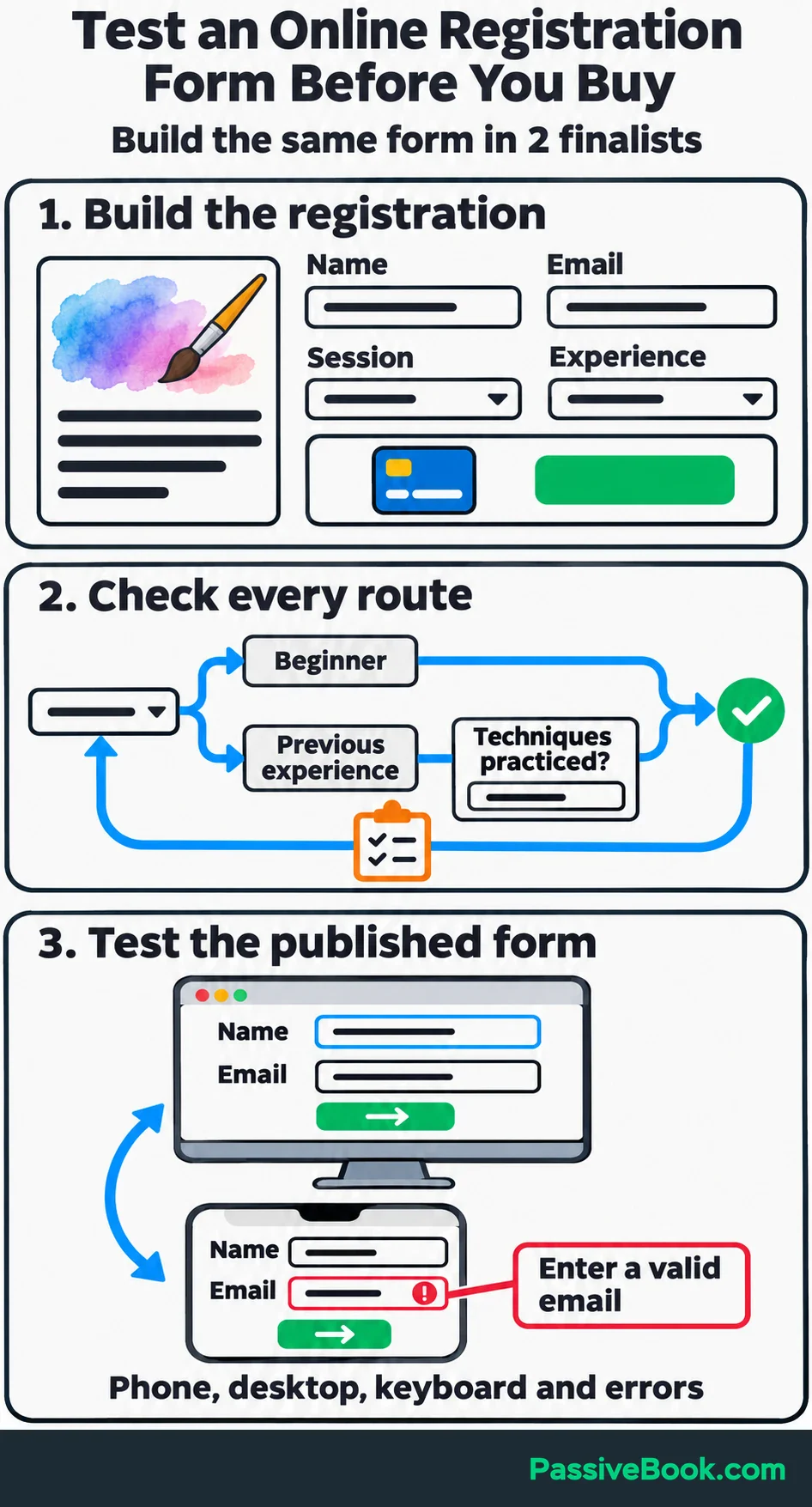
Build the same form in two finalists. A useful trial should expose the work you will do repeatedly: editing questions, handling responses, taking payments, and fixing a failed connection.
Use the paid watercolor workshop registration as the complete test. It has enough moving parts to reveal a poor fit without becoming a software project.
- Build The Registration Form: Add name, email, session choice, painting experience, and payment collection. Show a question such as “Which techniques have you practiced?” only when the person selects an answer indicating prior experience. Include enough workshop information for someone to choose the right session.
- Check Every Route: Submit once as a complete beginner and once with previous experience. Change answers midway through the form and check which follow-up questions appear or disappear. If the form calculates a total, check that it updates too. If AI drafted the form, review required fields, conditions, and confirmation text before using it.
- Use The Published Form: Open it on a phone and desktop, including the embedded version if that is how you will publish it. Complete it with a keyboard, check that labels remain visible, and deliberately trigger an error. The message should explain what needs fixing and let the person continue.
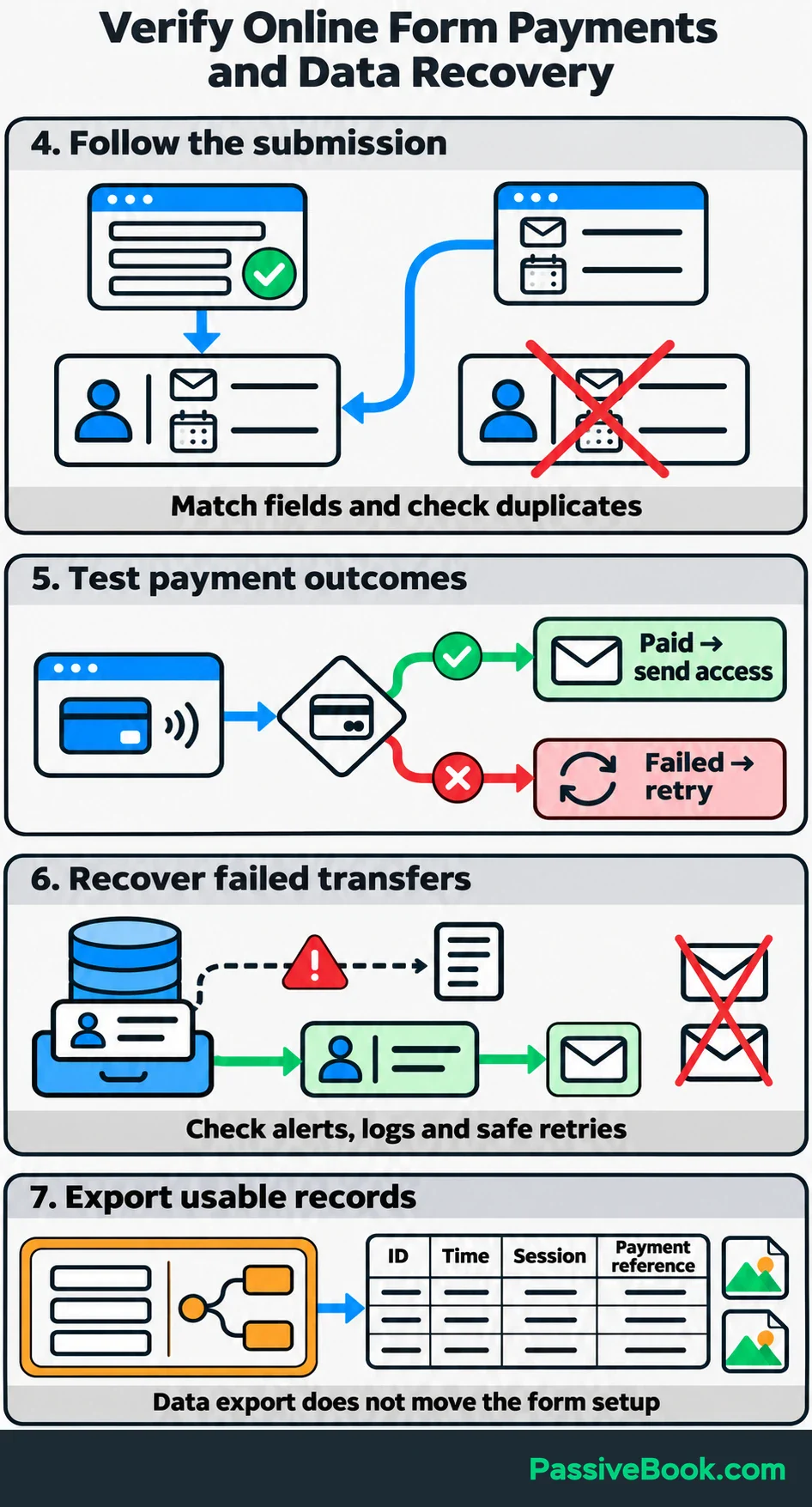
- Follow The Submission: Find the original saved entry, then check the destination system. Confirm that the name, email, session, and other fields arrived correctly. Submit again with the same email address to see whether the integration updates the existing contact or creates a duplicate.
- Test Payment Outcomes: Use the payment provider’s supported test method for successful and failed payments. Confirm that payment status reaches the attendee record. Access instructions should go out only after payment succeeds. A failed payment should leave you with a clear record and give the attendee a way to retry.
- Check Failure Recovery: Review the integration’s failure alerts, logs, and retry options. Confirm how you would recover a saved registration if its transfer failed. Also check whether retrying an action could send access details twice or create another attendee record.
- Export The Results: Export sample responses and download attachments. Check that identifiers, timestamps, session choices, and payment references make sense outside the builder. Moving response data does not necessarily move your form layout, conditions, or integrations.
Once that registration works, make two compact adaptations.
For the brushwork checklist, remove the payment and session fields and test subscriber creation, duplicate handling, and checklist delivery. For attendee feedback, test the questions and the report you will use to review answers. You do not need payment logic following you into every form like an unwanted houseguest.
Write down the first upgrade trigger for each finalist. It might be branding removal, another collaborator, more stored files, or the number of automation actions. That makes the next cost predictable.
Once both builders handle the job, compare the plans you would actually need, including connectors and extra seats. A lower monthly equivalent can still mean a larger payment today.

Free Software Cost Calculator




Then choose the lowest plan that completes the required work and has room for your expected volume. If you are replacing an existing form, keep it available until the new form’s submissions, payments, and follow-up actions work correctly.
What Next?
Choose two builders from the table and build your most demanding form in both. Follow one submission all the way to its final destination before paying for an annual plan.
Use the social buttons to share this comparison when the discussion turns to form subscriptions and hidden upgrade costs.
Which part of your form process would you most like to stop handling manually? Tell me in the comments, and add any other questions you have about choosing a builder.
Share this post with your friends & followers:

