You can explain your product in a minute, but writing its description takes much longer. A dictation app sounds useful until you wonder whether you’ll spend the saved time fixing what it heard.
A tool that misses names, stalls between sentences or fails in your usual apps can become another job. And cloud processing may rule out an otherwise convenient choice.
Here’s how I’d choose between free dictation, AI cleanup and spoken editing, with the costs, device limits and privacy differences that matter before you install anything.
Which Dictation Software Should You Choose?
I would start with the free option on your device. Pay when a trial exposes a recurring problem that another tool can solve.
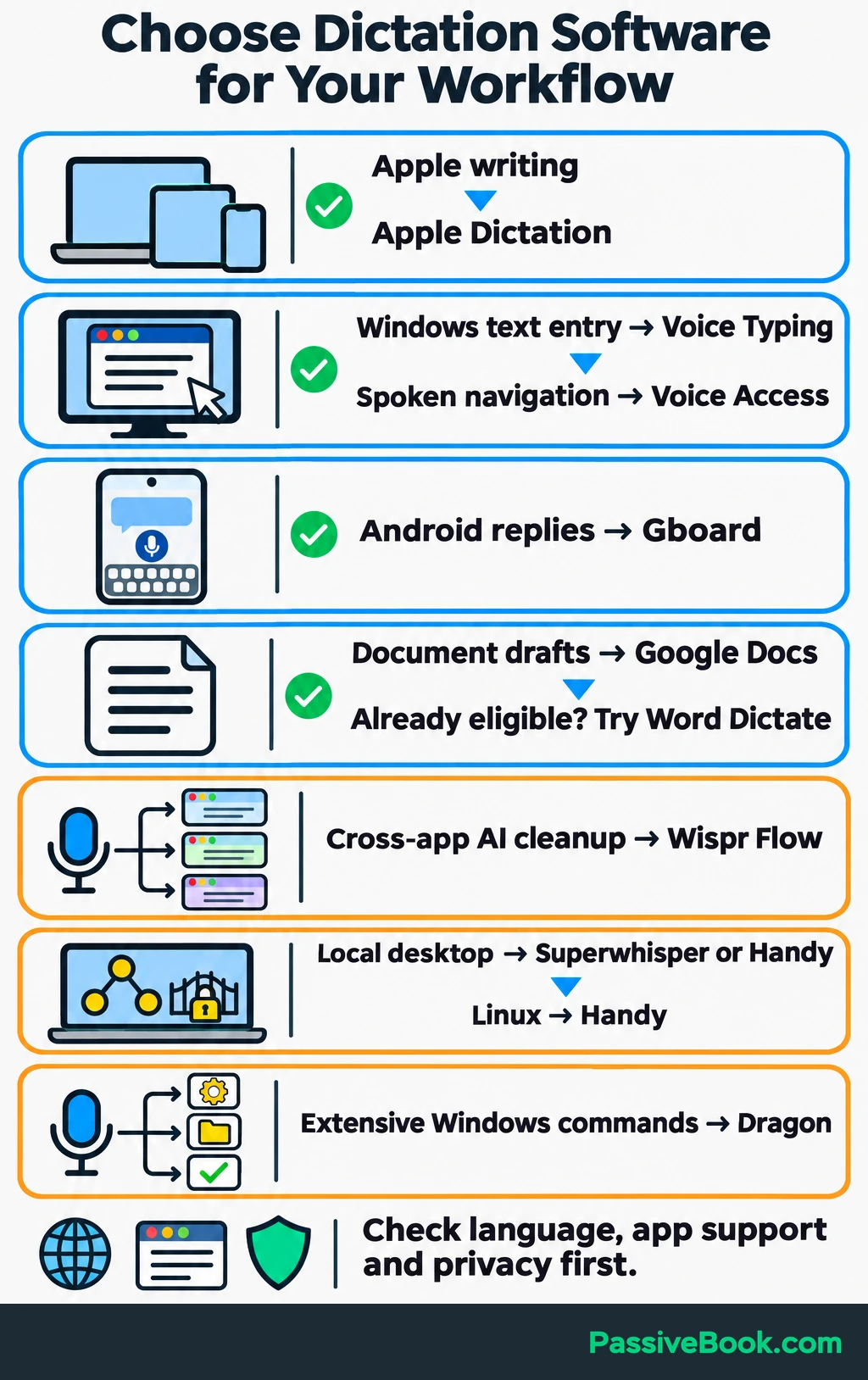
For most people, that gives you a short starting list:
- Apple devices: Try Apple Dictation for everyday writing.
- Windows: Start with Voice Typing for text entry or Voice Access for spoken editing and navigation.
- Android: Try Gboard before adding another keyboard or subscription.
- Document drafts: Use Google Docs Voice Typing or Word Dictate if you already write there.
- AI cleanup across apps: Compare Wispr Flow with your free baseline.
- Local desktop processing: Shortlist Superwhisper or Handy, with Handy also covering Linux.
- Extensive Windows commands: Consider Dragon Professional when custom vocabulary and repeatable voice commands justify its cost.
Before comparing features, separate three jobs that often get bundled together.
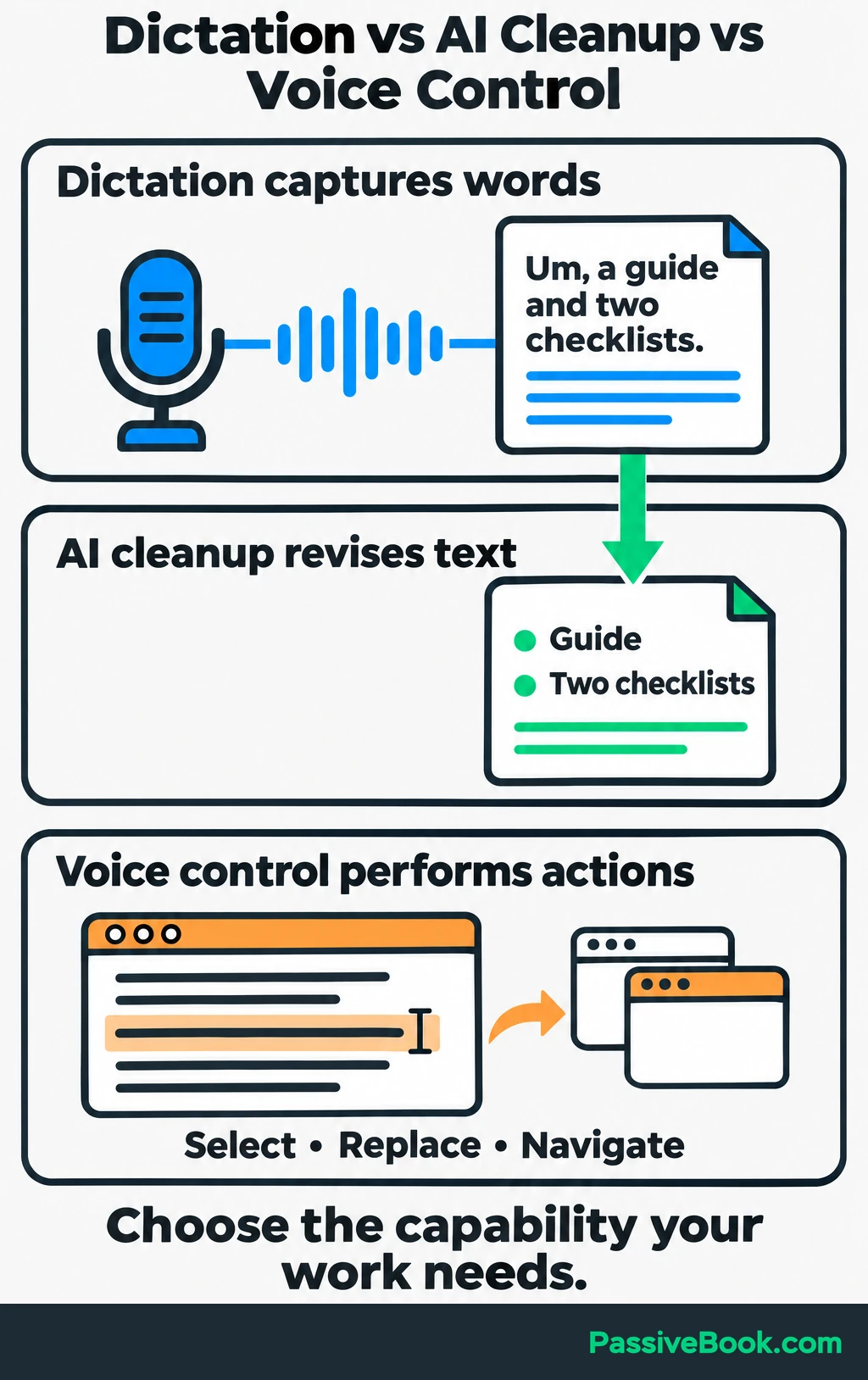
Dictation turns speech into text. AI cleanup revises that text, perhaps removing filler words or turning a spoken list into bullets. Voice control lets you select text, open apps and perform other actions by speaking.
If you want to reduce keyboard use throughout your work, voice control deserves more attention than automatic punctuation.
These recommendations reflect documented capabilities and workflow fit. I haven’t run a controlled accuracy or latency comparison. The test later in this article lets you compare tools using your own voice and writing apps.
The table keeps prices and billing commitments together. All amounts are in US dollars; linked pages provide current terms. “Across apps” means text entry into supported fields, and full spoken navigation is listed separately. Whisper is one family of speech-recognition models, the software that turns your audio into text.
| Tool | Best Use | Devices and App Scope | Cleanup or Voice-Editing Features | Free Allowance | Paid Cost and Billing Commitment | Offline Processing | Main Trade-Off |
|---|---|---|---|---|---|---|---|
| Apple Dictation | Everyday Apple writing | Mac, iPhone and iPad; supported text fields | Spoken punctuation; automatic punctuation in supported languages; separate Voice Control | Included with device | No separate dictation charge | Depends on device and language; check settings | Advanced editing uses a separate feature |
| Windows Voice Typing | Quick Windows text entry | Windows; text fields across apps | Punctuation and basic dictation commands | Included with Windows | No separate charge | No; uses online recognition | Limited compared with full voice control |
| Windows Voice Access | Spoken editing and PC navigation | Windows 11, version 22H2 or later | Dictation, selection, correction and navigation commands | Included with supported Windows versions | No separate charge | Yes, after language download | Requires learning commands and checking language support |
| Gboard | Android replies and short drafts | Android apps accepting keyboard input | Spoken punctuation; advanced punctuation and editing on supported Pixels | Free keyboard | No separate dictation charge | Device and feature dependent; supported Pixel advanced dictation runs locally | Pixel features don’t apply to every Android phone |
| Google Docs Voice Typing | Document drafts | Desktop Chrome, Edge and Safari; Docs editor | Punctuation, formatting and English editing commands | Free in Docs | No separate dictation charge | Browser controls speech processing; don’t assume offline use | Doesn’t enter text across unrelated apps |
| Microsoft Word Dictate | Existing Word workflows | Word on supported devices | Punctuation, formatting and editing commands | Included with an eligible subscription | No extra dictation fee; eligible Microsoft 365 subscription required for desktop use | No | Buying Microsoft 365 solely for dictation is hard to justify |
| Wispr Flow | AI cleanup across writing apps | Mac, Windows, iPhone and Android | AI formatting, dictionary and reusable snippets | Standard desktop allowance: 2,000 words weekly; mobile allowances vary | Pro: $15/user monthly, or $144 annually, equivalent to $12/month | No; transcription is cloud based | Requires sending speech off-device |
| Superwhisper | Configurable local desktop dictation | Mac, Windows, iPhone and Android; desktop text entry across apps | Vocabulary, replacements and configurable modes; Pro adds AI processing | Unlimited local Whisper dictation; up to two modes without AI | Website Pro: $8.49 monthly, $84.99 annually or $249.99 once; one license covers your devices | Yes on compatible desktop hardware with local settings | Model and hardware choices need attention |
| Handy | Free local desktop text entry | Windows, macOS and Linux; active text fields | Plain transcription; optional experimental AI post-processing | Free, open-source software | No software subscription; optional cloud-provider charges | Yes, after downloading a compatible model | Some systems need extra shortcut or paste setup |
| Dragon Professional v16 | Custom Windows vocabulary and commands | Windows 10 and 11; desktop applications with varying integration | Custom vocabulary, reusable text and macros | No ongoing free edition | CDW lists $727.99 for the full US-English retail download; upfront license purchase | Local desktop recognition after setup and activation | High upfront cost and setup effort |
Superwhisper’s figures are its website purchase prices; app-store prices can be higher. Wispr Flow’s paid figures come from its pricing page, while its free-plan rules distinguish desktop and mobile allowances.
Eliminate any option that misses your required language, writing app or privacy requirement before testing it. A polished demo in English tells you little about writing in another language or switching between two.
For the examples below, imagine you sell downloadable beginner watercolor guides. You need article drafts, product descriptions and customer replies. The copy and figures are illustrations.
You might use desktop dictation for an article and your phone’s keyboard for replies. There’s no prize for forcing every task through one app.
The Best Dictation Software Compared
Apple Dictation: Best Free Starting Point for Apple Users
Apple Dictation is my first choice to try if you already use Apple devices. It’s built in, so you can find out whether speaking suits your work before buying anything.
On a Mac, enable Dictation in Keyboard settings, place your cursor in a text field and use the assigned microphone key or shortcut. You can speak punctuation and say “new paragraph.” Automatic punctuation is available in supported languages.
Check the processing notice in those settings before relying on offline use. Apple explains whether general text dictation runs on your device or needs its servers. Dictating into a search field is a separate case because the resulting text may reach the search provider. Apple’s Dictation guidance explains those distinctions.
For a watercolor article, dictate one idea at a time:
“Practice making a light wash before painting the whole sky.”
Then stop and review the paragraph. You don’t need to narrate an entire article without taking a breath.
Choose Apple’s separate Voice Control feature if you also need spoken navigation and editing. On Mac, it takes over dictation while enabled. I would try ordinary Dictation first unless reducing mouse and keyboard use is the main goal.
Windows Voice Typing and Voice Access: Best Free Windows Options
Windows gives you two useful starting points, and the right one depends on how much you want to do by voice.
Voice Typing is the quick option. Click in a text field and press Windows + H, then speak when it starts listening. You can enable automatic punctuation.
It requires an internet connection and uses Microsoft’s online speech recognition. I would choose it for drafting a product description or entering a reply when using the keyboard for corrections is comfortable. Microsoft’s Voice Typing documentation confirms its online processing.
Voice Access goes further. It supports dictation, text editing and PC navigation, including switching apps. It works offline after the initial language download and requires Windows 11, version 22H2 or later. Microsoft’s Voice Access requirements explain its setup and scope.
For a customer reply, Voice Typing may be enough. If you also want to open the reply window, replace a sentence and move between fields by speaking, test Voice Access.
I would try that free command support before considering Dragon. A paid tool needs to solve something the included one leaves awkward.
Gboard: Best Free Dictation Keyboard for Android
Gboard is the sensible first test for Android because it works where you already type. Open a reply, tap the keyboard microphone and speak.
Basic voice typing supports spoken punctuation, though support varies by language. For a short watercolor-guide reply, that may cover everything you need.
Advanced voice typing adds automatic punctuation and commands for editing text on Pixel 6 or later in supported languages. Don’t choose an ordinary Android phone expecting every feature shown in a Pixel demonstration.
Google says advanced dictated text stays on-device, but its “Fix it” and detailed-edit features involve server processing and have additional eligibility requirements. Its advanced voice-typing guidance separates those features.
I would start with plain dictation and add cleanup only if it reduces work. A friendly customer reply rarely needs to emerge sounding like it passed through three committees.
For long articles, test whether drafting on your phone actually fits your process. Convenient capture and comfortable editing are different things.
Google Docs Voice Typing: Best Free Option for Document Drafts
Google Docs Voice Typing suits you if a document is where your writing starts.
Open a document, choose Voice typing from the Tools menu and start the microphone. It works in current desktop versions of Chrome, Edge and Safari. Spoken punctuation helps structure the draft, and editing commands can select, replace and format text.
Those editing commands require English for both the account and document language. Google also explains that the browser controls speech processing and sends the resulting text to Docs, so you shouldn’t treat it as a guaranteed local tool. Google’s voice-typing documentation covers these requirements.
I would use it to talk through a watercolor lesson before polishing the wording:
“Adding more water dilutes the paint, so the same color looks lighter on the paper.”
That puts the explanation into your draft without needing a perfect opening sentence.
Its main limit is scope. You’ll still need to move the finished text into your website or shop. If that transfer becomes a repeated nuisance, compare a tool that enters text directly into those fields.
Microsoft Word Dictate: Best for Existing Microsoft 365 Subscribers
Word Dictate makes sense when Word is already your main writing tool and your subscription includes it.
Open a document, select Dictate and start speaking. Punctuation, formatting and editing commands help you shape the draft without repeatedly returning to the keyboard.
Desktop use requires an eligible Microsoft 365 subscription and a reliable internet connection. Microsoft says the dictation service sends speech for processing without storing the audio or transcribed text. That statement concerns the dictation service; the document you save has its own storage arrangements. Microsoft’s Word Dictate guidance explains both requirements and privacy.
I would use the feature you already pay for before installing another writing subscription. But I wouldn’t buy Microsoft 365 solely to dictate when free options fit the same job.
For the watercolor business, Word can hold the full article draft. It’s less convenient if most of your writing happens in shop fields and customer-support apps because Word Dictate doesn’t provide general text entry across those destinations.
Wispr Flow: Best for AI Cleanup Across Apps and Devices
Wispr Flow is the option I would compare when the main problem is turning natural speech into tidy text across several apps.
Its appeal is AI-assisted formatting, dictionary terms and reusable snippets across Mac, Windows, iPhone and Android. That makes it worth considering when you move between an editor, product listings and customer replies.
The useful test is whether it saves correction work. Speak a rough product list, then check whether the resulting structure matches what you meant. A neat bullet list is helpful only if every item belongs there.
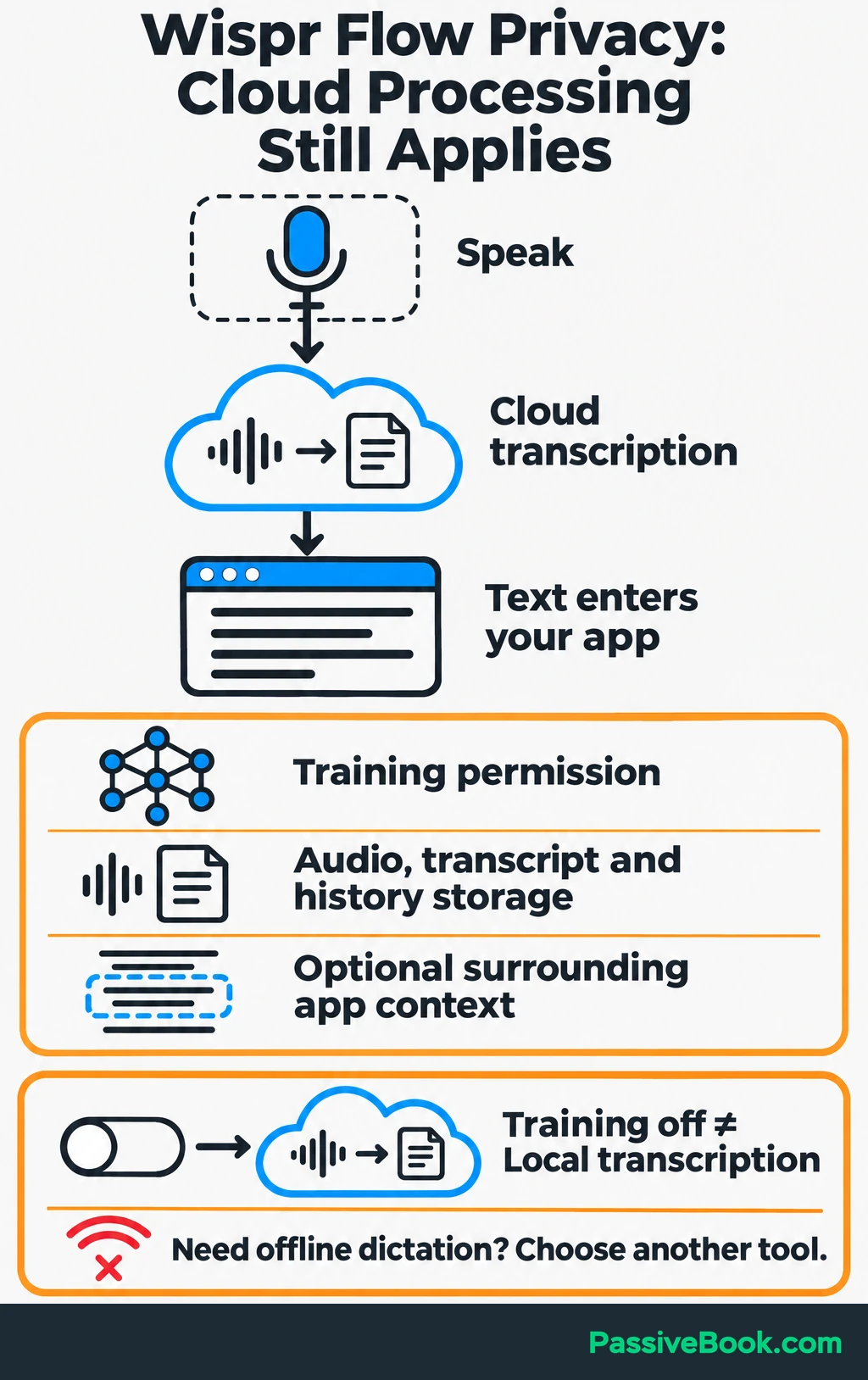
Privacy is a firm decision point. Wispr says transcription always happens in the cloud. Its data controls cover permission to use your data for model training and a separate choice about storing audio, transcripts and dictation history in the cloud. Turning off training permission doesn’t make transcription local.
I would review those controls before using customer information, including whether the app can use surrounding text for context.
Choose Flow if cloud processing is acceptable and its cleanup consistently saves effort in your actual apps. Skip it if offline processing is a requirement. No amount of convenient formatting changes that mismatch.
Superwhisper: Best for Configurable Offline Desktop Dictation
Superwhisper is my shortlist choice when you want more control over local desktop dictation.
You can choose speech models, add vocabulary, set text replacements and create modes for different jobs. A mode is a saved configuration, so you might have one for plain transcription and another for formatting a spoken list.
The free plan gives you a useful way to test local Whisper dictation before paying for AI modes.
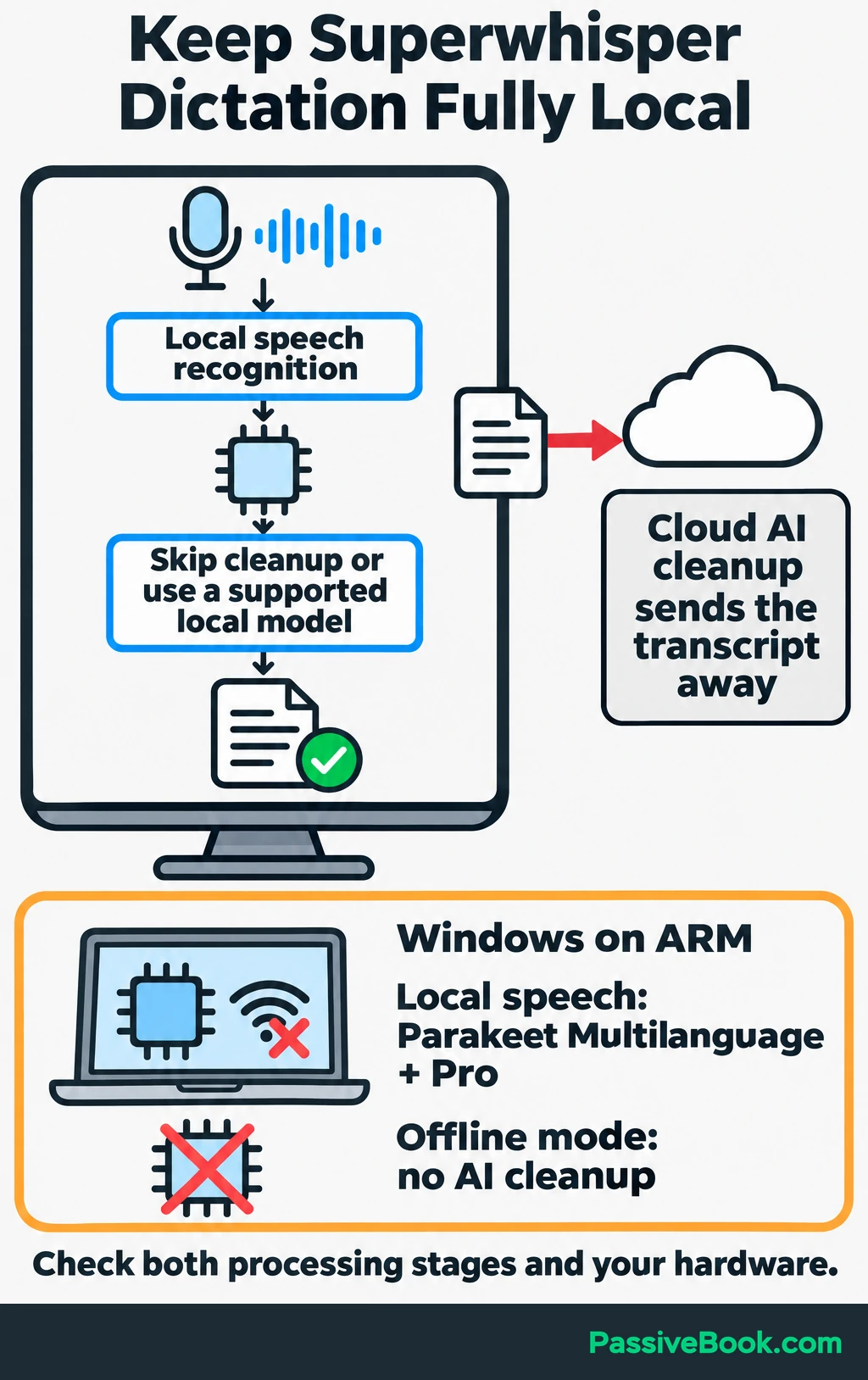
For fully local work, check both processing stages. Local speech recognition keeps audio on your machine, but choosing cloud AI cleanup still sends the transcript away. Either skip cleanup or select a supported local language model.
Hardware matters here. On Windows PCs with ARM processors, including Snapdragon machines, Superwhisper’s only local speech model is Parakeet Multilanguage, which requires Pro. To work offline on those machines, you also need a mode without AI cleanup because Superwhisper doesn’t support local language models there. Its local-processing guidance explains these restrictions.
For the watercolor shop, I would begin with plain transcription. Add an AI mode for product lists only after checking that it preserves quantities, exclusions and product names.
Choose Superwhisper when those controls serve a clear need. If you want to press a microphone button and think about nothing else, the built-in option is a simpler starting point.
Handy: Best Free Open-source Desktop Option
Handy is worth trying if you want free local text entry on Windows, macOS or Linux.
Its basic workflow is straightforward: place your cursor in a field, use a shortcut, speak and let Handy insert the transcript. You download a compatible speech model first, and ordinary transcription runs on your computer.
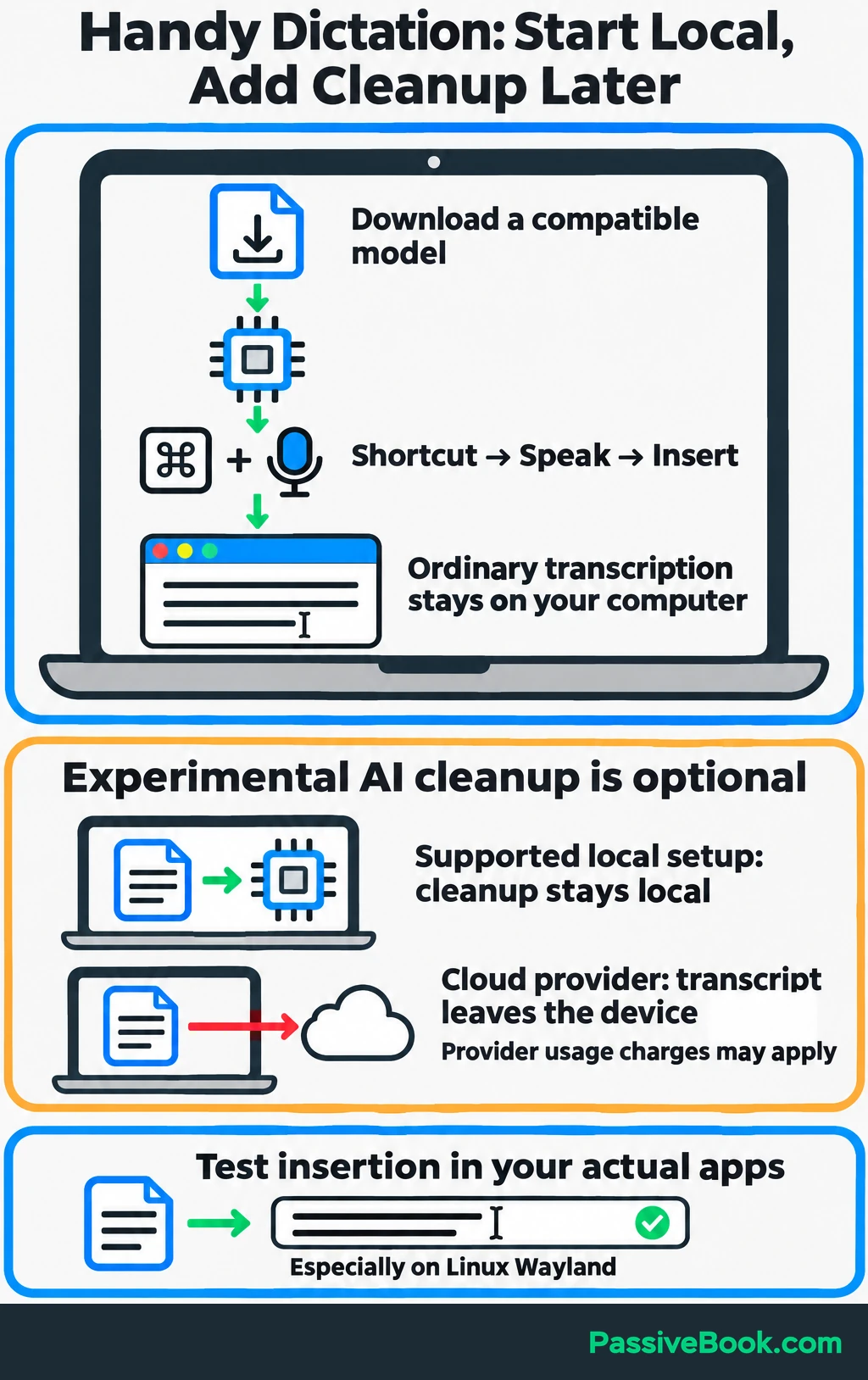
That’s enough for drafting a lesson paragraph or entering a customer reply without another software subscription.
Handy also offers experimental AI post-processing. Cloud providers receive the transcript for that step and can add usage charges, while supported local configurations keep cleanup on your machine. Its post-processing documentation explains the choices.
I would leave that experimental feature off during the first test. Find out whether plain transcription works well before adding another processing stage.
On Linux, make successful insertion into your real apps part of the trial, especially on Wayland desktops. Being able to record speech isn’t enough if the words won’t land where you need them.
Handy is a good fit when you value local processing and can tolerate some setup. It isn’t a replacement for full spoken computer control.
Dragon Professional v16: Best for Extensive Windows Voice Commands
Dragon Professional deserves attention when dictation is a substantial part of your Windows work and you need detailed customization.
Its strengths include custom vocabulary, reusable text and macros that carry out several actions from one spoken command. The desktop product supports Windows 10 and 11, and installation and automatic activation require internet access. Keep it distinct from the cloud-based Dragon Professional Anywhere. Nuance’s desktop product sheet describes its vocabulary, command and setup features.
For the watercolor shop, a reusable command could insert a standard download-help reply. But occasional use of one saved response wouldn’t persuade me to buy it.
I would consider Dragon when you repeatedly need specialized terms, substantial spoken correction or custom commands that remove several manual actions. Confirm support in the applications you rely on before purchasing.
Compare it with free Windows Voice Access first. Dragon’s upfront cost needs a recurring job to earn its place. “I might use the macros eventually” is an expensive business plan.
How to Test Dictation Accuracy and Speed Before Committing
Prepare Your Microphone and Processing Settings
Shortlist two tools: a free baseline and one alternative that solves a specific problem. Comparing eight at once mostly tests your patience.
Start with your existing microphone in a quiet room. Select the intended input explicitly, record a short sample and listen for muffled speech, background noise or sudden volume changes.
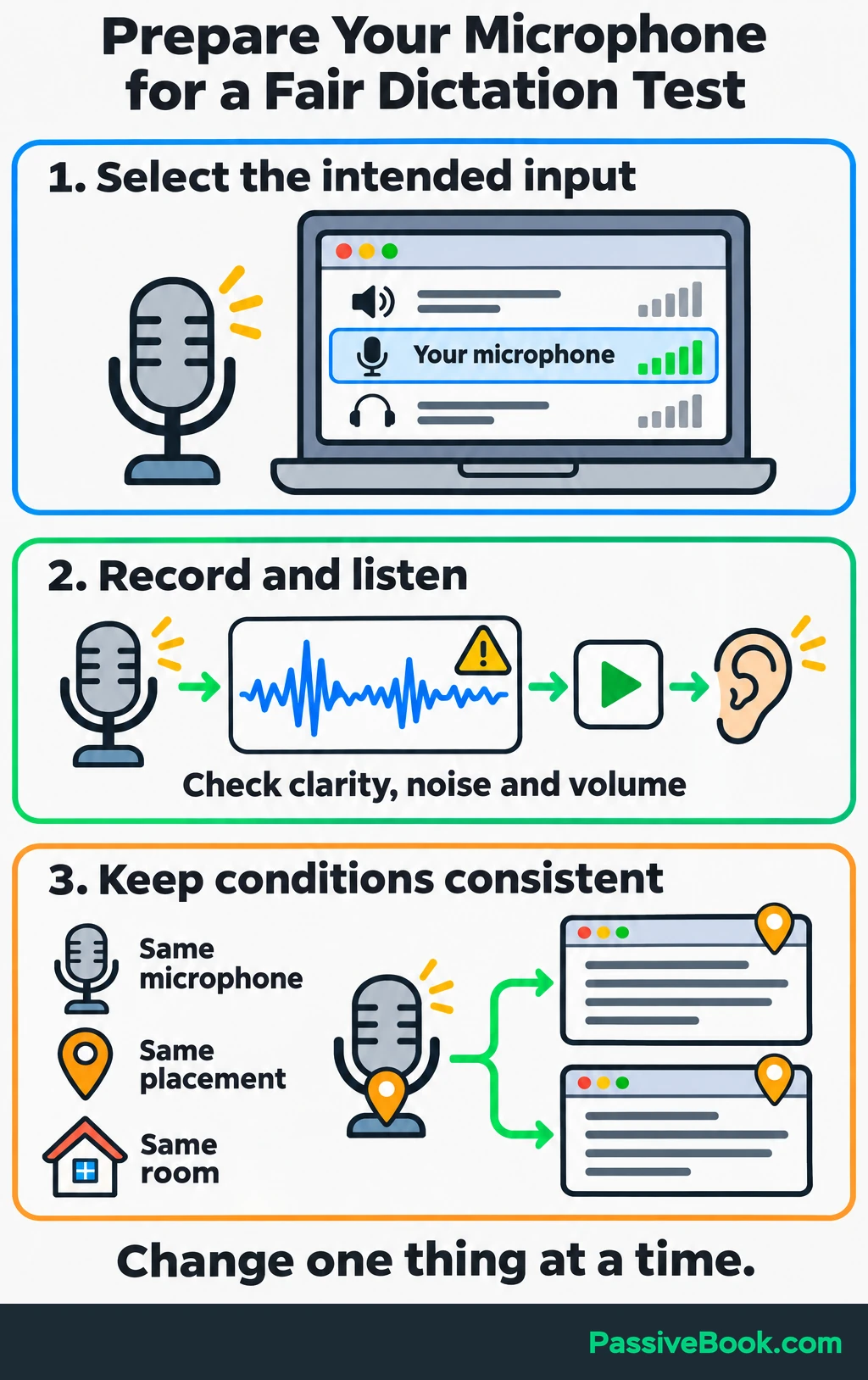
Keep microphone placement consistent between tools. If you change the microphone, room and software together, you won’t know which change helped.
Before the comparison:
- Permissions: Allow microphone access and any permissions needed to insert text.
- Language: Select the language and regional variant you normally use.
- Offline setup: Download the required models or language files.
- Controls: Practice starting, stopping, punctuation and paragraph breaks.
- Privacy: Check recognition location, cleanup location, retained history and optional app context.
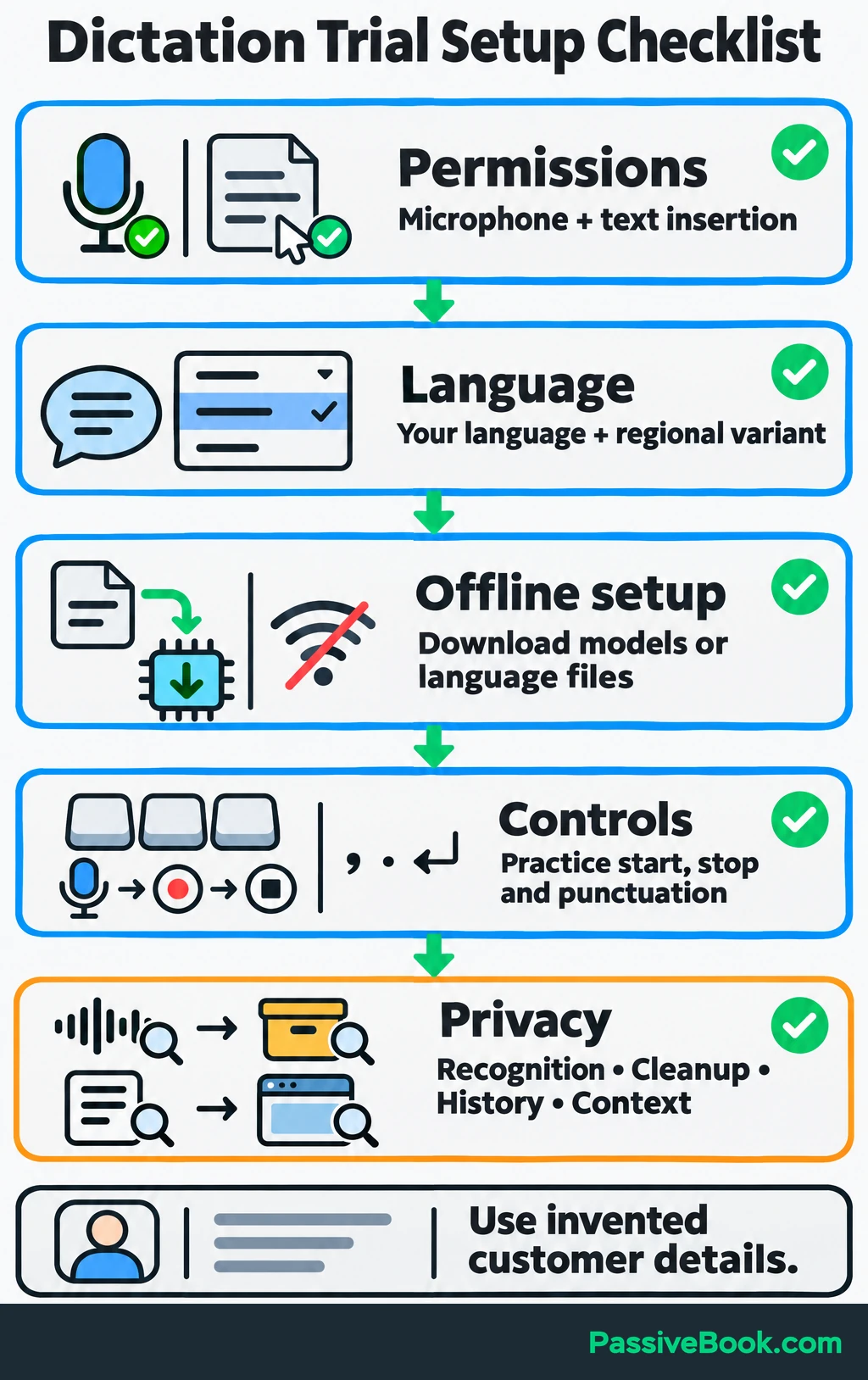
Use invented customer details while testing. You can check recognition without bringing a real customer’s order into the trial.
Only consider a new microphone after placement and input settings are working. I wouldn’t buy hardware to solve a problem I hadn’t isolated.
Compare Recognition, Cleanup, and Delay
First, dictate the same prepared passages into each tool using the same microphone and surroundings. Then try spontaneous speech because reading smoothly and thinking aloud are different tasks.
Use three short passages that match your work:
- Customer reply: “Hi Leena, the beginner watercolor guide costs twenty-nine dollars. The bundle includes three checklists—correction, two checklists.”
- Article paragraph: “Let the first wash dry before adding the next layer. Keep a spare sheet beside you to test the color.”
- Product list: “The download includes a practice guide, two printable checklists and a color-mixing worksheet. Brushes and paint are not included.”
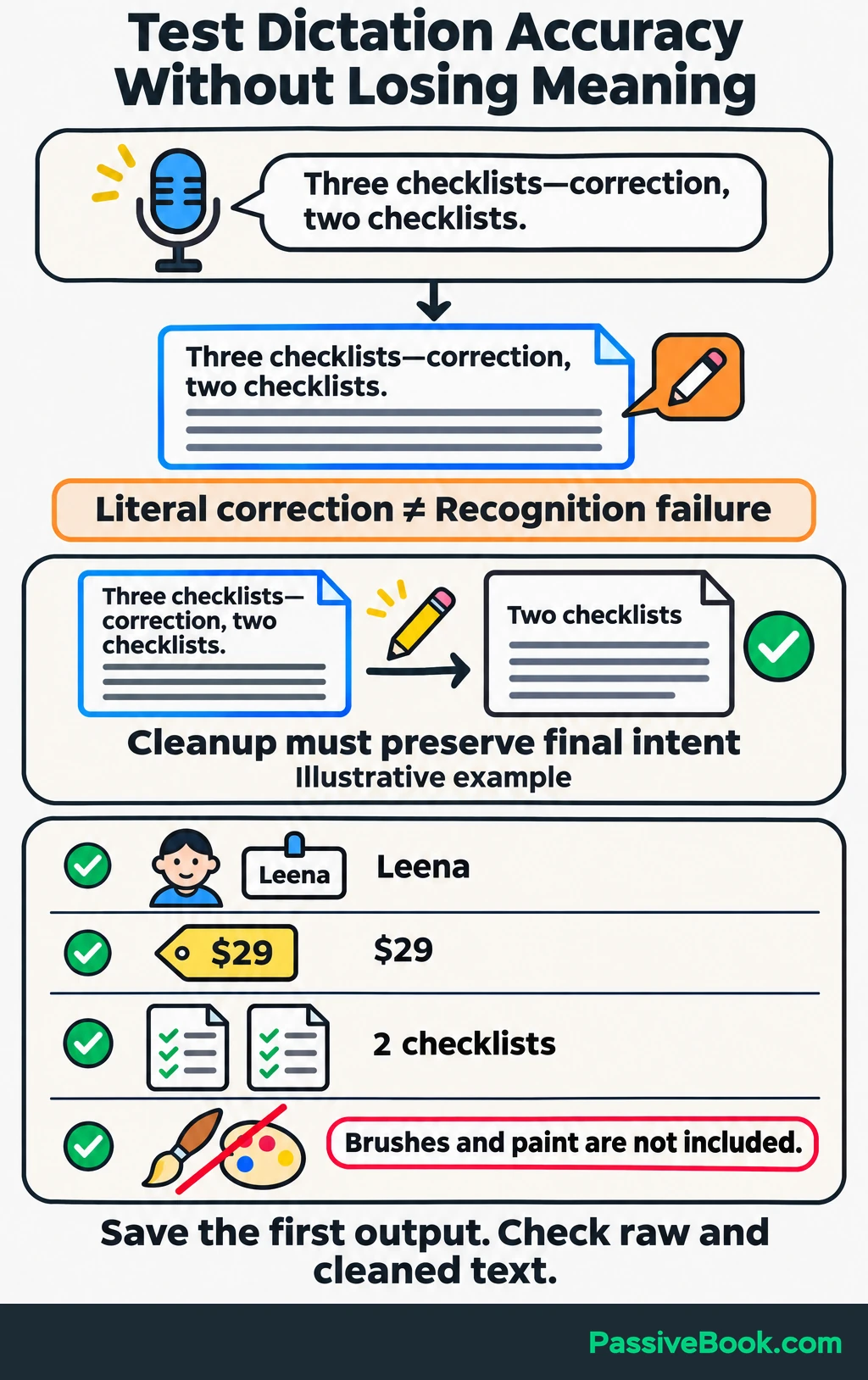
The intended reply has the same price and a final quantity of two checklists. Plain transcription may preserve the spoken correction, while AI cleanup may resolve it. Keeping that correction in a literal transcript isn’t automatically a recognition error; record the editing work it creates.
Save the first output before correcting it. Where a tool exposes both raw and cleaned text, compare them to see which stage introduced a mistake.
For each passage, compare your free baseline with the alternative’s plain transcription. If the alternative offers AI cleanup, test that separately. Record the tool, mode and punctuation setting alongside these details:
| What to Record | How to Check It |
|---|---|
| Recognition errors | Note misheard words and punctuation that needs fixing. |
| Meaning changes | Check “Leena,” the $29 price, the final quantity of two checklists and the exclusion of brushes and paint in the relevant passages. Note any added or removed claims. |
| Finishing delay | Measure seconds from your last spoken word until the complete text appears. |
| Correction time | Measure the time spent making the output ready to use. |
| Total time | Measure from starting to speak until the text is usable, including waiting and editing. |
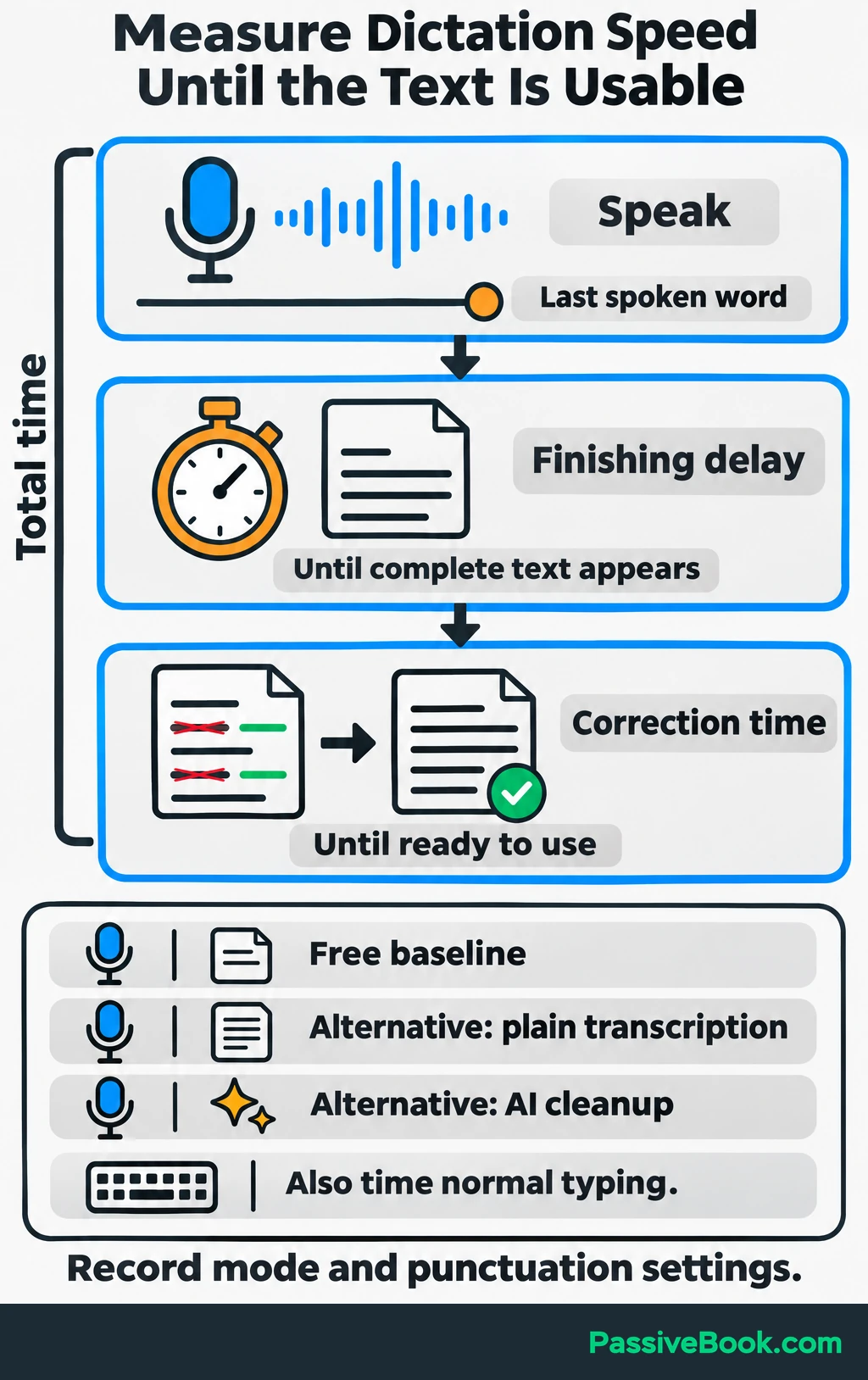
These are instructions for your comparison; measured product results aren’t available here.
Also type one passage normally. A dictation tool can beat another dictation tool and still be a poor fit for your shortest replies.
I would give meaning changes more weight than cosmetic fixes. A missing comma is irritating. Losing “not” from “brushes and paint are not included” changes what you’re selling.
Check Editing and Recovery in Your Writing Apps
Next, test the places where the words need to go. For the watercolor business, that means the article editor, product-description field and customer-reply app.
In each destination, try these actions:
- Insert a paragraph at the cursor.
- Correct “Leena” if it was misspelled.
- Replace a sentence and add text midway through a paragraph.
- Undo an insertion.
- Recover the transcript if it doesn’t appear.
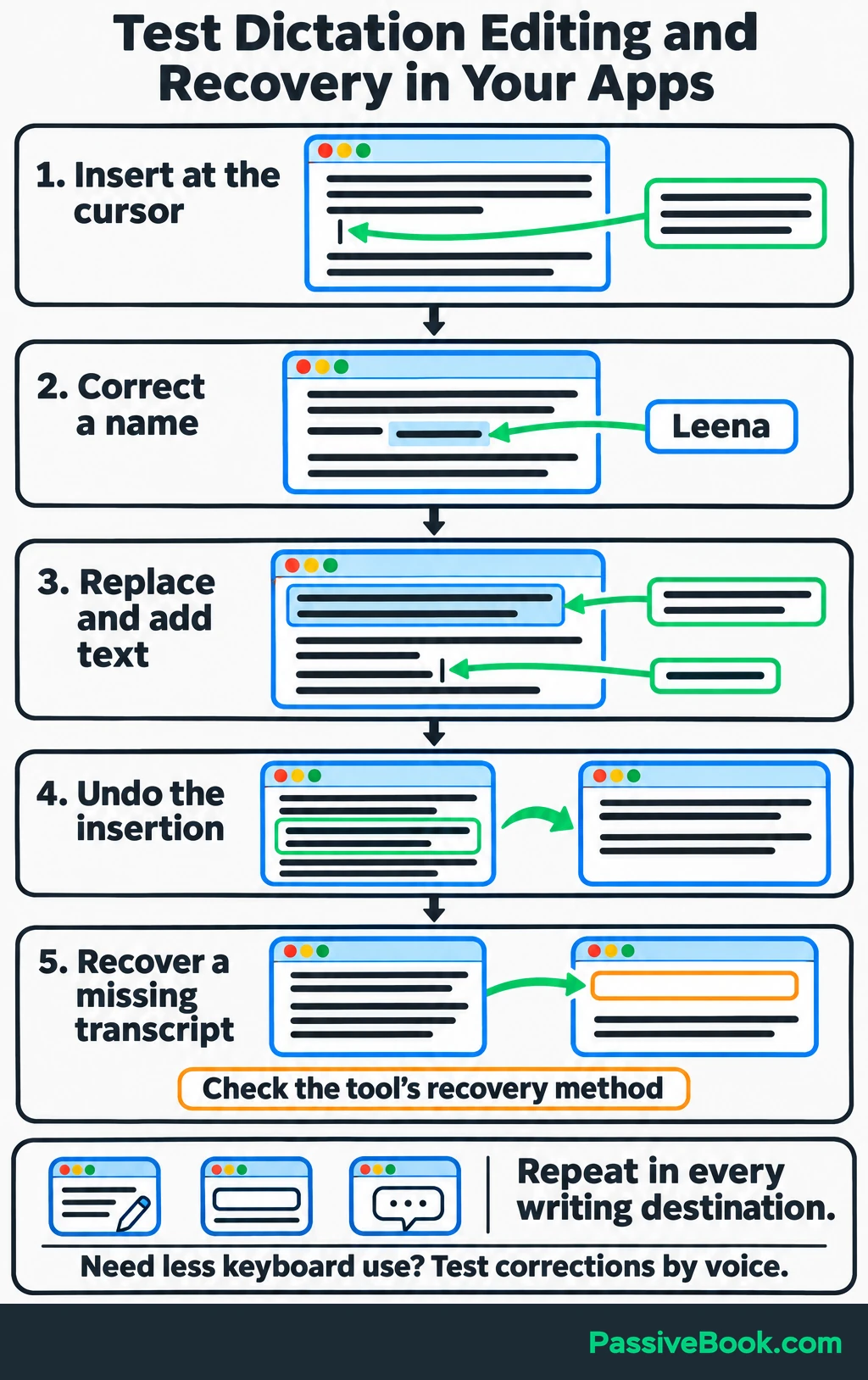
If reducing keyboard use is your priority, perform those corrections by voice. Fast drafting won’t meet that need if every correction sends you back to the keyboard.
For an offline candidate, finish setup, disconnect the internet and repeat the test. Check recognition and cleanup separately. Then remember that inserting local text into a cloud document still gives that document service the text.
Keep the option that produces usable writing with the least correction and app switching. Before sending or publishing, review names, numbers and negations. If AI cleanup keeps changing meaning, reduce it or return to plain transcription.
When Is Paid Dictation Worth the Cost?
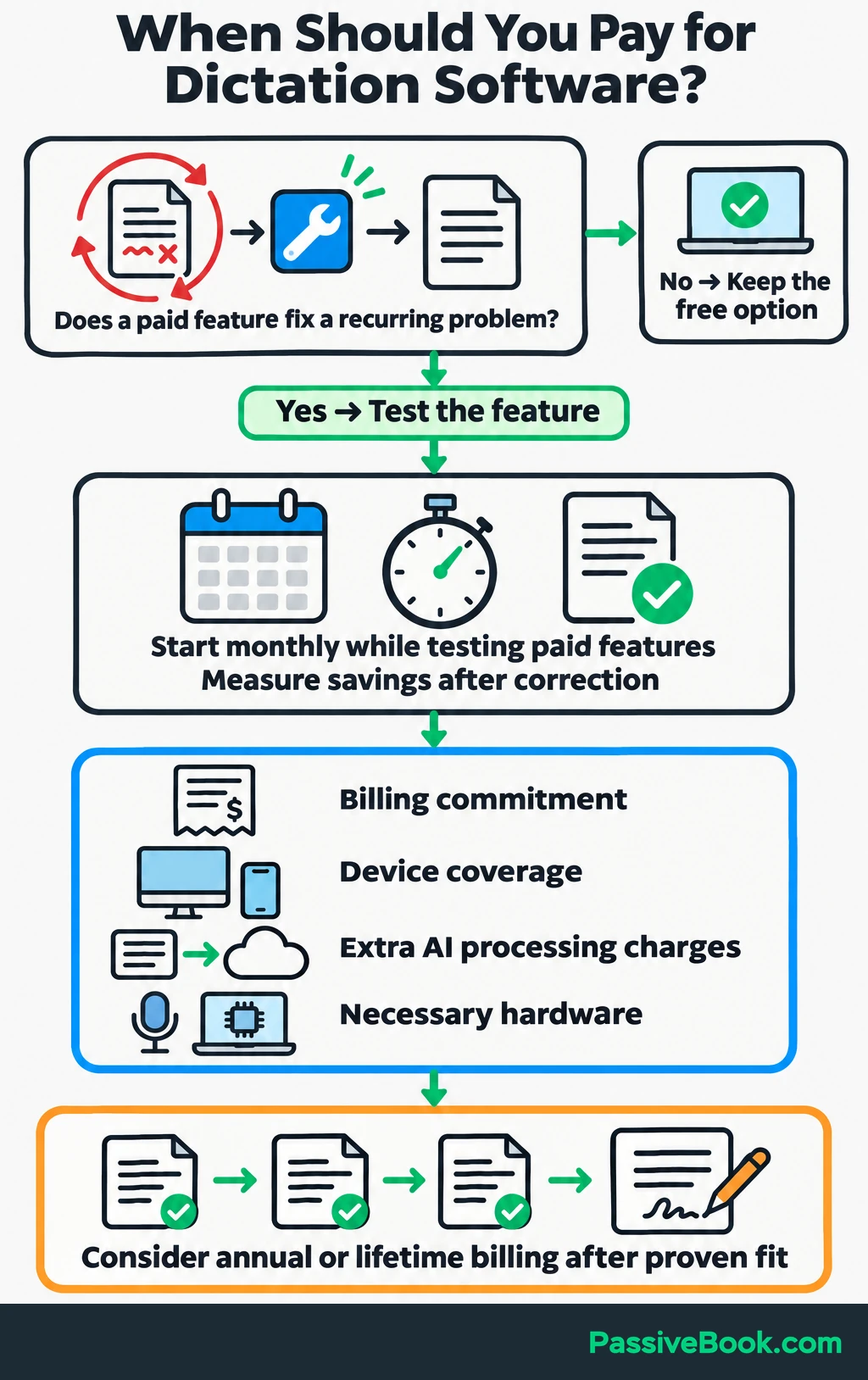
Paid dictation is worth considering when a paid feature fixes something that repeatedly slows you down.
That could be a vocabulary list that prevents the same correction, spoken editing that reduces keyboard use, reliable insertion across your apps or AI formatting that removes a tedious cleanup step.
When I built my AI content pipeline, I caught myself judging progress by how quickly a draft appeared. Then I would reopen it to repair details and smooth awkward sections. That second round was still work, even if the first draft looked impressive. I now judge automation by what remains after the review.
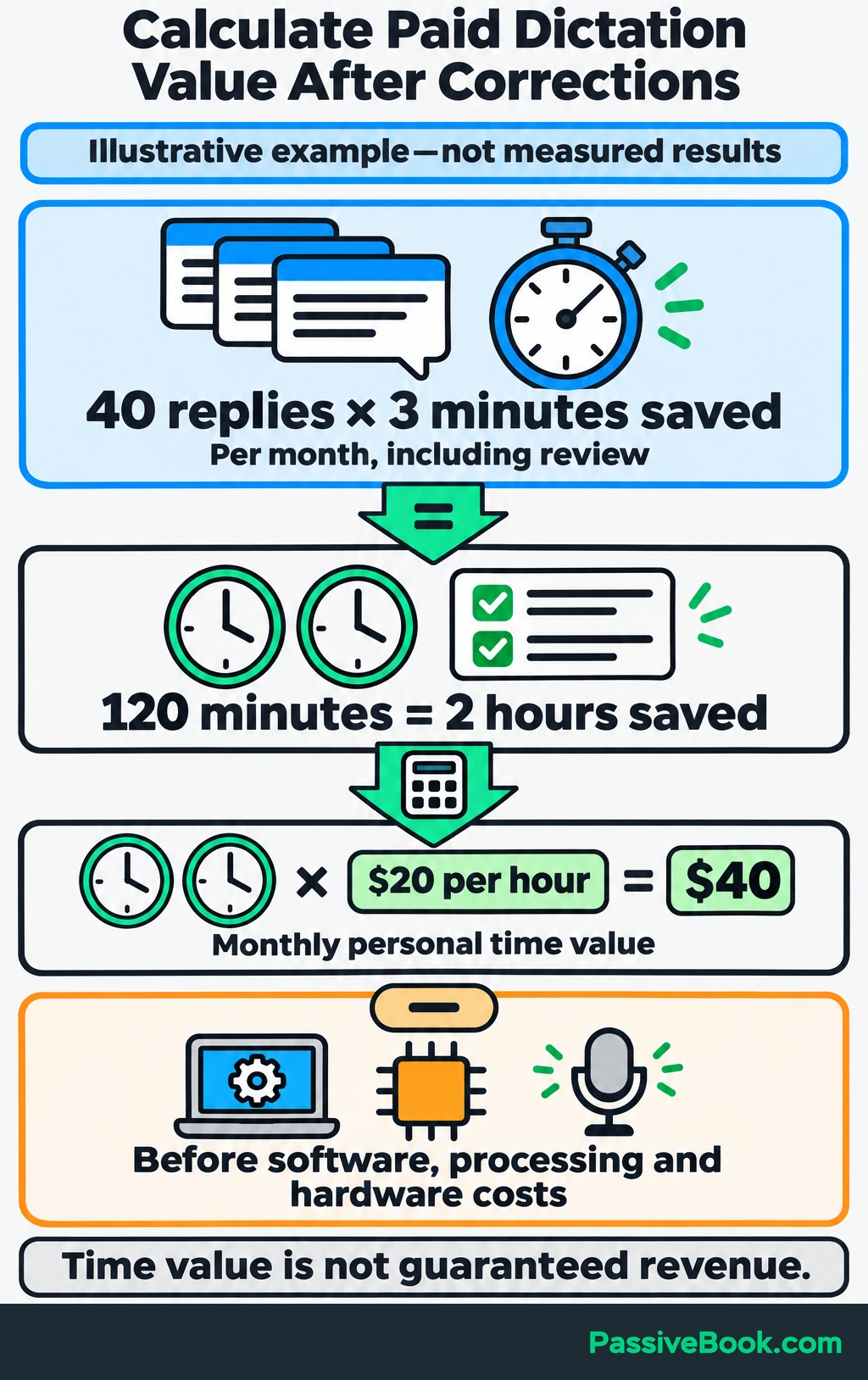
I would apply the same rule here: measure time saved after correction.
Your trial timings are enough for a first check. Include speaking, waiting and corrections so you’re comparing usable writing with usable writing.
Free Automation Value Calculator




For an illustrative calculation, count only customer replies where the trial actually saves time. Suppose you handle 40 such replies each month and save three minutes on each, including review.
That saves 120 minutes, or two hours monthly. If you value that time at $20 an hour, the benefit is $40 in personal time value before software and hardware costs.
It isn’t guaranteed revenue. The value might be finishing earlier, typing less or making room for another task.
Compare the full commitment:
- Billing: Monthly subscription, annual payment or upfront license.
- Devices: Whether one purchase covers the machines and phones you use.
- Extra processing: Charges from any AI provider connected through your own account.
- Hardware: A necessary microphone or a computer capable of running your chosen local models.
My preference is to remove repetitive work without collecting unnecessary subscriptions. Start monthly when you need to test paid features, and consider annual or lifetime billing after the workflow has earned its place.
If the free option handles your work comfortably, keep it. A larger feature list isn’t a reason to create another bill.
What Next?
Dictate one real paragraph and one customer reply with the free option on your device, then record the correction time. That gives you a concrete reason to keep it or test an alternative.
Use the social buttons to share this comparison when you want to help others choose a voice tool without paying for features they won’t use.
Which part of your writing would you most like to handle by voice, and what would make the result trustworthy enough to use? Share your answer in the comments, along with any other questions.
Share this post with your friends & followers:

