You answer the same customer question again, copy another product link into a spreadsheet, and check whether a supplier has restocked. None of these jobs takes long. Together, they eat the hour you meant to spend improving your business.
Chrome extensions can shorten that work, but each new tool brings another account, permission request, or subscription to manage. A crowded toolbar can become its own unpaid internship. This shortlist compares ten extensions by the work they handle, their cost, and the access they need, so you can decide which deserve space in your browser.
Which Chrome Extensions Are Worth Installing?
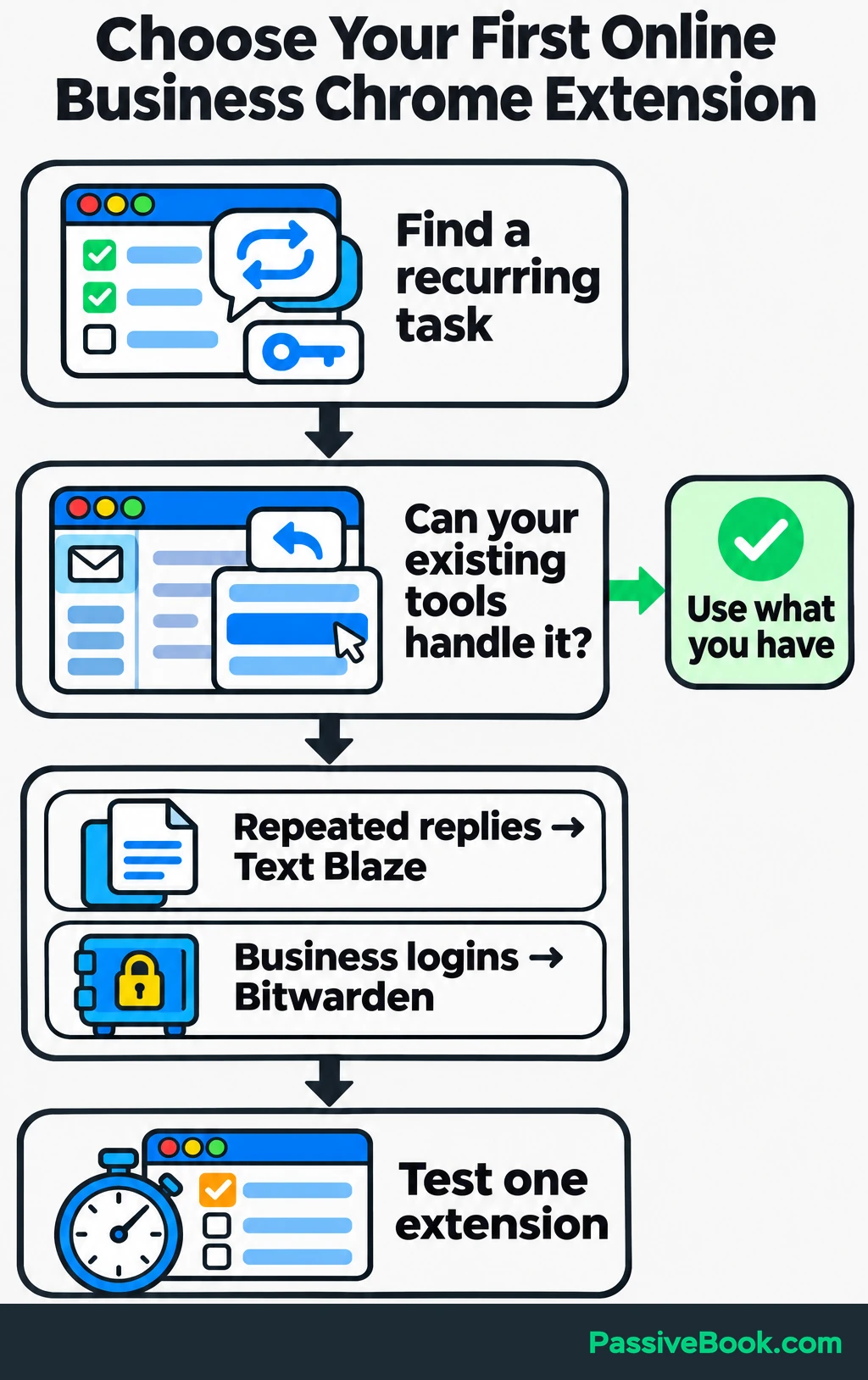
The best Chrome extensions for online business solve a job you already do regularly. I would start with repeated replies or business logins because both give you a clear task to test. More involved automation can wait until you know exactly what should happen.
The ten picks below cover different jobs. They are a menu, and you do not need the whole menu.
The feature and plan comparisons come from official product information. Prices and free allowances appear together here so you can compare them. All quoted amounts are in USD; follow the linked plan information for current details, including regional offers.
| Extension | Best Use | Account or Integration Needed | Useful Free Allowance | Relevant Paid Price and Billing Basis | Main Data-Access Consideration |
|---|---|---|---|---|---|
| Text Blaze | Insert reusable replies and form text | Text Blaze account; browser-based inbox or forms | Limited saved snippets | Pro: USD 3.49/month, or USD 2.99/month billed annually | Keep passwords and customer-specific details out of saved wording |
| Bitwarden | Save, generate, and fill business passwords | Bitwarden account | Unlimited passwords and devices | Premium: USD 19.80/year; Teams: USD 4/user/month billed annually | Protect the vault and control who can access shared credentials |
| Ubersuggest | Research keywords while viewing search results | Ubersuggest account for account-based allowances | 40 extension searches/day on a free account | Subscription pricing varies by region; check the amount and billing term shown in your account | Enable it where you need search and website analysis |
| Ahrefs SEO Toolbar | Inspect individual pages for SEO problems | None for basic inspection; Ahrefs account for additional features | On-page checks; selected extra features with a free login | Paid metrics access advertised from USD 29/month | It needs access to pages you inspect; avoid unnecessary access to private dashboards |
| Grammarly | Edit product descriptions, emails, and articles | Grammarly account; a supported browser editor | Spelling and grammar checks | Pro: USD 30/member/month, or USD 144/member/year | Text you edit is processed by an external writing service |
| Loom | Record reusable screen walkthroughs | Loom account | 25 recordings/person; five-minute screen recordings | Business: USD 18/user/month on monthly billing | Record only what is needed and check who can view the recording |
| HubSpot Sales | Manage Gmail sales conversations in HubSpot | HubSpot account and Gmail | Basic email logging and tracking functionality | Advanced features depend on the subscription and assigned seat; there is no single upgrade price for every use | Logged messages enter the CRM; exclude private conversations |
| Buffer | Add content to a publishing queue | Buffer account and connected social channels | Three channels; ten queued posts/channel at a time | Essentials: starts at USD 60/year for one channel, equivalent to USD 5/month billed annually | Connected accounts give Buffer publishing access |
| Distill Web Monitor | Watch supplier availability or price changes | Extension for local checks; Distill account for cloud checks | 25 monitors, including up to five cloud monitors; 1,000 cloud checks/month with a six-hour minimum interval | Starter: USD 15/month on monthly billing | Consider what monitored pages reveal, especially behind a login |
| Bardeen | Collect repeated page information into structured records | Bardeen account; destination account when exporting to another app | 100 free credits | Basic: USD 10/month on monthly billing; usage depends on actions and output rows | Review browsing permissions and each connected account |
Before choosing, compare the extension with what you already have. A saved reply in your support inbox may handle the same job as Text Blaze. Your existing SEO subscription may make another research tool unnecessary.
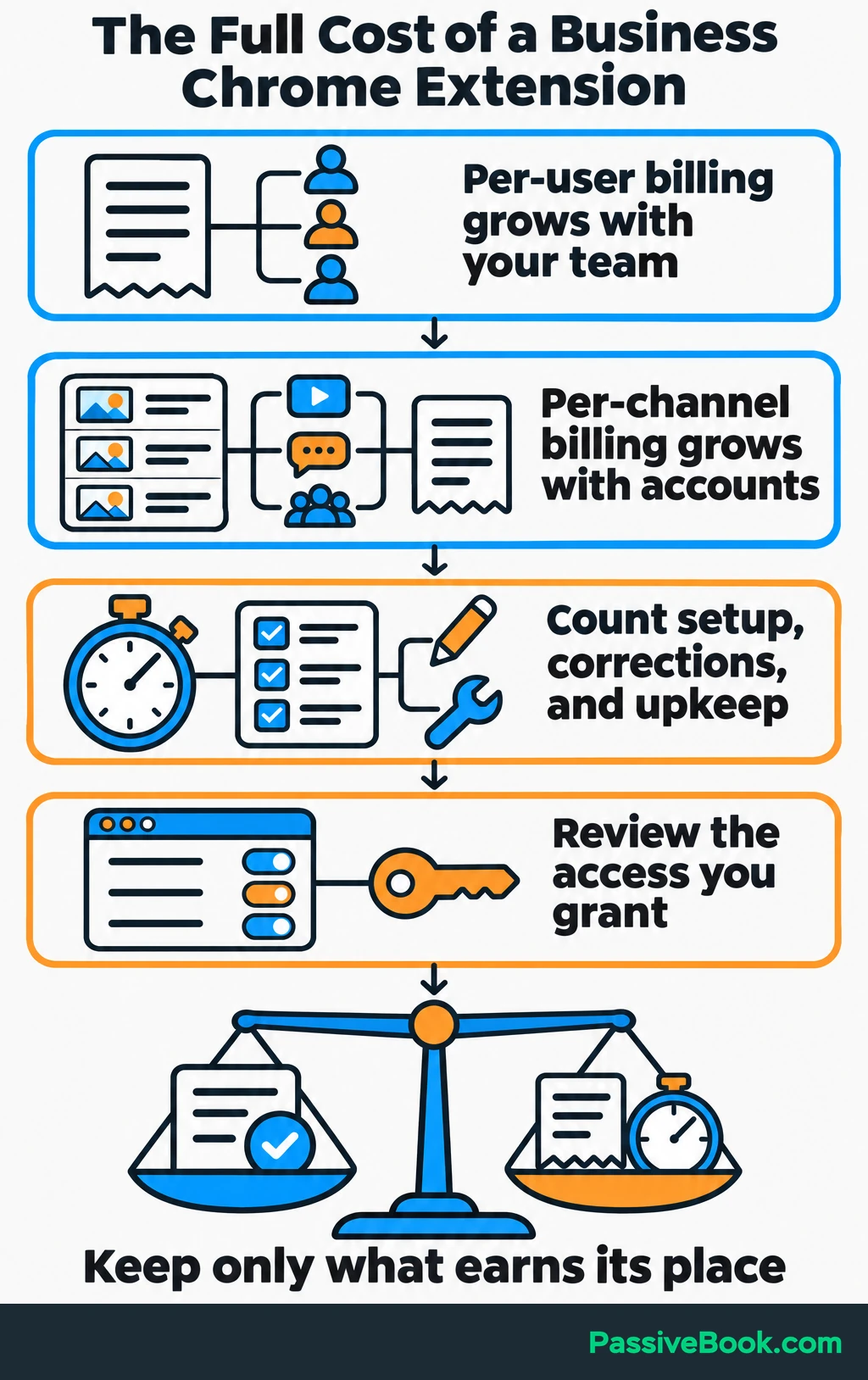
Also check the full cost. A per-user subscription grows when you add people, and a per-channel subscription grows when you add publishing accounts. Setup and correction time count too.
These workflows assume desktop Chrome. If your browser belongs to an employer or another organization, check whether it permits the extension before building work around it.
To make the choices concrete, imagine you run an online shop selling beginner watercolor kits and downloadable practice sheets. The examples below follow that shop, but the same decisions apply to other products and services.
Productivity Extensions for Everyday Operations
Text Blaze: Best for Repeated Replies and Form Entries
Text Blaze is my first pick when the problem is repeated typing. Save the part of an answer that stays the same as a reusable text snippet. Give it a shortcut and personalize the result before sending.
Start with a reply you have already written several times. Remove names, order numbers, and anything that changes between customers. Then test the shortcut inside your actual inbox, because formatting that looks fine in a snippet editor may need adjustment elsewhere.
For the watercolor shop, /kit could insert this excerpt:
“The beginner kit includes paints, brushes, and practice paper. You can find the getting-started instructions here: [instructions link].”
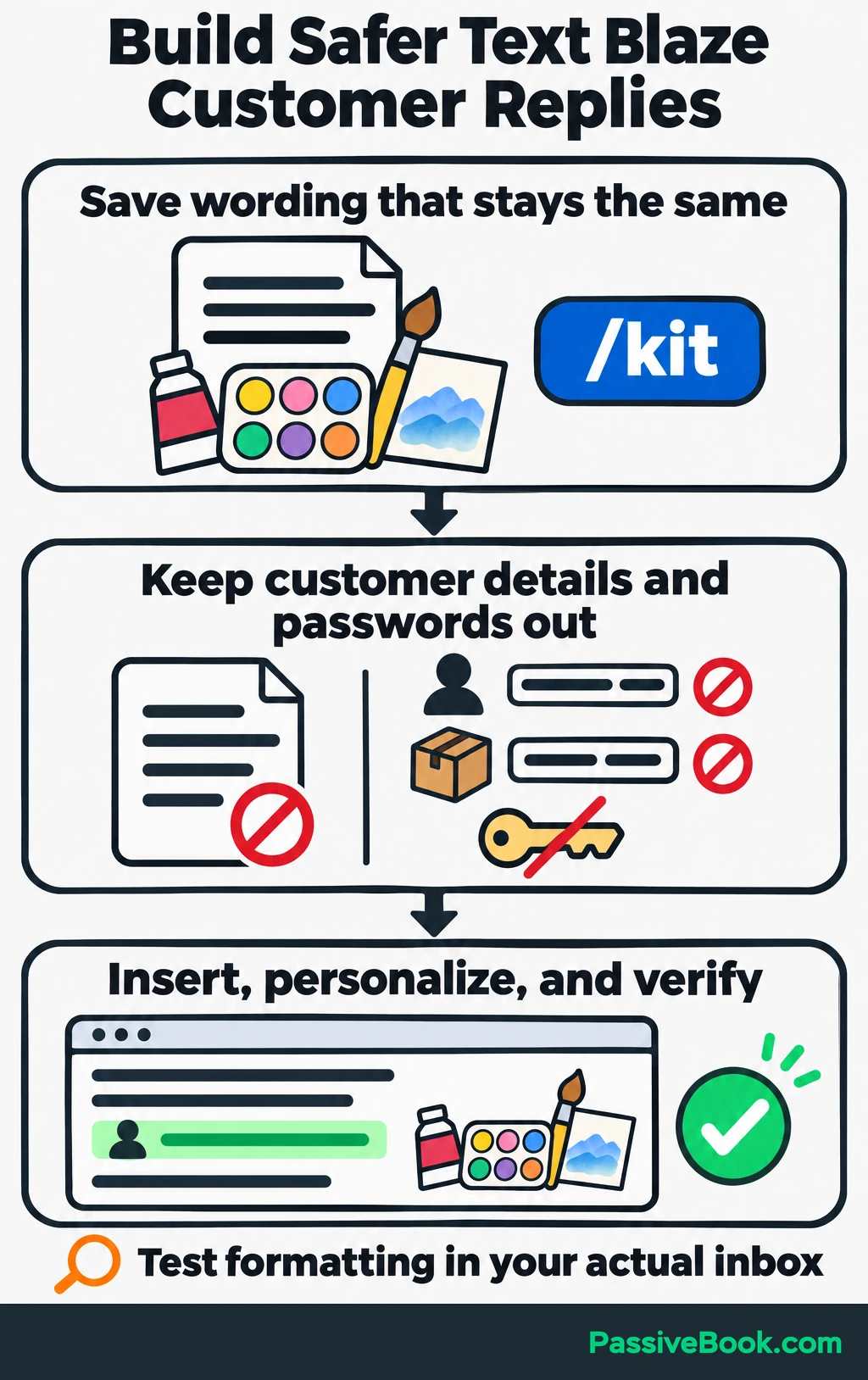
Check the contents against the specific kit before sending it. A shortcut can reproduce an outdated answer with impressive efficiency.
I would use Free until you regularly need forms or conditional rules. Those paid features become useful when a reply needs different wording based on the product or a choice you make while inserting it.
Keep reusable wording in your snippets and add customer details only where you need them. If your inbox already has good saved replies and you rarely type elsewhere, I would keep using those.
Bitwarden: Best for Managing Business Logins
Bitwarden handles a less glamorous job: getting into your business accounts without reusing the same password everywhere.
Create a strong master password, turn on two-step login, and try the extension with a noncritical account first. Practice saving a login, filling it, and updating its password before moving essential accounts.
For the watercolor shop, that means separate passwords for the storefront, supplier account, publishing tools, and business email. The extension fills the relevant login so you do not have to remember each one.
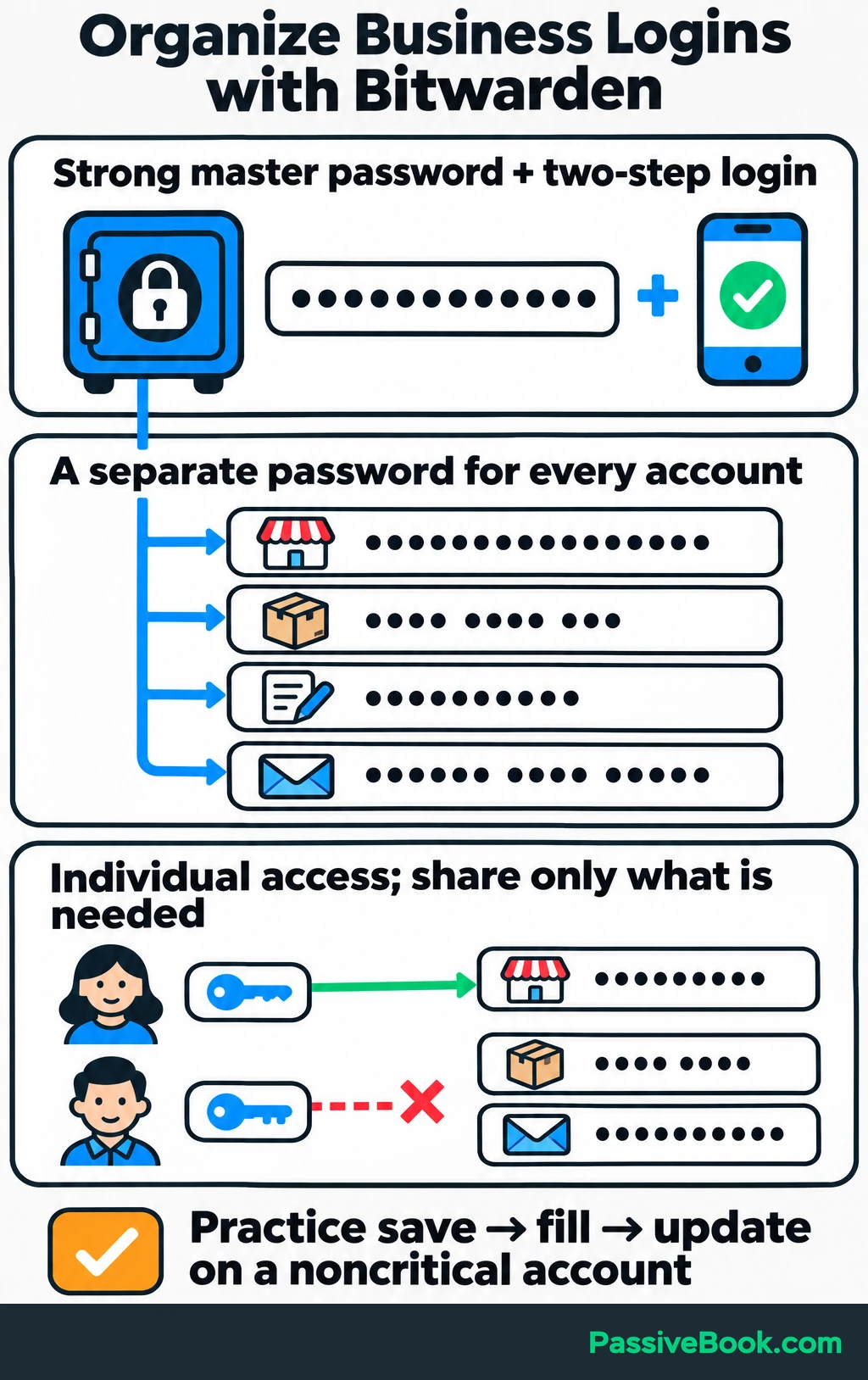
I would keep individual password management free unless a specific Premium feature earns its cost. Team access changes the decision. When another person needs business credentials, ownership, sharing, and removing access become part of the job, so a business plan deserves a closer look.
Avoid sharing one vault login between people. Give each person their own access and share only the credentials their work requires.
If you already use a password manager that handles this well, keep it. Moving passwords is work, and a different logo does not repay that effort.
SEO Extensions for Research and Page Checks
Ubersuggest: Best for Keyword Research Inside Search Results
Ubersuggest puts keyword and website estimates beside search results. That helps you compare possible topics while looking at the pages already ranking.
Begin with a question your customer asks. Review related phrases, compare their estimated demand and difficulty, and then inspect the results themselves. Look for the kind of answer people expect: a tutorial, buying guide, product page, or comparison.
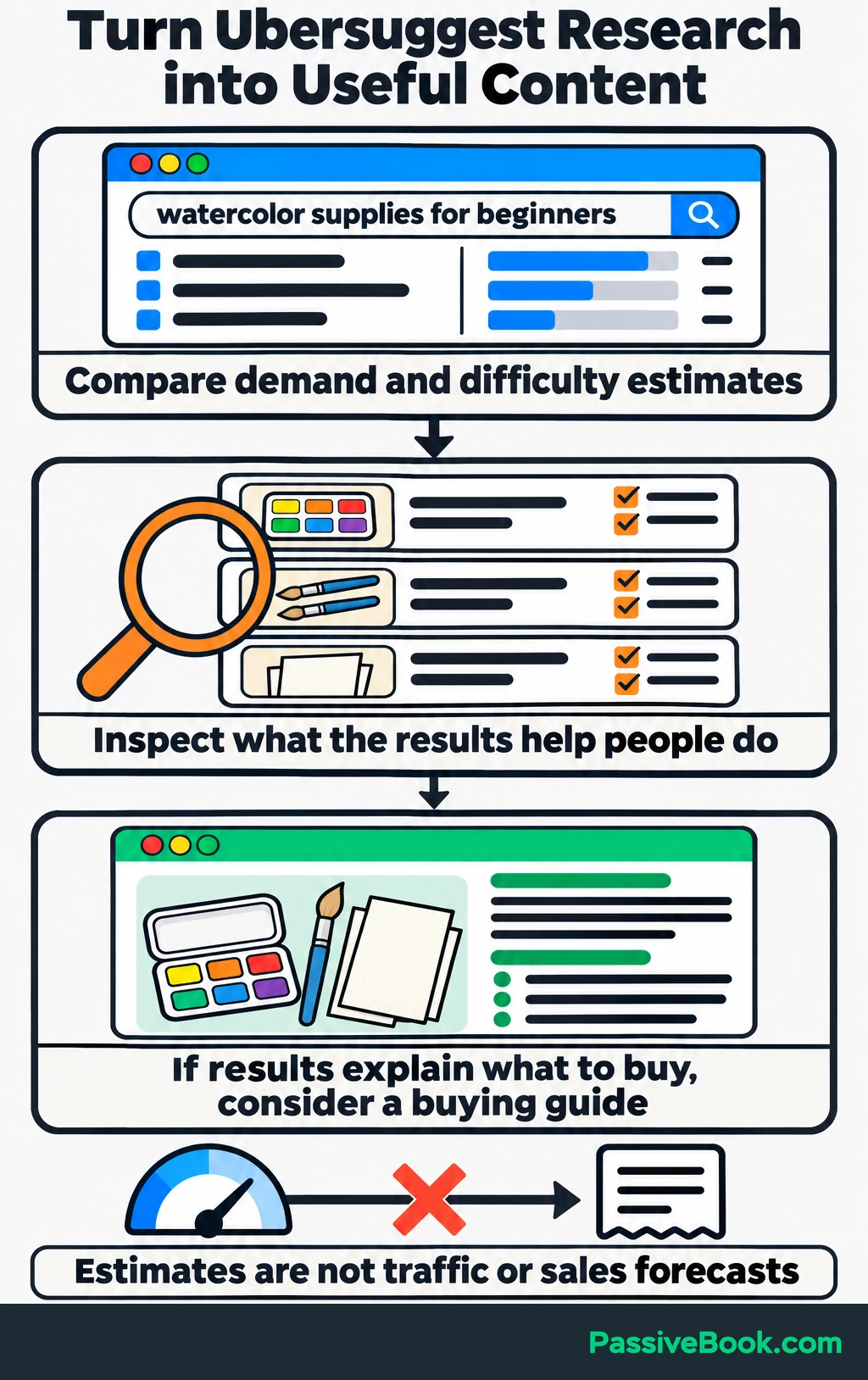
For the watercolor shop, you might investigate “watercolor supplies for beginners.” If the results mostly explain what to buy, a useful buying guide may fit better than a product page with that phrase squeezed into its title.
The figures help you compare opportunities. They do not forecast your visits or sales, and a low difficulty score does not make an unrelated topic worth covering.
Ubersuggest is the option I would consider first for beginner research on a budget. Start with the free allowance in the table and pay only when the research limit interrupts useful work.
Keep your existing keyword tool if it already answers these questions. Buying two sets of estimates rarely fixes an unclear content plan.
Ahrefs SEO Toolbar: Best for Checking Individual Pages
Ahrefs SEO Toolbar is useful when you have a page to inspect. It can show titles, descriptions, headings, canonical tags, indexation directives, redirects, and outgoing links.
Some of those terms sound more complicated than the decision they support. A canonical tag names the preferred URL for a page. A noindex instruction asks search engines to leave a page out of their index. You want to know when either points somewhere you did not intend.
After updating the watercolor shop’s beginner guide, check that:
- The title describes the guide you published.
- Headings follow the article’s structure.
- The preferred URL is correct.
- There is no unintended
noindexinstruction. - Product and download links lead to working destinations.
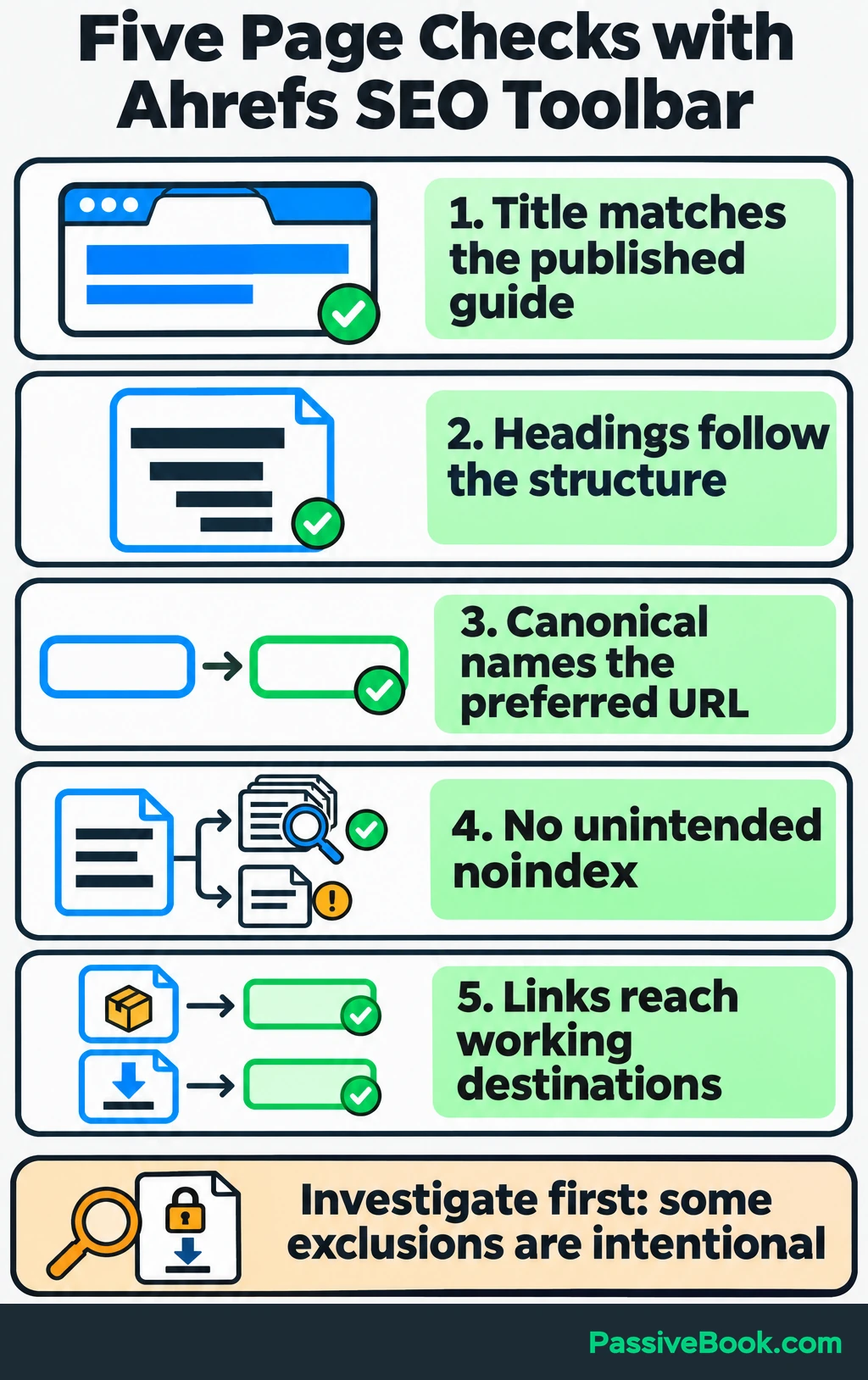
Investigate a finding before changing it. A private download page may be excluded from search on purpose.
I would start with free inspection. A free login adds selected features, including Domain Rating and URL Rating, which are Ahrefs’ measures of link strength. Broader metrics are a separate buying decision.
Ubersuggest and this toolbar can work together: one helps you choose what to create, and the other helps you check what you published.
Content Extensions for Writing and Visual Explanations
Grammarly: Best for Editing Business Copy
Grammarly is useful for catching language problems while you write in the browser. I would use it after checking the message and product facts.
Start by asking whether the reader can understand the offer. Then review spelling, grammar, and suggested rewrites. Accept changes individually so the final copy still says what you mean.
For the watercolor-kit description, check whether buyers can tell what comes in the box, what they must supply, and where the practice sheets fit. A polished sentence cannot rescue missing product information.
Free is a sensible starting point. Pro becomes worth considering when full-sentence rewrites and tone adjustments improve writing you produce regularly. If your existing writing tool already handles those edits, I would skip the extra subscription.
Before routine use, decide whether Grammarly can use your writing to train its models and improve its products. Grammarly says this is enabled by default for individual accounts; you can opt out through its Product Improvement and Training control. Opting out does not stop the service from processing text to provide writing suggestions, so disable Grammarly on sites containing text your business cannot share externally. See Grammarly’s content-use controls for details.
Loom: Best for Reusable Customer Walkthroughs
Use Loom when seeing a process makes it easier to follow. It suits download instructions, short demonstrations, and repeatable instructions for another person helping with your business.
Choose one task before recording. Show the starting point, carry out the action, and show what success looks like. Record the relevant window and close anything that could expose customer information.
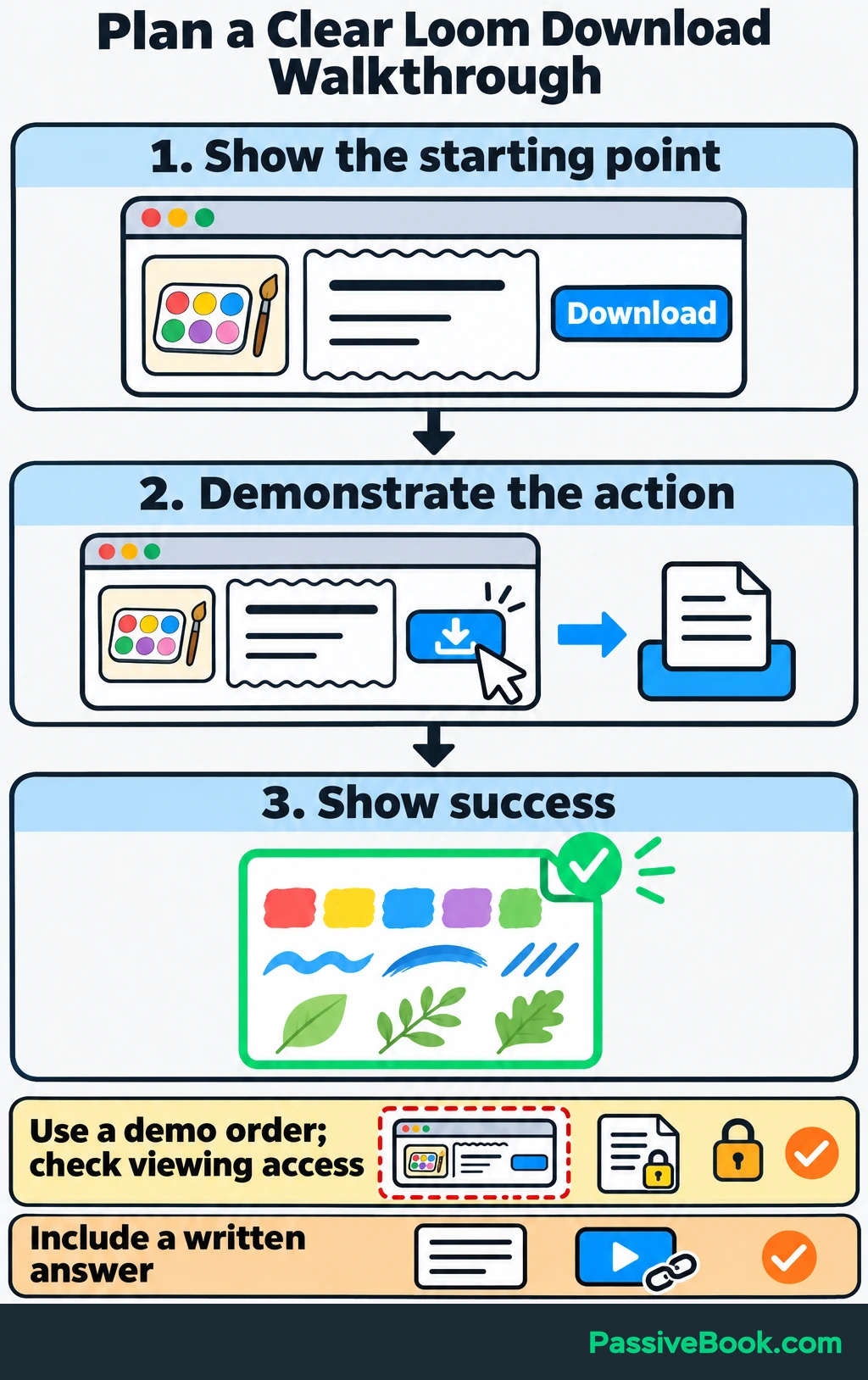
For the watercolor shop, demonstrate how to download the practice sheets using a demonstration order. Start at the receipt, open the download, and show the file ready to use. Then put the recording link into relevant support replies.
On one of my digital-product sites, I kept making a download explanation longer because I thought another sentence would make it clearer. It mostly gave customers more text to search through. Recording the clicks showed me where the written instructions assumed too much.
That is where I find Loom most useful: exposing a step I have stopped noticing because I know the process too well. I would still keep a short written answer beside the video for people who prefer it.
Before sharing, check viewing access. A public video can be opened by anyone with its link; use restricted access for private material. Loom’s privacy settings explain the distinction.
Sales and Distribution Extensions
HubSpot Sales: Best for Gmail Conversations Managed in HubSpot
Choose HubSpot Sales when your sales conversations already belong in HubSpot, the system where you keep contact records and follow-ups. I would not adopt a new customer relationship management (CRM) system just to use its browser extension.
The useful workflow is straightforward: handle the email in Gmail, log the relevant conversation, and check the contact’s record without repeatedly changing applications.
For the watercolor shop, a retailer might ask about a wholesale order. Keeping that enquiry, your reply, and the next follow-up together is useful when the conversation stretches across several weeks.
Basic functionality is a reasonable starting point. Check the requirements for the feature you actually need before upgrading. For example, tracking clicks on links in emails requires an assigned Sales Hub seat.
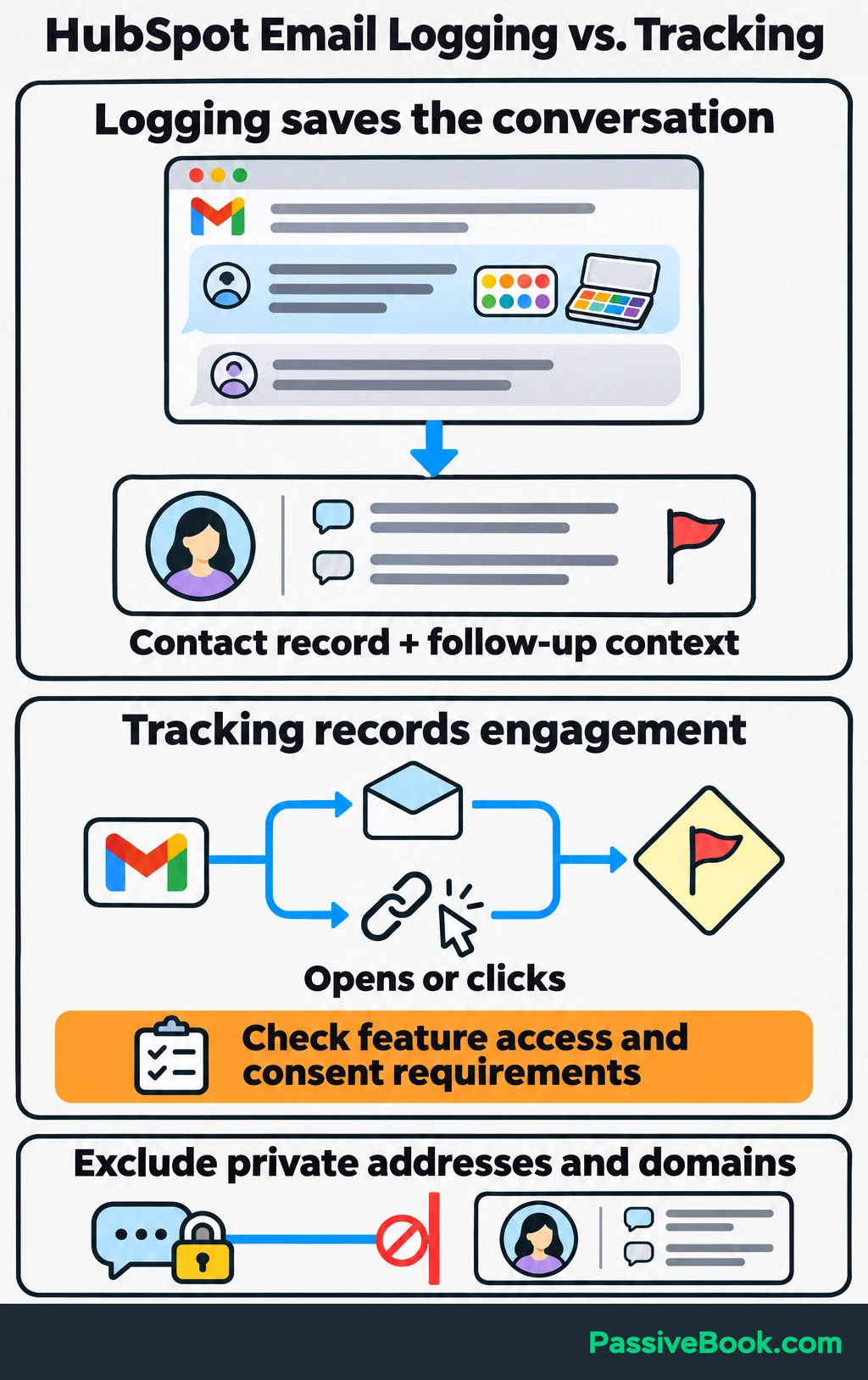
Logging and tracking also serve different purposes. Logging saves the conversation to a record. Tracking records engagement such as opens or clicks.
I would start by making sure useful sales messages are logged correctly. Add tracking only when it supports a real follow-up decision and your business has addressed the relevant consent requirements.
Exclude private addresses and domains from logging. Your CRM does not need every conversation that happens to pass through your inbox.
Buffer: Best for Adding Content to a Publishing Queue
Buffer helps when you collect useful content while browsing and want to place it into a shared publishing queue.
The extension can bring a webpage, image, or selected text into its composer. From there, adapt the post for the destination and choose when it should publish.
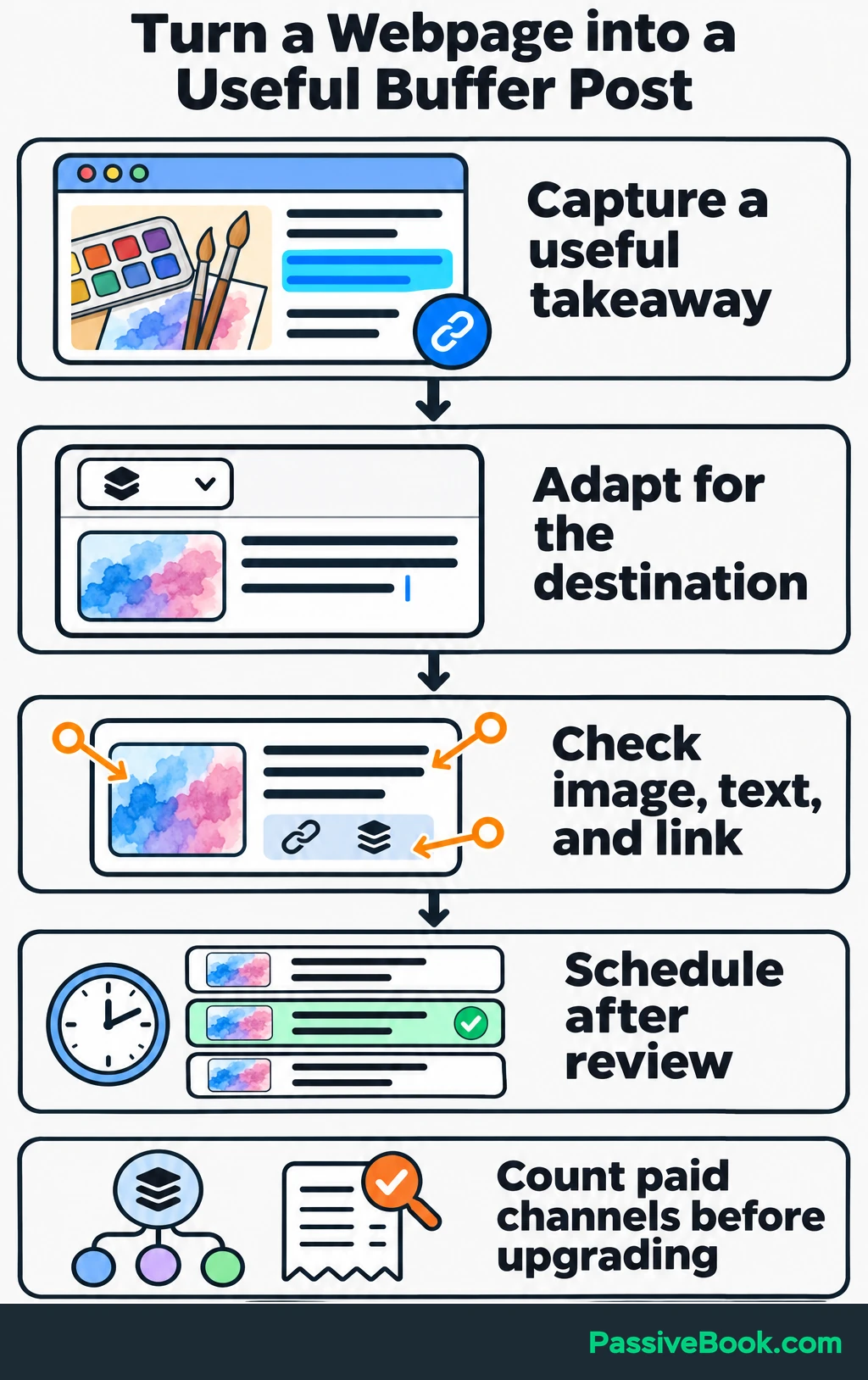
For the watercolor shop, open the beginner guide and draft a post around one useful takeaway:
“Your first watercolor setup needs less equipment than you might think. Here’s what to buy first—and what can wait.”
Add the guide’s link and preview the post. Check that the image, text, and destination work together before scheduling it. Copying a page into a composer saves a step, but the resulting post still needs a reason to exist.
I would choose Buffer when managing several channels from one queue removes regular work. Test the actual post formats you use before paying, because a queue is only useful if it handles your publishing needs.
For a business focused on Pinterest alone, I would start with Pinterest’s native scheduler. The same principle applies to other platforms with adequate built-in scheduling.
Also count paid channels before upgrading. An account you connected once for an experiment can quietly become part of the bill.
Distill Web Monitor for Supplier-page Alerts
Distill watches pages for changes. It is useful when checking a page has become a recurring job and the change would prompt you to act.
Select the smallest useful area first. Watching an entire supplier page can produce alerts about banners or other changes that have nothing to do with your order.
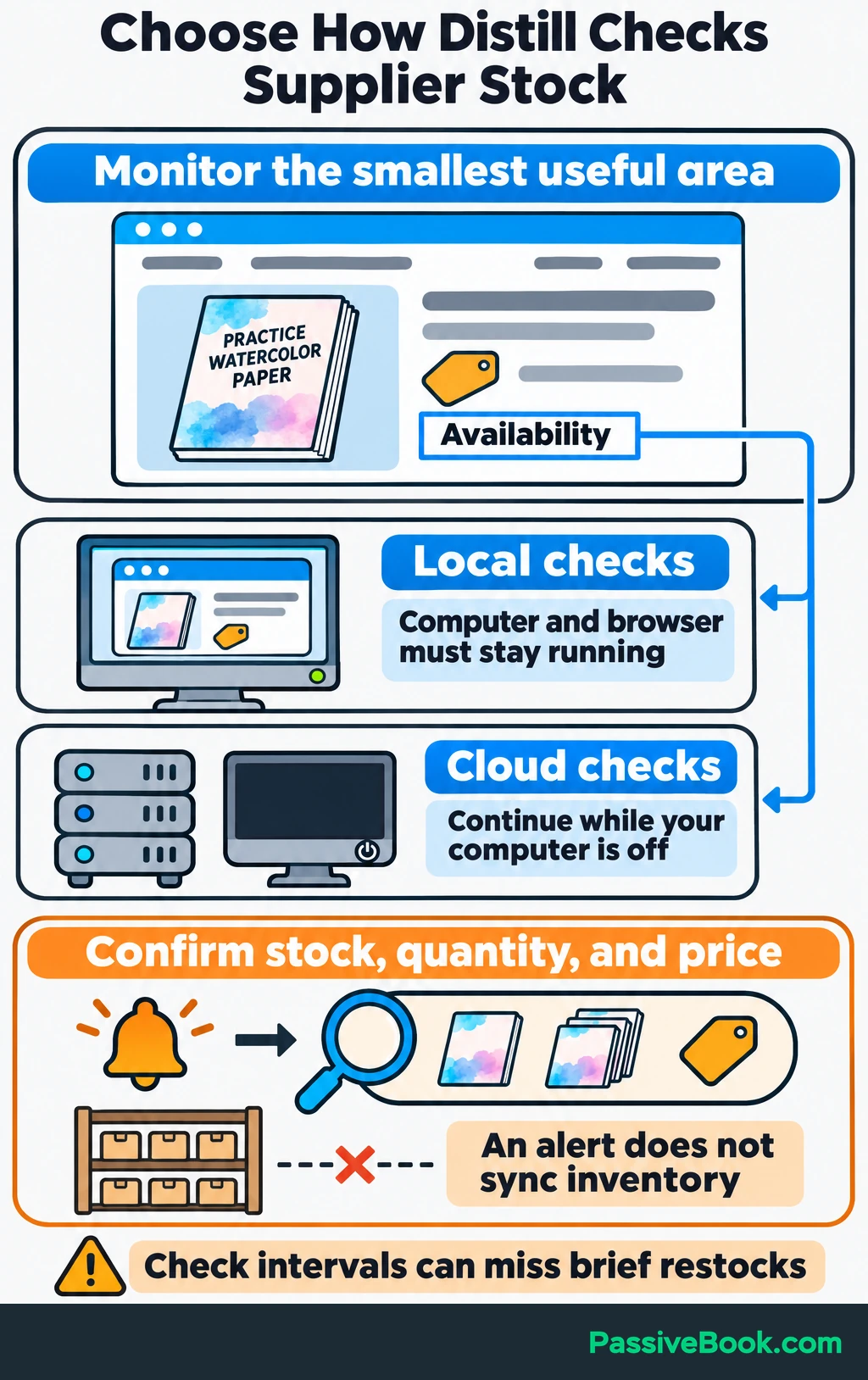
For the watercolor shop, monitor the availability text for a particular pack of practice paper. When an alert arrives, open the supplier page and confirm the stock, quantity, and price before purchasing.
That review matters. A page-change alert tells you something changed; it does not synchronize your shop inventory or confirm that an order can be fulfilled.
Choose where the checks run according to when you need alerts:
- Local Checks: Use your own browser and require the computer and browser to stay running. I would try these for a page I review during working hours.
- Cloud Checks: Run on Distill’s servers and continue while your computer is off. Consider these when waiting until your next work session would be a problem.
The free cloud interval in the comparison table is an important limit. If stock appears and disappears within minutes, occasional checks may miss it.
Test the selected page area through several checks before relying on it. If the supplier already sends a dependable restock email, use that first. An extension should remove checking, not give you a second notification system to maintain.
Bardeen for Repetitive Browser Data Collection
Bardeen is worth considering when you repeatedly copy information from webpages into a spreadsheet or database.
Check for an export or an existing integration first. Those are usually where I would begin because they avoid building a process around the arrangement of a webpage.
If copying remains necessary, define four things before automating:
- Source: The pages you need to read.
- Fields: The exact information each record should contain.
- Destination: Where the records should go.
- Review Point: What you will inspect before using the output.
For the watercolor shop, suppose you need a list of product titles and URLs from the public storefront, and no suitable export is available. Collect those two fields into a Google Sheet, inspect a few records, and then test across more pages.
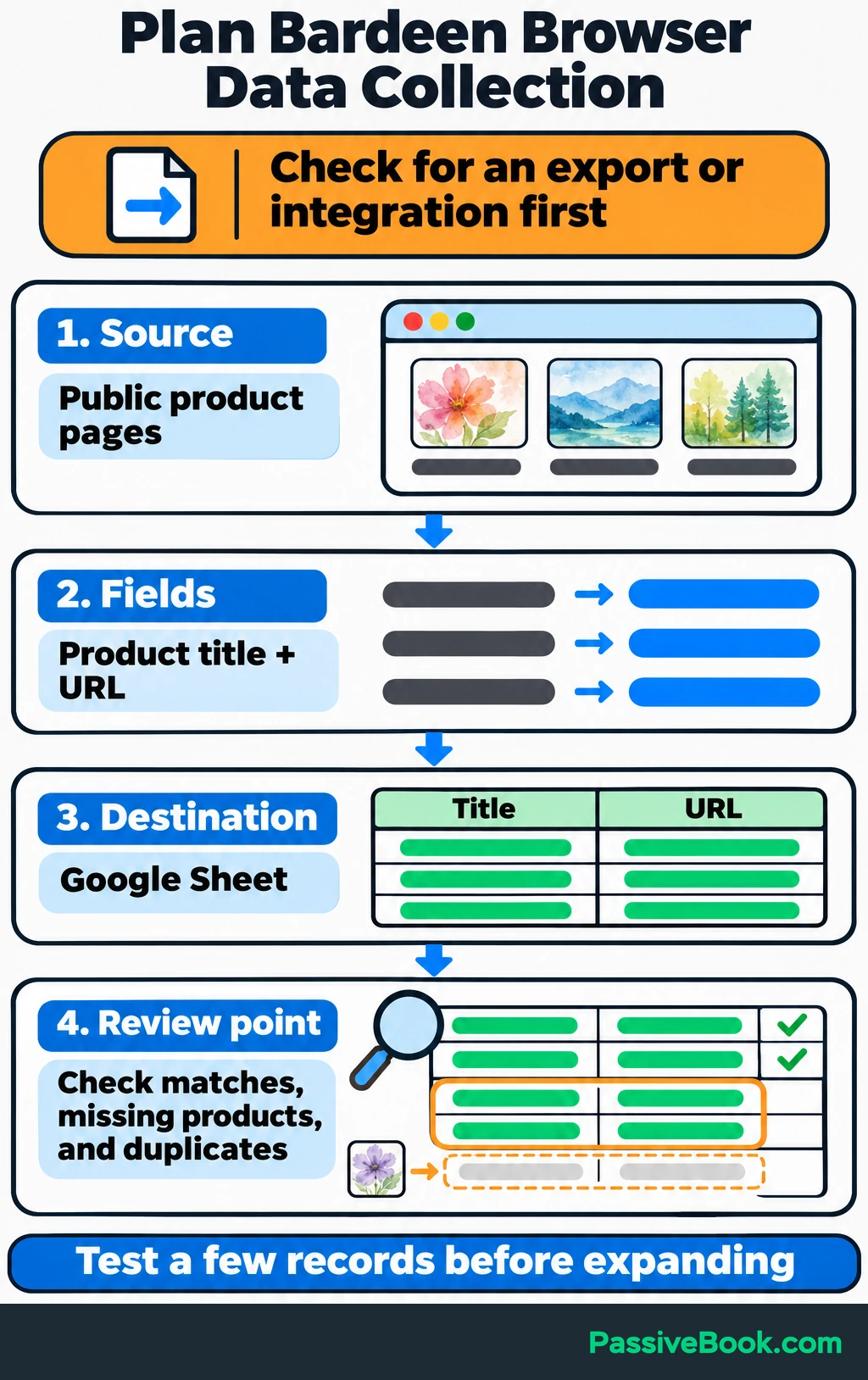
Check whether titles match their URLs and whether the process misses products or creates duplicates. A completed run is only useful if the records are usable.
Bardeen can save results as a CSV file, which opens in a spreadsheet, or send them to Google Sheets, Airtable, or Notion. Use the free credits to measure the complete workflow before paying. Credit consumption depends on the actions and rows produced, and unused credits expire at the end of the billing period.
Review access before connecting accounts. Its store listing discloses browsing-history access for automation recommendations. Connect only the accounts needed for your task. Bardeen’s extension disclosure gives that context.
For recurring work between business apps, I would also check Make or n8n, which connect apps into workflows. Bardeen makes more sense when the information you need still lives on pages you would otherwise copy manually.
Test One Extension Before Keeping or Paying for It
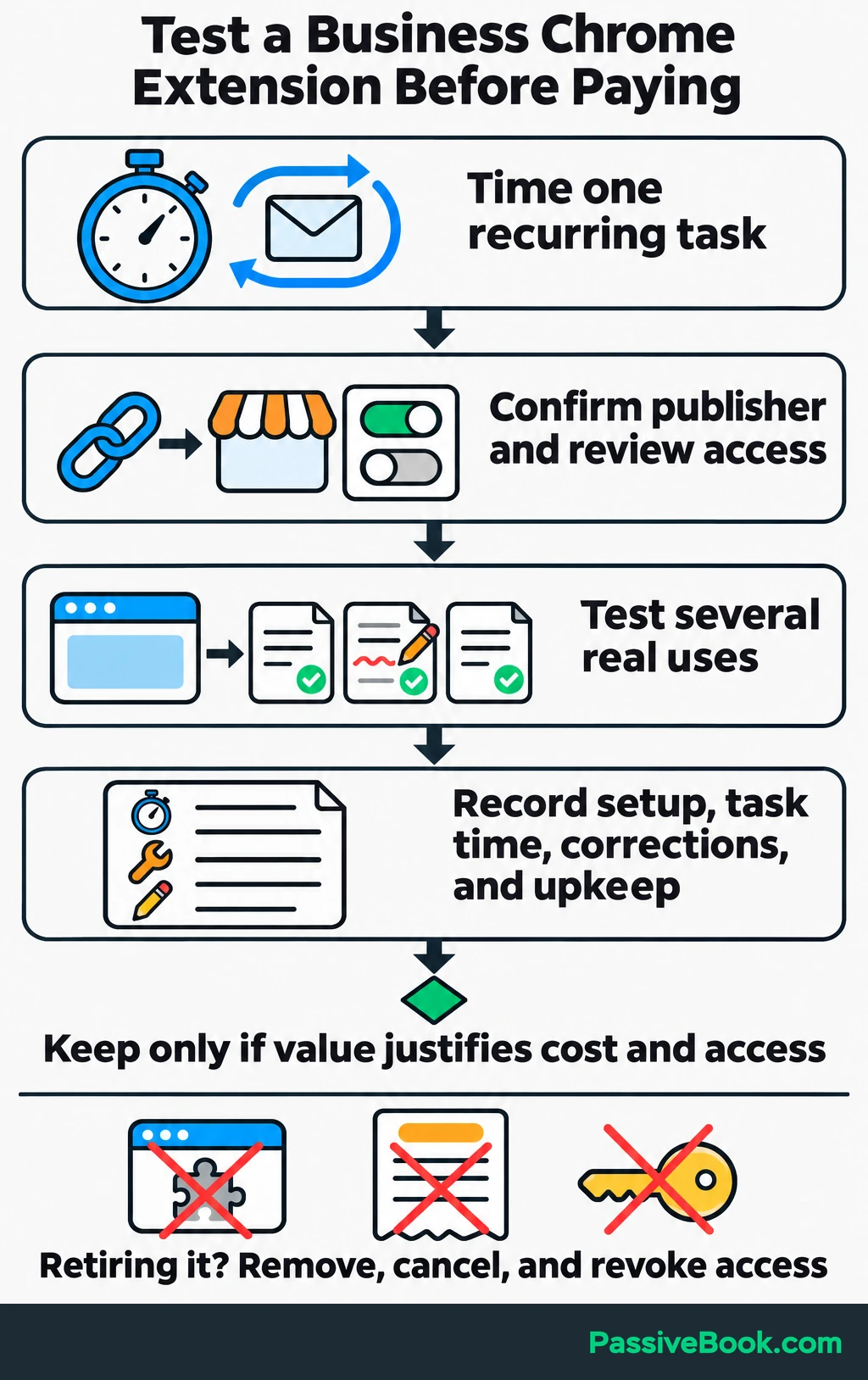
Choose one recurring task and time it, including checks and corrections. Then:
- Follow the vendor’s official extension link and confirm the publisher in the Chrome Web Store.
- Review requested permissions and restrict website access where Chrome supports it.
- Test several real uses in your usual inbox, editor, storefront, or connected account.
- Record setup time, task time, corrections, and maintenance.
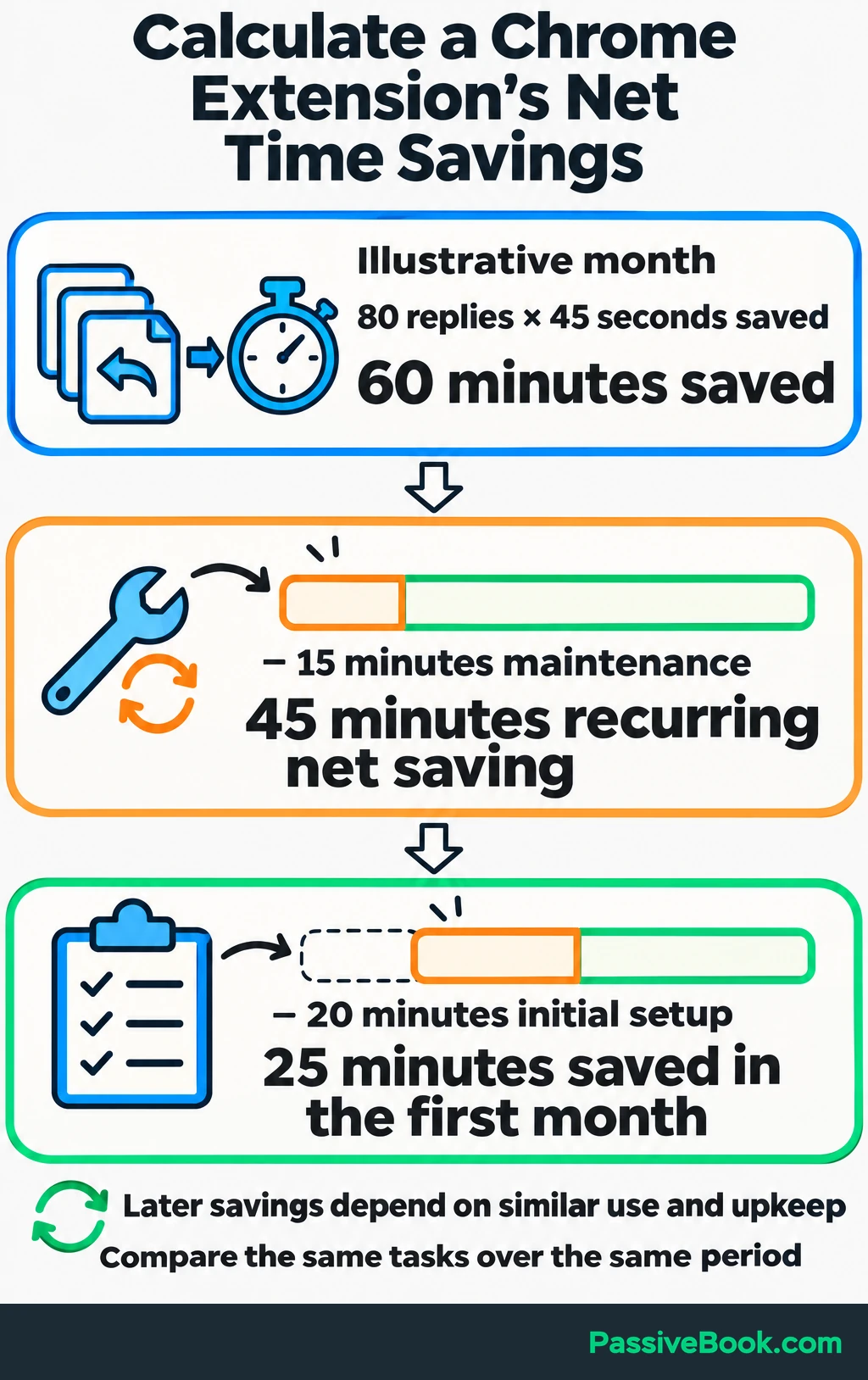
To calculate time saved, count only tasks where you used the extension. Compare the same group of tasks over the same period, then subtract the time spent setting up and maintaining the workflow.
Here is an illustrative month for reusable replies:
| Item | Time |
|---|---|
| 80 replies using the shortcut, with 45 seconds saved per reply | 60 minutes saved |
| Updating and maintaining snippets that month | 15 minutes spent |
| Net recurring saving for the month | 45 minutes saved |
If initial setup took another 20 minutes, the first month’s net saving would be 25 minutes. Later months would save 45 minutes only if reply volume, task savings, and maintenance stayed similar.
A subscription can look cheap until you count setup, corrections, and how often you will actually use it. This calculator compares those costs with your current workflow, including a lower-use scenario.

Free Automation Value Calculator




Keep the extension when the time saved or improved accuracy justifies its cost and access. I would pay only when I can name the paid feature that earns its cost.
“More features” is not a business case. It is how a software bill develops hobbies.
When retiring an extension, remove it from Chrome, cancel any separate subscription, and revoke connected-account access. Uninstalling the browser tool does not necessarily finish those other jobs.
What Next?
Pick one task you repeated this week and test the matching extension on its next few uses. Record the time spent checking and correcting the result so you can decide whether it earns a permanent place.
Use the social buttons to share this shortlist if it would help cut repeated browser work and unnecessary subscriptions.
Which recurring task would you most like to remove from your week? Tell me in the comments, and bring any other questions about choosing or testing these tools.
Share this post with your friends & followers:

