You need a website promotion and a matching social header, but the template you like wants payment before you can download it. Another tool is free until you need a different size.
That makes a simple design job surprisingly awkward. Your logo, photograph and headline need to work in both places, and the downloaded files still have to look sharp. This comparison weighs six editors by their branding tools, resizing, exports and cost, so you can make matching banners without discovering a download restriction at the end.
Best Banner Makers at a Glance
The best banner maker software depends first on where your banner will appear. A website promotion, social header and animated advertisement can need different files.
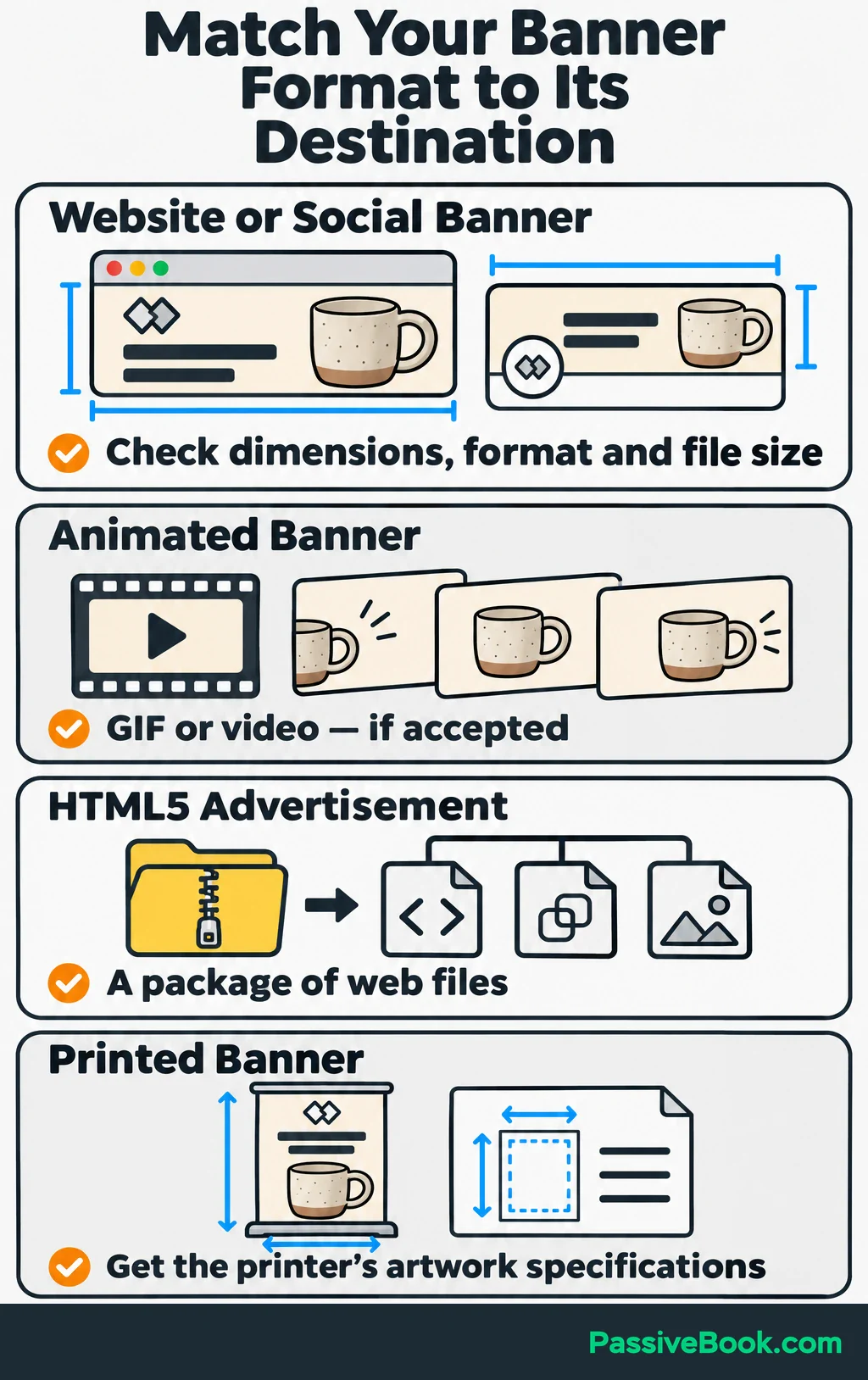
Check the destination before comparing templates:
- Website and social banners: Find the required image dimensions, accepted formats and maximum file size.
- Animated banners: Confirm whether the placement accepts GIF or video. A moving design is useful only if you can upload it.
- HTML5 advertisements: These use a package of web files rather than an ordinary image or video. Choose an editor that exports the required advertising format.
- Printed banners: Get the printer’s artwork specifications before choosing your editor or canvas size.
Then compare the whole job: finding a layout, adding your branding, adapting it and downloading usable files on your preferred device. A huge template library means little if the export you need sits behind a subscription.
The recommendations below are editorial judgments based on product documentation. They are not results from original comparative testing.
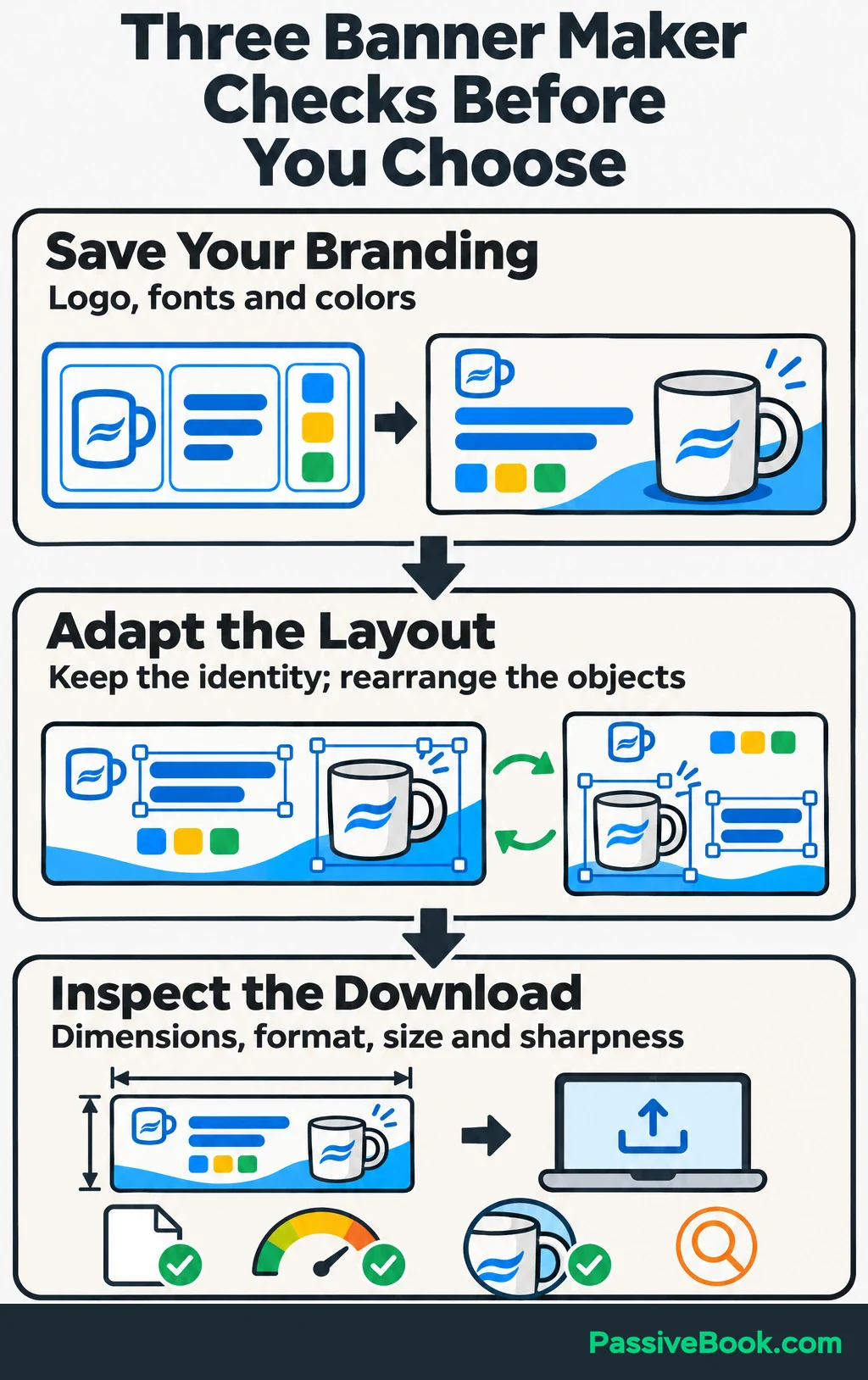
A Brand Kit stores the visual pieces you reuse, such as colors, fonts and your logo. The table shows what each tool lets you save for free.
All prices shown are in USD. Annual amounts are payments for a full year, and monthly amounts are monthly subscriptions. Regional prices and taxes can differ. The free plans are ongoing plans; a paid-plan trial is separate. Check the linked pages for current prices and plan limits.
| Tool | Best Use | Editing Devices | Free-Plan Downloads | Relevant Paid Option | Banner Formats | Branding and Resizing | Main Drawback |
|---|---|---|---|---|---|---|---|
| Canva | Everyday business graphics | Browser; Windows, Mac, iOS and Android apps | Standard downloads using free content and your uploads; premium content can add charges | Pro: $144 billed annually for one person | JPG, PNG, PDF, GIF and MP4 | Free kit limited to three colors; automatic resizing and expanded brand tools with Pro | Transparent-background export requires an eligible plan |
| VistaCreate | Reusable branding on a free plan | Web and mobile, with synced projects | Unlimited downloads; HD downloads require Pro | Pro: $13 billed monthly or $120 billed annually | JPG, PNG, PDF, GIF and MP4 | One free Brand Kit and font uploads; one-click resizing with Pro | Free exports still need to meet your required pixel dimensions and quality |
| Adobe Express | Reusing assets across Adobe tools | Desktop browsers and mobile phones | Free templates and assets; premium content and tools are restricted | Premium: $9.99 billed monthly, with no annual commitment | JPG, PNG, PDF and MP4 | Premium adds brand kits and editable-design resizing | The free image resizer does a different job from design resizing |
| Snappa | Occasional static graphics on a computer | Laptop or desktop browser | Three downloads per month | Pro: $15 billed monthly or $120 billed annually | JPG and PNG | Upload logos and photos; free one-click resizing; custom-font uploads with Pro | Revisions and extra sizes can quickly use the free allowance |
| PosterMyWall | Buying individual high-resolution images | Desktop and mobile | Five standard downloads monthly if you have made no purchase in the previous 12 months | Single-page high-resolution image: $5.99; Premium: $13 billed monthly | JPG, PNG, WebP and PDF, depending on design options | Free one-click resizing; Premium adds a Brand Kit and custom fonts | Standard free downloads have lower resolution than paid files |
| BannerBoo | Animated HTML5 advertising | Browser editor; I would use a computer | Four-banner limit; unlimited watermarked JPG and PNG exports | Start: $15 billed monthly or $144 billed annually | JPG and PNG free; GIF and HTML exports with paid plans | Ordinary resizing with Start; smart resizing and custom fonts with Pro | The free plan does not provide finished HTML5 ad exports |
For the examples, imagine you run an online shop selling handmade ceramic mugs. You need a website promotion and a matching social header using your product photograph, logo, colors and headline.
That is a good comparison task because it tests more than whether an editor has an attractive template. It shows whether you can make two banners that belong to the same shop.
The Best Banner Maker Software Compared
Canva: Best Overall for Everyday Branded Banners
Canva is my default recommendation when you need banners alongside blog graphics, thumbnails and other recurring business images. I already use it for graphics, Pinterest pins, thumbnails and social images, so it fits the broader work I do.
Its main appeal is having those jobs in one template-based editor. You can start with a banner layout, replace the stock photograph and styling, and keep the edited project for your next promotion.
The free plan is enough to begin with your own assets and free design elements. For the mug shop, that means uploading the actual product photograph and logo rather than paying for decorative stock content.
I would choose a layout with a clear space for the headline and a large product image. Once it works, duplicate that project for later collections. Replacing the photograph and message is easier than choosing a new visual identity every month.
Pro becomes more useful when you repeatedly need automatic resizing, background removal or fuller brand controls.
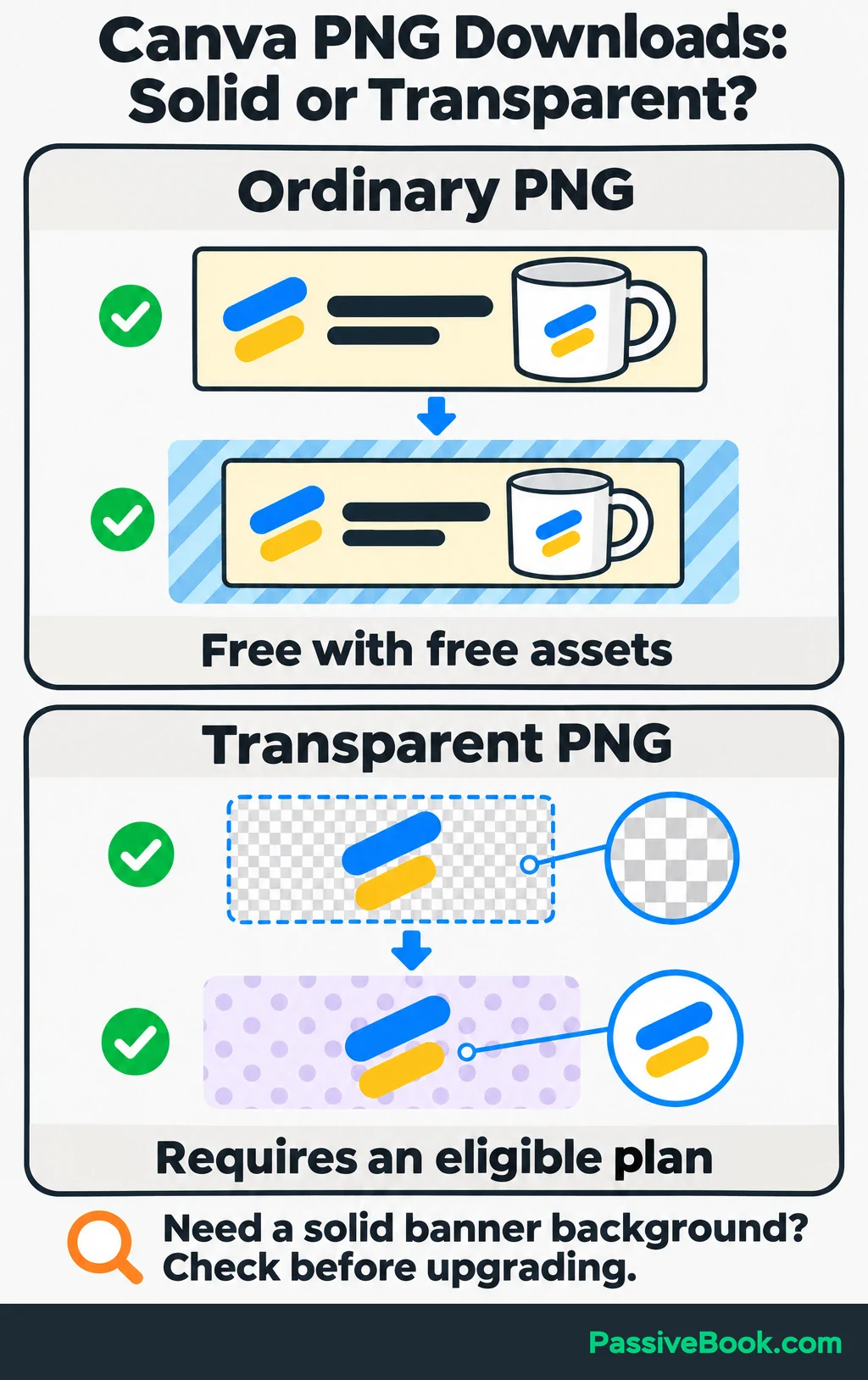
Watch the distinction between a PNG file and a transparent PNG. Ordinary PNG downloads are available free, but transparent-background export requires an eligible plan. A finished banner with a solid background may have no need for that upgrade.
Choose Canva when you want one familiar editor for most of your graphics. I would stay on Free until a specific restriction gets in the way.
VistaCreate: Best Free Option for Reusable Branding
VistaCreate is the stronger starting point when your main concern is keeping one brand consistent without paying.
VistaCreate’s free Starter plan includes one Brand Kit, uploaded fonts and media, unlimited downloads, and synced web and mobile editing.
That makes it worth comparing with Canva even if you have already heard far more about Canva. Familiarity is useful, but it is not a reason to ignore a free feature you need.
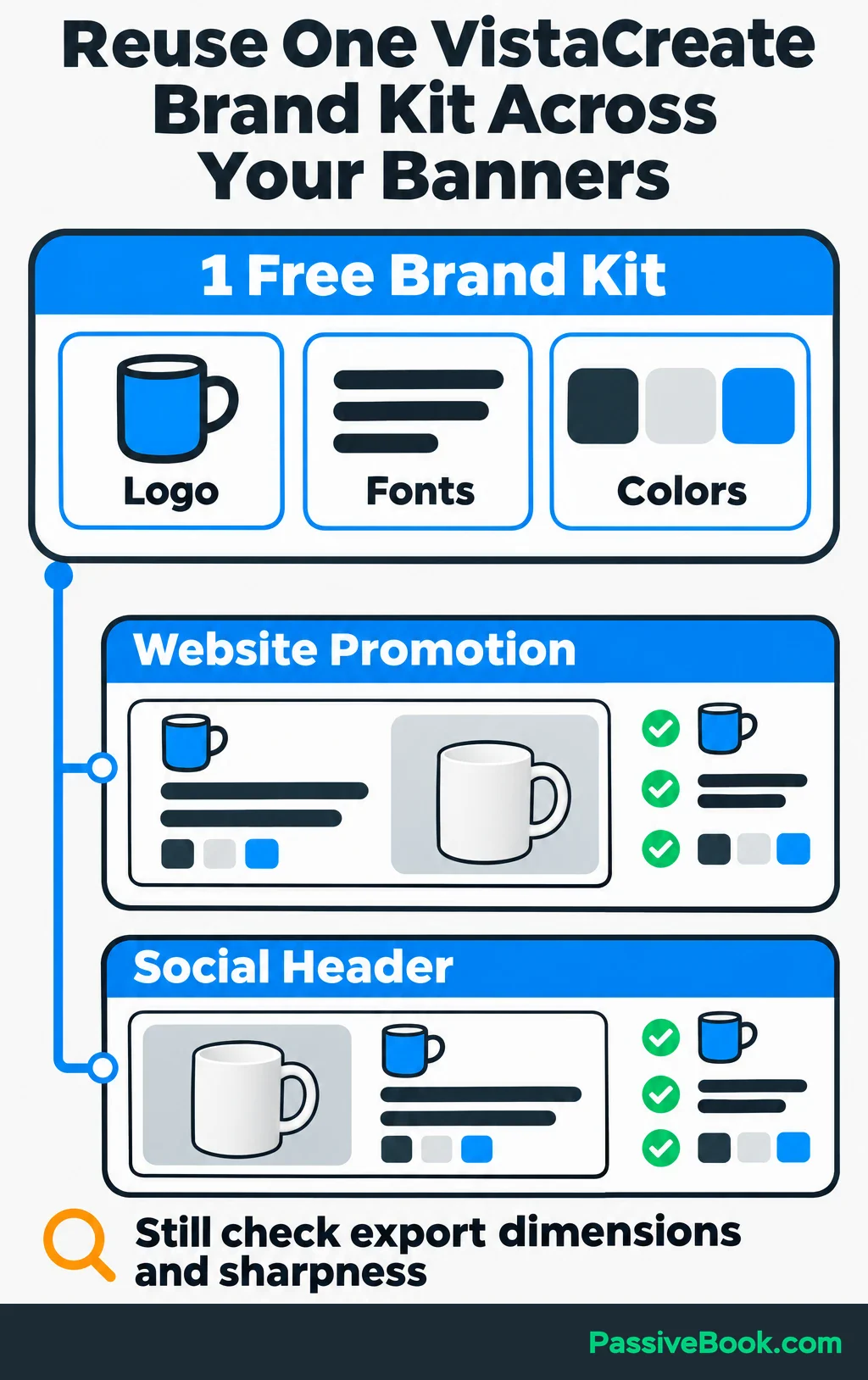
Save your branding before making several designs. Otherwise, you can end up picking slightly different colors or fonts each time and wondering why everything looks almost consistent. Almost is a surprisingly persistent design style.
For the mug shop, one kit can hold the logo, a dark text color, a pale background color and the chosen fonts. The website promotion and social header can then share those elements while using different arrangements.
Pro adds one-click resizing, background removal, unlimited Brand Kits and HD downloads. I would first export the actual banner on Starter and inspect its dimensions and sharpness. The word “HD” alone does not tell you whether your website needs the upgrade.
Choose VistaCreate when one saved brand and free downloads cover your work. Upgrade when the resizing or export restriction becomes a real obstacle.
Adobe Express: Best for Existing Adobe Workflows
Adobe Express makes the most sense when your design assets already live in Adobe applications.
Creative Cloud Libraries let you collect and reuse assets across Adobe tools. Linked Photoshop or Illustrator assets require the corresponding membership, so an Express subscription does not automatically replace those subscriptions.
If you already have finished product images or other approved assets in that setup, Express gives you a simpler place to assemble promotional graphics. If you are starting from scratch, I would compare it with Canva and VistaCreate before choosing it for the Adobe name alone.
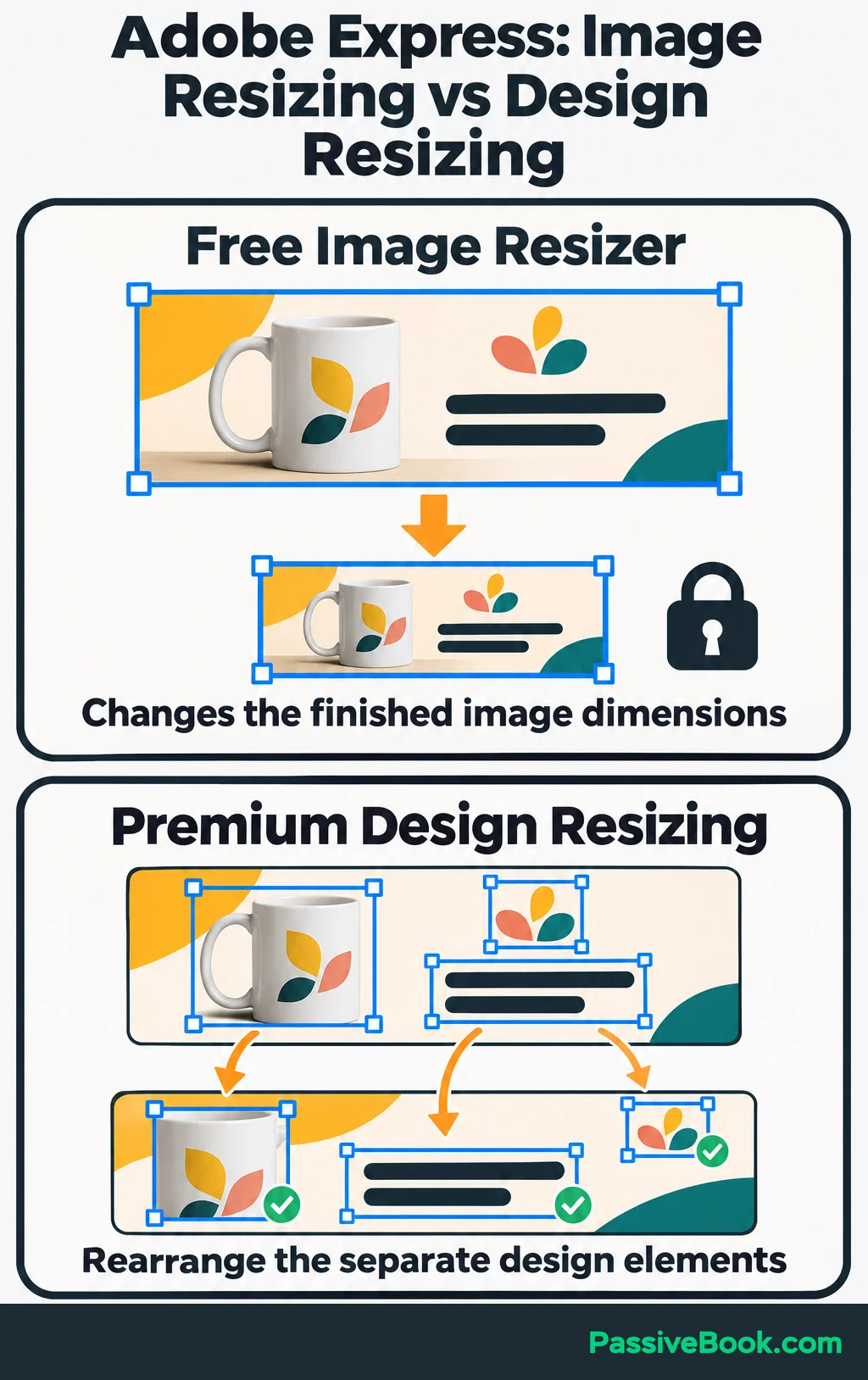
The free plan covers core editing and free templates on a desktop browser or phone. Premium adds brand kits, premium templates and one-click design resizing.
That last feature needs a clear distinction. Adobe’s free image-resizing quick action changes the dimensions of a finished image. Premium’s design resizing works on the editable project.
In a downloaded JPG or PNG, your headline, mug photograph and logo are all part of one picture. Changing its dimensions does not give you separate control over those pieces. In an editable project, you can move the logo, adjust the headline and change the photograph’s crop.
I would choose Express for an existing Adobe workflow or a clear preference for its editor. I would skip paying simply to resize an occasional finished image.
Snappa: Best for Occasional Desktop Graphics
Snappa suits a small, predictable workload of static banners made on a computer.
It offers templates, preset and custom dimensions, and uploads for your photographs and logo. Its one-click image resizer is available free, which makes the free plan worth considering when you need the same message in different shapes.
The catch is the download allowance.
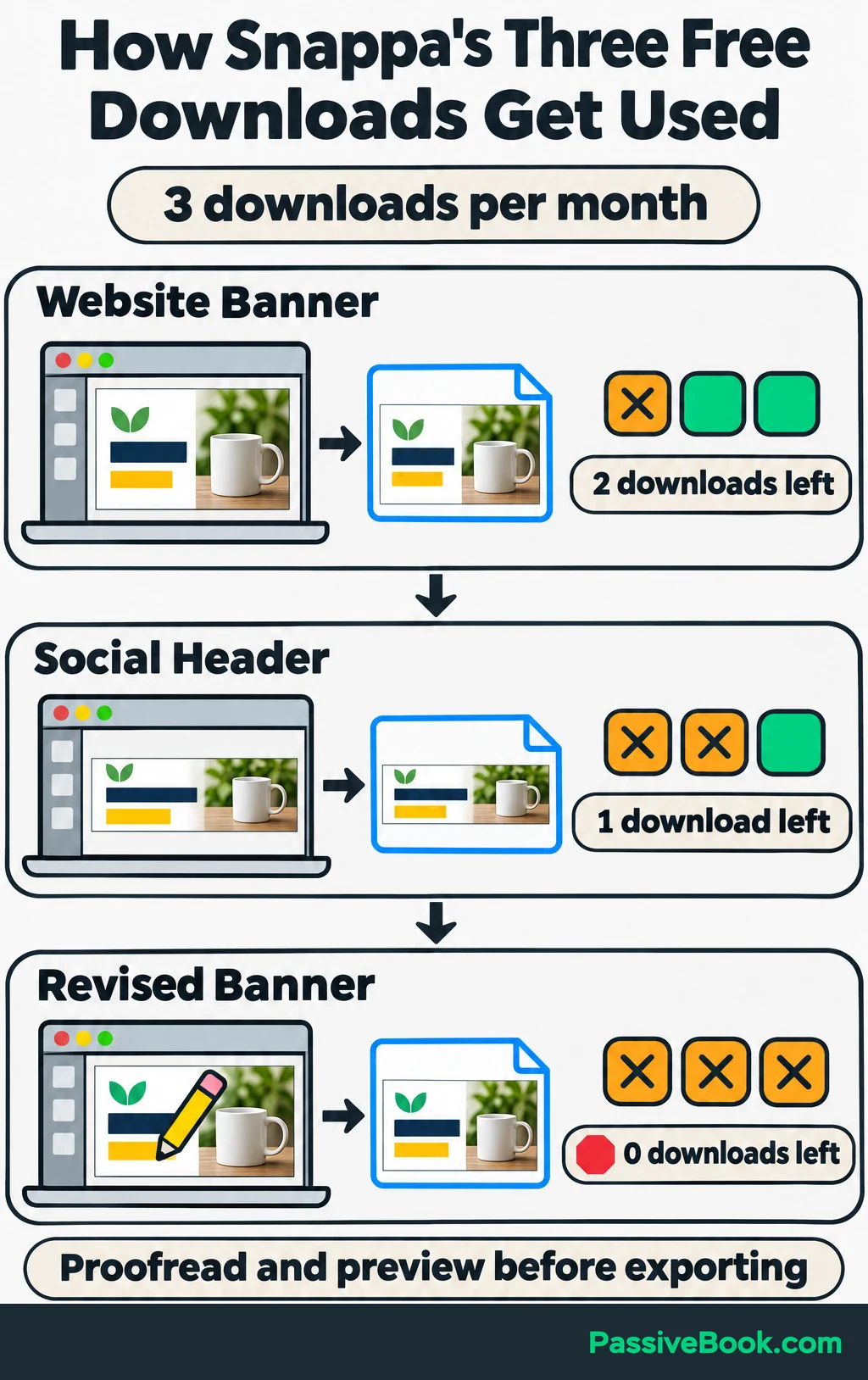
The mug shop’s website promotion and social header would use two of the three monthly downloads. That leaves one more export. If you download a draft, fix a typo and download it again, those revisions can consume the allowance before your next promotion.
I would finish the wording and inspect the layout carefully before exporting on Starter. That is sensible in any editor, but the cap gives you an extra reason.
Pro removes the download cap and adds custom-font uploads and background removal. The upgrade makes more sense for recurring work than for a single banner you update rarely.
Snappa would be on my shortlist if I wanted a focused computer-based editor and only needed JPG or PNG files. I would choose another free option if frequent revisions were part of the job.
PosterMyWall: Best for Occasional Paid Downloads
PosterMyWall is worth considering when you want to buy a finished high-resolution image without keeping another subscription.
You can work from promotional templates, resize designs for free and edit on desktop or mobile. That makes it practical for an occasional launch or announcement.
Its free download rules need closer attention than the word “free” suggests. A basic account with no purchase in the previous 12 months gets five standard downloads per month. Those files have lower resolution than paid downloads. They have no general PosterMyWall watermark, although Getty Images stock content can retain its watermark. These conditions are explained in its free-download policy.
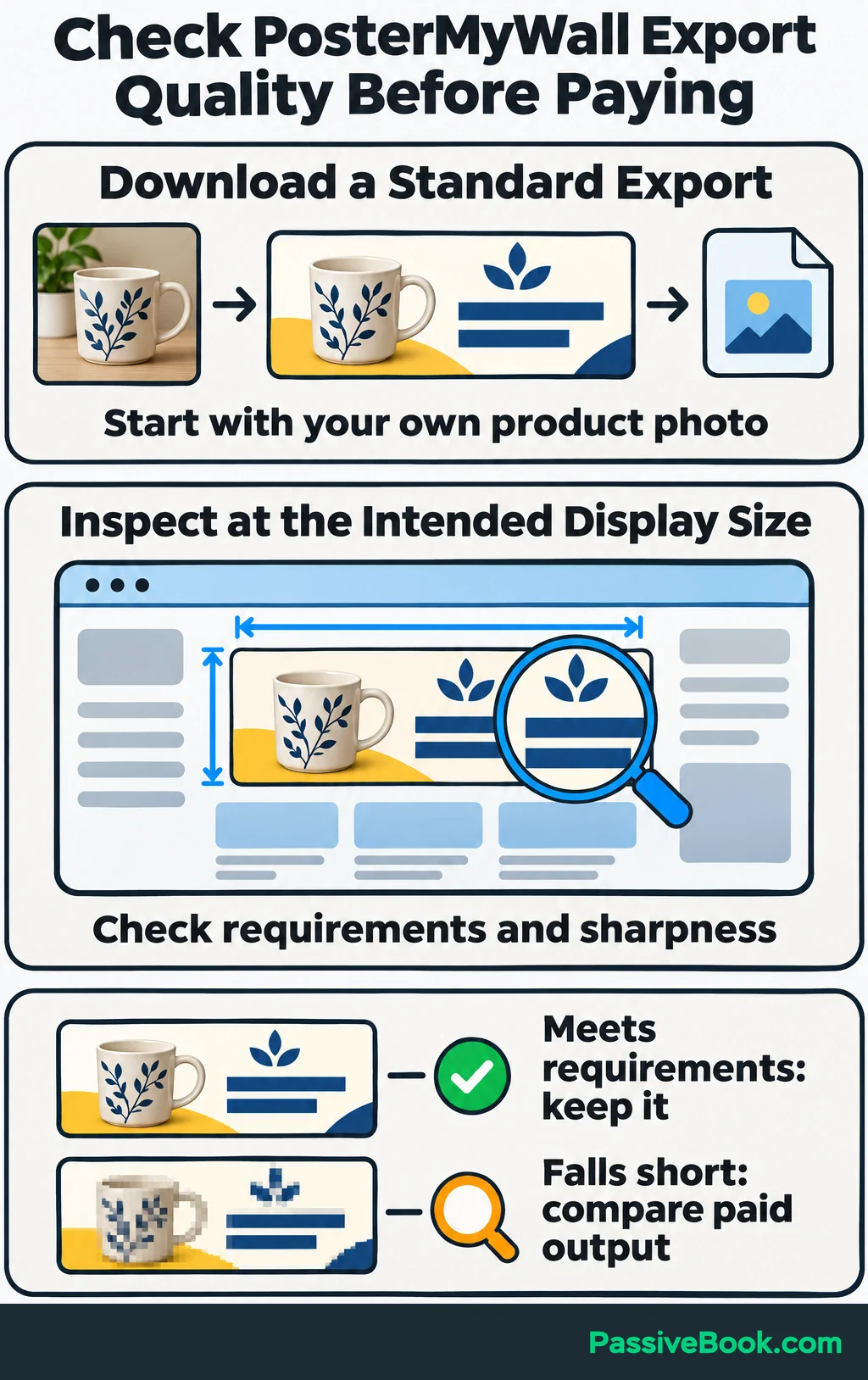
I would use your own product photograph for the mug promotion and check a standard export before purchasing anything. If the file meets the destination’s requirements and looks sharp at its intended size, you may already be done.
If it does not, compare individual purchases with Premium using the prices in the table. Premium includes unlimited high-quality downloads, a Brand Kit and custom-font uploads.
Choose individual downloads for rare jobs. Once you need several separate paid designs, the subscription deserves another look.
BannerBoo: Best for Animated HTML5 Banner Ads
BannerBoo serves a different need from the general graphics editors above. Its browser editor and animation timeline are built around advertising, including HTML5 banners.
I would bring it into the shortlist when an advertising placement specifically requires HTML5 files. For an ordinary website promotion or social header, I would start with a general graphics editor.
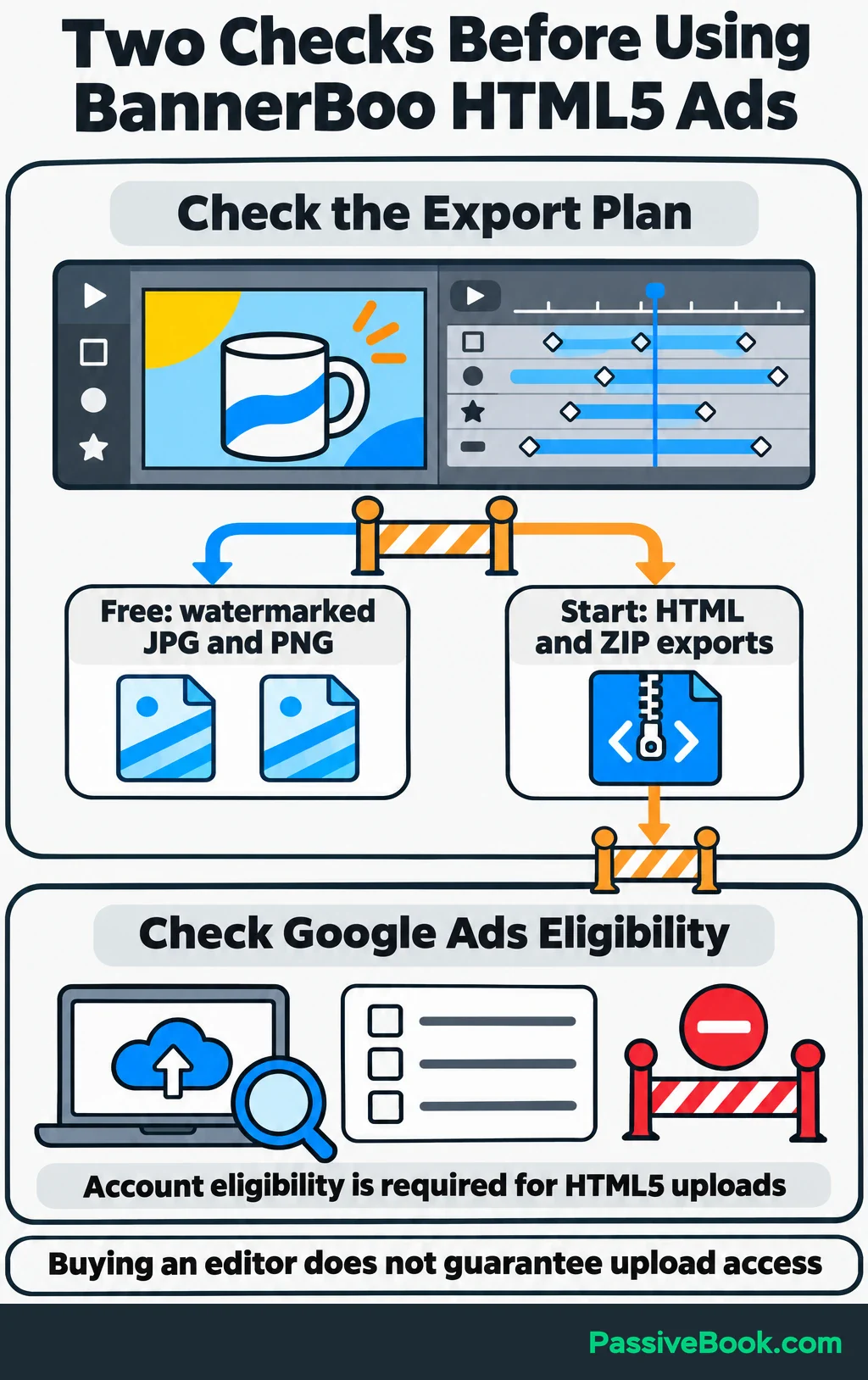
The free plan lets you evaluate the editor, but it limits you to four banners and watermarked JPG or PNG exports. Start removes the watermark and adds GIF and HTML exports, ZIP downloads and ordinary resizing. Pro adds custom-font uploads and Smart Resize, which automatically adjusts objects to fit the new banner size.
That font restriction matters if your advertising must use a particular brand font. Check the qualifying plan before comparing headline prices.
Also confirm that your advertising account can accept the files. Google Ads requires account eligibility for HTML5 uploads, so buying an HTML5 editor does not guarantee that you can upload its output there.
BannerBoo can complement Canva or VistaCreate when you have a separate advertising requirement. I would not add it to the mug shop’s stack just to put movement behind a headline.
When Is a Paid Banner Maker Worth It?
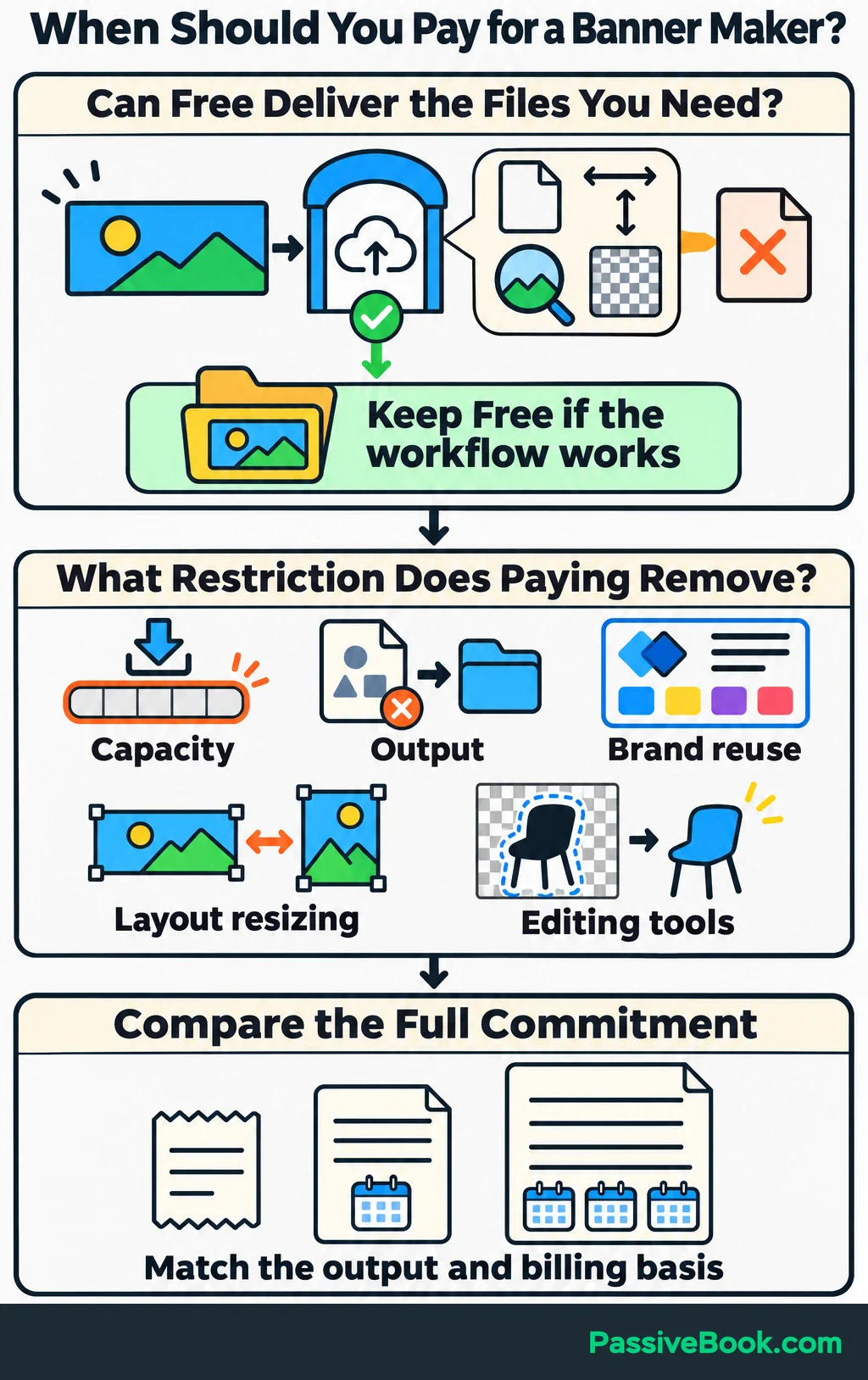
A paid plan earns its place when it removes a restriction you repeatedly hit.
I would look for one of these reasons:
- Download capacity: You keep reaching an export cap because you publish regularly or need revisions.
- Required output: The free plan cannot deliver the format, dimensions, quality or transparency your destination needs.
- Brand reuse: Saved fonts, colors and logos remove repeated setup work.
- Layout resizing: You regularly adapt the same promotion for several destinations, and the resizing feature leaves little correction work.
- A necessary editing tool: Background removal or another paid feature solves a recurring problem with your own assets.
Premium templates alone would not persuade me. A new template can create another round of font and color decisions, which is the opposite of the repeatable workflow I want.
Compare plans on the same billing basis. For a short project, use the monthly subscription cost. For an annual plan, consider the full payment you are committing to, even when the website presents it as a smaller monthly equivalent.
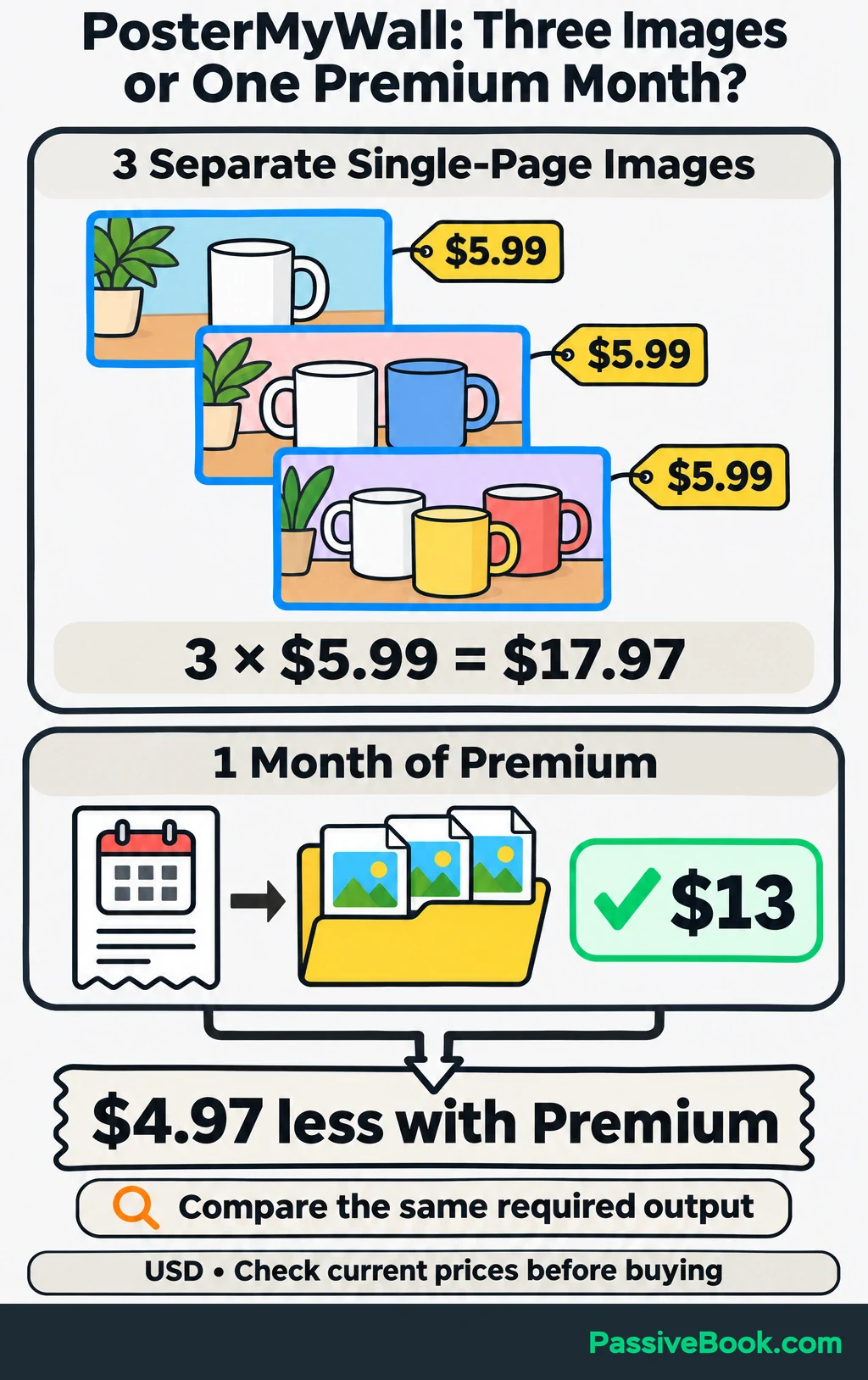
Individual downloads need the same care. Suppose you need three separate single-page high-resolution images from PosterMyWall. At the individual price in the table, those purchases total $17.97. That is $4.97 more than one month of Premium.
That comparison is useful because it counts separate finished designs with the same required output. Comparing one high-resolution purchase with a free low-resolution download would miss the reason you were paying.
If a free plan produces the files you need and lets you reuse projects comfortably, keep it. A banner does not become more professional because the software bill gets larger.
Test Your Shortlist Before Subscribing
I would test two finalists with the same assets and the same task. Browsing six template libraries is an excellent way to spend an evening without choosing anything.
Use this process in whichever editors you shortlist.
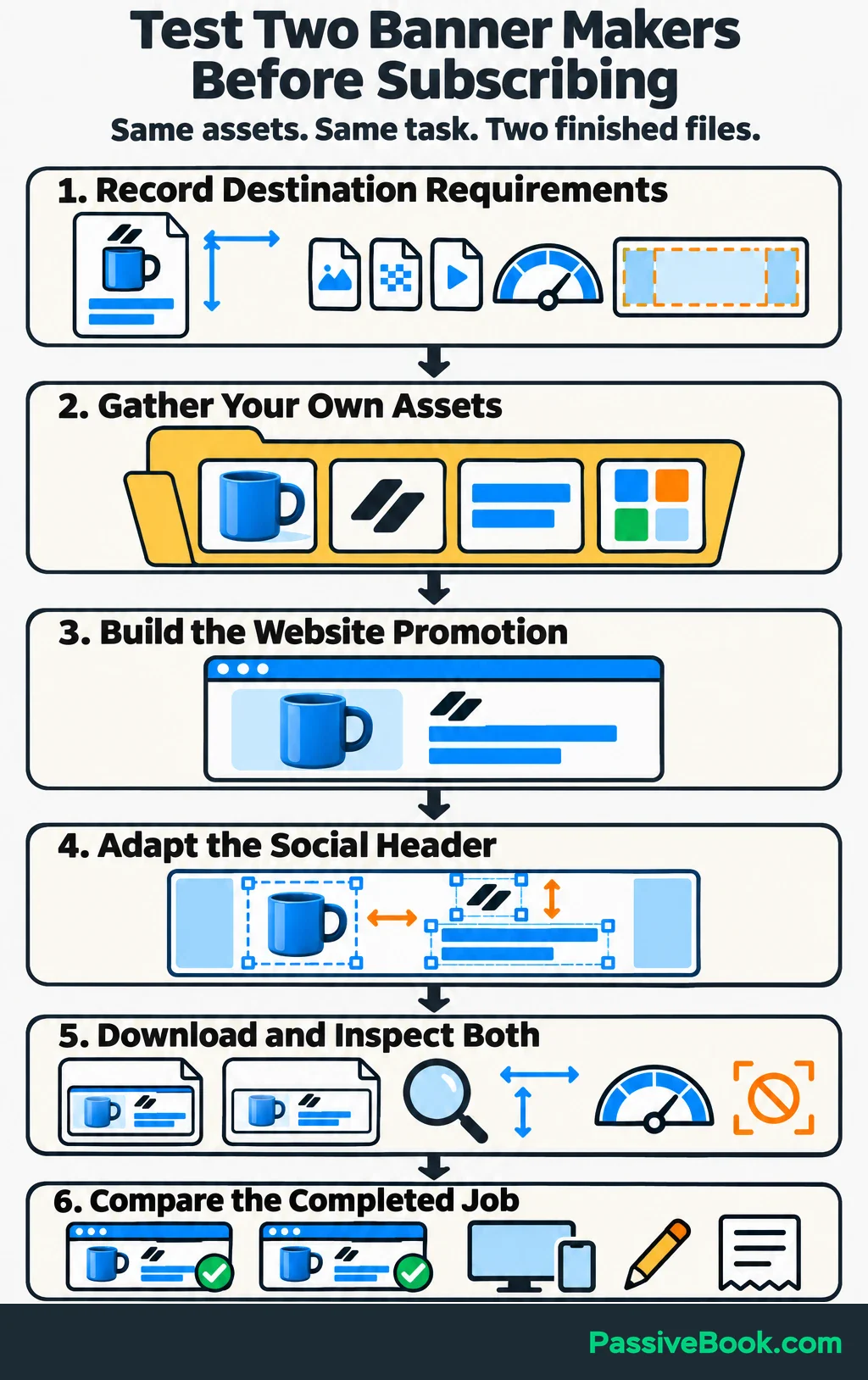
- Write down the destination requirements. Record the dimensions, accepted file formats, maximum file size and visible area for each banner. For a social header, check where profile images or cropping could cover your message.
- Gather your own assets. Put your logo, product photograph, headline and color values together. Use assets you own or have permission to use commercially.
- Make the website promotion. Choose a layout with enough space for the product and message. Replace stock styling that does not fit your business, and remove decorative elements that compete with the offer.
- Adapt it into the social header. Keep the visual identity, but adjust the arrangement for the new shape. If you use automatic resizing, judge the result by how much repair it needs.
- Download and inspect both files. Check the actual pixel dimensions, file size, sharpness and any watermark. View the banners at their intended display size, then upload them to check cropping and placement.
- Compare the completed job. Choose the tool that gives you usable exports, comfortable editing on your device, manageable corrections and a clear total cost.
For the mug shop, the website version might place a product photograph beside this short message:
Hand-Glazed Mugs for Slow Mornings
Explore the New Collection
The matching social header can keep the photograph, colors and headline while changing the layout. If the wider crop cuts off the mug handle or leaves the logo tiny, move those elements rather than shrinking the whole design.
If starting from a blank canvas is the slow part, AI Advertising Studio can write layout instructions for a matching pair using your own photo and logo. You get written layouts to build at your required sizes, not image files.
Free AI Advertising Studio




A website promotion may also include a button inside the image, but the website must provide the working link. On a social header, I would usually remove a button-shaped graphic if it cannot act as the promised button.
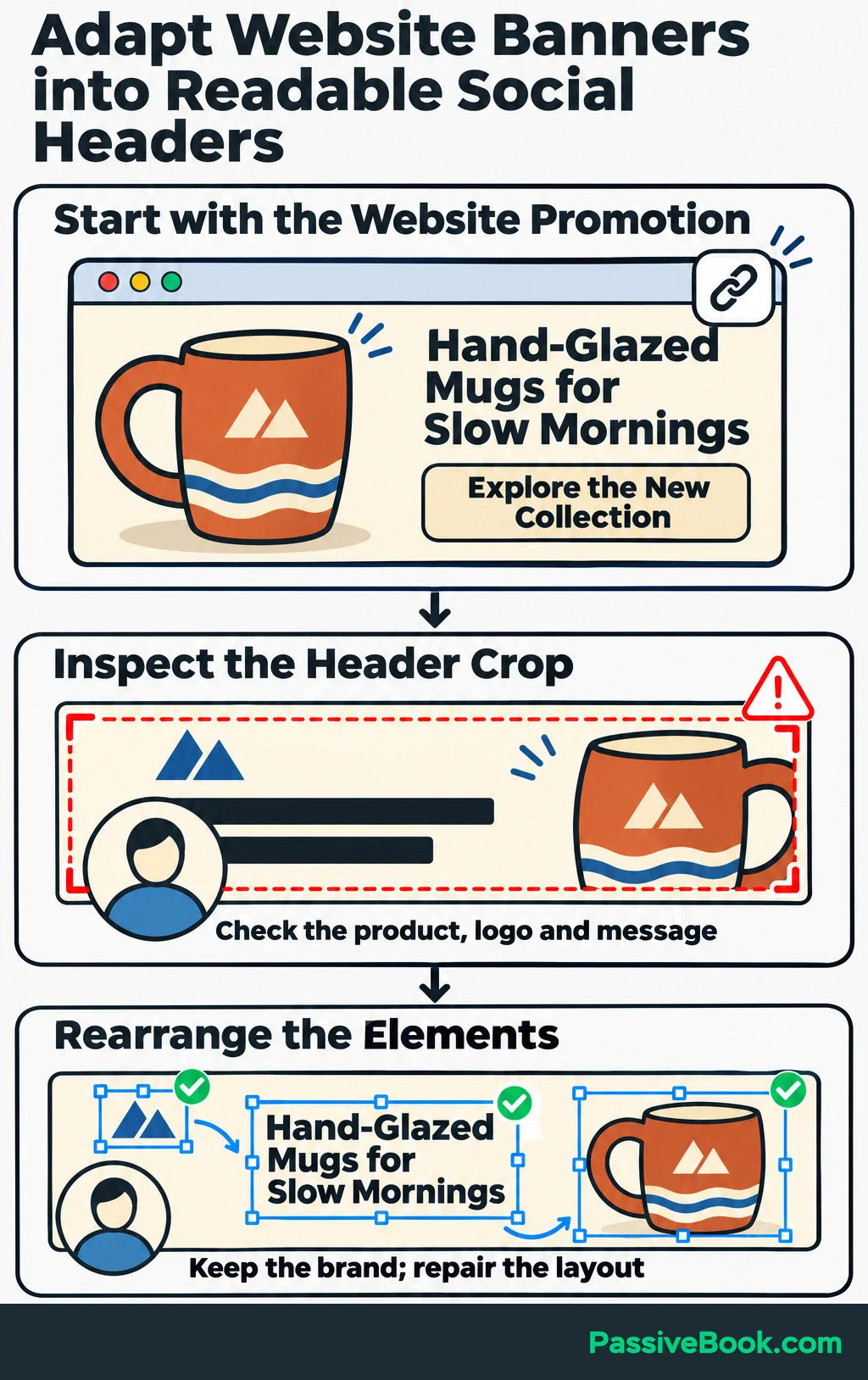
This small test exposes the differences that matter. Can you find and change the headline easily on your phone? Can you keep the mug visible without covering the text? Does the exported file fit the upload limit?
You do not need a design score to answer those questions. You need two finished files.
Once you choose an editor, keep a clean master project for each destination. Duplicate those masters for later promotions so you can change the photograph and message while preserving the spacing, fonts and colors that already work.
What Next?
Pick Canva Free and VistaCreate Starter, then make the same banner in each using your own photograph, logo and headline. Download both before deciding whether you need a paid plan.
Use the social buttons to share this comparison and help put usable exports ahead of impressive template counts.
Which part of making banners takes you the most work: choosing a layout, keeping the branding consistent or getting the export right? Tell me in the comments, and bring any other questions too.
Share this post with your friends & followers:

