A freelancer needs to schedule next week’s posts. Sending your login takes a minute, but that shortcut leaves another person holding the same access you use to change passwords, invite users and manage the account.
When the contract ends or a suspicious message arrives, you have to work out who can still get in—and how to stop them. That scramble takes time you may need to contain a takeover. The safeguards below help you control who can publish or change account settings, catch unsafe posts and prepare for a lockout.
Secure the Accounts Behind Your Social Channels
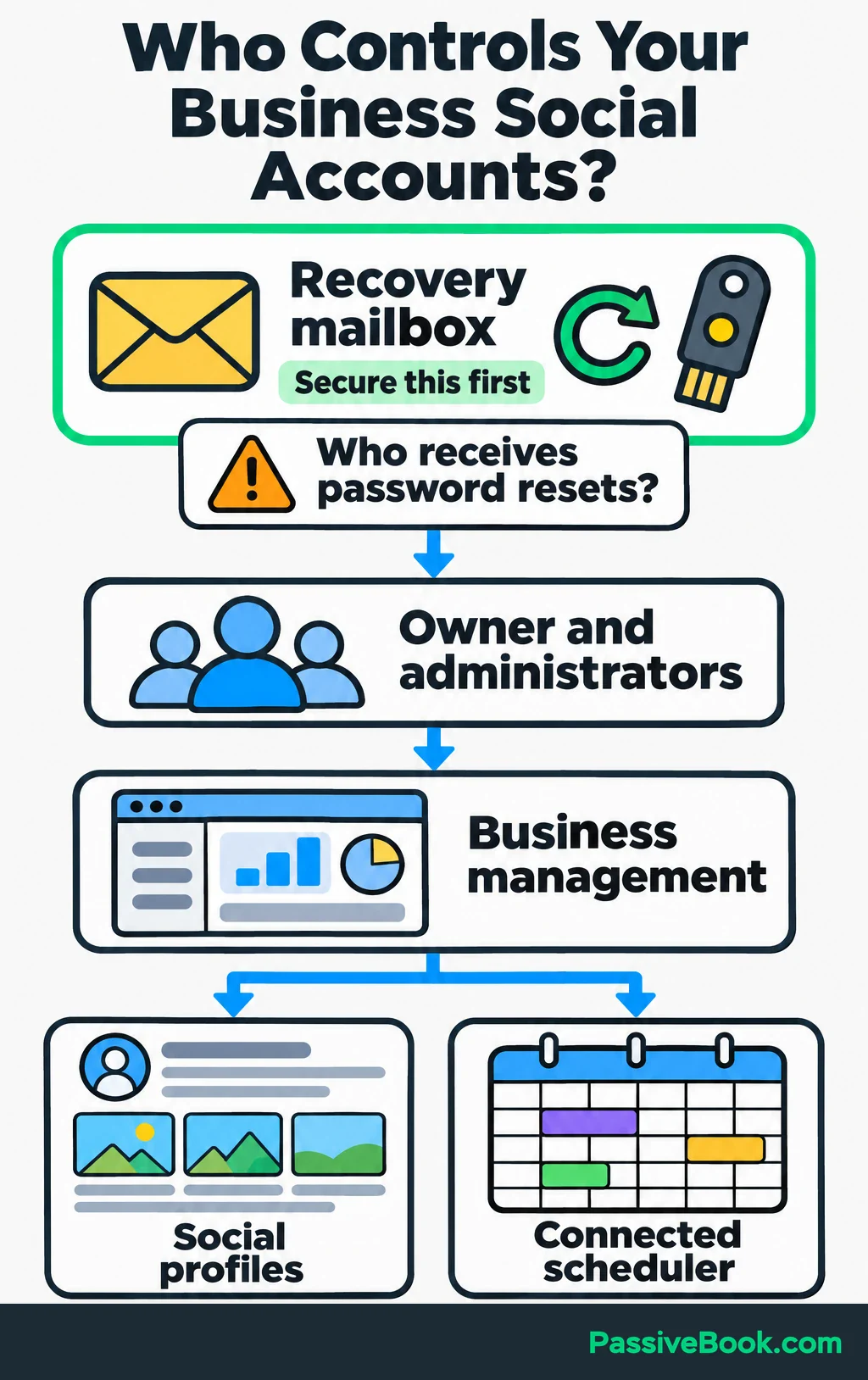
Start with the accounts that control your social channels: recovery email, owner logins and administrator profiles.
I would secure those before buying another tool. Start with built-in controls, a password manager and clear responsibilities. Paid software earns its place when it solves a specific problem, such as preventing a draft from publishing without approval.
Confirm Ownership and Recovery Access
Make a list of your public profiles and the accounts behind them. Include business-management accounts, personal profiles with administrator access, recovery mailboxes and inactive channels.
Check accounts created by former contractors or agencies. Knowing the public username does little good if password resets still go to a contractor’s inbox.
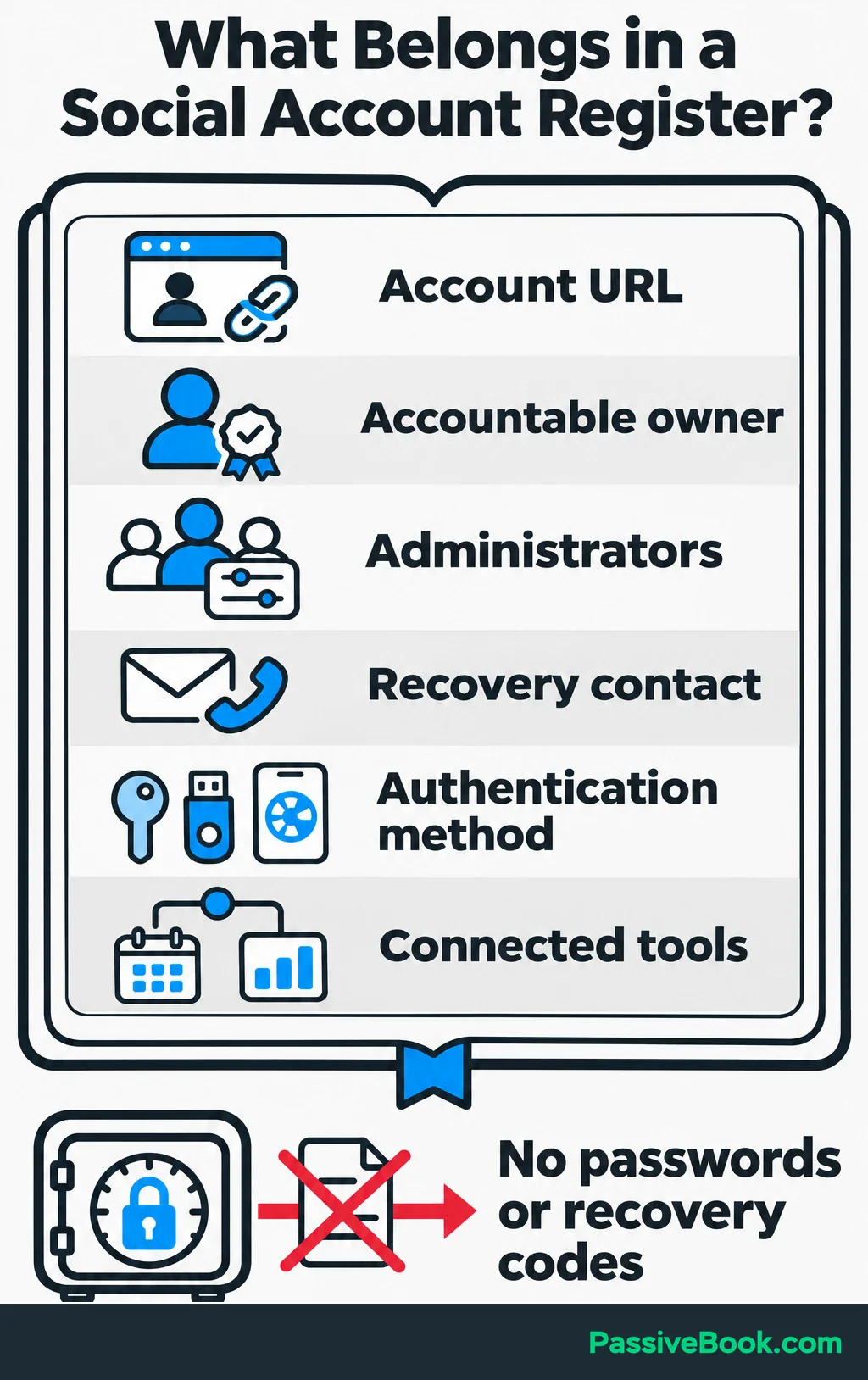
Create an account register with these fields:
| Field | What to Record |
|---|---|
| Account URL | The exact profile or business-account address |
| Accountable owner | The person responsible for access and recovery |
| Administrators | Named people with full control |
| Recovery contact | The mailbox and phone number currently registered |
| Authentication method | Passkey, security key or password with an authenticator app |
| Connected tools | Each scheduler, analytics service or automation with access |
Keep passwords and recovery codes out of this register.
Protect the recovery mailbox first. Someone who controls it may be able to request password resets for other accounts, as the FTC explains in its account-recovery guidance.
Give that mailbox a unique password and multifactor authentication, or MFA. MFA checks your identity using more than one factor, such as a password and a security key. Review its recovery contacts, signed-in devices and forwarding rules too.
For the examples below, imagine you run an online shop selling downloadable tote-bag sewing patterns. You have a freelance assistant and a connected scheduler.
Your register should show who controls the shop’s profiles, the scheduler and the recovery mailbox. Confirm that you retain control when the assistant’s contract ends.
Strengthen Sign-ins and Backup Authentication
Use a password manager to generate and store a long, unique password for every password-based login, as NIST recommends. Protect the manager itself with MFA.
Replace reused or compromised passwords promptly. I would spend effort eliminating reuse rather than changing a sound password every month.
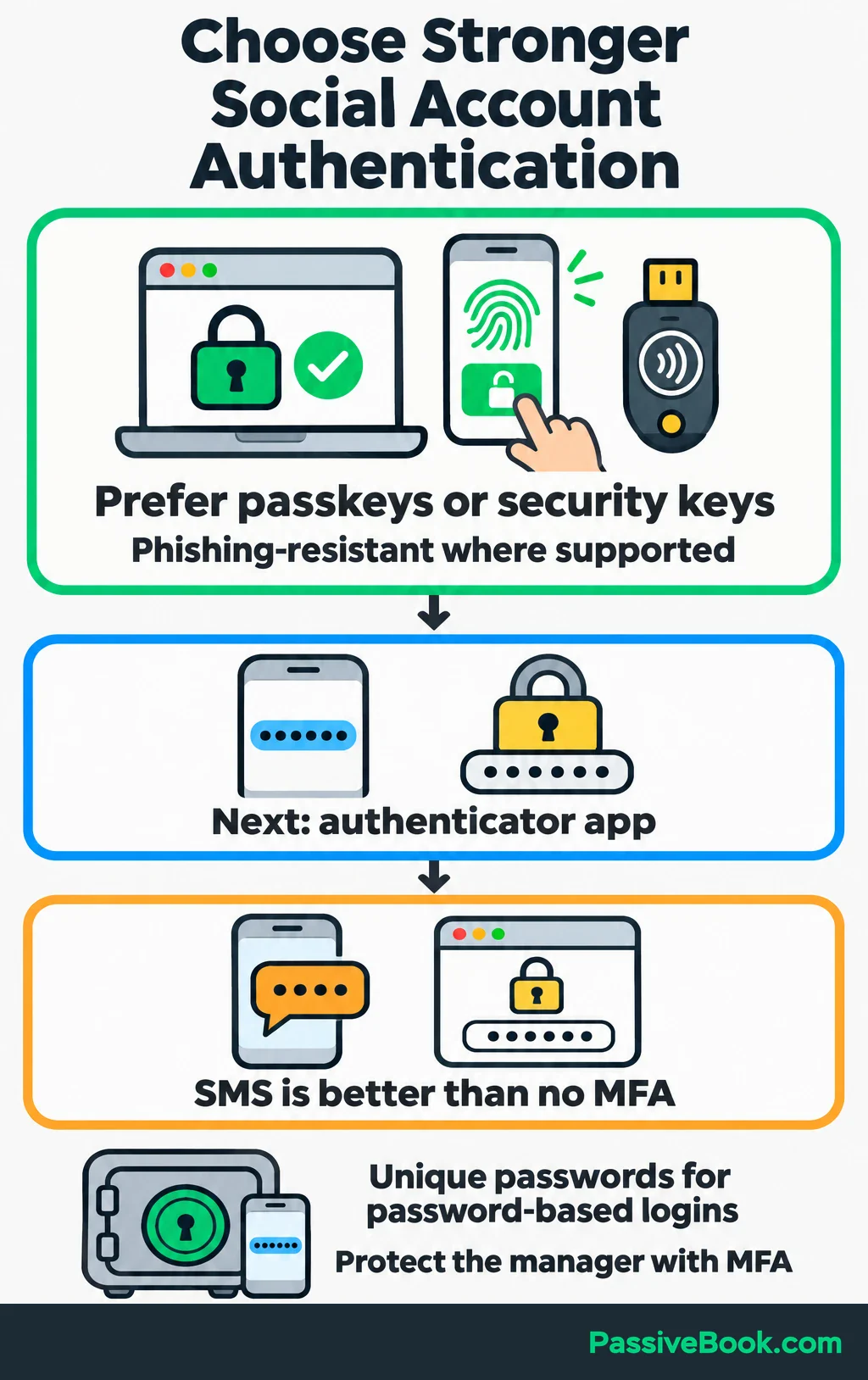
Enable MFA wherever it is available, including on personal profiles that administer business channels. My preference is:
- A phishing-resistant passkey or security key, where supported.
- An authenticator app when a phishing-resistant option is unavailable. This app generates sign-in codes on your phone.
- SMS verification if the alternative is leaving MFA off.
A passkey is a digital sign-in key, often unlocked with your fingerprint, face or device PIN. A security key is a physical device you tap or plug in to verify a login. Both can resist fake login sites in ways that typed verification codes cannot. NIST explains the distinction between MFA methods.
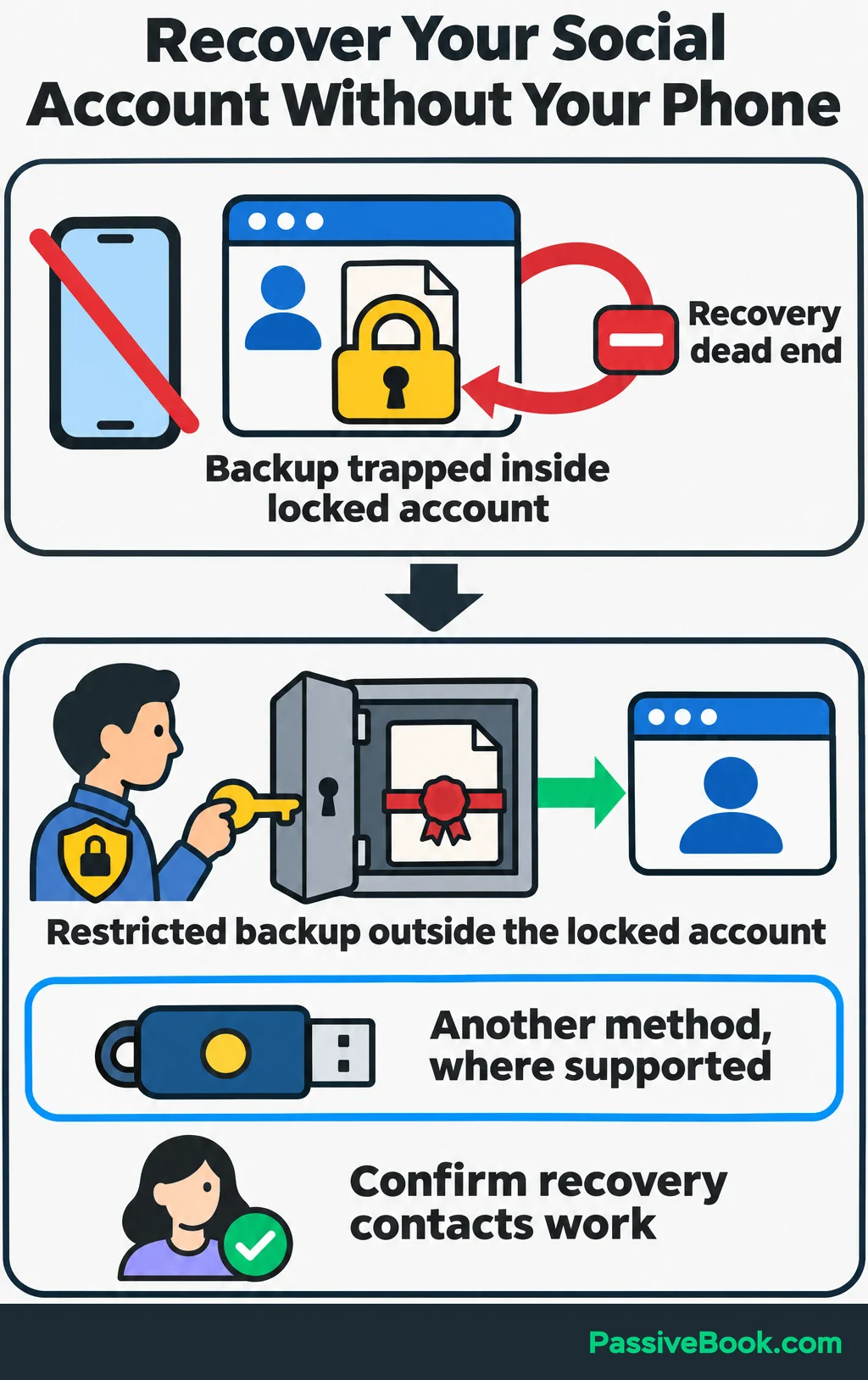
Then prepare for losing your phone. Save backup codes in restricted storage you can reach without that phone or the locked account. A locked physical copy may be useful. Where supported, register another authentication method and confirm that recovery contacts still work.
A backup stored only inside the account it unlocks is an impressive circular arrangement.
Give Each Person Only the Access They Need
Invite people through named platform roles or delegated access instead of handing over the owner’s login.
Read what each role allows. “Editor” or “manager” can mean different things across platforms, so check whether the person can:
- Publish posts or send messages.
- Invite users or change permissions.
- Connect other tools.
- Manage advertising or billing.
- Change ownership or recovery settings.
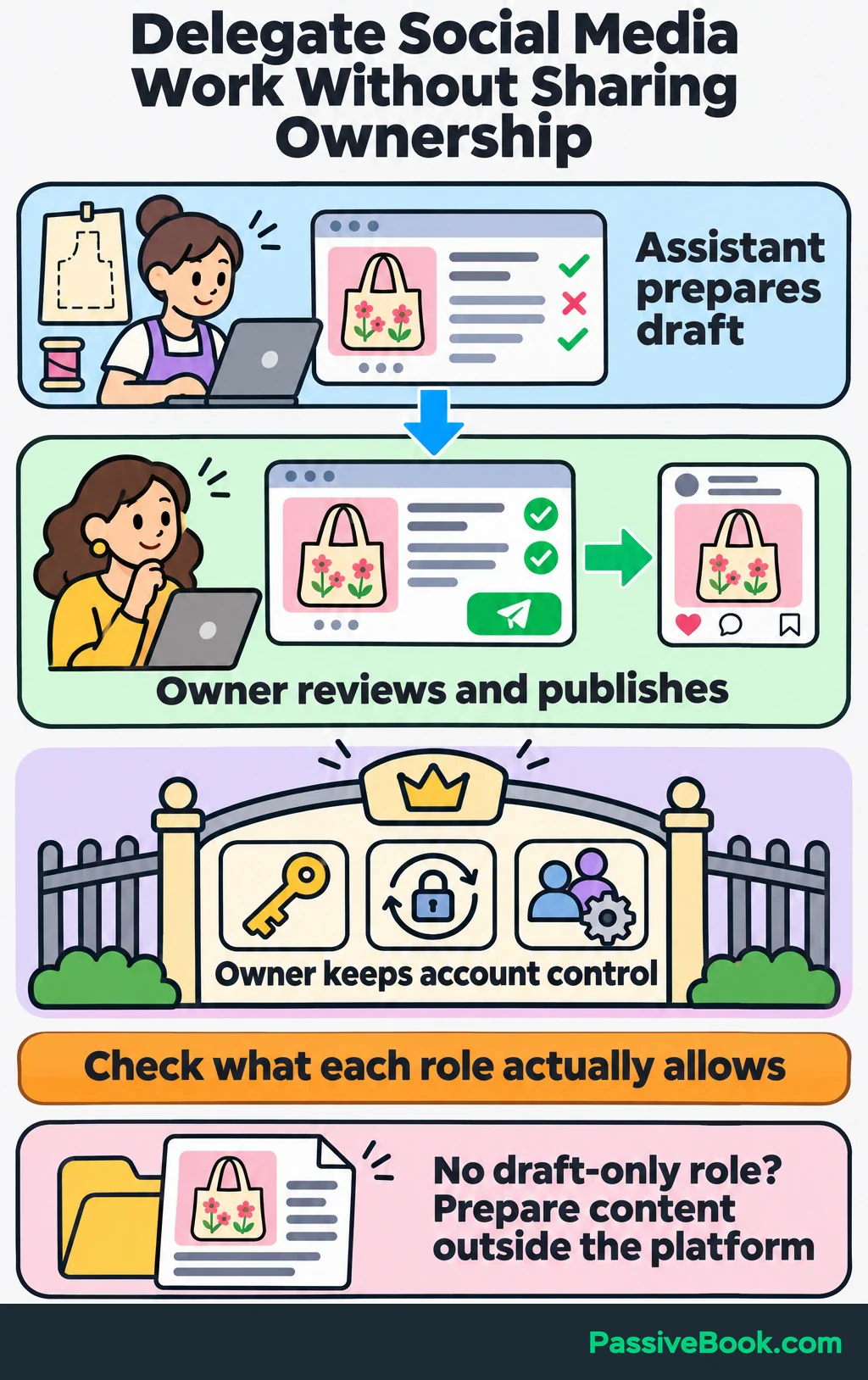
For the sewing-pattern shop, the assistant might prepare drafts while you approve and publish them. If draft-only access is unavailable, they can prepare copy and images outside the platform.
Give publishing access when the work requires it, but keep ownership, recovery and user management with the owner. Decide who can approve new users and integrations.
Also arrange an authorized backup route for your absence. That might be a trusted second administrator where supported, with a secured login and a clearly defined responsibility.
If shared credentials are unavoidable, use controlled sharing through a password manager and record who receives access.
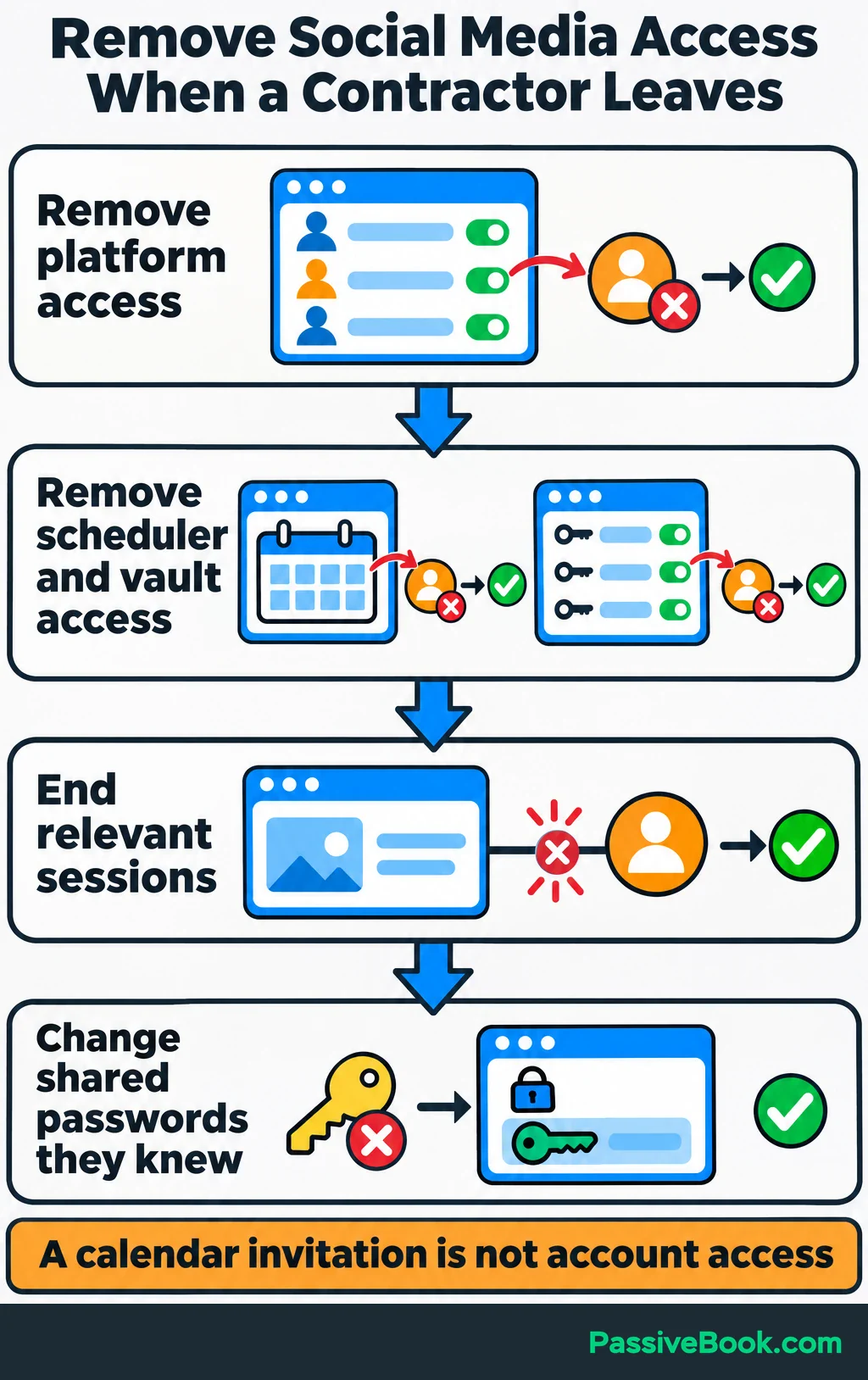
When someone leaves or changes roles, remove unnecessary access from the platform, scheduler and password vault. End relevant sessions and change shared passwords they knew. Removing a calendar invitation does not remove account access.
Verify Urgent Messages Before Acting
Phishing tries to make you trust an impostor and take an unsafe action. On social media, that often arrives as a suspension warning, copyright complaint, verification offer or message from an apparent colleague.
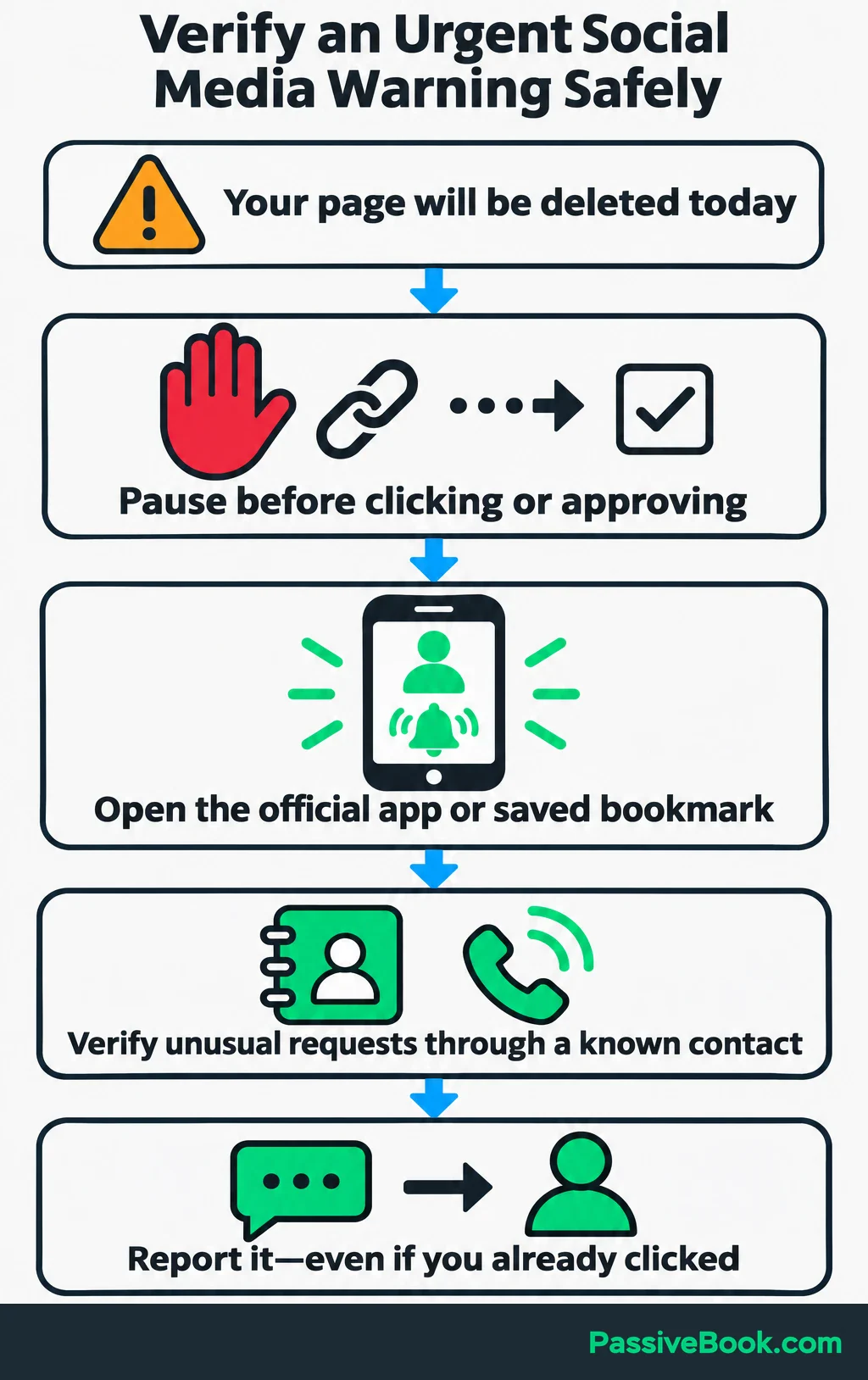
Set one rule: investigate unexpected requests through a route you already trust.
Open the official app or use a saved bookmark to check an account warning. For an unusual request from a colleague or agency, call or message them using contact details you already have.
Treat these requests as reasons to stop and verify:
- “Send me the code so I can fix this.”
- “Approve the login notification.”
- “Change our payment details immediately.”
- “Install this viewer to open the sponsorship brief.”
Keep passwords, authentication codes and recovery codes private. Enter a sign-in code only during a login you initiated, and reject unexpected approval prompts.
Verify attachments and downloads too. YouTube’s security guidance identifies fake sponsorship messages, infected downloads and fake updates as routes for malware.
Practice a short scenario with your assistant. They receive: “Your page will be deleted today.” They leave the link alone, check the platform independently and report the message through your agreed contact channel.
Make reporting easy. You want a quick warning even when someone has already clicked.
Protect Devices and Browser Sessions
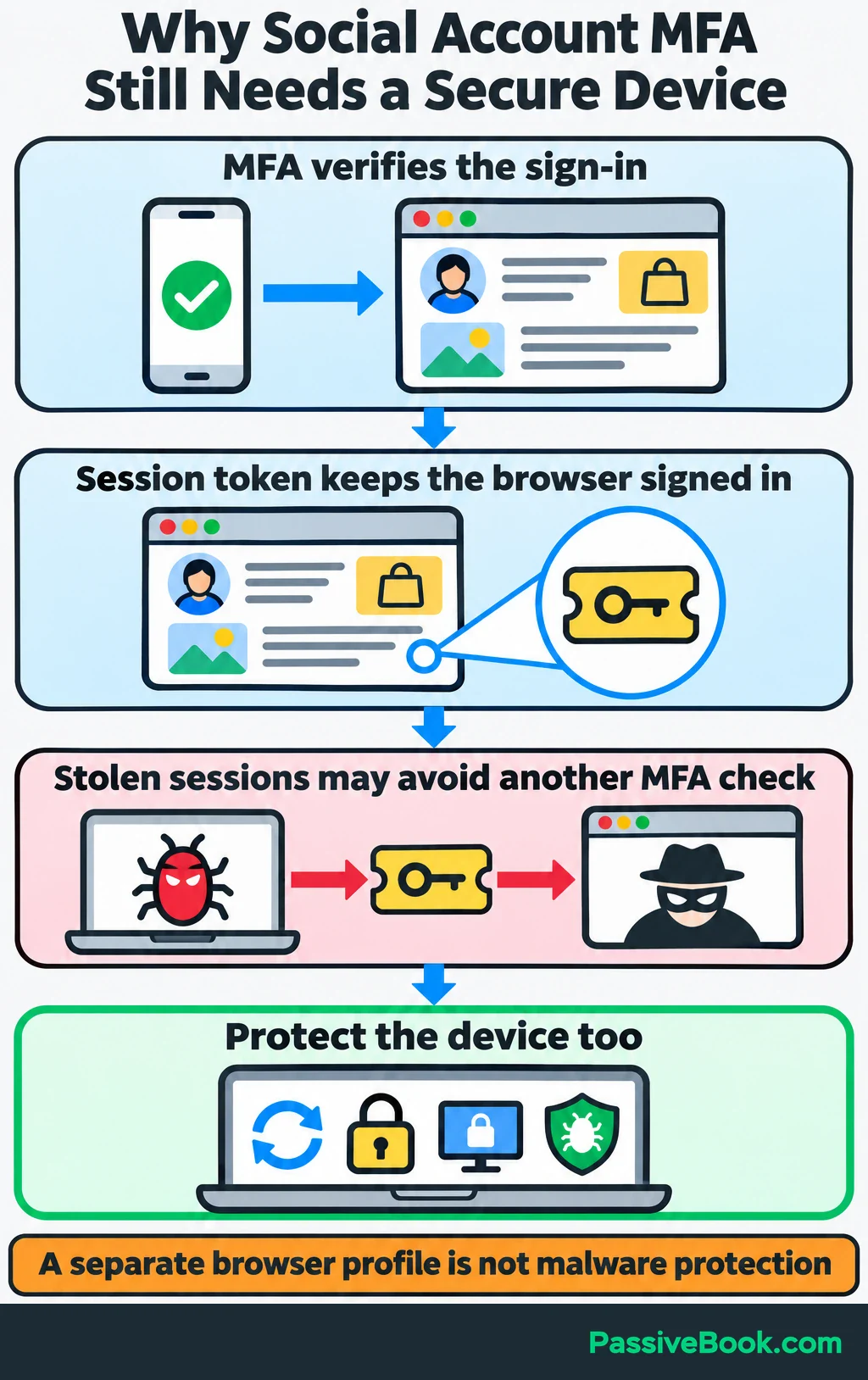
A secure login still needs a secure device.
Turn on automatic operating-system, browser and app updates. Use a screen lock, enable device encryption and keep malware protection active. Apply the same baseline to personal devices used for business accounts.
Remove browser extensions you no longer need and check the publisher before installing software. Avoid administering business accounts on shared public computers.
These steps matter because malware can steal session tokens: the data that keep your browser signed in. An attacker may try to use them without facing another MFA check. Meta documented malware targeting business accounts this way.
Use a separate browser profile for business work to reduce account-switching mistakes. It helps you see which account you are using, but it does not protect the device from malware.
For the pattern shop, agree that a lost laptop or phone gets reported immediately through another channel. An authorized person can then revoke its account sessions and start any available remote-lock process.
Restrict Connected Apps and Automations
A scheduler can publish because you granted it permission. Review that permission as carefully as you review a person’s access.
Before connecting a tool, record:
- What it needs to do.
- Who is responsible for it.
- Which accounts and permissions it needs.
- How to disconnect it and stop its workflows.
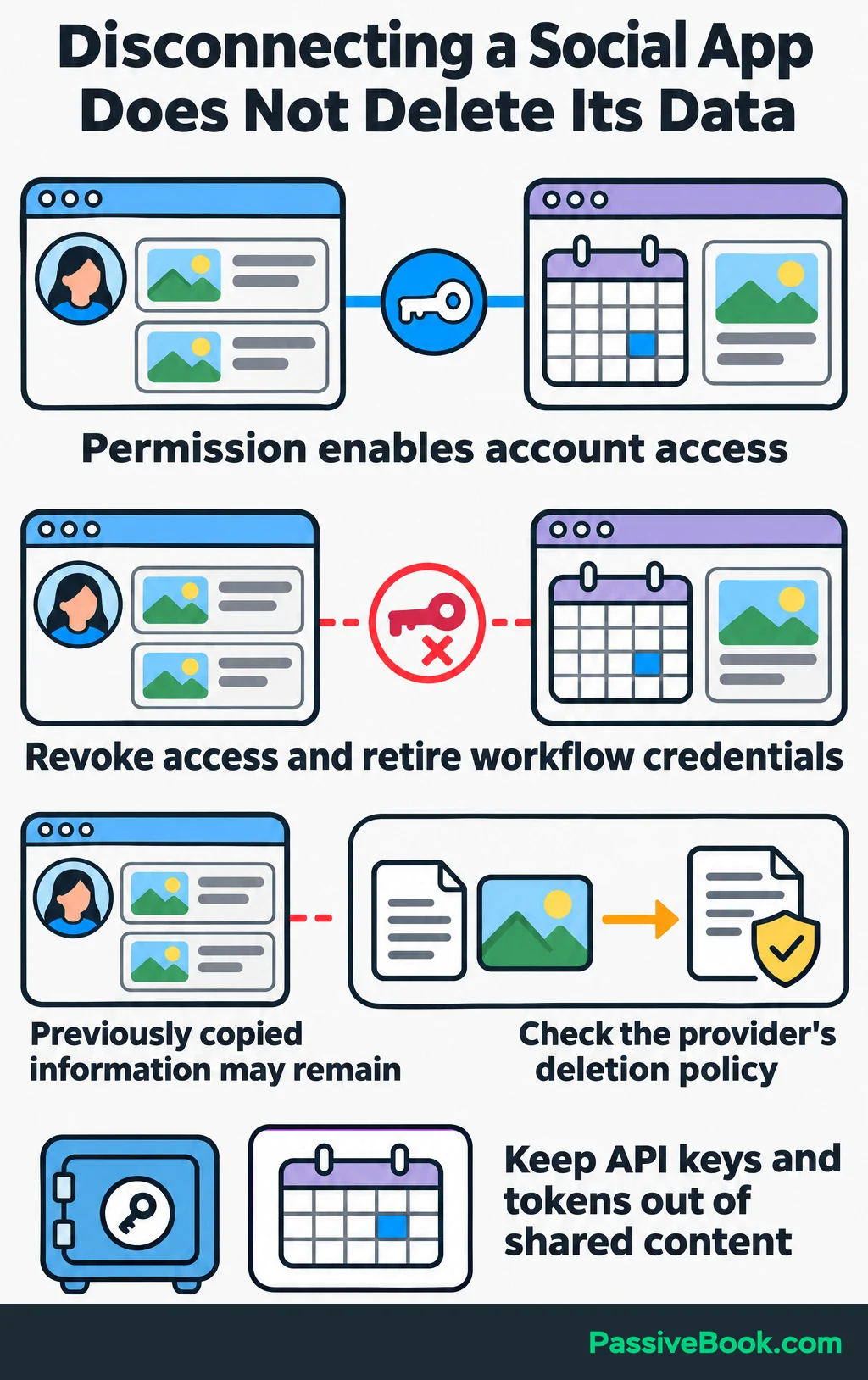
For the pattern shop, connect only the destinations the scheduler needs. Question permissions unrelated to publishing, and choose another route if the requested access is too broad.
Secure the tool’s own administrator login too.
I use n8n to connect apps and automate tasks. While tidying a workflow, I found a test connection whose name no longer explained its purpose. I traced it to an abandoned draft workflow and removed it. That changed how I name connections: I include the destination and job, so the next review does not require detective work.
Review connections inside the social platform as well as inside your automation tool. Revoke abandoned integrations and remove obsolete credentials from retired workflows. Treat API keys and access tokens as passwords: they let tools access your accounts. Keep them out of content calendars, screenshots, shared documents and AI prompts.
When ending a service, check its deletion policy. Disconnecting access may leave previously copied information with the provider. Google explains this distinction for connected apps.
Check Content Before It Goes Live
Define who drafts, reviews and publishes, following the NCSC’s advice to establish a review and approval process. Decide which posts always need another reviewer, especially payment instructions, sensitive announcements and changes to official links.
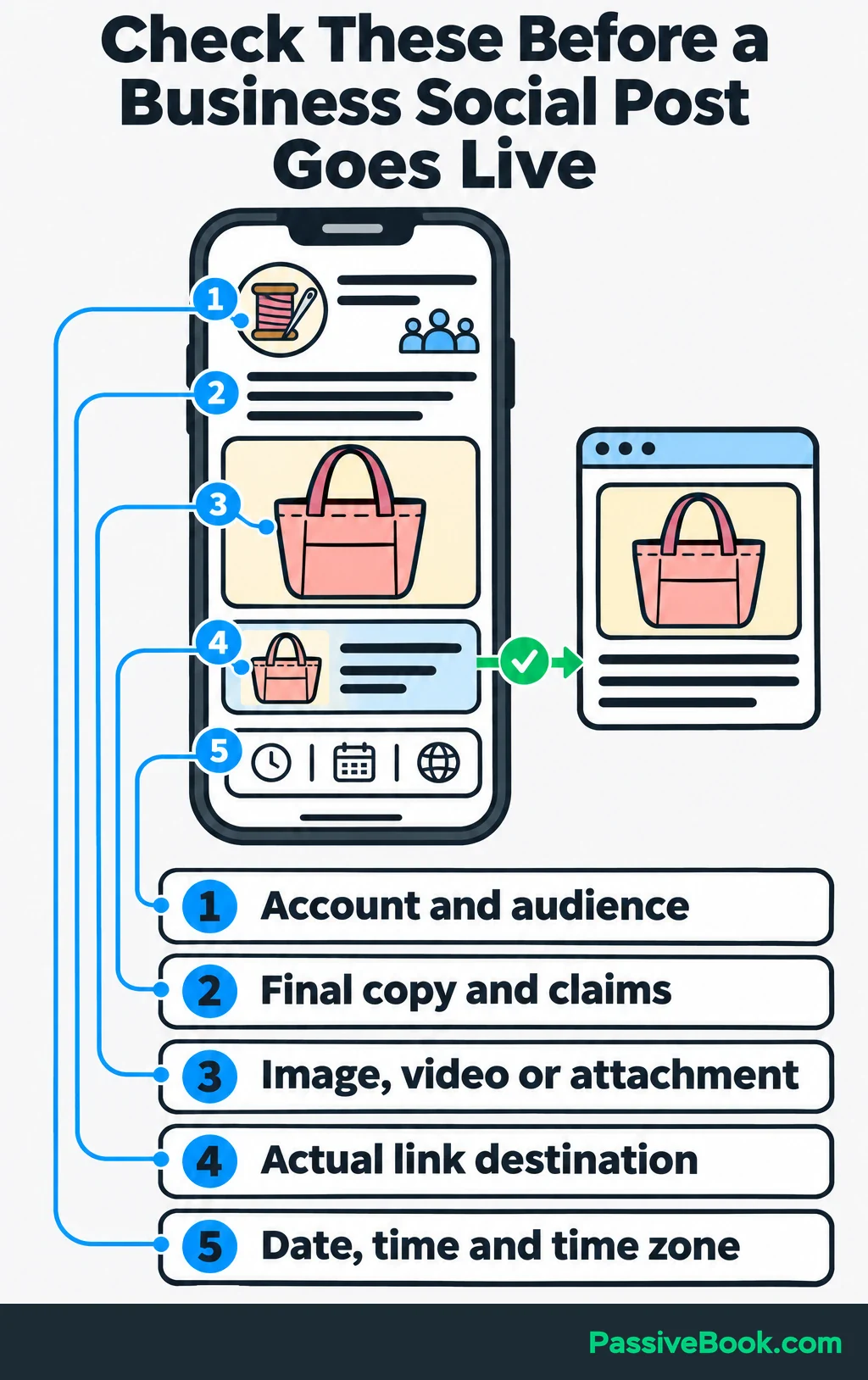
For each post, check:
- The destination account and intended audience.
- The final copy and any claims.
- The image, video or attachment.
- The link destination.
- The scheduled date, time and time zone.
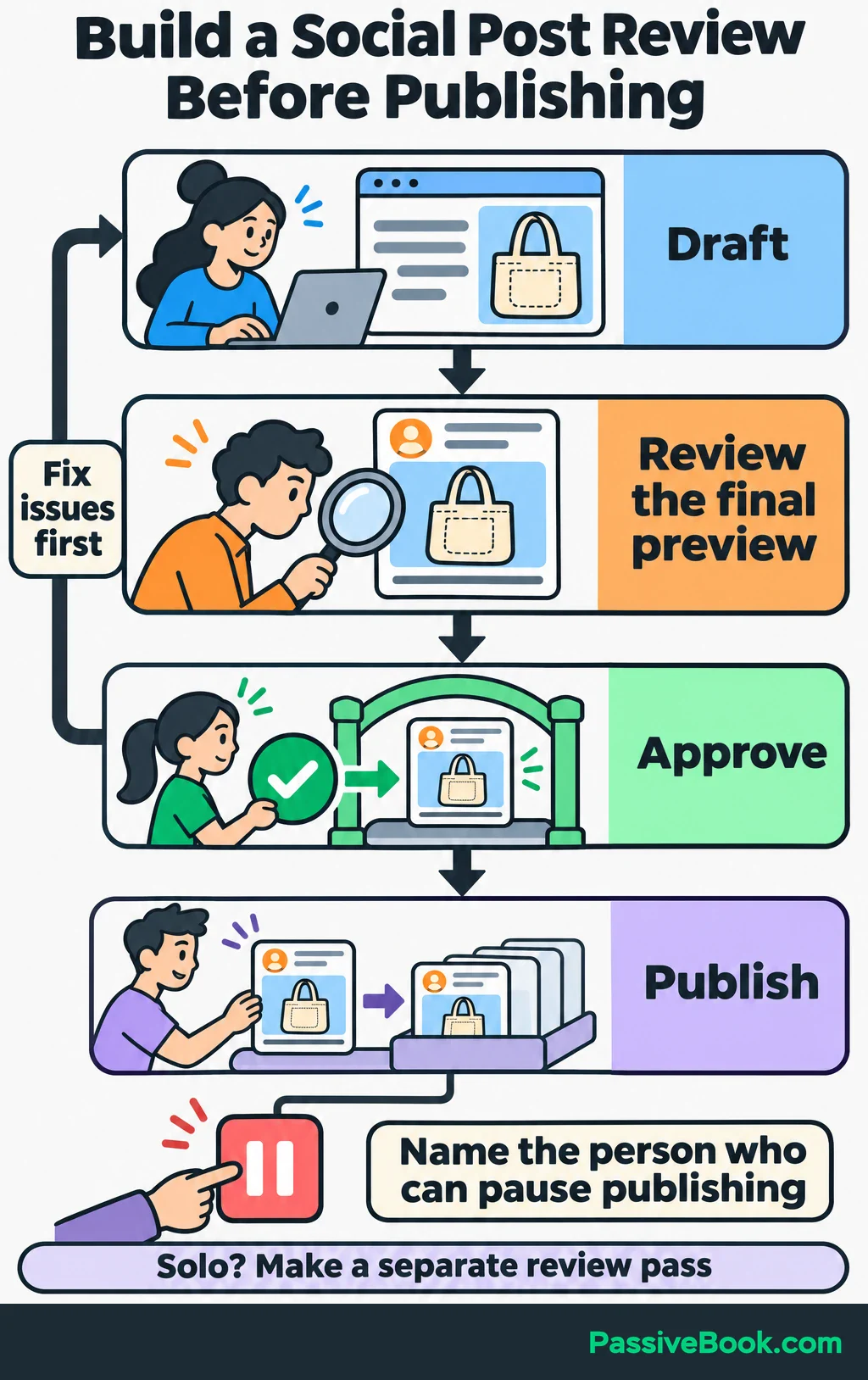
For the sewing-pattern promotion, open the link and confirm that it leads to the intended tote-bag pattern. Check that the image matches the product and that the preview shows the shop’s account.
If you work alone, make a separate review pass after preparing the post. Reading the final preview gives you a different view from editing individual fields.
Apply these checks to AI-generated and automated posts too. Test workflow changes using drafts, and name the person who can pause the publishing queue.
I would pay for enforced approvals when people need publishing access but posts must pass a review first. Until then, a documented handoff and restricted publishing rights may cover the need.
Keep Customer and Business Information Private
Inspect screenshots, photographs and attachments before uploading them. Look beyond the main subject for customer names, order details, private messages, open tabs, credentials and revealing background information.
For the pattern shop’s download tutorial, create a test order with sample customer details. That avoids trying to hide a real customer’s information after recording.
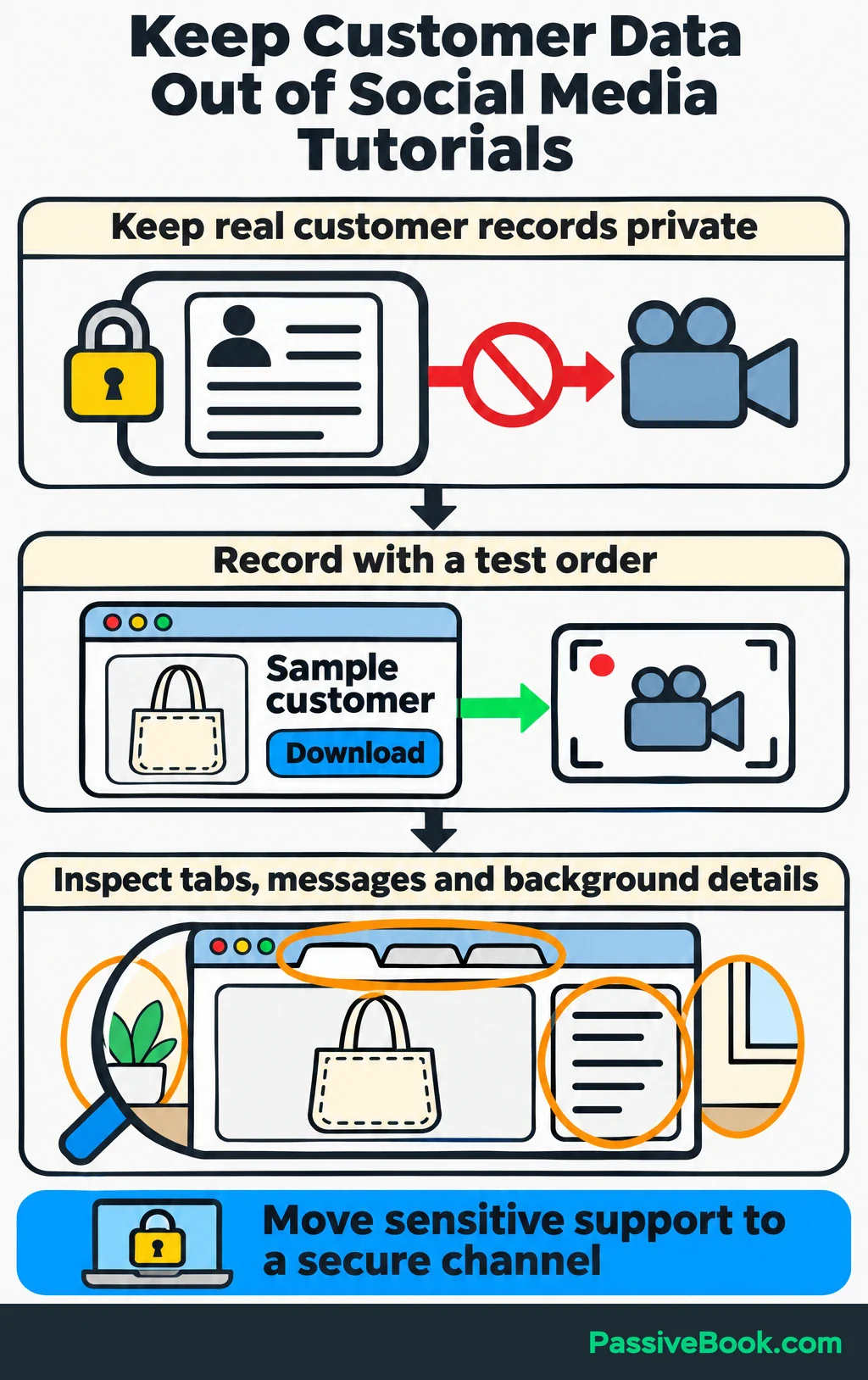
Collect only what support needs. A missing download may require an order reference, but it does not require the customer’s full payment-card details.
Move sensitive exchanges to your designated secure support channel, such as an access-controlled support portal. Limit who can read them and keep records only as long as business or legal needs require. This follows the FTC’s guidance to collect less information and protect what you retain.
Review public contact details, location sharing, tagging and message permissions according to their purpose. Then check the profile while signed out to see what a visitor can actually view.
Review Access and Investigate Unexpected Changes
Enable available security alerts and assign someone to read them. For a small shop, that can be the owner, with a backup during absences.
Investigate unfamiliar sessions, recovery-detail changes and customer reports of messages you did not send. Verify alerts through the platform directly.
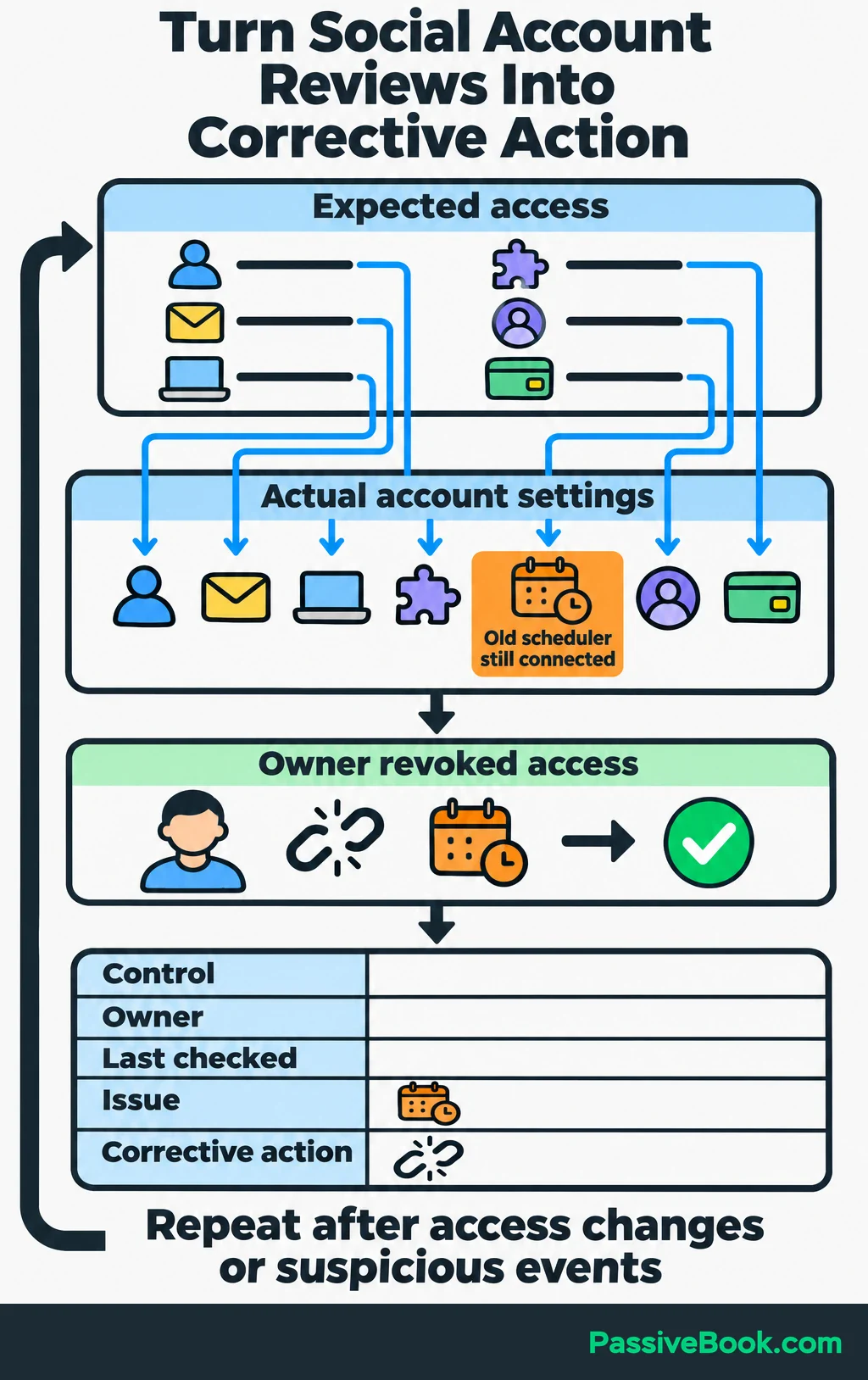
I would start with a monthly review. Compare the live settings with your account register, checking:
- Users, administrators and pending invitations.
- Recovery contacts and authentication methods.
- Signed-in devices and connected apps.
- Profile links, recent posts and messages.
- Advertising and billing activity, where available.
Keep a short review log with columns for control, owner, last checked, issue and corrective action. “Old scheduler still connected; owner revoked access” is more useful than a row marked “reviewed.”
Repeat relevant checks after a departure, agency handover, lost device, new integration or suspicious event. The calendar is a reminder, not a reason to wait.
Also look for accounts impersonating your brand. Save the profile URL and evidence, then report it through the platform’s official process. Link your genuine profiles from your website so customers have a trusted place to check.
Prepare for Account Lockouts and Downtime
Keep a short recovery sheet somewhere authorized people can reach without the affected social account.
Include account identifiers, responsible contacts, official recovery routes, available ownership evidence, recovery-code locations and instructions for pausing publishing. Restrict access because this sheet explains how control can be recovered.
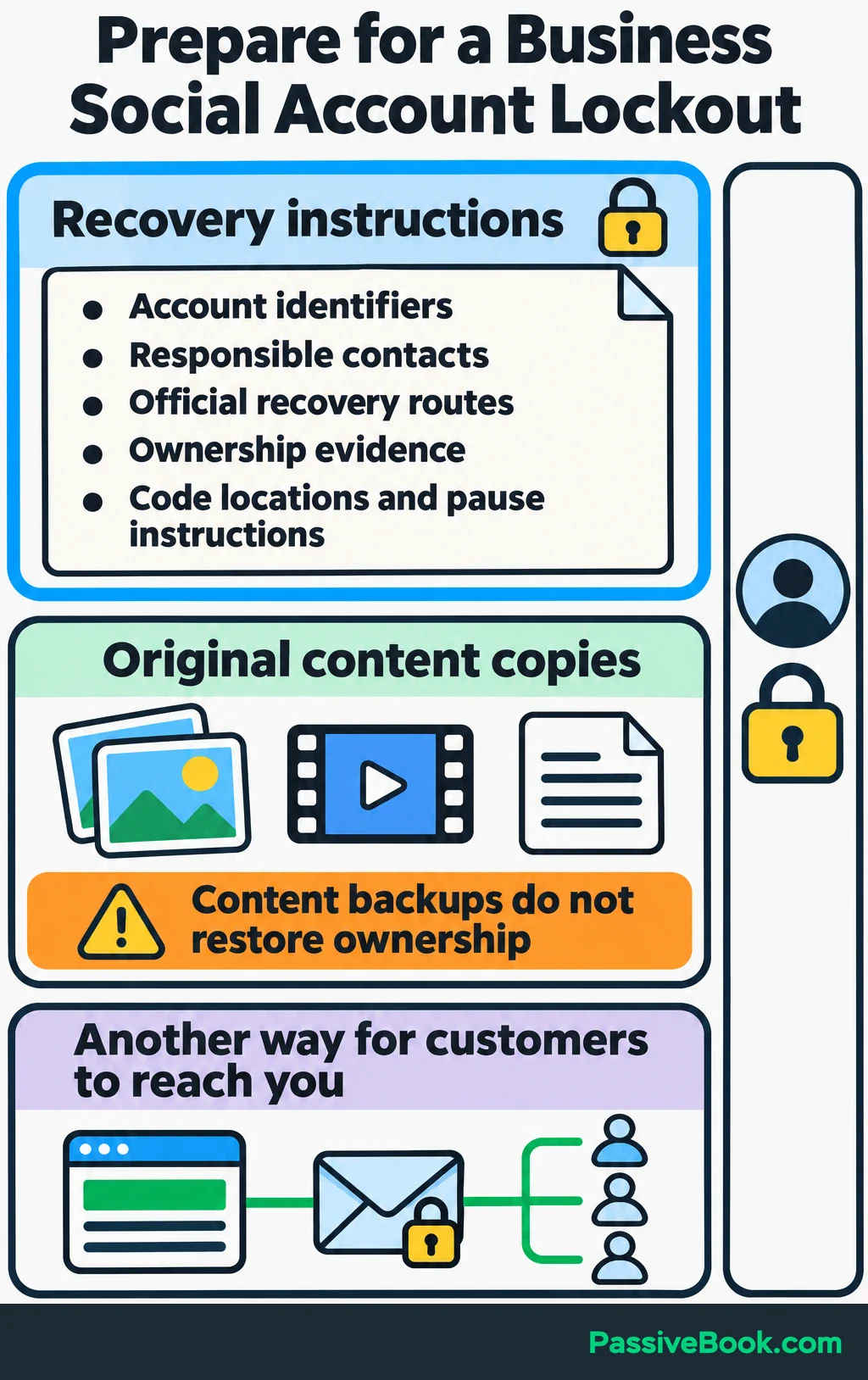
Preserve original images, videos and approved copy outside social platforms. These copies let you reuse your work, but they cannot restore account ownership.
Give customers another way to reach you. If the pattern shop loses access to its social profiles, its website can carry an update and its support inbox can handle download questions. Keep those routes secured and known to customers before an outage.
Choose one customer task that must keep working if your social accounts go down, such as handling download questions. Put its dependencies, responsible person and temporary workaround into a plan you can review before an outage.

Free AI Recovery Planner




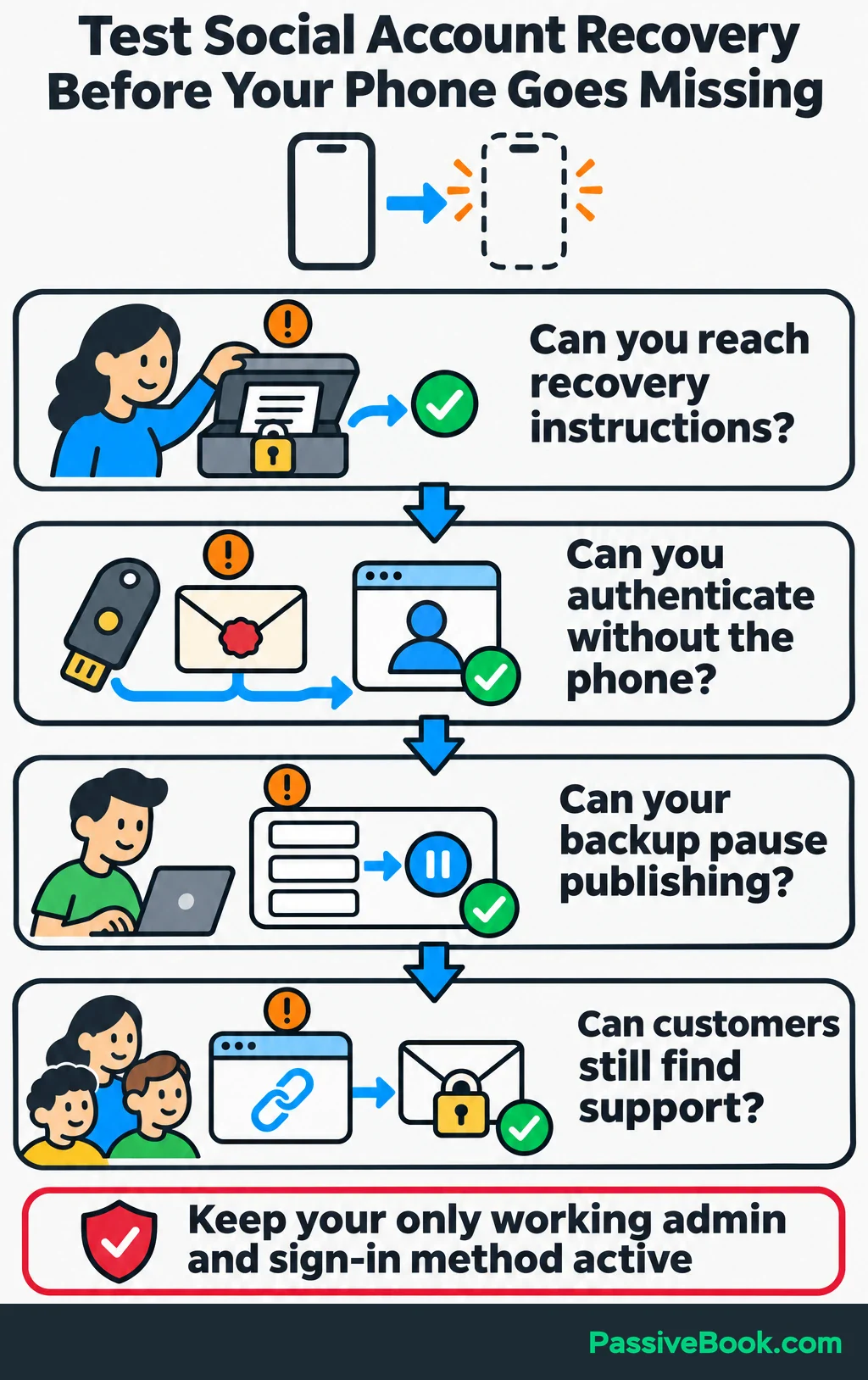
Walk through a lost-phone scenario:
- Can you reach the recovery instructions?
- Can you use backup authentication without the missing phone?
- Does the authorized backup person know how to pause publishing?
- Can customers still find support?
Do this without signing out the only administrator or disabling the only working authentication method.
The exercise should reveal missing preparation while you still have access to fix it.
Respond Quickly to a Suspected Compromise
If you suspect a takeover, coordinate through a separate trusted channel and recover your accounts from a trusted device. Disconnect any device that may contain malware from the network.
Contain the incident while preserving useful evidence:
- Pause scheduled publishing and affected automations. If unauthorized advertising is running, stop it where you can.
- Secure compromised recovery email so an attacker cannot keep using it to reset other accounts.
- Reset affected passwords and any reused elsewhere. Terminate active sessions separately rather than assuming a password change ends them all.
- Remove unauthorized users, recovery methods and connected apps. Confirm that your own authentication and recovery settings are correct.
- If you are locked out, use the platform’s official recovery process. Avoid people who promise recovery through unsolicited messages.
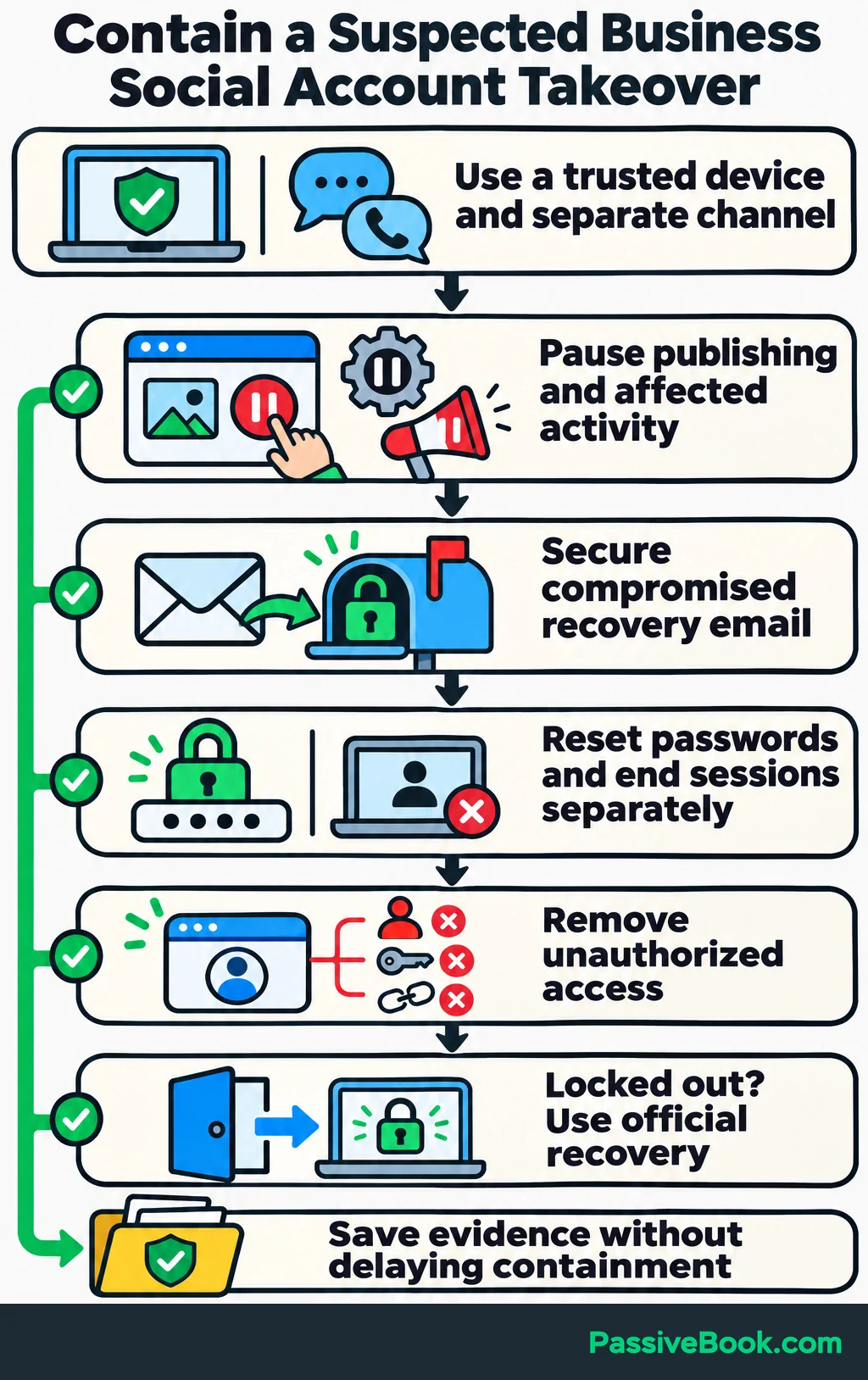
Save alerts, timestamps, profile URLs, screenshots and transaction records as you go. Do not delay containment to build a perfect evidence folder.
Once control is restored, inspect posts, messages, profile links and advertising activity. A clean public feed does not tell you whether customers received private scam messages.
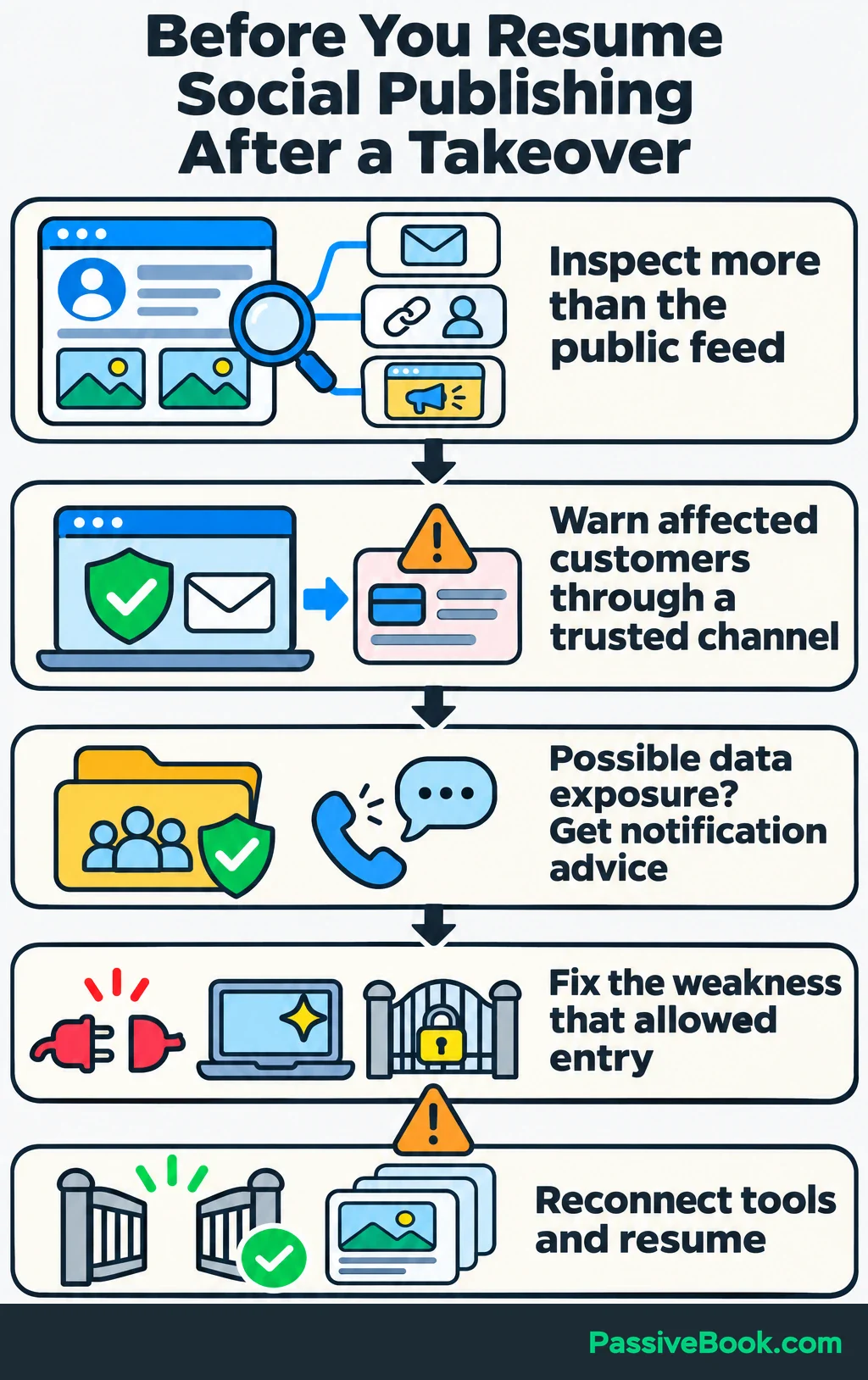
Warn affected customers through a trusted channel when fraudulent messages or links put them at risk. Give a specific action. For the pattern shop, that could mean telling customers to ignore an unauthorized payment request and contact the support address published on its website.
If personal information may have been exposed, get appropriate advice on notification duties for the affected data and jurisdictions. The FTC’s breach-response guide for US businesses explains why legal requirements and customer communication belong in the response.
Before reconnecting tools and resuming publishing, fix the weakness that allowed the incident. Remove the unsafe integration, clean the affected device or correct the access process. Restoring the same setup leaves the same problem waiting.
What Next?
Check the recovery mailbox for your most important social account and confirm that MFA and recovery contacts work. Then put the account in your register and assign its next review.
Use the social buttons to share this guide when you want your team working from the same access and publishing rules.
Which part of your setup would be hardest to recover if your phone disappeared? Share your answer—and any other questions—in the comments.
Share this post with your friends & followers:

