Your blog post has a clear title, an author and useful photos, but a schema tool is asking you to describe them all again. Then it offers dozens of markup types, including several that sound right.
Choose the wrong one and you can spend an afternoon fixing code that never qualified for the search feature you wanted. To make those choices easier, this guide works through a French-press cleaning post, with a complete code sample and checks to help you judge whether the markup is ready for Google.
What Structured Data Does for SEO
Structured data gives search engines information about your page in a format they can read consistently. It labels details such as the headline, author and publication date.
Three terms explain how it works:
- Structured Data: The organized information describing your content.
- Schema.org: The shared vocabulary of types and properties, such as
BlogPostingandheadline. - Schema Markup: The code you put on your website to express that information.
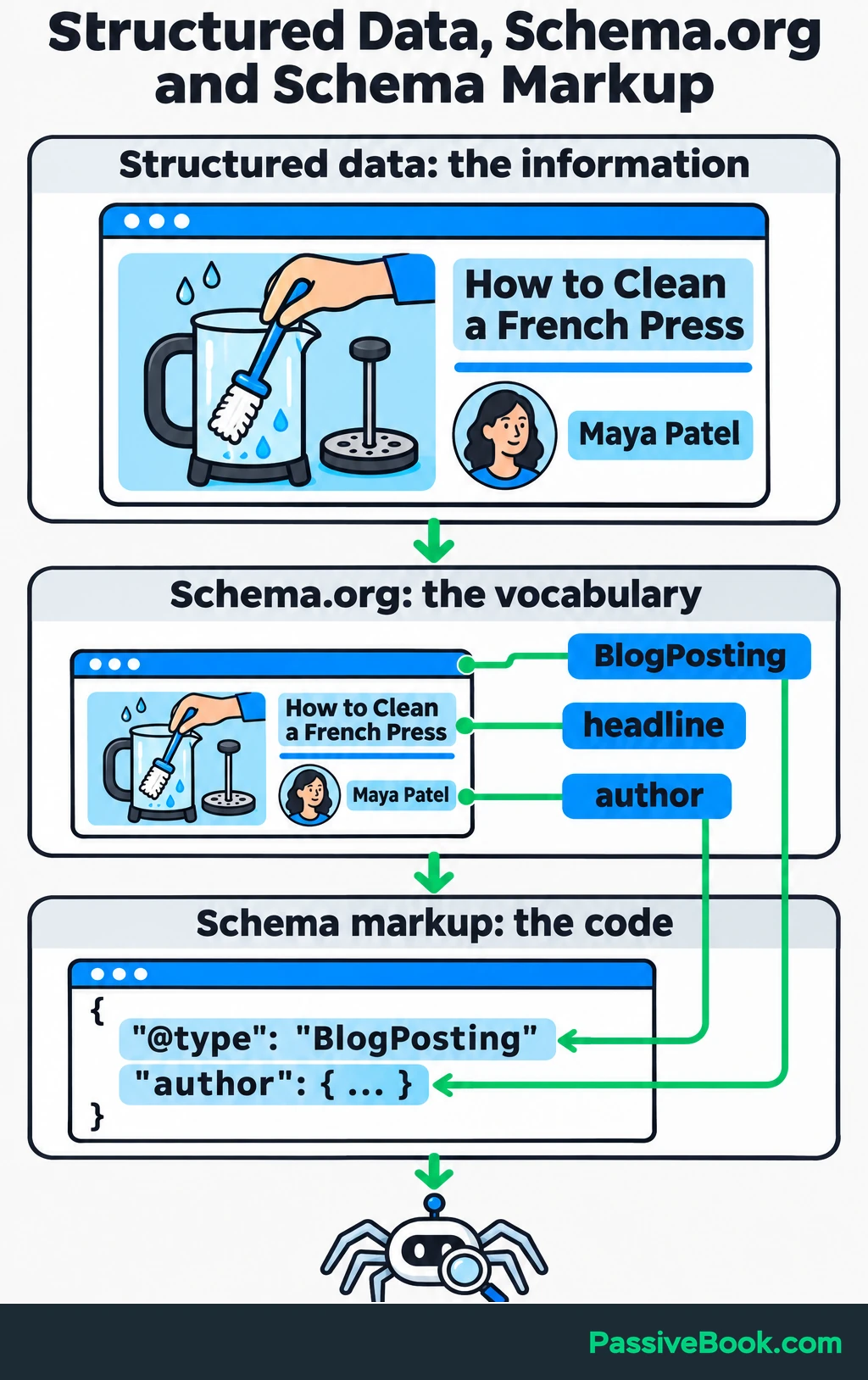
Google can use this information to understand a page and support rich results—search listings with extra details, such as product prices or ratings. For an article, that can mean better interpretation of its title, images and dates.
But adding structured data is not a generic ranking boost. Google explicitly separates structured data from a general ranking factor.
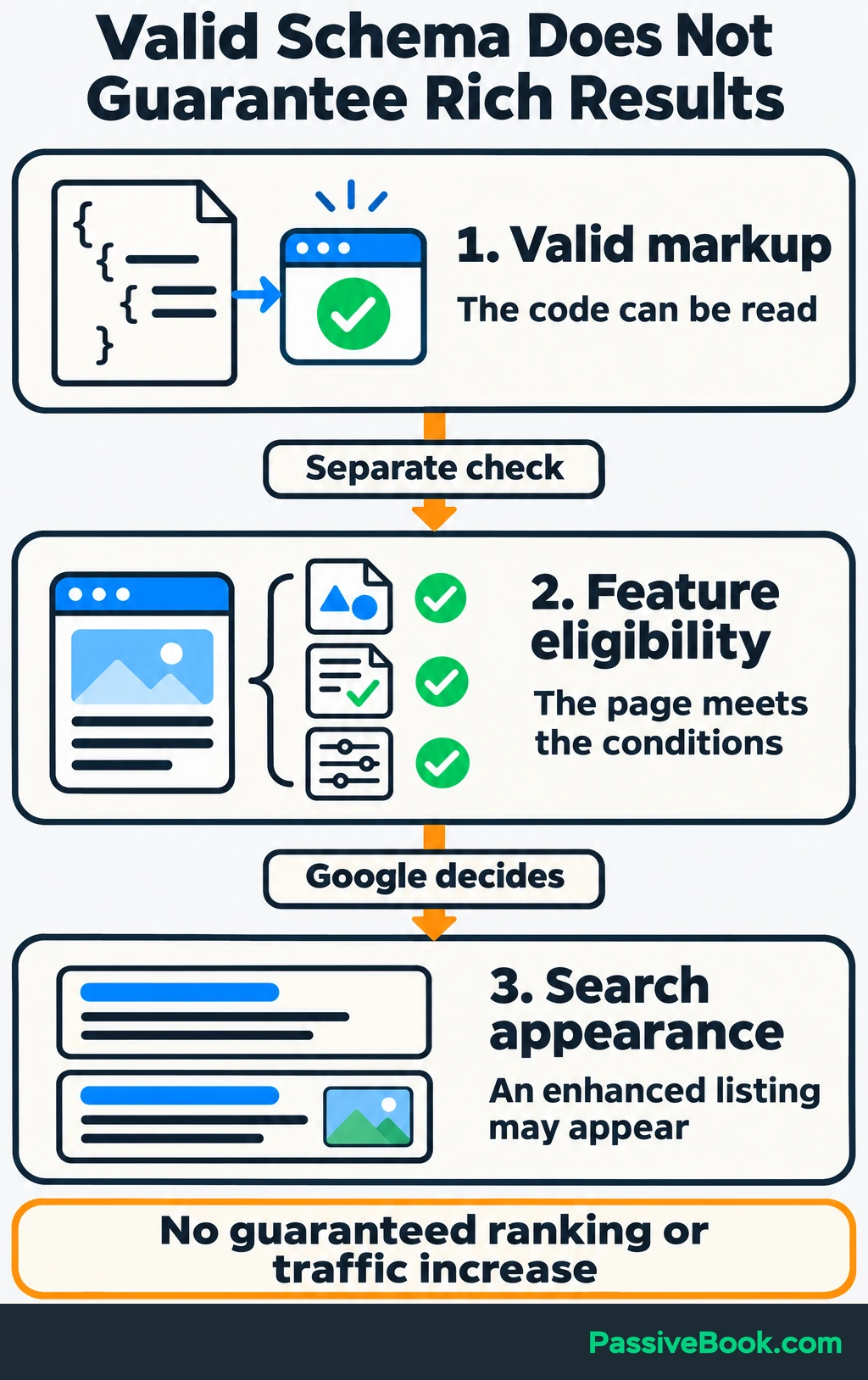
Keep three outcomes separate:
- Your markup is valid.
- Your page meets the conditions for a supported search feature.
- Google chooses to display that feature.
Passing one stage does not guarantee the next. Valid markup also does not guarantee more traffic.
I would treat structured data as part of a sound publishing setup. It deserves attention, but it cannot rescue an article that leaves the reader’s question unanswered.
1. Choose Schema That Matches Your Page
Start with one page whose content and publishing settings you can edit. Write down its main purpose before opening a schema generator.
Is it an article, a page selling one product, or a page introducing your business? Choose the type that describes what is actually there.
Schema.org defines the vocabulary, but Google supports only certain types for specific search features. Use Google’s supported structured data gallery to check the feature you want.
| Page Purpose | Schema Type | Matching Content | Potential Google Use |
|---|---|---|---|
| Publish an editorial blog post | BlogPosting | Headline, author, article image and publishing dates | Article presentation, including title and image information |
| Show a page’s place within the site | BreadcrumbList | A trail such as Home → Equipment Care → Cleaning Guide | Breadcrumb trails in desktop search results |
| Describe one product for sale or review | Product | Product name and applicable offer, review or rating details | Product snippets when feature requirements are met |
| Identify the business behind the site | Organization | Accurate business name, website, logo and identifying details on the homepage or About page | Organization identification and disambiguation |
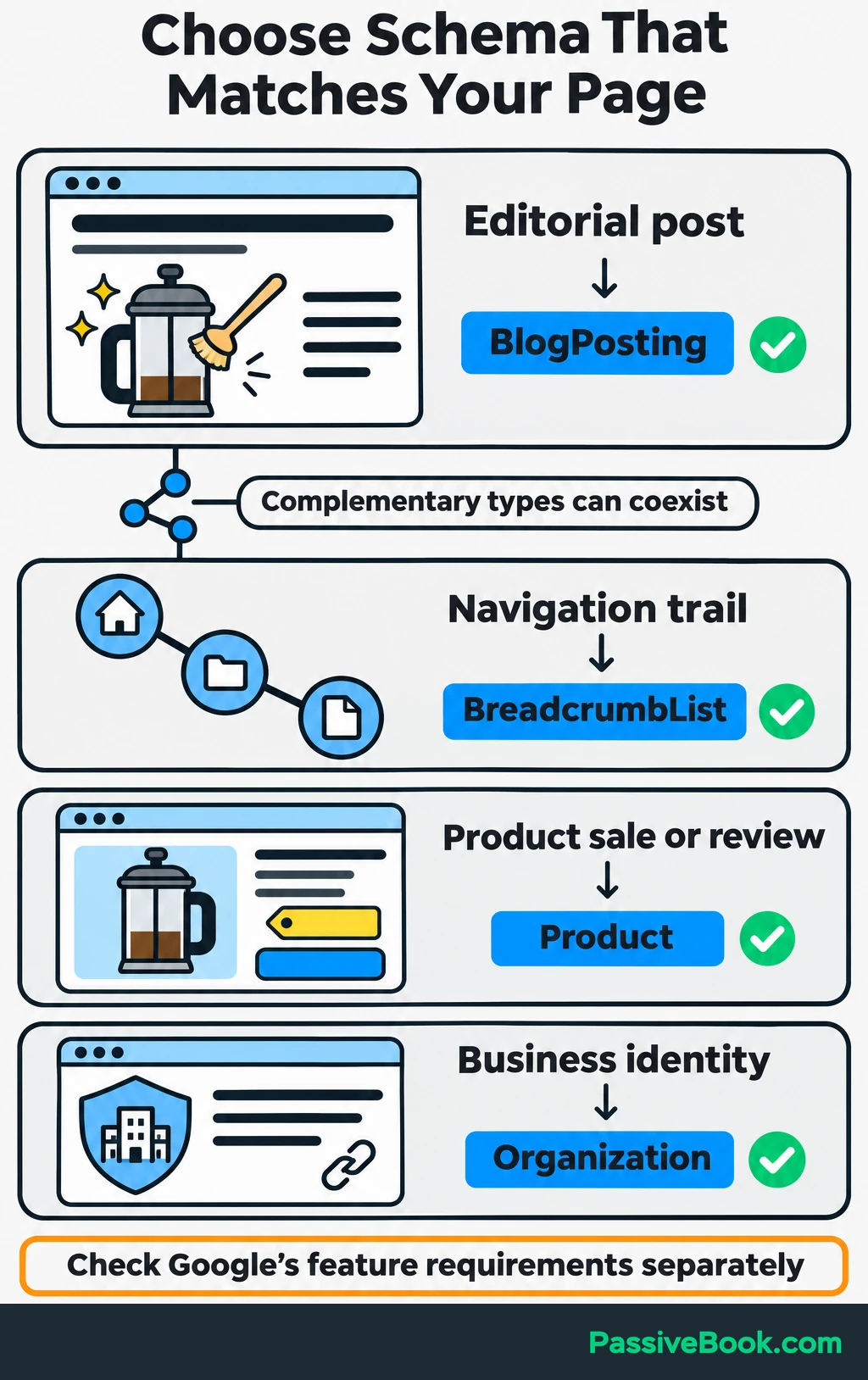
These types describe different things, so they can work together. An article can have BlogPosting markup and a separate BreadcrumbList describing its navigation trail.
For our example, imagine you run a manual coffee-brewing blog and have published “How to Clean a French Press.” I would choose BlogPosting, which is a more specific form of Article.
The post mentions equipment, but its purpose is teaching readers how to clean it. That does not make it a product page.
I would also skip HowTo and FAQPage if the goal is earning those Google rich results. Google retired HowTo results in September 2023, and FAQ rich results stopped appearing on May 7, 2026. Old tutorials still recommend both, which is a good way to spend time chasing a closed door.
2. Add Accurate Markup to the Page
Check what your website already produces before adding anything.
Run the existing page through Google’s Rich Results Test, which checks markup for Google-supported search features, and review the detected items. Your publishing system, theme or SEO plugin may already generate the markup you need.
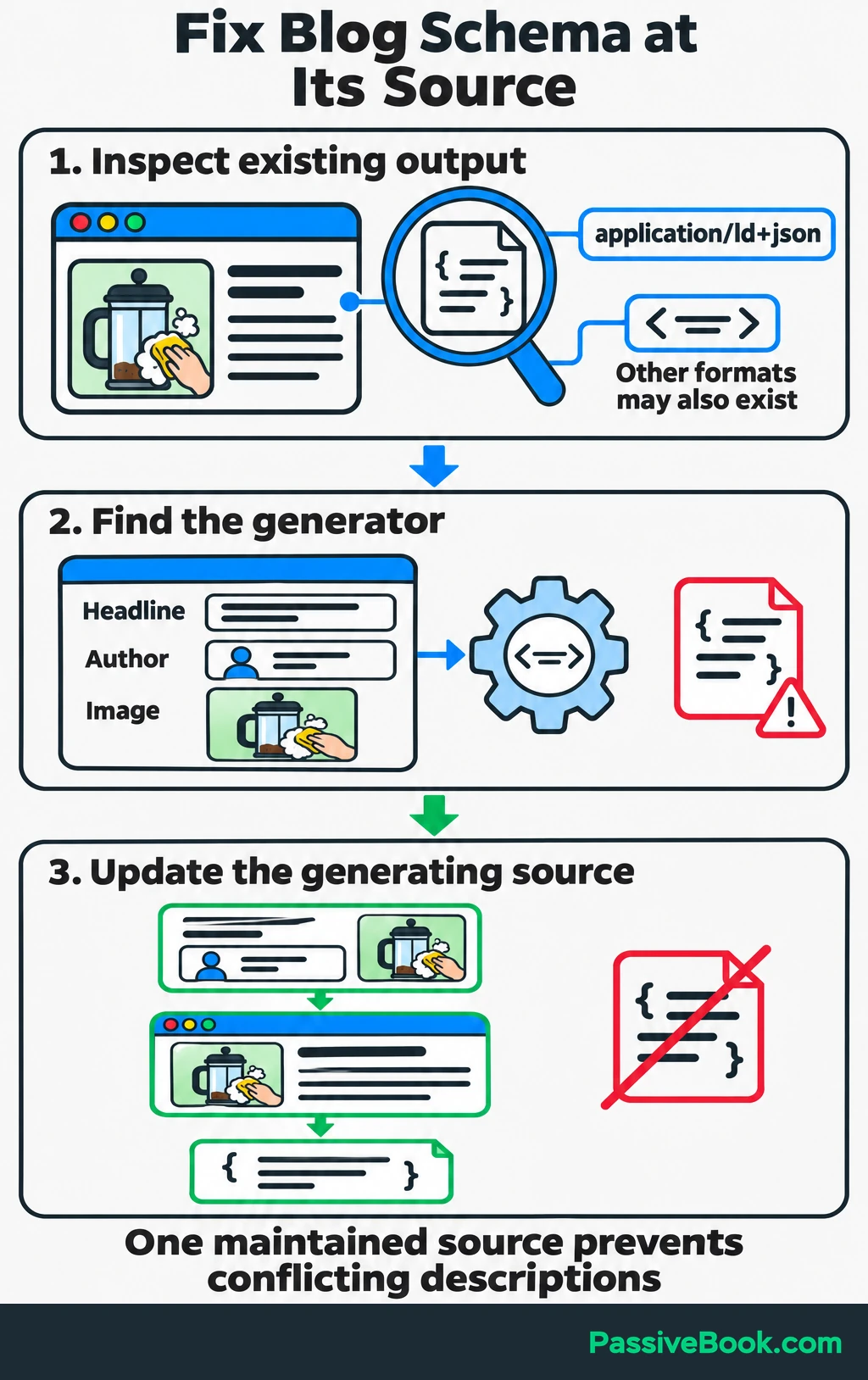
You can also inspect the page’s HTML in your browser’s developer tools. Searching for application/ld+json finds JSON-LD scripts, which hold structured data separately from the visible content. Other supported formats will not use that label.
I caught an old manual snippet on one of my blogs after changing an article’s headline. The visible title was current, but the snippet still described the previous version. I replaced that separate copy with values drawn from the publishing fields because maintaining the same information twice had already failed.
For your page, gather these details before choosing an implementation method:
| Page Information | Property | French-Press Example—Replace With Your Details |
|---|---|---|
| Article title | headline | How to Clean a French Press |
| Representative image | image | https://example.com/images/clean-french-press.jpg |
| Author | author | Maya Patel, identified as a Person |
| Author profile | author.url | https://example.com/authors/maya-patel/ |
| First publication | datePublished | 10 October 2026, 9 a.m. India Standard Time |
| Latest article update | dateModified | 20 October 2026, 9 a.m. India Standard Time; omit if no update applies |
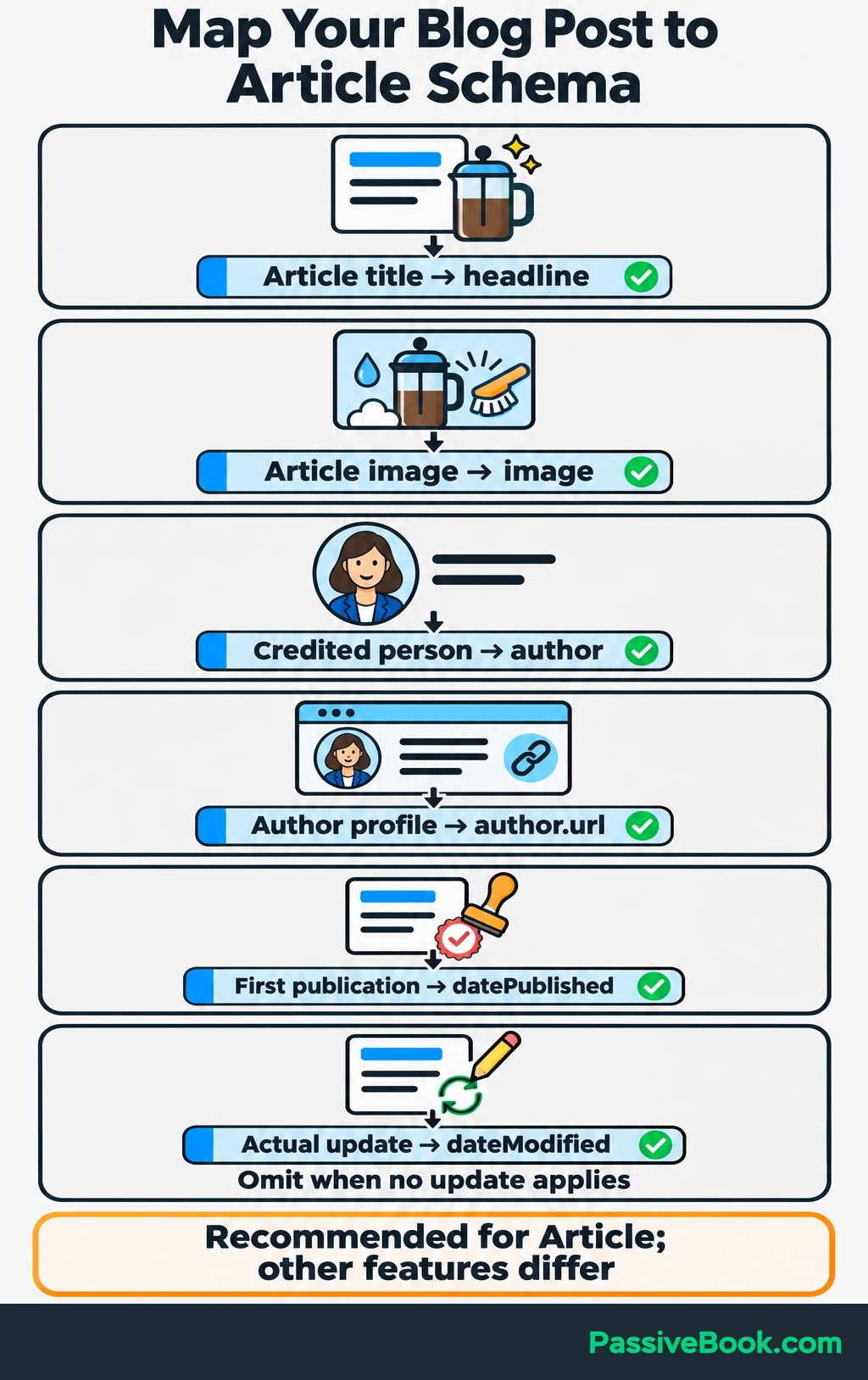
Google recommends these Article properties but does not make them mandatory. Other features have different requirements, so do not apply that rule to every schema type. Google’s Article documentation explains the supported properties.
The information must match the article and its accurate publishing details. If existing markup is wrong, correct the plugin, field or template producing it. Adding another version leaves you with two descriptions to maintain.
For a new implementation, I would use JSON-LD. Google also supports Microdata and RDFa, which add structured data labels to the HTML around your content, so an accurate existing setup can stay in either format. Google’s format guidance recommends choosing something you can implement and maintain reliably.
Use Your CMS or an Existing Plugin
Use your content management system, or CMS, when it can generate the right schema from the information you already enter while publishing.
This is my first choice for a blog. Each post should receive its own headline, author, image and dates automatically.
I use self-hosted WordPress and prefer Rank Math for SEO. For the French-press article, its Article schema with the Blog Post subtype is a practical route.
Open the post’s schema settings, choose the matching article type and review the values it generates. Check the output rather than assuming the selected setting guarantees correct markup.
Pay particular attention to:
- Headline: It should describe this article rather than repeat a site-wide default.
- Image: It should use the intended article image.
- Author: It should identify the credited author.
- Dates: They should reflect the article’s publication and modification history.
If your current plugin already does this correctly, I would keep it. Installing another SEO plugin just for schema gives you more settings to untangle.
Add JSON-LD Manually
Manual markup makes sense when you can add a script to the relevant page and keep its values current.
Before writing code, confirm that your publishing system allows page-specific scripts. Some editors remove script tags when saving. If implementation requires changes to a shared template or custom code beyond your access, get technical help with that part.
Here is a complete illustrative script for the French-press article:
<script type="application/ld+json">
{
  "@context": "https://schema.org",
  "@type": "BlogPosting",
  "@id": "https://example.com/coffee/clean-french-press/#article",
  "mainEntityOfPage": "https://example.com/coffee/clean-french-press/",
  "headline": "How to Clean a French Press",
  "image": "https://example.com/images/clean-french-press.jpg",
  "datePublished": "2026-10-10T09:00:00+05:30",
  "dateModified": "2026-10-20T09:00:00+05:30",
  "author": {
    "@type": "Person",
    "name": "Maya Patel",
    "url": "https://example.com/authors/maya-patel/"
  }
}
</script>
The author, dates and example.com addresses are placeholders. This is an adaptable code example, not a published page with a completed live Rich Results Test.
Here is what the main parts do:
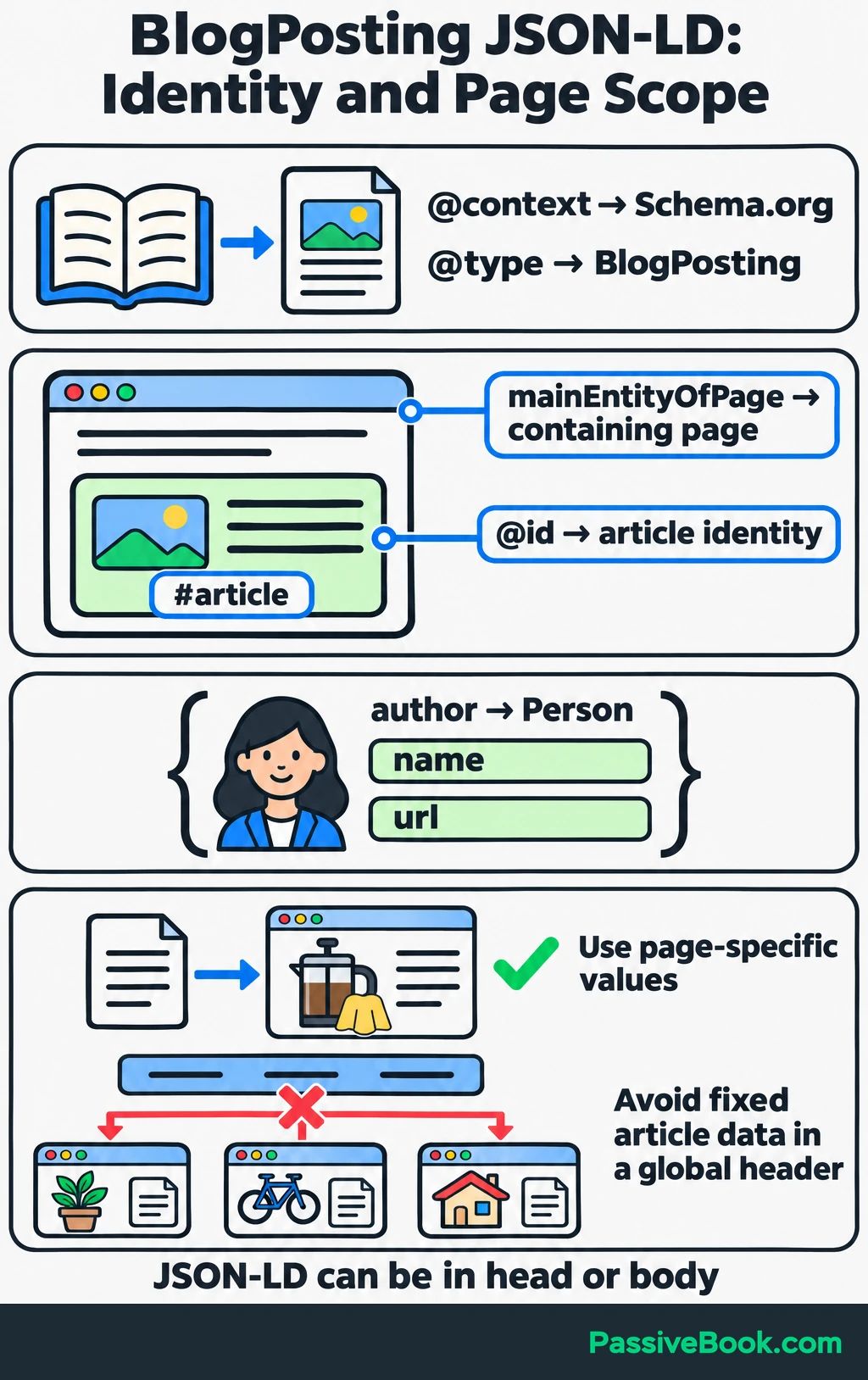
@context: Identifies Schema.org as the vocabulary.@type: Says the item is a blog post.@id: Gives the article a stable identifier. The#articleending identifies the article entity within its page.mainEntityOfPage: Identifies the webpage containing the article.author: Contains a nestedPersonobject with the author’s name and identifying URL.
Replace every sample value with your page’s information. The image should represent the article and be accessible to Google.
Keep dates in the illustrated ISO 8601 format: year, month, day, time and timezone. The +05:30 ending is a timezone offset, so replace it if another offset applies.
Use dateModified for the article’s actual modification date. Do not make it refresh every morning just to look busy.
Insert the complete script through a page-specific code field or an appropriate template. JSON-LD can go in the document’s <head> or <body>.
The article’s values must stay attached to that article. A site-wide header field would put the same French-press description on unrelated pages, which is why page scope matters.
If adapting the example feels fiddly, AI Structured Data Assistant can draft a script from your own page details. You can also give it existing markup to revise instead of adding another version.

Free AI Structured Data Assistant




3. Test and Fix the Markup
Validate the Code Before Publishing
Use two tools because they answer different questions.
The Schema Markup Validator checks Schema.org markup. Paste the complete script into its code input and inspect the extracted type, properties and reported problems.
For the example, look for a BlogPosting containing the expected headline and nested author. If those details are missing, investigate before publishing.
Then use Google’s Rich Results Test. Choose its code input, paste the script and run the test. Expand the detected Article item and review its properties and issues.
This tool checks Google-supported search features. It does not cover every type in Schema.org.
Together, the tools help you answer:
- Extraction: Can the tools read the markup?
- Vocabulary: Are the types and properties recognized?
- Google Requirements: Does the detected item meet the tested feature’s technical requirements?
A preview, when available, is an illustration of a possible appearance. It is not a booking confirmation for Google’s results page.
Correct the Reported Problems
Fix syntax problems first because broken JSON can prevent the rest of the information from being read.
Check for double quotes around property names and text values, balanced braces and brackets, and commas between properties. Remove trailing commas and comments from the final JSON.

Then handle the reported issues in this order:
| Reported Problem | What to Do |
|---|---|
| Syntax or parsing error | Correct the punctuation or malformed code, then rerun the test |
| Critical issue | Check the chosen feature’s requirements and supply the required, accurate information |
| Non-critical warning | Add the suggested information when it applies and you have it |
| No supported items detected | Confirm the script is present and the chosen type supports a Google search feature |
| Correctly parsed but inaccurate value | Fix the source field, plugin setting or manual value |
Do not invent information to clear a warning. A fabricated review is worse than an honest missing field.
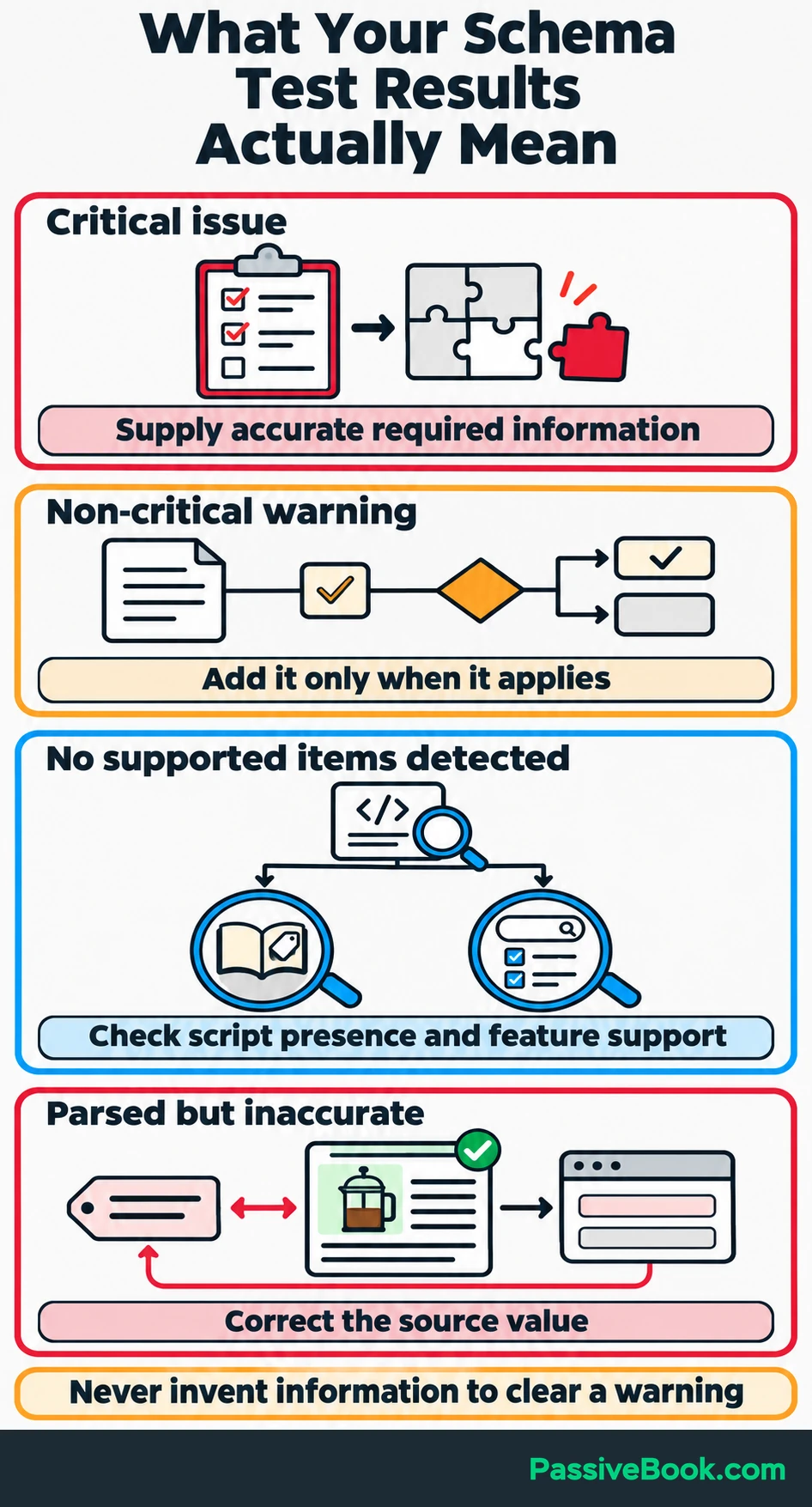
If Google detects no items but the Schema Markup Validator reads your code, check whether Google supports that type for a search feature. The two tools measure different things, so different results are possible.
Finally, compare the extracted information with the page itself. For the French-press post, check that the headline, author and image describe the cleaning guide you actually published.
Automated tests cannot establish that every claim in your markup is truthful. Misleading markup can trigger a structured-data manual action and remove rich-result eligibility. That action does not itself change ordinary web-search rankings, as Google’s structured data policies explain.
4. Publish and Verify the Live Page
Save a recoverable copy of the existing code or settings, then publish the change on your selected page.
Now test the live URL in the Rich Results Test. Testing pasted code checks what you supplied; testing the URL checks what the published page delivers.
Review the detected headline, author, image and dates again. If they differ from your tested code, investigate the publishing process:
- Missing Script: The editor may have removed it when saving.
- Old Values: A page cache may still be serving the previous version.
- Wrong Article Details: A shared template may be inserting fixed values instead of the current post’s fields.
- Conflicting Descriptions: A theme, plugin or old custom snippet may generate another version.
For our cleaning guide, the live result should describe that guide and its author. Seeing a different article title is a reason to fix the generating source before expanding the setup.
The page and relevant resources must also be accessible to Google. Check for login requirements, crawling restrictions and a noindex instruction, which tells search engines not to index the page.
Next, open Google Search Console, Google’s tool for checking indexing and search performance. You’ll need to add your site and verify ownership if you have not already done so. Use URL Inspection to review the page’s indexing status and run a live test of its accessibility. After verifying the update, you can request indexing.
Keep the two versions straight: the indexed report reflects Google’s previously processed page, while the live test checks the page as it exists now. Requesting indexing does not guarantee immediate processing.
Check relevant rich-result reports when available. These reports cover selected features and samples, so their absence is not proof that your markup is missing. Article markup has no dedicated report; keep using the Rich Results Test for the example post. Google documents the reports’ coverage and limits.
If the expected search appearance does not show, check whether Google has processed the update, whether the page meets the feature’s conditions and whether Search Console reports a manual action. Once those checks are clear, adding more schema is not a useful response to Google choosing a normal listing.
5. Maintain the Markup and Assess Its Value
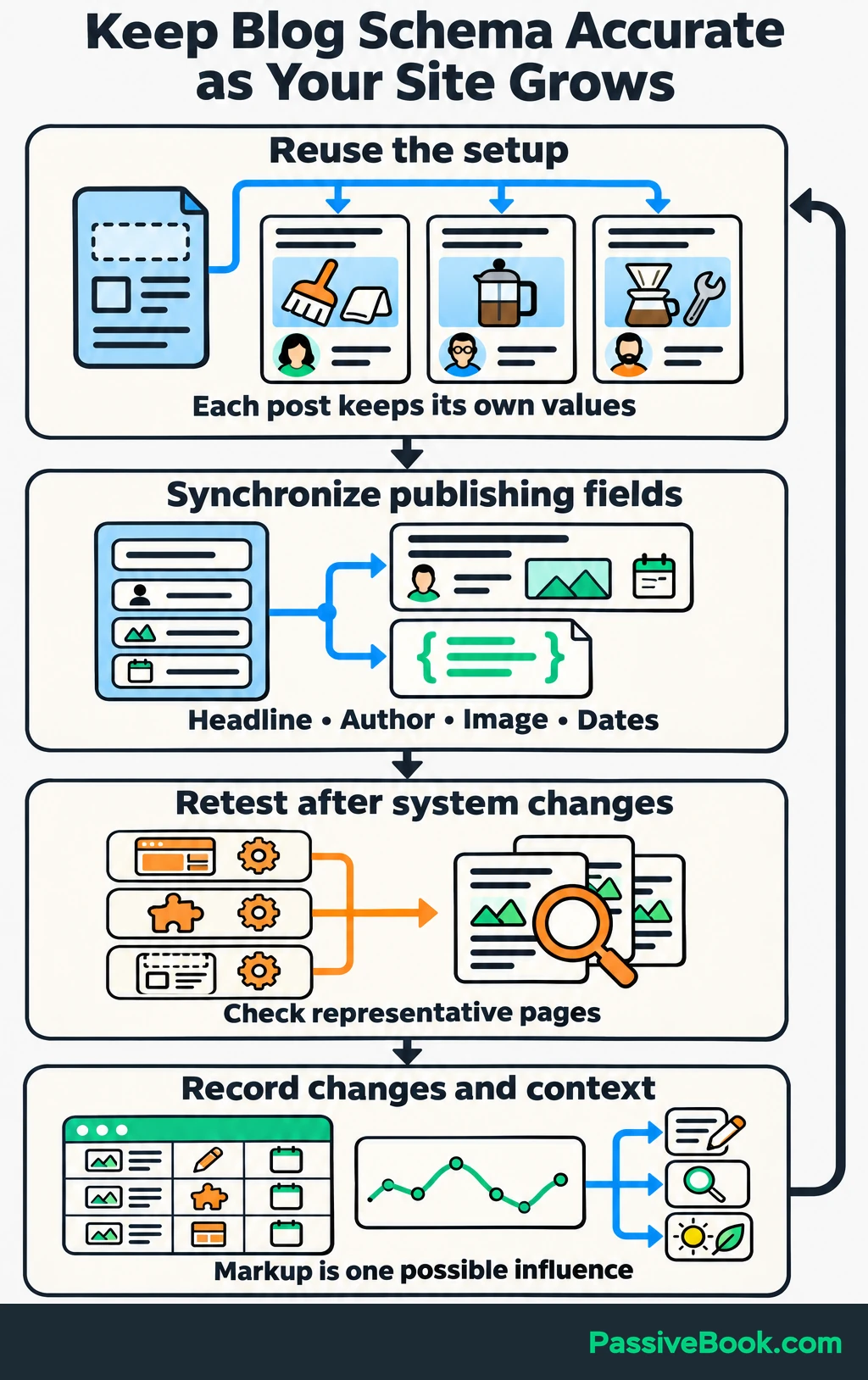
Once one page works, apply the same method to similar pages using their own content fields.
For the coffee blog, that means reusing the publishing setup across editorial posts. It does not mean copying the French-press script unchanged into every article.
Keep headlines, authors, images and dates synchronized with page updates. Retest a few representative pages after changes to your theme, plugins, templates or publishing system.
I would record the implementation date and the pages affected in a simple spreadsheet. That gives later traffic changes some context without creating another weekly administrative hobby.
In Search Console, filter the Performance report to the relevant page and review:
- Impressions: How often the page appeared in search results.
- Clicks: How often people clicked through.
- CTR: Click-through rate, or the share of those impressions that produced clicks.
- Average Position: Whether changes in search position might help explain performance.
- Search Appearance: Relevant categories, when available.
Google’s Performance report guidance explains these measures.
Compare similar periods, but also check whether the queries, content or seasonal demand changed. A rise in clicks after implementation does not establish that structured data caused it.
For the French-press guide, an improvement after adding markup could also coincide with a content update or better rankings for a particular query. Keep those changes in your notes.
I would prioritize accurate markup that updates automatically over collecting more schema types. A small setup you can trust is worth more than an impressive list of things your pages do not contain.
What Next?
Pick one published article and run its URL through the Rich Results Test. Check what already exists before deciding whether to correct your current setup or add markup.
Use the social buttons to share this guide when a schema discussion needs a practical path from choosing a type to checking the live page.
Which part of your setup would be hardest to keep accurate as your site grows? Tell me in the comments, and bring any other structured data questions too.
Share this post with your friends & followers:

