You have a guide that answers a common question, but finding it means searching your own website. The menu leads to broad categories, the category pages show recent posts, and the useful guide has slipped out of view.
Publishing more won’t make that guide easier to find, but reorganizing the site raises another worry: breaking URLs that already bring visitors. This guide shows how to make useful pages easier to reach through clearer categories, navigation, and internal links, with safeguards for the addresses people already use.
What Makes a Site Architecture SEO-friendly?
An SEO-friendly structure gives visitors a clear route from a broad subject to the page that answers their question.
The usual pattern is:
Homepage → topic hub → detailed guide
A topic hub is a starting page that organizes resources on one subject. It explains what readers can find and points them toward useful guides.
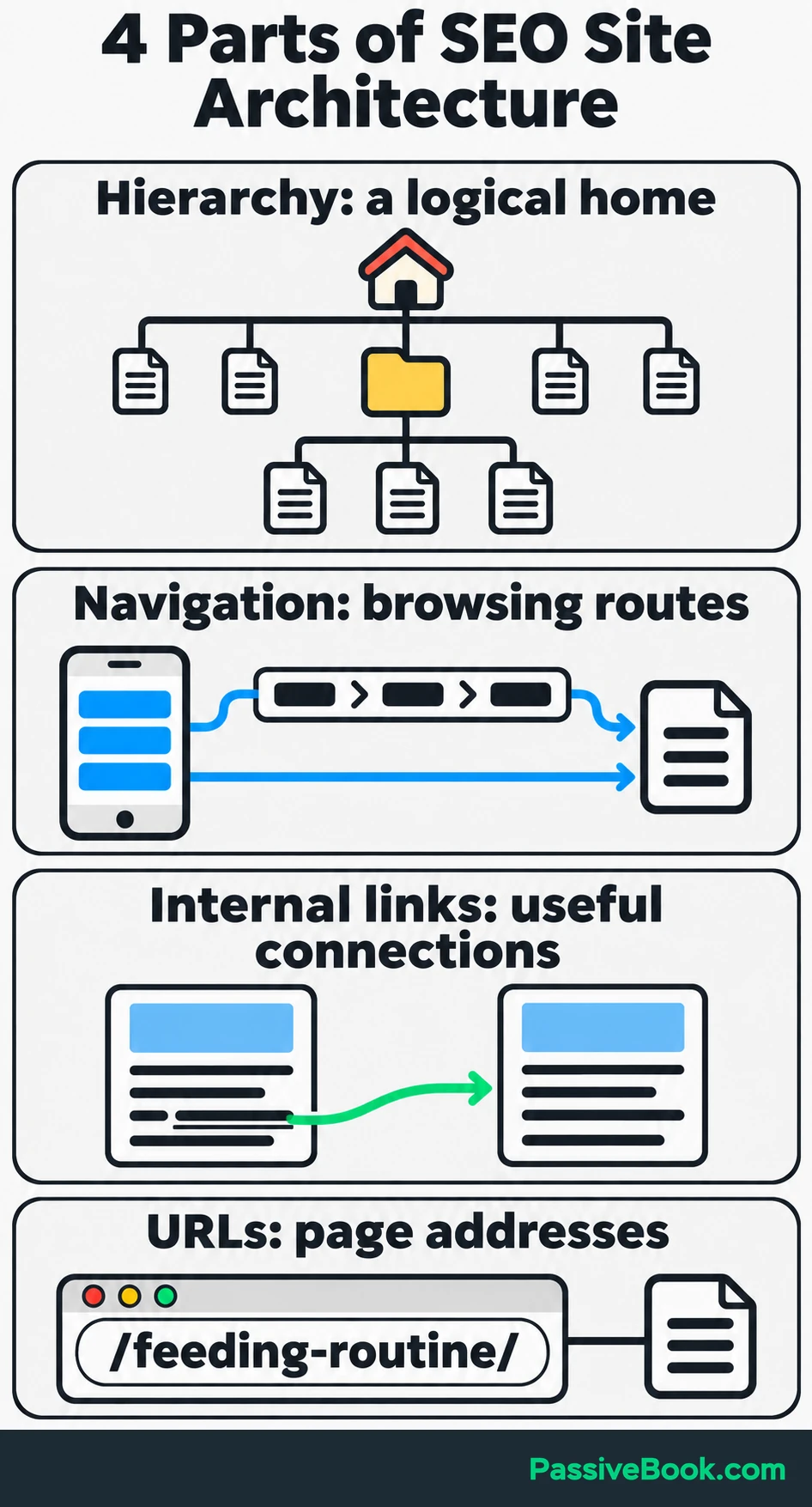
Four parts work together:
| Part | What It Does |
|---|---|
| Hierarchy | Gives each page a logical place within the site. |
| Navigation | Provides browsing routes through menus, hubs, and breadcrumbs. |
| Internal links | Connect pages on your website. |
| URLs | Give each page its address. |
These parts should agree, but they aren’t interchangeable. Putting /feeding/ in an address doesn’t create a useful Feeding section by itself. Google explains that it uses relationships between linked pages to understand site structure and relative importance. Google’s site-structure guidance
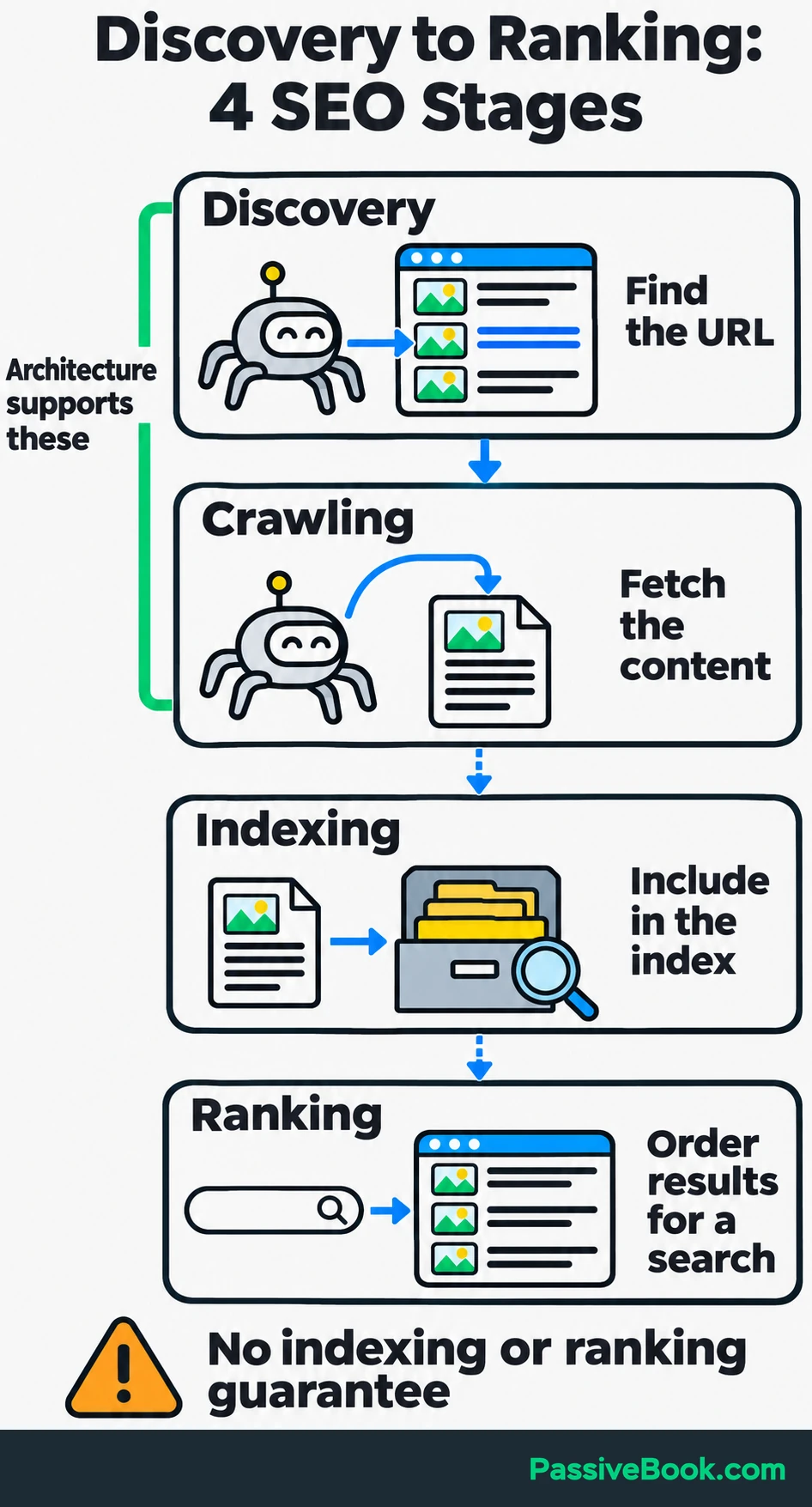
It also helps to separate four stages:
- Discovery means finding a URL.
- Crawling means fetching its content.
- Indexing means including it in the search index.
- Ranking means deciding where it appears for a search.
Good architecture supports discovery and crawling. It doesn’t guarantee indexing or a particular ranking.
Throughout this guide, imagine you run an affiliate-supported blog about caring for adopted indoor cats. Its main hubs are Feeding, Litter Care, and Enrichment. The structure and repairs below are illustrations.
Find the Structural Problems Worth Fixing First
Start by recording what exists. Otherwise, you risk reorganizing the pages you remember and overlooking the ones that most need attention.
Export or list your published pages from your content management system, such as WordPress. Save your current menus and category assignments too. For a new website, use a list of planned pages.
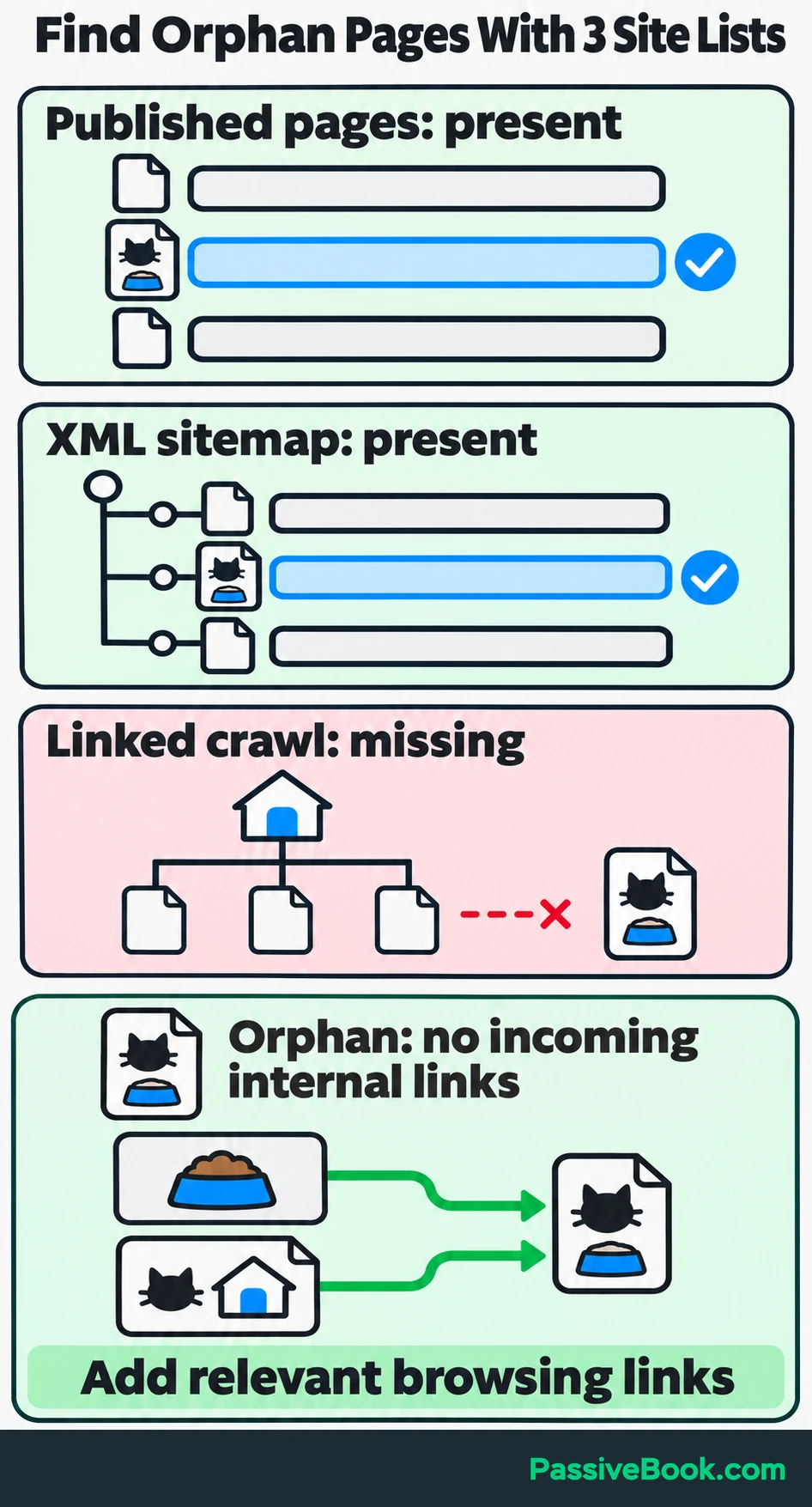
Next, compare three views:
- Your published page list.
- Your XML sitemap, which lists URLs for search engines.
- Pages reachable by following links from the homepage.
On a small site, trace the routes manually. For a larger collection, use a site crawler—a tool that follows links and reports what it finds. Compare its results with the other lists because a linked crawl can miss disconnected pages.
Keep one row per URL in a spreadsheet. Here’s a single record shown vertically so it’s easy to read:
| Field | Example Before Repair |
|---|---|
| URL | /feeding-routine-for-adopted-cats/ |
| Reader question | How do I organize feeding after bringing a cat home? |
| Current topic group | Uncategorized |
| Intended parent hub | Feeding |
| Incoming internal links | None found in the link audit |
| Shortest route from homepage | No linked route found |
| Proposed action | Add to Feeding and link from a relevant adoption guide |
A page with no incoming internal links is an orphan page. It may appear in your sitemap, but visitors still lack a browsing route to it.
I would fix that before commissioning another feeding article.
Work through problems in this order: broken routes to valuable pages, orphan guides, buried priority content, and confusing collections. Correcting a misplaced guide usually matters more than making every category name sound clever.
Map Content Into Clear Categories and Useful Hubs
Give Each Page a Logical Home
Group pages by the questions readers want answered. Then name those groups in words they would recognize.
For the cat-care blog, Feeding, Litter Care, and Enrichment tell visitors what they’ll find. A label such as “The Happy Cat Journey” makes them guess. Save the creativity for the writing.
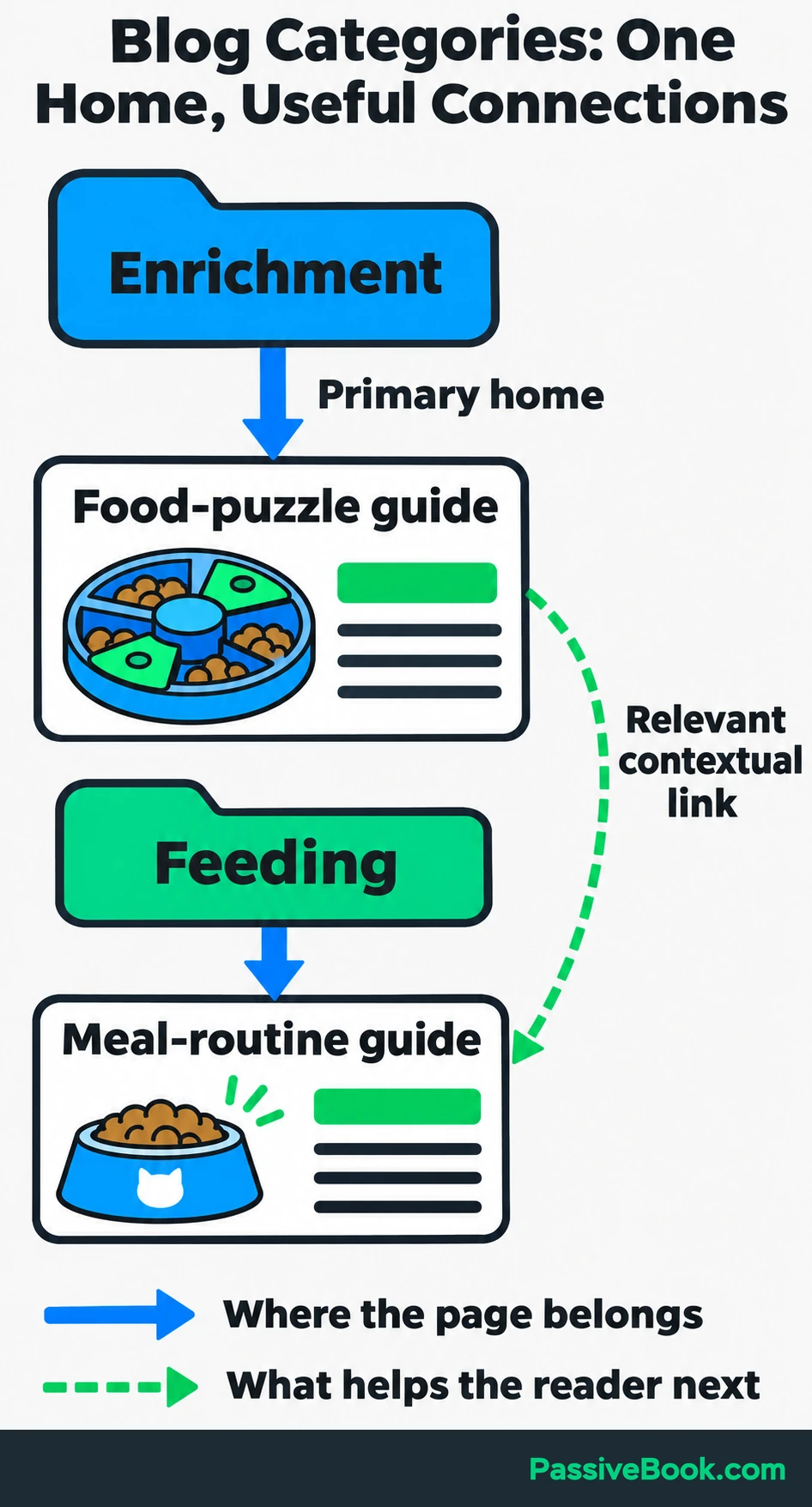
Give each article a primary home. Other pages can still link to it, and readers can reach it through several routes.
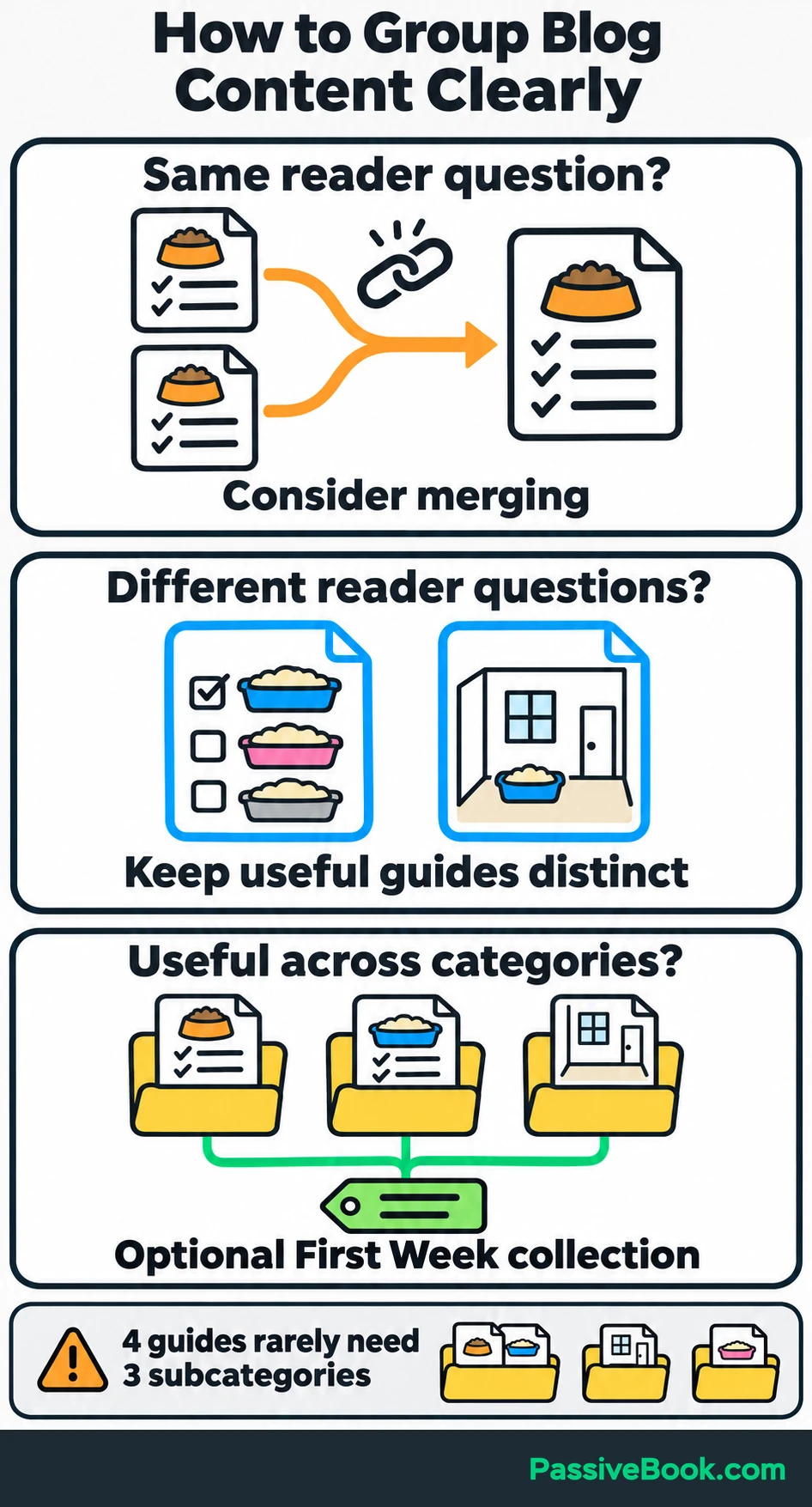
Add a subcategory when it helps people choose within a substantial collection. If Feeding contains only four guides, splitting them across three subcategories creates more navigation than help.
Look for overlap while sorting:
- Two guides that both explain the same feeding routine may belong in one stronger article.
- Choosing a litter box and setting it up answer different questions, so separate guides can make sense.
- A food-puzzle guide can live under Enrichment while linking to relevant Feeding advice.
Before merging anything, preserve useful material and follow the URL safeguards later in this guide.
Use categories for your main browsing structure. Tags are optional collections across that structure. A “First Week” tag could gather relevant guides from several categories, but it earns its place only if that collection helps readers.
I would skip tags that repeat category names or contain a single article. Creating three nearly identical collections gives you three places to maintain.
Turn Topic Hubs Into Useful Starting Points
A useful hub helps readers decide where to begin. It shouldn’t require them to scroll through publication dates until something looks relevant.
First, explain the hub’s scope in a sentence or two. Then arrange links around tasks.
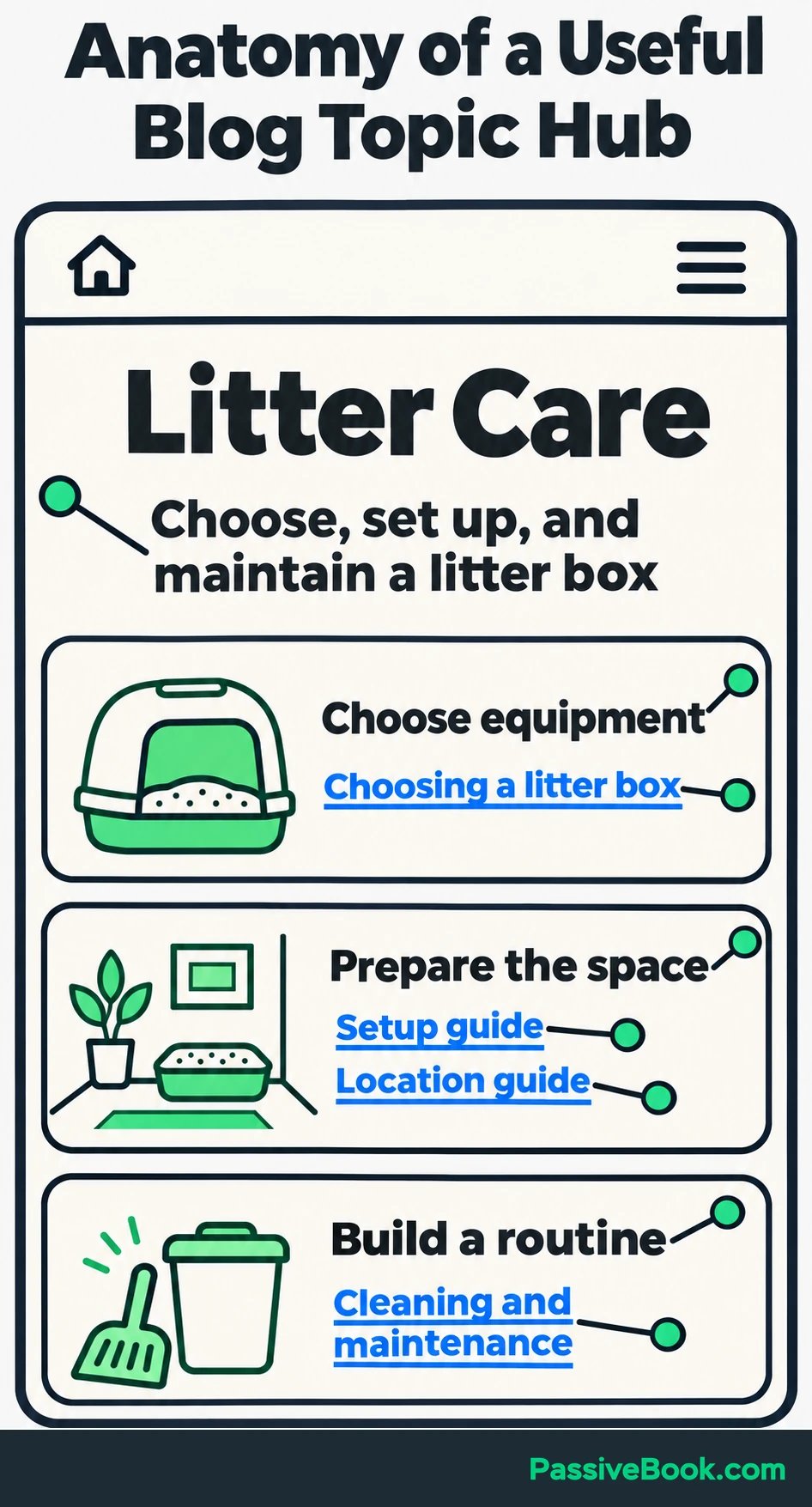
The Litter Care hub could offer:
| Reader’s Task | Guides to Show |
|---|---|
| Choose equipment | Choosing a litter box |
| Prepare the space | Litter-box setup; choosing a litter-box location |
| Build a routine | Cleaning and maintenance guide |
Improve an existing category page if it can do this job. You don’t automatically need a separate landing page.
If your category page is still just a list of recent posts, use the AI Skill below to draft a more useful starting page. Bring a handful of guide titles and their URLs; you don’t need a full site export.

Free AI Website Structure Studio




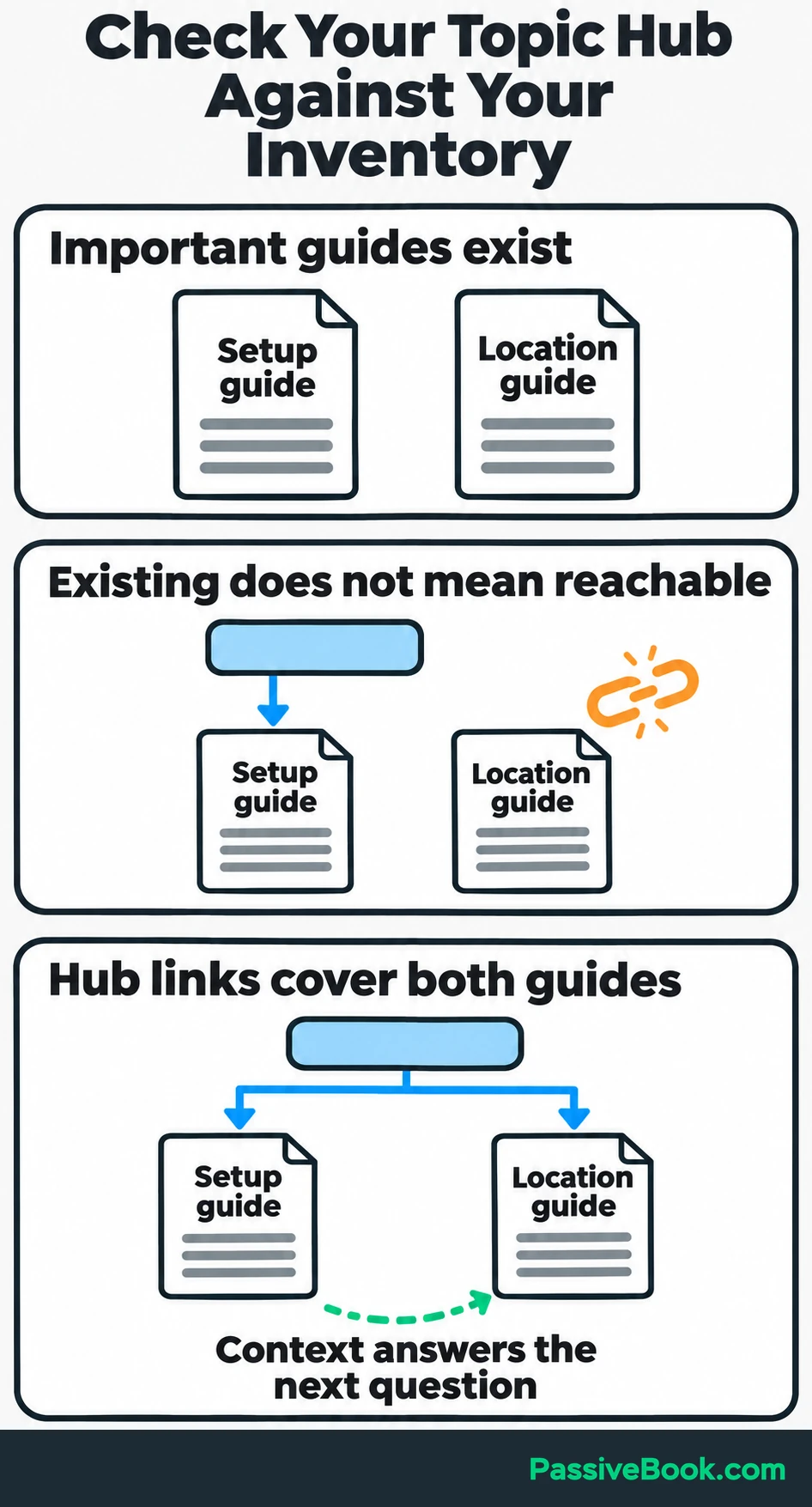
The main browsing routes could look like this:
flowchart TD
    H[Home] --> F[Feeding]
    H --> L[Litter Care]
    H --> E[Enrichment]
    F --> R[Feeding Routine Guide]
    L --> S[Litter-Box Setup Guide]
    L --> P[Choosing a Litter-Box Location]
    S -. Contextual link about placement .-> P
The solid arrows show the hierarchy. The dotted arrow shows a link inside a guide, where placement becomes the reader’s next question.
Compare your map with the inventory. Every important guide should have a home, and useful connections should survive across category boundaries.
Build Navigation That Exposes the Hierarchy
Your homepage and main menu should make the principal hubs easy to find. Individual guides usually belong within those hubs, with direct homepage links for especially useful starting resources.
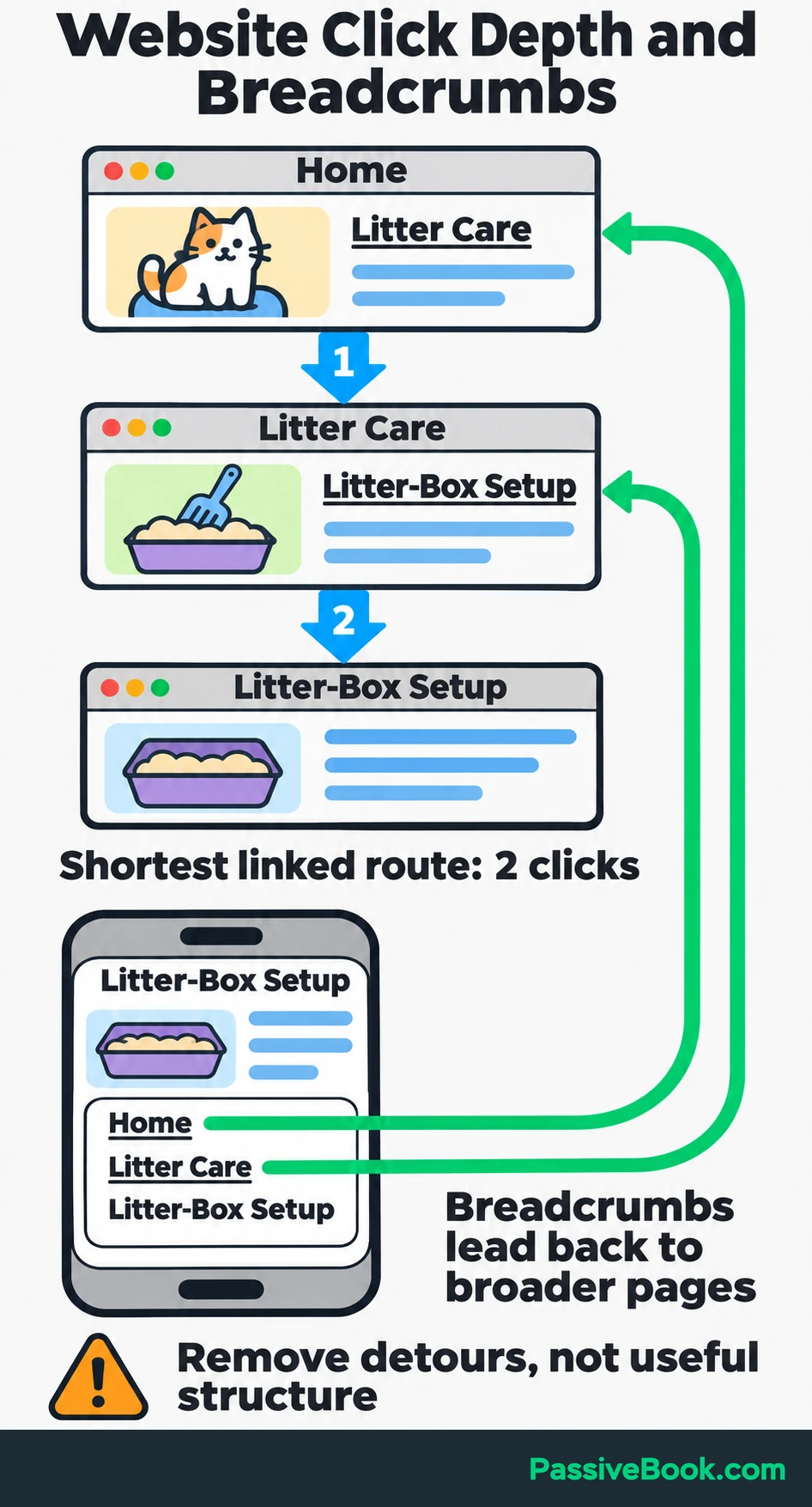
Measure click depth by the shortest linked route from the homepage. Home → Litter Care → Setup is two clicks.
Shorten routes that send readers through unnecessary stops. I wouldn’t rebuild a sensible site just to satisfy an arbitrary three-click rule. The practical question is whether important pages are easy to reach.
Keep browsing routes available even when you provide internal search. A visitor shouldn’t need to know an article’s title before finding it.
Use ordinary links with an HTML <a href="…"> destination. Standard text links added through an editor generally provide this; custom interactive elements deserve a closer check.
Breadcrumbs give readers a route back to broader pages:
Home → Litter Care → Litter-Box Setup
Make Home and Litter Care links to their respective destinations.
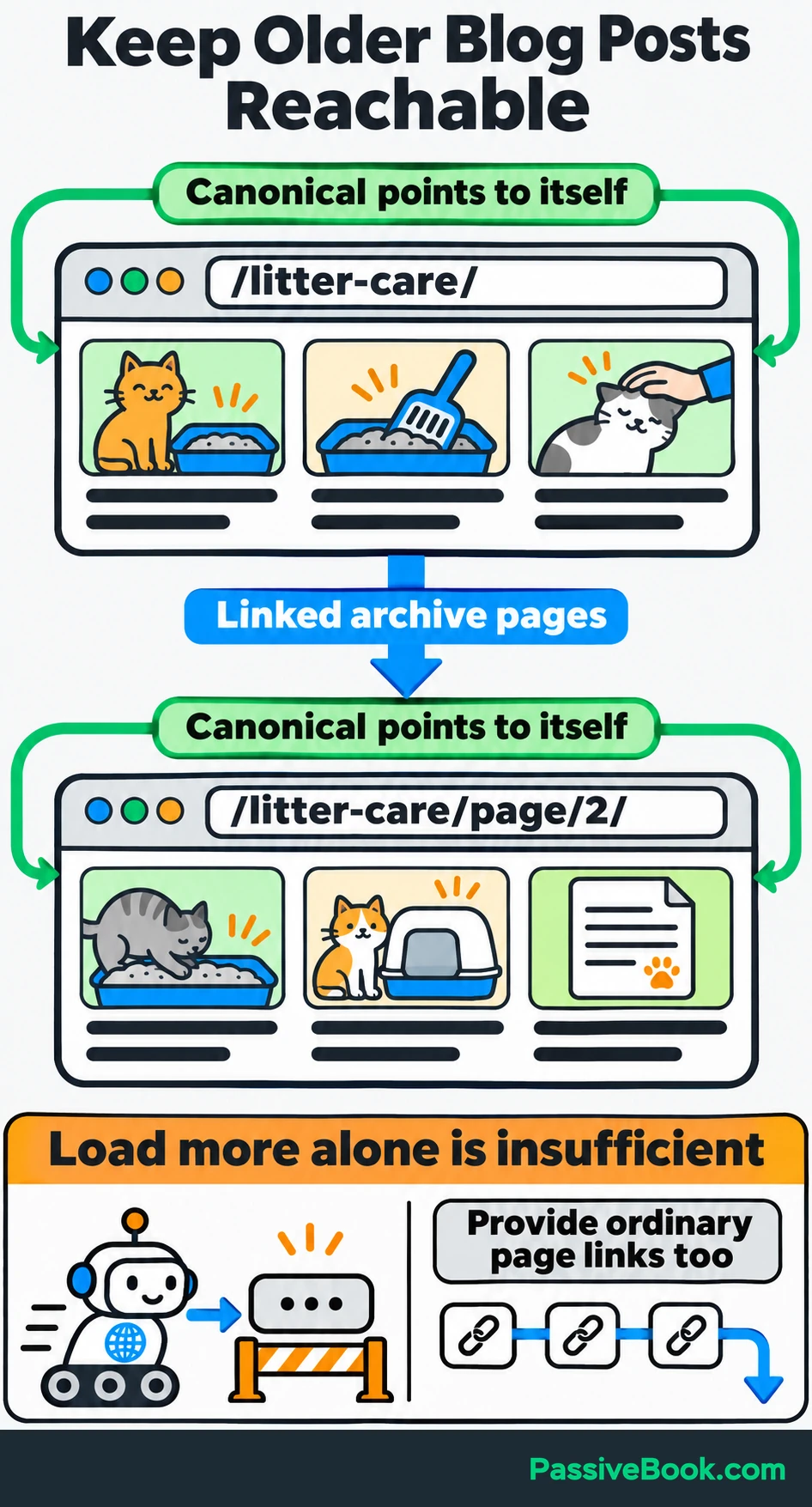
Older articles also need a lasting route. If your category archive—the list of posts in a category—spans several pages, link those pages together.
Give each archive page its own URL and a self-referencing canonical, a signal that names that same URL as its preferred address. Don’t make every archive page point to page one as its canonical. If you use “Load more” buttons, provide links between archive pages too; Google’s crawlers don’t click those buttons. Google’s pagination guidance
Finally, try the journey on your phone and with a keyboard. Can you open the menu, see which link has focus, use submenus, and reach the guide? A menu that works only when a mouse hovers over it needs attention.
Choose Descriptive, Stable URLs
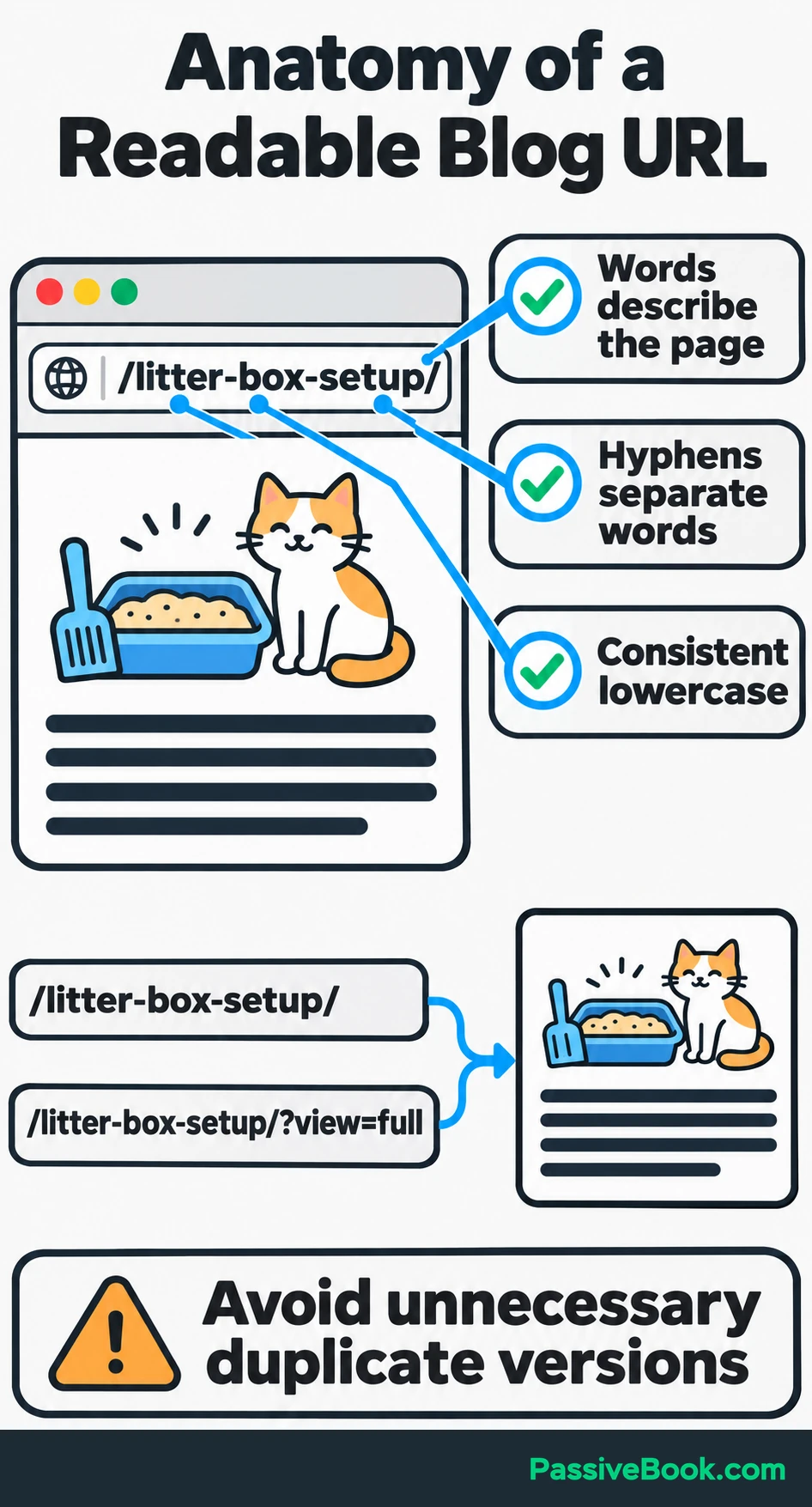
For new pages, use readable words, hyphens between words, and consistent lowercase paths. Avoid unnecessary parameters that create extra versions of the same content. These choices align with Google’s URL recommendations.
Either of these patterns can work:
/litter-care/litter-box-setup//litter-box-setup/
The guide can belong beneath Litter Care through its hub links, menu routes, and breadcrumbs in either case.
For a small content site, I would usually choose the second pattern. It lets me change an article’s category without making its address depend on that decision. Category folders are reasonable when they serve a clear organizational need.
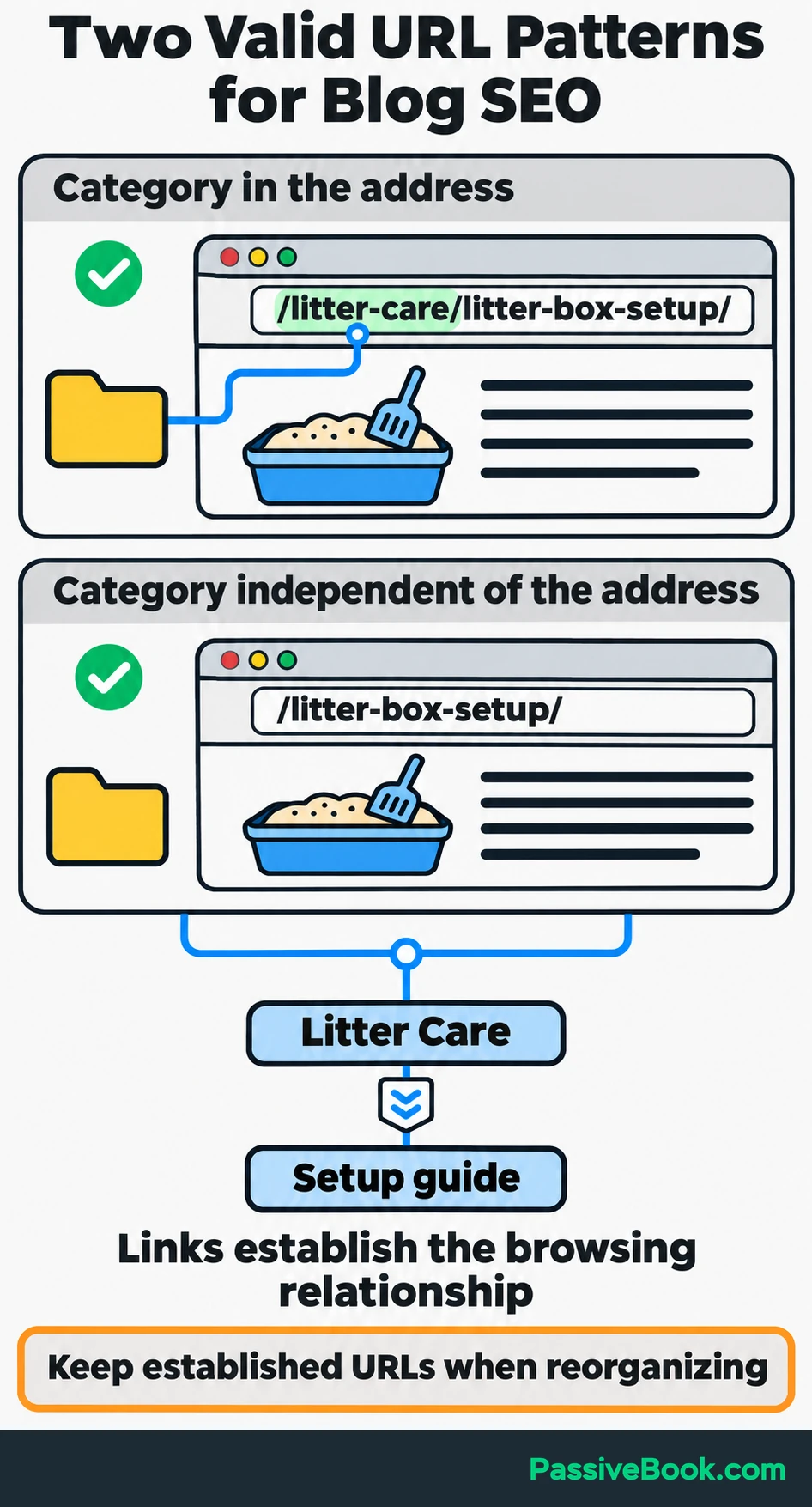
Keep established URLs when reorganizing menus or hubs. A slightly untidy address is rarely a good reason to create a migration job.
If a published URL genuinely needs to change, map its replacement before making the move.
Connect Related Pages With Purposeful Internal Links
Give every important page you want indexed an incoming link from another relevant page. Hubs should link to their guides, and guides should offer useful ways back to the broader subject.
Then add links where another resource answers the reader’s next question.
In the litter-box setup guide, the placement discussion could include:
Before you arrange the space, use our guide to choosing a litter-box location.
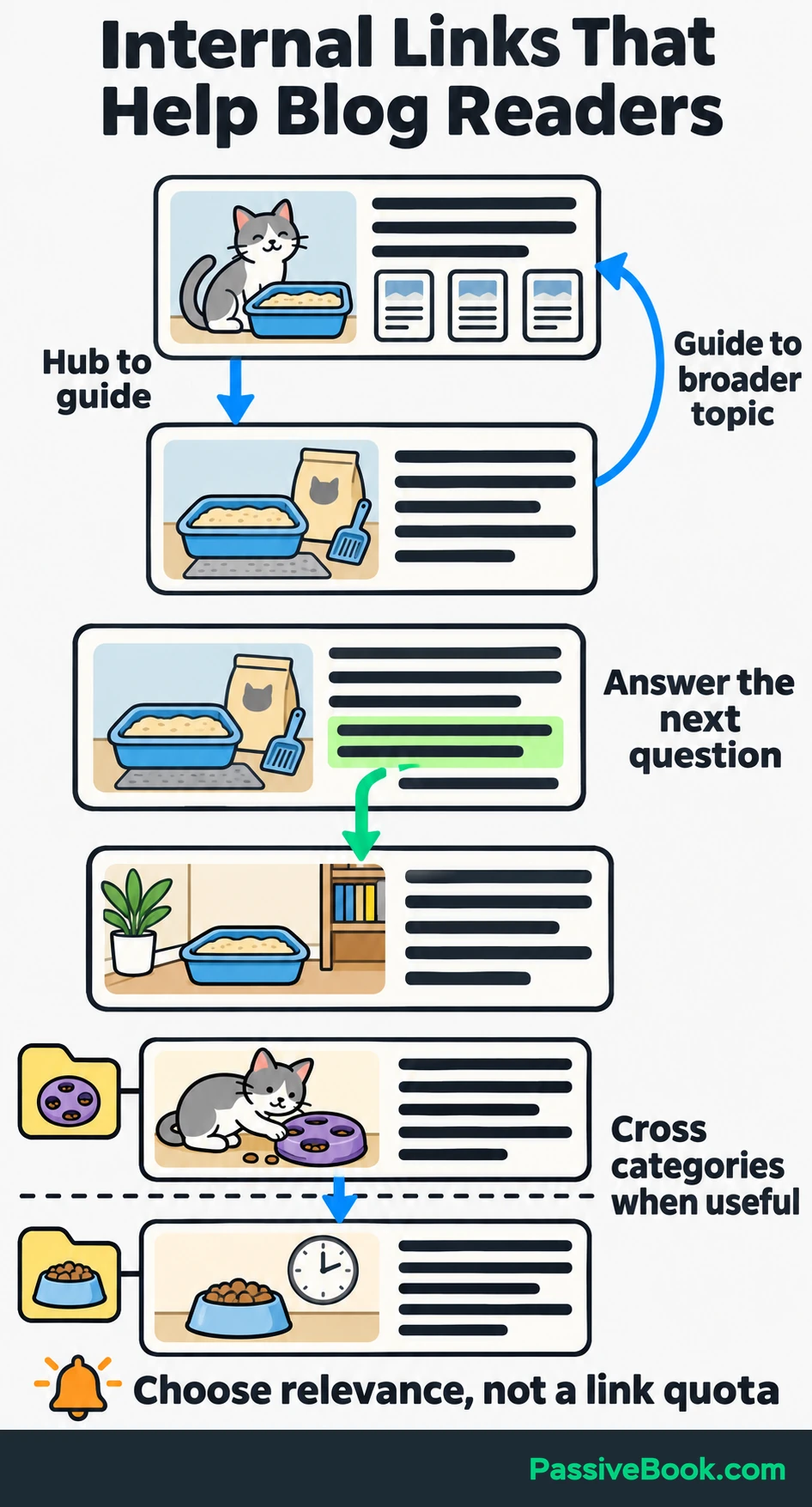
The words “choosing a litter-box location” would link to that guide. This visible link text is called anchor text.
Keep anchors concise and descriptive. “Click here” gives little context, while repeating an awkward keyword phrase makes the sentence harder to read. Google recommends relevant anchors and says there’s no magical ideal number of links per page. Google’s link guidance
I would choose links by usefulness rather than fill a quota.
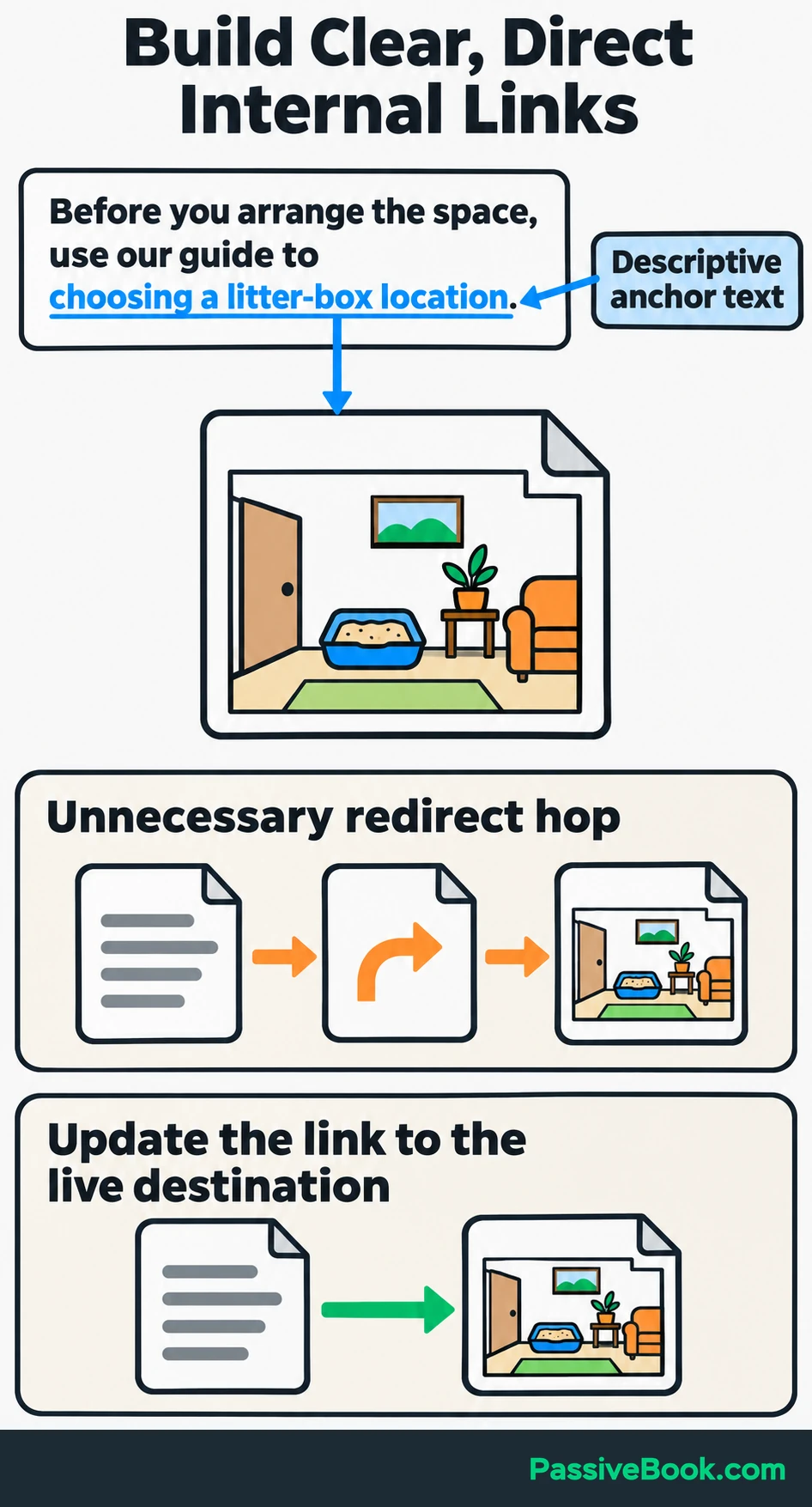
Categories also don’t need walls between them. An Enrichment article about food puzzles can link to the Feeding guide when discussing how that activity fits a meal routine.
During the audit, replace links to broken destinations. Where a link passes through a redirect, update it to reach the intended live page directly.
For the orphan feeding guide, the repair is straightforward: add it to Feeding, link from the relevant adoption article, and confirm both links work.
Make Crawling and Indexing Settings Match the Plan
Once the routes make sense, check that search engines can access the pages those routes lead to.
For each important search destination, confirm that it:
- Loads successfully without a login.
- Allows crawler access.
- Has no accidental
noindexrule. - Uses the intended preferred URL.
On WordPress, I would use Rank Math to manage page-level SEO settings and the sitemap. If you already have another suitable SEO plugin, keep it. This work doesn’t require a plugin migration.
The settings below do different jobs.
robots.txt controls crawler access. noindex tells a supporting search engine to leave an accessible page out of search results. Google must be able to crawl a page to read its noindex rule, so blocking access alone doesn’t reliably remove an indexed URL. Google’s indexing-control guidance
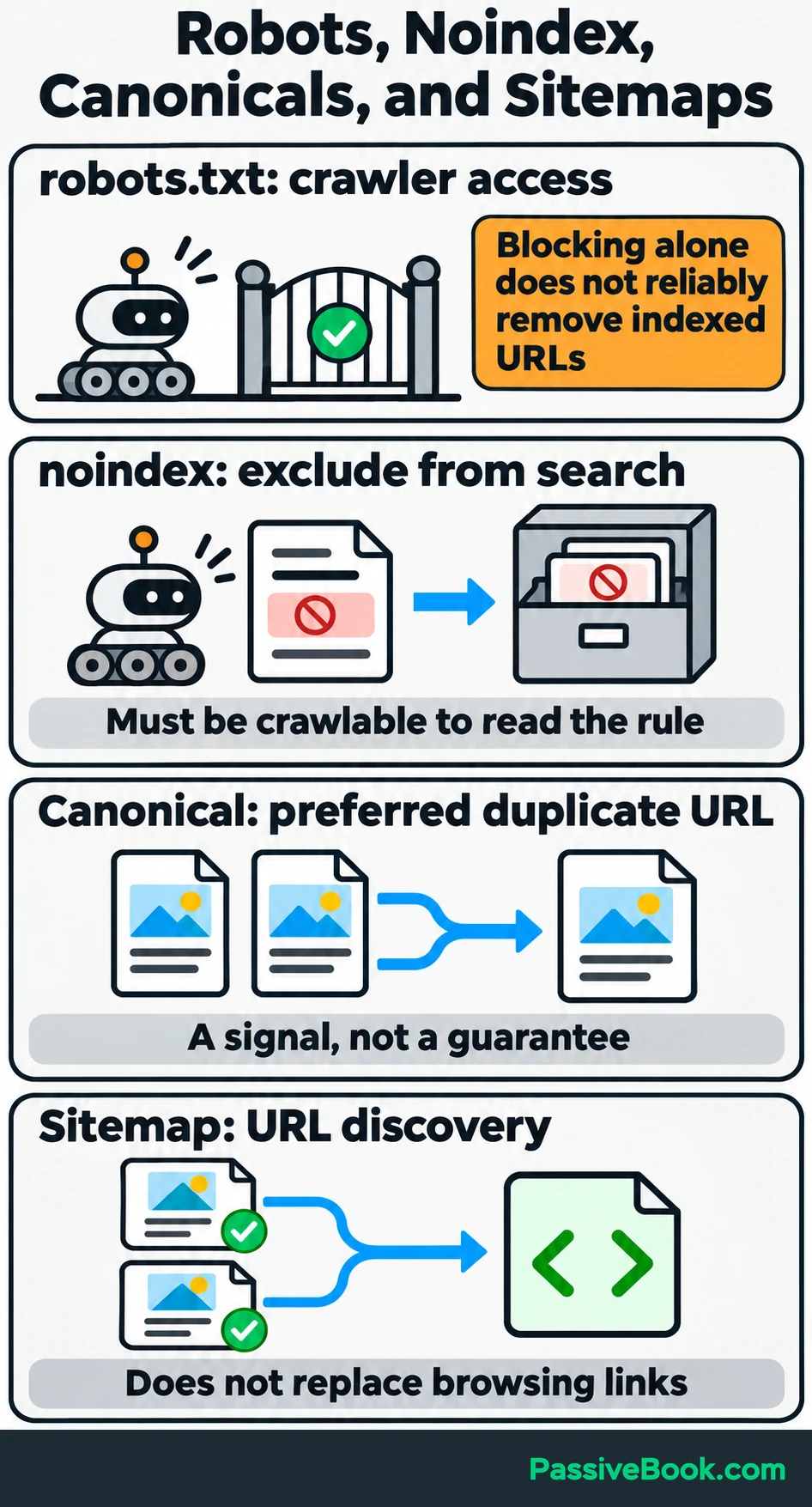
A canonical annotation identifies your preferred URL among duplicate or very similar versions. Keep internal links consistent with that choice. It’s a signal, and Google may select another version. Google’s canonical guidance
For example, two addresses showing the same setup guide may need one preferred version. The setup guide and the Litter Care hub are different resources, so don’t canonicalize the guide to its hub.
Treat archives individually too. A useful Feeding category may deserve to appear in search. A redundant tag collection might remain available for browsing but use noindex. I would skip blanket rules that exclude every category or tag without checking what each provides.
Maintain an XML sitemap of your preferred, indexable URLs, leaving out retired, redirected, and deliberately excluded addresses. Your CMS or SEO plugin can maintain it. Submit it in Google Search Console, Google’s tool for monitoring search performance and indexing. The sitemap helps search engines discover pages but doesn’t replace browsing links. Google’s sitemap guidance
If an important page is missing from search, inspect its URL in Search Console. Use the live test to check current access and indexing rules. Use the indexed information to see Google’s selected canonical; the live test cannot predict that choice. Google’s URL Inspection guidance
Apply Existing-site Changes Without Breaking Useful URLs
Back up the site and keep your original inventory before publishing changes.
Start with work that preserves addresses: repair links, improve hubs, simplify navigation, and reconnect orphan pages. You can make substantial organizational changes while leaving published URLs intact.
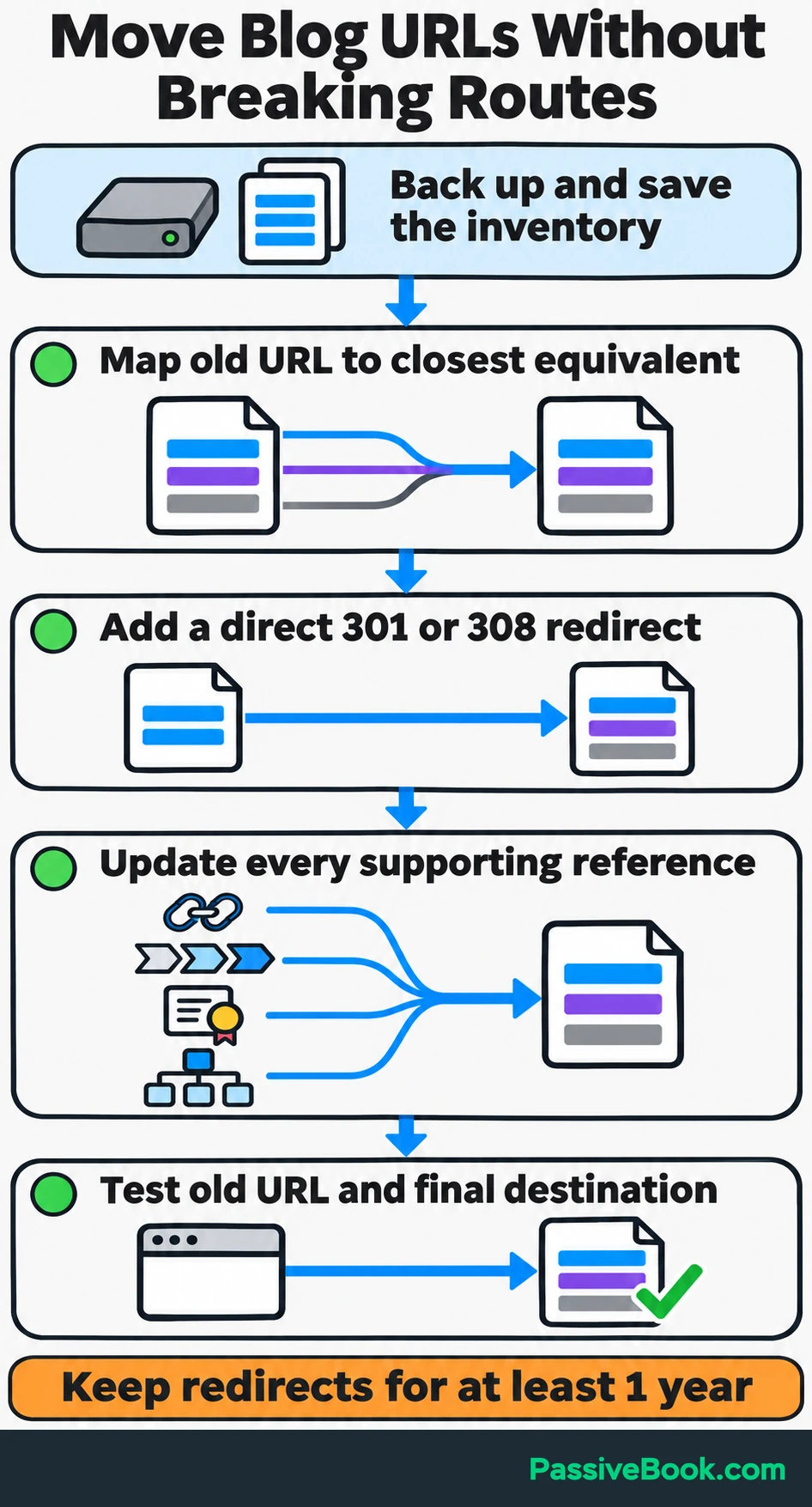
When a move or merger is necessary:
- Map each old URL to its closest equivalent.
- Add a direct permanent redirect (
301or308) so the old address sends visitors and search engines to its replacement. - Update internal links, breadcrumbs, canonical annotations, and sitemap entries.
- Test every changed URL and its final destination.
If two feeding guides become one, redirect the retired address to the combined guide after preserving its useful content.
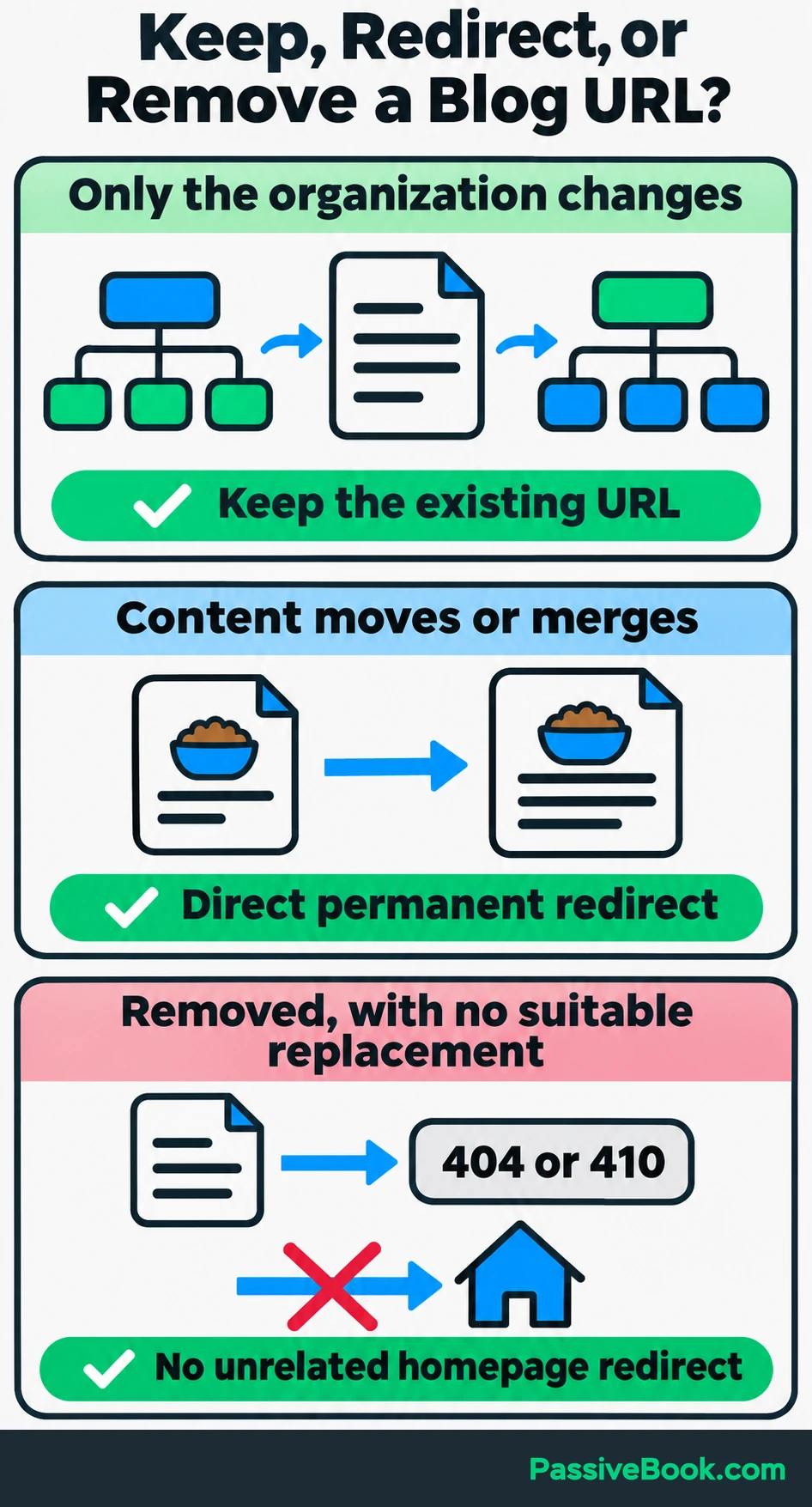
When removed content has no suitable replacement, return a 404 (not found) or 410 (gone) response. Don’t send unrelated retired pages to the homepage.
Keep redirects for at least one year. Google also advises expecting possible temporary ranking fluctuations while it processes changed URLs. Google’s URL-change guidance
Check navigation and indexing settings before and after publishing. I would handle one manageable section first so the checks remain practical around other work.
Keep the Structure Working as Content Grows
Build these architecture checks into your publishing routine. Otherwise, each new article creates another small cleanup job.
Use this checklist before a page goes live:
- Assign its primary hub.
- Choose an address you can keep.
- Add an incoming link from an existing relevant page.
- Include useful onward links.
- Confirm the intended indexing settings and sitemap inclusion.
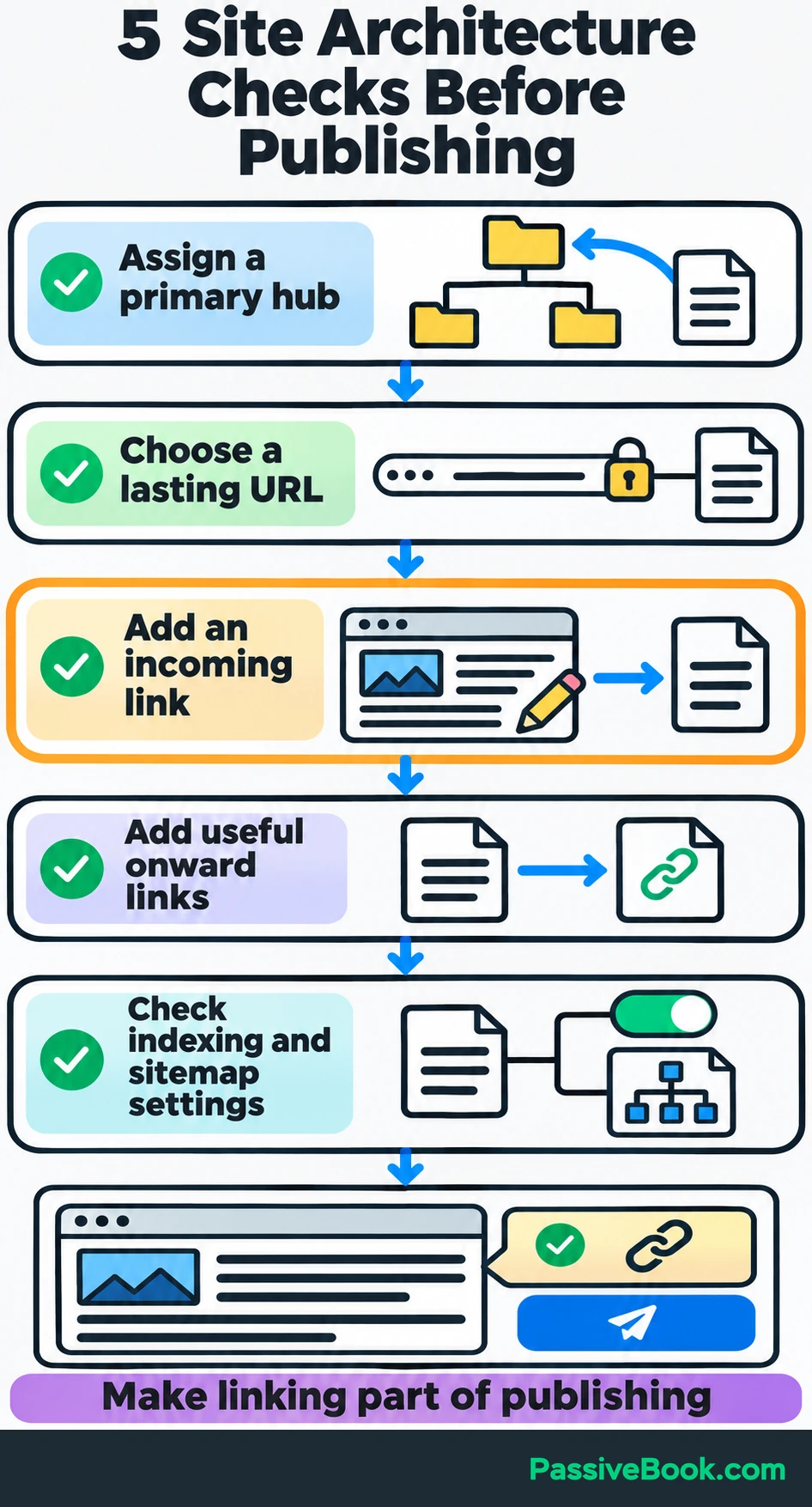
The incoming link is easy to forget because it requires editing something you already published. Put that task beside the publish button in your workflow.
After substantial changes, compare another linked crawl with your saved inventory. Check the actual repairs:
| Repair | Evidence to Look For |
|---|---|
| Reconnect the feeding guide | Working links from Feeding and the adoption guide |
| Improve Litter Care | Both setup and location guides appear in the hub |
| Merge overlapping guides | The retired address redirects directly to the combined guide |
| Keep older content reachable | Linked archive pages still lead to older guides |
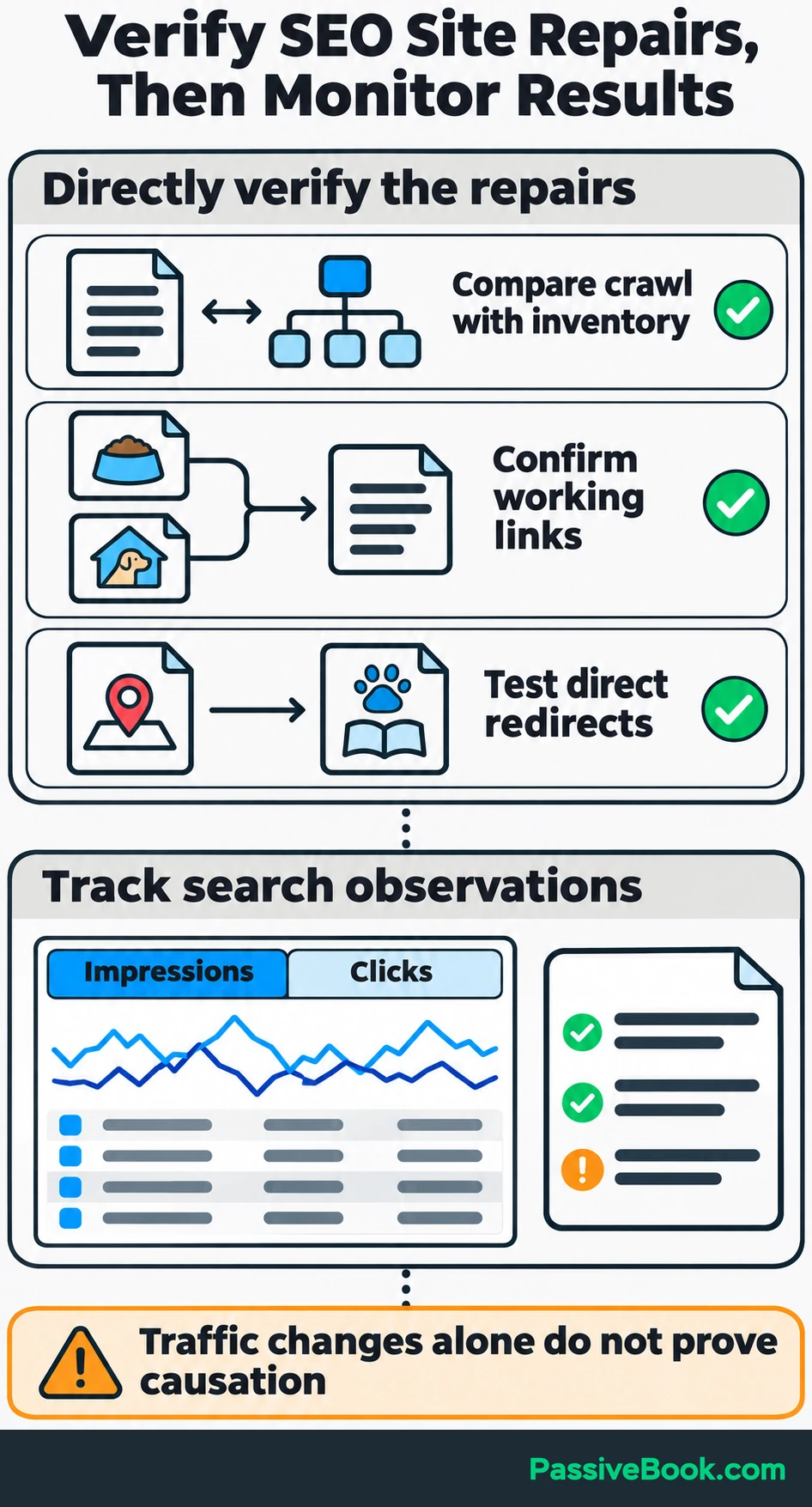
Review Search Console’s Page indexing reasons for important pages. Duplicate URLs and deliberately excluded pages can remain unindexed without needing a repair. The goal is to make your intended search destinations available, rather than turn every URL into an indexed result. Google’s Page indexing guidance
Record what changed, then monitor how often affected pages appear in Google results (impressions) and how often people click through to your site. A traffic increase alone doesn’t prove architecture caused it, so keep those results separate from the repairs you can directly verify.
Revisit your categories when new content becomes hard to place or several labels offer overlapping choices. Expand the existing map deliberately. A new keyword doesn’t automatically need its own department.
What Next?
Pick one important guide and trace its shortest route from your homepage. If that route is missing or confusing, repair it and record the change before tackling another section.
Use the social buttons to share this guide when the next content-planning discussion needs a practical way to organize existing articles.
Which part of your site is hardest to navigate without using search? Tell me in the comments, and bring any other architecture questions with you.
Share this post with your friends & followers:

