You have an article worth reading, but hardly anyone finds it through search. You could add more keywords, change the title again or publish another post. None of those choices feels like a clear next step.
That uncertainty eats into the little time you have for your website. It also makes every quiet week look like a reason to start over. The walkthrough below follows a dog-hiking checklist page from its search listing to its printable download, so you can improve one page and judge what deserves another edit.
What Is On-Page SEO?
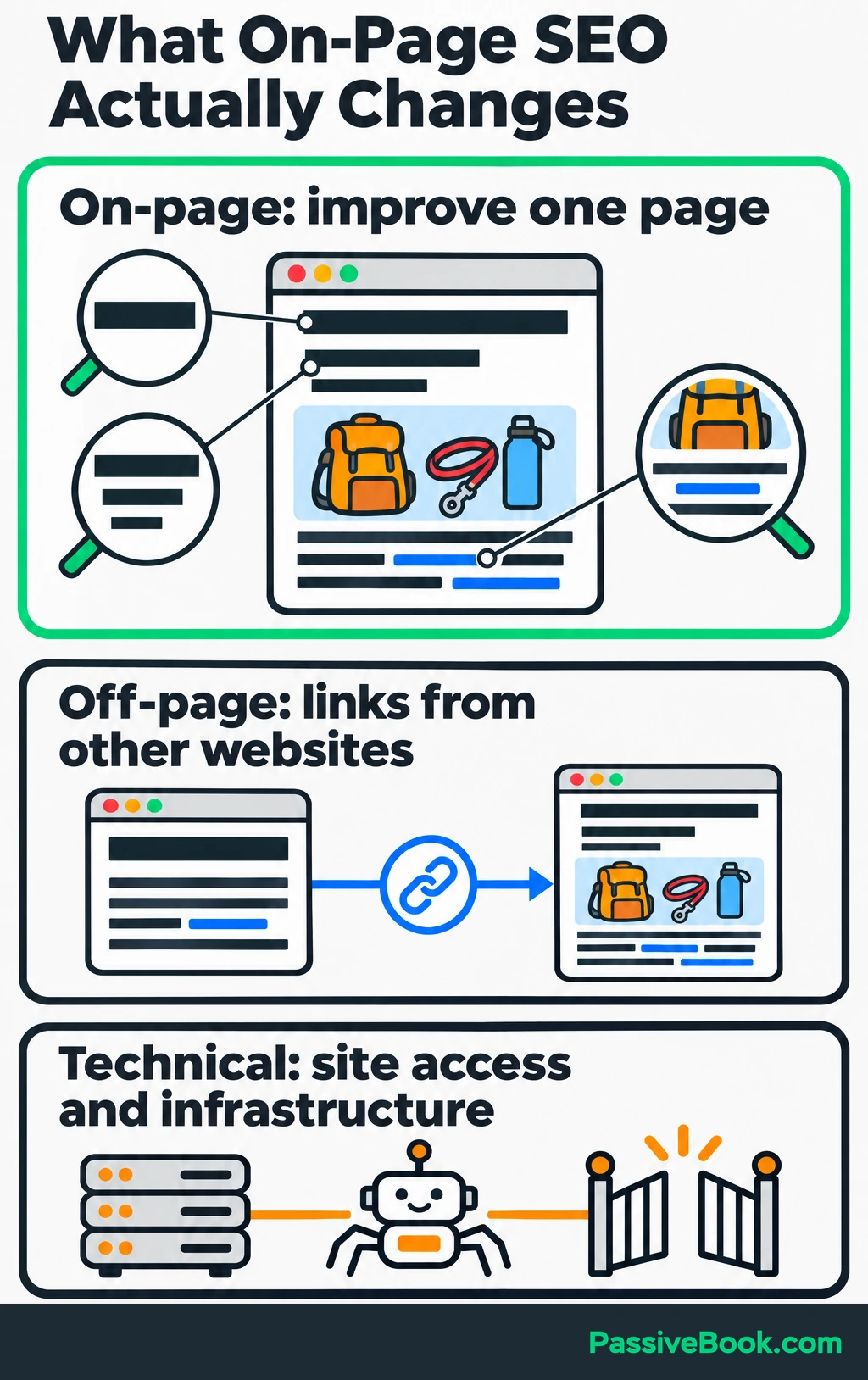
On-page SEO means improving a page’s content, title, headings, URL, images and links so people and search engines can understand it.
Getting other websites to link to yours belongs to off-page SEO. Sitewide access, crawling and infrastructure fall mainly under technical SEO. These areas overlap, but you can improve an individual page without rebuilding your website.
You also don’t need to buy ads to qualify for organic search results. Google charges nothing for inclusion, though hosting, tools and your time still have costs. Following its guidance does not guarantee that a page will appear. Google Search Essentials
Start with your website editor and a browser. Add your site to Google Search Console, Google’s free tool for checking whether pages are indexed—stored for use in search results—and how they perform in search. Use PageSpeed Insights to check loading speed and responsiveness in Step 7.
If you use WordPress, I prefer Rank Math for editing SEO titles and descriptions. Treat its suggestions as reminders. A green score is not a reason to make a sentence worse.
Throughout this guide, imagine you run a dog-hiking blog. You’re improving a page targeting “dog hiking checklist,” and its next action is downloading a free printable packing checklist. The queries and copy are illustrations, not verified keyword opportunities.
Step 1: Match One Page to a Searcher’s Task
Choose one page before opening a keyword tool.
I would start with an existing article that has a clear weakness: the answer is buried, the title is vague or searchers arrive for something it barely covers. Create a new page when your site lacks a useful answer, and check your existing articles before adding another page with the same purpose.
For an existing page, open it while logged out. Make sure visitors can reach it. Then inspect its address in Search Console and look for access errors or an unintended noindex instruction, which tells search engines not to index it.
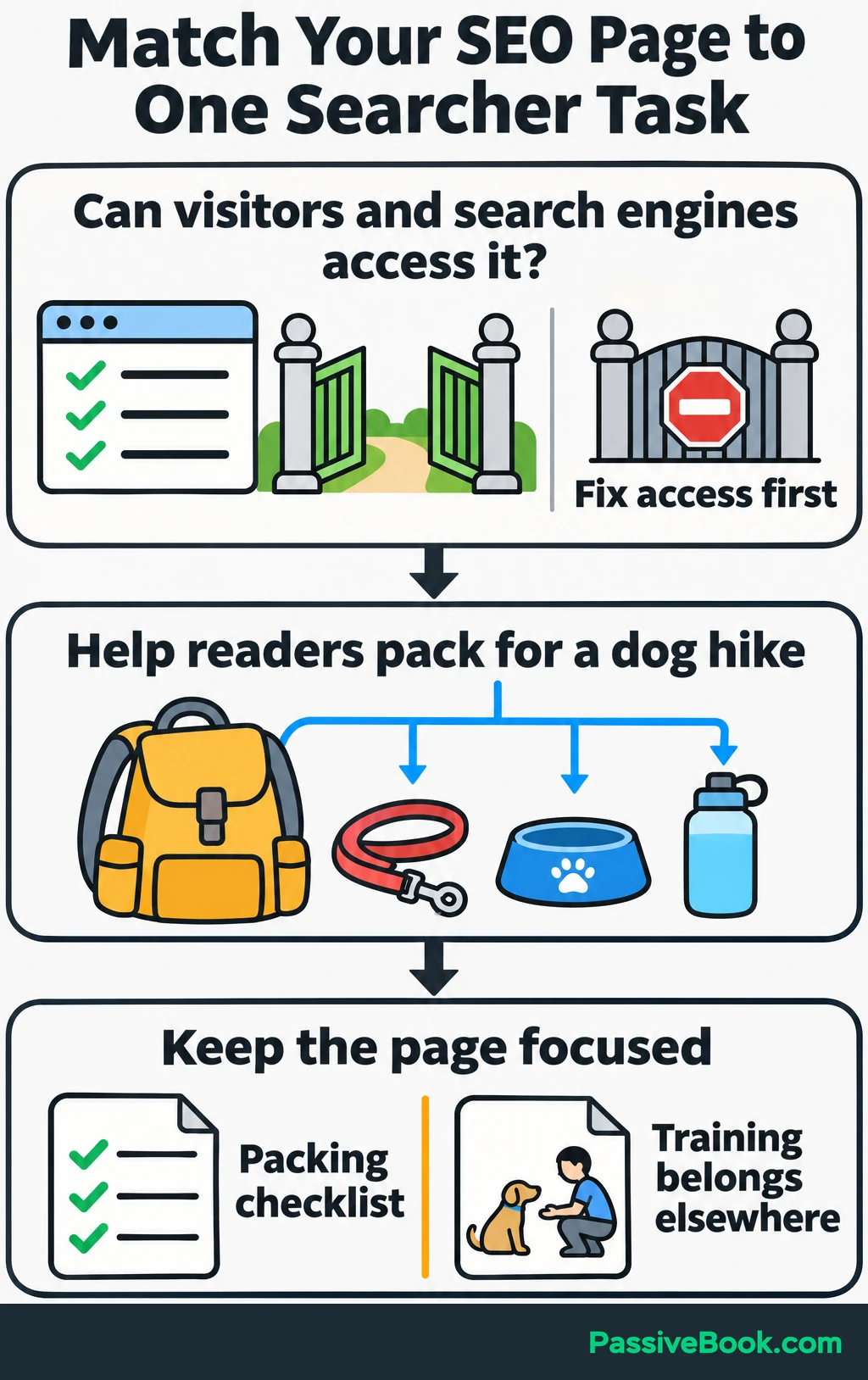
Fix those problems before rewriting the introduction. Better copy cannot solve a blocked page.
Next, write one sentence describing what the visitor should accomplish. For the running example:
Help readers organize what to pack for a day hike with their dog.
That sentence sets the page’s boundaries. A packing checklist belongs here. A full trail-training course belongs elsewhere.
Choose a main search query that expresses the task. Existing Search Console queries can show wording people already use to find your page. Search suggestions can provide more wording to investigate, but they don’t prove demand.
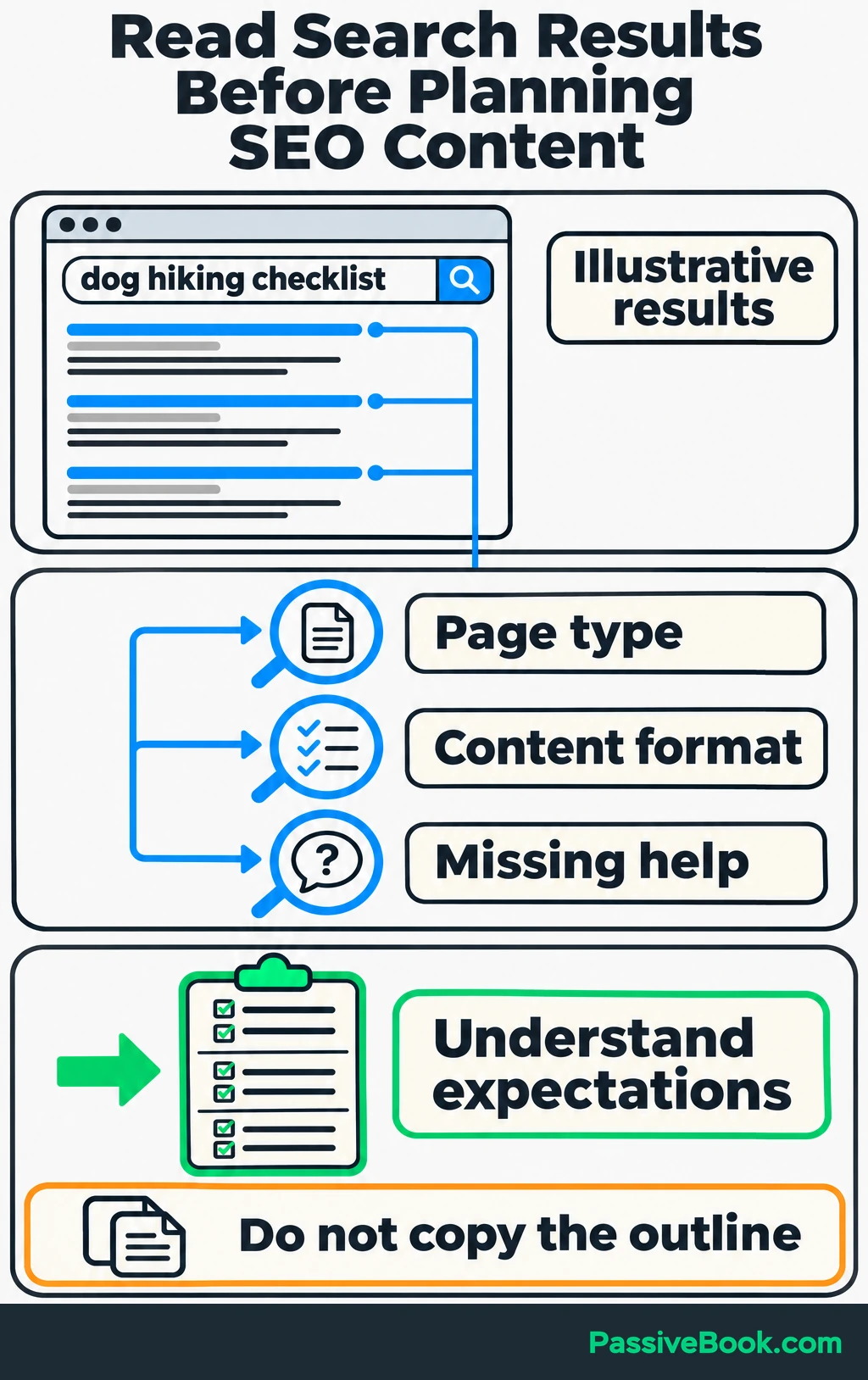
Search your chosen query and examine several relevant results. Look for:
- The page type: a guide, product page, comparison or something else.
- The format: a checklist, tutorial, short answer or detailed explanation.
- Missing help: unclear instructions, poor organization or questions left unanswered.
Use those observations to understand expectations. Copying competitors’ headings gives you their outline, including their mistakes.
Before editing an existing page, save its content and record its URL and title. Choose a period, such as the past 28 days, and note its search impressions (appearances in search results), search clicks and completed downloads for that period. A simple spreadsheet is enough. If tracking is missing, record that too rather than filling the gap with a guess.
Step 2: Create Content That Completes the Task
Put the Main Answer First
Give readers the answer, or the first useful action, near the beginning.
For a checklist page, show the checklist before a long introduction about the joys of being outdoors. Readers came to pack. Let them pack.
Explain how to use the information, too. Group items by purpose and separate the basic list from additions that depend on the outing. A short opening might say:
Use this dog hiking checklist to organize your packing for a day on the trail. Start with the main list, then review the additions for your planned outing.
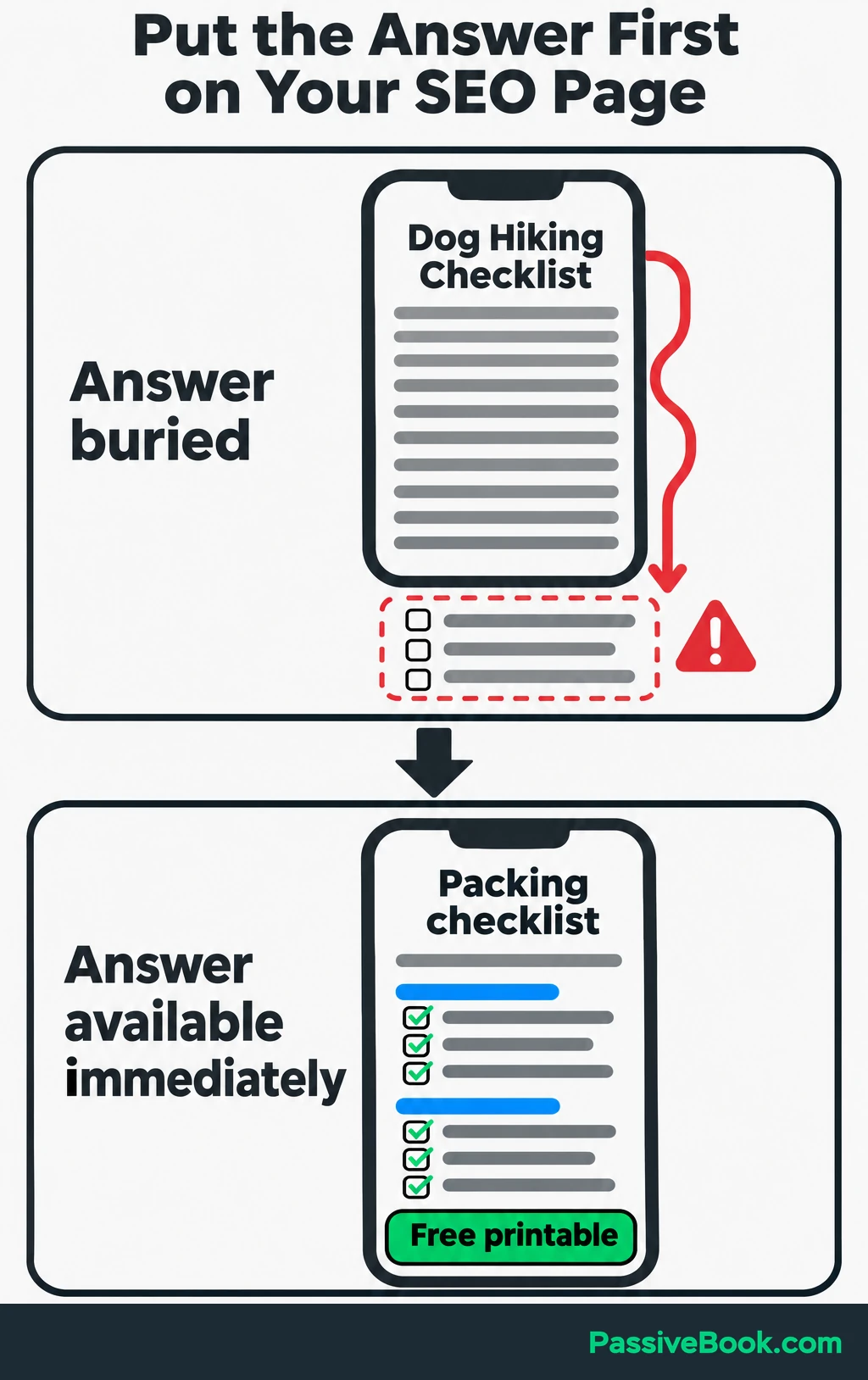
Follow that with the actual list. The sentence introduces the answer; it does not replace it.
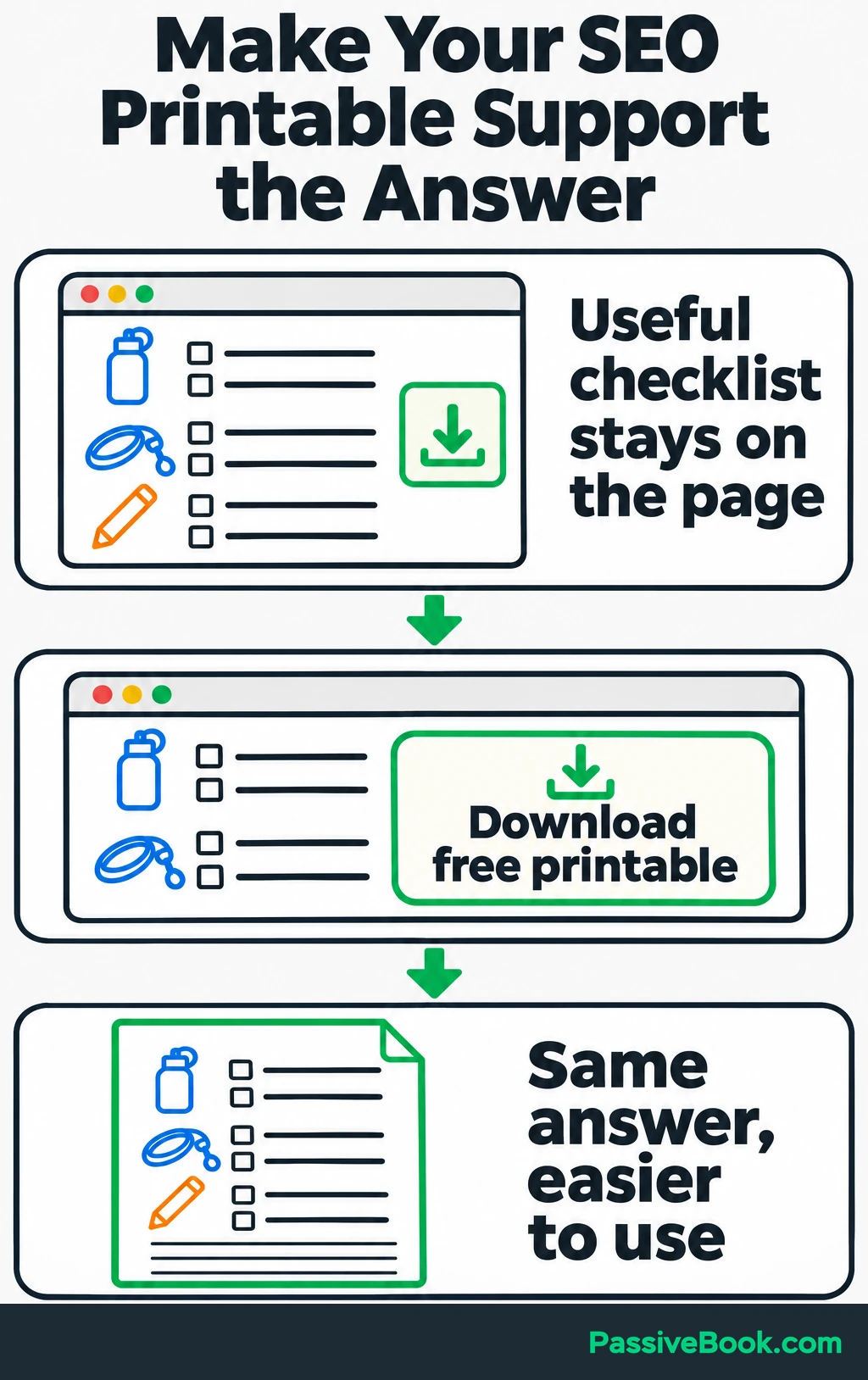
Add something that makes the page easier to use. That might be an annotated packing photograph, clear category labels or a printable version with checkboxes. I would choose one useful addition before adding another background section.
This follows Google’s emphasis on original value and a satisfying answer. A page needs to contribute more than a rewritten version of other search results. Google’s helpful-content guidance
Check factual advice against suitable sources and place citations beside claims that need them. Explain relevant firsthand experience when you have it, but don’t turn ordinary experience into a claim of professional expertise.
Place the printable offer beside the checklist:
Download the free printable dog hiking checklist, with packing categories and space for your own additions.
Keep the main checklist available on the page. The printable should make the answer easier to use, rather than hold it hostage.
Organize the Page With Descriptive Headings
Use headings to show readers where to go.
The H1 is the main page heading. H2s divide major sections, and H3s organize substantial parts within those sections. Apply actual heading styles in your editor instead of making ordinary text larger.
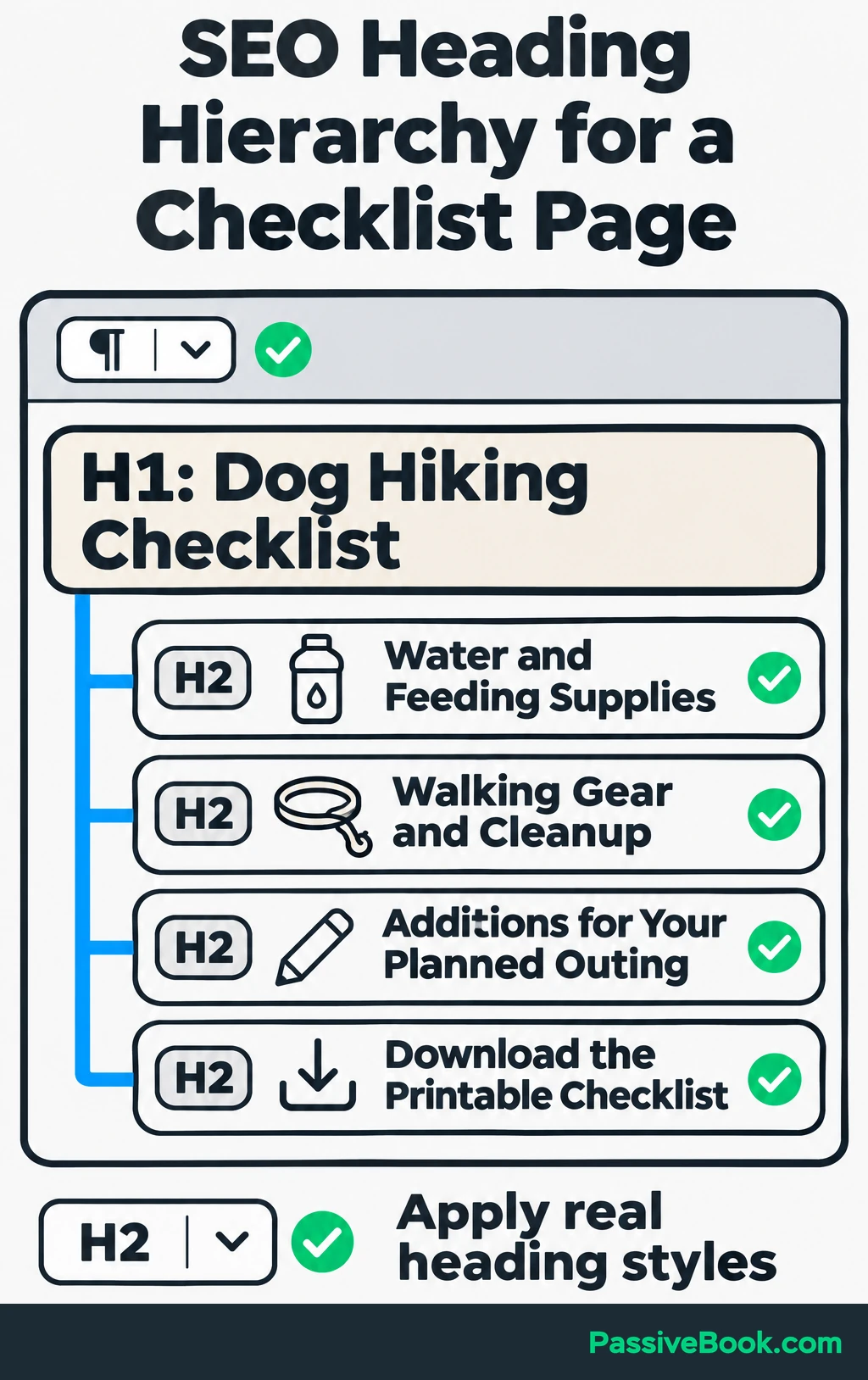
For the checklist page, the structure could look like this:
| Heading Level | Example Heading |
|---|---|
| H1 | Dog Hiking Checklist |
| H2 | Water and Feeding Supplies |
| H2 | Walking Gear and Cleanup |
| H2 | Additions for Your Planned Outing |
| H2 | Download the Printable Checklist |
Read the headings without the body text. You should still understand what the page helps someone do.
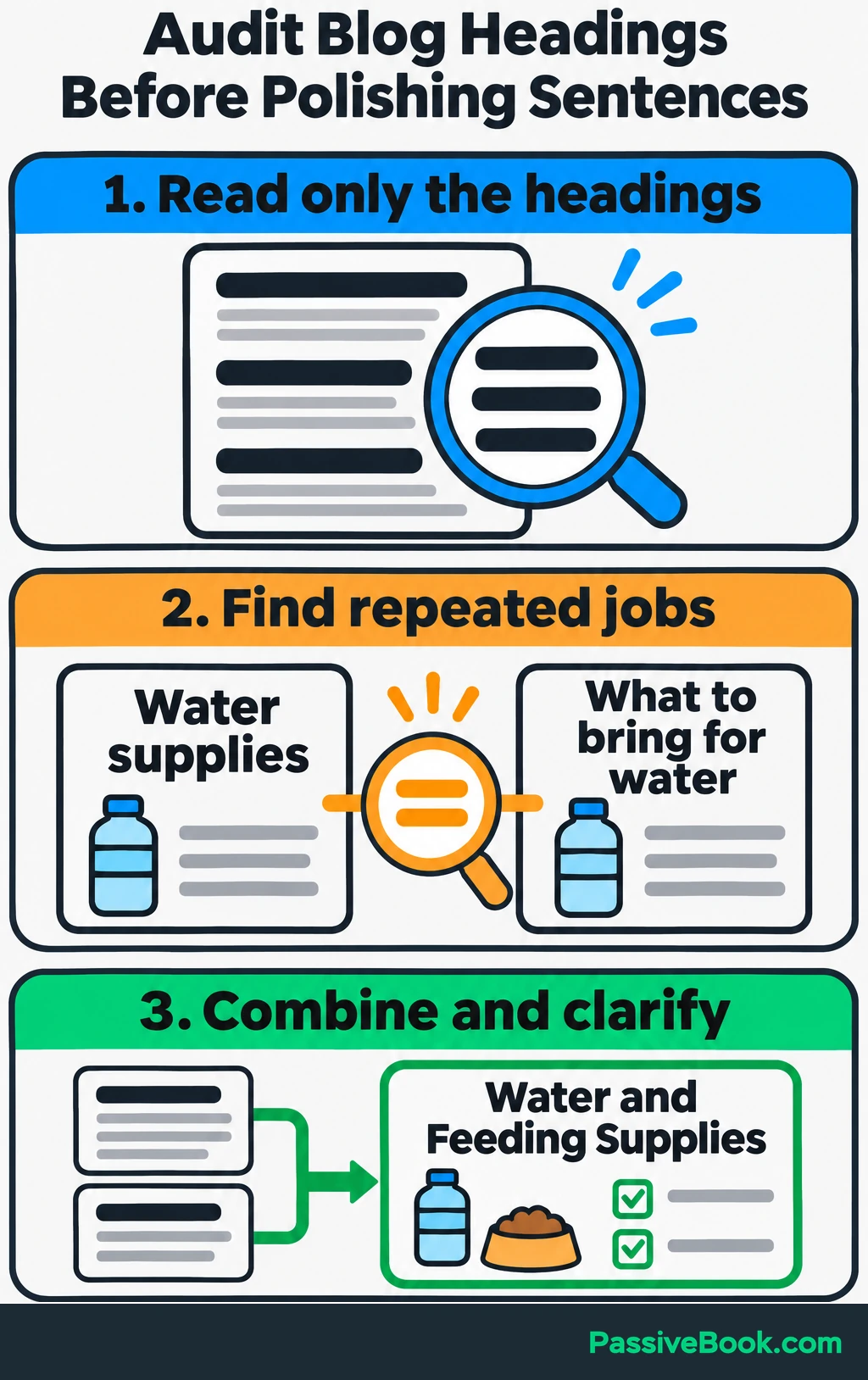
At Passive Book, I publish SEO-driven long-form articles, and I’ve caught drafts where several headings introduced slightly different versions of the same point. Each section sounded reasonable on its own. Reading the headings together made the repetition obvious, so I combined those sections before polishing the sentences.
That is the check I would use here: does each section move the reader forward?
Use bullets for packing items, short paragraphs for explanations and a table when readers need to compare choices. Remove sections that repeat the answer or belong in another guide.
Use Keywords Naturally
Include the main query, or a clear variation, in the title, main heading and relevant body text.
Then use ordinary words that describe the subject. A checklist page will naturally mention a daypack, water bottle, walking gear and waste bags. You don’t need to insert “dog hiking checklist” into every item.
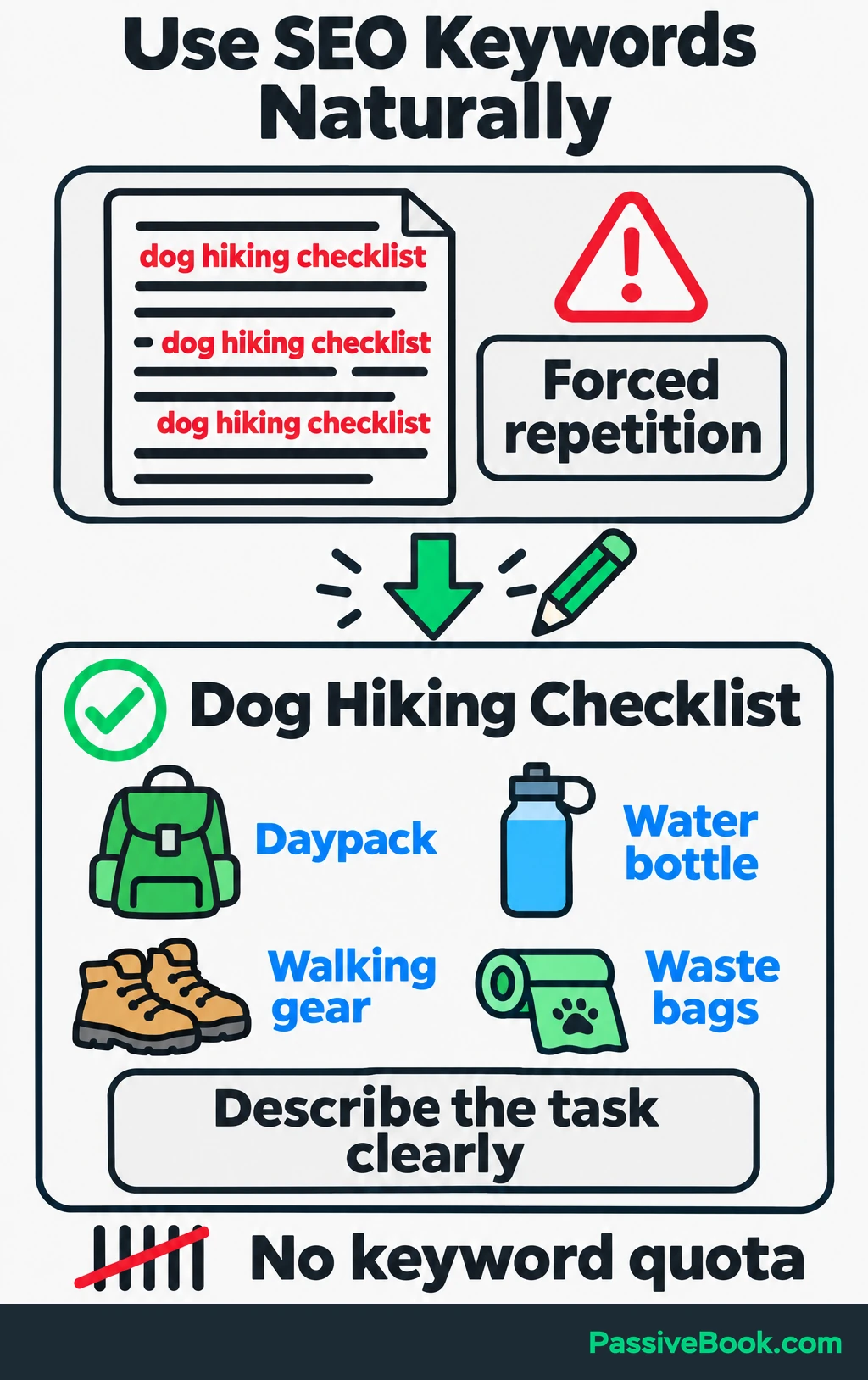
Read awkward sentences aloud. If you would never say them to a person, rewrite them.
There is no useful target for how often a keyword should appear, and Google has no preferred word count. Excessive repetition can also violate its spam policies. Google’s guidance on content length and keyword stuffing
I would stop adding text when readers can complete the task. Another 500 words about the same packing list is still the same packing list.
Step 3: Write the Title Tag and Meta Description
The title tag is the page title used in places such as browser tabs, and it can inform the clickable title in search results. The H1 is the main heading visitors see on the page.
They can differ, but they should describe the same subject and promise.
Write a unique title that names the topic and gives a concrete reason to visit. Put the useful information before any optional branding.
Google recommends clear, concise titles and may generate a different search title from other page elements. Display space varies, so treat character counters as editing aids rather than strict rules. Google’s title guidance
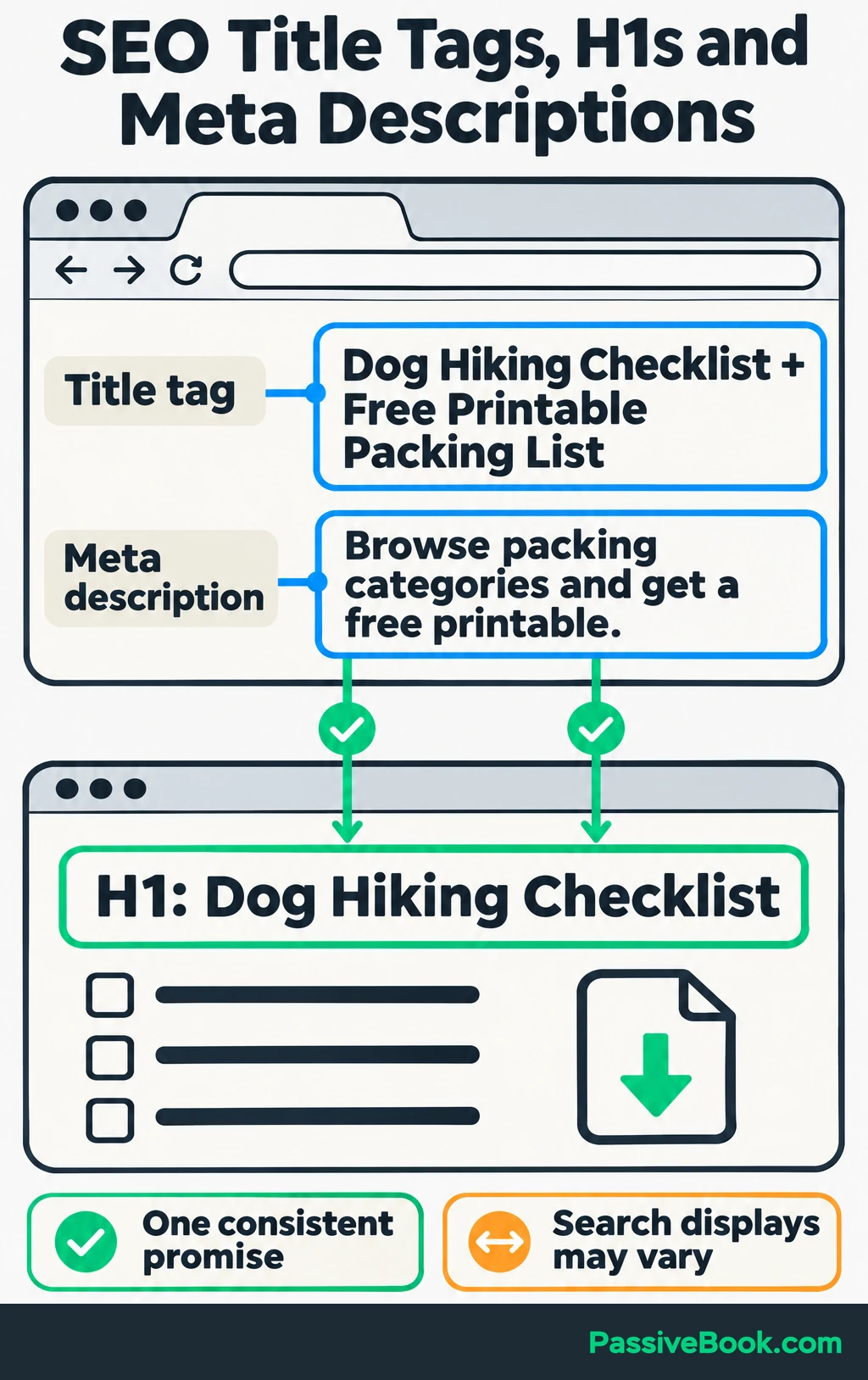
The meta description is a short summary that Google may use beneath the search title. Describe what the page actually provides. Google can also select a passage from the page that better matches the search. Google’s snippet guidance
Here is a complete set for the running example:
| Element | Sample Copy |
|---|---|
| Title tag | Dog Hiking Checklist + Free Printable Packing List |
| H1 | Dog Hiking Checklist |
| Meta description | Organize your packing for a day hike with your dog. Browse the checklist by category and download a free printable with space for extra items. |
Edit these through your website’s SEO controls. In WordPress, I would use Rank Math’s title and description fields.
Check that every promise is true. If the title says “free printable,” visitors should find a free printable without having to conduct a small investigation.
The example gives you a pattern, but you still need wording for your own page. AI Copywriting Studio turns your existing copy into matching drafts for the search listing and the page itself.
Free AI Copywriting Studio




Step 4: Choose a Clear, Stable URL
For a new page, use a short, descriptive address.
The slug is the part of a URL that names the page. For this page, I would choose:
/dog-hiking-checklist/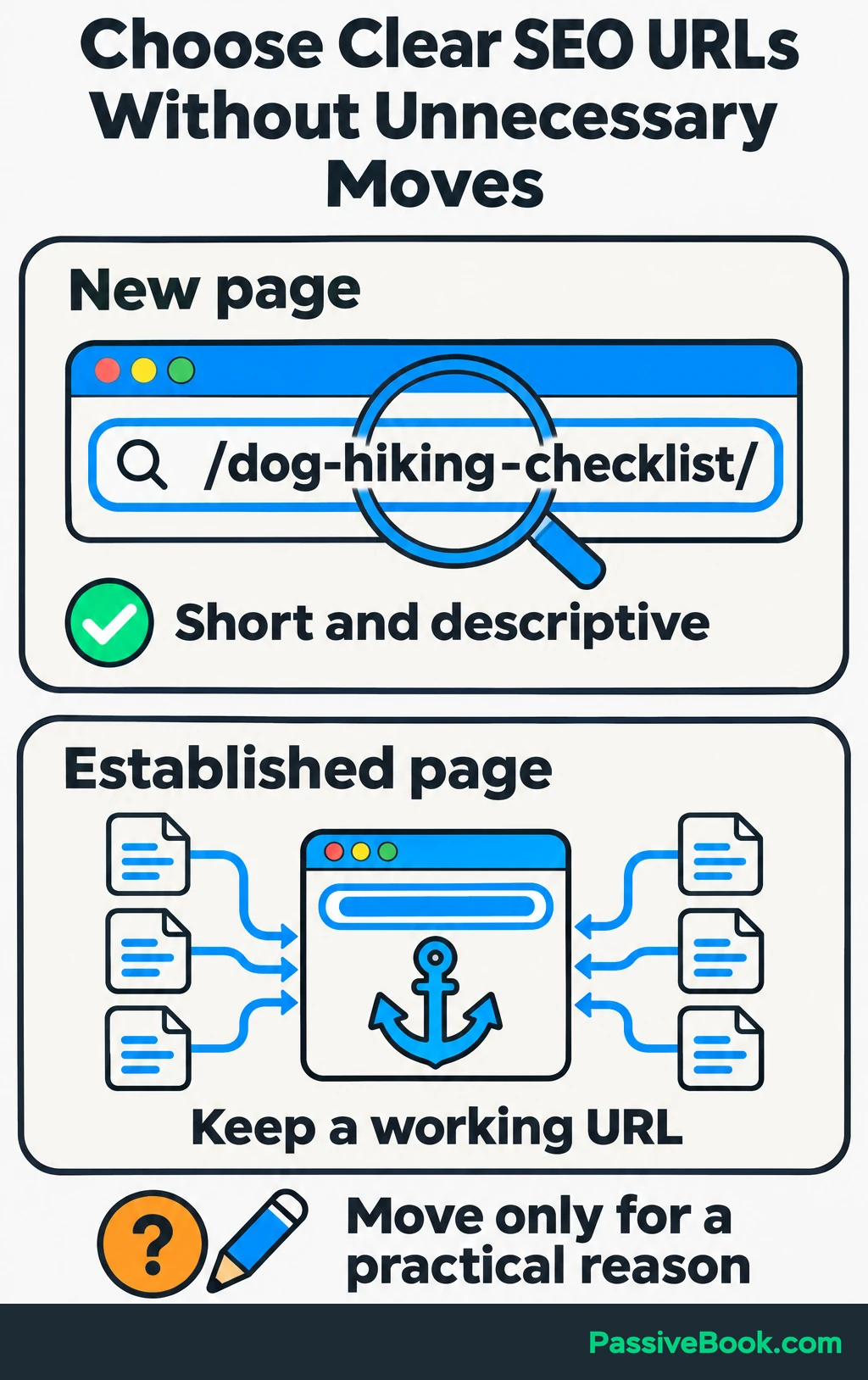
Separate words with hyphens and leave out clutter that adds no meaning.
For an established page, I would keep a working URL unless there is a practical reason to change it. Removing two unnecessary words from an address rarely deserves priority over fixing a missing answer.
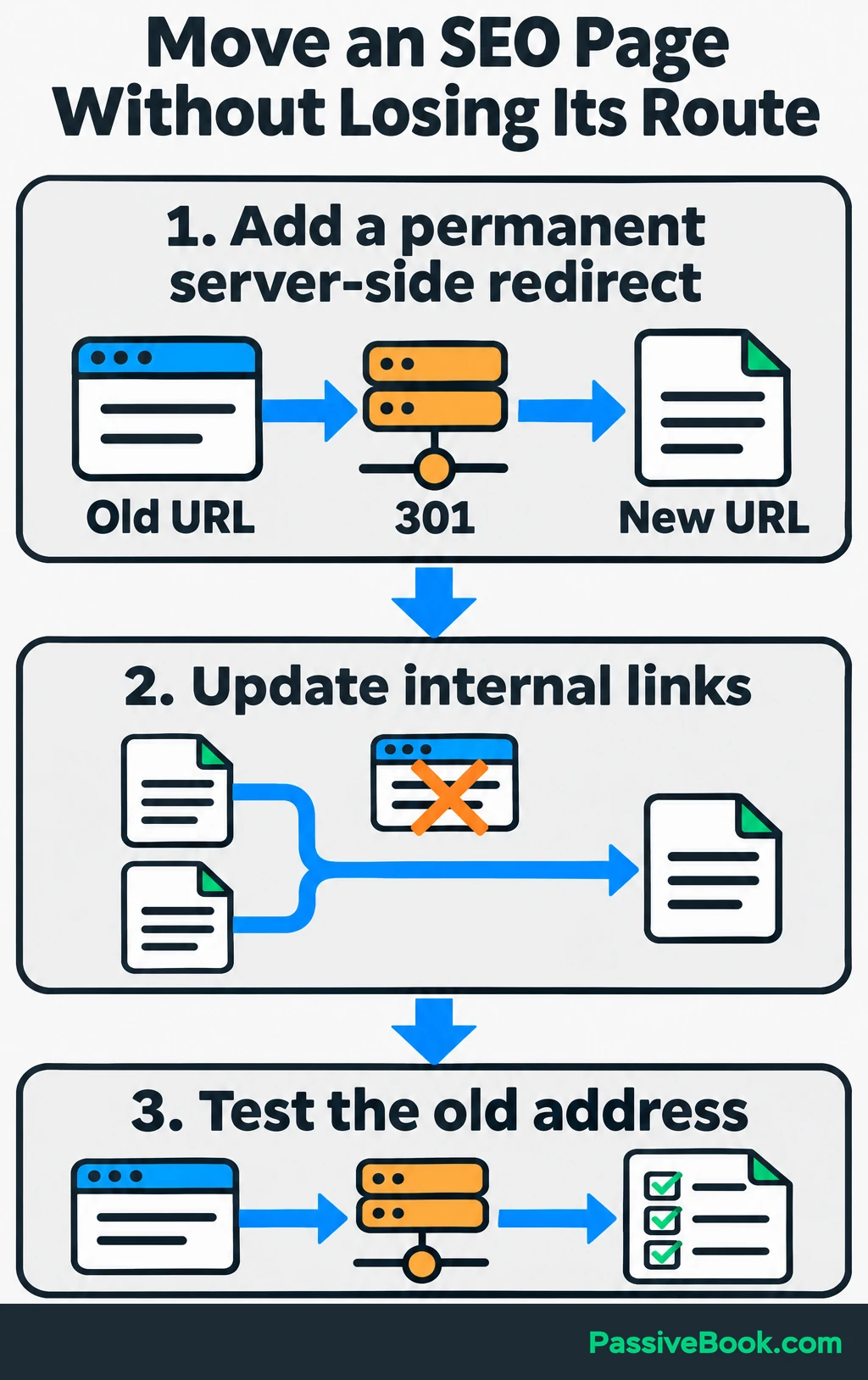
If a permanent move is necessary, set up a permanent server-side redirect, such as a 301, from the old address to its replacement. Google recommends this approach for permanent URL changes. Google’s redirect guidance
Your host, website platform or redirect tool may provide a way to create it without editing server files. Update internal links to use the new address directly, then test the old address to confirm it reaches the replacement page.
Step 5: Optimize Useful Images
Choose images that explain something.
For the checklist page, a packing layout with clear labels is more useful than another scenic photograph of a dog looking thoughtful beside a mountain. The mountain has done enough marketing.
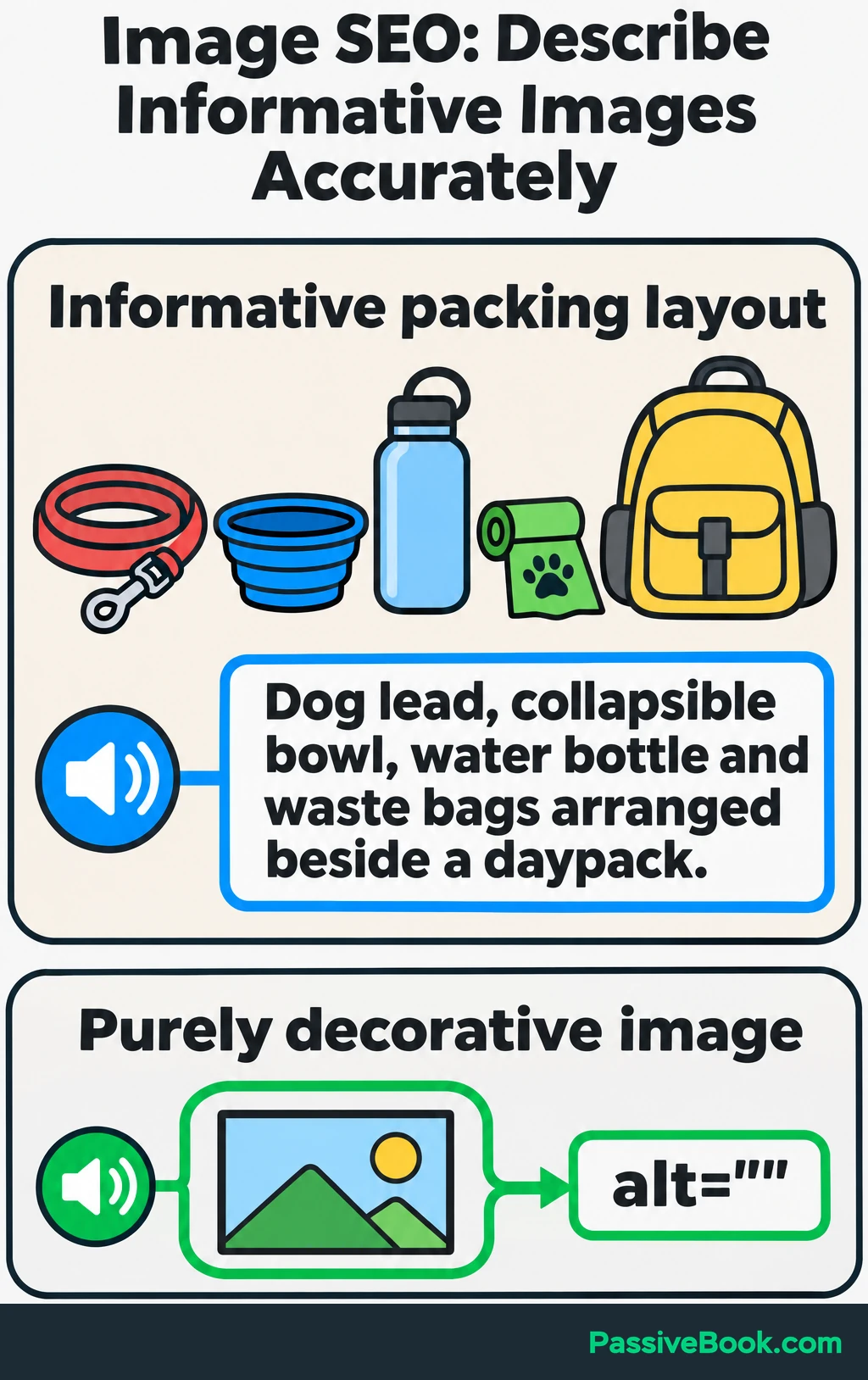
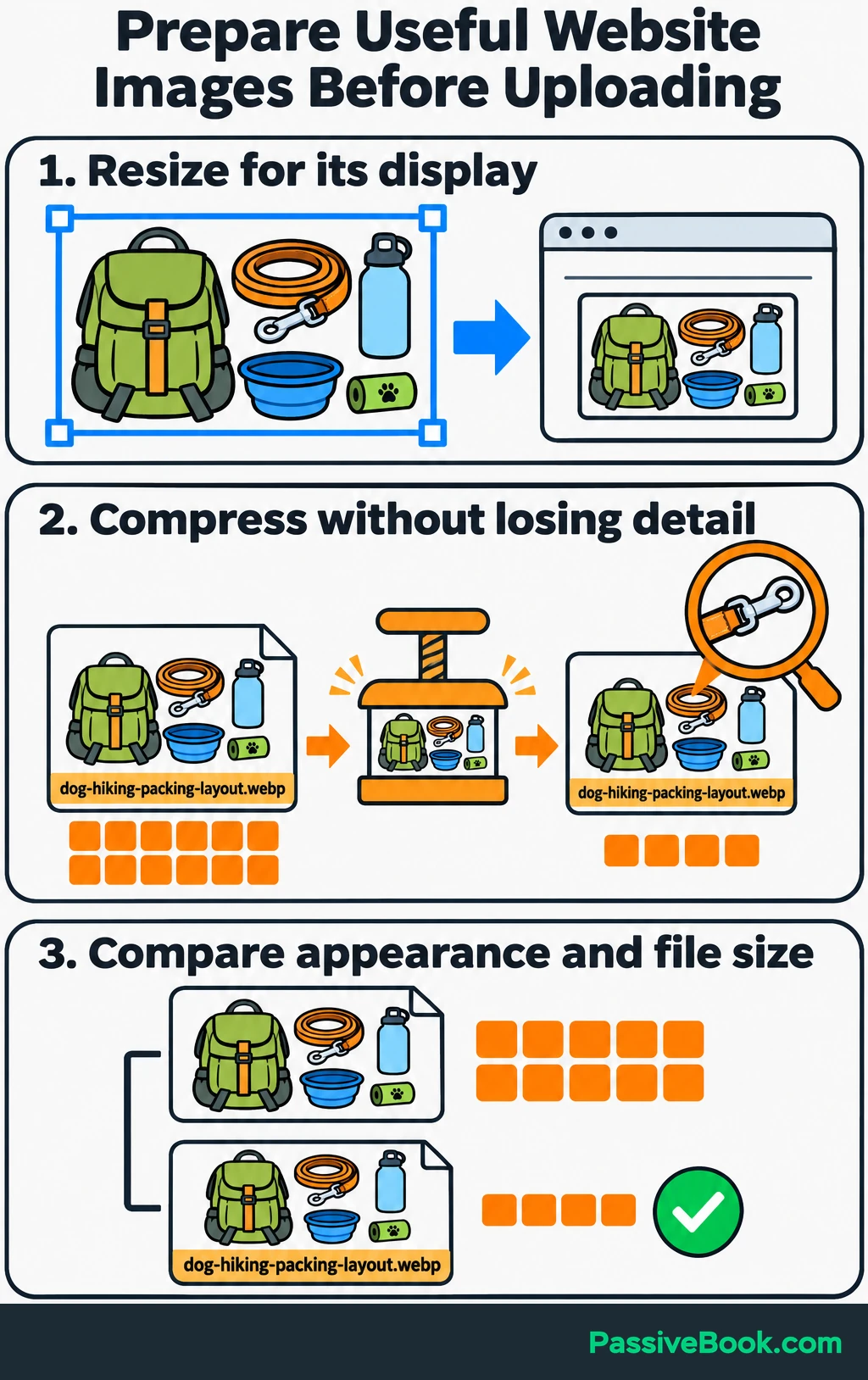
Place the image beside the relevant explanation. For new uploads, use a descriptive filename such as dog-hiking-packing-layout.webp.
Before uploading:
- Resize an oversized image for its intended display.
- Compress it while keeping labels and details readable.
- Compare its appearance and file size with the original.
Write alt text that communicates what an informative image shows in that context. For example:
Dog lead, collapsible bowl, water bottle and waste bags arranged beside a daypack.
Google uses surrounding text, filenames and alt text to help understand images. Describe the image accurately instead of filling the alt field with keyword variations. Google’s image guidance
Purely decorative images should have empty alt text, written in HTML as alt="". This lets assistive technology ignore them. W3C’s decorative-image guidance
Keep the checklist itself available as page text. An image can support the answer, but readers should not need to enlarge a graphic to recover every item.
Step 6: Add Relevant Internal Links
Internal links connect pages on your own website. Work in both directions: help readers find the page, then help them reach useful follow-up information.
First, find existing pages where the checklist would be a natural next step. A guide to planning a first hike with a dog could include this sentence:
Before you leave, use the dog hiking checklist to organize your packing.
Make “dog hiking checklist” the link text.
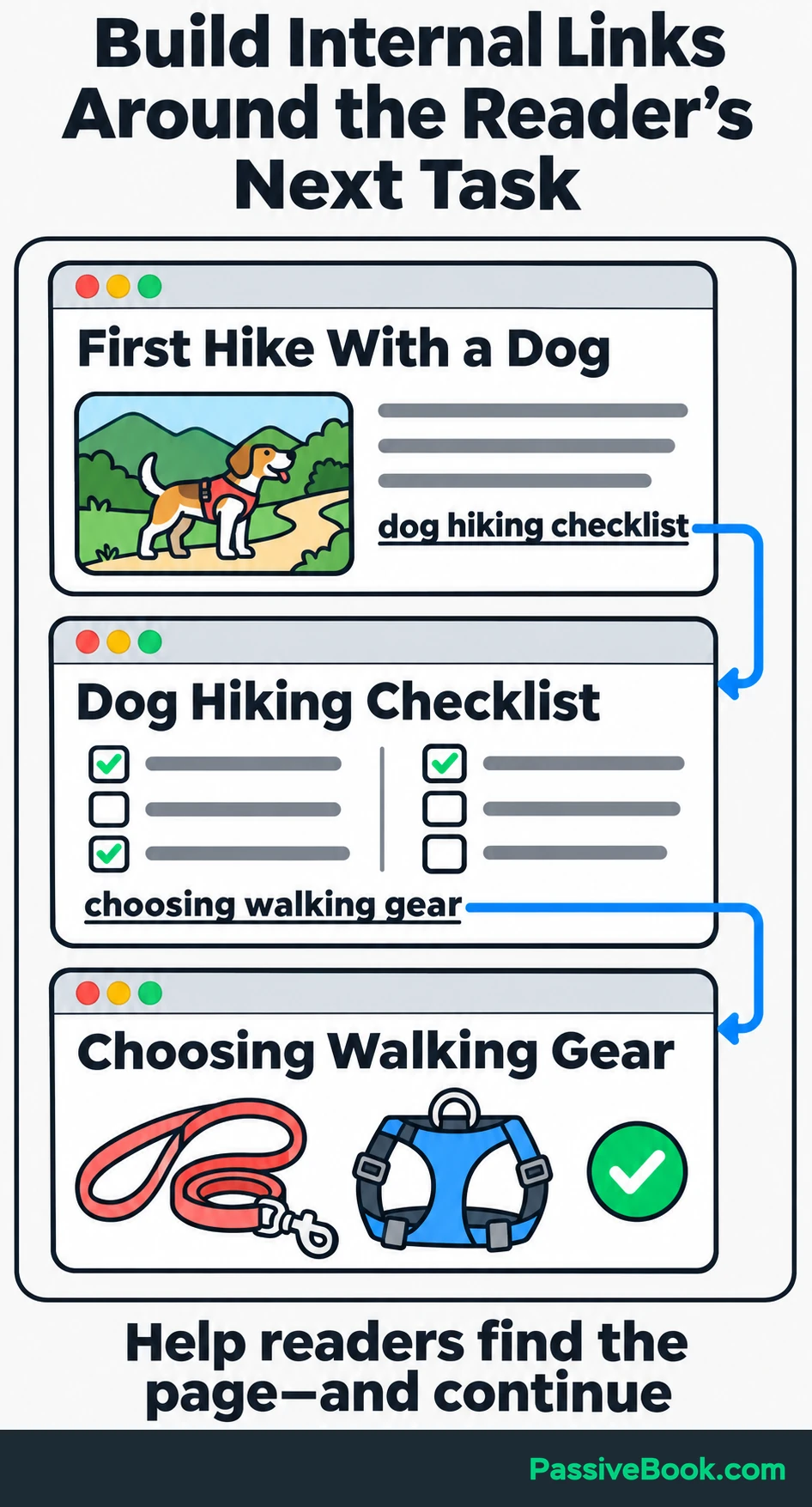
Then review the checklist for points that need a deeper explanation. A brief mention of choosing walking gear could link to your detailed guide on that subject.
Google recommends that every important page have a link from another page on the site, and that link text help explain the destination. There is no ideal links-per-word quota. Google’s internal-link guidance
I would skip an unrelated link added just because the destination needs traffic. The sentence should explain why that page helps at that moment.
Click every added link. Confirm that it reaches the intended page and that the destination delivers what the surrounding text promises.
Step 7: Check Mobile Usability and Performance
Open the page on a phone as well as a larger screen.
Read enough to use it. Don’t stop after admiring the header.
Check that:
- Text is readable without zooming.
- Lists and tables fit the screen.
- Images stay within the page.
- Links and buttons are easy to tap.
- Pop-ups do not cover the answer.
- The printable download is easy to find and use.
Then run the public URL through PageSpeed Insights. If the page is still a private draft, finish this check after publishing.
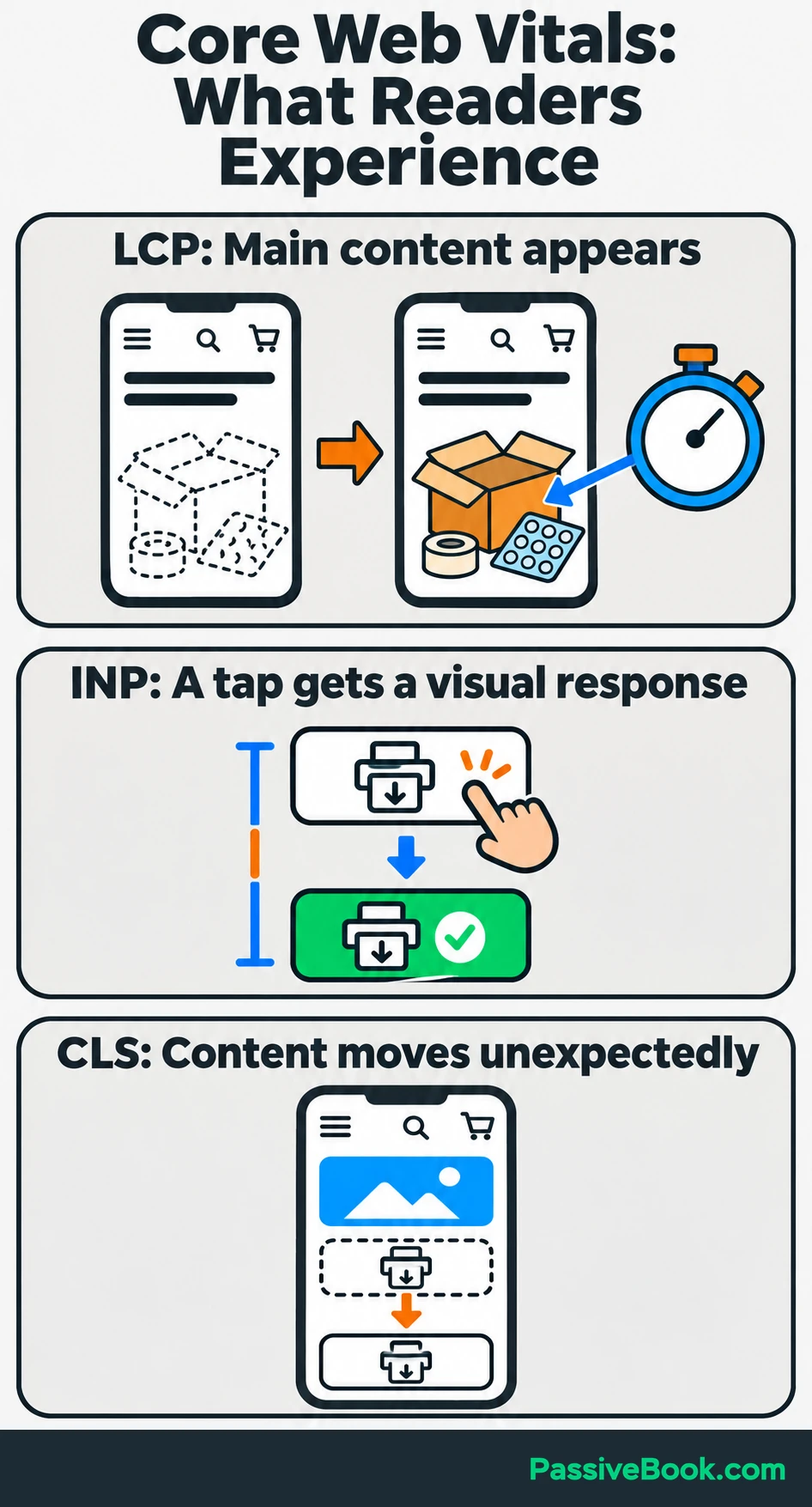
Use the findings to identify concrete problems. An oversized image, unnecessary script or shifting layout gives you something specific to fix.
You may see three Core Web Vitals in the report:
| Metric | What It Measures |
|---|---|
| LCP — Largest Contentful Paint | How long the largest visible content element takes to appear. |
| INP — Interaction to Next Paint | How quickly the page responds visually to an interaction. |
| CLS — Cumulative Layout Shift | How much visible content moves unexpectedly. |
These measures cover loading, responsiveness and visual stability. Google’s Core Web Vitals guidance
Fix the clearest problems, then retest. If a report points to a theme or script issue you cannot resolve, send that specific finding to your host or developer.
I would prioritize a button that jumps away from your finger over chasing the last few points on a score.
Step 8: Publish and Verify the Live Page
Before publishing, check that the page makes one consistent promise.
The title, H1, opening answer, headings and download offer should all support the same task. In the running example, that task is organizing packing for a dog hike.
Publish, then test the live page as a visitor:
- Read the opening and check the heading order.
- Confirm that images and links work.
- Open the printable and check that it is the correct file.
- Complete any signup required to receive it.
- Verify changed URLs and redirects.
- Run any performance checks that needed a public address.
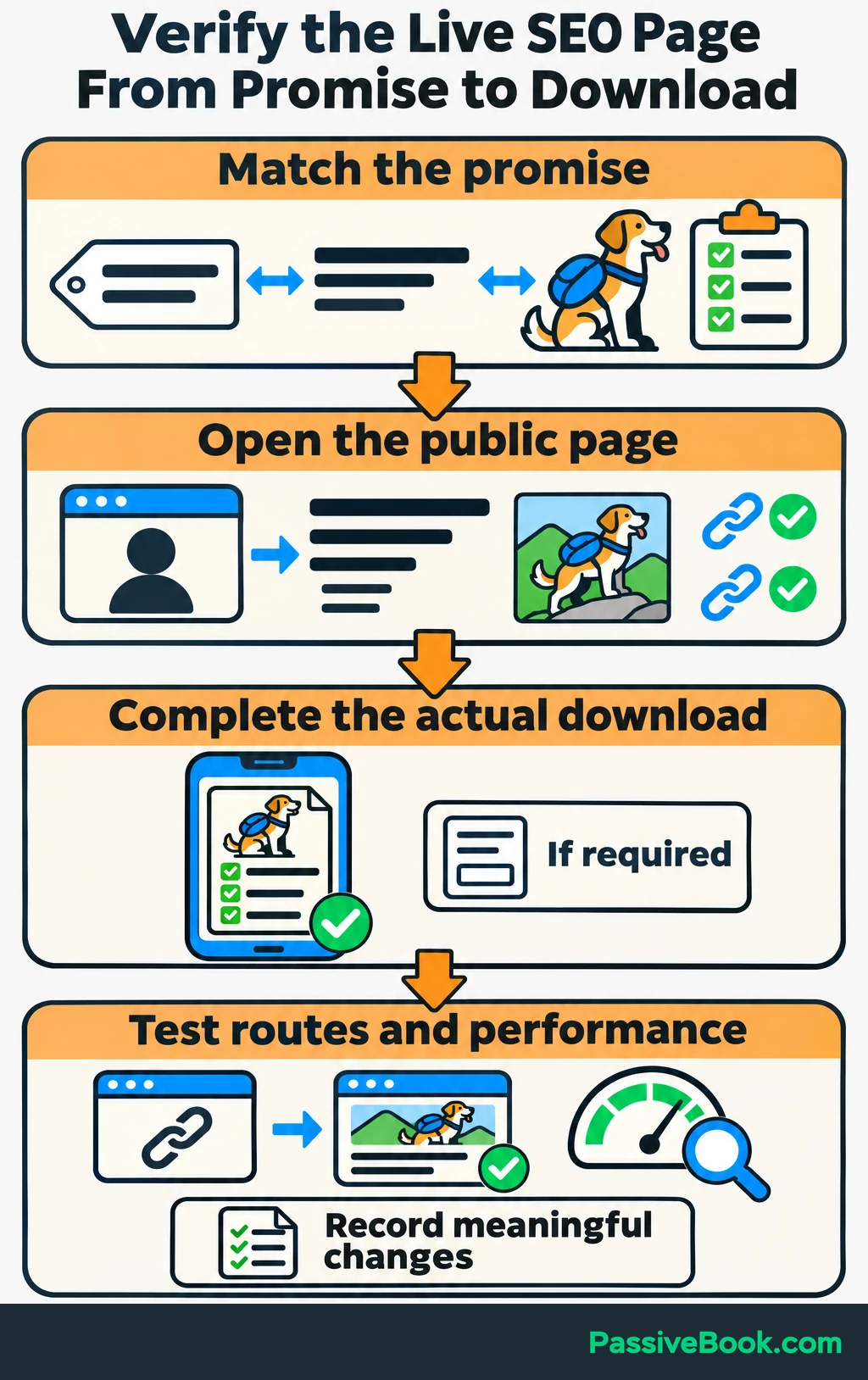
A working preview does not replace a working download.
Next, inspect the published URL in Search Console. Review its indexing status. If you fixed an access problem, run the live test to check the current page, then request indexing for a new or substantially updated page.
The live test checks whether Google can potentially index the page. A successful test or indexing request does not guarantee inclusion. Google’s explanation of URL Inspection
Record the publication or update date and the meaningful changes. “Moved checklist above background, added printable and linked from first-hike guide” is more useful than “SEO done.”
Step 9: Measure Results and Choose the Next Improvement
Review Search Visibility and Clicks
Filter Search Console’s performance report to the exact page. Review its queries alongside four measures:
| Measure | What It Tells You |
|---|---|
| Impressions | How often the page appeared in reported search results. |
| Clicks | How many clicks it received from those results. |
| CTR (click-through rate) | The share of impressions that produced a click. |
| Average position | Its average reported position across search appearances, rather than one fixed rank. |
Search Console defines CTR as clicks divided by impressions. Search Console’s performance metrics
For a worked example, count only clicks and impressions for the same page, period and filters. If the checklist received 30 clicks from 1,000 impressions, its CTR would be:
30 ÷ 1,000 × 100 = 3%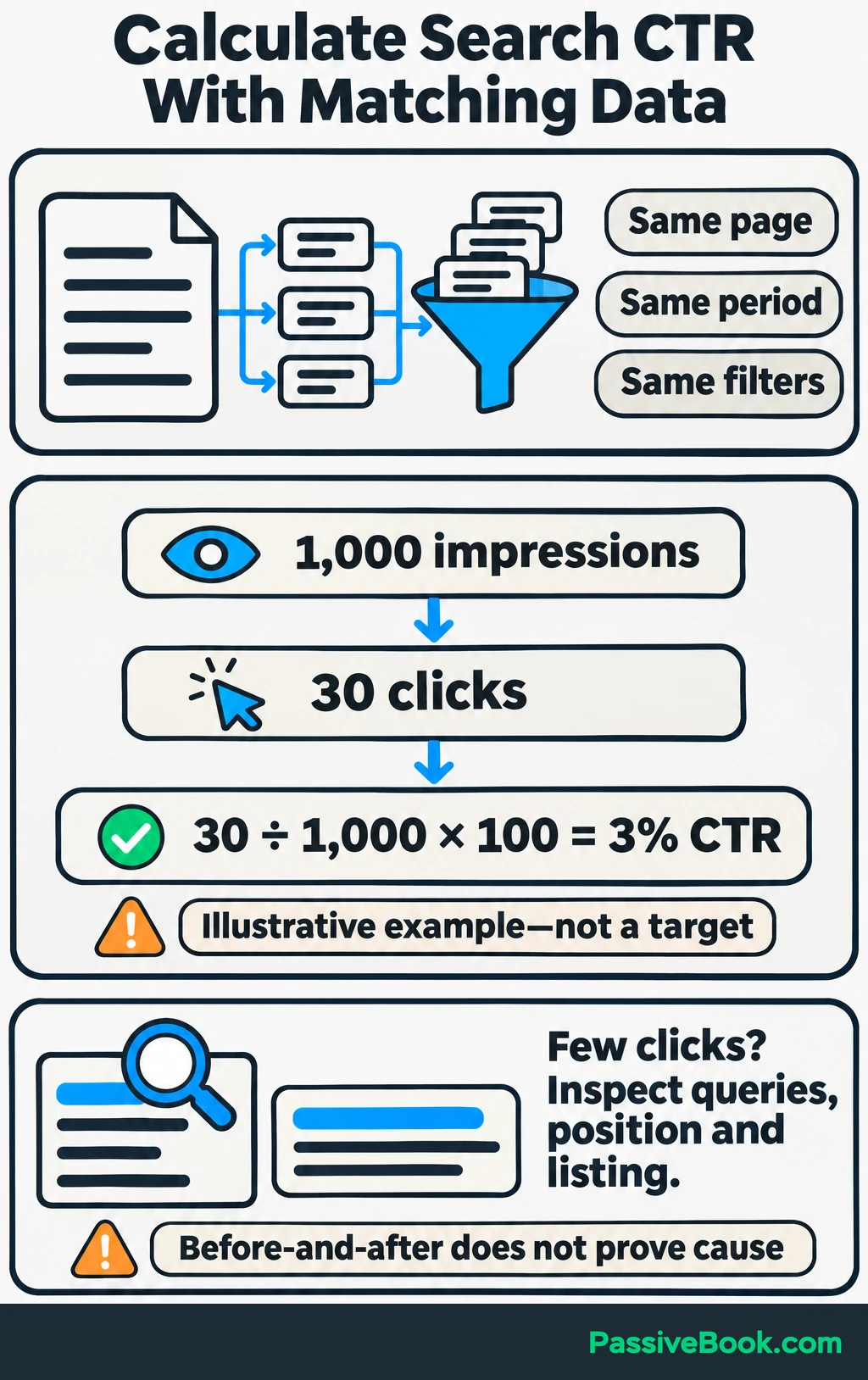
Those figures are illustrative. They are not a target or a promised result.
Compare equivalent periods, such as 28 days against the previous 28 days, with consistent search type, country and device filters. Allow a few weeks for an initial review. Google says changes can take anything from hours to months to show an effect. Google’s guidance on SEO timing
Use the pattern to choose what to inspect:
- No visibility: check indexing and access first.
- Impressions for the wrong task: review the content’s focus.
- Relevant impressions but few clicks: examine position and the actual search listing before changing the title.
- More clicks after an update: check which queries changed before crediting one edit.
Demand and query mix can change too. A before-and-after comparison helps you judge progress, but it does not isolate the cause.
Connect Search Visits to the Page’s Goal
Search clicks tell you whether people arrive. Your page goal tells you whether the visit leads anywhere useful.
Track completed printable downloads or signups through your existing analytics or form reporting. Define the event clearly: a click on the offer is different from a successful download.
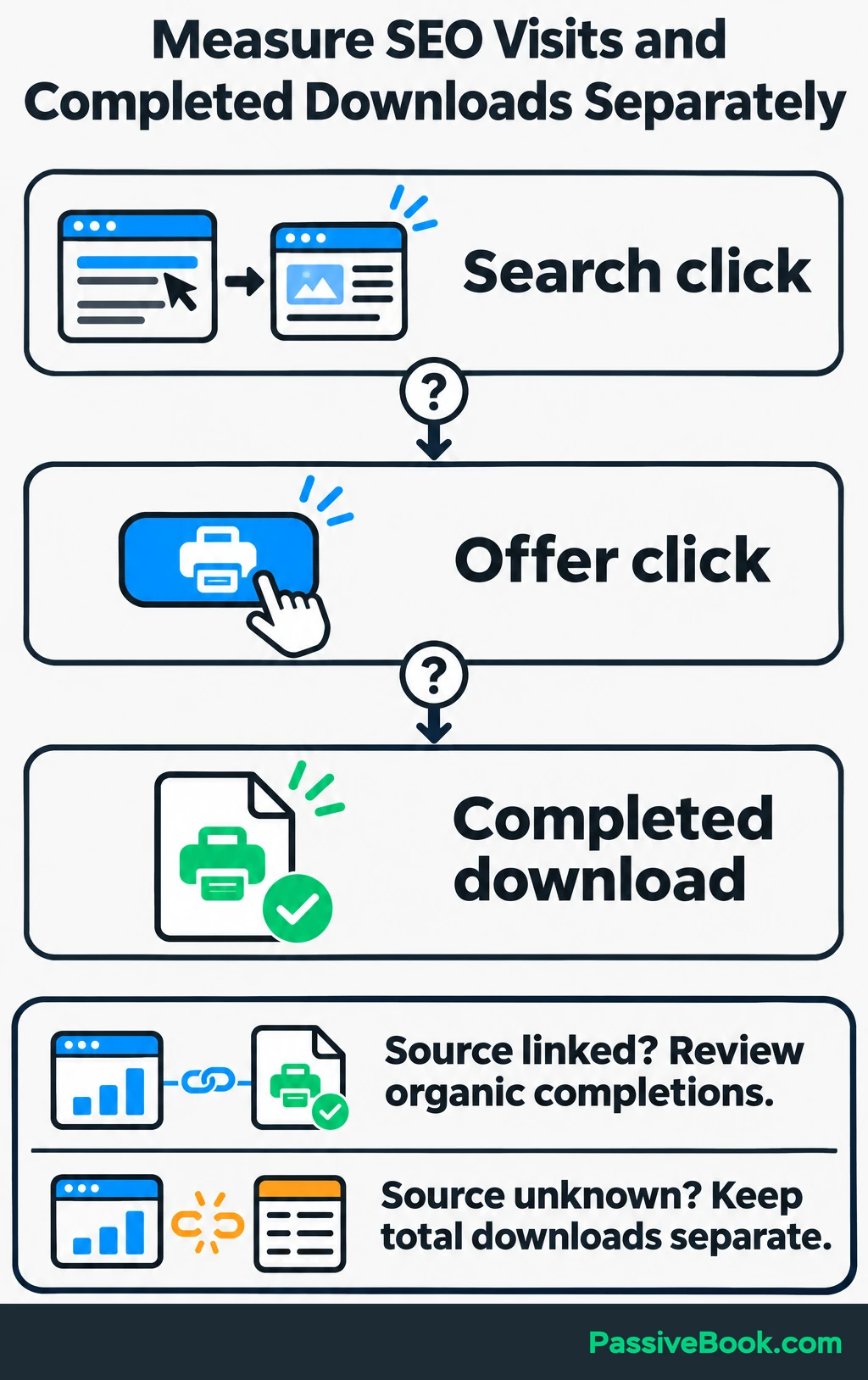
Review those completions alongside organic visits. If your reporting cannot connect downloads to their traffic source, keep total downloads separate rather than calling them search conversions.
When visits arrive but downloads remain weak, check the offer before rewriting the article:
- Does the printable match the checklist on the page?
- Can readers find it beside the answer?
- Does the button explain what they receive?
- Does the download work on a phone?
- Is an unnecessary form making a simple task harder?
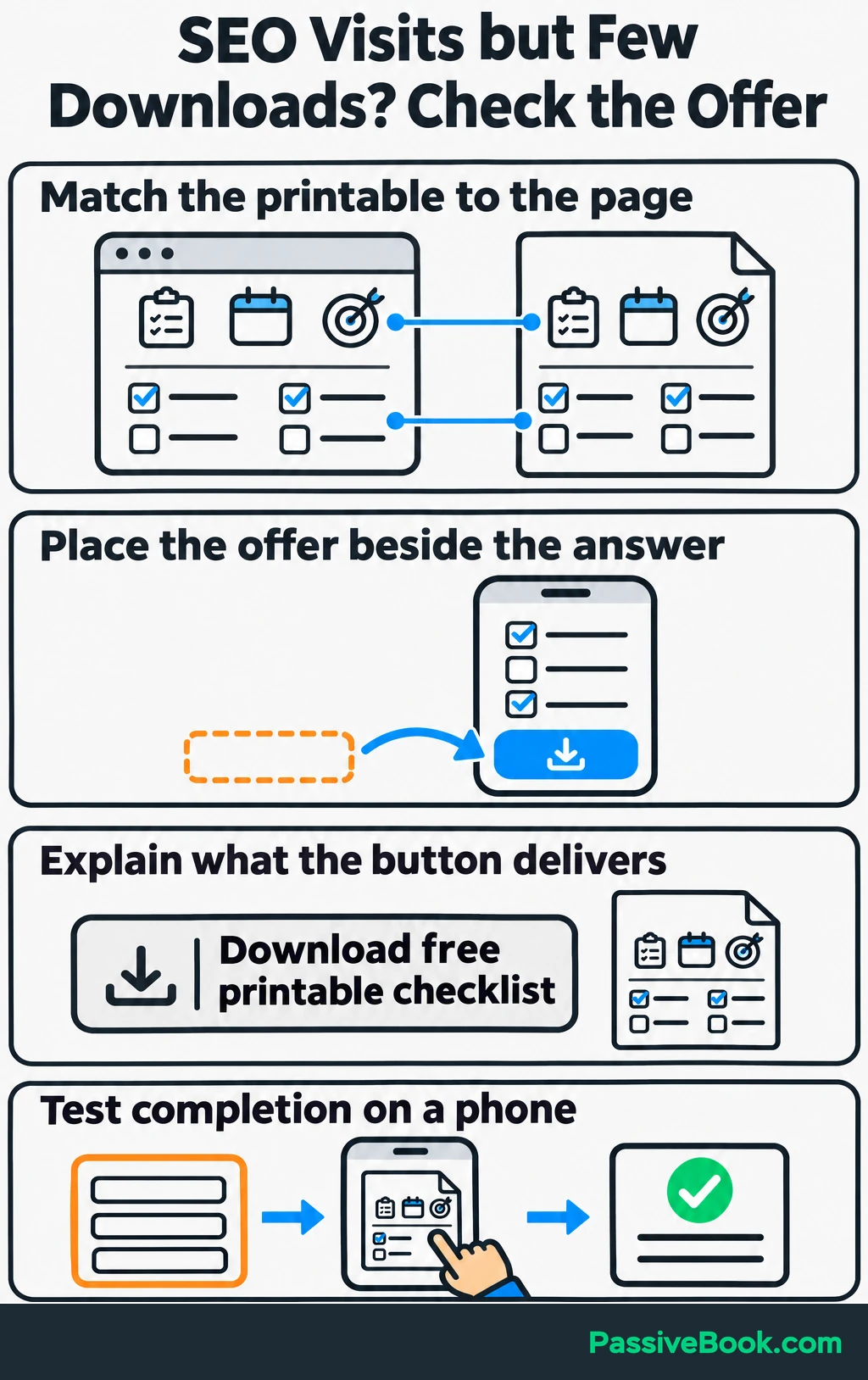
Add the finding and next action to your optimization record. For example:
Search visits are arriving, but the download button is difficult to find on mobile. Move it beside the checklist and verify completion tracking.
I would fix a missing answer, broken download or mismatch with the searcher’s task before testing tiny wording changes.
Once the page works and you have a review date, apply the same process to another suitable page. A repeatable checklist is useful. Refreshing a graph every afternoon is a hobby.
What Next?
Choose one existing page and write down the task it should help a visitor complete. Compare that sentence with the opening answer, then fix the biggest gap.
Use the social buttons to share this guide when you want a practical reference for improving a page from its search title through to its next action.
Which part of your page needs the most work: the answer, the search listing or what visitors do next? Tell me in the comments, and bring any other on-page SEO questions with you.
Share this post with your friends & followers:

