You solved a Pinterest scheduling problem three weeks ago after an hour of troubleshooting. Today the same error appeared, and you’ve completely forgotten the fix. Now you’re re-Googling solutions you already found, wasting your limited side-hustle hours on problems you’ve already solved.
You don’t need a $99/month documentation platform that promises “enterprise-grade workflow management.” That’s consultant-speak for features you’ll never use. Google Docs or Notion‘s free tier handles everything a solopreneur actually needs.
Building a knowledge base of documented processes isn’t about creating fancy corporate manuals. Simple checklists save you from reinventing workflows every time you publish a blog post, fulfill an order, or troubleshoot a broken automation. Your future self will thank you when you can execute tasks without remembering every detail.
Documentation also prepares you for the moment when you’re ready to hire help. A virtual assistant can’t read your mind, but they can follow clear documentation. Every process you document today is one less task you’ll need to personally train someone on tomorrow. This knowledge sharing foundation transforms your one-person operation into something that can scale beyond your personal time.
What Business Process Documentation Is
Process documentation captures written or visual instructions showing inputs, steps, decisions, and outputs for recurring tasks. Some businesses use formal process mapping with flowcharts, but solopreneurs benefit more from simple numbered lists. This isn’t about formal corporate manuals with flowcharts and approval chains.
Simple guides help your future self follow a workflow without remembering details.
A Google Doc with bullet points works better than expensive enterprise software for solopreneurs. Start with numbered steps, not complex diagrams. The goal is clarity for the person executing the task, which is usually you after forgetting how you did something last month.
Solo founder Marshall Hargrave documented his automation system and saves 20+ hours per week by following repeatable processes instead of reinventing workflows. His documented tech stack gives him a single source of truth for every tool decision and integration method.
Proper documentation prevents wasting precious hours redoing research or troubleshooting already-solved problems. You’ve already figured out the Pinterest pin size that performs best or the exact email sequence that converts. Writing it down once means you execute it correctly every time after that.
Why Most Solopreneurs Avoid Documentation (And the Real Cost)
You fear documentation requires enterprise-level tools or excessive time investment you don’t have. The assumption that proper documentation needs fancy software or consultants keeps many solopreneurs stuck in a cycle of chaos.
Small business owners lose 96 minutes daily to wasted time, nearly 15 work weeks of lost productivity per year. The Salesforce study found much of this waste comes from forgetting how to solve problems you’ve already tackled before.
Without documented processes, you waste mental bandwidth remembering workflow details instead of creating revenue-generating content. Your brain becomes a filing cabinet instead of a creative engine.
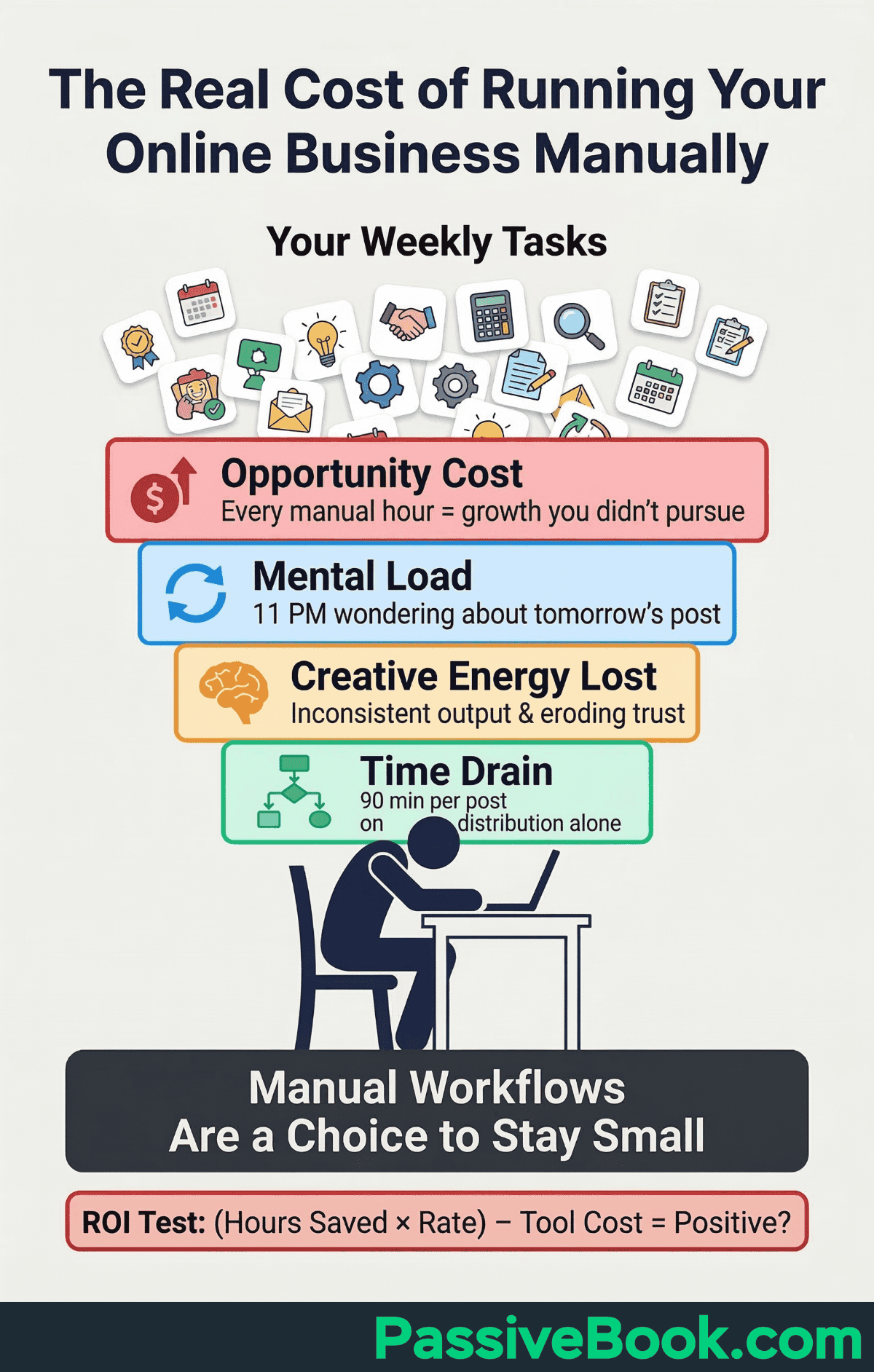
Every undocumented task takes cognitive space you could use for building your actual business.
Your business becomes too dependent on your memory to ever scale or allow time off. Taking a week’s vacation means returning to forgotten passwords, unclear next steps, and broken workflows. This memory dependency traps you in operator mode when you should be building systems.
I learned this during my dropshipping attempt in 2017. I’d figured out the exact supplier communication sequence that prevented shipping delays, but I never wrote it down. Three months into the business, I took a week off for a family event. When I returned, I couldn’t remember if I was supposed to confirm shipping within 24 hours or 48 hours. I guessed wrong. Five angry customers and two refund requests later, I finally documented the process I’d been running successfully for months. That one week of undocumented knowledge cost me $340 in refunds and probably more in damaged reputation.
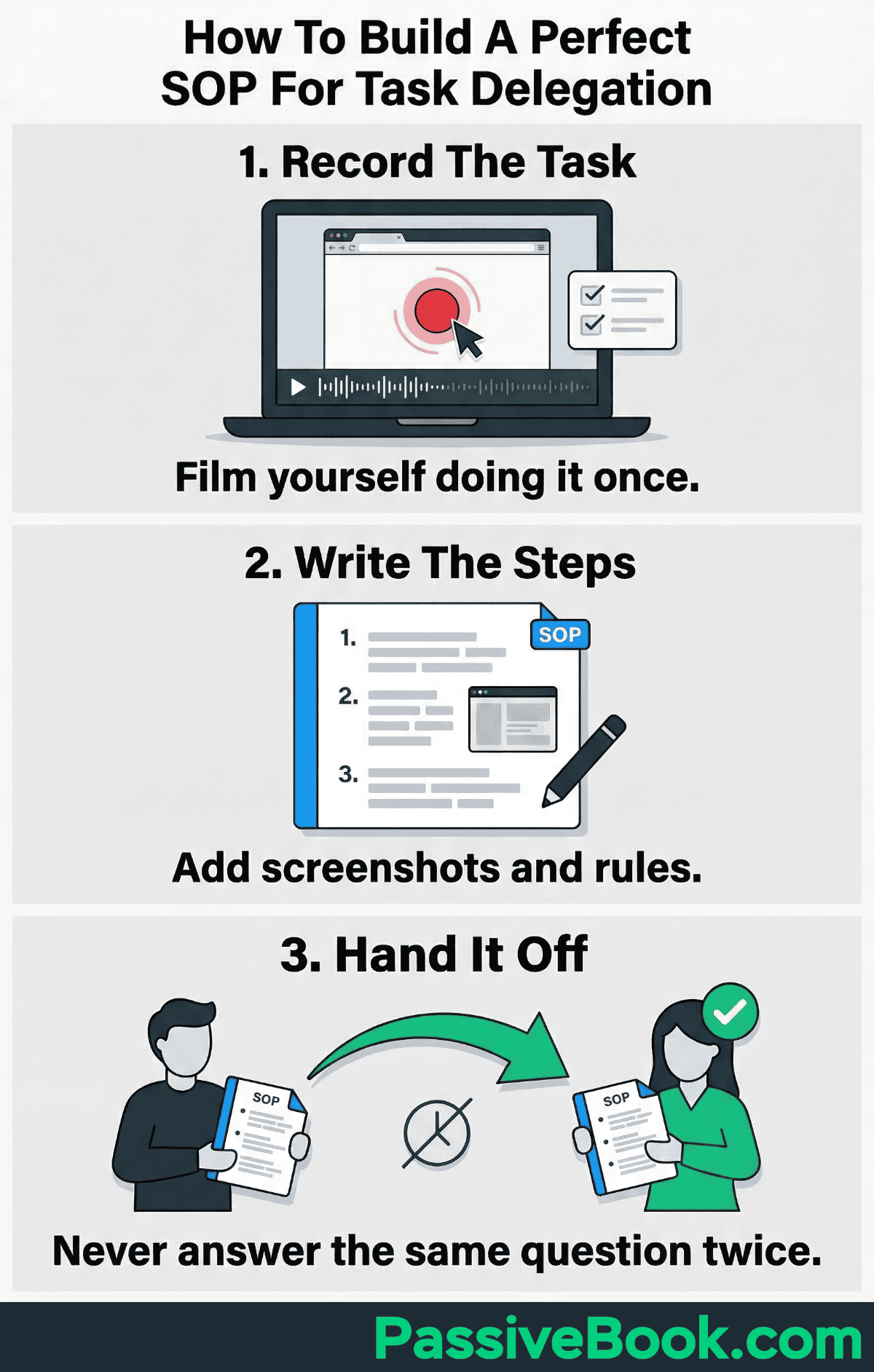
1. Screen Record Yourself Completing the Task Once
Use free built-in screen recording tools to capture your screen as you work through tasks. Mac users press Cmd+Shift+5 to open QuickTime Player’s screen recording. Windows users press Win+G to launch Xbox Game Bar with recording functionality. Mac’s QuickTime saves recordings as .mov files which can be large. Windows Game Bar sometimes fails to capture certain apps if they block recording. Test your recording setup with a 30-second trial before committing to a full workflow capture.
Narrate decisions and explain why you choose specific options while recording. Say out loud “I’m clicking the Advanced Settings tab because the basic settings don’t show the scheduling option.” This verbal explanation helps when you convert the recording into written steps later.
Upload to Google Drive for storage and sharing if needed. You’re already using Drive for your business files, so no third-party platform is required. Create a dedicated “Process Recordings” folder to keep everything organized.
One unedited take is enough. Don’t waste time editing for perfection or adding fancy transitions. The recording serves as raw material for documentation, not a polished tutorial video.
Most task recordings take 3-10 minutes. You’ll save hours the second time you run the process because you won’t need to remember interface locations or decision criteria.
I resisted screen recording for months because I assumed it would take forever to review and transcribe. The first time I actually tried it, I recorded a 7-minute walkthrough of my Pinterest scheduling process. That single recording saved me 45 minutes the next week when I couldn’t remember which settings menu controlled the auto-publish delay. The recording paid for itself immediately.
2. Use AI to Convert Your Recording Into Written Steps
AI can transform your raw screen recording into structured documentation in seconds, eliminating the tedious work of manual transcription. Upload your recording to Claude, which accepts video files directly. If you need text first, use YouTube’s auto-caption feature for free transcription. Upload your recording as an unlisted video, then download the automatically generated transcript.
Feed the transcript into Claude or ChatGPT to extract structured steps. AI transforms raw narration into numbered checklists in seconds.
I used to spend an hour watching my own recordings and manually typing step-by-step instructions.
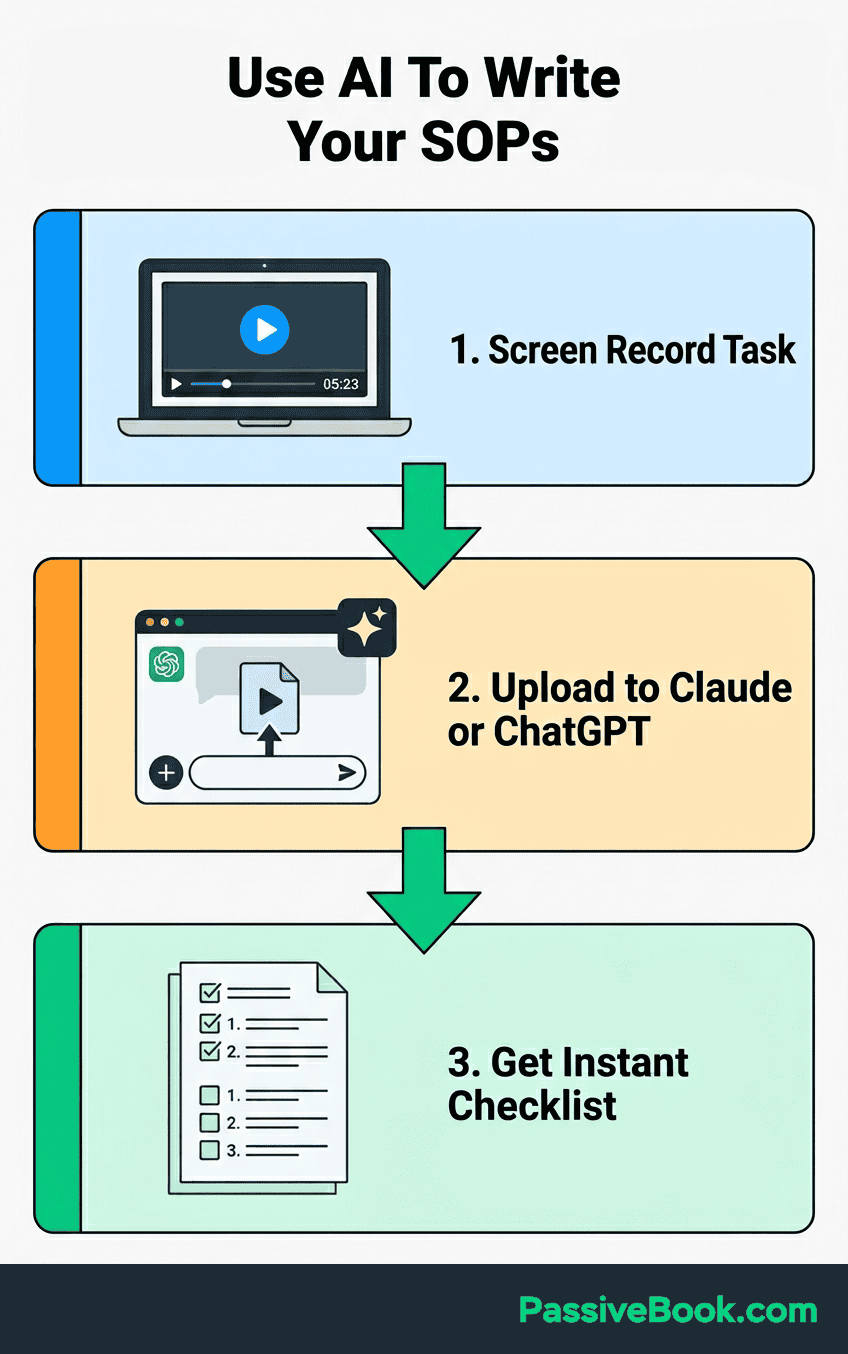
Now I paste the transcript into Claude with this prompt: “Convert this screen recording transcript into a numbered process document with clear steps, decision points, and any warnings mentioned.” The AI pulls out the structure while I move on to other tasks. Now the same task takes 8 minutes: 3 minutes to extract transcript, 2 minutes for AI processing, 3 minutes to verify accuracy.
Export as simple step-by-step instructions your future self can execute without rewatching video. The written format is searchable and faster to reference than scrubbing through a video timeline.
I built a custom AI content pipeline using Claude that cut article production from days to hours. The same principle applies to process documentation. Let AI handle the tedious conversion work while you focus on verifying accuracy.
3. Build a Simple Checklist Template You Can Reuse
Create reusable templates in Notion or Google Docs for recurring workflows. This becomes your project management framework for process creation. Templates ensure consistency and save time when documenting similar processes.
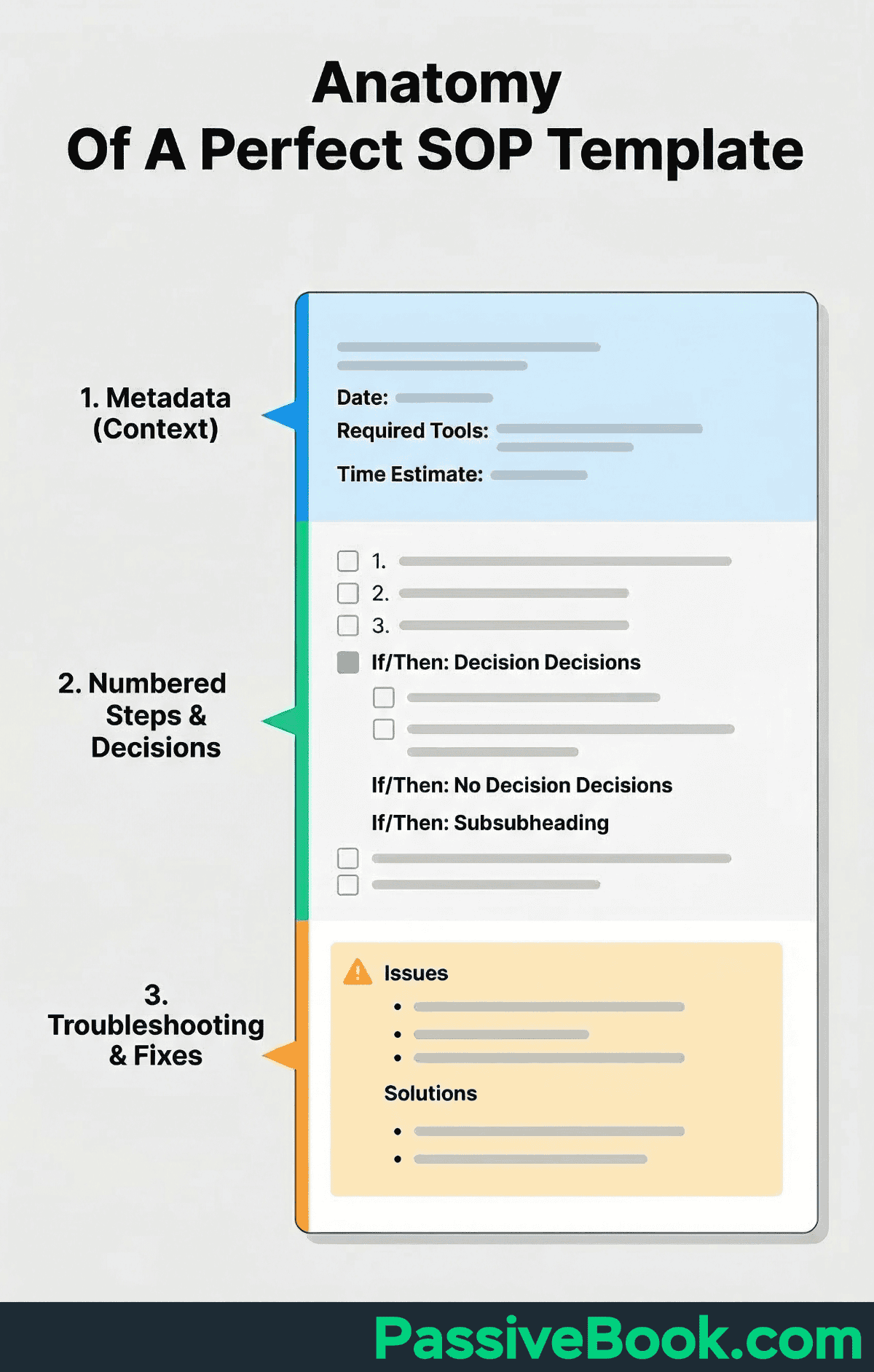
Structure your template with three sections. The top section includes last updated date, required tools, and time estimate. This metadata helps you quickly assess if the document is current and whether you have time to complete the task.
The middle section contains numbered steps with decision points flagged. Use bold markers like “Decision:” or “If/Then:” to highlight where the process branches based on conditions.
I used to think templates were overkill for a one-person business. Why create reusable structure when I’m the only person using it? Then I realized I’m not the same person two months later when I’ve forgotten all the context. Templates aren’t for other people. They’re for the version of you that doesn’t remember why you structured something a specific way.
YouTuber Ali Abdaal uses Notion templates to plan video production with consistent structure. Every template includes title, script status, filming checklist, editing notes, and publish date. This consistency means team members know exactly where to find information.
The bottom section holds common problems, related processes, and improvement notes. This is where you document the “gotchas” that trip you up even when following the steps correctly.
Feed ChatGPT three to five existing SOPs and ask it to create a reusable structure for your business. The AI will identify patterns across your documentation and suggest a template that fits your specific use case.
4. Document “What Can Go Wrong” and Your Fixes
Add “if this happens, do this” notes for failures you’ve already encountered. This section saves you from re-googling solutions to problems you’ve solved once before. Effective process documentation always includes failure scenarios.
I learned to document failures after spending 20 minutes re-troubleshooting a customer email bounce. The second time it happened, I remembered the issue involved checking Shopify order notes for an alternate email. But I’d forgotten the exact location of those notes in the Shopify dashboard. Now my doc says: “If customer email bounces, check Order Notes section (bottom right of order page) for alternate email before refunding.”
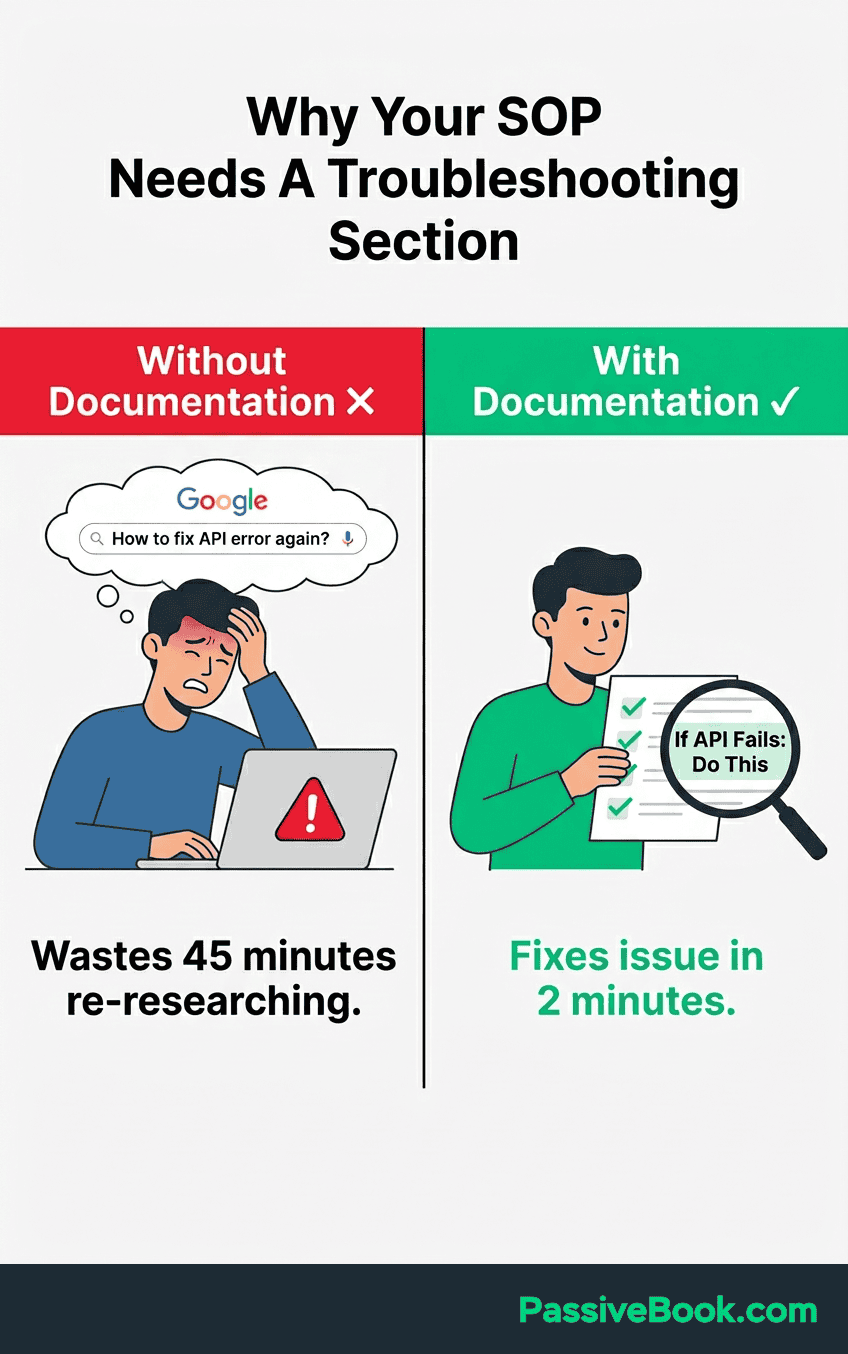
Platform-specific requirements trip me up constantly. My “Pinterest Pin Scheduling” doc includes: “If pin scheduling fails, verify image is vertical 2:3 ratio (1000×1500px minimum) and under 20MB. Pinterest rejects square images from the scheduler even though they accept them in manual uploads.” That quirk cost me 30 minutes of confusion the first time.
Include manual workarounds for when automation breaks. My n8n workflow publishes blog posts to Pinterest automatically, but APIs change without warning. The doc says: “If n8n Pinterest node fails, use native Pinterest scheduler as backup. Login → Create Pin → Schedule → Select board → Pick publish time.” This two-minute manual process keeps me operational during downtime instead of panicking about missed content.
Include workarounds when automation fails or third-party tools go down temporarily. Your n8n workflow might break when a tool updates its API. Document the decision-making criteria you use when the normal process breaks. Documenting the manual backup process means you can still execute critical tasks during downtime.
5. Add Screenshots Only Where Words Aren’t Enough
Take screenshots using built-in tools without installing extra software. Mac users press Cmd+Shift+4 to capture selected areas. Windows users press Win+Shift+S to open the Snipping Tool.
Use Canva‘s free version to add arrows or highlight specific buttons. Upload your screenshot, click Elements, search for arrows, and drag one onto your image. This visual guidance helps when interface elements have generic names like “Settings” or “Options.”

Skip complex flowcharts and BPMN diagrams. A photo of your notebook sketch works fine if it clarifies the process flow. Swimlane diagrams and formal process maps make sense for cross functional teams with approval chains, but you’re documenting for yourself.
Screenshot decision points where you need to choose between options, or confusing interface sections where three buttons look similar. Skip obvious steps like “click the blue Save button” unless there are multiple save buttons and only one is correct. I once took 15 screenshots for a 7-step process. Half were useless. Now I ask: Would I remember this step without the image? If yes, skip the screenshot.
6. Test Your Documentation on Your Sleep-Deprived Future Self
Wait one week, then follow your own documentation without relying on memory. Better yet, hand it to someone unfamiliar with your business and watch where they get confused. This gap reveals unclear instructions or missing context. If you get stuck anywhere, that exact step needs more clarity or a screenshot.
Test by waiting two weeks, then following your documentation cold. Many solopreneurs discover gaps only when returning from a break and realizing the steps they “definitely remembered” are now fuzzy. Your memory fills in blanks during initial documentation that won’t be obvious later.
A better test involves someone unfamiliar with your business attempting the process cold. Hand your documentation to a friend or virtual assistant and watch where they get confused. Their questions highlight assumptions you made without realizing.
I learned this lesson the expensive way with my “How to Process Shopify Returns” documentation. I wrote it immediately after handling my first return, feeling proud of my detailed 12-step process. Three months later, a customer requested a return and I confidently opened my documentation.
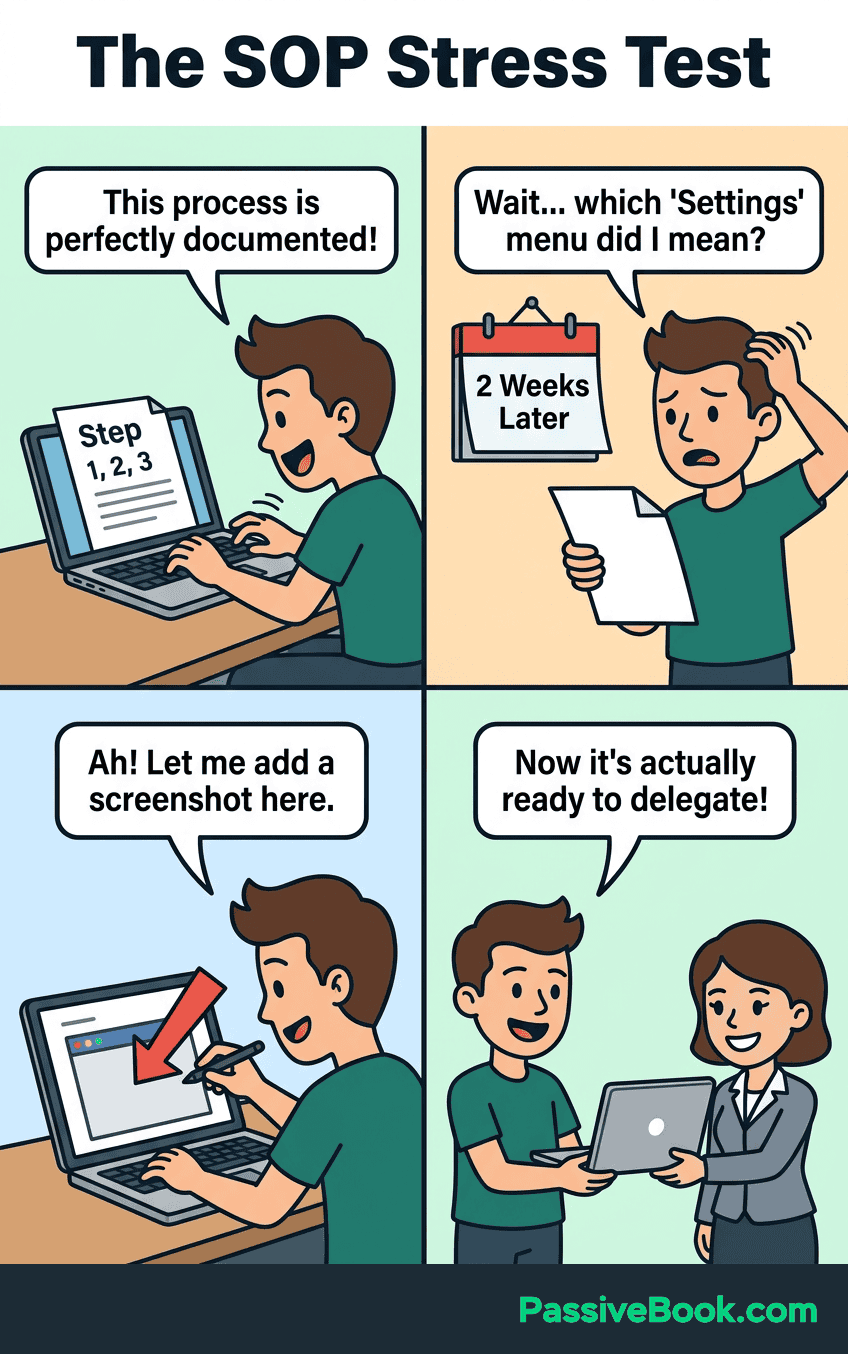
Step 7 said “issue the refund through the correct menu,” but I had no idea which menu was “correct” anymore. The Shopify interface has three places you can process refunds. My documentation assumed I would obviously remember which one. I didn’t.
That vague instruction cost me 20 minutes of clicking around and re-Googling what I’d already figured out once before.
This testing phase is where documentation isn’t just a formality. It becomes a functional tool that actually saves time. Untested documentation often creates more problems than it solves because you’ll follow wrong steps confidently.
7. Store Everything in One Central Hub (Not Scattered Files)
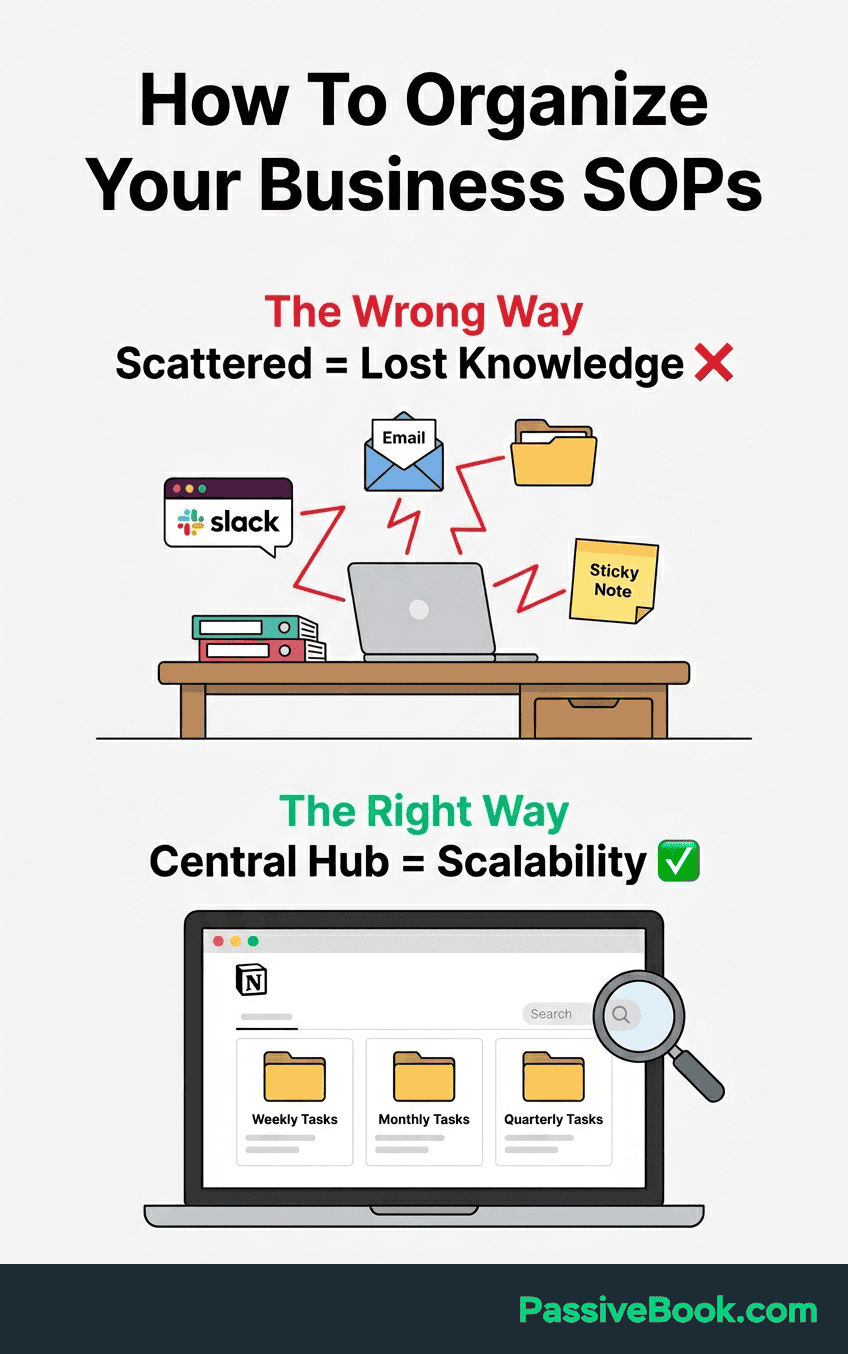
Notion‘s free plan offers unlimited pages with searchable tags for solo users. The database feature lets you filter documentation by frequency, tool, or business area. This knowledge base structure helps you find the right process quickly. That’s $0/month for everything a solopreneur needs. Paid documentation platforms start at $99/month for features you’ll never use.
Google Drive folders organized by frequency work perfectly if you prefer familiar tools. Create folders named “Weekly Tasks,” “Monthly Tasks,” and “Quarterly Tasks.” This frequency-based structure matches how you actually use processes.
I store all Passive Book documentation directly in WordPress using FluentCRM and custom pages. My “How to Schedule Pinterest Pins” doc lives as a WordPress draft with 8 steps, 3 screenshots, and links to my Pinterest Business account. It takes 5 minutes to follow even after weeks away.
Choose Notion if you want templates and databases. Pick Google Drive if you just need simple folders and familiarity. Use WordPress if your documentation supports your content workflow and you already manage everything there.
Skip the expensive documentation software that charges per user or per process. Those tools are built for Fortune 500 companies with compliance requirements and approval chains. You’re building a reference system for yourself, not submitting workflows to a governance board.
Don’t scatter documentation across email threads, Slack messages, and random text files. This fragmentation defeats the purpose of documentation by making knowledge sharing impossible. A single source of truth means you know exactly where to look every time. When you eventually hire team members or virtual assistants, they’ll know where to look too.
The knowledge base you create becomes more valuable as it grows. Each new documented process links to related processes, building a web of interconnected instructions that reduce decision fatigue.
8. Name Your Documents so You Can Find Them
Use format “How to [Action] in [Tool]” or “[Frequency]: [Action]” for filenames. This structure makes documentation searchable and scannable at a glance.
Example: “How to Schedule Pinterest Pins in Native Scheduler” not “Pinterest Process v2.” The descriptive filename tells you exactly what the document contains without opening it.
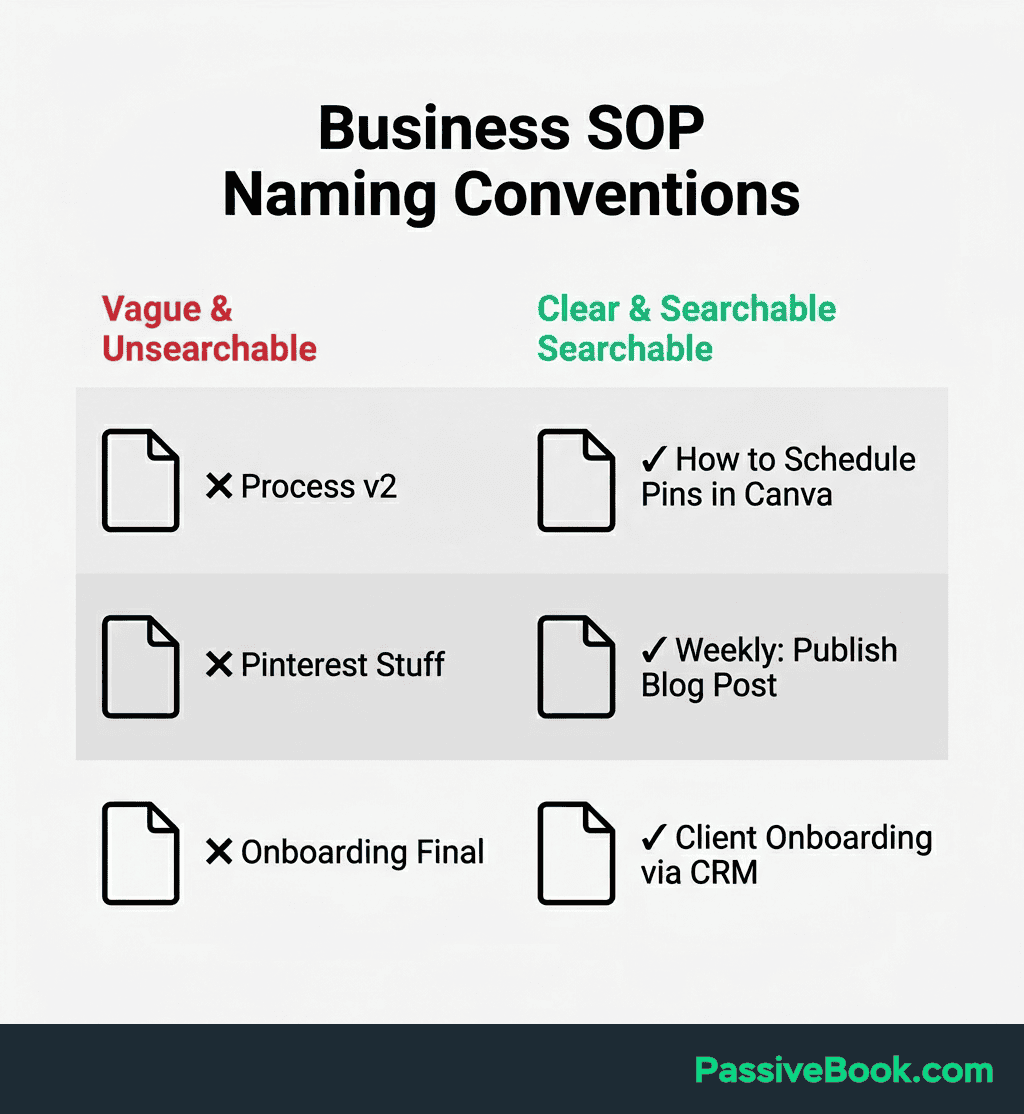
Include tool name in filename for better search results when tools change. If you switch from Buffer to native Pinterest scheduling, you can quickly identify which documentation needs updating by searching filenames.
9. Set Realistic Update Triggers (Not Arbitrary Quarterly Reviews)
Review documentation when a tool changes its interface or deprecates features you rely on. Platform updates break workflows more often than calendar dates. This reactive approach ensures you update documentation when it actually matters.
When YouTube Studio added A/B testing for titles and thumbnails in 2026, creators running “How to Upload Videos” SOPs needed to update their documentation. The new A/B testing workflow added decision points that didn’t exist in older processes.
Update immediately after discovering a better method while executing the process. Don’t wait for a scheduled review when you stumble upon a shortcut or optimization. Add a quick note like “Update: New method saves 10 minutes” at the top of the document.
Mark documents “Needs Review” when you notice gaps or outdated screenshots during use. This flag system lets you continue working while capturing the need for updates without breaking your workflow. Each documented process becomes more reliable with every iteration.
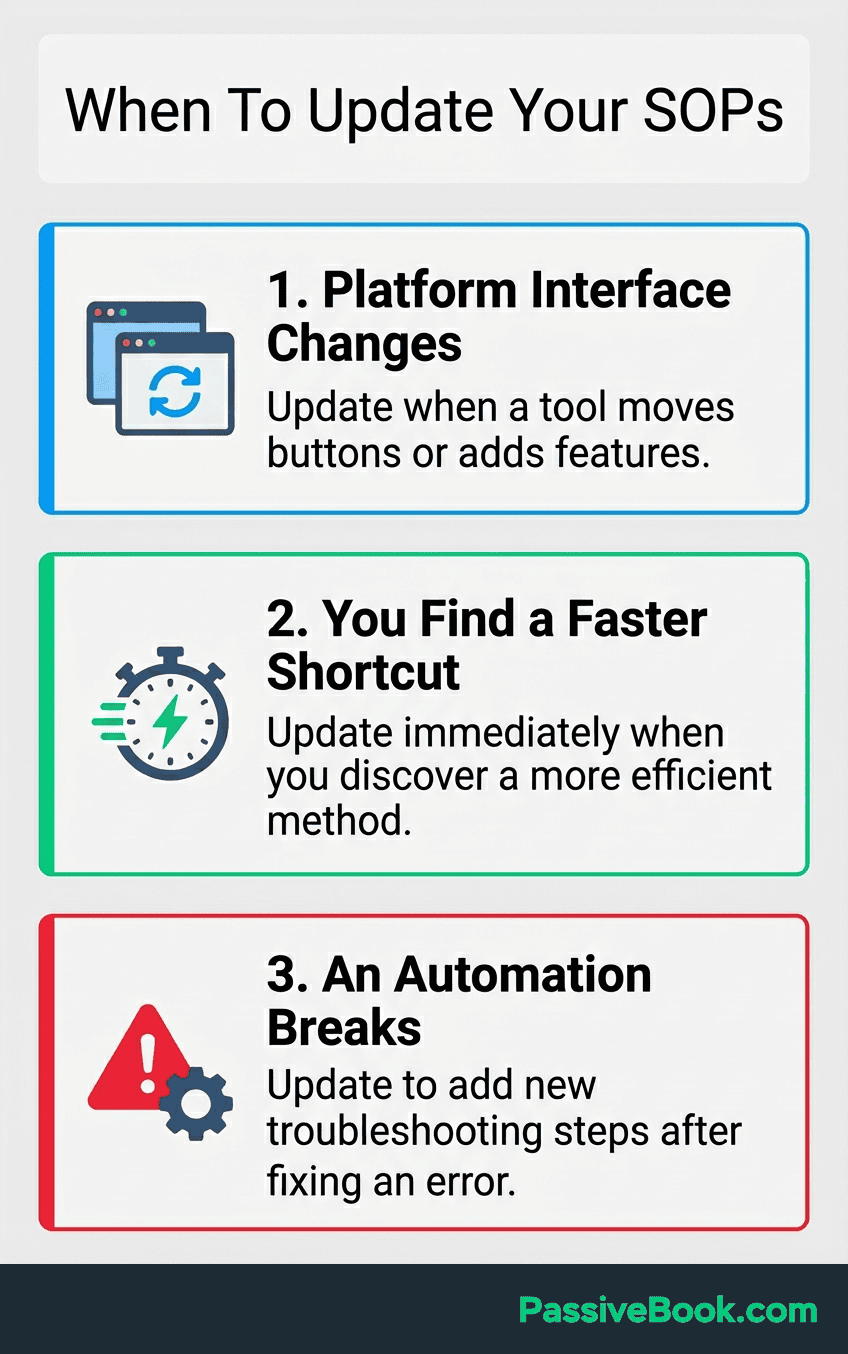
Use n8n workflows to automatically flag outdated documentation when connected tools change. I use n8n to connect tools without code and automate content publishing sequences across platforms. The same automation principles apply to documentation maintenance.
Quarterly calendar reminders are disconnected from actual workflow changes. You end up reviewing documentation that’s still perfectly fine while missing critical updates that happened mid-quarter.
Outdated documentation wastes more time than no documentation. Following wrong steps means doing work twice. Better to have no documentation than documentation that confidently leads you down the wrong path.
10. Link Related Processes Together Into a Simple System
At bottom of “How to Create YouTube Video” link to “How to Schedule YouTube Upload.” This connection guides you naturally from one process to the next without forcing you to remember what comes after.
Create a simple index page listing all documentation organized by category or workflow. This becomes your ultimate guide for navigating your business processes. Group related documentation under headers like “Content Creation,” “Customer Service,” or “Product Fulfillment.”
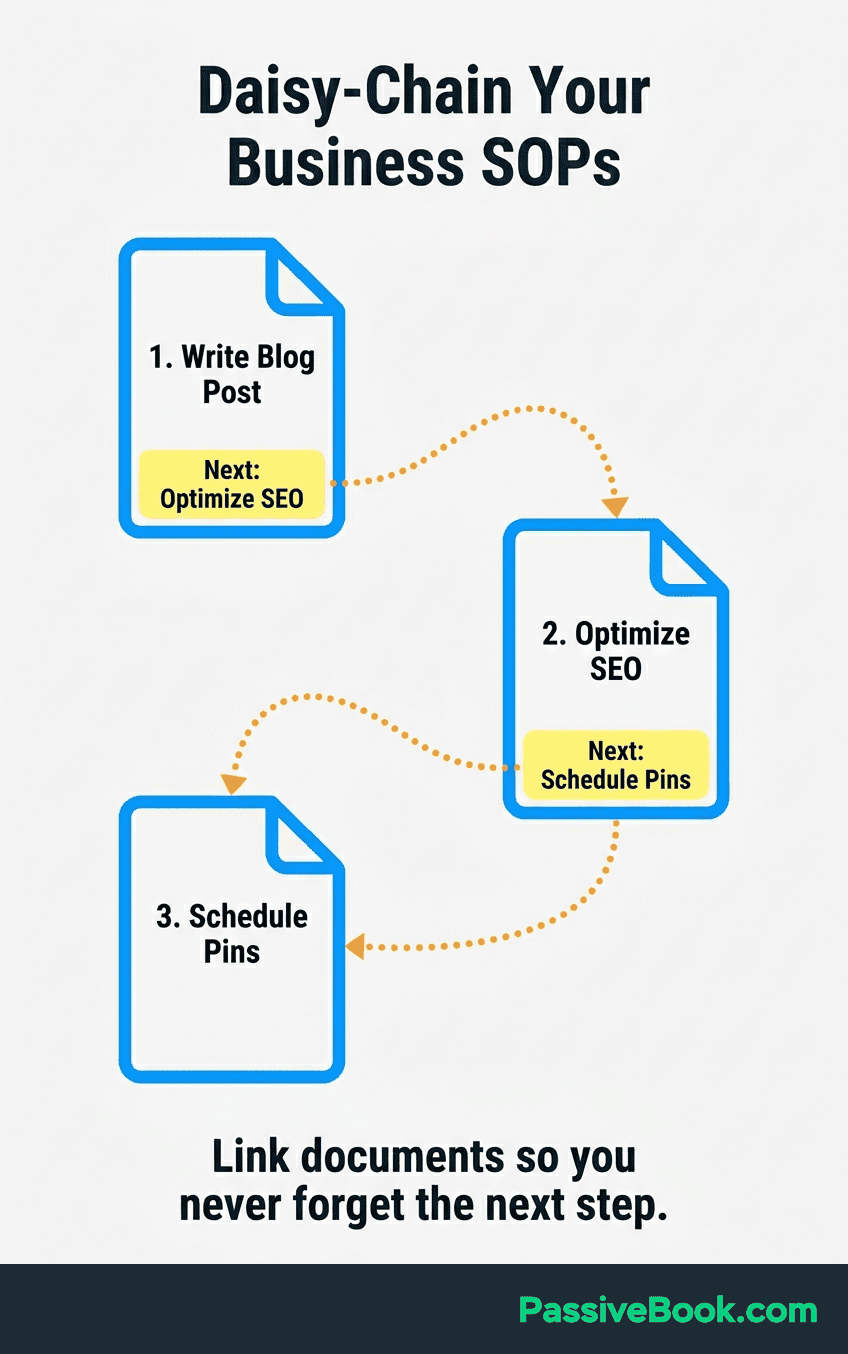
Use hyperlinks in Google Docs or Notion backlinks to connect related processes. These connections build a web of knowledge instead of isolated islands of documentation. When you finish one task, the next logical step links directly from the current document.
This linking transforms isolated instructions into a workflow you can follow on autopilot. My “Create Blog Post” doc links to “Optimize for SEO,” which links to “Schedule Pinterest Pins,” which links to “Monitor Analytics.” On publishing day, I open one document and follow the chain. No decisions about what comes next. No forgetting steps. Just click the next link and execute.
Frequently Asked Questions
How Do You Document Your Business Processes?
Start by screen recording yourself completing a task once while narrating your decisions. Upload the recording to Claude to convert the transcript into numbered steps automatically. Store the resulting checklist in a central location like Notion or Google Drive where you can find it later without searching through old files.
How Do I Document Processes for a Virtual Assistant?
Document for a VA the same way you document for your future self, but add extra context about tool access and decision criteria. Include screenshots of where to find login credentials, specify exact permission levels needed, and explain the “why” behind decisions, not just the “what.” Test the documentation by having a friend follow it cold before handing it to a paid VA. If they get stuck anywhere, add more detail or screenshots to that exact step.
What Should I Document First in My Online Business?
Document whichever processes you repeat most frequently first. Most solopreneurs start with operational processes like publishing blog posts, fulfilling orders, or scheduling social media content since these run weekly or daily. These high-frequency tasks waste the most time when forgotten. Skip documenting one-time setup tasks or rare edge cases until you’ve captured your core recurring workflows.
What Are the Four C’s of Documentation?
The four C’s of documentation are Clear, Concise, Complete, and Current. Clear means anyone following your steps understands exactly what action to take. Concise eliminates unnecessary words that slow down execution. Complete includes all steps, decision points, and common failures. Current means you update documentation when tools or methods change, not on arbitrary quarterly schedules.
What Are the 4 Types of Processes?
The four types of processes are operational processes that create your product or service, management processes that plan and control resources, support processes that enable operations like accounting or IT, and improvement processes that optimize existing workflows. Most solopreneurs start by documenting operational processes since these run most frequently and waste the most time when forgotten.
How Detailed Should My Process Documentation Be?
Document enough detail that you can follow it after forgetting the task for two weeks. Include tool names, specific button locations, and decision criteria, but skip obvious steps like “open your web browser.” Test by waiting a week and following your own documentation cold. Anywhere you get stuck needs more detail or a screenshot.
Should I Document Processes Before or After Automating Them?
Document processes before automating them so you understand exactly what the automation needs to accomplish. The documented manual process becomes your automation specification and serves as a backup when the automation fails. After automating, update the documentation to include troubleshooting steps for when the automated workflow breaks.
What Next?
You now have a practical system for documenting business processes without expensive software or excessive time investment. Start small with one recurring task that frustrates you most, then expand as you see time savings compound.
Building documentation can feel like taking time away from growing your business. The reality is that undocumented processes keep you trapped in operator mode, constantly putting out fires and forgetting solutions. This investment pays back quickly.
If you found this guide helpful, hit the share buttons below and send it to another solopreneur who’s drowning in forgotten workflows. What’s the one recurring task in your business you wish you’d documented six months ago? Drop your answer in the comments so we can learn from each other’s pain points.
Share this post with your friends & followers: