Friday’s newsletter is due in two hours, but the draft still needs checking and half the links are scattered across your notes. You can get it out, but next Friday brings the same scramble.
Rushing also makes the work harder to trust. A useful qualification disappears during editing, or an old link survives into the finished email. Fixing those mistakes takes time you wanted to spend on the next issue. This guide shows how to move each newsletter from idea to checked, confirmed send, with reusable templates and automation that reduce the work you repeat each week.
Define a Newsletter You Can Produce Consistently
Start with one sentence that says who the newsletter helps and what each issue delivers. Use it to decide what belongs in an issue before you start collecting material.
For our running example, imagine your cat-care blog sells printable grooming planners. Its newsletter promise could be:
Every Friday, get one practical lesson that makes everyday cat care easier, plus a useful resource to help you apply it.
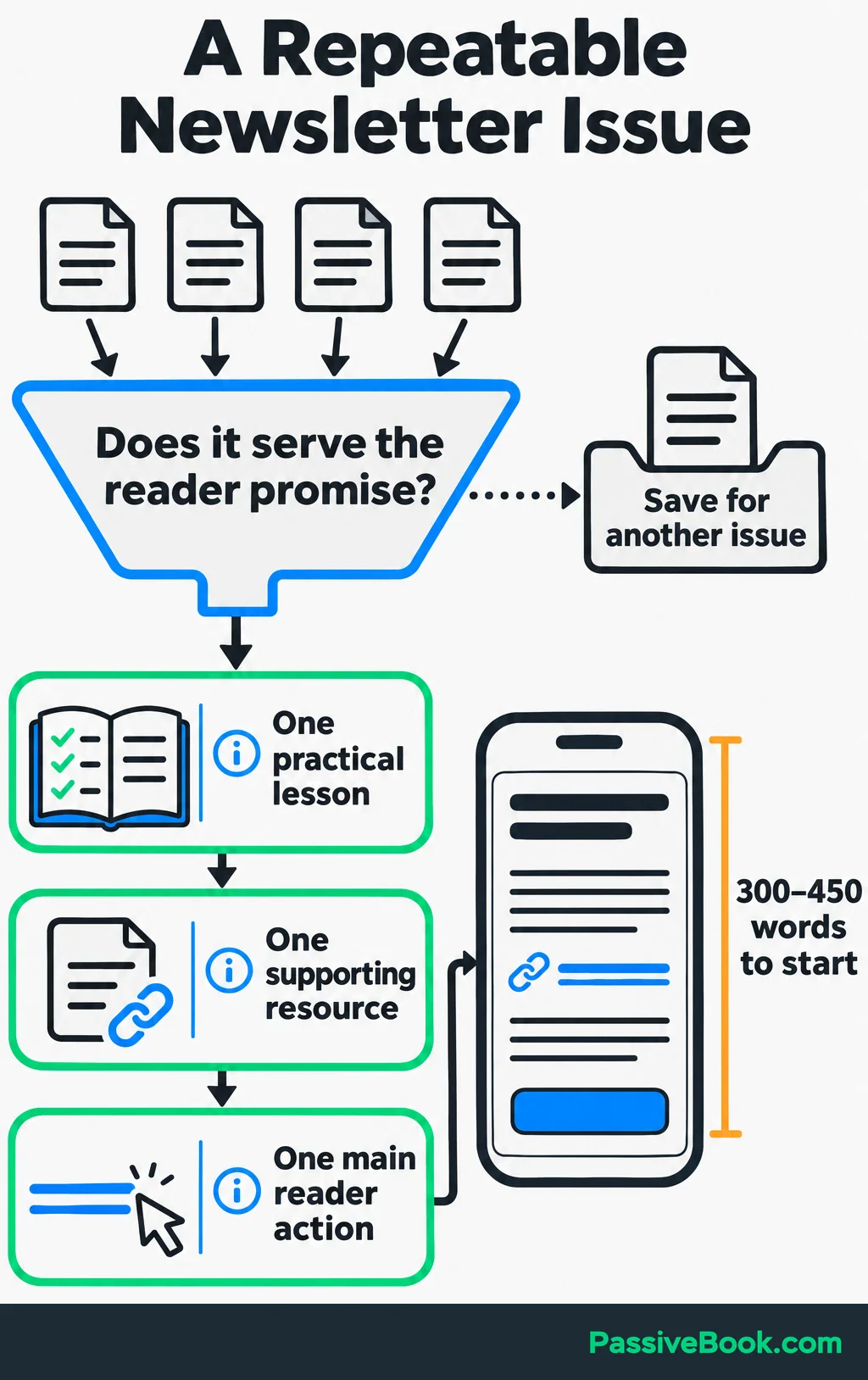
That promise gives you a small, repeatable format: one lesson, one supporting resource, and one relevant next step. An interesting story can stay in your ideas list if it doesn’t serve that promise.
I would begin with roughly 300–450 words and one primary reader action, such as reading a detailed guide. Treat that length as a starting boundary, not a quota.
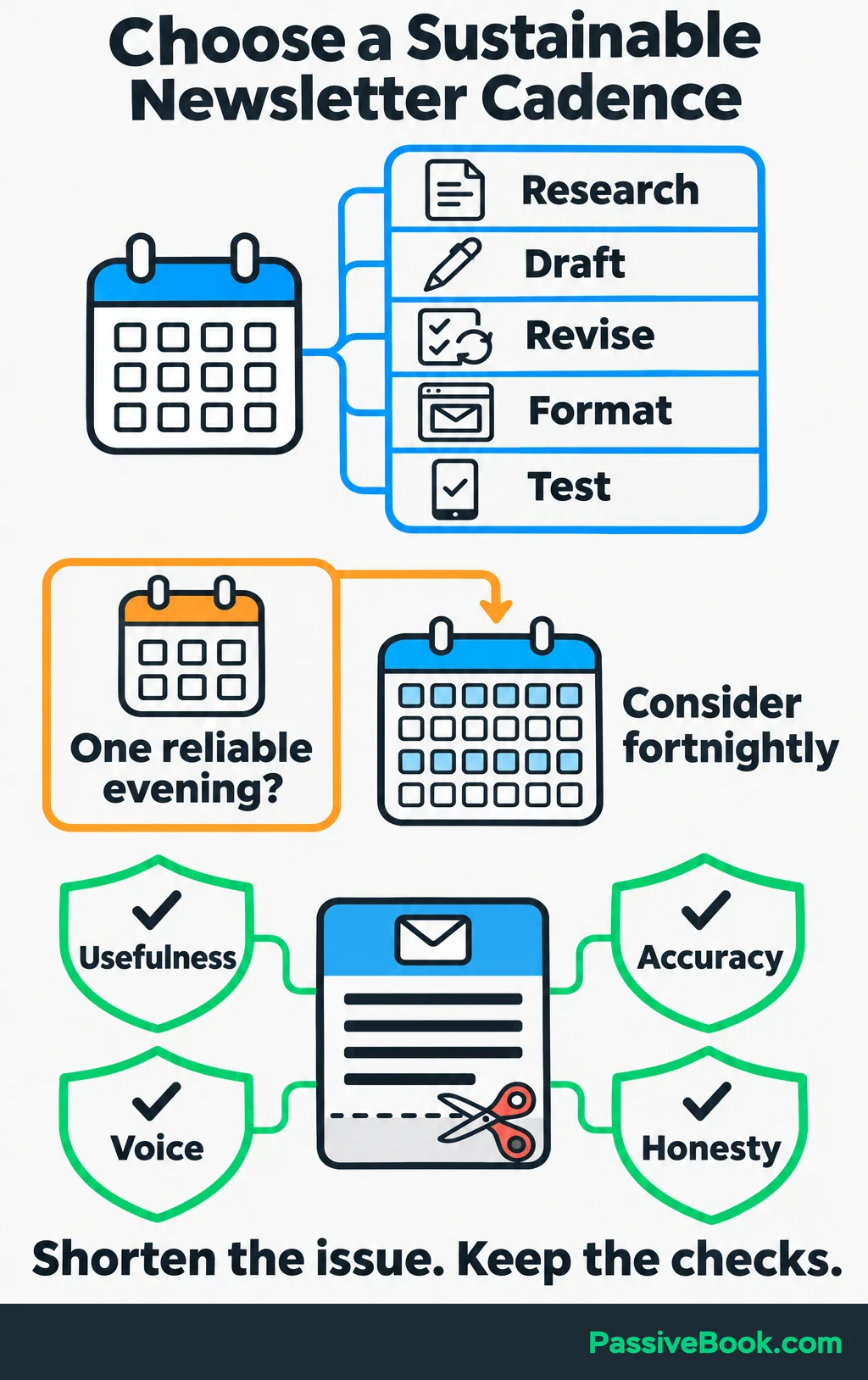
Choose a cadence that includes time for research, revisions, formatting, and testing. If you only have one reliable evening each week, a fortnightly issue may be the better commitment.
I spent six months building a membership site while working a corporate job, then abandoned it because the ongoing content demand was unsustainable. That experience shapes how I choose publishing commitments: count the work required to maintain them, not just the excitement of starting.
Set four minimum standards:
- Usefulness: Readers can understand and apply the lesson.
- Accuracy: Factual claims have sources you can check.
- Voice: The writing sounds consistent from issue to issue.
- Honesty: The subject line promises what the email actually delivers.
When production gets tight, shorten the issue before cutting these checks.
Build Your Production Board and Reusable Templates
Track Each Issue in One Place
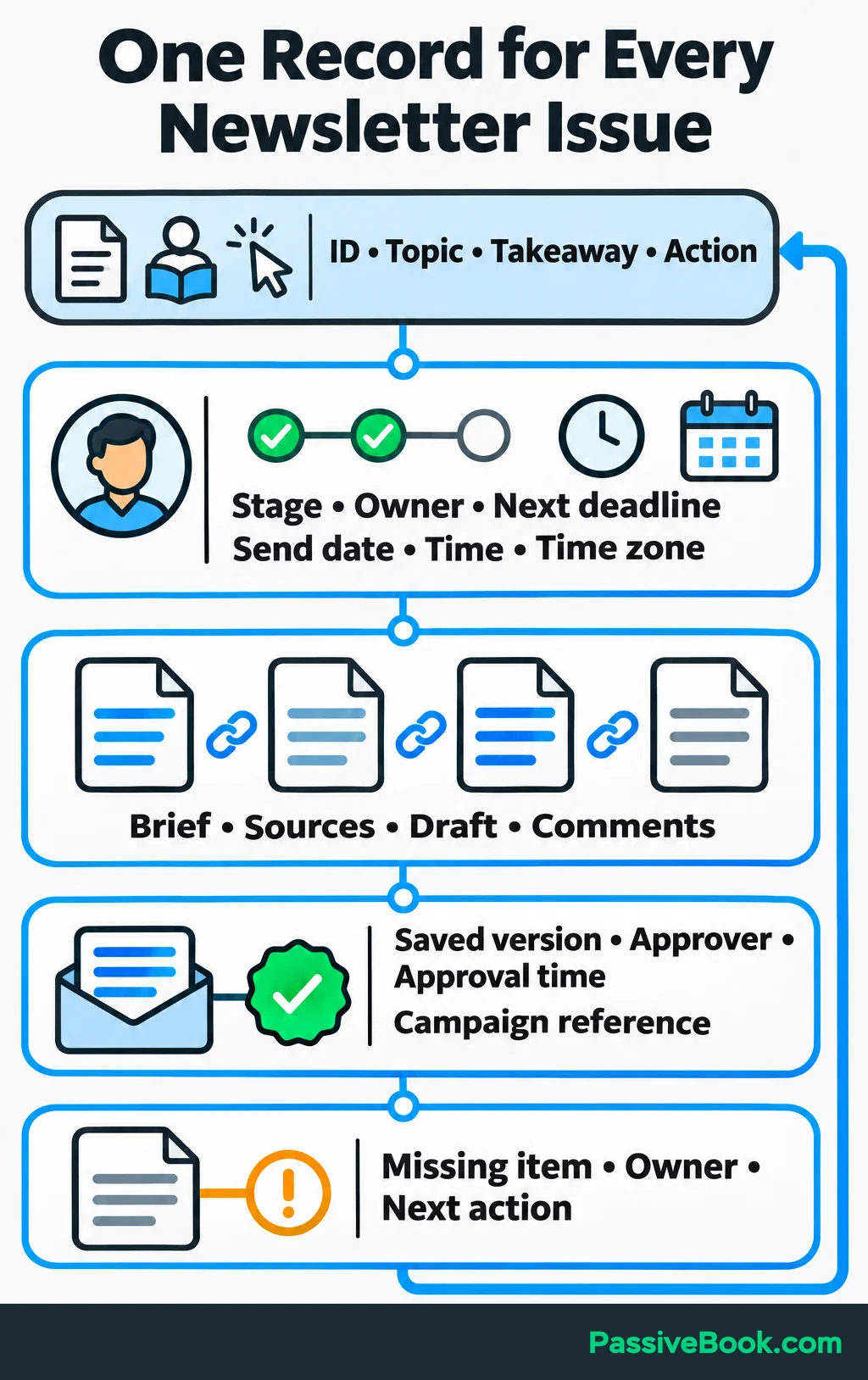
Create one record per issue in a spreadsheet or a planning tool such as Notion. The record should point to everything needed to finish that issue, so you don’t have to reconstruct its history from messages and browser tabs.
Include these fields:
- Issue Details: Issue ID, topic, reader takeaway, and primary call to action.
- Production: Current stage, accountable owner, next deadline, and planned send date, time, and time zone.
- Working Files: Brief, sources, draft, and reviewer comments.
- Publishing Record: Approved version, approver, approval time, and link or ID for the email saved in your sending platform, often called a campaign.
- Blockers: What is missing, who will resolve it, and the next action.
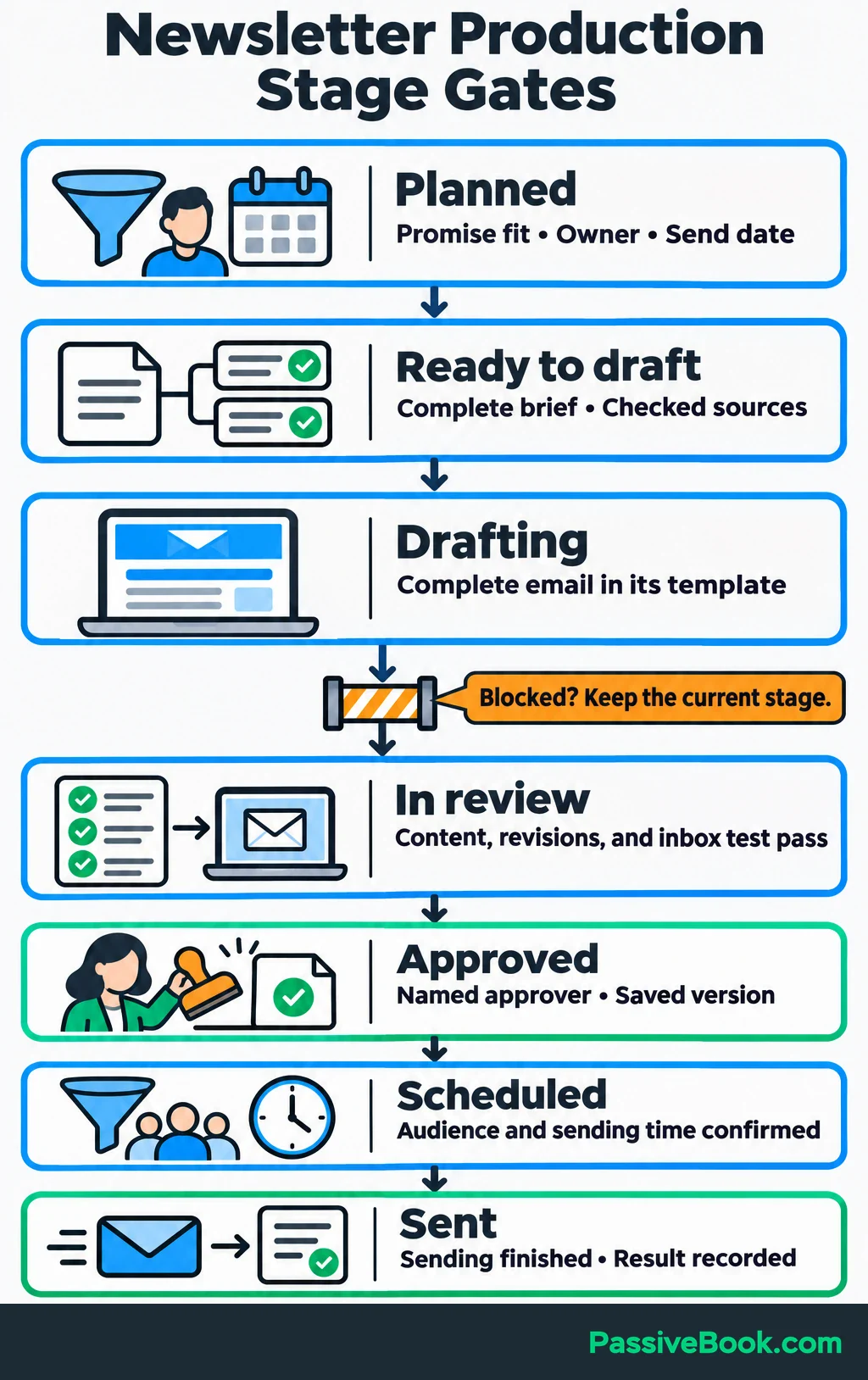
Use stages with clear completion rules:
| Stage | What Must Be True Before Moving Forward |
|---|---|
| Planned | The topic fits the newsletter promise, and an owner and send date are assigned. |
| Ready to draft | The brief is complete, sources have been checked, and questions blocking the lesson are resolved. |
| Drafting | The complete email has been prepared in the reusable template. |
| In review | Content checks, revisions, and the final inbox test have passed. |
| Approved | A named person has approved a specific saved version. |
| Scheduled | The approved campaign has the correct audience and confirmed sending time. |
| Sent | The platform has finished sending, and the result has been recorded. |
Assign one accountable person to each stage. If you work alone, that person is you, but keep drafting, checking, and approving as separate passes. Changing the label without changing how you read the email accomplishes very little.
Work backward from the send date. For a Friday issue, I would complete the brief Tuesday, draft Wednesday, and review and schedule Thursday. Friday then includes a send check rather than a last-minute writing session.
If you’d rather not build the board from scratch, the newsletter workspace in our content calendar gives you a starting structure. Choose a production schedule and add your next issue.
Turn Your Marketing Ideas Into a Publishing Plan
Organize content ideas, set publishing dates, and track what resonates with your audience in one calendar.
Keep blocked issues in their current stage and add the blocker details. “Waiting for review” needs an owner and a deadline.
Create the Issue Brief and Email Template
Keep the stack small: one planning location, one drafting location, and one sending platform. A single tool can cover more than one job.
Use your existing email platform if it supports reusable templates, test emails, scheduling, subscriber exclusions, and reporting. Moving platforms won’t fix an unclear approval process.
For an existing WordPress business, FluentCRM would be my first option to consider. It also needs a configured delivery service, so include that setup and upkeep in the decision. For a simpler hosted setup, I would consider MailerLite.
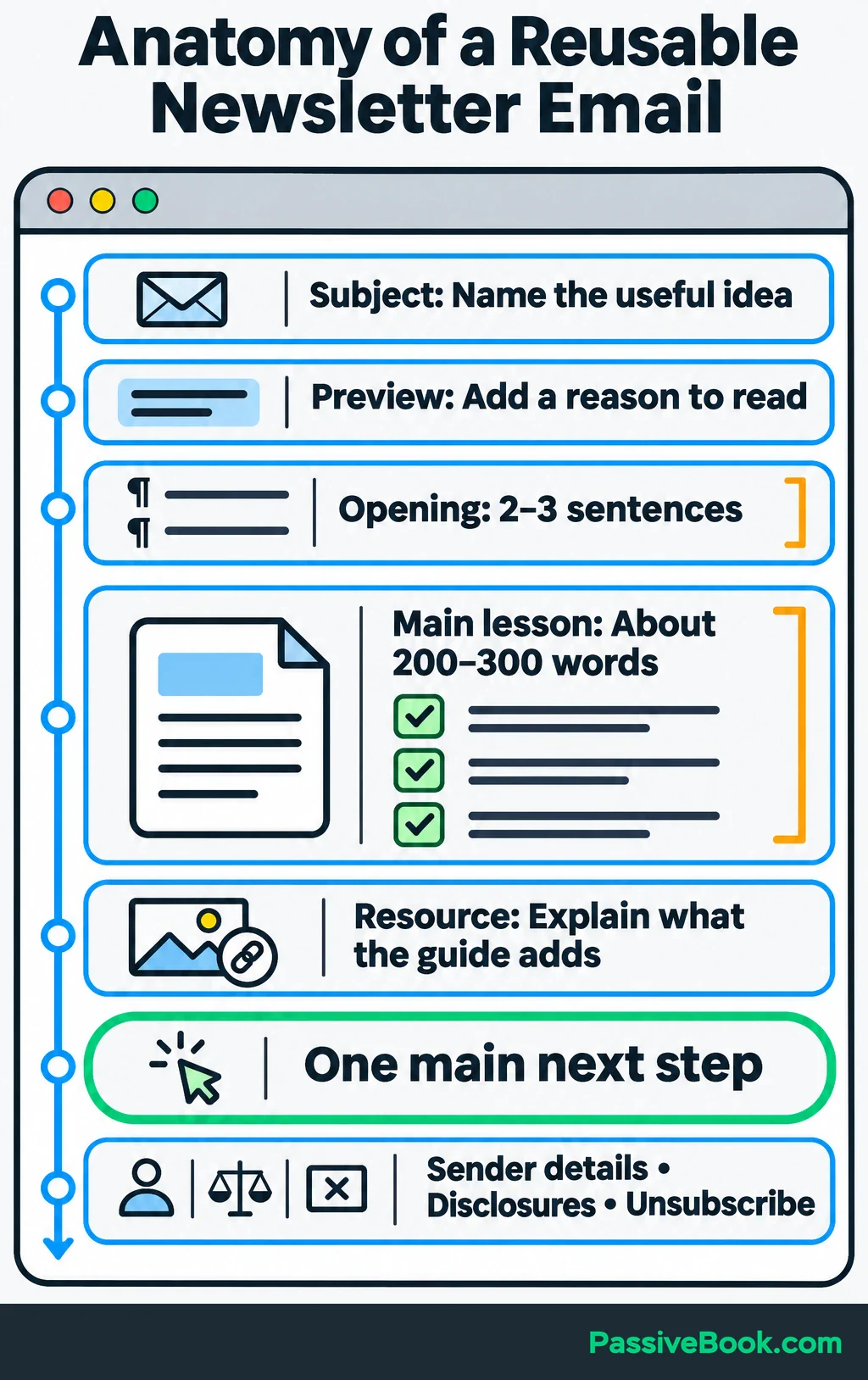
Keep dated newsletter editions separate from subscriber-triggered sequences. As MailerLite explains, a campaign can send Friday’s issue at a scheduled time, while an automation can start a welcome email when someone subscribes.
Create a reusable brief with fields for the reader’s question, main takeaway, sources, content blocks, primary action, owner, and deadlines. The next section shows a completed version.
Then build the email template:
| Block | Purpose and Starting Size |
|---|---|
| Subject line | Name the useful idea in a short, accurate phrase. |
| Preview text | Add a reason to read rather than repeating the subject. |
| Opening | Connect the lesson to a familiar problem in two or three sentences. |
| Main lesson | Give useful, self-contained guidance in roughly 200–300 words. |
| Supporting resource | Explain what the linked guide adds in one or two sentences. |
| Call to action | Ask readers to take the issue’s one primary next step. |
| Footer | Include sender details, required disclosures, and an unsubscribe option. |
Keep a short editorial reference beside it. Record preferred terms, tone, source standards, formatting rules, and one approved issue. A usable example often explains “conversational” better than another page of adjectives.
Collect Sources and Prepare the Issue Brief
Capture ideas in one queue as they arrive. Useful inputs include subscriber questions, existing articles, product updates, and outside resources.
For each item, save the original URL or message, its useful takeaway, and the issue it might support. “Interesting cat article” is a bookmark. “Explains how coat type affects brush choice” is a working note.
Select material against your newsletter promise and available space. Keep unused ideas in the backlog instead of expanding every issue to accommodate them.
Read original sources before drafting factual claims. Save the relevant passage or a clear note beside the claim it supports, including any condition that changes its meaning.
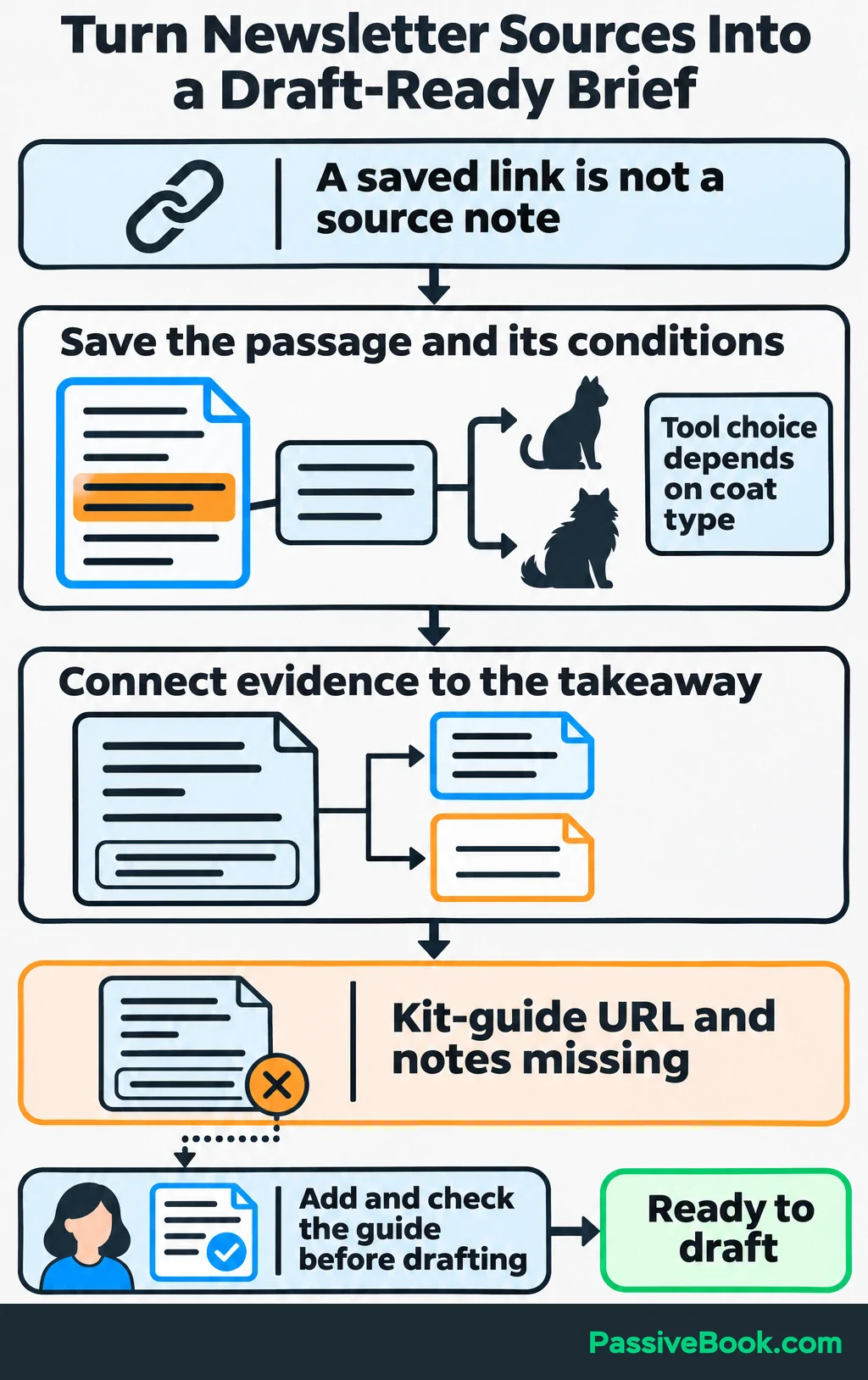
For example, VCA’s grooming guidance distinguishes brush and comb choices by coat type. That supports a lesson about choosing suitable tools, rather than presenting one brush as right for every cat.
Here is a brief for the example issue. The blog and its kit guide are illustrative, so add your own guide and source notes before marking it ready to draft.
| Brief Field | Example Entry |
|---|---|
| Issue ID | CAT-014 |
| Reader question | What belongs in a basic cat-grooming kit? |
| Main takeaway | Build a short checklist around coat-appropriate tools rather than buying a large generic kit. |
| Source notes | VCA recommends different brushes and combs for different coat types and advises gentle use without pulling tangles. Kit-guide URL and notes are not supplied. |
| Content blocks | Short opening, tool-selection lesson, link to the fuller kit guide, closing action. |
| Primary action | Read the full grooming-kit guide. |
| Product connection | The guide shows how to use the printable planner to record supplies and grooming notes. No separate sales pitch in this issue. |
| Scope boundary | Routine supplies only; omit diagnosis, treatment advice, and detailed procedures. |
| Owner and deadlines | Owner: you. Brief Tuesday, draft Wednesday, approval and scheduling Thursday, send Friday at 9 a.m. Asia/Kolkata. |
| Ready-to-draft check | Pending: add and check your kit-guide URL, save supporting notes, and confirm they support the takeaway. |
Resolve questions that block the main takeaway before marking the brief ready. Assign any remaining research to a person with a deadline.
Keep one fallback issue based on previously reviewed material. Check its advice, links, and product references before using it. “Evergreen” does not mean “incapable of breaking.”
Draft the Newsletter From Your Template
Write the main lesson first. Then add the supporting resource and call to action. Finish the opening, subject line, and preview text once you know what the email delivers.
When adapting an existing article, give subscribers a useful answer inside the email. A newsletter that says “I wrote something—click here” leaves all the work to the reader.
For the grooming-kit issue, the lesson could begin:
Choose your brush or comb around your cat’s coat. Your kit checklist should name the tool you need and what it is for, rather than treating every grooming tool as essential.
Then explain what the fuller guide adds. Keep the planner connection inside that guide, where it helps readers apply the lesson.
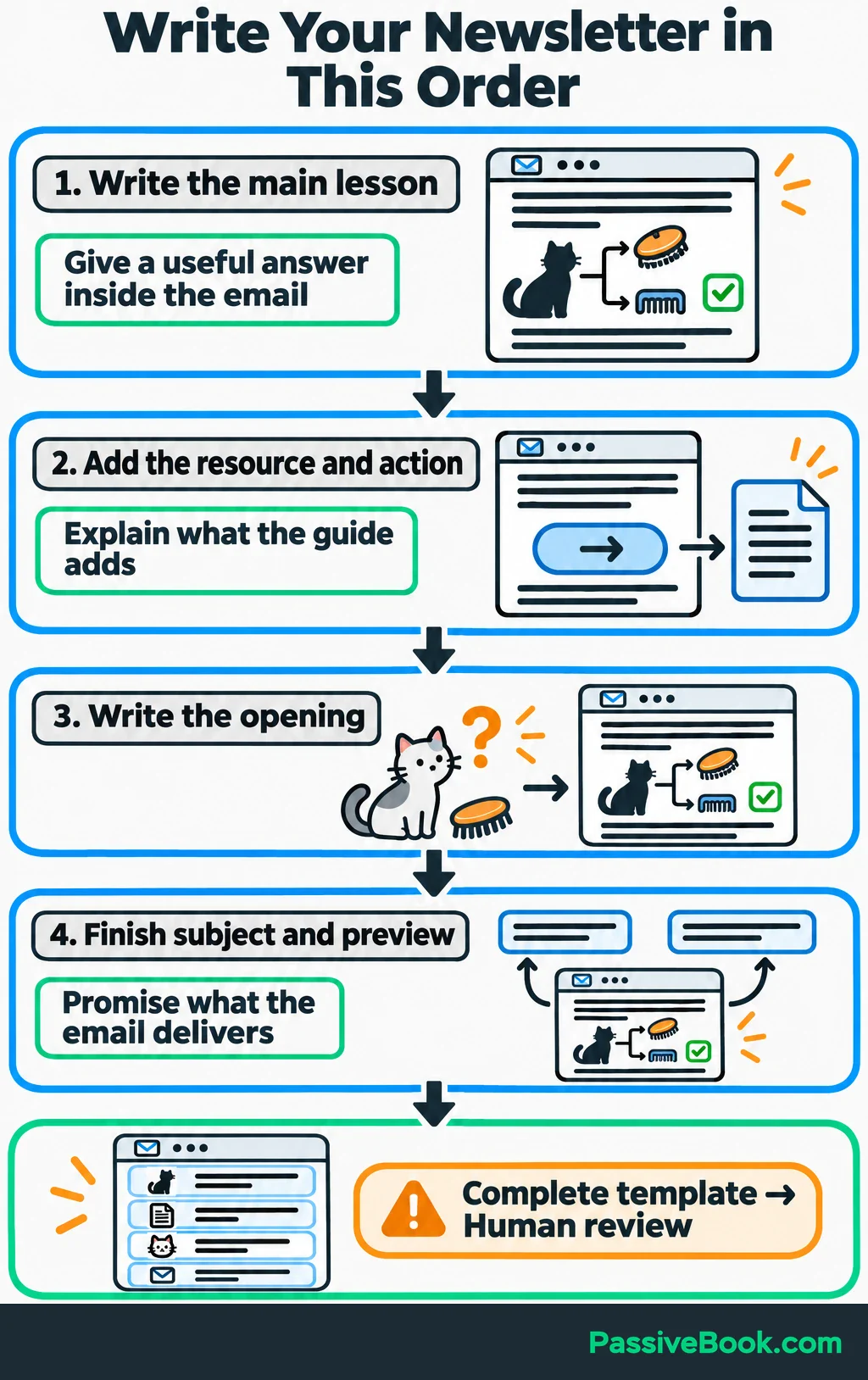
AI is useful for bounded jobs: organizing source notes, shortening a passage, or suggesting subject lines. Supply the brief, relevant excerpts, template, and a voice example. Asking it to “write something helpful about grooming” leaves too many decisions open.
Here is a reusable drafting prompt:
Draft the main lesson for this newsletter issue.

Reader question:
[Paste the reader question]

Main takeaway:
[Paste the approved takeaway]

Source notes and references:
[Paste checked excerpts and their source references]

Template and length:
[Paste the required structure and word limit]

Voice example:
[Paste an approved passage]

Primary reader action:
[Paste the intended action]

Use only the supplied source notes for factual claims.
Preserve conditions and qualifications.
Attach the supplied references to the claims they support.
Do not invent facts, sources, quotations, or product benefits.
Mark unresolved points NEEDS REVIEW.
Return draft copy for human review.
I would use Claude for the longer drafting pass, but the brief and source notes matter more than the model choice.
Place the finished draft inside the email template before review. Keep generated material in draft status until its claims and references have been checked.
If you have an article or checked notes ready, AI Messaging Studio can turn them into a complete email draft. It also gives you three subject-and-preview choices with the copy you’ll review.

Free AI Messaging Studio




Review and Approve the Finished Email
Check the Content
Read once for usefulness and accuracy before polishing sentences. Otherwise, you can spend twenty minutes improving a paragraph that should be deleted.
Use this checklist:
- Brief Match: The issue answers its reader question and delivers the promised takeaway.
- Usable Guidance: Readers can follow the instructions without guessing what a vague phrase means.
- Source Check: Every factual claim matches its recorded source, including claims added during editing.
- Scope Check: Recommendations stay within the issue’s agreed boundaries.
- Clear Writing: The voice is consistent, repetition is removed, and the subject and preview match the content.
- Next Step: The primary action follows naturally from the lesson.
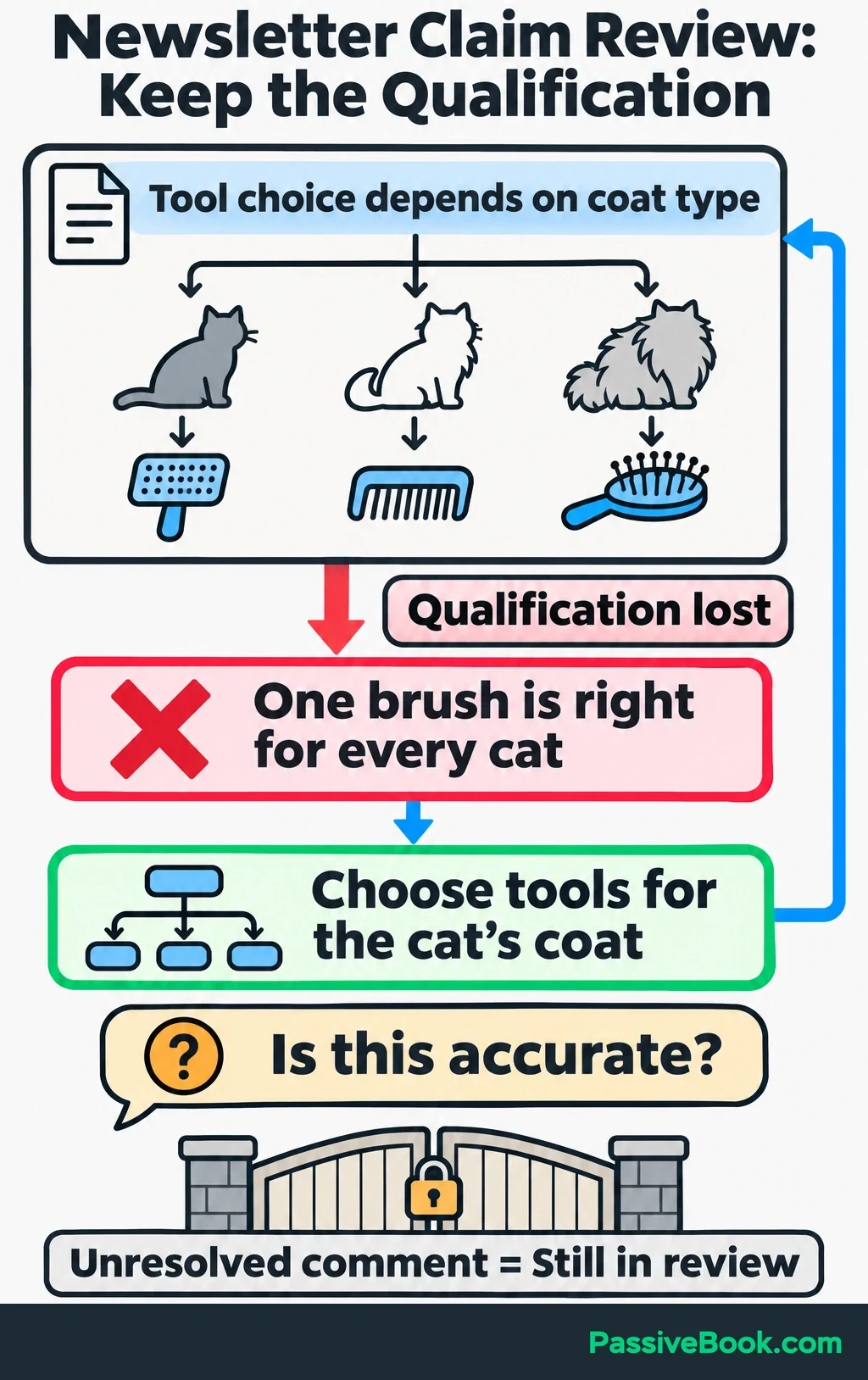
For the cat-care issue, check tool recommendations and safety qualifications against the saved veterinary guidance. If a passage requires clinical judgment, assign it to a qualified veterinary reviewer or remove it from the issue.
Keep comments on the issue record and resolve them before the inbox test. An unresolved “Is this accurate?” comment means the email is still in review.
Test the Email Subscribers Will Receive
In newsletter work for another niche, I once had a draft marked “done” while the email version still contained an earlier link. I had finished the document, but I hadn’t checked the thing subscribers would receive.
That is why I make approval depend on the finished campaign.
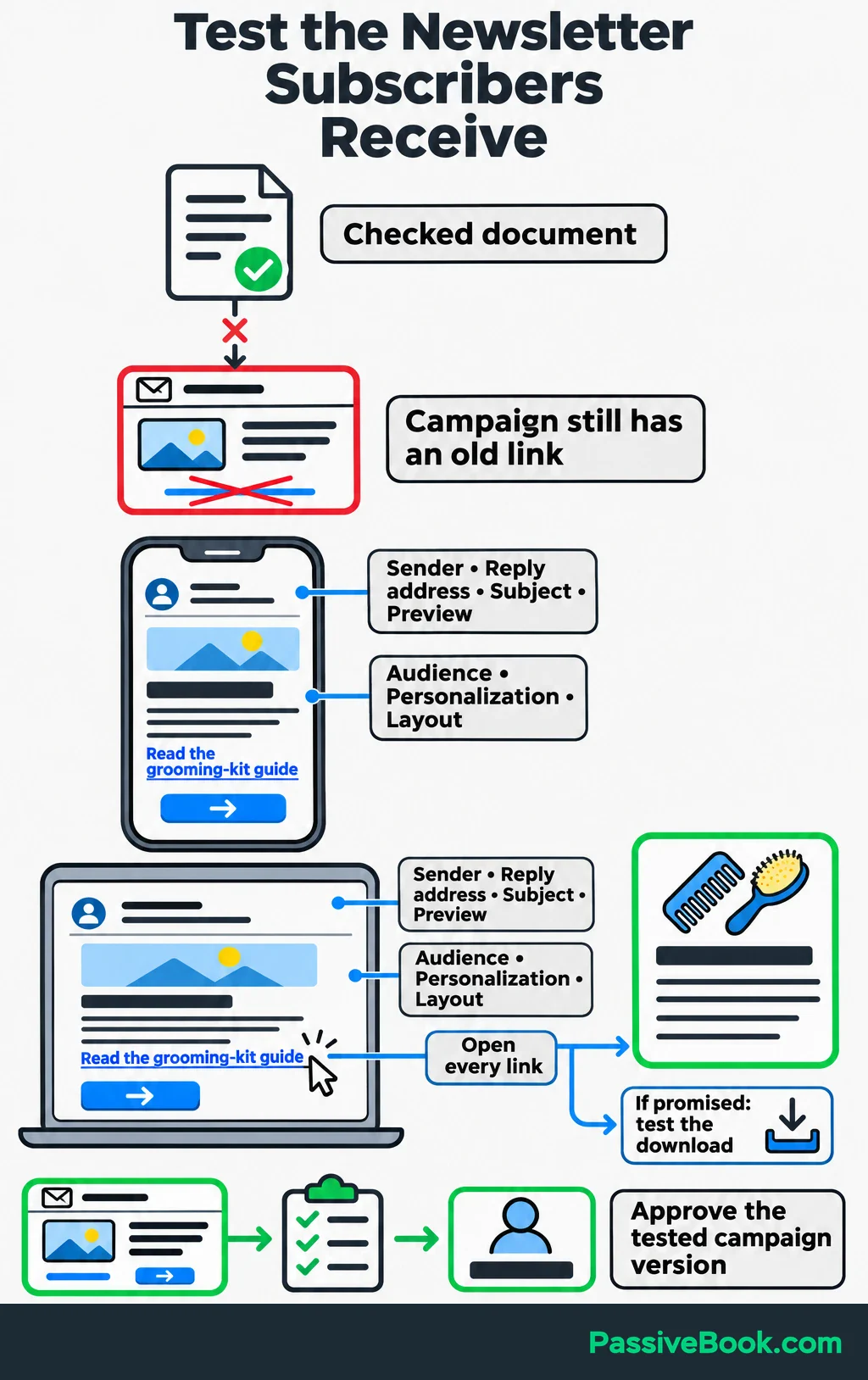
Check the sender name, reply address, subject, preview text, audience selection, and personalization. If a first name is missing, the greeting still needs to make sense.
Send a test email and inspect it on a phone and desktop. Open every link, check images and spacing, and follow the primary action through to its destination. If the guide promises a download, test that download too.
Keep essential guidance in readable text. Use descriptive links such as “Read the grooming-kit guide.” Add alt text—a written description of an image’s meaning—to informative images. For a linked image, describe the link’s destination or action. Give purely decorative images empty alt text (alt=""). W3C’s image guidance explains these distinctions.
Record the campaign reference, approved version, approver, and completed checklist together.
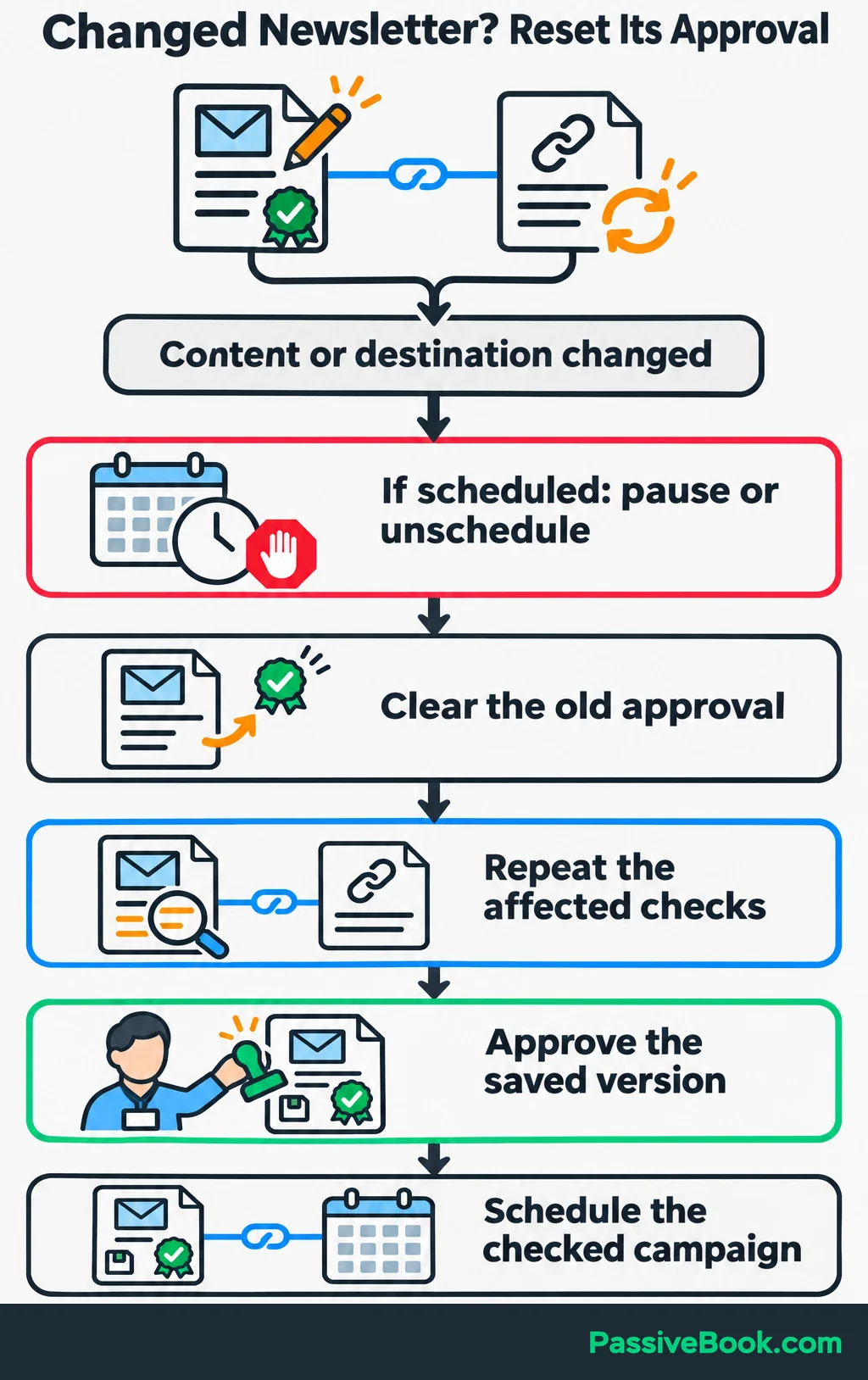
If content or a destination changes after approval, clear approval and repeat the affected checks. If the campaign is already scheduled, pause or unschedule it first so an unchecked revision cannot go out.
Schedule the Approved Issue and Confirm the Send
Before the first live issue, complete your provider’s sending-domain authentication checks. These checks help receiving services verify that your platform is authorized to send for your domain.
Google recommends SPF, DKIM, and DMARC authentication for sending domains, while its minimum requirements differ for ordinary and bulk senders. Follow your provider’s setup instructions and confirm that authentication passes. Google’s sender guidelines explain those requirements.
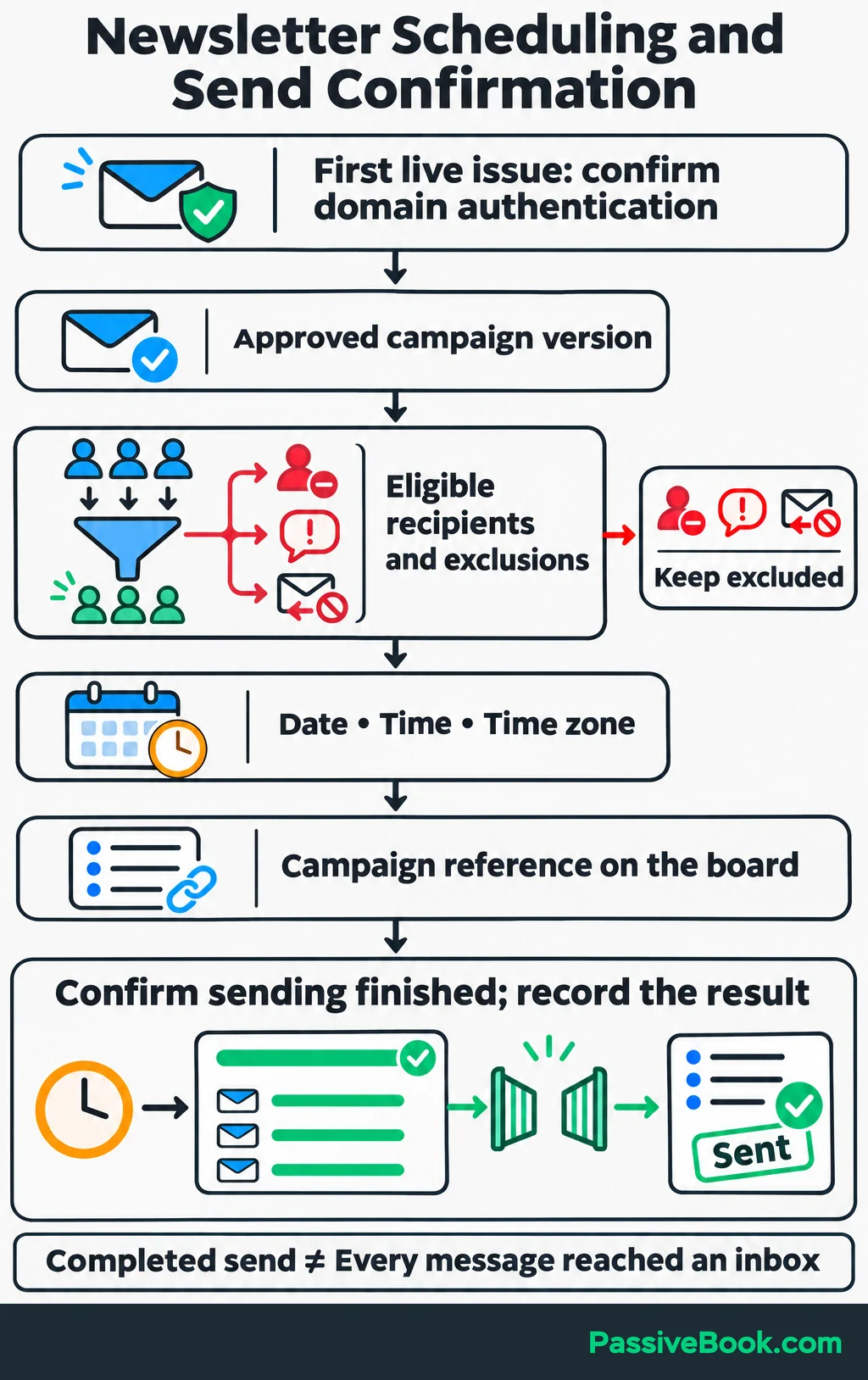
For each issue, select eligible subscribers and keep unsubscribed addresses, complaints, and suppressed bounced addresses excluded. Review the selection again if you duplicate an older campaign.
Check the permission rules that apply to your list and the required footer information. For U.S. commercial email, requirements include accurate sender information, a nondeceptive subject, advertising identification as applicable, a valid postal address, and a clear opt-out process. The FTC’s CAN-SPAM guide covers those obligations.
Before scheduling, confirm:
- Campaign: This is the approved email version.
- Recipients: The intended subscribers and exclusions are selected.
- Timing: Date, time, and time zone match the issue record.
- Record: The board contains the final campaign link or reference.
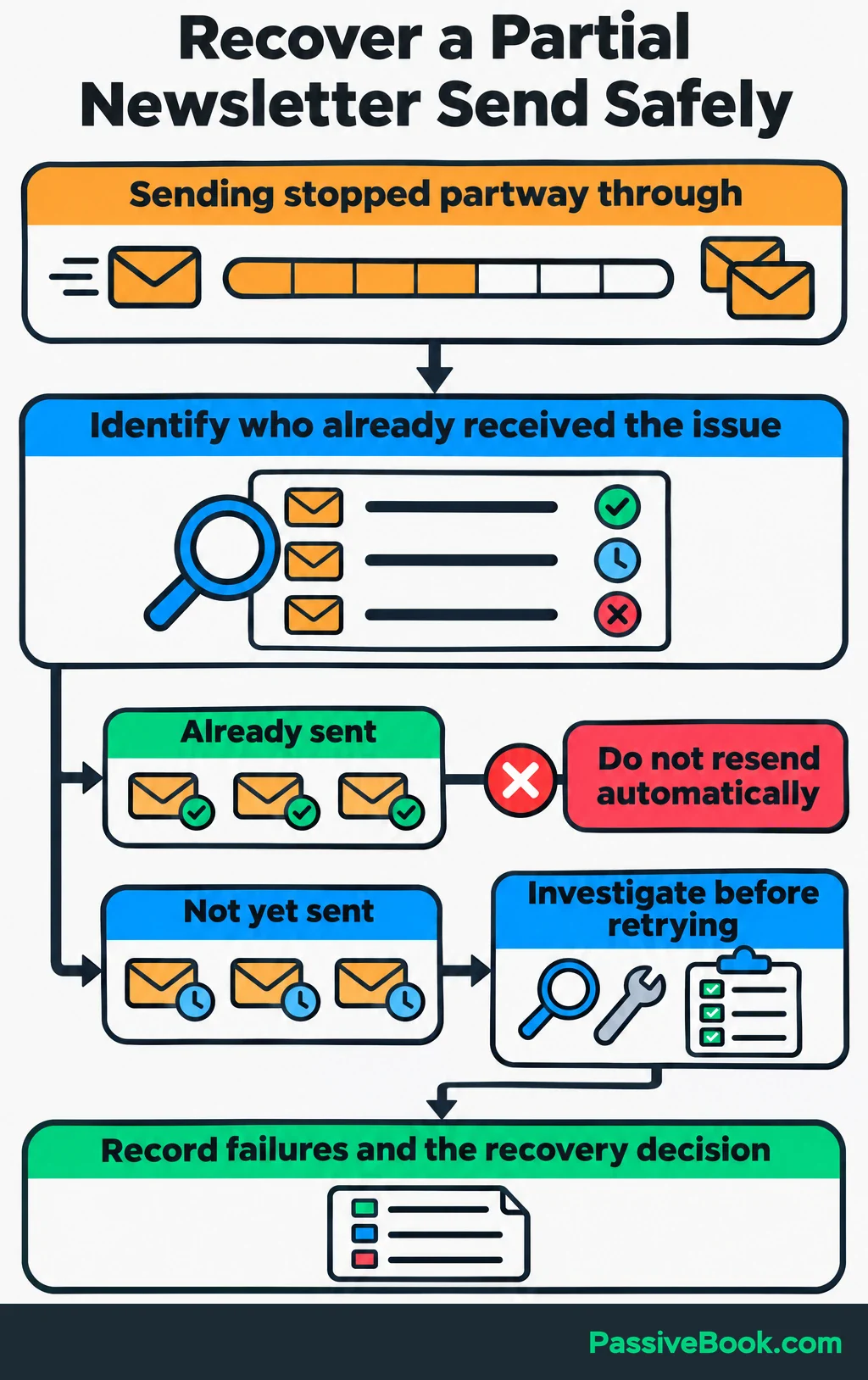
After the scheduled time, check that the platform has finished sending before moving the issue to “Sent.” Review failures separately. A completed send does not prove that every message reached an inbox.
If sending stalls or stops partway through, investigate before retrying. Identify recipients already sent the issue so they do not receive another copy.
Set a missed-deadline rule in advance: use the checked fallback issue or deliberately reschedule. Record the decision and new deadline. A publishing commitment should not force you to send advice you haven’t checked.
Automate Recurring Work Around Human Approval
Choose the First Task to Automate
Complete one issue manually and note which tasks repeat with clear inputs and outputs. Start with a reminder, record creation, source capture, or draft preparation.
Keep topic selection, factual review, and final approval assigned to a person. Scheduled sending can then carry out that approved decision.
I use n8n to connect apps and automate tasks across my broader work, but I would start a newsletter workflow with the tools’ built-in features. A deadline reminder does not deserve a small engineering department.
When a recurring handoff between tools becomes worth automating, I would consider Make for a hosted visual setup or n8n for more control. n8n can be self-hosted, which also means taking responsibility for its hosting and upkeep.
Compare subscription costs, setup time, maintenance, and troubleshooting with the work removed. If moving a link takes a minute and the integration keeps breaking, keep moving the link until there is a better reason to automate.
Define a Concrete Automation Recipe
Describe each automation before building it. Specify its trigger, required inputs, conditions, action, output location, and success check.
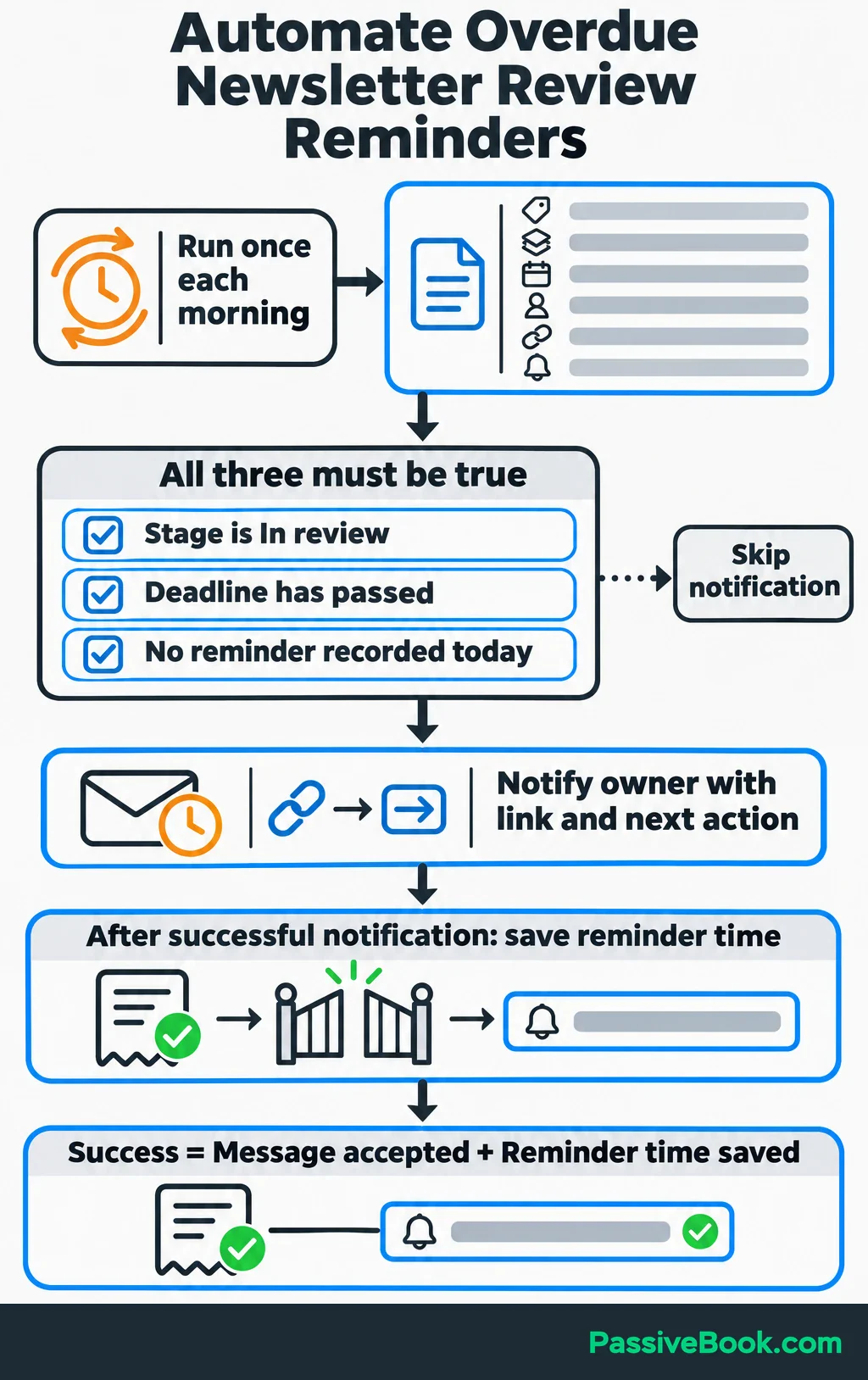
Here is a first recipe for overdue reviews:
| Recipe Part | What It Does |
|---|---|
| Trigger | Runs once each morning. |
| Required inputs | Issue ID, stage, review deadline, owner, issue link, and last reminder time. |
| Conditions | The issue is “In review,” its deadline has passed, and no reminder has been recorded that day. |
| Action | Notify the owner with the issue link, missed deadline, and requested next action. |
| Output location | Record the reminder time on the issue record after successful notification. |
| Success check | The notification service accepts the message and the issue record shows the reminder time. |
For draft preparation, use the same structure:
- A brief marked “Ready to draft” enters the queue.
- The workflow checks for the takeaway, source notes, template, owner, and output location.
- Missing inputs stop the run. The issue gets a blocker reason, and its owner gets a notification.
- With complete inputs, the workflow marks the issue “Drafting” and sends the brief, checked source notes, template, and prompt to your AI tool. It saves the generated text under the issue ID.
- It saves the draft link and confirms the file exists. You complete the email in its template before moving the issue to “In review.”
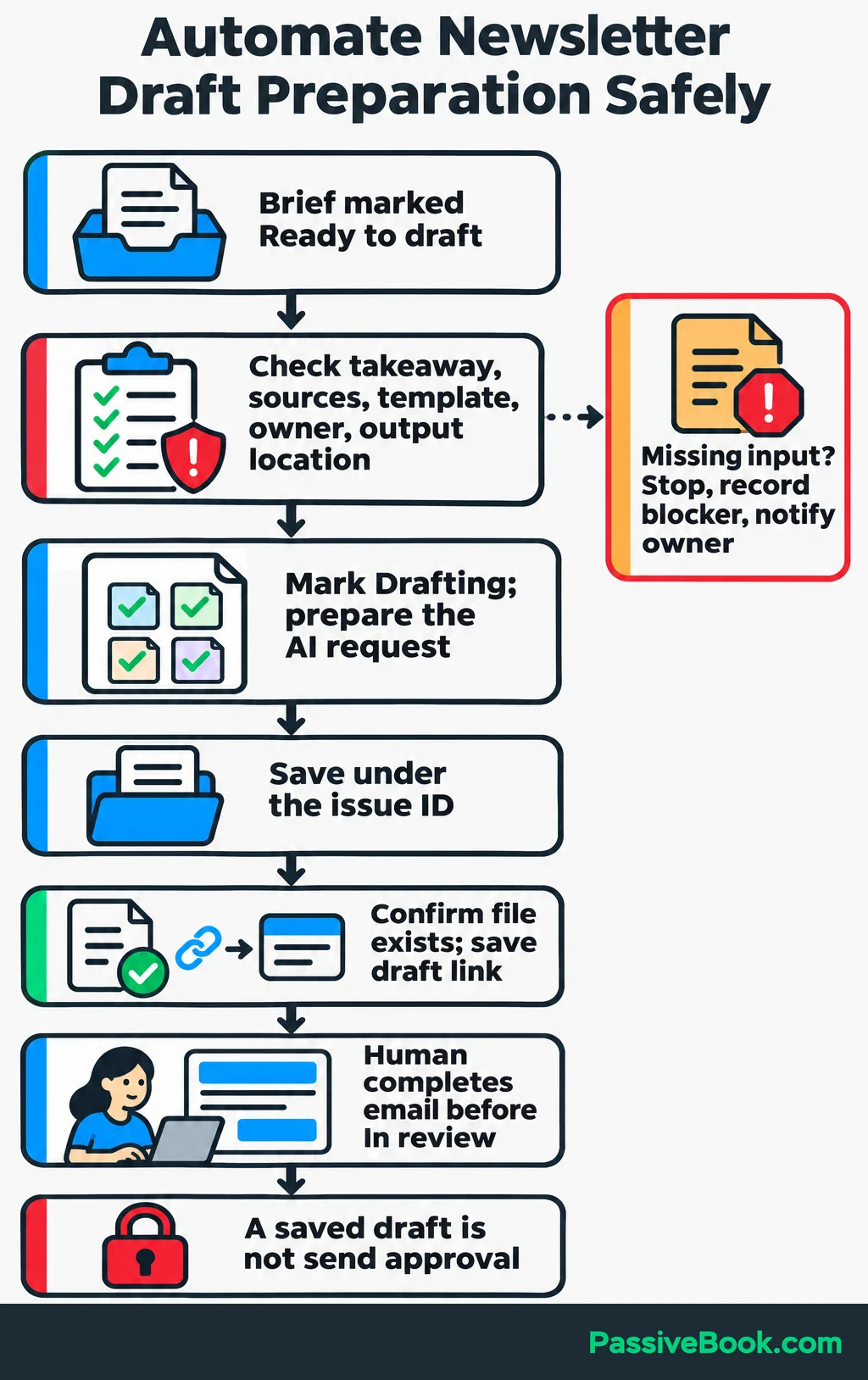
These are workflow recipes to implement with your chosen tools. Check that the required actions are available before building the connection.
Keep draft preparation separate from send authorization. Producing a file should never count as approving it.
Test Failures and Keep a Manual Fallback
Use a dummy issue before connecting an automation to live production.
| Test | Expected Result |
|---|---|
| Complete brief | One draft is saved and linked to the correct issue. |
| Missing source notes | No draft is generated; the blocker and owner notification are recorded. |
| Duplicate trigger | The existing draft is reused rather than creating a second one. |
| Failed connection | The issue stays incomplete and the owner receives a recovery alert. |
| Edit after approval | Approval is cleared and the affected checks reopen before scheduling. |
Store issue IDs, output references, and completion status. Check them before creating new work, and allow only one processing run per issue at a time.
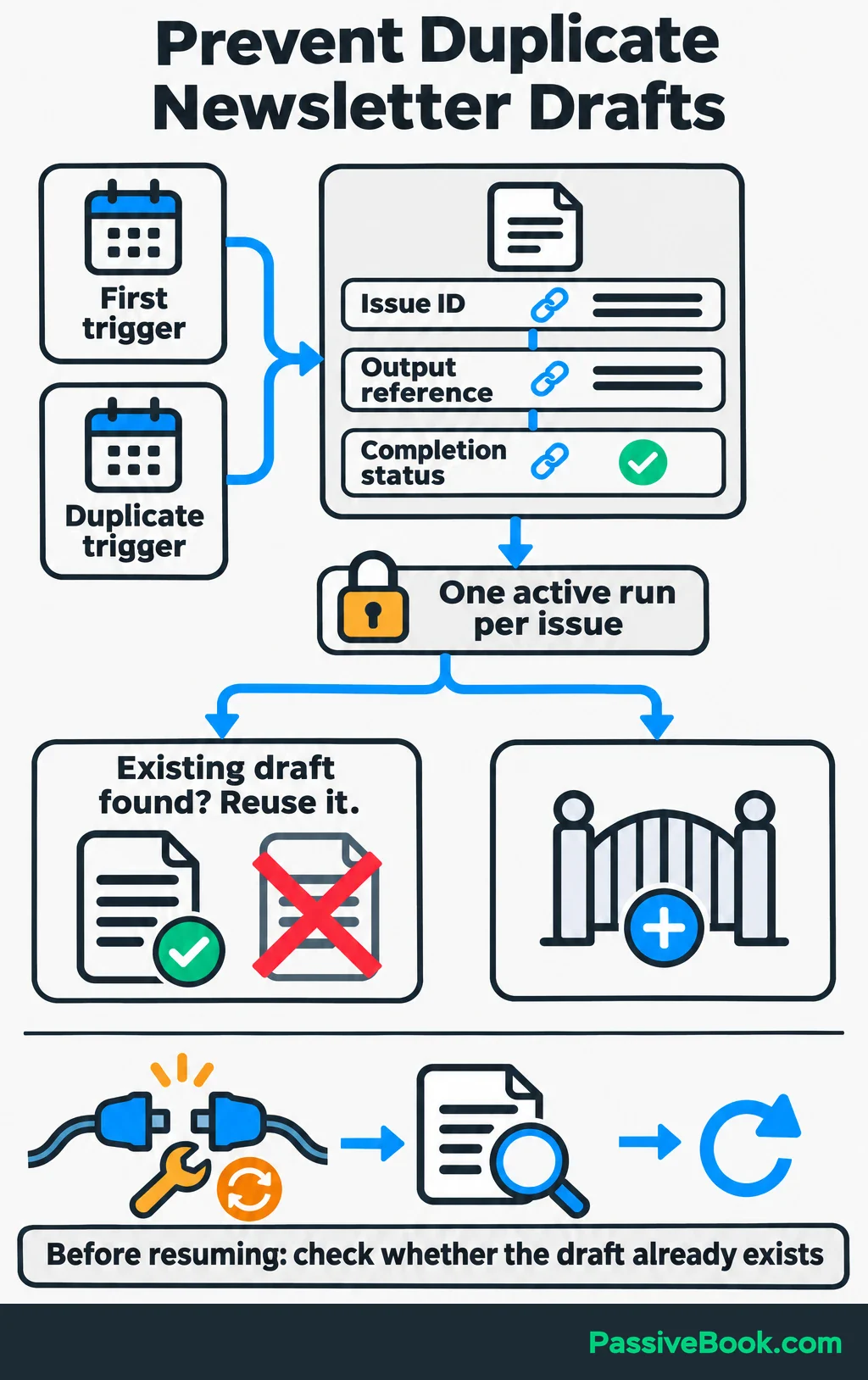
Assign each failure an owner and recovery action. For example, a failed document connection might require reconnecting access, checking whether the draft already exists, and then resuming the incomplete step.
n8n supports error workflows that can notify an owner when an execution fails. Keep a deadline check independent of those alerts, because a workflow that never starts can still leave an issue overdue.
Retain your manual checklist, template, sources, and approved assets. You should be able to finish the newsletter while a connection is being repaired.
Improve the Workflow After Each Issue
Record a few operational facts while the work is fresh:
- Time: Hands-on minutes spent researching, drafting, reviewing, formatting, and troubleshooting.
- Delays: Missed deadlines and their causes.
- Rework: Revision rounds and repeated corrections.
- Quality: Errors found after sending.
- Automation: Failed runs, duplicate outputs, and recovery work.
Compare issues of similar scope. Include review and maintenance when assessing time saved.
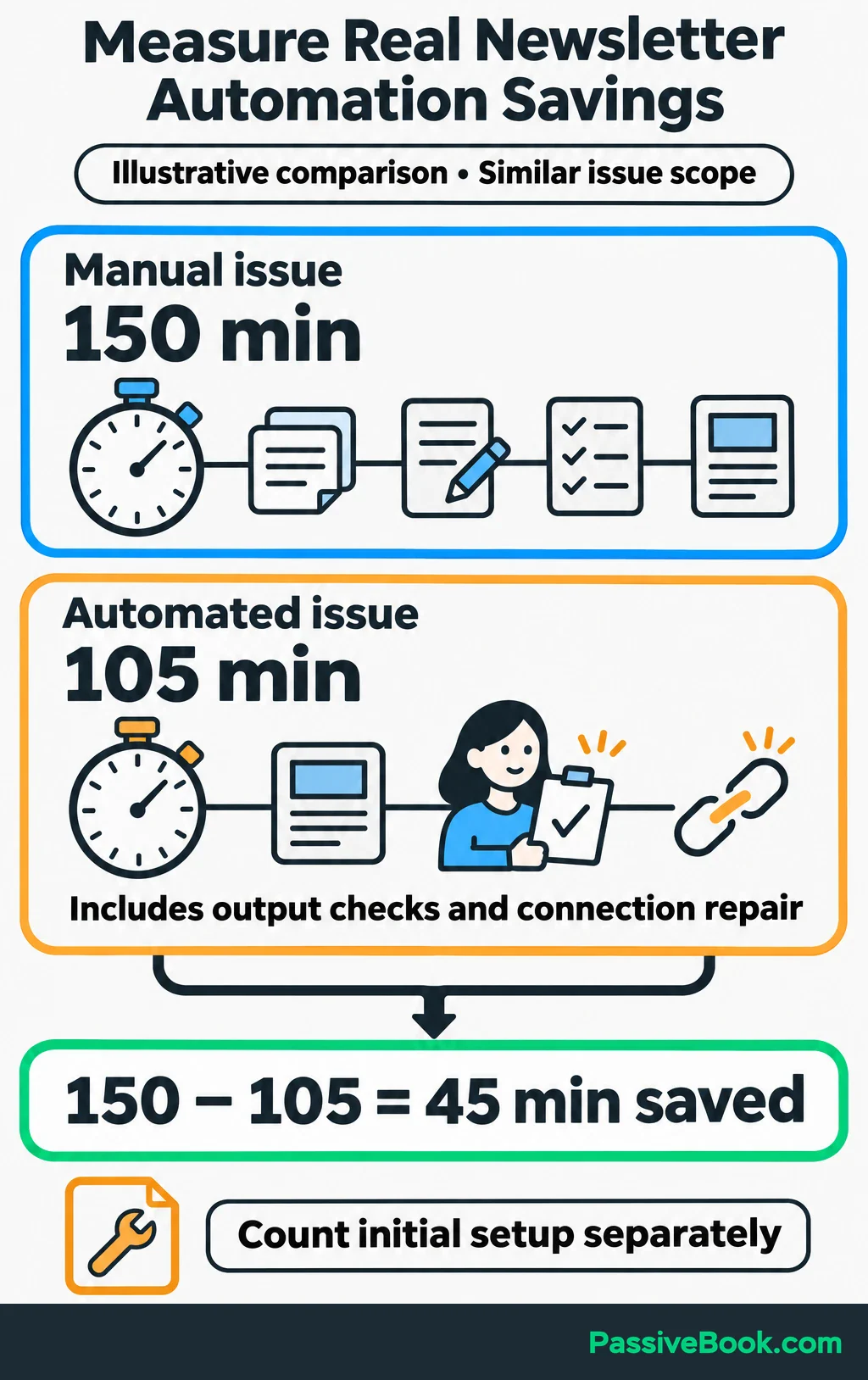
For illustration, suppose a manual issue took 150 minutes of hands-on work. A comparable automated issue took 105 minutes, including checking its output and repairing a connection. The saving is 45 minutes. Initial setup still needs to be counted separately.
Track the primary reader action too. For the grooming-kit issue, review visits to the full guide, with replies and planner purchases as supporting outcomes. Watch unsubscribes, bounces, and complaints alongside them.
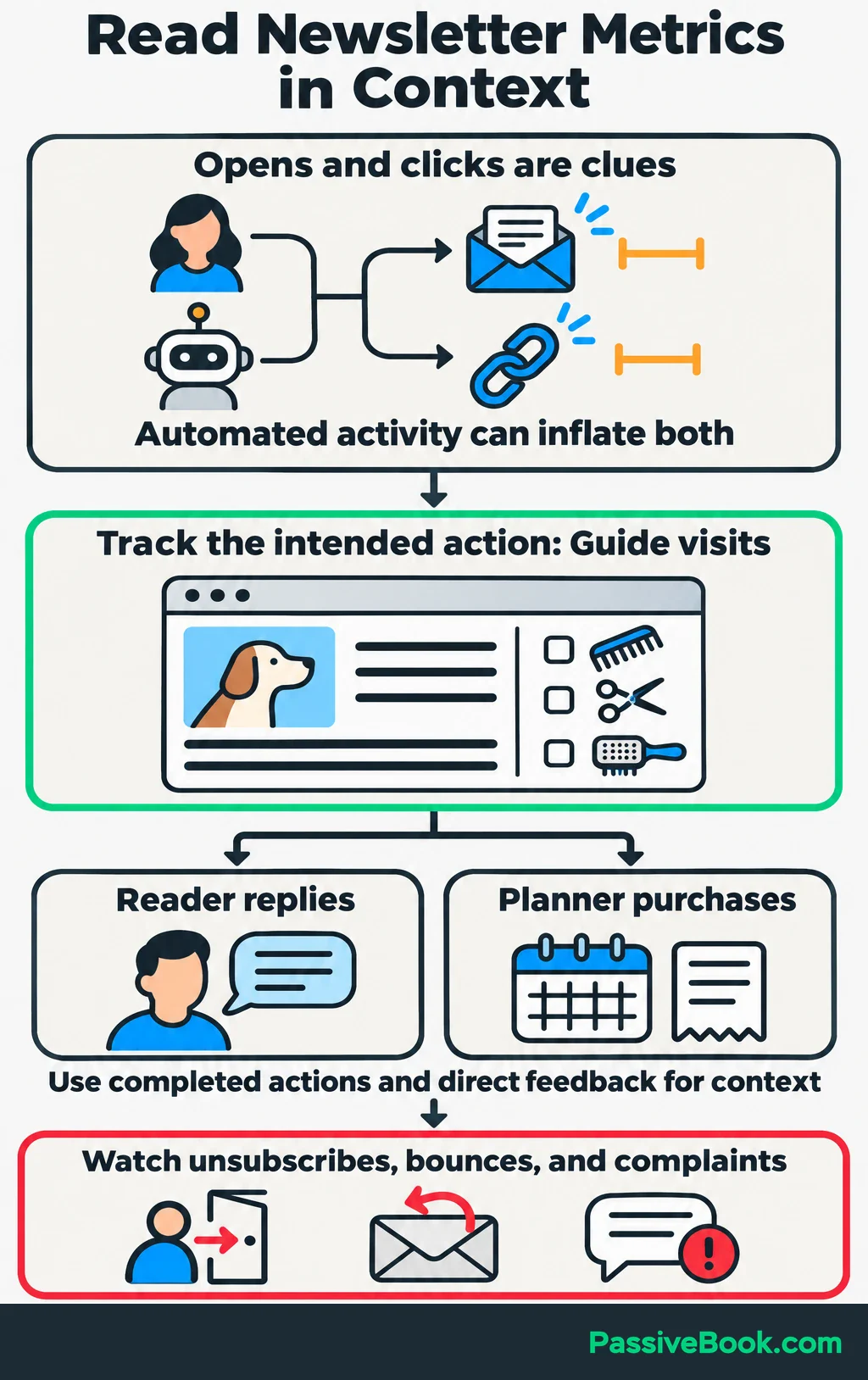
Treat opens and clicks as clues rather than proof of reader action. Automated systems can inflate both, as Mailchimp explains in its guidance on bot activity. Use completed actions and direct feedback to add context.
Fix the largest recurring source of delay or rework first. If every review uncovers missing qualifications, improve the source notes and brief. If links keep breaking, strengthen the destination check.
Keep the board, templates, editorial reference, approval checklist, and recovery instructions together. Each issue should leave the next one easier to produce.
What Next?
Create one issue record and write its reader question, takeaway, primary action, owner, and send deadline. Run that issue through the full checklist before automating one repeated task.
Use the social buttons to share this guide when your next publishing discussion needs a concrete process to work from.
Which part of producing your newsletter repeatedly consumes more time than it should? Share it in the comments, and bring any other workflow questions with it.
Share this post with your friends & followers:

