You want a small tool that calculates a quote, but getting from that idea to a program means choosing files, writing code and figuring out why it broke. An AI coding editor can help with those jobs, yet a confident answer still leaves you wondering whether the result is right.
That uncertainty can eat the evening you hoped to save, especially when you cannot tell whether the problem is in your instructions or the code. This walkthrough follows a local quote calculator through Cursor, showing what to expect from the agent and how to judge whether its output matches your requirements.
Set up Cursor and Your Project
Cursor’s Agent can read your project, generate and edit files, run commands and write tests. You describe the task in plain words, and it works across the files needed to complete it. Cursor’s Agent overview
You do not need advanced programming skills to start. You do need to compare what the program does with what you asked for.
Start With Free Access
Install the Cursor desktop editor, sign in and open a new folder named cat-sitting-quotes.
In the editor, find these five areas:
- File Explorer: Lists your project’s files and folders.
- Editor: Shows the file you are reading or changing.
- Agent Panel: Holds your prompts and Cursor’s responses.
- Terminal: Runs commands, including your Python program.
- Source Control: Shows changes tracked by Git.
I would start with Free access. A subscription should solve a limit you have actually hit.
| Plan | Monthly Price | Model Access |
|---|---|---|
| Free | $0 | Limited Agent and Chat requests |
| Plus | $8 | Cursor’s own models only |
| Premium | $30 | Adds third-party models, billed separately by usage |
These prices exclude applicable taxes and fees. Check the current pricing page before subscribing.
Upgrade when a usage limit or model restriction repeatedly interrupts useful work. If you enable separately billed usage, set a monthly additional usage cap and include those charges in your budget. Cursor documents those controls under top-ups and spending caps.
Confirm Python and Git Work
Install Python 3 and Git from their official websites if they are missing.
They have different jobs:
- Cursor: Helps you write and edit the files.
- Python: Runs the calculator.
- Git: Records versions you can compare or recover later.
Open Cursor’s terminal and run each command separately:
python --versiongit --versionThe first command should report Python 3. If python is not recognized, try:
python3 --versionOn Windows, you can also try:
py --versionUse whichever command reports Python 3 consistently. The examples below use python, so substitute python3 or py when needed.
If you just installed either tool, restart Cursor before checking again. Get these checks working before asking Agent to build anything.
This project uses Python’s standard library—the tools included with Python—so you do not need extra packages.
Define What the Calculator Should Do
Write the rules before generating code. Otherwise, Cursor has to guess what “a quote calculator” means, and its guesses become your debugging work.
We will build a calculator for a neighborhood cat-sitting service that runs in the terminal. The rates are examples, and the outputs below are expected results to check against your own build.
Create README.md in your project folder. A README is a plain text file that explains the project. Paste in these requirements:
Project: Local cat-sitting quote calculator

Build a Python command-line program using only the standard library.

Inputs:
- Visit duration: 30 or 60 minutes.
- Visit count: a positive whole number.
- Trim surrounding spaces before validating input.

Illustrative USD rates:
- 30-minute visit: 1500 cents.
- 60-minute visit: 2500 cents.

Calculation:
- Total in cents = rate per visit multiplied by visit count.
- Keep money as integer cents.
- Display the total in dollars with two decimal places.

Invalid input:
- Reject unsupported durations.
- Reject zero, negative, fractional, blank or nonnumeric visit counts.
- Do not round or truncate fractional counts into valid counts.
- Show a clear validation message and no quote.
- Expected input mistakes must not show a Python traceback.

Boundaries:
- No taxes, discounts, customer records, payments or external services.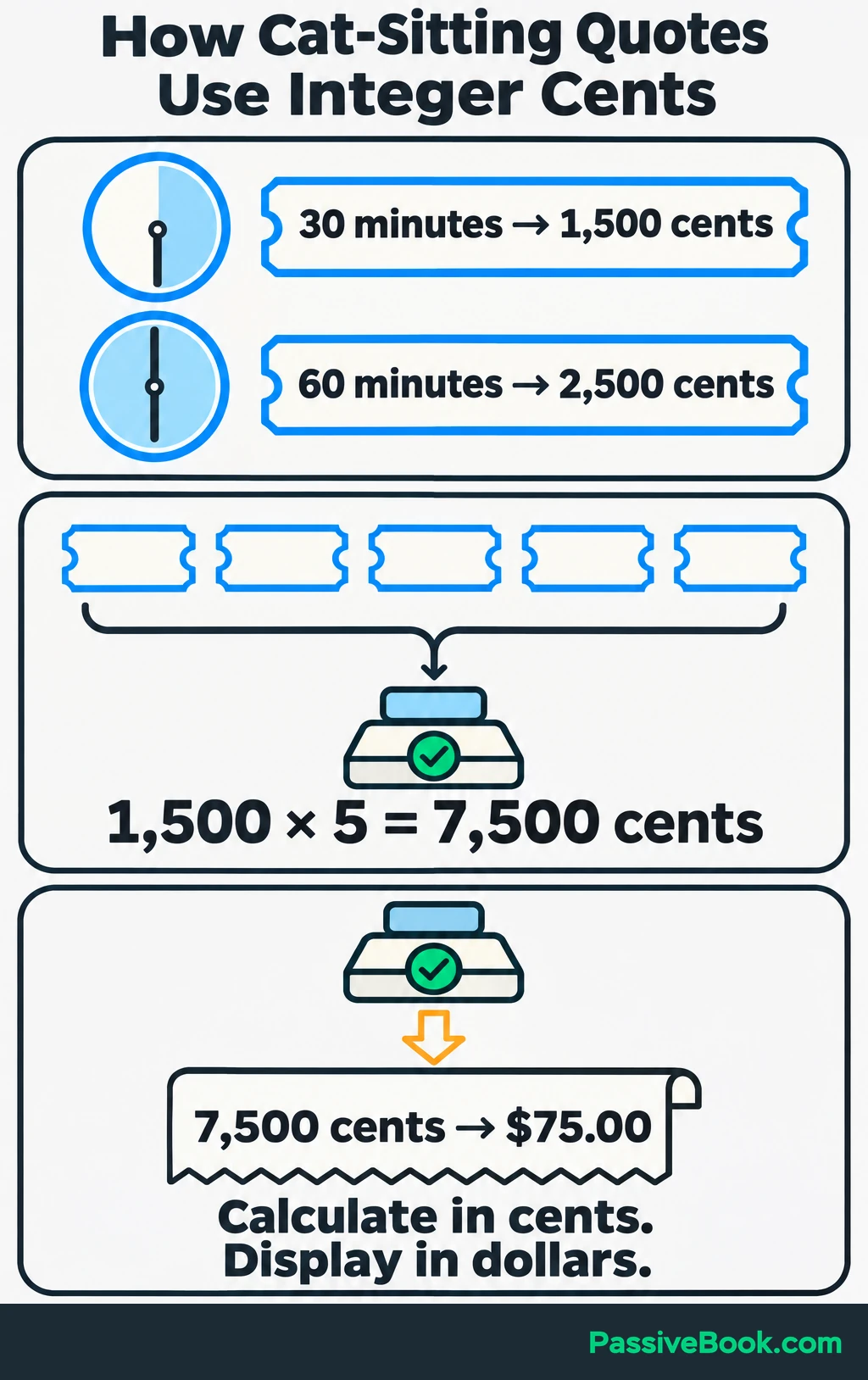
Keeping money in cents makes the rule easy to inspect. For five 30-minute visits, you charge the rate for one visit five times:
1,500 cents × 5 visits = 7,500 cents = $75.00That is your first acceptance check: an input and the result the program must produce.
If you want to build something other than this calculator, the AI Coding Task Assistant can draft the requirements and expected results for your own idea. That gives you something specific to ask Cursor to build and compare its work against.
Free AI Coding Task Assistant




Now save the requirements with Git. Run these commands one at a time:
git initgit add README.mdgit commit -m "Define quote calculator"If Git requests an author identity, configure user.name and user.email with your own details, then repeat the commit.
This creates a local checkpoint. You do not need GitHub or an online repository.
Generate the First Version With Cursor Agent
Give Cursor Context and a Clear Prompt
When learning how to use Cursor AI for coding, focus on what you give the agent: the desired result, relevant files, constraints and checks.
Choose the mode that fits the job:
| Mode | Use It For |
|---|---|
| Ask | Understanding code without editing files |
| Plan | Reviewing an approach before implementation |
| Agent | Creating files, changing code and running commands |
Cursor also offers Debug mode for problems that need evidence from a running program.
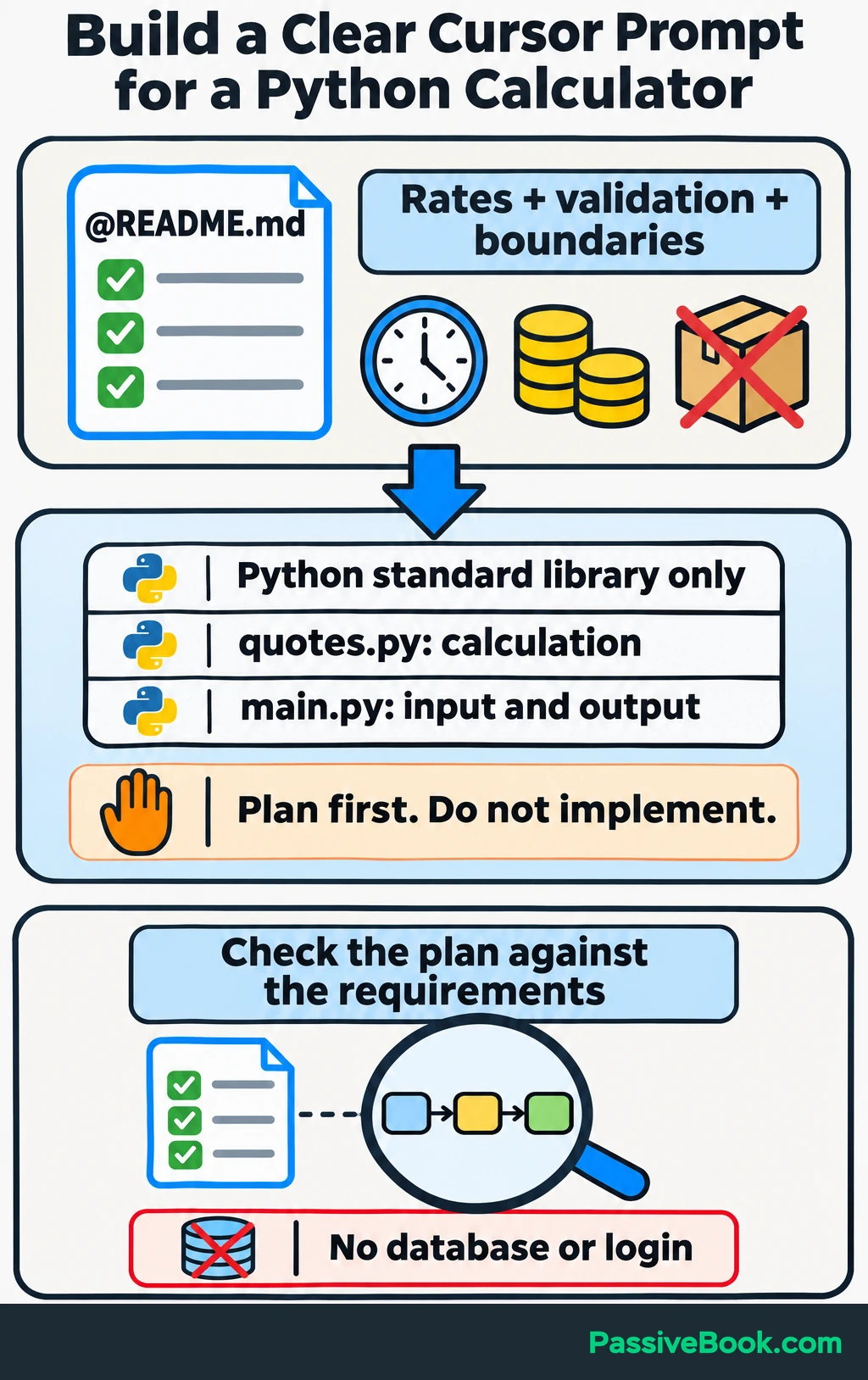
Start in Plan mode. Type @, select README.md from the file suggestions and use this prompt:
Plan a local Python command-line quote calculator using @README.md. Use only the standard library. Put calculation logic in quotes.py and interactive input and output in main.py. Identify validation rules and how we will test them. Keep the calculation independently testable. Do not implement yet.
Check the proposed plan against your README.
It should explain where rates live, how invalid input is rejected and how the total becomes a dollar amount. A database or customer login would be extra work you did not request. Remove it from the plan.
For an existing project, the same approach applies. Attach the relevant files or ask Cursor to find the code responsible for one behavior before proposing changes.
Use fictional data in prompts and test files. Before sharing private code, enable Privacy Mode. Cursor says this prevents training use, but requests still pass through its backend; it does not make the AI run entirely on your computer. Cursor’s data-use policy
Build Code You Can Understand
Switch to Agent mode, attach README.md again and include the approved plan so the implementation has the same context.
Then send:
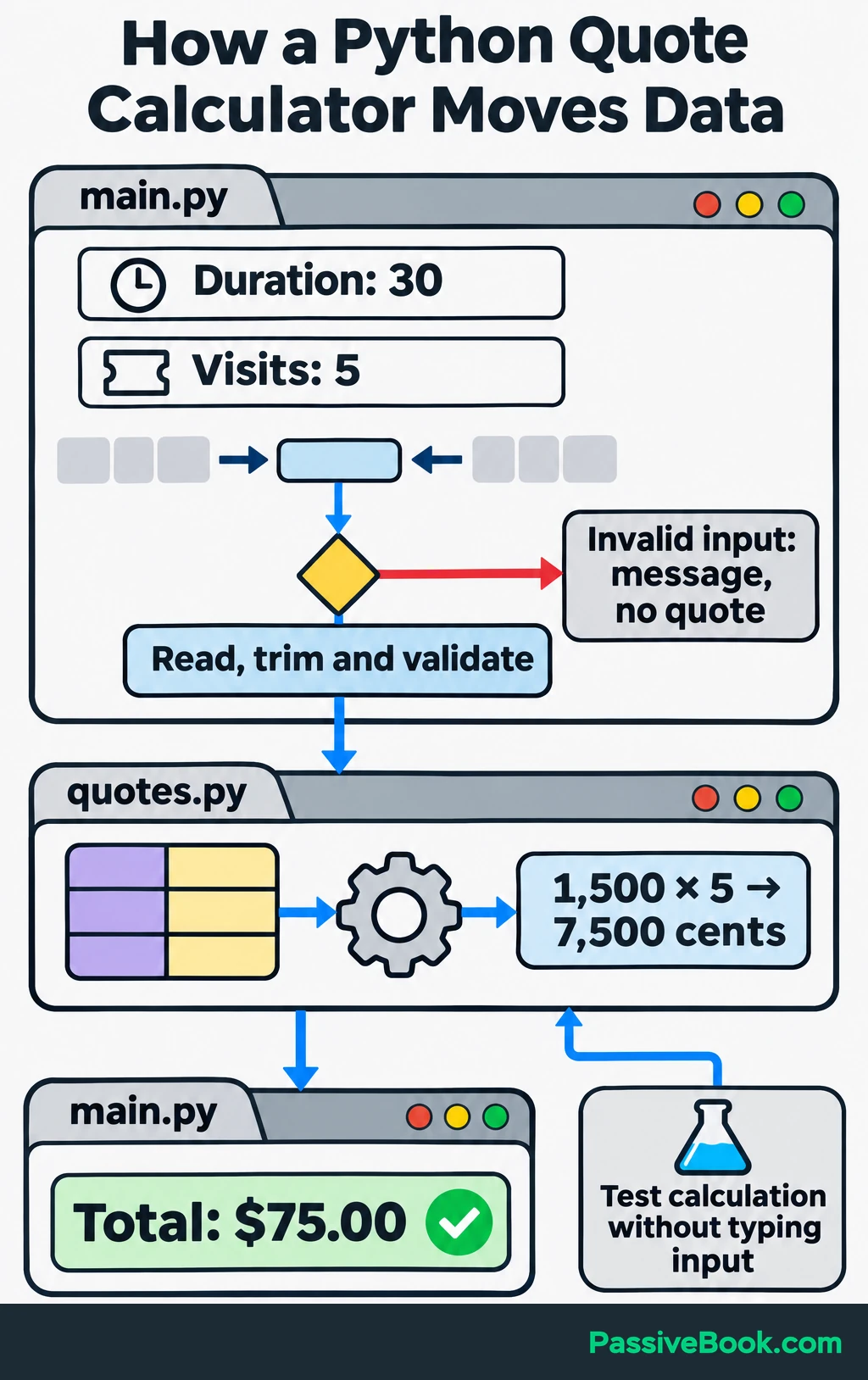
Implement the approved plan using @README.md. Keep calculation separate from interactive input. Add no dependencies or unrelated features. Make sure importing main.py does not start asking for input. Summarize the files changed and give me the command to run the calculator.
For a first project, I would limit which commands can run without approval. Choose Allowlist mode and keep that list small. Enable sandboxing where supported to restrict commands’ access to files and the network, and read requests for broader access before approving them.
Avoid Run Everything, which runs tool calls automatically without sandboxing. Auto-review can also approve actions automatically, so it does not ask you about every command. Cursor’s execution controls
Once the files exist, switch to Ask and request an explanation:
Explain how the duration and visit count reach the calculation function and become the displayed quote. Refer to the actual functions and lines in this project. Explain any input conversion and validation.
Read the explanation beside the files. You should be able to point to:
- Variables: Names holding values, such as the visit count.
- Functions: Named blocks that perform a job, such as calculating the total.
- Imports: Lines that let one file use code from another.
- Input Conversion: The step that turns typed text into a number.
You do not need to explain every Python feature before continuing. You should understand where the price comes from and what stops an invalid quote.
Review the Changes and Run the Calculator
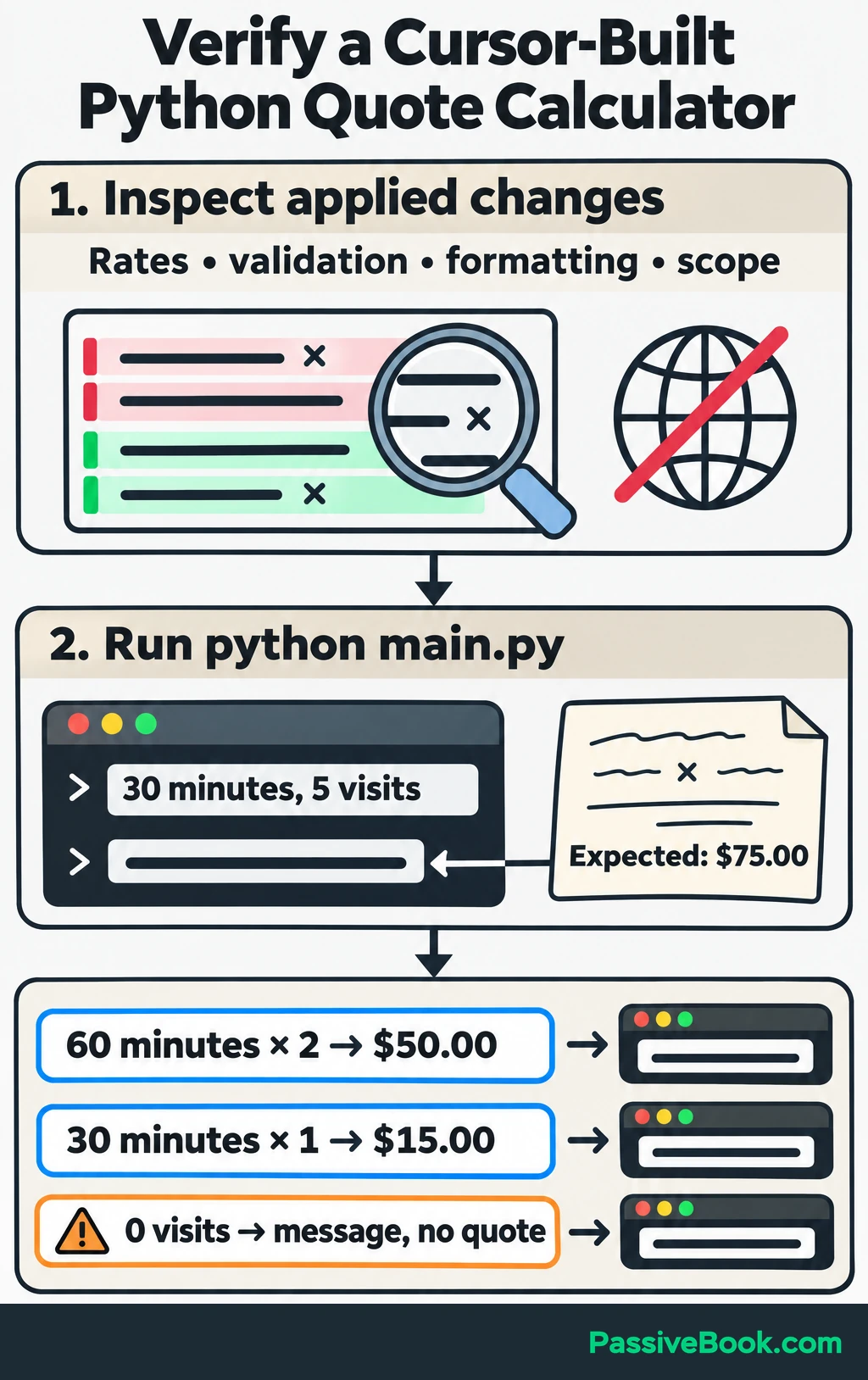
Open the changed-file list and inspect the diff, which shows added and removed lines.
Agent applies edits while it works, so the changes are already in your files when you review them. Reject anything you do not want before continuing.
For this project, check:
- Rates: Thirty minutes uses 1,500 cents and 60 minutes uses 2,500 cents.
- Calculation: The program multiplies the selected rate by the visit count.
- Validation: Unsupported durations and invalid counts are rejected.
- Display: Dollar amounts show two decimal places.
- Scope: There are no unexpected packages, network requests or unrelated files.
Ask Cursor to explain unfamiliar code before running it. “It looks professional” is a weak review method. So is counting comments.
From the project folder, run:
python main.pyEnter 30 for the duration and 5 for the number of visits.
Compare the displayed total with your independently calculated $75.00. The exact wording may vary, but the amount must match.
Run the program again with these checks:
| Duration | Visit Count | Expected Behavior |
|---|---|---|
| 60 minutes | 2 | Displays $50.00 |
| 30 minutes | 1 | Displays $15.00 |
| 30 minutes | 0 | Shows a validation message and no quote |
A program can start successfully and still calculate the wrong amount. Check its behavior against the README before asking for more features.
Make Focused Changes to Existing Code
Once the basic calculator works, change one visible behavior. Give Cursor the smallest useful piece of context and say what must stay the same.
For a local change, select the output code and attach that selection to Agent. If the change crosses files, attach the relevant files instead.
Use this prompt:
Show duration, number of visits, rate per visit and total in the quote breakdown. Preserve all pricing and validation rules. Explain which files need edits, then make only the changes needed for this output.
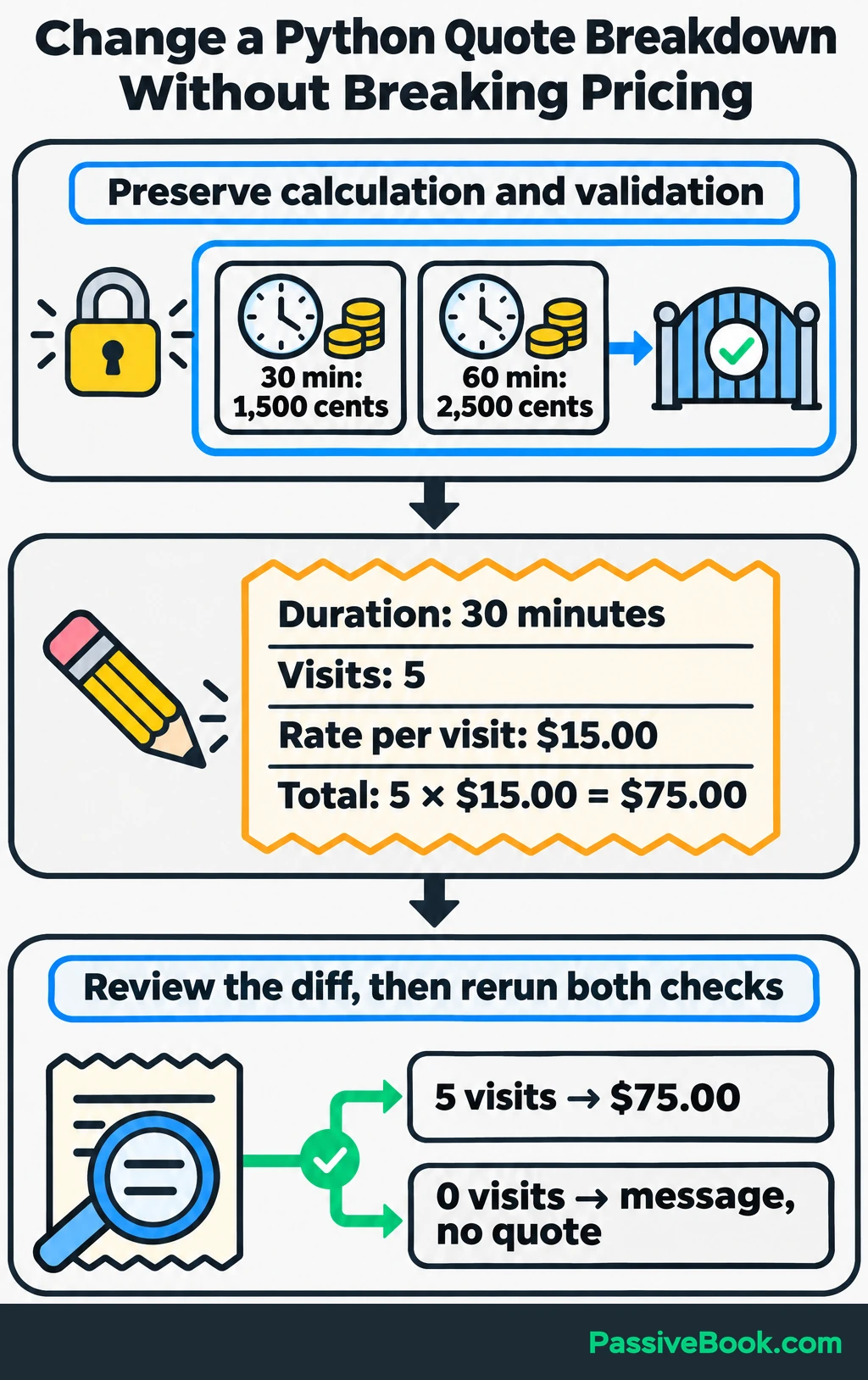
Review the diff again. A display change should not quietly introduce new prices or remove validation.
For five 30-minute visits, the expected breakdown could read:
Duration: 30 minutes
Visits: 5
Rate per visit: $15.00
Total: 5 × $15.00 = $75.00
This is a target display, so your labels can differ. The values should agree.
Rerun that example and the zero-count check. This catches an easy mistake: improving the output while breaking a rule that already worked.
I would leave discounts and holiday rates for later. One change you can verify is more useful than four changes you now have to untangle.
Test the Calculator Against Its Requirements
Manual checks help you understand the program. Automated tests let you repeat checks after each edit.
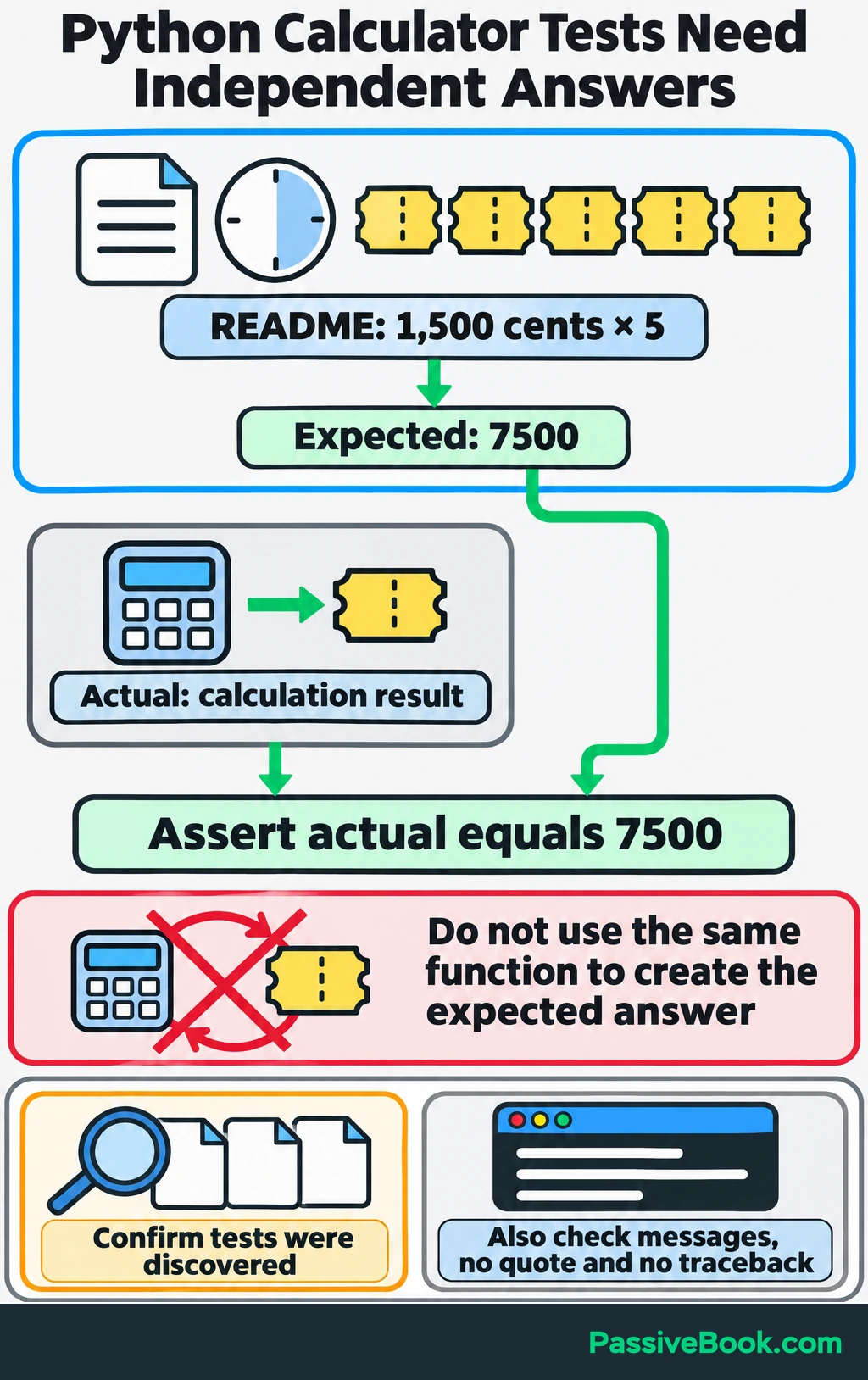
Write the expected outcomes from the README before asking Cursor to generate tests. Otherwise, the tests may simply repeat whatever the current code happens to do.
For valid inputs, multiply the rate per visit by the number of visits. The expected totals below are in cents because that is what the calculation function should return.
| Scenario | Duration | Visit Count | Expected Result |
|---|---|---|---|
| Standard short visits | 30 | 5 | 7,500 cents |
| Longer visits | 60 | 2 | 5,000 cents |
| One visit | 30 | 1 | 1,500 cents |
| Surrounding spaces | 30 with spaces before and after | 5 with spaces before and after | 7,500 cents |
| Unsupported duration | 45 | 1 | Validation message; no quote |
| Zero visits | 30 | 0 | Validation message; no quote |
| Negative visits | 30 | -2 | Validation message; no quote |
| Fractional visits | 30 | 2.5 | Validation message; no quote |
| Blank count | 30 | Empty input | Validation message; no quote |
| Nonnumeric count | 30 | cats | Validation message; no quote |
Now ask Agent:
Create unittest tests in tests/ for the @README.md requirements and the current quote breakdown. Name test files test_*.py. Test calculation logic separately from interactive input handling. Use the expected outcomes in the table I provide. Check that surrounding spaces are ignored and invalid interactive input produces a clear message with no quote or Python traceback. Do not change pricing or weaken validation to make tests pass. Explain what each test checks.
Include the table with the prompt. Python’s unittest is part of the standard library, so no testing package is needed.
From the project folder, run:
python -m unittest discover -s tests -vThis searches tests/ for test files and lists the tests it runs. Check that named tests appear and that the summary reports a nonzero test count. If it finds no tests, check the folder and file names; if imports fail, resolve those errors before judging the results. Python’s test-discovery documentation
Then read the assertions—the statements that compare actual behavior with expected behavior.
For example, the five-visit test should compare the result with 7500. If it calculates its expected value by calling the same pricing function it is testing, it has not independently checked that rule.
Passing tests establish the behavior those assertions cover. They do not prove that every possible input works.
Finally, run the interactive program yourself. Check its prompts, validation messages, dollar formatting and breakdown. A test of the calculation function cannot tell you whether the screen is confusing.
Debug Errors With a Reproducible Example
When something fails, give Cursor enough evidence to repeat it. “It doesn’t work” leaves too much room for guessing.
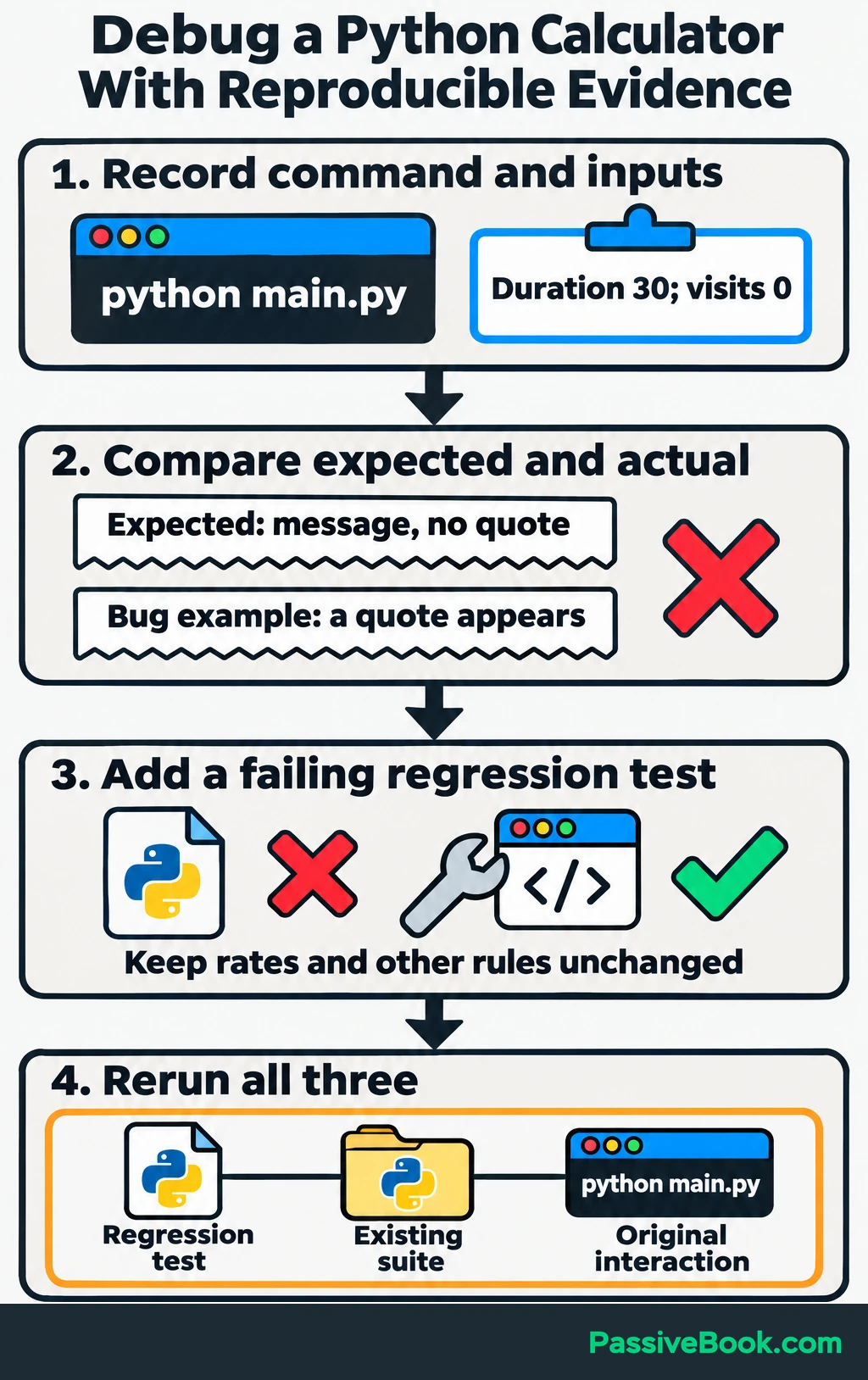
Collect:
- Command: Exactly what you ran.
- Inputs: What you entered, in order.
- Expected Result: What the README says should happen.
- Actual Result: What appeared instead.
- Error Details: The relevant traceback, if Python printed one.
A traceback lists where an error occurred. Remove private values before sharing it, but preserve the error message and relevant code locations.
First distinguish an environment problem from a code bug. An unrecognized python command needs an installation or command fix. A calculator that accepts five visits but displays the wrong total needs a code investigation.
If your version accepts zero visits and prints a quote, send:
Running python main.py with duration 30 and visit count 0 should show a validation message and no quote, according to @README.md. Instead, it displays a quote. Reproduce the issue, explain the cause, add a failing regression test and make the smallest fix that satisfies the requirements. Keep both rates and all other validation rules unchanged.
A regression test protects against that same bug returning. It should fail before the fix and pass afterward.
If Agent keeps guessing or the cause remains unclear, try Debug mode. It can add temporary logging and ask you to reproduce the failure so it can inspect runtime evidence. Follow those reproduction steps, verify the repair and have it remove the temporary logging afterward. Cursor’s Debug mode
After any repair, rerun the new regression test, the existing suite and the original failing interaction.
If successive edits become harder to understand, stop adding requests. Inspect what changed, preserve anything useful and return to a known working version before narrowing the task.
Save a Verified Version With Git
Before saving the finished version, add the run and test commands to README.md:
python main.pypython -m unittest discover -s tests -vUse the Python command that works on your machine.
Confirm that the calculator produces the specified totals, rejects every invalid-input category, shows the breakdown and passes its tests.
Create .gitignore with:
__pycache__/
*.pyc
These rules keep generated Python cache files out of your project history.
Next, inspect the project:
git statusgit diff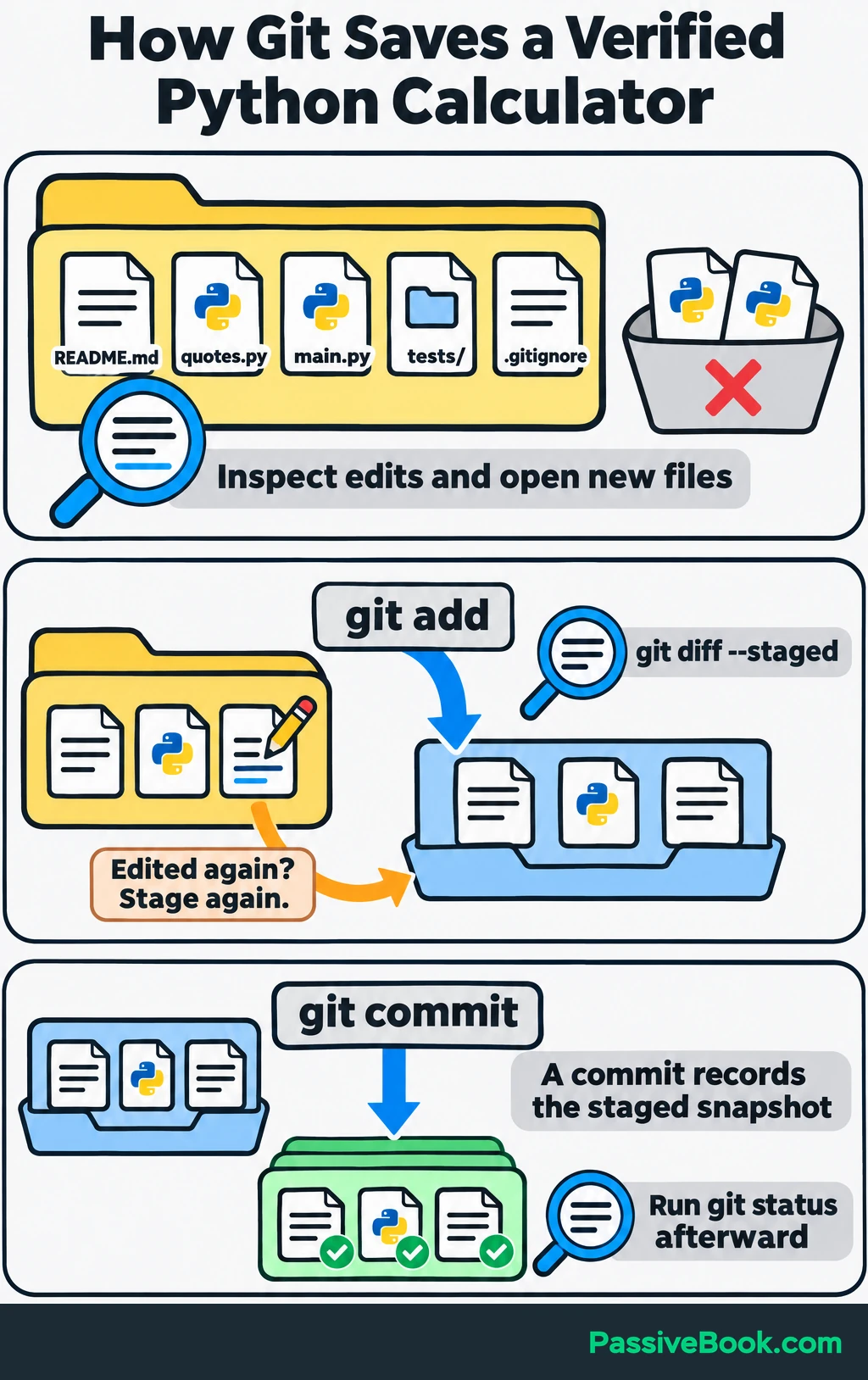
Open new files too. Ordinary git diff does not show the contents of untracked files.
Stage only the intended files:
git add README.md quotes.py main.py tests/ .gitignoreReview what will enter the commit:
git diff --stagedIf you edit a file after staging it, stage it again to include the newer changes. A commit records the staged snapshot. Git’s guide to staging and commits
Once the staged changes match the version you checked, commit:
git commit -m "Add tested quote calculator"Run git status afterward to see whether any intended changes remain outside that commit.
Cursor checkpoints are useful for undoing Agent changes during a session. Preview a checkpoint before restoring it because restoration can replace work made afterward. Use Git for your durable project history. Cursor checkpoints
You now have a repeatable way to improve the calculator: define one change, provide context, inspect the edits, run it, test it and commit the result.
What Next?
Create cat-sitting-quotes and write its README before sending your first coding prompt. Make one quote correct before adding anything else.
Use the social buttons to share this guide when an AI coding discussion needs a practical way to check the results.
Which part would you find hardest to verify: the calculation, invalid inputs or the code changes? Leave your answer—and any other questions—in the comments.
Share this post with your friends & followers:

