A free email plan can cover your whole subscriber list and still leave out the automation you need. You discover that after building a form, writing the welcome emails and connecting your checkout.
The missing feature leaves you choosing between a higher bill and another evening moving forms and emails. Neither cost was obvious on the pricing page.
The hard part is judging a tool before your work depends on it. This guide helps you compare options for the journey from signup to purchase, including the full cost as your list grows and the everyday effort each tool requires.
Define the Email Workflow You Need
Choose one main outcome, such as bringing readers back to your website or selling a product. Identify the action you want subscribers to take, then map the emails that lead to it.
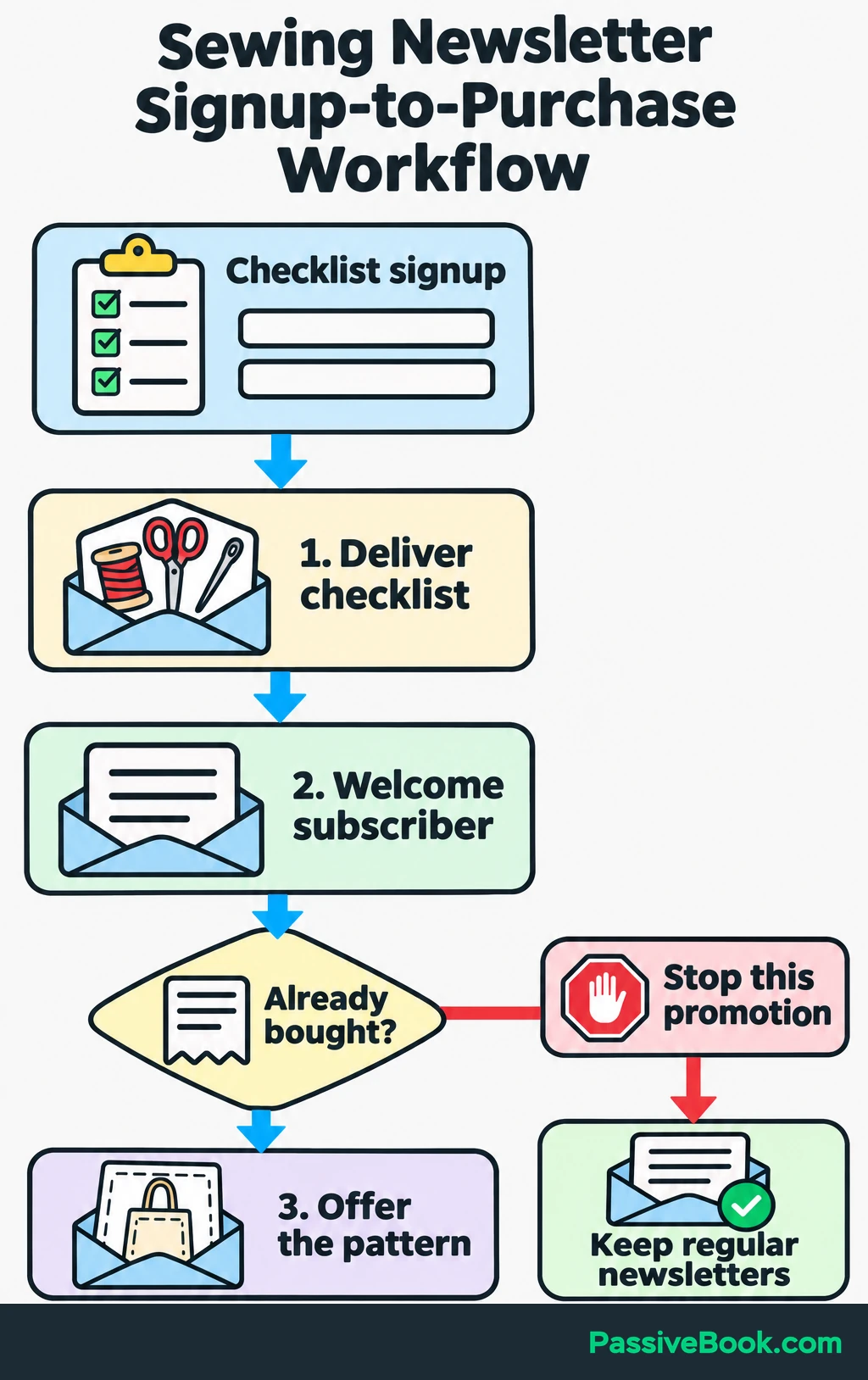
Imagine you run a beginner sewing newsletter. You offer a free first-project supply checklist and sell a downloadable tote-bag pattern. Your three-email sequence could look like this:
Checklist signup → checklist delivery → welcome email → pattern offer → buyer stops receiving that offer.
Buyers can still receive your regular newsletter. They simply stop getting asked to buy the pattern they already own.
For a newsletter without a product, leave out the offer and purchase rule when testing the tool.
Sort the requirements into three groups:
- Essential Now: Signup forms, checklist delivery, welcome automation and purchase-based exclusions.
- Needed Next: A separate sequence for a second pattern you are preparing to release.
- Optional: Advanced design tools, AI subject lines and features without a clear use yet.
Record your website platform, checkout, budget, who needs access and how much setup and maintenance you can handle. Note any receipts or download links your checkout already sends.
You also need two separate workload estimates: contacts stored and emails sent.
For an illustration, count four newsletters sent to all 1,000 subscribers, plus all three sequence emails received by 100 of those same subscribers that month:
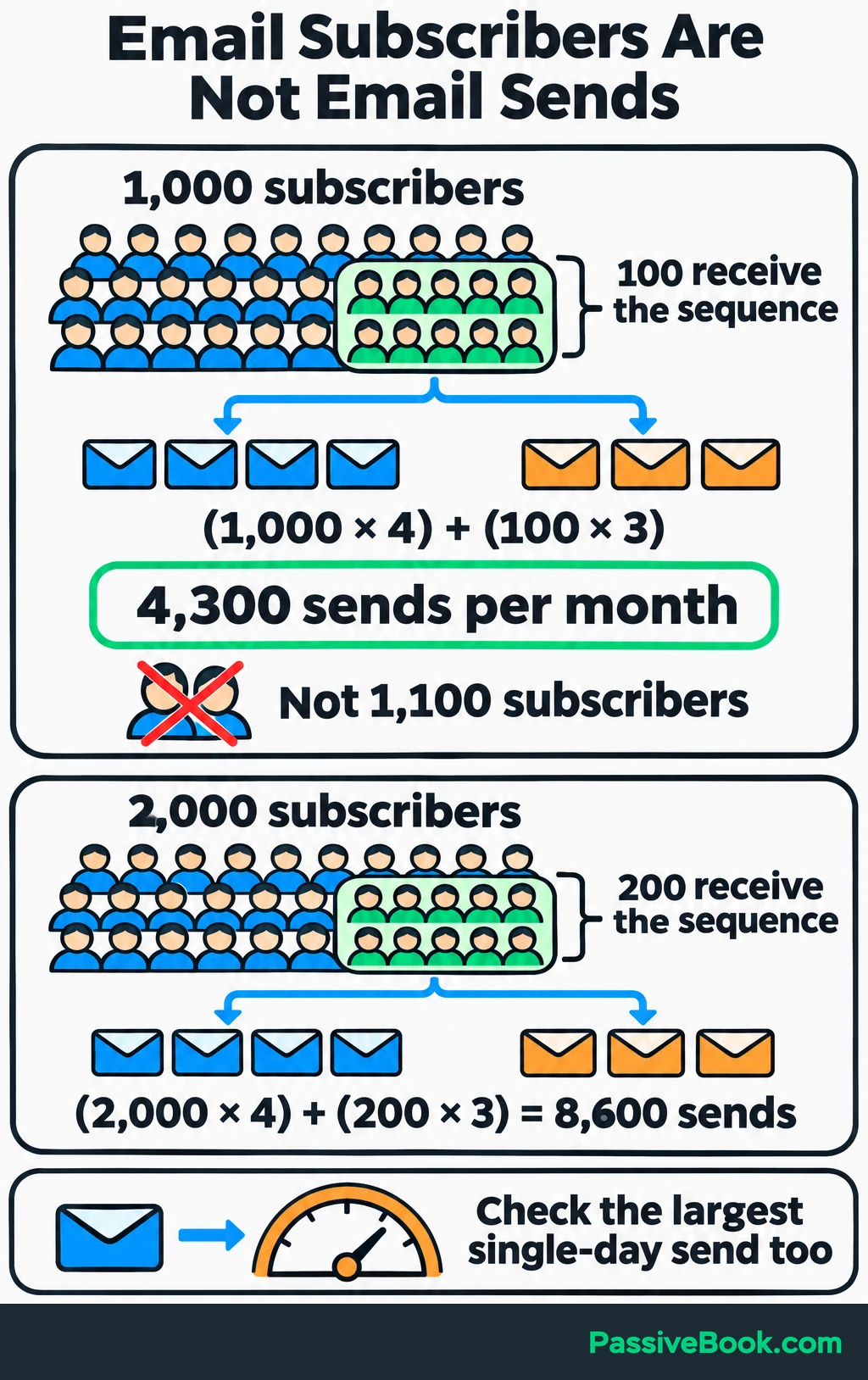
(1,000 × 4) + (100 × 3) = 4,300 emails per month
That is 1,000 subscribers and 4,300 sends, not 1,100 subscribers.
Also record your largest single-day campaign. A monthly allowance is little help if a daily limit prevents you from sending the newsletter when you need to.
Repeat the calculation at your next realistic milestone. With 2,000 subscribers and 200 receiving all three sequence emails that month, the same schedule needs 8,600 sends.
Shortlist Tools That Fit Your Setup
Decide early who will maintain your email system.
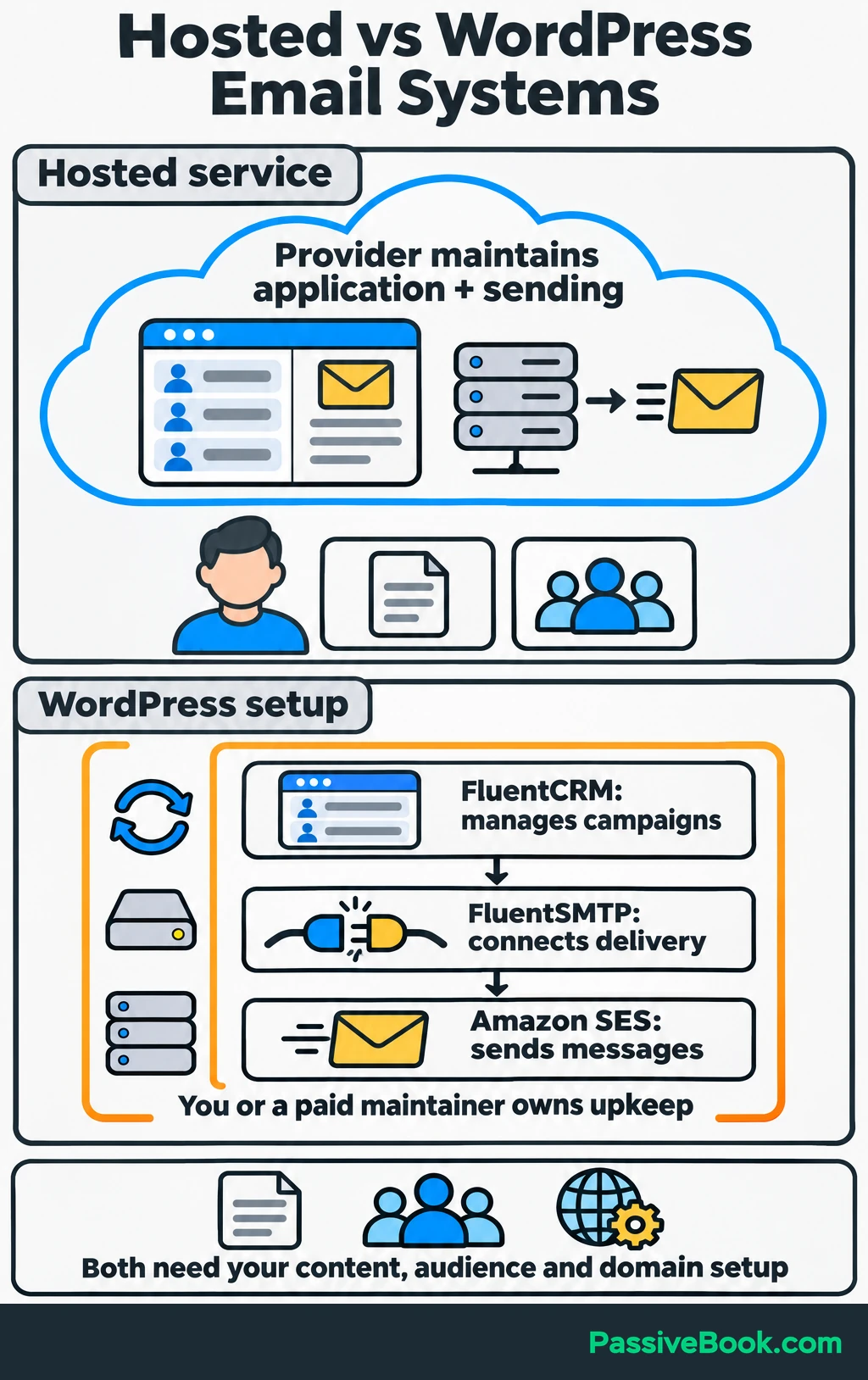
A hosted service manages the email application and sending infrastructure. You still handle your content, audience, domain setup and account settings.
Software running on your WordPress site gives you more responsibility. Updates, backups, hosting capacity and delivery connections need an owner. That owner might be you or someone you pay.
I prefer FluentCRM for a WordPress setup because WordPress is already central to how I manage my sites, and I care about controlling recurring costs. That preference reflects my setup. A beginner who wants fewer technical tasks may be better served by a hosted option.
I would start with these candidates:
| Tool | Why I Would Consider It | What Could Change the Choice |
|---|---|---|
| MailerLite | A hosted option for newsletters, signup forms and automation. | The sewing example exceeds its free subscriber and sending allowances, so compare a suitable paid plan. See MailerLite’s plan comparison. |
| Kit | A hosted option for a newsletter connected to digital products. | Its free plan excludes email sequences and visual automations, so this workflow needs a paid plan despite any spare subscriber capacity. See Kit’s free-plan details. |
| FluentCRM | A WordPress option when you can maintain the system. Paid licensing depends on site count rather than subscriber count. | Delivery and upkeep still have costs. See FluentCRM’s licensing. |
FluentCRM manages subscribers and campaigns, while a delivery service such as Amazon SES sends the messages. FluentSMTP is a WordPress plugin that connects the two. FluentCRM’s delivery documentation explains how they work together.
Choose two or three finalists. For each, record the exact plan you would buy. Comparing one provider’s free tier with another provider’s full feature list tells you very little.
Check the Capabilities Your Workflow Depends on
Automation and Segmentation
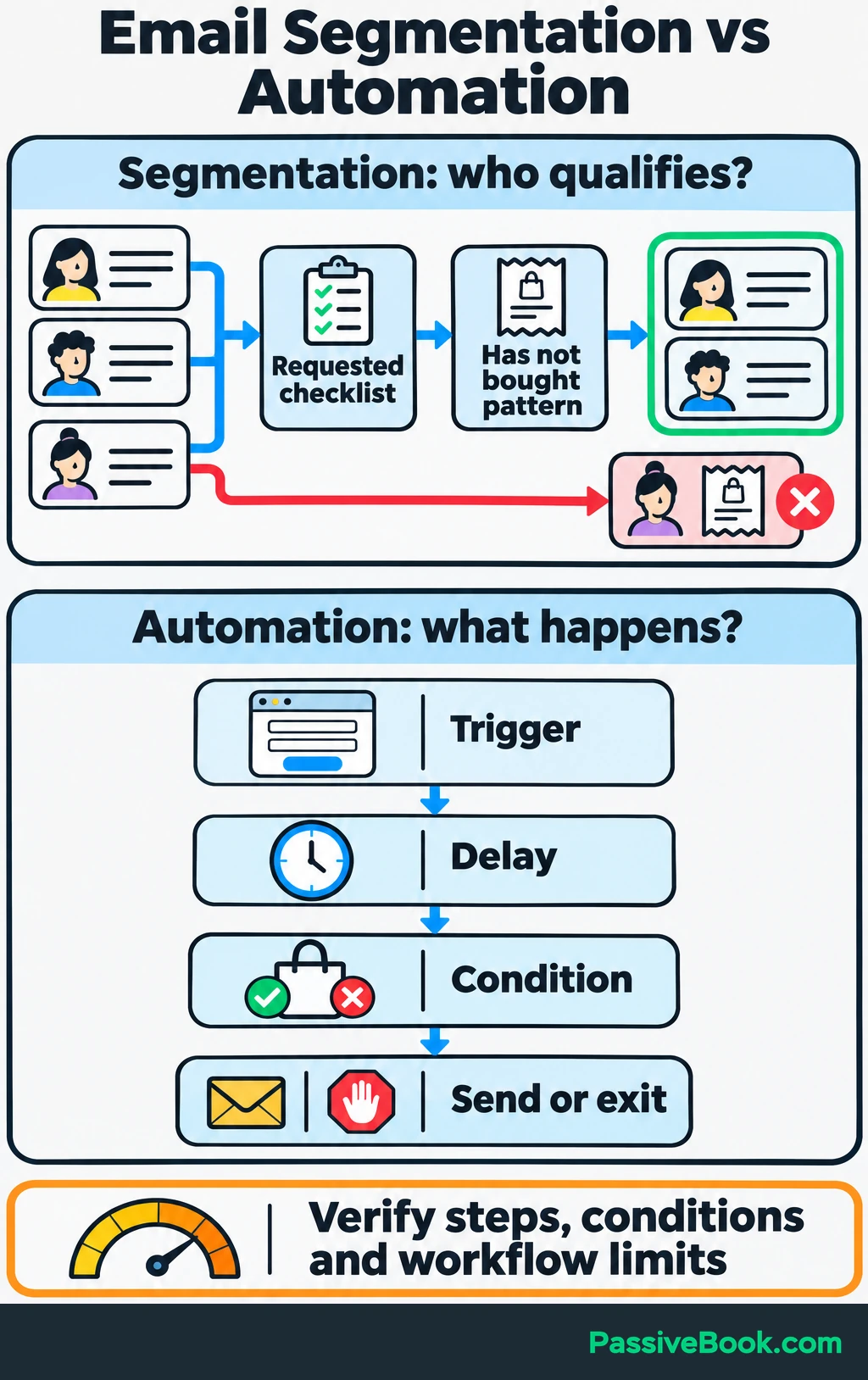
Segmentation groups subscribers by information such as their interests or purchases. Automation carries out steps, such as sending an email, when an event happens or a condition is met.
For the sewing newsletter, a segment might contain subscribers who requested the supply checklist but have not bought the tote-bag pattern. An automation delivers their welcome emails and checks whether they should receive the offer.
Look beyond a checkbox that says “automation included.” Verify that your intended plan supports:
- Triggers: The signup or purchase event that starts a workflow.
- Delays: The wait between messages.
- Conditions: Decisions based on interests, purchases or other recorded information.
- Exits: A way to stop the relevant promotion when someone buys.
- Limits: Enough workflows, steps and conditions for your actual sequence.
On one of my digital-product projects, I maintained a separate buyer list and removed those buyers from promotions by hand. Before a send, I found a customer still included because the two lists had drifted apart. I changed the process so purchase status determined eligibility. A task that depends on me remembering a cleanup step is a task waiting to escape.
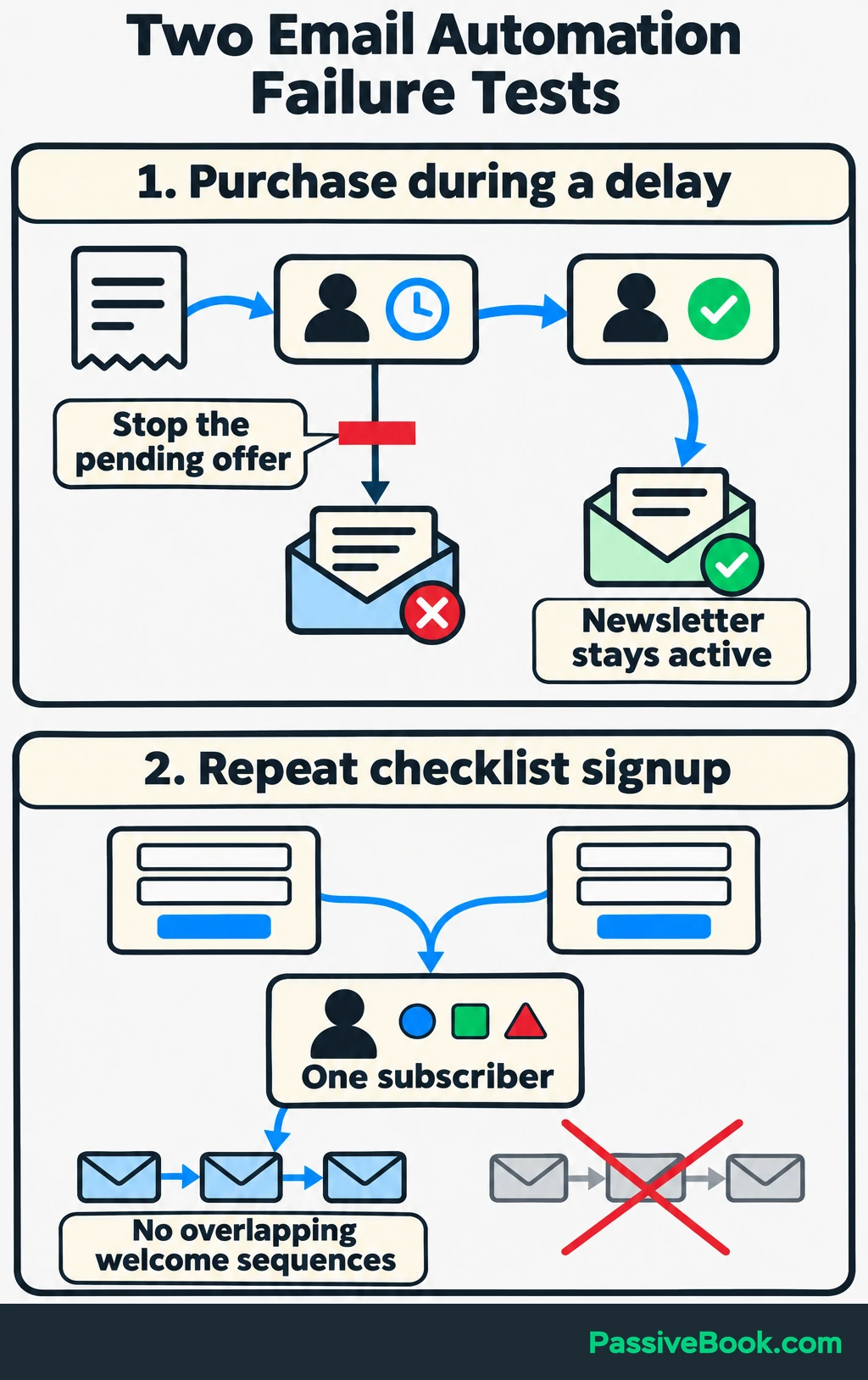
For your trial, check what happens when someone buys while waiting for the next sales email. The exclusion needs to work at the right moment, not merely prevent future subscribers from entering the sequence.
Also check repeat signups. Someone requesting the checklist twice should not accidentally receive two overlapping welcome sequences. You should be able to record several interests against one subscriber without creating unnecessary duplicate contacts.
Integrations That Transfer the Right Information
An integration logo tells you that a connection exists. It does not tell you whether the connection does your job.
Write down the information that must move between your signup form, email tool and checkout:
- Subscriber Details: Email address and any fields you actually use.
- Signup Context: Which form or offer brought the person in.
- Permission Records: When and how they agreed to receive marketing.
- Purchase Status: Which product they bought and the information needed to match that purchase to their subscriber record.
In the sewing example, the important action is specific: buying the tote-bag pattern must update the existing subscriber and stop the pattern promotion.
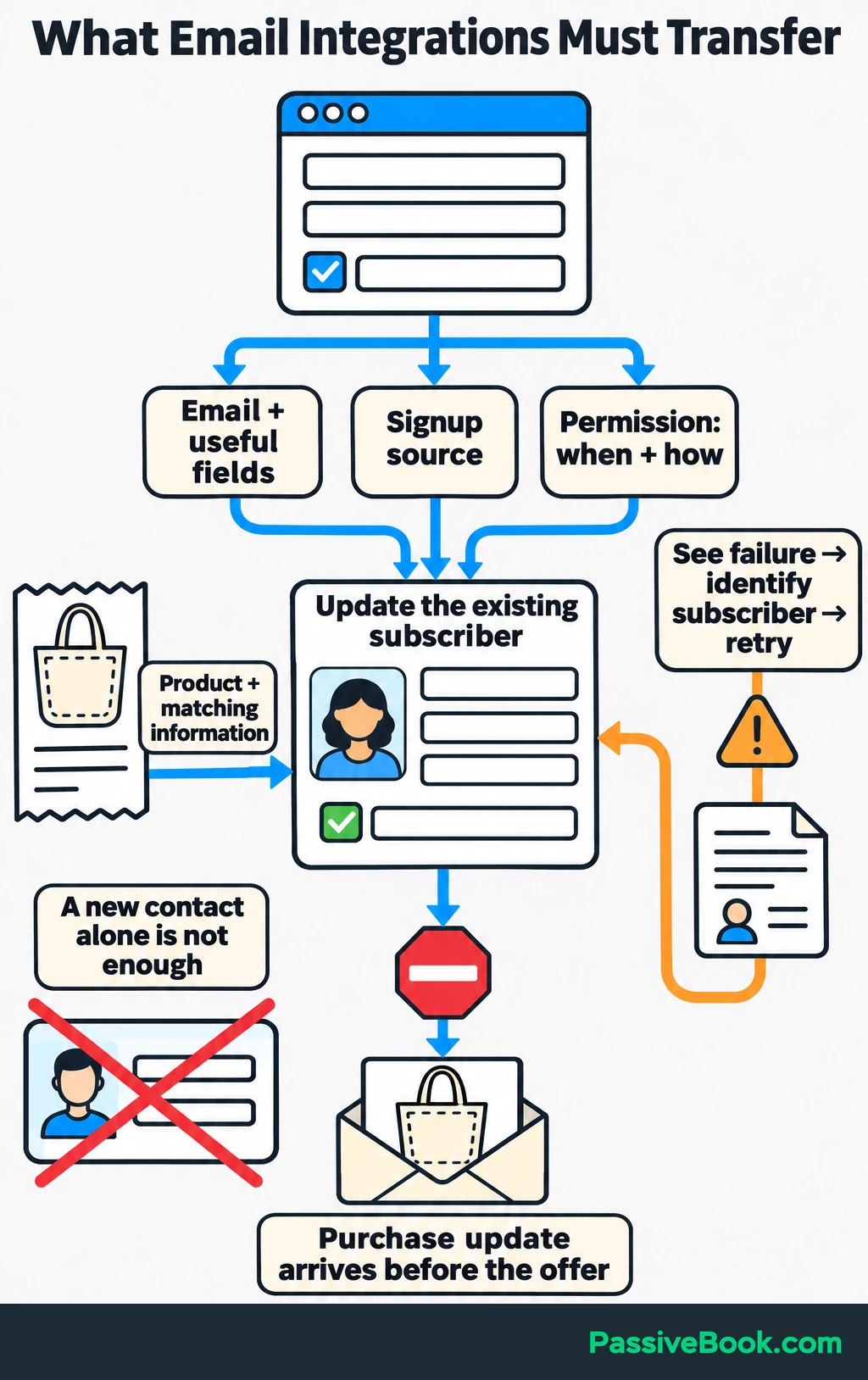
A connection that only creates a new contact after checkout does not prove that.
Find out whether the connection is direct, needs an automation service or requires custom work. I would choose a direct connection when it reliably handles the required information. If it cannot, Make or n8n can connect the tools, but that adds another component to maintain.
Ask what happens when an update fails. Can you see the failure, retry it and identify the affected subscriber? Also check synchronization delays and any plan restrictions. A purchase update arriving after the next promotion has gone out is late, however attractive the integration page looks.
Reporting That Helps You Make Decisions
Choose reports by the questions they help you answer:
| Question | Useful Information |
|---|---|
| Which signup source deserves more effort? | Subscriber records connected to the form, page or campaign that brought them in. |
| Does the pattern offer earn interest? | Clicks on the pattern link in each email. |
| Do those visits lead to purchases? | Recorded orders connected to email activity through a defined tracking method. |
| Is something going wrong with sending? | Bounces, complaints and unsubscribes, with enough detail to investigate. |
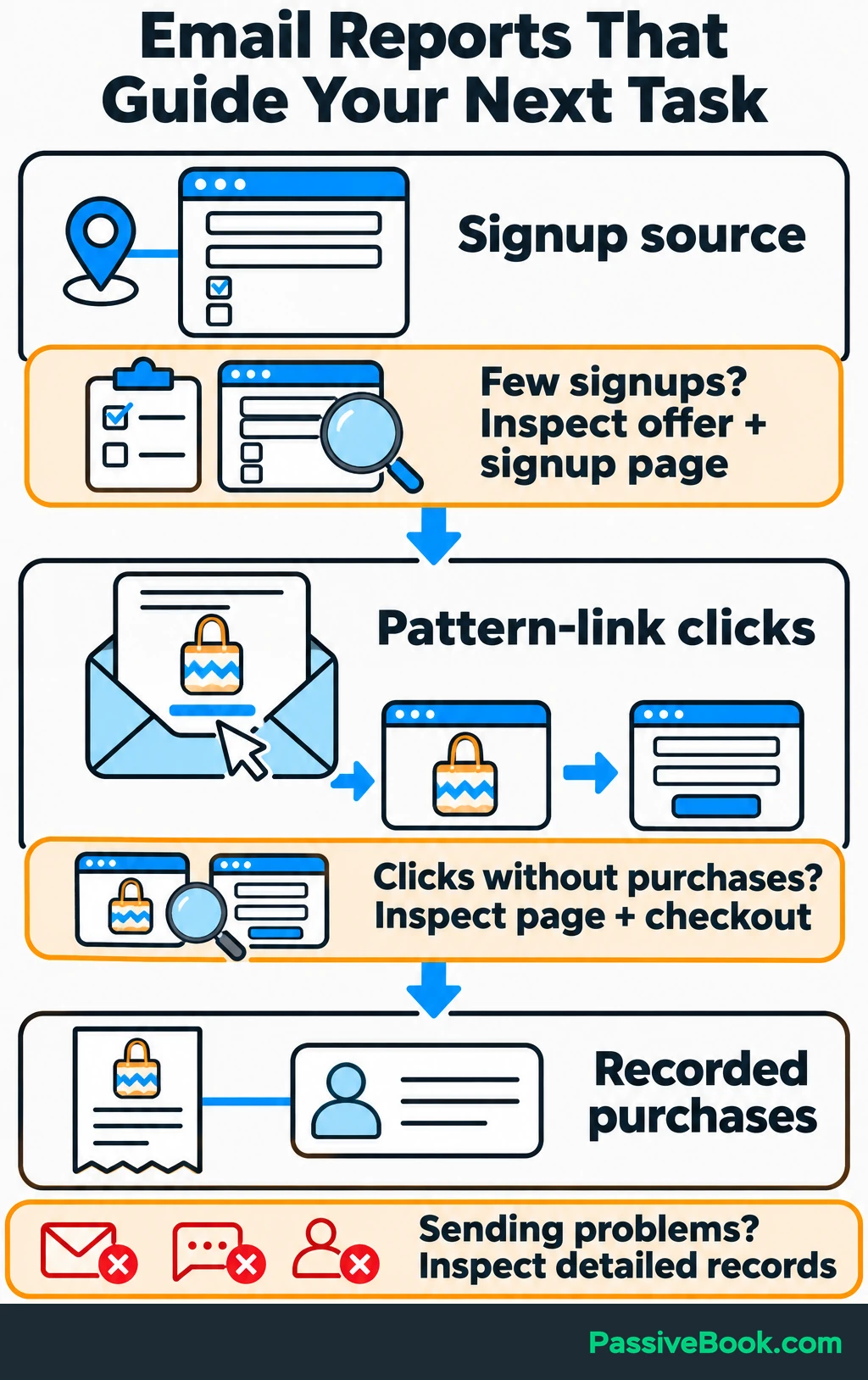
Check how purchase tracking gets set up. Your email tool may need a checkout connection or additional tracking before revenue appears.
Also inspect what a revenue report counts. Does it credit a purchase after an email click, and for how long? A recorded purchase linked to an email does not automatically prove that the email caused the sale.
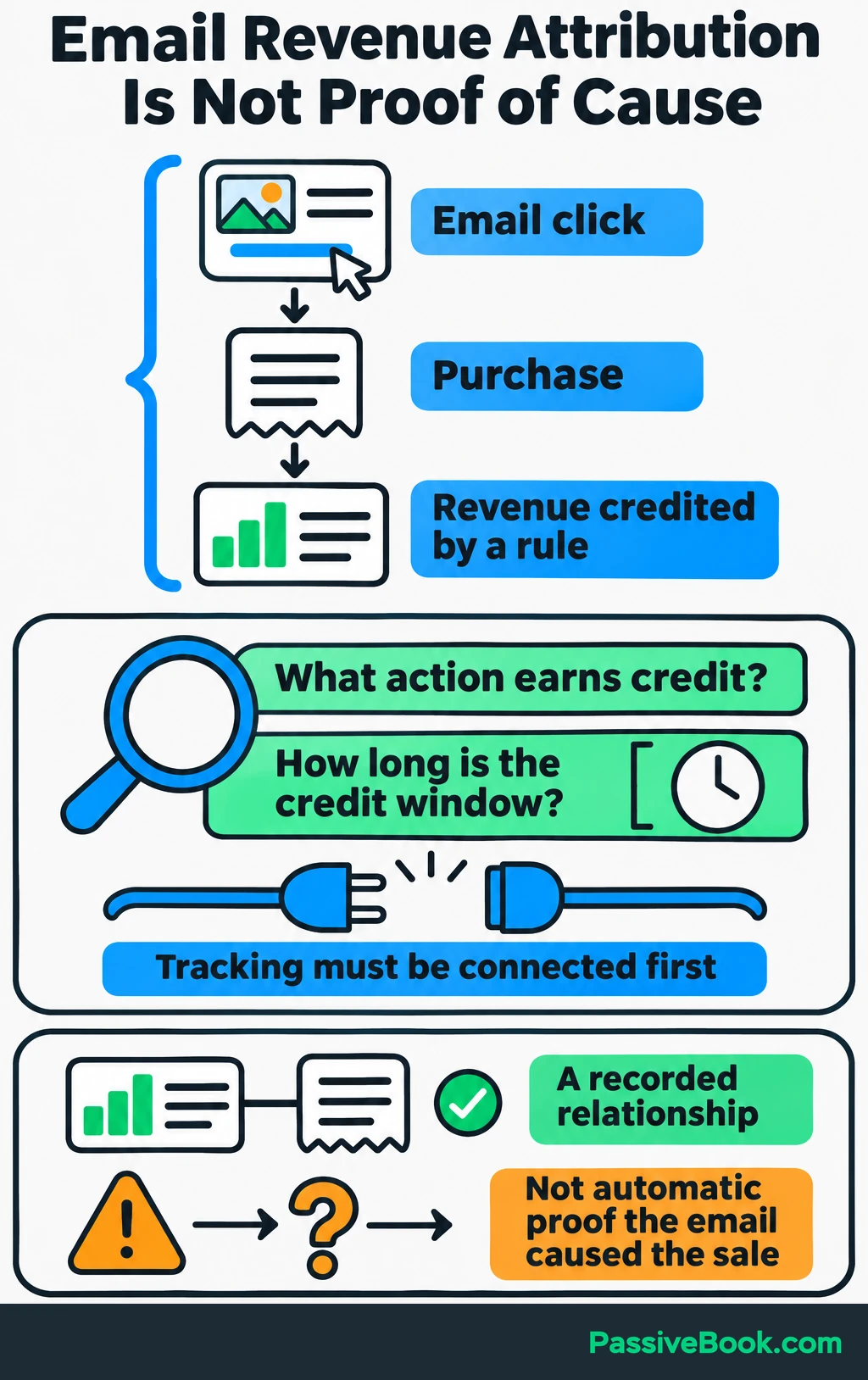
For the sewing newsletter, these reports should help you choose the next task. Few checklist signups may point you toward the offer or signup page. Clicks without recorded purchases give you a reason to inspect the pattern page and checkout.
You need enough visibility to make that decision. You do not need a dashboard that looks like air traffic control.
Deliverability Controls and Troubleshooting
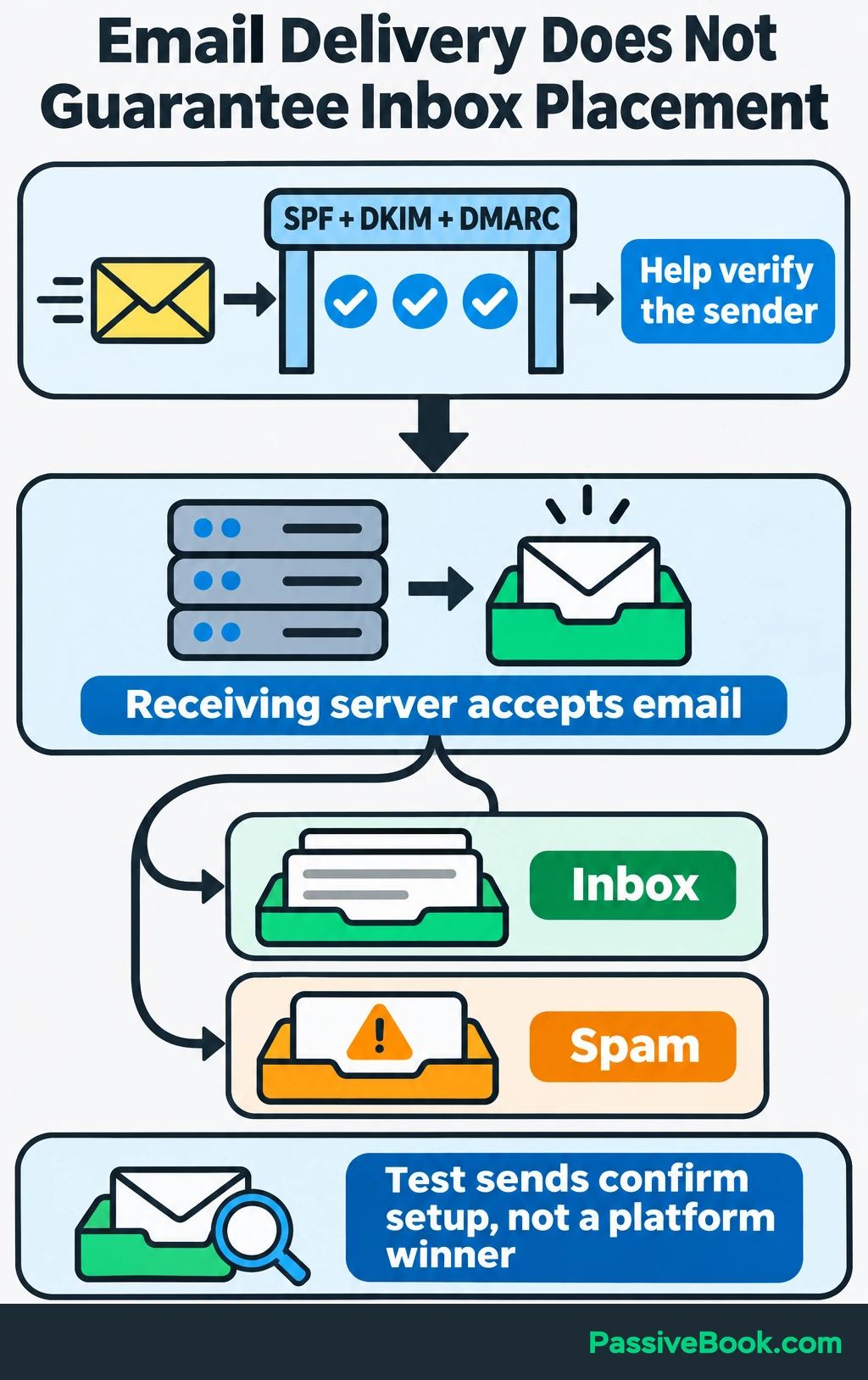
Look for guided setup of SPF, DKIM and DMARC. These are domain authentication methods that help receiving systems check who is sending your emails.
Google recommends all three. For senders exceeding its bulk threshold of 5,000 messages per day to personal Gmail accounts, its requirements include all three and one-click unsubscribe for marketing and subscribed messages. Choose a tool that supports those controls before you need the extra capacity. See Google’s sender guidelines.
Check how the system handles:
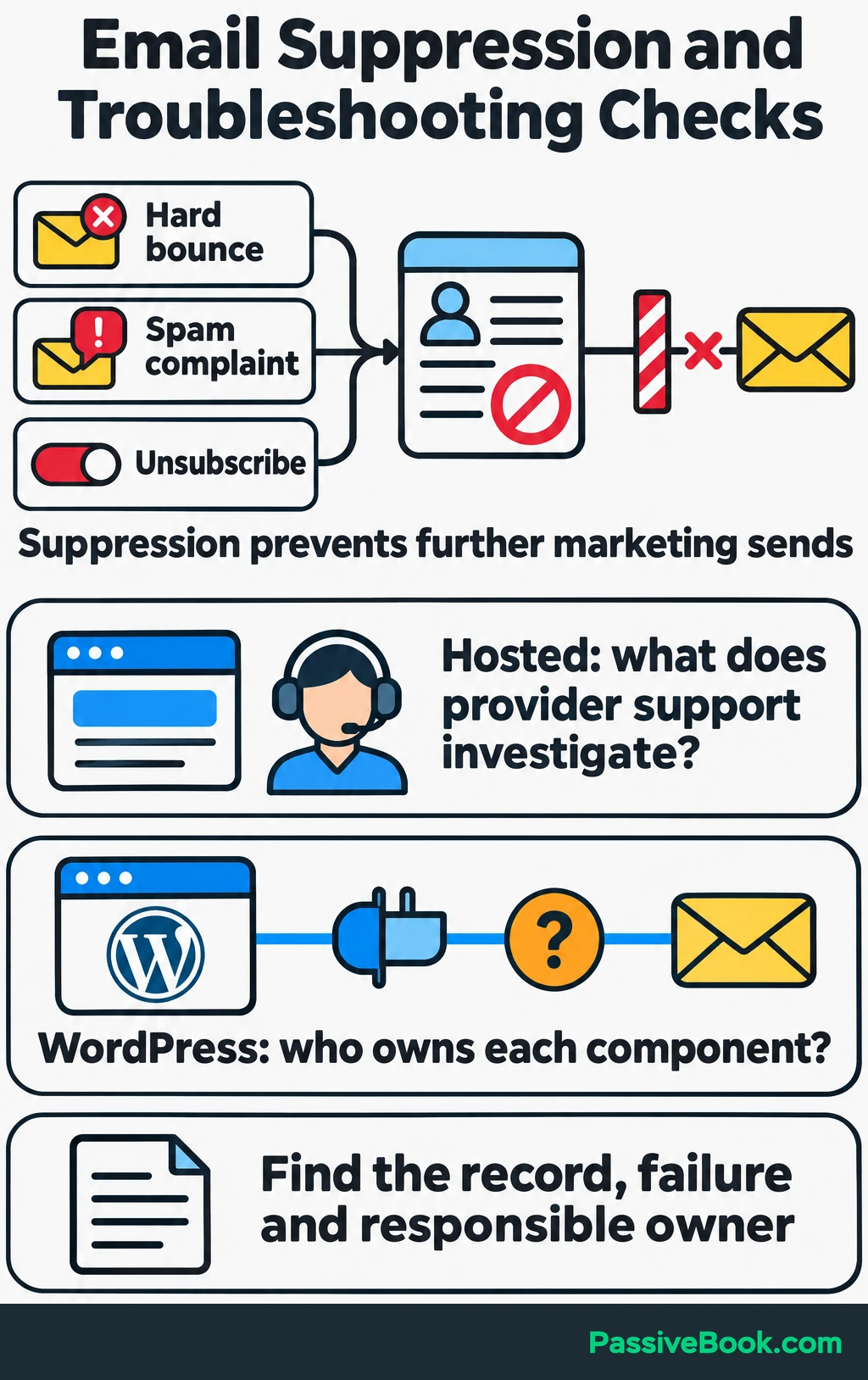
- Hard Bounces: Addresses that permanently reject delivery.
- Complaints: Reports that a message is spam.
- Unsubscribes: Requests to stop marketing messages.
- Suppression: Records that prevent further sends to excluded addresses.
Ask who investigates a delivery problem. With a hosted platform, which tasks does support handle? With a WordPress setup and a separate delivery service, where do you start?
Be careful with delivery percentages. A receiving server can accept an email and still put it in spam. AWS explains this distinction for Amazon SES.
A few test emails reaching your inbox can confirm that your setup sends. They cannot establish that one platform has better inbox placement than another. I would give more weight to clear authentication checks, reliable suppression handling and useful troubleshooting support than an unexplained delivery claim.
Compare Total Cost at Current and Growing Usage
Price the lowest plan that passes your requirements. Use the same contact count, sending workload, currency and billing period for every finalist.
First, check what each provider bills for. It might count active subscribers, all stored contacts, sends or a combination. Find out whether the same person appearing in several lists creates extra billable records.
Then add the cash costs required to keep the workflow running:
Subscription + delivery charges + connectors + extra users + additional hosting
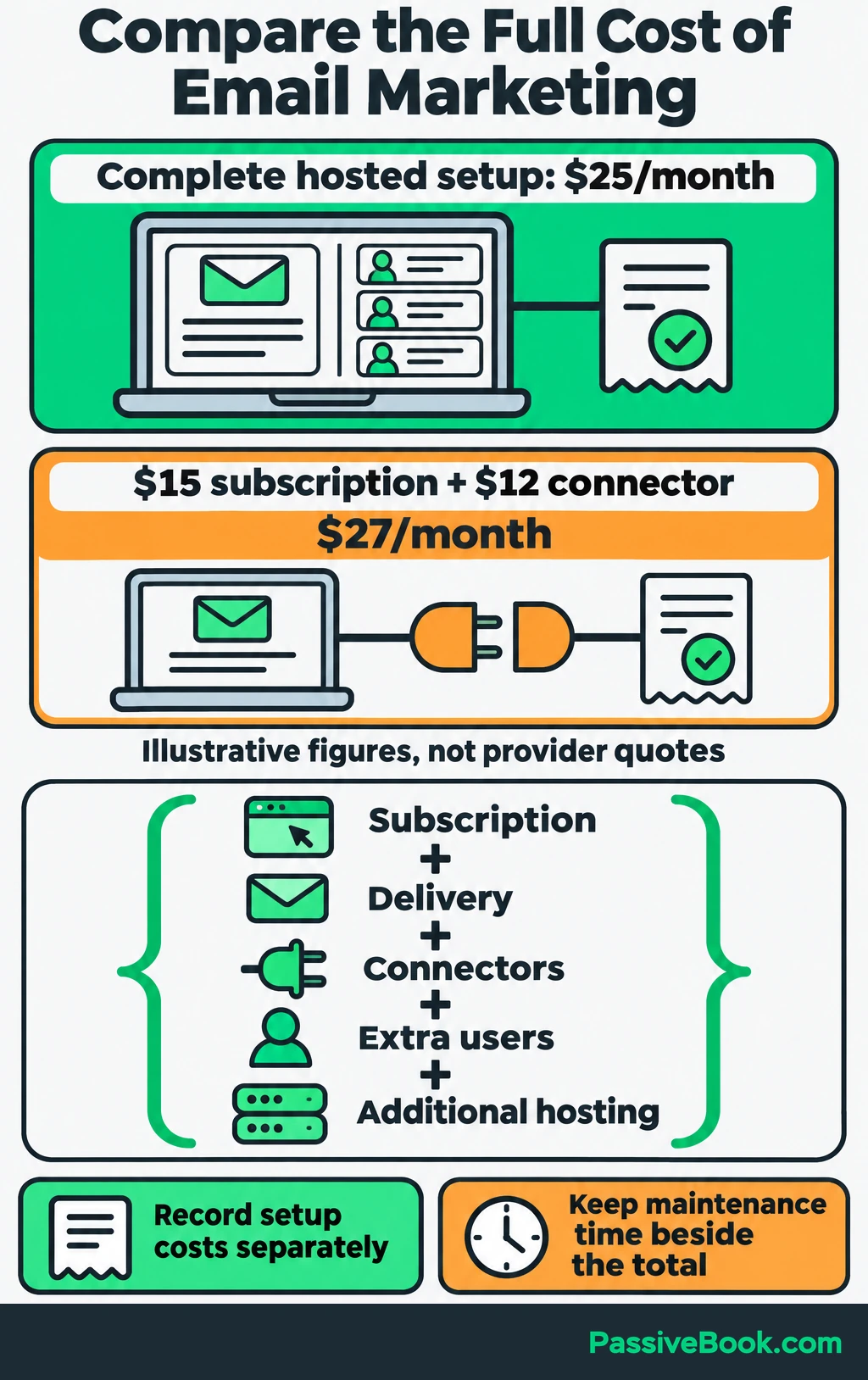
Record setup and migration charges separately. Keep maintenance time beside the total so a low cash cost does not hide several hours of recurring work.
For illustration, suppose one complete hosted setup costs $25 per month. Another costs $15, but needs a $12 connector to update buyers. The second setup costs $27 before you consider the extra connection to maintain. These are example figures, not provider quotes.
For each exact plan, keep one comparison row with these entries:
| Entry | What to Record |
|---|---|
| Current workload | The price for 1,000 subscribers and 4,300 monthly sends in this example. |
| Essential features | Whether signup, welcome automation and purchase exclusions are included. |
| Recurring cost | The full monthly or annual cash cost, including required supporting tools. |
| One-time cost | Setup, migration or outside technical help. |
| Maintenance effort | Tasks you must handle and the time they take during your trial. |
| Growth workload | The price and capacity for the chosen milestone, such as 2,000 subscribers and 8,600 sends. |
| First forced upgrade | The first limit or missing feature that would require a higher plan. |
Check monthly and daily sending limits, automation limits and what happens when you exceed them. Sending might pause, an overage might apply or the account might upgrade automatically.
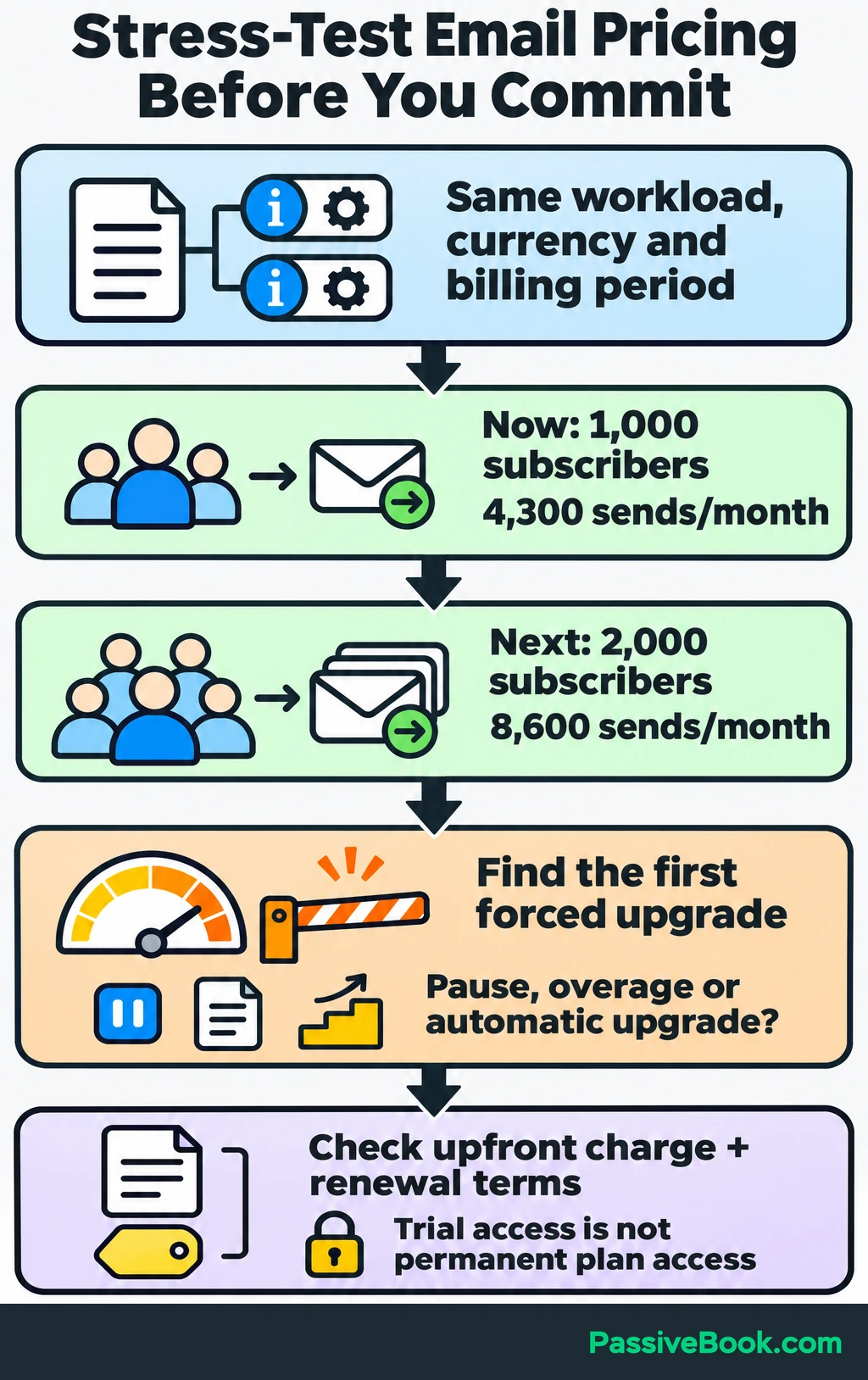
Distinguish a free plan from a trial of paid features. A workflow built during a trial is useful only if the plan you intend to keep can run it.
For annual billing, compare the amount charged upfront with the advertised monthly equivalent. Include renewal pricing, applicable taxes, cancellation terms and the end of any introductory discount.
I would pay more for a capability that removes a recurring task or enables a planned workflow. I would skip the upgrade whose main benefit is making the feature table longer.
A cheaper subscription can become the more expensive setup once you include connectors and upkeep. This workbook puts your options side by side and calculates where the cost advantage changes.

Free Software Cost Comparator




Run the Same Practical Trial on Your Finalists
Use addresses you control and build the same small workflow in each finalist. Include the signup form, checklist delivery, welcome emails and purchase-based exclusion.
Keep the content simple. You are testing whether the system works and whether you can manage it.
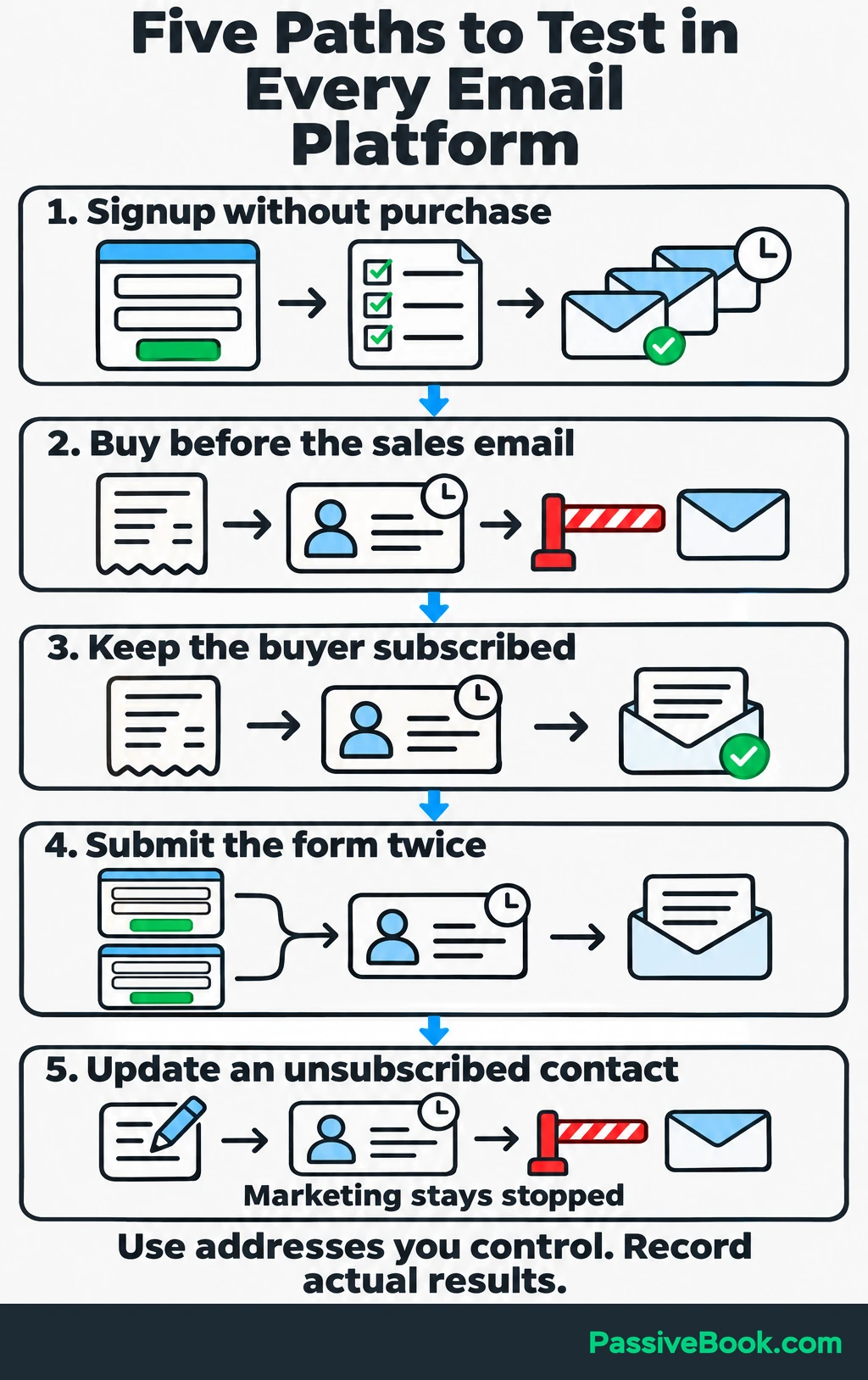
Run these paths and record the actual result:
| Trial Path | Expected Result |
|---|---|
| Sign up and do not buy | The checklist arrives and the welcome sequence follows its schedule. |
| Buy before a scheduled sales email | Purchase status updates and the relevant promotion stops. |
| Remain subscribed after buying | The buyer can still receive the regular newsletter. |
| Submit the signup form twice | No unwanted duplicate record or overlapping sequence appears. |
| Unsubscribe, then trigger a connected update | Marketing remains stopped unless the person separately subscribes again. |
Inspect the automation activity rather than relying only on what reaches your inbox. You need to see why a step ran, waited or stopped.
Check permission records and message footers during the same trial. For US commercial email, the template needs to support accurate sender information, a valid postal address and an opt-out method, among other requirements in the FTC’s CAN-SPAM guidance.
Where you rely on consent for UK email marketing, keep records showing who agreed, when and how. The ICO’s consent guidance explains why those records matter. Check that your forms preserve them.
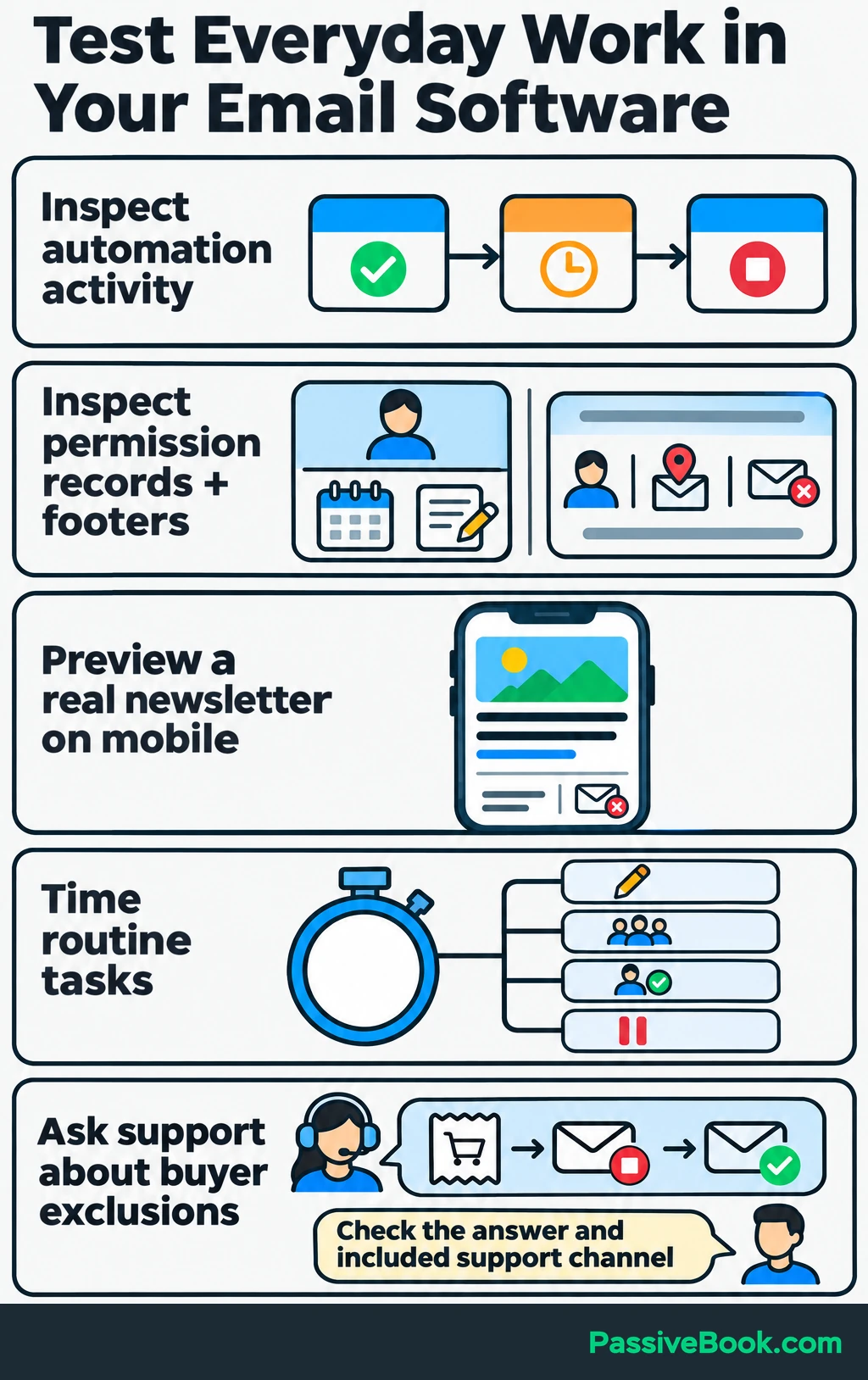
Next, create one reusable newsletter. Preview it on a phone and check links, image descriptions, branding and footer content.
Time a few ordinary tasks: editing an email, selecting recipients, correcting a subscriber record, pausing an automation and finding a failed step. Record where you need documentation or outside help. Those moments reveal more about ease of use than a polished demo.
Ask support one concrete question:
“If someone buys my tote-bag pattern while waiting for the next welcome email, how do I stop the pattern offer but keep their newsletter subscription?”
Check whether the answer resolves the question and whether that support channel is included in your intended plan.
Verify What You Can Take With You
Export a few sample subscriber records before choosing.
Open the file and inspect the actual contents. Look for email addresses, custom fields, tags or groups, signup information, permission records and unsubscribe or suppression status. If something important is missing, find out whether it has a separate export.
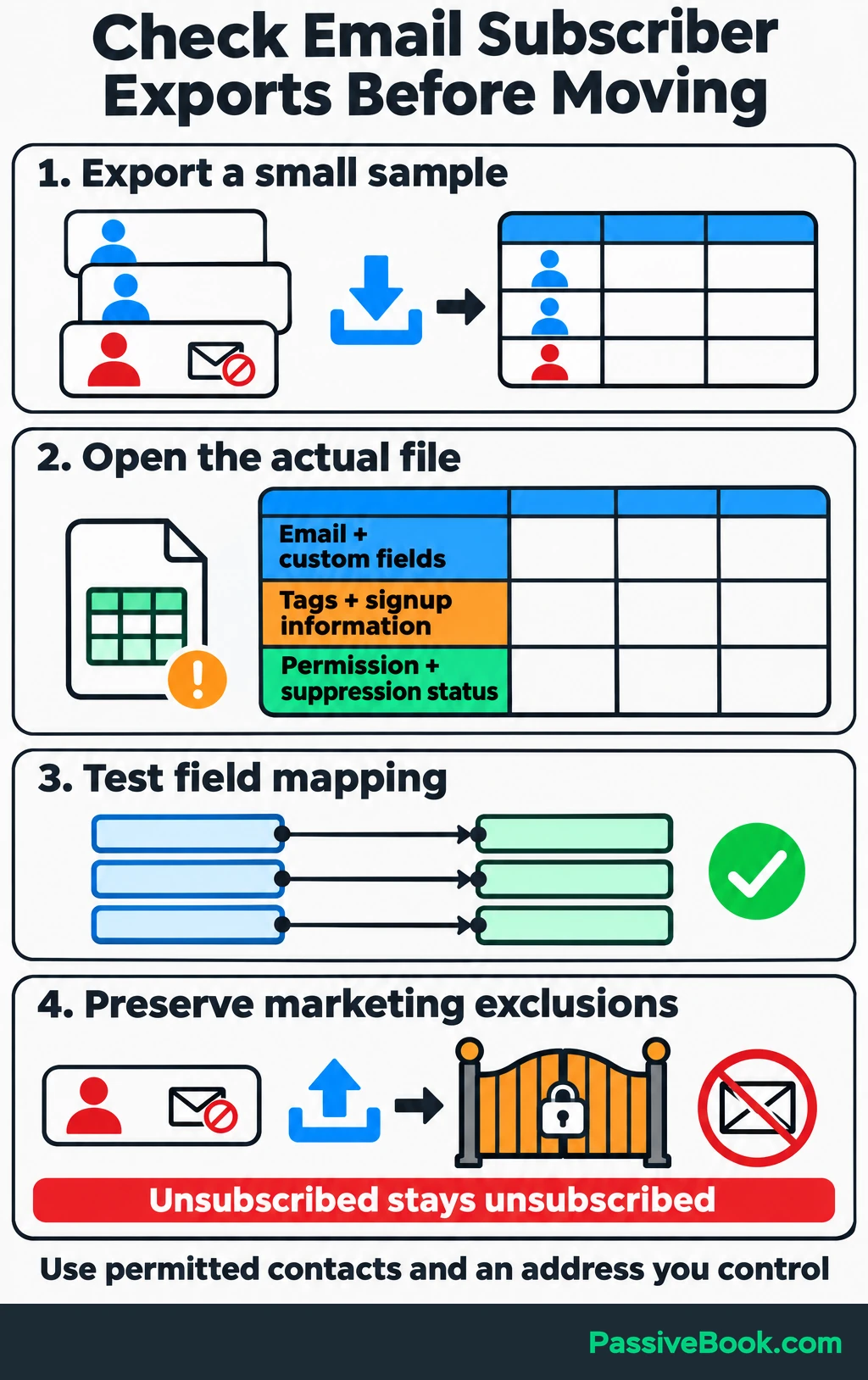
For an existing list, test a small import into the replacement platform using contacts you have permission to email. Also include an address you control marked as unsubscribed, and check that it stays excluded from marketing. Make sure subscriber details appear in the right fields before planning the full move.
Your contact file is only part of the system. MailerLite’s migration guide covers importing subscribers and rebuilding forms, templates and automated emails. Check whether your checkout and signup connections also need rebuilding.
Also check whether you can export historical reports in a format you can read after leaving. Keeping a report file and importing that history into a new platform are separate capabilities.
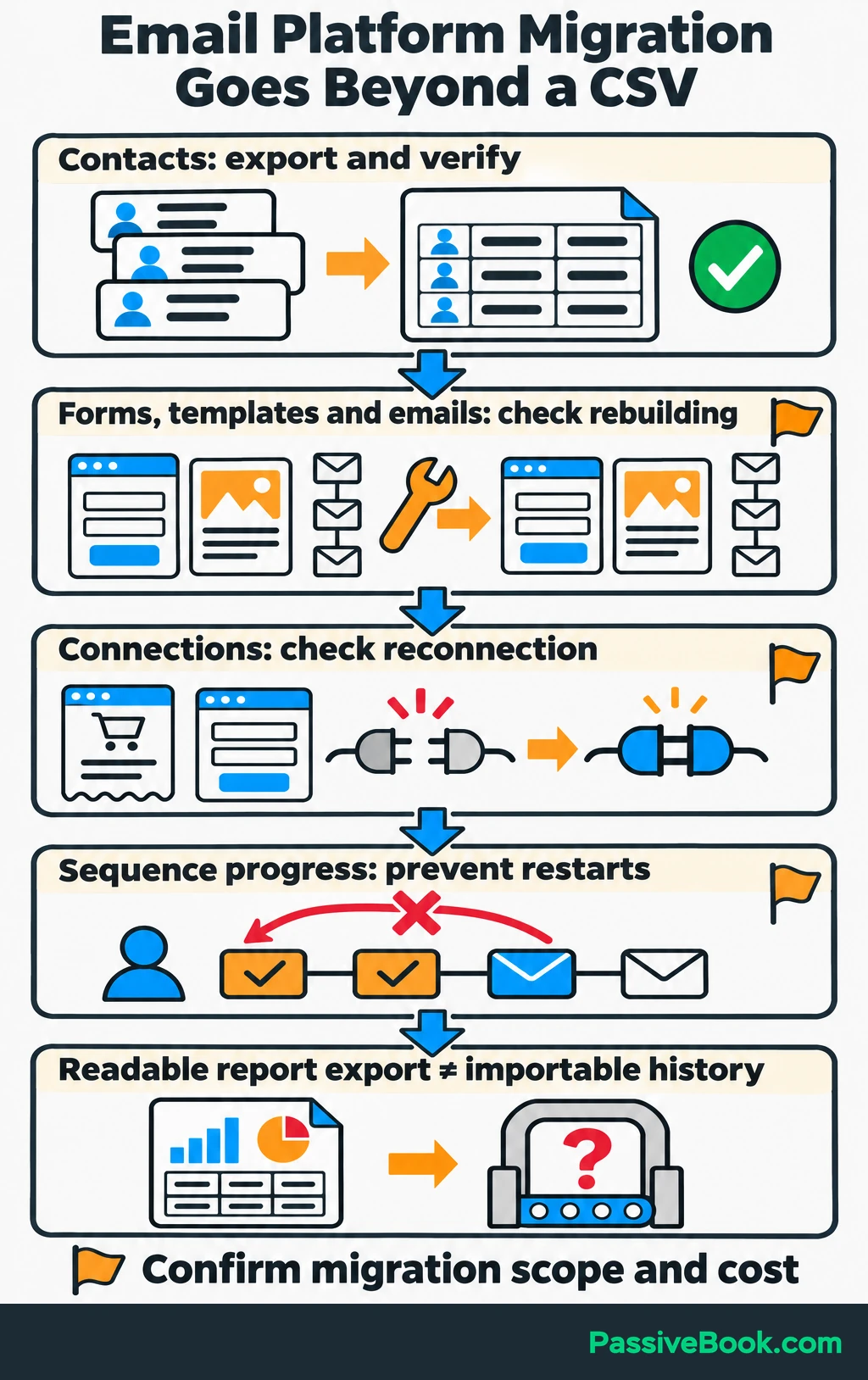
Ask what migration assistance covers and what it costs. “We move your list” may leave you rebuilding every email and connection yourself.
If a sequence is already running, plan how to preserve each subscriber’s progress. Someone halfway through the welcome emails should not restart from the beginning, and an unsubscribed contact should not become active during import.
Switching takes work, but checking these details early makes the work visible and easier to plan.
Choose the Simplest Tool That Passes Your Requirements
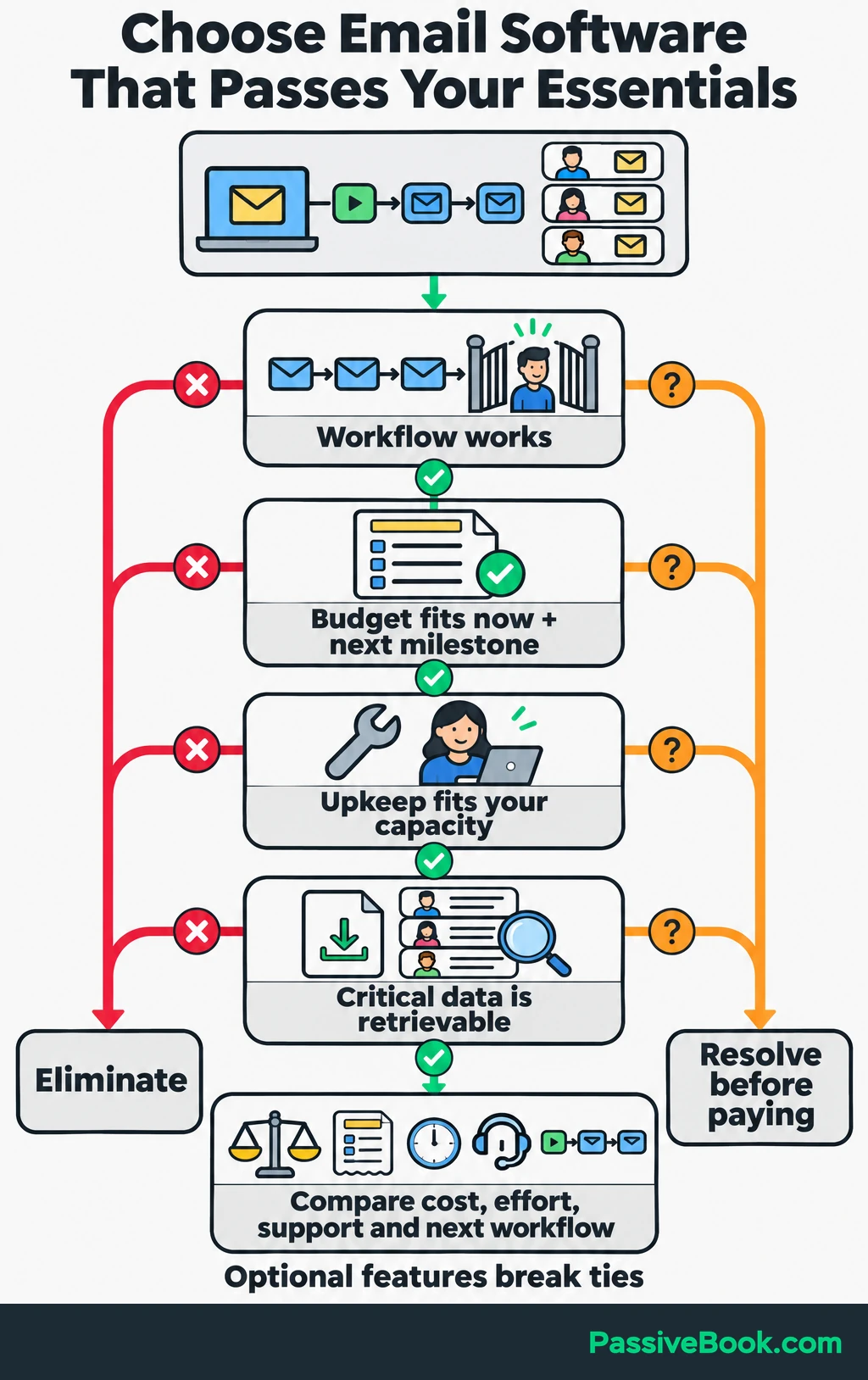
Mark every essential requirement as passed, failed or unresolved for each finalist. Use your trial results and cost comparison.
An attractive feature cannot cancel out a failed essential requirement. Eliminate a candidate if it:
- Fails the Workflow: It cannot reliably deliver the sequence or exclude buyers.
- Exceeds the Budget: Its complete cost is unaffordable now or at your next planned milestone.
- Exceeds Your Capacity: It needs maintenance you cannot handle or fund.
- Restricts Critical Data: You cannot retrieve the subscriber information needed to operate or move.
Resolve essential unknowns before paying. Then compare the remaining options on recurring cost, everyday effort, support and your next planned workflow. Optional features can break a tie.
For the sewing newsletter, I would start by trialing MailerLite as the hosted option. I would compare Kit if its creator and product workflows looked more useful, and include FluentCRM if the business already ran on WordPress and I could maintain the sending setup.
Choose a commitment that matches what you have verified. A free or monthly plan gives you room to establish fit. Annual billing becomes more attractive once the workflow works and the savings justify paying upfront.
Finally, write down a reason to revisit the choice: an unaffordable pricing threshold, a required purchase trigger the platform cannot support or maintenance taking more time than you can spare.
An affordable tool that runs the right workflow is enough. You can let the unused features remain someone else’s subscription.
What Next?
Write your signup-to-purchase workflow in one line, then choose two tools to trial against it. That gives you a concrete job for each platform to prove.
Use the social buttons to share this guide when a tool comparison needs a clearer way to reach a decision.
Which part of your email workflow would you most like to stop handling manually? Leave your answer in the comments, along with any other questions.
Share this post with your friends & followers:

