A subscriber asks why you stopped emailing, but you sent a campaign yesterday. Your report says “delivered.” Their spam folder tells a different story.
That gap makes email hard to trust. You spend time preparing useful messages, then struggle to tell whether people ignored them or never saw them. To make the next send less of a guessing game, this guide connects the evidence in your reports and test mailboxes to practical fixes that help campaigns reach the people who asked for them—without buying a cupboard full of diagnostic tools.
Diagnose Why Your Emails Are Missing Inboxes
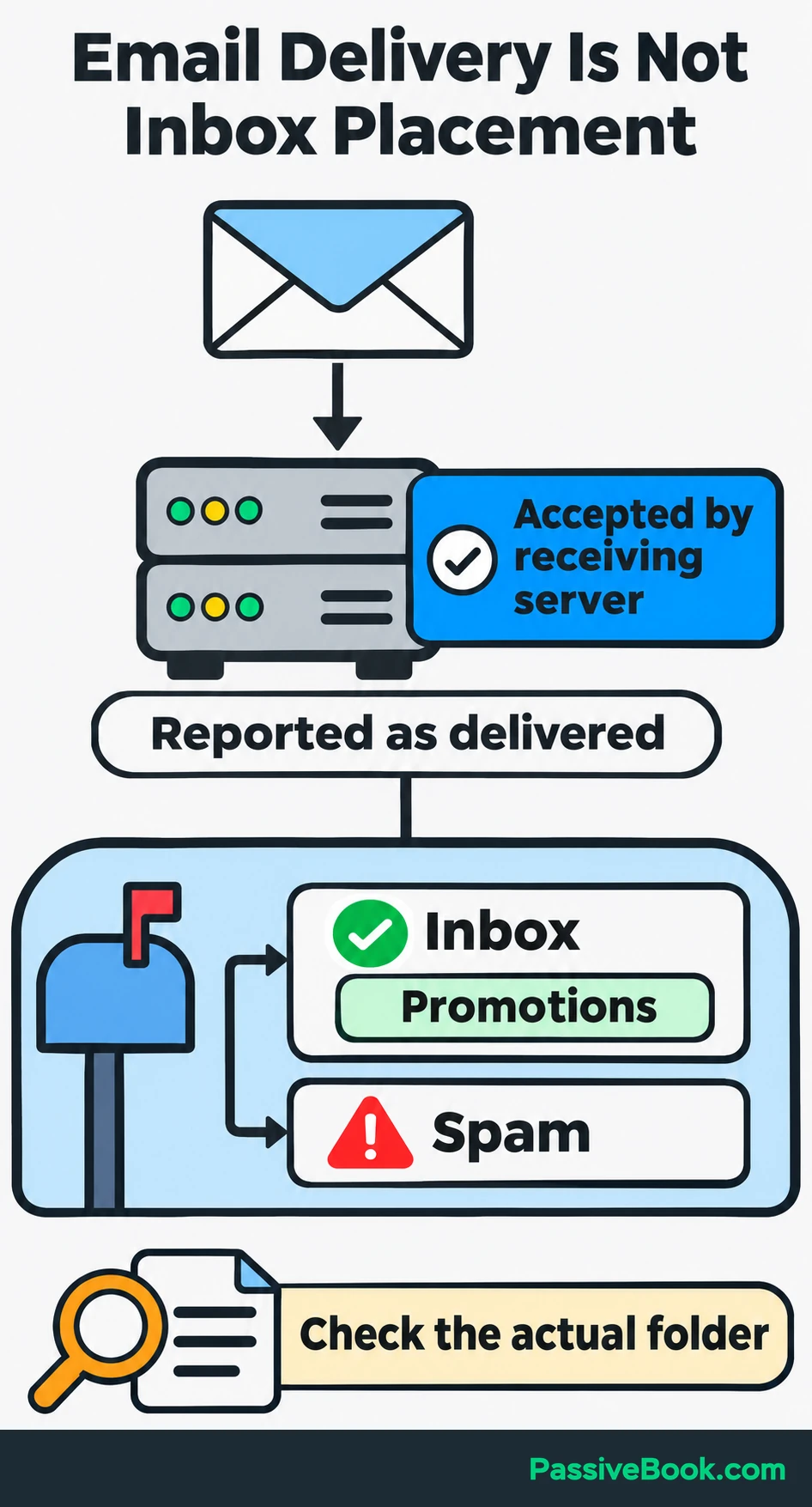
Start by separating delivery from inbox placement. A delivery notification means the receiving server accepted your message, as Amazon SES’s documentation explains. It does not prove that the message reached the inbox.
Also, Gmail’s Promotions tab is an inbox category. Finding a promotional email there is different from finding it in spam.
Compare a few recent campaigns and split the results by:
- Recipient provider, such as Gmail, Outlook, or Yahoo.
- Signup source, such as a download form or checkout.
- Sending service, especially when campaigns and website emails use different services.
A problem affecting one provider needs a different investigation from failures across your whole audience.
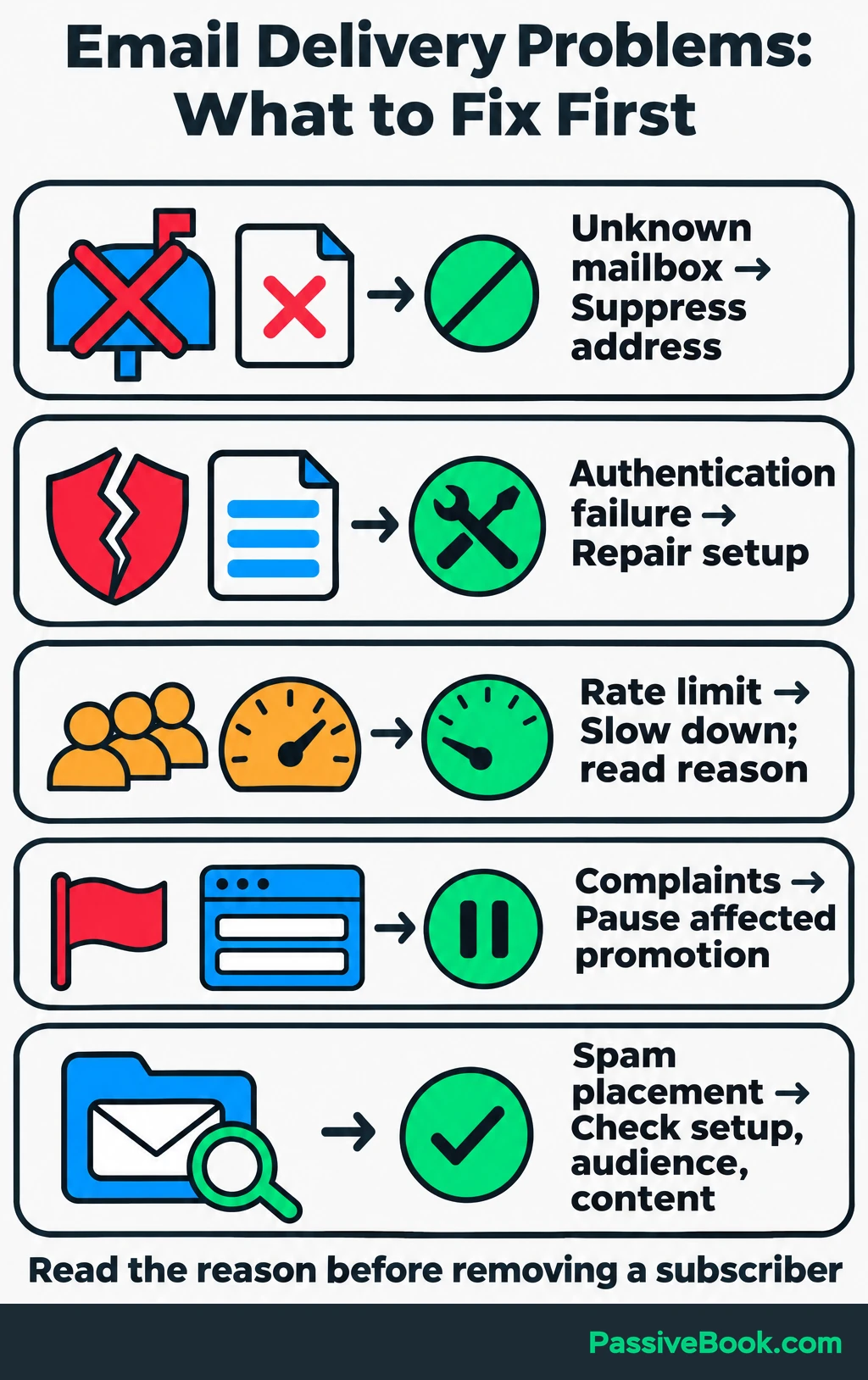
| Symptom | Evidence to Inspect | First Action |
|---|---|---|
| Addresses bounce as nonexistent | Rejection text identifying an unknown user or missing mailbox | Suppress those addresses |
| Messages fail authentication | Authentication results and rejection reasons mentioning SPF, DKIM, or DMARC | Repair the sending configuration |
| Messages face temporary rate limits | Deferral messages, sending speed, and recent volume changes | Reduce sending speed and investigate the stated cause |
| Complaints rise | Affected campaign, signup source, and promises made at signup | Pause the affected promotion and review who received it |
| Accepted messages appear in spam | Received-message headers, placement checks, reputation data, and subscriber reports | Investigate authentication, audience interest, and message content |
Read the reason before removing a subscriber. A permanent rejection caused by failed authentication identifies a sending problem. It does not establish that the recipient’s address is invalid.
In my newsletter work in another niche, I once began a review by rewriting the subject line. I had not read a single rejection message. Putting the error log beside the campaign report made me stop guessing at the part I could see.
For the examples below, imagine you publish a dog-grooming newsletter and sell a printable coat-care planner. The business, decisions, and figures are illustrative.
If newsletter campaigns fail but planner receipts arrive, compare their sending services before rewriting both messages. If widespread failures or complaints appear, pause the affected promotional sends and save the rejection messages and recent configuration changes.
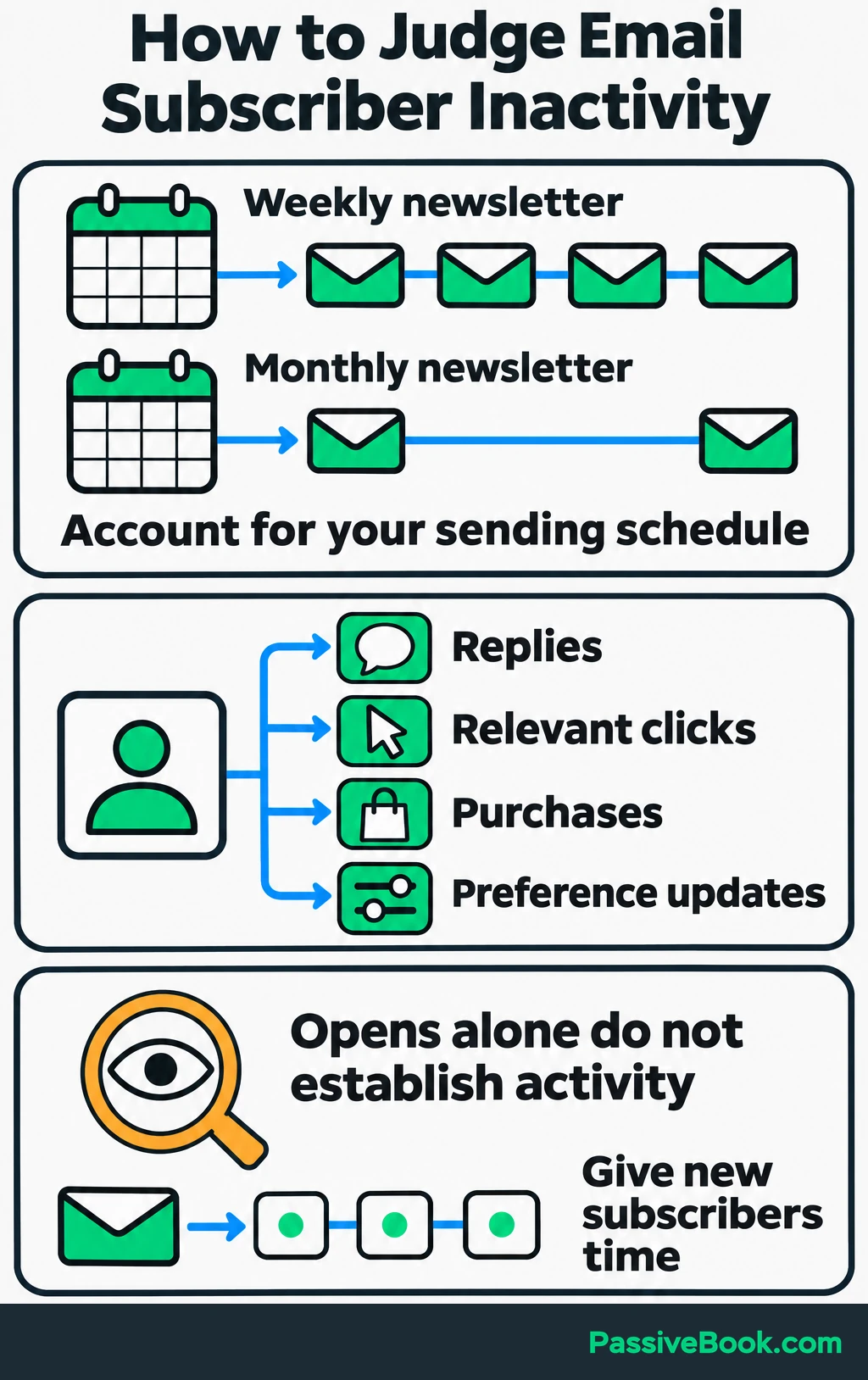
Use opens as supporting clues. Apple’s Mail Privacy Protection can download remote content before someone reads an email, so a recorded open does not establish reader activity. Pair opens with replies, useful clicks, purchases, and subscriber reports. Apple explains this background downloading.
Authenticate Every Service That Sends Your Email
Authentication helps receiving providers check whether a service is authorized to send using your domain.
First, list every service sending email for your business. Include campaigns, welcome sequences, purchase receipts, website notifications, and business mailboxes. Checking the newsletter platform alone can leave another sender unconfigured.
Use a From address on a domain you control, and get access to its DNS settings. DNS records tell other systems which services handle your domain, including email.
Three authentication methods matter:
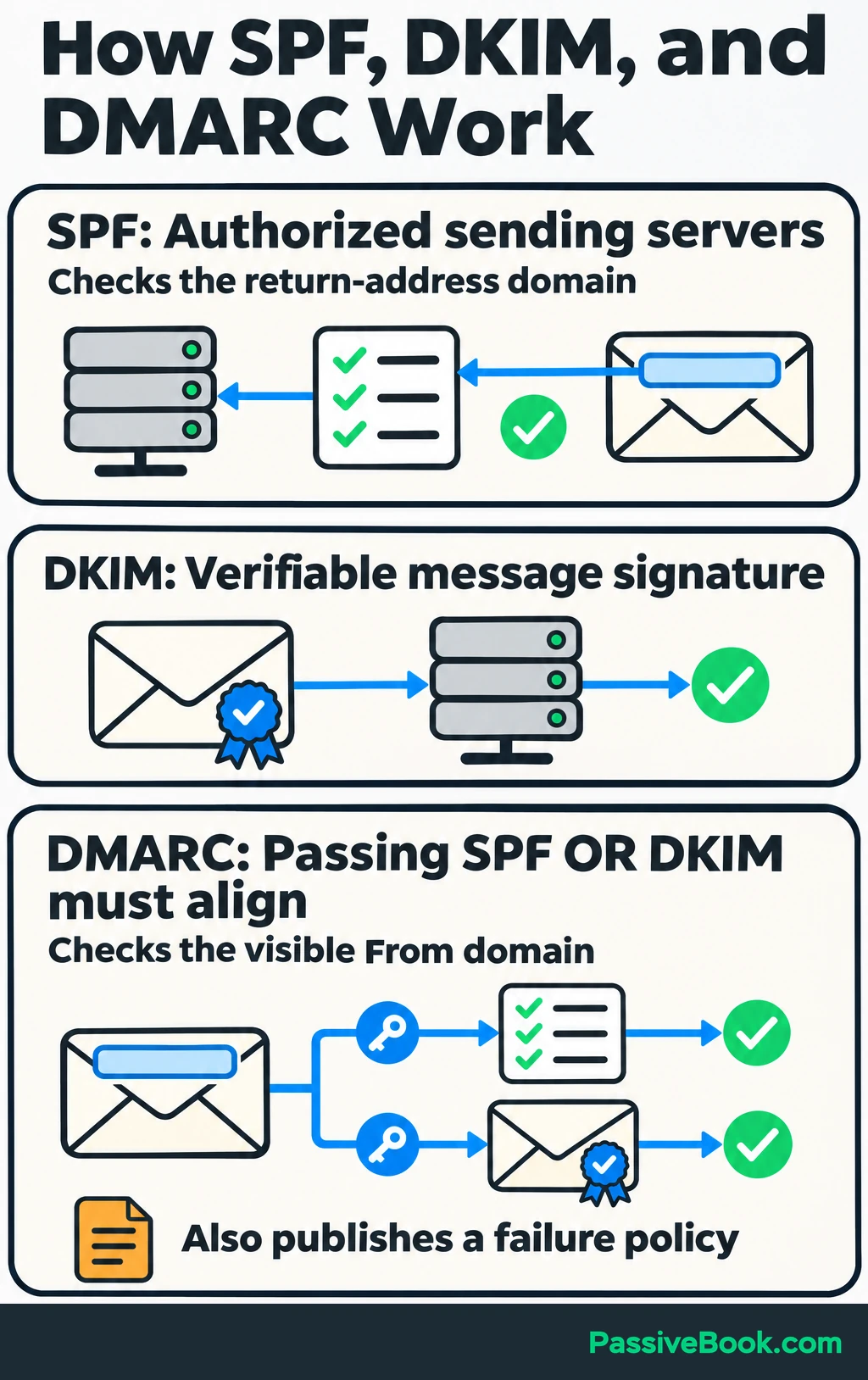
- SPF: Identifies servers authorized to send for the domain used in the message’s return address.
- DKIM: Adds a digital signature that receiving servers can verify.
- DMARC: Checks whether a passing SPF or DKIM result uses the From domain readers see or, under the default rules, the same main domain. This match is called alignment. DMARC also publishes your policy for failures.
Use each sending service’s supplied DNS values. Don’t copy records from an unrelated tutorial.
Keep one SPF record at each applicable hostname. If several services need authorization at that same hostname, combine their requirements into that record rather than adding separate SPF records. Namecheap explains SPF consolidation.
When introducing DMARC, use p=none to monitor failures without asking receivers to quarantine or reject messages. Enable aggregate reports, which summarize sending sources and authentication results. Review those reports and fix legitimate senders before choosing a stricter policy.
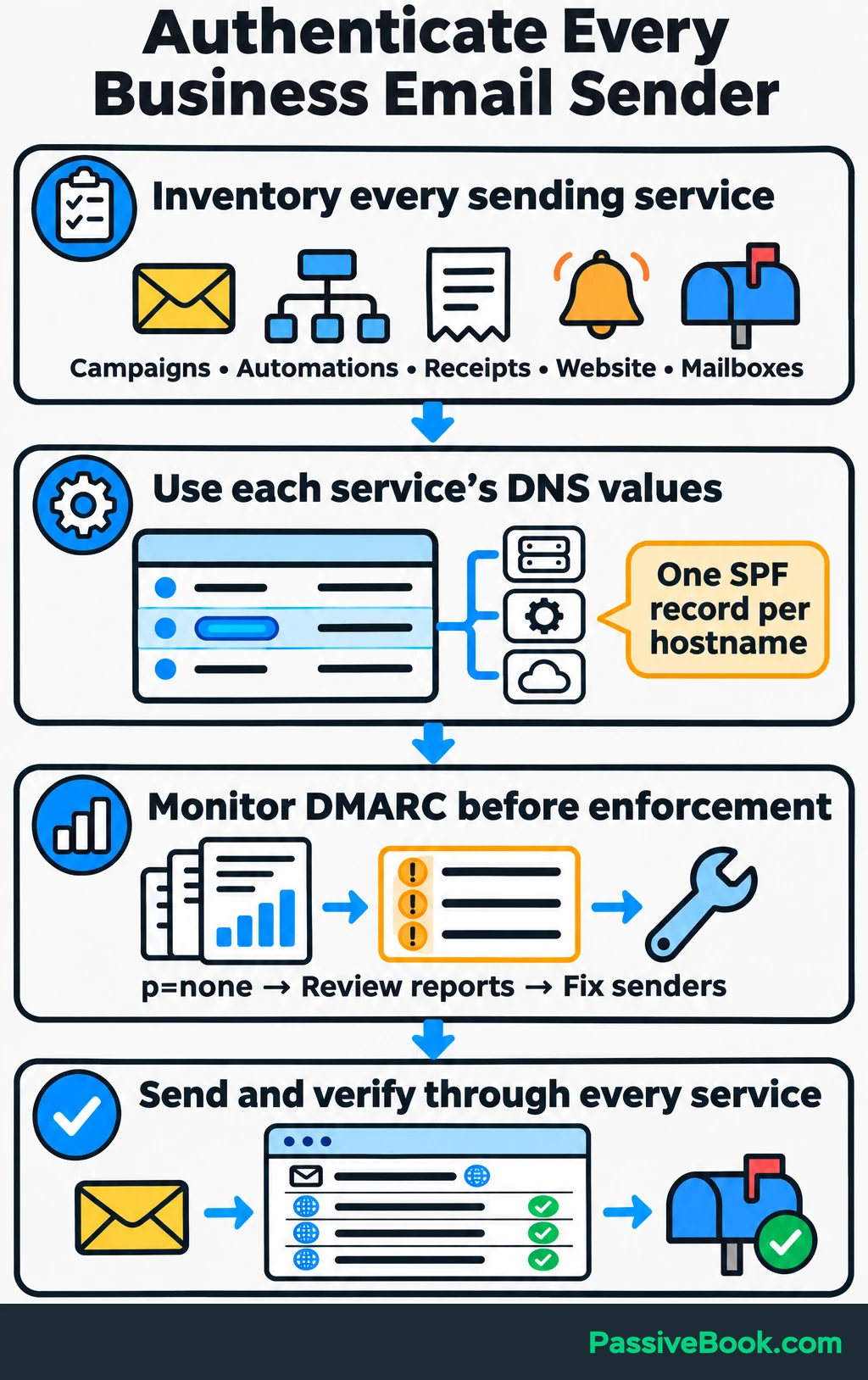
Then send an actual message through every service and inspect the receiving mailbox’s authentication results. Look for SPF, DKIM, and DMARC results in the message details or full headers.
A pass for an unrelated provider domain is insufficient. Microsoft’s DMARC guidance explains alignment and the gradual policy rollout.
For the grooming business, test both the newsletter and a planner purchase receipt if different services send them. If only the newsletter fails DMARC, check whether its service has authenticated your From domain. Correct that service’s configuration, then send another newsletter test and confirm that DMARC passes.
Ask your sending provider to handle infrastructure errors involving reverse DNS, which connects a sending IP address to a hostname, or TLS, which protects email in transit. Forward the actual error so support can investigate something concrete.
Send Only to People Who Want Your Emails
Good authentication cannot make an unwanted campaign welcome. Review how people joined, what they expected, and whether your system still respects their choices.
Improve How Subscribers Join
Explain the topics and expected frequency beside the signup form. A reader should understand what happens after entering an address.
For the grooming newsletter, the promise could be:
Get one practical grooming email each week, plus occasional offers for our printable coat-care planner.
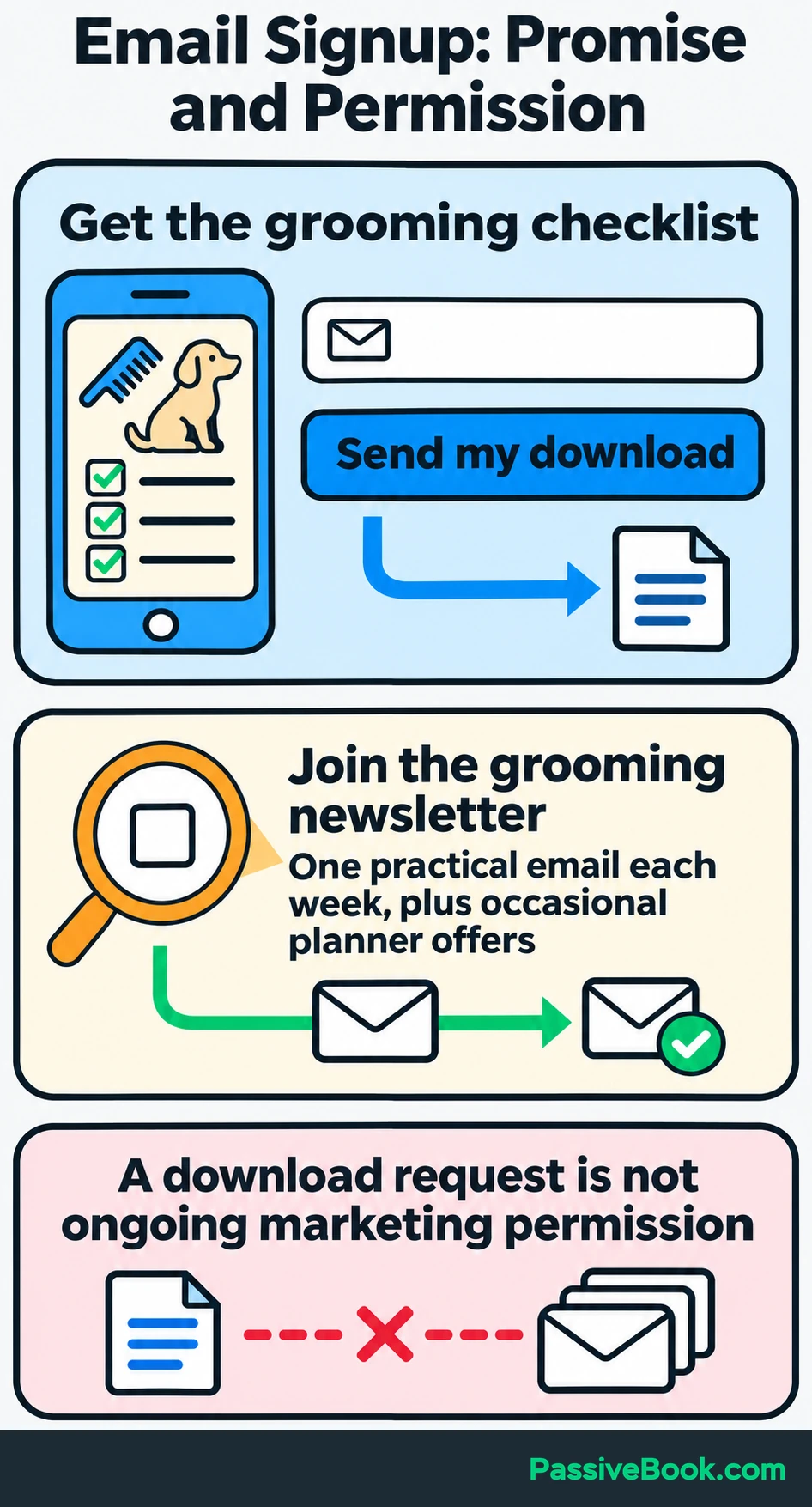
If you offer a free download, distinguish delivery of that download from permission to send ongoing marketing. Don’t turn a request for one file into an invitation to promote everything you sell.
I would use a confirmation email before adding someone to regular campaigns. It gives the address owner a chance to confirm the request.
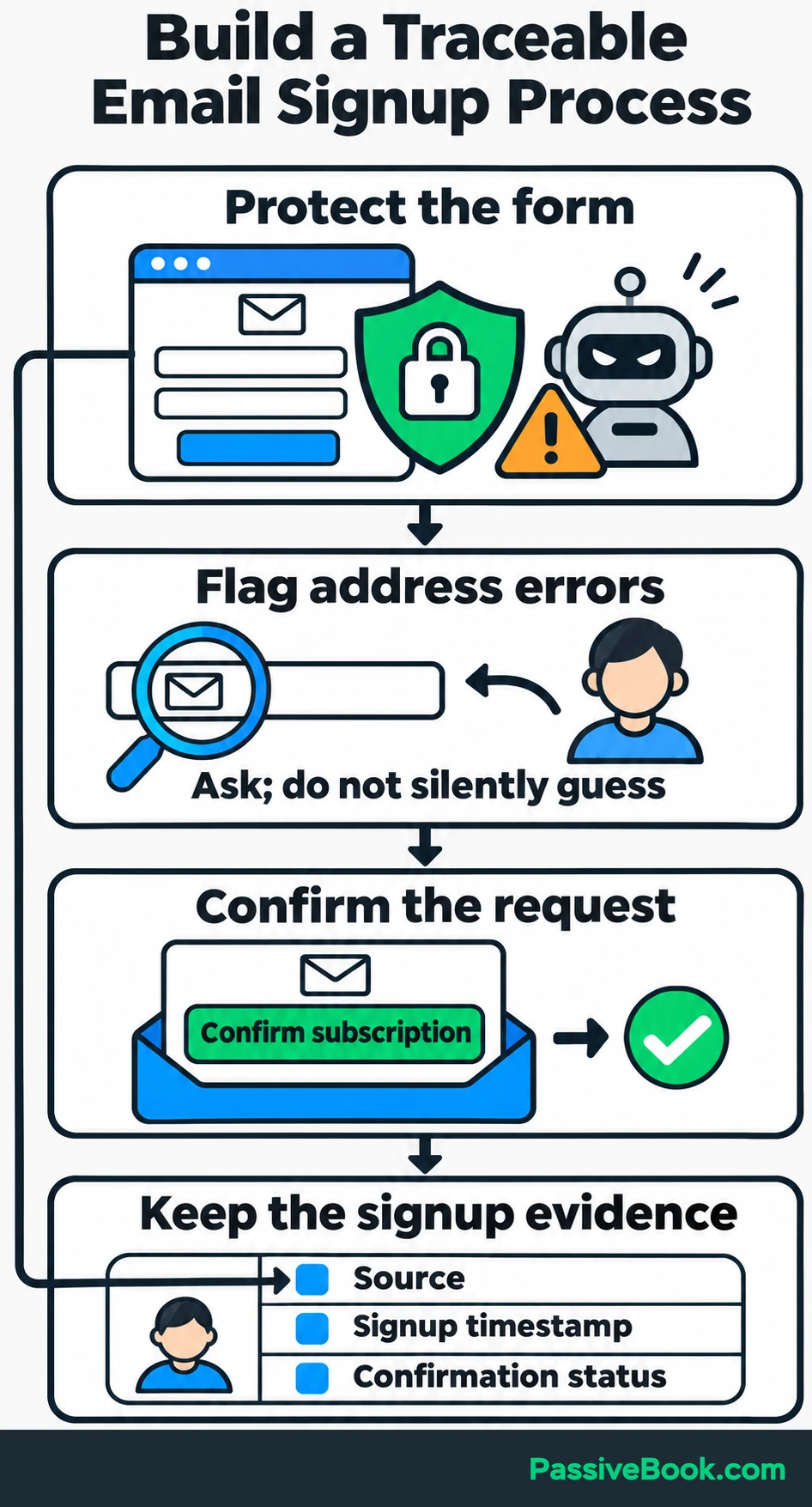
Also:
- Protect forms against automated signups.
- Flag obvious address errors without silently guessing the correct address.
- Retain the signup source, date, and confirmation status.
- Keep purchased, scraped, and unrelated lists out of campaigns.
Those records help when complaints cluster around one form or imported group. You can investigate the source instead of treating every subscriber as equally suspect.
Suppress Invalid Addresses and Complaints
Suppression means keeping an address out of future sends. Preserve that status so an import or automation change cannot quietly add the person back.
Automate suppression for confirmed invalid addresses, identified spam complainants, and marketing unsubscribes. Check that it applies to both scheduled campaigns and automated marketing sequences.
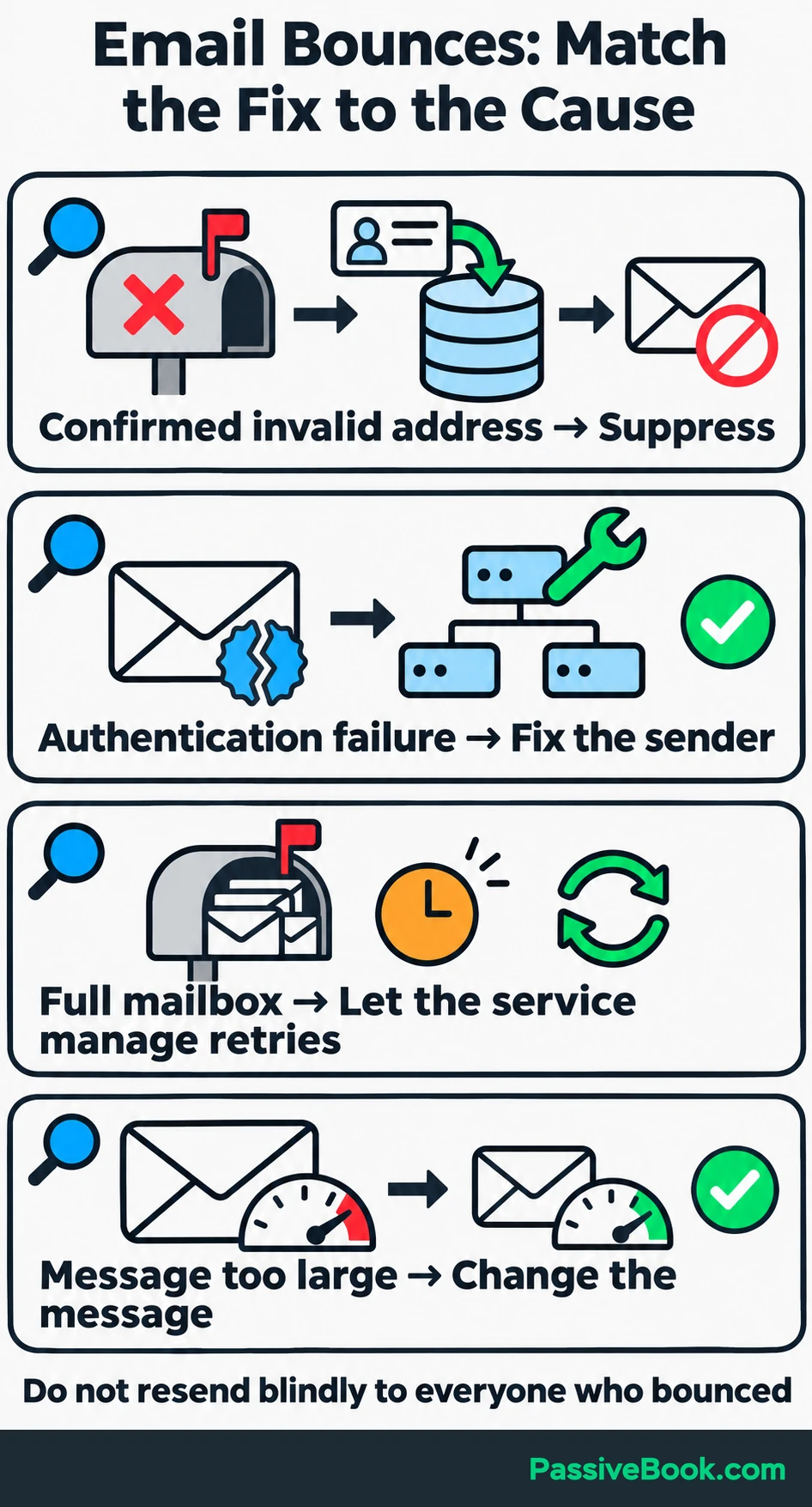
Temporary failures need different handling. A full mailbox may work again later, while a message rejected for its size needs a change to the message. Let the sending service manage retries, and investigate repeated failures by their actual causes. Amazon SES’s bounce classifications show why the distinction matters.
Don’t repeatedly resend a failed campaign to everyone who bounced. That creates more sending without resolving the problem.
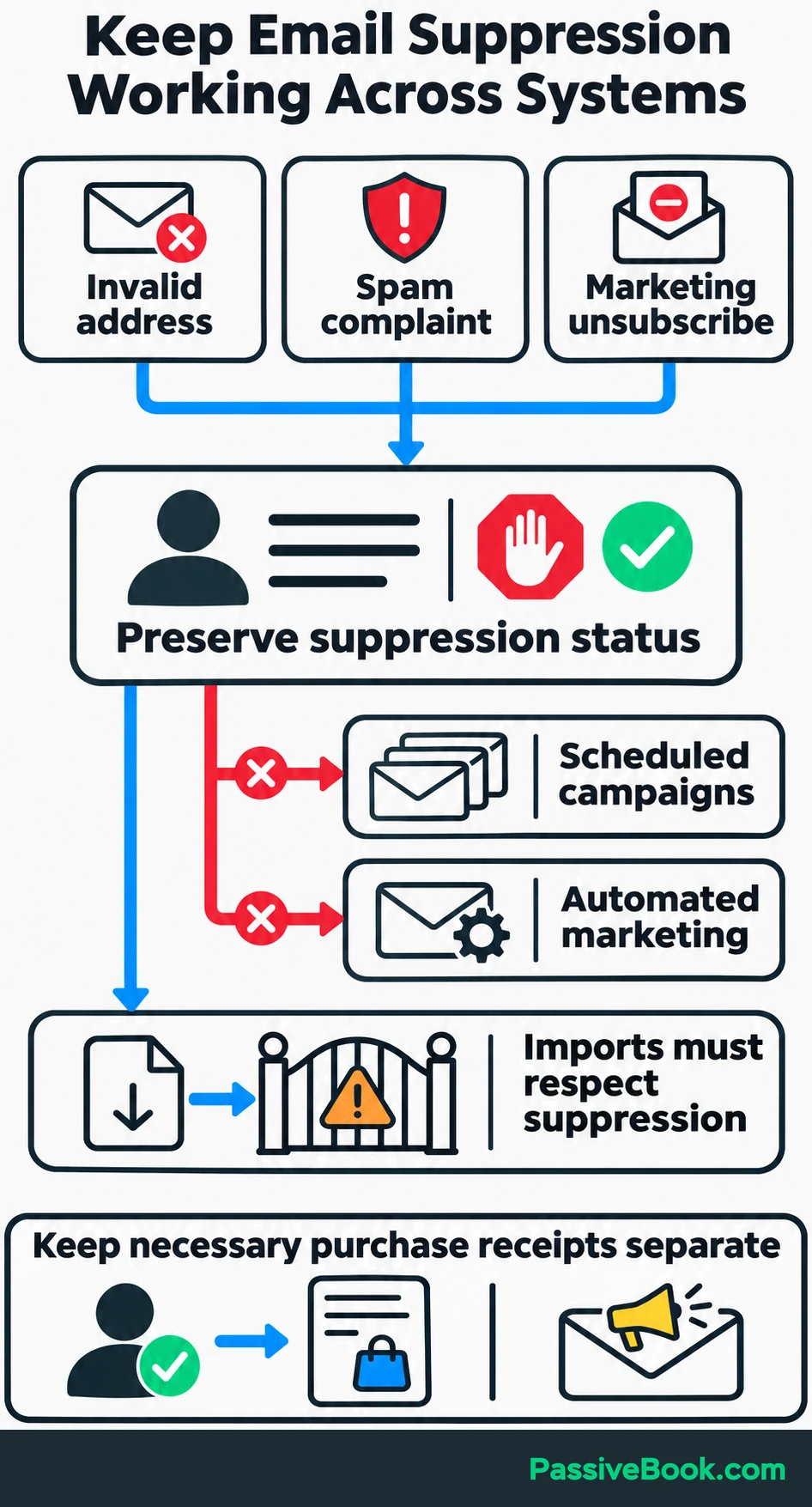
Keep necessary purchase receipts separate from promotional subscriptions. Unsubscribing from grooming offers should stop those offers, while a valid customer address can still receive the receipt for a planner purchase.
If your setup separates campaign software from the delivery service, verify that bounce and complaint events reach the subscriber records. A delivery service suppressing an address and your campaign tool continuing to queue it is a problem worth fixing once.
Reduce Sending to Inactive Subscribers
Define inactivity around your schedule and meaningful actions. Someone receiving a monthly newsletter has fewer chances to respond than someone receiving weekly lessons.
Look at replies, relevant clicks, purchases, and preference updates. Don’t classify people using opens alone, and give new subscribers enough time to receive the promised content.
When permission remains valid but interest is uncertain, send one focused preference or reconfirmation message. Explain what they will receive and make the choice easy.
For example:
Which emails would you like to keep: coat-care lessons, nail-care lessons, or both?
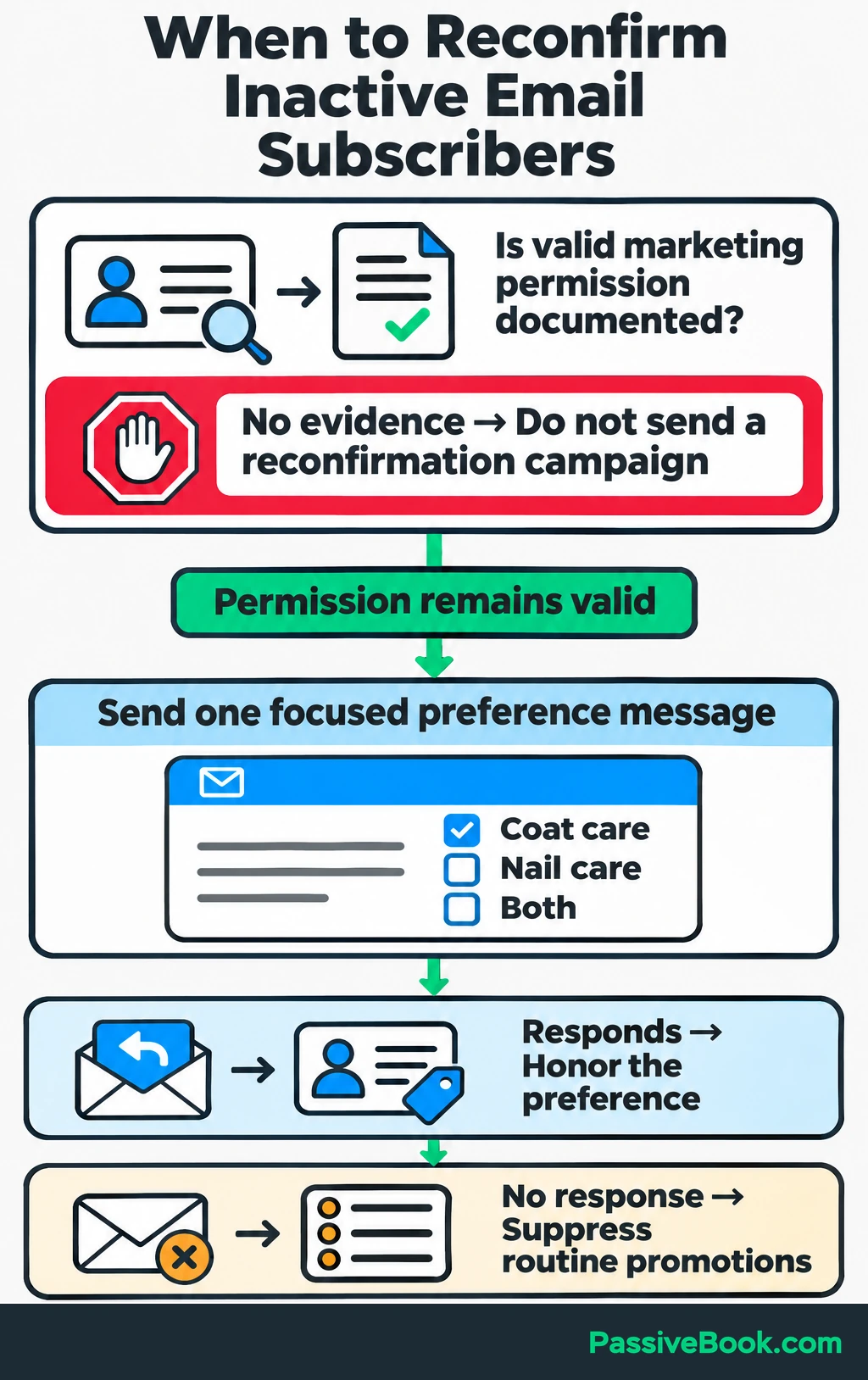
Suppress continued nonresponders from routine promotions. If you lack evidence that an old imported list ever agreed to your emails, don’t use a reconfirmation campaign to manufacture that permission.
I would rather maintain a smaller list I can explain than a large list held together by optimism.
Make Unsubscribing Easy
Include a visible, working unsubscribe link in every marketing email. Preferences can offer fewer messages or different topics, but they should not obstruct the option to stop marketing altogether.
Also enable header-based one-click unsubscribe through your sending service. These headers let compatible mailbox providers offer an unsubscribe action outside the email body.
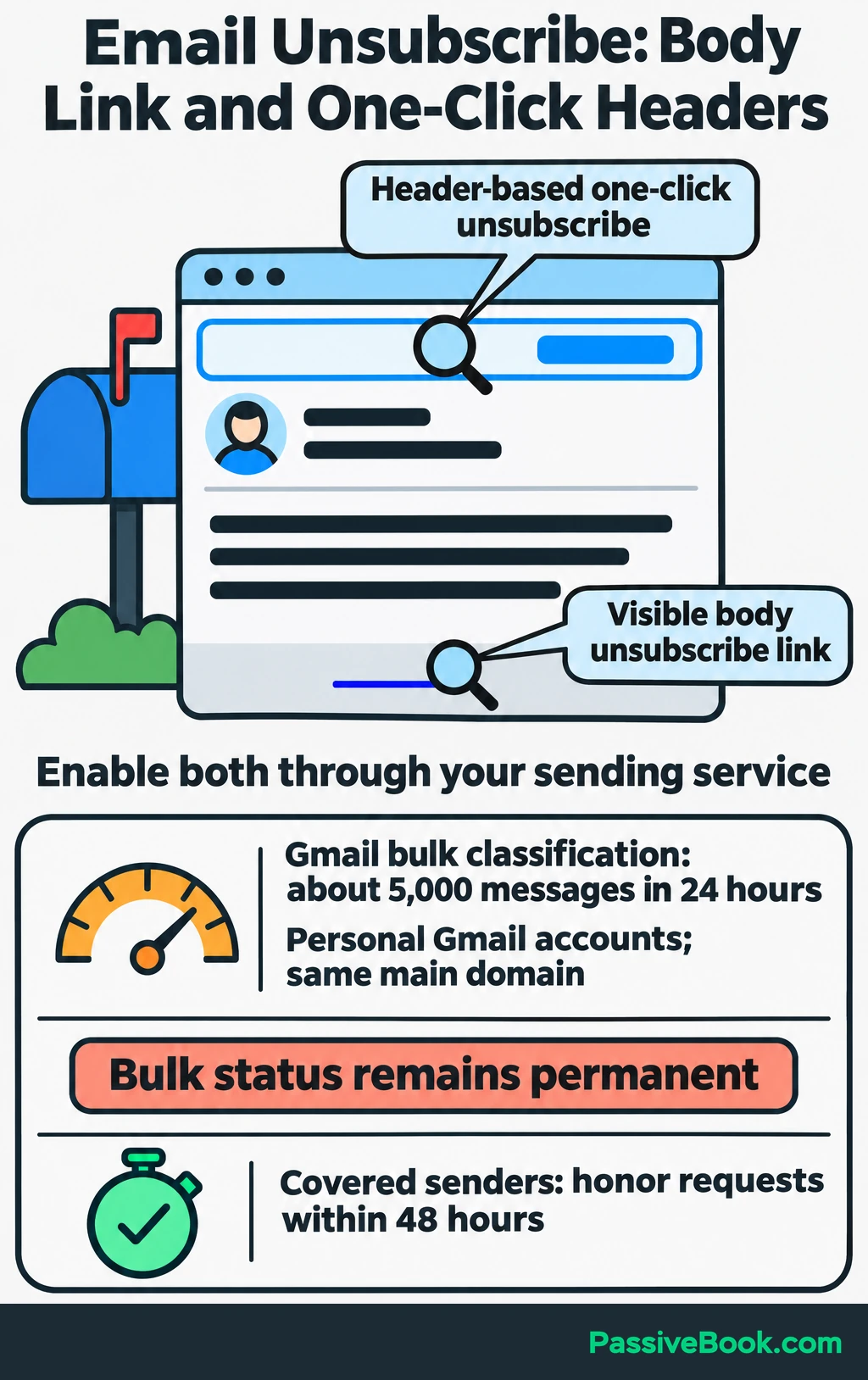
Gmail requires this for bulk senders’ marketing and subscribed messages alongside a visible body link. A footer link alone does not meet that requirement. Google generally treats senders reaching about 5,000 messages to personal Gmail accounts within 24 hours as bulk senders, counting messages across the same primary domain. Once you qualify, bulk-sender status is permanent.
Covered bulk senders must honor unsubscribe requests within 48 hours. I would process them immediately wherever practical. Google’s sender FAQ explains bulk-sender classification and unsubscribe requirements.
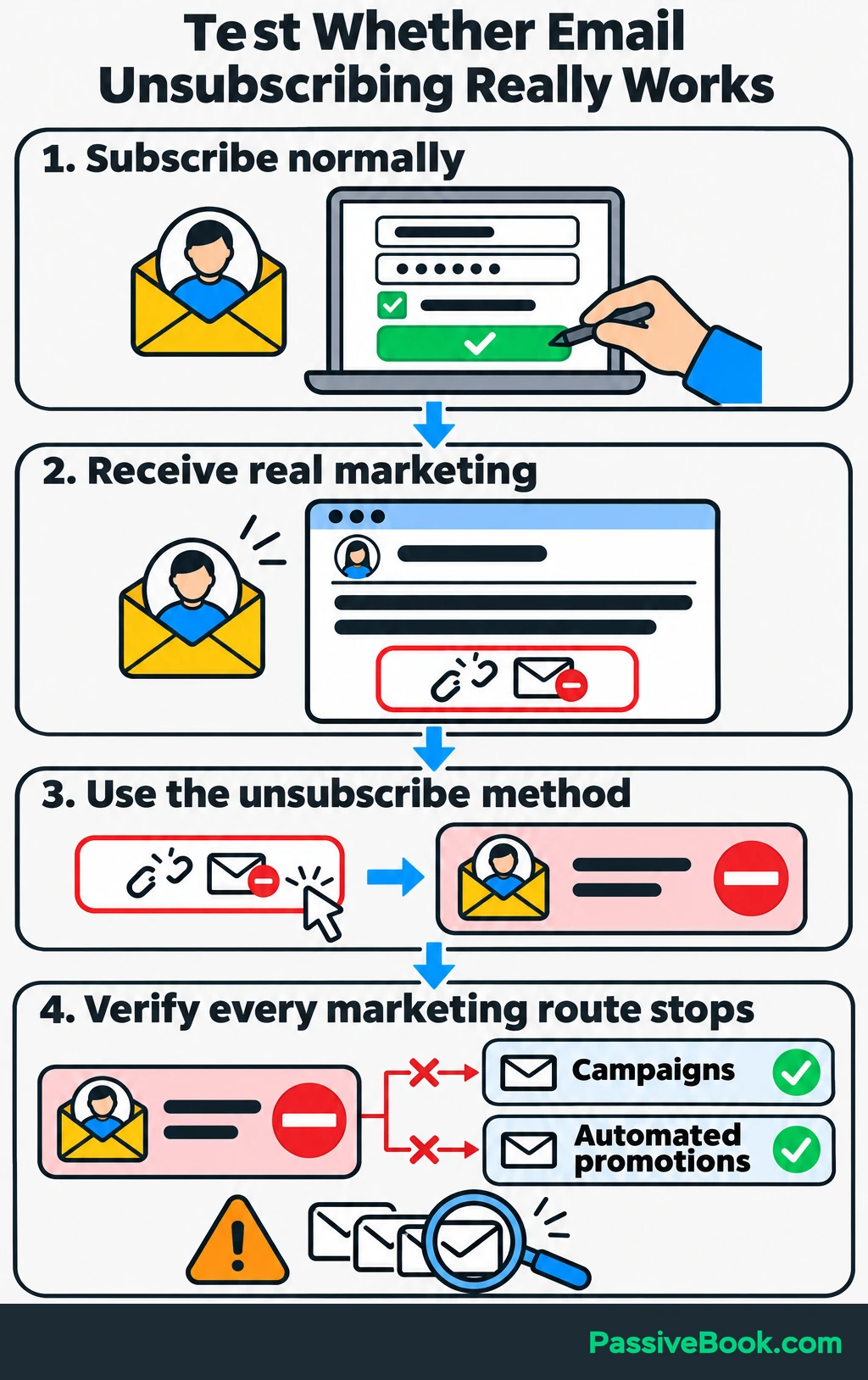
Test the result with an address you control:
- Subscribe through your normal form.
- Receive a real marketing message.
- Unsubscribe using the available method.
- Check that future campaigns and automated promotions exclude the address.
Watch for separate lists and overlapping sequences. An unsubscribe that stops the weekly newsletter but leaves a sales sequence running has only done half the job.
Send Recognizable, Relevant Messages
Keep the sender name consistent and use a monitored reply address. People should recognize who is writing and have a practical way to respond.
Then deliver what your signup form promised.
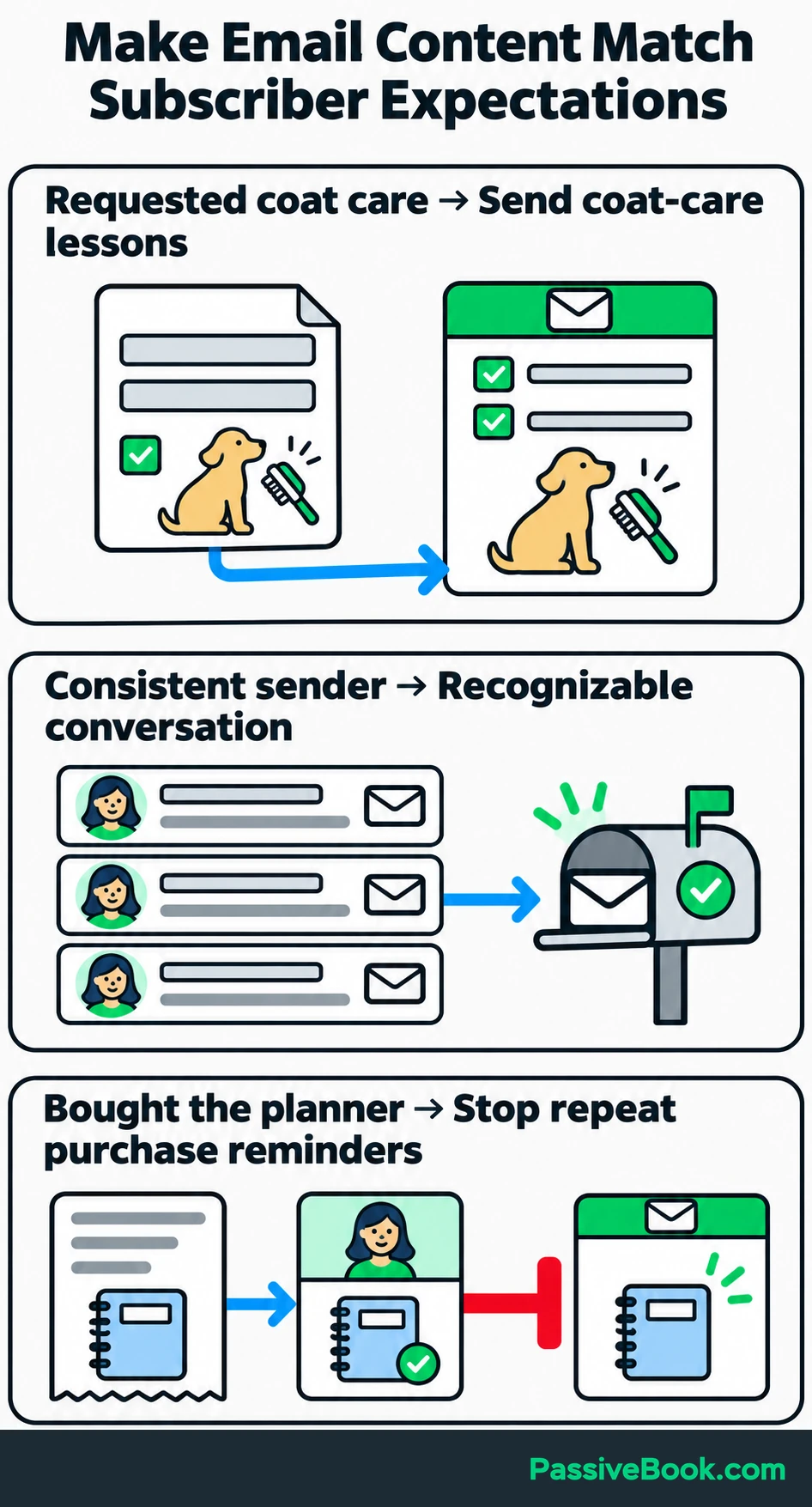
Someone who requested coat-care lessons should receive those lessons. If you collect topic preferences, use them. If someone buys the planner, remove them from repeated reminders to buy that same planner.
Write subjects that describe the useful thing inside. For example:
Your weekly brushing checklist for long-haired dogs
The opening should immediately deliver on that subject:
Here’s this week’s brushing checklist. Use the printable page to record each session and note any areas you want to ask your groomer about.
The next action follows naturally from the lesson. You don’t need to turn every issue into a catalogue.
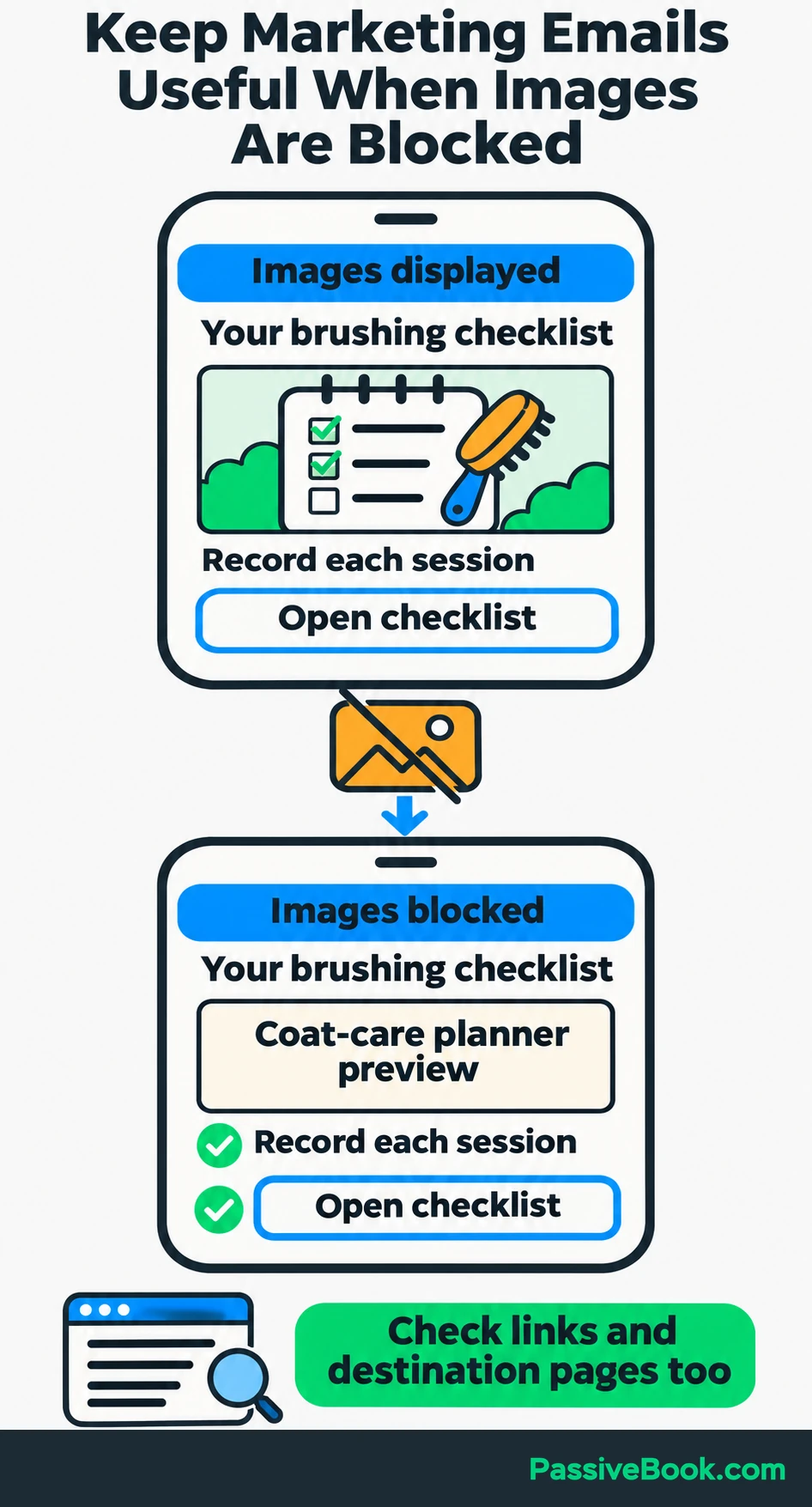
Check that the message remains understandable when images are blocked. Keep essential instructions in text, add useful image descriptions, and make links easy to tap on a phone.
Open the destination pages too. Repair broken links and investigate unexpected redirects or compromised pages before sending readers there.
I would skip lists of supposedly forbidden “spam words.” Accurate subjects, genuine offers, and readable messages are useful standards, but avoiding a word or following a fixed text-to-image ratio cannot guarantee inbox placement. Neither can switching every campaign to plain text.
Test Through Your Actual Sending Setup
Start with checks that cost little or nothing:
- Authentication results on received messages.
- Delivery logs and rejection reasons.
- Suppression and unsubscribe behavior.
- Working links and readable mobile layouts.
- Folder placement in test mailboxes.
Send the finished campaign through its normal platform, From address, template, and tracking setup. A message sent manually from your business mailbox tests a different route.
Choose test inboxes representing the providers your subscribers use. Check whether the message arrives, where it lands, how the sender appears, and whether unsubscribing works.
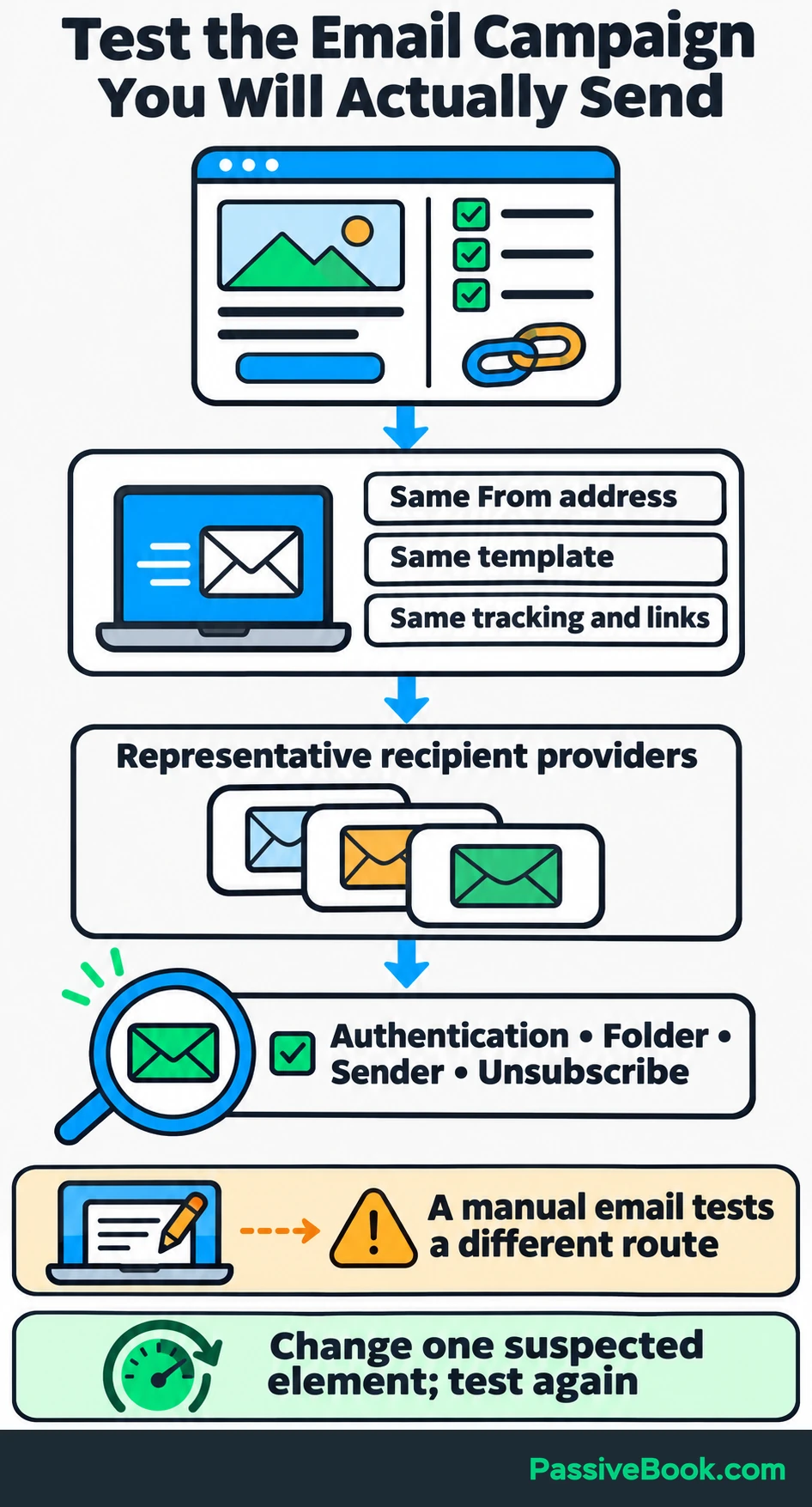
For the grooming newsletter, test the actual brushing-checklist campaign, including its planner link. A stripped-down draft without tracking does not fully test the version you plan to send.
If spam placement persists and you need broader provider coverage, consider a seed-testing service such as GlockApps. A seed list is a group of test mailboxes whose results the service checks.
Treat those results as evidence about the tested mailboxes. They do not establish what percentage of your subscribers will receive the campaign in spam. GlockApps explains that limitation.
When content looks suspect, compare the campaign with a simpler version through the same setup. Change one suspected element at a time, such as a linked destination or template component.
I would pay for broader testing when it answers an unresolved question. Buying a score before reading an authentication failure is an expensive way to postpone the obvious.
Increase Sending Volume Gradually
Correct the identified problems before increasing volume. Sending slowly does not repair an invalid list or broken authentication.
Resume with a smaller group of confirmed subscribers who recently showed interest. Expand while receiving-server responses and recipient feedback remain healthy.
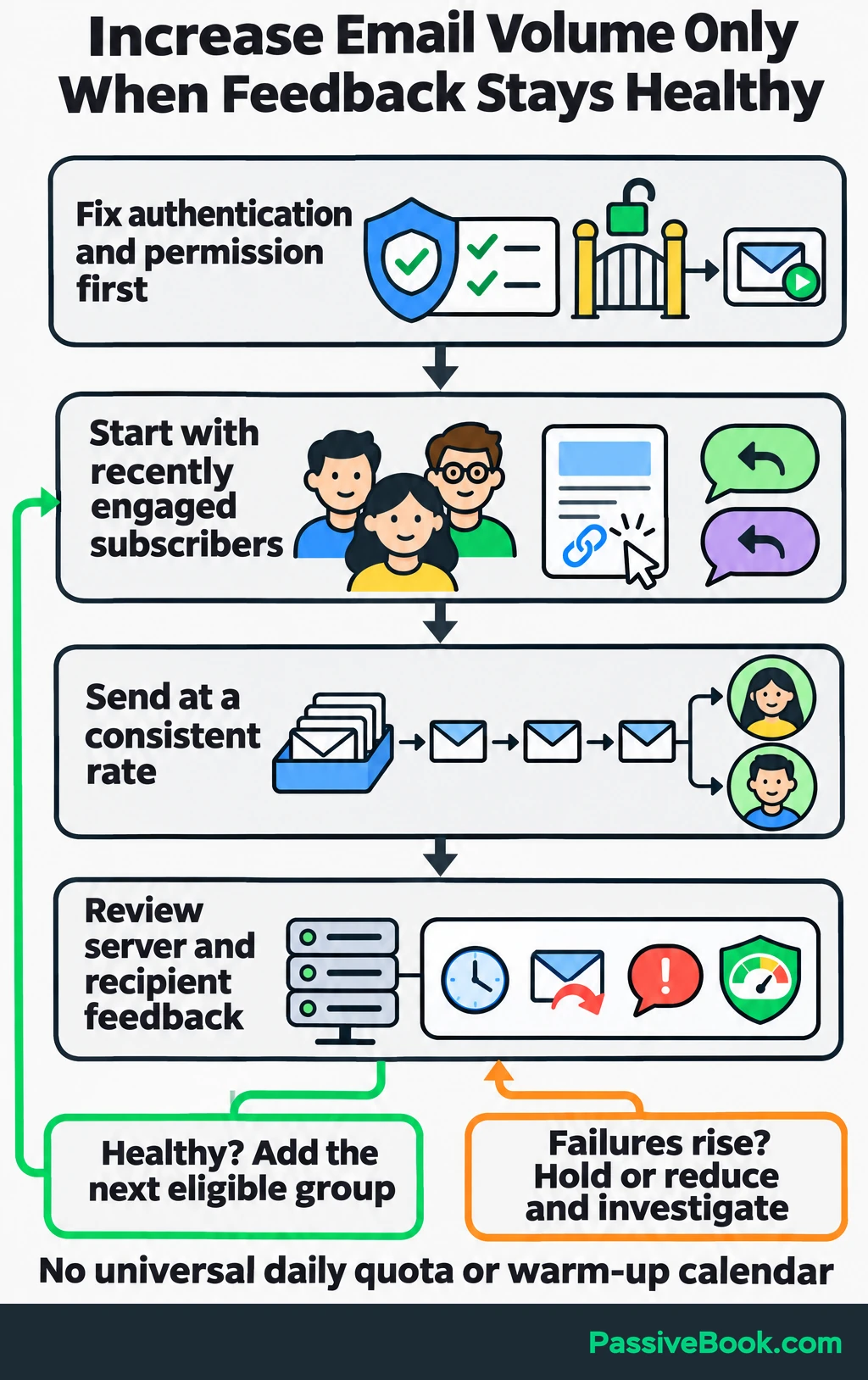
Keep a steady sending pattern rather than disappearing for months and returning with a large promotion. Google recommends starting with engaged recipients, increasing volume gradually, and reducing volume when bounces or deferrals rise. Its sending-volume guidance supports that approach.
This gradual sending is often called warm-up. It means sending real messages to real subscribers and adjusting to the response. I would skip services promising to manufacture engagement.
For the grooming newsletter, send the next useful issue to recently responsive subscribers before widening the audience. Keep a dormant import out until you have resolved its permission and address-quality problems.
There is no useful universal daily quota for every list. Your sending history, audience, and receiving providers affect how quickly you can expand.
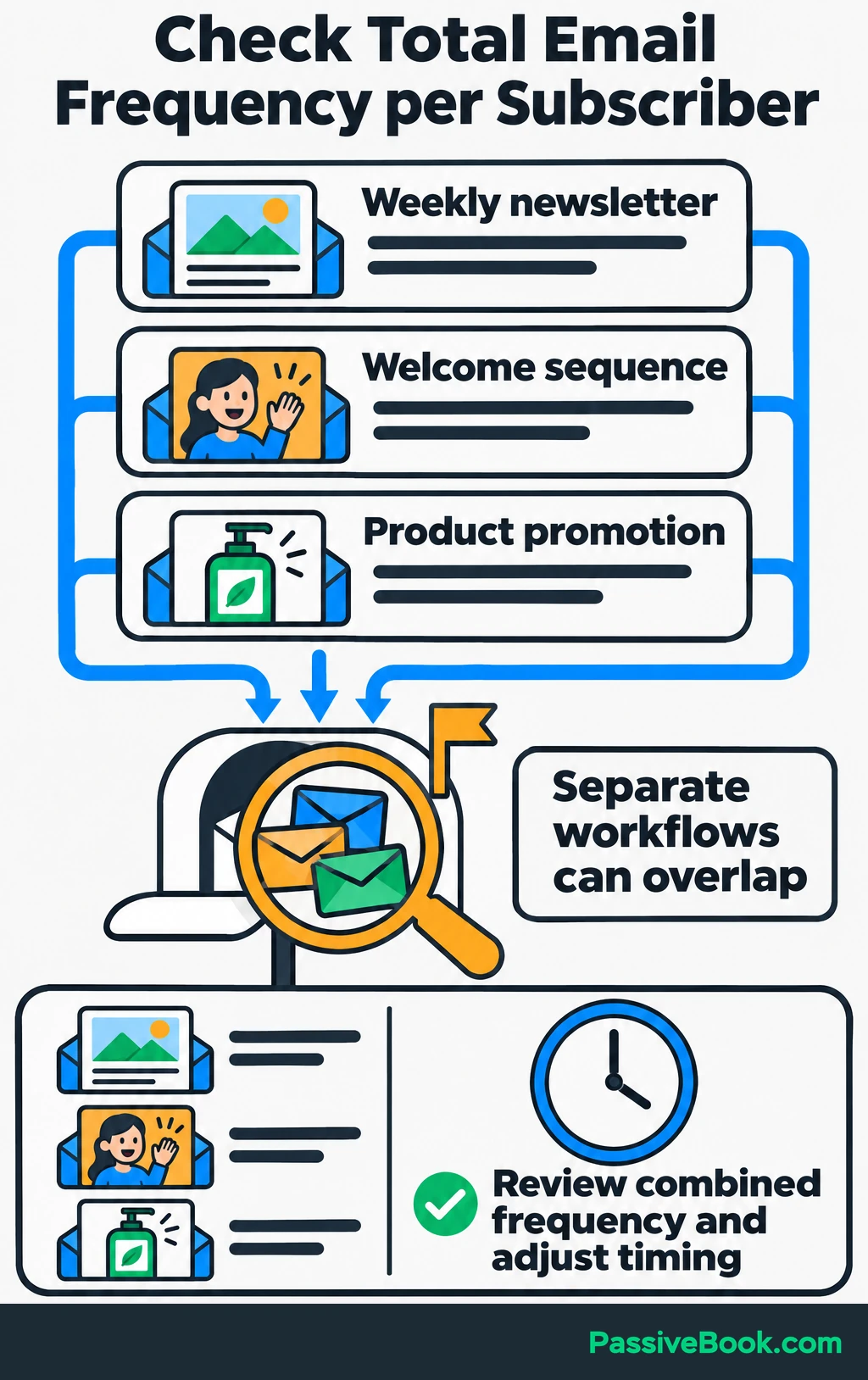
Also review overlapping automations. A weekly newsletter, welcome sequence, and product promotion can reach the same person close together even when each workflow looks reasonable on its own. Check the total experience at the subscriber level.
Monitor Progress and Resolve Persistent Blocks
Once sending resumes, keep enough evidence to tell whether the fix holds. You need a short record you can compare, not another dashboard to admire.
Review Results After Each Campaign
Keep a campaign log with the audience, sending volume, failures, complaints, unsubscribes, useful activity, and change tested.
Start with one campaign’s available numbers before comparing results over time. Missing metrics can stay unavailable rather than being treated as zeros.

Free Email Performance Workbook




Here is an illustrative entry. The activity counts belong to this campaign’s recipients and cover the seven days after sending.
| Date | Provider or Segment | Send Volume | Delivery Failures | Complaints and Unsubscribes | Useful Activity or Sales | Change Tested |
|---|---|---|---|---|---|---|
| 6 May | Gmail; confirmed coat-care subscribers | 400 attempted messages | 4 invalid-address bounces; no other failures reported | 0 reported complaints; 3 unsubscribes | 18 recipients clicked the checklist link; 2 attributed planner orders | Excluded unconfirmed addresses |
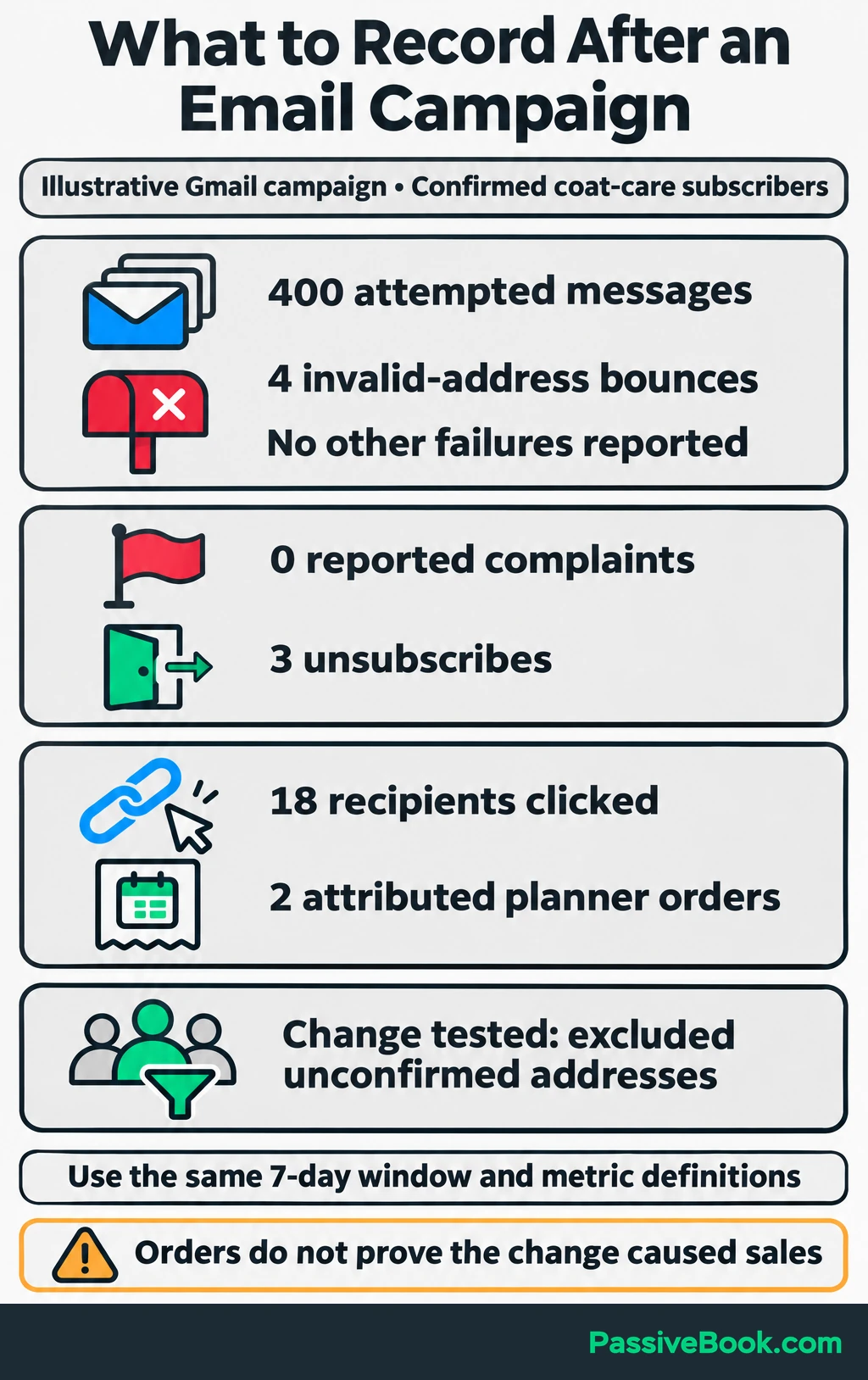
Compare similar campaigns using the same metric definitions and seven-day reporting window. The two orders do not prove that excluding unconfirmed addresses caused the sales.
Use Google Postmaster Tools alongside campaign reports to check authentication, sender reputation, delivery errors, and user-reported spam for mail sent to personal Gmail accounts. Low volume can leave data unavailable, so use logs, placement checks, and subscriber feedback too. A low spam rate also needs context: messages sent straight to spam can make the rate look reassuring.
Google recommends keeping its daily user-reported spam rate below 0.1% and preventing it from reaching 0.3% or higher. Use Google’s reported rate for this target, rather than your email platform’s complaint rate.
Look for several signals moving together: fewer failures, fewer complaints, healthier placement checks, and useful subscriber activity. Track sales alongside them so you can see whether the channel supports the business.
Escalate Unresolved Delivery Problems
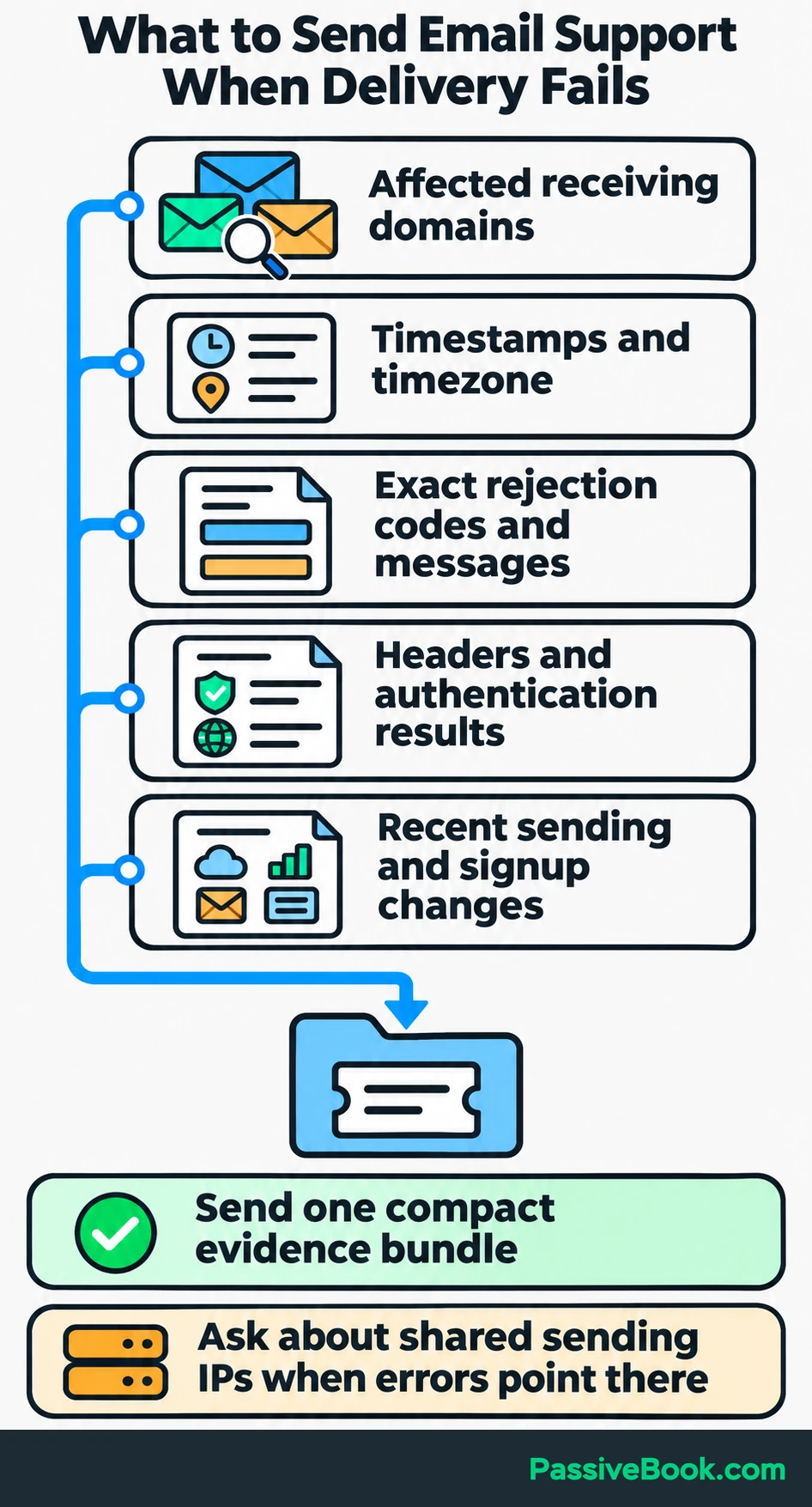
When the problem persists, send your provider a compact evidence bundle:
- Affected receiving domains.
- Timestamps, including the timezone.
- Exact rejection codes and messages.
- Message headers and authentication results.
- Recent changes to sending services, volume, templates, or signup sources.
Ask your provider to investigate its infrastructure, including any sending IP address shared with other customers, when the errors point there.
Investigate a blocklist when rejection text or diagnostics identifies one. Use the operator’s official lookup, correct the cause, and follow its removal process.
For a Spamhaus listing, use its official lookup and removal process. If your provider controls the listed IP address, ask it to handle the request.
Don’t change domains or providers simply to escape the symptoms. Unwanted recipients and broken sending practices can follow you to the new setup.
Keep expansion on hold until the evidence supports it. Recovery has no fixed deadline, and a successful test message is a reason to keep checking rather than immediately send to everyone.
What Next?
Open your latest campaign’s delivery report and save one actual rejection reason. If there are no rejections, send that campaign through its normal setup to test inboxes and check the received authentication results and folder placement.
Use the social buttons to share this guide when your next campaign discussion turns into guessing why messages disappeared.
Which part of your sending setup can you currently verify, and which part are you still assuming works? Share your answer or any other questions in the comments.
Share this post with your friends & followers:

