Your checkout reminder is ready. The awkward part is deciding who should still receive it two hours from now.
Some customers will finish buying. Others will unsubscribe, start another checkout or leave before you have enough information to email them. A simple “checkout started → send email” rule can miss those changes and turn a useful reminder into an irritating one.
Those changes make the send decision harder than writing the email. The walkthrough below builds one ebook checkout reminder, with timing and stop rules that help you follow up on unfinished purchases and leave confirmed buyers out.
How Behavioral Events Become Automated Emails
Start with this chain:
Customer action → event matched to a contact → entry checks → wait → final checks → email or exit.
An event records something that happened. Your automation uses it to decide whether to start a workflow, choose a message, take a different path or stop sending.
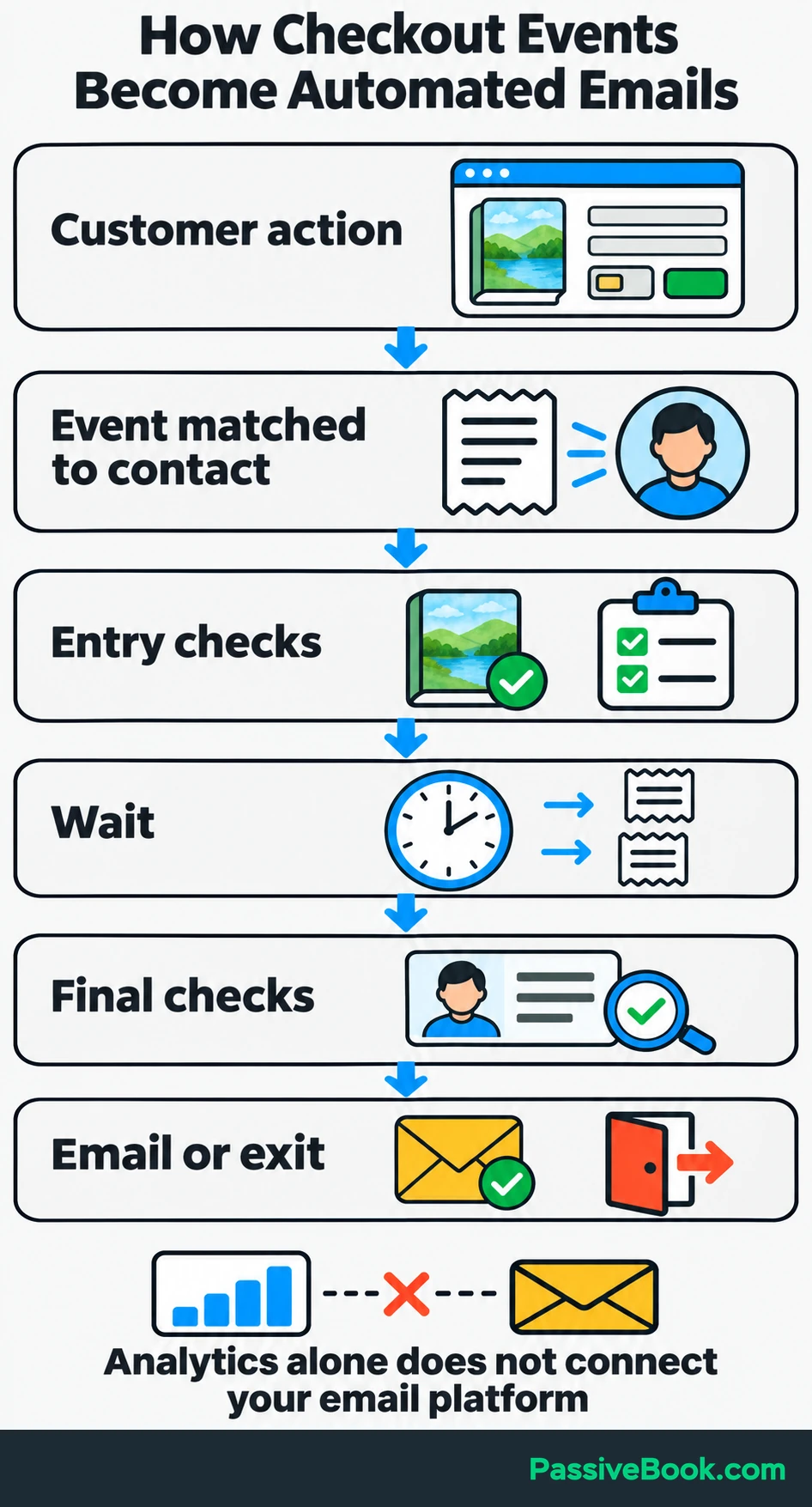
The connection between those parts matters. An event appearing in Google Analytics does not automatically make it available to your email platform. The platform needs its own supported way to receive that action and associate it with the right contact.
Throughout this guide, imagine you sell a beginner watercolor-landscape ebook and offer a free supplies checklist. We’ll build one checkout reminder that stops when the customer buys.
The shop, event names, timing and figures are illustrative. Match the names and fields to what your chosen integration supports.
1. Choose One Follow-up Worth Automating
Before opening an automation builder, answer three questions:
- What useful action should the customer take next?
- What behavior makes a follow-up relevant?
- What outcome makes that follow-up unnecessary?
For the watercolor ebook, the next action is completing payment. An identified checkout makes a reminder relevant, and confirmed payment for that ebook makes it unnecessary.
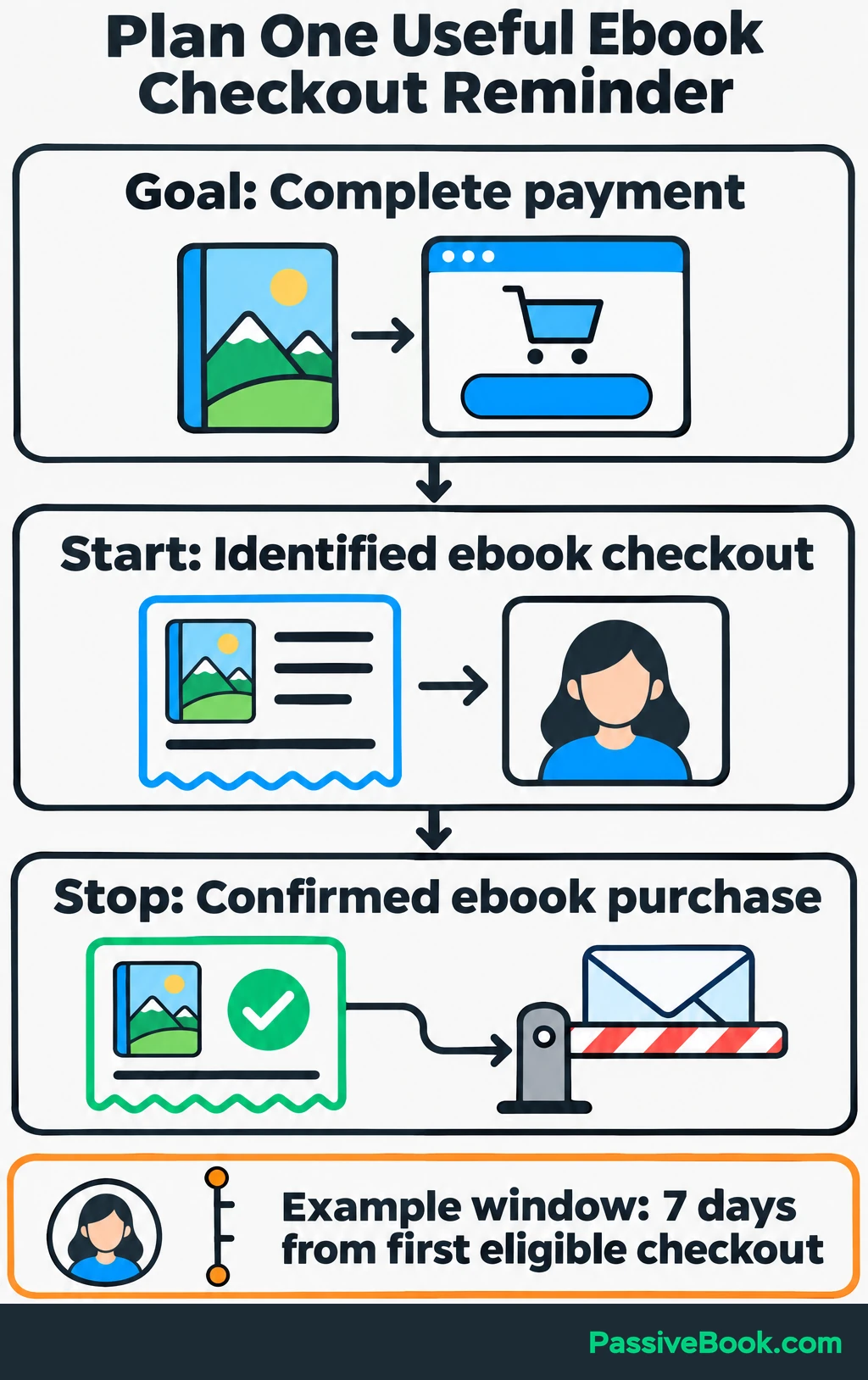
I would start with one reminder. A five-email recovery sequence creates five opportunities to get the timing wrong before you have proved that the first one works.
Choose a measurement window too. For this example, we’ll count confirmed ebook purchases within seven days of each contact’s first eligible checkout.
Other actions deserve different follow-ups:
| Customer Action | Useful Follow-up | When That Follow-up Should Change |
|---|---|---|
| Requests the supplies checklist | Deliver it and offer relevant painting tips if marketing is permitted | They buy the ebook or opt out |
| Starts an identified ebook checkout | Offer help completing the purchase | They buy the ebook |
| Completes payment for the ebook | Help them access it and start their first landscape | They finish onboarding |
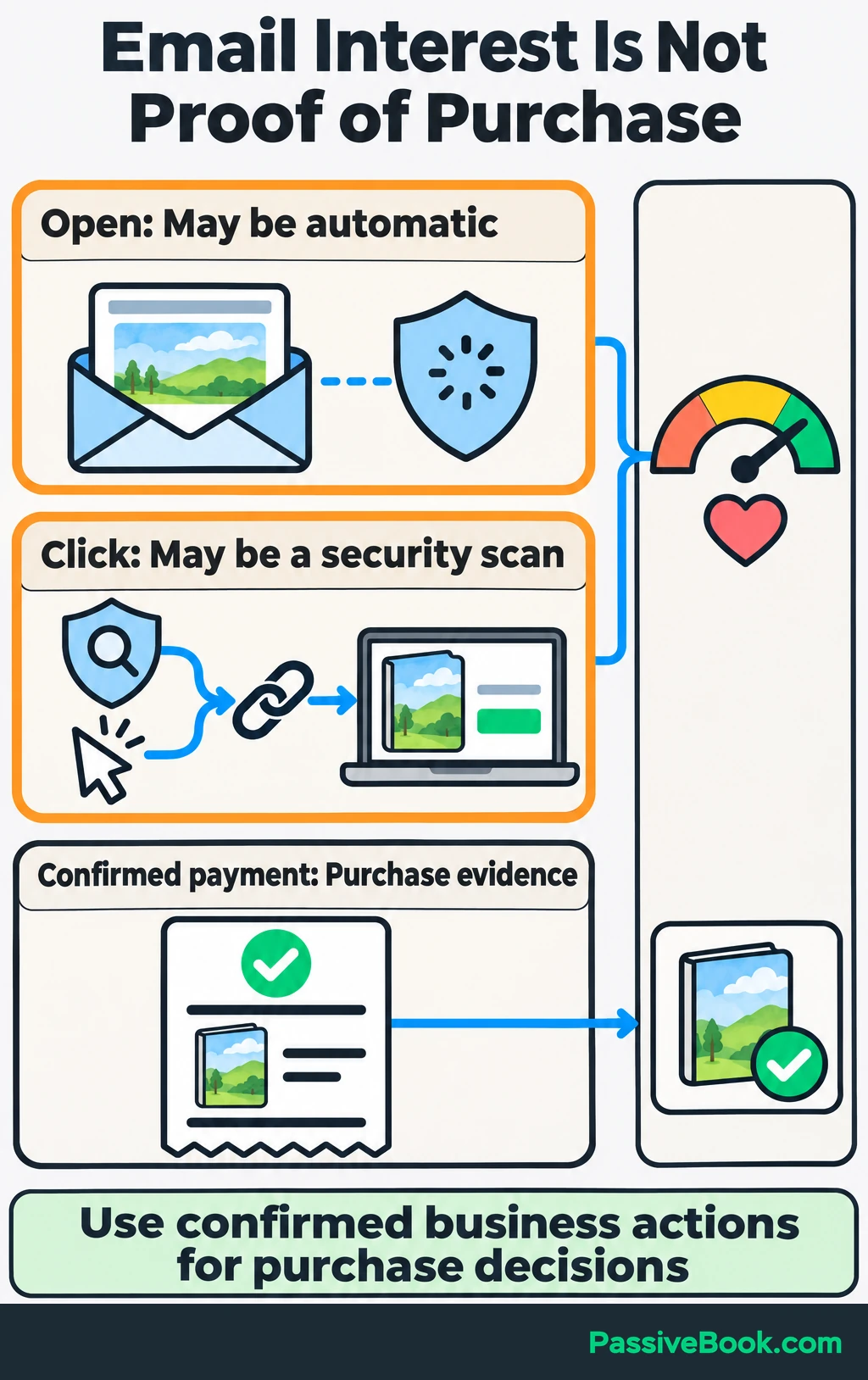
Use confirmed business actions for purchase decisions. Opens and clicks are weaker evidence: Apple’s Mail Privacy Protection can download email content without engagement, and automated security tools can click links.
A click can help you understand interest. It should not mark an ebook as purchased.
2. Define the Events and Data Your Workflow Needs
Separate Events From Current Contact State
Keep three things distinct:
- Event: Something happened, such as
purchase_completed. - Event Properties: Details about that action, such as the ebook’s
product_idand the order ID. - Contact State: What is true now, such as owning the ebook or being unsubscribed.
The event explains why someone entered. Current state determines whether sending still makes sense.
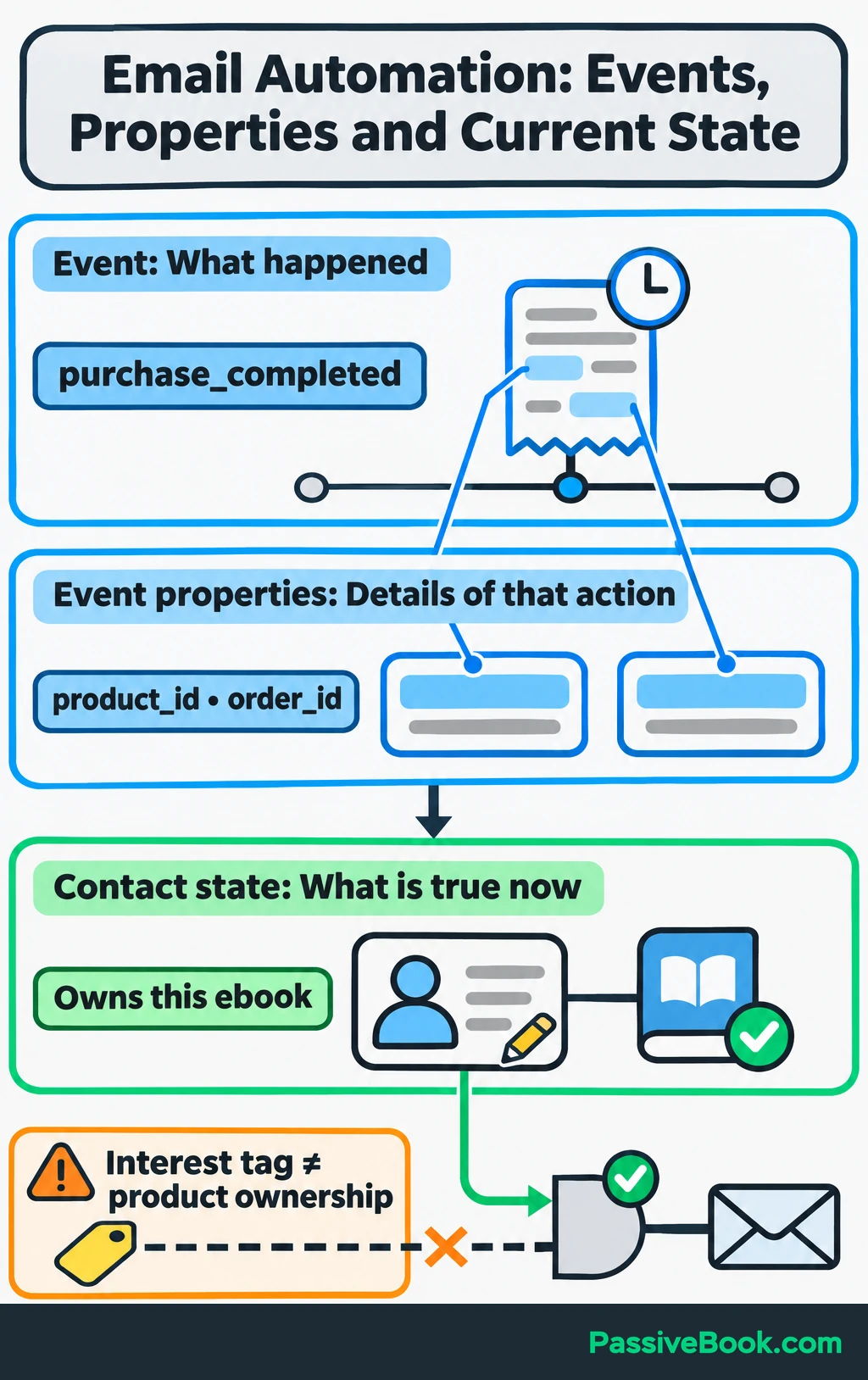
I ran into this distinction on a digital-product site when I used an interest tag to select people for sales emails. Buyers kept the tag after purchasing, so they remained eligible for the offer they already owned. Reviewing that audience made the mistake obvious: interest and ownership needed separate fields.
For the watercolor shop, keep a product-specific ownership record. A general “customer” tag cannot tell you which product someone bought.
A behavioral segment groups contacts who meet conditions. A workflow decides what happens to those contacts and when. Joining a segment does not, by itself, guarantee that the right message will follow.
Write a Small Tracking Plan
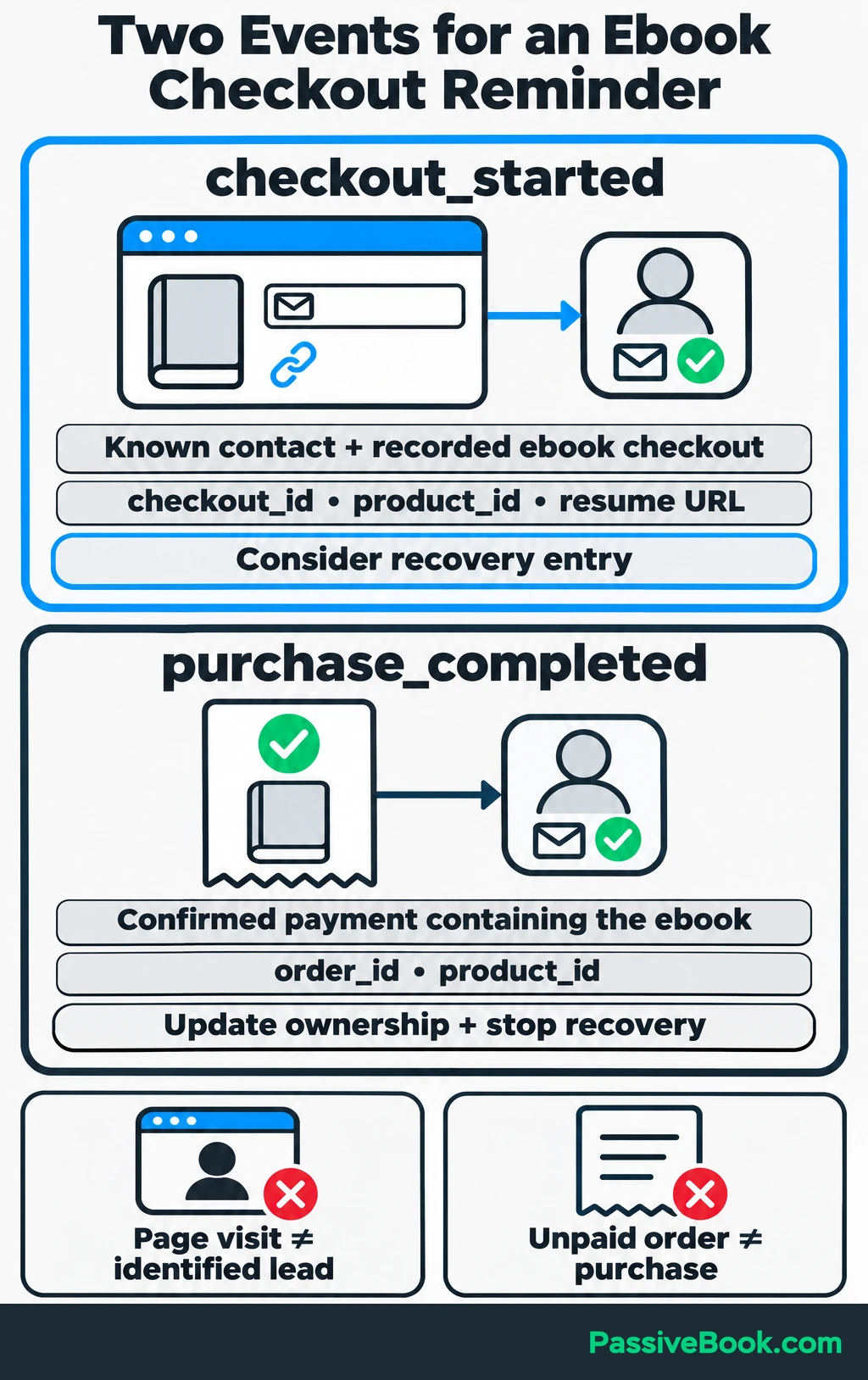
You only need two events for the detailed walkthrough.
| Event Name | Exact Firing Condition | Source System | Contact Identifier | Required Properties | Workflow Decision |
|---|---|---|---|---|---|
checkout_started | The checkout system records an ebook checkout associated with a known contact | Store or checkout platform | Customer ID mapped to the email contact; email where required | Event ID, occurrence time, product ID, checkout ID, resume URL | Consider entry into recovery |
purchase_completed | Payment is confirmed for an order containing the ebook | Order or payment system | Identifier mapped to the same email contact | Event ID, occurrence time, product ID, order ID; checkout ID when available | Update ownership and stop recovery |
An anonymous checkout-page visit is not an emailable lead. A checkout-button click or an unpaid order is not a completed purchase.
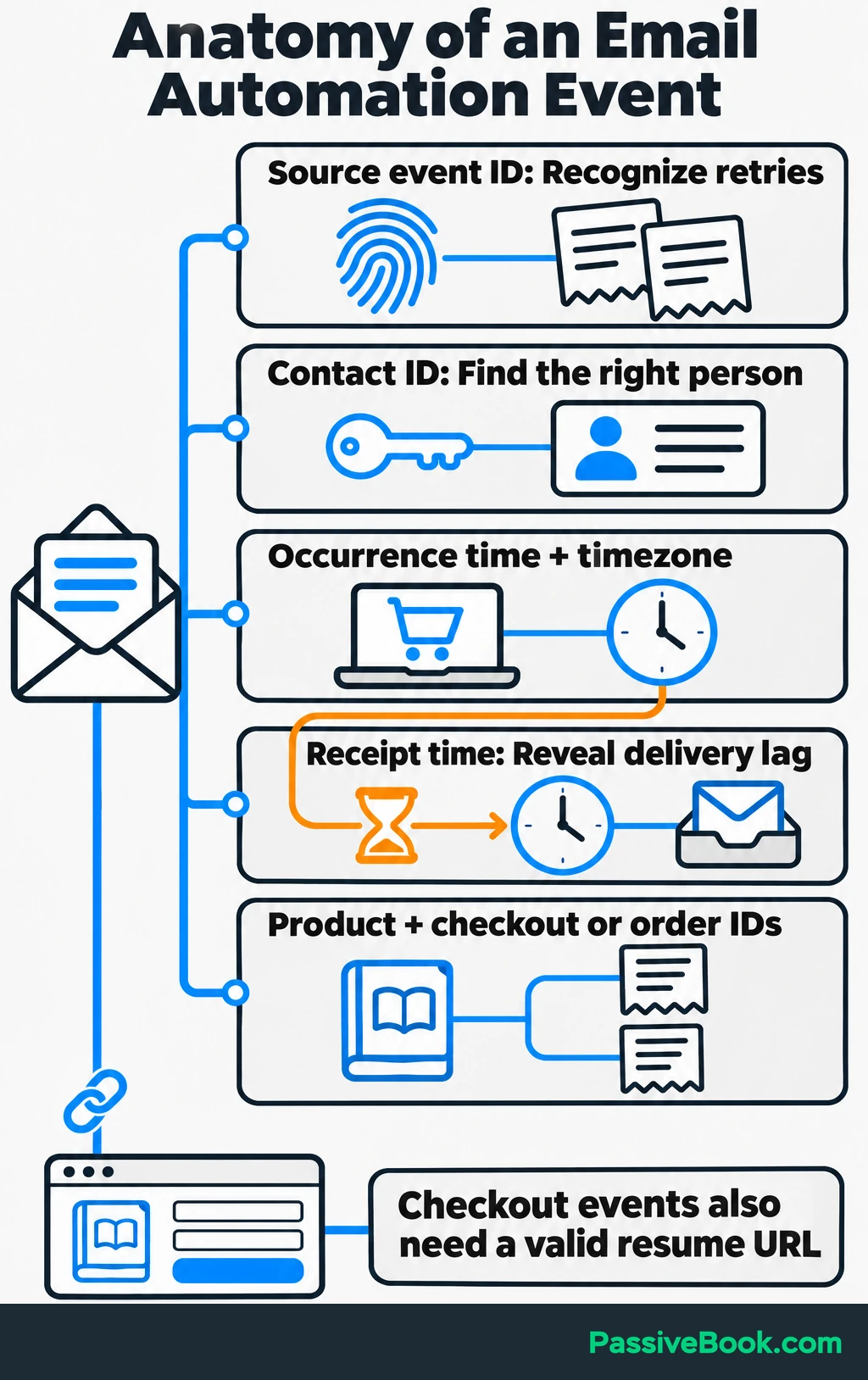
For every event, retain:
- Source Event ID: A unique identifier for that occurrence, used to recognize retries.
- Contact Identifier: The value that connects the action to the email record.
- Occurrence Time: When the action happened, including its timezone.
- Receipt Time: When your connection received it, so delayed events are visible.
- Product Context: The product and checkout or order identifiers needed for decisions.
The checkout event also needs a valid resume-checkout URL. Add amount and currency if your reporting uses them; they are unnecessary for deciding whether someone owns the ebook.
Use consistent names across products. Keep purchase_completed and change the product property rather than creating a different purchase event name for every ebook.
Your own workflow needs definitions just as specific as the ebook example. The AI Skill below turns your customer action and follow-up goal into a tracking draft, with firing conditions and identity mappings for checking.

Free AI Automation Planner




For the educational workflow, use checklist_requested when the form request is confirmed. Call it a download only if you actually track the download.
3. Connect Events to the Right Email Contact
Establish Identity and Eligibility
Map the store’s customer identifier to the email contact. If the integration requires an email address, check that both actions use the intended address and do not create separate records.
Test this with one contact before building the full workflow. You should be able to see their checkout and purchase together.
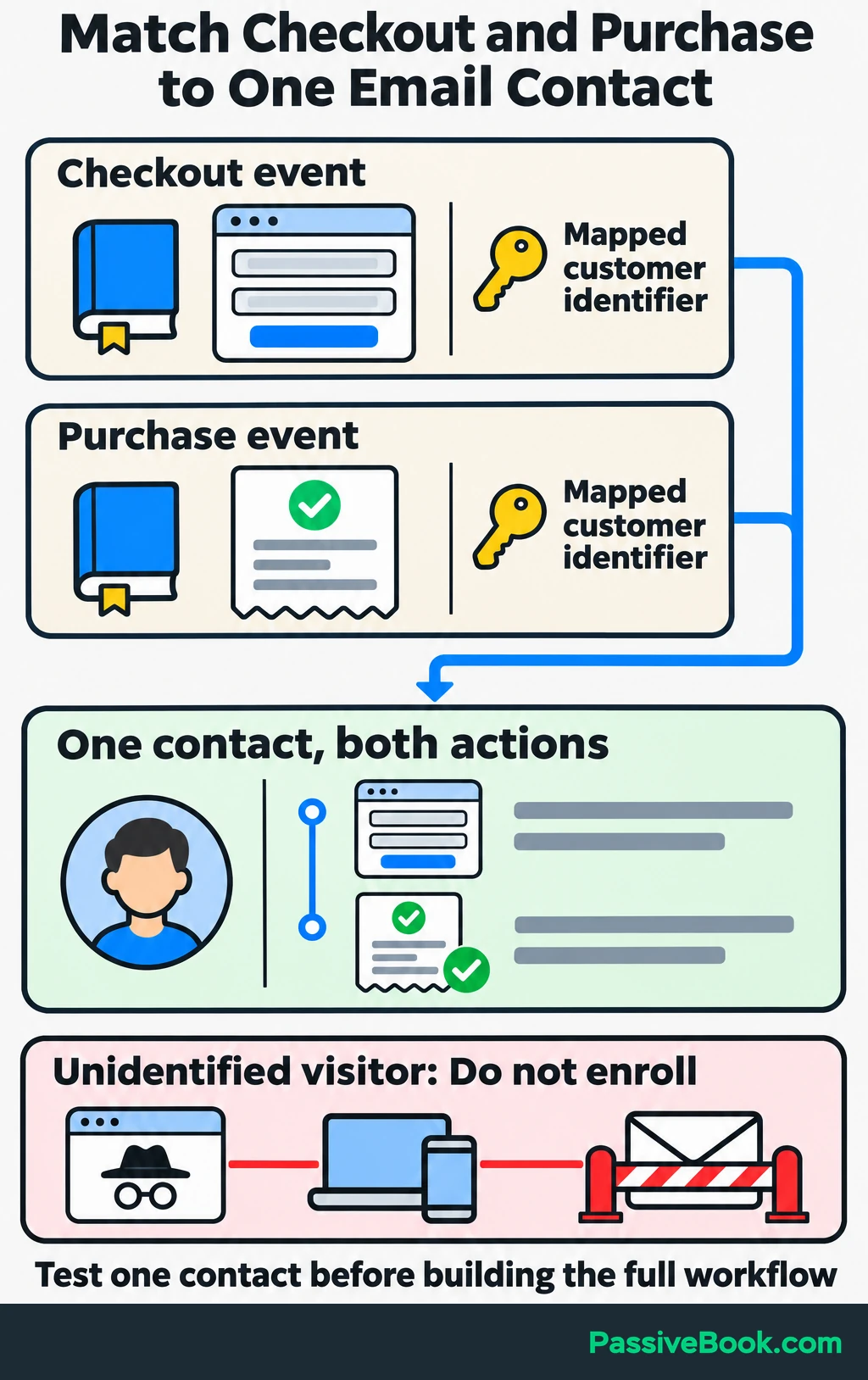
Keep unidentified visitors outside email workflows. An IP address or shared device does not reliably identify the person you should email.
Permission belongs in this setup too. Having an email address does not automatically make a promotional reminder appropriate.
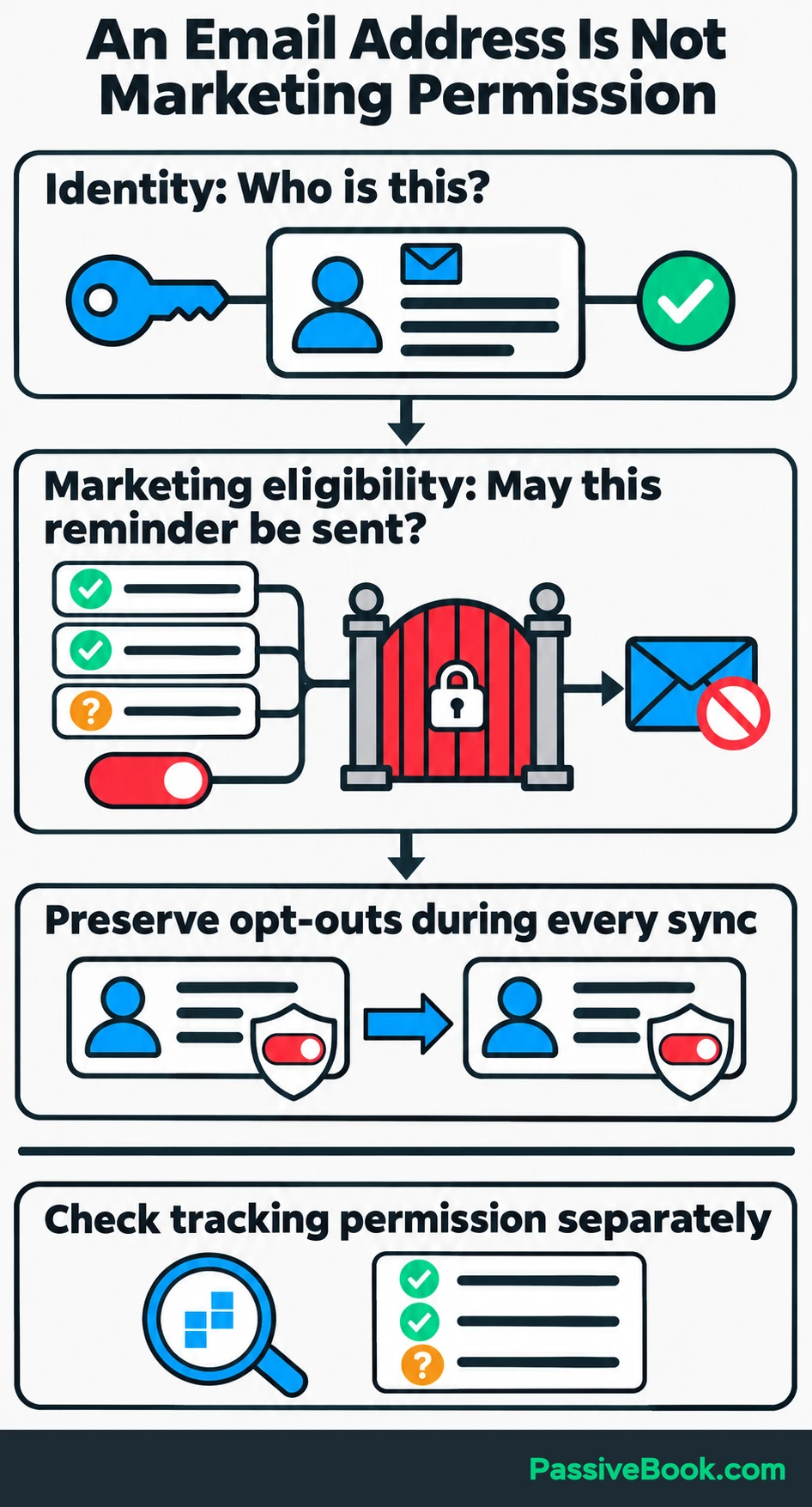
For UK individual subscribers, unsolicited email marketing requires consent or a qualifying soft opt-in. For a shop, that exception has conditions, including collecting details during a sale or sales negotiation, promoting similar products and offering an opt-out at collection and in every message. The ICO explains those requirements.
Check tracking permission separately from email marketing eligibility. Email tracking pixels are tiny images used to record email activity. The ICO explains when they fall under separate rules for storage and access technologies.
Keep opt-outs intact when syncing contacts, and include working unsubscribe controls in promotional emails.
Use the Simplest Supported Connection
Check your existing store-to-email integration first. It may already provide the checkout, product and payment data you need.
For a WordPress store, I would check WooCommerce’s connection to FluentCRM before paying for another platform. WooCommerce runs the shop, and FluentCRM is my preferred WordPress email tool. Their abandoned-cart integration captures carts once a billing email is available. Its abandonment trigger starts after a configured cutoff, so account for that wait when setting your email delay.
For a hosted option, I would consider MailerLite. Its ecommerce trigger support varies by store integration, so confirm support for your exact checkout and customer type before switching tools.
Whatever you choose, check four capabilities:
- It captures the qualifying checkout.
- It receives confirmed payment and identifies the purchased product.
- It can check current ownership and marketing eligibility before sending.
- It can place the correct checkout link in the email.
If a native connection lacks an event, use a supported connector, webhook or API. A webhook sends an automatic notification from one system to another; an API lets tools exchange data.
I use n8n to connect tools without code. For a missing connection here, I would check whether n8n or Make supports the required action and fields before commissioning custom work.
Map the source action, contact identifier and properties to the destination. Then create a test action and confirm it appears on the intended contact.
Capture payment confirmation from the order or payment system. You do not need browser tracking just to learn whether an order was paid.
Prevent Duplicate and Stale Processing
A retry should not create another reminder.
Confirm that the connection recognizes previously processed source event IDs. If it does not, add a record of completed event IDs in the connector and check it before repeating an action.
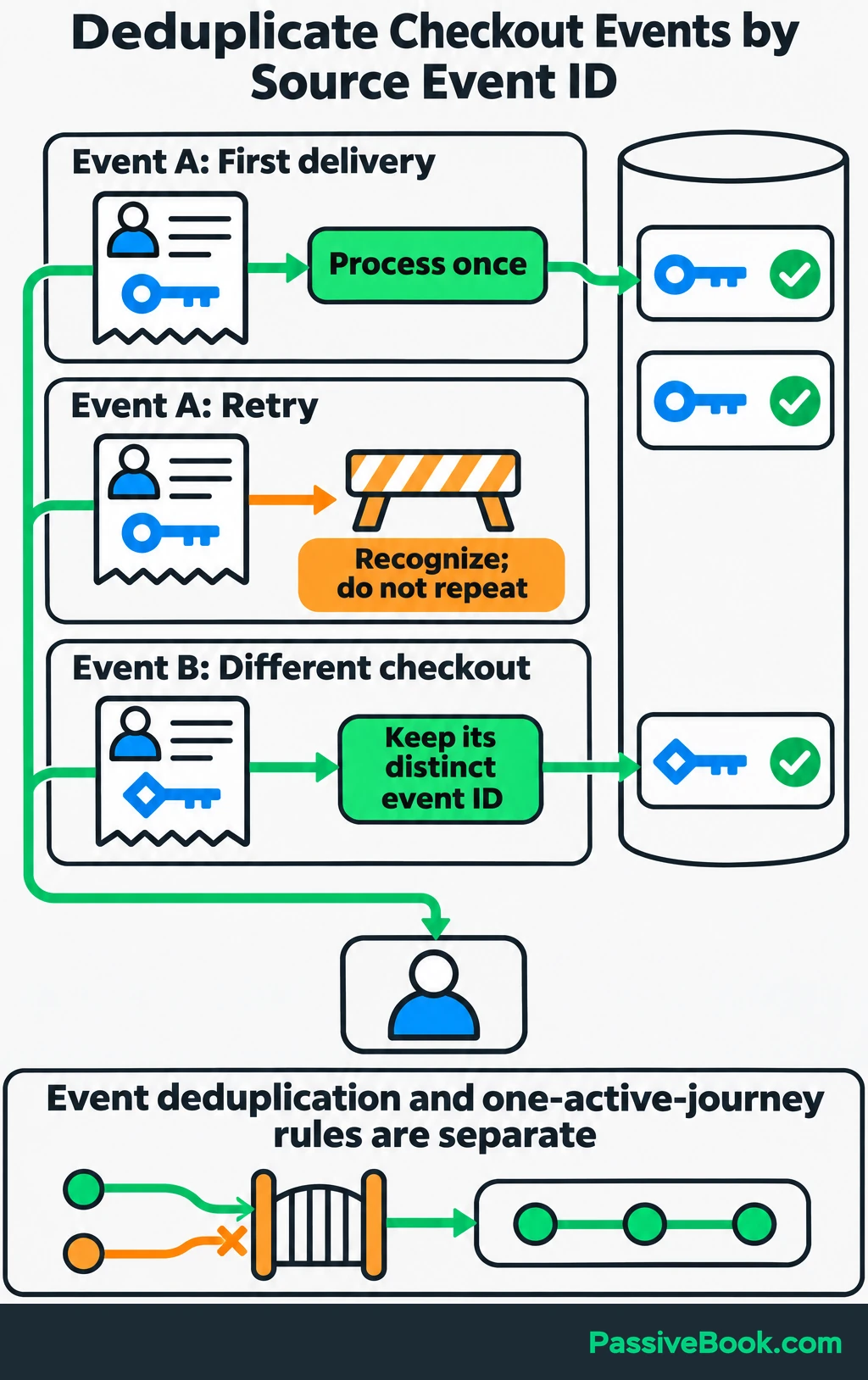
Give separate checkouts different event IDs, even when they belong to the same contact.
When delivery fails, retry the original event with its original identity. Check the delivery history for the result.
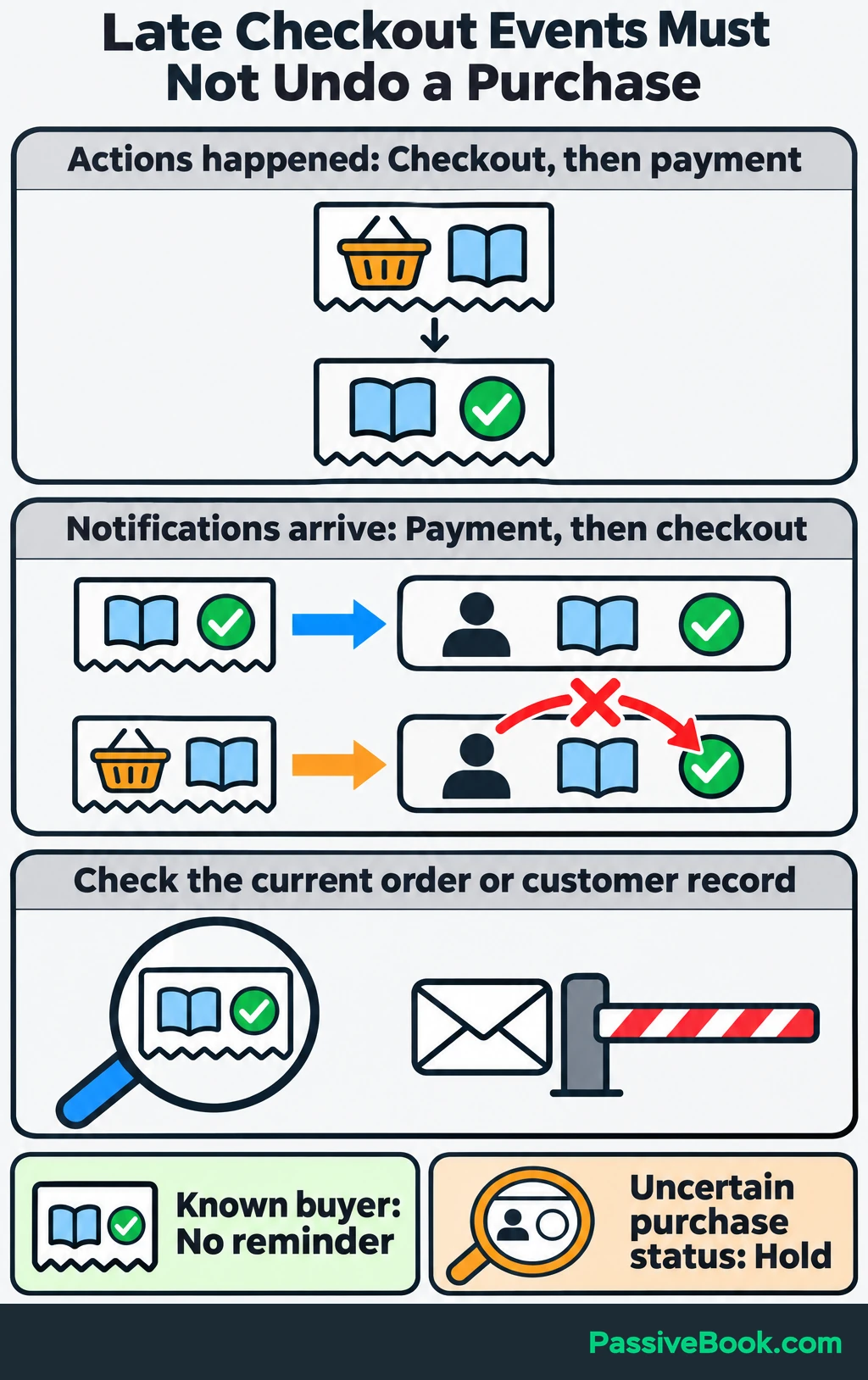
Also plan for late arrivals. Stripe documents that webhook events can arrive out of order and recommends tracking event IDs to identify duplicate deliveries.
That means a late checkout notification must not overwrite known ownership. Check the current order or customer record before acting on delayed data.
4. Configure Entry, Timing and Exit Rules
Define Who Enters the Workflow
Write the entry rule in plain language before translating it into filters:
“Start recovery when an identified, marketing-eligible contact begins a recent checkout for this ebook, does not already own it and has no active recovery journey for it.”
Use AND between those mandatory conditions. All must be true.
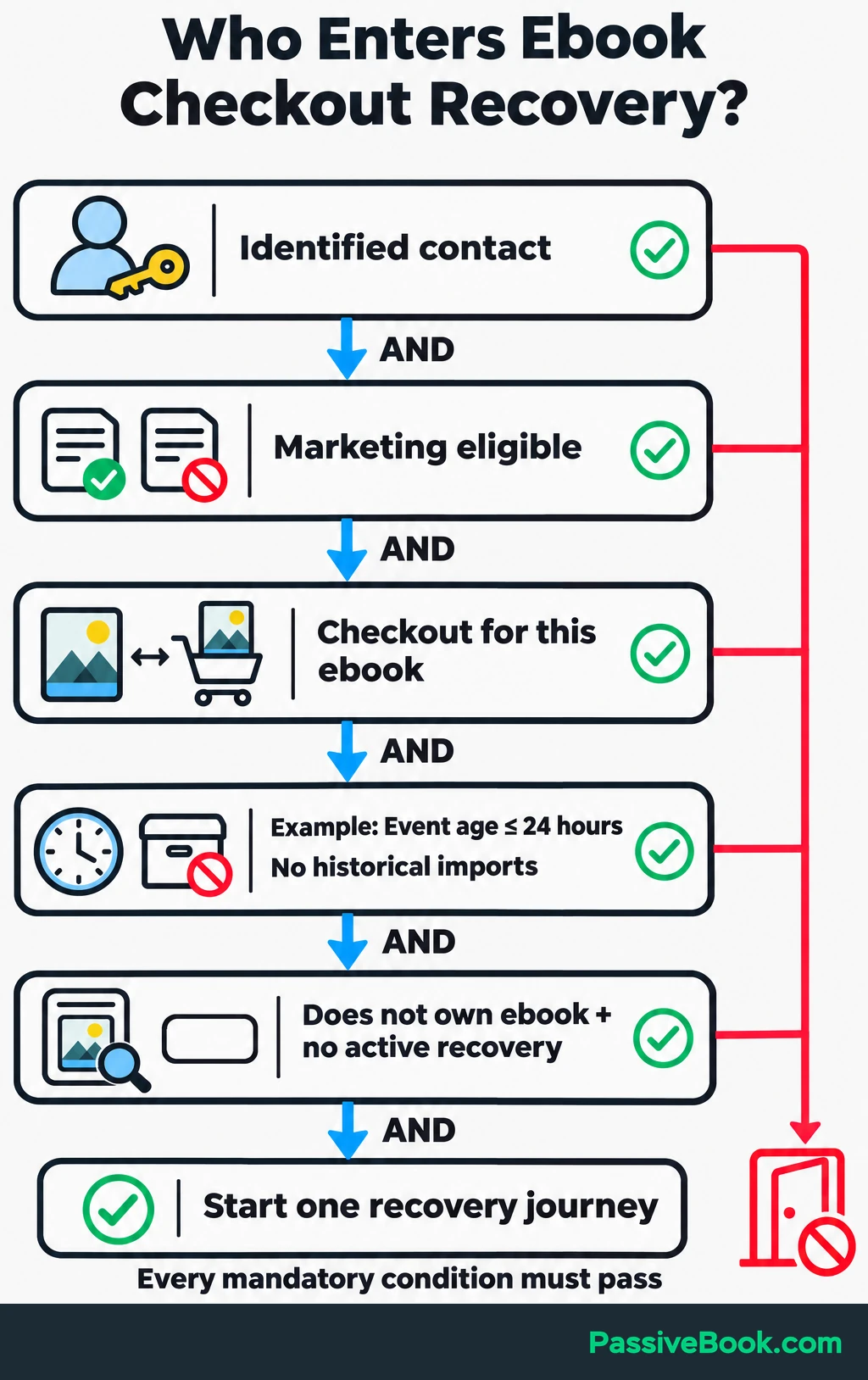
If you later accept alternative qualifying actions, group them carefully:
(qualifying action A OR qualifying action B) AND marketing eligible AND does not own ebook
Apply ownership checks and blocks on marketing sends, such as unsubscribes, to every alternative. These blocks are often called suppressions.
For this example, I would accept checkout events no more than 24 hours old and exclude historical imports. That prevents an old data import from becoming a surprise sales campaign.
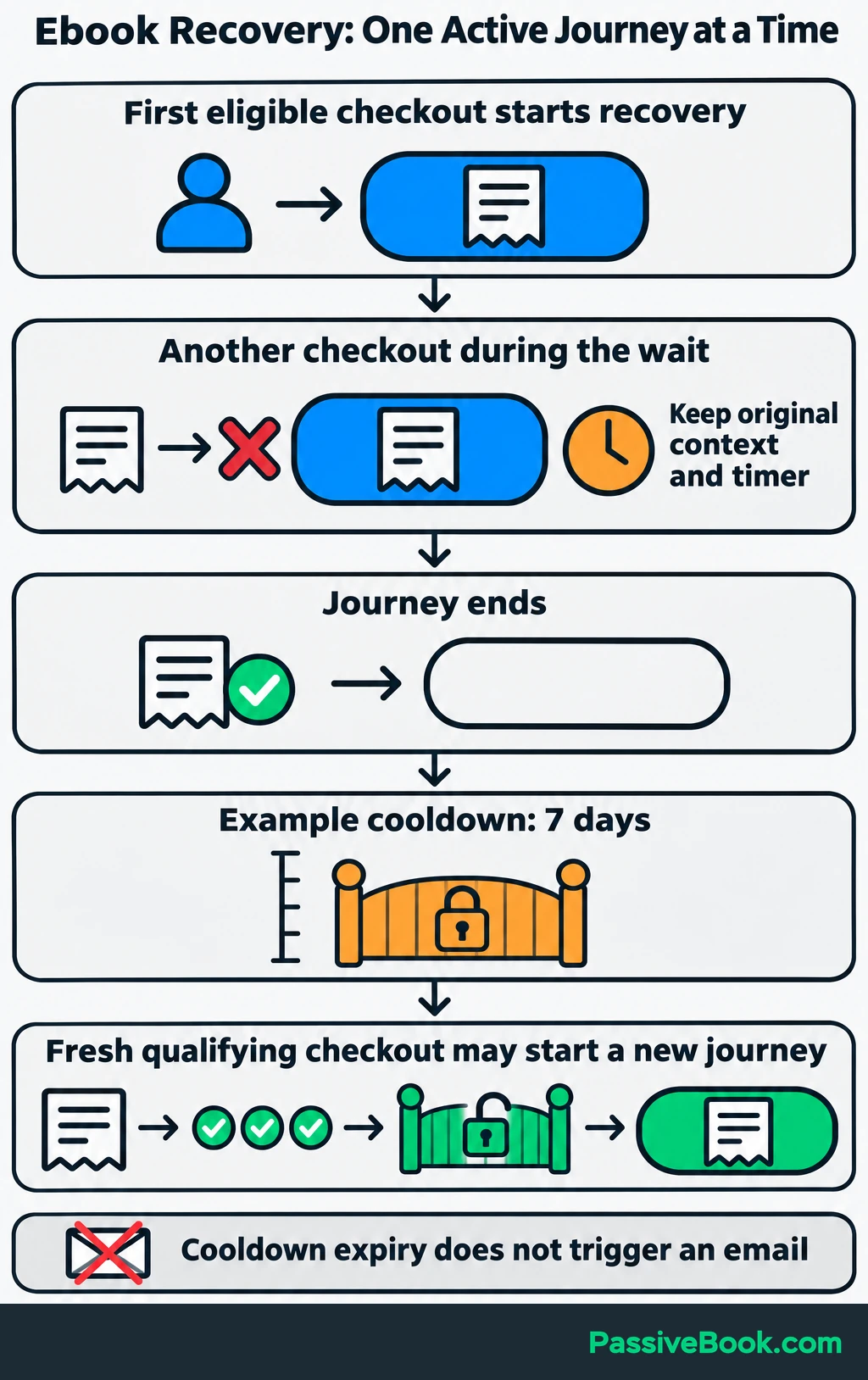
Allow one active recovery journey per contact for the ebook. A second checkout should not create a second waiting reminder.
For a first version, I would keep the original journey and its checkout context unchanged. Allow a fresh qualifying checkout to start another journey only after the first has ended and a chosen cooldown has passed—for example, seven days.
Wait, Then Check Whether the Email Is Still Needed
Starting checkout does not mean abandoning it. The customer may still be entering payment details.
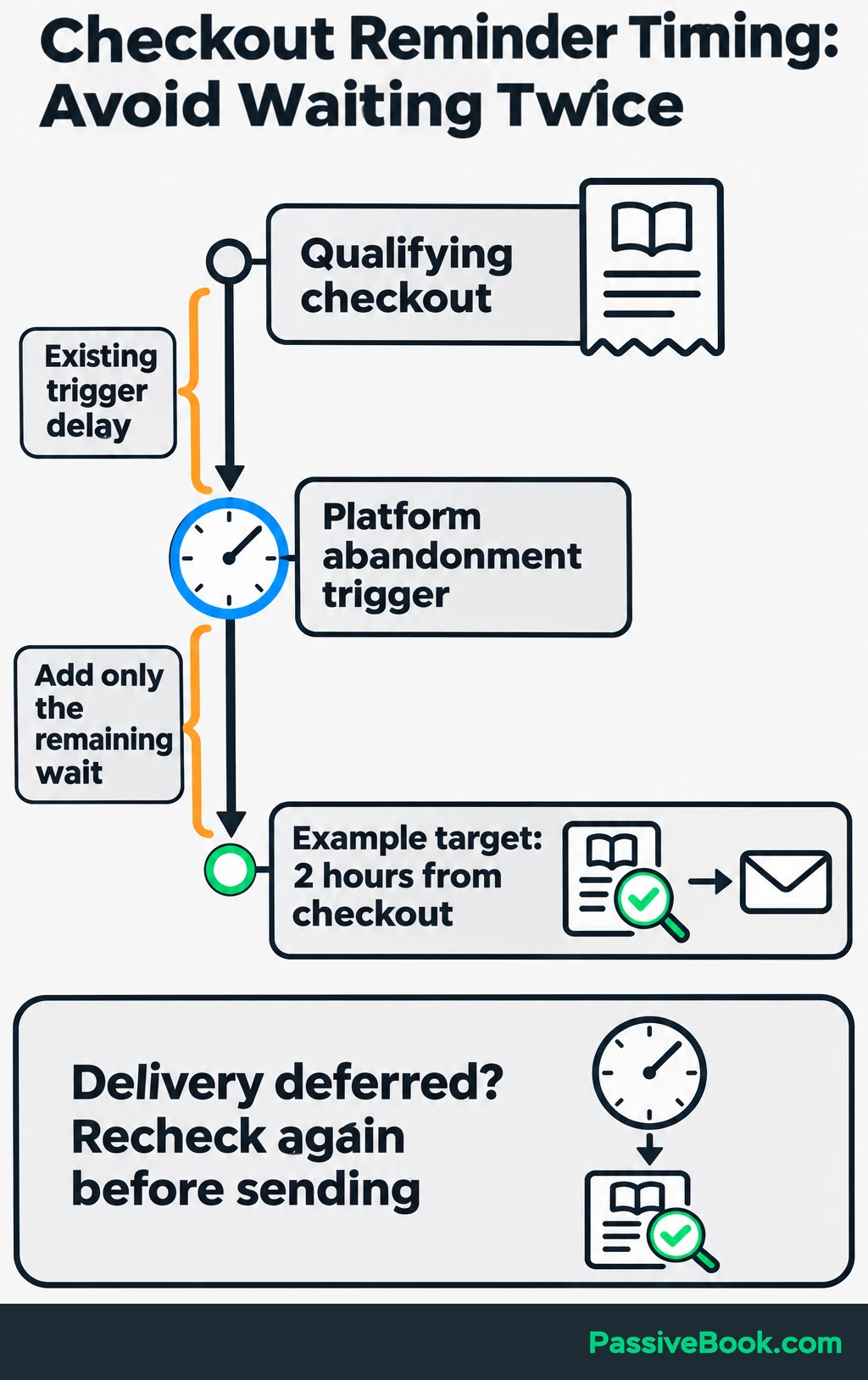
Add a waiting period that leaves time for payment and integration updates. Our example uses two hours from the qualifying checkout, with no reset when another checkout occurs.
If your platform starts from an “abandoned checkout” trigger, its own abandonment delay may already account for some of that time. Avoid accidentally adding the same wait twice.
Here is the complete example:
| Stage | Decision |
|---|---|
| An eligible ebook checkout occurs | Start one recovery journey |
| During the two-hour wait | Accept purchase and permission updates |
| Payment for the ebook arrives | Update ownership and exit recovery |
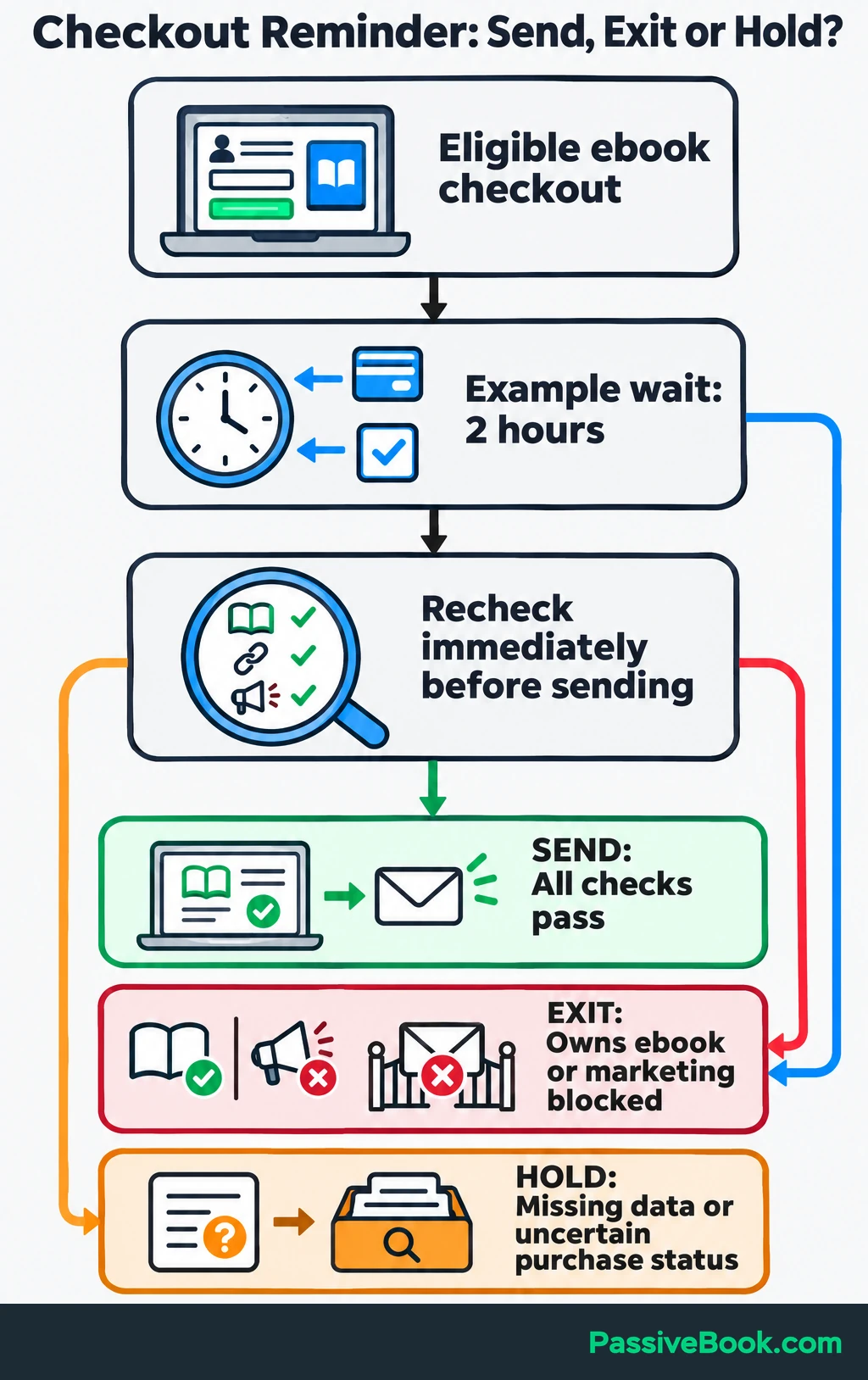
| The wait ends without a recorded purchase | Check current ownership, checkout validity, marketing eligibility and suppression |
| All checks pass | Send one reminder and end |
| The ebook is owned or marketing is no longer permitted | Exit without sending |
| Essential data is missing or purchase status cannot be trusted | Hold the send for investigation |
Check ownership across orders, including purchases through another checkout. Buying a different product does not settle whether this ebook remains unpurchased.
If you restrict delivery to certain hours, recheck eligibility after that deferral. A customer who qualified last night may have bought this morning.
The check belongs immediately before sending. A condition placed only at entry cannot protect a message waiting two hours.
Stop Obsolete Messages and Coordinate Other Workflows
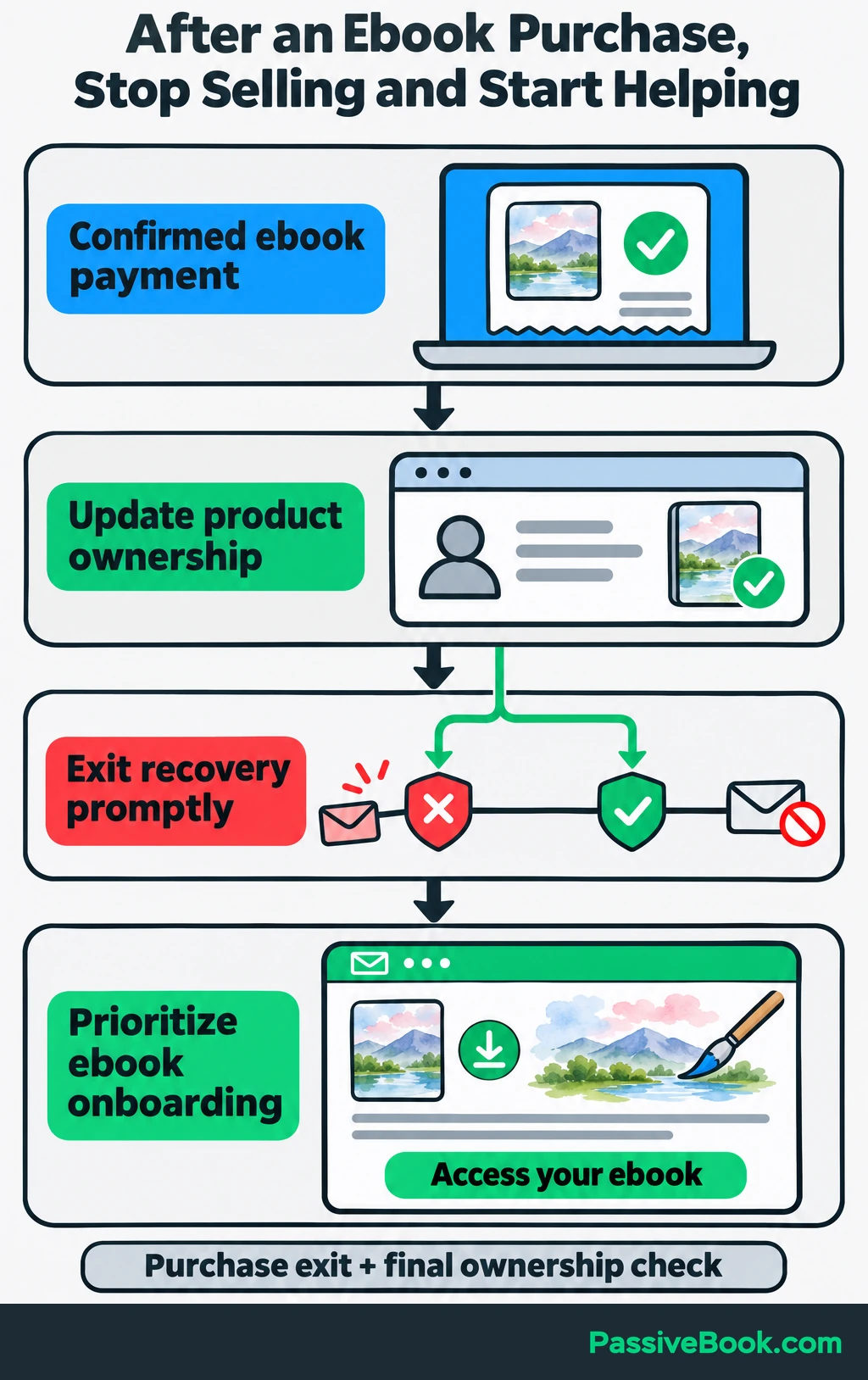
Use the purchase event to end recovery promptly, and keep the final ownership check as a second safeguard.
Give ebook onboarding priority over reminders to buy that ebook. Once someone pays, the useful next message helps them access the file or start painting.
Coordinate promotional messages across workflows too. I would begin with a shared limit of one promotional automation email per contact in 24 hours. Decide which message wins when two qualify, and skip the lower-priority message if delaying it would make it stale.
Turn off overlapping recovery emails in the store when your email platform takes over. Two tools can each behave correctly and still send the customer two reminders.
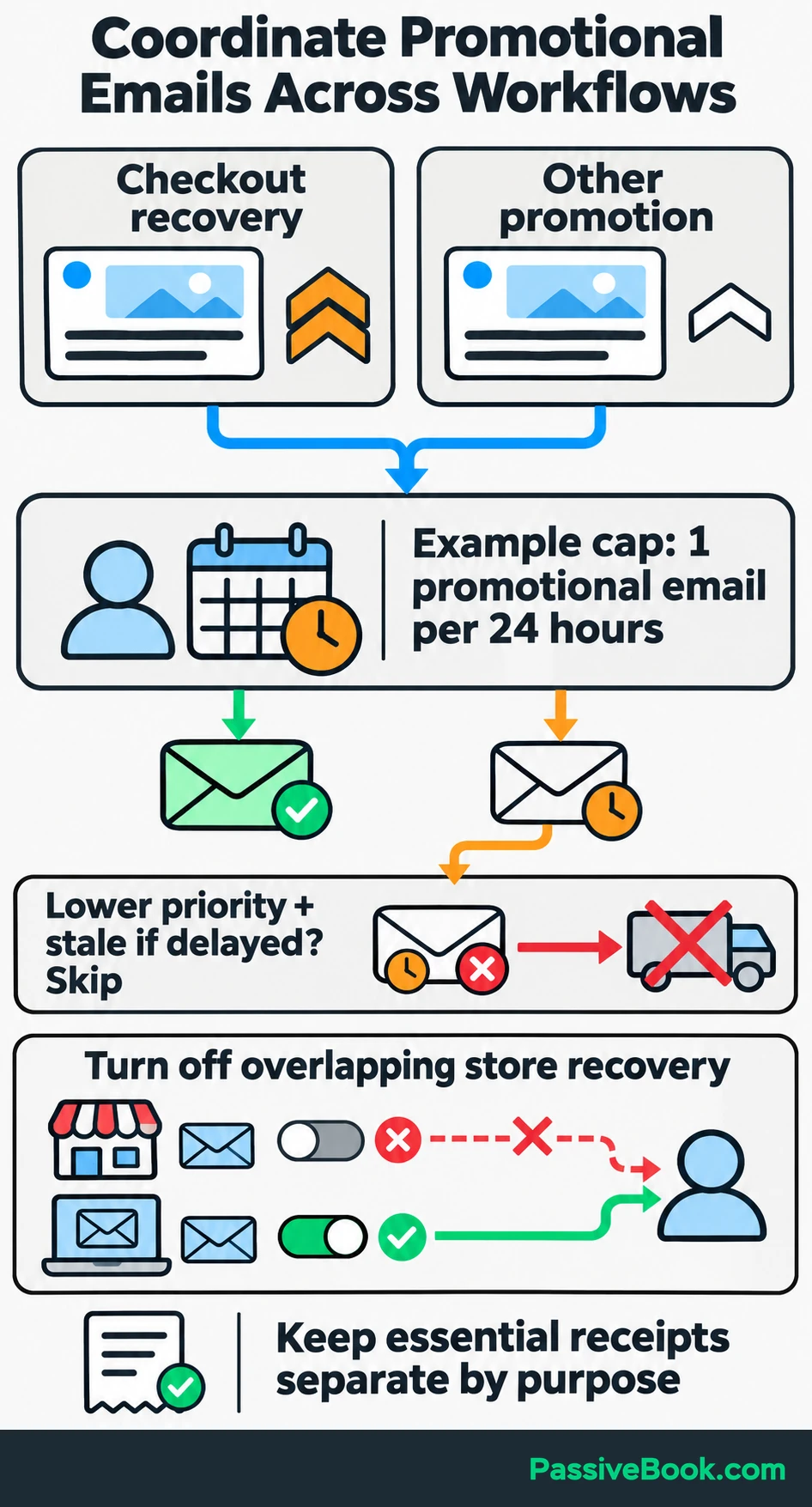
Stop promotional sends after an unsubscribe or suppression change. Keep essential receipts and account messages separate according to their purpose.
Before launch, test what pausing or editing does to waiting contacts and queued messages. A pause button is only useful if you know which sends it actually stops.
5. Personalize the Email From the Triggering Event
Use the triggering checkout’s details for the message and current contact state for permission to send it.
Those are different jobs. A more recent checkout for another product should not quietly replace the ebook name or checkout URL in this reminder.
Check that your platform can insert event details into email templates. Mailchimp calls these event-property merge tags. For its custom-event setup, the contact must already be in the audience and the event name must match the automation trigger. Check Mailchimp’s event documentation for current plan requirements before building a multi-step workflow.
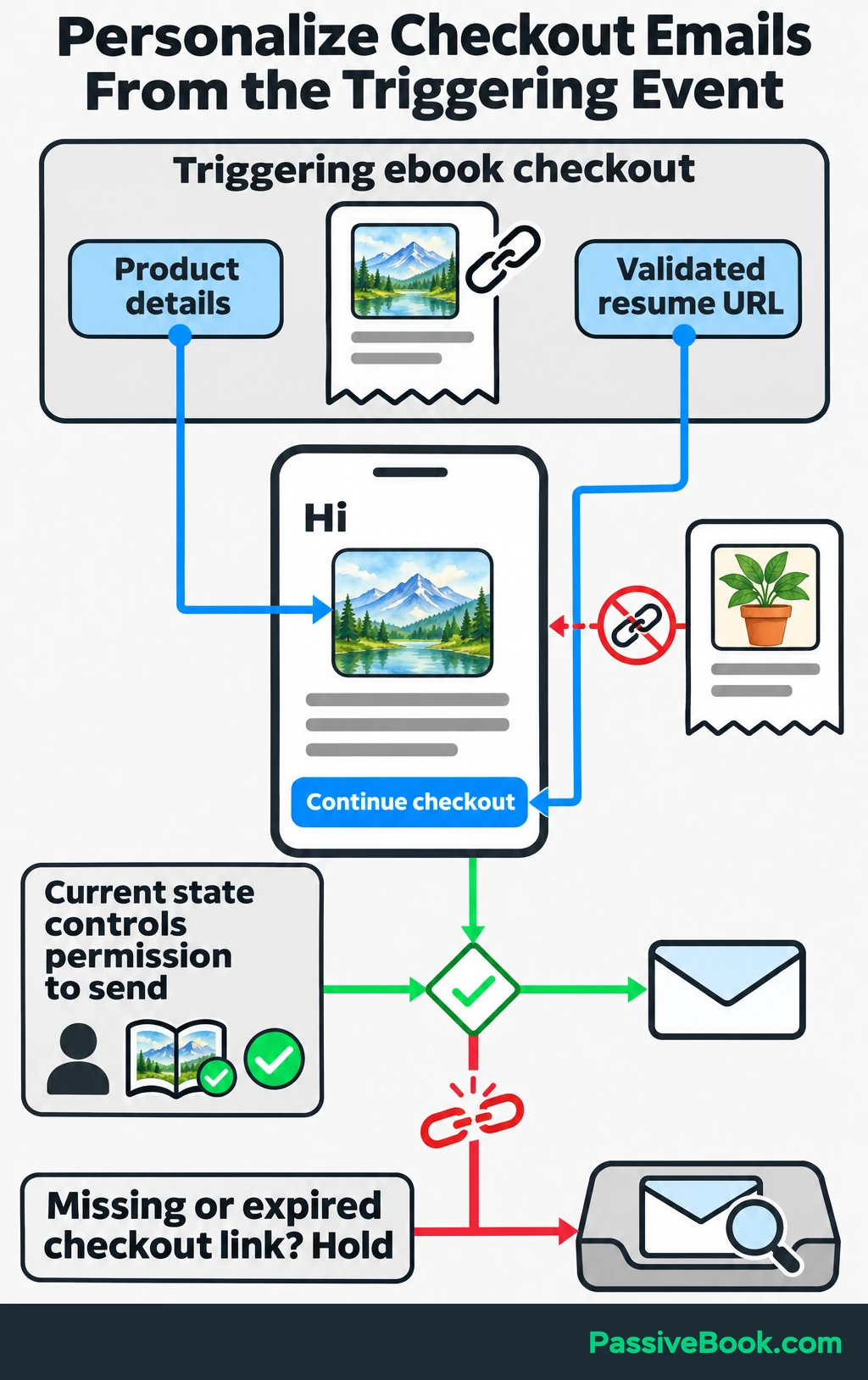
Keep the message focused on the unfinished action. Here is a complete reminder to adapt:
Subject: Continue your watercolor ebook checkout
Hi,
Ready to start painting watercolor landscapes? You can continue your checkout for the Beginner Watercolor Landscapes ebook below.
If you need help with checkout or have a question about the ebook, reply to this email.
Happy painting,
The Watercolor Shop
{{business_postal_address}}
Replace the placeholders with your platform’s supported fields, use the validated URL from the triggering checkout and connect replies to an inbox you read.
Use readable fallbacks for optional details. “Hi” works without a first name. A missing or expired checkout link should hold the send.
I would skip lines such as “We noticed you got distracted.” You know the checkout is unfinished. You do not know what happened in the customer’s kitchen.
6. Test and Monitor the Complete Workflow
Test Decisions as Well as Email Appearance
Before testing delivery, configure the sender address and authenticate your sending domain with your email provider. This verifies that the provider is allowed to send for your domain.
Then use test contacts and real checkout actions to trace the whole path:
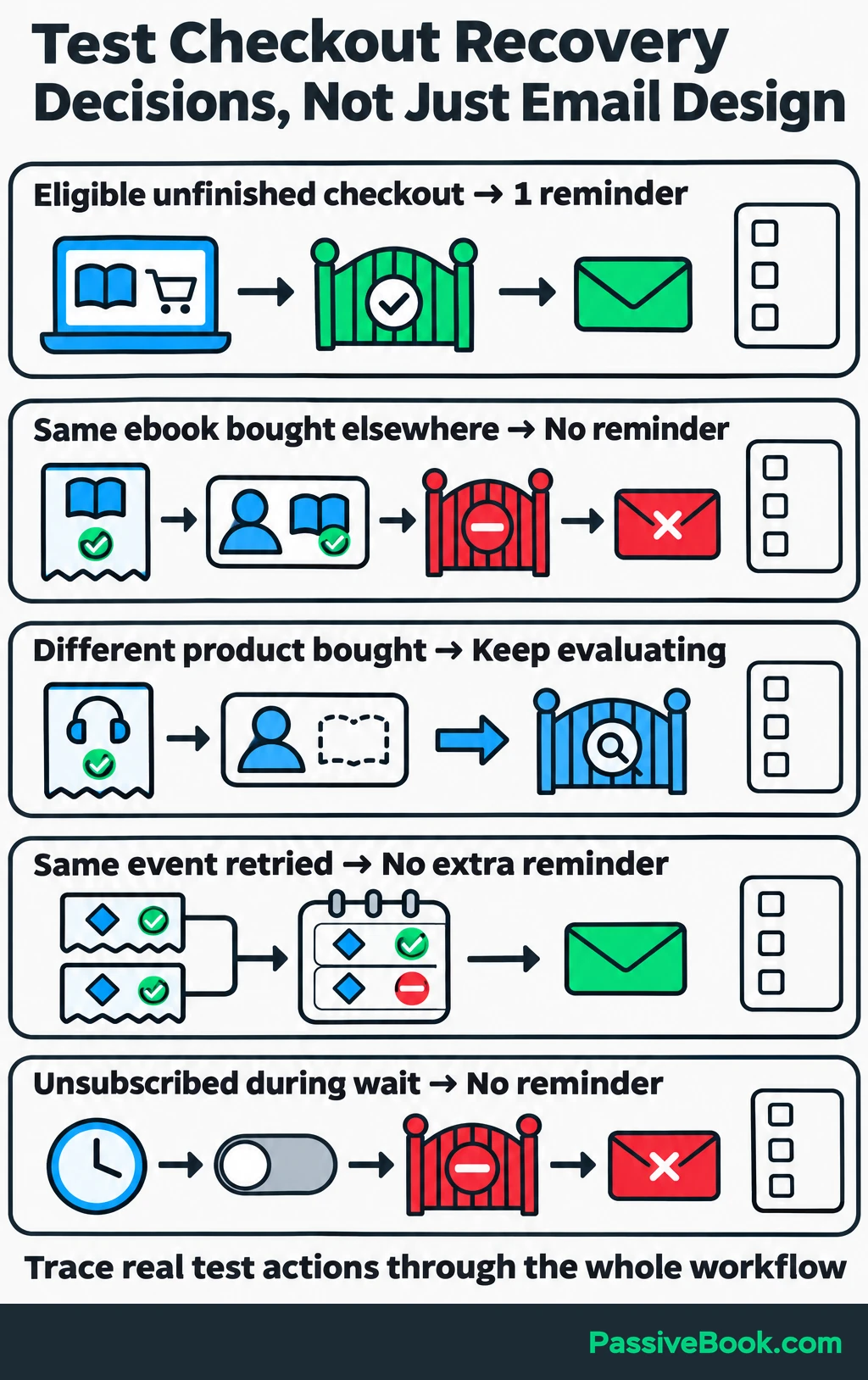
Source action → contact match → event receipt → enrollment → wait → final checks → delivery.
An email preview verifies presentation. It cannot prove that payment stops the workflow.
Use a test matrix like this and record what actually happened:
| Scenario | Expected Workflow Decision | Expected Email Outcome |
|---|---|---|
| Eligible, unfinished ebook checkout | Enter, wait and pass final checks | One reminder |
| Same ebook purchased during the wait | Update ownership and exit | No reminder |
| Same ebook purchased through another checkout | Detect ownership and exit | No reminder |
| Different product purchased | Keep evaluating the ebook checkout | One reminder if all checks still pass |
| Same event delivered twice | Process the occurrence once | No extra reminder |
| Two distinct checkout events | Keep one active journey under the chosen rule | At most one reminder |
| Unsubscribe during the wait | Exit or block the promotional send | No reminder |
| Unidentified checkout visitor | Do not enroll | No reminder |
| Required checkout URL missing | Hold the send | No reminder |
| Purchase notification arrives late | Check current paid status; hold if uncertain | No reminder when payment is already confirmed |
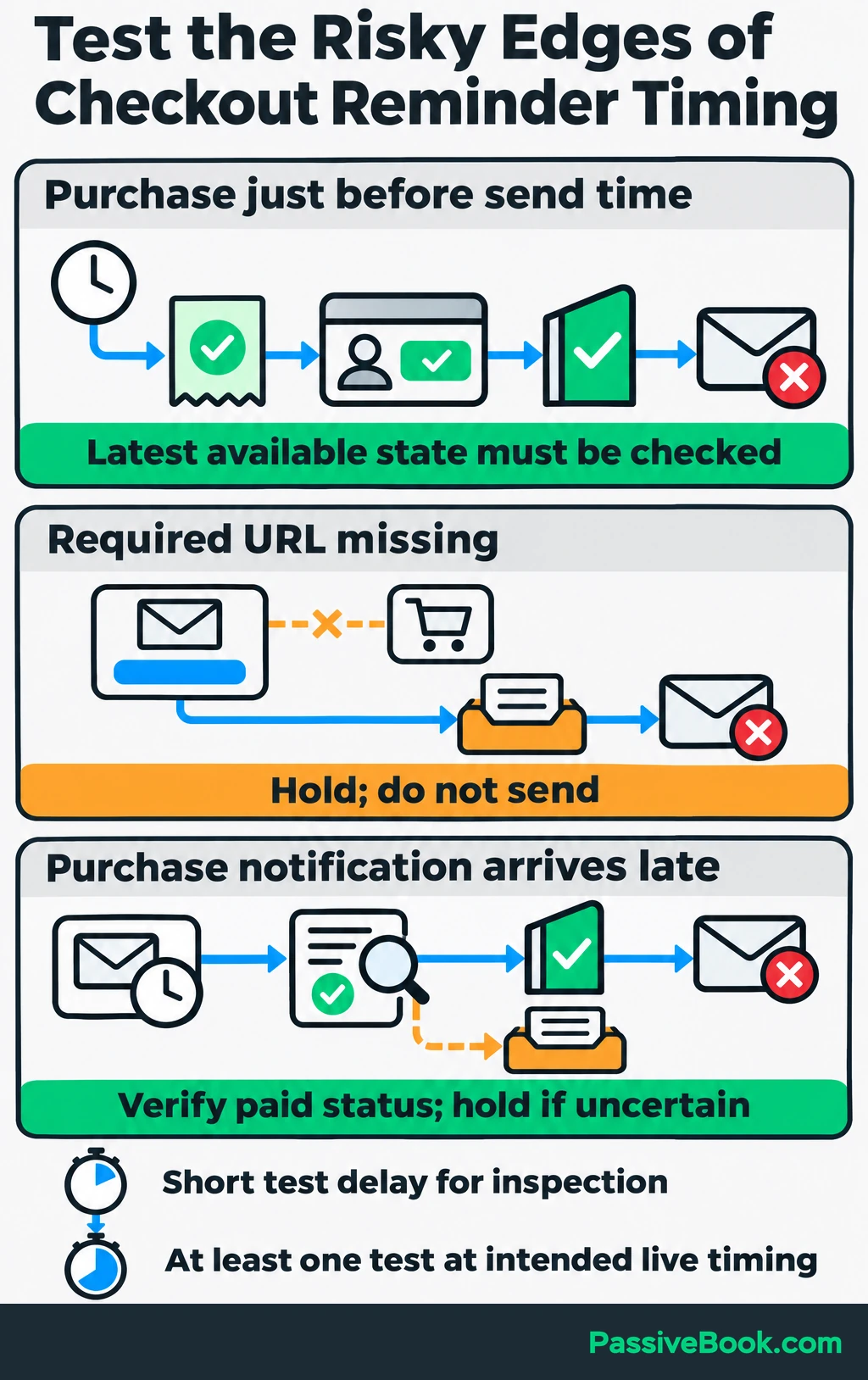
Also inspect the product name, optional-field fallbacks, mobile layout, checkout link, timezone handling and unsubscribe behavior.
Pay particular attention to timing boundaries. Test a purchase just before the reminder becomes due and verify that the latest available state is checked.
A shortened test delay helps you inspect the flow, but run at least one test with the intended live timing before expanding access.
Watch the First Live Sends and Maintain the Connection
Start with a limited eligible audience and inspect its first journeys.
Compare source checkouts and paid orders with received events. Then check why each contact entered, exited, waited or received an email.
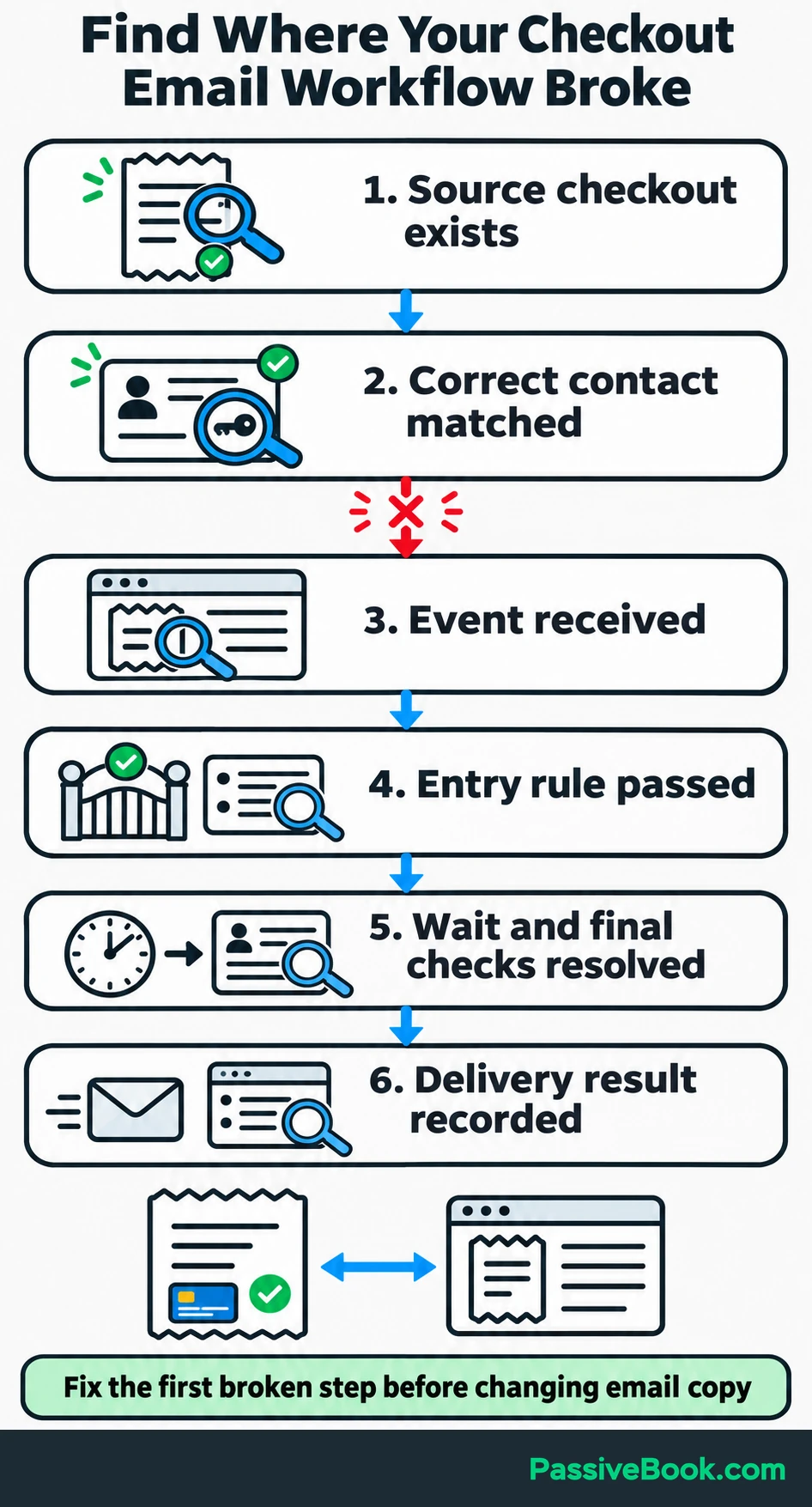
When something fails, troubleshoot in sequence. If the checkout never reached the email platform, changing the subject line is unlikely to help.
Watch for:
- Missing Deliveries: Source events failed to reach the destination.
- Unexpected Volume Changes: Checkouts or purchases suddenly disappear or multiply.
- Repeated Enrollment: The same contact enters more often than your rules allow.
- Incorrect Sends: A known buyer or suppressed contact receives a reminder.
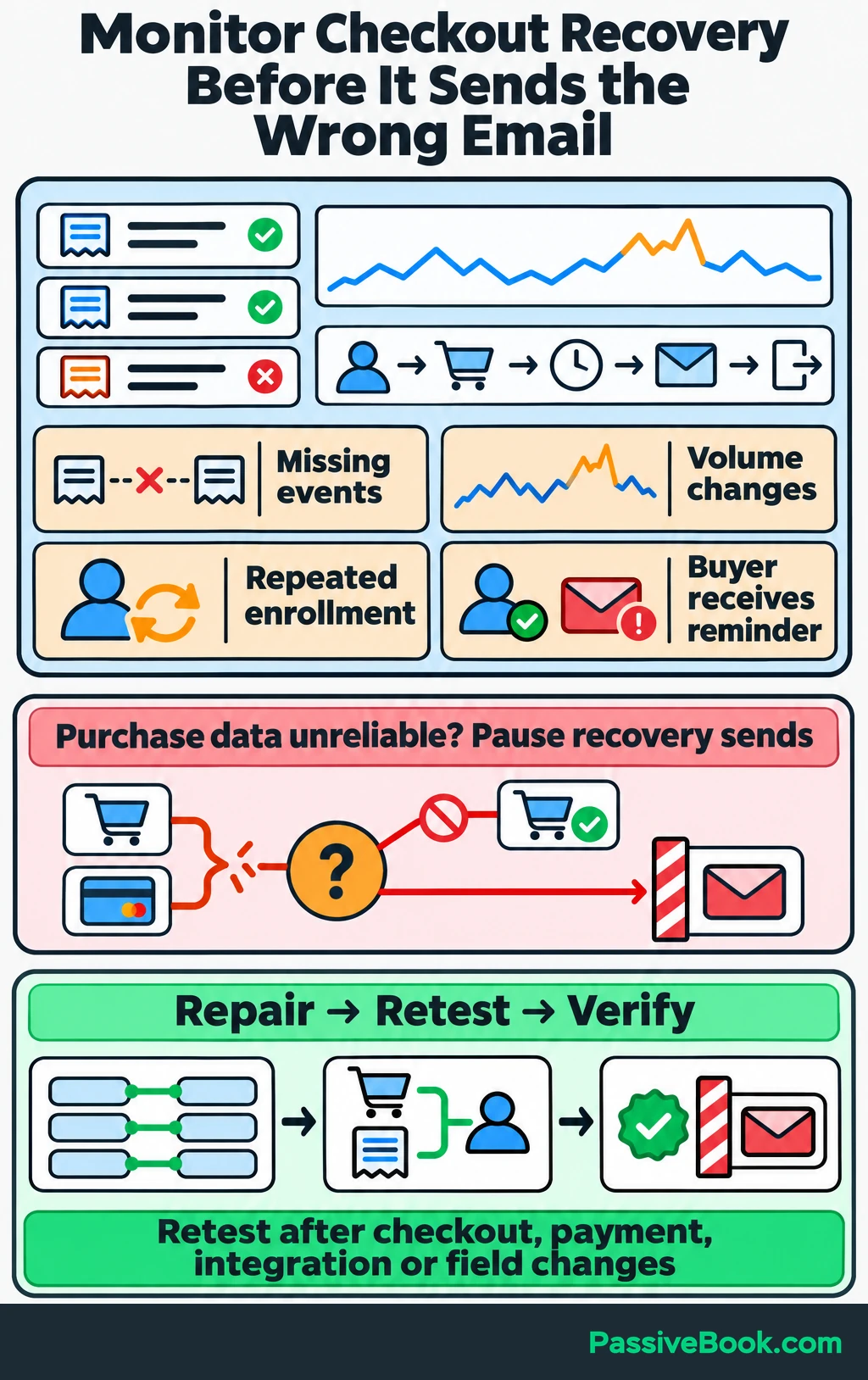
Pause recovery sends when purchase data cannot reliably stop them. An uncertain purchase status should not be treated as “has not purchased.”
Retest after changing the checkout, payment connection, integration or contact fields. Keep a short record of event definitions, field mappings, entry rules, exits and the last successful test.
Automation reduces repeated work. It still needs a way to tell you when the connection breaks.
7. Measure Completed Actions and Improve the Workflow
Keep people, events and orders as separate counts. One person can create several checkout events and place more than one order.
For this workflow, track:
- Eligible Contacts: Unique contacts who met the entry conditions.
- Enrollments: Recovery journeys started.
- Sends and Deliveries: Messages attempted and accepted for delivery.
- Purchase Exits: Journeys stopped because the ebook was purchased.
- Confirmed Purchasers: Unique eligible contacts who bought the ebook within the chosen window.
For the worked calculation, count each eligible contact once and give each one the full seven days after their first eligible checkout. Then count how many of those same contacts bought the ebook during that window.
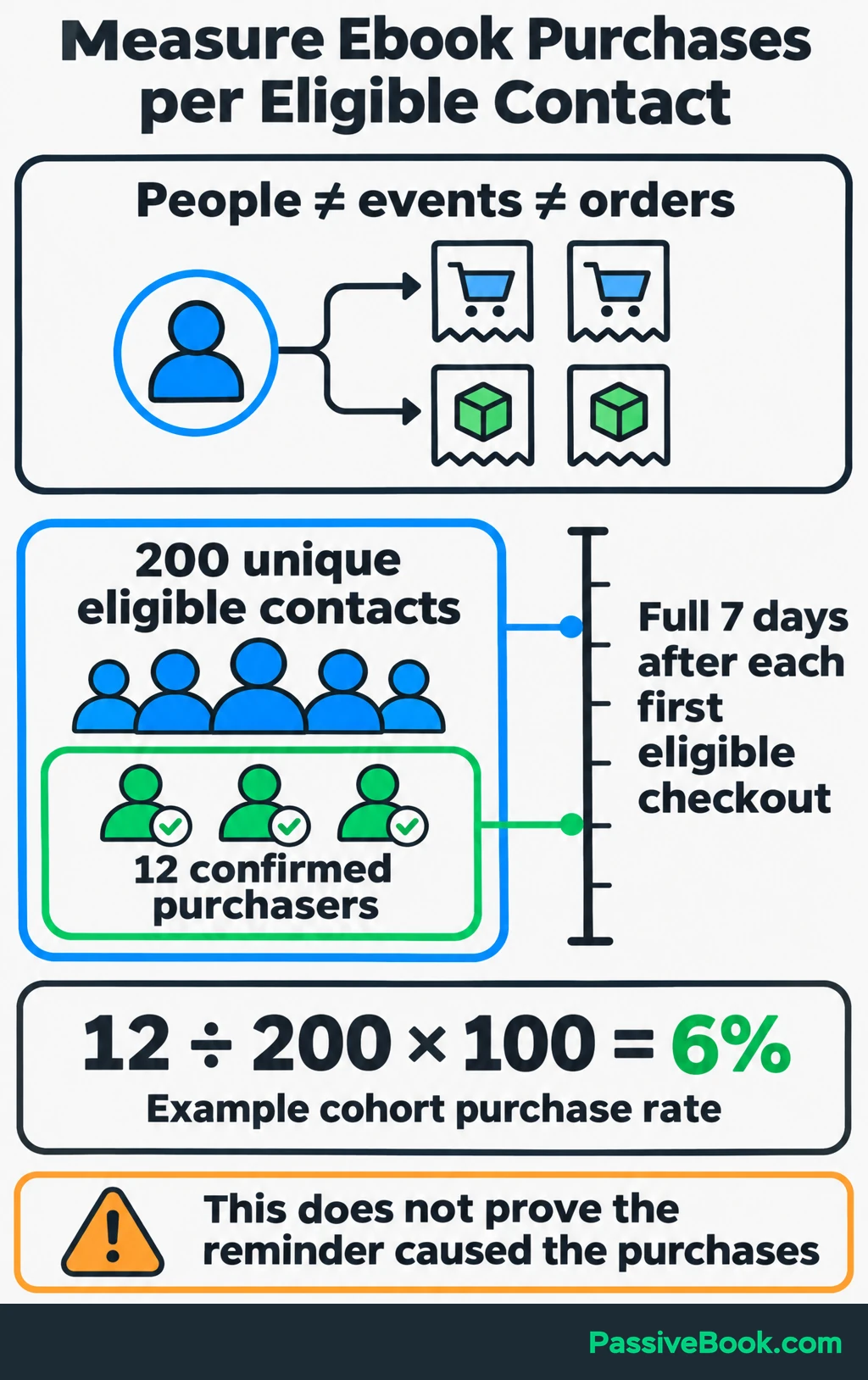
If 12 of 200 unique eligible contacts purchase:
12 ÷ 200 × 100 = 6%
That is a 6% purchase rate for that group and window. It does not establish how many purchases the reminder caused. Some customers would have returned without it.
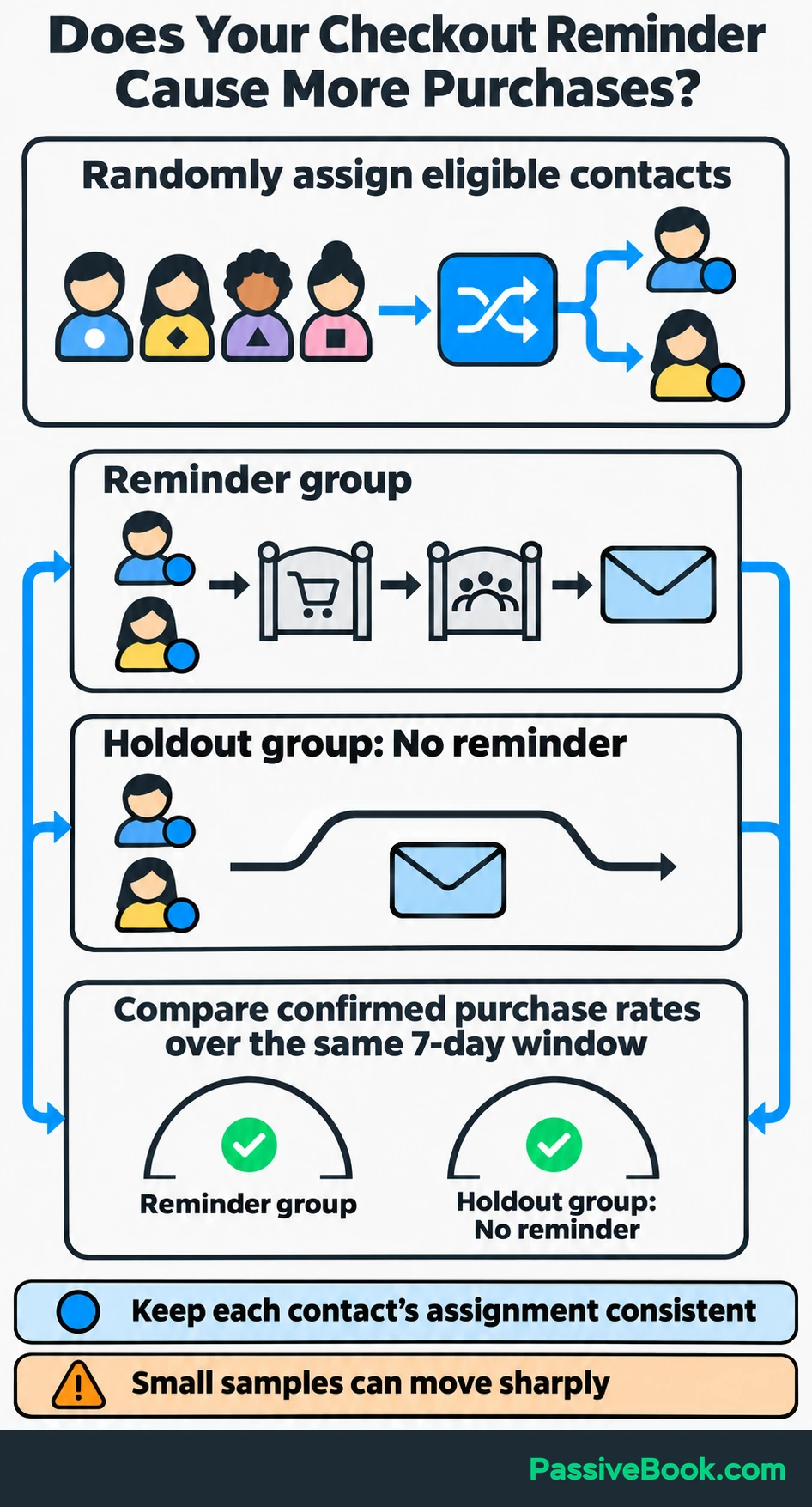
When volume permits, randomly hold some eligible contacts out of the reminder. Compare their purchase rate with the reminder group over the same seven-day window, and keep each contact’s assignment consistent. Customer.io’s holdout testing documentation describes this send-versus-no-send approach.
With a small audience, a few purchases can move the result sharply. Avoid declaring a winning delay after a handful of orders.
Fix missing events, wrong enrollment and sends after purchase before testing copy. Once the workflow behaves correctly, change one meaningful element at a time: eligibility, timing, message or call to action.
Review unsubscribes, complaints and delivery failures alongside purchases. More orders are welcome, but a reminder that creates avoidable complaints needs work.
What Next?
Write the two event definitions for your first workflow, then use a test contact to confirm that checkout and payment reach the same record. Get that connection working before drafting more emails.
Use the social buttons to share this guide when you want to pass along a practical way to make follow-up timely—and stop it when the job is done.
Which customer action would make your follow-up more useful if your email system could respond to it? Share your answer or any other questions in the comments.
Share this post with your friends & followers:

