A booking reminder needs sending, a post needs a caption, and you would rather finish both than learn another tool. Meta’s apps may already have an AI assistant you can ask for help, but finding it is only the first hurdle.
You also need to know what information to share and whether the answer deserves your trust. A polished draft saves little time if you have to remove invented details. This guide shows you where to open Meta AI in each app, how to get useful text from it, and how to create an image you can check before sharing.
Open Meta AI in Your App
Meta AI is Meta’s assistant for questions, writing, brainstorming, and image creation. Everyday use is free. Some features have usage limits; you can wait for them to reset or pay for more access. I would start free. Check Meta’s current access options and costs.
Use the account you already have in the app. Built-in access does not require downloading a separate Meta AI app or finding an activation switch.

Before your first prompt, remove customer names, addresses, payment details, door codes, and confidential information. Use placeholders such as [client name] and [appointment time].
In standard AI chats, Meta may retain and review interactions and use them to improve its AI. Ordinary WhatsApp conversations with friends and family remain protected by end-to-end encryption, but information you choose to send to Meta AI has different handling. Meta’s privacy explanation describes that distinction.
For the examples below, imagine you offer solo neighborhood walks for small dogs. The prompts and sample copy illustrate the process; they are not tested Meta AI outputs.
How to Use Meta AI on Facebook
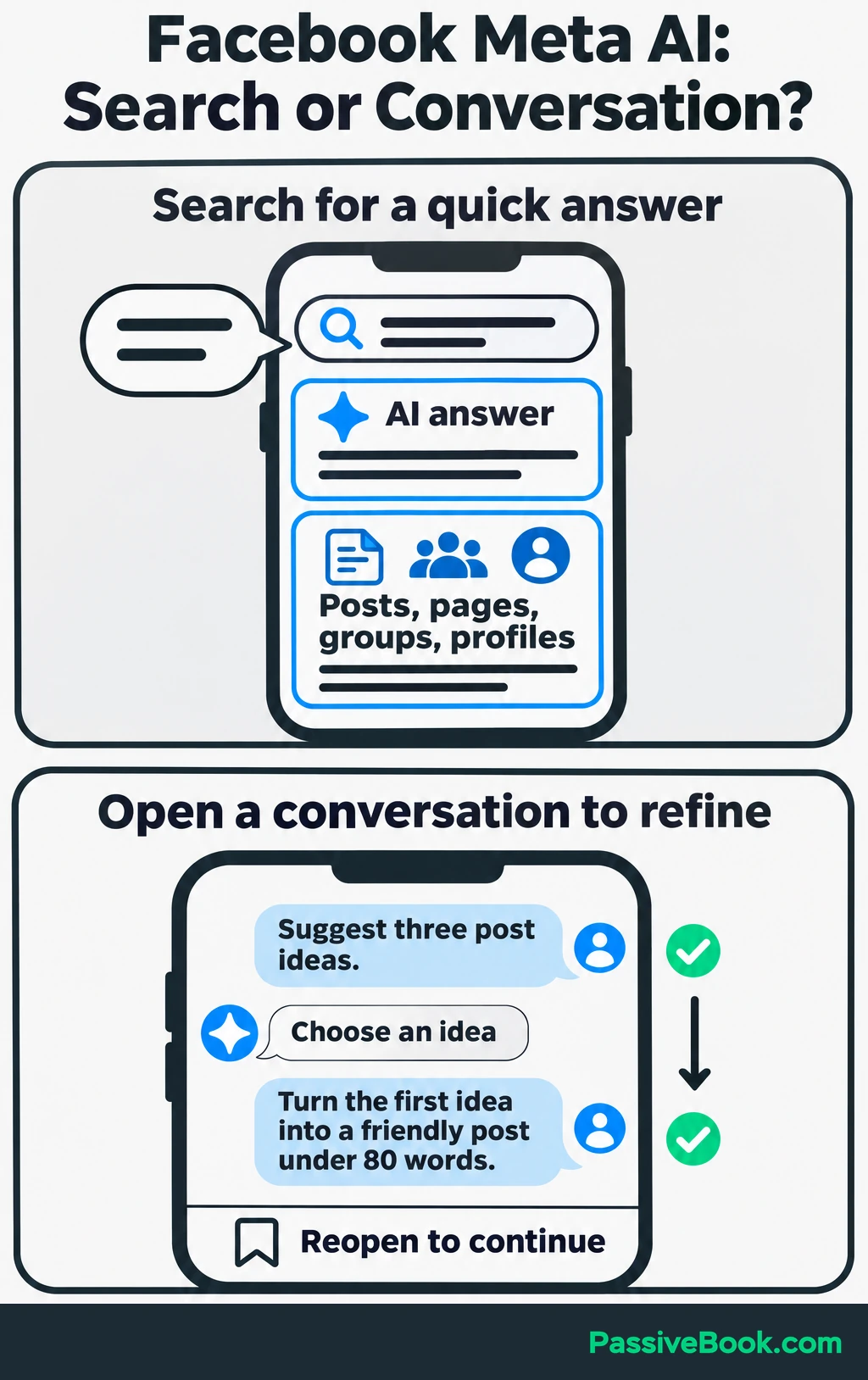
For a quick answer through Facebook search:
- Open the Facebook mobile app and tap Search.
- Look for the Meta AI search entry, which may say “Search with Meta AI.”
- Type your question or request and submit it.
- Read the AI answer separately from the Facebook posts, pages, groups, and profiles in the results.
Try:
Suggest three Facebook post ideas for a local small-dog walking service offering solo neighborhood walks.
For a conversation you can develop over several messages, open messaging through Facebook’s Messenger icon and select Meta AI. On a computer, look for Meta AI in Facebook’s left sidebar.
After choosing an idea, continue with a request such as:
Turn the first idea into a friendly post under 80 words. Don’t add prices, qualifications, or booking availability.
Reopen the assistant conversation when you want to keep working on it.
How to Use Meta AI on Instagram
Instagram’s messages are a useful starting point when you want to draft and revise a caption.
- Open your messages.
- Select Meta AI, or start a new message and choose Meta AI.
- Type your request and send it.
You can also ask a question through the Meta AI entry in Instagram search.
For a first attempt, send:
Write three friendly Instagram captions introducing solo neighborhood walks for small dogs. Keep each under 40 words.
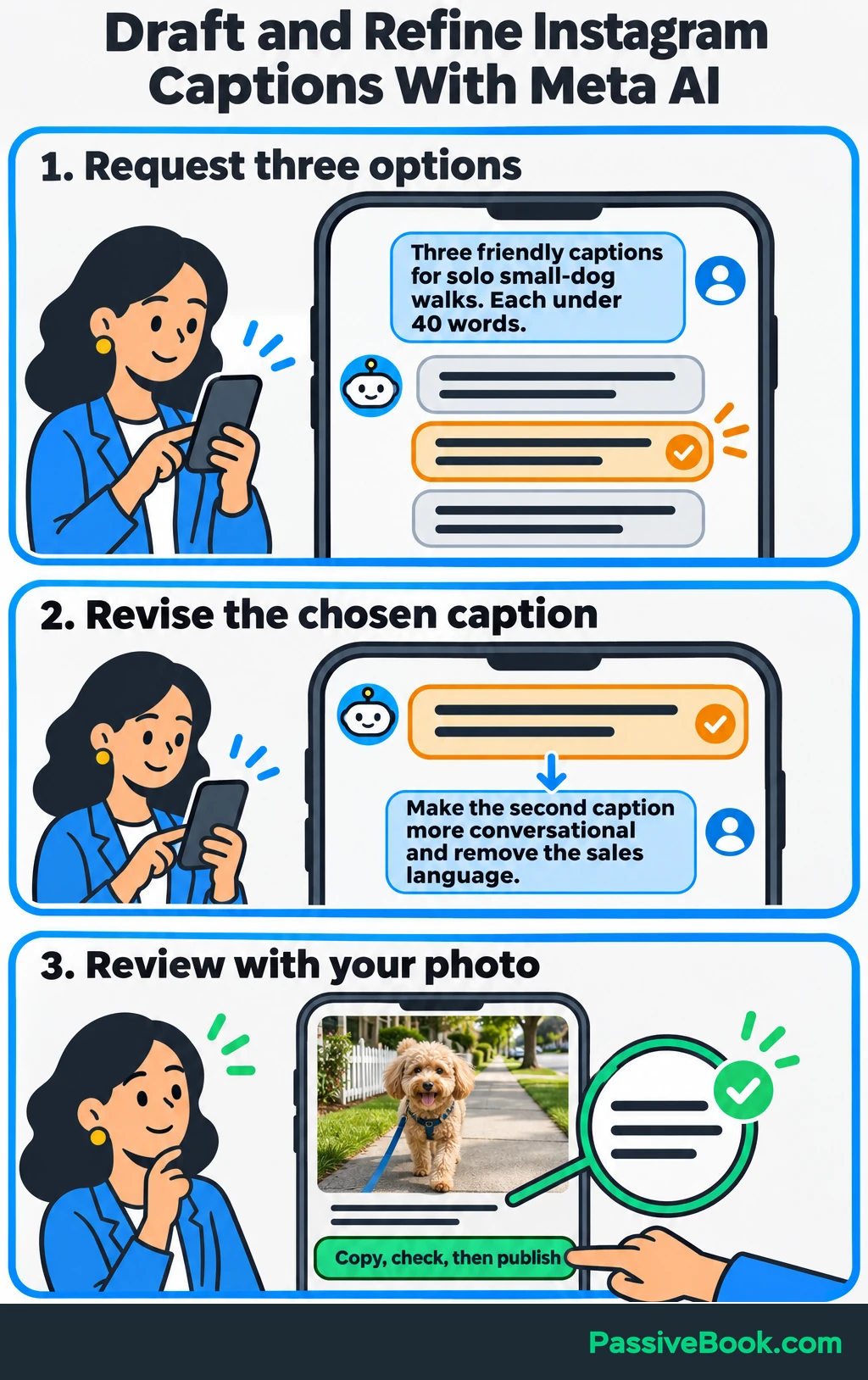
Choose the closest draft, then ask for a specific change in the same conversation. For example:
Make the second caption more conversational and remove the sales language.
Copy the version you want into your post and review it alongside the photo.
Choose the assistant named Meta AI. AI Studio lets people create custom AI characters; you don’t need it to use Meta AI.
How to Use Meta AI on WhatsApp
To start a direct conversation:
- Open Chats and select the Meta AI entry. You may also be able to start a new chat and choose Meta AI.
- Read the introductory terms and accept them if you want to continue.
- Type your request and tap Send.

Try this prompt without adding the client’s private information:
Draft a friendly message asking a dog-walking client to confirm tomorrow’s booking. Use placeholders for the client’s name and appointment time. Keep it brief.
A complete message you could adapt is:
Hi [client name], just checking that tomorrow’s solo walk at [appointment time] still works for you. Please reply to confirm, and let me know if your walking instructions have changed. Thanks!
Replace the placeholders in your own draft before sending it to the client. Check the recipient too; a perfectly worded reminder in the wrong chat creates a new task.
To revise it later, reopen Meta AI from your chat list and continue the relevant conversation.
Why Can’t I Find Meta AI?
Update your app through its official app store, reopen it, and check the entry points above.
Access varies by country, account, device, and language. Chat, image creation, and editing may arrive separately, so updating the app cannot guarantee every feature. WhatsApp explains these availability differences.
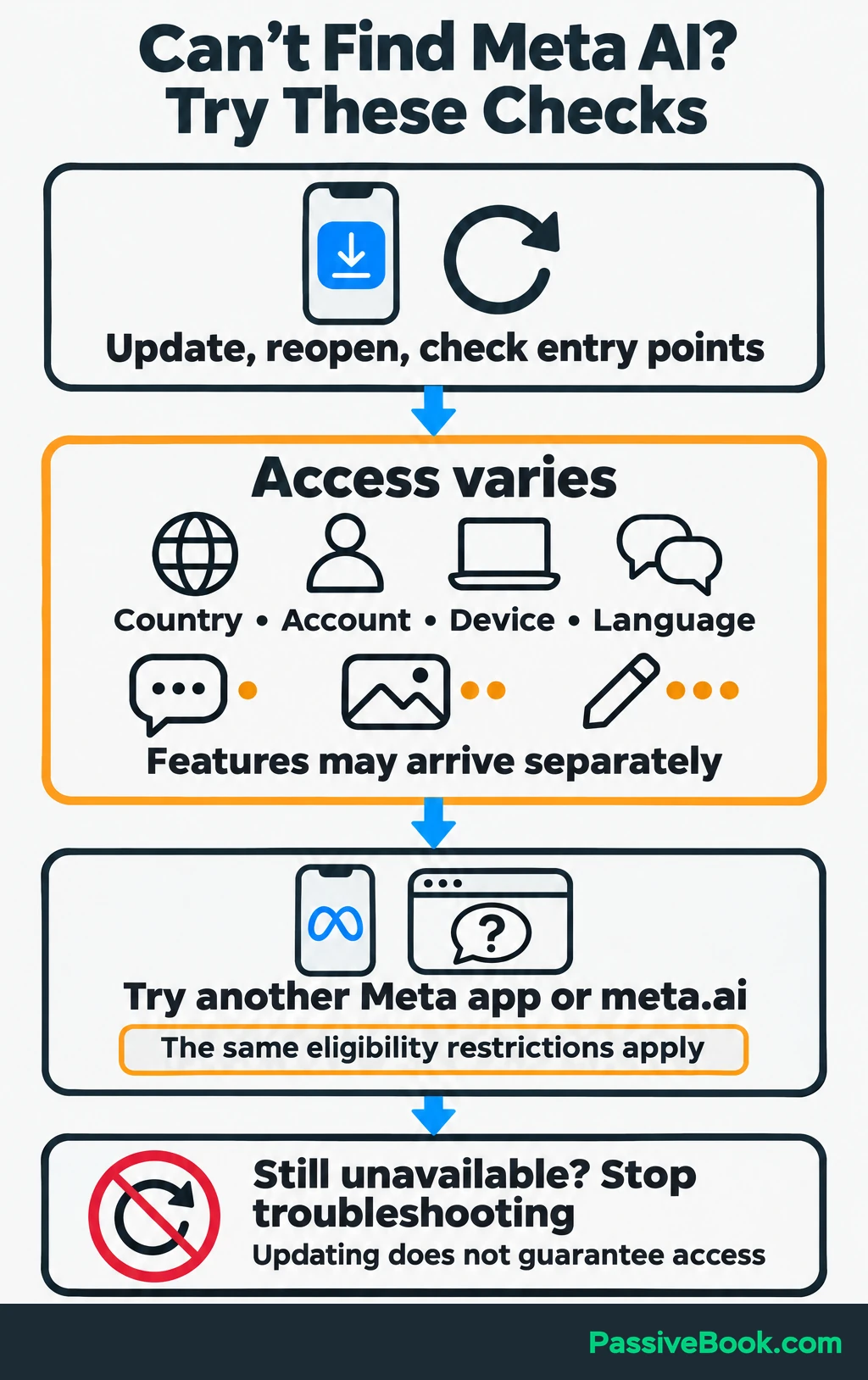
If Meta AI is missing, try another Meta app you already use or open Meta AI on the web. These are other supported ways to reach it, and the same eligibility restrictions still apply.
I would stop there rather than spend an afternoon hunting for a hidden switch. If the feature has not reached your account, repeated reinstalls will not make the task more useful.
Get Useful Answers With Clear Prompts
You do not need technical language to learn how to use Meta AI well. You need to explain the job clearly enough that it has fewer gaps to fill.
Give Meta AI One Specific Task
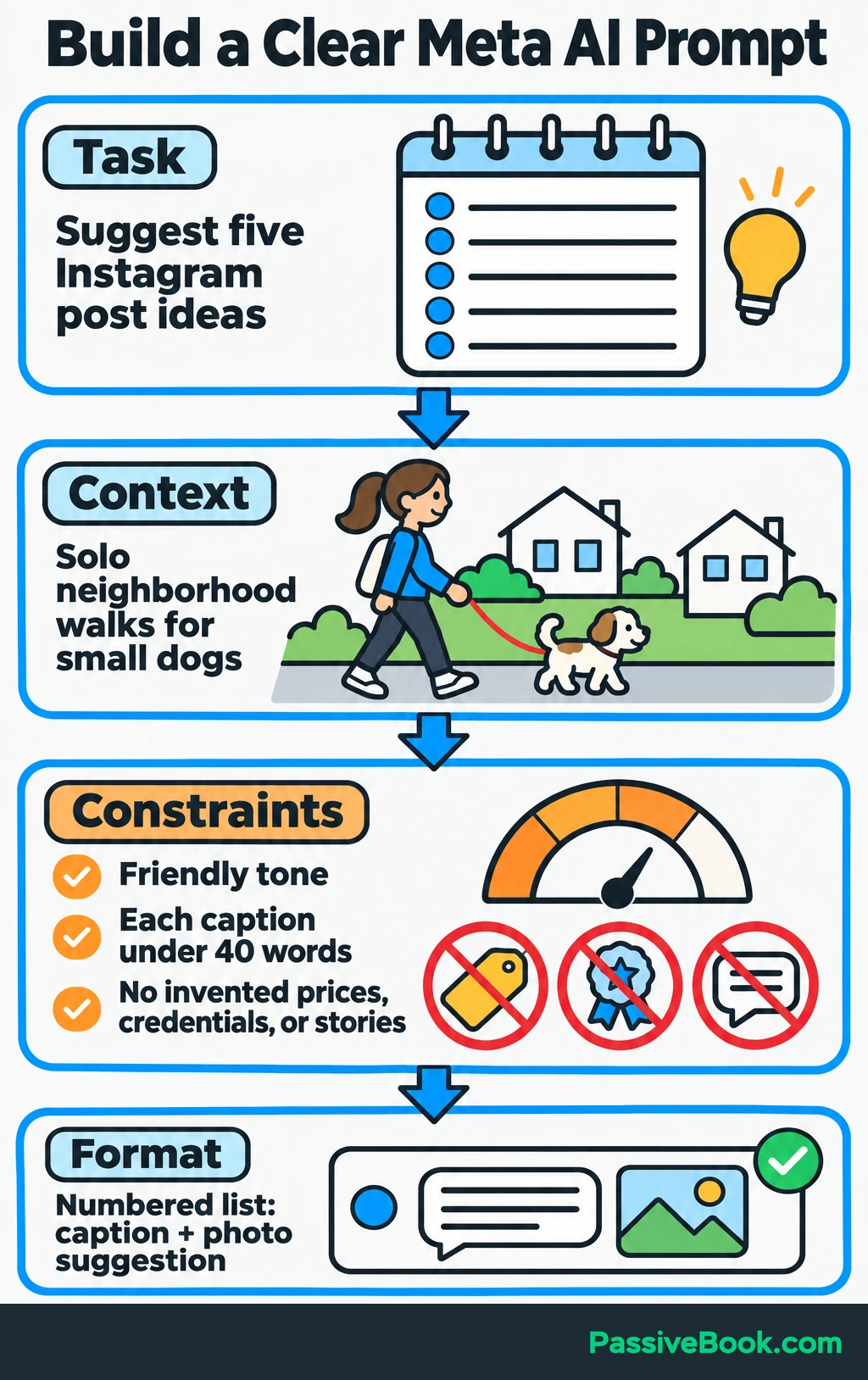
Build your request from four parts:
| Prompt Part | What to Include |
|---|---|
| Task | Suggest five Instagram post ideas. |
| Context | The service offers solo neighborhood walks for small dogs. |
| Constraints | Use a friendly tone and keep each caption under 40 words. |
| Format | Return a numbered list with a caption and photo suggestion for each idea. |
Put those parts together:
For a local small-dog walking service offering solo neighborhood walks, suggest five Instagram post ideas. Use a friendly tone. Return a numbered list with one caption under 40 words and one photo suggestion per idea. Don’t invent prices, credentials, or customer stories.
That gives you something you can review and use. “Help with my Instagram” leaves most of the decisions unexplained.
I ran into this while drafting an introduction for one of my digital products. I asked AI to make it friendly and got a smooth paragraph that could have sold almost anything. I had supplied a tone, but barely explained the product. Adding the product’s purpose and the reader’s problem gave the rewrite something concrete to say.
The same principle applies when organizing existing material: supply the material and say what must stay intact.
Turn these anonymized owner-provided walking instructions into a checklist. Preserve every instruction and add nothing: [instructions].
Compare the checklist with the original before using it. A shorter version is only useful if it keeps the details you need.
Improve the Response With Follow-up Messages
Stay in the same conversation and name the change you want. You usually do not need to repeat the whole request.
Useful follow-ups include:
- “Shorten the second caption to one sentence.”
- “Remove the sales language and keep the explanation.”
- “Give me two warmer alternatives to the opening.”
- “These are solo walks, not group walks. Rewrite the ideas around that.”
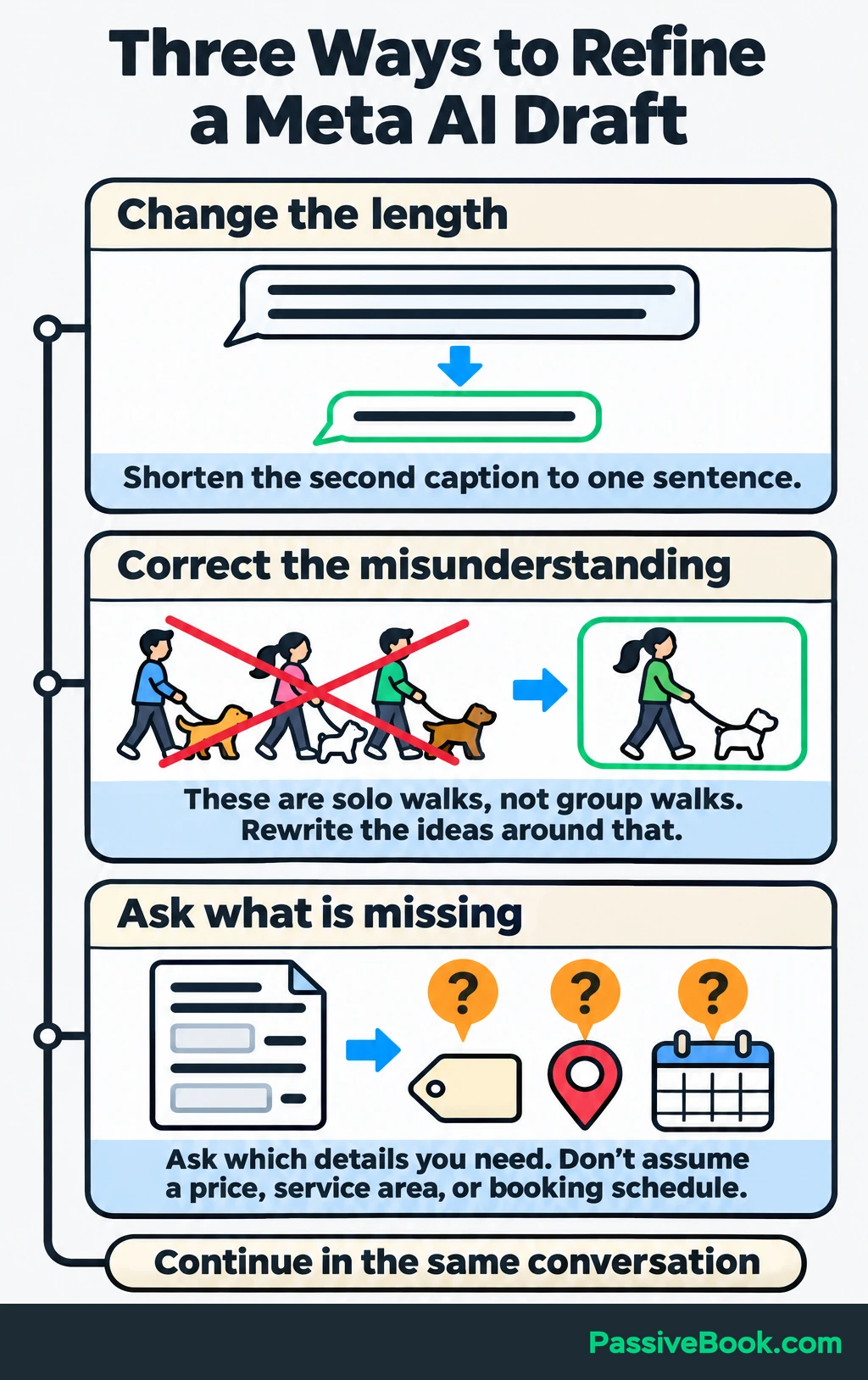
Correct a misunderstanding directly instead of trying to edit around it.
If the first draft would require details you have not supplied, ask Meta AI to pause and identify them:
Before drafting the service introduction, ask me which details you need. Don’t assume a price, service area, or booking schedule.
Once a prompt works, save it in a note with placeholders for the task, context, and format. Replace those placeholders when you reuse it.

For recurring jobs such as social posts or customer replies, a ready-made workflow gives you a starting prompt and specific checks for the result. Choose one task and use non-sensitive inputs in your existing AI assistant.

Free AI Business Workflow Library




Then edit the selected draft, fill in the real details outside the AI conversation, and copy it into the intended post or message. Check the destination and recipient before publishing or sending.
An ordinary request to draft a caption or reminder does not publish, schedule, or send it. If you later need Facebook and Instagram scheduling, I would use Meta Business Suite. Automated customer replies are a separate setup from this assistant chat.
Check Factual Answers Before Relying on Them
Meta AI can help you explore a question, but its answer may be inaccurate or outdated. Ask for supporting sources, open the original pages, and check that they support the specific answer.
For the walking-service example, a useful request might be:
Find the official dog-access rules for [park name]. Give me the park authority’s page and identify any rules about leads or restricted areas.
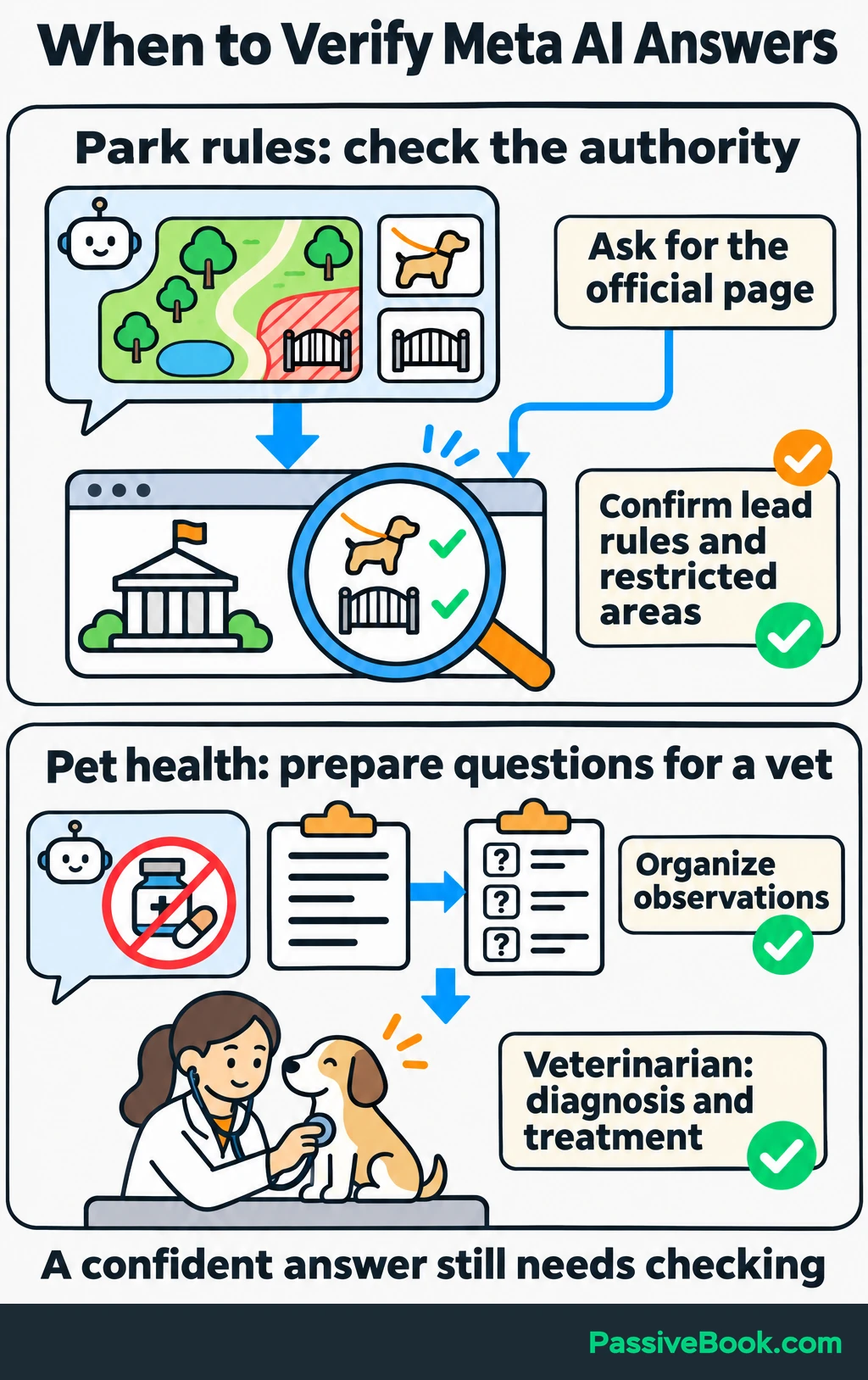
Confirm those rules with the organization responsible for the park before planning a route. A confident answer is not permission to enter.
I would use Meta AI more freely for wording and organizing notes than for decisions where a wrong answer could harm an animal.
For pet-health questions, it can help you prepare questions for a veterinarian. Diagnosis and treatment decisions belong with a veterinary professional. The American Animal Hospital Association makes this distinction in its guidance on AI and dog symptoms.
A useful prompt within that boundary is:
Turn these anonymized observations into a short list of questions for the veterinarian. Don’t diagnose the problem or suggest treatment: [observations].
Create and Improve AI-generated Images
Start in a direct Meta AI conversation and explicitly ask for an image. Describe the subject, setting, style, composition, and intended format.
Meta supports image creation and conversational editing, so you can describe a change after seeing the result. Its image-generation overview shows these capabilities.
For the walking-service example, try:
Create a square watercolor illustration of a small terrier walking beside a dog walker on a leafy neighborhood path. Use soft green tones, leave open space at the top for a headline, and include no text.
The details each serve a purpose. “Watercolor” sets the style, “square” gives the intended format, and “open space at the top” leaves room for a headline you can add later.
After the image appears, request one focused revision:
Keep the watercolor style and make the background simpler.
If several images appear, identify the one you mean. Referring to “the image with the green jacket” is clearer than “change that one.”
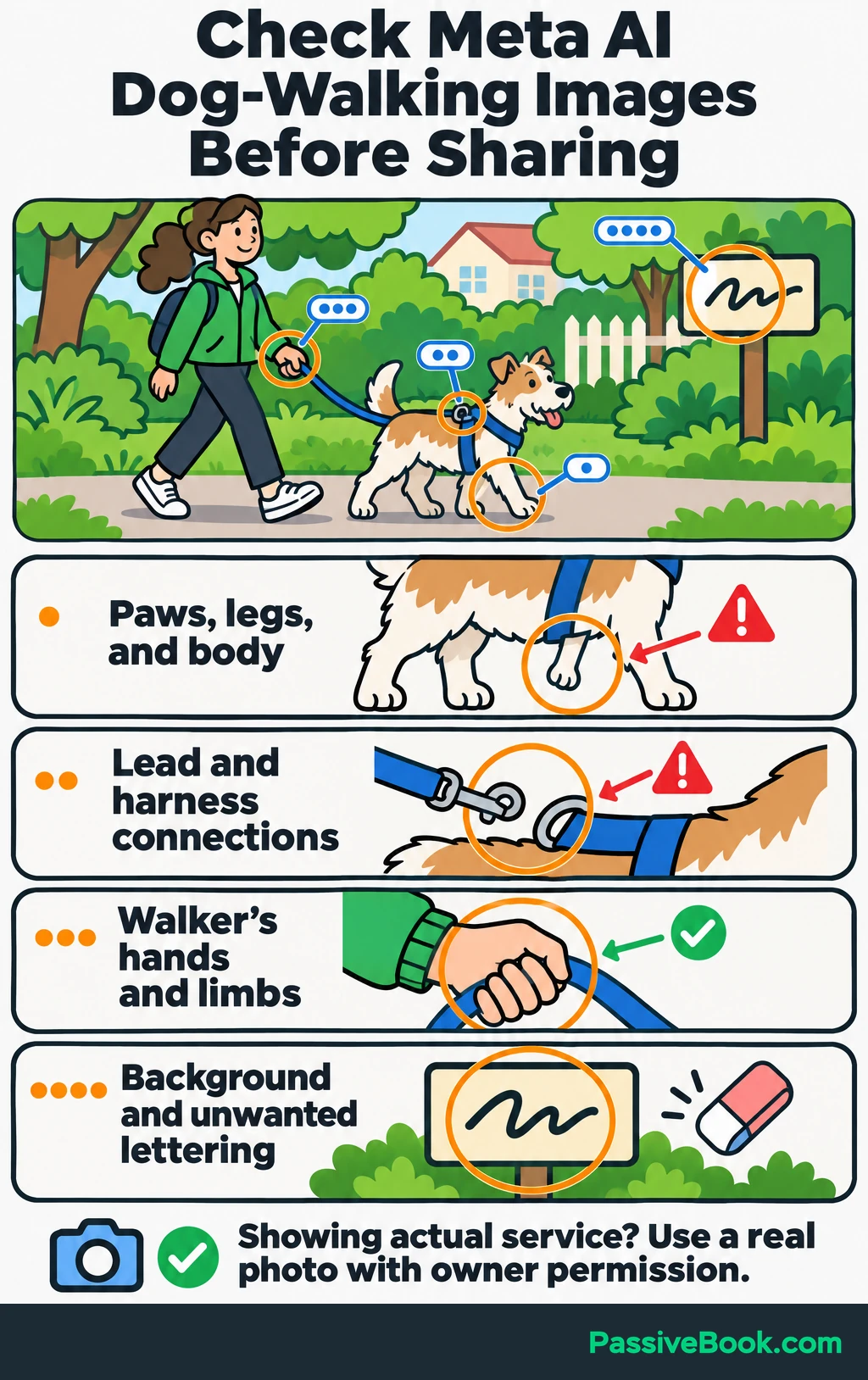
Before saving it, inspect:
- The dog’s paws, legs, and body.
- The lead, harness, and connection points.
- The walker’s hands and limbs.
- Background objects and unwanted lettering.
I would use an illustration for a general post about solo walks. When showing an actual dog or the service you provide, use a genuine photo with the owner’s permission. An invented scene should not become evidence of work you have done.
Open the chosen image and use the available save, download, or share control. If you want a headline, use the design tool Canva to add it after checking the image.
Pair it with your reviewed caption and preview the post before publishing. Check the crop too; a useful illustration can become confusing when the app trims away the lead or walker.
Ask Meta AI for Help in a Group Chat
In a WhatsApp, Instagram, or Messenger group that supports Meta AI mentions:
- Open the group conversation and type
@. - Select Meta AI from the available suggestions.
- Add your request after the mention and send it.
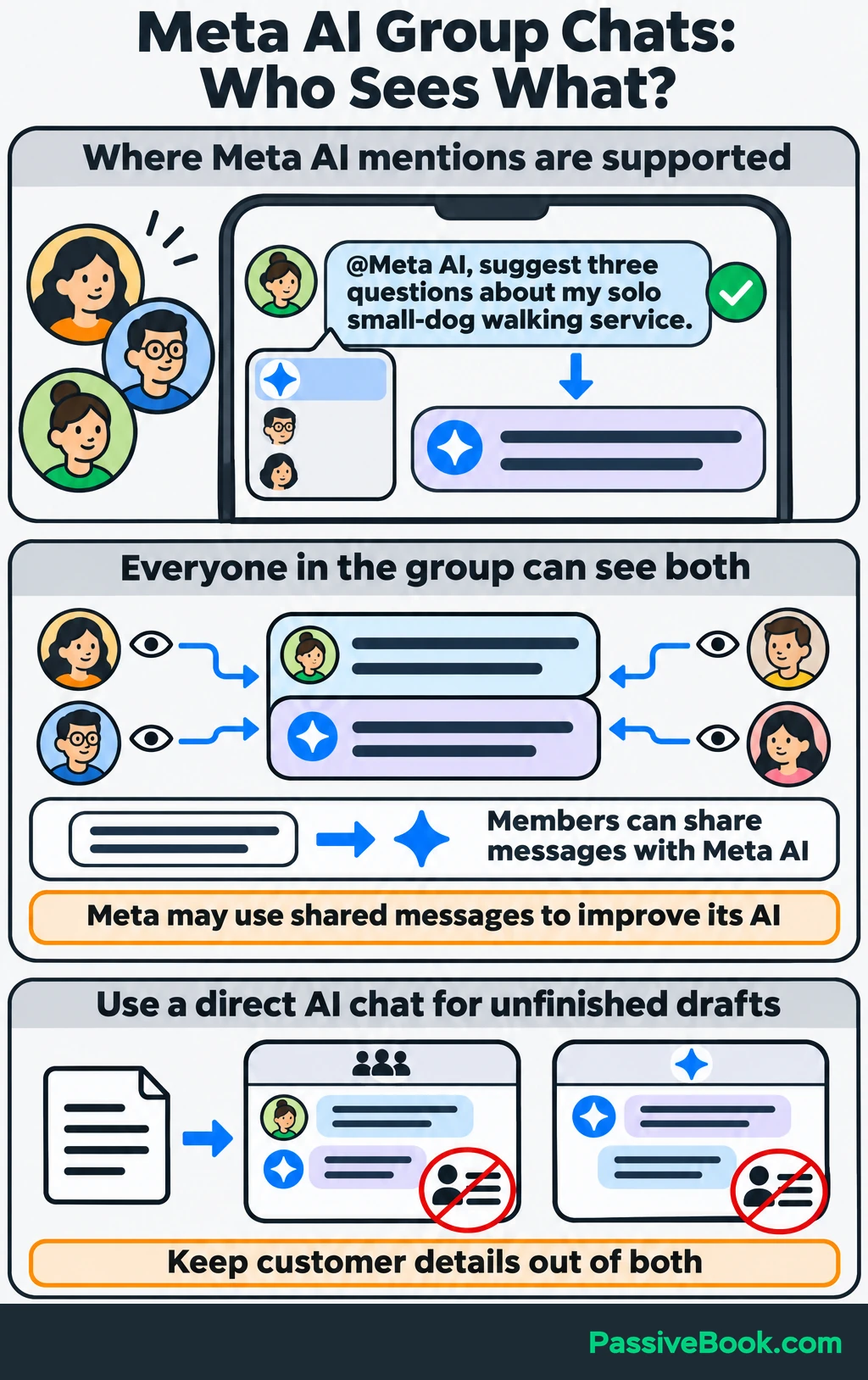
Include the context in that message. For example, when discussing your service with a neighborhood group:
@Meta AI, suggest three questions I should answer when introducing my solo small-dog walking service to this group.
Mention Meta AI again when asking a follow-up.
Everyone in the group can see the prompt and response. Group members can also share messages with Meta AI, and Meta may use those messages to improve its AI. Meta explains how it handles information shared with its AI.
Mentions are useful for a shared question. I’d use a direct AI conversation to keep unfinished drafts out of the group. Keep customer details out of either request.
What Next?
Open Meta AI in the app you already use and give it one small task, such as drafting a booking reminder with placeholders. Ask for one revision, then check whether the result is useful enough to send.
Use the social buttons to share this guide when your next group discussion turns to finding Meta AI or getting a better answer from it.
Which recurring task would you most like Meta AI to help you finish? Tell me in the comments, and add any other questions you have about using it.
Share this post with your friends & followers:

