You have rough notes to organize, an email to finish and a question that needs more than another search result. Gemini looks useful, but learning its features can become another task on an already crowded list.
Then there’s the answer itself. It may sound polished while leaving you unsure which parts to trust or whether a subscription would improve the result. The sewing-planner examples below show how to research a question, draft useful copy, create an image and work with Drive and Calendar, with checks to help you judge the results before paying for more access.
Open Gemini and Start Your First Chat
Start with the free browser version. You don’t need coding skills, a subscription or connected apps to try a useful task.
- Open Gemini in your browser.
- Sign in with your Google account.
- Type a request into the message box and send it.
Some features work without signing in, but signing in gives you access to more features and saved activity. If you use a work or school account, access also depends on your organization’s settings.
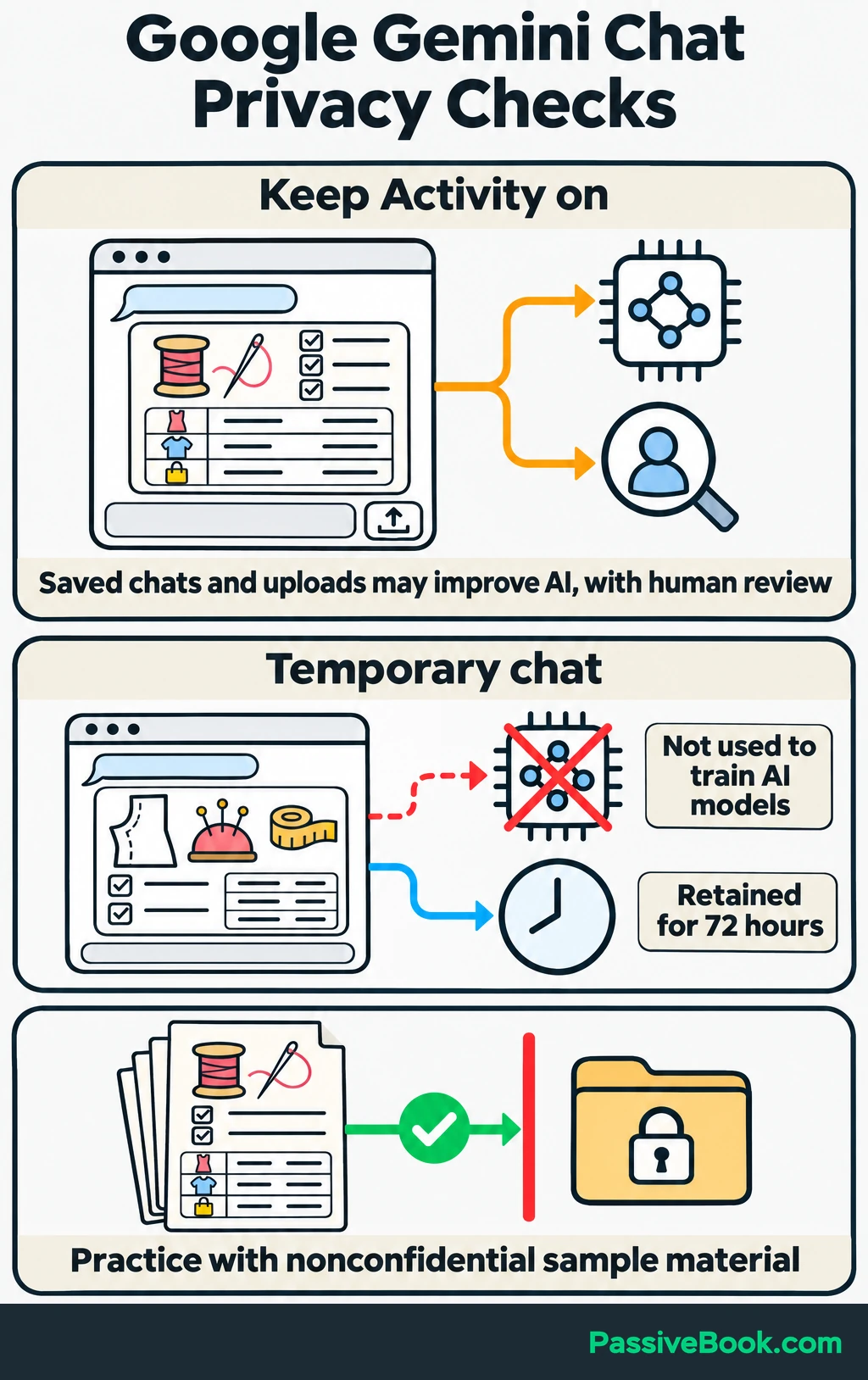
Before pasting business material, review the setting called Keep Activity. On a personal account, enabling it allows saved chats and uploads to be used to improve Google’s AI, with human review. Temporary chats aren’t used to train its AI models, but Google retains them for 72 hours. I would practice with sample material and leave confidential information out. Google explains these privacy controls here.
For the examples, imagine your website sells a printable sewing-project planner with a materials checklist and project log. The product and sample copy are illustrative.
Try this first request:
Suggest five ways to explain the benefits of a sewing-project planner with a materials checklist and project log.
Read the response, choose a useful direction and continue:
Turn idea two into a three-point outline. Keep both planner features.
That’s the basic rhythm: give Gemini a task, review what comes back and ask for a specific change.
Stay in the same chat while developing that task because your earlier messages provide context. Start a new chat when you switch to unrelated work. Leave model selection on its default while learning; Gemini can automatically choose an available model for your request.
Write Prompts That Produce Useful Answers
A prompt is the instruction you give Gemini. Useful prompts explain the job and provide the information needed to do it.
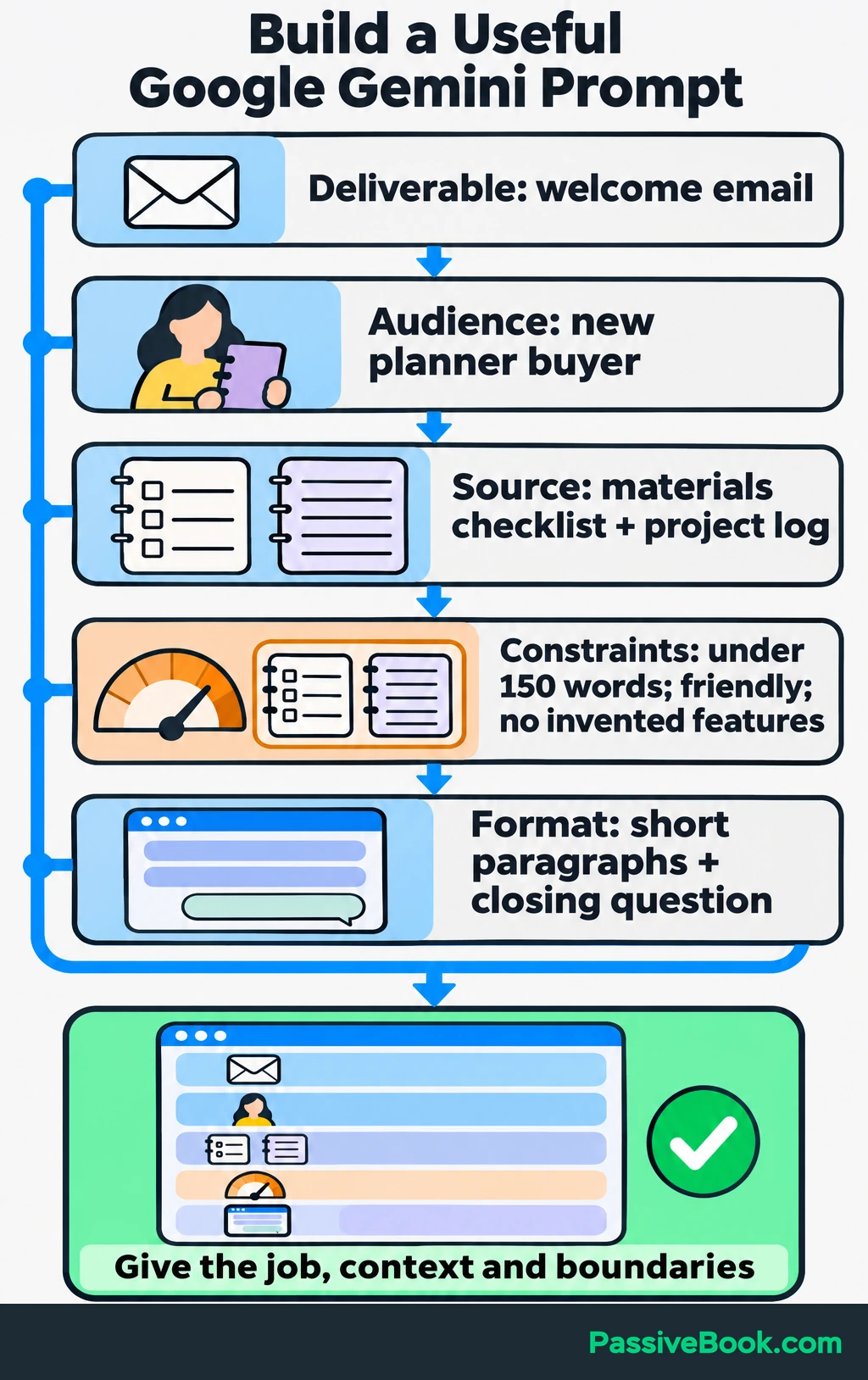
I would include these five things:
- The deliverable: an email, summary, comparison or plan.
- The audience: who will read or use it.
- The source material: notes, files or product facts.
- The constraints: length, tone and anything it must avoid.
- The format: paragraphs, bullets or a table.
Here’s a reusable pattern:
Using [material], create [deliverable] for [audience]. Include [required details]. Format it as [format]. Follow [constraints].
For the planner, that becomes:
Draft a welcome email for someone who bought my printable sewing-project planner. It contains a materials checklist and project log. Explain how to start using both pages. Keep it under 150 words, use a friendly tone and end by asking what they plan to sew. Don’t add product features I haven’t supplied.
You don’t need to get the first request perfect. Give focused feedback when the answer misses:
Shorten the opening to one sentence. Preserve both planner features and the closing question.
“Make it better” leaves Gemini guessing. “Remove the repeated explanation and give me one clear next action” gives it something to change.
When missing facts could change the answer, add:
Before drafting, ask me for any information you need. Don’t fill gaps with guesses.
Once a prompt works, save it in a document with placeholders for changing details. A useful prompt deserves a second outing.
If you’d rather start with a worked task, the AI Business Workflow Library gives you the prompts, practice material and checks together. Choose one task, try it with the sample input, then use your own nonconfidential material.
Free AI Business Workflow Library




Complete Everyday Tasks With Gemini
Choose one task you already need to finish. Learning five features at once makes it harder to tell which one helped.
Research a Question and Check the Sources
Start by defining the question, its boundaries and the kind of evidence you need. A narrow request is easier to check than “Tell me everything about sewing.”
For a supporting article on your planner website, try:
Research how to prepare fabric before cutting a beginner sewing project. Use university-extension or textile-care sources. Separate general guidance from advice that depends on fiber type or the fabric’s care instructions. Link the sources.
Next, open the original sources behind the important claims. Check three things:
- Does the page actually support the statement?
- Does its advice apply to the material or situation you asked about?
- Has Gemini left out a condition that changes the advice?
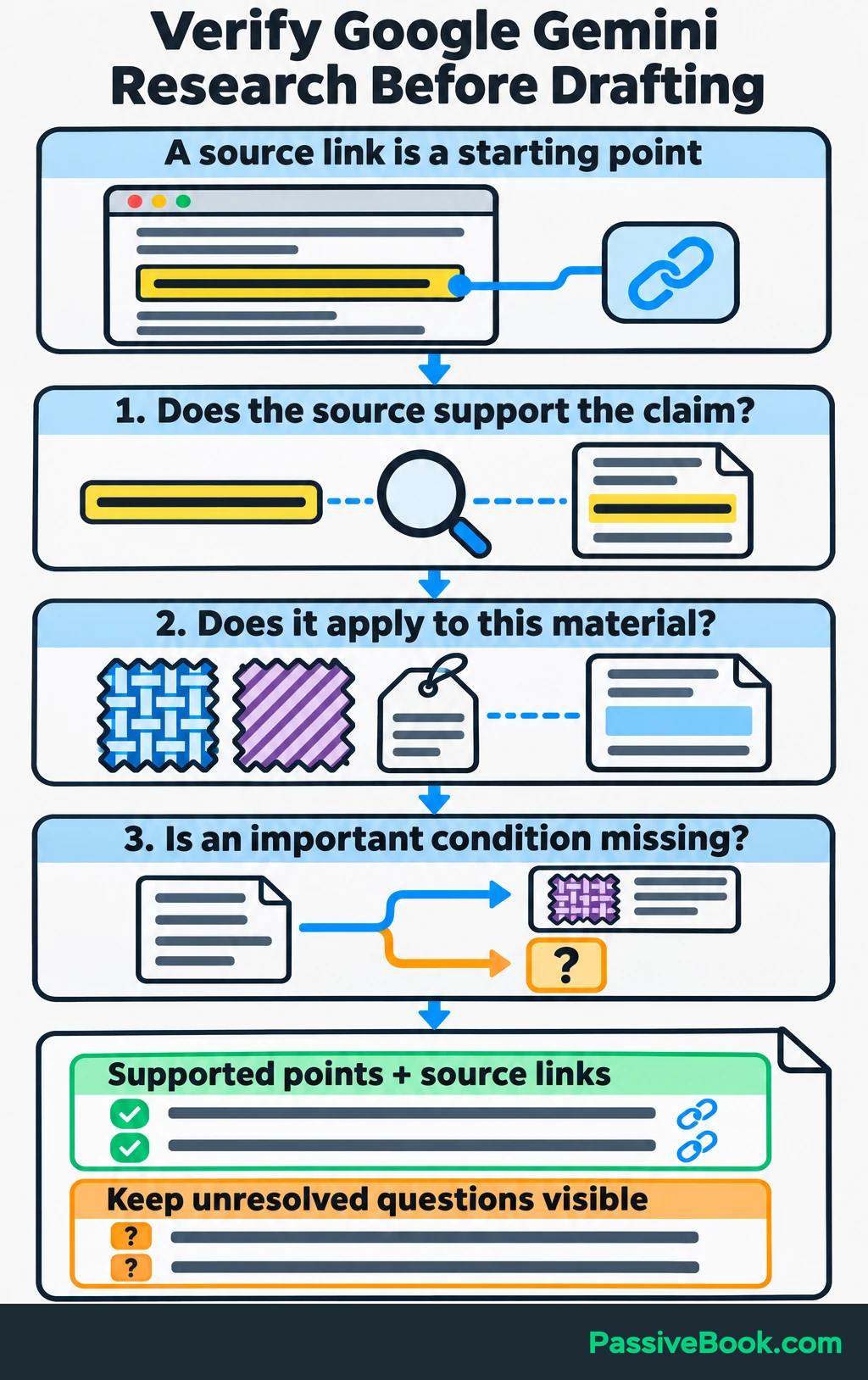
A link beside an answer doesn’t settle those questions. Google says some links provide related content, and some responses include no sources at all. Its explanation of sources makes that distinction clear.
I use Gemini for research and fact-checking, but I keep the checked notes separate from the chat. When I return to write, I want to see which statements I verified without reopening an entire conversation.
Turn those notes into a short research brief containing the question, supported points, source links and unresolved questions. That brief becomes the input for your draft.
For a larger investigation, choose Deep Research before submitting the request. It gathers material across sources and proposes a research plan you can edit before starting the report. You must be signed in and aged 18 or over. Inspect the finished report’s citations just as you would in ordinary chat. Google describes Deep Research’s requirements and workflow here.
I would use ordinary chat for a short explanation and Deep Research when comparing several sources would otherwise take substantial manual work.
Turn Your Material Into a Draft
Give Gemini checked material, tell it who the writing is for and explain what the reader should do afterward.
For a longer article, request an outline first. Fixing the order of five headings is easier than untangling a full draft that went in the wrong direction.
For the sewing example:
Using only this research brief, draft a 250-word blog section about preparing fabric for a sewing project. End by suggesting how readers can record preparation notes in the planner’s project log. Flag any missing facts instead of adding them.
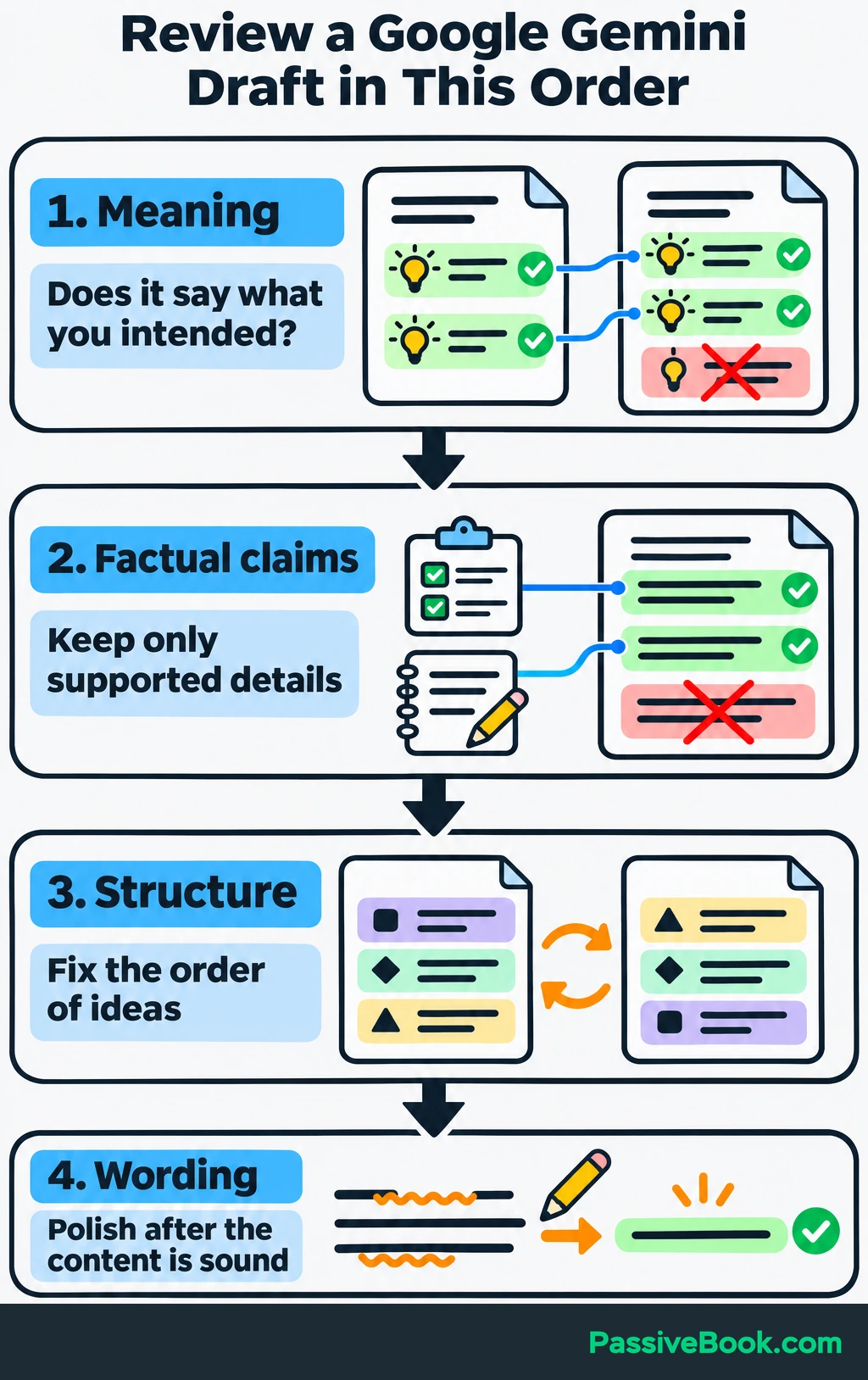
Review the result in this order: meaning, factual claims, structure and wording. There’s little value in polishing a sentence you later need to delete.
For a short piece, you can ask for the complete draft immediately. Here’s a welcome email you could adapt for the example product:
Subject: Your sewing-project planner: start here
Hi [First name],
Thanks for buying the sewing-project planner.
Start with one project you want to make. On the materials checklist, note what it needs and check what you already have before buying supplies.
Use the project log to record what you’re making and any notes you want to keep as you go.
You don’t need to plan every future project. Print the pages and start with the one in front of you.
What are you planning to sew?
[Your name]
That draft stays within the supplied product details. Check yours for extra features, promises or customer claims you never provided.
For repeated editing, use Canvas, Gemini’s workspace for creating and revising documents. Select Canvas before submitting the assignment, then edit the text directly or highlight a passage and request a focused change.
To save the finished text in Google Docs, choose Share & export, then Export to Docs. If you have a Gmail account, you can create a draft email by choosing Draft in Gmail from the same menu. Open the document or email draft and review it.
Claude remains my first choice for long articles, but I would happily use Gemini to turn checked notes into a short draft, especially when the next stop is a Google document.
Summarize Documents and Analyze Spreadsheets
To attach a document, PDF, image or spreadsheet from your device, choose Add files, then Upload Files. Tell Gemini what you want extracted, checked or calculated.
For your planner PDF, a useful request would be:
List each page and its purpose. Identify instructions that need clarification, with a page reference for each suggestion.
Compare the suggestions with the actual PDF. A page reference helps you find a possible problem; it doesn’t prove there is one.
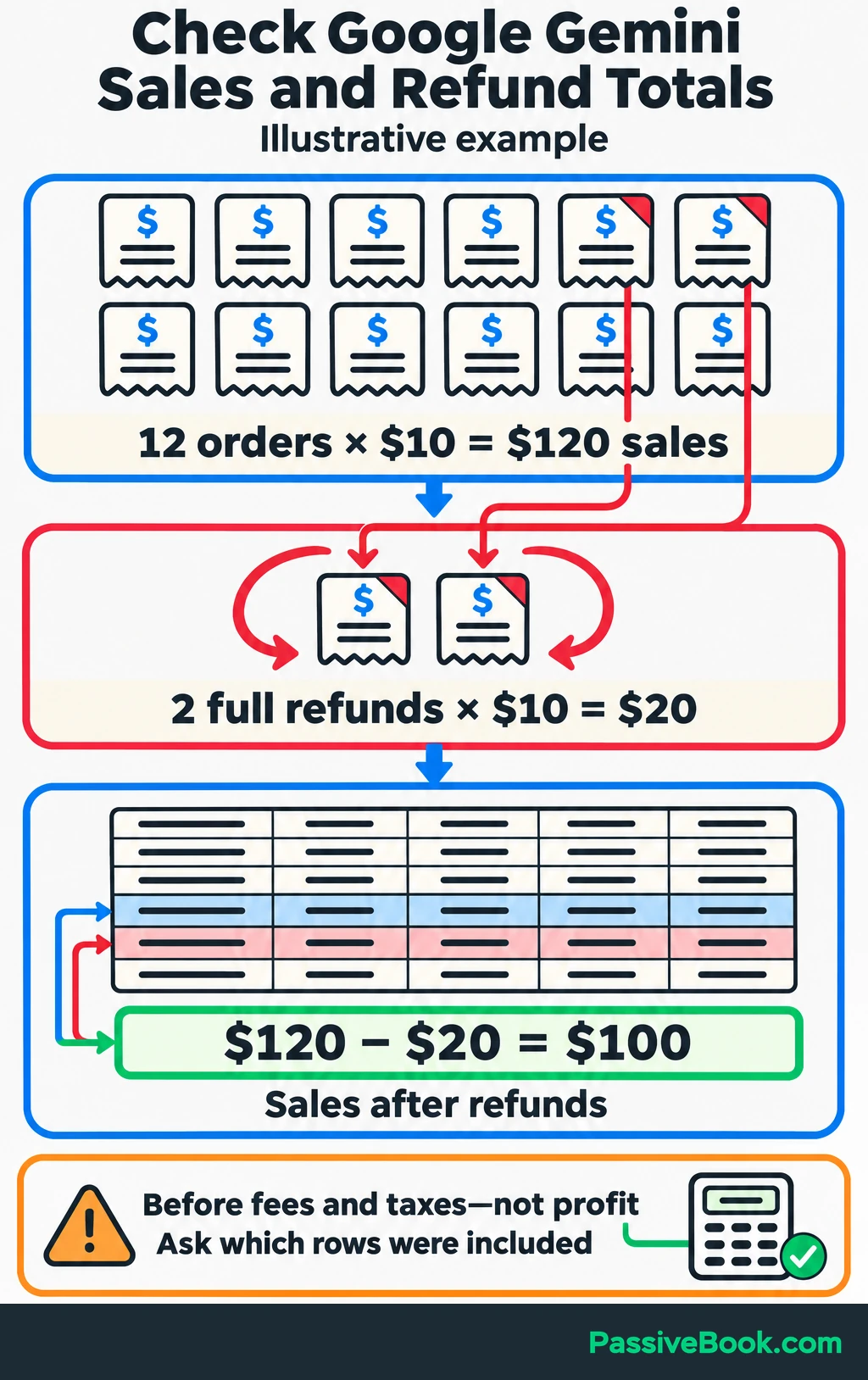
With spreadsheets, explain the columns before asking for analysis. Say what each date represents, whether each row is an order and how refunds are recorded.
You could then ask:
Group these orders by order month. Subtract the refunds recorded against each order from its sale amount. Show monthly totals before fees and taxes, and identify the rows used.
This counts the sales from each month’s orders and subtracts refunds belonging to those orders. It doesn’t calculate profit.
For an illustrative check, suppose 12 orders each brought in $10 and two of those orders received full $10 refunds:
- Sales: 12 × $10 = $120.
- Refunds: 2 × $10 = $20.
- Sales after refunds: $120 − $20 = $100 before fees and taxes.
Recalculate important totals in the spreadsheet. If Gemini reports something unexpected, ask which rows it included and how it handled blanks or duplicate entries.
Keep the input focused. Uploading the relevant sheet or a few PDF pages is often more useful than asking it to rummage through everything you own.
Create and Refine an Image
Describe the subject, arrangement, style, orientation and intended use. Those details give Gemini more direction than “Make a nice sewing image.”
For the planner’s product page, try:
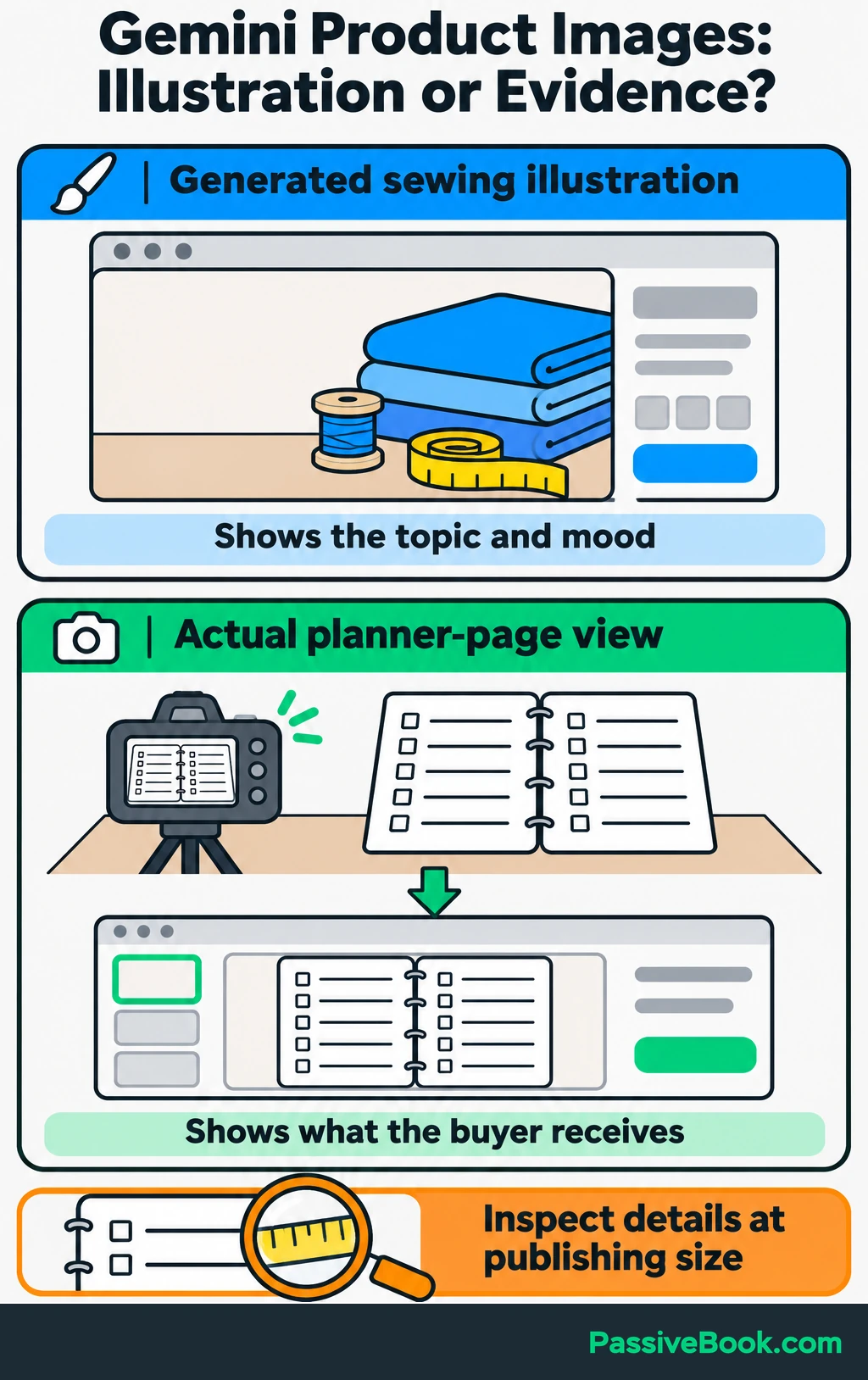
Generate a landscape illustration showing folded fabric, thread and a measuring tape on a tidy worktable. Use a simple background with empty space on the left for a headline. Keep the supplies on the right and include no text.
Then request one focused revision:
Leave more empty space on the left while keeping the sewing supplies on the right.
View the result at the size you intend to publish. Check small objects, awkward shapes and anything that could mislead a buyer, then download the image.
This is a generated illustration of sewing supplies. Use an actual view of the planner pages when buyers need to inspect what they’ll receive. I would add the headline in Canva so I can adjust the wording and placement myself.
Image generation requires an eligible signed-in account, and editing requires users to be 18 or over. Upload reference images only when you have permission to use them. Google explains image eligibility and use requirements here.
Organize Your Work Into a Practical Plan
Give Gemini your tasks, deadlines and available working time. Explain which tasks must finish before others can start. Include your own effort estimates because it doesn’t know how long your work usually takes.
Ask it to identify missing decisions and arrange the tasks in a workable order.
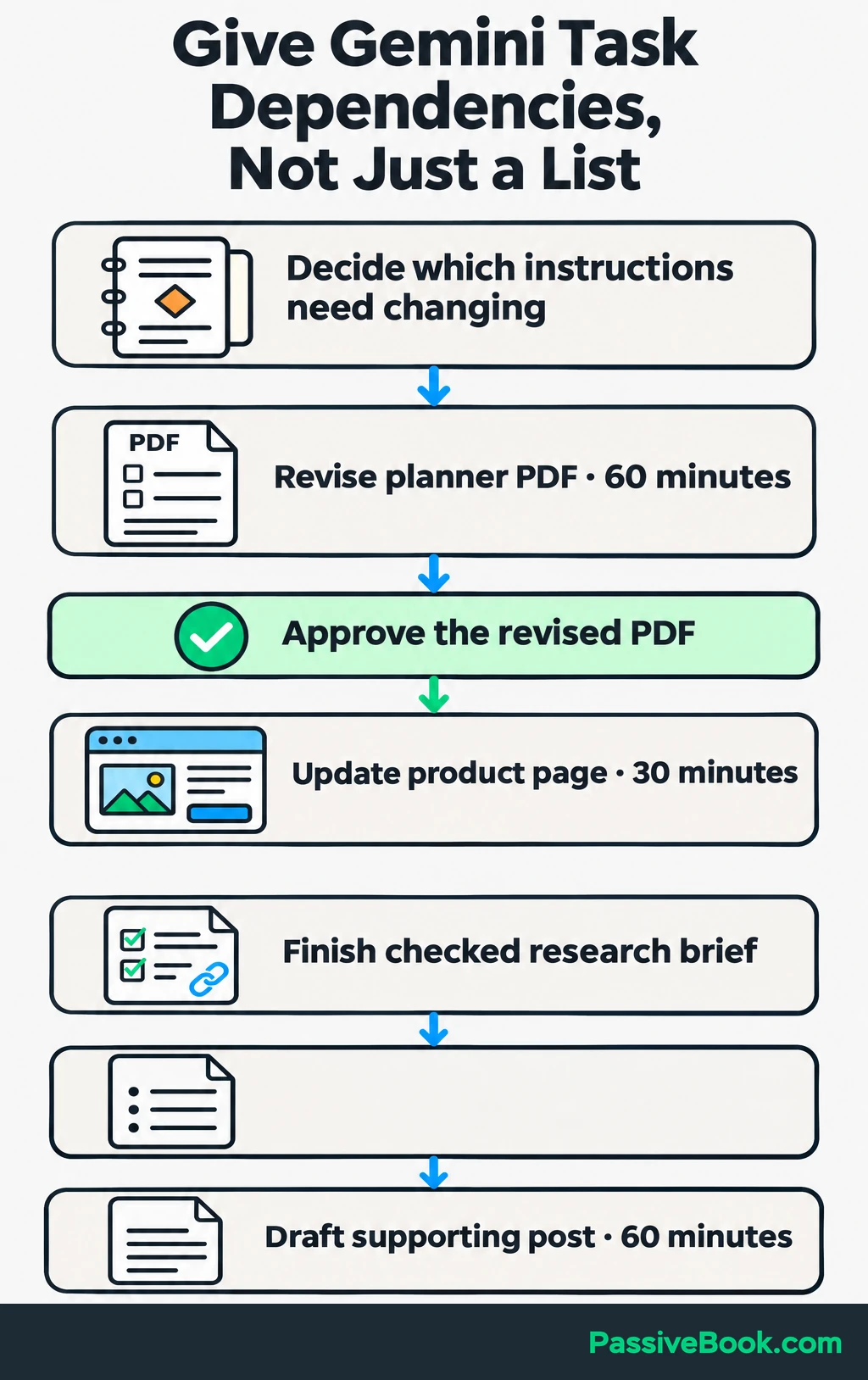
For the planner website, suppose you have three hours available before Friday. An illustrative plan might look like this:
| Task | Prerequisite | Estimated effort | Deadline | Next action |
|---|---|---|---|---|
| Revise the planner PDF | Decide which instructions need changing | 1 hour | Wednesday | Review the marked PDF pages |
| Update the product page | Approve the revised PDF | 30 minutes | Thursday | Check that the description matches the file |
| Draft a supporting blog post | Finish the checked research brief | 1 hour | Friday | Approve a short outline |
That leaves 30 minutes for checking and small delays.
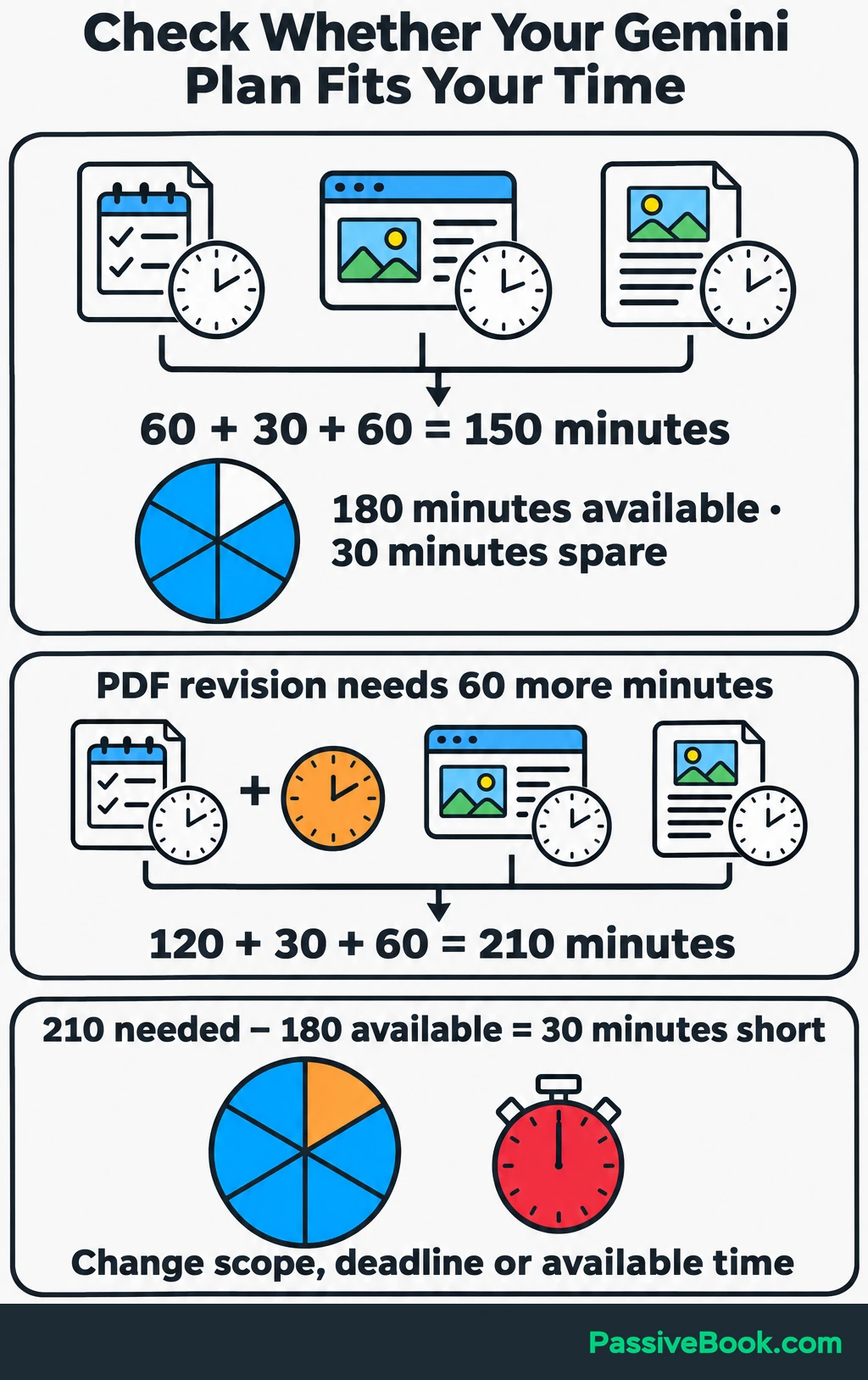
The value comes from spotting what depends on what. A list of tasks alone can still leave you updating a page before you’ve settled what the product contains.
When something changes, update the plan:
The PDF revision needs another hour. Keep the Friday deadline, reorder the remaining work and identify anything that no longer fits.
A useful answer should expose the tradeoff. Gemini cannot squeeze three and a half hours of work into three, although it may sound encouraging while trying.
Connect Gemini to Your Google Services
Connect services when a task needs information already stored in them. There’s no need to connect your inbox just to brainstorm five headlines.
Sign in with the account containing the material, name the service in your request and follow the connection prompts. For example:
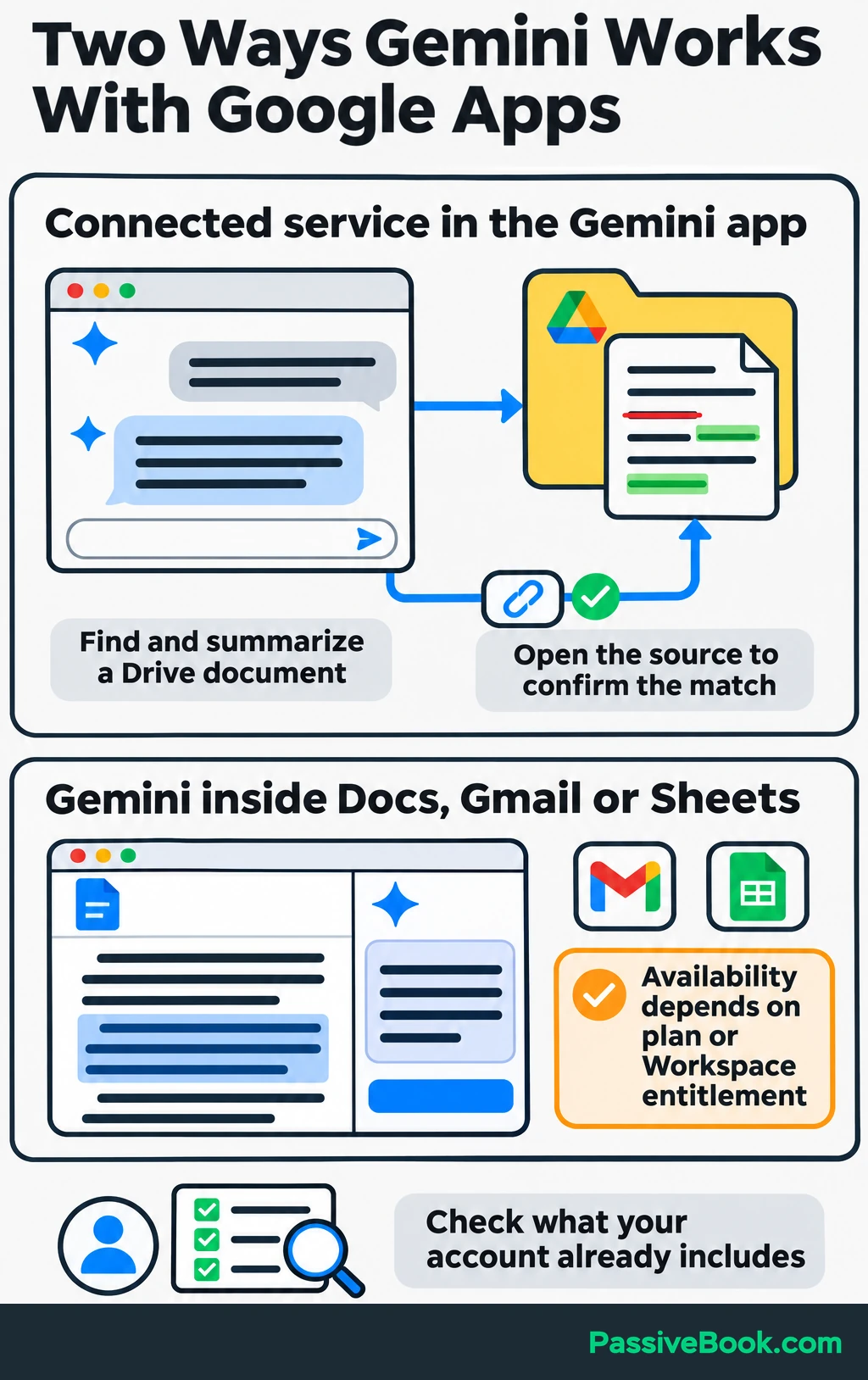
Find the document titled “Sewing Planner Revision Notes” in Drive. Summarize the requested changes and link the source.
Use a document title or content keywords rather than pasting its URL. Open the returned document to confirm Gemini found the right file.
The Google Workspace connection requires Keep Activity to be on and Gmail’s Smart features in other Google products setting to be enabled. Work and school accounts also need administrator-enabled access to connected apps. Google lists these connection requirements here.
After reviewing the notes, you could request a concrete action:
Add a 30-minute sewing-planner review to Google Calendar on [date] at [time and time zone].
Open Calendar and check the date, time and duration.
Also distinguish two capabilities before paying: asking the Gemini app to retrieve a document from Drive is separate from having Gemini assistance inside Docs, Gmail or Sheets. Those in-app features depend on your plan or Workspace entitlement. Check what your existing account includes before buying another subscription.
I would connect one service for one recurring task first. If you rarely need it, you can disconnect it.
Use Gemini on Your Phone
Install Google’s official Gemini app from Google Play or Apple’s App Store and sign in. If it isn’t available, check support for your device, country, language and account.
For a quick request, type or tap the microphone to dictate. You could speak rough notes about the planner revision, then ask:
Turn these notes into an ordered revision checklist. Separate definite changes from questions I still need to answer.
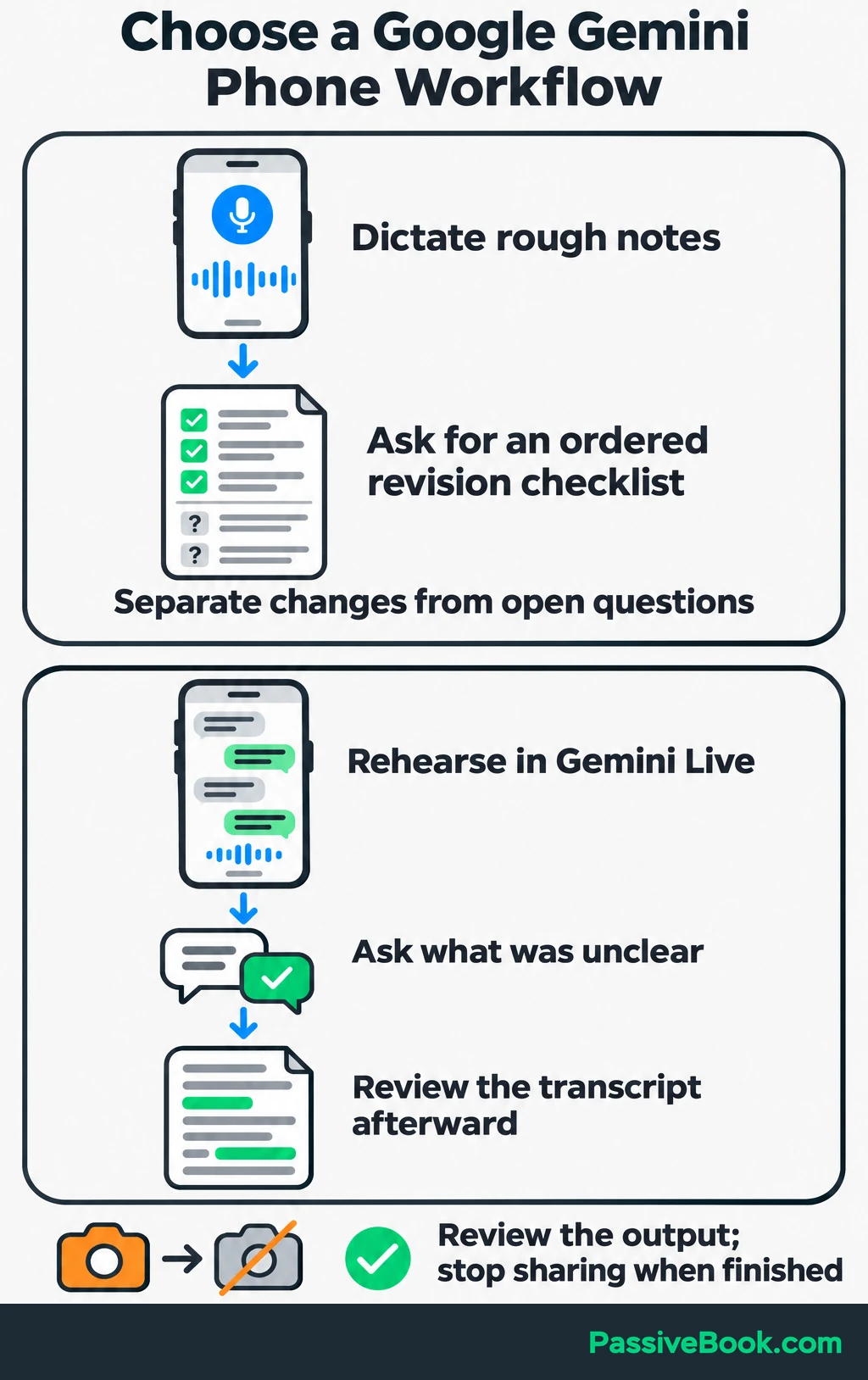
Review the text before copying it into your working document. Dictation is useful precisely because your notes don’t have to arrive neatly organized.
For a spoken conversation, open Gemini Live. You can interrupt, add details and ask follow-up questions. Try rehearsing a short explanation of the planner, then ask Gemini which parts were unclear.
End the session and review its transcript for useful wording. Camera and screen sharing can add visual context, but stop sharing when finished. These features are available on supported Android and iOS devices. Google explains Gemini Live here.
On Android, you can also use Gemini as your mobile assistant. Set the Google app as the default digital assistant and complete Gemini’s setup. Use your device’s activation gesture or enable Hey Google and Voice Match where supported.
I would start with dictating notes. It’s a small change you can test without reorganizing how you use your phone.
Do You Need a Paid Gemini Plan?
Start free. Image generation, Deep Research, Canvas and Gemini Live are included in free access, subject to eligibility and usage limits.
Here’s the compact personal-plan comparison:
| Personal plan | U.S. monthly list price | Relevant benefit | Reason to upgrade |
|---|---|---|---|
| Free | $0 | Access to the core workflows in this guide | Stay here while learning and testing recurring tasks |
| Google AI Plus | $4.99 | More usage access than Free | Free limits regularly interrupt useful work |
| Google AI Pro | $19.99 | Advanced models and higher usage access | Your established workflow needs the extra capability or capacity |
| Google AI Ultra | Starting at $99.99 | Highest access and additional advanced features | You have a specific, frequent need that justifies the cost |
Check Google’s plan comparison for current local pricing and included benefits before subscribing.
I would skip Ultra while learning. An expensive plan is a poor substitute for knowing what you want the tool to finish.
Paid access still has limits. Google says usage depends on prompt complexity, the models and features used, and conversation length. Its usage-limit explanation covers those factors.
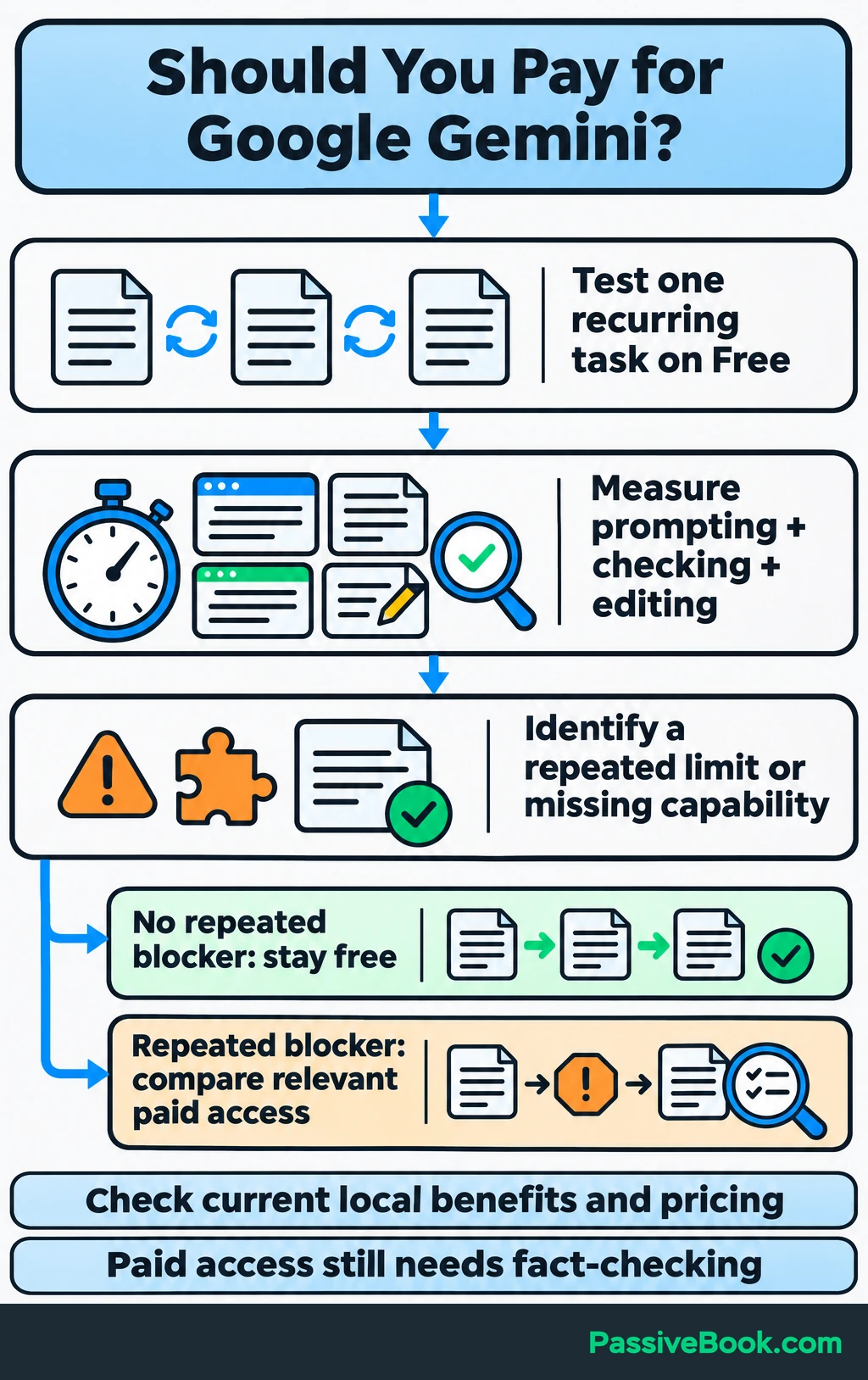
Before upgrading, test one recurring task across a few repetitions. Record the total time from starting the request to approving the finished work, including prompting, checking and editing.
For example, evaluate your weekly research brief by asking:
- Did it answer the question you needed answered?
- How much checking and rewriting did it require?
- Was completing it easier than your usual process?
- Did a usage limit actually block you?
Keep the prompt and inputs when the result earns its place. Upgrade when you can name the limit or missing capability that repeatedly gets in your way. A subscription doesn’t guarantee accurate output.
What Next?
Open Gemini and give it one small task from your actual workload, using nonconfidential material. Ask for a specific revision, check the result and save the prompt if it helps.
Use the social buttons to share this guide when a practical first task would make an AI discussion more useful than another feature list.
Which recurring task would make Gemini worth keeping in your workflow? Tell me in the comments, and bring any other questions about getting started.
Share this post with your friends & followers:

