You have notes for an article, a welcome email to write, and a spreadsheet you keep putting off. Claude looks useful for all three, but a vague request can leave you with polished words that still need an evening of repair.
Claude is my primary AI for long-form writing and content strategy, and I still have to judge what deserves to leave the chat. To reduce that repair work, this guide walks through a complete welcome-email example, then shows how Claude’s file uploads and Projects can support other tasks you need to repeat.
Create Your Account and Start a Chat
Claude is Anthropic’s conversational AI assistant. You describe a task, give it the information it needs, and review what comes back. You can use it to draft, plan, summarize, and analyze material without programming.
Visit Claude, follow the signup prompts, and start on Free. A browser is enough for this walkthrough. There’s no need to install an app before you know whether the tool helps.
You must be at least 18 and in a supported location. If signup is unavailable, check Anthropic’s access requirements.
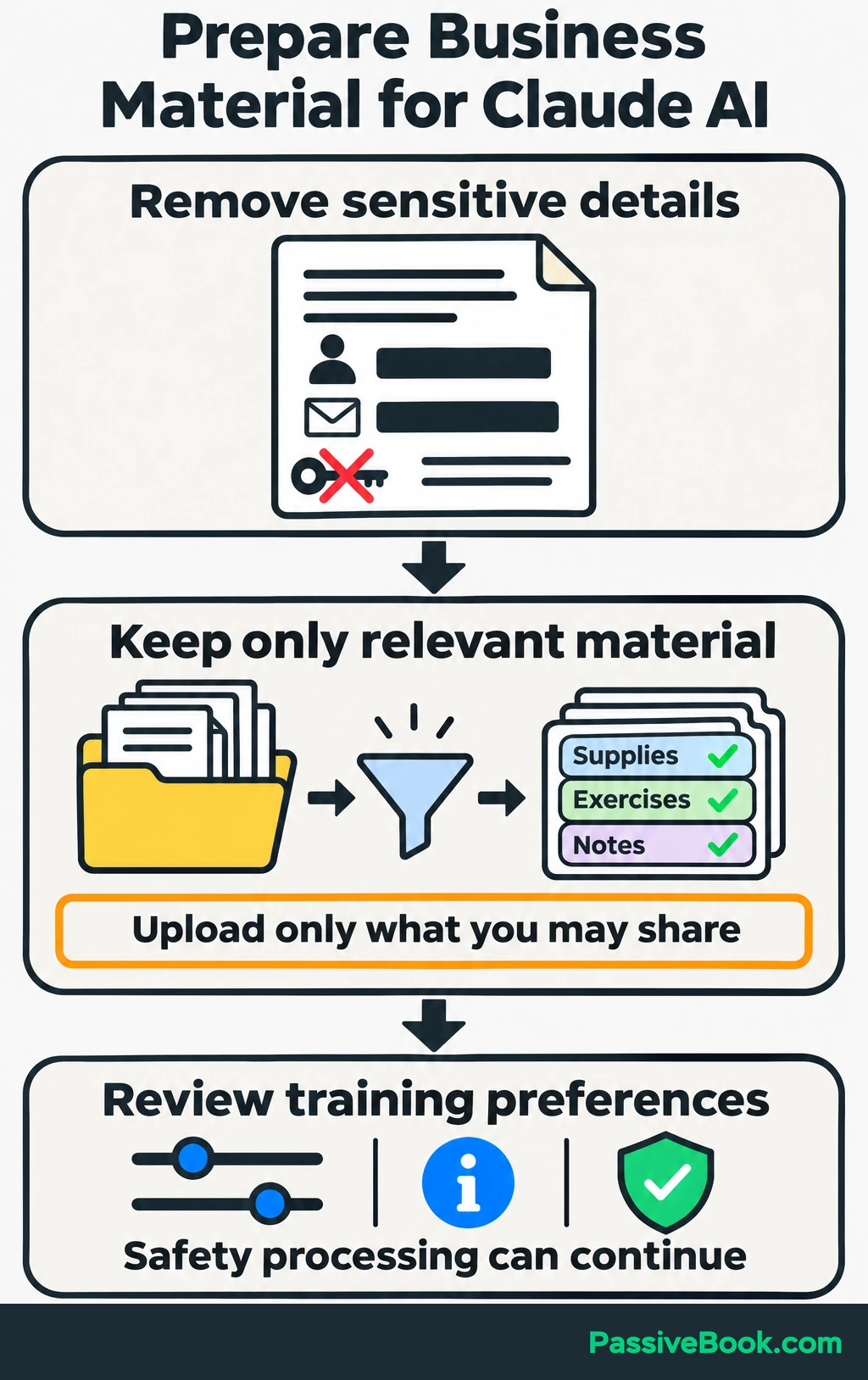
Before pasting business material into a chat, remove customer names, email addresses, passwords, payment details, and confidential information you don’t have permission to upload. Give Claude the material needed for the task, rather than your entire business folder.
Also review whether your conversations can be used to improve its models. In your privacy settings, look for “Help Improve our AI models.” Turning this off excludes new chats from future general model training, but safety-related processing can continue. Anthropic explains the privacy control here.
To begin:
- Open a new chat.
- Type your request in the message box and send it.
- Read the response, then add a related follow-up in the same conversation.
You can return to saved chats to resume work. Give useful conversations clear names so you can find them later.
Throughout this guide, imagine you run a watercolor sketching blog and offer a printable practice planner. It has three sections: supplies, exercises, and notes. This is an illustrative business, separate from my own experience.
Write a Prompt That Defines the Result
Give Claude a Task, Context, and Output Format
A prompt is simply your instruction to Claude. You don’t need special commands, but you do need to explain what a successful answer should contain.
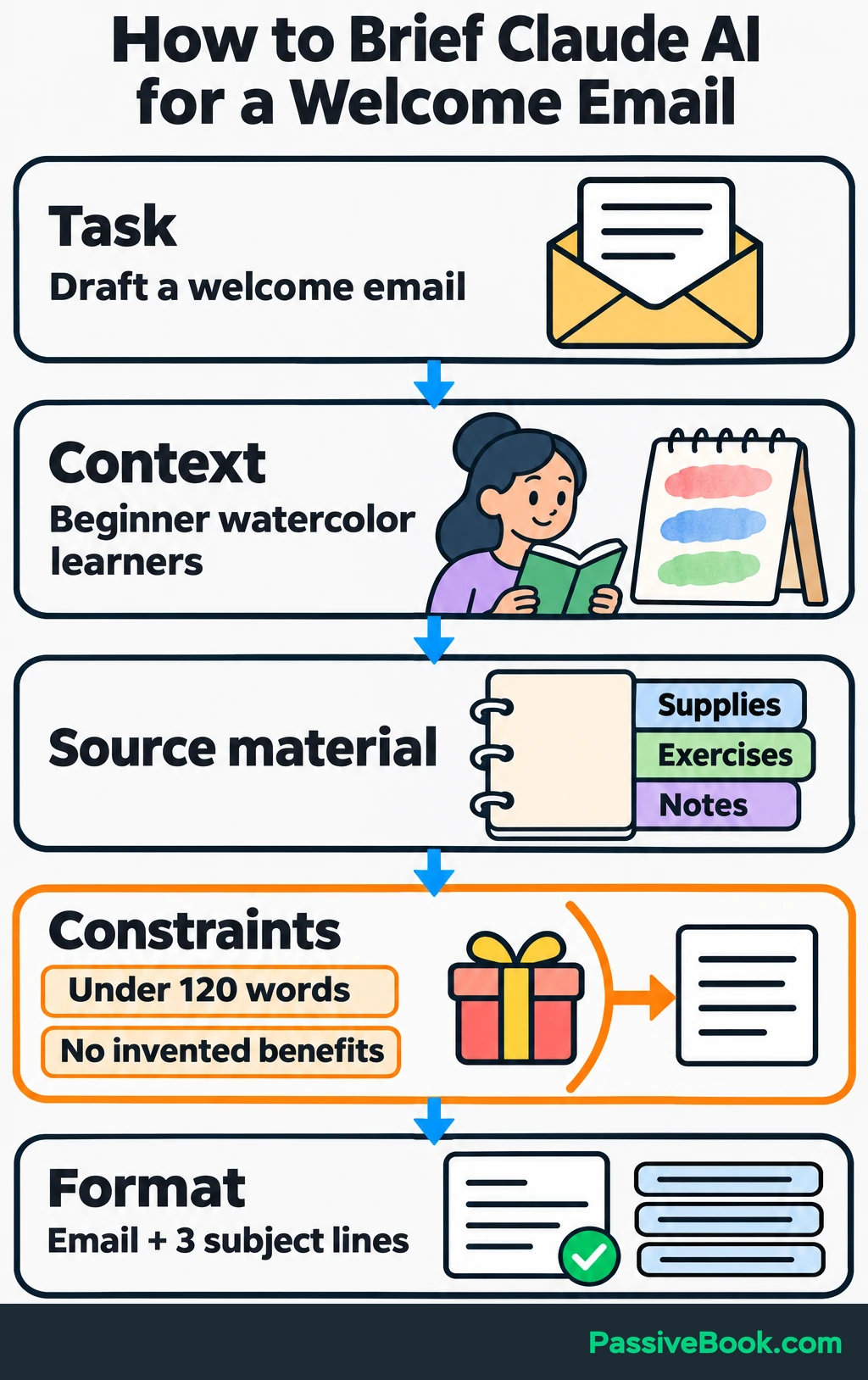
When learning how to use Claude AI, I would focus on these five parts:
- Task: What should Claude produce or help you decide?
- Context: Who is it for, and what situation should it address?
- Source Material: Which notes, facts, or files should it use?
- Constraints: What must it include, avoid, or leave unresolved?
- Format: Should the result be an email, checklist, table, or outline?
For a small task, these can fit into one paragraph. You don’t need to fill out a form every time you want a sentence rewritten.
Try this prompt:
I run a watercolor sketching blog for beginners. My printable practice planner has sections for supplies, exercises, and notes. Draft a welcome email for someone who downloaded it. Use a friendly, practical tone, keep the email under 120 words, provide three subject lines separately, and end by asking what they want to paint next. Use only these product details and don’t invent extra resources or benefits.
Here’s a complete sample you could adapt for that example.
Subject line options:
- Your watercolor practice starts here
- A small plan for your next painting session
- Put your practice planner to work
Email:
Hi,
Thanks for downloading the watercolor practice planner.
For your next session, use the supplies section to list what you need, choose one exercise, and leave yourself a note about what you tried.
You don’t need to fill every space before picking up a brush. Start with one small subject and use the notes section to record what you’d change next time.
What would you like to paint next?
The prompt gives Claude enough information to write that email without guessing what the planner includes. Replace the business context, product facts, and format with your own.
When the answer depends on information you haven’t supplied, add:
Before recommending anything, identify the missing information that could change your answer and ask me for it.
For style, a short passage you like is often more useful than a pile of adjectives. Supply a sample you own and explain what to follow, such as its direct opening or short paragraphs.
Start with the default model and settings. Learn to give a clear brief before spending time adjusting advanced controls.
Review and Refine the Response
Read the answer beside your original request. A smooth paragraph can still miss the assignment.
For the welcome email, check whether it:
- Mentions the planner’s three sections correctly.
- Stays within the requested length.
- Sounds like something you would send.
- Ends with the requested question.
- Adds any features, promises, or product details you didn’t provide.
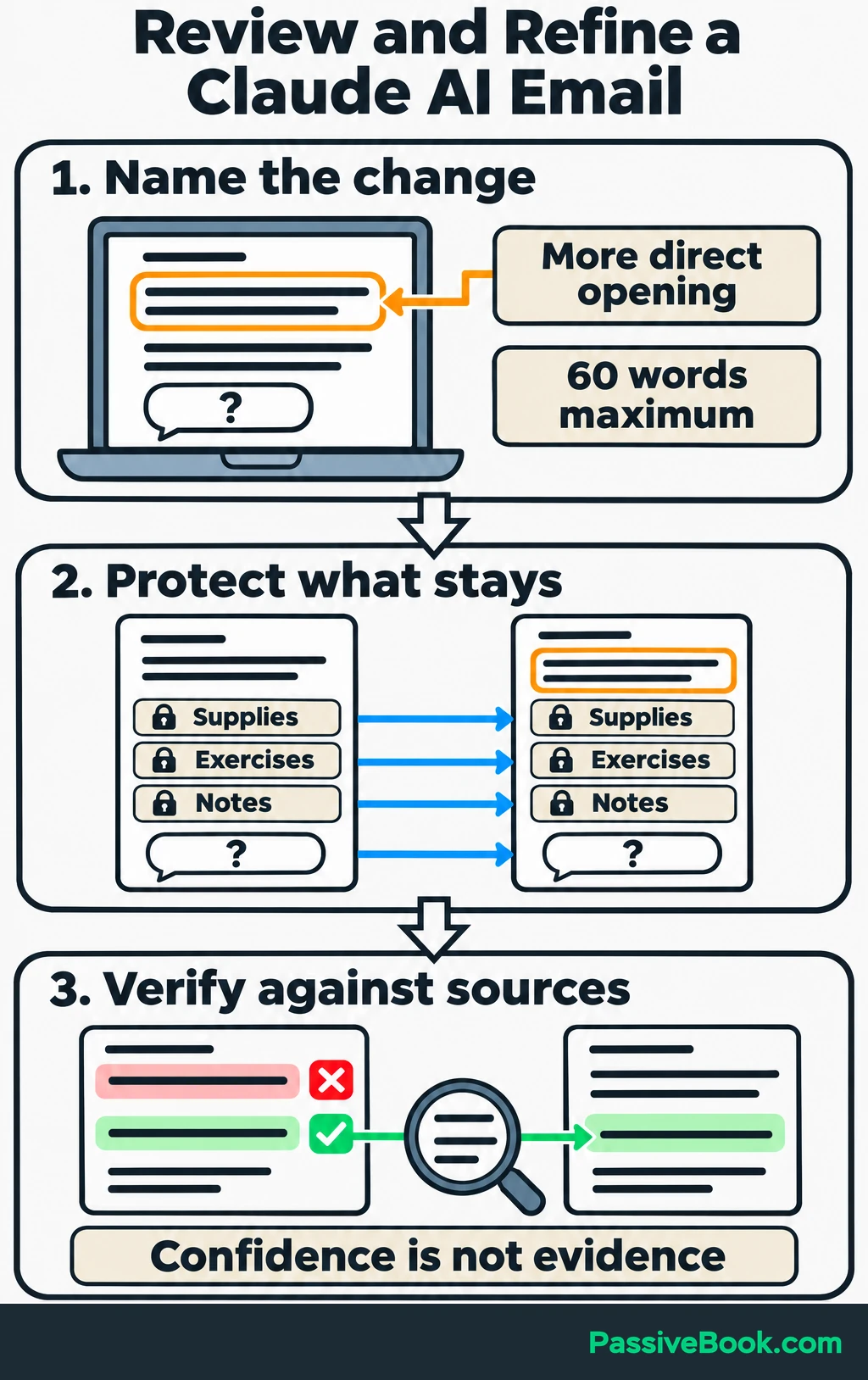
Then request a specific change:
Shorten the email to no more than 60 words. Keep the supplies, exercises, and notes sections, and make the opening more direct. Preserve the final question.
“Make it better” leaves Claude to choose what better means. Naming the change and what to preserve gives you more control.
I learned this while revising long drafts. I would ask for a stronger opening, then find that a useful example farther down had been rewritten too. Now I identify the passage that needs work and name the material I want preserved. That keeps a local edit from becoming another full review.
Facts need a separate check. Claude can produce convincing errors and quotations that aren’t grounded in a real source. Verify claims, quotes, and citations against the original material before using them. Asking Claude whether it is sure doesn’t establish accuracy. Anthropic describes these misleading responses and their limits.
If one request keeps failing, reduce its scope. Ask for the outline before the draft, or the findings before the recommendations. Start a fresh chat for an unrelated assignment and bring the brief it needs.
Give Claude the Source Material It Needs
Upload Documents, Images, and Spreadsheets
Attach the material Claude should work from, then explain what to do with it. Drag a file into the chat or use the attachment button.
A file alone isn’t an assignment. “Review this” might produce a summary when you needed a list of unclear instructions.
For the watercolor planner, try:
Review this practice planner PDF. Group its contents by purpose, identify duplicates, and flag unclear wording. Use only the uploaded document. For each finding, give the page number shown in a PDF viewer and suggest a specific correction.
Claude supports documents such as PDF, DOCX, and CSV, along with common image formats. For non-PDF documents, embedded images aren’t read as part of the text extraction, so upload charts or photographs separately. For visual analysis of a PDF, provide the relevant material in a file of 100 pages or fewer. Anthropic’s upload documentation explains these distinctions.
For an image, say what you want assessed. A photograph of the planner could support a request to identify hard-to-read text or crowded sections. It won’t tell Claude whether people enjoy using the product.
With spreadsheet data, explain the columns, units, and reporting period before asking for calculations.
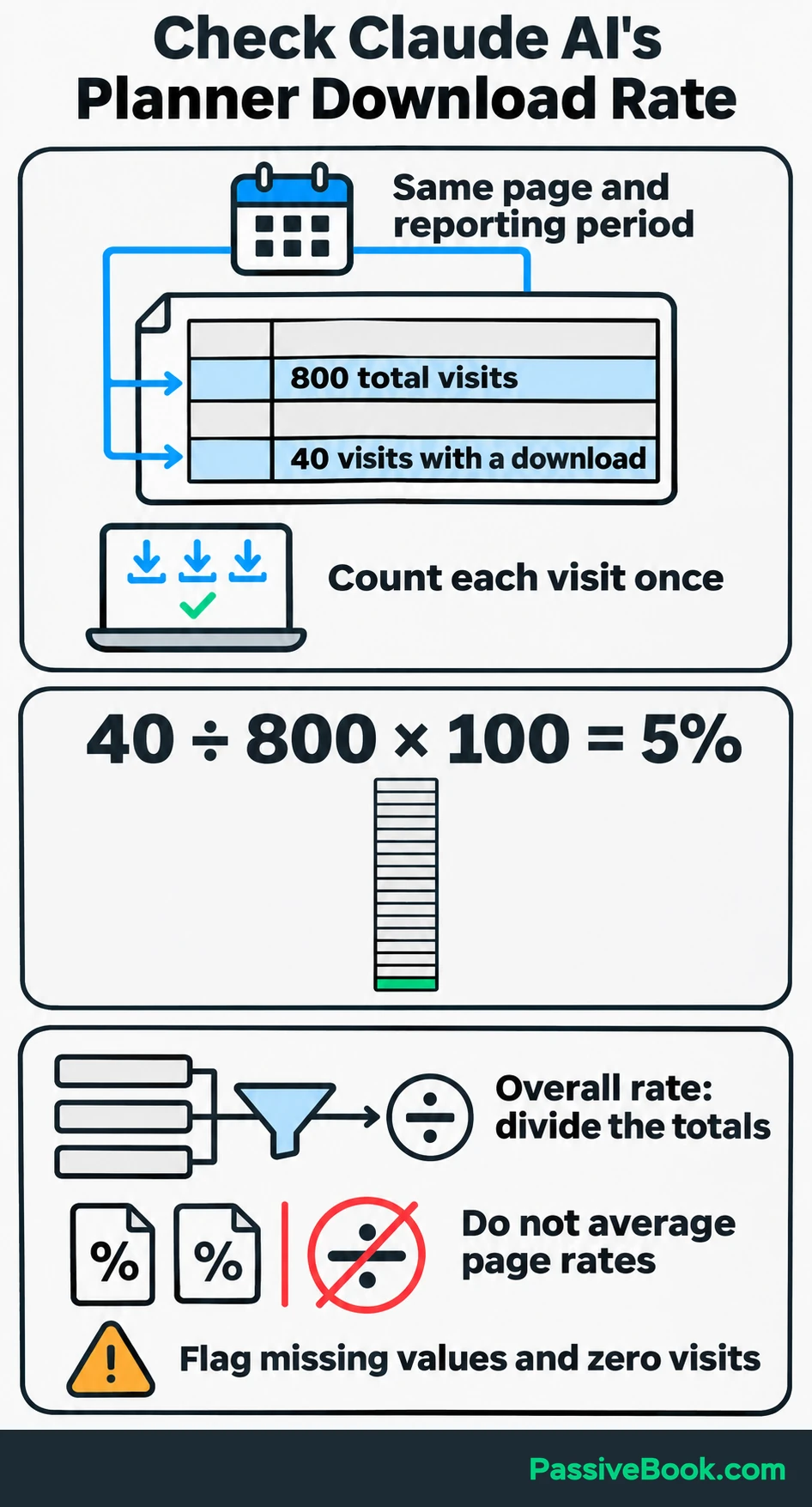
Suppose you want to know what percentage of visits to a planner page include a download. Count each visit once, even if someone downloads the planner more than once during it. Both counts must cover the same page and reporting period.
Your anonymized CSV could contain page address, total visits, and visits with at least one completed download. Then ask:
Calculate planner-download rate for each page as visits with at least one completed download divided by total visits, expressed as a percentage. Show the input counts and calculation. Flag missing values and zero visits rather than guessing.
For illustration, if 40 of 800 visits included a completed download, the rate is:
40 ÷ 800 × 100 = 5%
Check one row yourself and compare the totals with your original export. If you need an overall rate across these pages, divide total visits with a download by total visits rather than averaging the page percentages.
Use Web Search for Current Information
Use web search when the answer depends on something that changes, such as an event date, product availability, fee, or booking policy.
Claude’s web search is available on Free and can provide citations. Ask explicitly for a search, then look for the search activity and source links. If your chat offers a “Web search” option, enable it. Some versions handle search automatically. Anthropic explains how web search works.
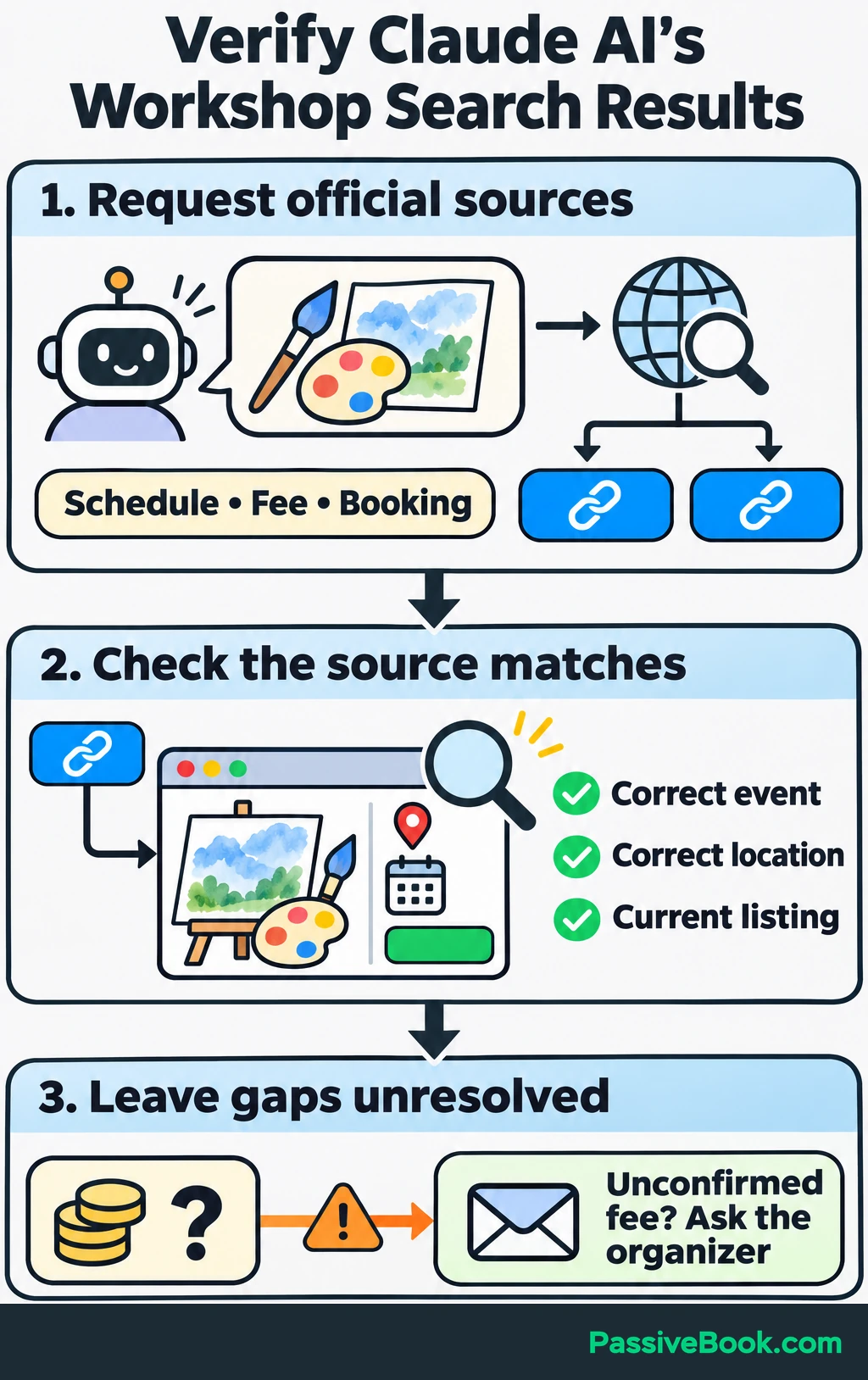
For the watercolor blog, you might ask:
Search the organizer’s official page for [workshop name and location]. Find the upcoming date, fee, and booking requirements. Link the source for each answer and list anything the organizer hasn’t confirmed.
Open the official page before adding the details to an article. Check that Claude found the correct workshop, location, and event year. A real source can still support the wrong event.
If the page can’t be accessed, supply an excerpt you have permission to use or ask the organizer directly. Leave an unconfirmed fee unresolved.
I would skip web search when you only want an edit based on your own approved notes. It adds little to a request to shorten a paragraph and can bring in material you never asked to include.
Turn Approved Work Into Artifacts and Files
An Artifact is a deliverable that opens beside the conversation, where you can inspect and revise it. This is useful when you want to work on a document rather than keep scrolling through chat messages.
Artifacts are available on Free. If file creation is off, turn on “Create and edit files” in Settings before asking Claude to make one. Document Artifacts can also be exported to formats such as Word and PDF. Anthropic’s Artifact guide covers availability and export options.
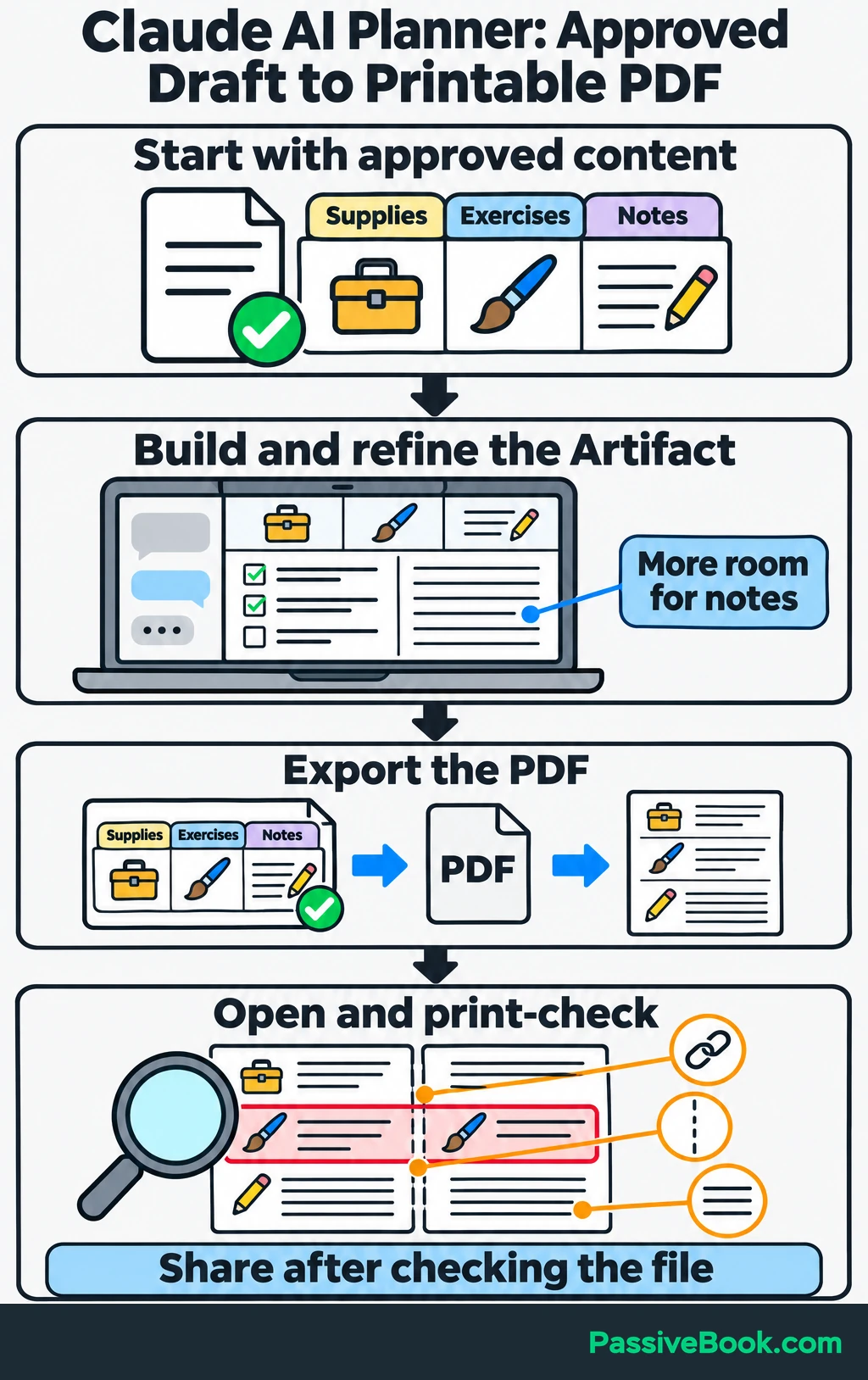
Start with approved content, then ask:
Turn the approved practice planner into a document Artifact. Keep the sections for supplies, exercises, and notes. Add checkboxes beside preparation tasks and space to record what I would change next time. Don’t add new painting advice.
Inspect the result and request a focused revision:
Give the notes section more writing space and keep each exercise with its related instructions on the same page.
When you need a download, name the format:
Create a printable PDF of the approved planner. Use a simple layout that is readable in black and white.
Open the exported file before sharing it. Check page breaks, missing text, links, and whether there is enough room to write. For a spreadsheet, check formulas too.
A document can look tidy in the preview and become awkward on paper. Print one copy if printing is the point of the product.
Use Projects for Recurring Work
Use a regular chat for a self-contained task. Use a Project when several assignments repeatedly need the same background.
Projects hold reusable instructions and reference material, and they’re available on Free. Anthropic explains their purpose and availability here.
To create one, open “Projects” in the sidebar and select “+ New Project.” Give it a name and description, then use the “+” button on the project page to upload reference files.
For the watercolor blog, add:
- Business Brief: Who the blog helps, what it offers, and what it doesn’t promise.
- Product Reference: The approved planner and its confirmed contents.
- Writing Samples: A few passages that show the voice you want.
- Approved Facts: Details later drafts should use consistently.
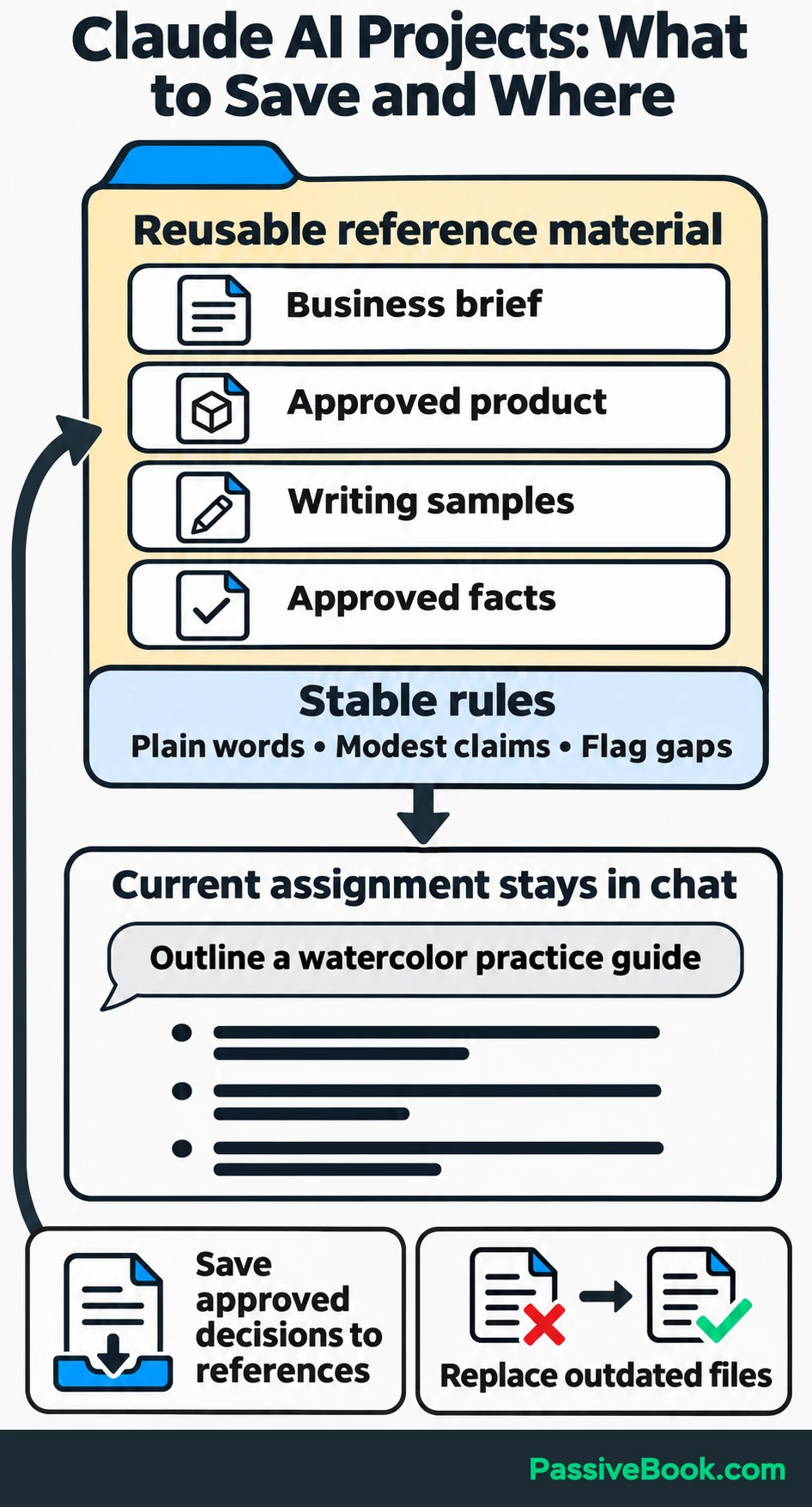
Put stable requirements in the Project’s instructions. Keep the current assignment in the chat.
For example, your instructions might say:
Write for beginner watercolor learners. Use plain words and practical explanations. Describe the planner only from the approved product reference. Flag missing facts instead of filling them in. Keep promotional claims modest.
The chat request can then focus on the immediate job:
Outline an article about preparing for a short watercolor practice session.
Don’t assume a decision buried in one conversation will reliably guide every later task. Save important approved decisions in the Project’s reference material.
Version names help here. “Practice Planner — Approved Version” is easier to trust than three files called “final.” Remove or replace outdated material so Claude isn’t choosing between conflicting instructions.
I would keep this small at first. One clean brief and one approved product file are more useful than a folder full of unfinished drafts.
Build a Workflow You Can Repeat
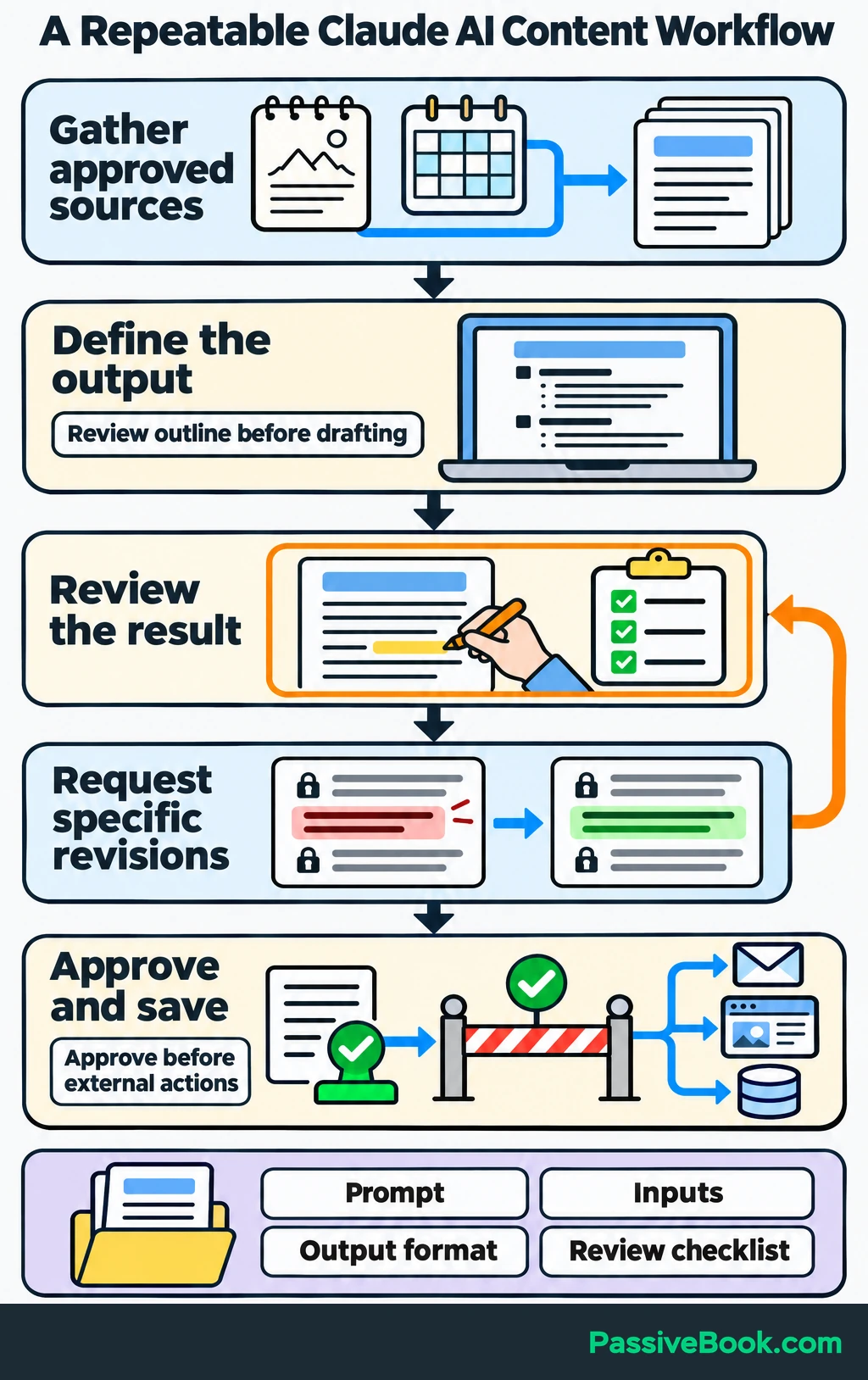
Choose one recurring task with an output you can inspect. For a first workflow, I would pick an article outline or content adaptation rather than automatic publishing.
Write down the sequence before adding tools:
- Gather the source material.
- Request a defined output.
- Review it against a short checklist.
- Ask for specific revisions.
- Approve and save the finished version.
For the watercolor blog, begin with approved sketching notes and the planner:
Create an outline for a guide to planning a watercolor practice session. Use the attached planner’s supplies, exercises, and notes sections. Base the outline on my uploaded notes and identify any additional facts the draft would need.
Review the outline before requesting the draft. If the structure is wrong, fixing it now is easier than repairing a finished article.
Once you approve the draft, ask:
Adapt this approved guide into a newsletter excerpt and three Pinterest descriptions. Keep the advice consistent with the guide and direct readers to the practice planner. Don’t add claims or instructions.
The outline, article, and adaptations now share the same approved source. You’re not asking Claude to invent a fresh version of the business with every request.
If you’d rather not build your first workflow from scratch, the library below gives you prompts, worked examples, and review criteria for recurring business tasks. Pick one and use material you already have.

Free AI Business Workflow Library




Save four things after a successful run:
- Prompt: The instruction that produced useful work.
- Inputs: The files and facts required before starting.
- Output Format: The structure you expect back.
- Review Checklist: The checks needed before approval.
If you make the same correction repeatedly, update the saved prompt or reference material. Repeating the correction forever is a strange hobby.
My own content pipeline brought article production from days to hours, but that result belongs to a wider system I built. It isn’t a promise about opening a Claude account. The useful lesson is to improve a repeatable process, then measure the finished work.
Only add an integration when it removes a specific handoff. A connector lets Claude work with another service, such as finding an approved file in Google Drive. Depending on the connector, it may also be able to change external data. Review its actions and permissions before connecting it. Anthropic explains connector access and capabilities.
Test one narrow request first. Finding the correct planner file is a sensible starting point.
For a workflow spanning several apps, Make and n8n can connect the apps and run steps between them automatically. I would consider Make for a drag-and-drop setup or n8n when I need more control. Neither is necessary for your first useful workflow.
Keep an explicit approval point before sending email, publishing content, or changing external records. Add scheduling or custom automation once the process consistently produces work you would approve.
Decide Whether a Paid Plan Is Worth It
Stay on Free while learning. Upgrade when a recurring usage interruption or a specific paid capability blocks work you already know is useful.
I would start with monthly billing if I were still testing the habit. An annual discount doesn’t help if you stop using the tool. Compare the available features and commitment on Claude’s pricing page.
Higher allowances still have limits. Conversation length, files, model choice, effort settings, and features affect usage. There’s also a difference between using up your allowance and giving one chat too much material to handle. Anthropic explains usage and length limits here.
When you hit a usage limit, check the displayed reset time. Starting another chat won’t reset your account allowance.
For an oversized input or chat-length problem, reduce the material or carry an approved summary and the essential sources into a fresh conversation.
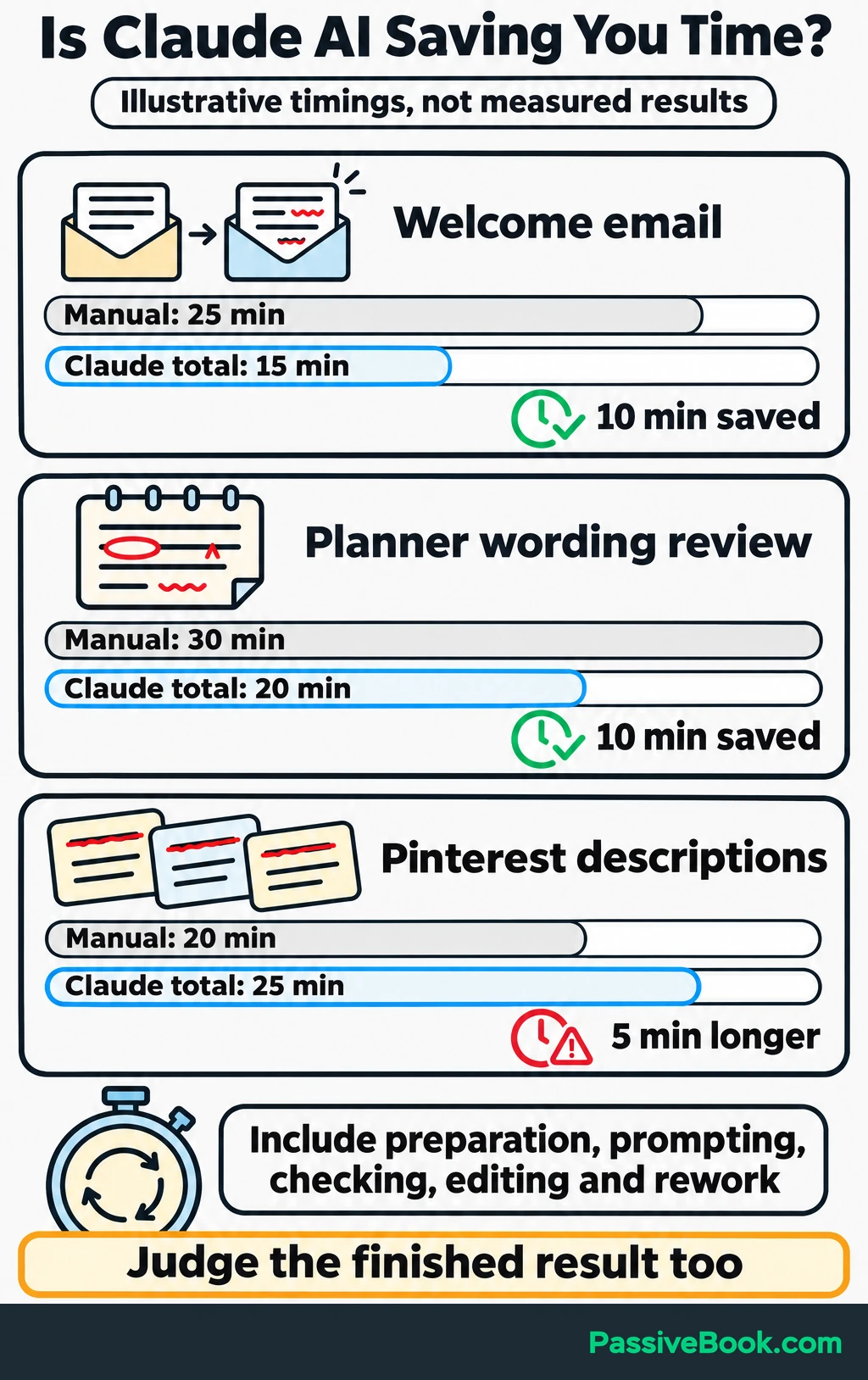
Before paying, compare a few similar tasks with and without Claude. Count preparation, prompting, checking, editing, and rework in the Claude total.
Here’s an illustrative tracking table. These are example timings, not measured results.
| Task | Manual Time | Total Time Using Claude | Corrections Required | Final Usability |
|---|---|---|---|---|
| Welcome email | 25 minutes | 15 minutes | Removed an unsupported benefit | Ready to send after review |
| Planner wording review | 30 minutes | 20 minutes | Checked page references and rejected one suggestion | Approved changes applied |
| Pinterest descriptions | 20 minutes | 25 minutes | Rewrote repetitive openings | Usable, but slower overall |
For the email, you’re comparing the time needed to reach a sendable version in each method:
25 minutes manually − 15 minutes using Claude = 10 minutes saved.
The Pinterest task took five minutes longer with Claude. That belongs in the decision too.
Keep workflows that reduce total effort or improve the finished result enough to justify the extra work. A fast first draft has little value if you spend longer repairing it than writing it yourself.
What Next?
Choose one task you already need to finish and write a prompt with its goal, source material, constraints, and output format. Review the result, make one focused revision, and save the prompt if it earns another use.
Use the social buttons to share this guide when the practical prompts and review checks would make a useful starting point for a conversation about AI.
Which recurring task would make the biggest difference if you could finish it with less effort? Tell me in the comments, and bring any other questions about using Claude too.
Share this post with your friends & followers:

